
You can sell ebooks online in three ways. Use your own WooCommerce store, a creator tool like Gumroad or Payhip, or a marketplace like Amazon KDP. Each route trades fees against control, and the right one depends on whether you already have readers.
We rebuilt this guide in October 2026 and checked the fees and file rules against each platform’s published pages. Then we built a downloadable ebook product on a WooCommerce 11.2 test store and ran test orders from product page to download. Our Pre-Order and Affiliates Pro plugins went through the same store.
Below you get the three routes and a tested store setup with a pre-sale and an affiliate program. You also get the current fees and price rules.
Three Ways to Sell Ebooks Online
The three ways to sell ebooks online are your own store, a creator platform and a marketplace. Your own store gives you full control and puts the setup on you. A creator platform gives you a ready-made store page for a fee, usually a share of each sale.
A marketplace brings buyers but sets the price rules.
Most authors start where the readers already are. If you have an email list or a blog audience, your own store keeps the most of each sale. If you have neither, a marketplace gives you a place to be found.
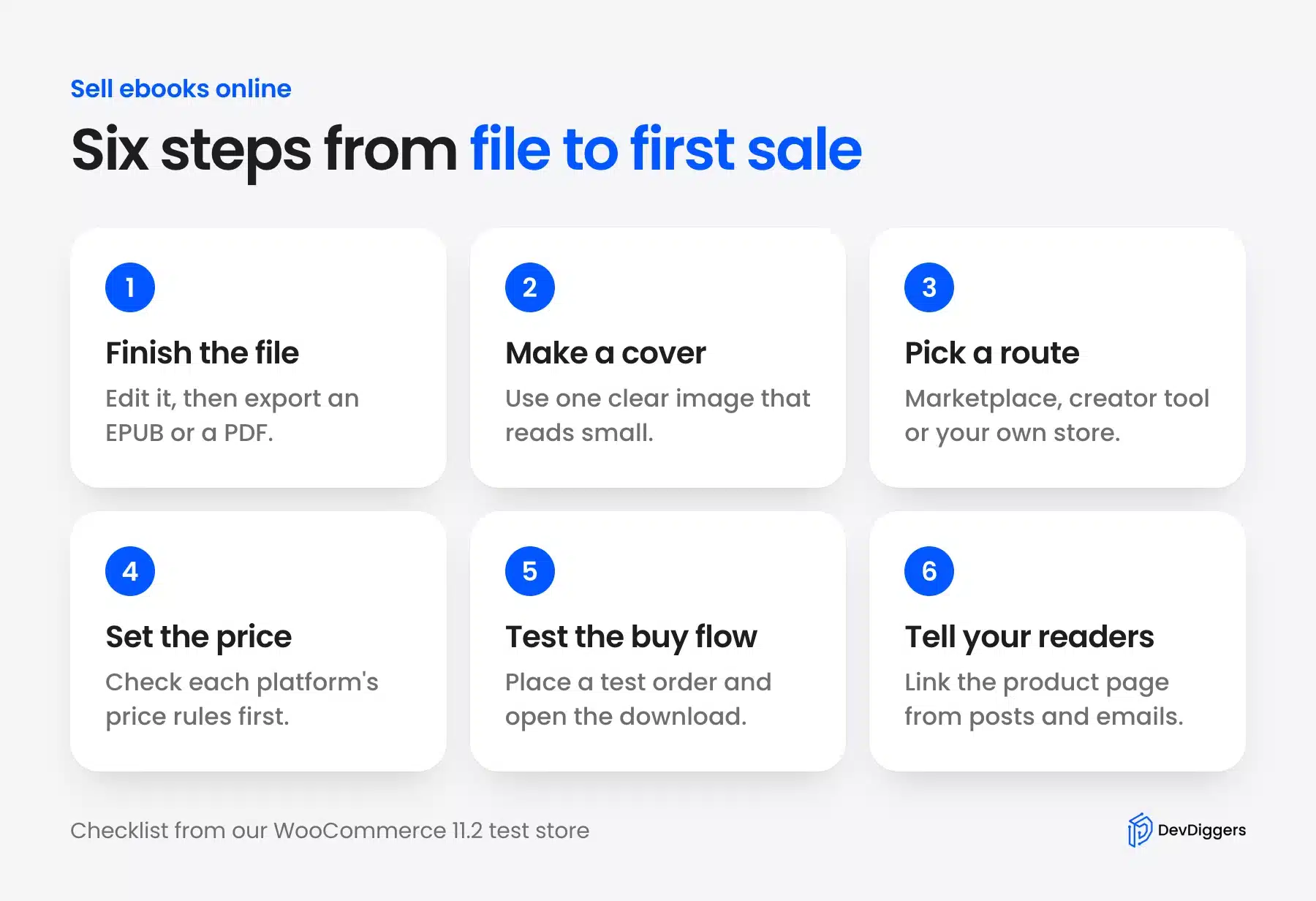
You do not have to pick one for good. You can list a title on a marketplace and sell the same title from your own store. The next sections show how each route works, what it costs and what you must prepare first.
Prepare Your Ebook File and Cover
Prepare two files before you sell anything: the book itself and a cover image. Export the book as an EPUB or a PDF because those two formats cover every route in this guide. Check the cover at thumbnail size before you upload it.
A buyer sees the cover first. The title must stay readable when the image shrinks.
Amazon says what it accepts. For a new Kindle ebook, KDP lists EPUB, KPF or DOC and DOCX files for reflowable books. It ended support for MOBI files for reflowable books on 1 August 2021, and for fixed-layout books on 18 March 2025.
That makes any advice to export a MOBI file for Kindle out of date. Use EPUB for the marketplaces and a PDF for a direct download from your own store. A PDF keeps the layout fixed, while an EPUB reflows to fit a small screen.
Edit the text before you export. Ask one reader who has not seen the draft to read the first chapter.
How to Sell Ebooks Online With WooCommerce
You can sell ebooks on your website with WooCommerce in three steps. Create a downloadable product with your file and check the download settings. Then place a test order and open the download to prove the whole path works for a buyer.
This route gives you the full price minus card fees. It also keeps buyer details in your own store.
The same download method suits music, fonts and PDFs. Our guide to selling music online with WooCommerce uses it too. We ran every step below on a WordPress 7.1.3 test store with WooCommerce 11.2.
Step 1: Create the Ebook Product
Go to Products > Add new product. Enter the title and price.
Tick both Virtual and Downloadable in the Product data panel. Virtual removes shipping fields, and Downloadable opens the file section below the price.
Click Add File, name the file and use Choose file to upload it. WooCommerce’s own guide says to upload files from the product edit page and to avoid the Media Library.
The library is public by URL. We did that and the file landed in the protected woocommerce_uploads folder.
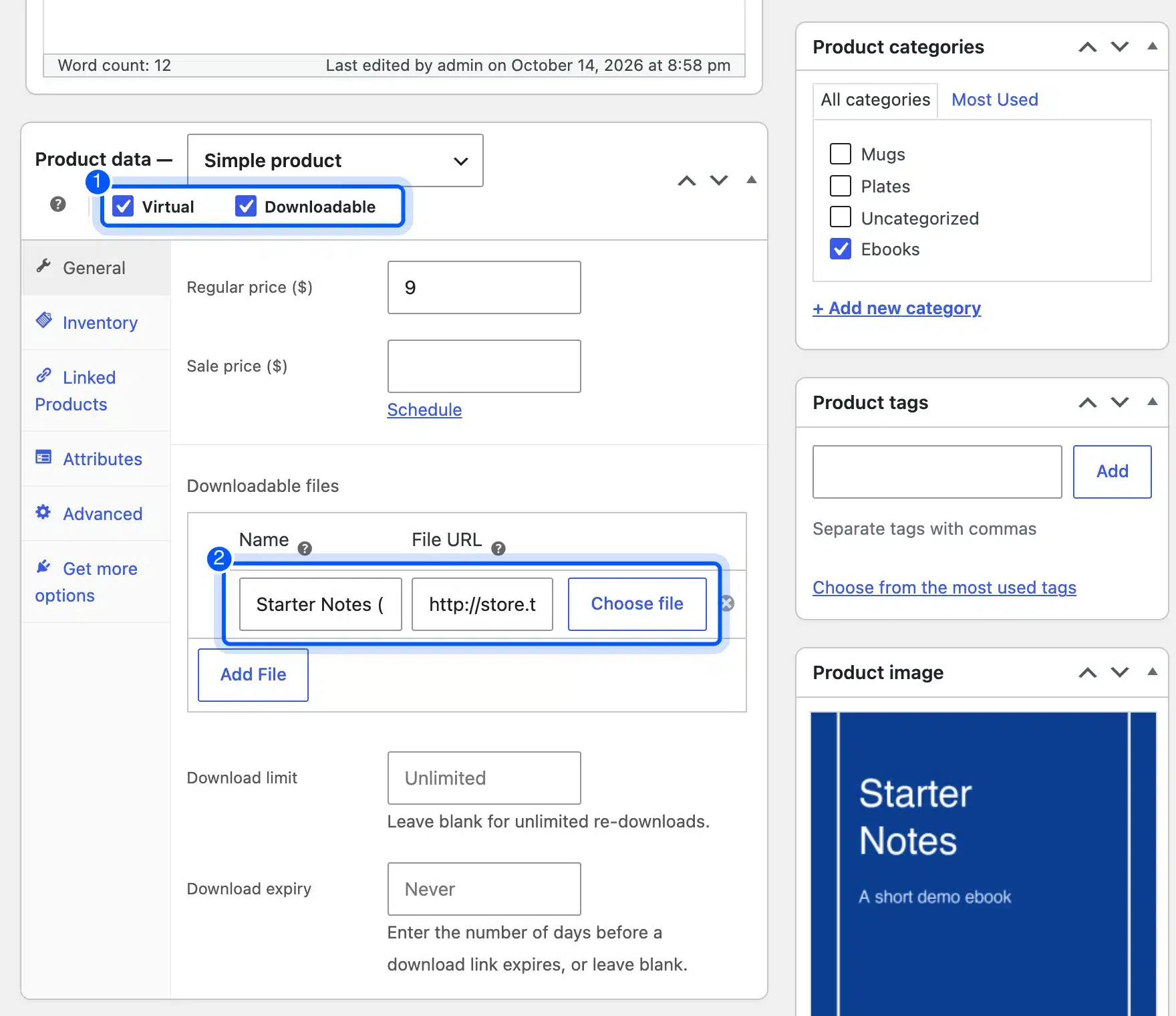
The panel also has Download limit and Download expiry fields. They showed Unlimited and Never by default. Leave them blank for an ebook, since readers re-download after a phone change, or set a limit to slow sharing.
Fonts use the same fields with a limit and expiry set for each license when you sell fonts online with WooCommerce.
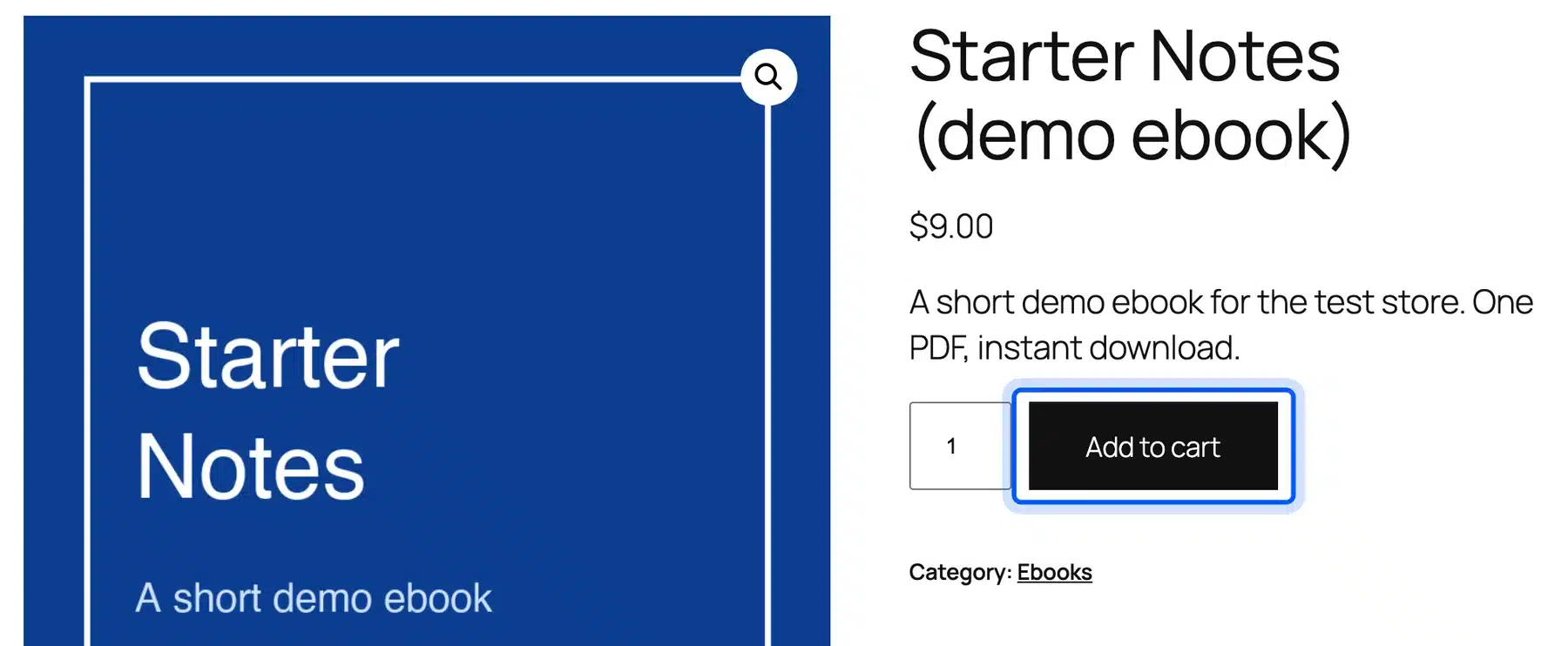
Add a cover as the product image and publish. The page below is what a buyer sees. It is the theme’s default product page, and the Ebooks category came from a category we added.
Step 2: Check the Download Settings
Open WooCommerce > Settings > Products > Downloadable products. Three settings matter for an ebook. They decide how the file is delivered, when access starts and how the file name is protected.
The first is the file download method. The guide says Force downloads makes PHP deliver the file, which stops direct linking. Redirect only is marked insecure there: anyone with the URL can reach the file.
The second is access. Grant access to downloadable products after payment lets a buyer download while the order is Processing and does not wait for Complete.
The third appends a unique string to each file name. The saved URL is then hard to guess.
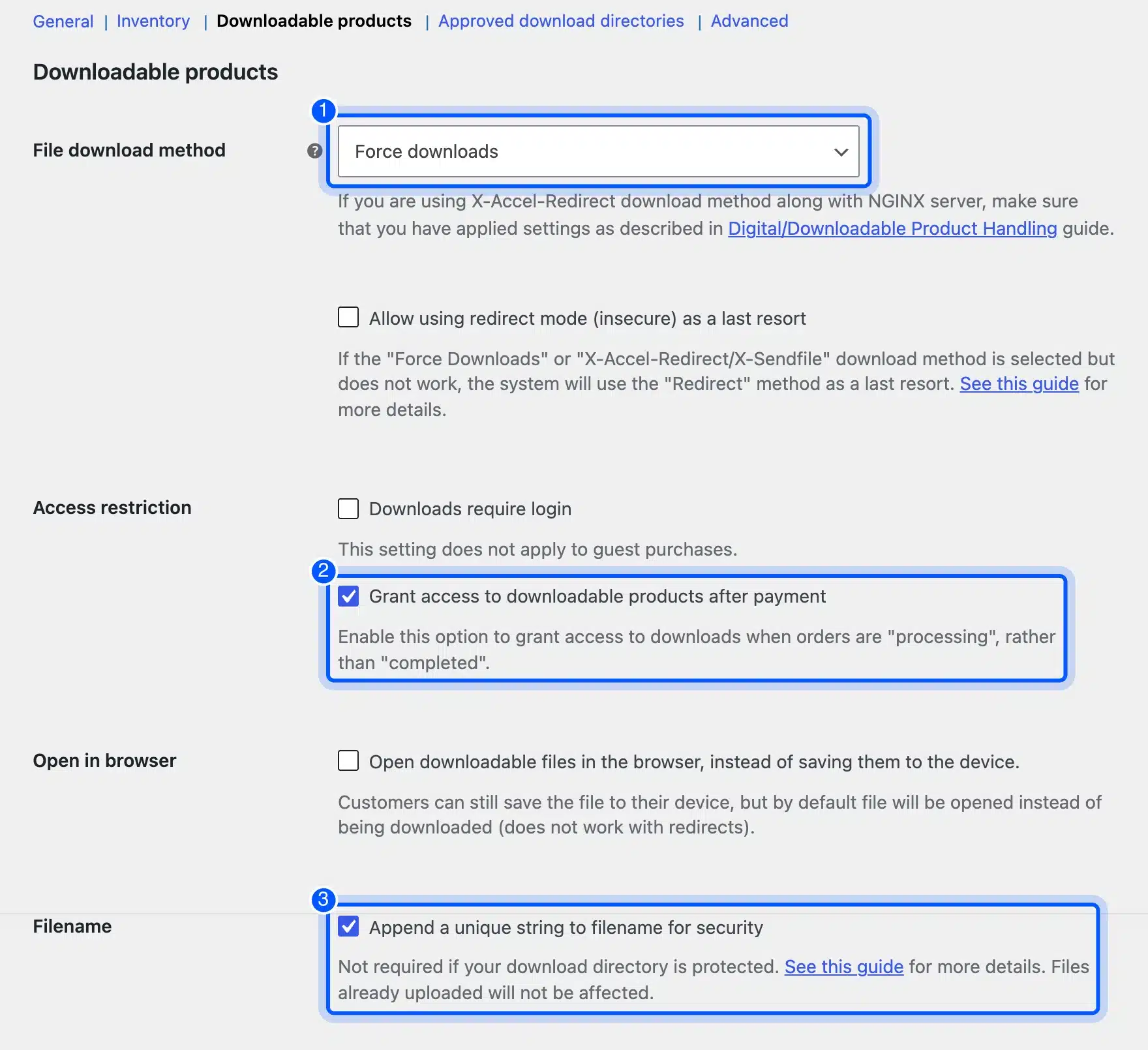
Note: Force downloads can time out on a small server with a large file.
Step 3: Test the Order and the Download
Place a test order as a guest before you share the link. Add the ebook to the cart, check out, and confirm that the order page shows a Downloads table. Then click the link and open the file.
On our test store the payment method was a placeholder. The order started On hold and showed no download.
We then moved it to Processing, the way a paid order would arrive from a real gateway. The Downloads table appeared with unlimited downloads and no expiry.
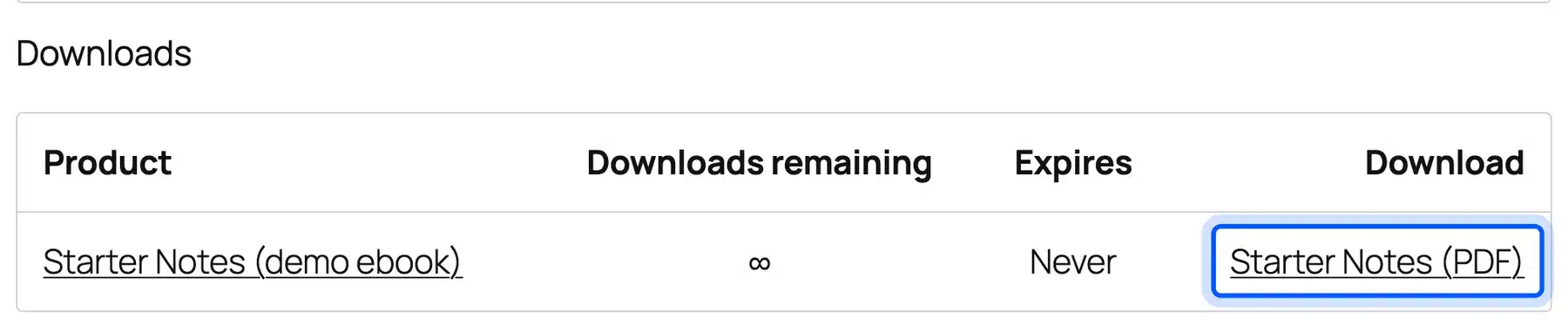
The download link returned our PDF with the right file type, 146,054 bytes. Opening the file’s own address directly returned a 403 error.
The protected folder works. The saved file name carried a random string after “starter-notes”, as the unique filename setting promises.
We did not connect a live payment account. We cannot report a real card payment. Stripe lists a standard US card rate of 2.9% plus 30 cents per charge, which is what a typical card sale costs you.
Add Stripe or PayPal in WooCommerce > Settings > Payments. Then repeat this test with a real small order.
Our guide to adding a downloadable PDF to WordPress covers the same file handling for free handouts.
Sell Your Ebook Before It Is Finished With Pre-Order
You can sell an ebook before launch with our WooCommerce Pre-Order plugin. You add the downloadable product to a pre-order rule with a release date. Buyers pay at checkout and the product page shows a countdown to the day the book is ready.
We tested DevDiggers Pre-Order for WooCommerce Pro 2.0.0 with the free Pre-Order plugin 1.1.0 on our test store. Pro plans run from $79 to $599 a year as of October 2026. The ebook was the Starter Notes PDF from Step 1.
- Install both plugins: Install the free Pre-Order plugin first because Pro needs it. Add the Pro zip under Plugins > Add Plugin > Upload Plugin and activate both. The Pro license goes under DevDiggers Plugins > Pre-Order > Configuration > License, and the setup wizard runs on first open.
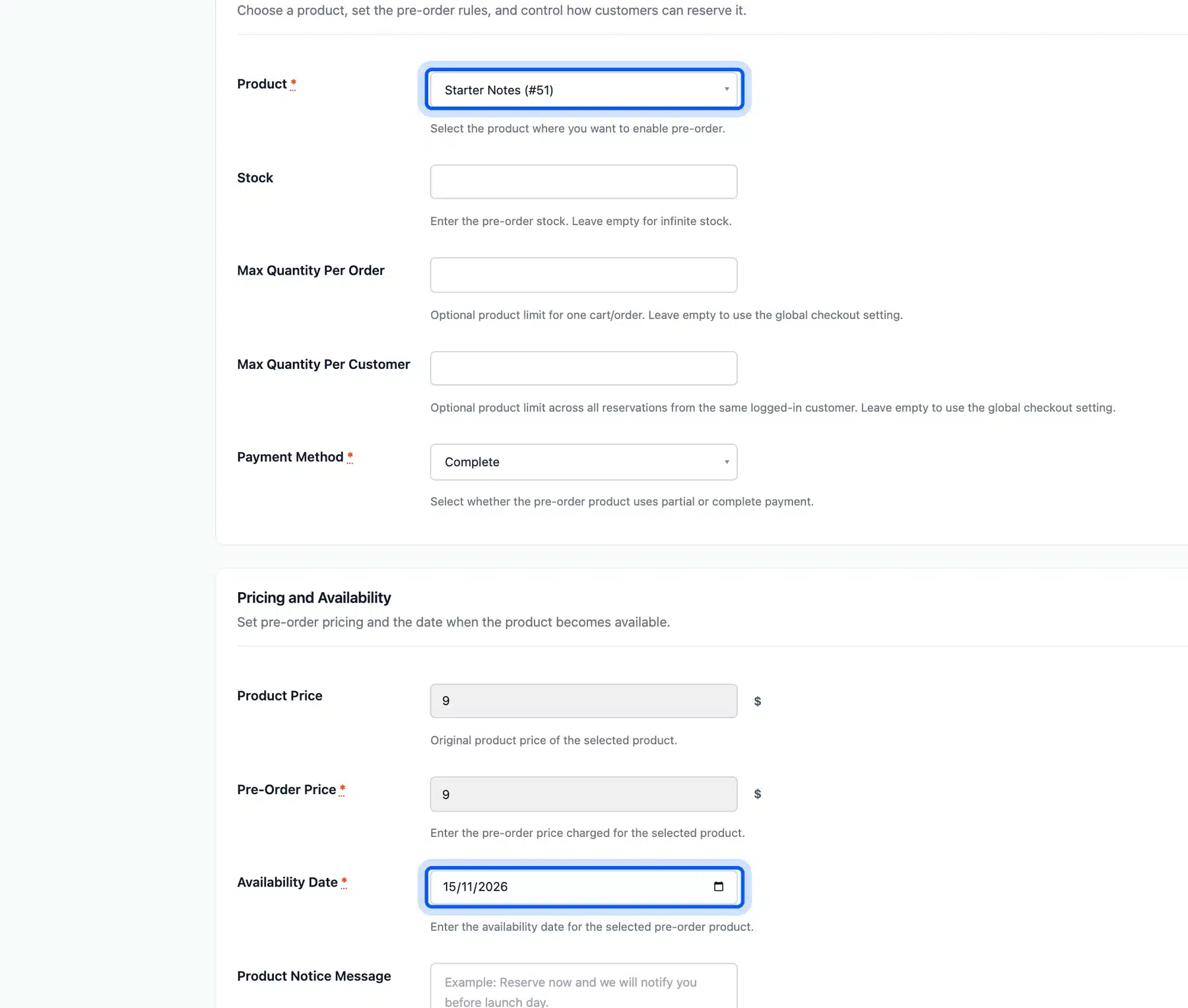
- Add the pre-order rule: Go to DevDiggers Plugins > Pre-Order > Products and click Add New. Search the ebook under Product. Keep Payment Method on Complete so the buyer pays in full. Pick the Availability Date. Click Save.
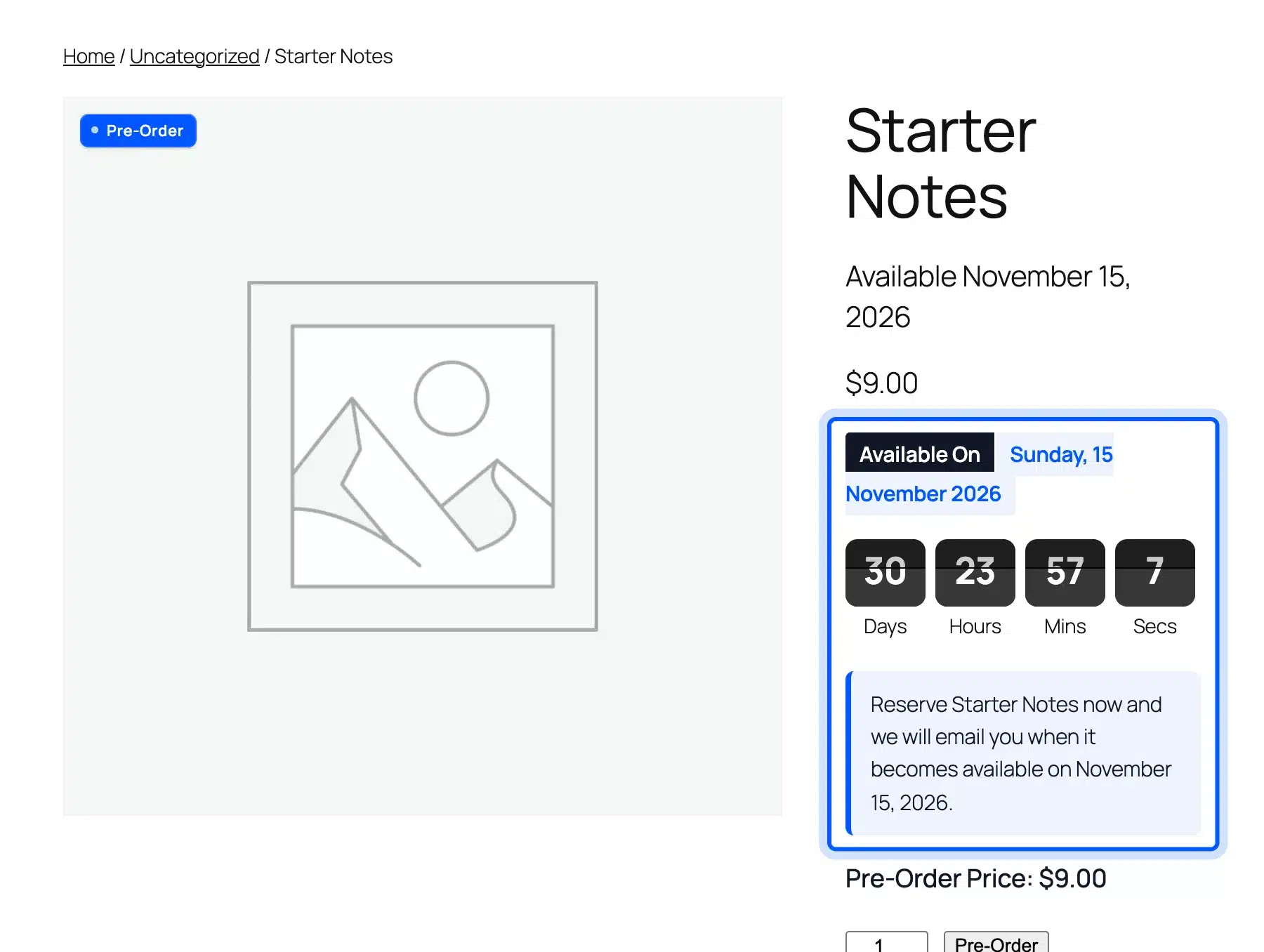
- Check the product page: The page showed a Pre-Order badge and the line “Available November 15, 2026”. A flip countdown showed 30 days. A notice said “Reserve Starter Notes now and we will email you when it becomes available”.
- Place a pre-order: Click the Pre-Order button and check out. The cart line carried “Availability Date: Sunday, 15 November 2026”. The price stayed at $9.00 because the Pre-Order Price field is locked to the product price in Complete payment mode.
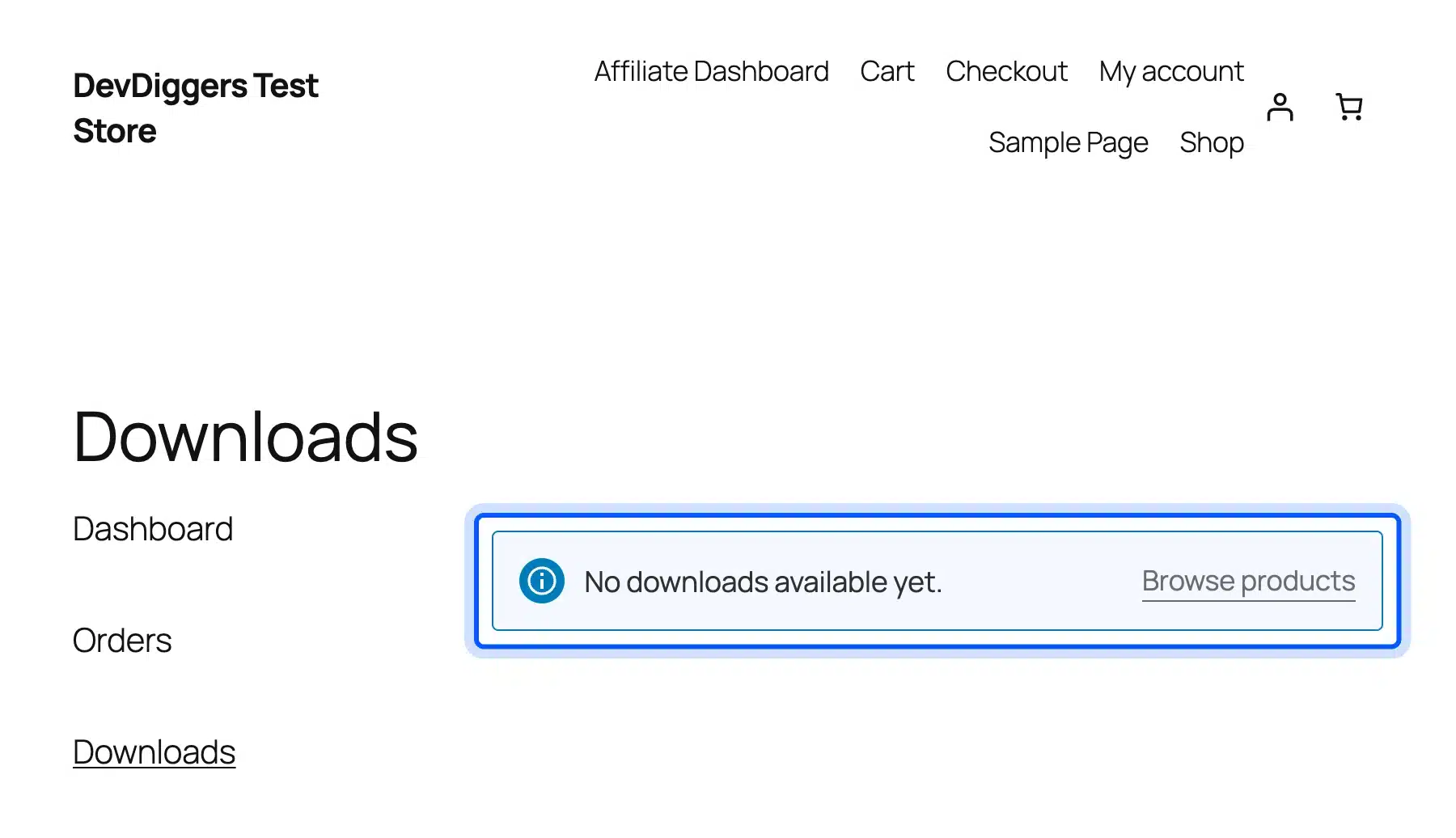
- See what the buyer gets: The order stayed On hold. My Account > Downloads said “No downloads available yet.” The same order also appeared under My Account > My Pre-Orders.
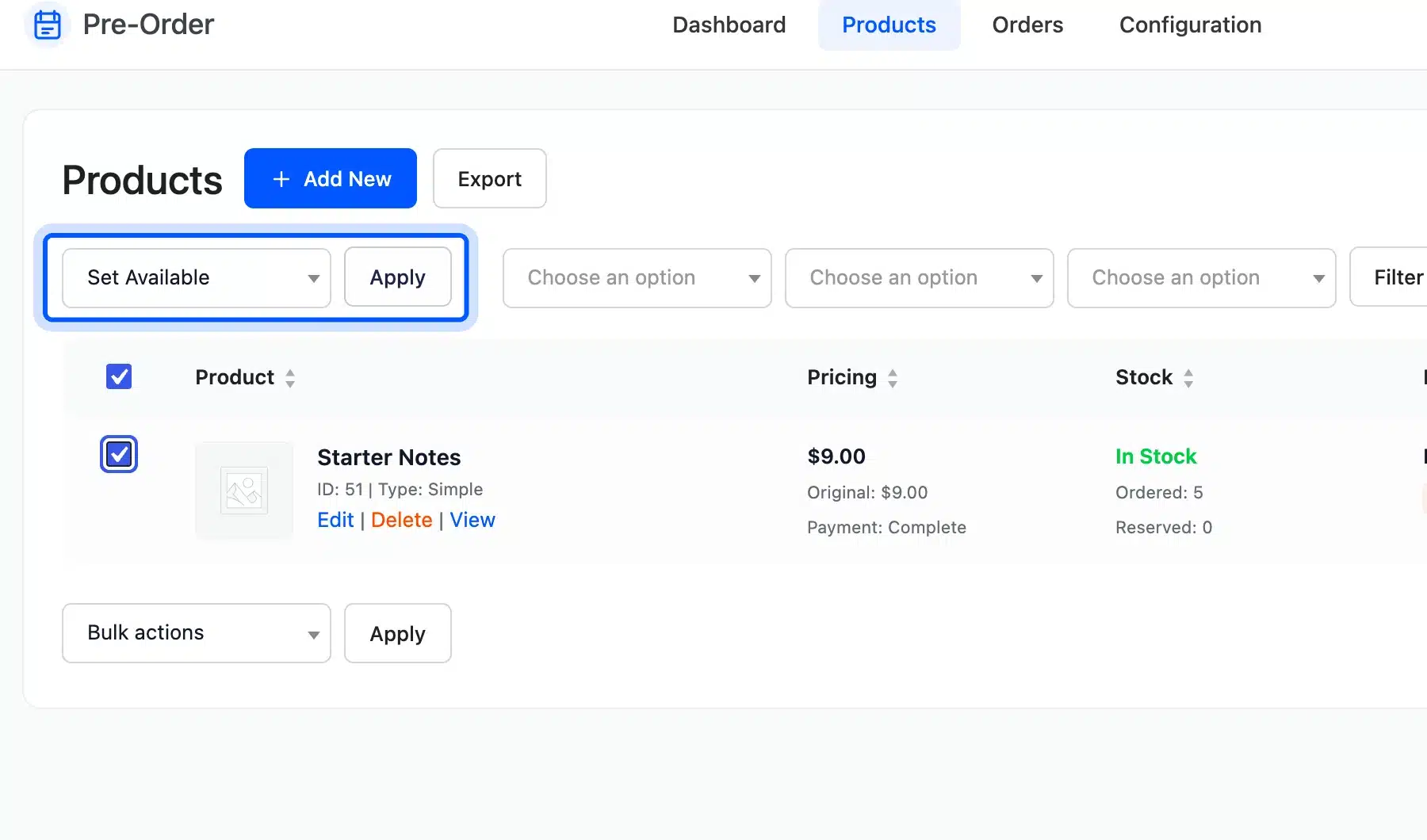
- Release the ebook: Open Pre-Order > Products and tick the product. Choose Set Available in Bulk actions and click Apply. The status changed to Available.
- Move the order on: The order did not change by itself. We opened WooCommerce > Orders, set the order to Processing and clicked Update.
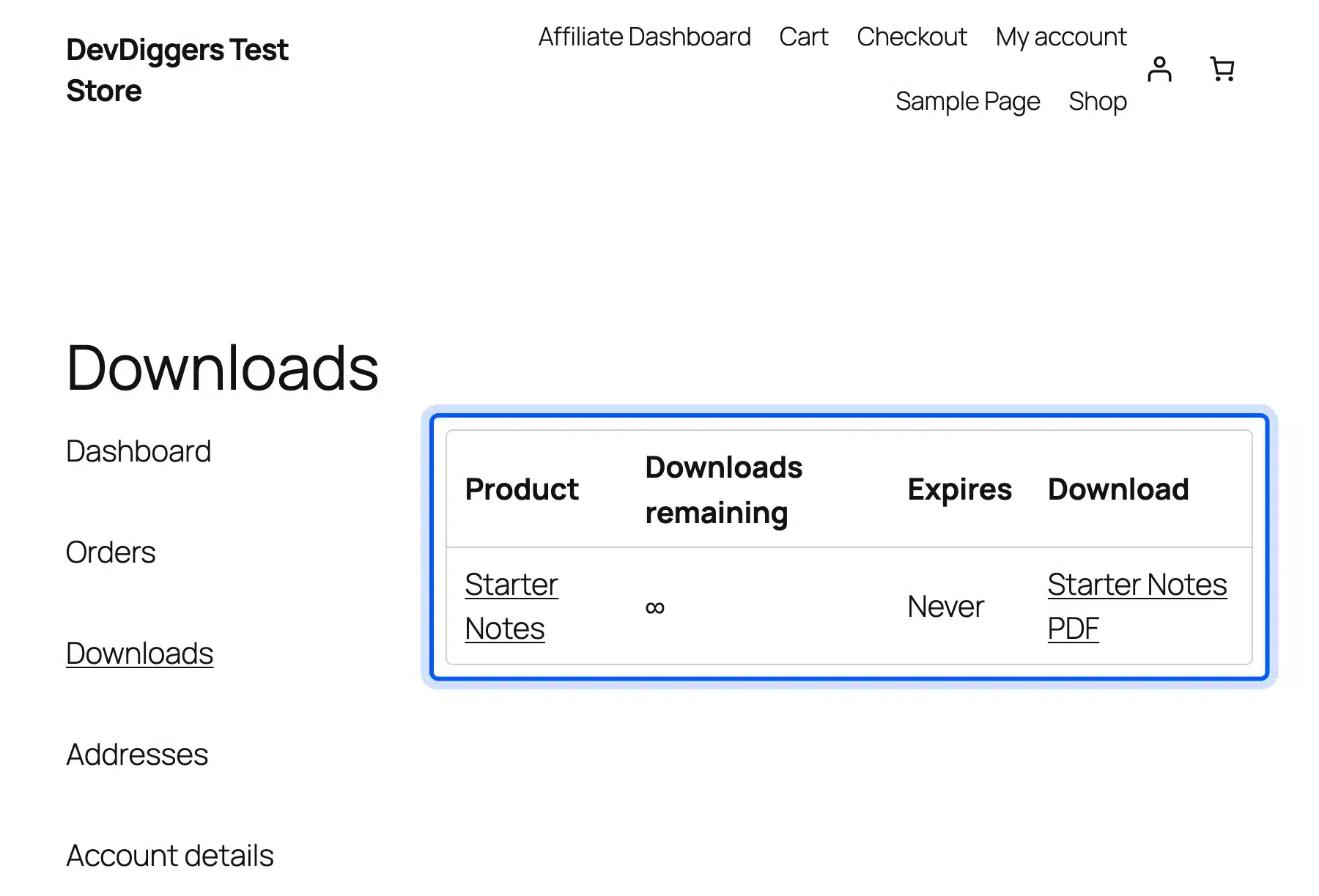
- Check the download: The Downloads table then listed Starter Notes with unlimited downloads and no expiry. The link returned our PDF file.
The same Bulk actions menu has Send Availability Mail. Use it to tell buyers the ebook is ready.
Worth checking: Our product page showed both a Pre-Order button and the theme’s own Add to cart button on Twenty Twenty-Five. We used the Pre-Order button. Test your theme before launch.
We paid with a placeholder cash on delivery method. We cannot report how a live card payment sets the order status. Partial payment mode was not part of this test.
Promote Your Ebook With an Affiliate Program
An affiliate program pays other people a share of each ebook they sell for you. Our WooCommerce Affiliate plugin gives each affiliate a referral link and tracks the sale. It then records a commission for each ebook sold through the link.
We tested Affiliates for WooCommerce Pro 2.3.0 with the free Affiliates for WooCommerce plugin on the same store. Pro plans run from $99 to $599 a year as of October 2026.
- Install and set up: Install the free plugin first. Upload and activate Pro next. Enter the license under DevDiggers Plugins > Affiliates > Configuration > License and finish the setup wizard.
- Approve an affiliate: Visitors join on the Affiliate Dashboard page. The form asks for an email address, a name, a website and how they will promote. New affiliates start as Pending. Open Affiliates > Affiliates, tick the person and choose Approve Affiliate.
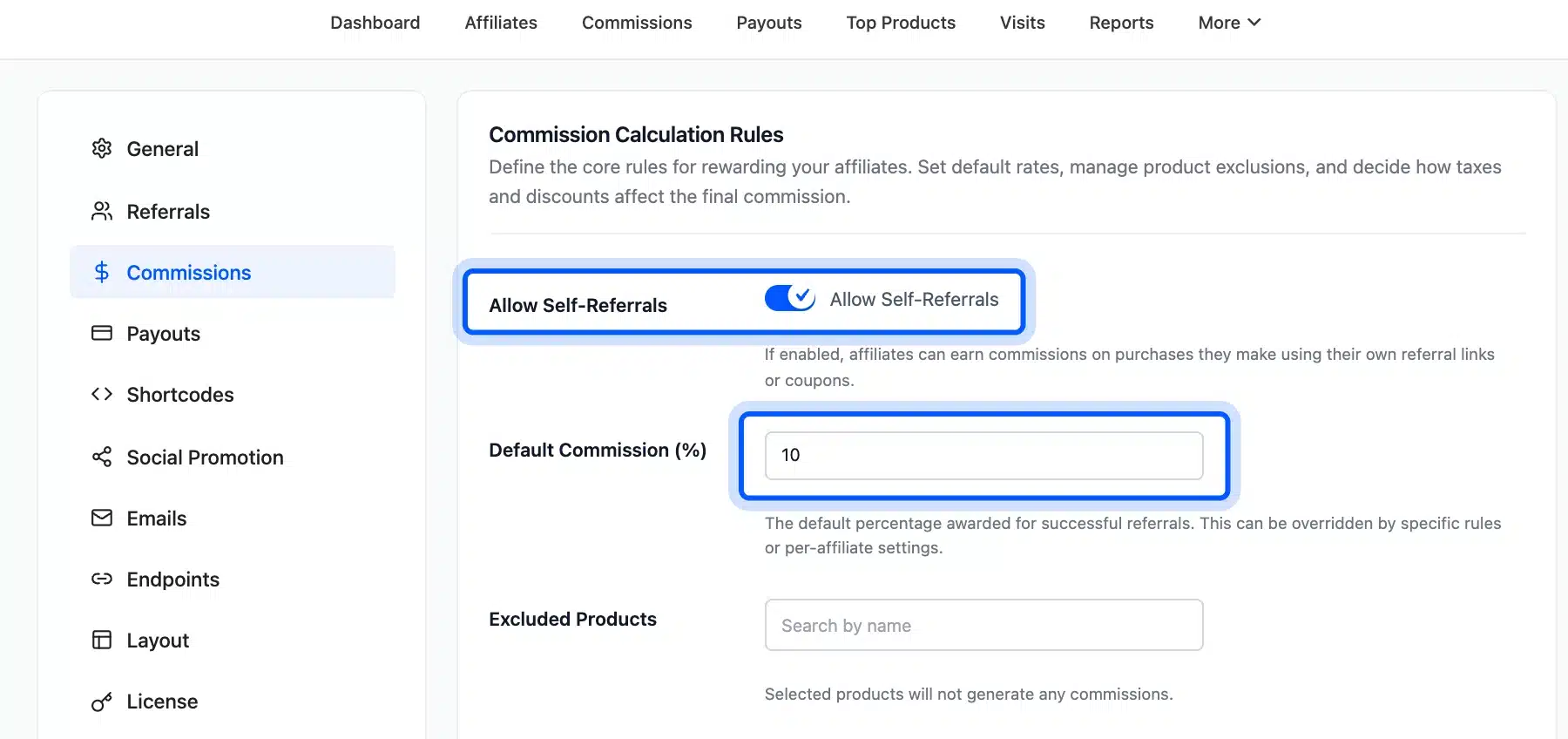
- Set the rate: Go to Affiliates > Configuration > Commissions. Default Commission (%) was 10 on our store.
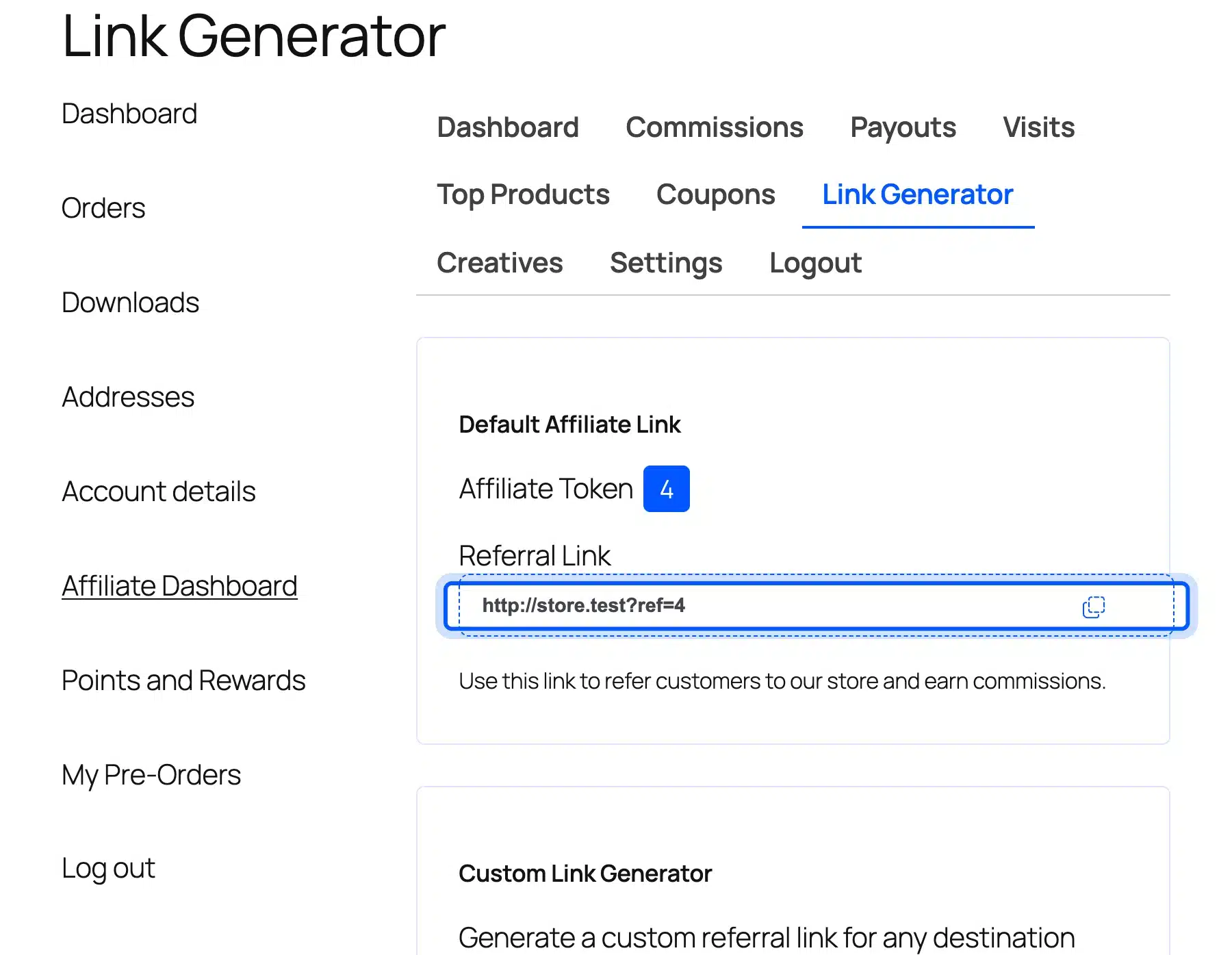
- Share the link: The affiliate opens My Account > Affiliate Dashboard > Link Generator. The default link used the affiliate’s user ID as the token. Ours ended in ?ref=4.
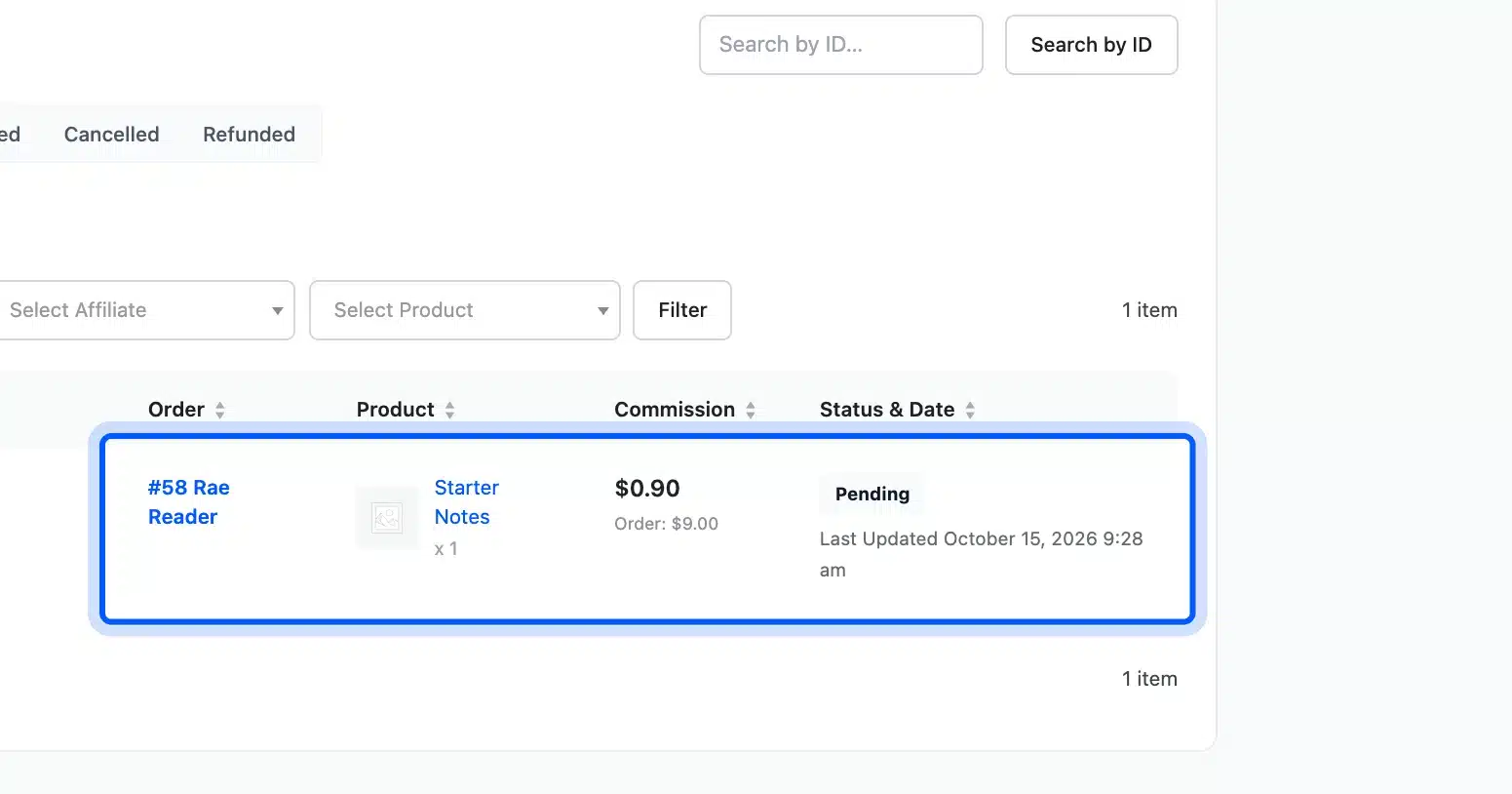
- Test a referred sale: A visitor opened the ebook through the link and ordered it. We then set the order to Completed. Affiliates > Commissions listed $0.90, which is 10% of the $9.00 order, with the status Pending.
Our first test order was not credited. It came from the same address the affiliate had browsed from. The plugin treated it as a self referral.
The Allow Self-Referrals switch on the Commissions screen was off by default and we turned it on for the test. Leave it off on a live store.
Compare both plugins with other options in our roundups of WooCommerce pre-order plugins and WooCommerce affiliate plugins.
Amazon KDP Royalties, Price Band and Formats
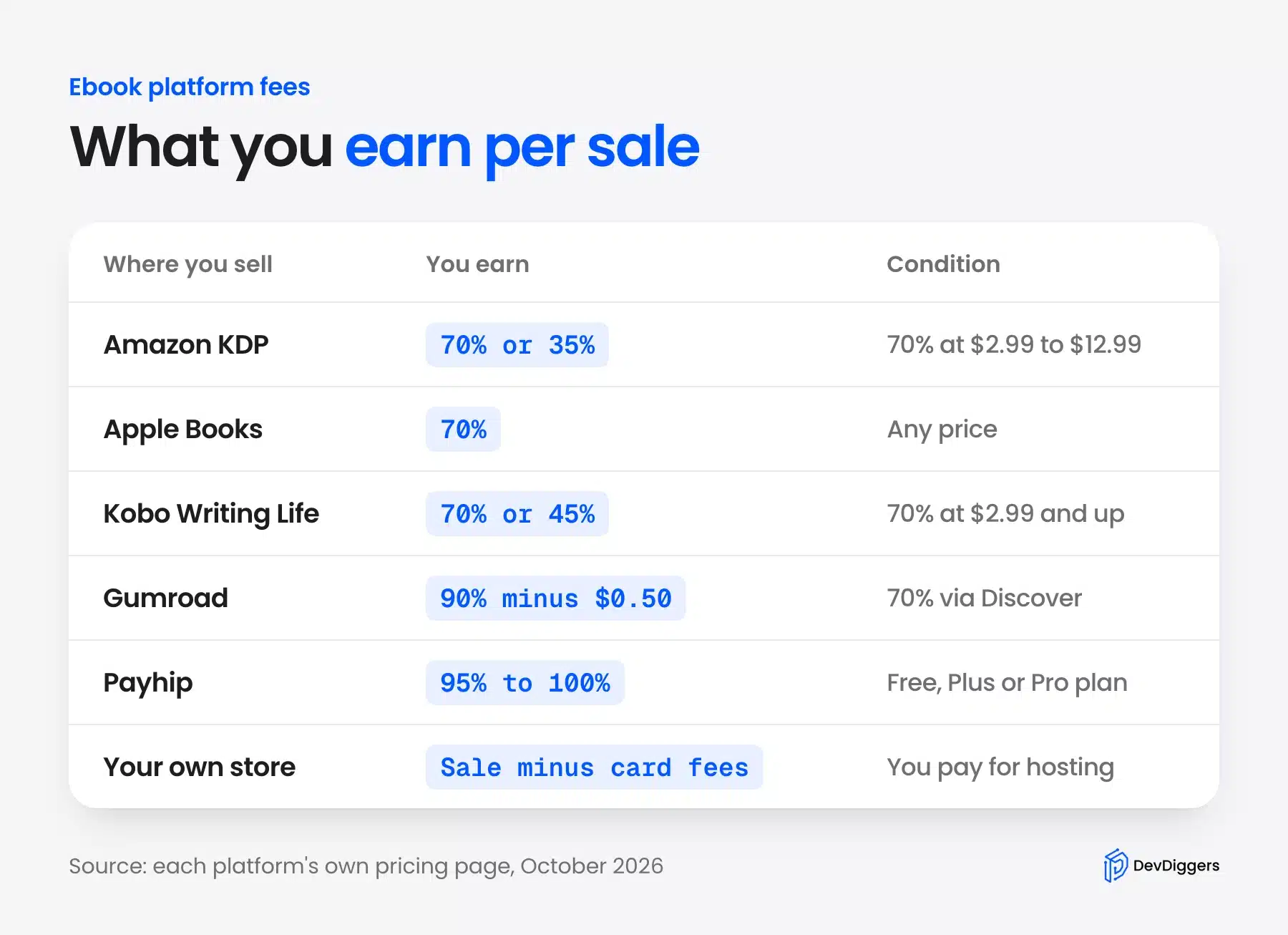
Amazon KDP lets you publish a Kindle ebook for free and pays either a 35% or a 70% royalty. The 70% option applies in the listed sales territories, and delivery costs come off before the percentage. In July 2026 Amazon widened the price band for 70%.
If you want to know how to sell ebooks on Amazon, the route is KDP. You upload an EPUB, KPF or DOCX file with a cover, set a list price and pick a royalty option. The rules below decide which option you can use.
KDP’s price page says that from 7 July 2026 the 70% option covers prices from $2.99 to $12.99 on Amazon.com, up from $9.99. Older pages, including our earlier version of this guide, still show the $9.99 limit. The 35% option has a $200 maximum and a minimum that depends on file size.

KDP’s royalty page says delivery is charged per megabyte of your file on the 70% option, for example US$0.15 per MB. Say a book lists at $9.99 and the file is 2 MB.
Delivery is $0.30. The royalty is 70% of $9.69, or $6.78 before tax.
KDP Select is a separate choice. KDP describes it as a free 90-day program for Kindle ebooks that also adds the book to Kindle Unlimited. Read the enrollment rules before you enroll a title you also sell elsewhere.
Apple Books and Kobo Writing Life Royalties
Apple Books and Kobo Writing Life both let you publish ebooks without a listing fee and pay a royalty on each sale. Apple pays one flat rate at any price. Kobo pays its top rate once your price reaches a set threshold.
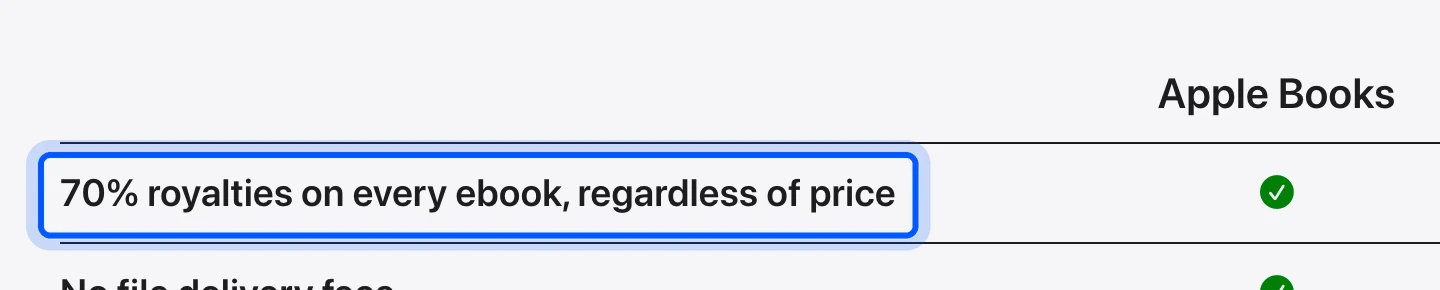
Apple Books for Authors advertises 70% royalties on every ebook, regardless of price, and no file delivery fees. That makes Apple the simplest to calculate. A $4.99 ebook earns about $3.49 before tax.
Kobo’s FAQ says it pays 70% of the list price, before taxes, when a book meets its pricing rules. Below the threshold the rate falls to 45%, and its terms set that threshold at $2.99 for US dollar prices. Kobo can change its royalty terms and you should confirm them before you price a title.
Gumroad Fees and Payhip Fees Compared
Gumroad and Payhip let you sell an ebook from a simple store page without running WordPress. Gumroad charges 10% plus $0.50 per sale and 30% when a buyer finds you through its Discover marketplace. Payhip charges by plan and takes nothing on its top plan.
Gumroad’s pricing page lists no monthly fee. It also says that since 1 January 2025 it acts as merchant of record and manages sales tax collection and remittance worldwide. A $9 ebook through your own link leaves $7.60 after the 90 cents and 50 cents.
Payhip’s pricing page lists three plans. Free Forever costs $0 a month with a 5% transaction fee. Plus costs $29 a month with 2%, and Pro costs $99 a month with no transaction fee.
PayPal and Stripe still charge their standard rates on every plan. Those fees come on top.
Do the break-even sum for Payhip. Plus costs $29 a month and saves 3 points over the free plan.
At $9 an ebook that saving is 27 cents a sale. You need about 108 sales a month before Plus pays for itself.
Which Route to Pick When You Choose Where to Sell Ebooks
Where to sell ebooks depends on who already knows you. Use a marketplace when you have no audience, and a creator tool when you want a store page this week. Pick your own store when you have readers and want to keep the most of each sale.
Match the route to your situation:
- No audience yet: List the title on KDP, Apple Books and Kobo so strangers can find it.
- Small audience, no website: Use Gumroad or Payhip and send your readers a link.
- Blog or email list: Sell from your own WooCommerce store and keep the full price minus card fees.
- A mix of readers: Sell the same title on a marketplace and from your own store.
We would start with two routes and not five. Every extra platform adds a dashboard to check and a price rule to follow. Add a platform only when readers ask for it.
A worked example shows how much the route matters. Say you sell 100 copies of a $9 ebook in the US, with a 2 MB file, before tax. The table shows what stays with you under each fee we listed above.
| Route | You keep from $900 | How we got it |
|---|---|---|
| Your own store | $843.90 | $900 minus Stripe’s 2.9% plus 30 cents on each sale (before hosting) |
| Payhip Free plan | $855 | $900 minus the 5% fee, before PayPal or Stripe fees |
| Gumroad with your link | $760 | 100 times ($9 minus 90 cents and 50 cents) |
| Apple Books | $630 | 100 times 70% of $9 |
| Kobo | $630 | 100 times 70% of $9 at a price above the threshold |
| Amazon KDP | $609 | 100 times 70% of $8.70 after 30 cents of delivery cost |
The gap between the best and worst row is $234, which is real money on a first book. The own-store row still leaves out hosting and your time. A marketplace sale also brings a buyer you could not have reached yourself.
Price and Promote Your Ebook
Price your ebook inside the band every platform accepts. A price of $2.99 to $9.99 fits every platform in this guide. Raise or lower it after you see real sales and keep the price the same on every platform you use.
Promotion matters as much as the file. Write blog posts that answer the questions your reader asks, link to the product page, and give away a free chapter for an email address. Our WooCommerce SEO guide covers how to make a product page easy to find.
If your store also sells other products, see the wider list of ways to monetize WooCommerce. For a build with custom checkout rules, our WooCommerce development services can help, but the setup above needs no code.
Conclusion
You can sell ebooks online today with three routes and one prepared file. Use your own WooCommerce store for control and the best margin, a creator tool for speed, and a marketplace for reach.
On your own store, our Pre-Order plugin sold the ebook before release and our Affiliates plugin credited a referred sale. Check each platform’s price rules before you set a price, because KDP changed its band in July 2026.
Frequently Asked Questions (FAQs)
Q1. Can you sell ebooks without a marketplace?
Yes. A WooCommerce store, Gumroad or Payhip each lets you sell without a marketplace. You bring the readers yourself and pay the card or platform fee with no marketplace cut.
Q2. What is the best platform to sell ebooks?
It depends on your audience. Use KDP, Apple Books or Kobo to be found by strangers. Use your own store if you have readers, since you keep the sale price minus card fees.
Q3. Which file format should I use for an ebook?
Use EPUB for marketplaces and a PDF for direct downloads from your own store. KDP accepts EPUB, KPF and DOCX for reflowable books. Those two formats cover every route in this guide.
Q4. Does KDP still accept MOBI files?
No, it does not take MOBI for new uploads. KDP ended support for MOBI on reflowable books on 1 August 2021 and on fixed-layout books on 18 March 2025. Upload EPUB, KPF or DOCX instead, as its MOBI FAQ says.
Q5. How do I protect my ebook file from sharing?
WooCommerce protects the folder and adds a random string to the file name. Force downloads keeps the file address private and a download limit slows sharing. None of this stops a buyer from forwarding the file.
Price the ebook fairly and the temptation to share it shrinks.
Q6. How much does Gumroad take from an ebook sale?
Gumroad takes 10% plus $0.50 per sale through your own link, and 30% when a buyer arrives through Discover. Its pricing page lists no monthly fee. Check the page again before you price, as fees change.
Q7. Can I sell the same ebook on several platforms?
Yes, but read each program’s rules first. KDP Select is a 90-day program that also adds the book to Kindle Unlimited. Apple Books and Kobo have their own terms to confirm before you list the same file.
Q8. Can you sell an ebook before it is finished?
Yes, on your own store. A pre-order plugin takes payment for a release date and shows a countdown. In our test of the DevDiggers Pre-Order plugin the download appeared only after we moved the order to Processing.