
In order bump vs upsell, the difference is size and timing: a bump is a small add-on, and an upsell is a pricier upgrade.
We tested both on a WooCommerce 11.2 test store in October 2026. We set up upsells and cross-sells with core WooCommerce. Then we added a checkout bump with UpsellWP Lite 2.2.10 and placed a test order on the block checkout.
You get both definitions from sources we checked, a comparison table and the setup for each in WooCommerce. You also learn where each offer can break, such as classic checkout hooks that never run on the Checkout block.
What Is an Order Bump?
An order bump is a small add-on offer on the checkout page that a shopper adds with one click. Teachable’s help center defines it as an extra product added at checkout at the time of purchase. On our test store, the bump joined the same order and the same payment.
Order bump examples are usually cheap and related to what is already in the cart. Think gift wrap, an extended warranty, a refill pack or a printable guide. In our test, a gift wrap offer sat under the order summary at 20% off its normal price.
Platforms set their own rules for bumps. Teachable allows up to three published bumps per product, and it applies a discounted bump price only through the bump itself. Coupons on the main product do not apply to the bump, according to the same help center page.
What Is an Upsell?
An upsell encourages a shopper to buy a more expensive item than the one they picked. Shopify’s upselling guide sums up the rule as better models for upsells and matching accessories for cross-sells. It also says upsell offers can appear before the purchase, at checkout or after the purchase.
On upsell vs cross sell, WooCommerce uses the same split. Its documentation describes cross-sells as products you promote in the cart based on items the customer already added. You can read the full wording in the WooCommerce documentation.
The word upsell covers three different things in a WooCommerce store, and mixing them up causes most of the confusion:
- Product page upsell: WooCommerce’s own Up-sells feature recommends products instead of the one being viewed, according to the WooCommerce documentation.
- Cart or checkout upsell: A better version of an item is offered while the shopper is still deciding.
- Post-purchase upsell: The offer comes after the shopper clicks Place order. A post purchase upsell is often called a one click upsell.
Order Bump vs Upsell: Key Differences
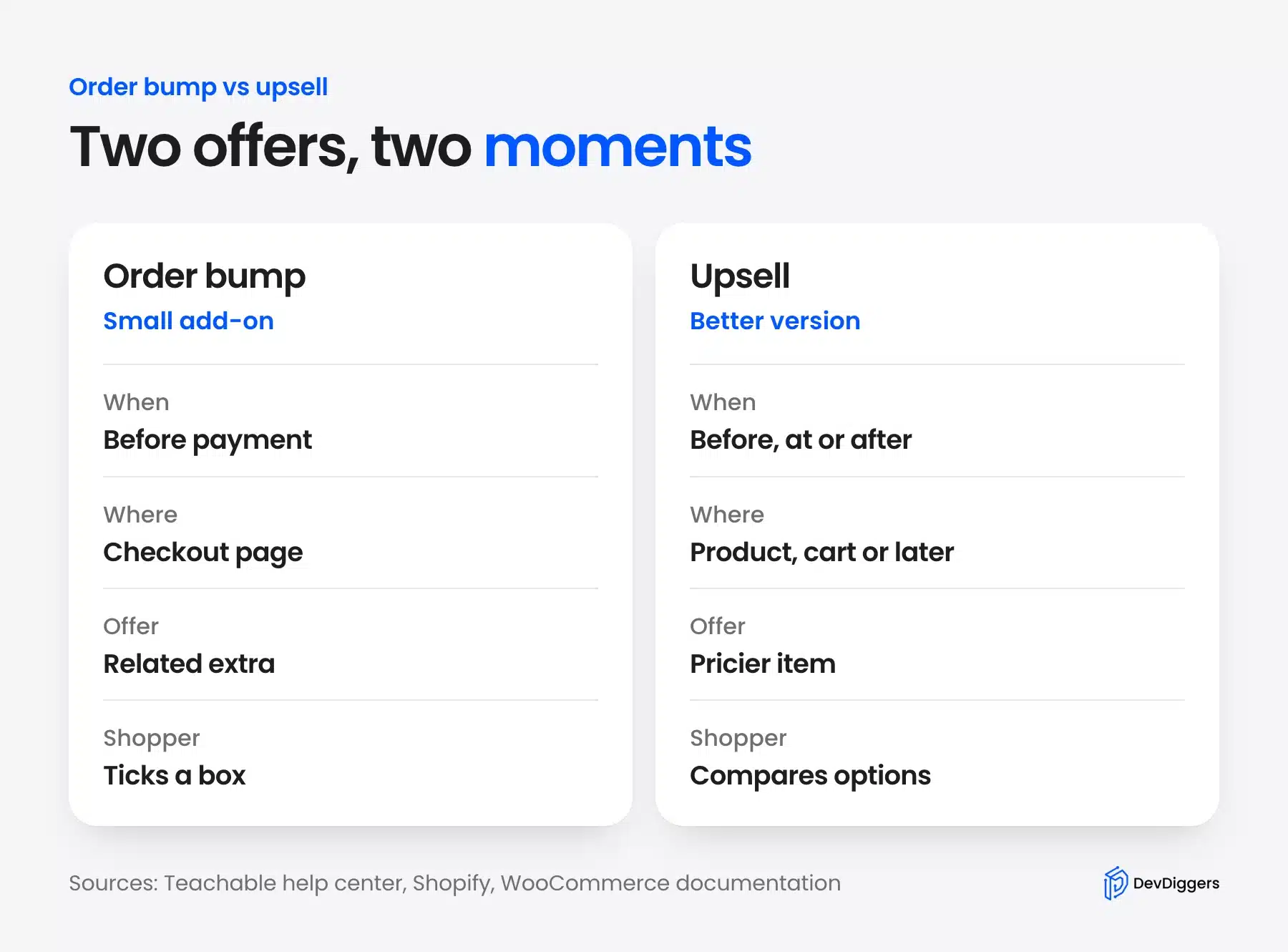
In order bump vs upsell, the main differences are timing, size and effort. A bump is a small add-on shown on the checkout page before payment. An upsell pushes a more expensive item before, at or after checkout, and the shopper must compare options.
| Attribute | Order bump | Upsell |
|---|---|---|
| Timing | At checkout, before payment | Before, at or after checkout |
| Offer | A small related add-on | A more expensive version of the item |
| Shopper action | Ticks one box | Compares and then switches or upgrades |
| Where it shows in WooCommerce | The checkout page | The product page, the cart or after payment |
| Built into core WooCommerce | No, it needs a plugin or code | Supports up-sells and lacks post-purchase upsells |
| What happens to the order | A new line joins the same order | The item is swapped or an upgrade is added |
We cite no conversion rates in this post. Claims such as a 30% lift or a doubled order value had no neutral source we could verify.
Test both offers against your own store numbers instead.
Where Each Offer Appears in a WooCommerce Store
WooCommerce shows up-sells on the product page and cross-sells on the cart page. Its documentation lists no checkout offer. A WooCommerce order bump needs a plugin or code. A post-purchase upsell also needs a plugin because it runs after the shopper clicks Place order.
The same documentation says both built-in offers depend on your theme.
| Where | Offer | How WooCommerce handles it |
|---|---|---|
| Product page | Upsell | Core feature set in the Linked Products tab |
| Cart page | Cross-sell | Core feature set in the Linked Products tab |
| Checkout page | Order bump | A plugin or custom code |
| After Place order | Post-purchase upsell | A plugin |
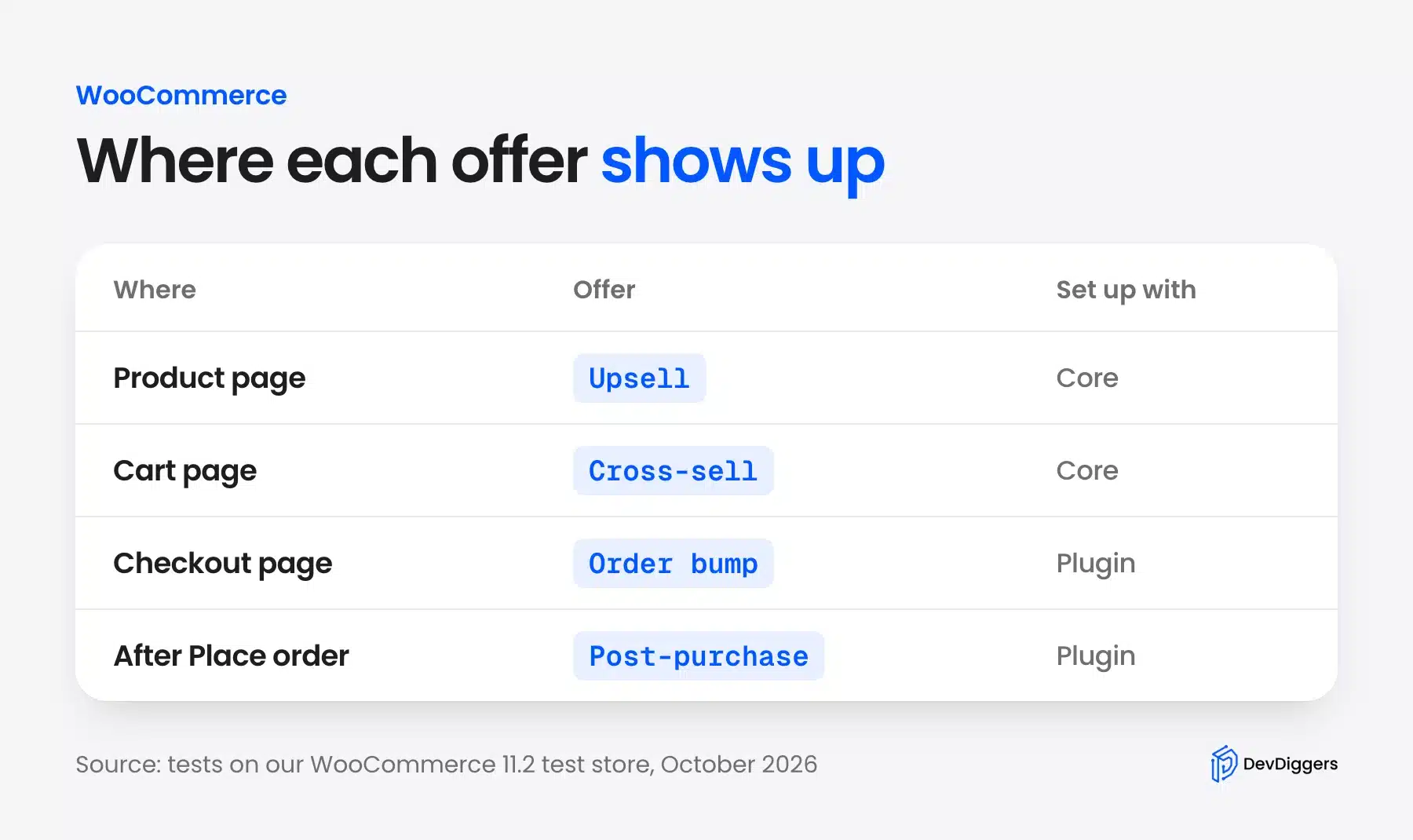
In our tests these surfaces were independent. The Linked Products tab changed the product page and the cart, while the checkout offer came only from the plugin. So you can add a checkout bump without touching your up-sells.
Related products are a third feature, and they also appear on the product page. If they crowd your upsell, see how to remove related products from WooCommerce.
How to Set Up WooCommerce Upsells and Cross-Sells
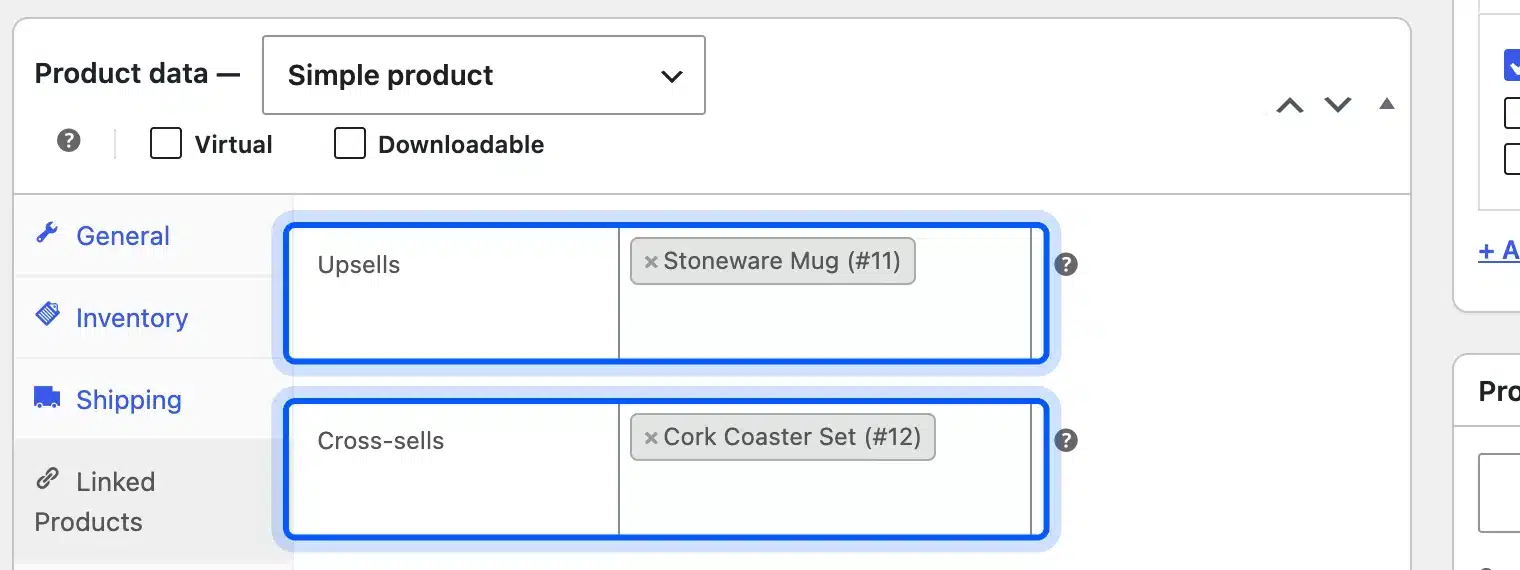
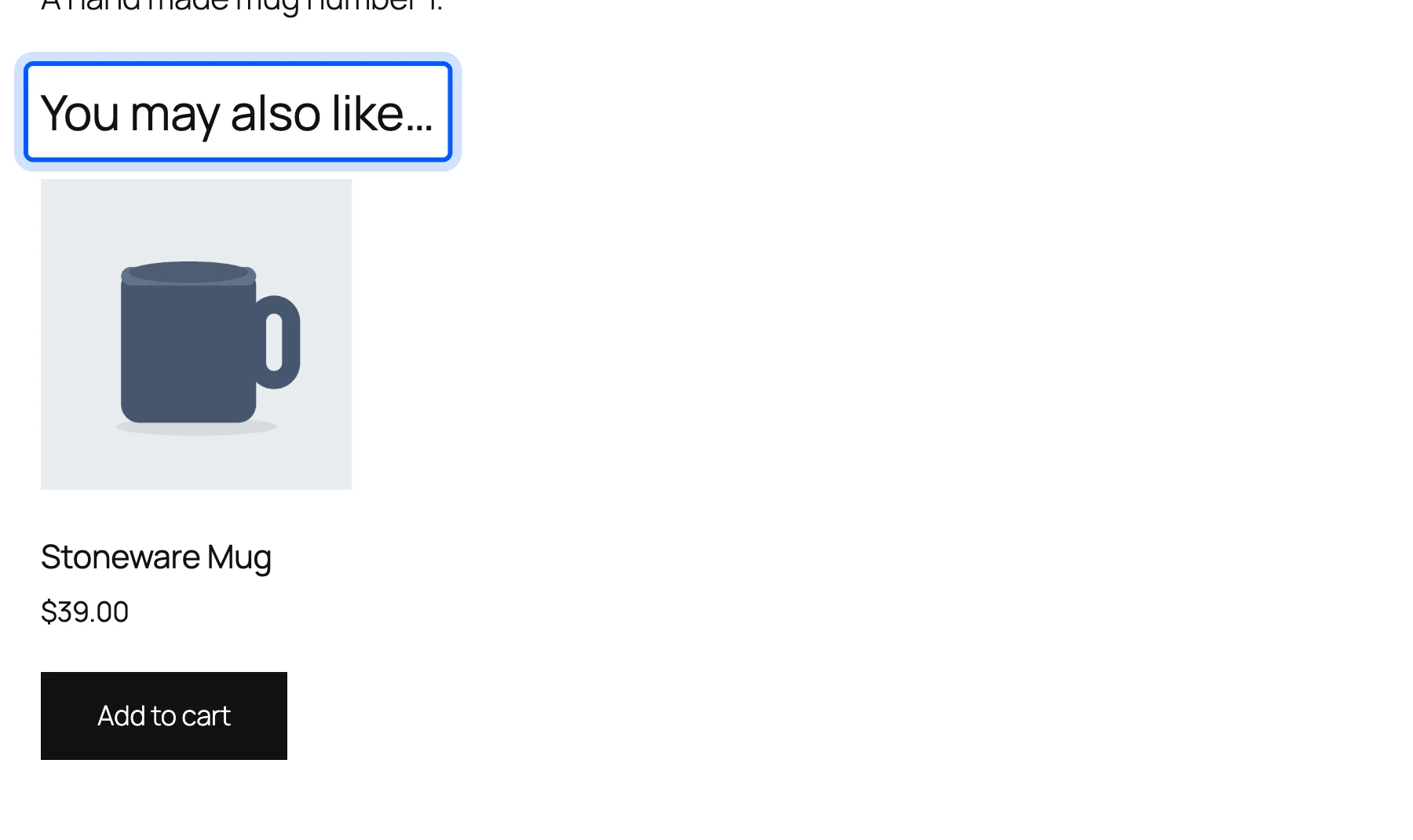
Open the product, go to Product data and click Linked Products. Pick products in the Upsells and Cross-sells fields and then click Update. On our test store, the upsell appeared on the product page and the cross-sell appeared in the cart.
- Open the product: Go to Products, click All Products and open the item you want to sell from.
- Open Linked Products: In the Product data box, click the Linked Products tab.
- Pick the offers: Search a better version in Upsells and an accessory in Cross-sells and then click Update.
- Check the product page: Open the product while logged out and look for the heading You may also like.
- Check the cart: Add the product to the cart and look for the heading You may be interested in.
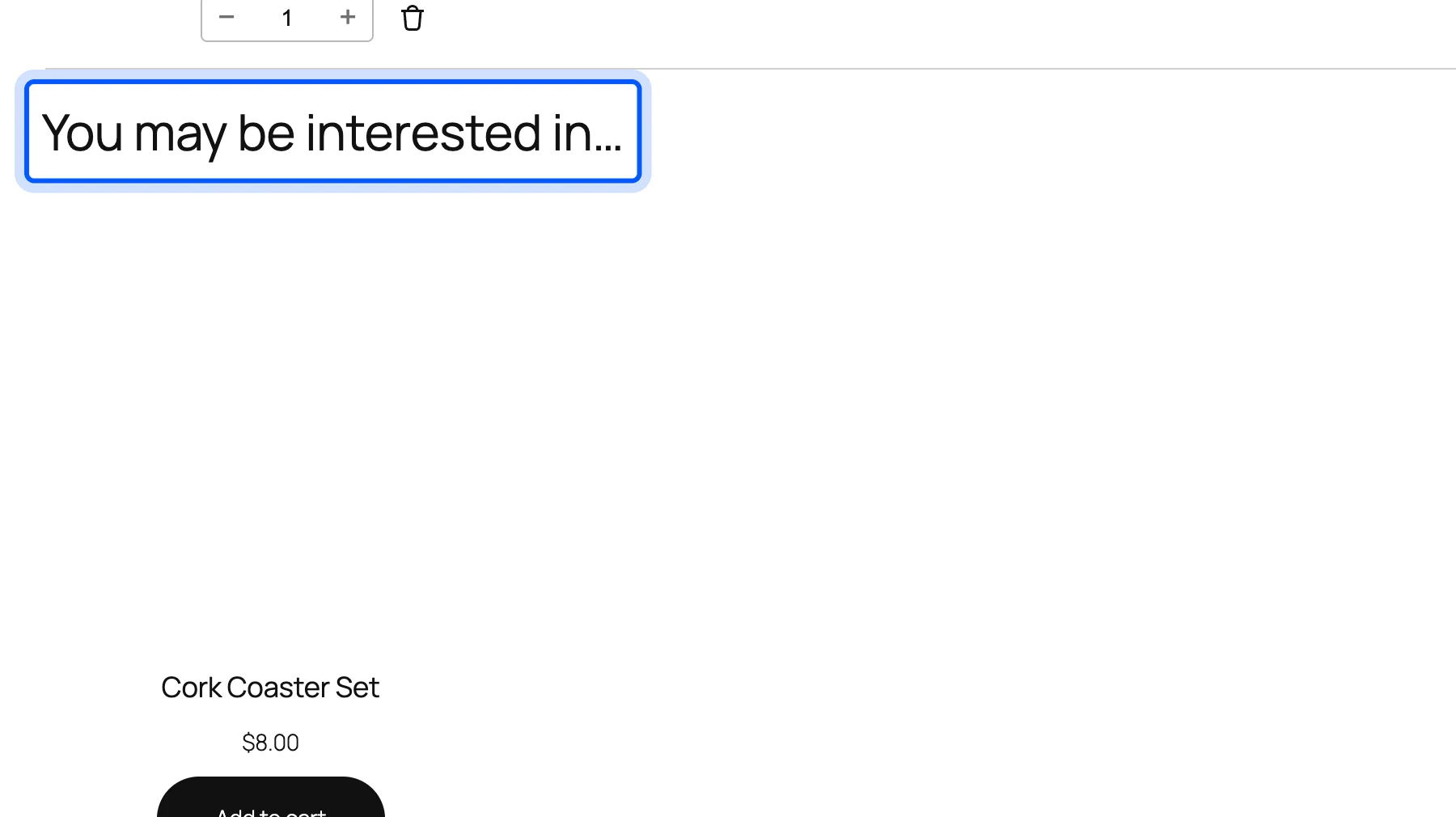
Note: These screenshots use the Twenty Twenty-Five theme. The WooCommerce documentation says where these sections appear depends on your theme. Check yours after saving. To change the cart itself, see how to edit the WooCommerce cart page.
How to Add an Order Bump to the WooCommerce Checkout
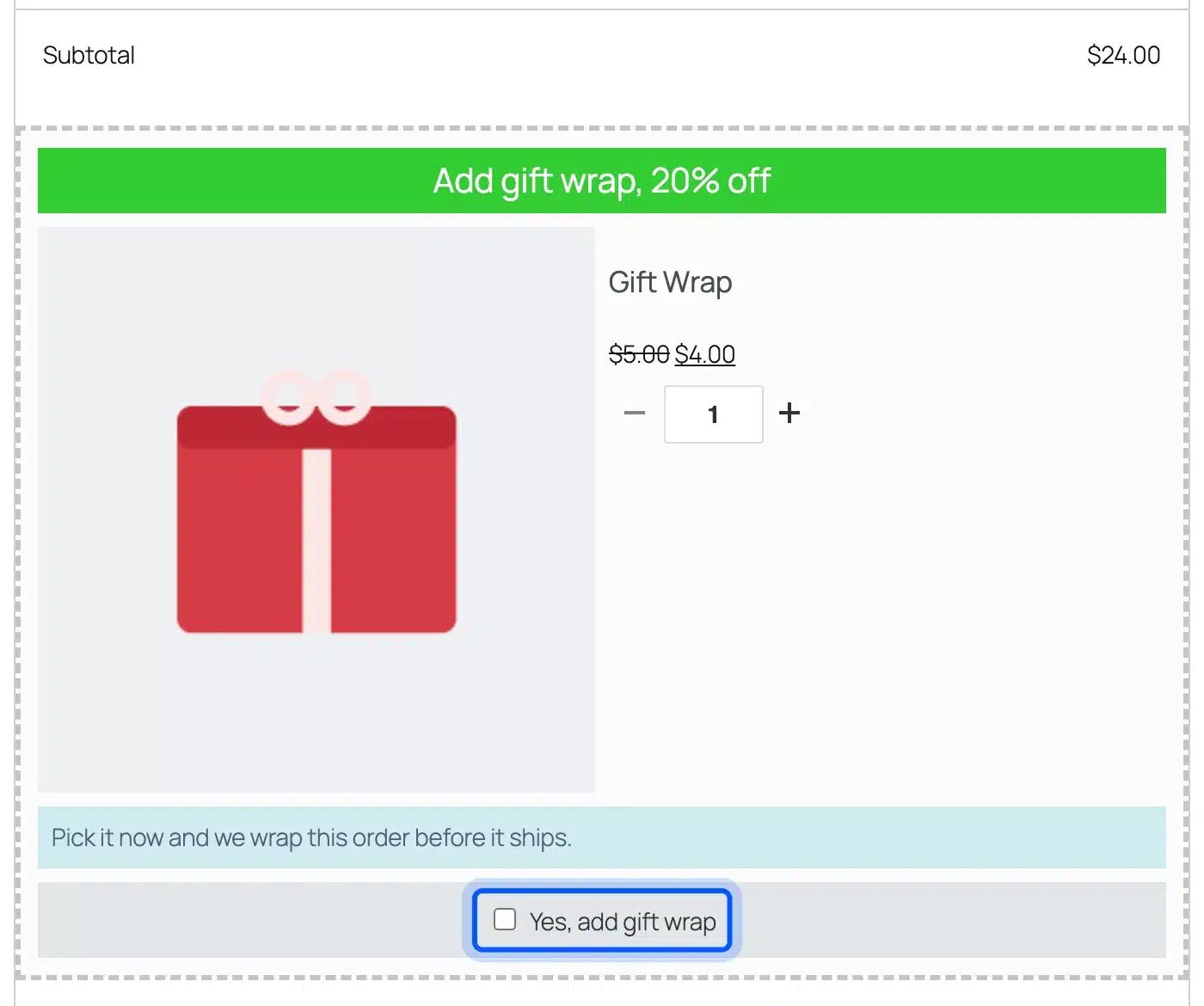
Add an order bump with a plugin or with checkout code and then test it on the checkout your store really uses. On our test store, UpsellWP Lite 2.2.10 added a gift wrap offer under the subtotal on the Checkout block. Ticking it put the item in the same order.
- Install the plugin: Go to Plugins, click Add Plugin, search for UpsellWP and then install and activate it.
- Create a campaign: Go to UpsellWP, click Campaigns and choose Create New Campaign. Pick Checkout Upsells.
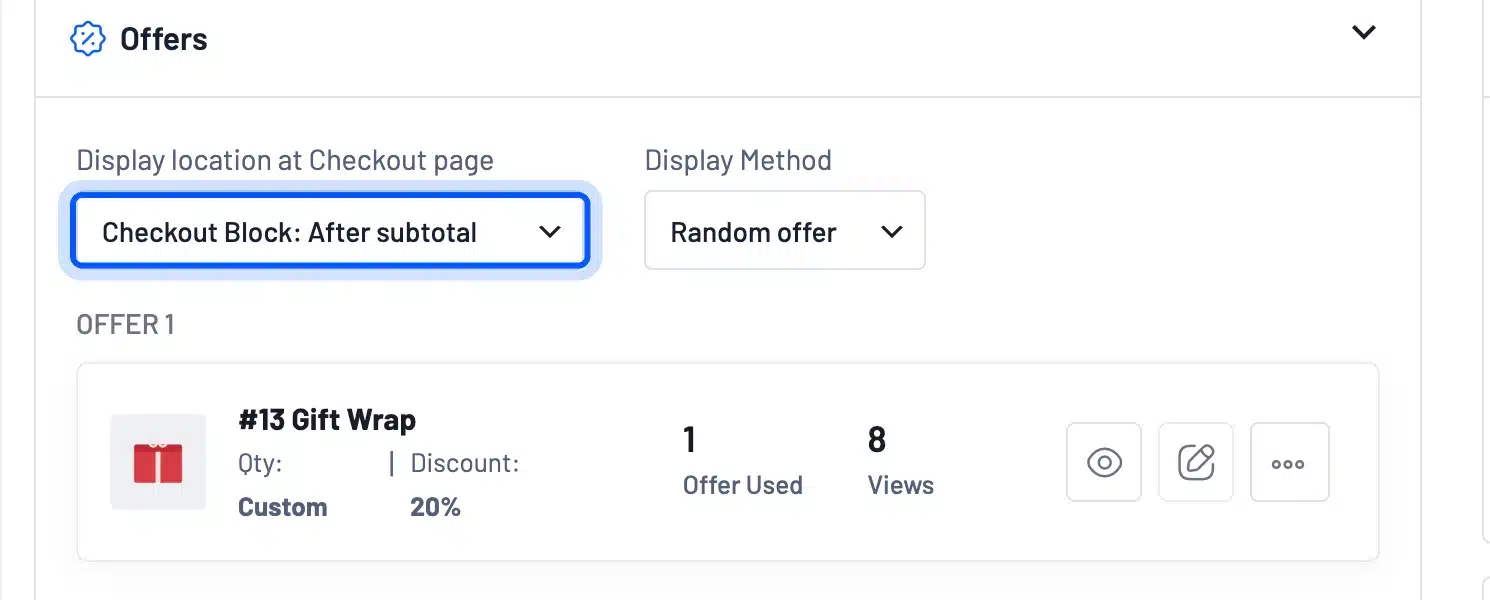
- Set the display location: Choose Checkout Block: After subtotal if your store uses the block checkout.
- Add the offer: Click Add offer, choose the product, set a discount and write the offer text. Save the offer and then save the campaign.
- Test the checkout: Add any product to the cart, open the checkout and look under the subtotal.
- Check the order: Place a test order with the box ticked and open it in WooCommerce Orders.
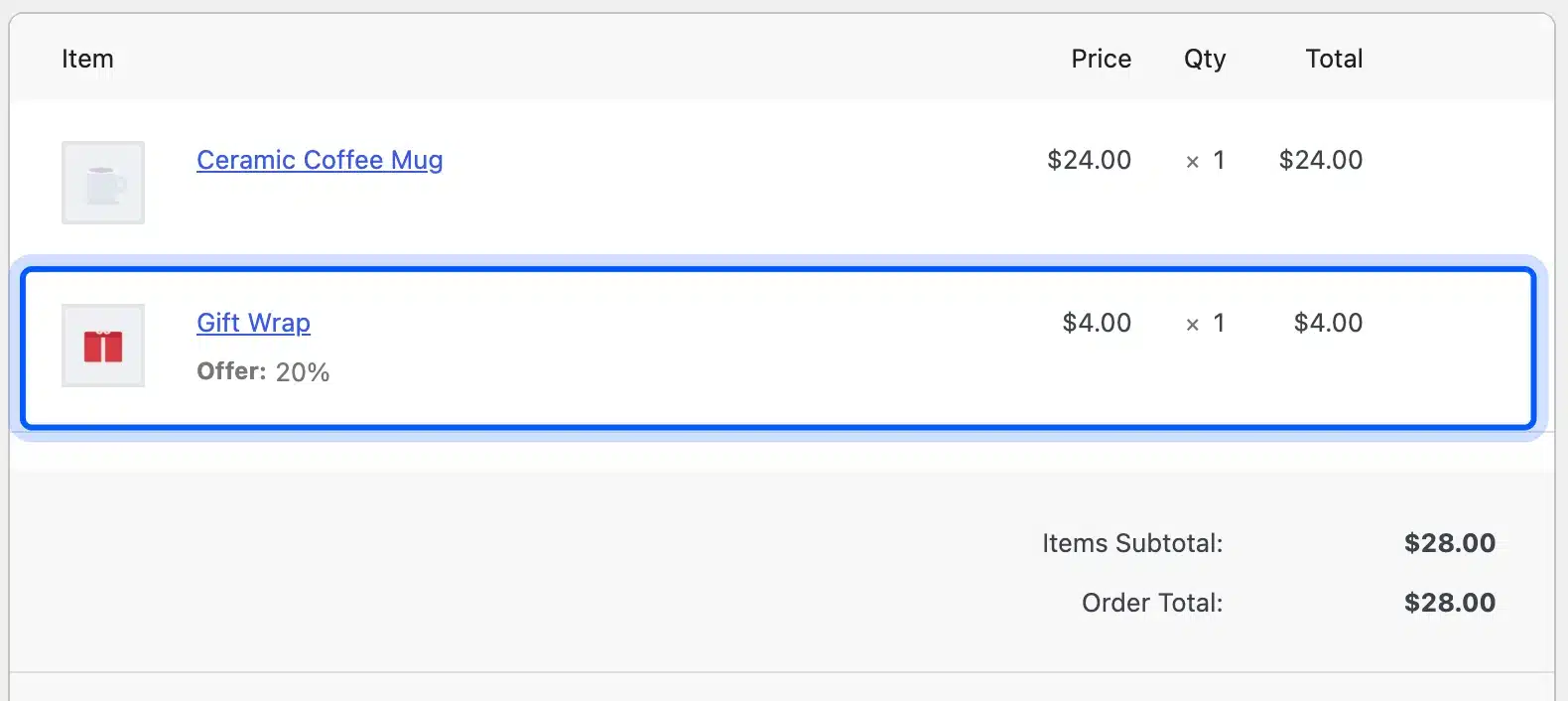
Ticking the box moved the total from $24.00 to $28.00. The finished order held the mug at $24.00 and the gift wrap at $4.00. The bump traveled in one order and one payment.
Two limits showed up on the free version. The offer editor read Maximum: 1, and the campaign list read 1 out of 5. The UpsellWP plugin page lists 5,000+ active installations and says the Lite version works with the checkout blocks.
The display location matters. The default location, Before Payment Gateways, showed nothing on our block checkout, while Checkout Block: After subtotal worked.
Code behaves differently again. We added two classic hooks, woocommerce_review_order_before_submit and woocommerce_checkout_before_order_review. Neither printed anything on the Checkout block, and both worked on a page that used the [woocommerce_checkout] shortcode.
The WooCommerce developer blog explains why. The Cart and Checkout blocks, it says, moved away from the PHP templating engine behind the shortcode checkout. So any bump code built on classic hooks needs a block-compatible rewrite.
Our guide to creating an order bump for WooCommerce compares a free plugin with custom code. A bump built specifically for the Checkout block is a development job, and our WooCommerce development services team can build one.
How Does a Post-Purchase Upsell Work?
A post-purchase upsell appears after the shopper clicks Place order. The offer comes after the buying decision. Shopify’s upselling guide says post-sales upselling lets customers add upgrades to their order. On our test store, UpsellWP listed its Post-purchase Upsells type as a PRO feature.
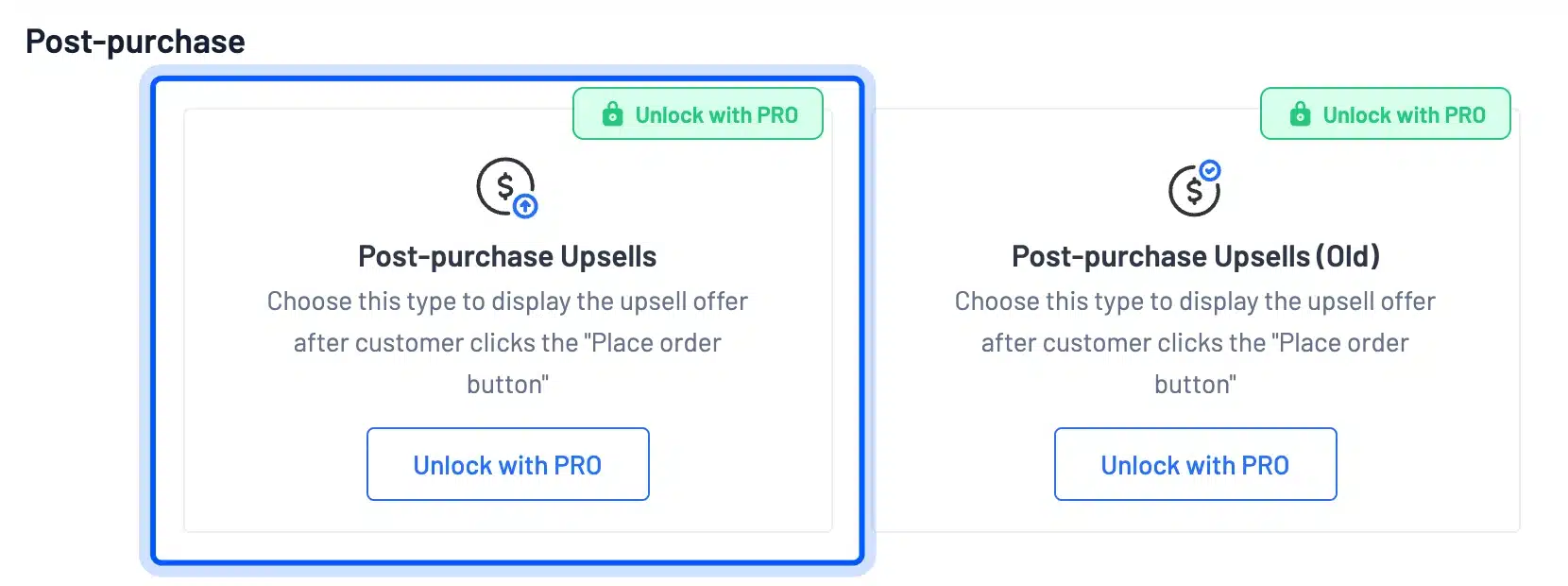
We did not run a live one-click charge, because that needs a connected payment account and real cards. The same screen listed a Thank you Page Upsells type, also marked PRO. If you want a simple upgrade offer without a paid plugin, the product page up-sell above is the free route.
For a related checkout shortcut, see how to set up one-click checkout in WooCommerce. It is a different feature from a one-click upsell, since it speeds up the main purchase.
Order Bump or Upsell: Which Should You Use?
Use an order bump for a cheap add-on that suits almost every order, and use an upsell when a better version of the product exists. Both can run together, because they fire at different moments. Judge each against your own numbers, since we found no neutral benchmark.
Discounts work best with clear rules. Set WooCommerce coupon codes with a minimum spend to protect your margin.
| Situation | Best offer |
|---|---|
| A cheap accessory, warranty or gift wrap | Order bump at checkout |
| A bigger size, better model or premium tier | Upsell on the product page |
| An accessory that goes with the product | Cross-sell in the cart |
| A late upgrade after the buying decision | Post-purchase upsell |
Not every basket gain needs an offer. A quantity discount lifts units without a pop-up.
Our WooCommerce Tiered Pricing plugin sets quantity tiers with a hint under add to cart. It tells shoppers how many more units earn the next discount. That is a different tool from a bump or an upsell, and we do not sell an order bump plugin. For other ways to price by quantity, see our tiered pricing plugin comparison.
If you also run gift offers, see how to set up free gifts in WooCommerce.
Conclusion
Order bump vs upsell is a question of timing and size. Bumps are small add-ons at checkout, and upsells are better versions offered on the product page, in the cart or after payment.
Start with core WooCommerce up-sells and cross-sells, which cost nothing. Add a checkout bump next, and test it on the checkout your customers use.
Frequently Asked Questions (FAQs)
Q1. What is the difference between an order bump and a one-click upsell?
An order bump appears on the checkout page before payment and joins the same order. A one-click upsell is a post-purchase offer shown after the shopper clicks Place order. Shopify says post-sales upselling lets customers add upgrades to their order.
Q2. Does WooCommerce have a built-in order bump?
No. The WooCommerce documentation lists up-sells, cross-sells and related products, and none is a checkout offer. An order bump needs a plugin or custom code.
Q3. Do order bumps work on the WooCommerce block checkout?
Yes, if the plugin or code supports it. UpsellWP Lite displayed our bump under the subtotal on the Checkout block. Code that uses classic hooks printed nothing on the block checkout in our test.
Q4. Is an order bump the same as a cross-sell?
No, a cross-sell promotes an accessory in the cart, according to the WooCommerce documentation. An order bump is a tick-box offer on the checkout page. Both suggest extra items at different steps.
Q5. Can I use an order bump and an upsell together?
Yes. A product page up-sell and a checkout bump appear at different moments. They do not compete for the same space. Keep the checkout offer small so it does not distract from Place order.
Q6. How many order bumps can I show at checkout?
It depends on the tool. Teachable allows up to three published bumps per product, while UpsellWP Lite let us add one offer per campaign. Check the limit before you plan a multi-offer checkout.
Q7. Does ticking an order bump change the total before payment?
Yes. On our test store the total moved from $24.00 to $28.00 as soon as we ticked the gift wrap box. The finished order listed both items as separate lines.