
Adding a click-to-call button in WordPress takes under 10 minutes and can directly increase the number of calls your business gets from mobile visitors. Most sites make the mistake of listing a phone number in plain text and calling it done. That misses the point. On mobile, users don’t want to copy a number, switch to their phone app, and dial it manually. They want one tap.
Here’s what the data says: 65% of people prefer contacting businesses by phone, and incoming phone calls convert at 25% to 40% compared to just 2% for web forms. If your WordPress site doesn’t make calling easy, you’re losing those leads to competitors whose sites do.
This guide covers three methods, from fastest to most hands-on: the WP Call Button plugin, a manual HTML tel: link, and adding a clickable phone number to your navigation menu. You’ll also get placement tips, styling advice, and a section most guides skip entirely: what to do when your button shows on desktop and you don’t want it to.
What Is a Click-to-Call Button?
A click-to-call button is a clickable link that opens the device’s phone dialer with your number pre-filled. One tap starts the call.
The underlying code is simple. It uses the tel: URI scheme, which browsers and mobile operating systems recognize natively. When a user taps a link formatted as <a href="tel:+15551234567">Call Us</a>, their phone app opens with that number loaded. No copying. No switching apps.
That said, there’s a detail worth knowing: on desktop browsers, the behavior depends on whether the user has a calling app installed (like Skype or FaceTime). On mobile, it works without any extra configuration. This is why many businesses choose to show the button only on mobile devices, which the plugin method makes easy to configure.

Why You Need One (Skip If You Already Know)
Your phone number sitting in a footer doesn’t do much on mobile. According to Google’s research on smartphone users, 59% of people choose click-to-call because they expect a faster response, and 54% use it when a website doesn’t have the information they need. Those are high-intent visitors. They’ve already decided they want to talk to someone.
For local service businesses, clinics, law firms, restaurants, or any WordPress site where calls drive bookings or sales, this is one of those rare changes that costs nothing and delivers measurable results.
Method 1: Add a Click-to-Call Button Using the WP Call Button Plugin (Recommended)
This is the fastest method. It handles the floating sticky button, the Gutenberg block, the sidebar widget, and mobile-only visibility, all from one settings screen. The plugin is free and has no upsell pressure for basic functionality.
Step 1: Install and Activate the Plugin
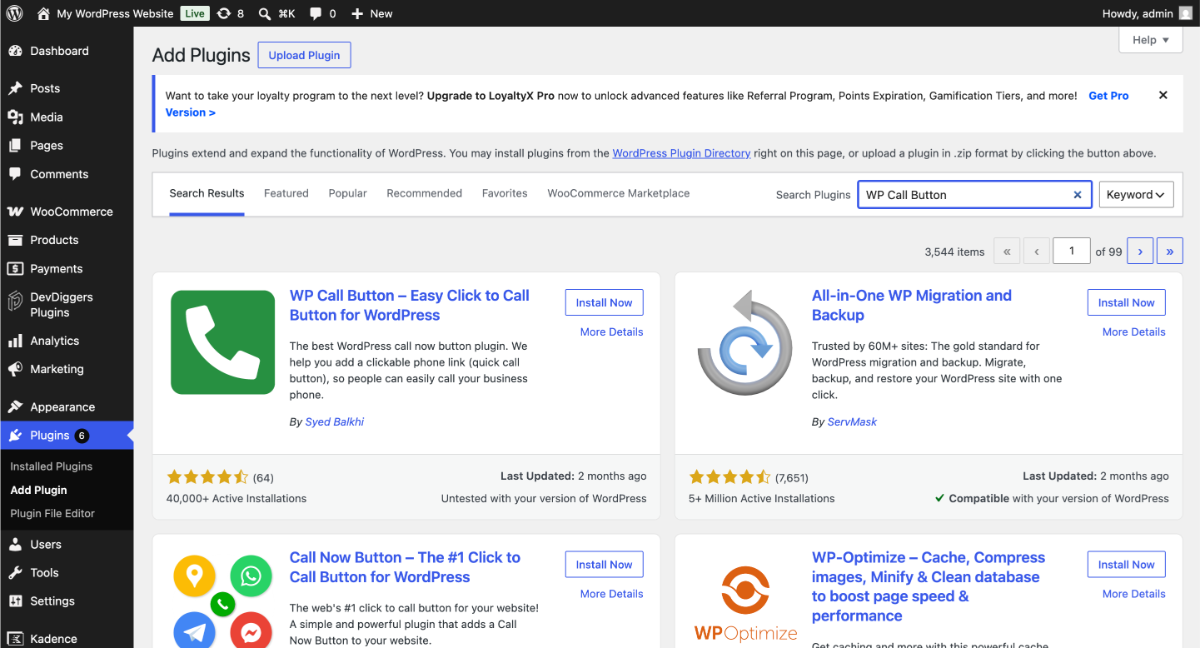
From your WordPress dashboard, go to Plugins > Add New. Search for WP Call Button. Install and activate it.
You can also find it at wordpress.org/plugins/wp-call-button. Download the zip, then go to Plugins > Add New > Upload Plugin, and upload the file.
Step 2: Configure the Sticky Call Button
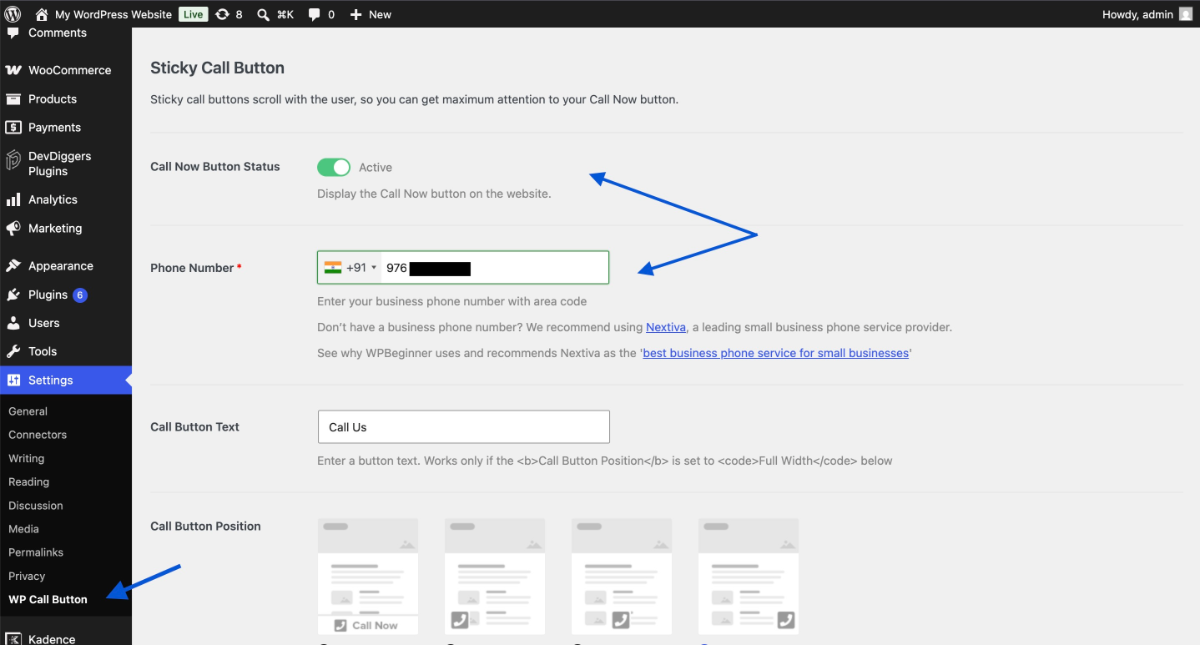
After activation, go to Settings > WP Call Button. The first screen controls the sticky floating button, which follows users as they scroll.
- Toggle Call Now Button Status to active.
- Select your country from the dropdown. This adds the correct country code automatically.
- Enter your phone number.
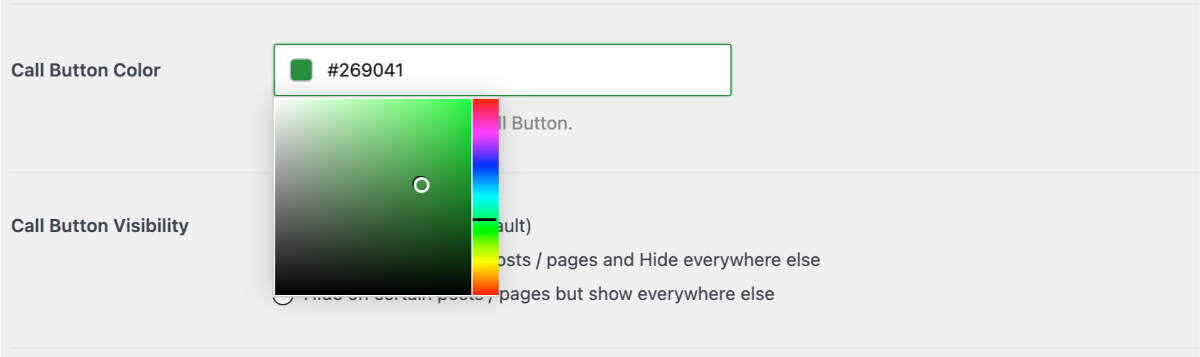
- Choose a button color that contrasts with your site design.
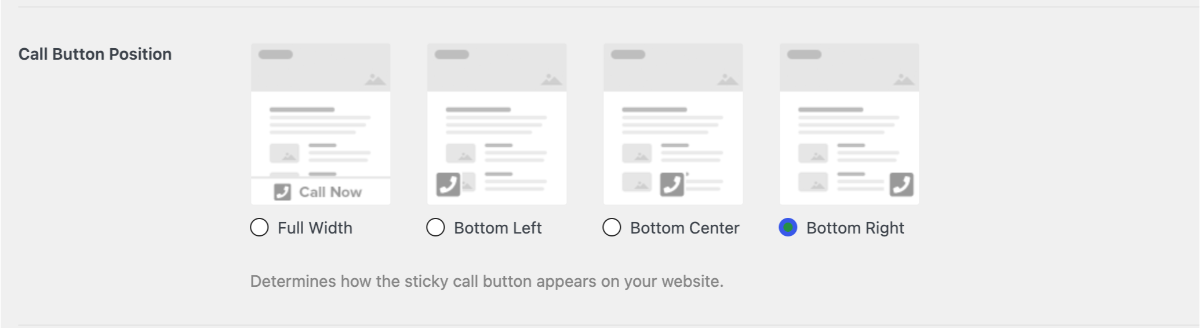
- Set the button position. Bottom-right works well for most sites since it sits in the natural thumb zone for right-handed mobile users.
One setting that gets overlooked: the visibility option. You can show the button on all pages, specific pages only, or mobile devices only. For most business sites, mobile-only makes sense. Desktop visitors are less likely to tap-to-call, and the floating button can feel intrusive on larger screens.
Step 3: Add a Static Button to a Post or Page
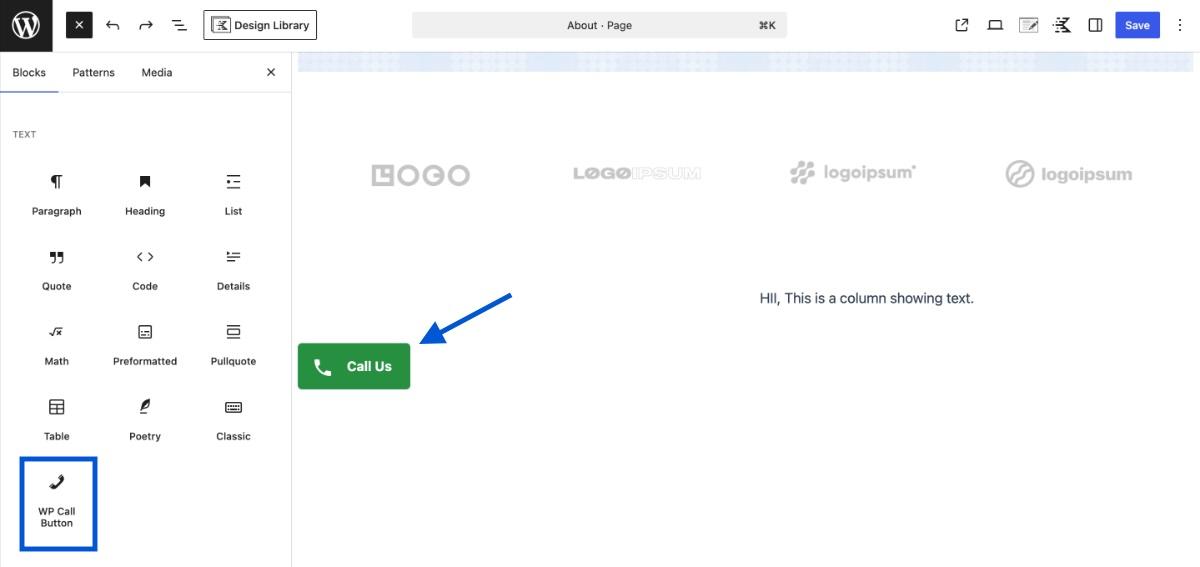
The plugin also gives you a WP Call Button block in the Gutenberg editor. Open any page, click the + icon, search for “WP Call Button,” and add the block. This creates a static button embedded in the page content rather than a floating overlay.
You can customize the text, background color, and font size from the block settings panel on the right. This works well on contact pages, landing pages, or service pages where calling is the primary CTA.
Step 4: Add the Button as a Sidebar Widget
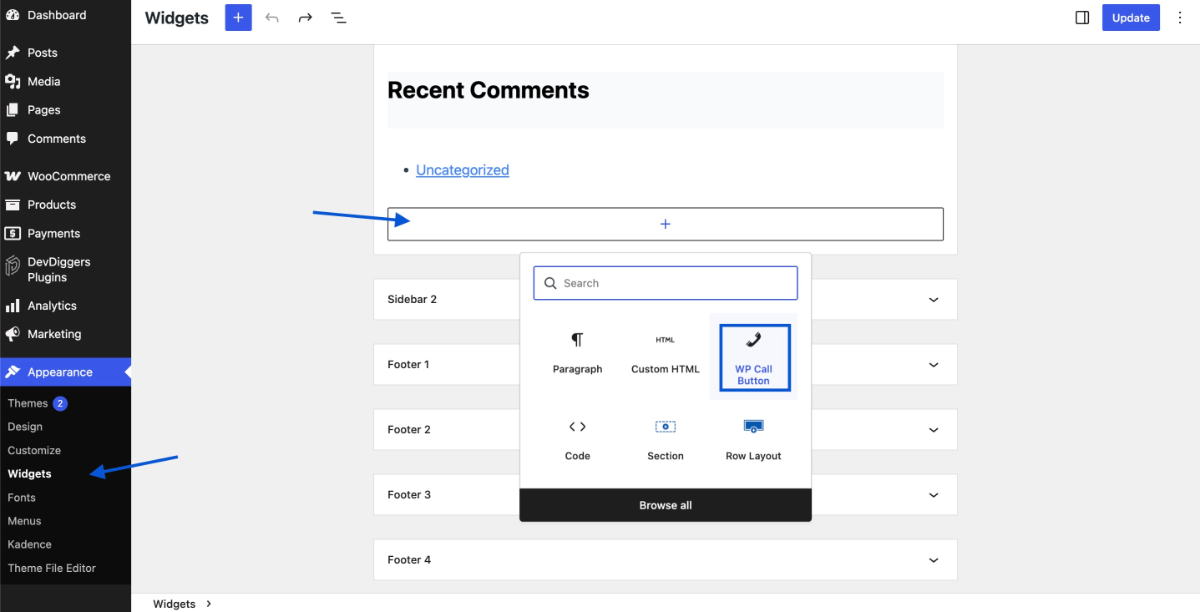
Go to Appearance > Widgets. Find the WP Call Button widget and drag it into your sidebar or any widget-ready area. This puts a call button in the sidebar without touching any code.
This one matters more than it sounds for sites with long article content. Users reading through a detailed post may want to call partway through. A sidebar button catches them without requiring a plugin-generated overlay on desktop.
Method 2: Manually Add a Click-to-Call Button in WordPress (HTML)
You don’t always need a plugin. If you want a call button in a specific spot on a specific page, a few lines of HTML and CSS get you there in under five minutes.
Step 1: Add the HTML Tel: Link
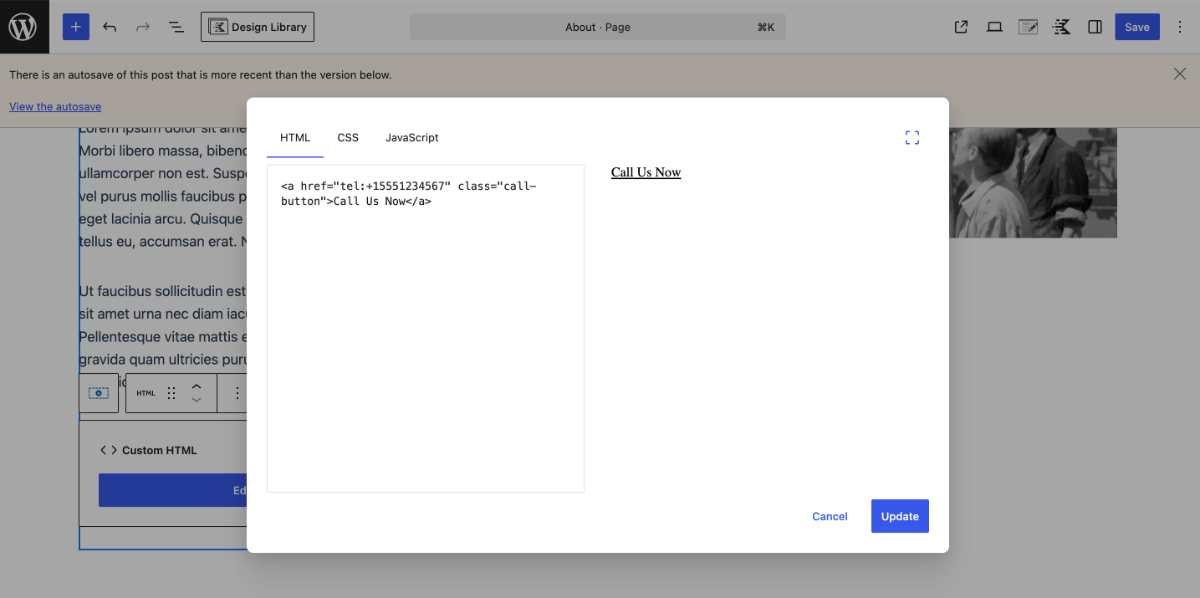
Open the page or post where you want the button. In the Gutenberg editor, click + and add a Custom HTML block.
Paste this code:
<a href="tel:+15551234567" class="call-button">Call Us Now</a>
Replace +15551234567 with your actual phone number in international format. The + followed by the country code is required for reliable cross-platform behavior. For a US number, that’s +1 followed by the 10-digit number. For a UK number, +44 followed by the number without the leading zero.
Step 2: Style the Button with CSS
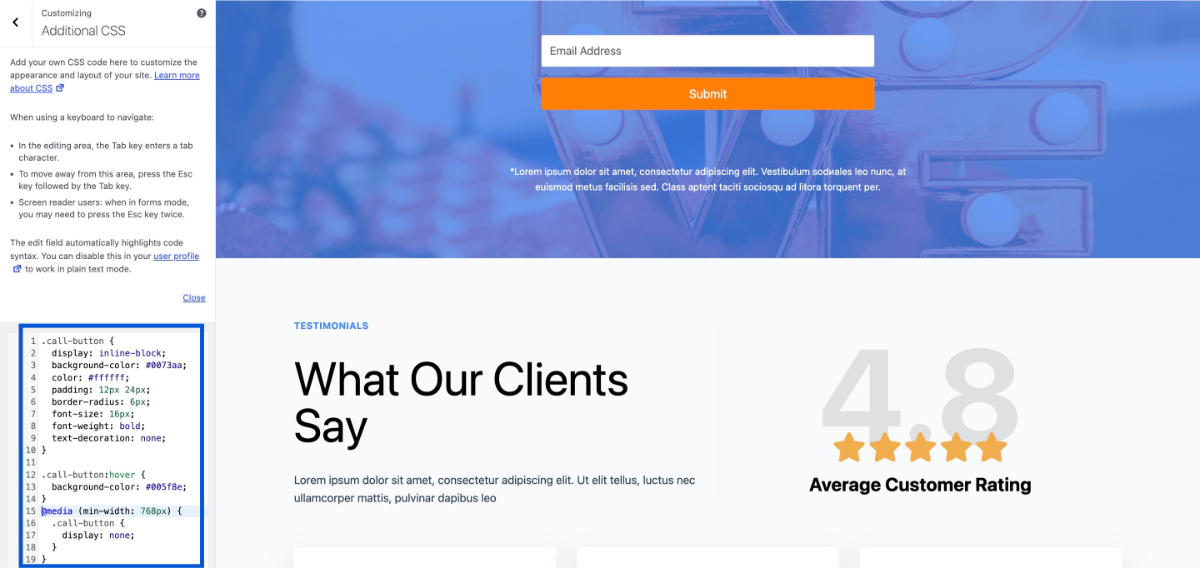
The link above works as a call link, but it looks like plain text. To make it look like a button, go to Appearance > Customize >Additional CSS and add this:
.call-button {
  display: inline-block;
  background-color: #0073aa;
  color: #ffffff;
  padding: 12px 24px;
  border-radius: 6px;
  font-size: 16px;
  font-weight: bold;
  text-decoration: none;
}

.call-button:hover {
  background-color: #005f8e;
}
Swap the hex codes to match your brand colors. The display: inline-block and padding. These are what turn the link into a button shape. The rest is cosmetic.
Step 3: Mobile-Only Visibility (Optional)
If you want the manual button to appear only on mobile, add this to your CSS:
@media (min-width: 768px) {
  .call-button {
    display: none;
  }
}
This hides the button on any screen wider than 768px, which covers most tablets and desktops. Adjust the breakpoint to suit your theme.
One thing worth knowing from working with this approach: If your theme uses a page builder like Elementor or Divi, you may need to paste the HTML in a Text widget or HTML element rather than the Custom HTML block. The block sometimes doesn’t display the anchor tag correctly in older page builder versions.
Method 3: Add a Click-to-Call Link to the WordPress Navigation Menu
This method requires no plugin and no CSS. It puts your phone number directly in your site’s header navigation, which is visible on every page on both desktop and mobile.
Step 1: Open the Menu Editor
Go to Appearance > Menus. Select your primary menu from the dropdown and click Select.
Step 2: Add a Custom Link
On the left side, you’ll see a Custom Links section. Click to expand it.
- In the URL field, enter your number in tel: format:
tel:+15551234567 - In the Link Text field, enter what you want to display: Call Us or your phone number formatted for reading, like
(555) 123-4567
Click Add to Menu. The link will appear in the menu structure on the right. Drag it to the position you want, then click Save Menu.
Step 3: Preview on Mobile
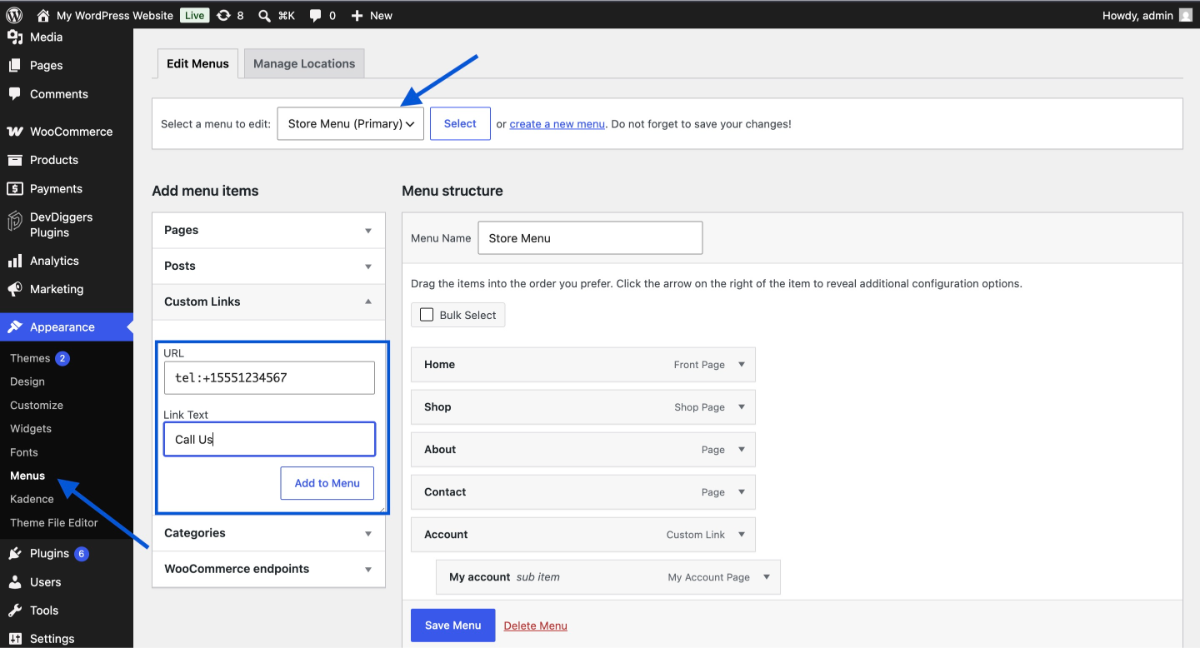
The navigation link works on both desktop and mobile, but the behavior differs. On mobile, tapping the link opens the dialer. On a desktop, it depends on the user’s installed apps. If you’d rather not show it on the desktop at all, you’ll need a small CSS change to target it by its menu item class, which requires slightly more setup.
This is the right method for businesses that want a phone number visible across the entire site without any floating overlay. Law firms and medical practices often prefer this approach since it feels more formal and doesn’t interrupt the reading experience.
Where to Place Your Click-to-Call Button (Placement Tips That Actually Matter)
Getting the button working is the easy part. Where you put it changes how often it gets used.
- Sticky floating button: This is the highest-visibility placement. The button follows users as they scroll, so it’s always reachable. Best for sites where calls are the primary conversion goal, like local services, clinics, or real estate.
- Above the fold on landing pages: Users decide within seconds whether they’ll act. A call button placed in the top portion of a landing page, next to or below your main headline, captures the intent before it fades. Place it where thumbs naturally rest during one-handed use. On most phones, that’s roughly the center-to-bottom of the screen.
- Service and product pages: Someone reading your roofing services page is already warm. A call button mid-page or at the end of the service description catches them at the right moment.
- Contact page: Always include a clickable number here. It’s the one place where every visitor expects to find a way to reach you.
- Sidebar: Works for blogs and informational sites. Readers browsing a long post may want to call without finishing the article.
One placement that underperforms: The footer only. By the time someone scrolls to the very bottom, the moment of intent has often passed. The footer is fine as a backup, but it shouldn’t be your only placement.
Common Mistakes to Avoid
A few things go wrong regularly that are worth catching before you launch.
- Formatting the number without a country code:
tel:5551234567works inconsistently across Android and iOS versions. Always use the full international format:tel:+15551234567. The+is not optional. - Showing the floating button on the desktop without thinking it through: On a laptop screen, a floating call button can overlap content and look out of place. Test it before you go live. Most plugins let you restrict it to mobile only, and for most sites, that’s the right call.
- Forgetting to test the actual dial: This sounds obvious, but tap the button on your phone before you publish. You’d be surprised how many sites go live with a typo in the number.
- Using a number that isn’t always answered: A click-to-call button sets the expectation of an immediate response. If calls go to a voicemail that nobody checks, the feature creates frustration rather than leads. If you can’t guarantee someone answers, consider pairing the button with a text or WhatsApp option.
- No tracking: You can’t improve what you don’t measure. The WP Call Button plugin integrates with Google Analytics via MonsterInsights. If you’re using the manual HTML method, add a
data-ga-eventattribute or set up a click trigger in Google Tag Manager. Knowing which pages drive calls tells you exactly where to double down.
How to Track Click-to-Call Conversions in WordPress
Tracking is not optional if you’re serious about this. Here’s the short version for each method.
With the WP Call Button plugin: Go to Settings > WP Call Button > Settings tab. Find the Click Tracking section and select your version of Google Analytics. It hooks into the MonsterInsights plugin if you have it installed, or fires a basic gtag event directly. Clicks appear in Google Analytics under Events after about 24 hours.
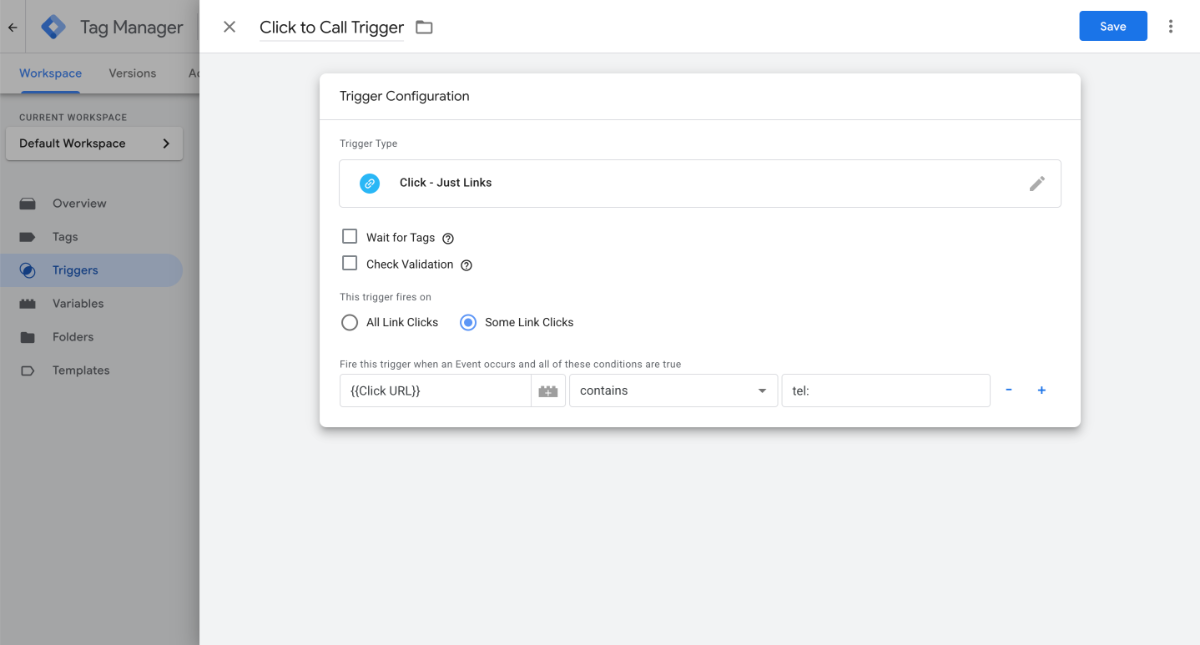
With the manual HTML method: You can track click-to-call interactions directly inside Google Tag Manager. First, create a new trigger using the Click – Just Links trigger type and configure it to fire only when the Click URL contains tel:. This ensures the trigger activates only when someone taps a phone number link on your website.
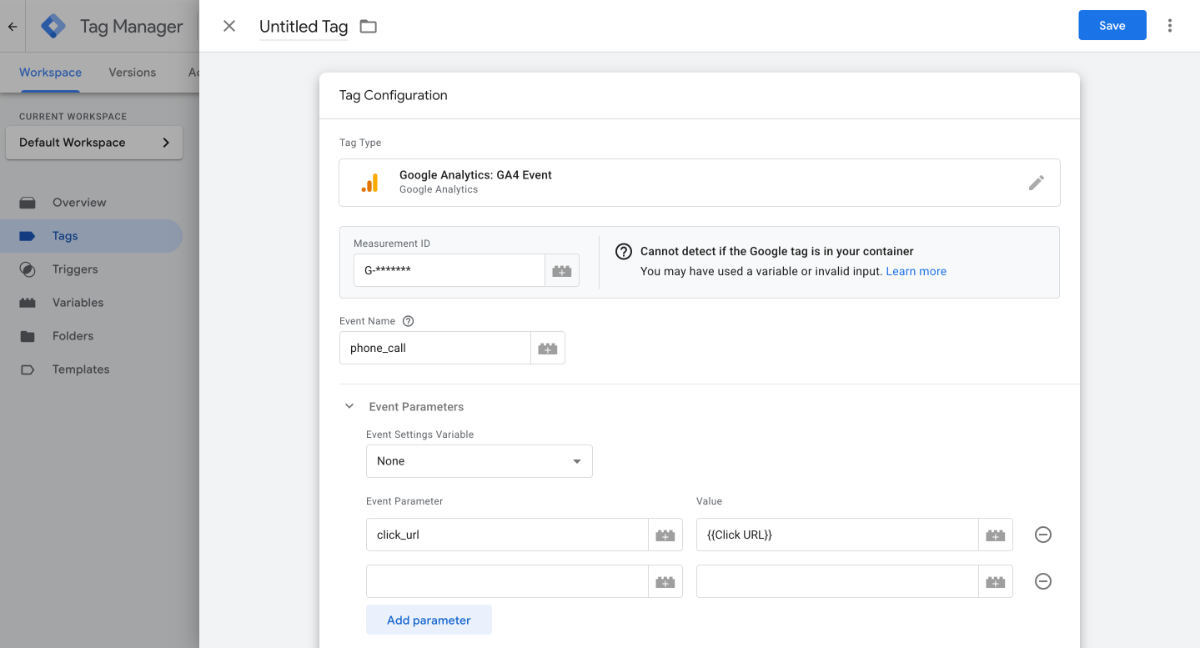
Then, create a new Google Analytics: GA4 Event tag and connect it to that trigger. Use an event name like phone_call, and optionally pass the {{Click URL}} parameter to track the exact phone number clicked. Add your GA4 Measurement ID (G-XXXXXXXXXX) so the event is sent correctly to Google Analytics. Once published, this setup provides you with accurate per-page call tracking data, enabling you to identify which landing pages generate the most phone leads.
Without Google Tag Manager: Add an onclick attribute directly to your tel: link:
<a href="tel:+15551234567" onclick="gtag('event', 'phone_call', {'event_category': 'Click to Call'});">Call Us</a>
This sends the event to GA4 each time someone taps the button. It’s a quick solution for sites that don’t use GTM.
Conclusion
Adding a click-to-call button in WordPress is a straightforward task with a long-lasting impact, especially if your business relies on phone-based leads. The WP Call Button plugin handles it in minutes for most sites. The manual HTML method works for anyone who wants a specific placement without another plugin. The navigation menu method suits sites that want site-wide visibility without any floating overlay.
The difference between these methods isn’t right or wrong. It’s about what fits your site’s purpose. A local plumber benefits from an aggressive sticky button. A law firm might prefer a clean nav link. Pick the one that matches how your visitors already behave.
Once your button is live, test it on your own phone, connect it to Google Analytics, and check back in two weeks to see how many clicks it’s getting. That data tells you whether the placement is working or whether you need to move it somewhere more visible.
Frequently Asked Questions (FAQs)
Q1. Does a click-to-call button work on desktop computers?
It depends on what calling apps the visitor has installed. On Mac with FaceTime, or Windows with Skype, tapping a tel: link may open those apps. On a computer with no calling app, nothing happens. This is why most businesses choose to show click-to-call buttons only on mobile devices, where the behavior is consistent.
Q2. Is the WP Call Button plugin free?
Yes. The core plugin is free and covers the sticky floating button, Gutenberg block, and sidebar widget. There’s no paid version required for standard use. It integrates with MonsterInsights for Analytics, which is a separate plugin with free and paid tiers.
Q3. Can I show different phone numbers on different pages?
The WP Call Button plugin shows one number site-wide by default. If you need per-page numbers, the manual HTML method gives you full control: paste a different tel: link on each page or post where you need it. Some more advanced plugins like Buttonizer also support conditional rules by URL.
Q4. Will the floating button slow down my site?
No. WP Call Button is a lightweight plugin with minimal JavaScript. It adds a small script to the front end but has no effect on page load times that would be detectable in a speed test. It’s built to stay out of the way.
Q5. How do I hide the call button on specific pages?
In WP Call Button, go to the Presentation tab (or Limit Appearance setting) and enter the WordPress post or page IDs where the button should not appear. You can find a page’s ID in the URL bar when editing it in the admin: look for post= followed by a number. For the manual HTML method, simply don’t add the button code to those pages.
Q6. Can I use a click-to-call button with Elementor or Divi?
Yes. Both page builders support custom HTML elements where you can paste a tel: link with your own CSS. Elementor also has a Button widget with a custom link field. Set the link to tel:+15551234567, and it works without any code. Divi’s Button module works the same way.
Q7. What’s the correct phone number format for the tel: link?
Always use the E.164 international format: a + sign, the country code, and the full number without spaces or dashes. For a US number: tel:+15551234567. For a UK number: tel:+441234567890. Spaces and dashes inside the href attribute cause inconsistent behavior across devices.