WordPress vs WooCommerce is not a choice between two platforms. WordPress runs your website, and WooCommerce is a free plugin that adds a store to it.
We checked the requirements against the WooCommerce server docs and the market share against W3Techs in October 2026. You cannot run WooCommerce without WordPress, but WordPress runs fine without WooCommerce.
You will learn what each one does, where the costs sit in 2026 and how the two work together. A checklist near the end shows which setup your project needs.
What Is WordPress and What Does It Do?
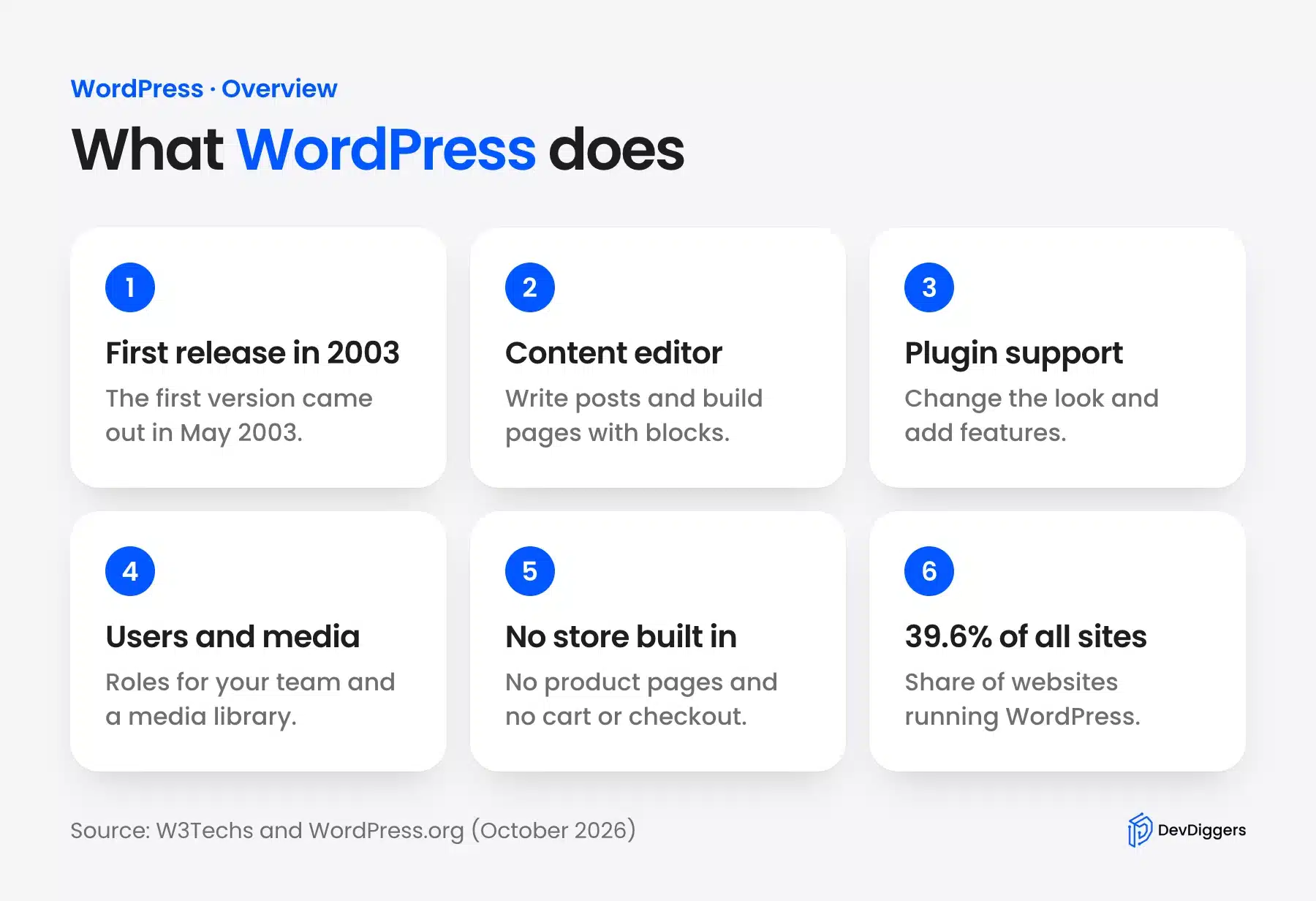
WordPress is an open-source content management system used by 39.6% of all websites, per W3Techs in October 2026. It started as a blogging tool in 2003, built by Matt Mullenweg and Mike Little. Today it runs everything from personal blogs to large news sites.
Out of the box, WordPress gives you a content editor, page and post management, user roles, media handling, theme support, and a plugin system that lets you extend the platform in almost any direction. It has no eCommerce features by default. No product pages, no cart, no checkout. Those require a plugin.
The platform itself is free to download and use. What costs money is the hosting, the domain, any premium themes, and any paid plugins you choose to add. A basic WordPress site on shared hosting runs about $3-$15/month. A properly tuned setup on managed WordPress hosting sits closer to $30-$100/month, depending on traffic.
WordPress is the right choice for a blog, a portfolio, a company site, a news site or a membership site. It suits any content project where selling physical or digital products is not the goal. If that describes your project, you do not need WooCommerce at all.
What Is WooCommerce and What Does It Do?
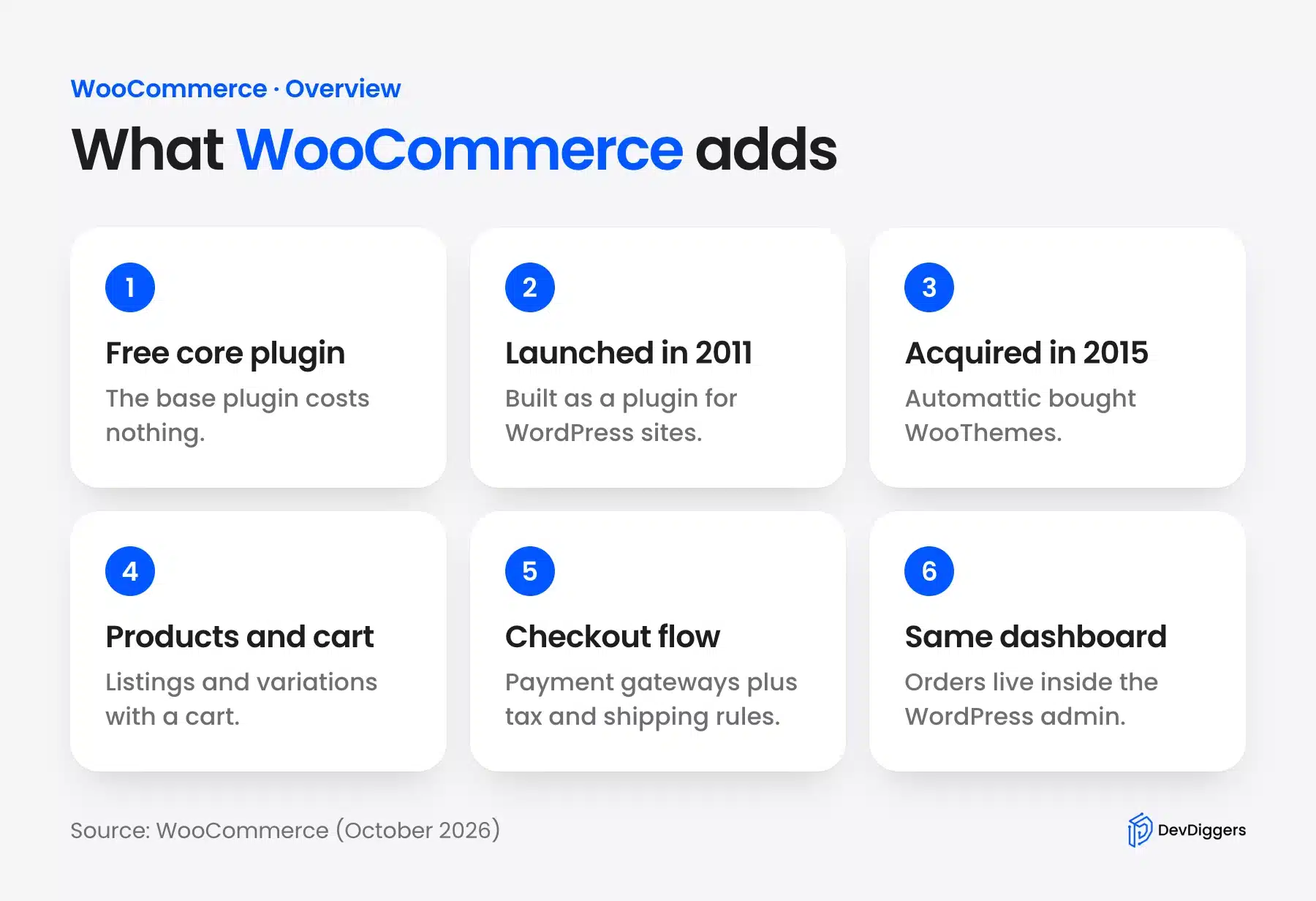
WooCommerce is an open-source eCommerce plugin built for WordPress, and the core plugin is free. It launched in September 2011, and Automattic bought it in May 2015. It turns a WordPress site into a store with products, a cart and a checkout.
When you install WooCommerce on a WordPress site, it adds a whole store layer: product listings, variable products, inventory tracking, a cart, a checkout, payment gateways, tax and shipping rules and order management. All of it integrates directly into your existing WordPress dashboard. No separate admin panel. No second login.
The core WooCommerce plugin is free. But most real stores need at least a few paid extensions. Subscriptions, bookings, advanced reports and multi-currency support all come from paid add-ons. A realistic budget for a WooCommerce store often looks like this:
- Hosting: $30-$150/month (eCommerce sites need more resources than content sites)
- Domain: $10-$20/year
- WooCommerce core: free
- Payment gateway fees: 2-3%/transaction depending on provider
- Paid extensions: $0-$500/year depending on what you need
- Theme: $0-$100 one-time
That last point matters. The difference between running WordPress alone and running WordPress with WooCommerce is roughly $20-$80/month on hosting alone, because a store handles payments, session data and cart totals that a content site does not. You can also check if a website is made with WordPress before you copy a competitor's setup.
WordPress vs WooCommerce: 6 Key Differences
WordPress and WooCommerce are not competing platforms. The real comparison is what changes when you add WooCommerce to a WordPress site. The six differences below cover purpose, technical needs, speed, SEO, security and the cost of running each setup over time.
1. Purpose
WordPress manages content. WooCommerce manages commerce. WordPress lets you publish posts, build pages and organize media. WooCommerce lets you list products, take payments, track stock and manage orders. They solve completely different problems, which is why they work together rather than against each other.
2. Technical Requirements
WordPress.org recommends PHP 8.3 or later, MySQL 8.0 or MariaDB 10.11 and HTTPS. WooCommerce 10.8 and later asks for PHP 8.3, WordPress 6.9, MySQL 8.0 or MariaDB 10.6 and a 256 MB PHP memory limit. Both still run on PHP 7.4 in legacy setups, but that version no longer gets security fixes.
WooCommerce also adds its own database tables. New stores keep orders in HPOS tables such as wc_orders and wc_order_addresses. If your host still sets a 128 MB memory limit, raise WP_MEMORY_LIMIT in wp-config.php or ask the host to raise it.
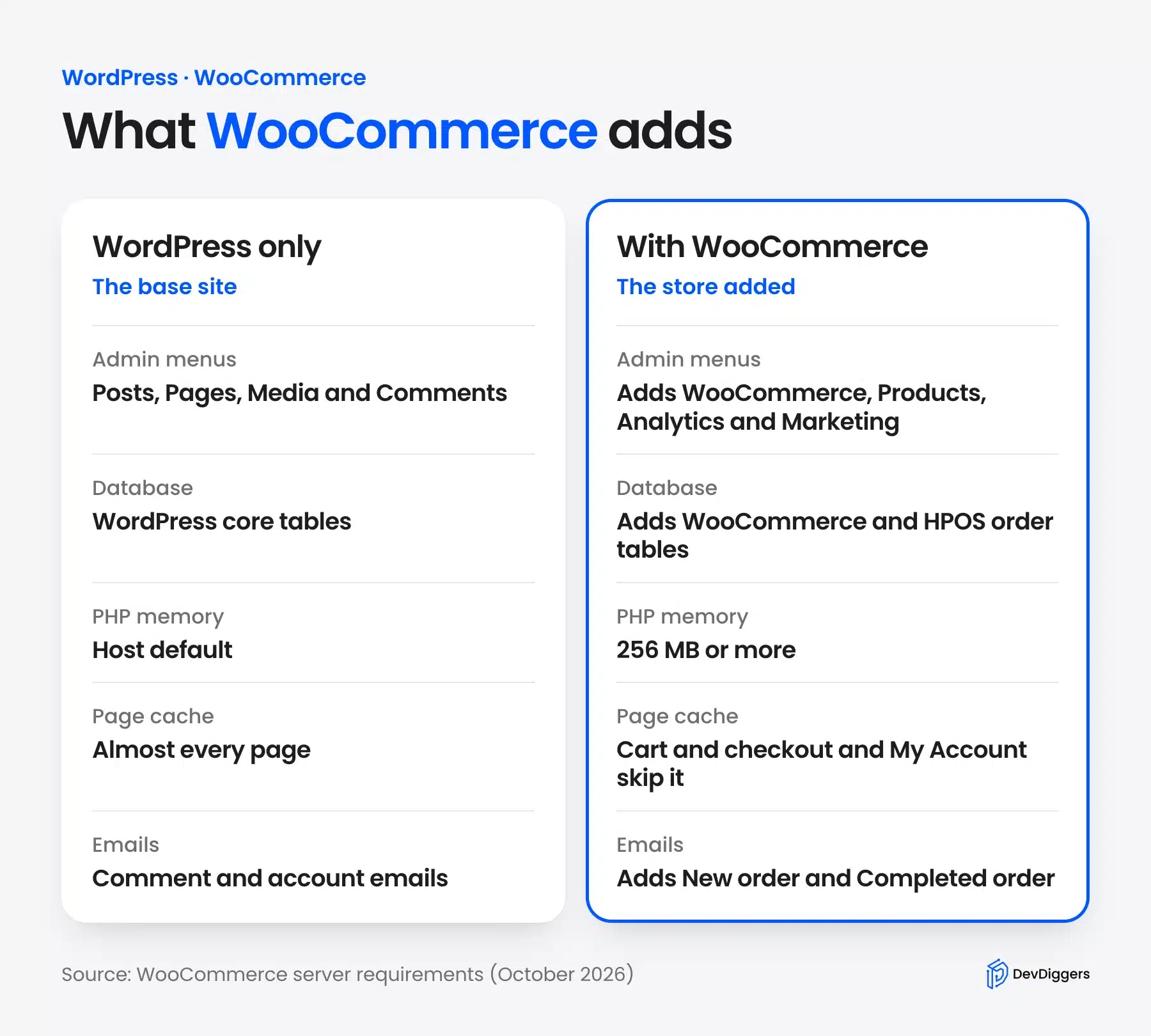
This table shows what changes on the same site once WooCommerce is active.
| Area | WordPress only | WordPress with WooCommerce |
|---|---|---|
| Admin menus | Posts, Pages, Media and Comments | Adds WooCommerce, Products, Analytics and Marketing. |
| Database | WordPress core tables | Adds WooCommerce tables and HPOS order tables. |
| PHP memory | Host default | 256 MB or more. |
| Page cache | Almost every page | Cart, checkout and My Account skip the cache. |
| Emails | Comment and account emails | Adds order emails such as New order and Completed order. |
3. Performance
WordPress alone is faster than WordPress with WooCommerce. This is expected. A content site serves mostly static pages that can be heavily cached. WooCommerce pages like the cart, checkout, and account areas are dynamic by design. They must bypass caching to show correct prices, real inventory counts, and session-specific cart data.
Google’s Core Web Vitals measure loading, interactivity and visual stability on real visits. A well-tuned store passes them with page caching, a CDN (content delivery network) and image optimization. A store with a heavy plugin stack often fails them on product and checkout pages. If you want to speed up a WooCommerce store, start with our WooCommerce speed optimization guide.
4. SEO
Both WordPress and WooCommerce use the same SEO foundation. The same Rank Math or Yoast setup works for both. WooCommerce adds product schema markup automatically, which enables rich snippets in search results showing price, availability, and star ratings.
The real SEO complexity with WooCommerce comes from scale. A store with 500 products creates paged lists, filtered URLs and duplicate content risks that a 20-page site never faces. Category structure, canonical URLs for filtered shop pages and filter navigation all matter at that size. A content-only WordPress site never needs them.
5. Security
WordPress sites face the standard CMS threats: repeated login attacks, outdated plugins and file permission issues. WooCommerce stores carry all of those, plus PCI DSS rules because the store takes payments. This does not mean WooCommerce is insecure. It means the security requirements are higher and the consequences of getting it wrong are more serious.
WooCommerce itself does not store raw card data (payment gateways handle that), but you still need SSL, strong logins, regular backups and a security plugin. The WooCommerce security checklist covers the full setup.
6. Cost Over Time
WordPress alone is cheap to run. A small business site on managed hosting with a premium theme and two or three paid plugins might cost $500-$800/year all-in.
WooCommerce adds real cost. Between higher-tier hosting, payment gateway fees on every transaction, and the paid extensions a real store needs, a properly set-up WooCommerce store costs $1,500-$4,000/year before any marketing spend. That is not a reason to avoid WooCommerce. It is a reason to build the budget honestly before you start.
How Do WordPress and WooCommerce Work Together?
WooCommerce runs inside WordPress as a plugin. It hooks into the WordPress plugin system, uses the WordPress database, inherits the theme and adds menus to the admin panel. Store owners manage posts, pages and orders from one WordPress dashboard with a single login.
When a customer visits your store, WordPress handles the page rendering, the template logic, and the content output. WooCommerce handles the product data, the cart session, the checkout process, and the order recording. They share the same database and the same codebase. Updates to WordPress can affect WooCommerce and vice versa, which is why you should always test updates on a testing site before pushing to production.
This tight integration is both a strength and a limitation. It means you get a fully combined site where a blog post can sit one click away from a product page, where SEO settings apply across everything, and where a single theme controls the full look and feel.
It also means a problematic plugin can break both your content and your store at the same time. This is one case where having a staging environment set up before you need it really does save you.
Do You Need WordPress Alone or WooCommerce Too?
Use WordPress alone for a blog, a portfolio or a company site with no checkout. Add WooCommerce when you need to take payments for products, downloads or services. If you are new to both, learn how to create a WordPress website first and add WooCommerce later.
Use WordPress alone if:
- You are building a blog, news site, portfolio or company information site
- You have no plans to sell products or services with a checkout process
- You want maximum speed and the simplest possible hosting setup
- Your site’s main job is generating leads via contact forms rather than direct sales
Add WooCommerce if:
- You need to sell physical products, digital downloads or services with online payment
- You want subscriptions, automatic payments or paid membership access
- You are building a marketplace or multi-vendor setup
- You already have a WordPress site and want to add a shop without switching platforms
Consider alternatives to WordPress entirely if:
- You want fully managed hosting with no plugin maintenance (Shopify is worth comparing)
- Your team has zero technical resources and needs everything handled for you
- You are selling at a very high volume and need a platform built specifically for enterprise scale
For most small and mid-size businesses, WordPress plus WooCommerce strikes a sensible balance between control and cost. The open-source model means no license fees and no vendor lock-in. If you want to know whether a store can run on WooCommerce alone, read our guide on WooCommerce without WordPress.
If you are at the point where WooCommerce is the right call and you want to extend what it can do, DevDiggers builds plugins for WooCommerce stores, including the LoyaltyX WooCommerce Points and Rewards plugin for stores that want to run loyalty programs and a WooCommerce Wallet plugin for stores that want to offer store credit and cashback to customers.
Common Mistakes When Setting Up WordPress with WooCommerce
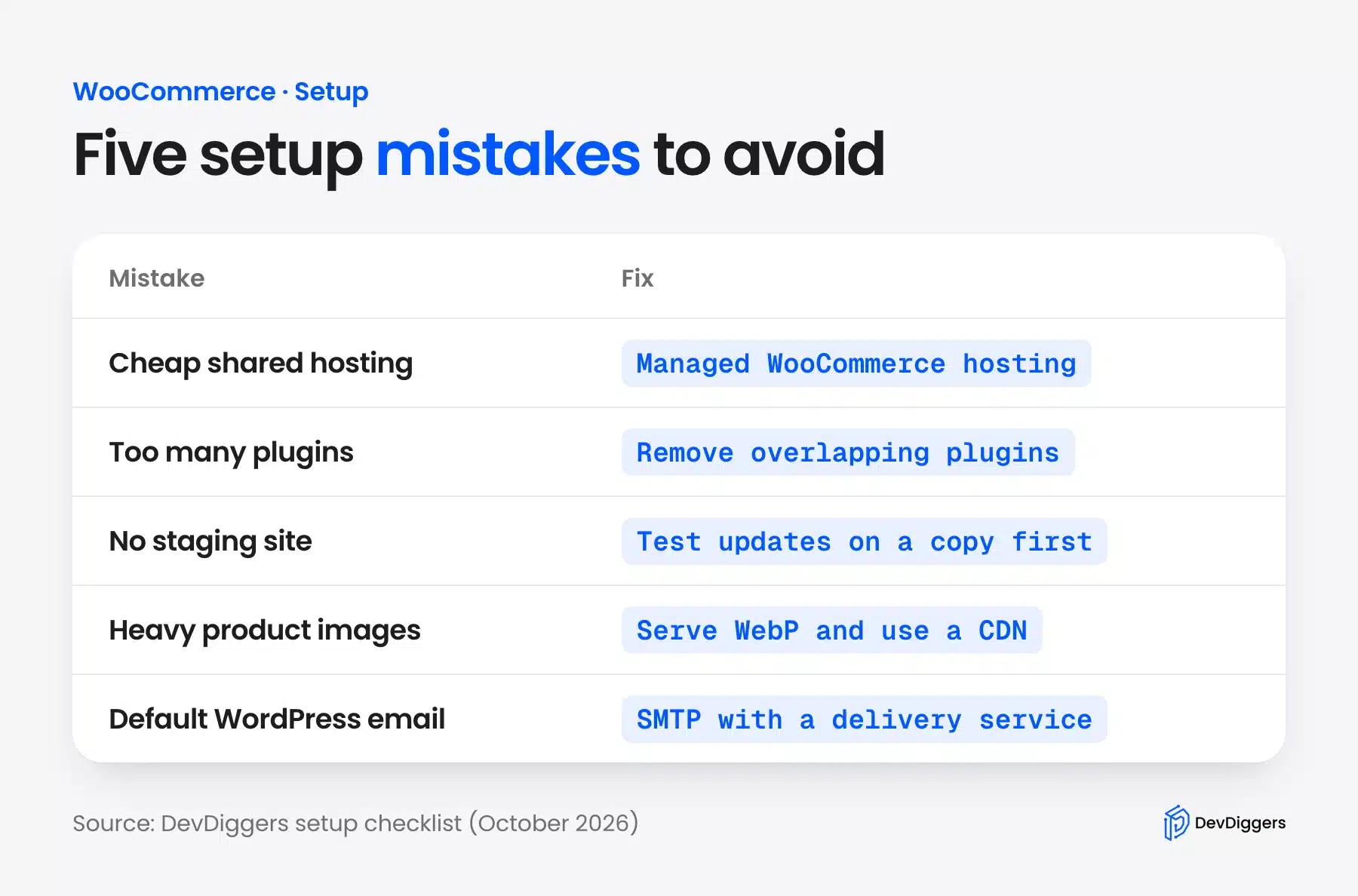
Most WooCommerce setup problems come from five early choices: cheap hosting, too many plugins, no staging site, heavy images and default email. Each one is easy to avoid on day one. Each is harder to fix once orders are coming in.
- Cheap shared hosting: WooCommerce on a $3/month shared host will be slow, and slow checkout pages lose sales. Budget for managed hosting with a WooCommerce plan from the start.
- Too many plugins: A WooCommerce store does not need 50 plugins. Every plugin adds database queries, scripts and one more chance of a conflict. Review your plugin list before going live. If two plugins solve the same problem, remove the one you use less.
- No staging site: Test updates on a copy before they reach the live store. Most good hosts offer one-click staging. Use it. A WooCommerce update that breaks checkout on a live store costs far more in lost orders than the ten minutes it takes to test first.
- Heavy product images: Uncompressed images slow product pages down. Serve WebP files, set image sizes in your theme and use a CDN (content delivery network). The WordPress image optimization guide covers the exact steps.
- Default email setup: WooCommerce sends order confirmations, shipping updates and password resets. WordPress sends mail through your server by default. Use an SMTP plugin connected to an email delivery service. If customers are not getting order confirmations, they call you.
What Is Different for New Stores in 2026?
New WooCommerce stores in 2026 start with two defaults older guides miss. The block-based Cart and Checkout came in WooCommerce 8.3, and HPOS order tables came in 8.2. Block themes are also a practical base for a new store, and classic themes still work.
The block-based Cart and Checkout became the default for new stores in WooCommerce 8.3, released in November 2023. They replace the older shortcode pages with blocks that are easier to customize visually.
If you are building a new store in 2026, use the block checkout by default. If you are running an existing store on the shortcode checkout, moving is possible but not urgent. Check first that your checkout add-ons support blocks.
WordPress full-site editing has matured enough that block themes are a practical starting point for WooCommerce stores. Classic themes still work fine.
High-Performance Order Storage (HPOS) has been the default for new installs since WooCommerce 8.2 in October 2023. It moves orders out of the WordPress posts and postmeta tables into tables such as wc_orders. Older stores can switch with compatibility mode, which keeps both sets of tables in sync during the move.
Conclusion
WordPress vs WooCommerce is not a choice between two platforms. WordPress is the base. WooCommerce is what you add when you need to sell. If your project is purely content, stay on WordPress alone and keep your setup clean.
If you need eCommerce, WooCommerce on WordPress gives you more control and lower platform cost than most alternatives at the same capability level. The real decisions are hosting quality, plugin choice and whether your team has the technical resources to maintain an open-source stack over time.
If you are building a WooCommerce store and want plugins that extend what the platform does by default, check out our full WooCommerce extensions library.
Frequently Asked Questions (FAQs)
Q1. Can I use WooCommerce without WordPress?
No. WooCommerce is a WordPress plugin and cannot run on its own. Our guide to WooCommerce without WordPress covers the standalone platforms to look at instead.
Q2. Is WooCommerce free?
The core WooCommerce plugin is free to download and install. The costs come from hosting, the domain, premium themes, paid extensions and payment fees. Most real stores spend $1,500-$4,000/year to run properly.
Q3. Does WooCommerce slow down WordPress?
Yes. WooCommerce adds server load compared to a content-only WordPress site. Cart, checkout and account pages are dynamic and cannot be fully cached. Good hosting and a caching plugin that skips those pages keep most stores fast.
Q4. Is WordPress good for eCommerce?
WordPress with WooCommerce is one of the most used eCommerce setups in the world. It works well for most business sizes. It can feel limited at very high order volumes or when you need complex B2B features out of the box.
Q5. Do I need a developer to set up WooCommerce?
Not for a basic store. WooCommerce has a setup wizard, and many themes are built for it. You will likely need a developer for custom features, outside integrations or speed work beyond what plugins provide.
Q6. What is the difference between WordPress.com and WordPress.org?
WordPress.org is the free self-hosted software this guide covers. WordPress.com is a hosted service run by Automattic with more limits on what you can customize. WooCommerce is available on some WordPress.com plans, but self-hosted WordPress.org gives you full control.
Q7. Can WordPress handle a large WooCommerce store?
Yes, with the right setup. Large stores need dedicated or cloud hosting, a well-configured caching layer and database tuning. A dedicated product search plugin also helps once the catalog reaches thousands of products.