A WooCommerce security checklist is a set of steps every store owner should complete to protect their site from hackers or automated attacks. It covers your hosting setup, SSL, login protection, payment security, and user access. Working through it is the most reliable way to close the gaps attackers look for.
Your store holds real customer data, payment details, and personal information. Automated bots scan WordPress sites around the clock. When a vulnerability goes public, mass exploitation can start within hours.
Your store gets hacked because an automated bot found an unlocked door before you did. By the time you notice, customer data is already gone, your payment processor is flagging your account, and Google has marked your site as dangerous.
You don’t need a security team or a big budget. You need a clear checklist and the discipline to work through it. That’s exactly what this is.
Why WooCommerce Stores Are Prime Targets?
WooCommerce powers a huge share of online stores worldwide. It’s open-source, which means anyone can study the code. When a vulnerability surfaces, it’s often public within hours.
Your store holds valuable data like customer names, addresses, email accounts, and payment details. That data has real resale value. Bots scan thousands of sites, find an unpatched plugin, and exploit it. You don’t need to be a major brand to get hit.
According to Patchstack’s State of WordPress Security report, 7,966 new vulnerabilities were found in the WordPress ecosystem in 2024 alone. That’s a 34% increase year over year. Per IBM’s 2024 Cost of a Data Breach Report, the average global breach now costs $4.88 million.
Many breaches happen because of forgotten admin accounts, outdated plugins, or a store that never enforced HTTPS. This WooCommerce security checklist walks you through all of them.
Section 1: Hosting and SSL Foundation
#1. Choose a WooCommerce-Optimised Host
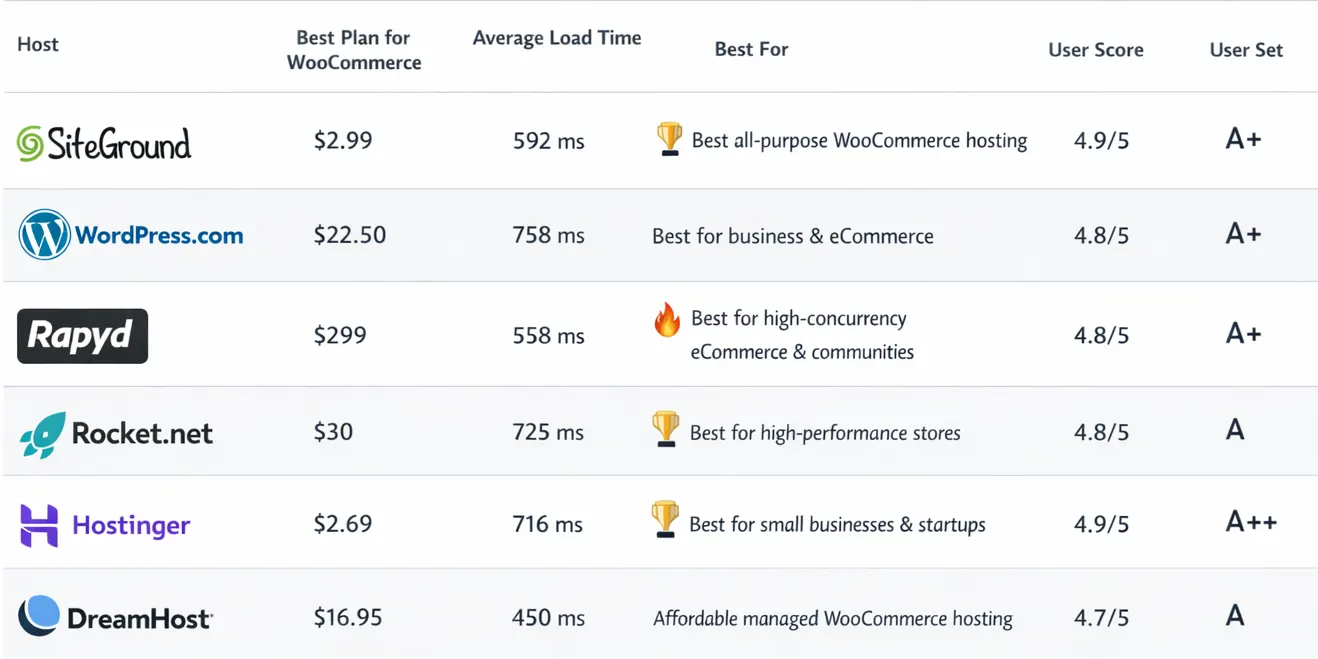
Your hosting provider sets the standard for everything that follows. If it falls short, even strong security practices won’t hold up for long.
That’s why the right foundation matters.
With Convesio WooCommerce Hosting, security is built into the platform from the start, not added later. You get server-level firewalls, automated malware scanning, and daily off-site backups, all running on modern, up-to-date infrastructure.
When issues happen, response time matters. Instead of leaving you to figure it out, affected environments are isolated quickly and cleaned thoroughly, so your store stays protected and your business keeps moving.
#2. Install SSL and Enforce HTTPS Across Your Entire Store
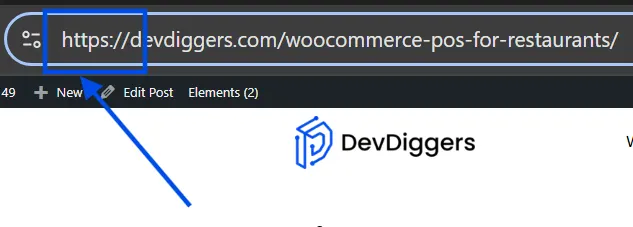
SSL encrypts data between your site and your visitors. It’s essential at checkout. A common mistake is applying HTTPS only to the checkout page and leaving everything else unprotected.
According to WooCommerce’s own security documentation, most reputable hosts offer free SSL. After installation, force HTTPS across your entire domain. Set up a 301 redirect from HTTP to HTTPS so no unencrypted version of your site stays live. Then check every page, including the homepage and account pages, for the padlock in the browser bar.
Section 2: Keep Everything Updated
#3. Update WordPress Core, WooCommerce, and PHP
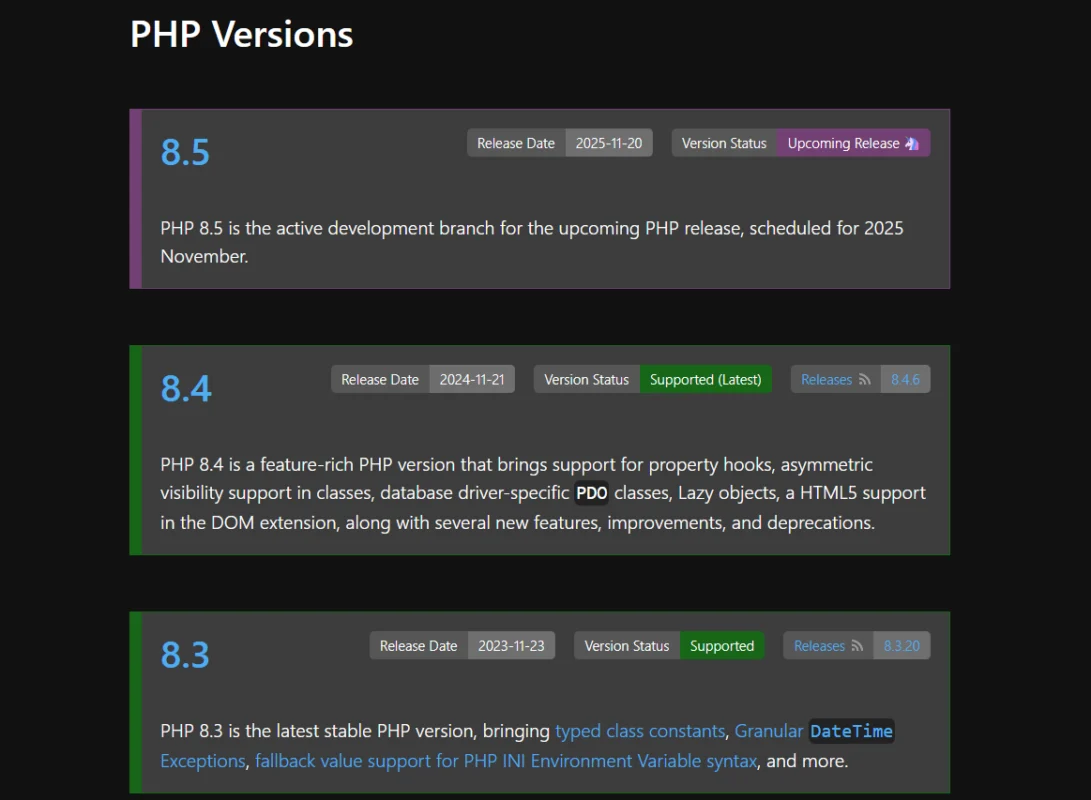
Updates to WordPress core and PHP include security patches. Running old versions means running with known, public vulnerabilities.
When a patch is released, the release notes often describe what was fixed. That description tells attackers exactly what to look for on unpatched sites. The window between disclosure and active exploitation can be just a few hours.
Check your PHP version in your hosting dashboard. If you’re still on PHP 7.4 or earlier, you’re running software with no security patches. That’s a straightforward risk to eliminate.
#4. Audit and Update All Plugins and Themes
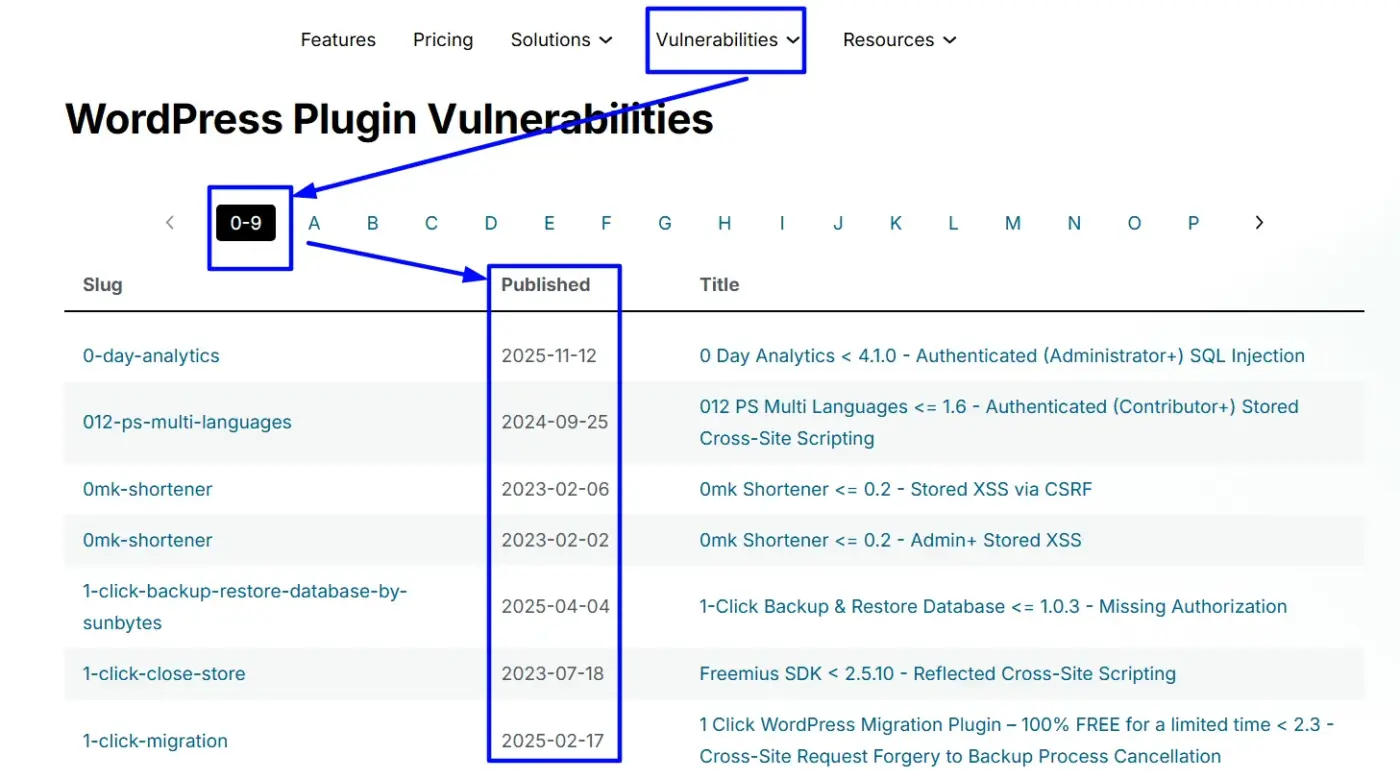
Per Patchstack’s 2024 data, 96% of all vulnerabilities that year were in plugins and themes. Over 1,000 of those vulnerabilities were in plugins with more than 100,000 active installs.
If a plugin hasn’t been updated in over a year, treat it as a risk. You can check your plugins against WPScan’s vulnerability database to see if any known issues have been reported.
#5. Delete Every Plugin and Theme You’re Not Using
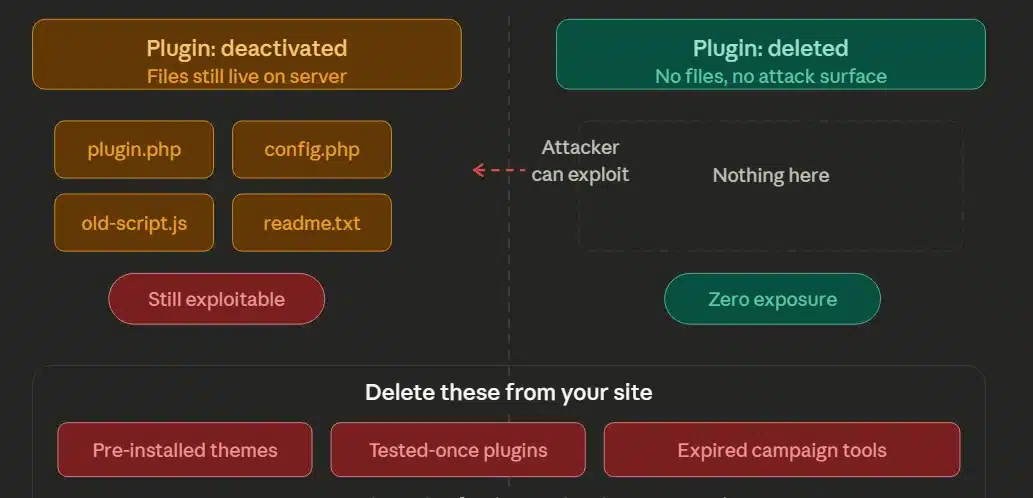
An unused plugin has files on your server even if it was offline. Those files can still be exploited. Deactivating a plugin doesn’t remove that risk. It just stops the plugin from running.
Go through your plugins and themes list. Delete anything that includes old pre-installed themes, plugins tested once and forgotten, and set up tools for a campaign that ended months ago.
Section 3: Lock Down Your Login
Login pages are the most targeted entry point on any WooCommerce store. Having built and maintained 25+ WooCommerce plugins across dozens of client stores, we’ve seen this pattern consistently.
#6. Change the Default Admin Username and Login URL
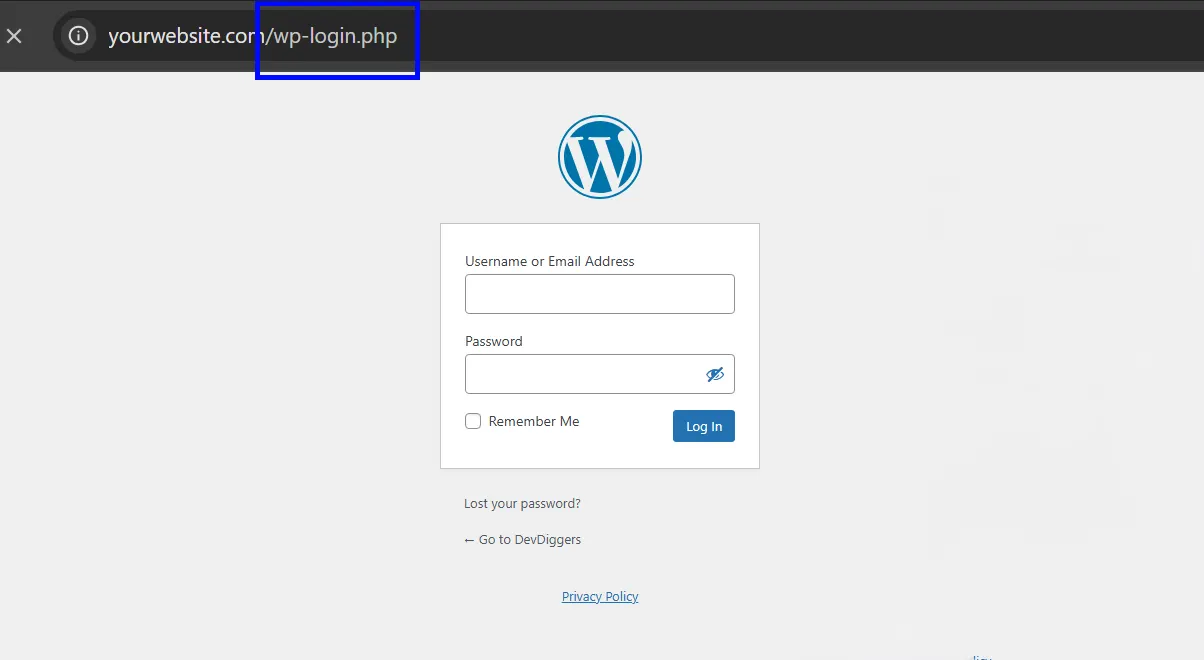
Create a new administrator account with a non-obvious username, and give it full admin rights. Log in with the new account, then delete the original “admin” account.
Also, consider changing your login URL. The default paths "/wp-admin" and "/wp-login.php" are easily probed by bots. Several free plugins handle this without any code required.
#7. Enforce Strong Passwords for All User Accounts
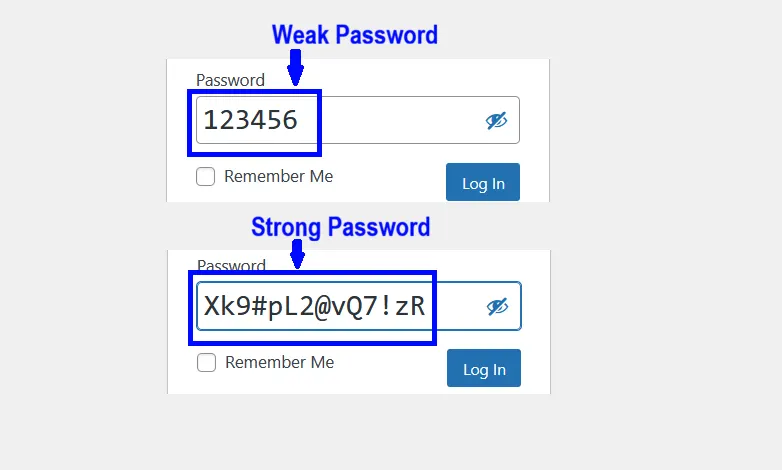
WordPress lets administrators enforce strong passwords natively. Every user with dashboard access should use a strong, unique password that isn’t reused from another service. That includes editors, shop managers, and any developer who previously had access.
Strong passwords are long and random. If your team is still choosing their own passwords, that’s a gap worth closing.
#8. Add Two-Factor Authentication to Your Store
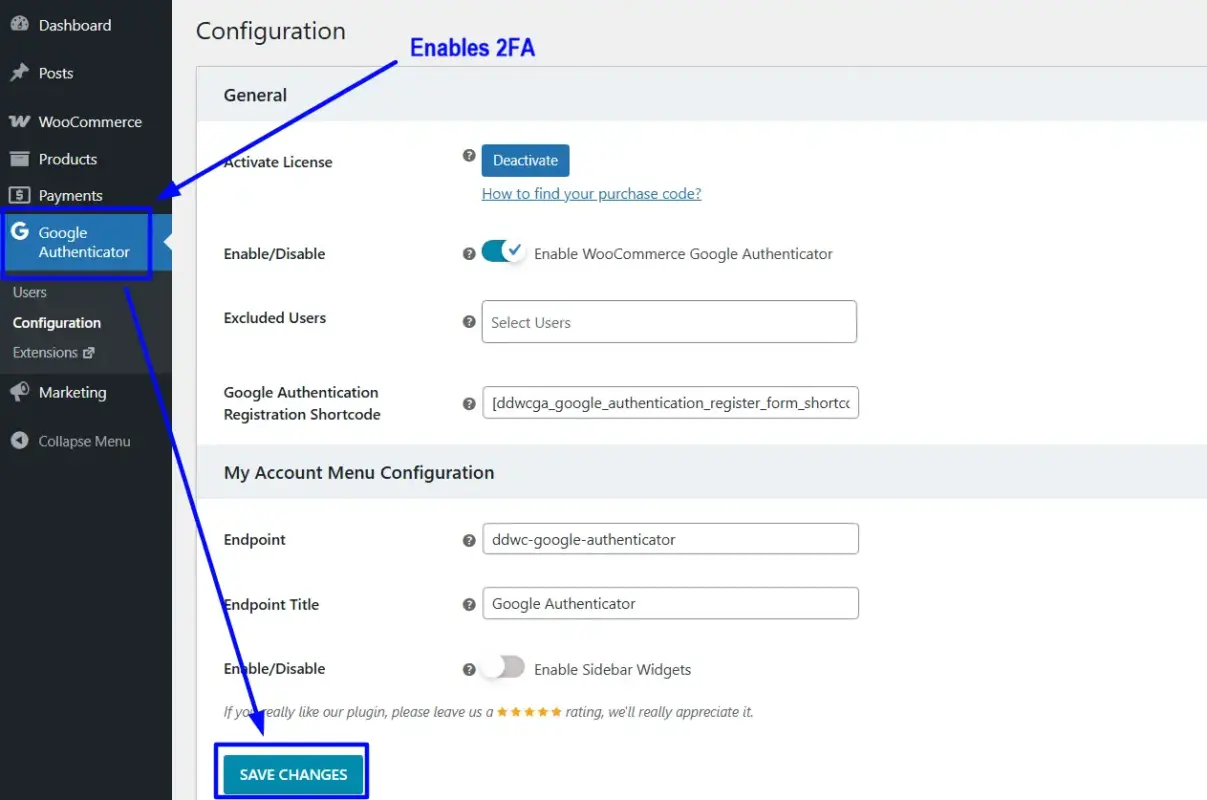
A strong password can still be compromised through phishing or a breach. Two-factor authentication adds a second layer that a stolen password alone can’t bypass.
Our WooCommerce Google Authenticator plugin adds time-based 2FA to your store login using the Google Authenticator app. Once set up, every login needs both a password and a six-digit code from the user’s phone. The code rotates every 30 seconds.
#9. Limit Login Attempts and Block Repeated Failures
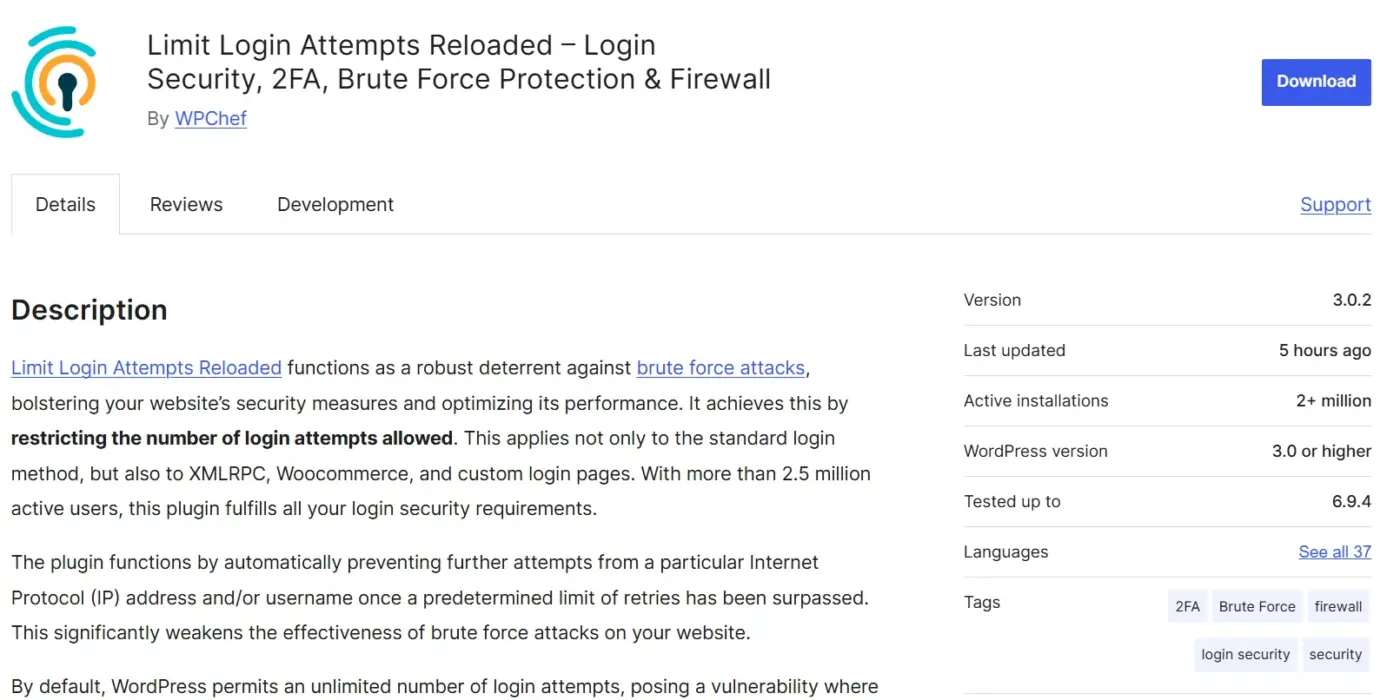
WordPress has no default limit on login attempts. You can use the Limit Login Attempts Reloaded plugin to limit login attempts. An automated script can cycle through thousands of password combinations without triggering any lockout.
A plugin that limits attempts and blocks IP addresses after repeated failures stops this cold. Most dedicated WordPress security plugins include this feature.
#10. Add CAPTCHA to Login, Registration, and Checkout Forms
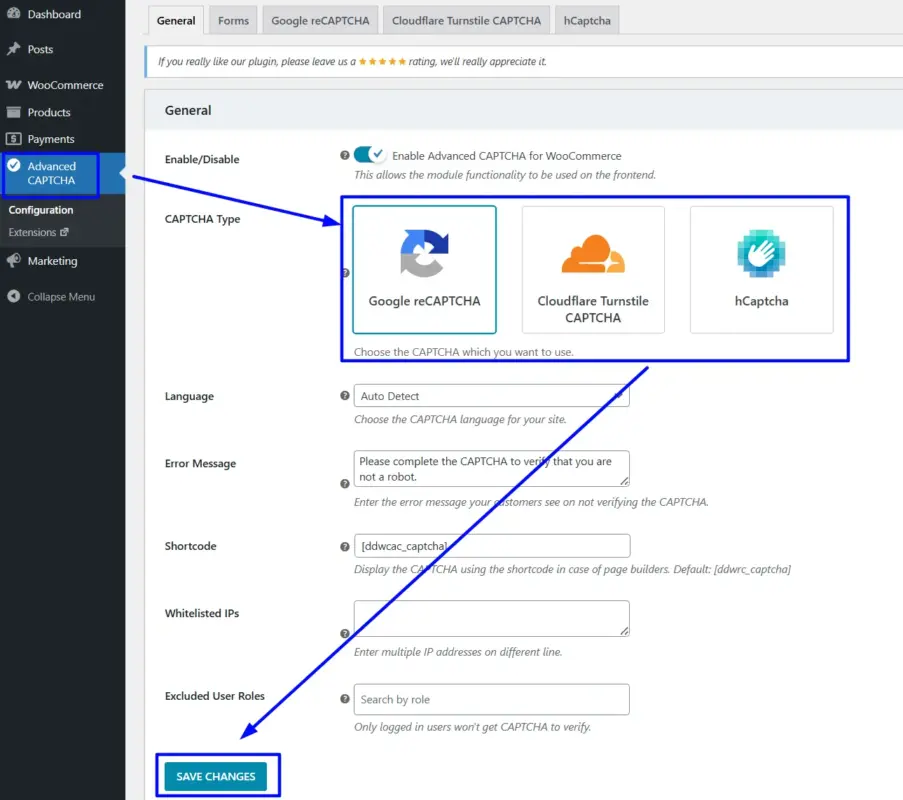
Bots mainly hit registration forms, checkout pages, and lost password forms, too. Unprotected forms invite spam accounts, fake orders, and credential stuffing attacks.
Our WooCommerce Advanced CAPTCHA plugin adds CAPTCHA protection to your WooCommerce login, registration, checkout, and other key forms. It supports multiple CAPTCHA types so you can balance security with a smooth experience for real customers.
Section 4: Manage User Roles and Access
#11. Give Every User the Minimum Access They Need
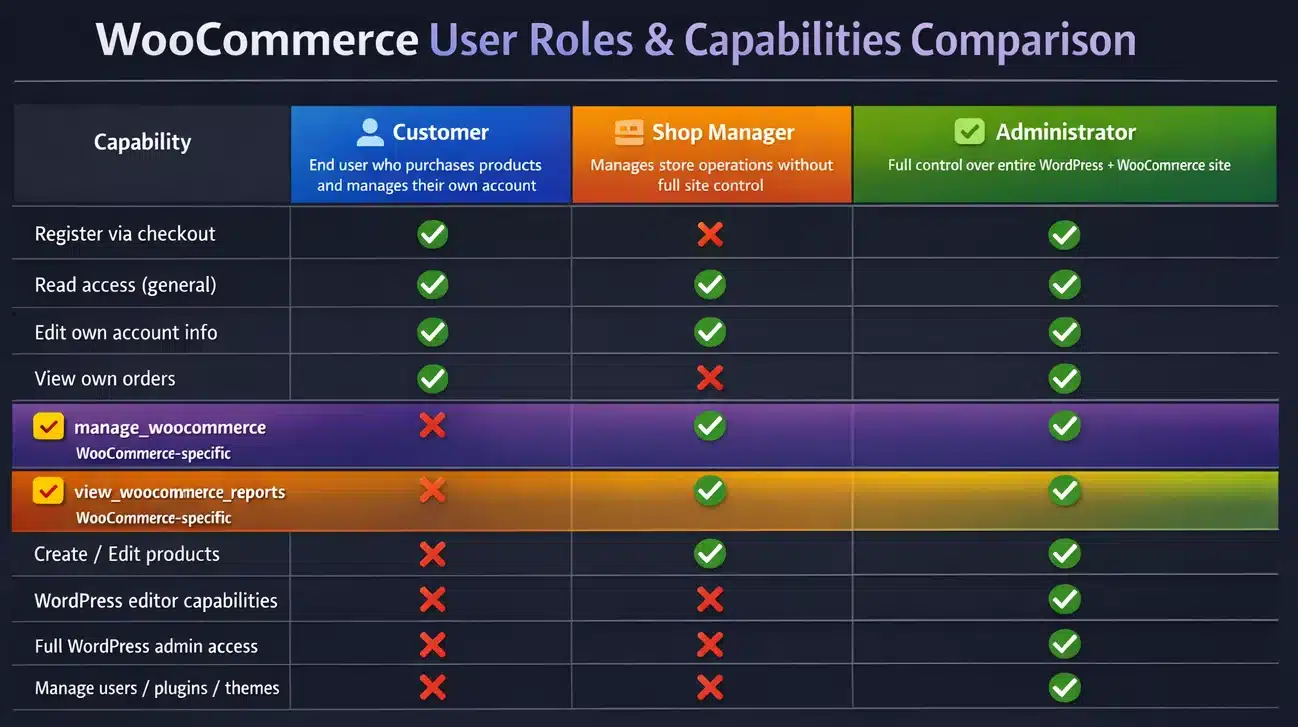
WooCommerce and WordPress both support role-based access. A shop manager doesn’t need administrator rights. A copywriter updating product descriptions doesn’t need to install plugins. Give every user the lowest access level that lets them do their job.
Because an attacker with subscriber access can’t install malware. In comparison, an attacker with administrator access can do almost anything, including creating backdoors and accessing your full customer database.
#12. Audit and Remove Dormant Accounts
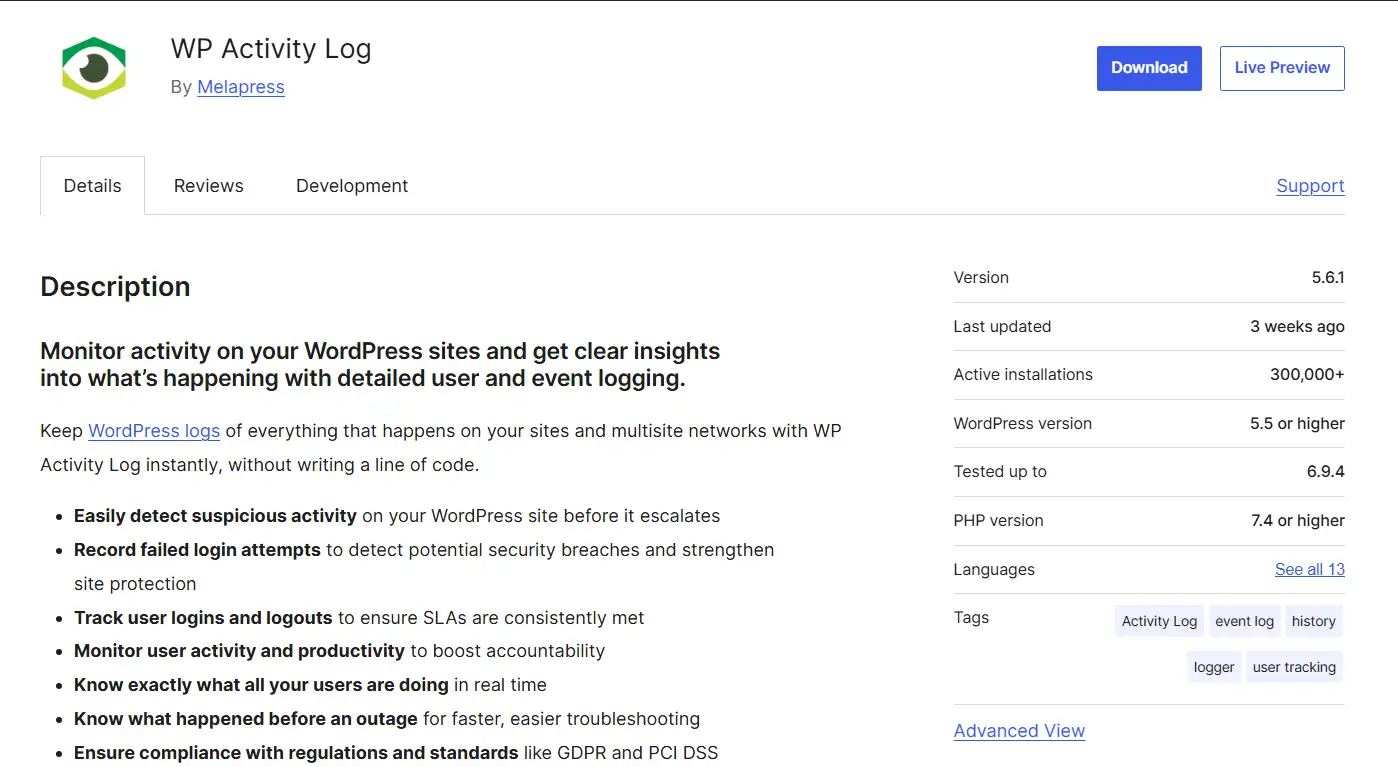
Think about every person who has ever accessed your WordPress dashboard, and whether the accounts of former staff, freelancers, and developers from one-off projects still exist on the WordPress dashboard. It’s a live risk.
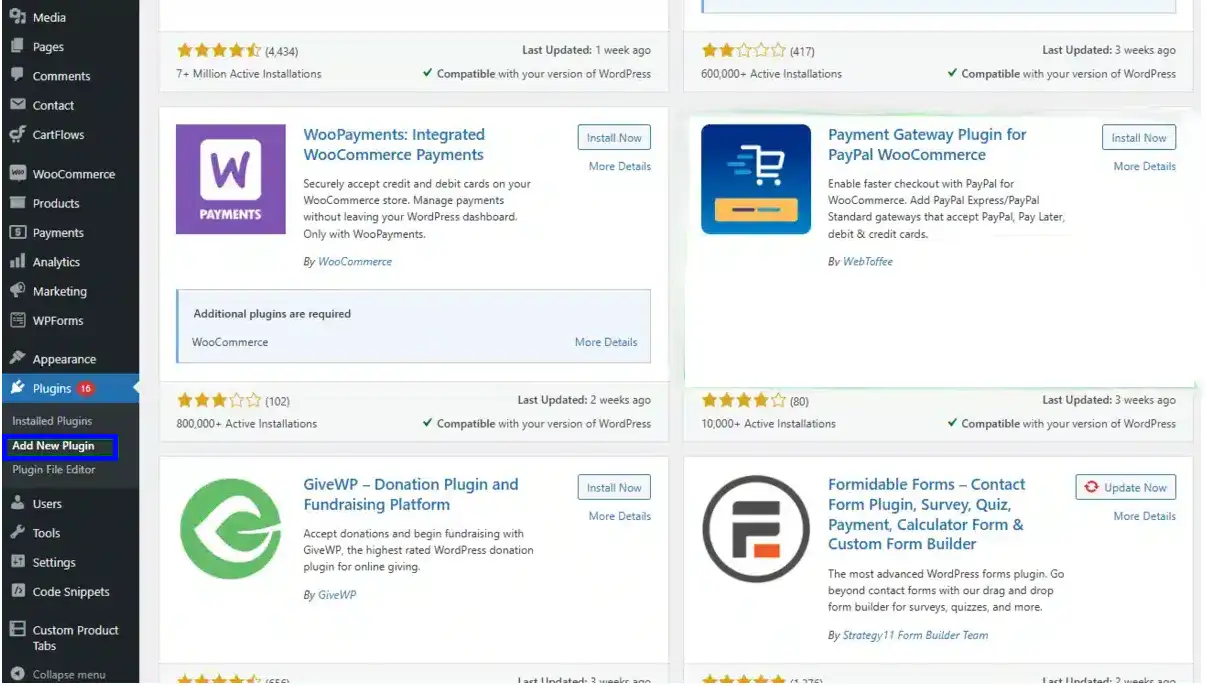
Remove accounts that no longer need access. If you’re unsure about an account, downgrade its permissions while you investigate. Use a plugin like WP Activity Log to quickly identify accounts that haven’t been active in months. It tracks logins, logouts, and user activity in real time.
Section 5: Secure Your Checkout and Payment Flow
#13. Use a PCI-Compliant Payment Gateway
PCI DSS (Payment Card Industry Data Security Standard) governs how card payment data is handled. As WooCommerce’s security documentation confirms, this standard applies to every store that accepts card payments.
These services process card data on their own servers. Your server never touches the raw card number. For example, if you sell physical products and use a hosted gateway, your compliance obligation is much lighter because the sensitive data never passes through your infrastructure.
#14. Confirm Card Data Is Never Stored on Your Server
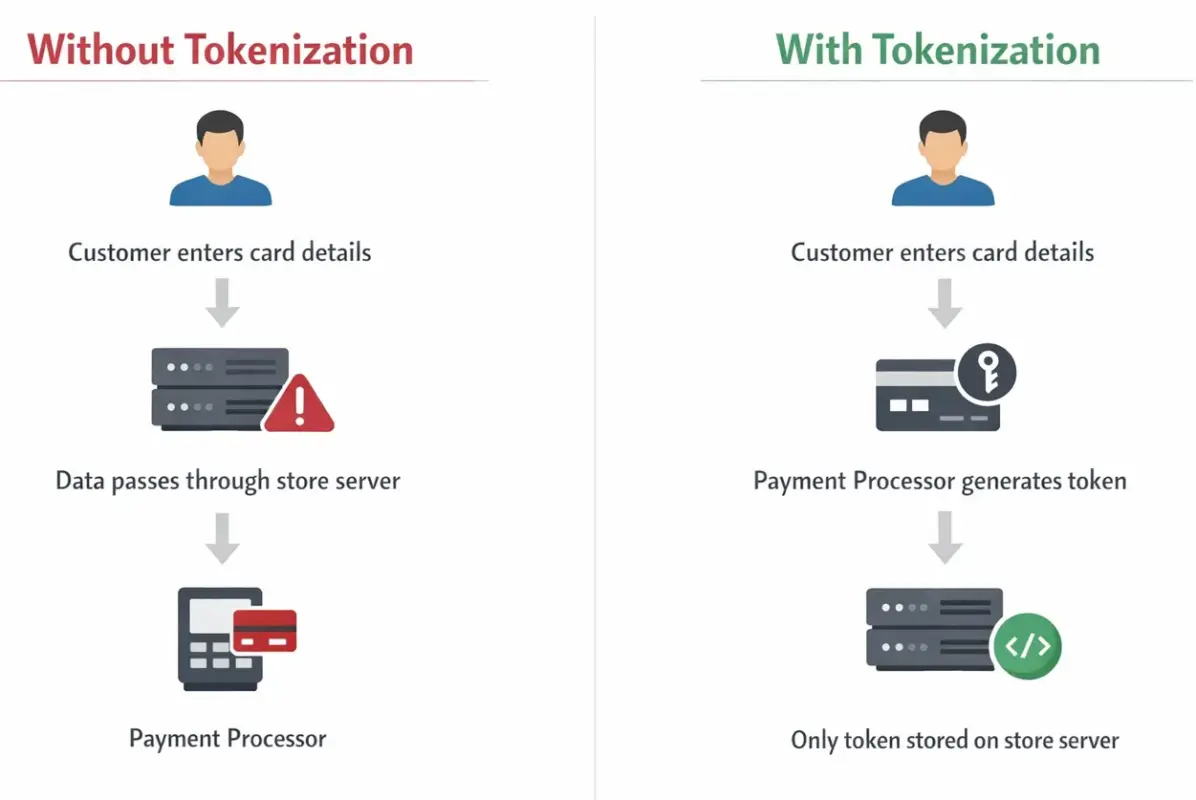
Some older or poorly configured setups accidentally store card data without the store owner realising. Check that your gateway handles all card processing on its end. Your WooCommerce database should never contain raw card numbers or CVV codes.
If your gateway supports tokenisation, turn it on. Tokens let customers save payment methods without storing actual card data on your server. Repeat purchases stay seamless for buyers. The risk stays off your infrastructure.
#15. Review Your Checkout for Unnecessary Data Collection
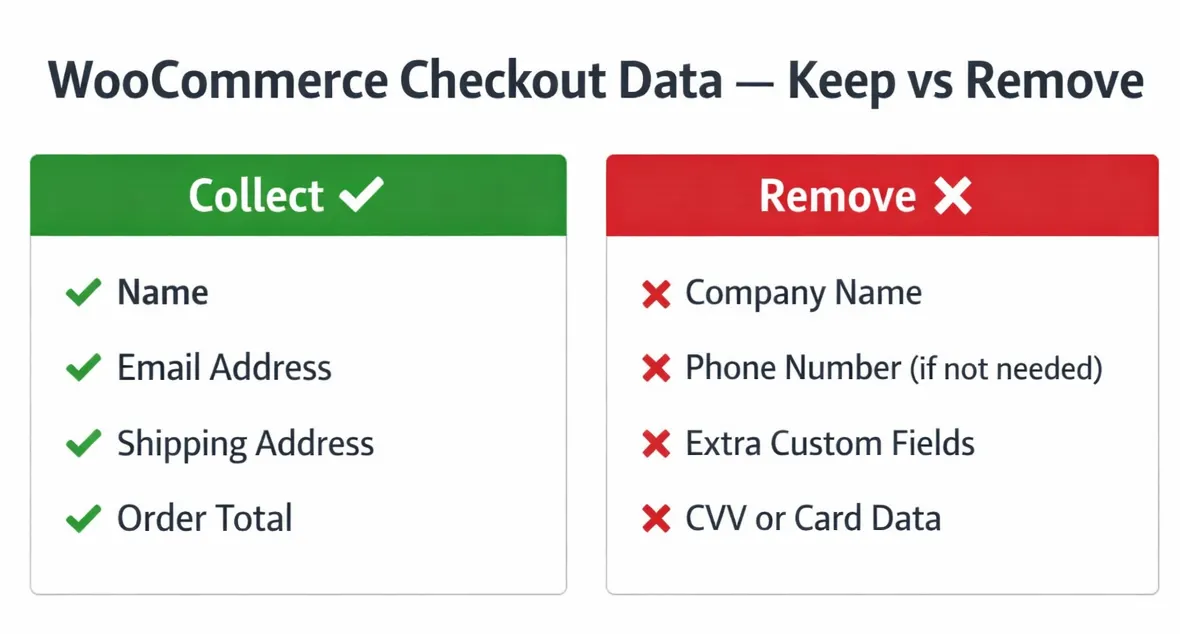
A secure WooCommerce checkout isn’t just about the payment gateway. It’s also about what data you collect and where it goes. Review your checkout form fields. Remove anything you don’t genuinely need. Data you collect but don’t use is a liability.
Also, check your third-party integrations. Analytics tools, CRM systems, and affiliate trackers connected to checkout don’t need access to payment data. Most only need order totals. Tighten those integrations where you can.
Section 6: Harden Your WordPress Configuration
#16. Disable the WordPress File Editor
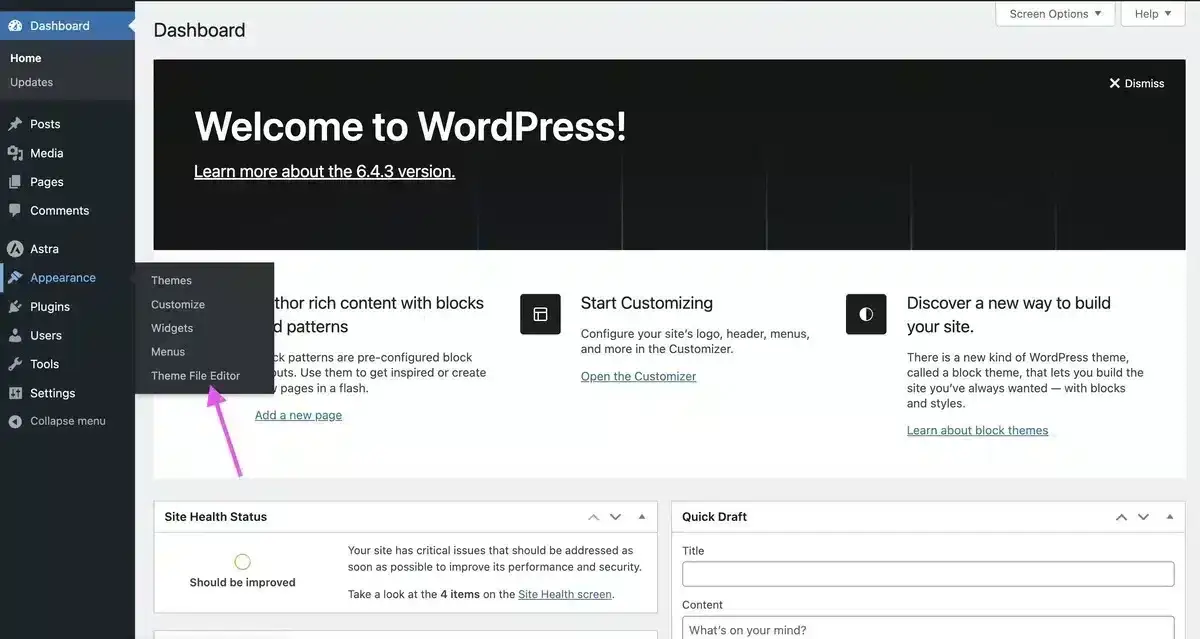
WordPress has a built-in editor for modifying plugin and theme files from the dashboard. If an attacker gains admin access, this editor lets them inject malicious code without needing server access at all.
Disabling it takes one line in your "wp-config.php" file:
define( 'DISALLOW_FILE_EDIT', true );
Most WooCommerce stores have no reason to edit files through the dashboard. Use a local code editor and deploy via FTP or your host’s file manager instead. This takes 30 seconds and removes a real attack path.
#17. Change the Default WordPress Database Prefix
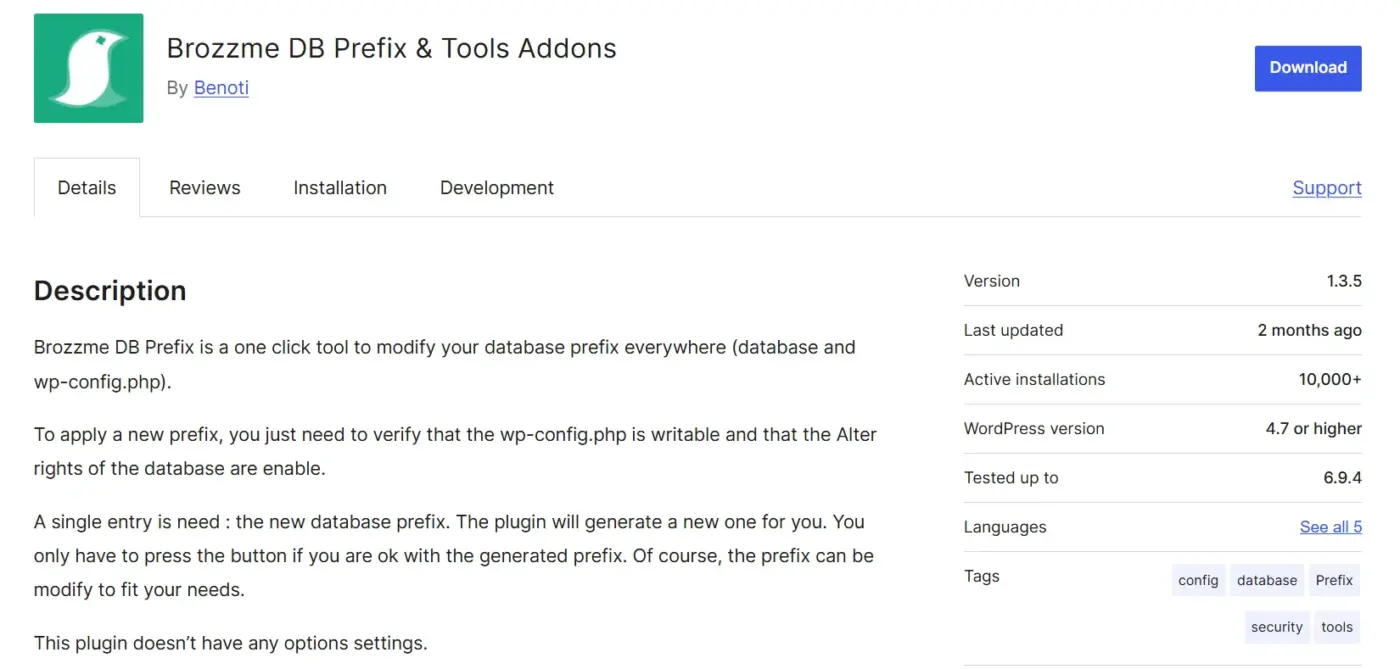
Automated SQL injection attacks often target the default "wp_" prefix of WordPress because they can predict table names without knowing anything else about your setup.
Changing it to something unique, like "store7x" Or any random string, breaks that assumption. It’s most straightforward during a fresh install. On an existing site, take a full backup first, then use a plugin like Brozzme DB Prefix & Tools Addon to handle the change safely..
#18. Set Correct File Permissions
//For Directories:
find /path/to/your/wordpress/install/ -type d -exec chmod 755 {} \;

//For Files:
find /path/to/your/wordpress/install/ -type f -exec chmod 644 {} \;

//For wp-config.php:
chmod 440 wp-config.php
Wrong file permissions are an overlooked risk. If your files or directories are set too openly, anyone with partial server access can read or modify files.
The standard settings for most WordPress sites are 755 for directories, 644 for files, and 600 for wp-config.php. Check these through your hosting control panel. On managed WordPress hosting, your host may handle this automatically.
Section 7: Ongoing Monitoring and Recovery
Securing your store once isn’t enough. Threats change. New vulnerabilities appear in plugins you’ve used for years. Team members make mistakes. This section is where most checklists fall short. They cover setup and ignore everything that comes after.
#19. Set Up Daily Automated Backups Stored Off-Site
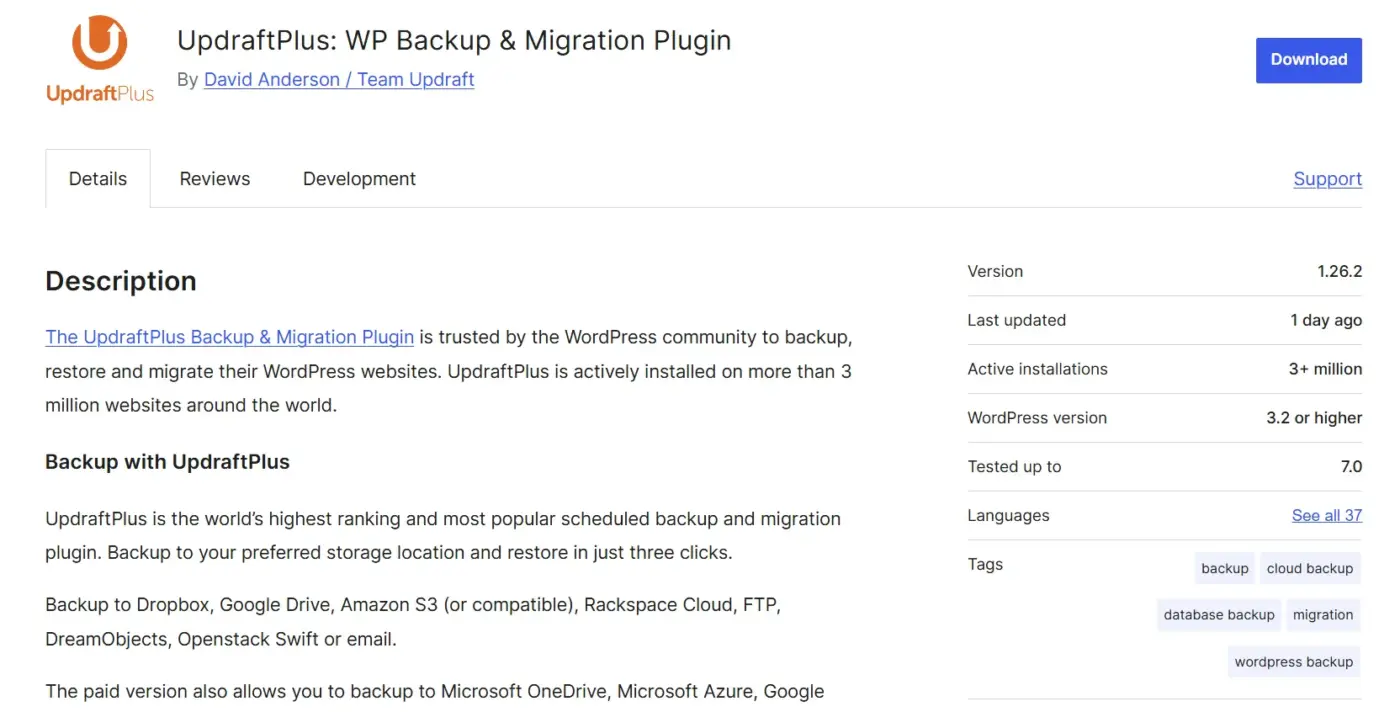
If your store is compromised, back up daily at a minimum. Store those backups off-site, meaning on a different server or cloud storage, not on the same hosting account as your live site.
If your server is compromised and your backups are on the same server, you could lose both. A plugin like UpdraftPlus makes this straightforward. It automates daily backups and stores them directly to Google Drive, Dropbox, or Amazon S3. Also, test your backups periodically. Most store owners skip this step until it’s too late.
#20. Install a Security Plugin for Malware Scanning, Firewall, and Activity Logging
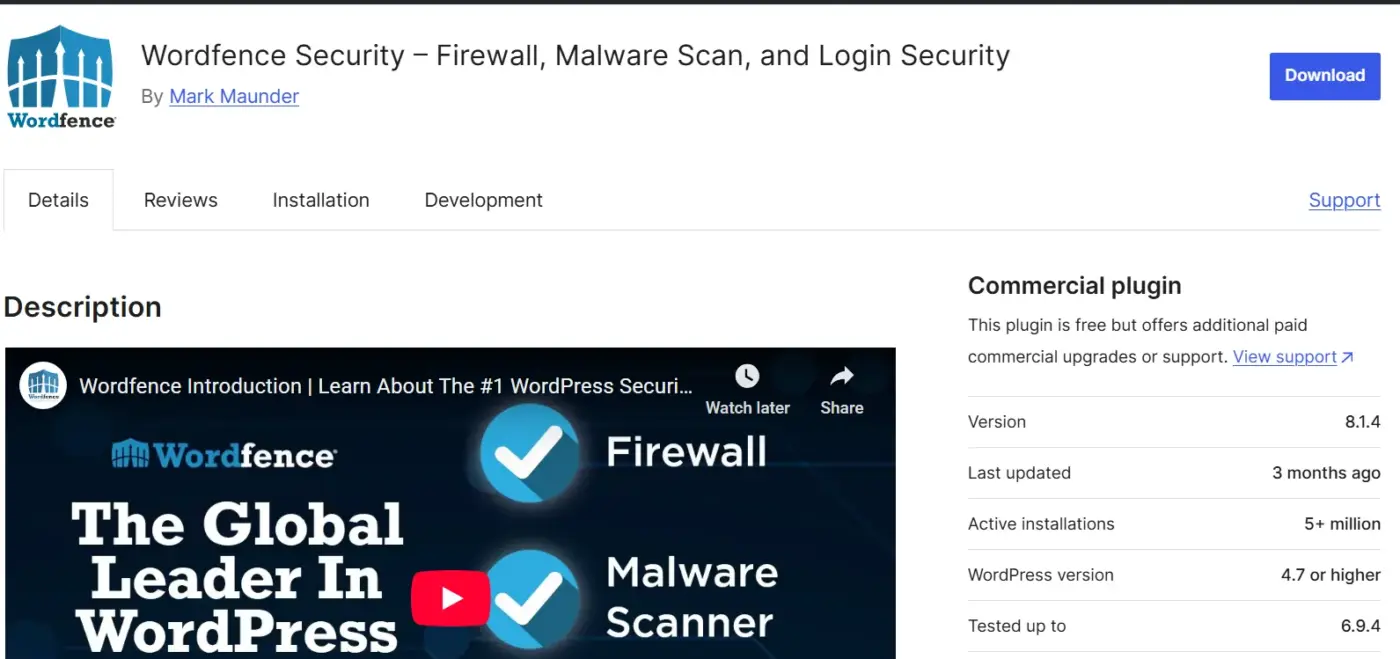
A web application firewall blocks malicious traffic before it hits your site. A malware scanner checks your files and database for signs of compromise. An activity log records logins, plugin changes, file edits, and order modifications.
Stores that catch breaches early almost always have activity logging running. Stores that find out weeks later, often from customers reporting suspicious charges, typically have none. A dedicated WordPress security plugin like Wordfence bundles all three capabilities together — firewall, malware scanner, and activity log. Install one on every WooCommerce store, regardless of size.
One more thing worth doing: write a basic breach response plan before you need one. Know who to contact first, how to take the site offline quickly, how to restore from backup, and what your legal obligations are around notifying affected customers. Making those decisions under pressure, after a breach has already happened, is not the time to figure it out.
Conclusion
Working through this WooCommerce security checklist puts you ahead of most stores online. A solid host, current software, protected login forms, tight user access, a hardened WordPress configuration, compliant payment processing, and active monitoring. That’s the full picture.
If you’re going to start somewhere, keep plugins updated, add 2FA to every admin account, and protect your forms from bots. Those steps close the most common attack paths.
Our WooCommerce Google Authenticator plugin and WooCommerce Advanced CAPTCHA plugin handle two of those directly without developer skills. If you’d prefer expert help running a security audit, implementing this checklist, or building custom functionality for your store, our WooCommerce development services are available for exactly that.
Frequently Asked Questions(FAQs)
Q1. Is WooCommerce Secure by Default?
WooCommerce is actively maintained and patched by a dedicated team. The core plugin is well-built. The real risks come from third-party plugins, outdated themes, weak passwords, and misconfigured hosting. WooCommerce gives you a solid base. How secure your store is depends heavily on what you build on top of it.
Q2. How Do I Know If My WooCommerce Store Has Been Hacked?
Watch for these signs: new admin accounts you didn’t create, your site redirecting visitors to another domain, Google flagging your site as dangerous, your host suspending your account, or customers reporting unexpected charges. An activity log and regular malware scans catch most of these early, before they affect customers or search rankings.
Q3. Do I Need a Security Plugin If My Host Already Provides Protection?
Yes, in most cases. Your host protects the server environment. A WordPress security plugin protects at the application layer, which is where most WooCommerce attacks actually happen. These two layers work together. One doesn’t replace the other. Even strong managed hosts rarely provide WordPress-specific application-layer protection out of the box.
Q4. What Is PCI Compliance and Does It Apply to My WooCommerce Store?
PCI DSS applies to any business that accepts, transmits, or stores card payment data. That includes WooCommerce stores. The compliance level you need depends on your setup. Using a hosted gateway like Stripe means less sensitive data on your end and a lighter obligation. Processing cards directly on your server means a heavier burden. Check with your payment gateway provider for your specific requirements.
Q5. How Often Should I Work Through This WooCommerce Security Checklist?
A full review once a quarter works well for most stores. Checking for plugin updates and reviewing backup status should happen weekly. After any major WordPress or WooCommerce release, run a quick audit to confirm everything updated correctly. Security isn’t a one-time task. Treating this checklist as a regular habit is what keeps your store protected over time.