
What is a WooCommerce robots.txt file?
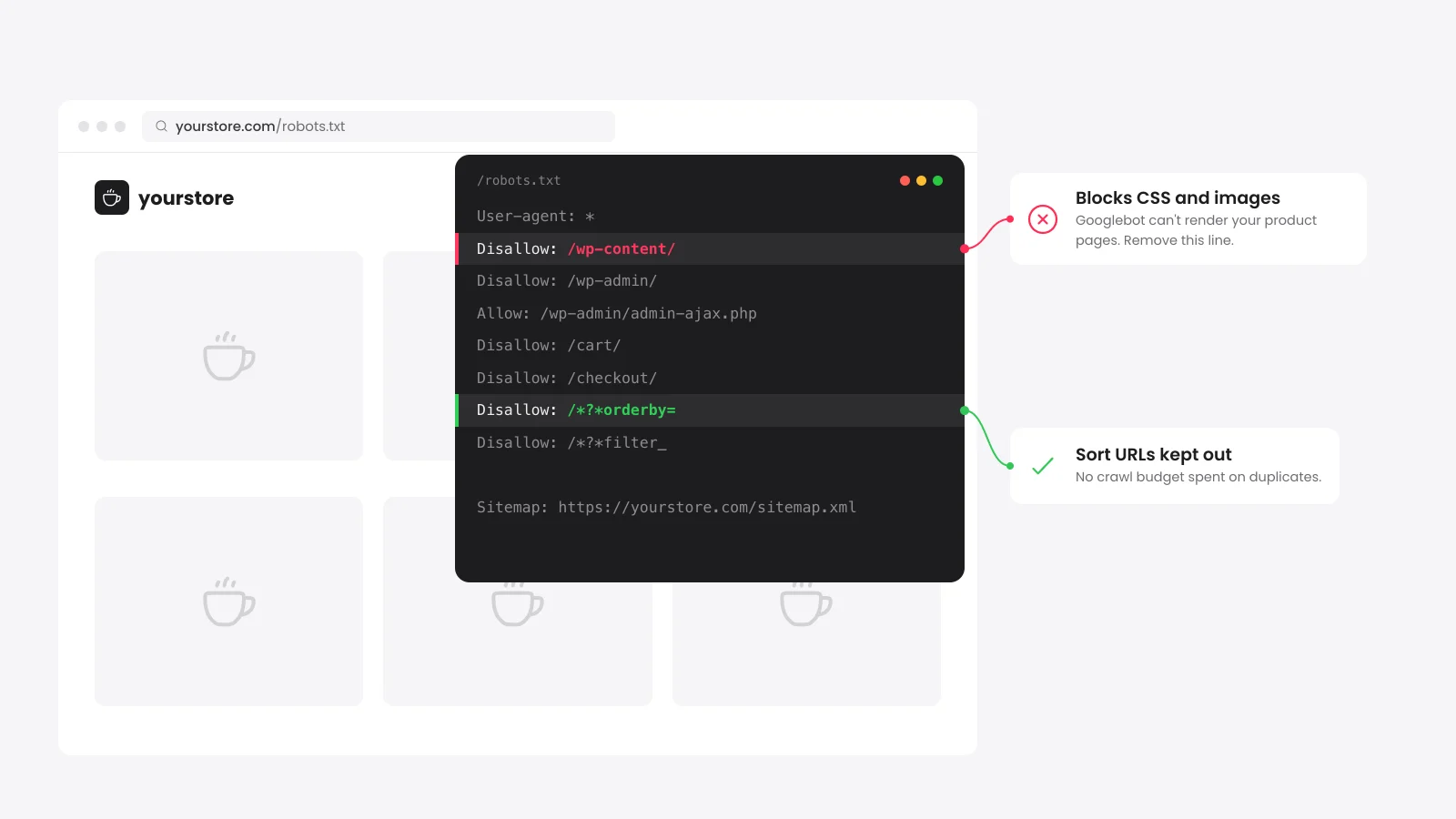
A WooCommerce robots.txt is a plain text file at yourstore.com/robots.txt that tells crawlers which URLs they may request. A good one keeps bots away from cart pages and filter copies of your categories. Products, categories and the files that build each page stay open.
WordPress serves a virtual file when no real one exists. It blocks /wp-admin/ and allows admin-ajax.php. It adds a Sitemap: line when the site is open to search engines.
That default knows nothing about your store. It leaves every add-to-cart, sort and filter URL open to crawlers.
Does robots.txt stop a page from being indexed?
No. robots.txt controls crawling, and a blocked URL can still show in Google with no description when other pages link to it. To keep a page out of results, leave it crawlable and add a noindex robots meta tag to the page.
Google has to crawl the page to see that tag. A robots.txt block hides it.
Should you block the WooCommerce cart and checkout in robots.txt?
You can, but the gain is small. WooCommerce already adds a noindex and nofollow tag to the cart, checkout and My account pages to keep them out of search results. Blocking them in robots.txt only saves a few crawl requests.
If one of those pages already shows in Google, leave it open until Google recrawls it and sees the noindex. Block it after that.
The generator uses the cart, checkout and account links it finds on your homepage. It falls back to the WooCommerce defaults when it finds none.
What does the WooCommerce robots.txt generator block?
The WooCommerce robots.txt generator blocks the admin area, cart and checkout pages, add-to-cart links and the sort, filter and price copies of your categories. It leaves every product, category, image, stylesheet and script open. Google needs those files to render the page the way a shopper sees it.
| Rule | What it does | Why |
|---|---|---|
Disallow: /wp-admin/ | Blocks the dashboard | Nothing there for search. WordPress adds it by default. |
Allow: /wp-admin/admin-ajax.php | Reopens one admin file | Themes and plugins load page parts through it. |
Disallow: /*?add-to-cart= | Blocks add-to-cart links | Every product in a list carries one. |
Disallow: /*?orderby= | Blocks sorted copies | Sorting by price or date repeats the same products. |
Disallow: /*?filter_ | Blocks attribute filters | Color and size filters in WooCommerce add filter_ to the URL. |
Disallow: /*?min_price= | Blocks price filters | Add the same rule for max_price and rating_filter. |
Disallow: /cart/ | Blocks the cart | Do the same for checkout and my-account with your real paths. |
Sitemap: | Points to your sitemap | Use the full URL. Any crawler can read it. |
Each parameter rule needs two versions. /*?orderby= catches it as the first parameter and /*&orderby= catches it after another one. The generator above writes both.
Faceted navigation and crawl budget in WooCommerce
Faceted navigation is the color, size and price filters in your shop sidebar. Every combination of filters creates a new URL with the same products. Google's faceted navigation guide says to block those URLs in robots.txt when you do not need them in search.
Blocking them keeps Googlebot on your products and new pages. Your server also spends less time building filter pages that bring in no search visitors.
Some filter plugins build paths such as /color/blue/ with no parameter. Block those path patterns too. Faceted URLs are one of the checks in our eCommerce SEO audit guide.
If a filtered view earns real searches, such as red dresses, make it a proper category and keep it open.
Common robots.txt mistakes on WordPress stores
The robots.txt mistakes that hurt a WordPress store most block too much. A leftover Disallow: / hides the whole shop, and old advice to block /wp-content/ hides the CSS and photos Google needs. Others rely on rules Google stopped reading years ago.
- Staging rules left live: A "Disallow: /" line copied from a test site blocks the whole store. The "Discourage search engines" box under Settings > Reading no longer writes this line. Since WordPress 5.3, it adds a noindex tag instead.
- Blocked /wp-content/ or /wp-includes/: Google cannot load your CSS, JavaScript or product photos.
- Noindex in robots.txt: Google stopped reading it on September 1, 2019.
- Blocking a page to remove it: Google can keep a blocked URL that other sites link to. Use noindex for that job.
- A separate Googlebot group: Google follows only the most specific group. Once Googlebot has its own group, the rules in the * group stop applying to it.
- Crawl-delay for Google: Google ignores the line. It sets its crawl rate from how fast your server answers.
How to edit robots.txt in WordPress
Edit robots.txt in WordPress with your SEO plugin or by uploading a plain text file to the site root. Rank Math edits it under Rank Math SEO > General Settings > Edit robots.txt. Yoast SEO has its own File editor under Yoast SEO > Tools.
A real robots.txt file on the server always wins over the virtual one. Rank Math edits only the virtual file. Delete a real robots.txt with FTP or your host's file manager before you use the Rank Math editor.
Google caches robots.txt for up to 24 hours. The robots.txt report in Search Console shows the version it fetched and lets you request a recrawl.
Sources
- Google Search Central: Introduction to robots.txt
- Google Search Central: How Google interprets the robots.txt specification
- Google Search Central: Managing crawling of faceted navigation URLs
- Google Search Central Blog: A note on unsupported rules in robots.txt (2019)
- RFC 9309: Robots Exclusion Protocol
- WordPress Developer Reference: do_robots()


 from 500+ reviews


