An eCommerce SEO audit checks the parts of an online store that search engines struggle with most. Those are product schema, filter and sort URLs, canonical tags, out-of-stock pages, category content, image alt text, internal links and page speed.
A store breaks in ways a blog never does, because every product, filter and sort order can create a new URL. In October 2026 we audited our WooCommerce 11.2 test store on WordPress 7.1.3, with and without Rank Math 1.0.280. Out of the box, every sort and filter URL returned a full, indexable page with no canonical tag at all.
Below you get a short definition and the eight store checks, each with the real screen or command we used. Then come our test store results, an order for running the audit in one afternoon, and how often to repeat it.
What Is an Ecommerce SEO Audit?
An eCommerce SEO audit is a review of how well search engines can crawl, understand and rank a store’s products and categories. It covers technical issues that only stores have, such as faceted URLs and product schema. It ends with a ranked list of fixes for the catalog, templates and settings.
A general site audit asks whether pages load, link and index. A store audit adds questions about the catalog itself. Is the product data complete, do filters multiply into thousands of URLs, and do sold-out items still earn traffic?
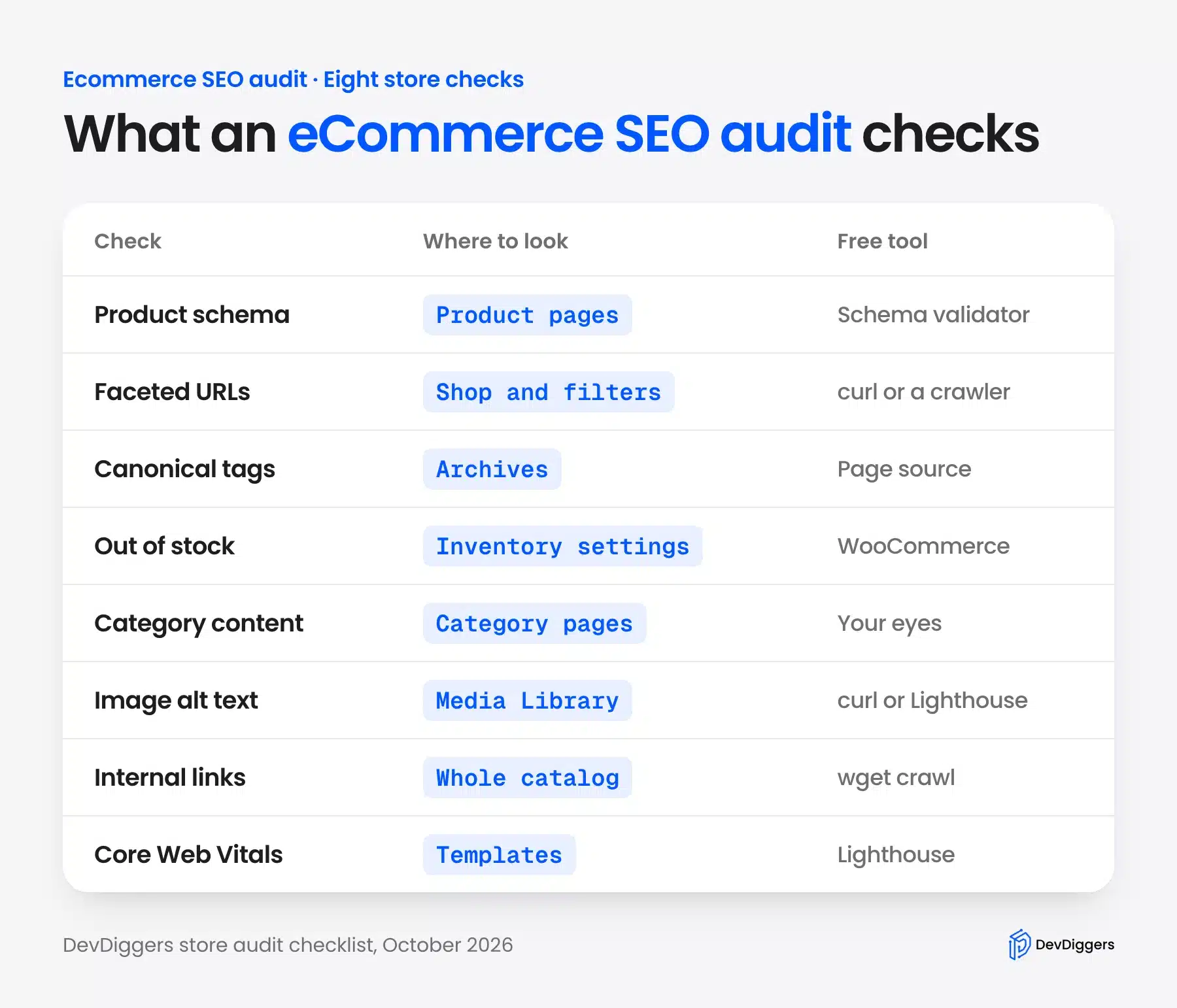
These are the eight checks, with where to look and a free tool for each:
People also search for this as a “store SEO audit” or “audit SEO eCommerce”, and the intent is the same. They want the store-specific list rather than a generic SEO checklist. Our WooCommerce SEO guide covers the wider strategy, while this post covers what to inspect.
Ecommerce SEO Audit Checklist: 8 Checks for a Store
The checklist covers eight areas: product schema, faceted URLs, canonical tags, out-of-stock pages, category content, image alt text, internal links and Core Web Vitals. Each check below names the place to look and the tool to use. It also shows what our WooCommerce 11.2 test store returned in October 2026.
Run them in this order on your own store. The first three decide which URLs search engines see, so fixing them first makes every later finding easier to read.
1. Product Schema
Product schema is structured data that tells search engines a page’s product name, price, stock and reviews in a fixed format. WooCommerce adds it to every product page without a plugin. The audit question is whether the data is complete and correct rather than whether it exists.
Google’s merchant listing documentation requires name, image and offers with a price and currency. It recommends brand, gtin, shippingDetails and hasMerchantReturnPolicy on top.
Our test product’s JSON-LD had the three required fields and none of the four recommended ones. Its sku value was 10, which is the product’s post ID. WooCommerce filled it in because the product had no SKU of its own.
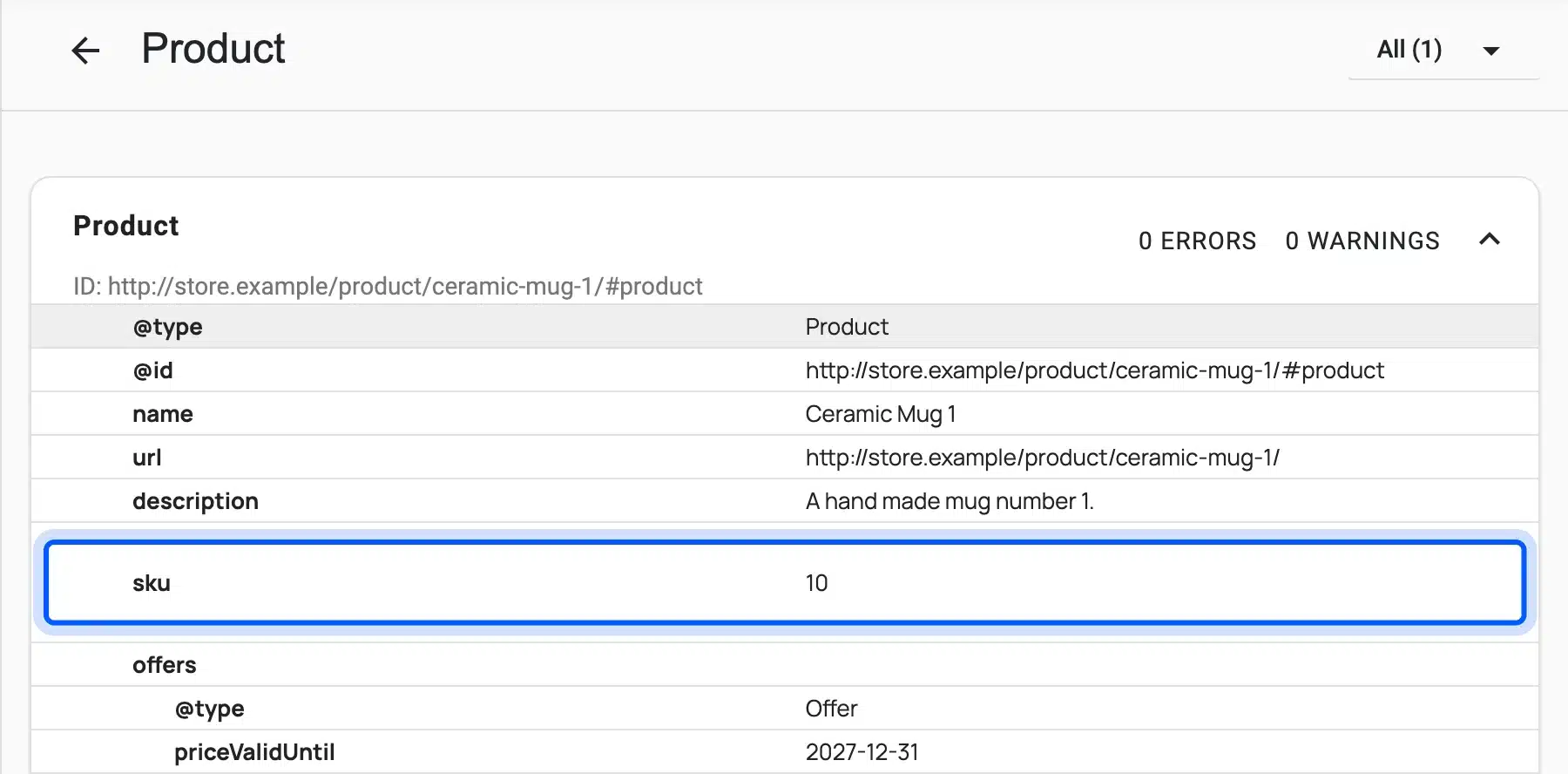
Our test store is not public, so Google’s Rich Results Test could not fetch it by URL. Its Code tab takes pasted markup instead, and in October 2026 it asked for a Google sign-in before it would run.
So we validated the code with the Schema Markup Validator, which accepts pasted code without an account. It reported 0 errors and 0 warnings for the Product and BreadcrumbList items. Keep in mind that it checks schema.org syntax, while Google’s own tests also check what Google needs for rich results.
On a live store, run the product URL through the Rich Results Test instead. Then fill in real SKUs, a brand and GTINs in the product data, and add shipping and return details through your SEO or feed plugin.
Check which plugin owns the schema, too. With Rank Math active, its Product markup replaced WooCommerce’s, and on our store it named the product “Ceramic Mug 1 – Mug Test Store”. The store name came from the title format, so review the plugin’s product title template before you trust its schema.
Review data shows up only when reviews exist, which Google’s product snippet guide lists as review and rating markup. When we added three test reviews to a product on the same stack, WooCommerce added an AggregateRating block to its Product markup without any setting. Our guide to the Google Shopping feed for WooCommerce covers the same product identifiers.
2. Faceted Navigation and Duplicate URLs
Faceted navigation is the set of filters and sort options on shop and category pages. Each choice adds a parameter such as ?orderby=price or ?filter_color=blue, and each one is a new URL. On a large catalog, those combinations can outnumber the real pages many times over.
Google’s faceted navigation guide names the cost plainly. It says that “if crawling is spent on useless URLs, the crawlers have less time to spend on new, useful URLs.”
On our store, every sort and filter URL we tried returned a 200 status and a full product grid. WooCommerce’s default robots.txt blocks only add-to-cart URLs, so sort and filter URLs stay open to crawlers.
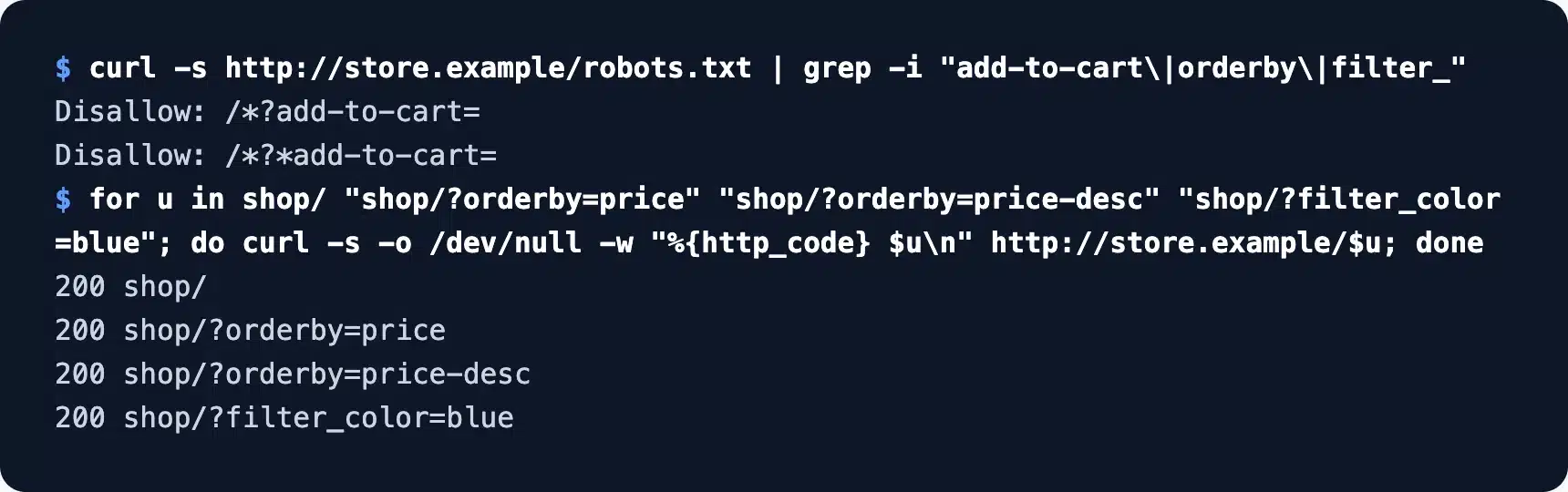
Google lists several fixes and calls robots.txt rules or URL fragments more effective in the long run than canonical tags. A robots.txt rule for orderby and filter_ parameters stops crawling outright. Test it on staging first, because a wrong wildcard can block real category pages.
Duplicate variants are the same problem on product pages. A variable product’s URL can carry ?attribute_pa_color=blue, but on our store WordPress pointed its canonical back to the clean product URL. So variant URLs were handled, while archive filters were not.
Audit the filters your theme shows. A store with two attributes and three values each already has dozens of filter combinations per category, and every sort option multiplies them again.
3. Canonical Tags on Shop and Category Pages
A canonical tag tells search engines which URL is the main copy of a page. Product pages get one from WordPress core, but shop and category archives do not. Without it, every sort and filter version of an archive competes with the clean URL.
We tested three shop URLs with and without Rank Math, the SEO plugin this site runs. Without a plugin, none of them printed a canonical tag. After activating Rank Math 1.0.280, all three pointed to the clean /shop/ URL.
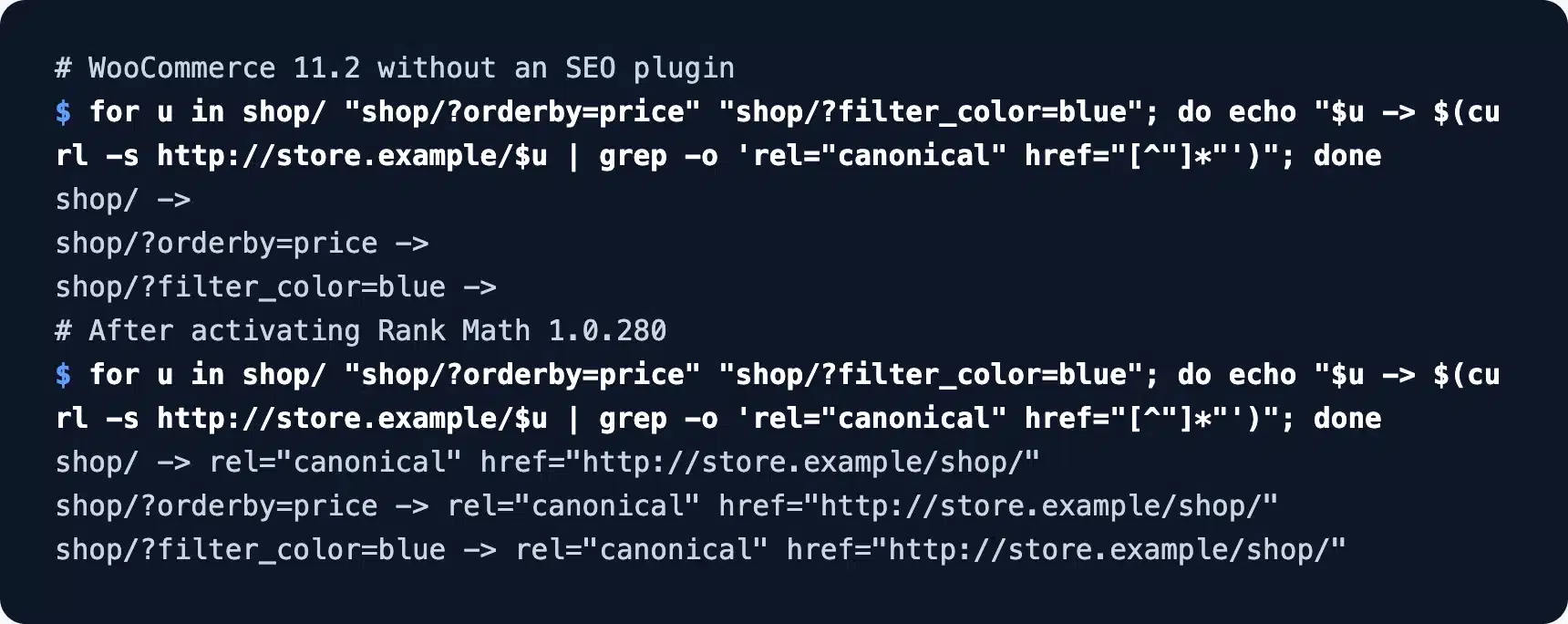
Google’s guide to consolidating duplicate URLs explains how it picks a canonical when you do not set one. Setting it yourself removes the guesswork.
So the audit check is simple: open the page source of your shop, one category and one filtered URL. Each should carry a canonical to the clean version. If none appears, the store is running without an SEO plugin, or the plugin’s archive settings are off.
4. Out-of-Stock Product Pages
Out-of-stock pages decide whether a sold-out product keeps its rankings or loses them. The safer default is to keep the page live with clear stock status and a way to be notified. Delete or redirect a product only when it will never return.
We marked one test product out of stock. Its page still returned 200, showed “Out of stock”, and its schema switched to https://schema.org/OutOfStock straight away. That is the behavior you want.
The trap is a single setting. Under WooCommerce, Settings, Products, Inventory, “Hide out of stock items from the catalog” removes sold-out products from the shop and category grids.
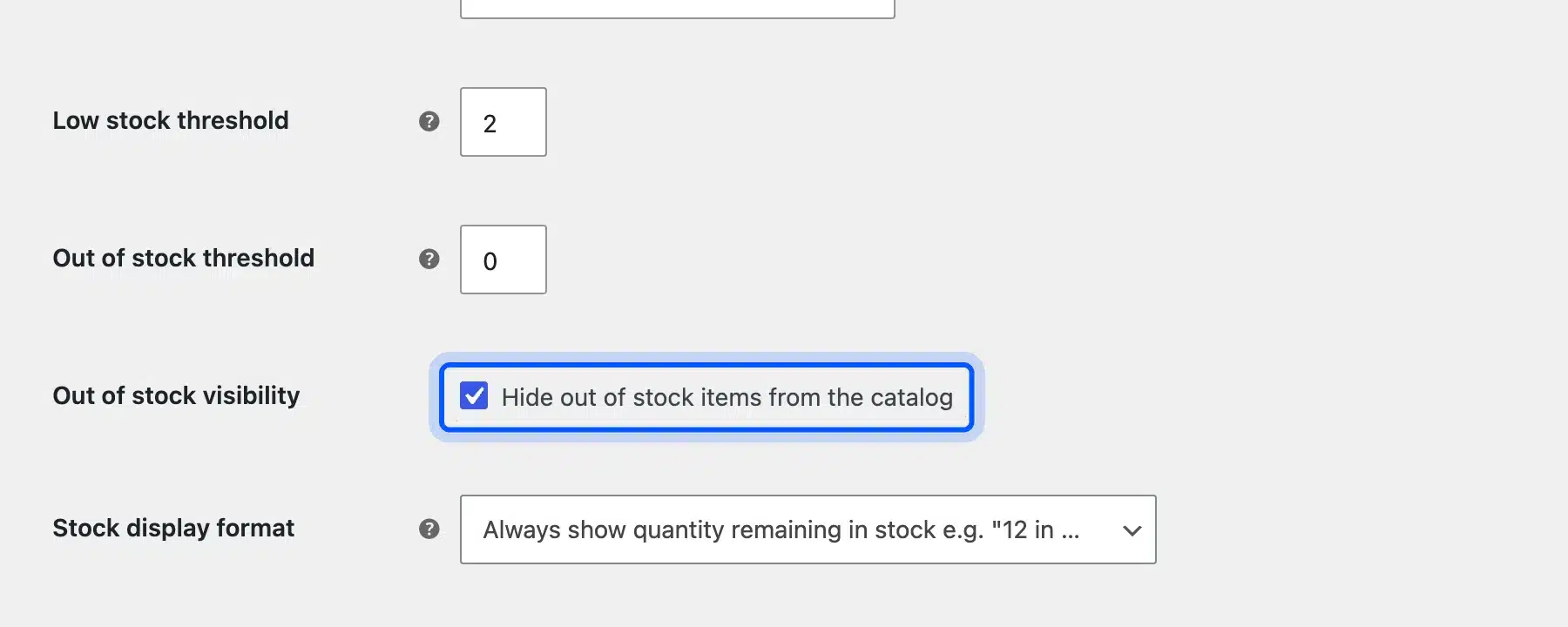
With that box ticked, our product vanished from every catalog page, yet its URL stayed in the XML sitemap. Search engines could still find it, but no page on the store linked to it. The internal links check below shows what that does to a crawl.
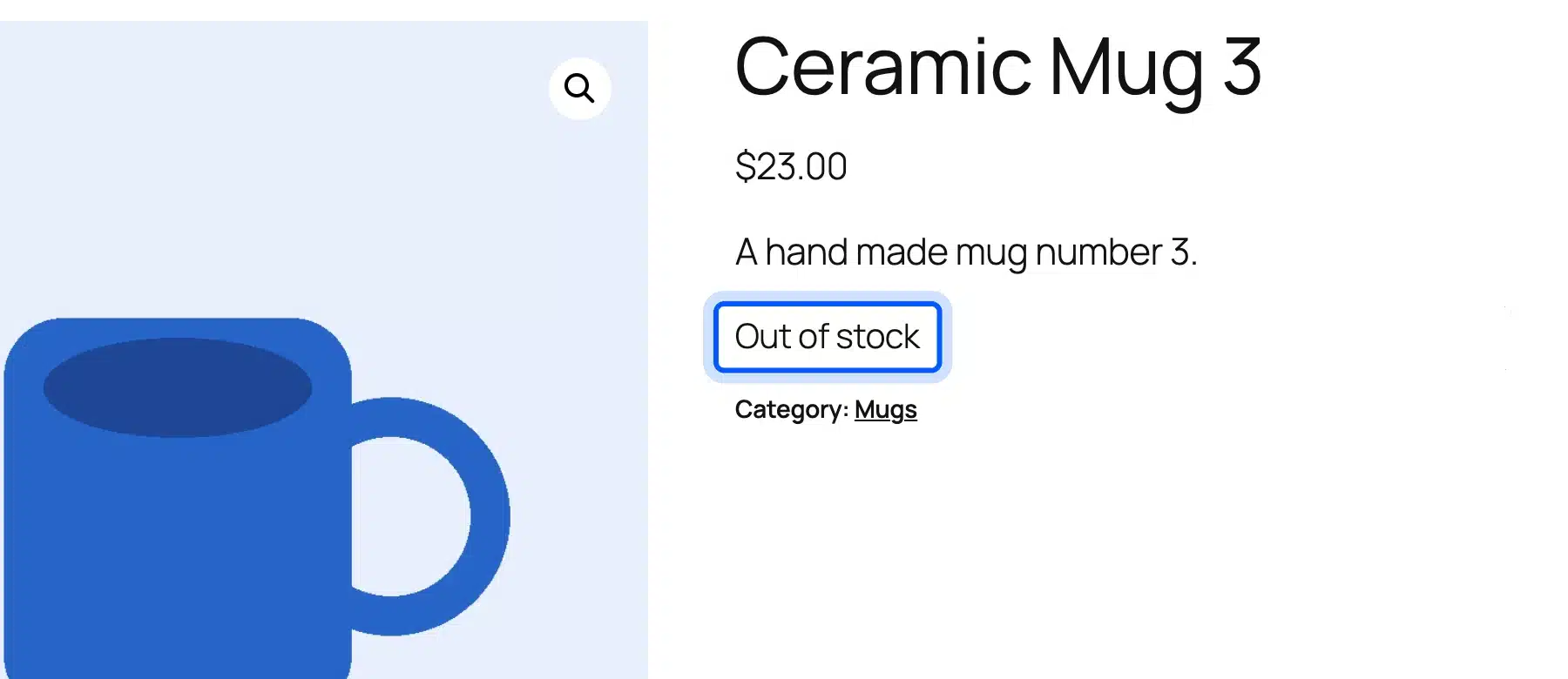
A better route is to leave the product visible and offer a back-in-stock alert. The WooCommerce Waitlist plugin, from $29 a year as of October 2026, swaps the dead end for a join-the-waitlist button.
For products that are gone for good, redirect the URL to the closest live product or its category with a 301. A deleted product that returns a 404 throws away any links and rankings it had earned.
5. Category Page Content
Category pages are often a store’s best ranking pages, because they match broad searches like “ceramic mugs”. Many stores leave them as a bare grid with a title. A short, useful description gives search engines and shoppers something to read beyond product names.
Our test store’s Plates category held 91 words in its main area, and every one was a product name, price, button or sort option. There was no unique text at all, which is what people mean by thin category pages.
The audit also caught a data problem. The Plates category contained six mugs, a mistake easy to miss when you only look at the admin list.
WooCommerce stores a category description under Products, Categories, in the Description field.
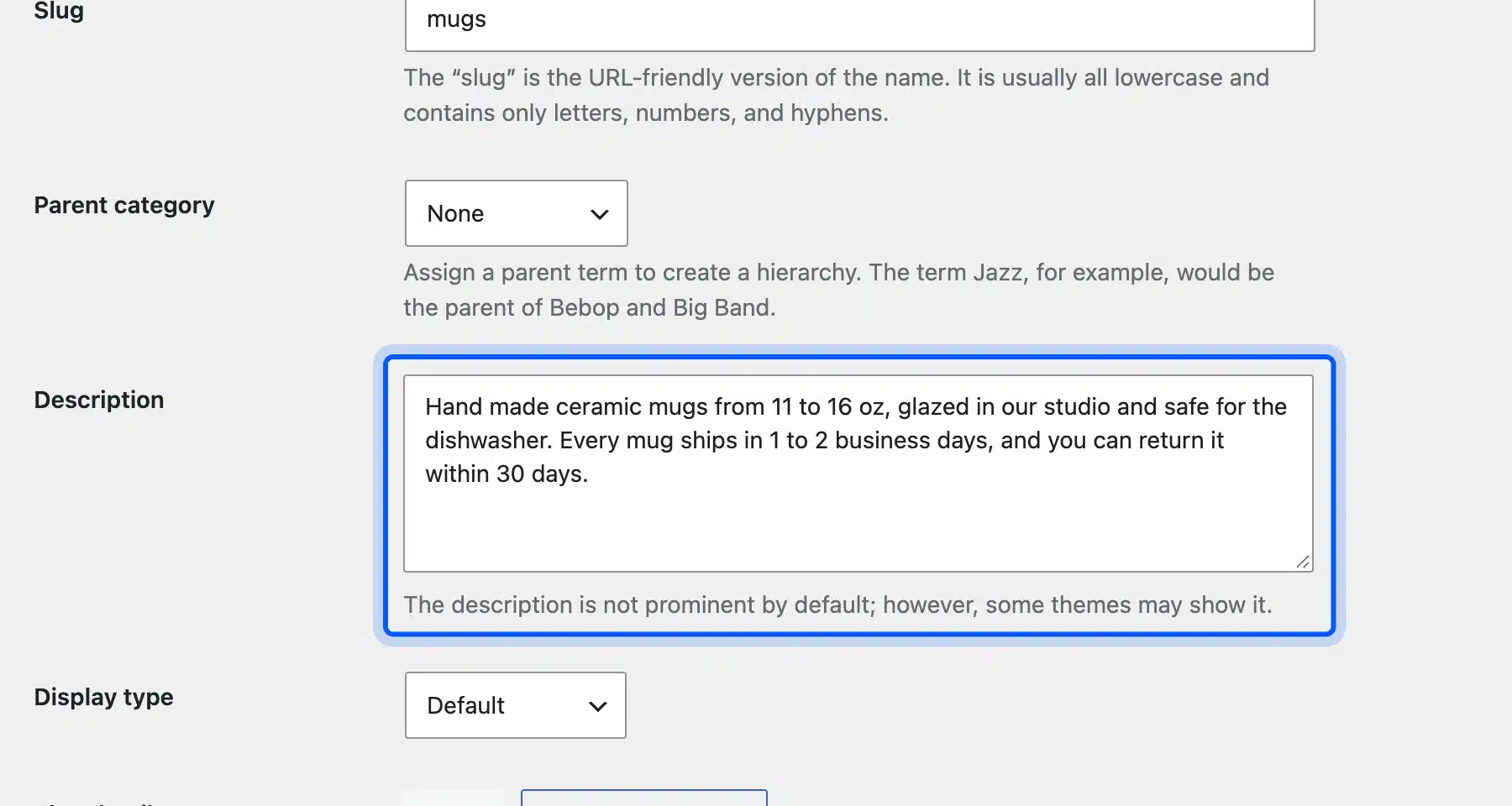
We added two sentences to the Mugs category covering sizes, dispatch time and returns. Twenty Twenty-Five showed it right under the category title, above the grid.
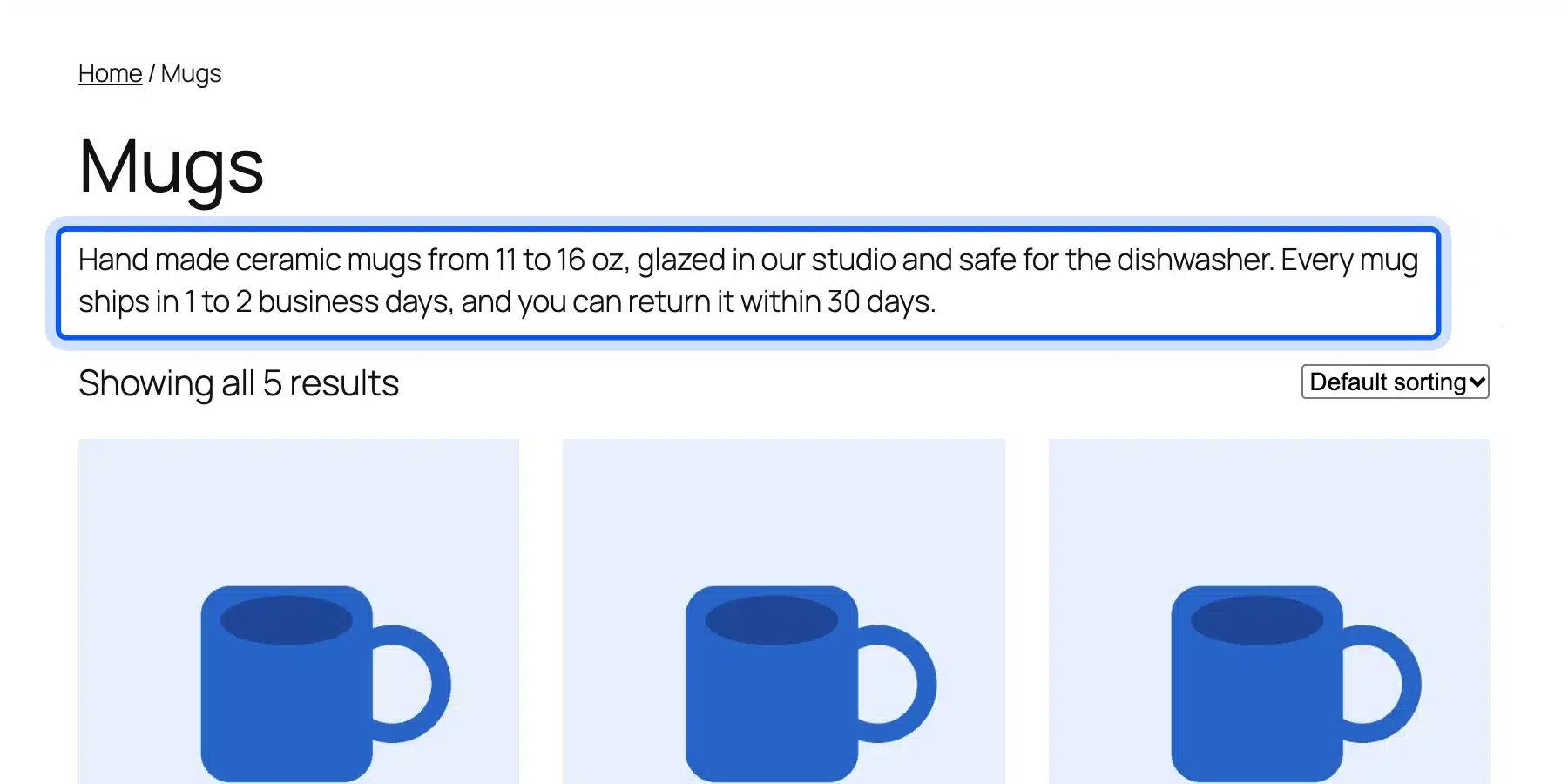
Lighthouse then picked that paragraph as the page’s largest element. That is a good sign that it sits high on the page, where shoppers see it first. Our guide to the product listing page in eCommerce covers what else belongs on these pages.
Keep the text short above the grid, two or three sentences. Shoppers came to see products, so longer buying advice and answers to common questions fit better below the product list.
6. Product Image Alt Text
Alt text describes an image for screen readers and search engines. Google’s image SEO guide says it uses alt text “along with computer vision algorithms” to understand images. On a store, product images are often the only content that changes between similar products.
Our product image had no alt text stored in the Media Library. Yet the product page printed alt="Ceramic Mug 1", because WooCommerce falls back to the product name when the field is empty.
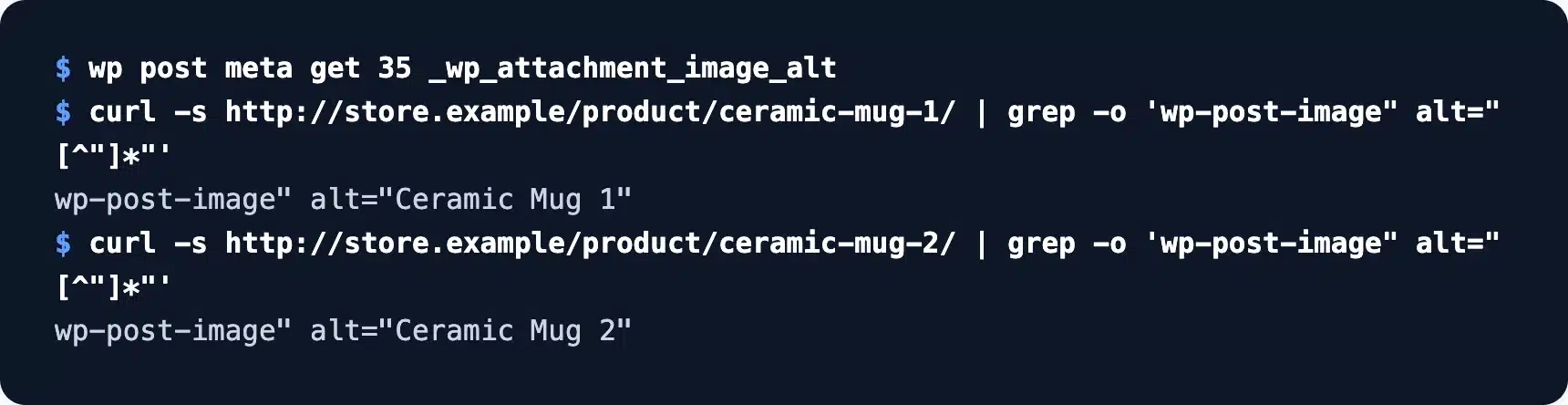
That fallback hides the problem from automated tools, because Lighthouse only flags a missing alt attribute. It does not judge whether “Ceramic Mug 2” describes a blue 12 oz mug with a handle.
So check the Alternative Text field on your main product images as well as the page output. Google also warns against “filling alt attributes with keywords”. Write what the image shows, and see our guide to adding alt tags to images in WordPress for the steps.
7. Internal Links and Orphan Products
Internal links are how crawlers and shoppers reach products. A product that no page links to is an orphan: it may sit in the sitemap, but it gets no link value and few visits. Compare what a crawl can reach with what the sitemap lists to find orphans.
We crawled the test store with wget in spider mode, then compared the product URLs it found with the product sitemap. The crawl reached 11 products, and the sitemap listed 12.
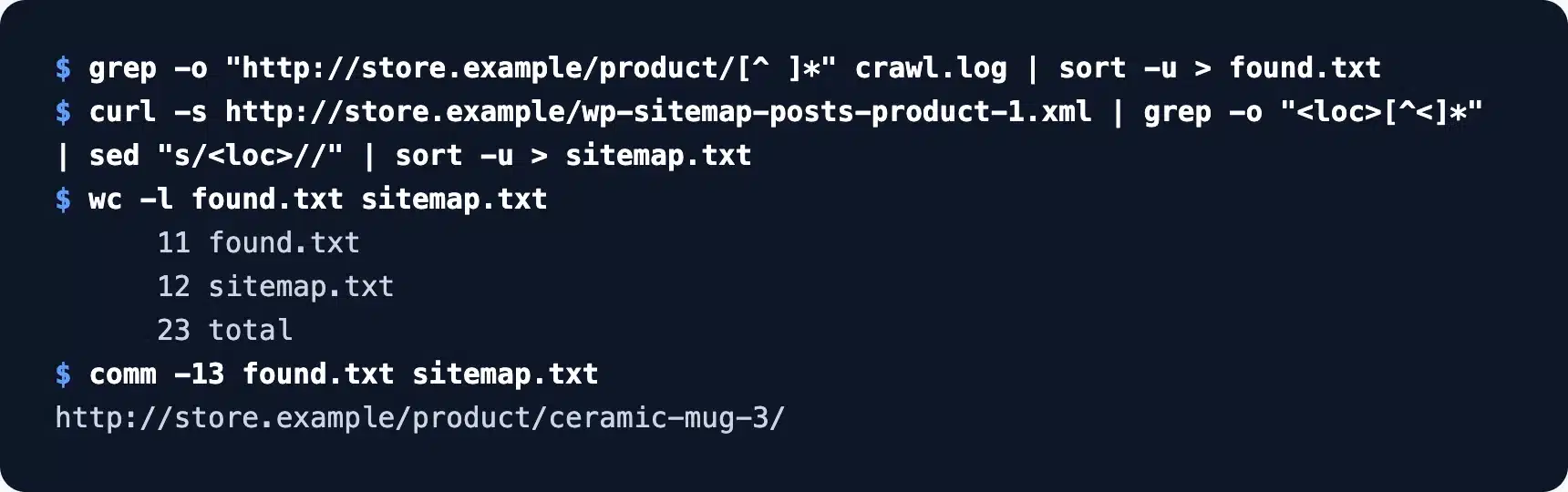
The missing one was the out-of-stock product hidden from the catalog. Its only path left was the sitemap, so the inventory setting from earlier had quietly turned it into an orphan.
Fix an orphan by linking it from its category, a related product or a buying guide. If it is out of stock, untick the hide setting and show the waitlist button instead.
Breadcrumbs, related products and category links do most of the internal linking on a store. WooCommerce’s breadcrumb also appears in its schema as a BreadcrumbList, which the validator confirmed above.
8. Core Web Vitals on Store Templates
Core Web Vitals measure how fast the main content appears, how quickly the page responds and how stable the layout stays. On a store, test templates rather than single pages: the shop, a category and a product. One slow template slows down every page built on it.
Google’s Web Vitals guide sets the targets: LCP within 2.5 seconds, INP of 200 milliseconds or less and CLS of 0.1 or less. We ran Lighthouse three times in mobile mode on our category and product templates and kept the median.
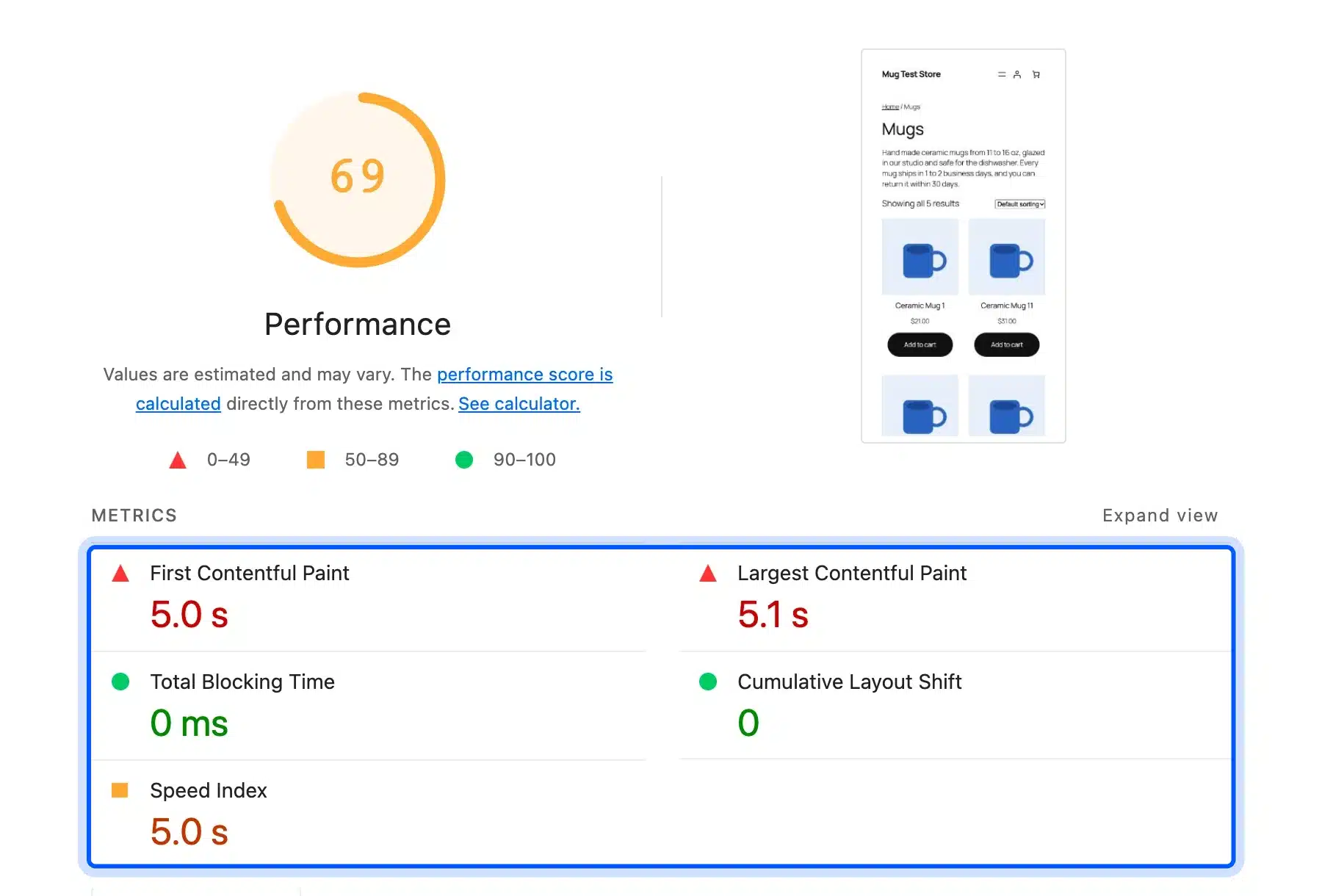
The category page scored 69 with a 5.1 second LCP, and the product page scored 65 with a 5.9 second LCP. Both had zero layout shift. Lighthouse estimated 2.4 seconds of savings from render-blocking resources and about 0.5 MB from text compression on each template.
Those numbers come from a test server with no caching or compression, so a tuned host will do better. The pattern still holds on most stores, because the template sets the speed far more than the content does. Our tests of the fastest WooCommerce themes show how much the theme alone changes.
Lighthouse is a lab test, and it cannot measure INP because nobody clicks during the run. For real visitor data, open the Core Web Vitals report in Search Console, which groups slow URLs by template once a store has enough traffic.
How to Run the Audit in One Afternoon
You can run this audit on a small store in one afternoon if you work template by template. Check one product, one category and the shop page first, because fixes there apply to every page on the same template. Then crawl the whole catalog to catch the exceptions.
A practical order looks like this:
- Settings first: Open the inventory, permalink and SEO plugin settings, since one checkbox can change thousands of URLs.
- Page source: Check canonical tags and robots meta on the shop, a category and a filtered URL.
- Schema: Run one product through the Rich Results Test or the Schema Markup Validator.
- Crawl: Run a crawl and compare its product list with the sitemap.
- Content: Read every category page and note the ones with no description.
- Speed: Run Lighthouse three times on each template and keep the median.
On a live store, add Search Console to step 4. In its Page indexing report, filter and sort URLs often sit under “Duplicate without user-selected canonical” or “Crawled – currently not indexed”. A long list there points straight back to the faceted navigation check.
Write each finding with the URL, the setting or template behind it and a fix. A finding with no cause is hard to act on. “Hide out of stock items from the catalog is ticked” takes one click to fix.
What Our Test Store Showed
Our test store showed that a stock WooCommerce install leaves several SEO gaps open until you configure them. Sort and filter URLs had no canonical, product schema used post IDs as SKUs, and category pages had no text. One inventory setting also orphaned a product.
Here is every finding from the store, measured in October 2026:
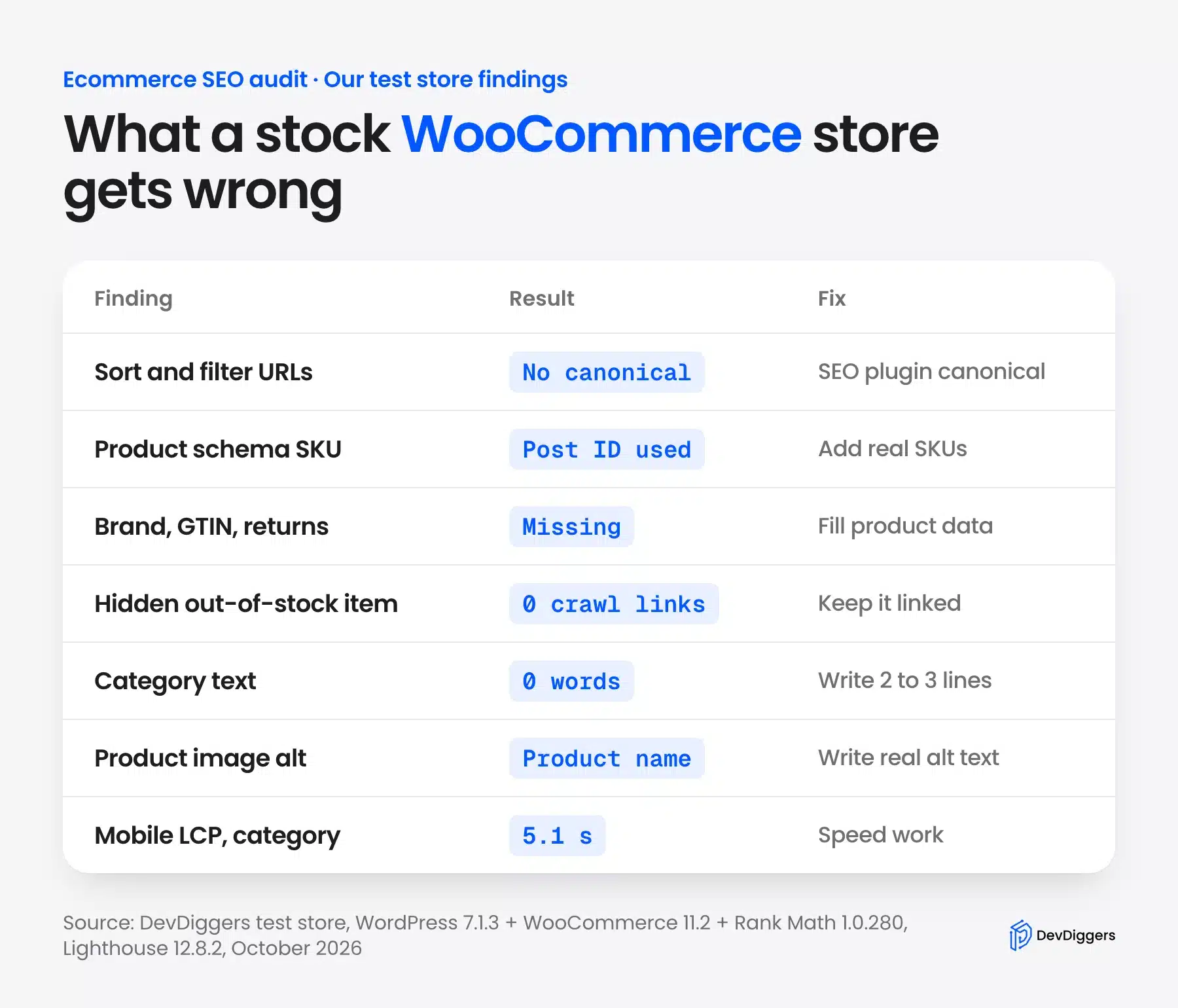
None of these are bugs. They are defaults that make sense for a new store and cost search visibility as the catalog grows. An SEO plugin fixed the canonical gap in one activation, while the rest needed product data or settings changes.
Two findings surprised us. The schema validator passed a product whose SKU was really a database ID, and Lighthouse passed alt text that was only a product name. Both show why an audit needs a person reading the output beside the green score.
The order of fixes matters as much as the list. Canonical tags and filter crawling come first, because they decide which URLs Google spends time on. Product data and category text come next, since they shape how those pages rank once crawled.
How Often to Run Ecommerce SEO Audits
Run a full audit twice a year on most stores. Add a short check after any change to the theme, filters, SEO plugin or inventory settings. Those changes can alter thousands of URLs at once, so a quick check catches the damage early.
A store that adds new products most weeks should also run the crawl comparison monthly.
The short check covers three items: canonical tags on a filtered URL, one product through a schema test, and the crawl against the sitemap. That takes under an hour on a store with a few hundred products.
Keep the results in one sheet with the date, so each audit compares against the last one. A canonical tag that disappears after a plugin update is easy to spot that way.
Seasonal stores should audit a month or two before their busy season starts. A filter bug found in November costs far more than one found in September.
When to Bring In Help
Bring in help when the fixes reach code or catalog scale. Custom robots.txt rules for filters, schema changes across thousands of products, and template speed work can all break a store if done in a hurry. Staging, a crawl before and after, and someone who knows WooCommerce internals keep sales running.
Catalog size changes the job too. Checking ten category descriptions by hand is an afternoon, while checking a thousand needs exports, scripts and a plan for writing them.
If your store needs that work, our WooCommerce SEO team handles technical fixes, product data and category content for WooCommerce stores.
Conclusion
An eCommerce SEO audit finds the store-specific problems a general checklist misses. Start with the settings and templates that create URLs: filters, canonical tags and inventory visibility. Then check product schema, category content, alt text, internal links and template speed.
On our test store, most issues were defaults rather than bugs. An SEO plugin closed the canonical gap at once, while product data, category descriptions and alt text needed a person.
Repeat the short checks after every big change, and run the full list twice a year.
Frequently Asked Questions (FAQs)
Q1. What does an eCommerce SEO audit include?
It includes technical checks like crawling, indexing, canonical tags and faceted URLs, plus product schema and site speed. It also reviews category and product content, image alt text and internal links. The output is a list of fixes ranked by impact.
Q2. How long does an eCommerce SEO audit take?
A small WooCommerce store with a few hundred products takes about an afternoon for the checks in this guide. Large catalogs take longer, mostly because category and product content must be read page by page. An agency audit with meetings and a written report takes longer than the checks themselves.
Q3. What tools do you need for an eCommerce SEO audit?
You can start with free tools: Google Search Console, the Rich Results Test, the Schema Markup Validator, Lighthouse and a crawler such as wget. Paid crawlers help on catalogs with thousands of URLs. Your store’s own admin is a tool too, since many issues sit in settings.
Q4. Should I delete out-of-stock product pages?
Keep it if the product will come back. Keep the page live with an out-of-stock notice and a back-in-stock option, and leave it linked from its category. Redirect it to the closest product only when it is gone for good.
Q5. Can ChatGPT do an eCommerce SEO audit?
An AI chatbot can explain findings and draft category descriptions, but it cannot crawl your store or read your settings. The checks in this guide need tools that load your pages and admin. Use AI to speed up the writing, and real tools for the audit itself.
Q6. What is not included in an eCommerce SEO audit?
An SEO audit usually leaves out paid ads, email marketing and conversion work like checkout design. Those affect sales but not how search engines crawl and rank the store. Some audits also leave out backlinks, so ask what is covered before you start.