
Learning how to export WooCommerce products takes about five minutes with the built-in tool. You open the product list, click Export, pick your columns and click Generate CSV. WooCommerce then downloads a spreadsheet file with your SKUs, prices, stock levels and image links.
This guide was tested in October 2026 on WooCommerce 11.2.0 and WordPress 7.1.3, using a test store with simple, variable and variation products. Every setting name comes from those screens, and the exporter rules were checked against the WooCommerce product CSV importer and exporter documentation. I exported real files and read them line by line.
You will learn the three ways to export products and how to filter by category or product type. Then you will see how to keep images and SKUs intact, open the file in Excel, and import it back into another store.
How to Export WooCommerce Products With the Built-In Tool
Here is how to export WooCommerce products with the built-in tool: open the product list, click Export, and click Generate CSV. WooCommerce builds the file in the background and downloads it to your computer. The tool needs no plugin and handles most stores, from a handful of products to several thousand.
- Open the product list: In your dashboard, go to Products > All Products.
- Click Export: The button sits at the top of the page, next to Add new product and Import.
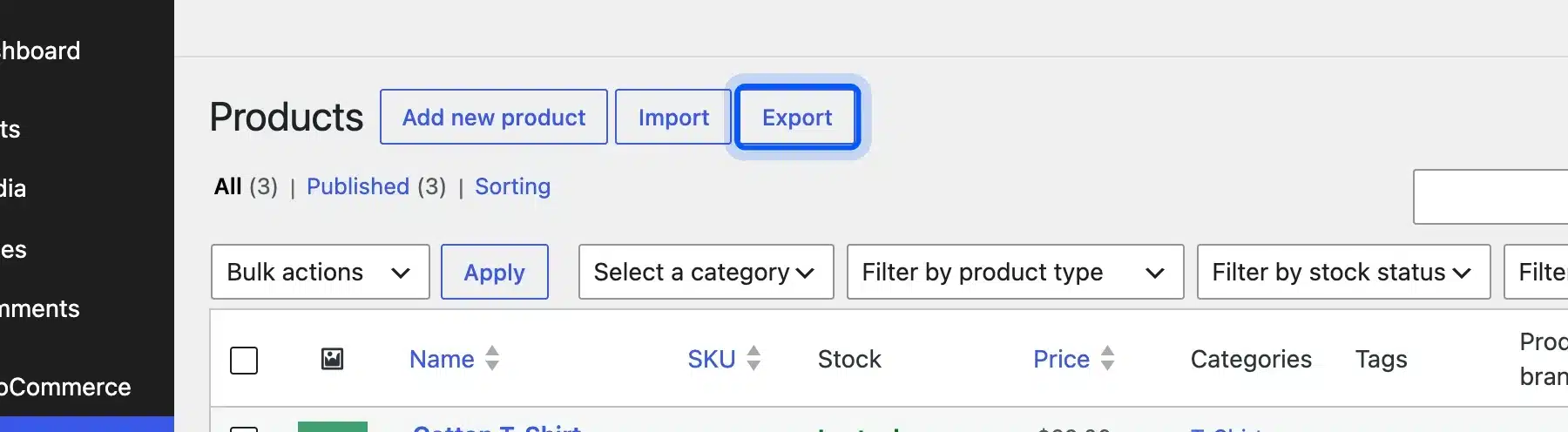
- Choose your columns: Leave the first field on “Export all columns”, or pick only the ones you need.
- Set the product types and categories: Leave both fields open to export everything, or narrow the list.
- Decide on custom meta: Tick “Yes, export all custom meta” only if a plugin stores extra data you need.
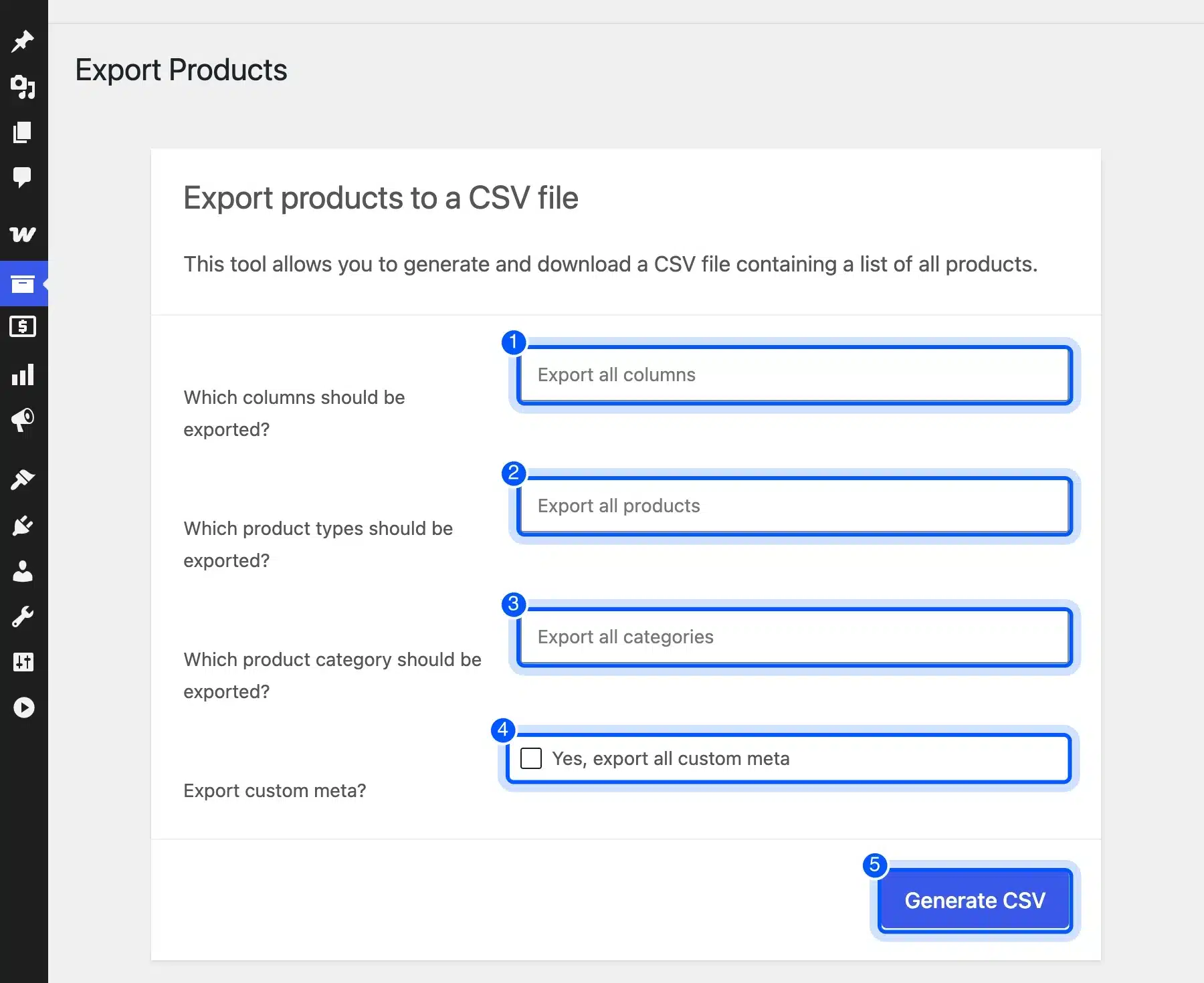
- Click Generate CSV: A progress bar runs, and the browser then saves a file named like
wc-product-export-8-10-2026.csv.
The same screen is where you export all products from WooCommerce in one go. Leave every field on its default value and the file holds every simple, variable and variation product in the store.
Note: The official documentation says you can also export selected products from the product list. On my 11.2.0 test site the Bulk actions menu offered only Bulk edit and Move to Trash. So I used the category filter instead.
WooCommerce Product Export: What the CSV File Contains
A WooCommerce product export is a CSV file with one row per product and one column per field. The first row holds the column names. The full file from my test store had 45 columns and five product rows: two simple products, one variable product and two variations.
Four columns do most of the work. They are also the ones the importer uses to line the file up with a store, which the import screen calls column mapping.
- Type: Says whether the row is a simple, variable or variation product.
- SKU: Holds the stock keeping code, and the importer can use it to match products.
- Regular price and Sale price: Hold the two prices, and the sale price stays empty when no sale runs.
- Images: Holds the web address of each image.
The Categories, Tags, Stock and Attribute columns follow the same pattern. Read the file once in a text editor before you edit it, so you know which column holds which value.
How to Export Products in WooCommerce With Only the Columns You Need
To export products in WooCommerce with only the columns you need, click the first field and pick each column from the list. WooCommerce then writes only those columns to the file. A short file with ID, SKU, name, price and images is easier to review than the full 45-column file.
The column list on 11.2.0 runs from ID, Type and SKU through Name, Sale price, Regular price, Categories, Images, Parent, Brands, Downloads and Attributes. It also includes a GTIN, UPC, EAN, or ISBN column, which older tutorials do not show.
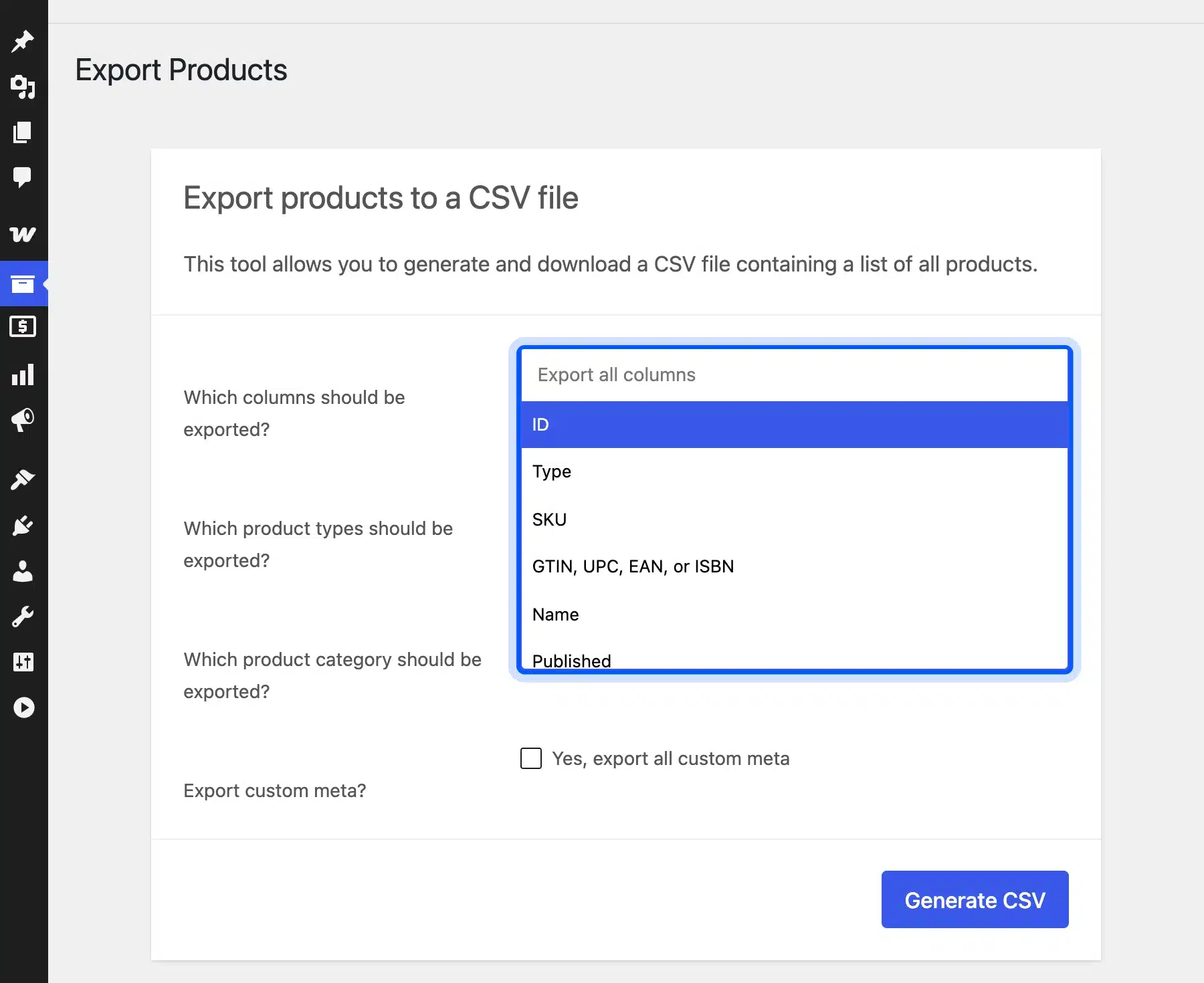
For a price audit you might pick ID, SKU, Name, Sale price and Regular price. For a supplier sheet, add Stock and Categories. Keep ID in every export, because it lets you match rows when you import the file back.
How to Export Product Categories in WooCommerce
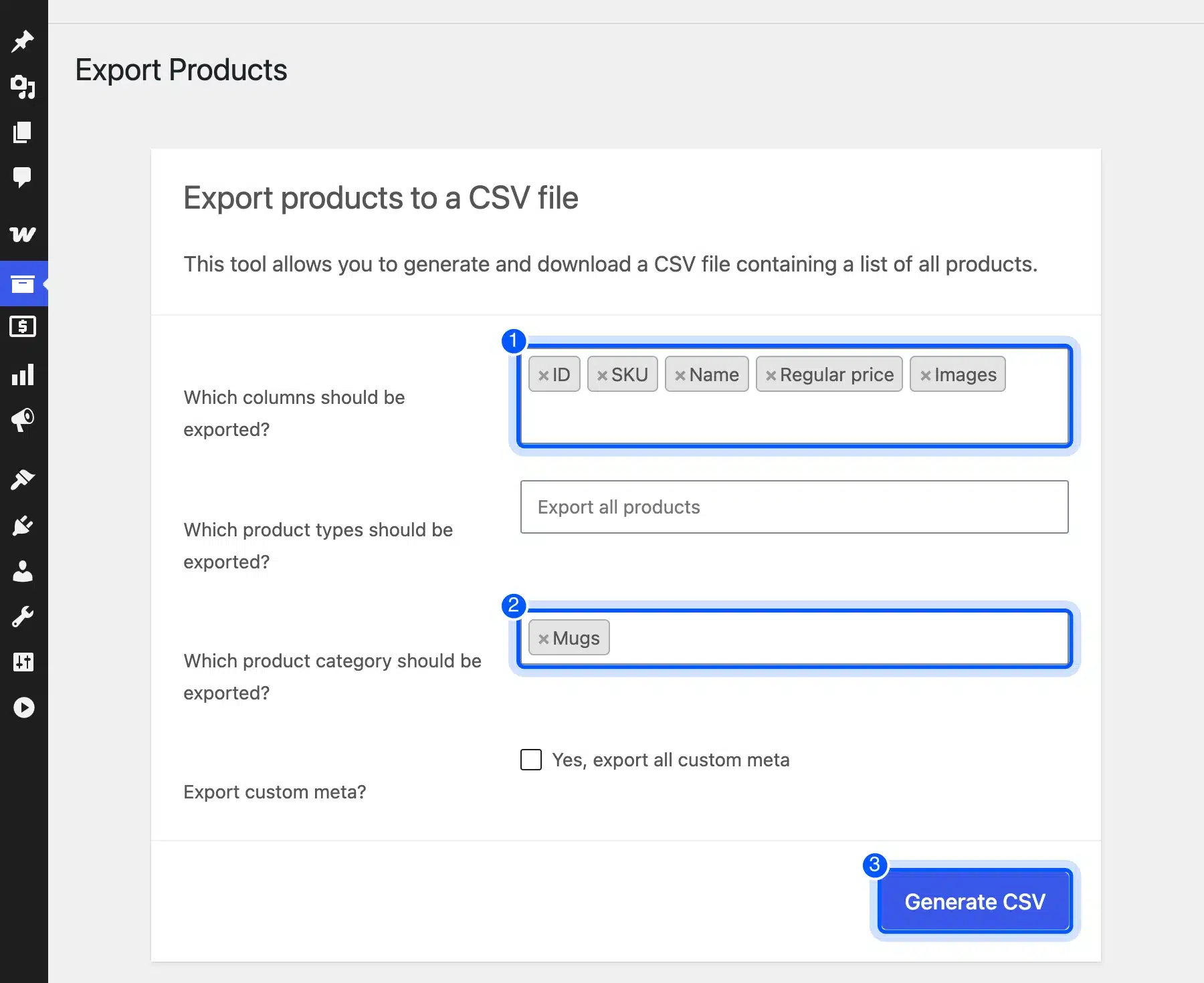
To export product categories, use the category field on the same screen. Click it and choose one or more categories, such as Mugs, and WooCommerce exports only the products in them. The category names also appear in the Categories column of the file.
In my test, I picked the Mugs category and the columns ID, SKU, Name, Regular price and Images. The file held the two mugs and left out the T-Shirt product.
ID,SKU,Name,"Regular price",Images
11,00123,"Ceramic Coffee Mug",24,https://example.com/wp-content/uploads/2026/10/mug.jpg
13,00124,"Stoneware Plate",18,https://example.com/wp-content/uploads/2026/10/plate.jpg
The sample above is the output from that test. The Images column shows each image’s full URL on your domain.
How to Export One Group of Products
The exporter filters by product type and category. It has no option for hand-picked products.
So to export a specific group, create a temporary category and add those products to it. Then run a filtered export on that category. Delete the category afterward, and the products keep their other categories.
How to Export WooCommerce Products With Images
When you export WooCommerce products with images, the CSV stores a web address for each image and not the picture itself. The Images column holds a link such as .../uploads/2026/10/mug.jpg. The image files stay in your wp-content/uploads folder until you copy them.
This is the most common surprise after a migration. The links work only while the old site is online. A store moved to a new host can import products and still show no pictures.
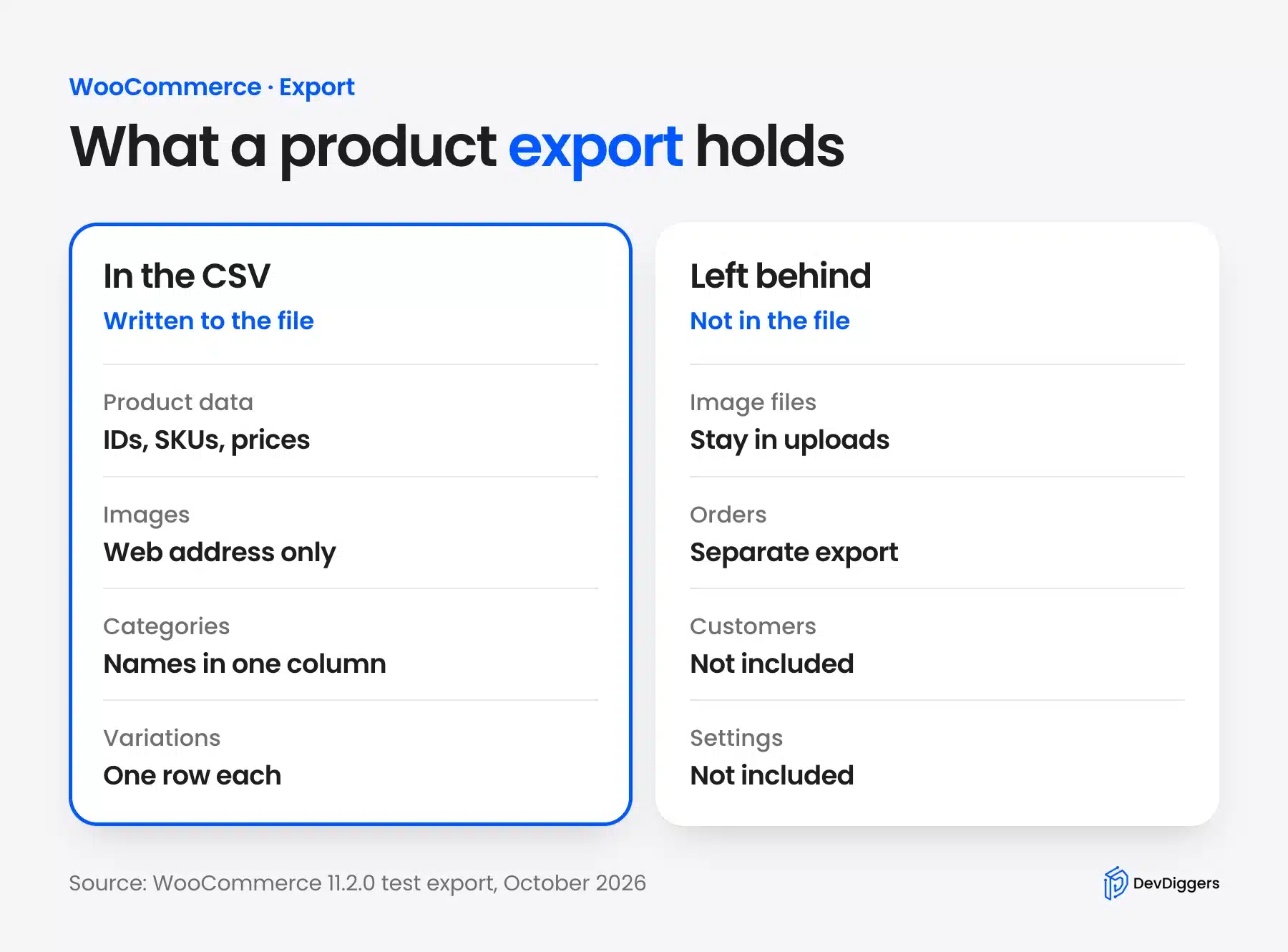
You have two ways to keep the pictures. The first is to keep the old site online until the new store has downloaded them. The importer reads the links, and the documentation notes that external image URLs work when the images are directly accessible.
The second way is to copy the uploads folder to the new server with SFTP or your host’s file manager, then import the CSV. Check that the new domain serves the same file paths before you import.
How to Export WooCommerce Products to Excel
To export WooCommerce products to Excel, generate the CSV and open it with Data > From Text/CSV in Excel instead of double-clicking it. That route lets you set the SKU column to Text, so a code such as 00123 keeps its leading zeros. Save the result as an .xlsx file for your own working copy.
Microsoft’s text and CSV import documentation says Excel opens a .csv file with its current default data format settings. It also describes converting a column of numbers with leading zeros to text during import.
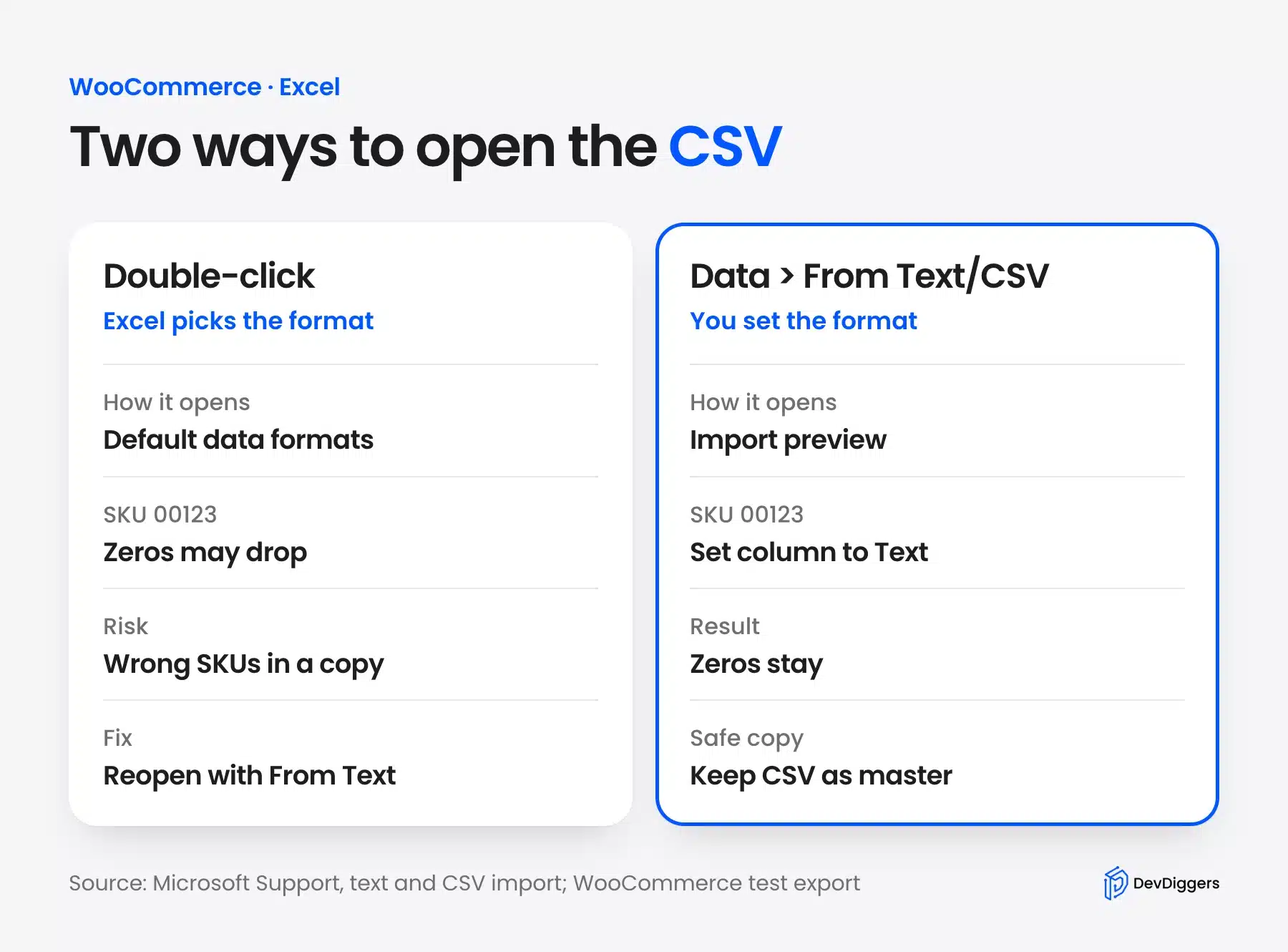
The file itself is safe. In my export, the SKUs read 00123 and 00124 in the raw CSV, and the file starts with a UTF-8 byte order mark. The risk comes later, when you save an Excel copy and upload that copy instead of the original.
Tip: Keep two files. Treat the CSV from WooCommerce as the master, and treat the Excel copy as a scratch sheet for review. Only re-import a file you saved as CSV UTF-8.
How to Export WooCommerce Variable Products and Variations
A variable product exports as one parent row plus one row for each variation. The parent row has the type variable and lists the attribute values. Each variation row has the type variation, its own SKU and price, and a Parent column that points back to the parent ID.
My test T-Shirt shows the pattern. Row 15 is the Cotton T-Shirt parent with Size values S and M. Rows 16 and 17 are the TEE-S and TEE-M variations, and both carry the Parent value id:15.
15,variable,,,"Cotton T-Shirt",1,0,visible,...,T-Shirts,...,Size,"S, M",1,0
16,variation,TEE-S,,"Cotton T-Shirt - S",...,22,...,id:15,...,Size,S,,0
17,variation,TEE-M,,"Cotton T-Shirt - M",...,22,...,id:15,...,Size,M,,0
Choose both “Variable product” and “Product variations” in the product types field if you filter by type.
In my test, a filter on Variable product alone returned the parent row only. Both variation rows were missing, so check the row count before you rely on the file.
Worth knowing: The documentation warns that WooCommerce may leave attribute values out of exported variation names. Read the Attribute columns, not the Name column, when you match variations.
How to Export WooCommerce Products With Tools > Export
WordPress has a second exporter under Tools > Export. Choose the Products option and click Download Export File to get an XML file in the WXR format. Use it to move product posts between WordPress sites, because it does not build a spreadsheet.
The Tools Export documentation says this file holds posts, pages, custom post types, comments, custom fields, categories, tags, custom taxonomies and users. You open it in a text editor, because Excel does not read it as a table.
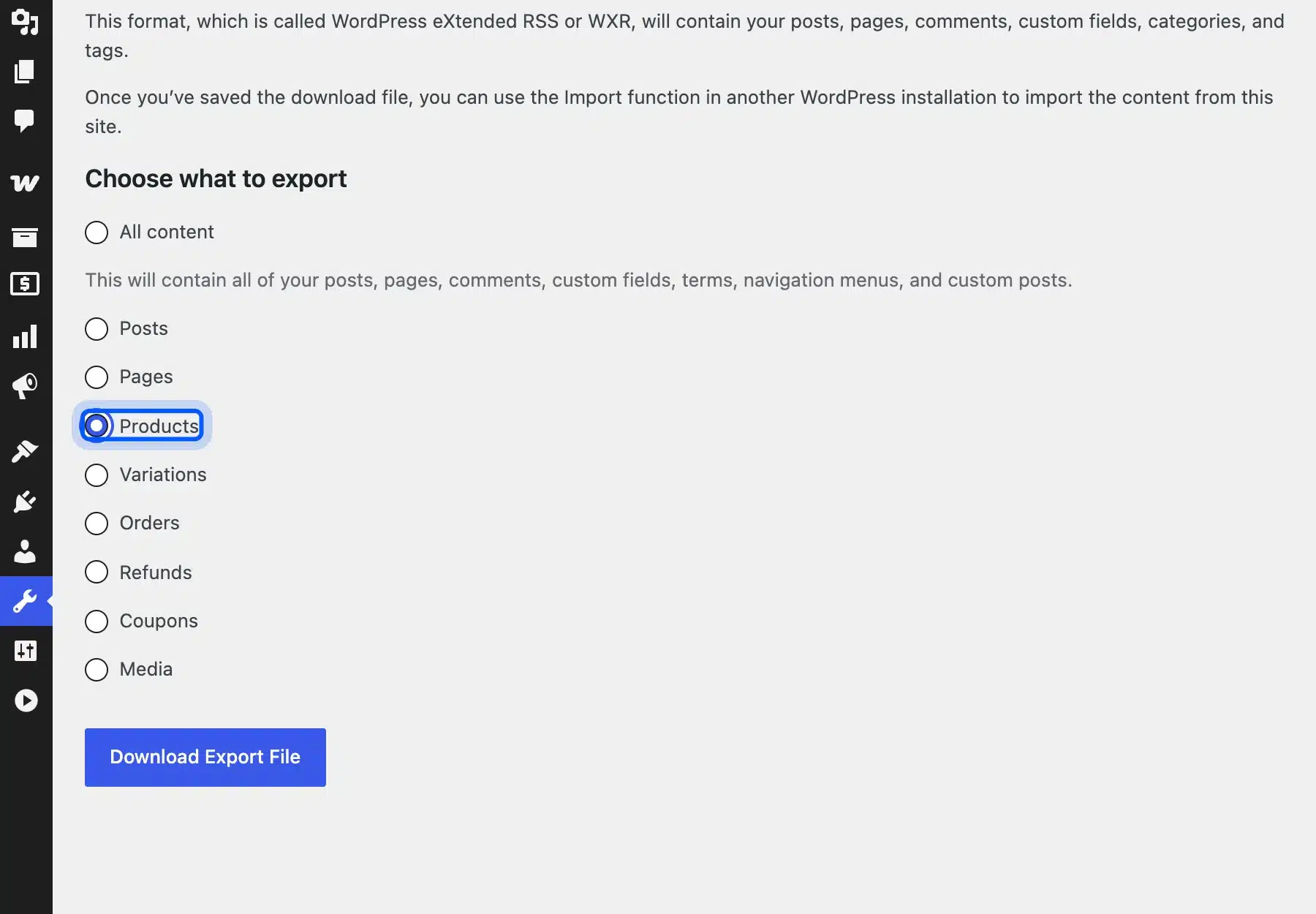
On 11.2.0 the same screen also lists Variations, Orders, Refunds, Coupons and Media. That makes it useful for a full copy of a store. It gives you no column choices, so the CSV exporter suits edits and audits better.
Which Export Plugin Should You Use?
Use a plugin when the built-in tool cannot do the job, for example scheduled exports or a file format other than CSV. Two long-standing options are WP All Export and the Product Import Export for WooCommerce plugin, both listed on WordPress.org.
Check what a free version covers before you install one. Plugin pages list their own limits, and a free edition may skip variable products or custom fields.
If your export needs custom fields, a nightly feed or data from another plugin, a developer can build it for you. Our WooCommerce development services cover custom import and export tools, and they save the manual work when the built-in screen runs out of options.
How to Import the Exported Products Back Into WooCommerce
To import the file, go to Products > All Products, click Import, choose the CSV and follow the column mapping steps. Tick “Update existing products” if the store already holds these items. The importer then matches rows by product ID or SKU and updates them instead of creating copies.
This is how a bulk edit works. You export the file, change prices or stock in the spreadsheet, and import it with the update option on.
The same steps cover a store migration. Run a full export on the old store, copy the images, and import the CSV on the new store with the box unticked.
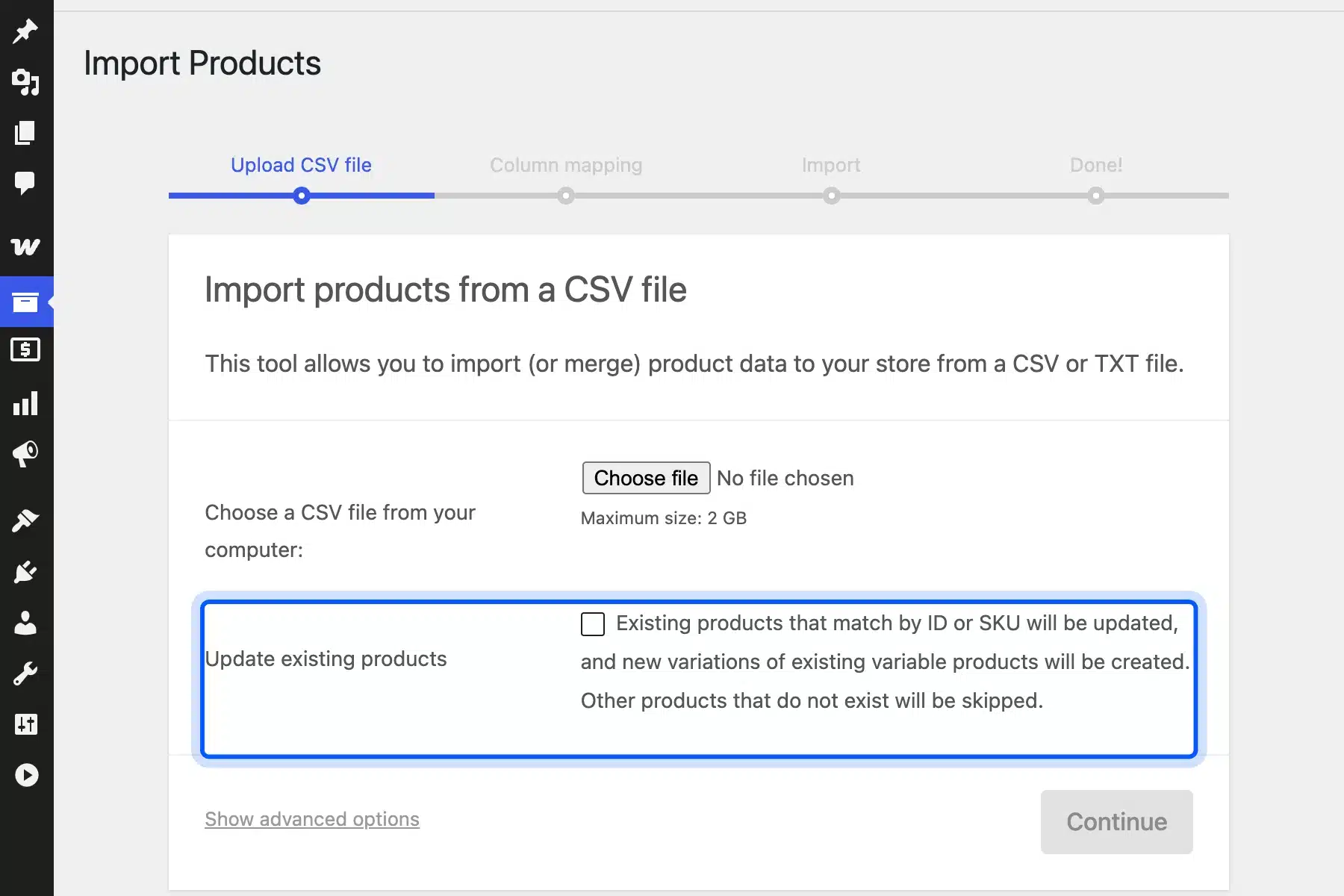
The screen states the rule itself. Existing products that match by ID or SKU will be updated, and products that do not exist will be skipped. If you want to move products to a new store, leave the box unticked so the importer creates them.
Common Export Problems and How to Fix Them
Most export problems start in the spreadsheet or on the server, and WooCommerce itself rarely causes them. The usual four are lost leading zeros, broken images, a stalled file and garbled characters. Each one has a short fix, and none needs a plugin.
- Lost leading zeros: Open the file with Data > From Text/CSV and set the SKU column to Text, as shown above.
- Broken images after a move: Copy the
uploadsfolder or keep the old site online during the import. - Export that stalls: The documentation says large jobs depend on your server’s memory, upload limits and processing time. Export one category at a time, or ask your host to raise the limits.
- Garbled characters: Save the file as CSV UTF-8, which the same documentation recommends.
Warning: A product export is not a backup. It leaves out orders, customers, settings and the image files themselves, so use it for edits and moves only.
For a real backup, follow our guides on WooCommerce product backup and how to back up the WooCommerce database. Order data lives in a separate export, and our guide on how to import WooCommerce orders into QuickBooks shows that route.
Conclusion
Now you know how to export WooCommerce products with the built-in tool, filter them by category and type, and keep images and SKUs safe. Start with the CSV exporter, because it gives you the most control and needs no plugin.
Open the file with Data > From Text/CSV, keep the CSV as your master copy, and remember that images travel as links. For anything the built-in screen cannot do, a plugin or a custom tool fills the gap.
Frequently Asked Questions (FAQs)
Q1. How do I export all products from WooCommerce?
Go to Products > All Products, click Export and leave every field on its default value. Then click Generate CSV. WooCommerce exports every simple, variable and variation product in one file.
Q2. How do I export WooCommerce products in CSV format?
The built-in exporter always writes a CSV file. Click Export on the product list, choose your columns and click Generate CSV. For a different format such as XML, use Tools > Export or an export plugin.
Q3. Can I export WooCommerce products with images?
Yes, but the CSV holds image links and leaves out the picture files. The links work while the source site is online. To keep the files, copy the wp-content/uploads folder to the new server before you import.
Q4. How do I export WooCommerce products to Excel?
Generate the CSV and open it in Excel with Data > From Text/CSV. Set the SKU column to Text so codes keep their leading zeros. Save a working copy as .xlsx, but import only the original CSV.
Q5. How do I export a single product or a few products?
The exporter filters by product type and category. Add the products you want to a temporary category, export that category, then delete the category. The documentation also mentions exporting selected products from the list.
Q6. Does the WooCommerce export include variations?
Yes. Each variation gets its own row with the type variation and a Parent value pointing to the parent product. Select both “Variable product” and “Product variations” if you filter by type.
Q7. How do I import the exported file into another store?
Go to Products > All Products > Import, choose the CSV and map the columns. Leave “Update existing products” unticked for a new store. Tick it to update items that already exist, matched by ID or SKU.