To create WooCommerce coupon codes, go to Marketing, then Coupons, and click Add new coupon. Type a code, choose a discount type, set the amount and click Publish. Shoppers can then enter that code at the cart or checkout.
A coupon can take a percentage off, remove a fixed amount, or give free shipping. You can also limit it by minimum spend, product, category, date or number of uses. Most of these rules are checkboxes and fields, so no code is needed.
This guide walks through every screen, then tests each rule in a real cart. Every screenshot and message comes from a WooCommerce 11.1.2 test store with the Cart and Checkout blocks, checked in September 2026.
How to Create WooCommerce Coupon Codes Step by Step
You create WooCommerce coupon codes on one screen: name the code, pick a discount type, set an amount and publish. Go to Marketing, then Coupons, and click Add new coupon. The Coupon data box below the code holds every rule.
- Open the screen: In the dashboard, go to Marketing, then Coupons, and click Add new coupon.
- Enter the code: Type a code such as WELCOME10, or click Generate coupon code for a random one.
- Add a description: This is optional and only you can see it.
- Pick a discount type: Choose Percentage discount, Fixed cart discount or Fixed product discount.
- Set the amount: Type a number only, such as 10.
- Publish: Click Publish to make the coupon live.
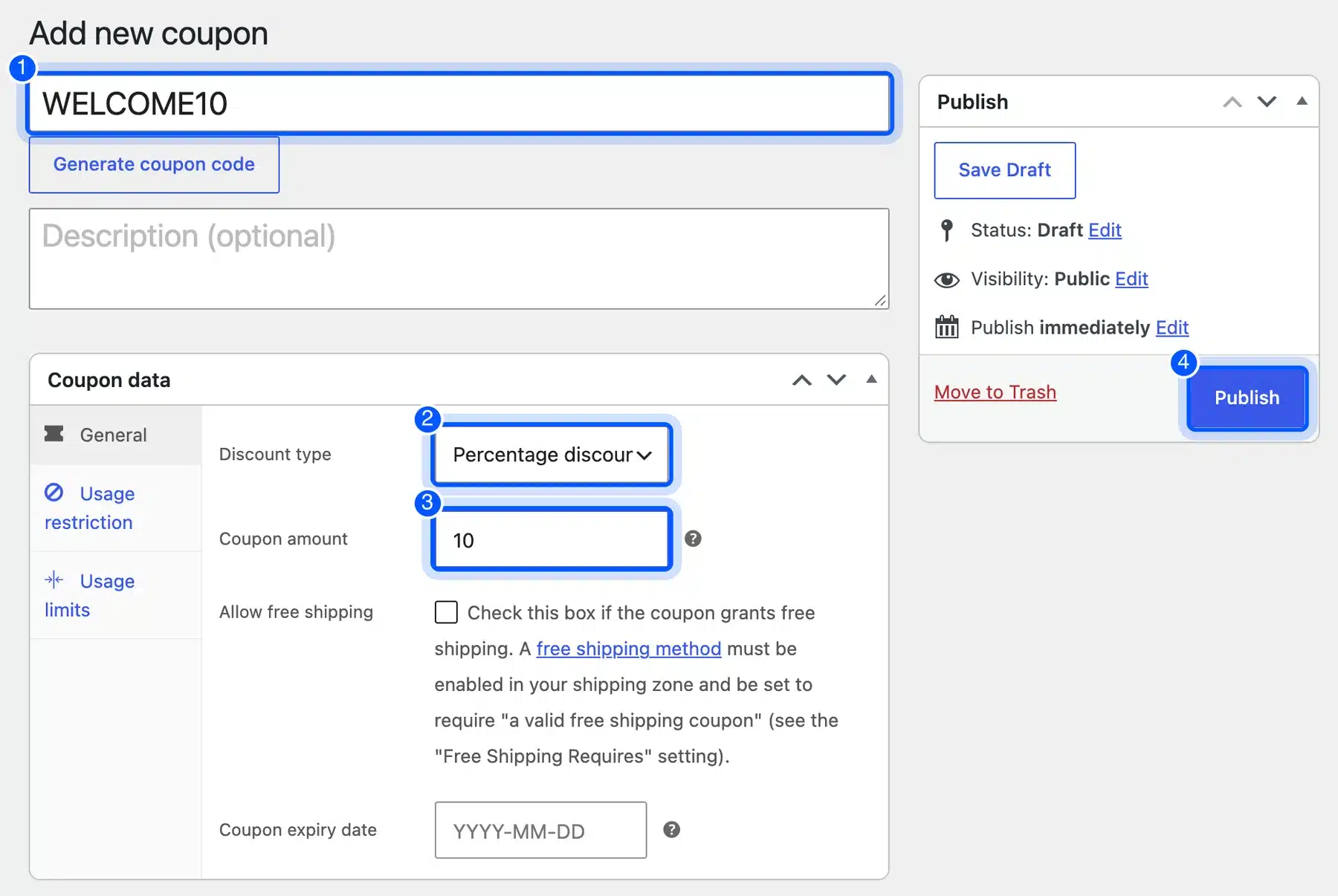
The General tab also has an Allow free shipping checkbox and a Coupon expiry date field. We use both later in this guide.
Coupon codes are not case sensitive. We typed WELCOME10, and WooCommerce showed it as welcome10 in the coupon list and in the cart. Shoppers can type it either way.
Turn On Coupons If You Cannot See the Option
If Marketing shows no Coupons page in your dashboard, coupons may be switched off. Go to WooCommerce, then Settings, then General, and tick Enable the use of coupon codes. Save your changes, and the Coupons page appears in the Marketing menu.
The WooCommerce coupon documentation lists that setting first. On our test store it was already on. It sits in the Taxes and coupons section of that page, under a label called Enable coupons.
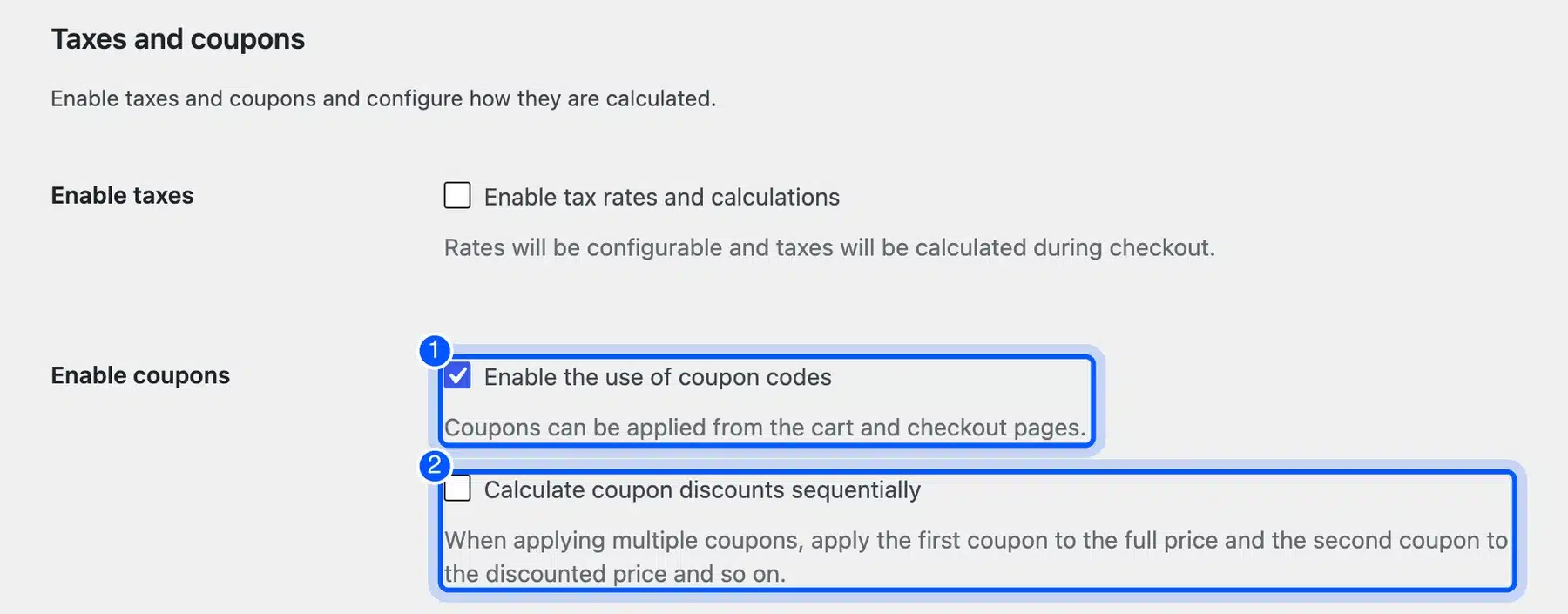
The same section has a second option, Calculate coupon discounts sequentially. It matters when a cart holds several coupons, because it applies the first to the full price and the second to the discounted price. It was off on our test store.
Choose the Right Discount Type
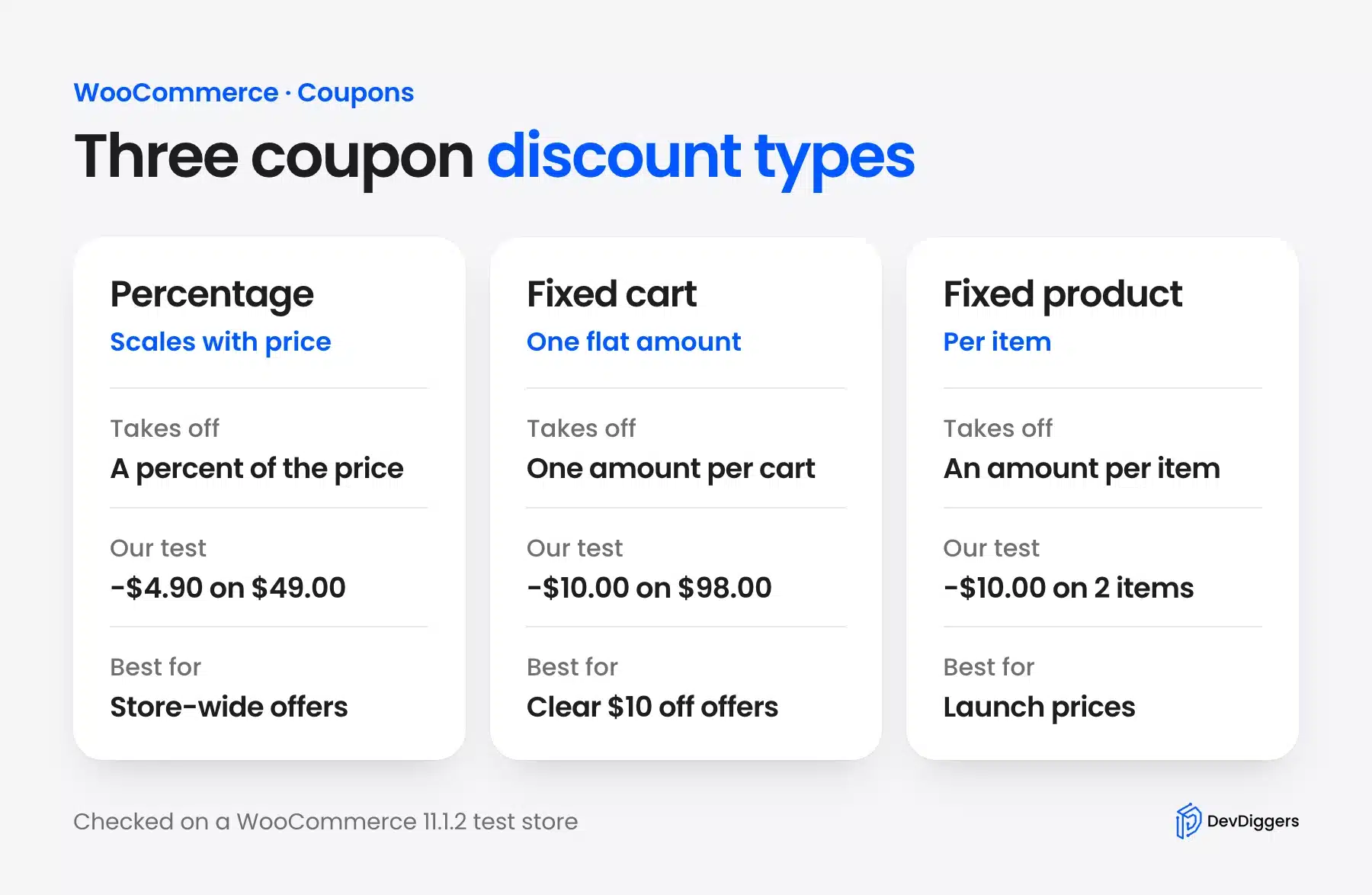
WooCommerce has three discount types: percentage, fixed cart and fixed product. A percentage takes a percent off the cart, and a fixed cart coupon takes one flat amount off the whole cart. A fixed product coupon takes a flat amount off each allowed item, so it grows with the quantity.
We tested the fixed coupons on a cart with two Linen throws at $49.00 each, a $98.00 subtotal. We tested the percentage coupon on a cart with one throw.
| Discount type | Coupon amount | Discount in the cart |
|---|---|---|
| Percentage discount | 10 | -$4.90 on one $49.00 throw |
| Fixed cart discount | 10 | -$10.00 |
| Fixed product discount | 5 | -$10.00 (2 items at $5.00) |
Use a percentage for store-wide offers, because it scales with the basket. Use a fixed cart coupon for a clear value such as $10 off, and a fixed product coupon when the discount should follow the item.
The percentage result, $4.90, is exactly 10 percent of $49.00. The two fixed coupons match here only because the cart holds two items. With a third throw, the fixed product coupon would take $15.00, while the fixed cart coupon would still take $10.00.
Edit or Delete a Coupon
Go to Marketing, then Coupons to see every code in one list. Under each code you see Edit and Trash links, so you can change a rule or remove that coupon at any time. Changes apply to new carts at once.
The list has columns for Code, Coupon type, Coupon amount, Description, Product IDs, Usage / Limit and Expiry date. It also has a search box and a Show all types filter, so you can find a coupon by code or by type.
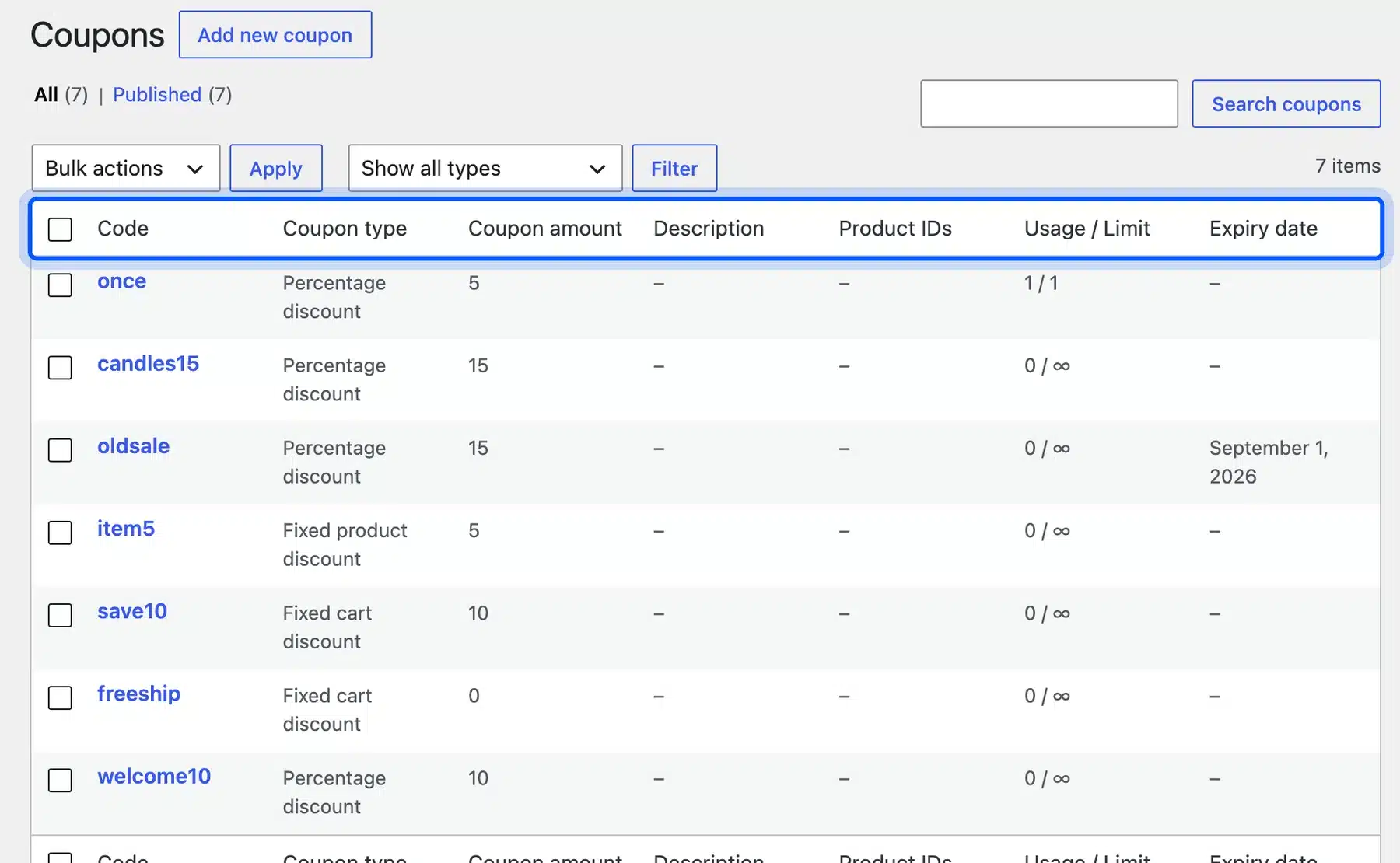
Trash a coupon you no longer need instead of leaving it live. An old code that still works can cost you margin. The Trash link is not a permanent delete, so you can still restore a coupon you removed by mistake.
Set WooCommerce Coupon Restrictions
Open the Usage restriction tab to control who and what a coupon applies to. You can set a Minimum spend, a Maximum spend, Individual use only and Exclude sale items. You can also fill lists of Products, Exclude products, Product categories, Exclude categories and Allowed emails.
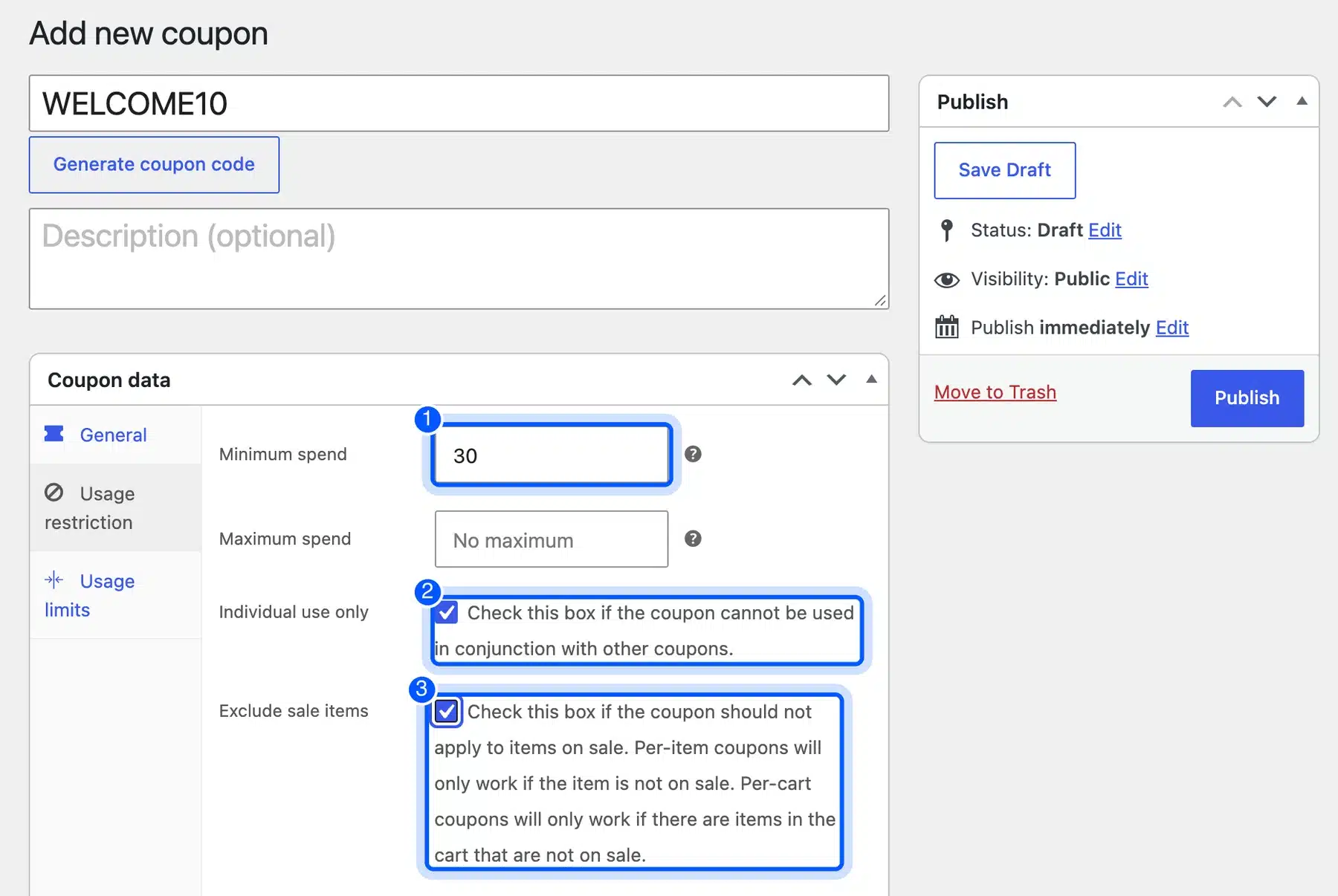
The Allowed emails field ties a coupon to specific customers, which suits a personal offer.
For our WELCOME10 coupon, we set a minimum spend of 30, ticked Individual use only, and ticked Exclude sale items. Individual use stops a coupon from being stacked with others. Exclude sale items keeps it off products that already have a sale price.
We tested each rule. With an $18.00 mug in the cart, WooCommerce showed: The minimum spend for coupon “welcome10” is $30.00. With two Amber candles on sale, it showed: Sorry, coupon “welcome10” is not applicable to selected products.
Limit a Coupon to One Product Category
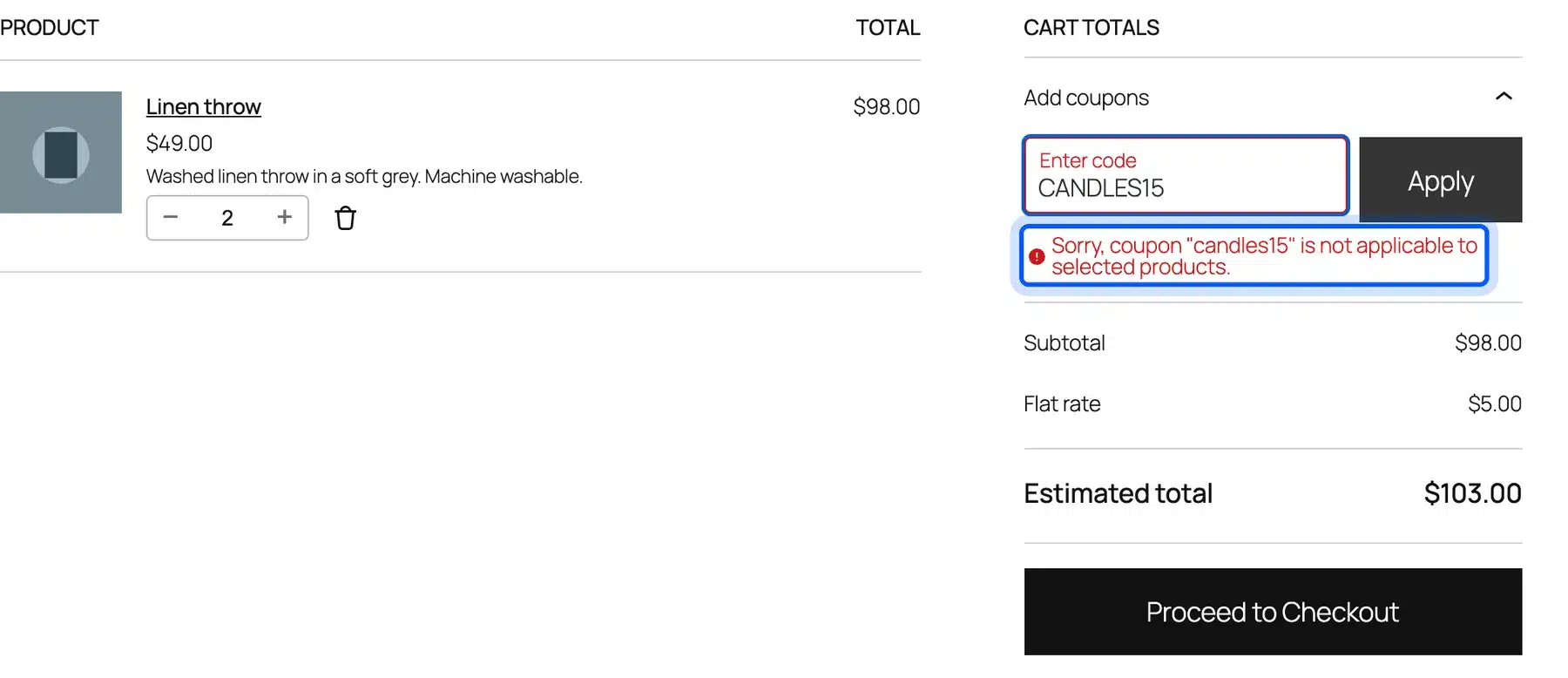
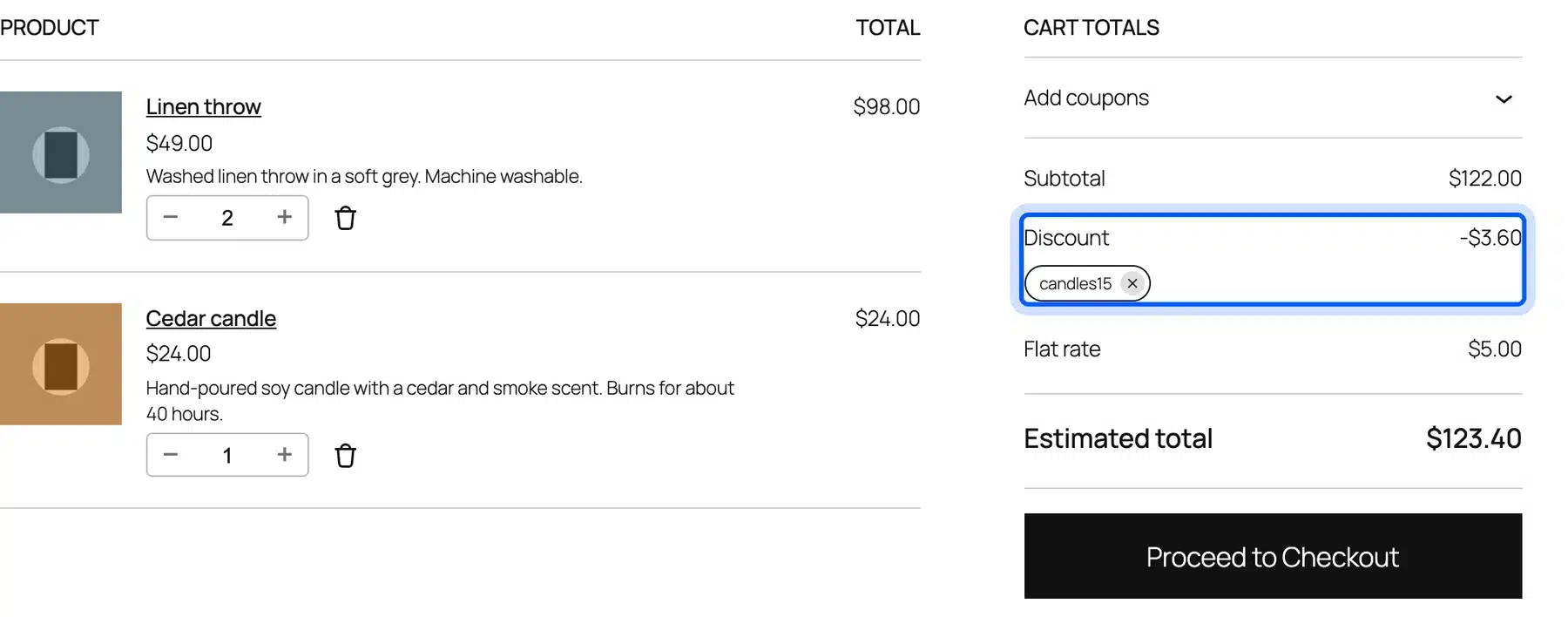
Use the Product categories field to restrict a coupon to one category. We made a 15 percent coupon for the Candles category. On a cart with only Linen throws, it showed an error.
After we added a $24.00 Cedar candle, the coupon worked. The cart showed a discount of $3.60, which is 15 percent of the candle alone. The throws stayed at full price.
Limit How Often a Coupon Can Be Used
Open the Usage limits tab to cap the use of a coupon. Usage limit per coupon sets the total number of uses, and Usage limit per user sets how many times one customer can use it. Limit usage to X items caps how many products the discount touches.
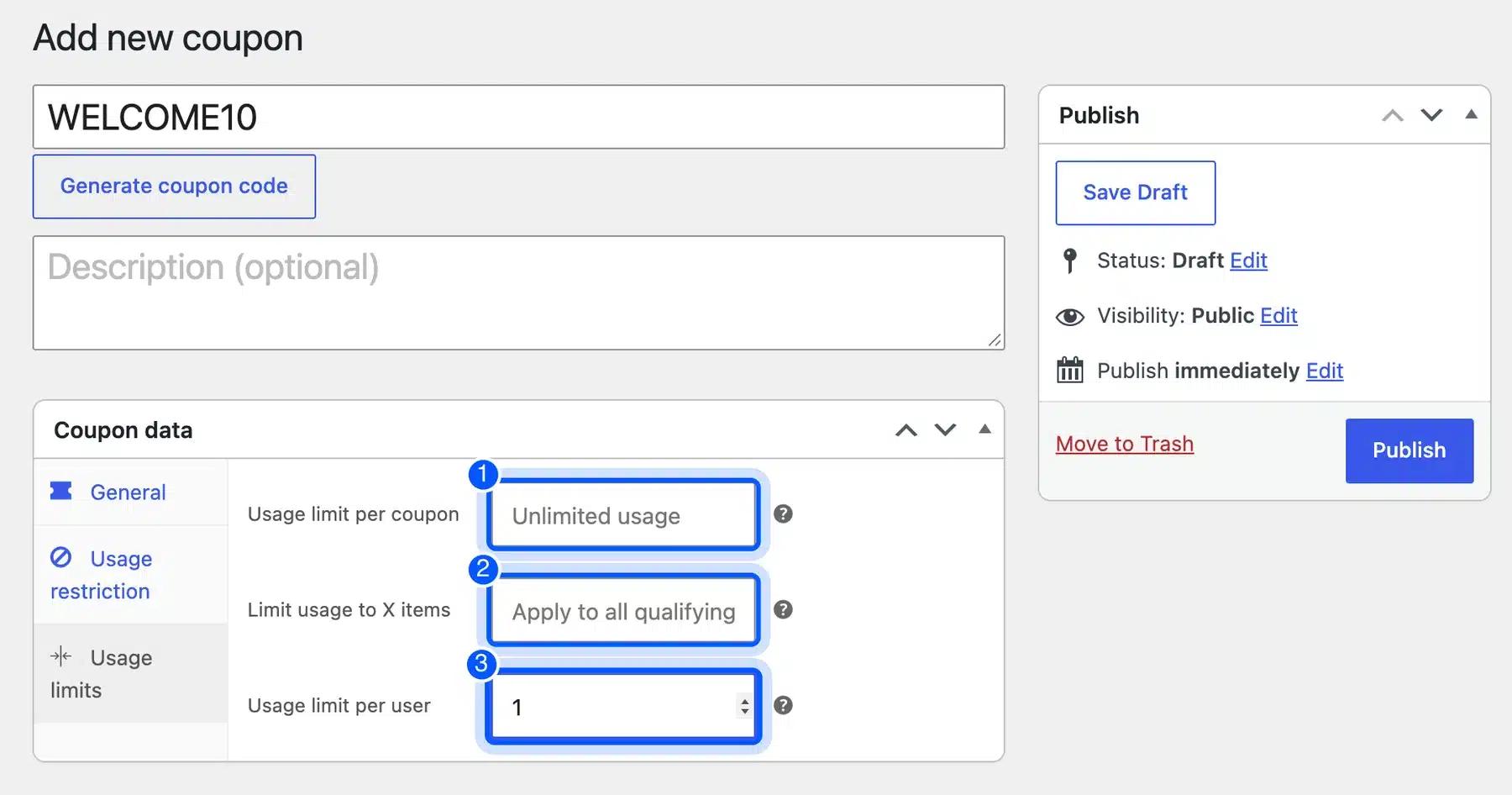
The coupon list keeps count for you. Its Usage / Limit column showed 0 / ∞ for coupons with no cap. It showed 1 / 1 for a coupon that had used its only allowed redemption.
Set an expiry date for time-limited offers. When we applied a coupon dated 1 September 2026, WooCommerce showed: Coupon “oldsale” has expired. A coupon with a limit of one use that had already been used showed: Usage limit for coupon “once” has been reached.
Create a WooCommerce Free Shipping Coupon
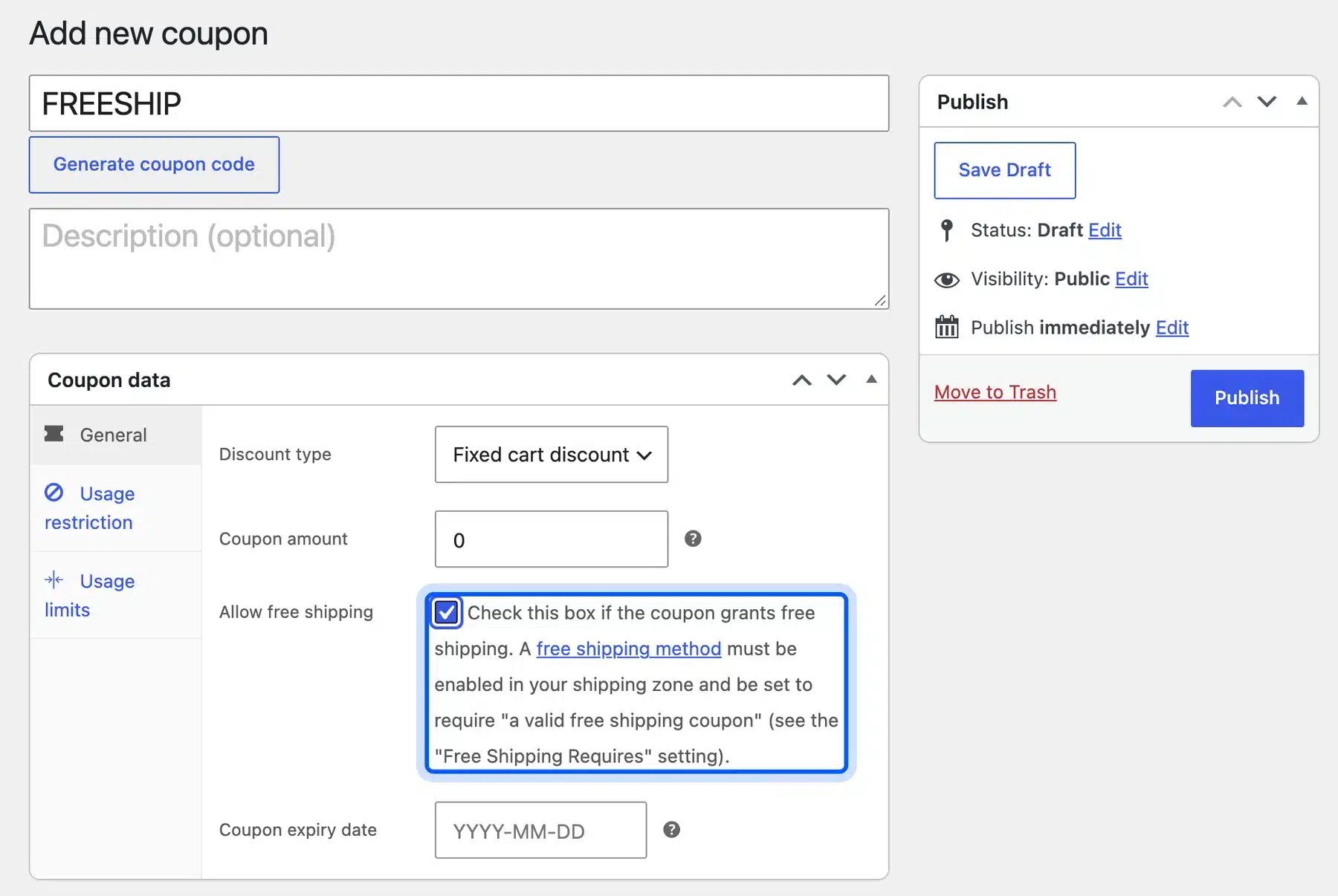
A free shipping coupon needs two settings. On the coupon, tick Allow free shipping, and in your shipping zone, set the Free shipping method to require a valid free shipping coupon. Without the second step, the coupon never triggers free shipping.
The coupon screen says the same. Next to Allow free shipping, it reads that a free shipping method must be enabled in your zone. It must also be set to require a valid free shipping coupon.
Now open WooCommerce, then Settings, then Shipping, and edit your zone. Click Edit on the Free shipping method. The setting that matters is Free shipping requires.
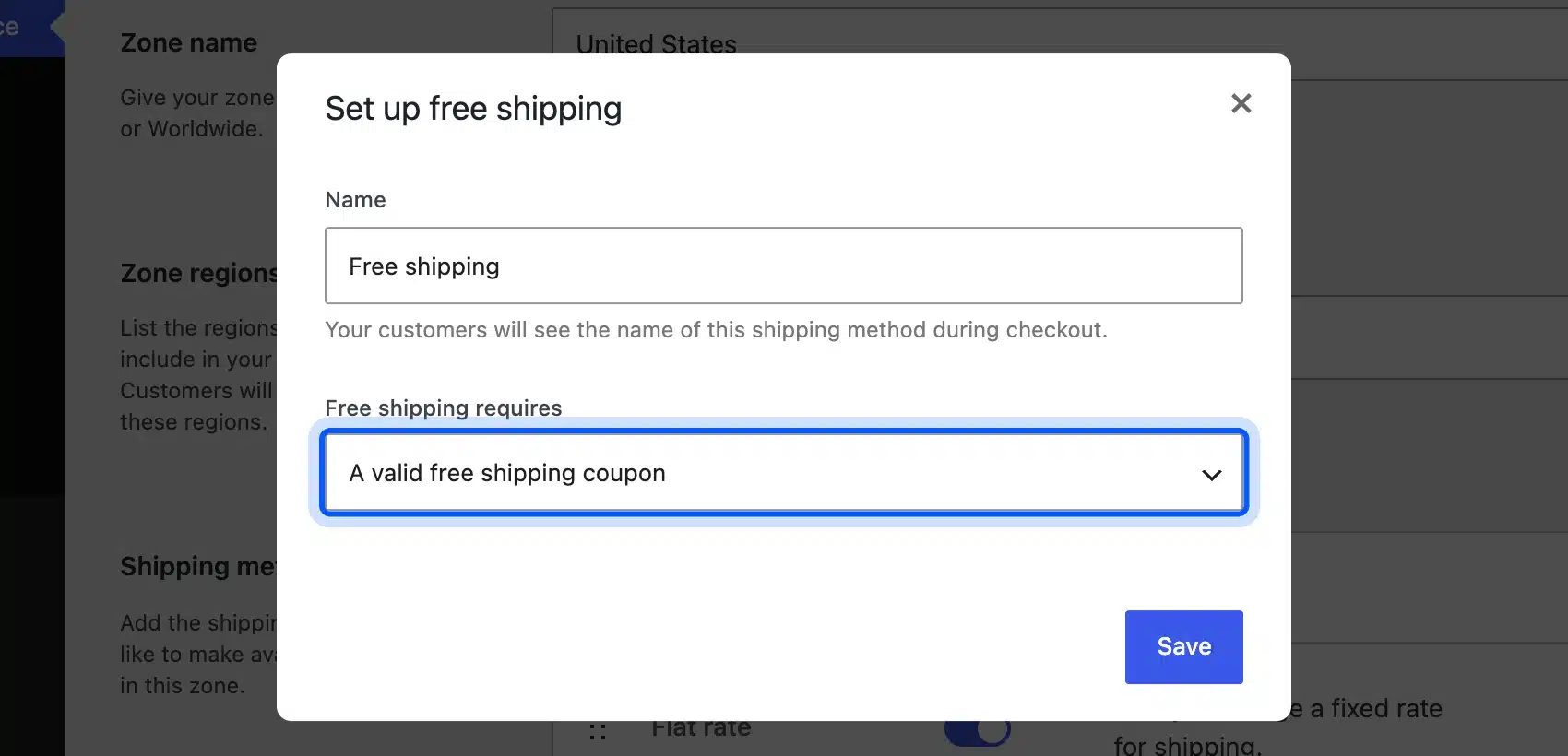
The Free shipping requires list has five choices:
- No requirement: Free shipping shows for every order in the zone.
- A valid free shipping coupon: Only a coupon with Allow free shipping triggers it.
- A minimum order amount: Free shipping starts above a set total.
- A minimum order amount OR coupon: Either condition works.
- A minimum order amount AND coupon: Both conditions must be met.
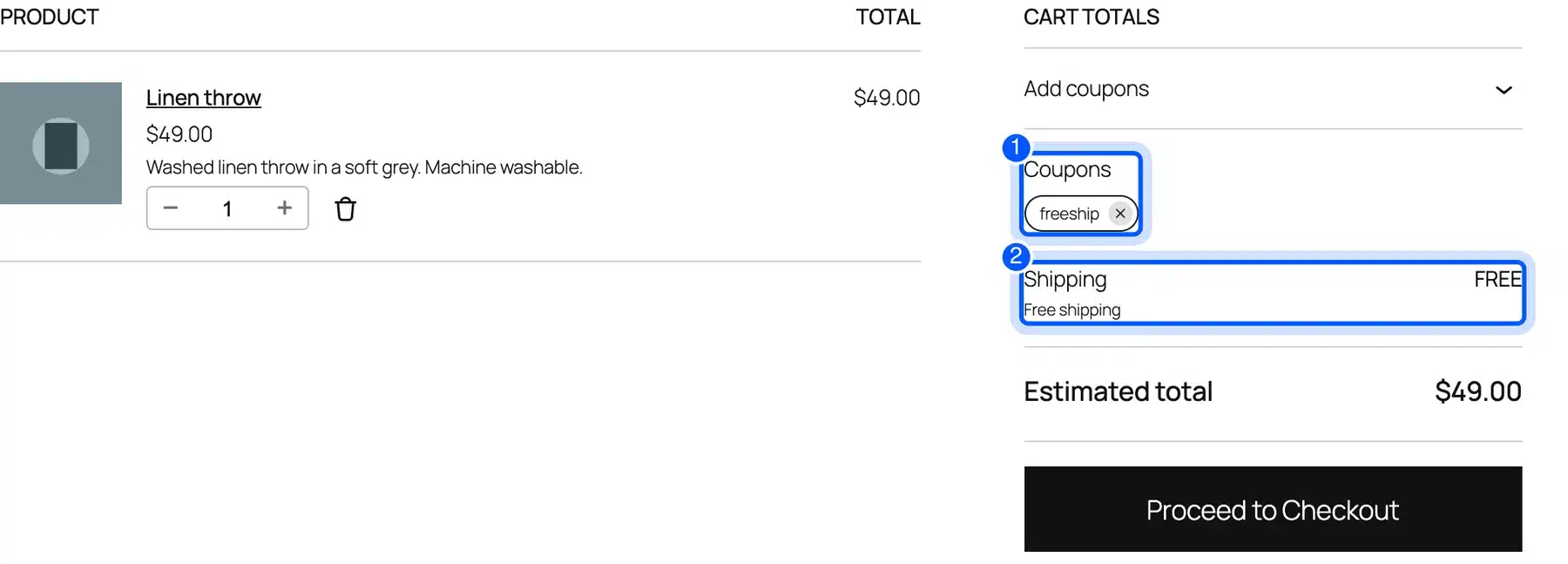
We set the method to require a coupon and made a coupon called FREESHIP. On a $49.00 cart, the flat rate normally added $5.00. With FREESHIP applied, the cart showed Free shipping and an estimated total of $49.00.
The coupon documentation adds one more rule. Coupons do not change shipping costs on their own, because they only apply to cart items. The free shipping guide covers the other ways to trigger the method.
How Customers Apply a Coupon Code
Shoppers click Add coupons in the cart totals, type the code and click Apply. The same Add coupons link sits in the order summary on the checkout page. WooCommerce then shows a green message and a Discount line in the totals.
On our test store, the message read: Coupon code “WELCOME10” has been applied to your cart. A $49.00 Linen throw then showed a discount of $4.90 and an estimated total of $49.10, which includes $5.00 flat rate shipping.
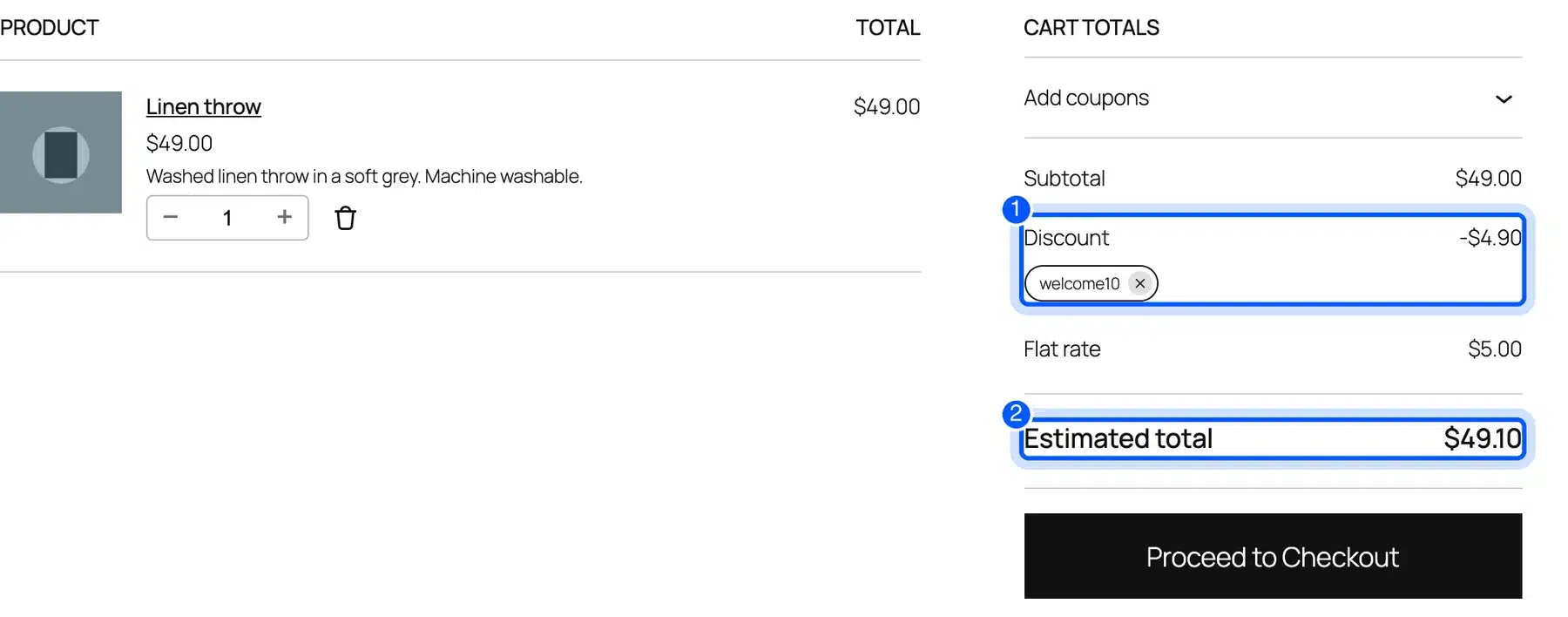
Tell shoppers where to enter the code. Many stores print the code in an email or banner. Our guide to a WooCommerce product page shows one way to add a short note there.
Coupon Not Working in WooCommerce? Fix These Errors
Read the error message first, because WooCommerce tells you the rule that failed. Most coupon problems come from a minimum spend, a sale item, a category limit, an expiry date or a usage cap. The table shows the messages we saw and what to change.
| Message on the cart | Cause | Fix |
|---|---|---|
| The minimum spend for coupon “welcome10” is $30.00. | Cart total is under Minimum spend | Lower the minimum or add items |
| Sorry, coupon “welcome10” is not applicable to selected products. | Only sale items in the cart | Untick Exclude sale items |
| Sorry, coupon “candles15” is not applicable to selected products. | No item is in the allowed category | Check the Product categories field |
| Coupon “oldsale” has expired. | Expiry date is in the past | Change the Coupon expiry date |
| Usage limit for coupon “once” has been reached. | All allowed uses are spent | Raise the Usage limit per coupon |
| “welcome10” has already been applied and cannot be used in conjunction with other coupons. | Individual use only is ticked | Untick it to allow stacking |
Also check the Usage limits tab. A coupon that reached its cap stops working for every shopper. The Usage / Limit column in the coupon list shows this at a glance.
How to Test a Coupon Before You Share It
Open a private browser window, add a product to the cart and apply the code. Check the discount line, the shipping line and the estimated total. Then try the cases that should fail, such as a cart under the minimum spend, so you know each rule works.
We tested every coupon in this guide that way. The passing case and the failing case both matter, because a coupon that works for everyone is a coupon with a missing rule.
Our test store had one US shipping zone, no taxes and Cash on delivery as the only payment method. If you charge tax or sell in several currencies, repeat the same tests with those settings switched on.
A short checklist helps:
- Passing cart: Confirm the discount amount matches your math.
- Under the minimum: Confirm the minimum spend message appears.
- Wrong products: Confirm sale items or other categories are refused.
- Second code: Confirm stacking behaves as you set it.
- Checkout page: Confirm the discount still shows at the last step.
Coupon Ideas That Fit These Rules
Each rule maps to a common offer that shoppers already know. A welcome coupon uses a percentage with a minimum spend and a limit of one use per user. A shipping offer uses a free shipping coupon, which we tested above.
A clearance push uses a category coupon, and a flash sale uses an expiry date. Pick the rule that matches the goal, then keep the offer simple so shoppers understand it in one line.
Do the math before you publish. Say a product sells for $49.00 and costs you $30.00.
A 10 percent coupon leaves $44.10, or $14.10 of margin. A $10.00 fixed coupon leaves $39.00, or $9.00 of margin. Treat this as a worked example and use your own numbers.
What Core WooCommerce Coupons Cannot Do
Core coupons do not apply themselves, and they have no buy-one-get-one rule. The Coupon data screen has no field for either of those features. Shoppers must type the code themselves, and a discount only reduces prices that you already charge in your store.
Stores that need more use an extension. Our WooCommerce Product Share For Discounts plugin rewards customers who share a product. Its listing says you set the discount as a fixed amount or a percentage.
For a points-based approach, see WooCommerce Points and Rewards.
If you want a custom coupon rule built for your store, our WooCommerce development services team can help.
Conclusion
Now you know how to create WooCommerce coupon codes and how each rule behaves. Start with a simple percentage coupon, then add limits for minimum spend, categories, dates and uses.
Test every coupon in a real cart before you share it, as we did here. The error messages tell you exactly which rule blocked the code. That saves you from a broken offer on launch day.
Frequently Asked Questions (FAQs)
Q1. How do I create a coupon code in WooCommerce?
Go to Marketing, then Coupons, and click Add new coupon. Type a code, choose a discount type, set the amount and click Publish. The coupon works at once on the cart and checkout pages.
Q2. Where do I find coupons in WooCommerce?
Coupons live under Marketing, then Coupons, in the WordPress dashboard. The list shows each code, its type, amount, usage and expiry date. If you cannot see it, turn on coupons in WooCommerce, Settings, General.
Q3. What is the difference between fixed cart and fixed product discounts?
A fixed cart discount takes one flat amount off the whole cart. A fixed product discount takes the amount off each allowed item. On two items at a $5.00 discount, the fixed product coupon took $10.00 off.
Q4. How do I make a WooCommerce coupon work only once per customer?
Open the Usage limits tab and set Usage limit per user to 1. WooCommerce then stops the same customer from using the code again. Set Usage limit per coupon if you also want a total cap.
Q5. Can I stack more than one coupon in WooCommerce?
Yes, unless a coupon has Individual use only ticked. On our test store, a second code was refused with a message that the first coupon could not be used with other coupons.
Q6. How do I give free shipping with a coupon?
Tick Allow free shipping on the coupon. Then set the Free shipping method in your shipping zone to require a valid free shipping coupon. Both settings are needed.
Q7. Why does my WooCommerce coupon say it is not applicable?
The cart has no product that the coupon allows. Check Exclude sale items, Products, Exclude products and the category fields. On our test store, sale items and the wrong category both caused this message.
Q8. Do WooCommerce coupon codes expire?
Only if you set a Coupon expiry date on the General tab. After that date, WooCommerce shows a message that the coupon has expired. Leave the field empty for a coupon that never ends.