If you sell products through WooCommerce, you already know your product page has a row of tabs sitting under the “Add to Cart” button. Most stores never touch them. They just leave “Description,” “Additional Information,” and “Reviews” exactly as WooCommerce installed them.
That’s a missed opportunity. Learning how to change the product page tab titles in WordPress takes a few minutes, and it lets you replace those common labels with something that actually matches your brand, your product type, or the way your customers search and shop.
This guide skips the theory. Every step below is written so you can follow along inside your own WordPress dashboard and take a screenshot at each stage, whether you’d rather click through a plugin or drop in a small code snippet. By the end, you’ll know exactly how to change the product page tab titles in WordPress using whichever method fits your comfort level.
What Are Product Page Tabs?
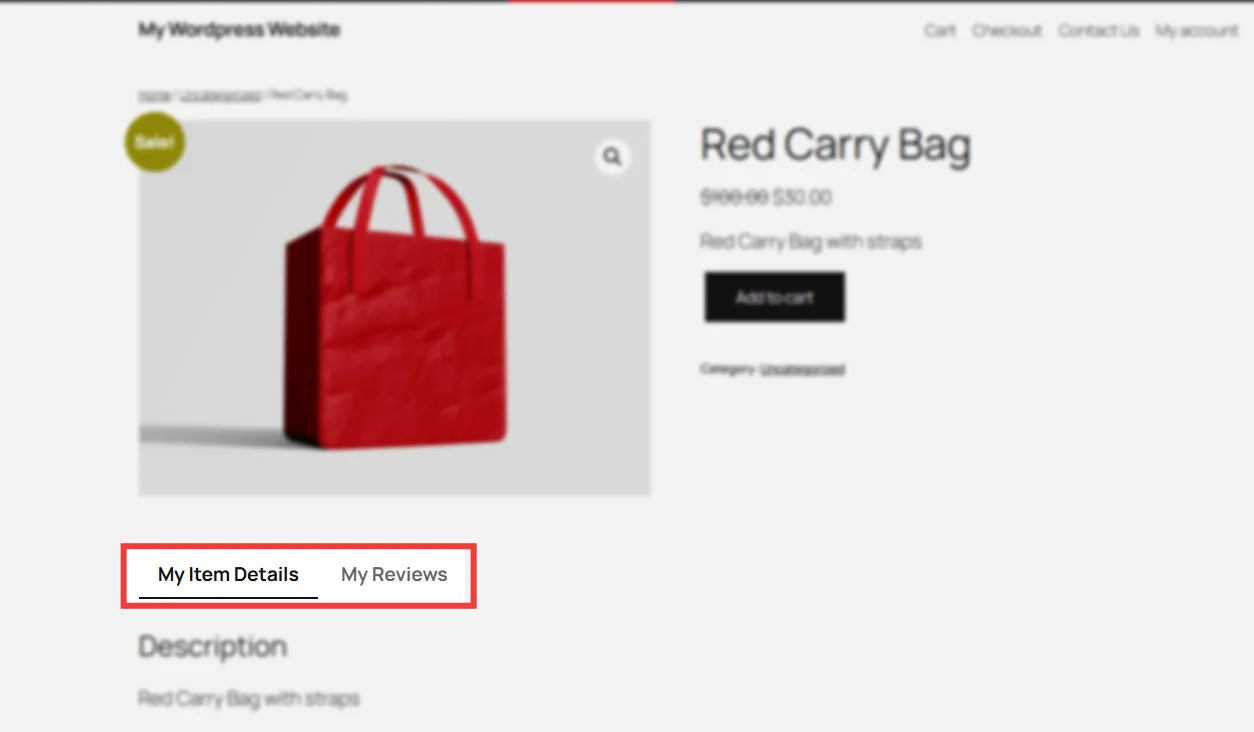
If you’ve ever scrolled down on a WooCommerce product page, you’ve seen them. Right below the price and the “Add to Cart” button sits a row of clickable headings.
By default, WooCommerce ships with three: Description, Additional Information, and Reviews. Click one, and the content below switches to match.
Description holds the long-form product write-up you added when creating the product. Additional Information pulls in attributes like size, colour, or material. Reviews shows customer ratings and comments.
These three labels are hardcoded into WooCommerce’s default theme output. Nobody chose them for your store specifically. They’re just what shows up until you learn how to change the product page tab titles in WordPress yourself, which is exactly what the rest of this guide covers.
Why Bother Changing Product Tab Titles?
Before jumping into the steps, it helps to know why this small change matters.
- Better branding: “Description” is fine. But “What Makes This Different” or “The Details” sounds like your store wrote it, not like default software text.
- Clearer navigation: Customers scan tabs before they read them. A label like “Sizing Guide” tells shoppers exactly what they’ll find, faster than “Additional Information” ever could.
- A small SEO signal: Search engines read the text on your page, including tab labels. Renaming a generic tab to something keyword-relevant adds a small bit of contextual relevance to the page. If you want to go further with on-page SEO for your store, our guide on achieving FCSO in WordPress covers meta tags, schema, and WooCommerce SEO in more depth.
- Fewer abandoned carts: If a shopper can’t find sizing, shipping, or care instructions in ten seconds, they leave. Clear tab names cut down that difficulty.
- Consistency across a growing catalogue: If you sell across multiple categories (clothing, electronics, home goods), the same “Additional Information” label rarely fits all of them equally well. Renaming tabs per category keeps things relevant.
None of this requires a redesign. It’s a text change, and this is why so many beginners search for how to change the product page tab titles in WordPress in the first place.
Before You Start: Two Things to Check
Do these two checks first. They take under two minutes combined and will save you a headache later.
- Back up your site: You’re about to touch either a plugin setting or your theme’s core file. A basic backup plugin like UpdraftPlus, or a manual export through your hosting panel, is enough. If anything goes wrong, you can restore in seconds.
- Confirm you’re using WooCommerce: These tabs (Description, Additional Information, Reviews) are a WooCommerce feature, not a core WordPress one. If your store doesn’t have WooCommerce active, none of the tabs discussed here will appear on your product pages, and none of the steps to change the product page tab titles in WordPress below will apply to you.
Quick Check: Does Your Theme Already Customize Tabs?
A handful of premium WooCommerce themes rename or restyle product tabs on their own, through the theme’s own settings panel rather than WooCommerce’s default output.
Before using code or a plugin, open Appearance → Customize and look for a section labelled “Product Page,” “Single Product,” or “WooCommerce.” If your theme has tab settings there, changing titles through that panel will be the most reliable option, since a theme-level override can sometimes take priority over a plugin or code snippet.
If you don’t see anything like that, your theme is using WooCommerce’s default tab output, and any of the methods below will work as expected.
Method 1: Change Product Tab Titles Using a Free Plugin
Here’s the honest version of this method: no free plugin lets you edit the title field of WooCommerce’s built-in Description, Additional Information, or Reviews tabs directly. Every plugin that offers that exact feature locks it behind a paid upgrade.
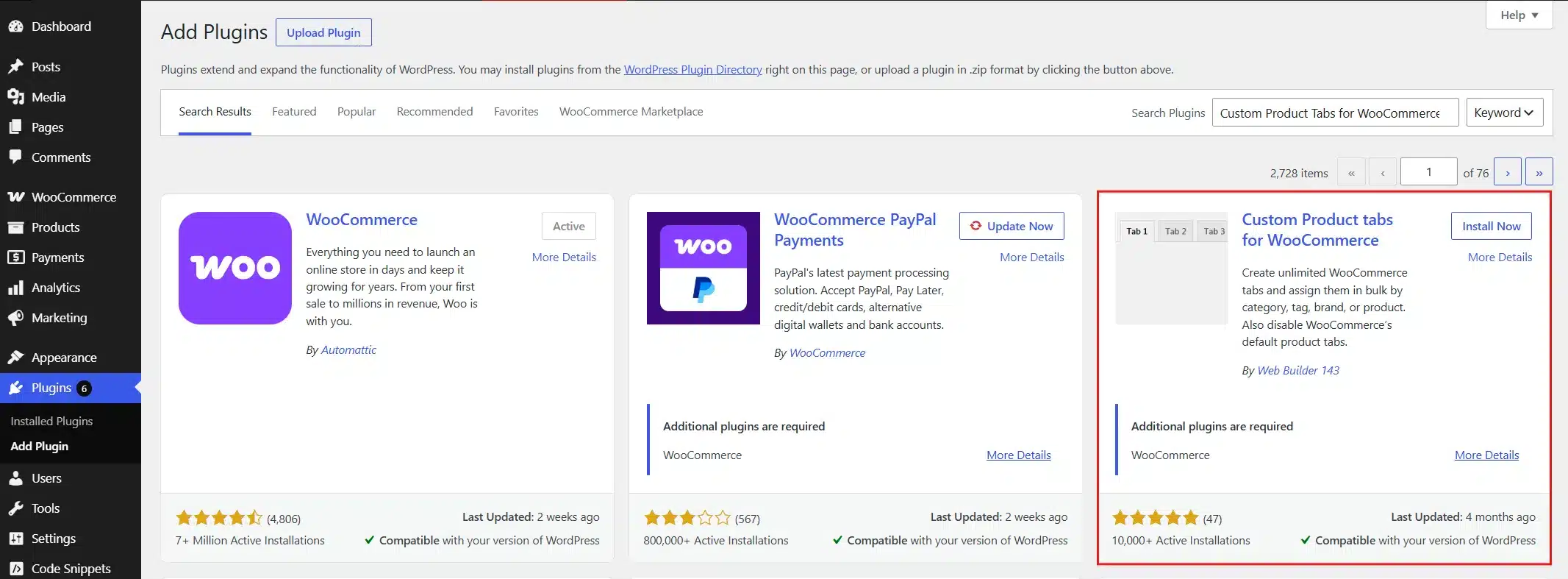
What the free Custom Product Tabs for WooCommerce plugin does let you do, at no cost, is hide a default tab and put your own custom-titled tab in its place. For the Description and Additional Information tabs, this works well since you’re just retyping your own content under a new title. For the Reviews tab, skip this and use Method 1 instead, since the star ratings and comment form can’t be recreated inside a plain custom tab.
- From your dashboard, go to Plugins → Add New Plugin.
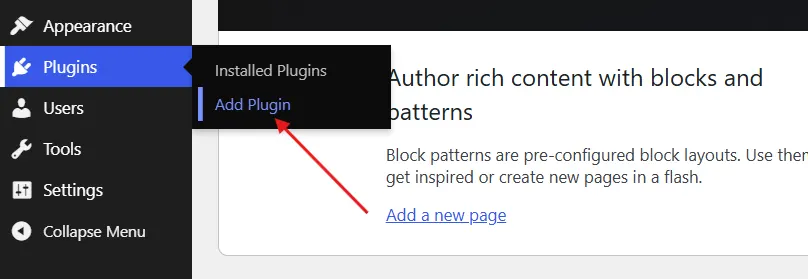
- Search for Custom Product Tabs for WooCommerce, then click Install Now and Activate.
- Click Settings in your sidebar, then click Product Tab Settings.
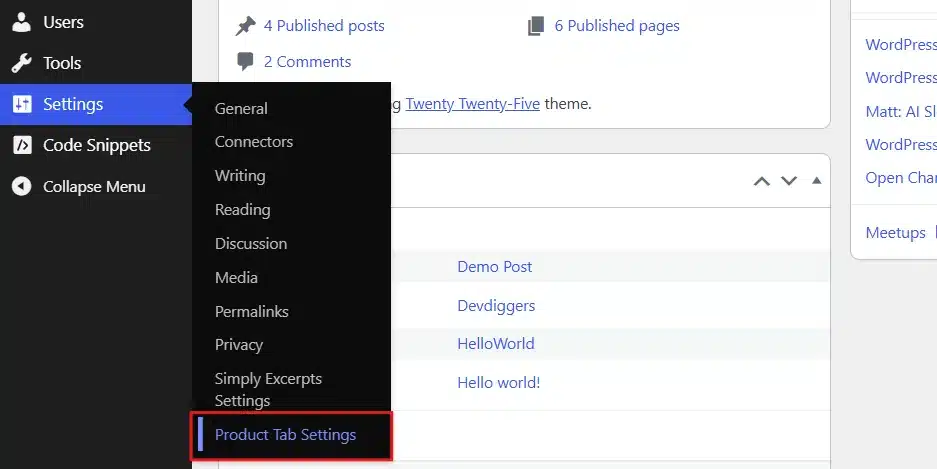
- Find the toggle for the default tab you want to rename, such as Additional Information, and switch it off.
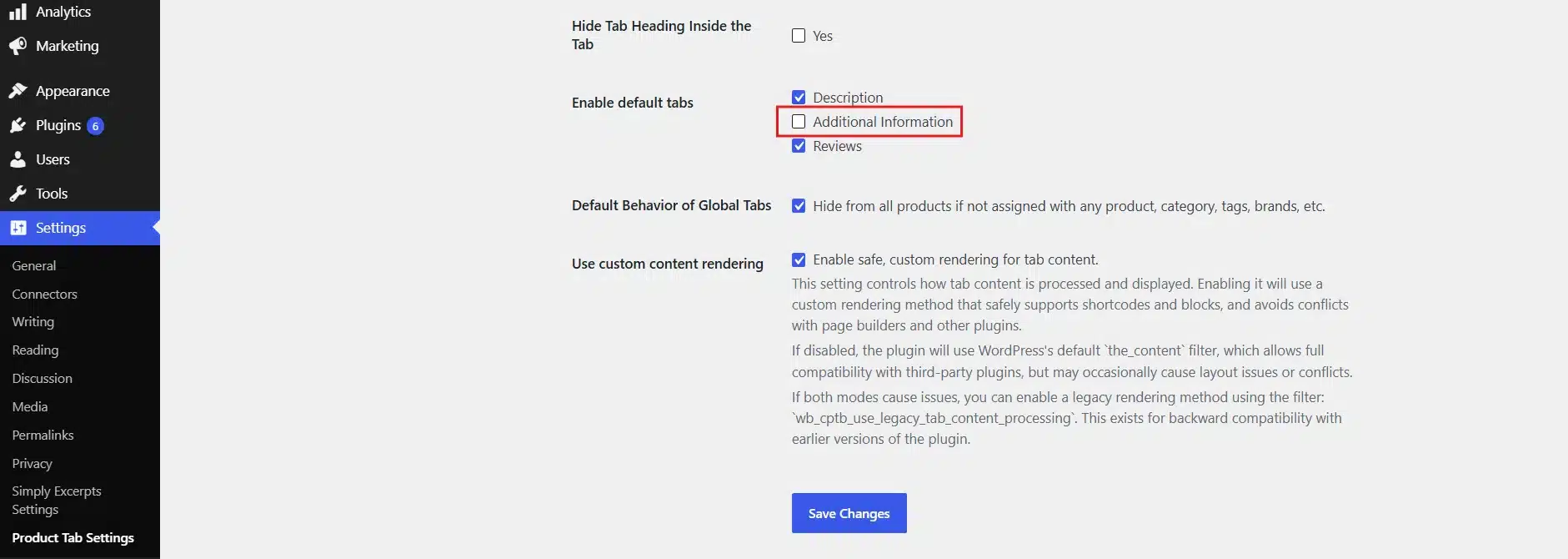
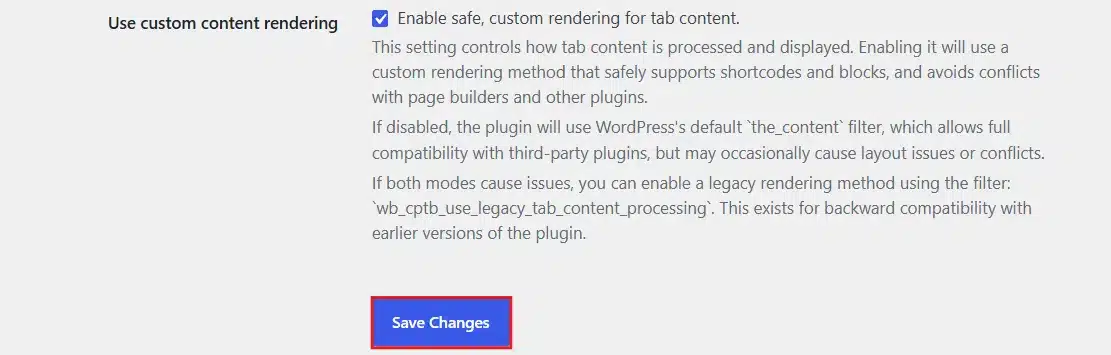
- Click Save Changes.
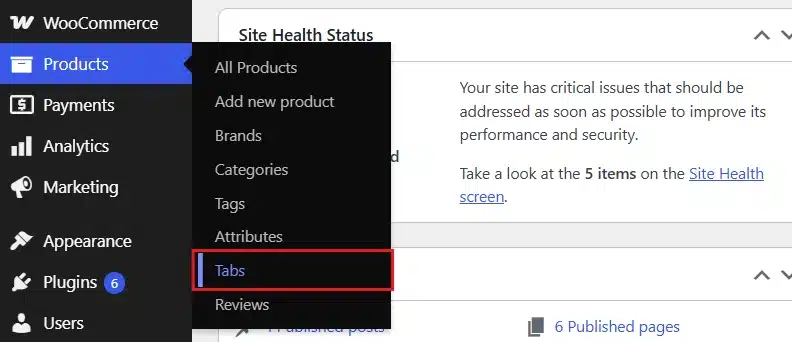
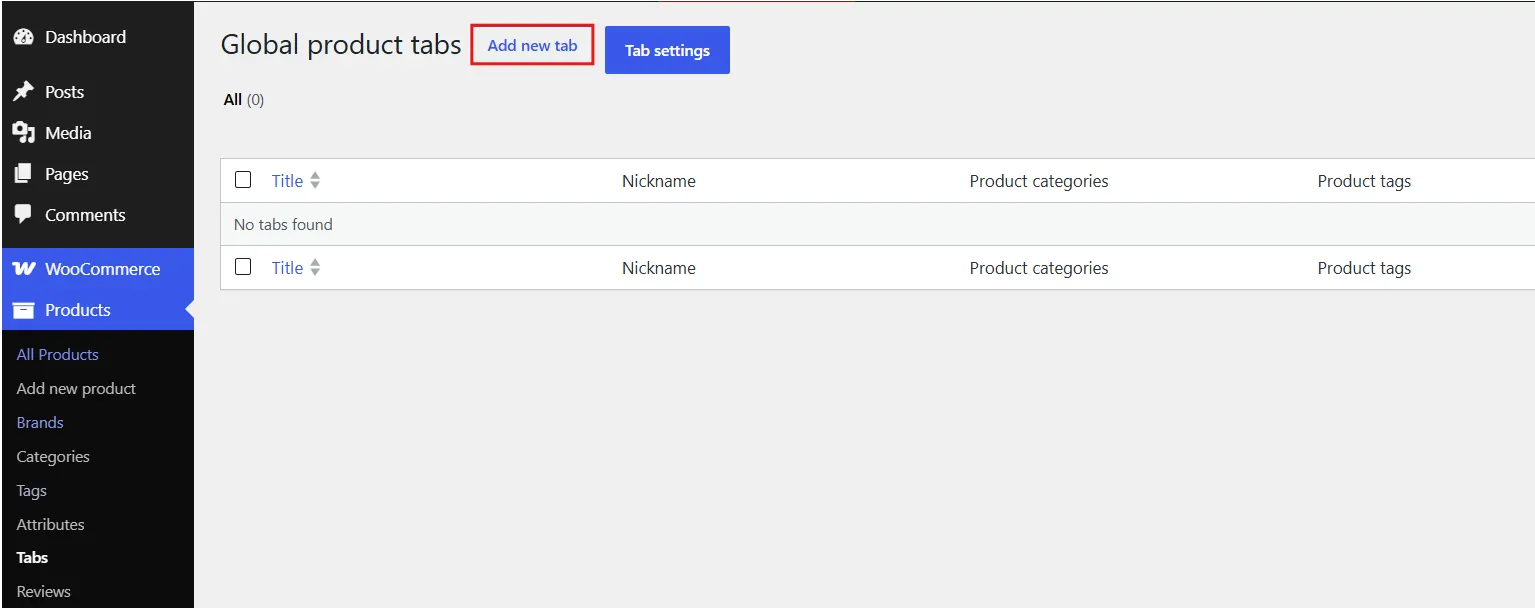
- Click Products in your sidebar, then click Tabs.
- Click Add New Tab.
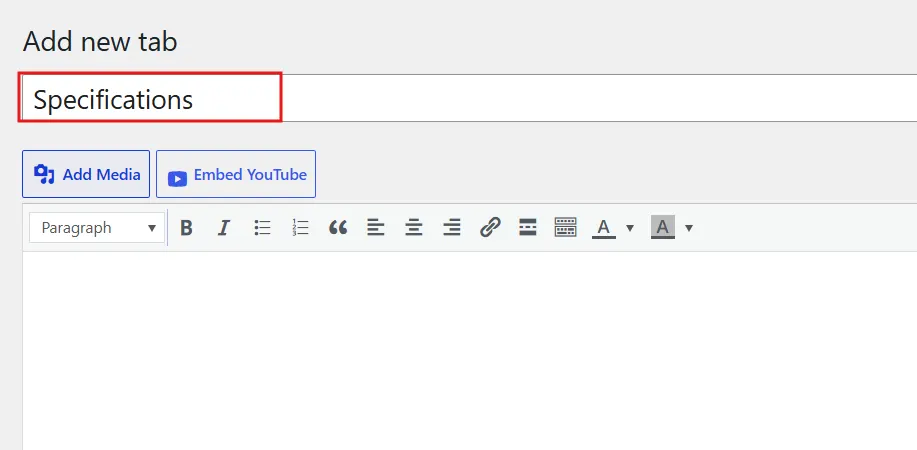
- In the Tab Title field, type the new name you want shoppers to see, such as “Specifications.”
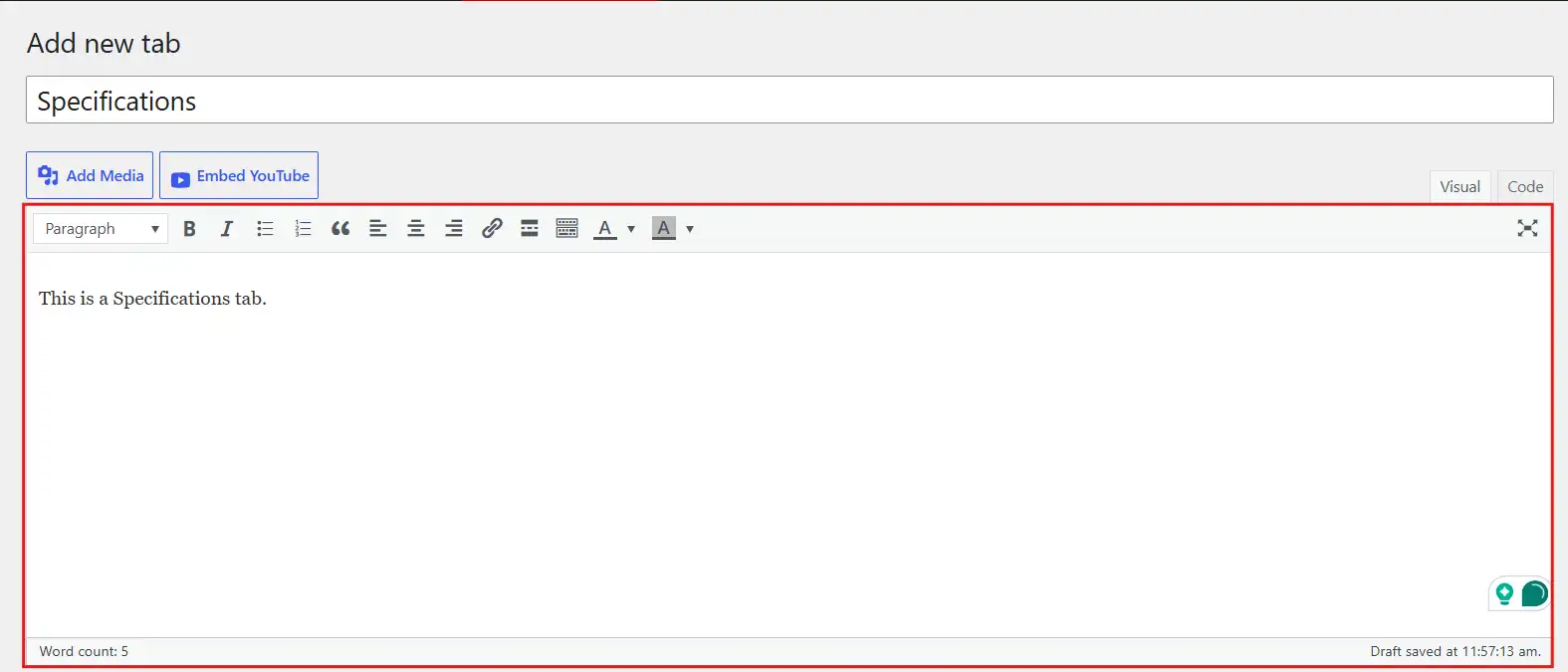
- In the content editor, type or paste in whatever information used to live in the original tab.
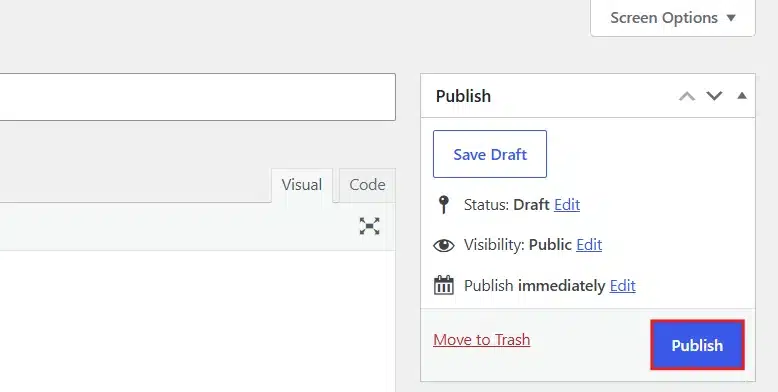
- Click Publish or Save to make the tab live.
Method 2: Change Product Tab Titles Using Custom Code
If you’re comfortable with a little PHP, editing your theme’s functions.php file gives you more direct control and doesn’t rely on installing a paid plugin. This is the free way to change the product page tab titles in WordPress, and it’s the method WooCommerce itself documents in its official guide to editing product data tabs.
Warning: Never edit functions.php on your live theme directly if you can avoid it. Use a child theme, or better, the free Code Snippets plugin, so your edits survive a theme update instead of vanishing. WooCommerce’s own developer documentation recommends this same approach over direct file editing.
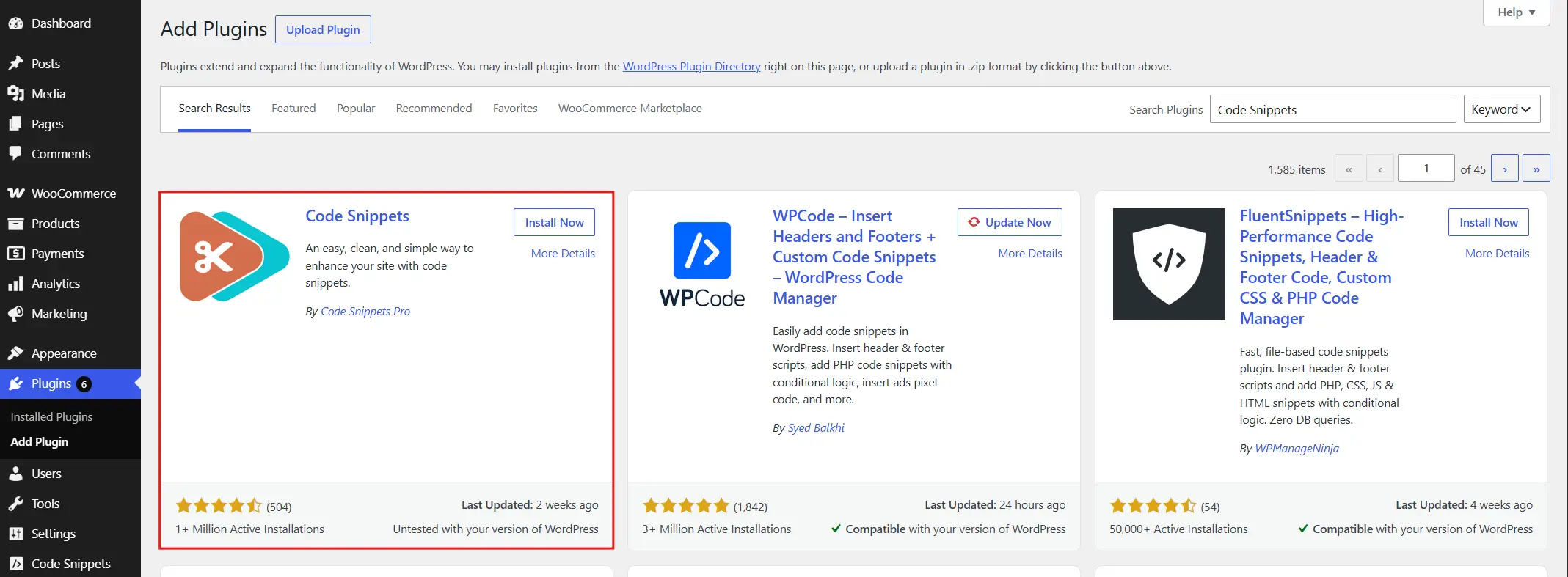
- From your dashboard, go to Plugins → Add New Plugin just like method 1.
- Search for Code Snippets, then install and activate it. This gives you a safe place to add code without editing theme files directly.
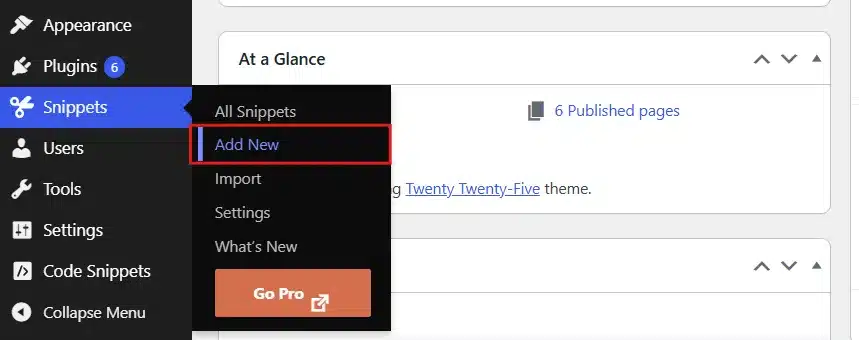
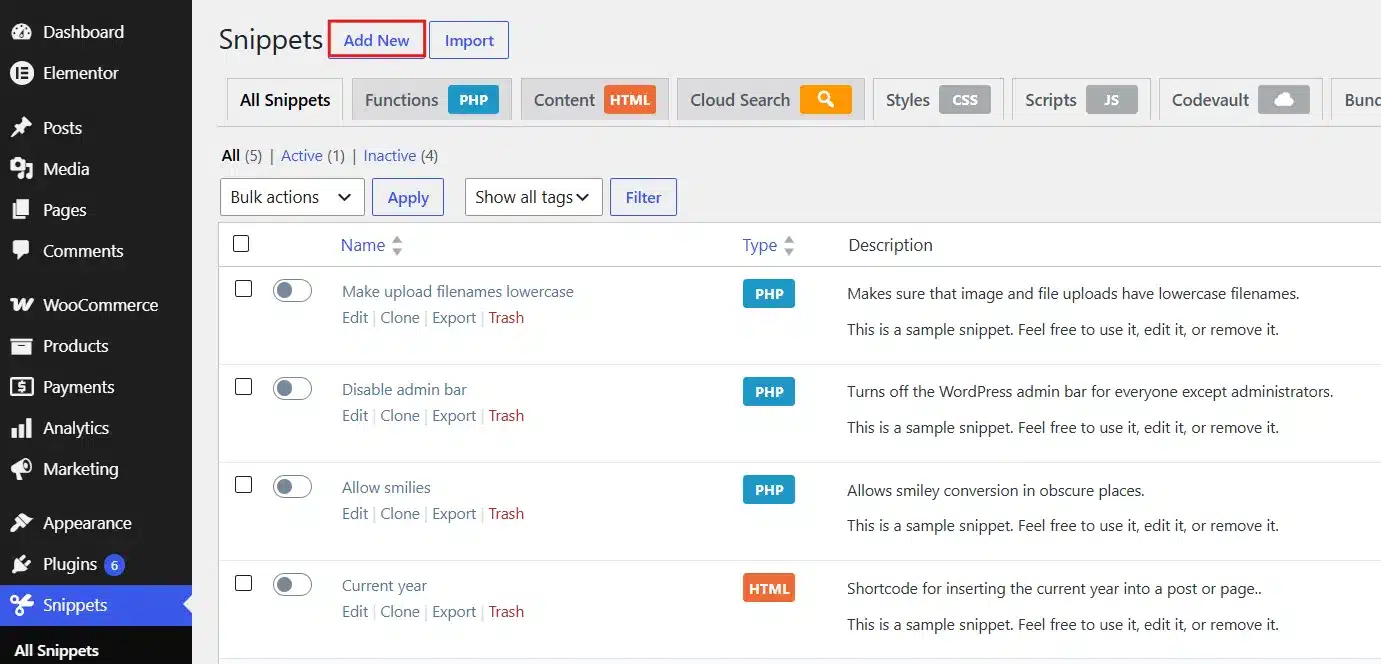
- After activation, go to Snippets → Add New.
- Give it a clear title, like “Rename WooCommerce Product Tabs,” so you can find it later.
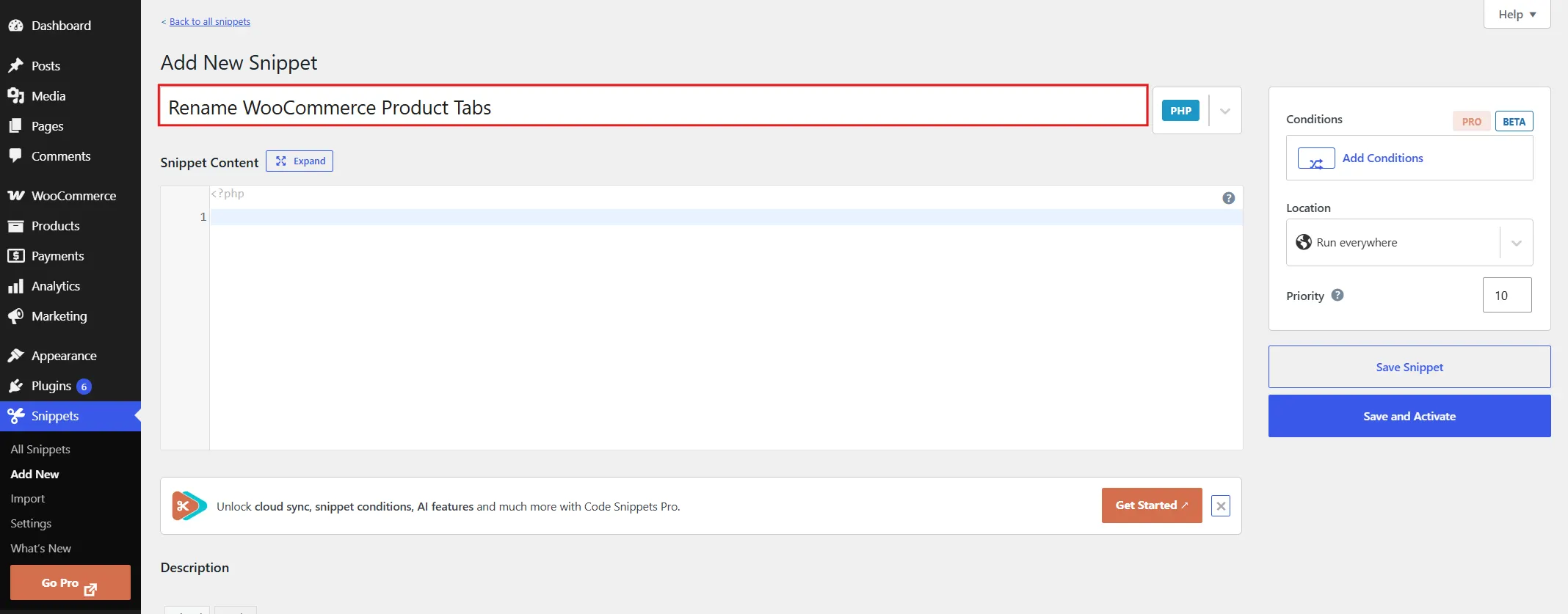
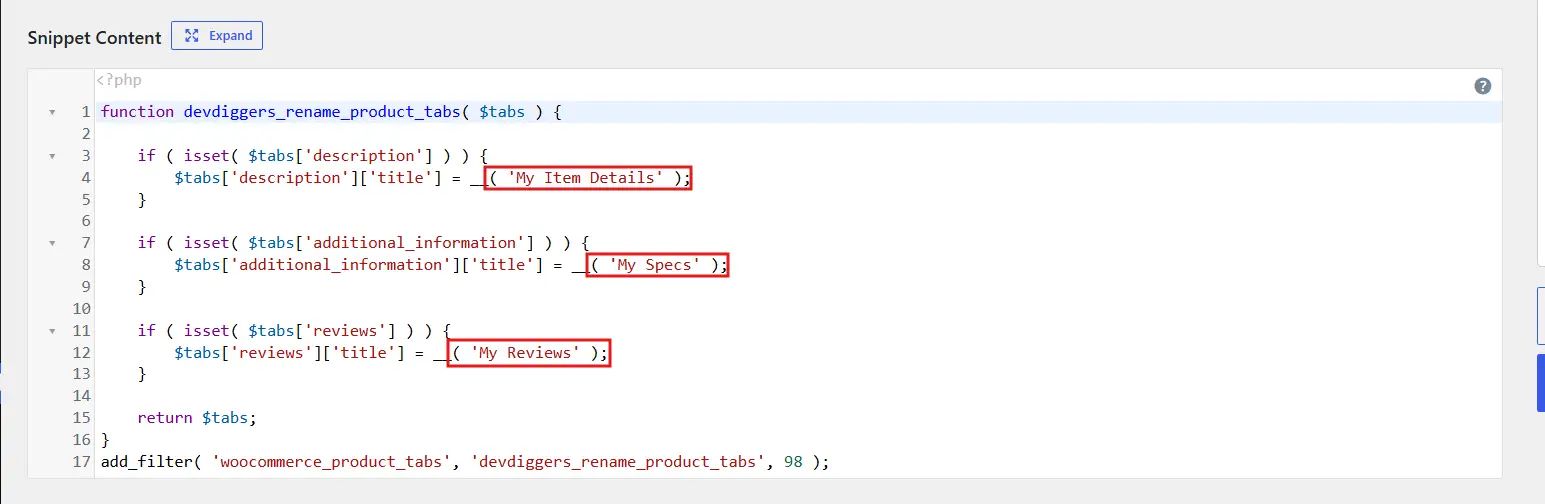
- In the code editor box, paste the following:
function devdiggers_rename_product_tabs( $tabs ) {

    if ( isset( $tabs['description'] ) ) {
        $tabs['description']['title'] = __( 'Product Details' );
    }

    if ( isset( $tabs['additional_information'] ) ) {
        $tabs['additional_information']['title'] = __( 'Specifications' );
    }

    if ( isset( $tabs['reviews'] ) ) {
        $tabs['reviews']['title'] = __( 'Customer Reviews' );
    }

    return $tabs;
}
add_filter( 'woocommerce_product_tabs', 'devdiggers_rename_product_tabs', 98 );
- Replace “Product Details,” “Specifications,” and “Customer Reviews” with whatever labels you actually want. Leave everything else in the code untouched.
- Above the code box, Snippet type → PHP.
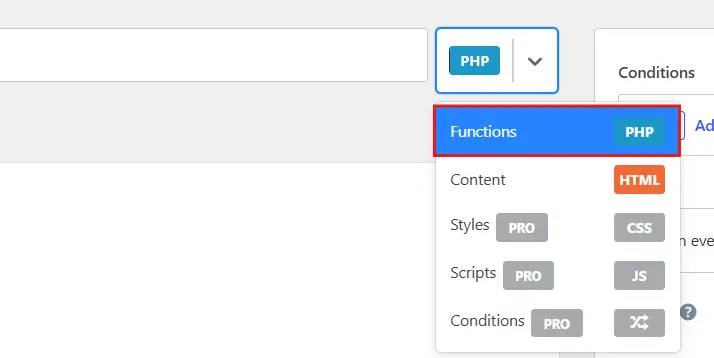
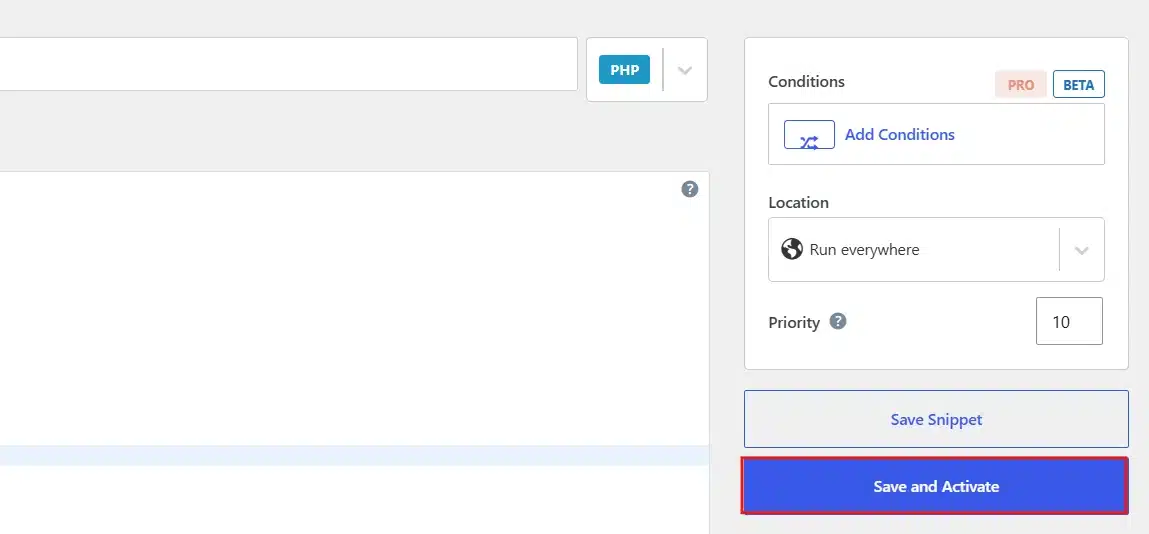
- Click Save Changes and Activate.
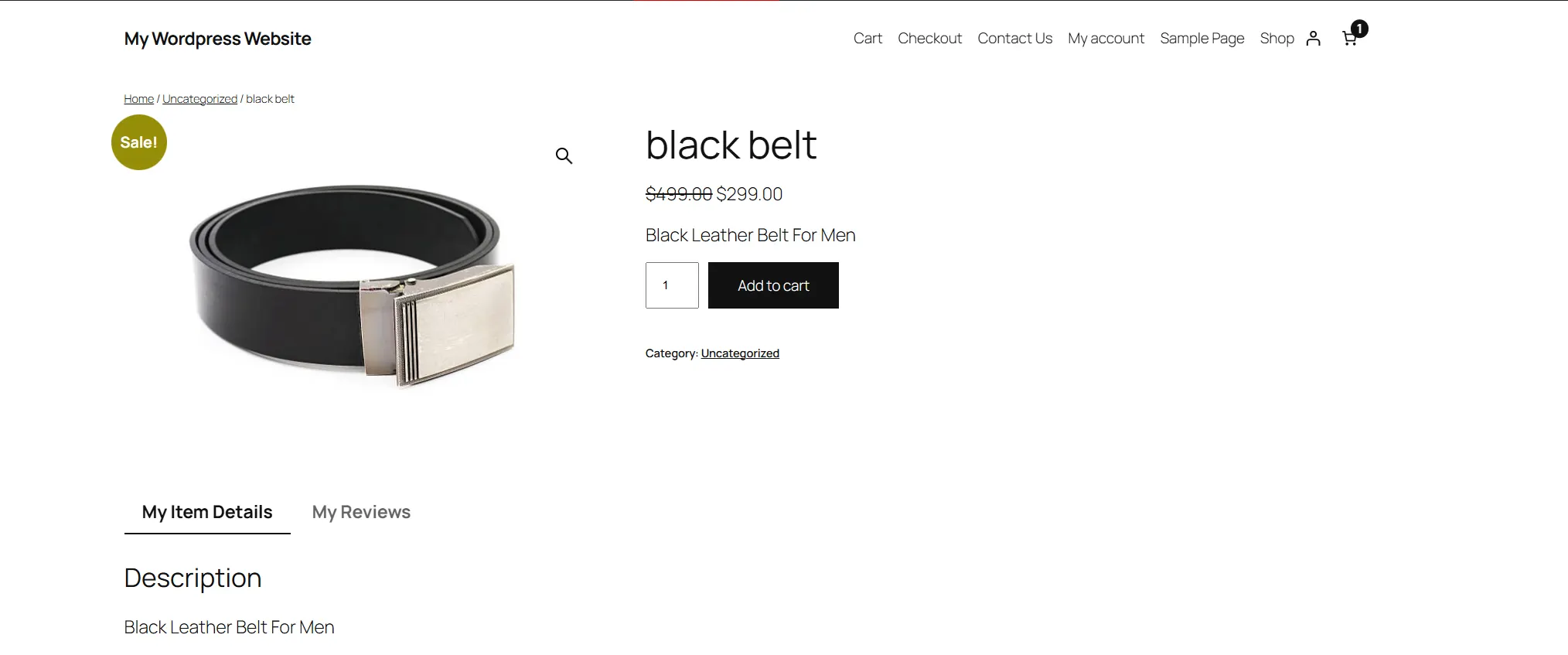
- Visit any product on your store and confirm the tab titles have updated.
If you’d rather skip the Code Snippets plugin and paste this directly into functions.php through Appearance → Theme File Editor, the same code works there too. Just make sure you’re editing a child theme, not the parent theme, otherwise an update will wipe it out. he parent theme. Otherwise, an update will wipe it out.
Method 3: Rename Tabs for Just One Product
Sometimes you don’t want to rename a tab store-wide. Maybe just one product line, like supplements or clothing, needs a different label than the rest of your catalogue. Here’s how to change the product page tab titles in WordPress for just a single product, instead of your whole store.
- Go to Snippets → All Snippets and open the snippet you created earlier, or add a new one.
- Open the product in Products → All Products, hover over its title, and check the link that appears at the bottom of your browser. The number after
post=is the product ID.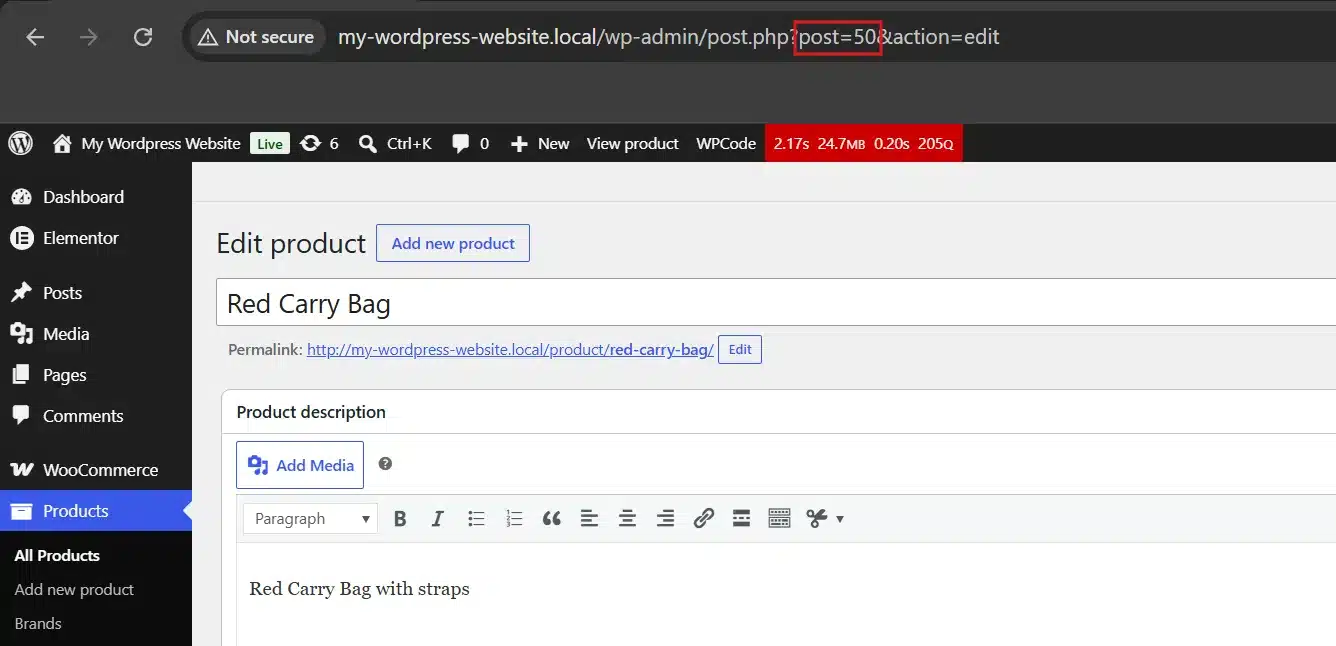
- Update the function so it only runs for that specific product ID, using the code below.
function devdiggers_rename_single_product_tab( $tabs ) {

    global $product;

    if ( $product && $product->get_id() === 1234 ) {
        if ( isset( $tabs['description'] ) ) {
            $tabs['description']['title'] = __( 'Ingredients' );
        }
    }

    return $tabs;
}
add_filter( 'woocommerce_product_tabs', 'devdiggers_rename_single_product_tab', 98 );
- Swap
1234for the actual product ID you noted in step 2.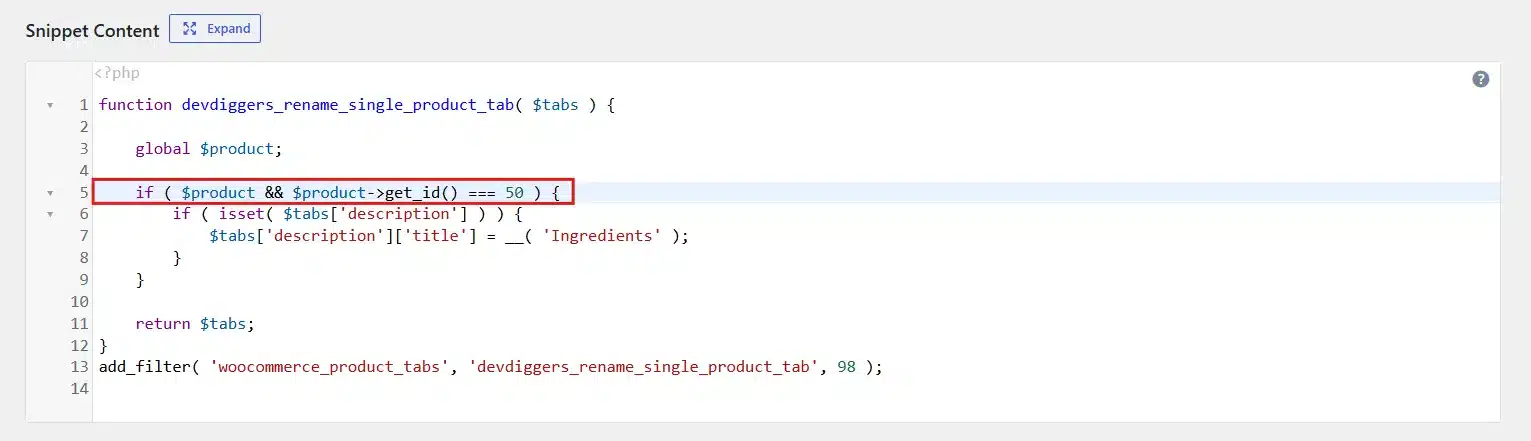
- Click Save Changes and Activate, then preview that specific product page. Other products on your store should still show the default or globally renamed tabs.
This approach is useful for stores with mixed catalogues, where a single tab label doesn’t make sense across every product type.
Good Tab Title Examples by Store Type
Renaming a tab is easy. Picking a good replacement name is the part people usually get stuck on. A few starting points, organised by store type:
- Clothing and apparel stores: Swap “Description” for “The Fit” and “Additional Information” for “Size & Fabric.”
- Electronics stores: Try “Tech Specs” instead of “Additional Information,” and “What’s in the Box” as a new, separate tab.
- Food and supplement stores: “Ingredients” or “Nutrition Facts” almost always outperforms the generic “Additional Information” label.
- Furniture and home goods: “Dimensions & Materials” tells shoppers more than “Additional Information” ever will, especially for items where size is a common return reason.
- Handmade or craft stores: “The Story” instead of “Description” fits a brand built around a personal or Handmade angle.
The pattern across all of these: name the tab after what’s actually inside it, in the words your specific customer would use. That’s the real goal behind learning how to change the product page tab titles in WordPress in the first place, not just following steps for the sake of it.
Which Method Should You Use?
| Method | Best For | Cost | Requirements |
|---|---|---|---|
| Plugin Method | Store owners who want a simple visual interface | Paid (official WooCommerce Tab Manager extension) | No coding needed |
| Code Method | Store owners managing multiple stores who want a free, license-independent change | Free | Comfortable adding a code snippet |
| Per-Product Method | Stores where only a specific category or product line needs different tab names | Free | Comfortable adding a code snippet |
Whichever route you take, the result is the same: you’ll have successfully learned how to change the product page tab titles in WordPress, and your store now reflects your brand instead of WooCommerce’s out-of-the-box defaults. There’s no wrong choice here, only the one that matches how comfortable you are working inside your dashboard versus a code editor.
Common Problems and How to Fix Them
Even a simple text change can hit a problem. Here are the issues people run into most often when they try to change the product page tab titles in WordPress, and how to fix each one.
- New titles not showing up? Clear your site’s cache and your browser’s cache. If you’re using a caching plugin like WP Rocket or a CDN like Cloudflare, changes can take a few minutes to propagate.
- Code snippet broke your site? This usually means a syntax error, like a missing semicolon or bracket. Deactivate the snippet through Snippets → All Snippets, double-check the code against the example above, and reactivate.
- Theme design mismatch: Some themes style their WooCommerce tabs with custom CSS. Renaming the tab through the plugin will still work, though it might look slightly different from the theme’s demo screenshots. A small CSS tweak from your theme’s custom CSS panel usually fixes this.
- Title renamed, but old content remains? Renaming the title and editing the content are two separate steps in both the plugin and the code method. Go back and check the content field or the code specific to that tab.
- Titles changed everywhere except one product? This usually means that specific product has its own tab settings saved through a page builder or a product-level override. Check whether that product was edited individually with Elementor or a similar tool.
- Staging vs. live mismatch: Confirm the snippet is actually activated on the live site, not just saved as a draft. In the Code Snippets plugin, inactive snippets are inactive in the list and need a manual toggle.
Conclusion
Now you know exactly how to change the product page tab titles in WordPress, whichever route fits your store and your budget. Changing the default tab titles on your product pages is one of those small edits that takes ten minutes but noticeably improves how professional your store feels.
Go with the plugin if you want a visual fix and don’t mind the cost of the official WooCommerce Tab Manager extension. Drop in the free code snippet if you’d rather skip another paid tool. Use your page builder’s native tab widget if your theme already supports it. Whichever path you choose, the process to change the product page tab titles in WordPress is straightforward once you’ve done it a single time.
If your store also needs work on reordering product options or editing the WooCommerce shop page, those guides walk through similar beginner-friendly steps
Frequently Asked Questions (FAQs)
Q1. Can I change product tab titles without a plugin?
Yes. The custom code method in this guide uses a small snippet added through the free Code Snippets plugin, which avoids installing a paid tabs plugin while still requiring no direct theme file editing.
Q2. Will changing tab titles affect my SEO rankings?
It won’t cause any harm, and it can provide a small benefit if your new titles include relevant, natural language instead of generic defaults. It’s not a major ranking factor on its own.
Q3. Do I need to know how to code to rename product tabs?
No. Method 1 in this guide uses a plugin with a visual interface, so no coding knowledge is required to change the product page tab titles in WordPress.
Q5. Can I add a completely new tab instead of just renaming one?
Yes. Both WooCommerce Tab Manager and the woocommerce_product_tabs code filter support adding entirely new tabs, not just renaming existing ones.
Q6. Why did my tab title change disappear after a theme update?
This happens if you edited functions.php directly in your main theme instead of a child theme. Use the Code Snippets plugin or a child theme so future updates don’t overwrite your change.
Q7. Can I rename tabs for just one product instead of the whole store?
Yes. Method 4 in this guide shows how to scope a tab rename to a single product ID, which is useful for stores with mixed catalogues where one label doesn’t fit every product type.
Q8. Does renaming a tab remove any of its content?
No. Renaming only changes the label shown to shoppers. The content underneath, whether it’s a description, specifications, or reviews, stays exactly the same unless you edit it separately.