
Why do WooCommerce product CSV imports fail?
A WooCommerce product CSV import fails when a header has the wrong name or a cell holds a value the importer cannot read. Unknown headers are set to "Do not import". Many bad values import with no error at all and the damage shows up later in the store.
That is why the problems show up after the import. Products sit in the wrong status, variations show "Any" and sale prices never start or never end.
A check before the upload takes a minute. Cleaning up a few hundred live products takes much longer.
What column names does the WooCommerce importer expect?
The WooCommerce importer matches each column header by its exact name, though upper or lower case does not matter. The safest template is an export from your own store under Products > All Products > Export. It writes every column with the name the importer expects, including the attribute and meta columns your products use.
Our guide on how to export WooCommerce products to CSV shows each export setting.
| Column | What to put in it |
|---|---|
| Type | simple, variable, variation, grouped or external. Add virtual or downloadable after a comma. |
| SKU | A unique code for each product and variation. |
| Parent | For a variation: the parent SKU, or id:123 for its ID. |
| Regular price / Sale price | Plain numbers such as 19.99. |
| In stock? | 1 for in stock and 0 for out of stock. The word backorder also works. |
| Published | 1 for published and -1 for draft. A 0 makes the product private. |
| Categories | Parent > Child for nesting. Commas separate one category from the next. |
| Images | Full image URLs separated by commas. The first one becomes the main image. |
| Attribute 1 name / value(s) | The attribute name, such as Color. The parent lists every value and each variation gets one. |
| Meta: your_key | Any custom field. WooCommerce saves the value as plain text on the product. |
What does WooCommerce do with values it does not expect?
WooCommerce converts most unexpected values into something it can save instead of rejecting the row. The table below comes from the importer source code in WooCommerce 11.2. Several common spreadsheet habits change a live product without a single warning on the import screen.
| You type | WooCommerce saves |
|---|---|
| "no" in In stock? | In stock. Only 0 means out of stock. |
| "yes" in Published | A private product. Text counts as 0. |
| "yes" in Backorders allowed? | Backorders off. Only 1 or notify turns them on. |
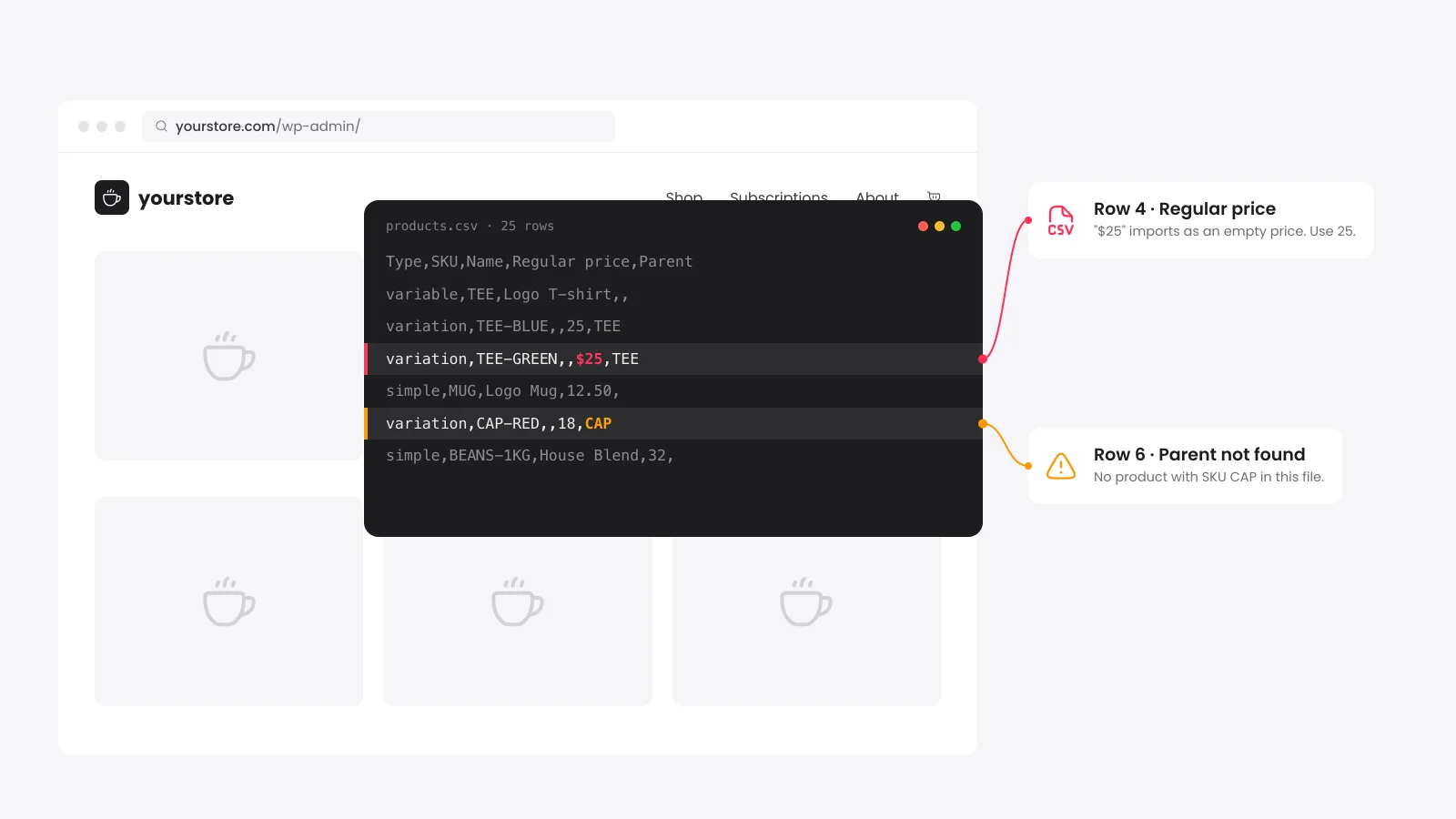
| "$25" as a price | 25. The sign is stripped. |
| A decimal comma in a price | A price written as 19,99 saves as 1999 because the importer drops the comma in a store that uses a dot. |
| "28/11/2026" as a sale date | No date. Only YYYY-MM-DD is read. |
The validator flags prices with signs or separators and every non-standard yes or no value. It cannot see your store settings.
Check the decimal separator under WooCommerce > Settings > General before you import prices written with a comma.
How do you import products with variations from a CSV?
Put the variable product row first with Type set to variable, an SKU and every attribute value it offers. Each variation goes on its own row below it with Type set to variation and Parent set to the parent SKU. Price and stock belong on the variation rows.
Give each variation the same attribute name as the parent with exactly one value. A list such as "Blue, Red, Green" belongs only on the parent.
When a variation uses an attribute the parent does not list, WooCommerce saves it as "Any Color". The validator checks every variation against its parent row. Our guide to creating a WooCommerce variable product shows the same setup in the editor.
How do you stop Excel from breaking a WooCommerce CSV?
Excel changes a CSV the moment it opens it. Long SKUs turn into 1.2E+11, leading zeros disappear and dates switch to your local format. A save in any format other than UTF-8 can also garble the accents and currency signs in your product text.
- Save as UTF-8: Use File > Save As > "CSV UTF-8 (Comma delimited)". The importer also has a character encoding option under "Show advanced options".
- Import as text: Use Data > From Text/CSV and set the SKU and date columns to Text before you edit.
- Prefer Google Sheets or LibreOffice: The WooCommerce docs recommend both. Save the file as a UTF-8 CSV whichever one you use.
- Check after every save: Paste the file here again before you upload it.
How do you import a large product catalog into WooCommerce?
Split a large catalog into smaller files and import them one after another. The WooCommerce docs name a file too large for one server request as a cause of failed imports. Image URLs add time too, because WooCommerce downloads each one into the Media Library.
Back up the store and run a small test import on a staging site first, as the docs advise. Keep parent products and their variations in the same file. Tick "Update existing products" when a later file changes products that already exist.
Supplier feeds that change every day need a different setup. A scheduled importer with your own column mapping keeps stock and prices in sync.


 from 500+ reviews


