Headless WordPress means you keep WordPress for writing and managing content, then let a separate app build the pages visitors see. That app reads your posts through the REST API or GraphQL and renders them with Next.js, Astro or any other JavaScript tool.
The catch is that a big part of WordPress lives in the theme layer you just removed. In October 2026 we tested WordPress 7.1.3 with WooCommerce, WPGraphQL, Rank Math and Contact Form 7 behind a Next.js 16.4.0 front end. On our test site the static page answered in 2 ms, the form broke with a 404, and every Rank Math tag disappeared.
Below you get a plain definition, a comparison table of traditional and decoupled WordPress, and the five steps to set it up. You also get our measured results, the parts that break, what headless WooCommerce can do, the real costs, and a guide for deciding.
What Is Headless WordPress?
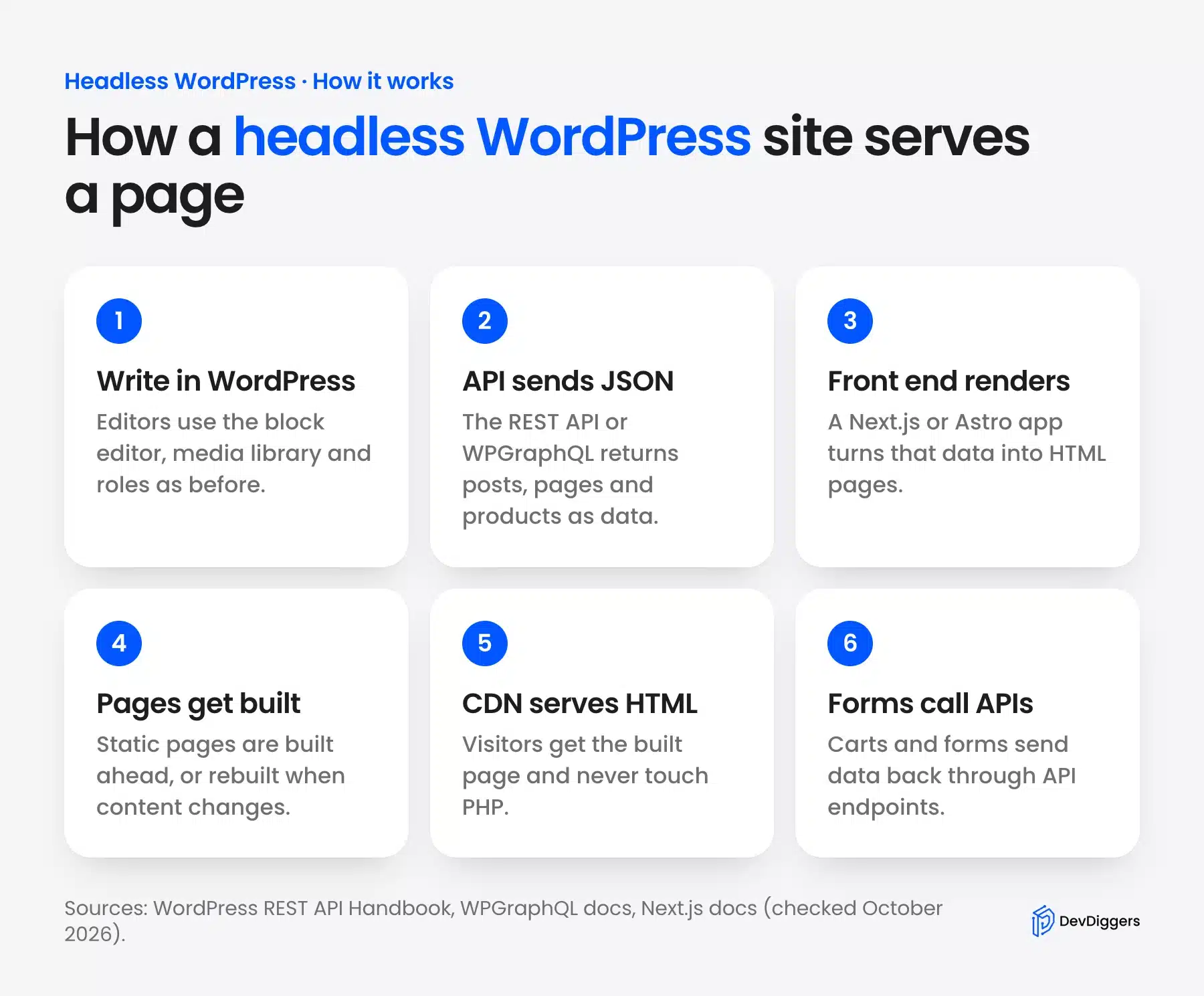
Headless WordPress is a setup where WordPress stores and manages content while a separate front end builds every public page. The front end asks WordPress for data through an API and receives JSON. Editors keep the block editor, media library and user roles, but the PHP theme no longer renders anything visitors see.
The “head” is the theme, the part that turns content into HTML. Remove it and WordPress becomes a content database with an editor on top. The WordPress REST API Handbook says the API lets you “bring your WordPress content into completely separate applications”, and that is the whole idea.
People also say decoupled WordPress, and the two words overlap. Fully headless means WordPress renders no public page at all. Decoupled can also mean WordPress still serves some pages while an app, a kiosk or a mobile client reads the same content through the API.
You will hear it called a headless CMS WordPress setup too, since WordPress then acts like any other API-first CMS. The difference is that WordPress keeps the editor, plugins and roles your team already knows, which a new CMS would make you rebuild.
Headless vs Traditional WordPress Compared
Traditional WordPress builds each page with a PHP theme on one server, so every plugin can print into the page. A headless build moves page rendering into a JavaScript app on a second host. You gain front end freedom, and you take on previews, forms, SEO tags and hosting that the theme used to handle.
Here is the comparison from our own test build, row by row:
| Area | Traditional WordPress | Headless WordPress |
|---|---|---|
| Who builds the page | PHP theme on the WordPress server | Next.js, Astro or another app |
| Plugin front end output | Works on the page as installed | Only data an API exposes reaches the page |
| Draft preview | Built into the editor | Needs a preview route such as Next.js Draft Mode |
| Forms and shortcodes | Work as installed | Rebuilt or rewired by hand |
| SEO plugin tags | Printed in the page head | Fetched and rendered by your app |
| Hosting | One server | WordPress host plus a Node host |
| Publishing a change | Live on save | Live after a rebuild or revalidation |
| Skills needed | PHP and WordPress | PHP, WordPress and React or similar |
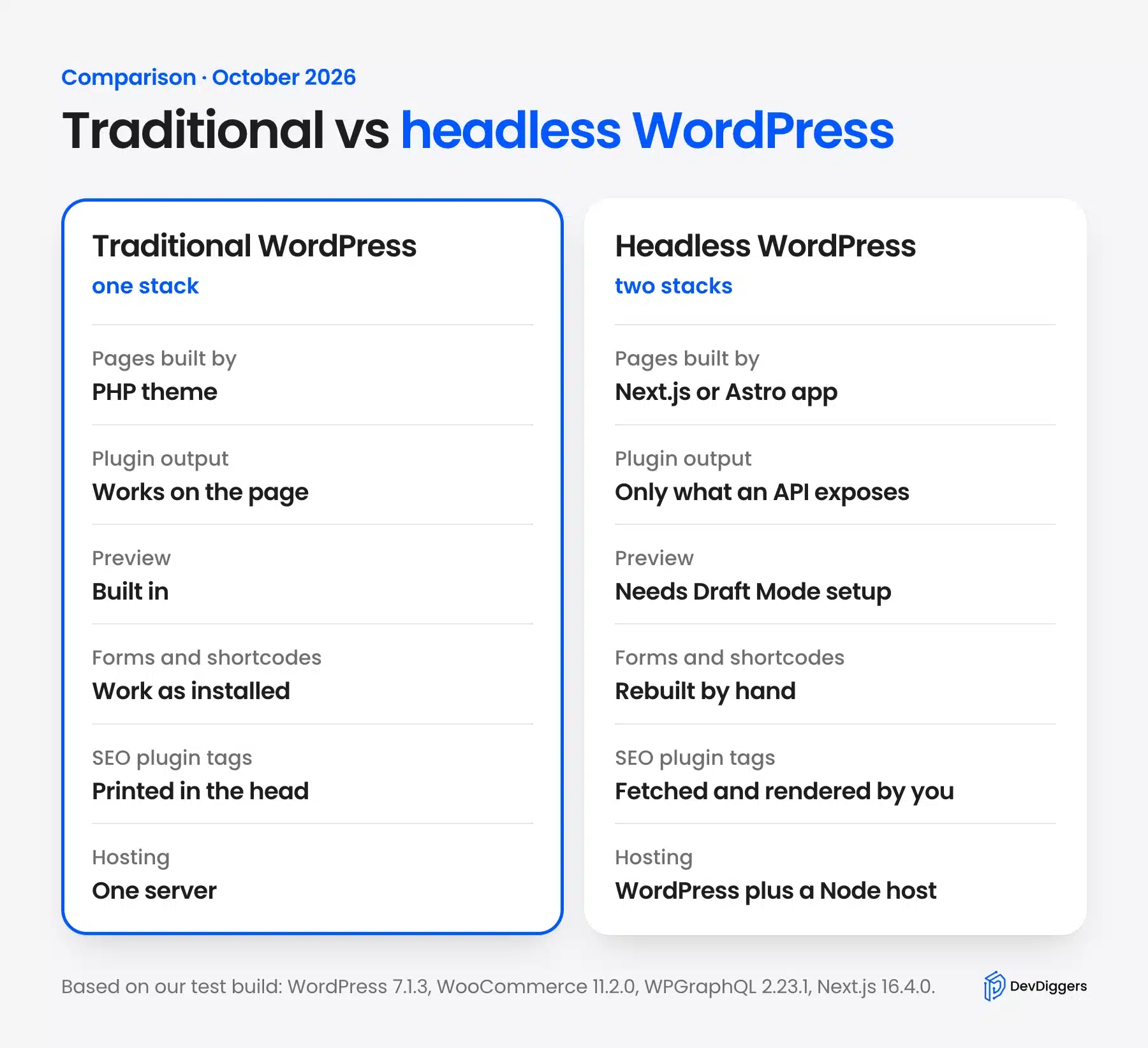
The table is lopsided on purpose. Most rows cost you something, and only the first row gives you something new. That is the honest shape of the trade-off, and it is why the decision section later in this post starts with reasons to stay traditional.
How to Use WordPress as a Headless CMS
You can make WordPress headless in five steps, starting with a check of the REST API output and an optional WPGraphQL install. Then you build a front end, set up previews and rebuilds, and move SEO tags into the new app. Each step shows a real screen from our October 2026 test.
None of these steps changes WordPress itself very much. The work sits almost entirely on the front end side, which is why a WordPress-only team usually needs outside help here.
Step 1: Check the REST API Output
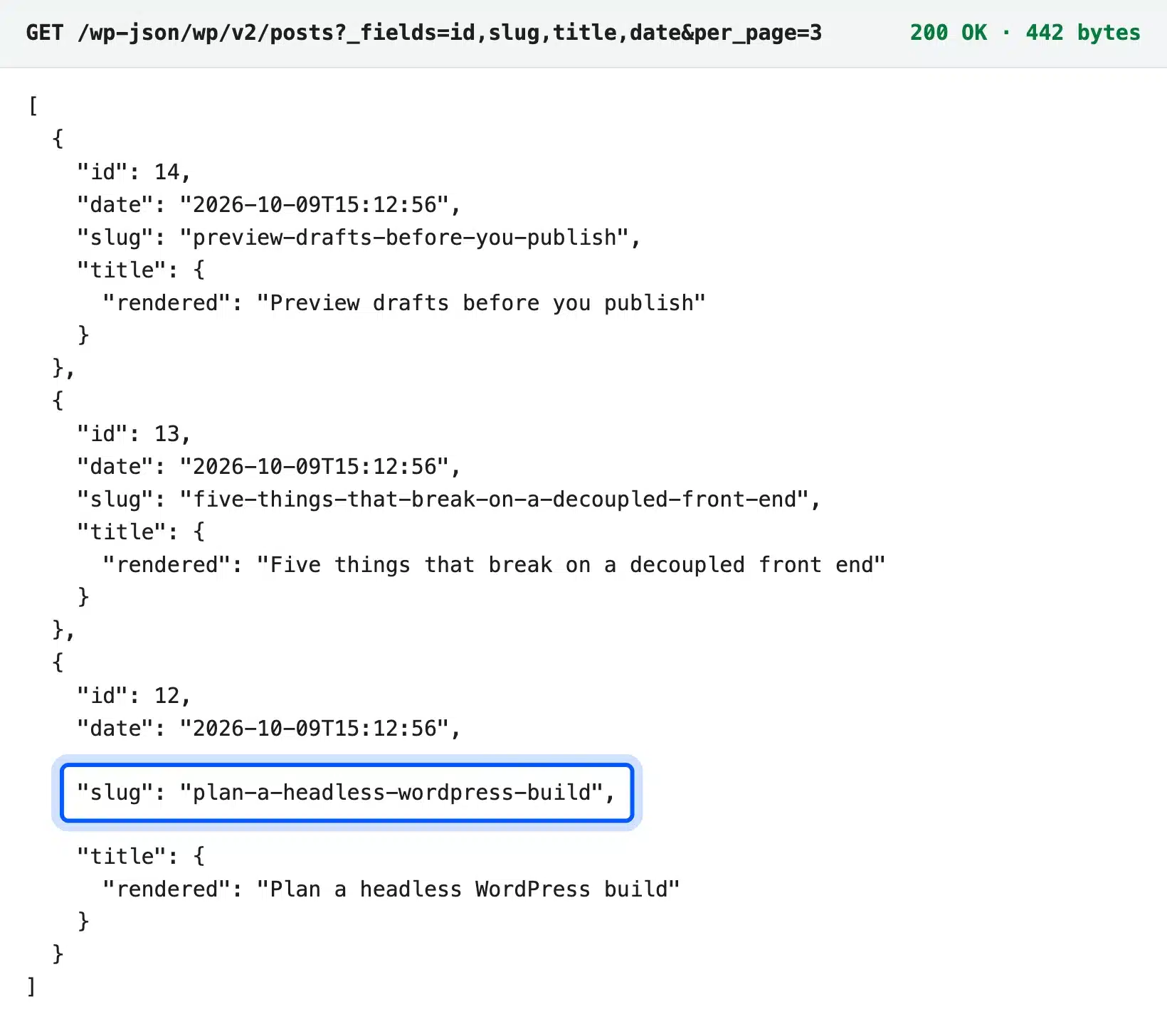
The REST API ships with WordPress, so every site already has it at /wp-json/. Open /wp-json/wp/v2/posts in a browser and you get your published posts as JSON. On our test site the root endpoint listed 20 namespaces, including wp/v2 for content and wc/store/v1 from WooCommerce.
Ask only for the fields you need. The handbook documents a _fields global parameter that trims the response. Our four test posts came back at 7,460 bytes in full and at 506 bytes with _fields=title,slug,date.
Step 2: Add WPGraphQL If You Want GraphQL
GraphQL lets the front end ask for exactly the fields it needs in one query. WordPress has no GraphQL built in, so you install WPGraphQL, which its docs describe as a “free, open-source WordPress plugin”. It adds a /graphql endpoint and a GraphiQL IDE under the GraphQL menu.
We installed it from WordPress.org and ran a posts query in GraphiQL. One small trap showed up: the IDE runs queries as a public visitor until you click the user icon. Our query for the same three fields returned 638 bytes, close to the trimmed REST call.
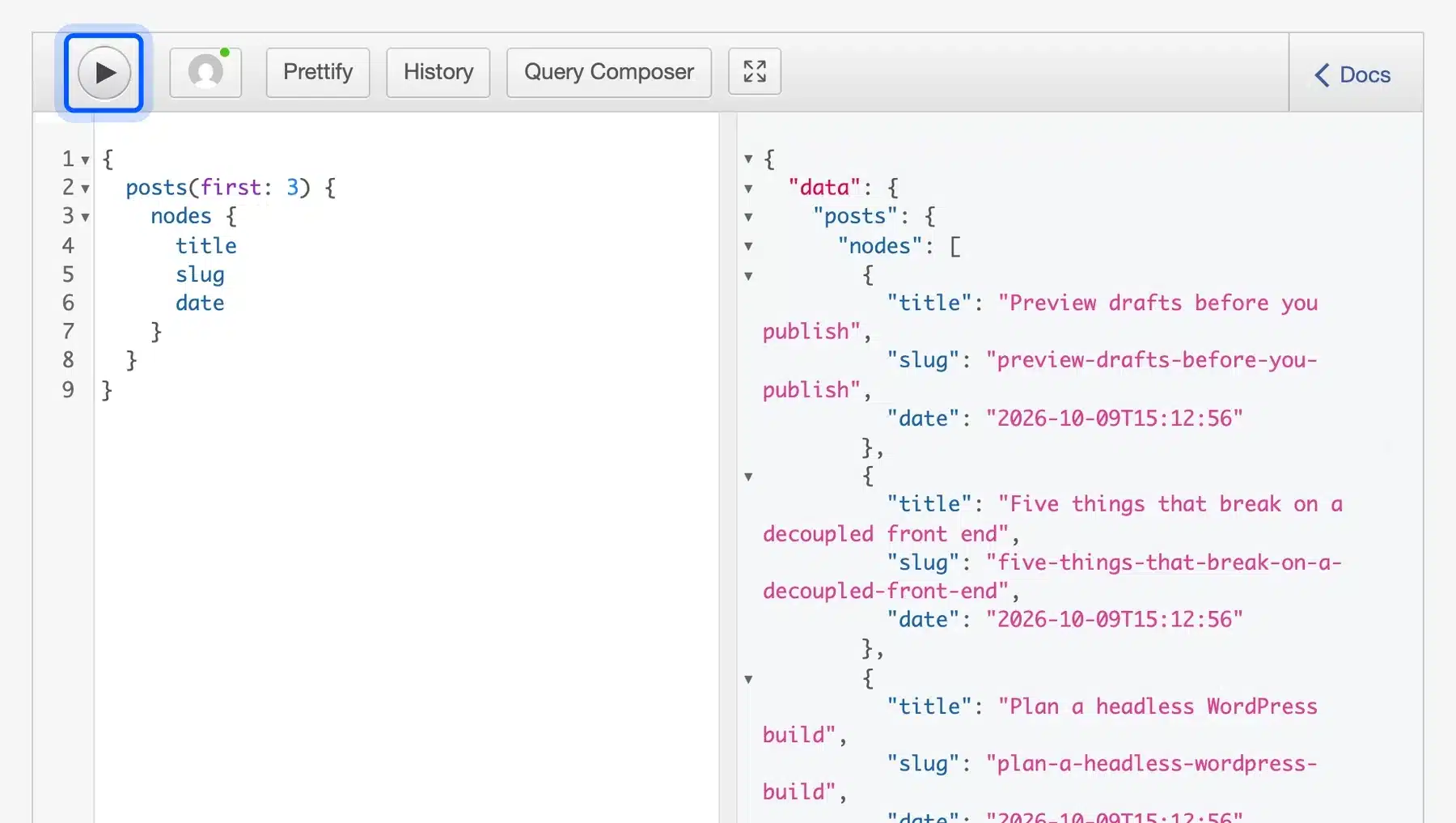
REST or GraphQL is mostly a team choice. REST needs no plugin and works with plain fetch(). GraphQL pays off when one page needs posts, menus, custom fields and authors together.
Step 3: Build a Next.js Front End
A Next.js front end is a separate app that fetches WordPress data and turns it into pages. We created one with npx create-next-app, which installed Next.js 16.4.0 and React 19.3.0. Two small files fetched posts from the REST API and products from the WooCommerce Store API.
The page list is built at build time and refreshed every 60 seconds, which Next.js calls Incremental Static Regeneration. Our first build took 11.4 seconds to generate the pages from WordPress. A repeat build took 0.6 seconds because Next.js had cached the fetched data.
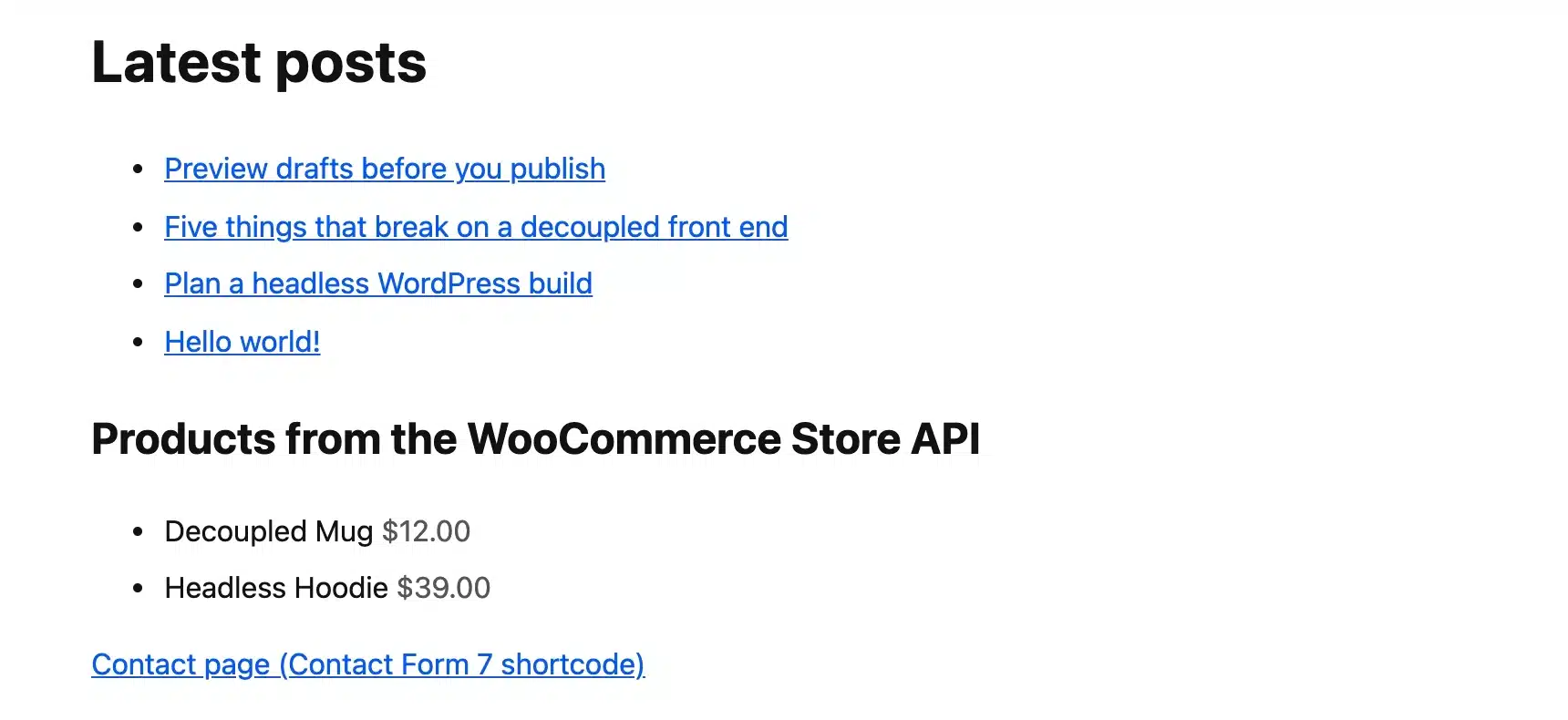
Build time grows with your page count, so a site with 5,000 posts will not rebuild in seconds. Plan which pages build ahead and which render on request.
Step 4: Plan Previews and Rebuilds
Previews break first on most headless builds, because the Preview button in WordPress opens a theme page that no longer exists. Next.js answers this with Draft Mode. The Next.js Draft Mode guide says it “lets editors see how draft or in-progress content will render”.
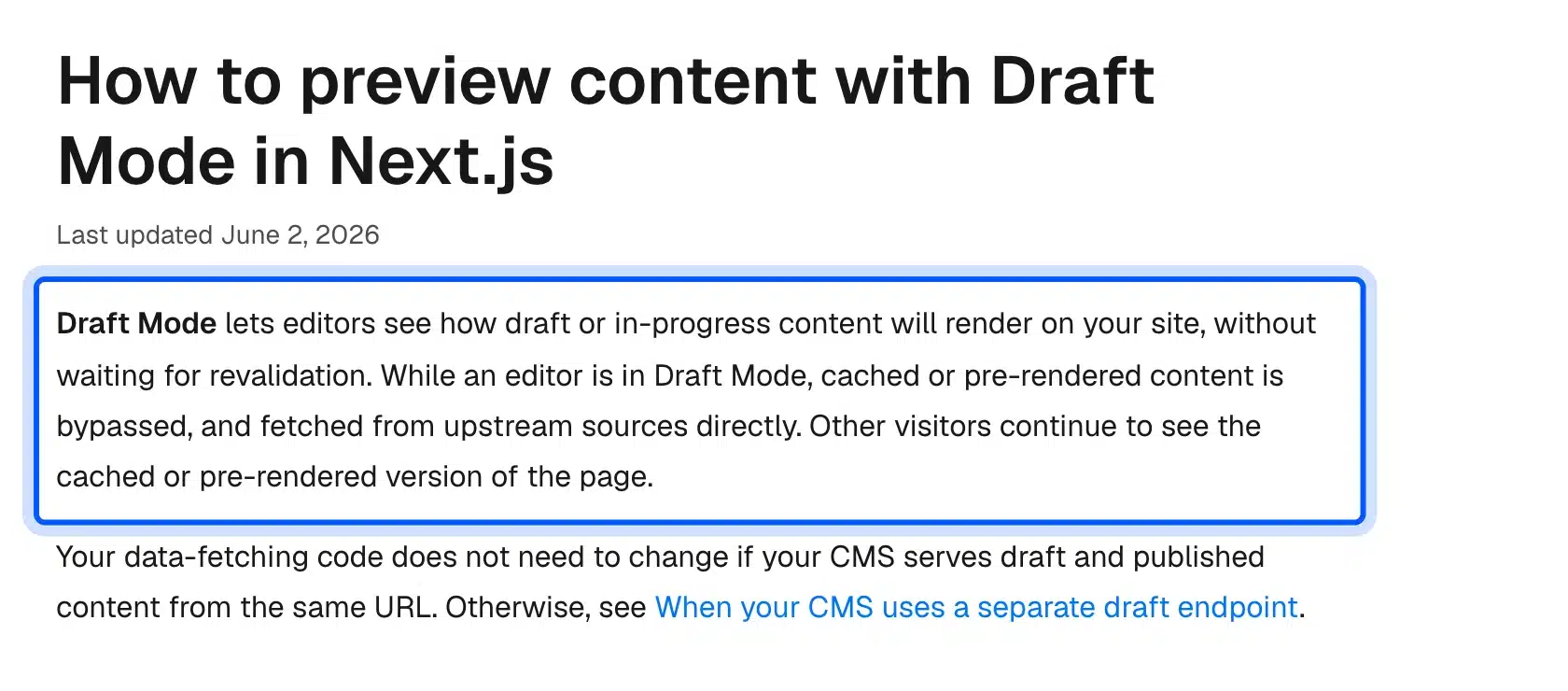
Draft Mode is only half of it. Your preview route also needs a logged-in way to read drafts from WordPress, which we cover under previews in the next section. Then you need a webhook or a short revalidation window so a published edit shows up without a full rebuild.
Step 5: Move SEO Tags to the Front End
Your SEO plugin still stores titles, descriptions and schema, but it can no longer print them into a page. Rank Math has a setting for this. Turn on Headless CMS Support under Rank Math > General Settings > Others, and its headless CMS guide explains the getHead endpoint that returns the tags.
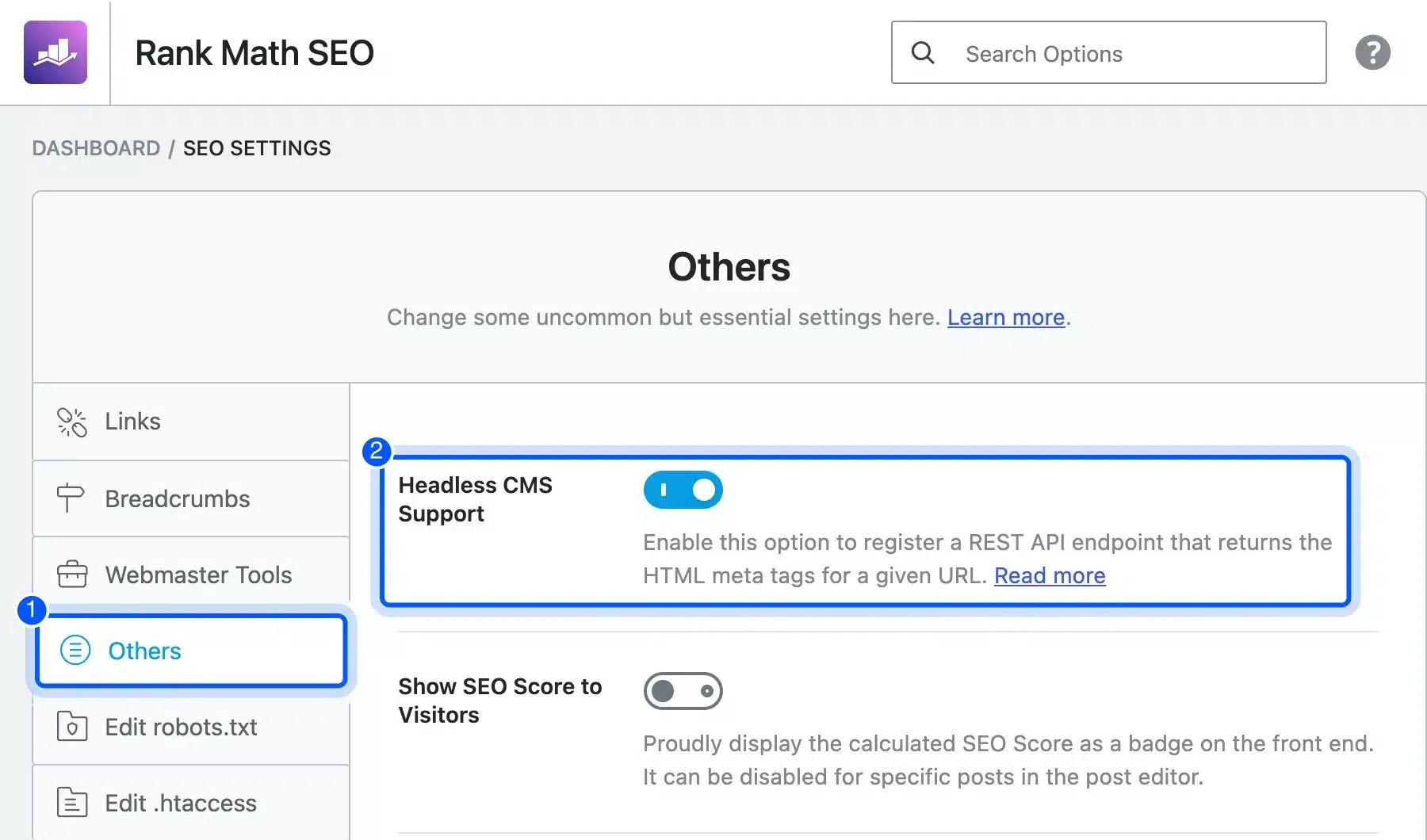
Your app then calls that endpoint per page and writes the tags into its own head. The endpoint takes the page’s public URL.
Our test site had no public domain, so we confirmed the setting but not the tag output. Test it on your real domain before launch.
What We Measured on the Test Build
On one post, the static Next.js page answered in 2 ms against 1.76 seconds for the WordPress theme page. It also made 9 requests against 27. But it shipped more JavaScript, 447 KB against 246 KB decoded, and lost all 16 Rank Math tags until we rebuilt them ourselves.
We requested each URL 11 times and took the median time to first byte. The WordPress number is a worst case, and you should read it that way. Our test server ran PHP 8.3 with no page cache, while a cached theme page on a good host also answers in milliseconds.
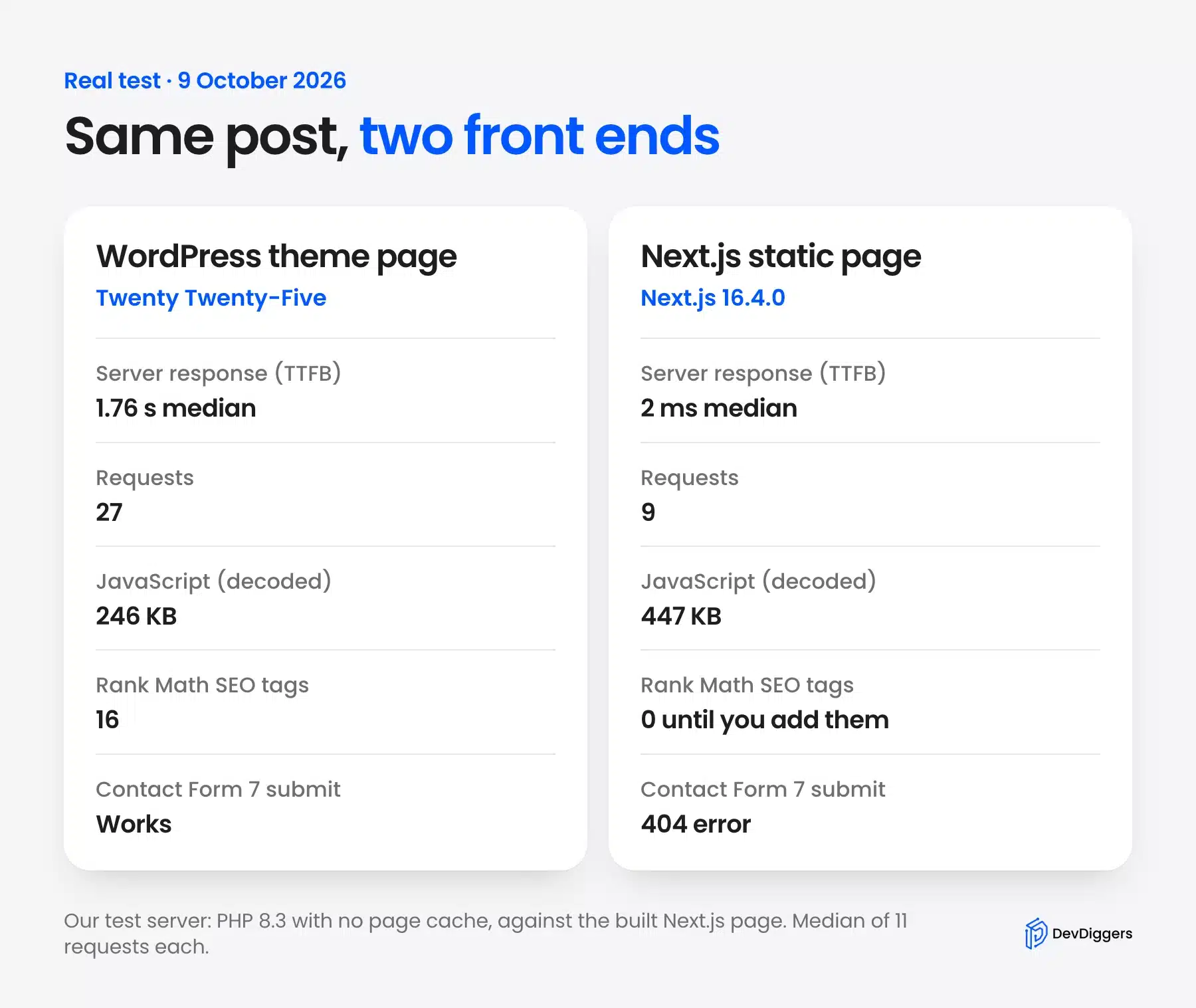
The fair reading is narrower than “headless is faster”. A static page skips PHP on every visit, and WordPress only does work at build time.
The REST call behind each page took 1.89 seconds on the same uncached server. A server-rendered headless page that fetched live on every request would have been slower than the theme.
Worth knowing: The JavaScript number went the other way. Next.js sent React and its router to the browser, so “fewer requests” did not mean “less code”.
What Breaks When You Go Headless
Anything that relies on the PHP theme stops working on a headless front end. That covers forms and shortcodes, draft previews, SEO plugin output, and plugins that inject scripts, widgets or banners into pages. Each one can be rebuilt through an API, but each rebuild is custom code you now maintain yourself.
The three below are the ones we hit in the test. Each came from a plugin that worked fine on the theme page a minute earlier.
Forms and Shortcodes
Shortcodes still expand inside content.rendered, so the form HTML reaches your app. What does not arrive is the plugin’s CSS and JavaScript.
Our Contact Form 7 page loaded 3 plugin assets on the theme and none on Next.js. Without them, a hidden field box showed up as an empty bordered line.
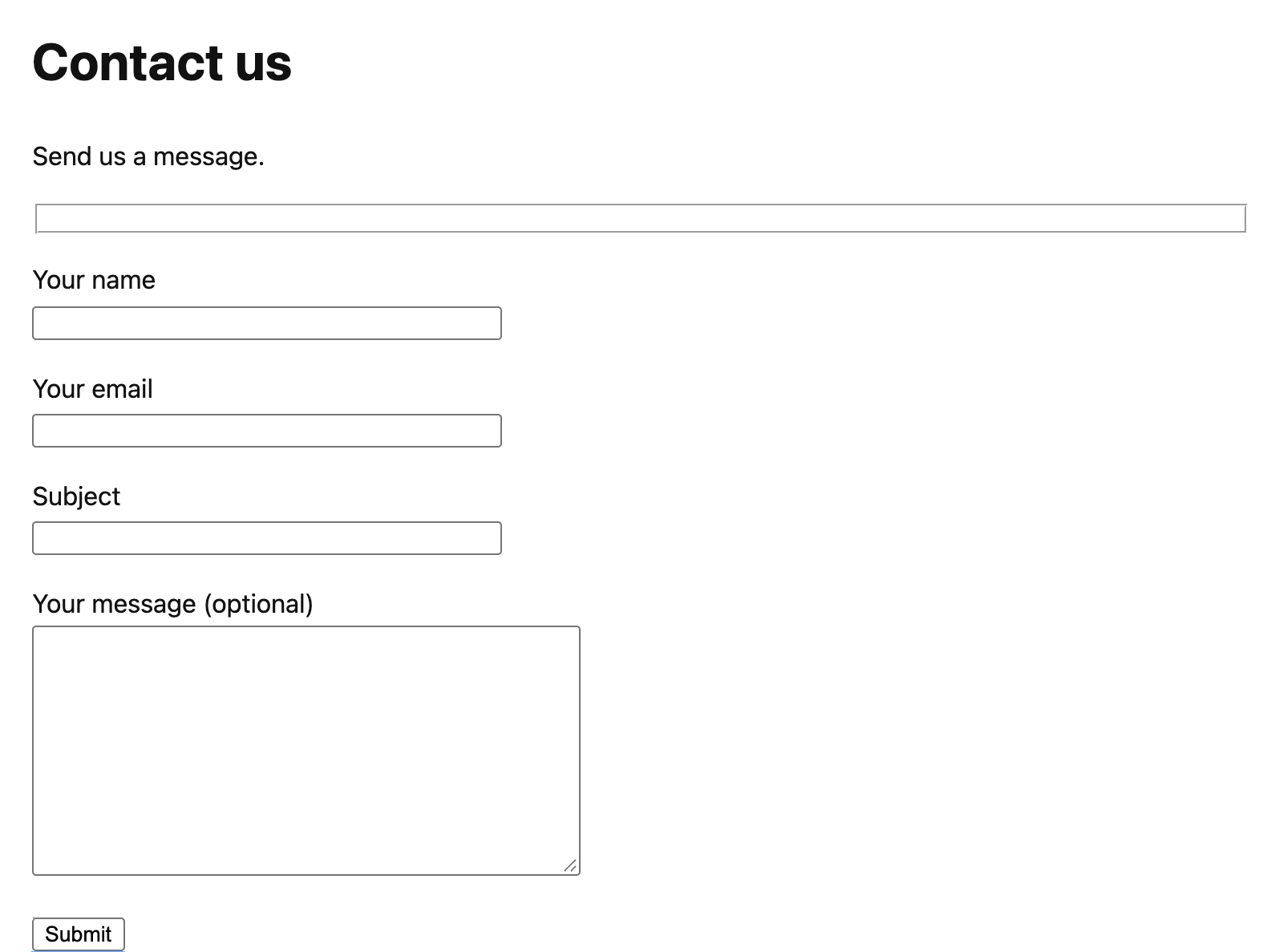
Submitting was worse. The form’s action pointed at /wp-json/wp/v2/pages, a path that only exists on WordPress, so the Next.js site returned a 404. The fix is to post the fields to Contact Form 7’s own REST endpoint, which accepted our test submission.

Draft Previews
Drafts are private, so the public API will not hand them to your preview route. Our anonymous request for status=draft returned “Status is forbidden” with a 401 code inside. The same request with a logged-in cookie and nonce returned the draft right away.
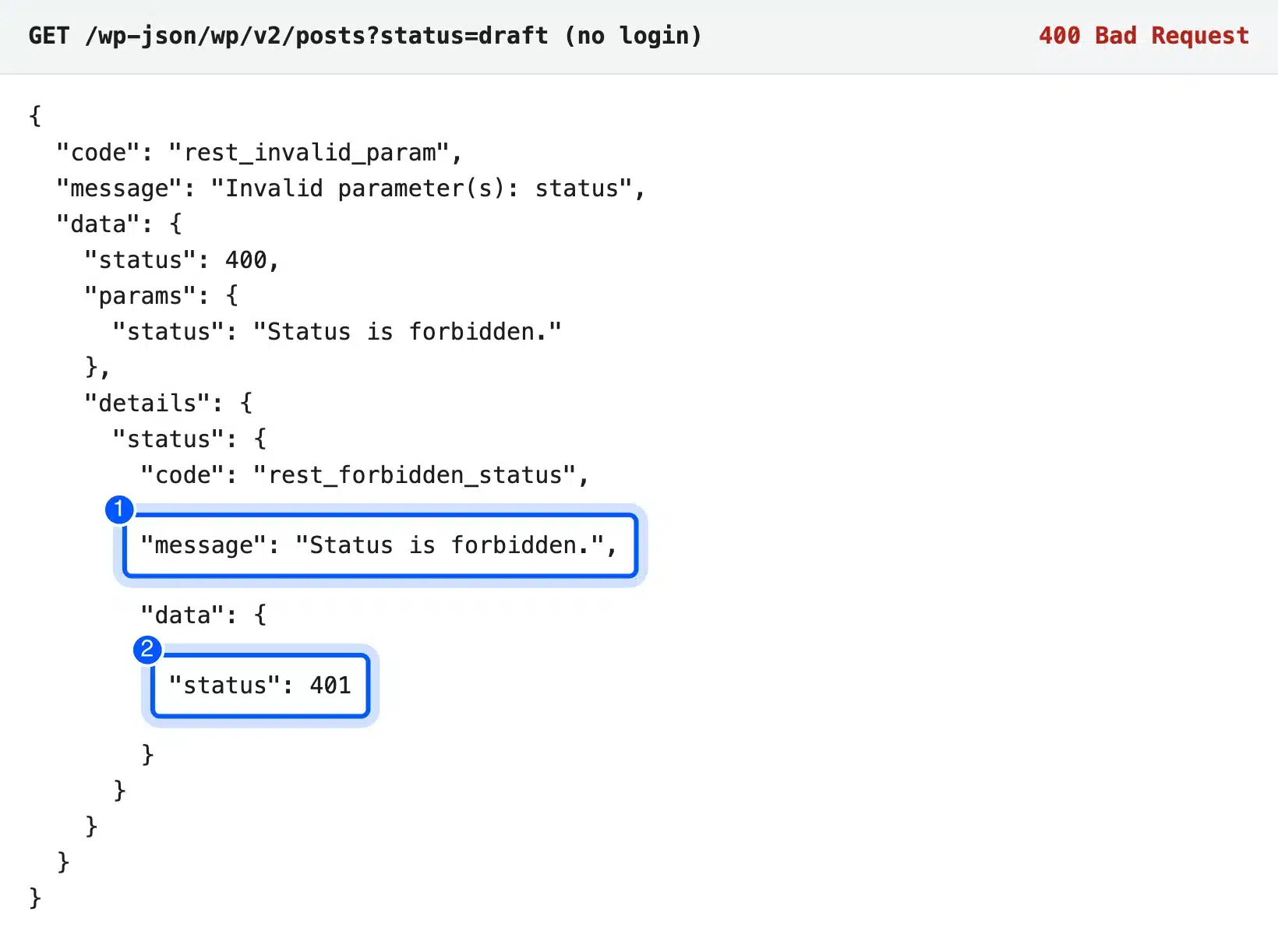
GraphQL behaved more quietly, which is riskier. An anonymous WPGraphQL query for drafts returned an empty list with no error at all. A preview route that forgets to authenticate shows editors a blank page and no hint why.
SEO Plugin Output
The REST API sends post content and leaves out the page head. Our theme page carried 16 Rank Math tags: title, description, robots, canonical, Open Graph, Twitter cards and JSON-LD schema. The REST response for the same post had 25 keys and none of those tags.
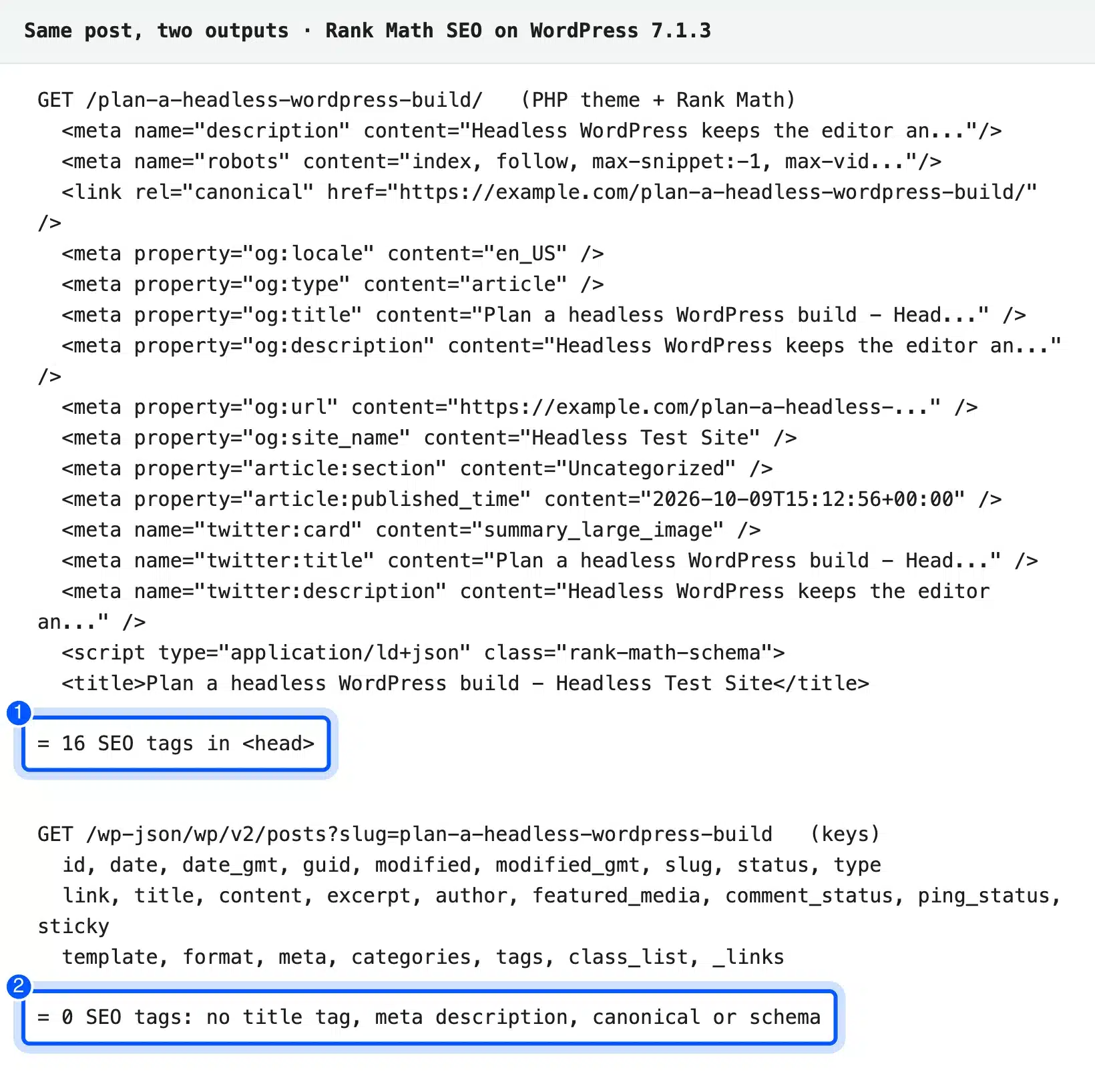
Sitemaps, redirects and breadcrumbs follow the same pattern. Each one works on the theme and becomes a job for your front end once it is gone.
Headless WooCommerce and the Store API
Headless WooCommerce runs your store on WordPress while a custom front end shows products and runs the cart. WooCommerce ships the Store API for this. It covers products, cart and checkout without API keys, but every extension that adds fields or steps at checkout needs its own front end work.
The WooCommerce Store API docs call it “an unauthenticated API” for customer-facing cart, checkout and product features. On WooCommerce 11.2.0, product lists came back to our app with no login and prices in cents. WooCommerce still needs WordPress underneath, as our guide on using WooCommerce without WordPress explains.
The cart is where most guides go quiet. Our first add-to-cart request failed with woocommerce_rest_missing_nonce.
The cart tokens guide says that with a Cart-Token header “a Nonce Token is not required”. With that header our request returned 201 with 2 items and a $24.00 total.
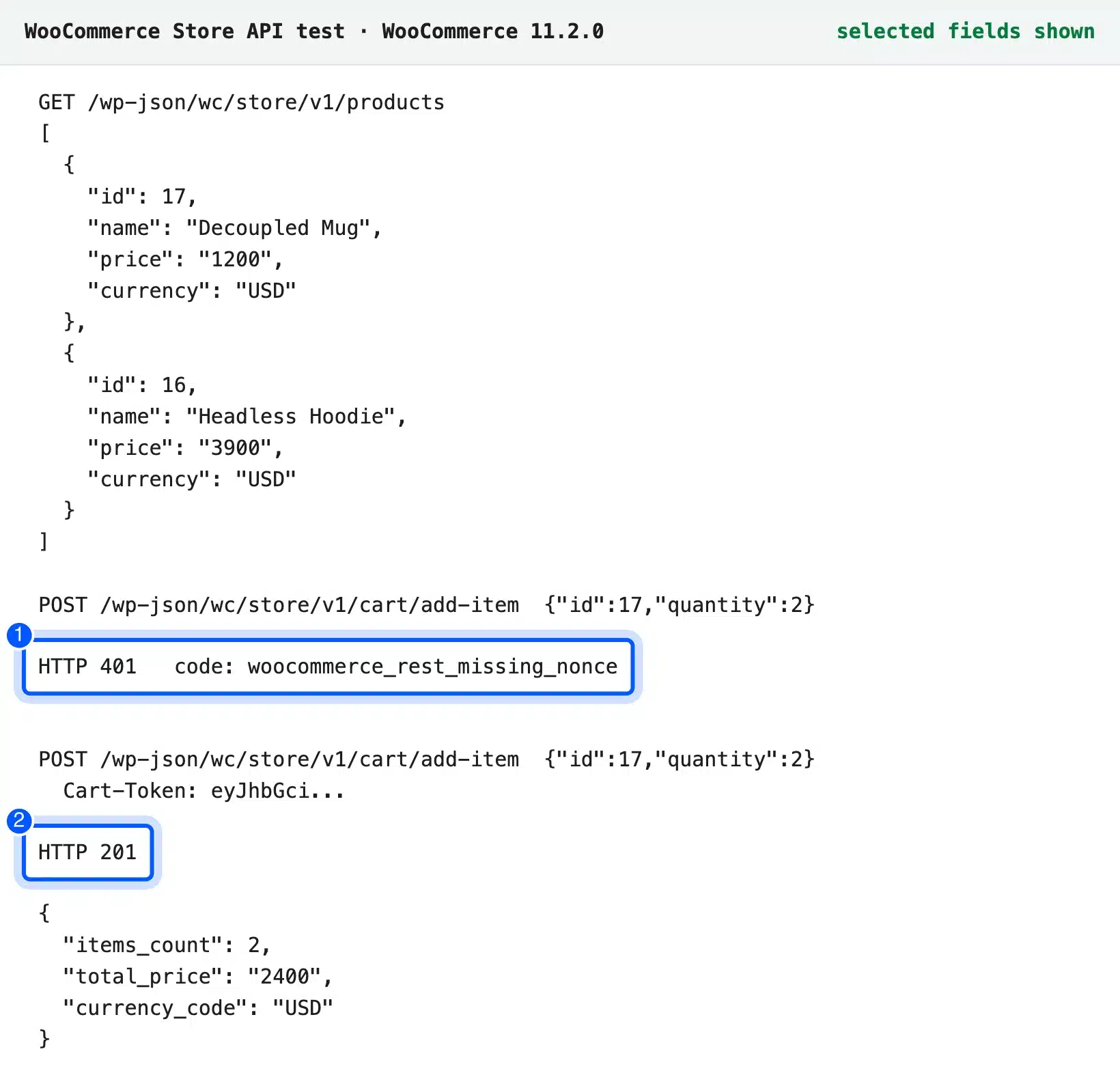
Our fresh store listed no payment method in the cart response, so checkout would also need a gateway that supports a custom front end. Stores that lean on many plugins should read are 50 plugins too much for your WordPress eShop first. Each plugin with a front end part is one more piece to rebuild.
What Headless WordPress Costs
WordPress and WPGraphQL are free, and Next.js is open source, so the software costs nothing. The cost is hosting two stacks and paying developers for both. You now run a WordPress host and a Node host, with two deploy pipelines and two update cycles.
Here is where the money and time go after launch:
- Second host: The front end needs Node hosting or a platform built for Next.js, billed apart from WordPress hosting.
- Rebuilt features: Forms, search, comments, previews and SEO tags each become custom code with its own bugs.
- Plugin choices: A plugin is only useful if it exposes data through the REST API or GraphQL.
- Editor changes: A new page layout often needs a developer, since the block styles live in the theme you removed.
- Debugging: Every incident starts by finding out which of the two systems broke.
These costs land on every future change too. Moving to headless costs far more than the build: every new page type becomes a small development task.
When Headless WordPress Is Worth It
Headless WordPress is worth it when one content source feeds several front ends or the design needs something no theme can build. It suits teams that already ship React apps. For a blog, a brochure site or a plugin-heavy store, a fast cached theme gives most of the speed with far less work.
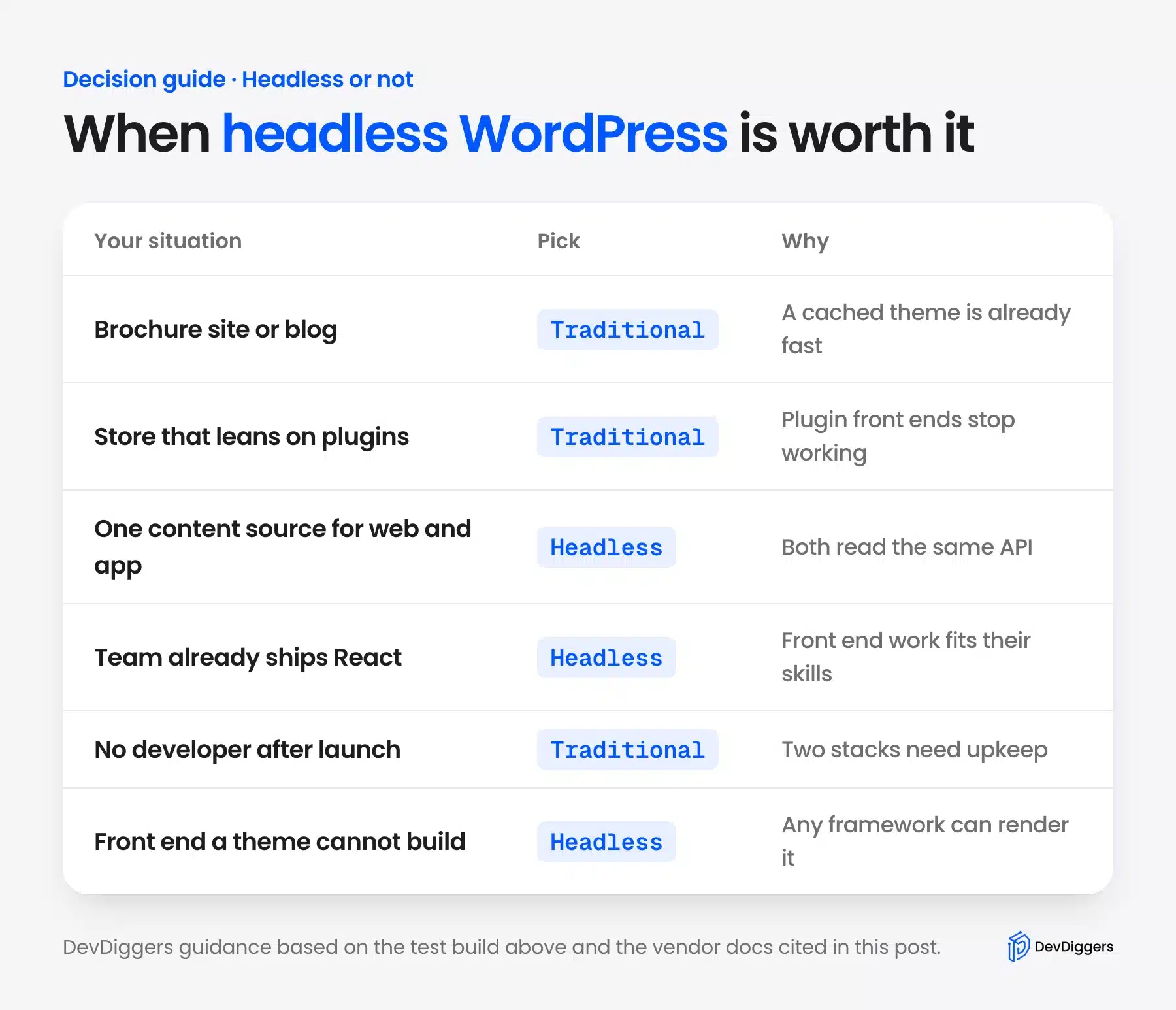
Pick headless when most of these are true:
- Many channels: The same content feeds a website, a mobile app and maybe in-store screens.
- Front end team: You have React developers on staff for the years after launch.
- Custom interface: The design needs app-like behavior that a block theme cannot give you.
- Few front end plugins: Your key plugins expose their data through an API.
Stay traditional when the opposite holds, or when nobody will own a second runtime. A lighter path to speed is a static WordPress site, which exports plain HTML from your theme without rebuilding the front end. And if quick building matters most, WordPress AI website builders make normal theme sites with no second stack to run.
Some projects should not run on WordPress at all, and our checklist on when you would not recommend WordPress to a client covers those cases. Many AI tools in our guide to AI integration with WordPress work as plugins inside the theme, so check each one before you decouple.
Building the API layer, previews and forms yourself is the hard part we hit in every step above. If you would rather hand that work to a team, our WordPress development services cover custom builds on both sides of the API.
Conclusion
Headless WordPress gives you a fast, flexible front end and keeps the editor your team already knows. In our test the static Next.js page answered in 2 ms, but forms, previews and every SEO tag had to be rebuilt by hand.
So treat it as an architecture decision with a running cost. Choose it when several channels share one content source and a front end team will stay with the project. For most blogs and stores, a well cached theme is faster to build and cheaper to keep.
Frequently Asked Questions (FAQs)
Q1. Is headless WordPress better for SEO?
Not by itself. A static front end can load faster, but you must rebuild titles, meta descriptions, canonicals, schema and sitemaps that an SEO plugin printed for free. Rank Math’s Headless CMS Support setting exposes those tags through its getHead endpoint for your app to render.
Q2. Is headless WordPress free?
The software is free: WordPress, WPGraphQL and Next.js cost nothing to download. You still pay for two hosts and for developers who know both WordPress and a JavaScript front end. Those running costs are where most of the budget goes.
Q3. Is headless WordPress more secure?
It can reduce what visitors can reach, because a static front end exposes no PHP or database to the public. WordPress still runs somewhere, so its admin, plugins and REST API need the same updates and hardening as before. You also have a second system to patch.
Q4. Can you still use the block editor with headless WordPress?
Yes, editors write in the block editor as usual and the content reaches your app as HTML in content.rendered. The catch is styling. Core block styles live in WordPress, so your front end must load or recreate them, or layouts lose their spacing and colors.
Q5. Do WordPress plugins work on a headless site?
Plugins that manage data in the admin keep working, such as custom fields, user roles and most WooCommerce settings. Plugins that print into the page, like forms, sliders, popups and chat widgets, do not reach your front end. Check whether each one offers a REST API or GraphQL support.
Q6. Is headless WordPress the same as a headless CMS like Contentful or Strapi?
Contentful and Strapi were built API-first and never had a theme layer. Headless WordPress removes the theme from a full CMS, so you keep its editor, roles and plugins. You also carry the extra weight of a system designed to render pages.
Q7. How long does a headless WordPress build take?
It depends on how many features the theme gave you for free. A post list like ours needed two small files, but previews, forms, search, SEO tags and a cart each add development time. Plan the front end as a full app project.