Are 50 plugins too much for your WordPress eShop? Not by themselves. The real problem shows up when those 50 plugins are poorly coded, outdated, or doing the same job twice.
We’ve audited enough WooCommerce stores at DevDiggers to know the pattern. A shop owner installs a plugin for every small task. They never remove the ones they stop using. 6 months later, the admin panel takes 8 seconds to load. That’s not a plugin count problem. That’s a plugin management problem.
The difference almost always comes down to one thing. Did anyone ever go back and check what each plugin was doing, and whether it was still worth keeping?
Most guides skip that you can’t fix what you haven’t measured. So instead of another opinion piece on plugin philosophy, this guide walks you through the exact audit. Check your current count. Test and remove the dead weight safely.
What Counts as “Too Much” for a WordPress eShop?
There’s no fixed number where a WordPress eCommerce site tips into overload. A well-coded plugin barely touches load time. A badly coded one can drag down your site alone.
A 2026 Metorik analysis of over 6,000 WooCommerce stores found the average store runs 58 active plugins, stable since 2023. If your eShop sits at 50, you’re right in line with typical stores.
WPBeginner puts the common range lower, citing 20-30 plugins as typical for a standard site, climbing past 50 for stores running multi-currency pricing, custom checkouts, or loyalty programs, since each often needs its own plugin.
The honest answer: 50 plugins is fine if every one earns its place. It’s a problem if half are abandoned, duplicated, or untested against each other.
Hosting matters too. Shared hosting built for a small blog starts straining around 20 to 30 active plugins, worse on WooCommerce since product pages pull heavier database queries. A VPS or managed WooCommerce host can carry 50-plus without strain, as long as plugins stay maintained and don’t compete for the same resources.
The Complete Plugin Audit: Step by Step
This is the part most articles on this topic skip entirely. Here’s a real, screenshot-ready process you can run on your own store this afternoon.
Step 1: Count What You’re Running Right Now
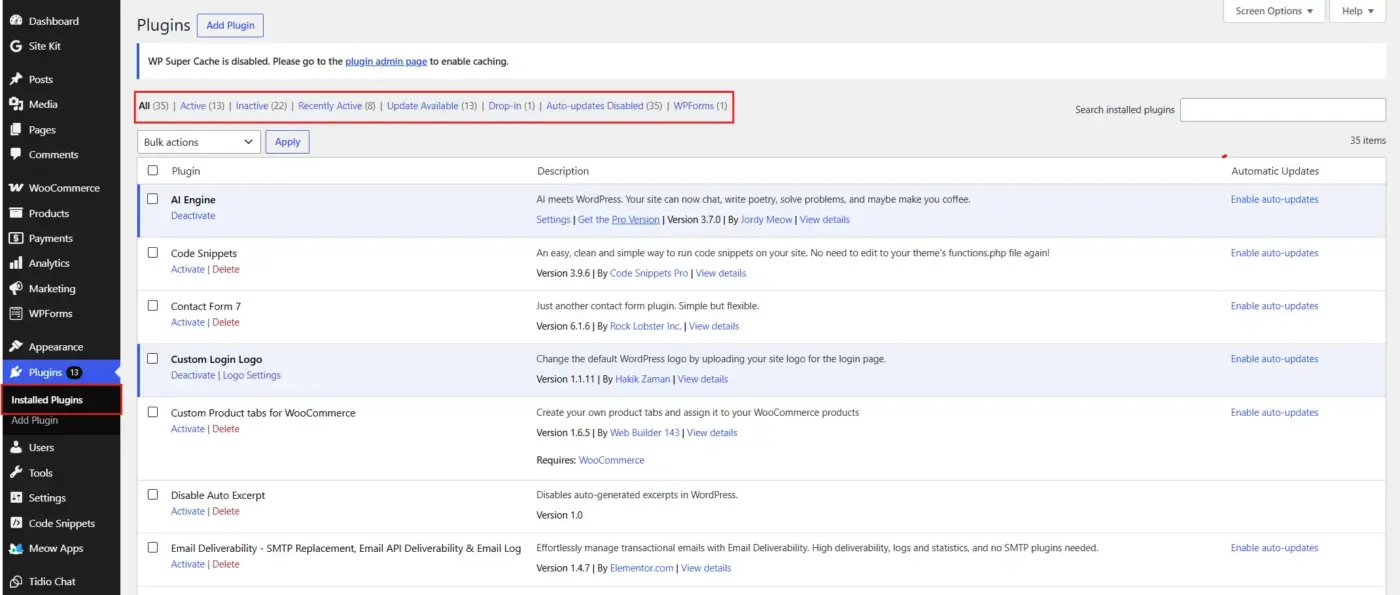
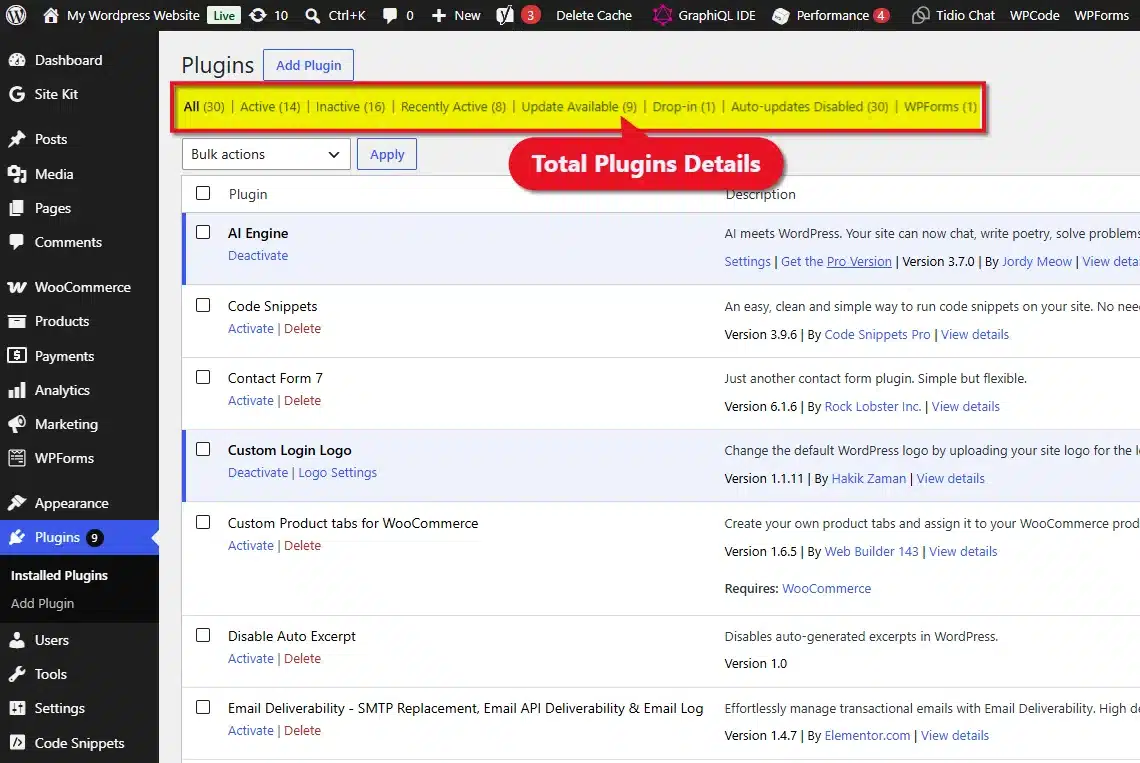
Log in to your WordPress dashboard and go to Plugins → Installed Plugins. WordPress shows your total count right at the top of the page, split into Active and Inactive tabs.
Write that number down. This is your baseline. You’ll come back to it after the audit to see how much you trimmed.
Quick tip: Sort the list by “Last Updated” using the plugin table headers. Anything untouched for over a year is your first suspect list.
Step 2: Test Your Site’s Real-World Speed
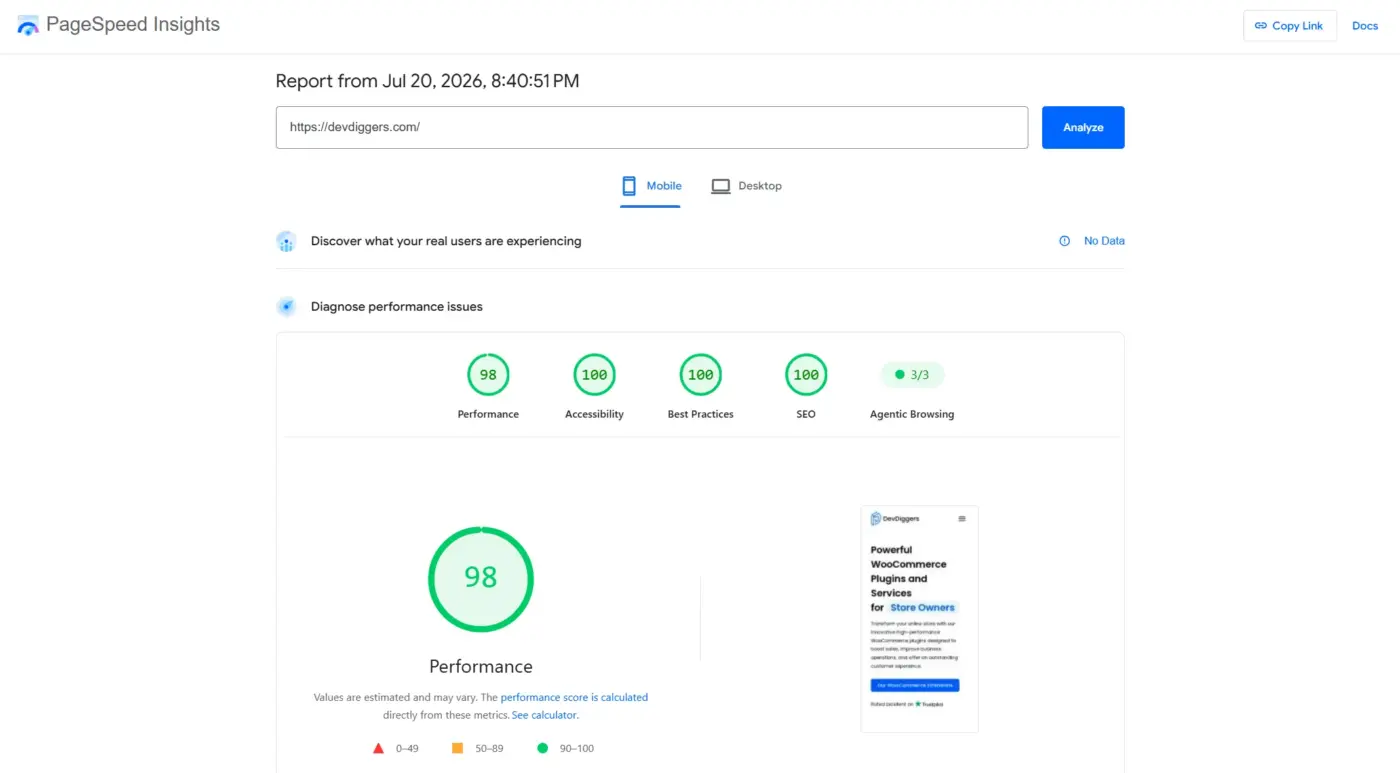
Before touching a single plugin, get a speed baseline. Open Google PageSpeed Insights or GTmetrix and run your homepage plus one product page through it.
Note your Largest Contentful Paint (LCP) and Time to First Byte (TTFB) scores. These two numbers tell you whether plugin overload is your real main slowdown, or whether the issue is your hosting or your theme instead.
We see this constantly in support tickets: a store owner blames “too many plugins” when the actual culprit is shared hosting maxed out on CPU. Testing first saves you from removing plugins you didn’t need to touch.
If your numbers come back slow across the board, not just on plugin-heavy pages, don’t assume plugins are the culprit yet. Read through our guide on how to fix slow WordPress website loading first. Sometimes the fix has nothing to do with your plugin list at all.
Step 3: Flag Plugins Doing the Same Job Twice
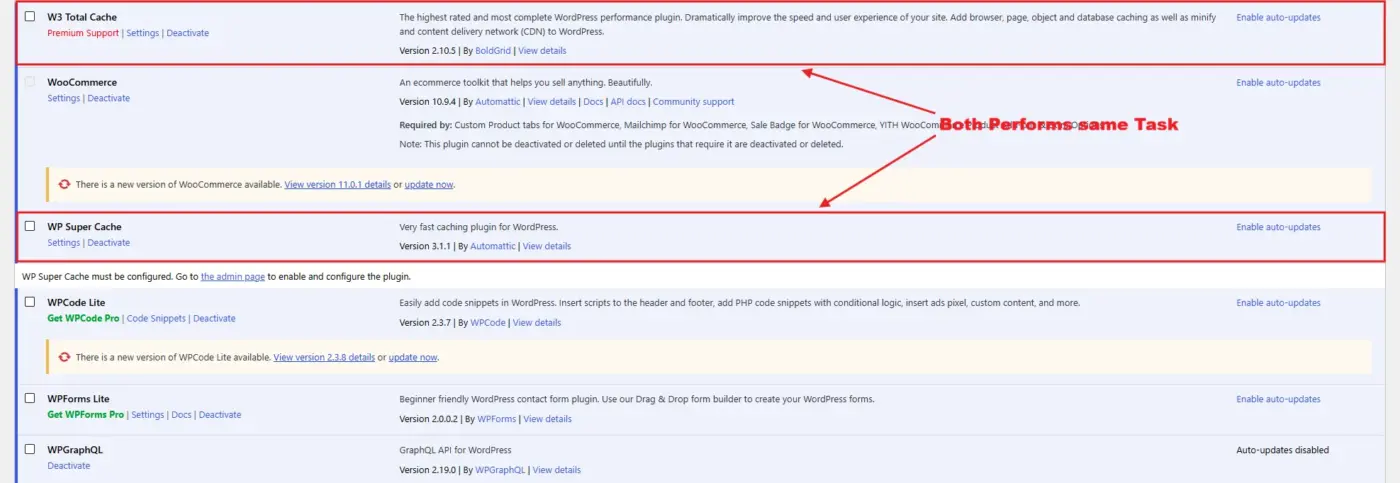
Go back to your plugin list and group plugins by function. Do you have two SEO plugins? Two caching plugins? Two contact form builders installed “just in case”?
Overlapping plugins are the fastest wins in any audit. Removing one of two redundant plugins usually costs you nothing in features and immediately trims your database queries.
We ran into this on a client store selling supplements. They had Yoast SEO active alongside a second, older SEO plugin nobody remembered installing. Both were writing schema markup on every page load, and Google Search Console was flagging duplicate structured data as a result. Removing the older plugin fixed the warning and shaved measurable weight off every page.
Step 4: Set Up a Staging Environment
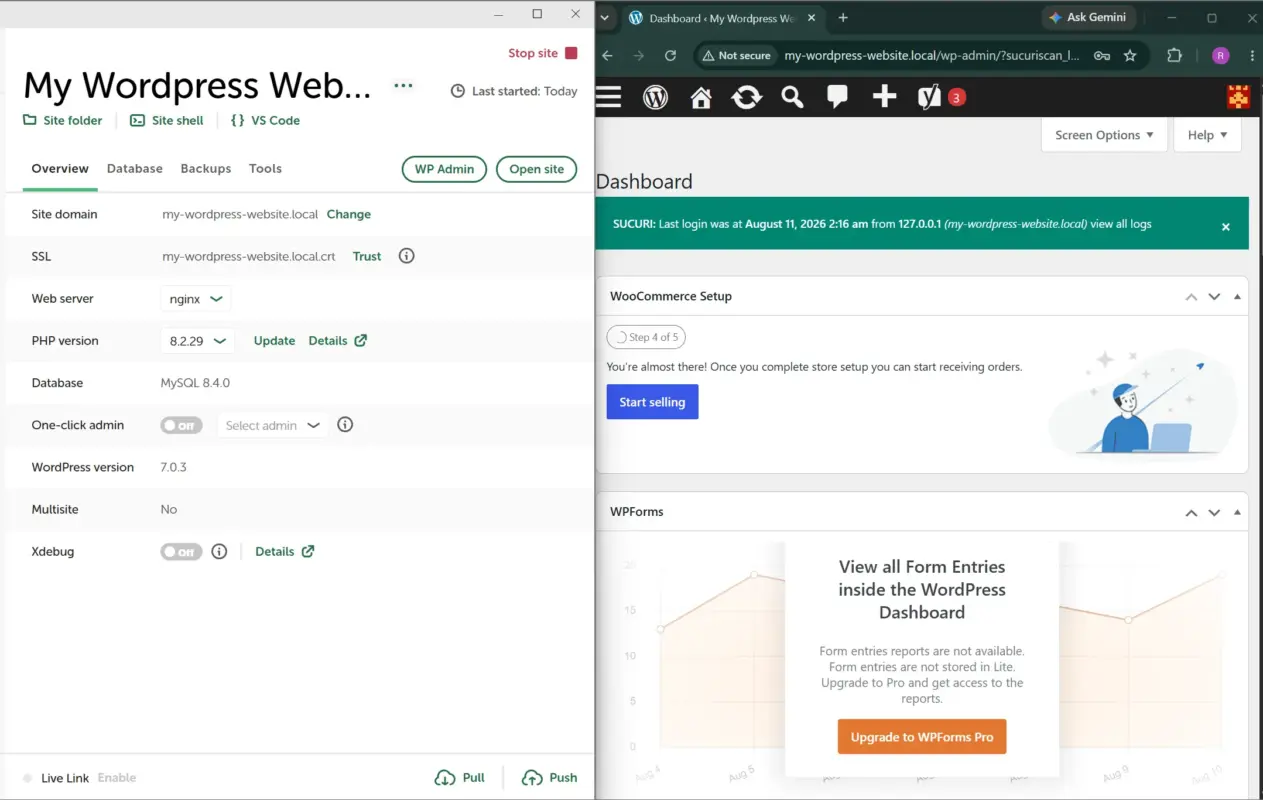
Never test plugin removal on your live store. Most managed WordPress and WooCommerce hosts, including SiteGround, Kinsta, and WP Engine, offer one-click staging sites built into the hosting dashboard.
Clone your live site to staging first. This gives you a safe sandbox where a mistake costs you nothing but time.
We see this often in support tickets. An owner skips staging because it feels like an extra step. They deactivate a plugin live, and only realize it handled tax calculation or a shipping rule after a customer’s order breaks at checkout. Ten minutes of setup on staging avoids that entirely, and it’s the single habit that separates a clean audit from a stressful one.
Step 5: Deactivate One Plugin at a Time
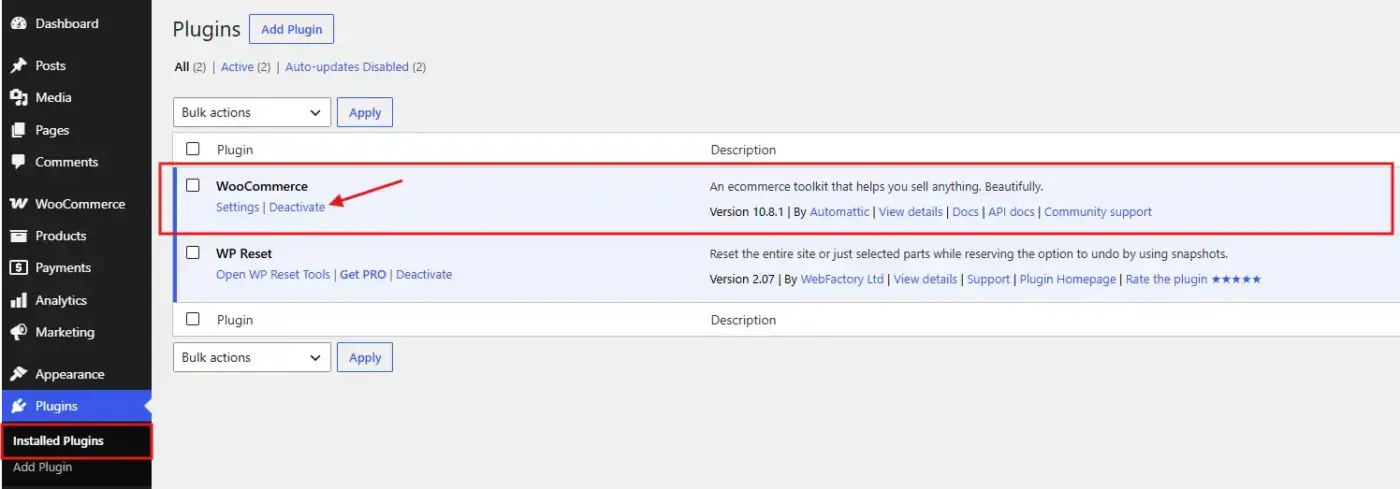
On your staging site, deactivate your first flagged plugin. Reload your site’s front end and admin panel. Check the pages that the plugin touched most.
Deactivate one plugin, test, then move to the next. Batch deactivating five plugins at once feels faster, but if something breaks, you won’t know which one caused it.
Pro tip: Before deactivating anything, back up your WooCommerce database. That way, you can roll back instantly if a plugin turns out to be load-bearing for an order flow or payment gateway.
Step 6: Watch for Conflicts, Not Just Missing Features
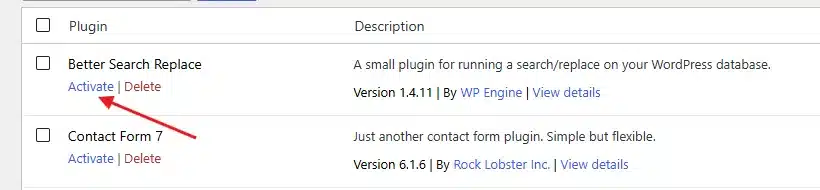
Sometimes a plugin doesn’t break when you remove it. Instead, a different plugin starts acting up because the two were quietly resolving a conflict between each other.
If you notice checkout errors, layout shifts, or a broken shortcode after a deactivation, don’t assume the plugin you removed is the cause. Reactivate it first. Then check for plugin conflicts on WordPress using the built-in Health Check plugin. It lets you troubleshoot without affecting live visitors.
Step 7: Push the Cleaned-Up List Live
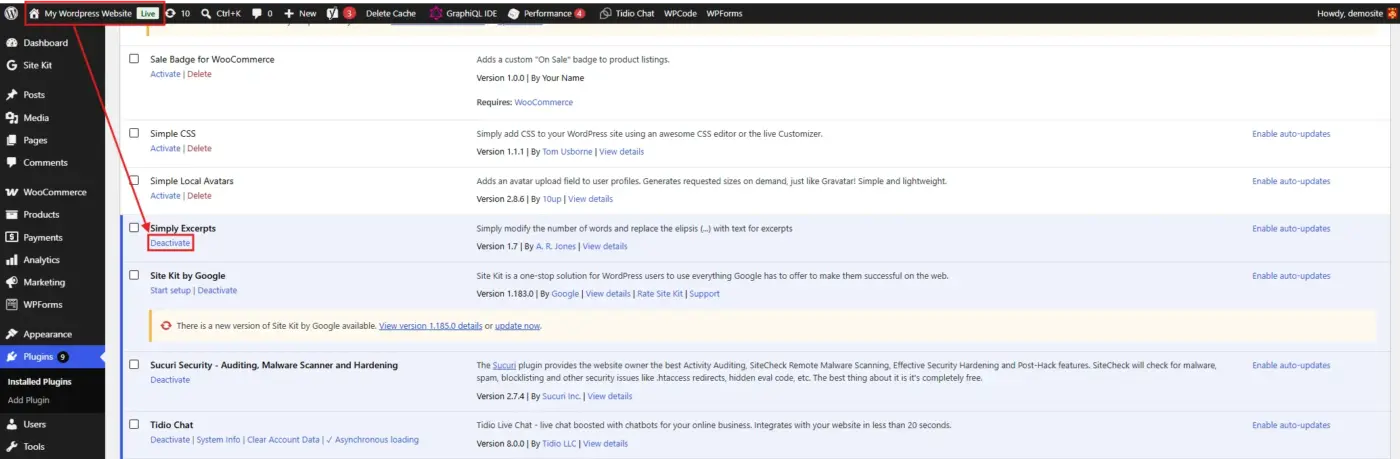
Once your staging tests pass, repeat the same deactivations on your live site during low-traffic hours. Delete (don’t just deactivate) any plugin you’ve confirmed you don’t need. Deactivated plugins still sit in your file system and can carry security risks if left unpatched.
Run your PageSpeed test again. Compare it against the baseline from Step 2. That’s your real, measurable improvement.
Are 50 Plugins Too Much for Your WordPress eShop: Honest Answer
Here’s the honest take after running this audit process on real client stores: the number was never really the question worth asking.
A store running 30 poorly maintained plugins is in worse shape than one running 60 well-coded, actively updated ones. Elementor’s own plugin guide makes the same point. A well-optimized site with 50 quality plugins can outperform a badly managed site running just 10. We’ve seen this play out with client stores more than once.
One store we worked with ran only 14 plugins but hadn’t updated most of them in over a year. Page load times sat above six seconds. Another store on our list ran 62 plugins, all current, all from checked developers, and loaded in under two seconds. The count told us nothing on its own. The update history and code quality told us everything.
What matters more than the count:
- Update frequency: A plugin last updated two years ago is a bigger risk than five active ones.
- Hosting tier: Shared hosting struggles past 20-30 plugins. VPS or managed WooCommerce hosting handles 50-plus without strain.
- Database footprint: Plugins that create their own tables, like advanced analytics or CRM tools, add more load per plugin than a simple form builder.
And security backs this up too. Research cited by WordPress security firms found that over 96% of hacked WordPress sites were compromised through vulnerable plugins. The plugin count itself was rarely the cause. An outdated plugin is the risk. Not the fiftieth plugin on your list.
How to Spot a Poorly Coded Plugin Before It Becomes a Problem
Not every plugin announces itself as a problem right away. A few warning signs are worth checking before you install anything new, and worth revisiting for anything already on your site.
- Check response time on open ticket: Slow responses on a free plugin aren’t unusual, but slow responses on a plugin you pay for annually are a bigger concern, especially if it handles something critical like checkout or shipping.
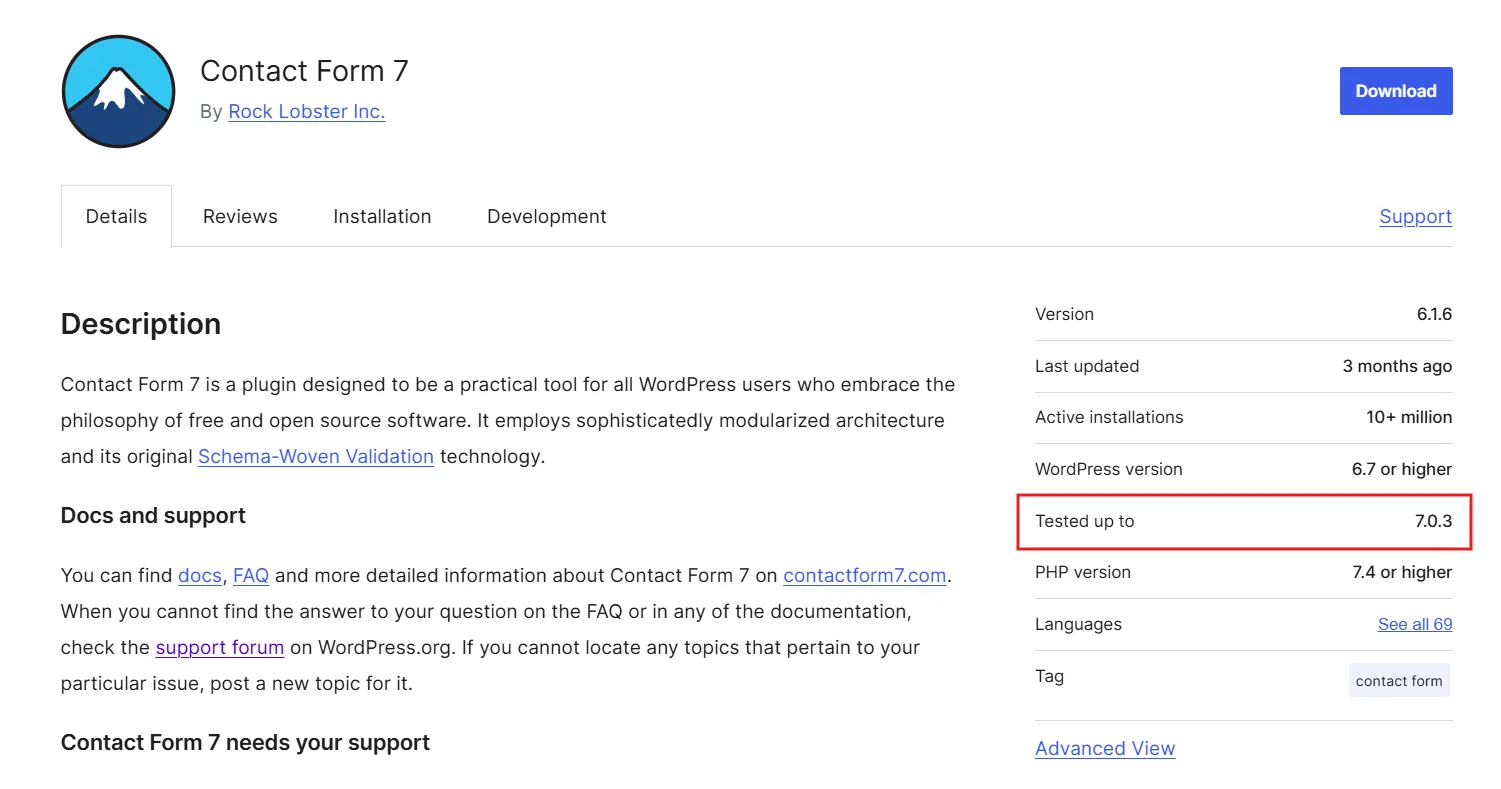
- Check the “Tested up to” version: On the plugin’s WordPress.org page. If it hasn’t been tested against a recent WordPress release, that’s your first flag.
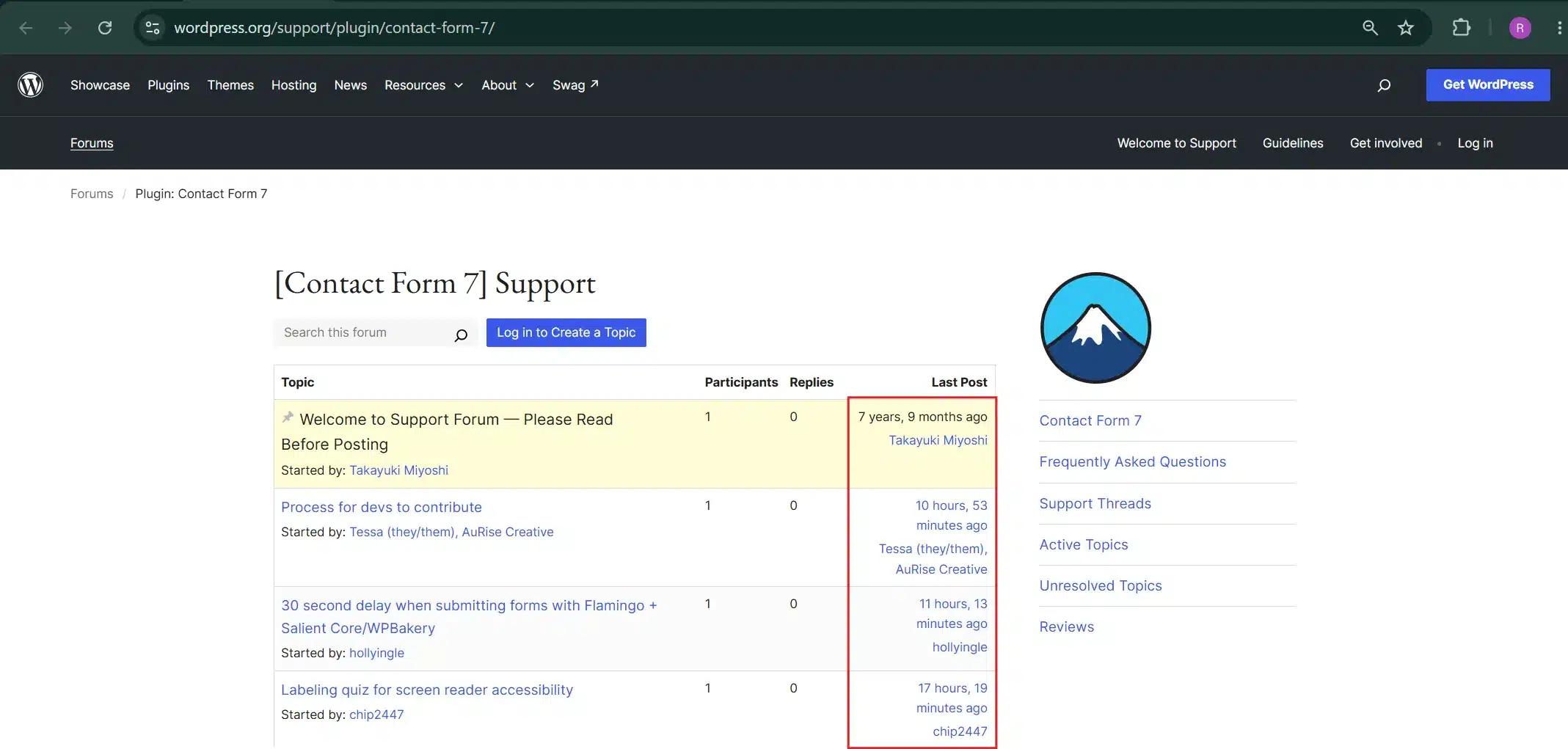
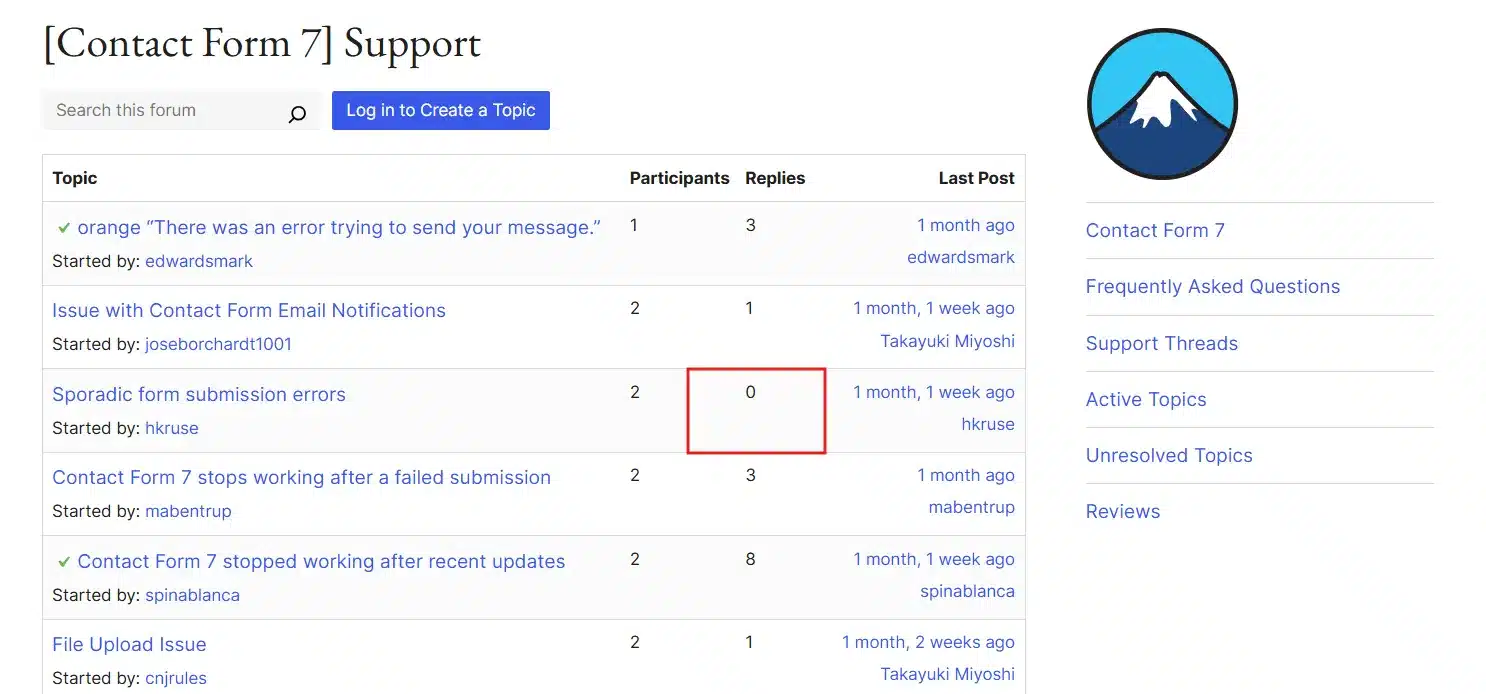
- Check the support forum: Dozens of unanswered threads from the last few months signal the developer has stepped back from active maintenance.
Must-Keep vs. Nice-to-Have Plugins for a WooCommerce eShop
Sort what’s left after your audit into two buckets: must-keep and nice-to-have. It keeps future plugin additions honest. Most stores we’ve reviewed carry five to eight must-keep plugins; everything else sits between still useful and quietly forgotten.
| Category | Plugin Type | Why It Stays or Goes |
|---|---|---|
| Must-Keep | WooCommerce core | Powers the entire store; non-negotiable |
| Must-Keep | Payment gateway plugin | Required to process transactions |
| Must-Keep | SEO plugin (Yoast/Rank Math) | Drives organic traffic and visibility |
| Must-Keep | Caching plugin | Keeps load times and conversions healthy |
| Must-Keep | Security plugin (firewall + login protection) | Protects against breaches and downtime |
| Must-Keep | Backup plugin with off-site storage | Recovers your store if something goes wrong |
| Nice-to-Have | Advanced analytics dashboards | Only useful if it beats what your host/GA already gives you |
| Nice-to-Have | Multiple design/page builder add-ons | Often redundant once stacked on top of each other |
| Nice-to-Have | Untested marketing pop-ups | Value unproven without recent A/B testing |
| Nice-to-Have | Old migration/import plugins | Usually leftover clutter from a past theme change |
Before adding anything new, ask one question: does this replace something you already have, or fill a real gap? If it replaces, remove the old plugin first. If you’re unsure, deactivate the candidate for a week and see if anyone notices it’s gone.
Review your WooCommerce security checklist at the same time you sort these two lists. A plugin sitting untouched on your “nice-to-have” pile for six months isn’t just clutter; it’s a security liability.
Monthly Plugin Maintenance Checklist
A one-time audit fixes today’s problem. A recurring habit stops it from coming back. Block 20 minutes on your calendar for the Monthly Plugin Maintenance Checklist
A one-time audit fixes today’s problem. A recurring habit stops it from coming back. Block 20 minutes on your calendar once a month for this:
- Check the Installed Plugins screen for anything flagged “Update Available.”
- Sort by Last Updated and flag anything untouched for over 12 months.
- Run a quick PageSpeed check and compare it against last month’s score.
- Ask whether any plugin installed “temporarily” for a campaign or test is still active.
- Confirm your backup ran successfully before making any changes.
That’s the point of a monthly check, confirming every plugin is still earning its keep. If it feels like one more task on a full plate, our WordPress speed optimization services team can handle it for you.
Conclusion
Are 50 plugins too much for your WordPress eShop? Usually not, as long as every plugin on that list is current, tested, and doing a job you actually need. The number itself was never the real risk. A store running 15 outdated, unused plugins is in far worse shape than one running 50 active, well-maintained ones.
The real risk: A security hole nobody patched, a checkout script fighting another plugin’s script, or a page that quietly slows down month after month until customers start leaving before it even finishes loading. None of that shows up as a plugin count in your dashboard.
Run the audit in this guide once, and you’ll walk away with a faster store and a clear list of what to keep. Run it monthly, and plugin bloat stops being a problem you have to think about at all. That’s the actual goal here, not a smaller number, but a store you never have to doubt.
Frequently Asked Questions (FAQs)
Q1. Will removing a plugin break my WooCommerce store?
It can, if that plugin was handling something critical like a payment gateway or shipping calculation. That’s why Step 4 in this guide has you test every deactivation on a staging site first, never directly on your live store.
Q2. How long does a full plugin audit take?
For a store with 40 to 60 plugins, plan for two to three hours the first time, spread across counting, testing, and staged deactivations. Monthly maintenance after that takes closer to 20 minutes.
Q3. Do free plugins cause more problems than premium ones?
Not on their own. A free plugin from a reputable developer with regular updates is safer than an abandoned premium plugin nobody maintains anymore. Update frequency matters more than price.
Q4. Can I use a plugin to manage my other plugins?
Yes. Tools like Query Monitor help you see which plugins are generating the most database queries, and WP Rocket includes basic conflict detection during caching setup. Neither replaces the manual staging test in Step 5, though.
Q5. Should I worry about plugin count on a brand-new store with no traffic yet?
Less so, but it’s still worth building good habits early. A new store with 50 plugins and zero maintenance routine will hit the same bloat problem within a year that an older store faces today.
Q7. What’s the fastest sign that plugin bloat is hurting my checkout, not just my homepage?
Watch your checkout page load time specifically, not just your homepage score. If your homepage loads fast but the cart or checkout page lags behind by more than a second or two, that’s a signal. A plugin tied to payments, shipping, or tax calculation is usually the cause. Test those first.