What is a widget in WordPress? A widget is a small block of content or features that you place in a widget area, such as a sidebar or a footer. Search boxes, recent posts and calendars are common examples.
This guide was tested on WordPress 7.1.3 in October 2026, with a classic theme (Twenty Seventeen) and a block theme (Twenty Twenty-Five). Every menu path and error message below comes from that test, and the official Widgets screen documentation backs the rest.
You will learn what widgets are, where they appear, and how to add, edit and remove them. You also get the answer for block themes, which no longer have a Widgets screen. A short code example shows how to add a custom footer widget area.
What Is a Widget in WordPress?
What is a widget in WordPress? It is a self-contained piece of content that a theme lets you place in a widget area. The WordPress documentation says each section in a sidebar is known as a widget that you can add, remove and move up or down.
Some themes also accept widgets in the footer and header. The developer handbook gives the technical definition: a widget is a PHP object that outputs some HTML.
You never touch that code when you use a widget. You pick the widget, fill in its few settings and let WordPress print the result on every page that shows the area.
People also ask what are widgets in WordPress or what is a WordPress widget, and the answer is the same. A widget is a ready-made feature box. Because it sits in a shared area, it appears on many pages at once, which is the main difference from a block inside one post.
Note: Widgets are not plugins. A plugin adds features to the whole site. A widget is one box that sits in a widget area.
Many plugins ship a widget or a block for that purpose.
What Are Widgets Used For?
Widgets help visitors find things and trust the site. A search box helps them look for content, and a recent posts list shows what is new. Footer widgets often hold contact details, a short about text or a newsletter form.
Store owners use them to point visitors to categories or policies on every page. Because the box lives in one place, you change it once and every page updates. That saves time on a site with hundreds of pages.
Where Do Widgets Appear in WordPress?
Widgets appear in widget areas that your theme defines, most often a sidebar and one or more footer areas. Each theme decides how many areas it has and what they are called. The Widgets screen lists every area your active theme supports.
On the Twenty Seventeen test site, the Widgets screen listed three areas: Blog Sidebar, Footer 1 and Footer 2. Twenty Twenty-One, another classic theme, listed a single Footer area. So the screen always tells you what your theme offers.
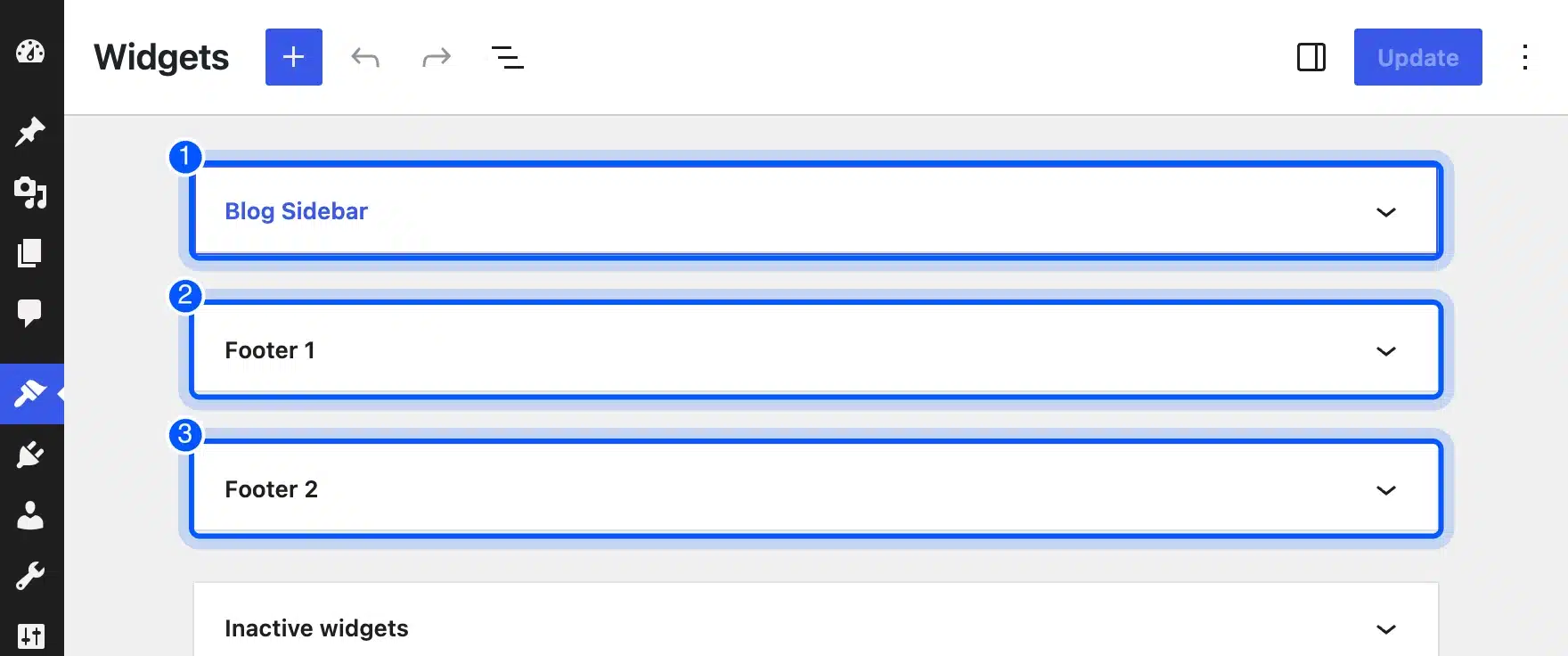
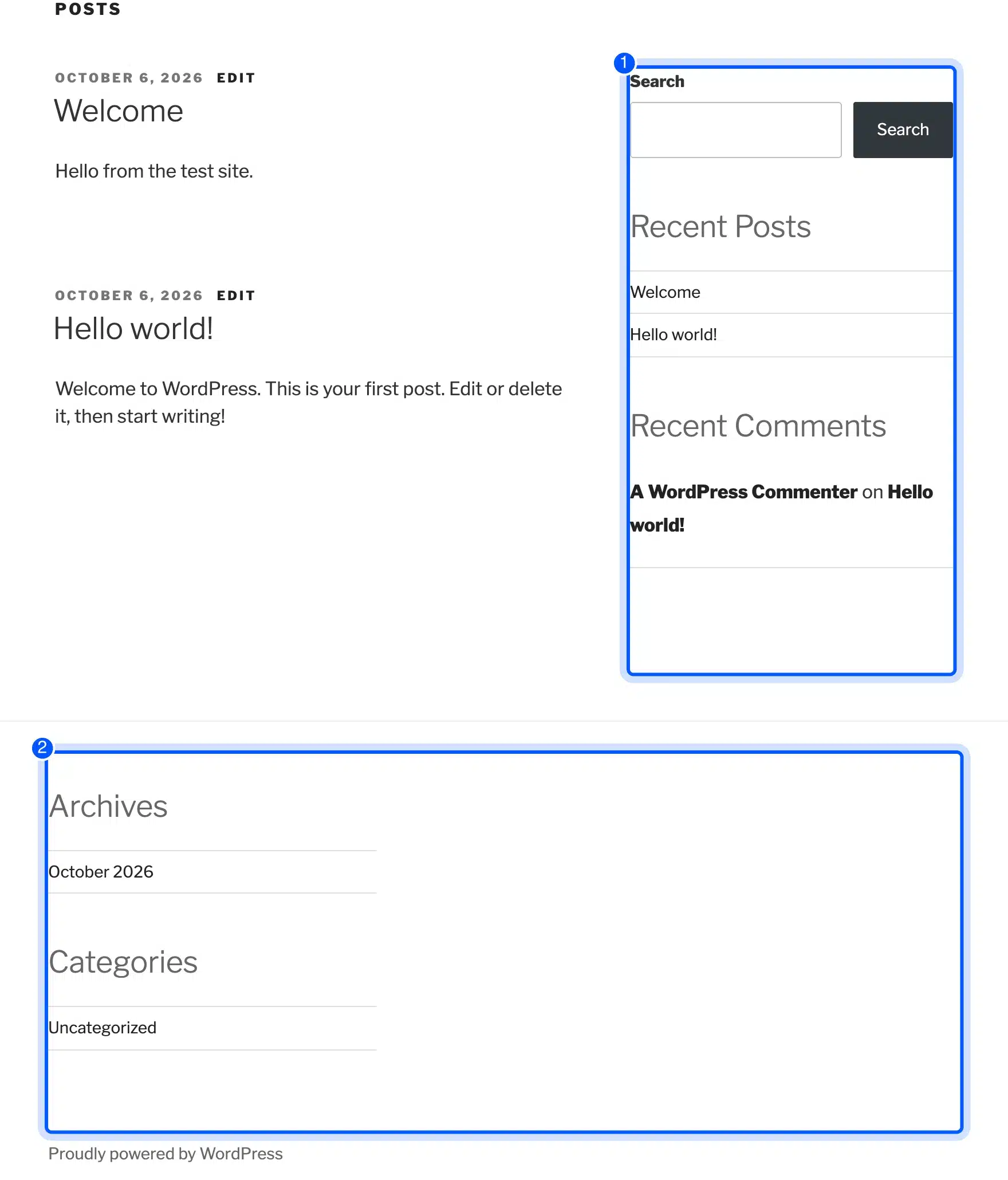
On the live site, the widgets in Blog Sidebar appeared in a column beside the posts. The widgets in the footer areas appeared below them. The screenshot below shows the default Search, Recent Posts and Recent Comments widgets in the sidebar and Archives and Categories in the footer.
Which Widgets Come With WordPress?
WordPress ships a set of default widgets, and the list on your site depends on your version and theme. The documentation lists Archives, Calendar, Categories, Custom Menu, Meta, Pages, Recent Comments, Recent Posts, RSS, Search, Tag Cloud and Text. On the 7.1.3 test site the classic screen also offered Audio, Gallery, Image and Block.
| Widget | What it shows |
|---|---|
| Archives | Links to monthly archives of your posts. |
| Calendar | A calendar of the current month, with links on days that have posts. |
| Categories | A list of your post categories. |
| Custom Menu | A navigation menu that you built. |
| Pages | A link to each page on the site. |
| Recent Comments | The newest approved comments. |
| Recent Posts | A list of your newest posts. |
| Search | A search box with a submit button. |
| Tag Cloud | Your most used tags in a cloud. |
The descriptions follow the classic Widgets screen documentation. The Calendar widget only links days that have posts, so it is not an events calendar. For events you need a plugin that adds its own widget or block.
The Text widget deserves a special mention. The same page says it accepts HTML, JavaScript or plain text, and that you can add several of them to one area. That makes it the catch-all box for a short message, a banner link or a newsletter embed code.
How to Add Widgets in WordPress
To add a widget in WordPress, open Appearance > Widgets, click the widget area you want, press the plus button and pick a block. Click Update to save. On classic themes since WordPress 5.8, you add blocks to widget areas instead of the old drag-and-drop boxes.
- Open the screen: Go to Appearance > Widgets in the dashboard.
- Choose an area: Click Blog Sidebar, Footer 1 or any other area that your theme lists.
- Add a block: Click the plus button, search for the block, such as Calendar, and click it.
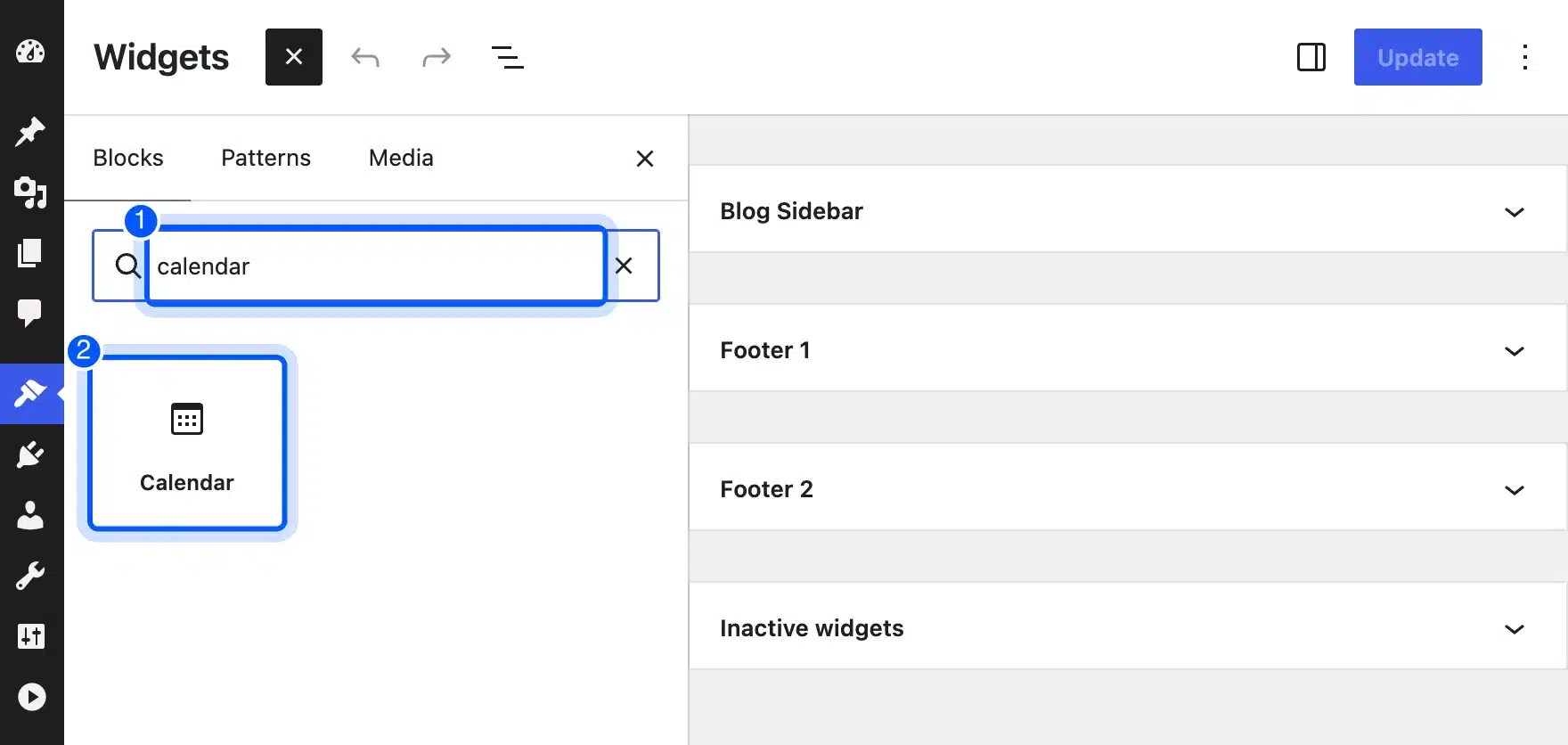
- Save: Click Update, then open your site to check the result.
The block-based Widgets editor documentation describes the same flow: click an area, select the plus prompt, and use search or Browse All. On the test site, searching for calendar in the inserter returned the Calendar block as the only match.
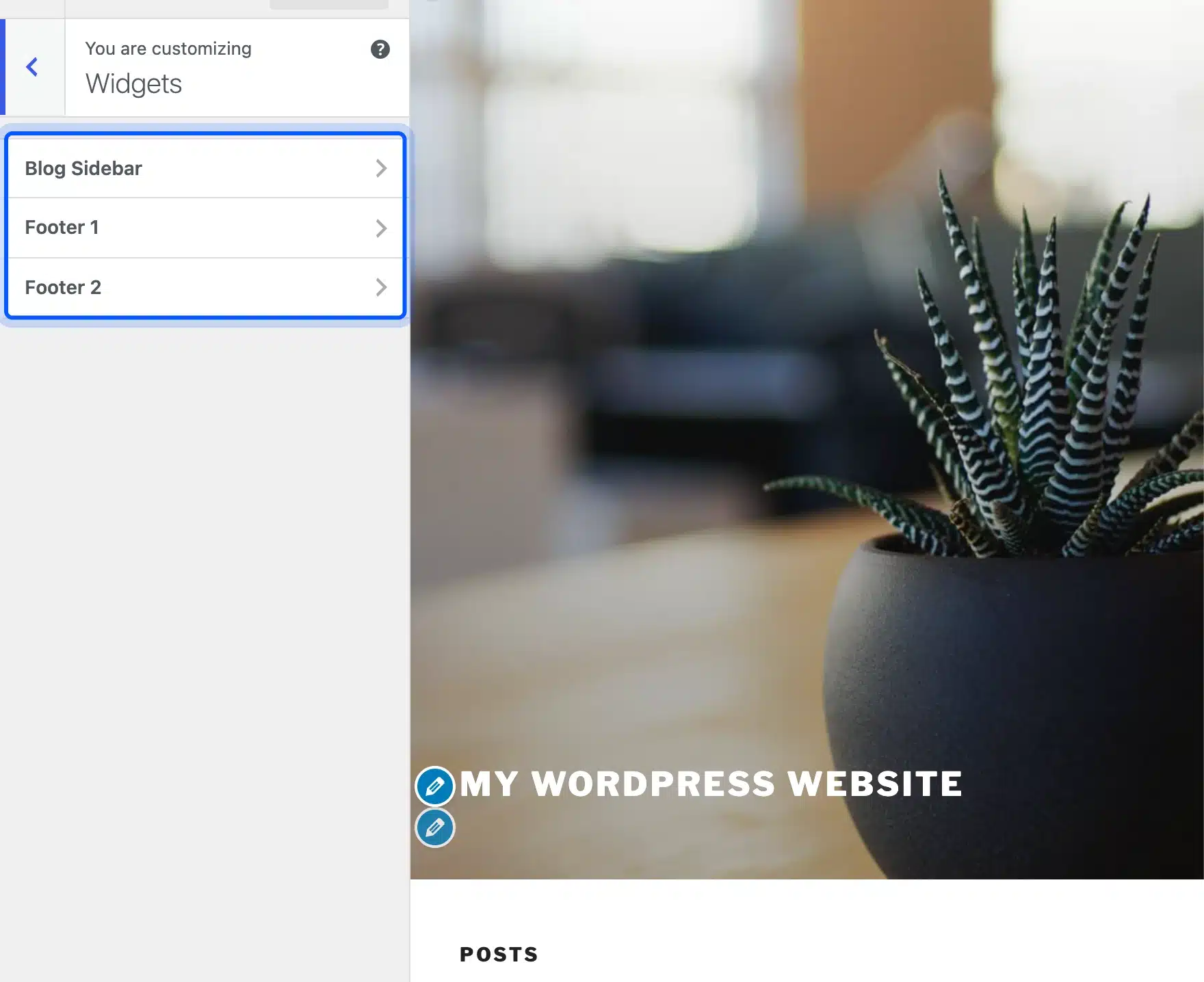
You can also manage widgets with a live preview. Click Manage with live preview on the Widgets screen, or go to Appearance > Customize and open Widgets. The Customizer listed the same three areas on the test site.
How to Edit, Move and Remove a Widget
To edit a widget, click it in its area and change the block settings. To move it, drag it or use the block toolbar, and to remove it, delete the block and click Update. If you only want to hide a widget for now, move it to Inactive widgets instead.
The block toolbar has a control that moves a block to another widget area, according to the documentation. Dragging also works between areas. The Widgets screen on the test site had an Inactive widgets panel below the other areas.
On the classic Widgets screen, the steps differ slightly. The classic Widgets documentation says to click the down arrow on the widget, choose Delete and confirm. It also says that dragging a widget into Inactive widgets keeps its settings, so you can bring it back later.
How to Edit a Footer Widget
To edit a footer widget, open Appearance > Widgets, expand the footer area, such as Footer 1, and click the block you want to change. Change the text or settings and click Update. The footer on your site changes on every page at once.
Footer areas work like any other widget area. The only difference is where the theme prints them, which is below the main content.
If the footer area you need is missing from the screen, your theme does not define it. The section on creating a footer widget area below shows how to add one.
What Are Block Widgets and Legacy Widgets?
Block widgets are widgets built from blocks, and legacy widgets are the older PHP widgets that predate them. WordPress 5.8 introduced the block-based Widgets editor for classic themes. A Legacy Widget block lets you keep using older widgets, including ones from plugins, inside the same screen.
The documentation says you can use the Legacy Widget block for any widget that does not come with WordPress and has not become a block. On the test site, searching for legacy in the inserter returned three items: Legacy Widget, Meta and Navigation Menu.
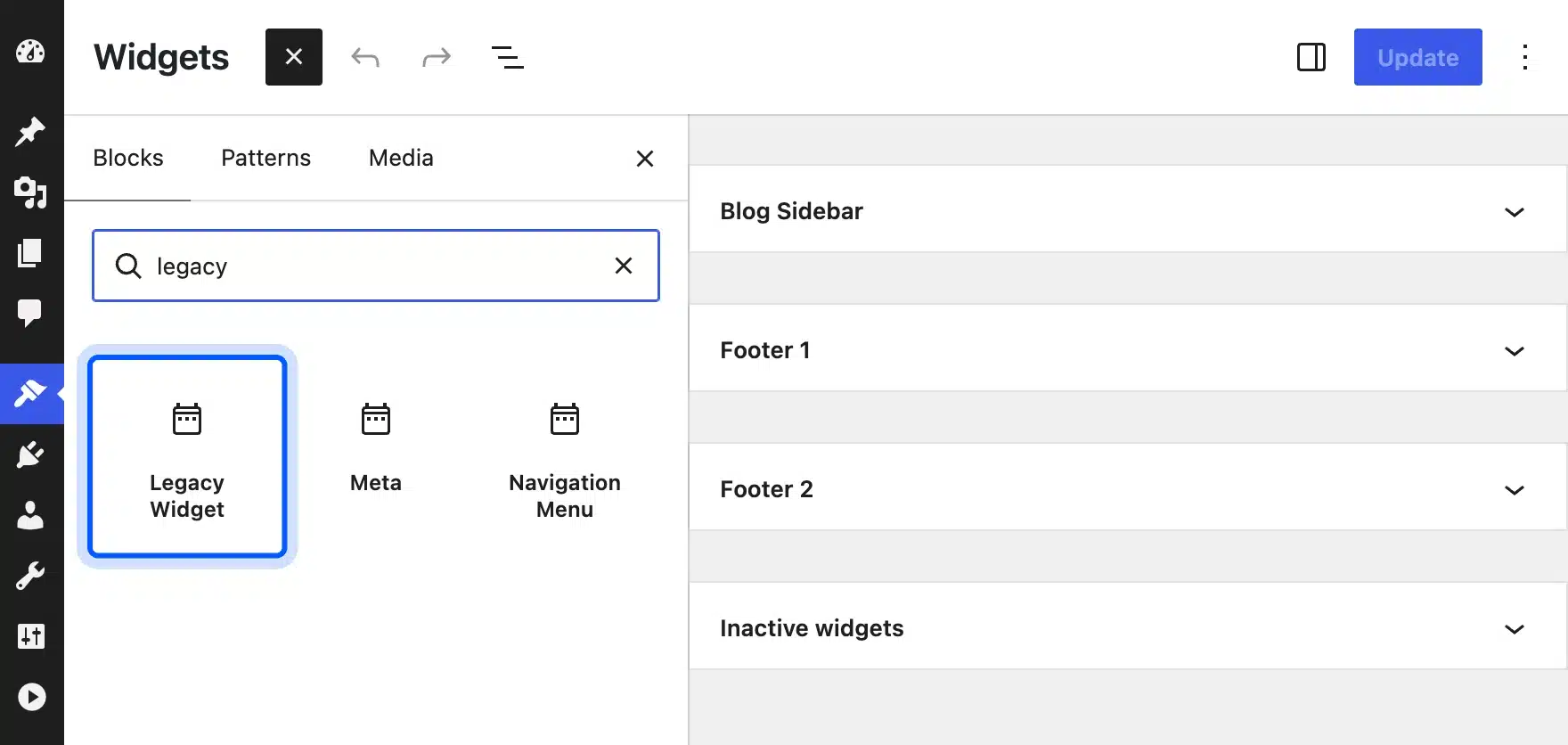
Meta and Navigation Menu appeared there because they are older widgets that WordPress still exposes in that form. The note in the docs also says that synced patterns and theme blocks such as Site Logo and Site Title are disabled in this editor.
In practice, this means you can mix both kinds of boxes in one area. Add new content with blocks. Keep an old plugin widget in the same sidebar through the Legacy Widget block until its developer ships a block version.
How to Use the Classic Widgets Screen
To go back to the old Widgets screen, install and activate the Classic Widgets plugin. It restores the previous widgets settings screens and removes the block editor from widget management. WordPress itself points to this plugin as the way to opt out of the block-based editor.
On the test site, version 0.3 of Classic Widgets worked on WordPress 7.1.3 with Twenty Twenty-One. The screen showed an Available Widgets list on the left and the Footer area on the right, with the default widgets listed as Block widgets.
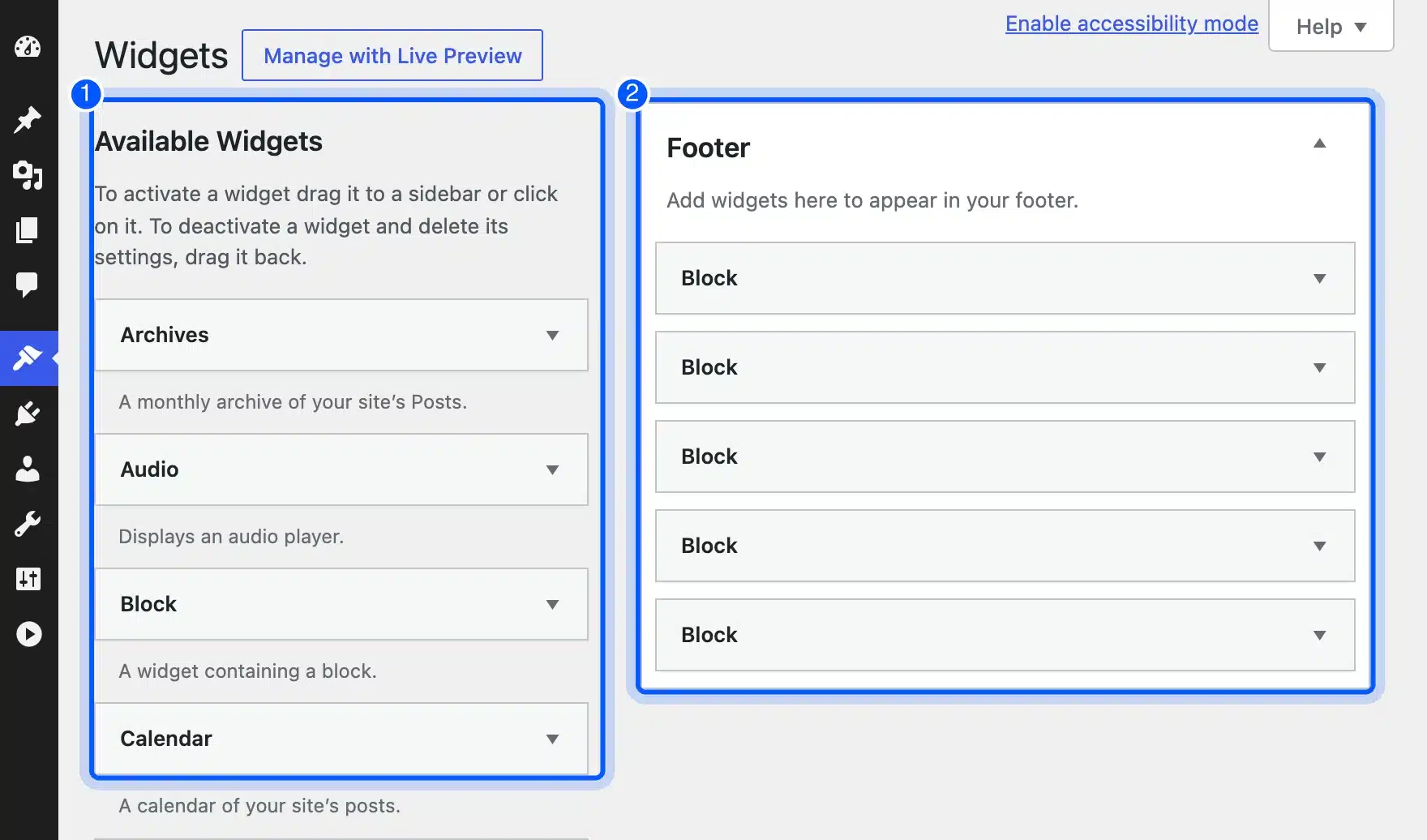
The plugin asks for no setup. After you activate it, the Appearance > Widgets screen and the Customizer both switch to the classic layout. Deactivating it brings the block-based screen back.
Worth checking: The plugin page says it will be supported and maintained to 2024, or as long as is necessary. As of October 2026 it lists a Tested up to version of 6.9.10. That is older than the 7.x releases, so test it on a staging copy before you rely on it.
Do Block Themes Have Widgets?
Block themes do not have a Widgets screen. WordPress removes Appearance > Widgets for them, and you edit headers, footers and sidebars as template parts in the Site Editor. The same blocks are available there, so the work is similar even though the menu changes.
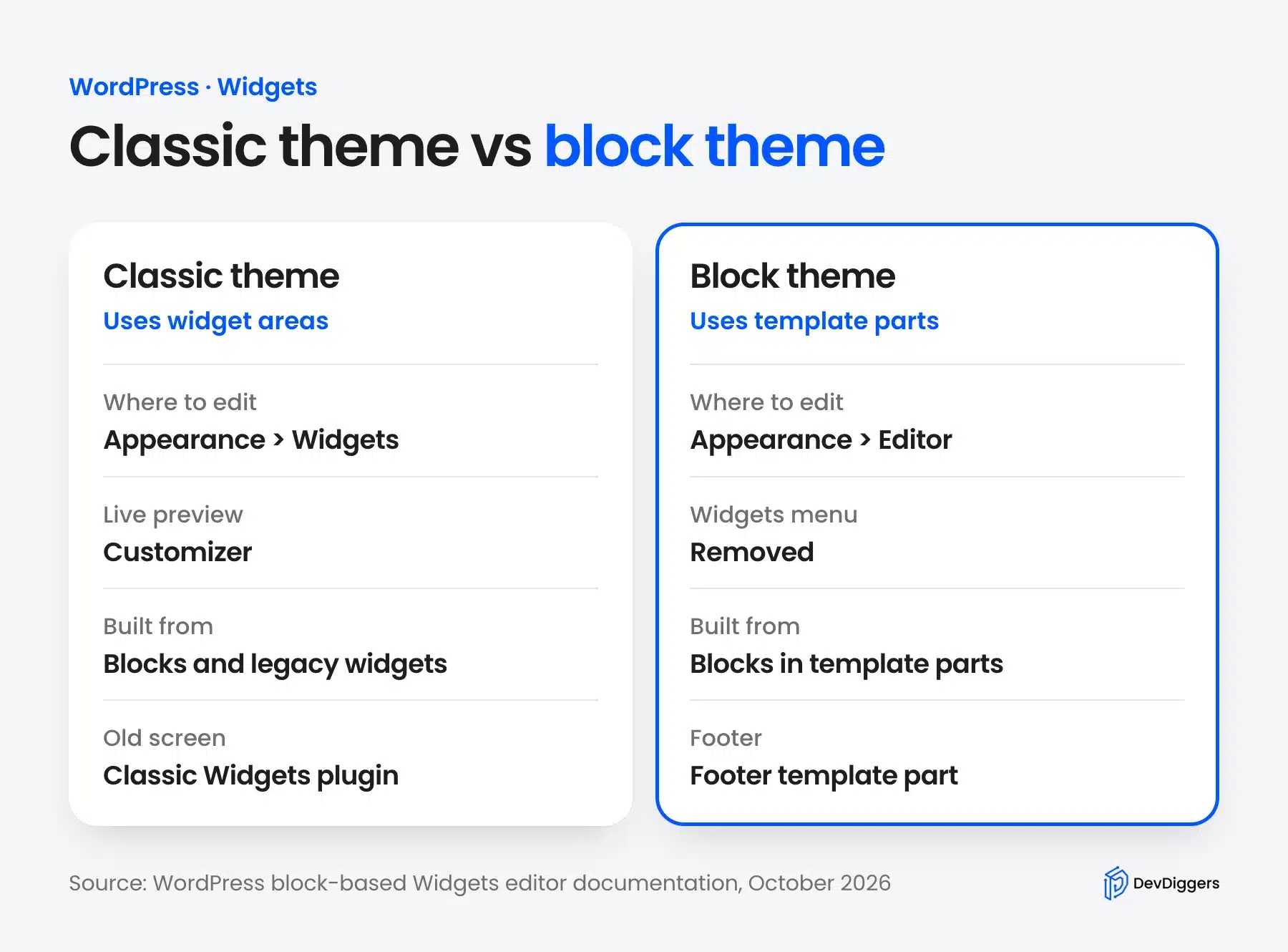
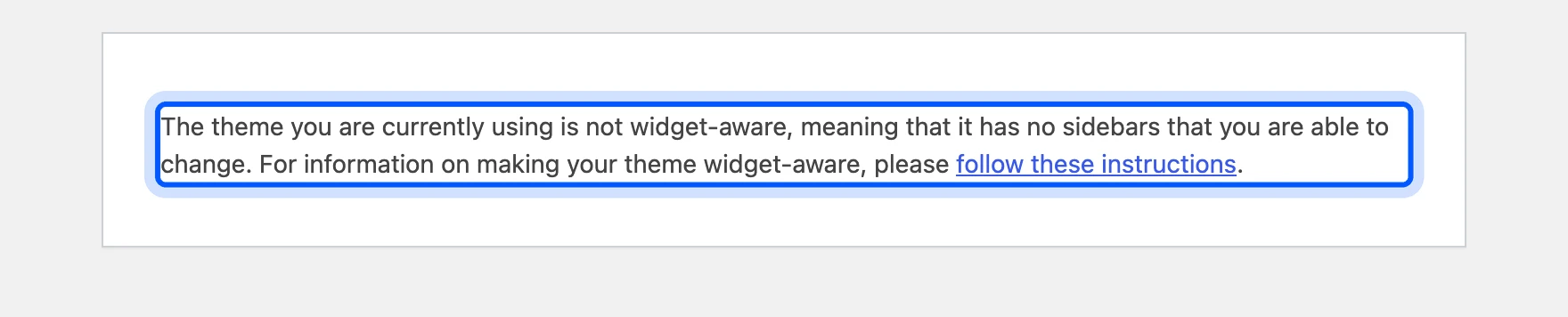
On the Twenty Twenty-Five test site, the Appearance menu listed only Themes, Editor and Fonts. Opening the Widgets URL directly showed a message that the theme is not widget-aware, meaning that it has no sidebars that you can change. The block-based Widgets documentation confirms that the menu is intentionally removed for block themes.
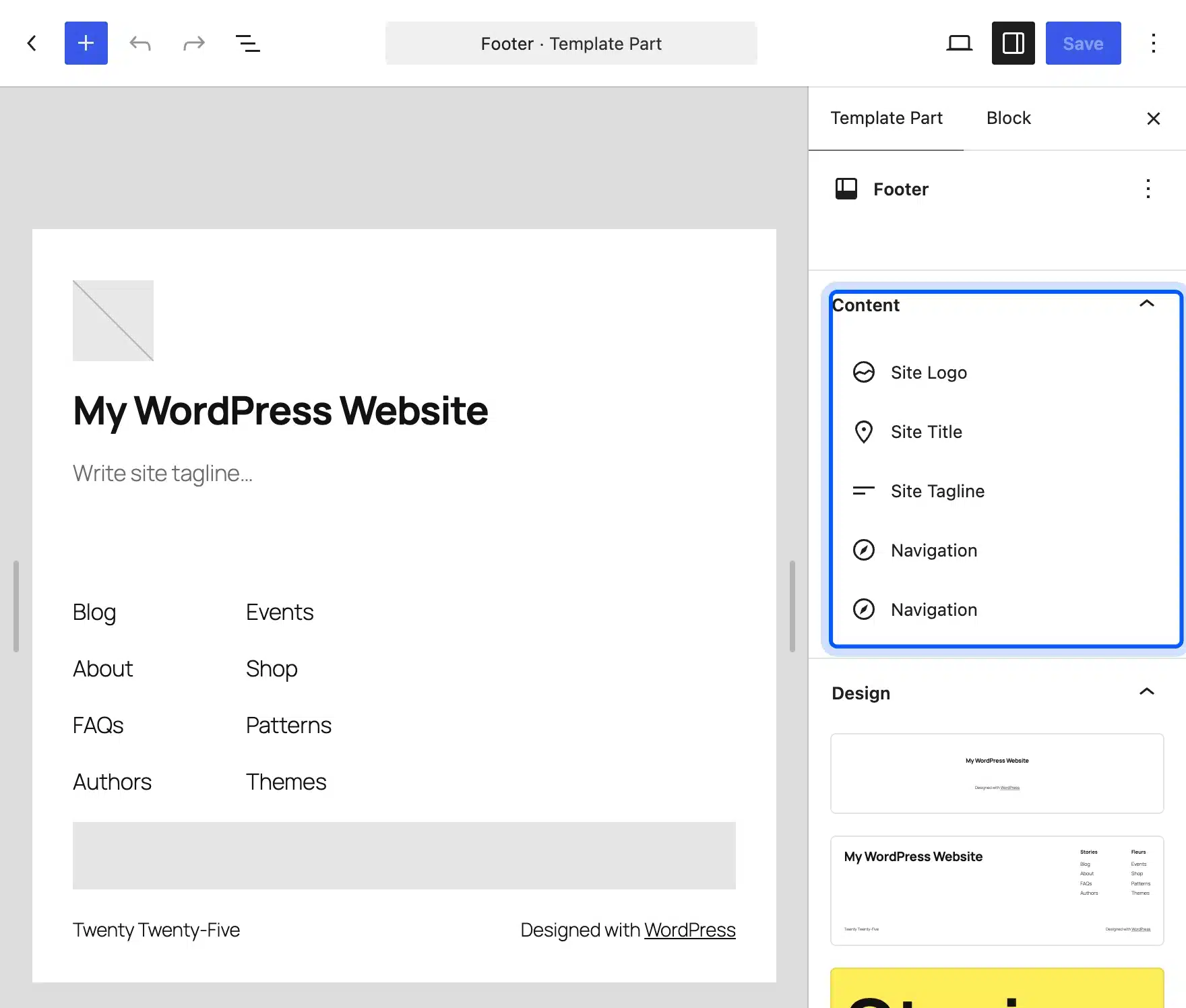
To change the footer on a block theme, go to Appearance > Editor and open the Footer template part. On the test site it held Site Logo, Site Title, Site Tagline and two Navigation blocks. The inserter offered the Calendar block there as well.
How to Create a Footer Widget Area
To create a footer widget area, register it with register_sidebar() and print it with dynamic_sidebar() in your theme. Register the area on the widgets_init hook so it appears on the Widgets screen. Do this in a child theme so a theme update does not remove it.
The code below follows the sidebars section of the theme handbook, with a footer name and ID:
add_action( 'widgets_init', 'dd_register_footer_sidebar' );
function dd_register_footer_sidebar() {
	register_sidebar( array(
		'id'            => 'dd-footer',
		'name'          => __( 'Custom Footer' ),
		'before_widget' => '<div id="%1$s" class="widget %2$s">',
		'after_widget'  => '</div>',
		'before_title'  => '<h3 class="widget-title">',
		'after_title'   => '</h3>',
	) );
}
Then print the area in footer.php. The handbook shows is_active_sidebar() as the check that stops an empty wrapper from printing when you have not added any widgets:
<?php if ( is_active_sidebar( 'dd-footer' ) ) : ?>
	<div class="footer-widgets">
		<?php dynamic_sidebar( 'dd-footer' ); ?>
	</div>
<?php endif; ?>
Put both snippets in a child theme. After that, a new area called Custom Footer appears on the Widgets screen, and you add blocks to it like any other area.
Test any code on a staging copy first, because a typo in a theme file can break the whole page.
The id must be lowercase and unique, because dynamic_sidebar() uses it to find the area. The before_widget and after_widget values wrap each widget, so you can style them with CSS. Skip the is_active_sidebar() check only if you want the wrapper to print even when the area is empty.
Which Widgets Are Worth Adding?
A few widgets cover most sites: a search box, a recent posts list, a category list and a short text or custom HTML box. Add only the ones a visitor can use. A sidebar with ten widgets slows the page and hides the useful ones.
For a blog, start with Search and Recent Posts. Add Categories if you publish on several topics, so readers can jump to the one they care about. Our guide on how to add a search bar in WordPress shows the options in more detail.
For a store, add a product search or a short trust note, and keep the footer for contact details. A visitor who cannot find a product leaves, so the search box often earns the top spot in the sidebar.
Some features belong in the theme. A reading time label, for example, is better added to the template, as our guide to displaying reading time without a plugin explains. If you want a custom widget or block built for your store, our WordPress developers can build it.
Common Widget Mistakes
Most widget problems come from adding too many boxes or placing them without a plan. The five below cost site owners the most time, and each one has a quick fix. Check your own sidebar and footer against the list before you publish a change.
- Too many widgets: Each widget adds markup and sometimes a database query, so keep the sidebar short.
- No clear order: Put search first and the most useful lists next, because visitors rarely scroll the whole sidebar.
- Editing the wrong area: Check the area name before you add a block, since Footer 1 and Footer 2 look alike.
- Deleting instead of deactivating: Drag a widget to Inactive widgets if you may need its settings again.
- Forgetting the mobile layout: Sidebar widgets usually move below the content on phones, so check the page at a small width.
A short review once a quarter keeps the areas tidy. Open the Widgets screen, remove anything unused and check that each area still matches what visitors need. That small habit prevents the slow build-up of old boxes.
Conclusion
What is a widget in WordPress? It is a reusable box that appears in a widget area such as a sidebar or footer. On classic themes you manage widgets from Appearance > Widgets with blocks.
On block themes you edit the same areas as template parts in the Site Editor. Add only the widgets that help visitors, keep them in a sensible order and test the page on a phone.
If your theme has no footer area, register one in a child theme. For anything beyond that, the Classic Widgets plugin gives you the old screen back.
Frequently Asked Questions (FAQs)
Q1. Can I add a widget to one page only?
Not with a standard widget area, because widgets show on every page that uses that area. For one page, put the block in the page content or use a plugin that adds display conditions. A block theme template can also show different footers per template.
Q2. What is the difference between a widget and a plugin?
A plugin adds features to the whole site, while a widget is one box inside a widget area. Many plugins provide a widget or block as their way to show output. The developer handbook defines a widget as a PHP object that outputs some HTML.
Q3. Can I create my own widget?
Yes. A developer extends the WP_Widget class and writes four methods: the constructor, widget, form and update. Many developers now build a custom block instead, because blocks work in both the editor and widget areas.
Q4. Why did my widgets disappear after I changed themes?
A new theme may not have the same widget areas as the old one. WordPress usually keeps widgets that no longer have a home in the Inactive widgets area. Open the Widgets screen and drag them back into an active area.
Q5. Do widgets slow down my website?
They can. Each widget adds markup, and some run database queries or load scripts on every page. Keep the number small and remove widgets you no longer use.
Q6. How do I add an Instagram feed widget?
WordPress does not include an Instagram feed, so you need a plugin that provides a block or a widget. After you install and activate it, add its block to a widget area. Use the Legacy Widget block if the plugin only ships a classic widget.
Q7. How do I add an events calendar to a widget area?
The core Calendar widget shows posts, not events, according to the documentation. For events, install an events plugin and add the block or widget that it provides to your sidebar or footer.
Q8. Are widgets still supported in WordPress?
Yes, on classic themes. The block-based Widgets documentation covers them in detail. Block themes use template parts instead, so the Widgets screen is not available there.