A WordPress shortcode is a short tag in square brackets that WordPress swaps for dynamic content when a page loads. You type one line, and WordPress prints a gallery, a form, a button or a custom box in its place.
This guide was tested on a fresh WordPress 7.1.3 site in October 2026, with a classic theme for the widget and menu steps. Each rule and function name was checked against the WordPress Shortcode API documentation.
You will learn what a shortcode is, how to add one to posts, pages, widgets, menus and theme files, and how to write your own. You also get a block comparison and a fix list for shortcodes that print as plain text.
What Is a WordPress Shortcode?
A WordPress shortcode is a macro written in square brackets that WordPress replaces with other content when it builds the page. The Shortcode API documentation calls shortcodes macros for dynamic interactions with content. They were added in WordPress 2.5 as a safer alternative to running PHP inside posts.
WordPress ships six shortcodes by default: [caption], [gallery], [audio], [video], [playlist] and [embed]. Plugins add many more, such as contact forms, sliders and product grids. You will see the same pattern every time: a tag name inside square brackets, sometimes with settings after it.
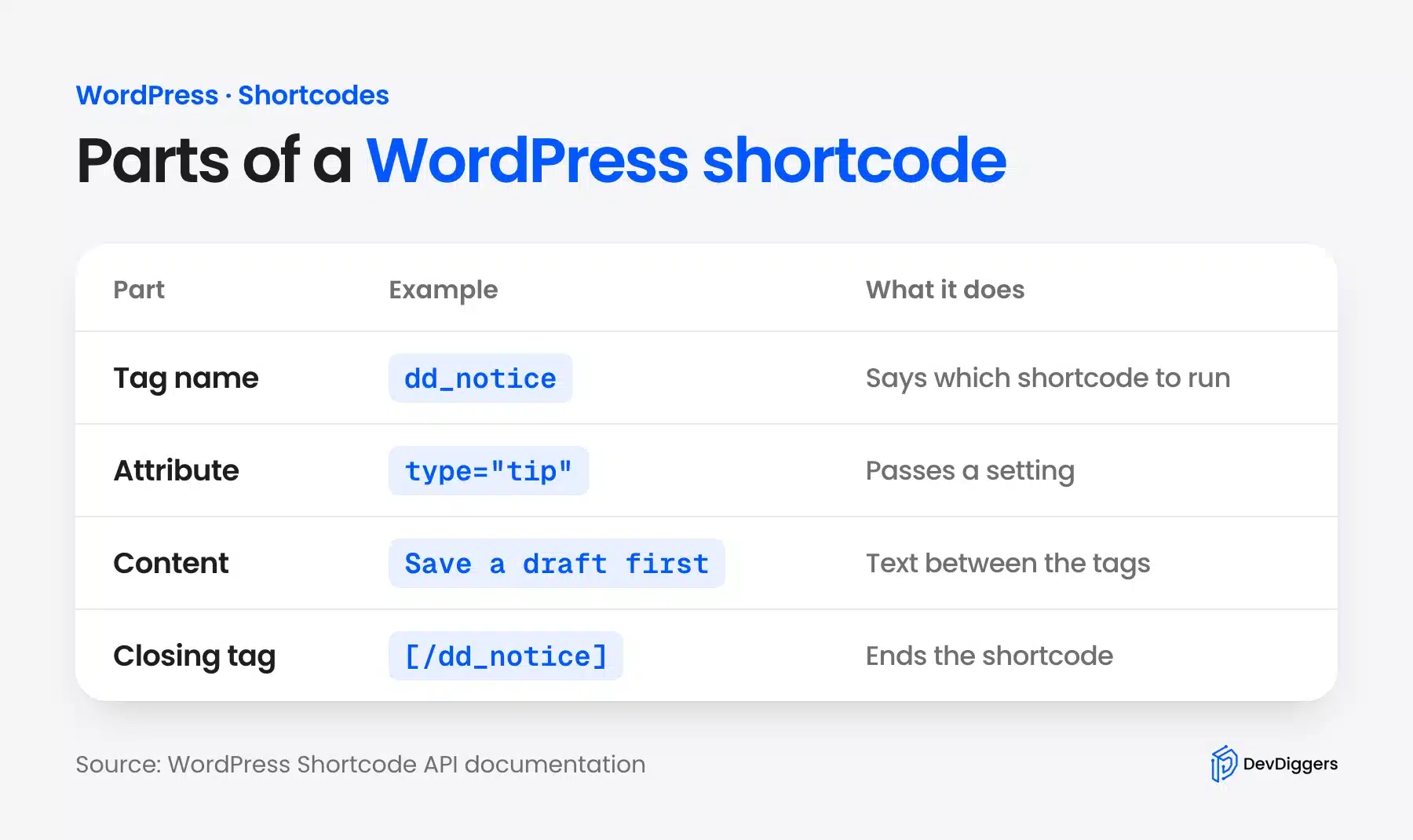
A shortcode has up to four parts. The tag name says which shortcode to run, and attributes pass settings. Content sits between an opening and a closing tag, and the closing tag ends it.
A simple shortcode such as [dd_year] has only the tag name. Longer ones, such as [dd_notice type="tip"]Text[/dd_notice], use all four parts.
Note: If you build a store, WooCommerce adds its own set of shortcodes for carts, checkouts and product lists. Our WooCommerce shortcodes list covers those, and this guide stays with the shortcodes that work on any WordPress site.
How to Use Shortcode in WordPress Posts and Pages
To use a shortcode in a post or page, add a Shortcode block, paste the shortcode into it and save the page. WordPress replaces the text with the output when the page loads. A plain Paragraph block also works, but the Shortcode block keeps the tag easy to find later.
- Open the editor: Go to Posts > Add New or Pages > Add New, or edit an existing page.
- Add the block: Click the blue plus button, search for Shortcode and click the block. You can also type
/shortcodeon a new line and press Enter.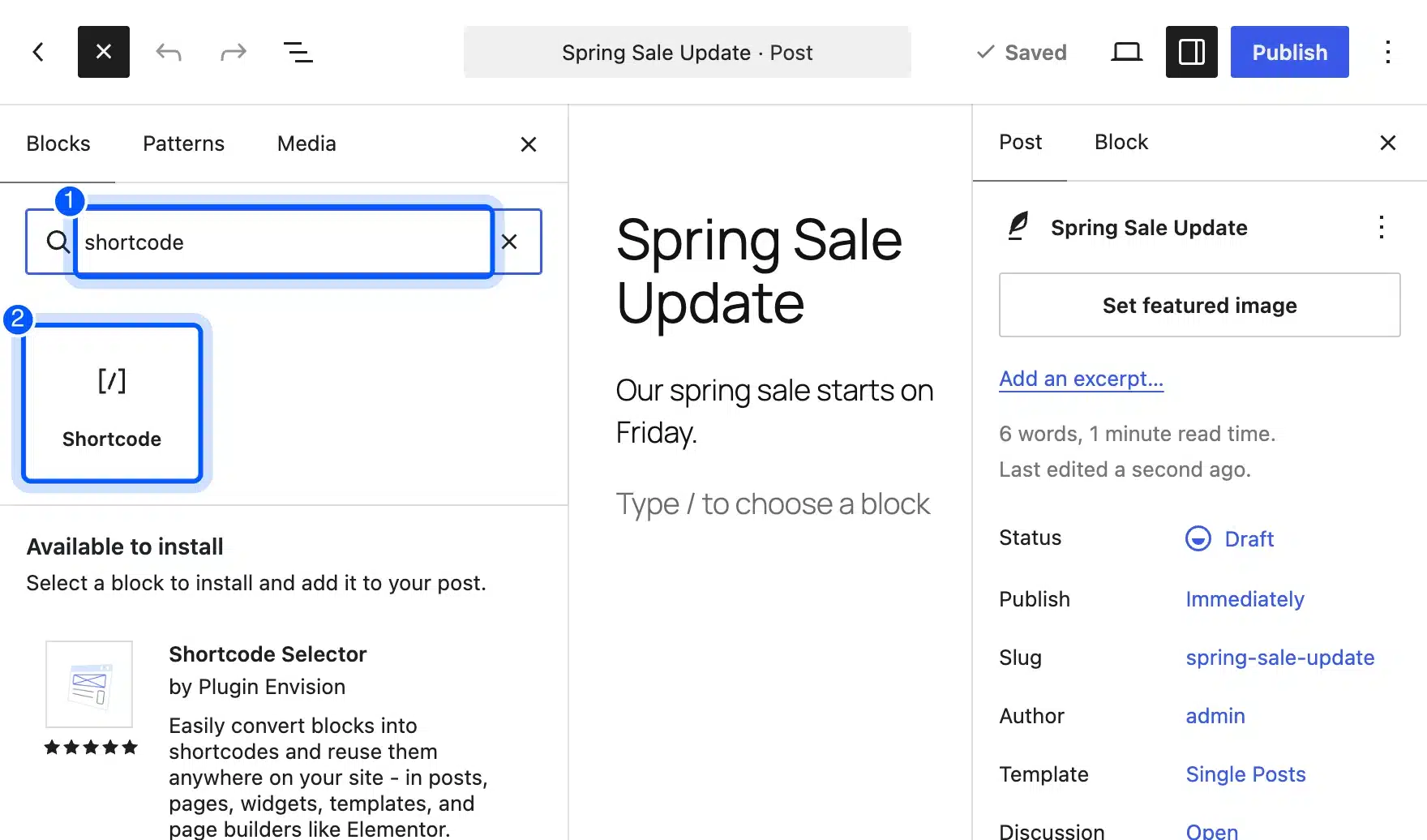
- Paste the shortcode: Type or paste the tag, including the square brackets and any attributes.
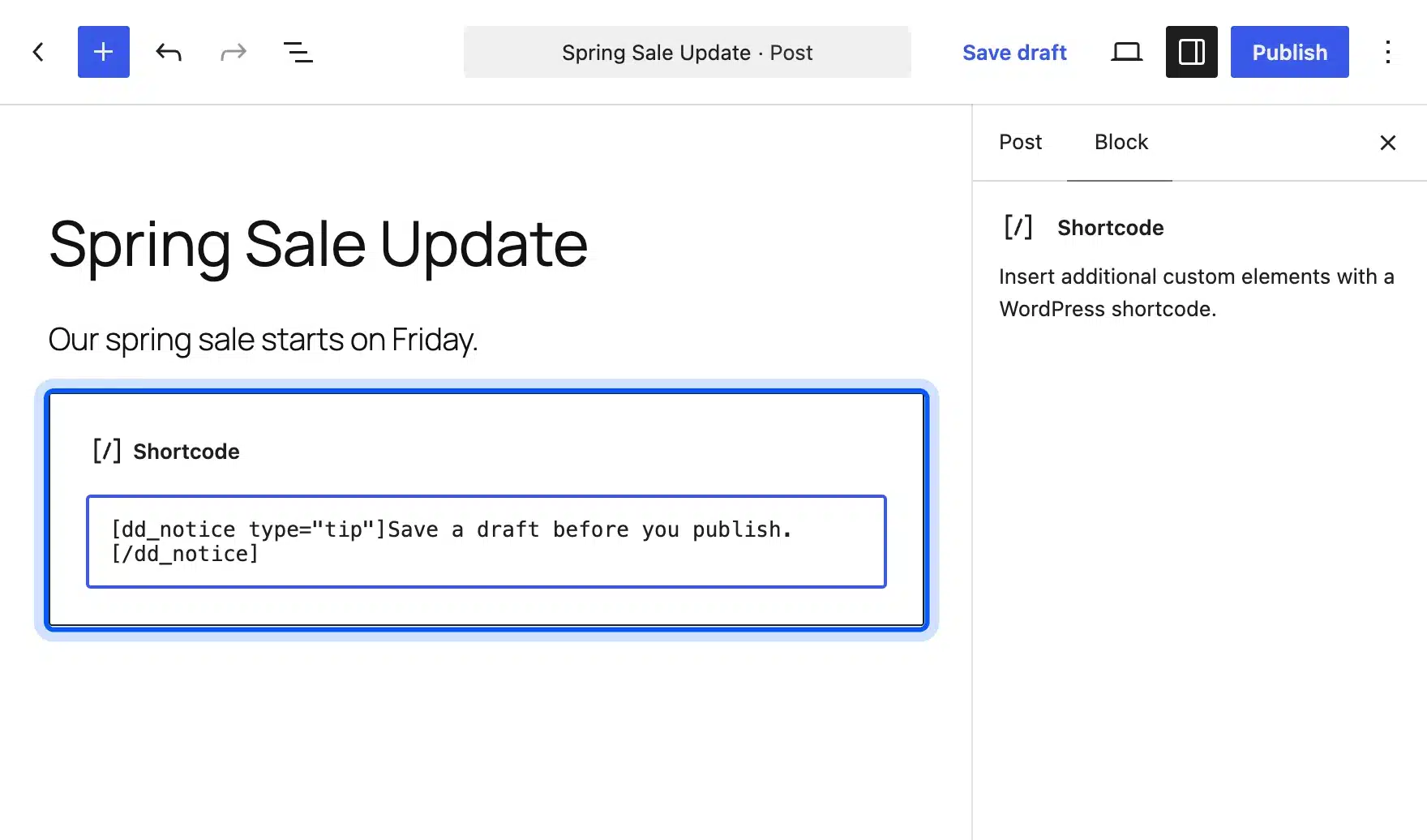
- Save and view: Click Save draft, then use View to open a preview.
The WordPress documentation for the Shortcode block says the block sits in the Widgets group and has no settings of its own. On the test site, searching for shortcode in the inserter returned the Shortcode block first, with a list of installable plugin blocks below it.
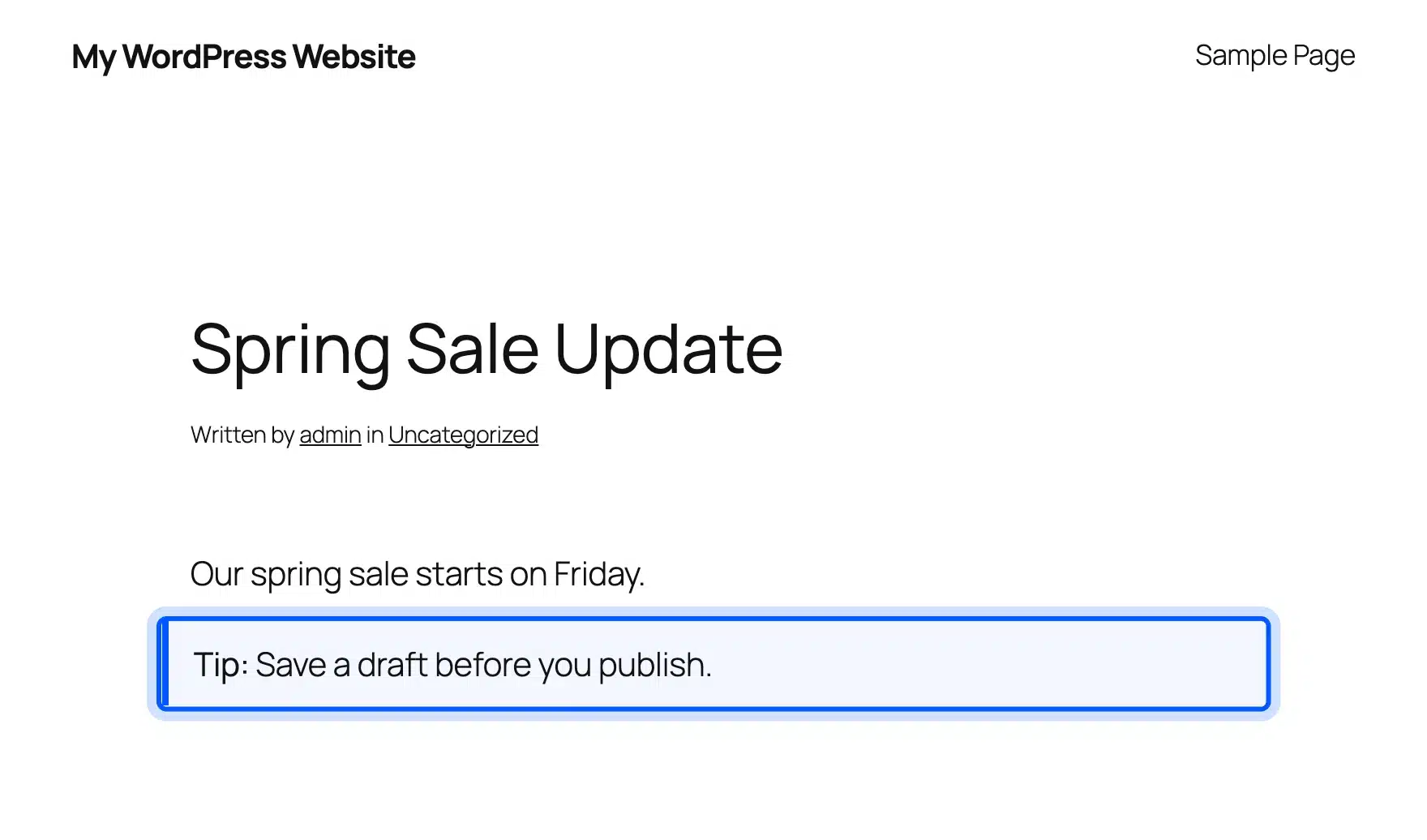
After saving, the preview showed the rendered box in place of the shortcode text. The tip box below came from the custom shortcode that you will build later in this guide.
Tip: Use a Paragraph block when the shortcode sits inside a sentence, such as a year in a footer line. Use the Shortcode block when the shortcode produces a block of content on its own.
How to Add a Shortcode to a Widget or Footer
To add a shortcode to a widget area, open Appearance > Widgets on a classic theme and add a Shortcode block there. On a block theme, edit the footer in the Site Editor and add the same block. WordPress then runs the shortcode on every page that shows the area.
On the test site, the classic theme Twenty Twenty-One showed a Footer widget area with a plus button at its end. Clicking it and searching for Shortcode inserted the block, and typing a tag into its field was all that was needed before clicking Update.
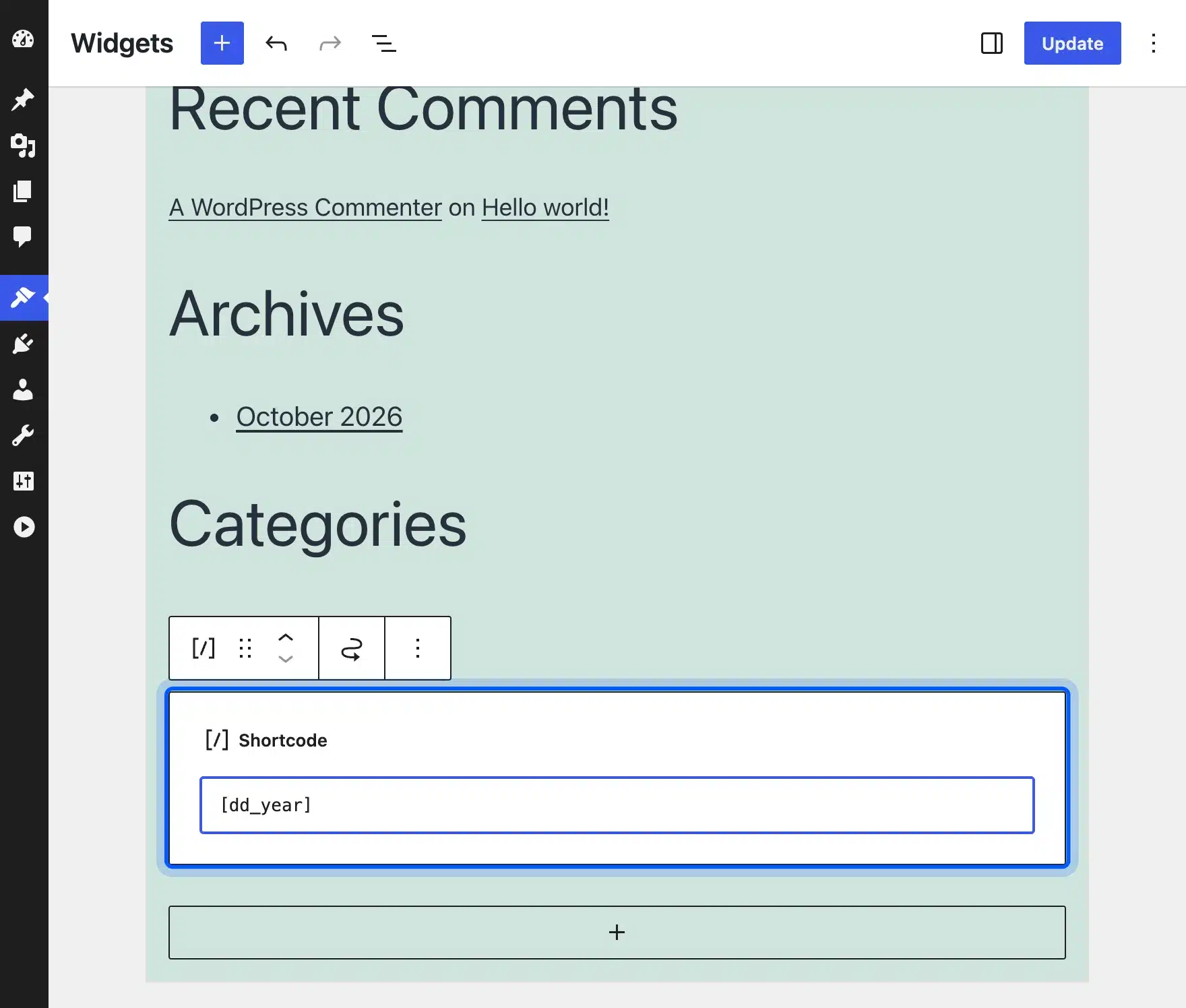
On the block theme used for testing, opening the Widgets screen showed an error saying the theme is not widget-aware. Block themes use template parts instead, so you edit the footer under Appearance > Editor and add the Shortcode block in the same way.
How to Add a Shortcode to a WordPress Menu
A shortcode typed into a menu item does not run by default. WordPress prints the text as written, because menu labels are not passed through the shortcode parser. You can make menus run shortcodes with one line of code, but the result works best for short text.
On the test site, a menu link labeled with a shortcode printed the square brackets and the tag name on the page. The screenshot shows the literal text in the Twenty Twenty-One header.
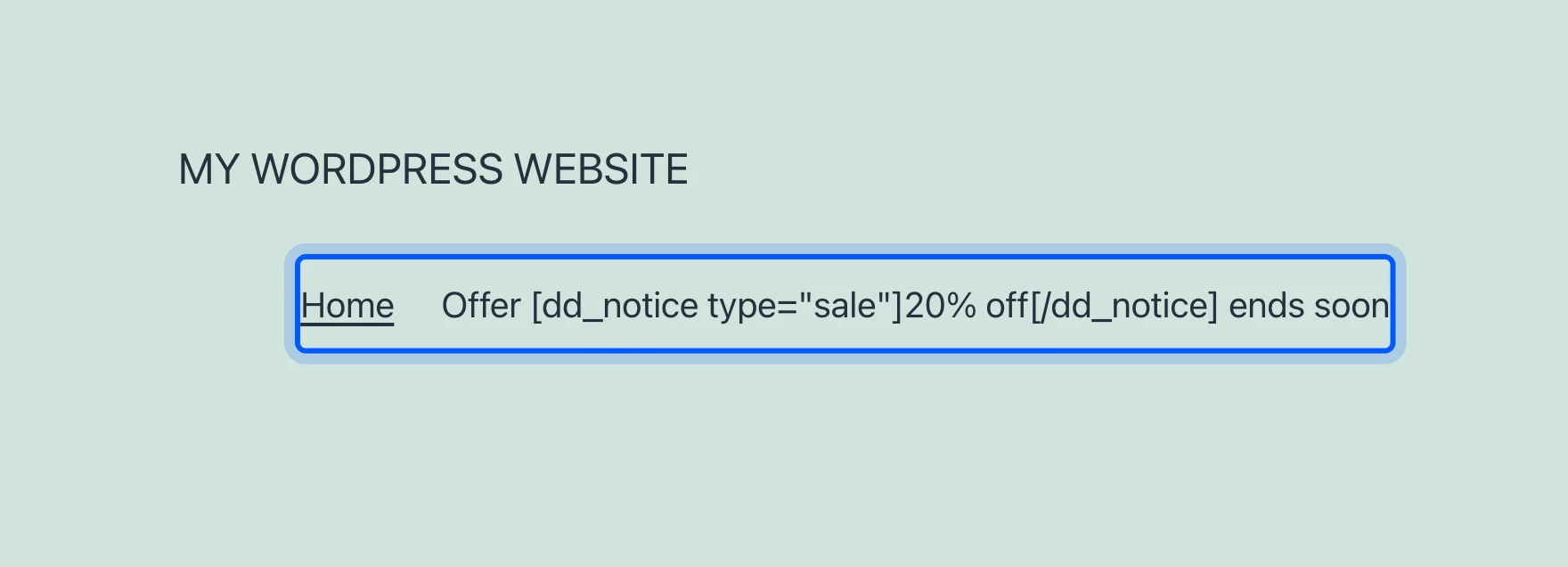
The fix is to pass the menu HTML through do_shortcode. Add this line to a small plugin or your child theme:
add_filter( 'wp_nav_menu_items', 'do_shortcode' );
After adding the filter, the same menu item printed the shortcode output. The box broke the line of the menu. That shows the limit of this method, because shortcodes that return block level HTML do not sit well inside a menu bar.
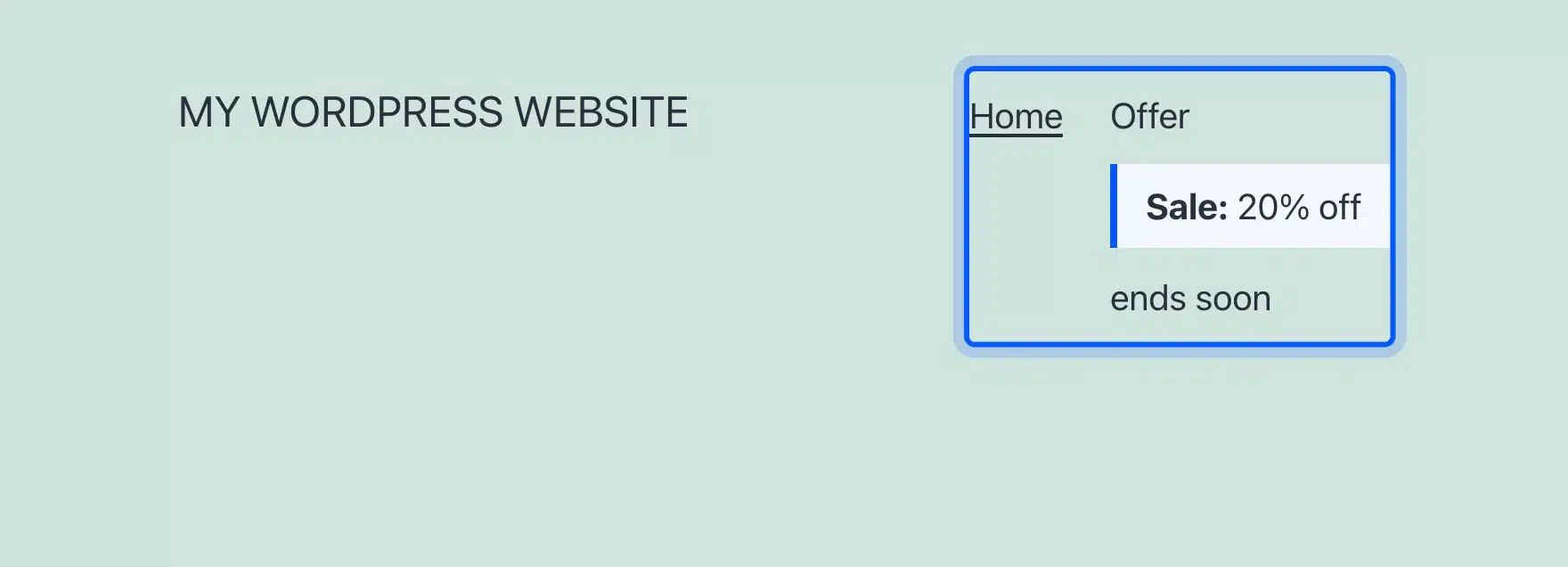
For a menu item that stays on one line, use a shortcode that returns plain text, such as [dd_year].
How to Add a Shortcode to a Theme File or Plugin
To run a shortcode from PHP, call do_shortcode() and echo the result. WordPress documents the function as searching content for shortcodes and filtering them through their hooks, and it has existed since version 2.5.0. Use it in a theme template, a plugin or any other PHP code.
<?php echo do_shortcode( '[dd_year]' ); ?>
The do_shortcode reference also notes that if no shortcode tags are defined, the content comes back unchanged. That is why a deactivated plugin makes its shortcode appear as raw text on the page.
Page builders have their own widgets for this job. Elementor, for example, has a Shortcode widget in its Widgets section.
You paste the shortcode into its input field, and the output appears on the live page. The Elementor Shortcode widget guide says you cannot style the output inside Elementor. If you are still choosing a builder, our roundup of the best WordPress AI website builders compares the main options.
How to Create a Custom Shortcode in WordPress
To create a custom shortcode, register a callback with add_shortcode() in a plugin or a child theme. The function takes a tag name and a callback, and the callback must return the output instead of echoing it. Since WordPress 2.5.0 the function has been the core of the shortcode API.
The add_shortcode reference says the callback receives the attributes array, the content and the tag name. It also warns that only one callback can exist per tag, and that the plugin loaded last wins when two use the same tag. Prefix your tags to avoid that clash.
This example registers a self-closing shortcode that prints the current year, and it worked on the 7.1.3 test site:
add_shortcode( 'dd_year', function () {
	return esc_html( gmdate( 'Y' ) );
} );
If you want a shortcode that calls an AI service, our guide on AI integration with WordPress shows where such code fits. Place the code in a small plugin or a code snippets plugin. Code in a theme’s functions.php file disappears when you change themes, so use a child theme if you go that route.
To make a small plugin, create a file named dd-shortcodes.php in wp-content/plugins/dd-shortcodes/ and start it with this header:
<?php
/**
 * Plugin Name: DD Shortcodes
 * Description: Custom shortcodes for this site.
 */
Paste your add_shortcode() calls below the header, then activate the plugin on the Plugins screen. The shortcode keeps working when you change the theme, and you can turn it off by deactivating the plugin.
How to Add Attributes and Content
To add attributes, merge the user’s values with defaults using shortcode_atts(). The developer documentation says WordPress lowercases attribute names before processing, so the callback should read lowercase keys. Enclosing shortcodes also receive the text between the opening and closing tags as the second argument.
add_shortcode( 'dd_notice', function ( $atts = [], $content = null, $tag = '' ) {
	$atts = shortcode_atts( array( 'type' => 'tip' ), array_change_key_case( (array) $atts, CASE_LOWER ), $tag );
	$out  = '<div class="dd-notice dd-notice--' . esc_attr( $atts['type'] ) . '">';
	$out .= '<strong>' . esc_html( ucfirst( $atts['type'] ) ) . ':</strong> ' . do_shortcode( wp_kses_post( (string) $content ) );
	return $out . '</div>';
} );
With that code active, the shortcode [dd_notice type="tip"]Save a draft first.[/dd_notice] printed a box that started with the word Tip. Changing the attribute to type="sale" changed the label to Sale.
How to Nest Shortcodes
To nest shortcodes, call do_shortcode() on the content inside your callback. The example above does this, so one shortcode can wrap another. WordPress does not parse nested shortcodes unless the outer callback runs the parser on its content.
On the test site, the content [dd_notice type="tip"]Copyright [dd_year] Example Co.[/dd_notice] printed a Tip box that read Copyright 2026 Example Co. The inner year shortcode ran because the outer callback passed its content through do_shortcode.
Worth knowing: Keep nesting shallow. Each level adds a parsing pass, and a deeply nested tag is hard to debug when one tag has a typo.
The Shortcode API guide stresses three habits: sanitize input, escape output, and return values instead of printing them. The example above follows them with esc_attr, esc_html and wp_kses_post.
How to Find the Shortcode for a Plugin
Most plugins list their shortcodes on their own settings screen or in their documentation, so look there first. If you cannot find one, check whether the plugin adds a block, because many plugins now offer both. Search the Block Inserter for the plugin name and see what appears.
Many plugins also list their shortcodes on their WordPress.org description page or in a documentation site, so search there by the plugin name. Premium plugins usually keep a shortcode list in their help center.
WordPress also keeps every registered tag in a global array. The remove_shortcode reference says the function unsets a tag from the global $shortcode_tags array. That makes the array the master list of tags on your site.
Developers can read it with array_keys( $GLOBALS['shortcode_tags'] ) to see every tag that is active.
Worth checking: A tag only appears in that list while its plugin or theme is active. If a tag is missing, the plugin that registers it is probably deactivated.
How to Add a Shortcode in the Classic Editor
The Classic Editor accepts shortcodes in both the Visual and Text tabs of the editing screen. Type the tag where you want the output and click Update to save the page. The method is the same as in the block editor, except that no Shortcode block exists.
If you use the Classic Editor plugin, shortcodes work in the same way, because WordPress runs them when it displays the content. That makes shortcodes a safe choice on older sites that have not moved to blocks.
According to the plugin description, administrators choose the default editor for all users on the Settings > Writing screen. Each user can then open a post in the editor that suits the content, and the shortcode output stays the same in both.
WordPress Shortcode vs Block
A block is the modern way to add dynamic content, while a shortcode is the older way that many plugins still use. Blocks show a live preview in the editor and have a settings sidebar. Shortcodes show only their text in the editor, which makes them harder for editors to use.
| Feature | Shortcode | Block |
|---|---|---|
| Editor preview | Shows the tag text | Shows a live preview |
| Settings | Typed attributes | Sidebar controls |
| Works in classic themes | Yes | Yes |
| Plugin support | Very common | Growing |
| Best for | Plugins that only offer a shortcode | New content and layouts |
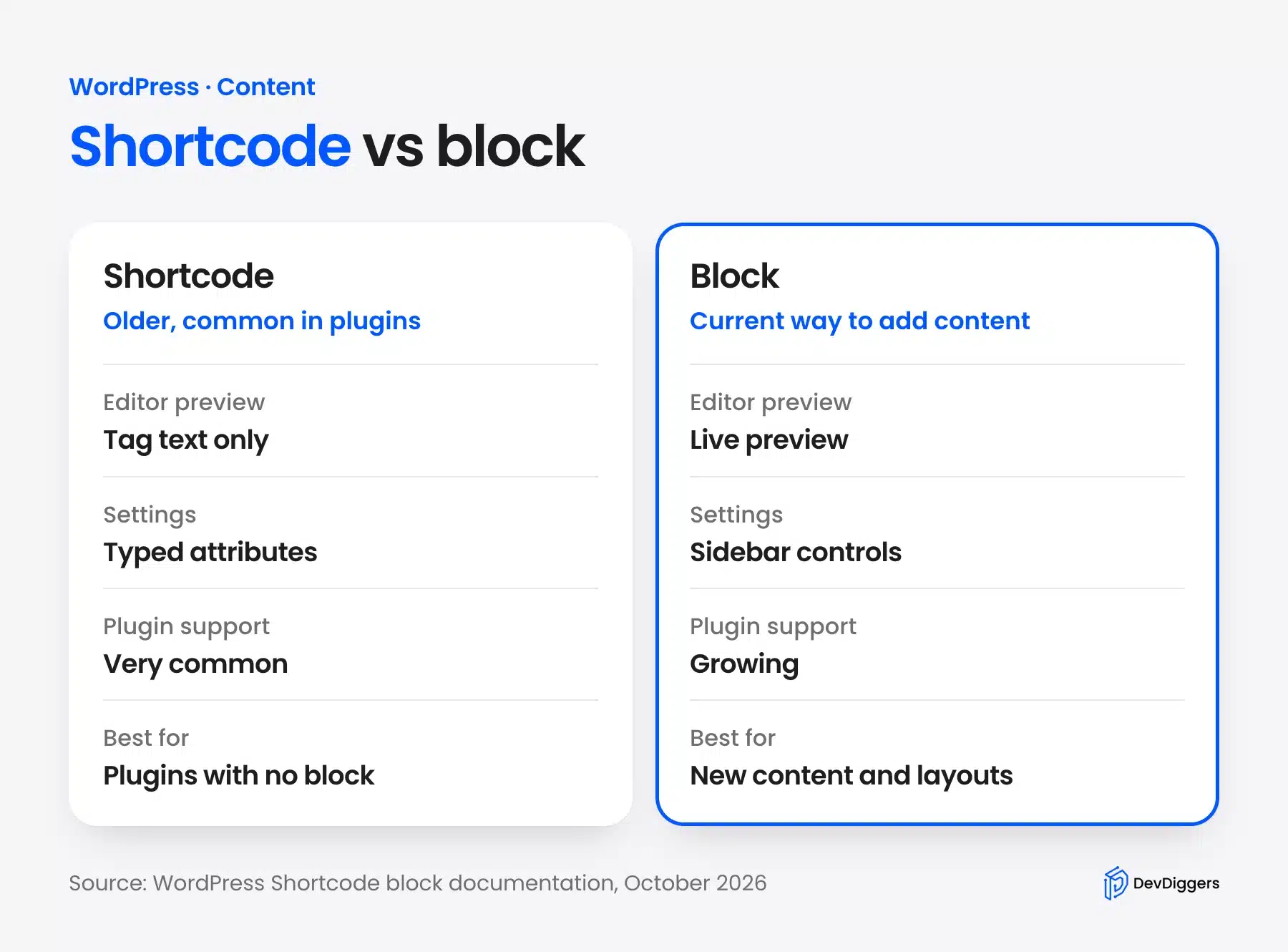
Use blocks for new content and keep shortcodes for plugins that give you no block. WordPress also lets you transform a Shortcode block into a Group or Columns block, according to the block documentation.
Why Is My WordPress Shortcode Showing as Text?
A shortcode shows as plain text when WordPress cannot find a callback for its tag. The usual causes are a misspelled tag, a deactivated plugin or a place that does not run the parser. Check the spelling first, then confirm the plugin is active.
On the test site, a correct tag printed a styled box. A tag with one letter missing printed the full text, including both square brackets. That makes typos easy to spot because the shortcode appears exactly as typed.
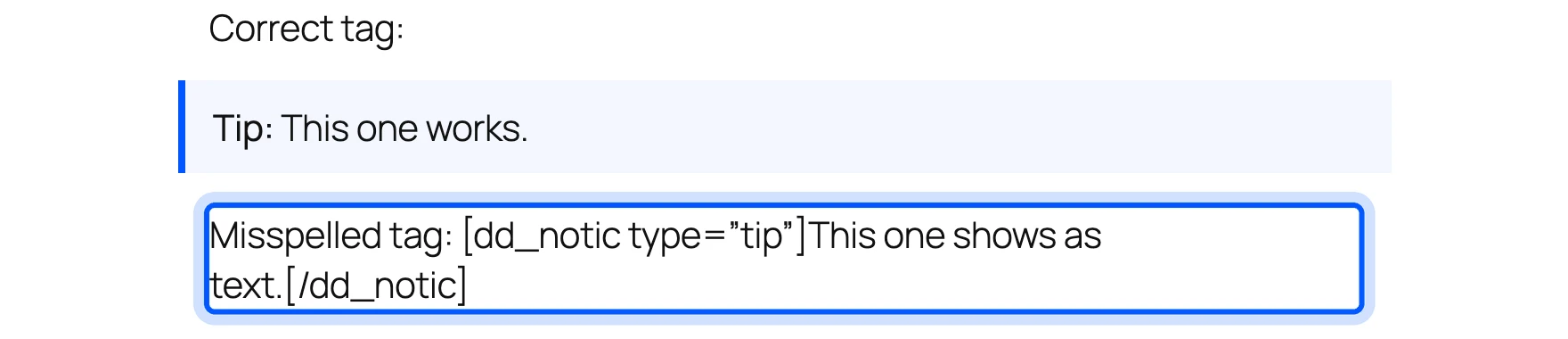
- Misspelled tag: Compare the tag with the plugin’s documentation, because one wrong letter turns it into text.
- Inactive plugin: The documentation says content returns unchanged when no tag is registered, so reactivate the plugin.
- Wrong place: Menus, theme files and some widget areas need the steps in the sections above.
- Curly quotes: Attribute values need straight quotes, so retype them if they look slanted.
Shortcode Security and Speed
A shortcode runs PHP every time a page renders, so a careless one can break a page or open a security hole. Escape every value that you print, and treat attribute values as untrusted input. A slow shortcode also slows every page that uses it.
Install shortcode plugins only from sources you trust. Every extra plugin also adds weight, as our post on too many plugins on a WordPress site explains.
The Shortcode API guide says to sanitize input and escape output. It also says to prefix shortcode names and to return values instead of creating side effects.
The two lines below show the difference. The first prints an attribute as typed, which lets a visitor or editor inject markup. The second escapes it first.
// Unsafe: prints the attribute exactly as it was typed.
return '<div class="' . $atts['type'] . '">';

// Safe: escapes the attribute before printing it.
return '<div class="' . esc_attr( $atts['type'] ) . '">';
A slow callback slows every page that uses the shortcode. Avoid database queries that run for every visitor without caching.
Common Shortcode Mistakes
Most shortcode problems come from a small number of habits that are easy to avoid. The list below covers the five that cost beginners the most time. Each one has a short fix, and you can check your own code against the list before you publish.
- Echoing output: The callback must return its output, and echoing makes the content jump to the wrong place.
- Skipping the prefix: A tag such as
noticecan clash with another plugin, and the last plugin loaded wins. - Putting code in functions.php: The shortcode vanishes when you switch themes, so use a plugin.
- Pasting curly quotes: Text copied from a document can change straight quotes into slanted ones and break attributes.
- Using a shortcode where a block exists: A block gives editors a preview, so prefer it when the plugin offers one.
Conclusion
A WordPress shortcode is a bracketed tag that WordPress swaps for output when the page loads. Add it with the Shortcode block in posts, pages and widgets. Use do_shortcode() in theme files, and pass menus through the same function if you need it there.
To write your own, register a callback with add_shortcode(), prefix the tag, escape the output and return it. Use blocks for new content when you can. If you want a custom shortcode built for your store, our WordPress plugin development team can write it for you.
Frequently Asked Questions (FAQs)
Q1. Do all WordPress themes support shortcodes?
Yes. Shortcodes run in post and page content on any theme because WordPress handles them in core. Widgets, menus and template files need the extra steps in this guide.
Q2. Can I use a shortcode inside Elementor?
Yes. Elementor has a Shortcode widget in its Widgets section, and the Elementor guide says you paste the shortcode into its input field. The output shows on the live page, but you cannot style it inside Elementor.
Q3. Can too many shortcodes slow down my website?
They can. Each shortcode runs PHP when the page renders, so slow callbacks add to load time. Keep callbacks light and avoid repeated database queries.
Q4. How do I find the shortcode for a plugin I installed?
Check the plugin’s settings screen or its documentation page, because most plugins list their shortcodes there. Many plugins also add a block, so search the Block Inserter by the plugin name.
Q5. Do I need coding experience to use shortcodes?
No. Using a shortcode means typing a tag into a block, and the steps above need no code. Creating your own shortcode needs basic PHP.
Q6. How do I remove a shortcode?
Delete the tag from the content to remove one use. To turn a shortcode off for the whole site, call remove_shortcode() with its tag. The function reference says it removes the hook for the shortcode.
Q7. What happens to shortcodes when I deactivate a plugin?
The shortcode appears as plain text on the page. WordPress returns the content unchanged when no callback is registered, according to the do_shortcode reference. Reactivating the plugin fixes it.
Q8. Are shortcodes outdated?
No. WordPress still supports the Shortcode API, and plugins still use it. Blocks are better for new content, but the Shortcode block exists so that older shortcodes keep working.