To connect WordPress to Claude AI, use the Model Context Protocol (MCP). WordPress.com sites add the official WordPress.com connector in Claude. Self-hosted sites install the WordPress MCP Adapter plugin, then link Claude with an application password.
Older guides say the WordPress.com connector is read-only. That is out of date. WordPress.com’s own support page for Claude now says Claude can create and edit posts, manage comments and update media, and asks you to confirm deletions.
We tested the WordPress side on a fresh WordPress 7.1.2 site. The Claude and MCP Adapter steps come from the official documentation we reviewed in September 2026, and we credit every screenshot that is not ours.
What Does It Mean to Connect WordPress to Claude AI?
Connecting WordPress to Claude means giving Claude a structured way to read or manage your site through MCP, instead of pasting content into a chat. MCP is an open standard that lets an AI app call actions on another system. WordPress exposes those actions as abilities.
The WordPress MCP Adapter announcement explains the idea. It treats the Abilities API as the foundation. The adapter turns those abilities into MCP tools that an AI client such as Claude Desktop can discover and run.
Nothing is open by default. The adapter’s GitHub page says WordPress abilities are private until you mark them public, so you decide what Claude can touch.
What You Need Before You Connect WordPress to Claude
You need a Claude account, a WordPress site and a route that fits your hosting. The route also decides what else you install. Check the list below before you start, because the missing piece is usually Node.js or a public URL.
- Claude plan: Claude’s help center says custom connectors work on Free, Pro, Max, Team and Enterprise plans. Free users are limited to one custom connector.
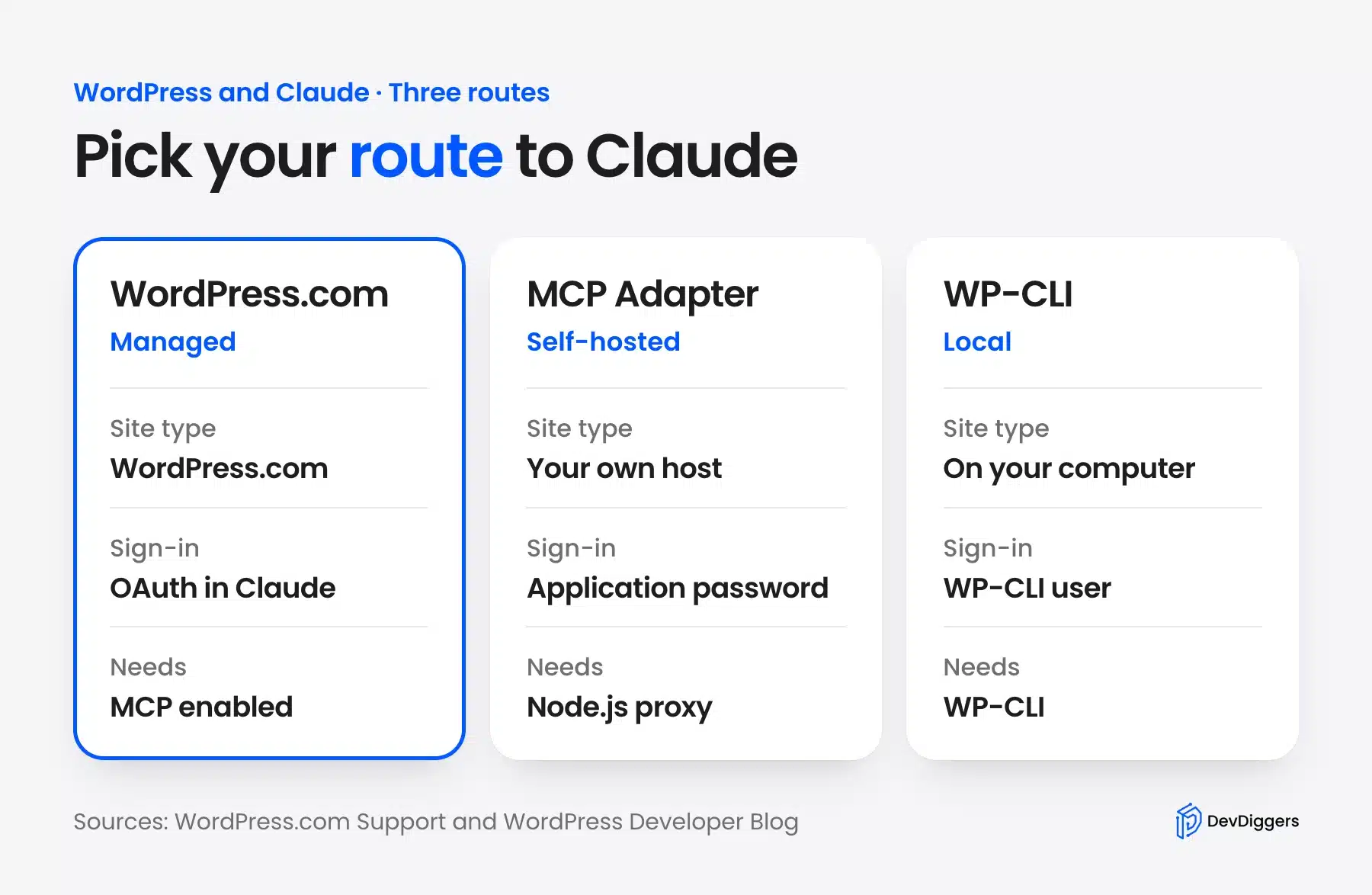
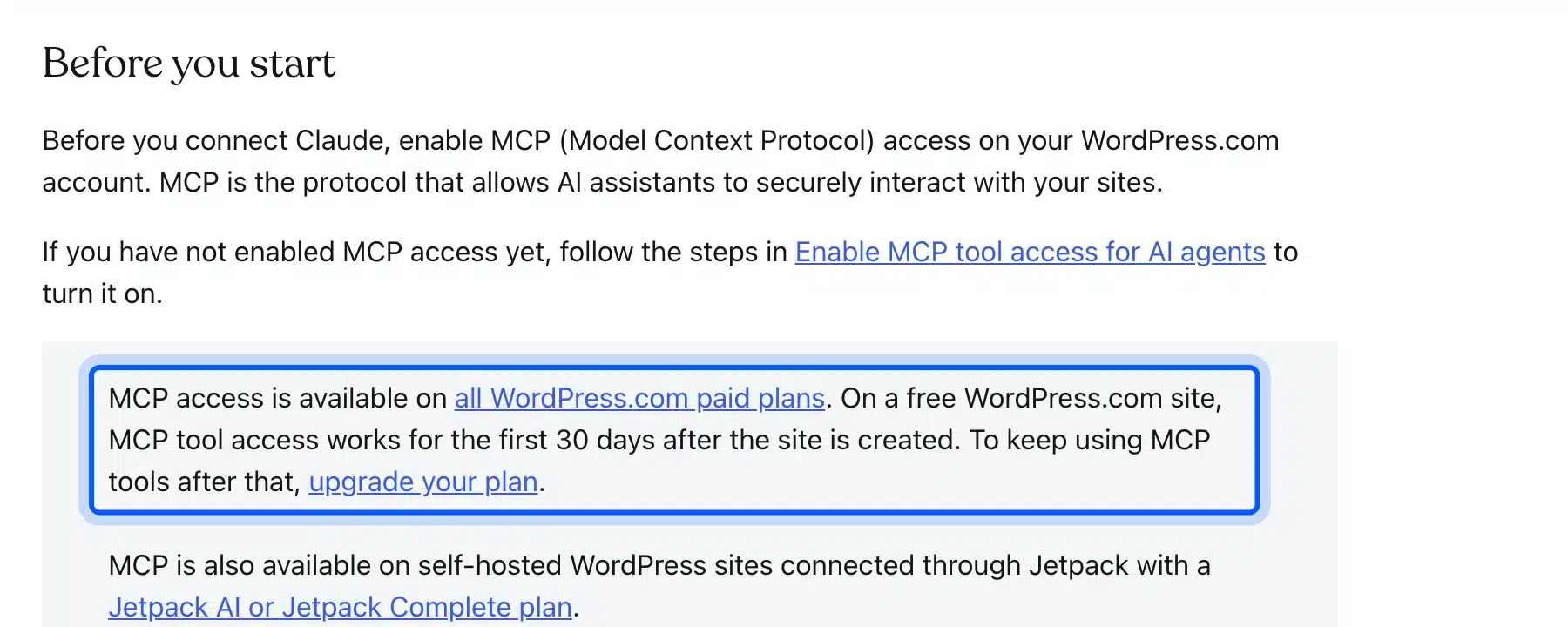
- WordPress.com route: MCP access works on all paid plans. A free WordPress.com site gets MCP tool access for the first 30 days.
- Self-hosted route: Install the MCP Adapter plugin and create an application password.
- Node.js: The HTTP proxy in the official guide needs Node.js on your computer.
One more detail matters for staging sites. The same page says Claude connects to a remote MCP server from Anthropic’s cloud, and it does not connect from your device.
A site behind a private network or a staging password will not answer.
Method 1: Connect WordPress.com to Claude
You can connect WordPress to Claude AI through WordPress.com without a plugin, and it is the shortest route. Turn on MCP access in your WordPress.com account, then add the official WordPress Claude connector from the WordPress.com team and approve the sign-in. WordPress.com describes it as an official partner in the Claude Connectors Directory.
Start by enabling MCP on your account. WordPress.com’s page says to do this before you connect Claude, and it links a guide called Enable MCP tool access for AI agents.
Then add the connector in Claude:
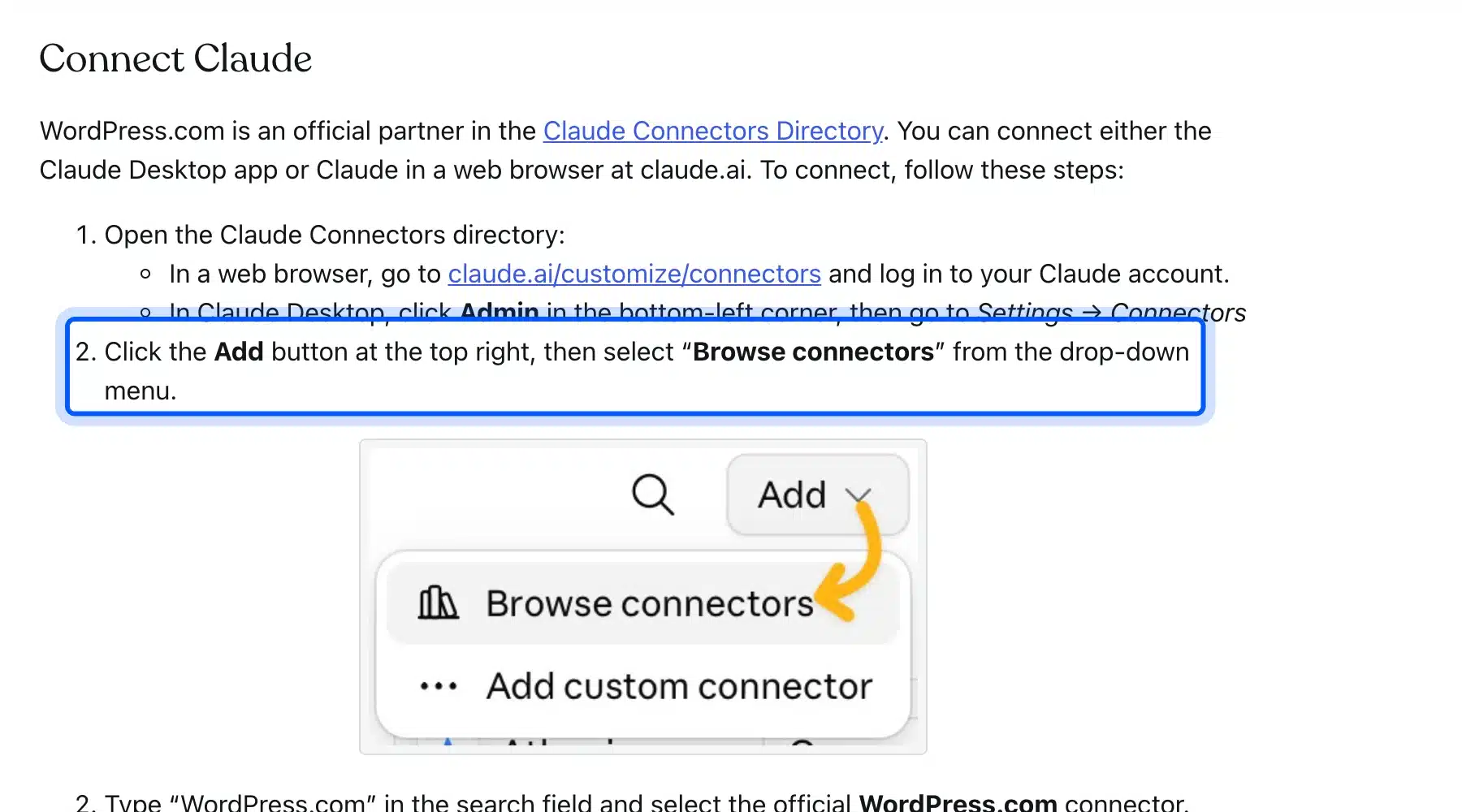
- Open Connectors: Go to claude.ai/customize/connectors in a browser. In Claude Desktop, click Admin, then Settings, then Connectors.
- Browse: Click Add at the top right, then choose Browse connectors.
- Find WordPress.com: Search for WordPress.com and select the official connector.
- Connect: Approve the sign-in and the permissions.
Once connected, ask a simple test question, such as “What are my five most recent posts?” If Claude answers with your posts, the connection works.
Method 2: Connect a Self-Hosted Site With the MCP Adapter
A self-hosted site needs the MCP Adapter plugin from GitHub. Download the plugin from the Releases page, then upload it and activate it on your site. Connect Claude Desktop through a local proxy that signs in with an application password.
The developer blog says the quickest install is the Releases page of the GitHub repository, and Composer is the other option. Follow these steps:
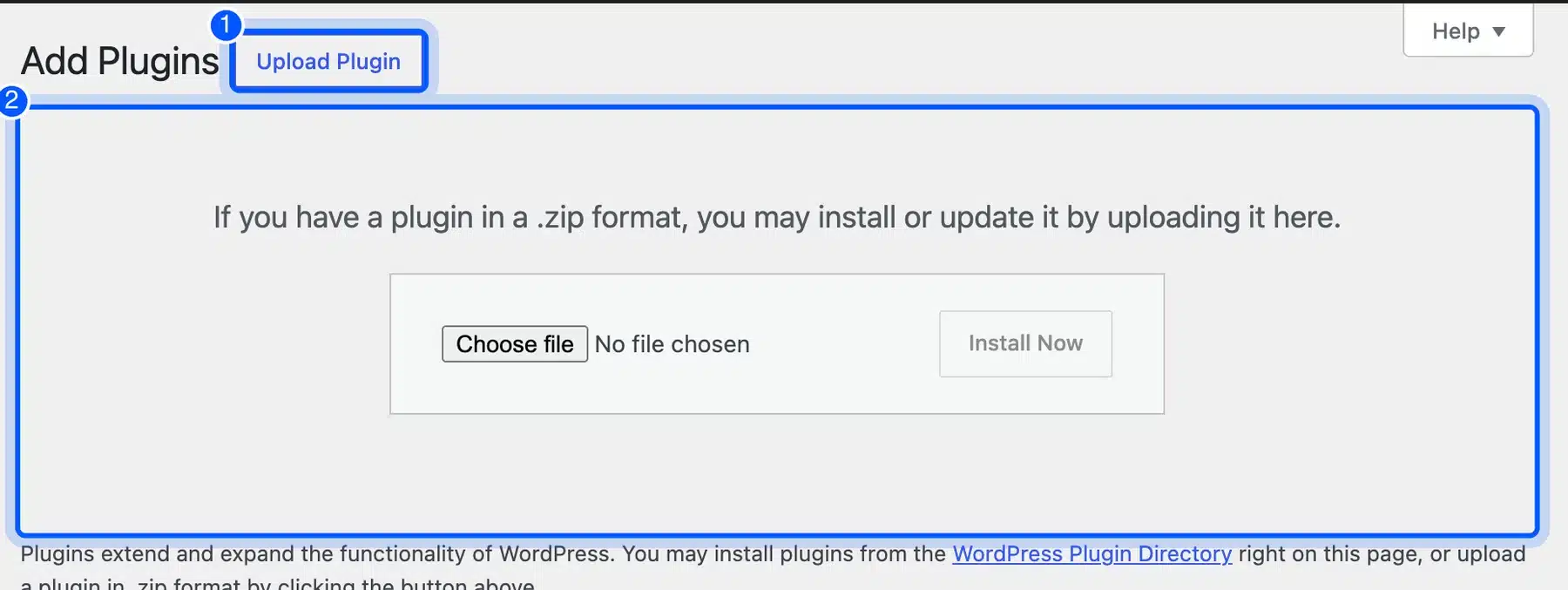
- Install the plugin: In WordPress, go to Plugins, then Add Plugin, then Upload Plugin and choose the zip file.
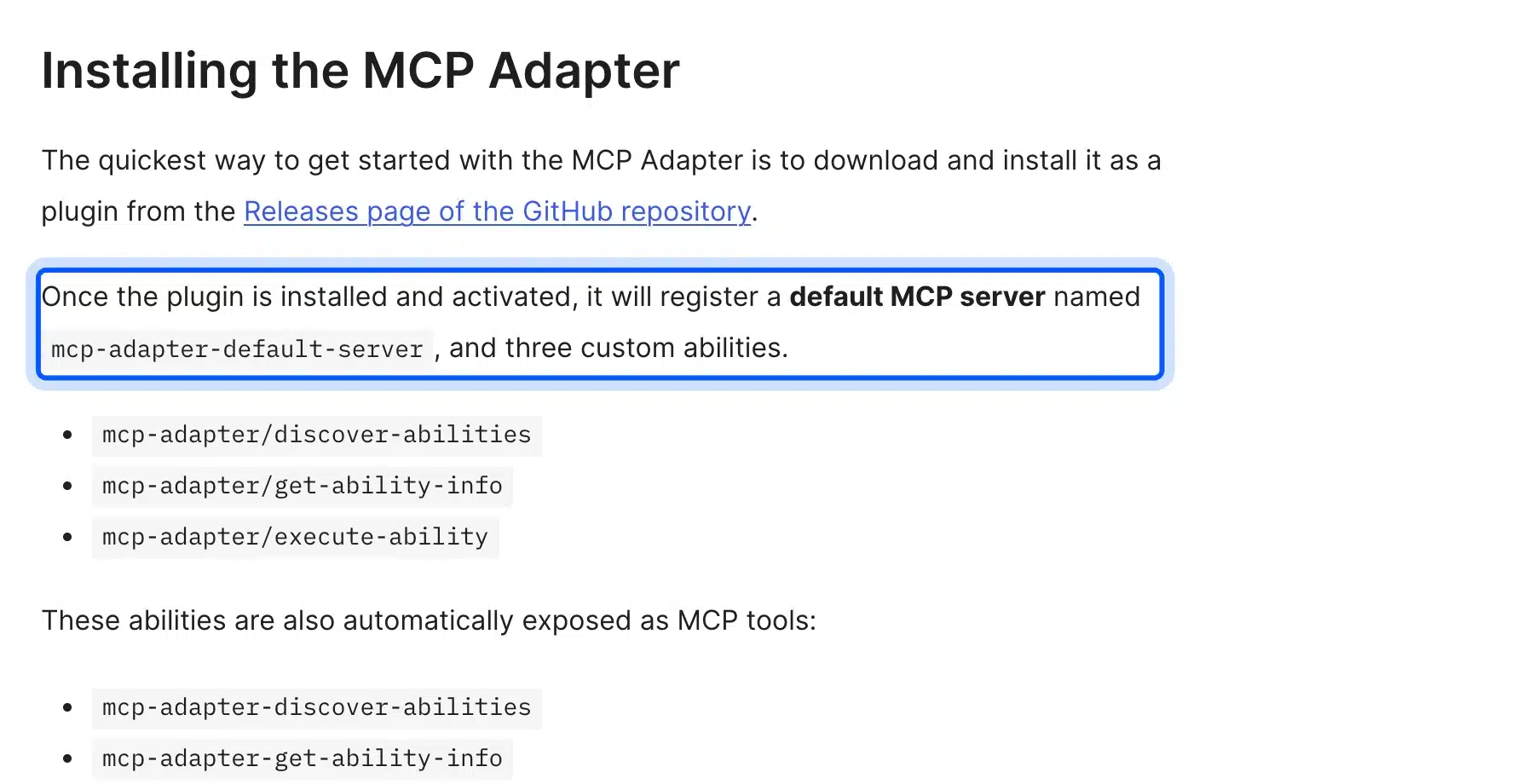
- Activate it: The plugin registers a default server named
mcp-adapter-default-server. - Note the endpoint: The REST address is your site URL plus
/wp-json/mcp/mcp-adapter-default-server. - Create an application password: Follow the safe setup in the next section.
- Edit the Claude config: In Claude Desktop, open Settings, then Developer, then Edit config.
- Restart Claude Desktop: The official guide says to restart it after saving.
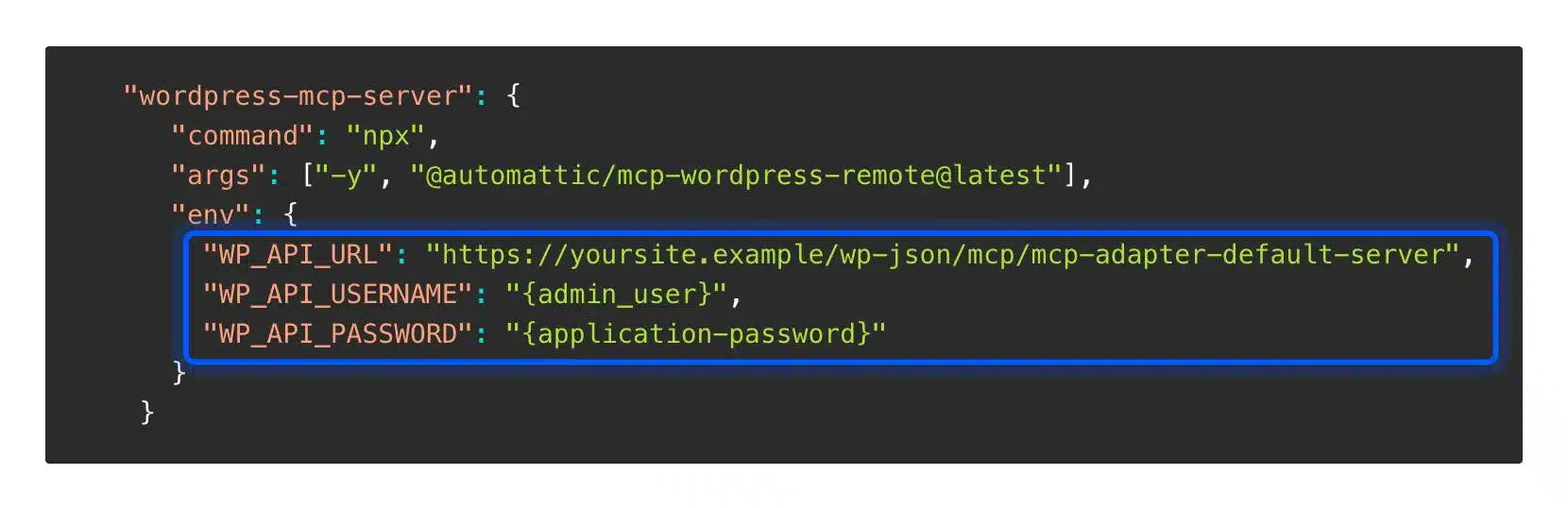
The config for the HTTP route uses a proxy package from Automattic. It needs Node.js, and the environment variables hold your endpoint, your username and the application password.
{
  "mcpServers": {
    "wordpress-mcp-server": {
      "command": "npx",
      "args": ["-y", "@automattic/mcp-wordpress-remote@latest"],
      "env": {
        "WP_API_URL": "https://yoursite.example/wp-json/mcp/mcp-adapter-default-server",
        "WP_API_USERNAME": "your-limited-user",
        "WP_API_PASSWORD": "your-application-password"
      }
    }
  }
}
Claude’s custom connector screen works differently. It asks for a remote MCP server URL and, optionally, OAuth details. It has no field for an application password.
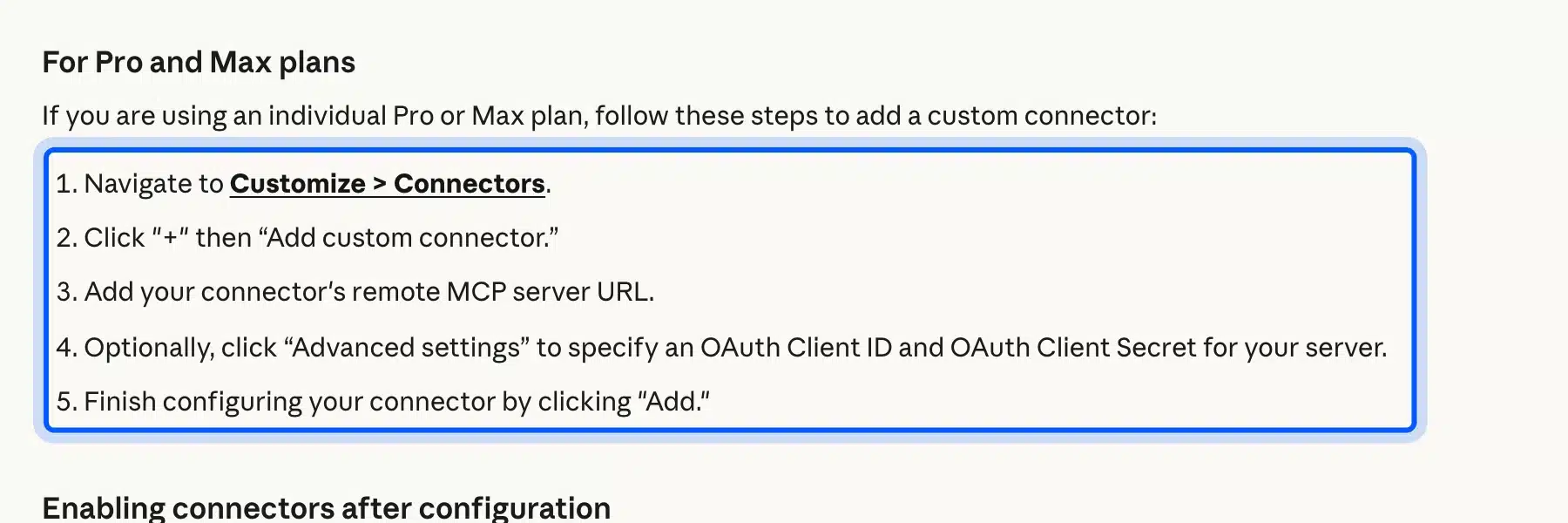
The developer blog notes that you can implement OAuth or another method on your own site. That is a developer task, so use the proxy route above unless you have a developer.
Method 3: Connect a Local Site With WP-CLI
A local development site can skip HTTP. The MCP Adapter supports a STDIO transport through WP-CLI, so Claude Desktop starts the server on your own machine. No public URL and no proxy are needed, which makes this the easiest way to try MCP safely.
The developer blog gives this configuration. Replace the path with your own WordPress folder and the user with a limited local account.
{
  "mcpServers": {
    "wordpress-mcp-server": {
      "command": "wp",
      "args": [
        "--path=/path/to/your/wordpress/installation",
        "mcp-adapter",
        "serve",
        "--server=mcp-adapter-default-server",
        "--user=admin"
      ]
    }
  }
}
Use this route for a test site first. Move to the HTTP route only after you trust the setup.
Before you edit the config, confirm that WP-CLI works on your machine. Run wp --info in a terminal and check that it prints your PHP and WordPress details.
The --user value decides who Claude acts as. Point it at a limited local account rather than a full administrator.
How to Set Up an Application Password Safely
An application password lets Claude sign in without your real login. WordPress lets you create one from a user’s profile page and revoke it at any time. Create it for a dedicated user with a low role, never for your own administrator account.
- Create a user: Go to Users, then Add User, and make an account only for Claude.
- Pick a low role: Choose the lowest role that still does the job you need.
- Open its profile: Sign in as that user, or edit the user from the Users screen.
- Name the password: Under Application Passwords, type a name such as Claude MCP.
- Add it: Click Add Application Password and copy the password right away.
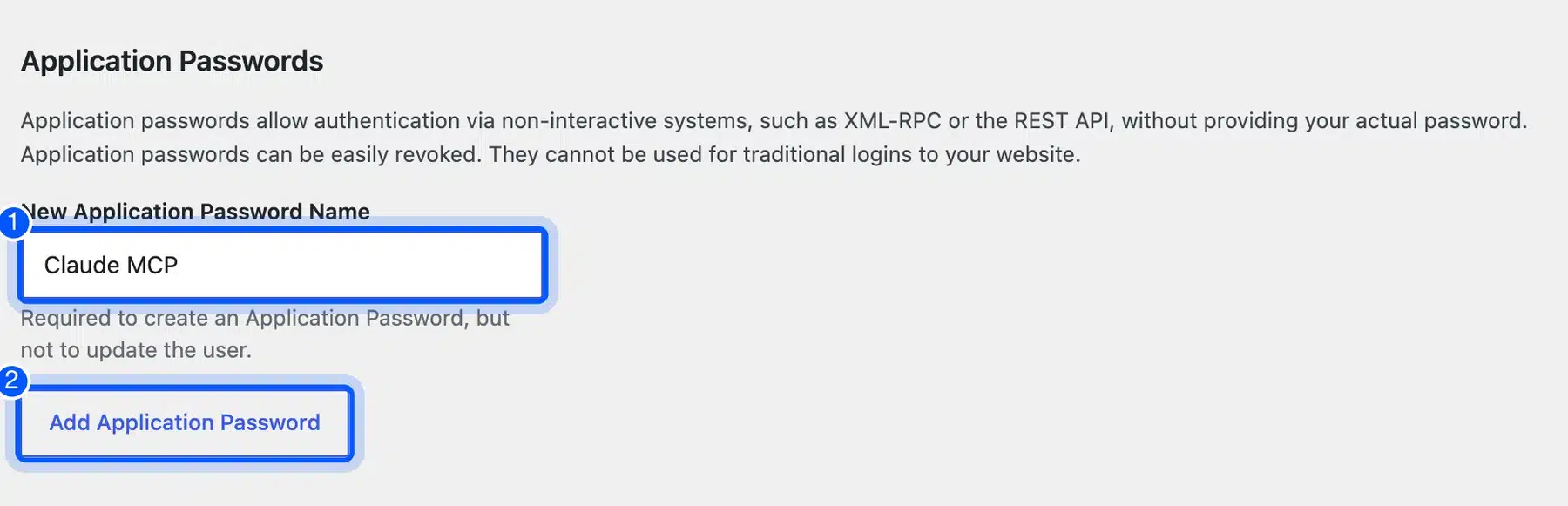
WordPress describes application passwords as a way to authenticate non-interactive systems without giving out your actual password. It also says they can be revoked easily and cannot be used for normal logins.
If a password leaks, revoke it on the same screen. The connection stops at once.
MCP Security: What the WordPress Team Recommends
Treat every MCP client as a logged-in WordPress user with real permissions. The WordPress Developer Blog says so directly in its security guidance. Its best practices include dedicated users, minimum capabilities, safe operations and read-only abilities for any public endpoint.
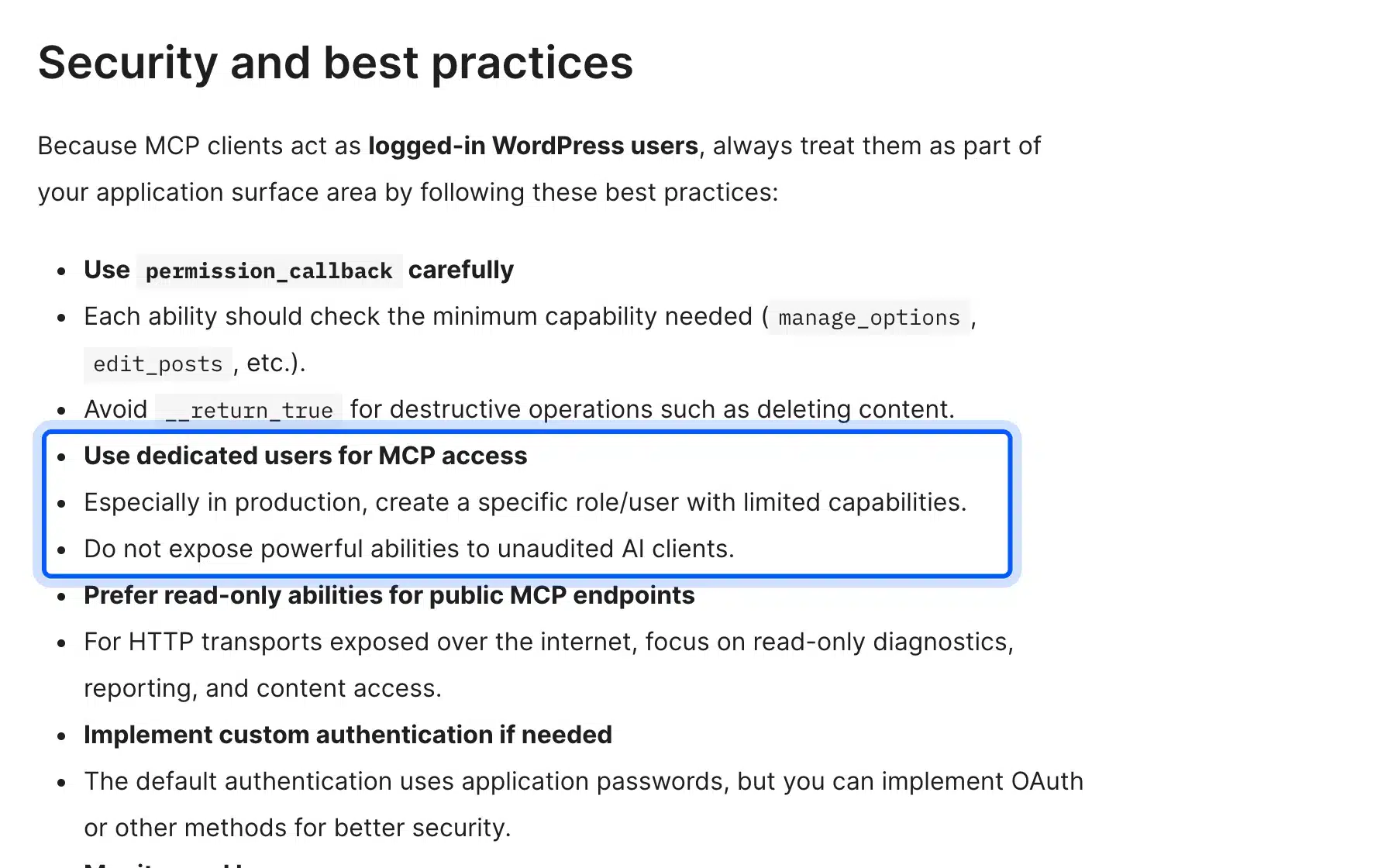
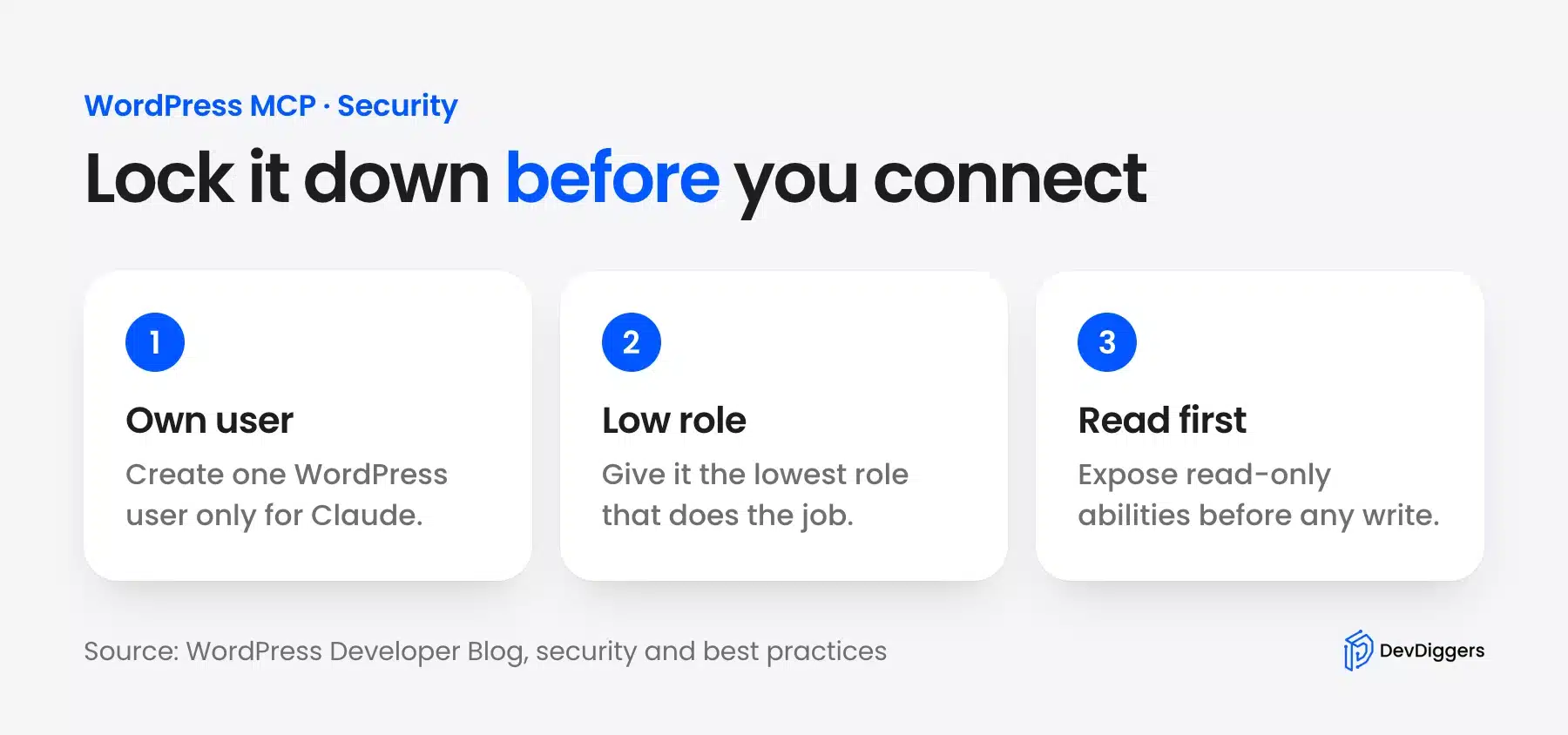
Those rules turn into a short checklist. Start read-only and widen access only when you have a reason.
Deletion deserves special care. On WordPress.com, Claude asks you to confirm deletions, and deleted items stay recoverable for 30 days according to the support page.
What Claude Can Do Once WordPress Is Connected
Claude can only do what the connection allows. On WordPress.com, the support page lists five task groups: view site information, create and edit content, manage comments, update media, and clean up content. On a self-hosted site, the abilities you expose set the limits.
The MCP Adapter adds three tools of its own. They let Claude discover abilities, read the details of one ability and run it.
- Discover:
mcp-adapter/discover-abilitieslists what the site offers. - Inspect:
mcp-adapter/get-ability-inforeturns the details of one ability. - Run:
mcp-adapter/execute-abilitycalls the ability you choose.
Only abilities marked public appear on the default server. A plugin makes one public by setting meta.mcp.public to true when it registers the ability.
First Prompts to Try After You Connect
Start with read-only prompts so you can check the connection without changing anything. Ask Claude to list your five most recent posts, the same test WordPress.com suggests. Then ask a question that needs a second lookup, such as which posts are still drafts.
If the answers match your dashboard, the connection is working. Only then try a task that changes content, and read the draft before you publish it.
If Claude cannot see something, check which abilities your setup exposes. Claude cannot use an ability that the site keeps private.
Using Claude With a WooCommerce Store
A WooCommerce store can benefit, but only through abilities that expose store data safely. The adapter does not open your products or orders by itself. A plugin or a developer must register an ability first, and it must be marked public.
Once that exists, Claude could flag thin product descriptions or draft meta titles for you to review. Read every result before it goes live. Our guide to using AI for WooCommerce product descriptions covers that workflow.
For a wider look at AI on your site, read about AI integration with WordPress. If you want a custom ability built and secured, our WooCommerce development services team can help.
Fixing Common Connection Problems
Most connection problems come from reachability, sign-in or a missing restart, so check those three first. Work through the table from the top and try one fix at a time. Each row names the likely cause and the fix that solves it.
| Problem | Fix |
|---|---|
| Claude cannot reach the site | Remote connectors connect from Anthropic’s cloud, so the site must be public. Private or staging sites need their network opened |
| Sign-in fails | Check the username and paste the application password again. Create a new one if you are unsure |
| WordPress tools do not appear | Restart Claude Desktop after you edit the config, as the official guide says |
| An ability is missing | Abilities are private by default. Mark it public with meta.mcp.public |
| The proxy will not start | The HTTP proxy needs Node.js on your computer |
| A free WordPress.com site stops working | MCP access on free sites lasts 30 days, so upgrade the plan |
Conclusion
To connect WordPress to Claude AI, pick the route that matches your hosting. Use the official connector for WordPress.com, the MCP Adapter with a proxy for a self-hosted site, or WP-CLI for a local test site.
Give Claude its own low-role user and start with read-only access. You can widen it later. If you need help with a secure setup, our WordPress development services team can build and audit it.
Frequently Asked Questions (FAQs)
Q1. Can Claude edit my WordPress site, or only read it?
Claude can do both, depending on the route. WordPress.com says Claude can create and edit posts, manage comments and update media, and it asks you to confirm deletions. On a self-hosted site, the abilities you expose decide what Claude can change.
Q2. Is it free to connect WordPress to Claude?
The MCP Adapter is open source under GPL-2.0-or-later. Claude’s help center says free users can add one custom connector. WordPress.com MCP access needs a paid plan, except for the first 30 days on a free site.
Q3. Does this work with self-hosted WordPress?
Yes. Install the MCP Adapter plugin, create an application password and connect Claude Desktop through the proxy described above. WordPress.com also says self-hosted sites can use MCP through Jetpack with a Jetpack AI or Jetpack Complete plan.
Q4. Is it safe to give an AI access to my site?
It is safer with limits. Use a dedicated low-role user, expose only the abilities you need, and prefer read-only access. The WordPress Developer Blog also says to avoid destructive operations without safeguards.
Q5. What is MCP?
MCP, the Model Context Protocol, is an open standard that lets an AI app call actions on another system. WordPress abilities become MCP tools through the MCP Adapter. It is not a WordPress plugin by itself.
Q6. Do I need Node.js?
Only for the HTTP proxy route. The official proxy package runs with Node.js on your computer. The WordPress.com connector and the local WP-CLI route do not use it.
Q7. How do I disconnect Claude from WordPress?
Revoke the application password in the user’s profile, and the self-hosted connection stops. For the WordPress.com connector, remove it from Claude’s connectors list. You can also turn off MCP access in your WordPress.com account.
Q8. Can I connect more than one site?
Yes, but each site needs its own connection. Add a separate connector or a separate config entry for every site. Each self-hosted site also needs its own application password.