To add alt tags to images in WordPress, open the image’s alternative text field and describe what the picture shows. You find that field in the Media Library and in the block editor. The whole job takes about ten seconds per image.
Most sites still get this wrong. The WebAIM Million report from February 2026 found missing alternative text on 53.1% of home pages. That is the most common failure on the web, and it is easy to fix.
This guide covers five ways to add alt text in WordPress. It also shows what to write and how to find images that still have none. Every screenshot comes from a fresh WordPress 7.1.2 test site and version 1.3.0 of the official AI plugin, checked in September 2026.
What Is an Alt Tag in WordPress?
An alt tag is the alt attribute on an image’s HTML tag. It holds a short text description that screen readers read aloud and that search engines use to understand the picture. WordPress calls it Alternative Text, so “alt tag” and “alt text” mean the same thing here.
WordPress stores the text in the alt attribute of the <img> element. It does not show on the page. Visitors see it only when the image fails to load.
<img src="dalmatian-puppy.jpg" alt="Dalmatian puppy playing fetch">
Google’s image SEO guide uses that exact example as its best one. It also calls plain alt="puppy" better than nothing, and a missing alt the worst case.
Why Alt Text Matters for SEO and Accessibility
Alt text matters because it does two jobs at once. It tells blind and low-vision visitors what an image contains, and it tells Google what the image is about. Skipping it costs you both audiences, and it is the cheapest accessibility fix on the web.
The WebAIM report also found that 16.2% of all home page images had no alt text. That works out to 10.8 images per page on average. Screen reader users hear only the file name or nothing at all for those images.
For SEO, Google’s image guide says alt text helps it understand image content. It works best when it is useful, information-rich and matched to the page. The same guide warns that stuffing keywords into alt text creates a bad experience and can look like spam.
Pair good alt text with optimized WordPress images so the file is small as well as described.
Alt text also belongs in any web accessibility audit, because missing text on informative images is a common failure there.
Method 1: Add Alt Tags to Images in WordPress Using the Media Library
The Media Library is the best place to add alt tags to images in WordPress when you want the text to follow the image everywhere. Open Media, choose an image, type the description into the Alternative Text field and click away. WordPress saves it on its own.
- Open the library: In the dashboard, go to Media, then Library.
- Pick an image: Click a thumbnail to open Attachment details.
- Type the text: Fill in the Alternative Text field on the right.
- Save: Click outside the field. WordPress saves the change without a button.
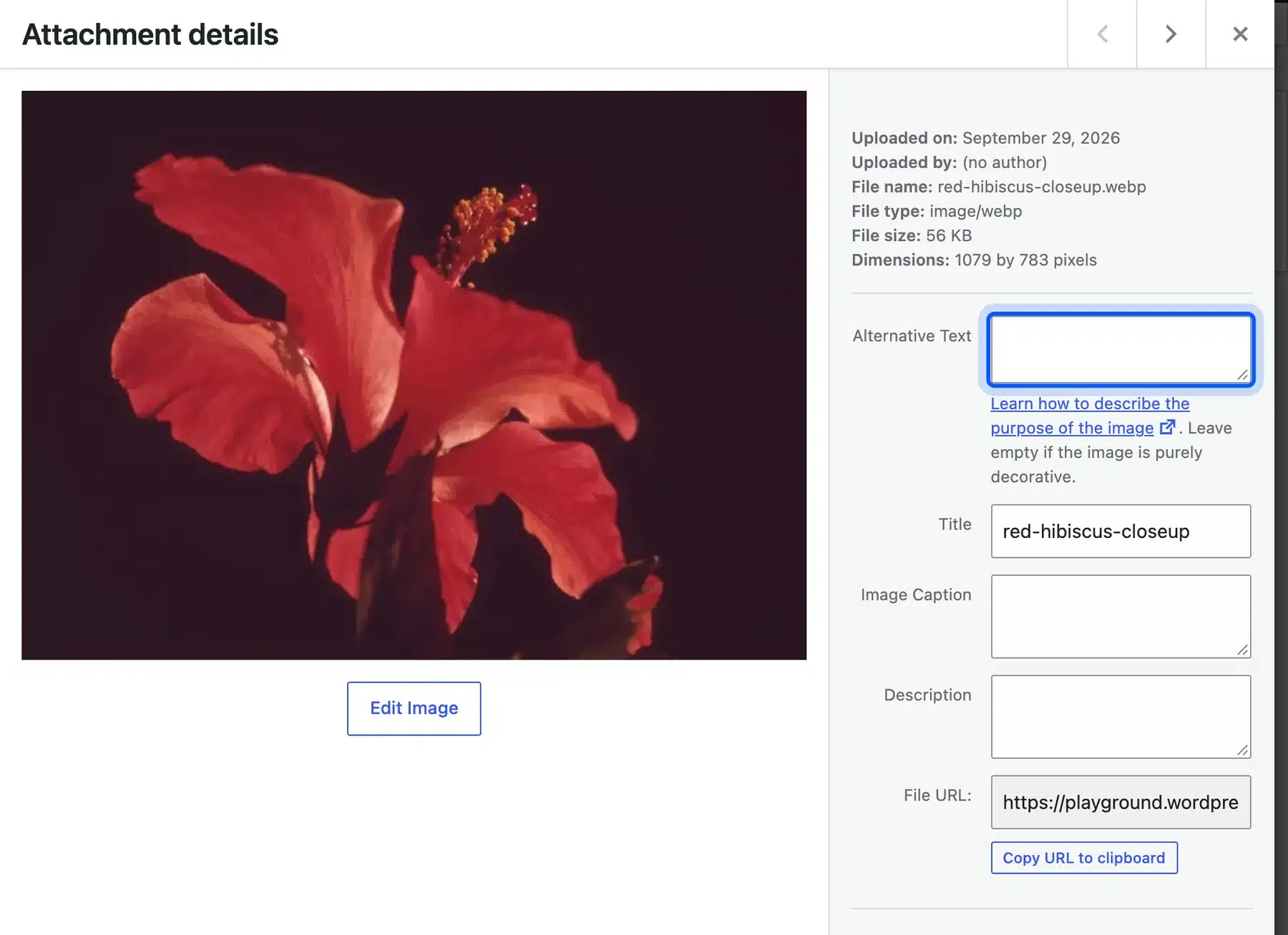
The field’s help text links to a guide on describing the purpose of an image. It also says to leave the field empty if the image is purely decorative.
This method suits bulk cleanup of older uploads. Text saved here is the default that WordPress fills in each time you insert that image into a new post.
Method 2: Add Alt Text While You Insert an Image
You can set alt text at the moment you add an image to a post. Select the image block, choose Replace, then Open Media Library. Click an image and fill in the Alt Text field in the Attachment details panel before you press Select.
- Select the block: Click the image block in the post.
- Open the library: Choose Replace on the toolbar, then Open Media Library.
- Choose the image: Click it in the Media Library tab. New files go through the Upload files tab.
- Add the text: Type into Alt Text on the right, then press Select.
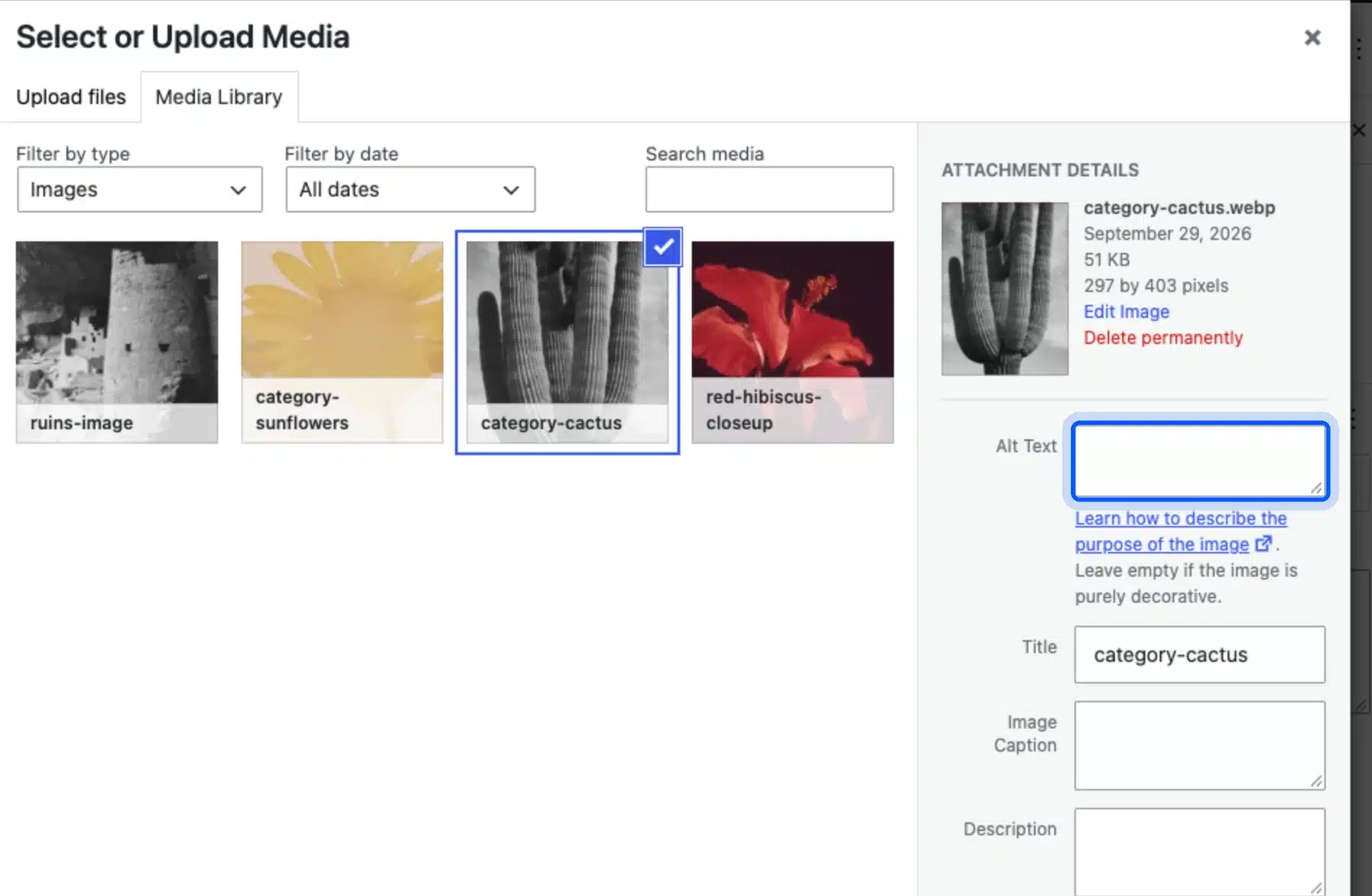
This route writes to the Media Library item, so the text is saved for every later use. Building it into your upload routine means you never end up with a batch of untagged images.
Method 3: Add Alt Tags in the Block Editor
The block editor lets you set alt text for one image inside one post. Select the image block, open the Block tab in the right sidebar and type into the Alternative text box. The change applies to that block only, and the Save button updates the post.
- Select the image: Click the image block.
- Open block settings: Choose the Block tab in the sidebar.
- Type the description: Fill in Alternative text under Media.
- Save the post: Click Update or Save.
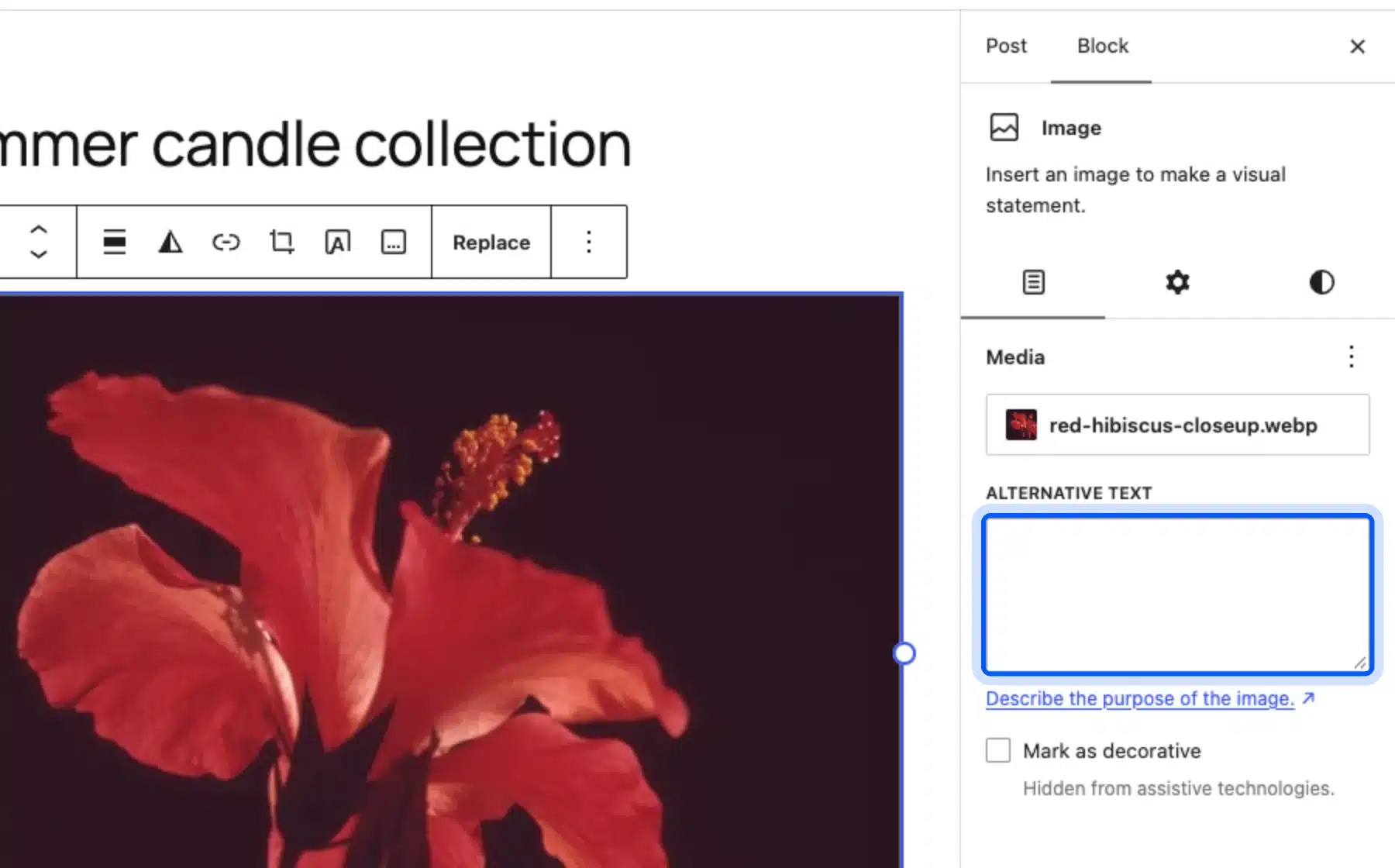
We tested what this changes. After typing alt text into a block and saving the post, the post’s HTML carried the new text. The same image in the Media Library still showed an empty Alternative Text field.
So block-level text is local to that post. It suits cases where one photo needs different wording in different places. For a site-wide default, use Method 1 instead.
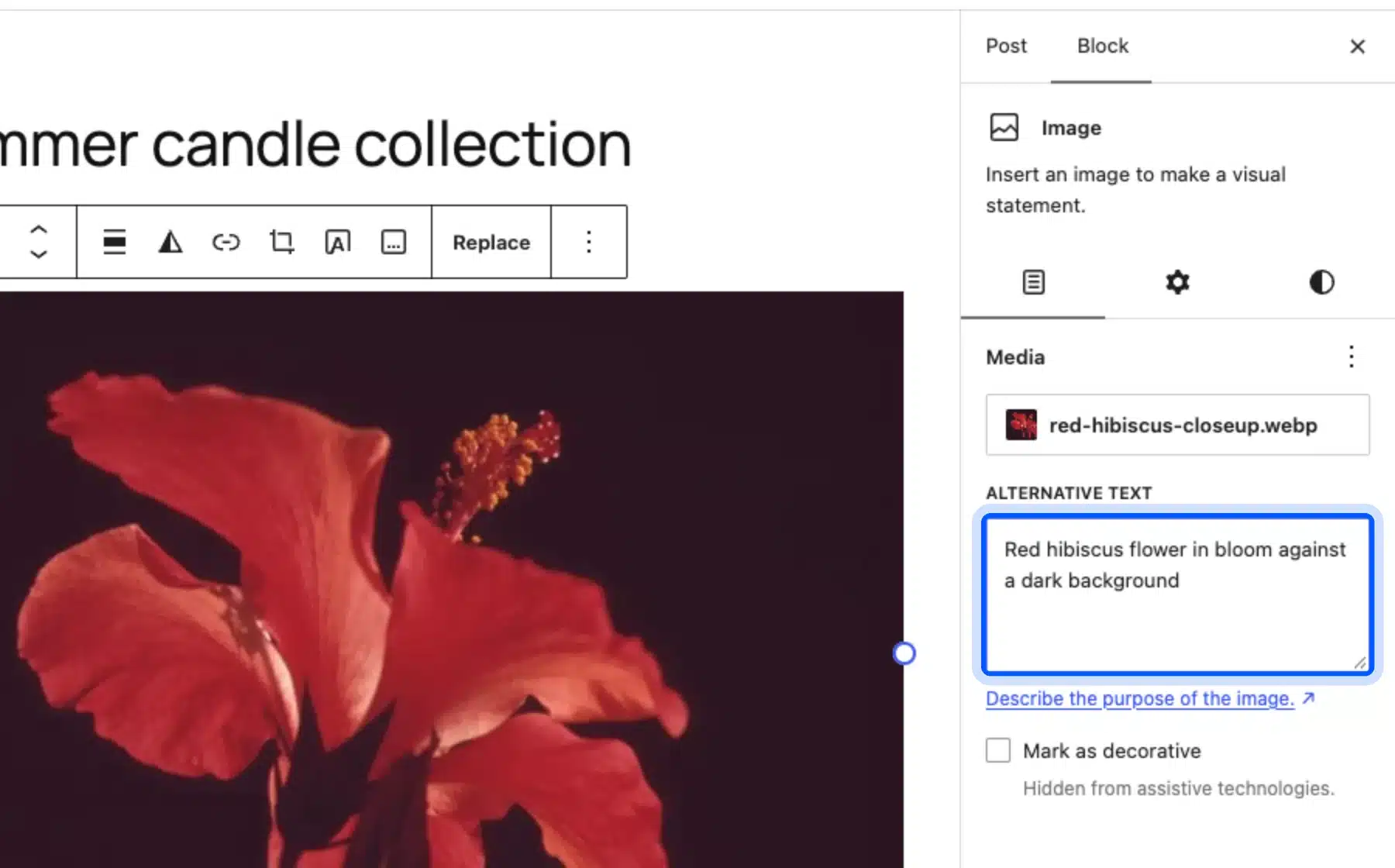
Tip: A good description reads like a caption you would say to a friend on the phone. Skip the file name and skip the word “image”.
How to Mark an Image as Decorative
Mark an image as decorative when it adds mood but no information, such as a divider or a background flourish. In the block sidebar, tick Mark as decorative. WordPress then writes an empty alt attribute, the correct decorative image alt, so screen readers skip the image.
The W3C’s image decision tree sets the rule for this case: use an empty alt attribute. An empty alt is not the same as a missing one. Assistive tools skip an empty alt but may read out the file name of an image that has none.
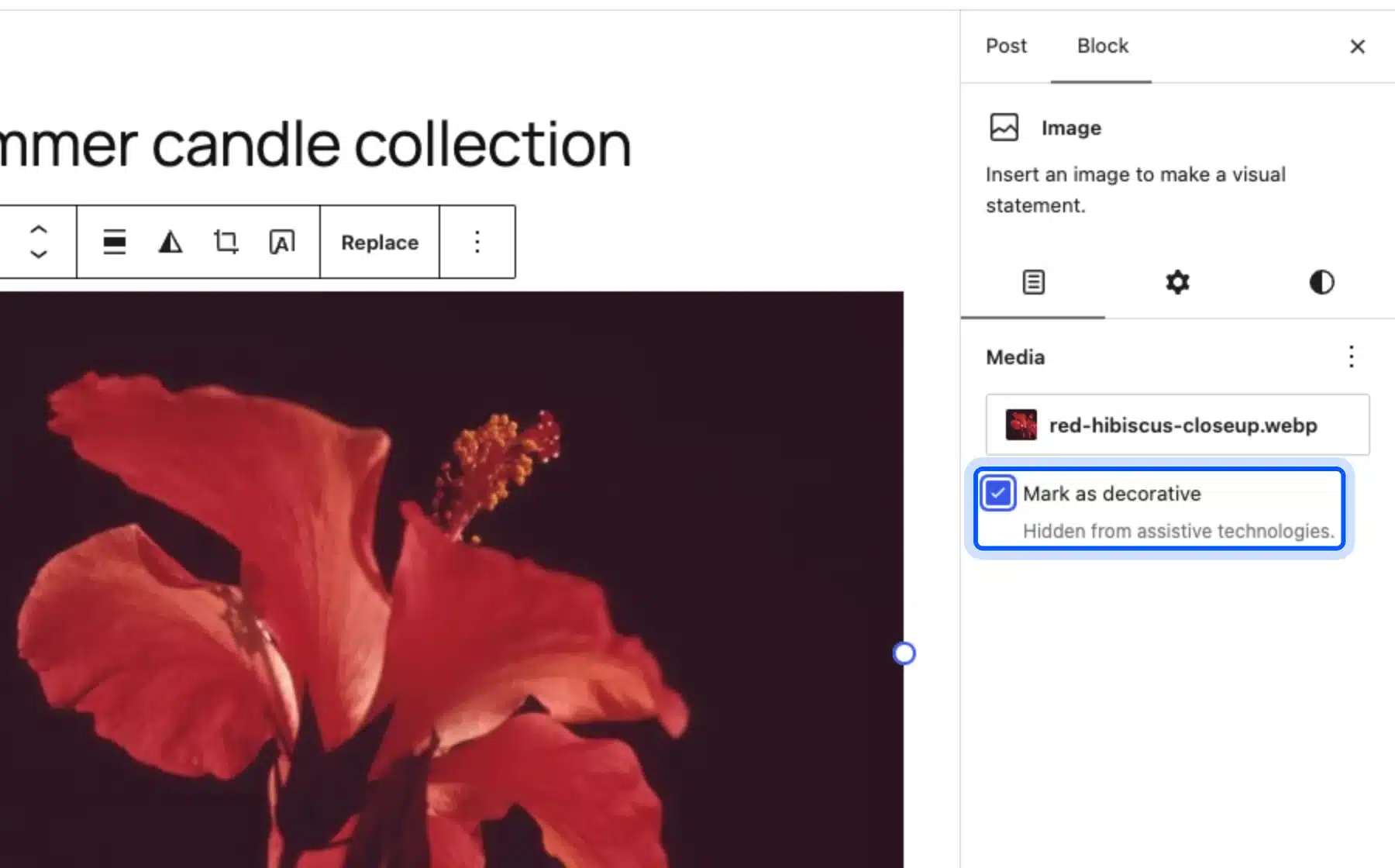
Ticking the box also hides the alt text field, as the screenshot shows. Untick it if you change your mind, and the field comes back.
Method 4: Edit the Alt Attribute in the Code Editor
The code editor is the fastest way to check exactly what WordPress will output. Open the three-dot menu at the top right of the editor, choose Code editor and find the <img> tag. The alt attribute sits inside it, and you can edit it directly.
- Open the menu: Click the three dots at the top right of the editor.
- Switch view: Choose Code editor.
- Find the tag: Look for
<imgand itsalt="..."attribute. - Edit and save: Change the text between the quotes, then save the post.
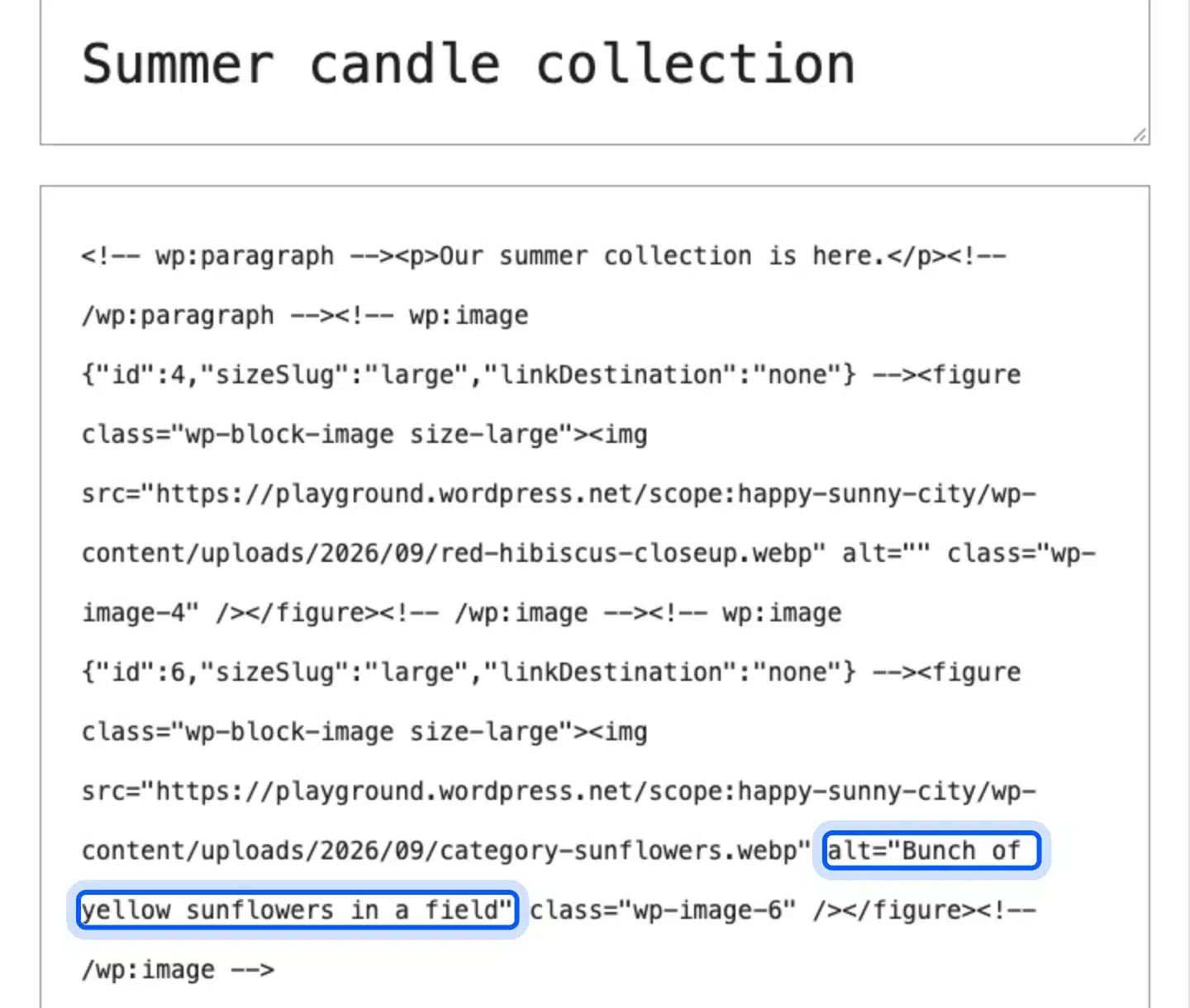
In our test post, the first image shows alt="", so it was empty. The second image shows alt="Bunch of yellow sunflowers in a field", so it was done. That quick scan makes the code editor a decent spot check for a single post.
Edit only the text between the quotes. Changing other attributes inside a block can make the editor report that the block has unexpected content.
Method 5: Generate Alt Text With the WordPress AI Plugin
WordPress now has an official AI plugin that can write alt text for you. It needs WordPress 7.0 or newer and one AI Connector plugin from Anthropic, Google or OpenAI. Its plugin page says alt text generation works in the image block settings and in bulk in the Media Library.
Setup takes three steps:
- Install the AI plugin: Add it from Plugins, then Add Plugin.
- Connect a provider: Go to Settings, then Connectors, and install the connector for Anthropic, Google or OpenAI.
- Turn on the feature: Go to Settings, then AI, switch on Enable AI and switch on Alt Text Generation.
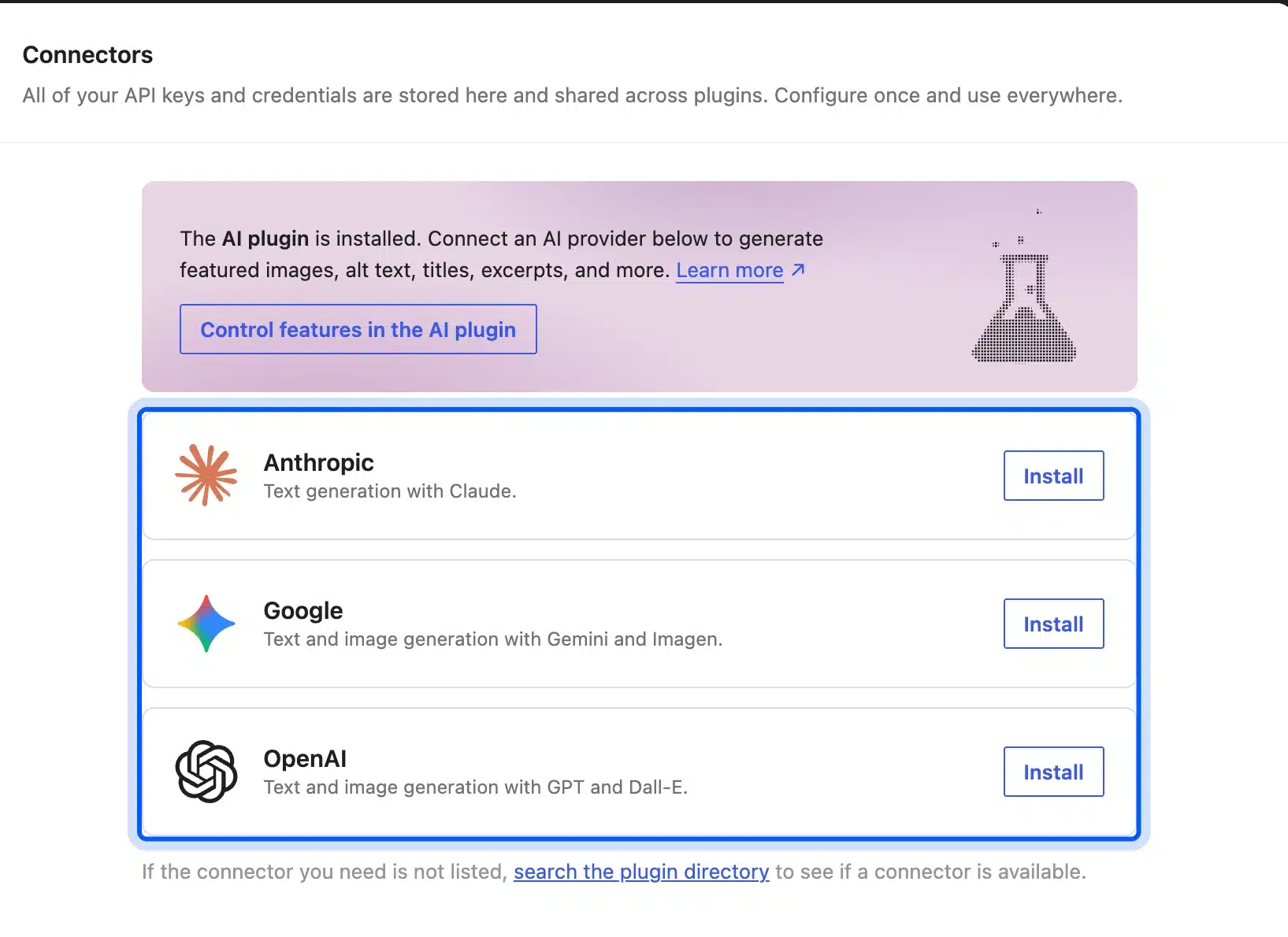
On our test site, the AI settings screen shows a warning that the plugin needs a valid AI Connector to work. Alt Text Generation is listed under Editor Experiments, and it is off until you switch it on.
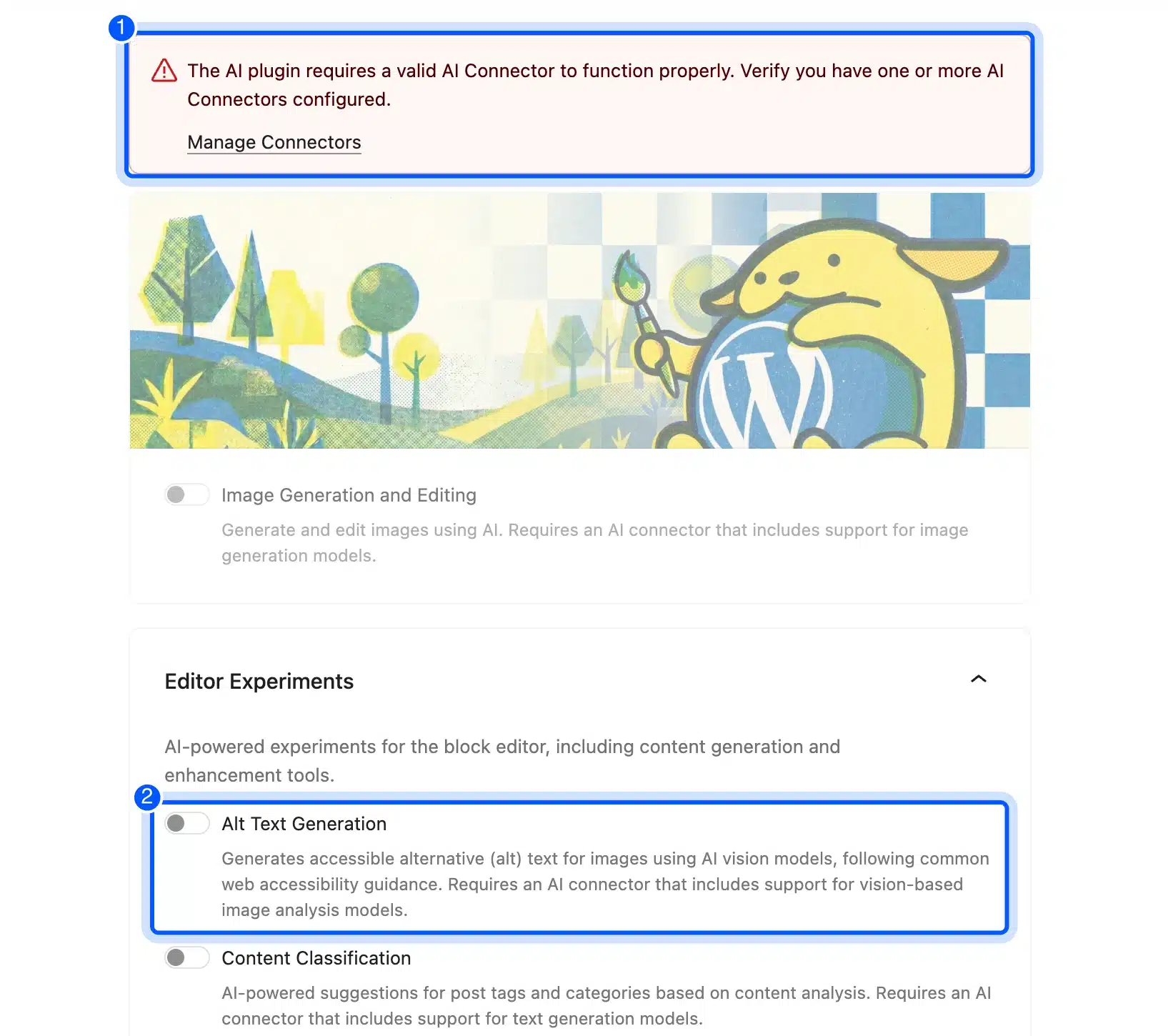
We did not add an API key, so we did not run a generation. Read every result before you keep it. An AI describes what it sees, but only you know why the image is on the page.
For example, a photo of a candle might come back as “Lit candle in a jar”. On a product page, “Cedar and amber soy candle, 8 oz” is more useful.
If you already use AI on your store, read how to use AI for WooCommerce product descriptions. The wider guide to AI integration with WordPress covers more.
How to Find Images With Missing Alt Text
The fastest way to find missing alt text is a database query. Every image’s alt text lives in the _wp_attachment_image_alt meta field, so any image without that value is missing it. Run this in phpMyAdmin or with wp db query, and change the wp_ prefix if yours differs.
SELECT p.ID, p.post_title
FROM wp_posts p
LEFT JOIN wp_postmeta m
  ON p.ID = m.post_id AND m.meta_key = '_wp_attachment_image_alt'
WHERE p.post_type = 'attachment'
  AND p.post_mime_type LIKE 'image/%'
  AND (m.meta_value IS NULL OR m.meta_value = '');
We ran it on a test library of four images where one had alt text. It returned the other three by ID and title. Then open each ID in Media and fill in the field from Method 1.
The query checks library items only. An image placed in a post with its own block-level text is missing from this check, because that text is stored in the post. Two more checks cover what the query cannot:
- SEO plugin reports: Yoast SEO flags missing alt attributes in its post analysis, and crawlers such as Screaming Frog list them across the whole site.
- Live page inspection: Right-click an image, choose Inspect and read its
altattribute.
How to Write Alt Text That Helps
Good alt text describes the image in the context of the page. Say what a person would need to know if they could not see it, and stop there. Most images need a short phrase, and only a few need a full sentence.
The W3C’s decision tree sorts images by the job they do. Informative images get a short description, and decorative images get an empty alt. Functional images, such as a linked logo, get text that says what happens on click.
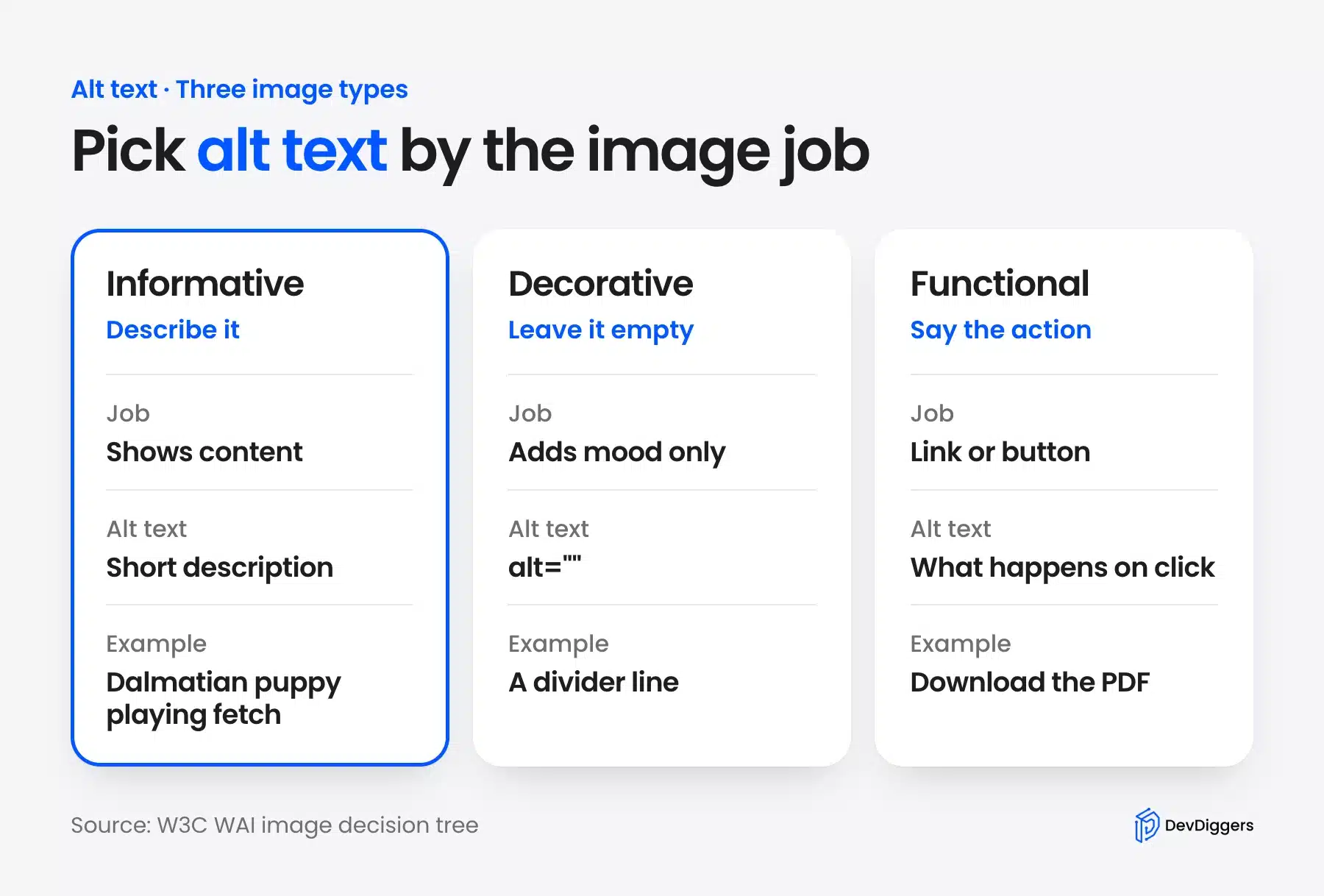
Follow these rules for every image:
- Be specific: Name the subject and the action, as in “Dalmatian puppy playing fetch”.
- Stay short: Keep it under about 125 characters, because some screen readers cut long text.
- Skip the lead-in: Do not start with “image of” or “photo of”. Screen readers already announce an image.
- Match the context: One photo can need different text on a product page and in a blog post.
- Use keywords once: Work in your target phrase only where it truly describes the image.
Copy the pattern in the table below. It shows five weak examples and a stronger rewrite for each.
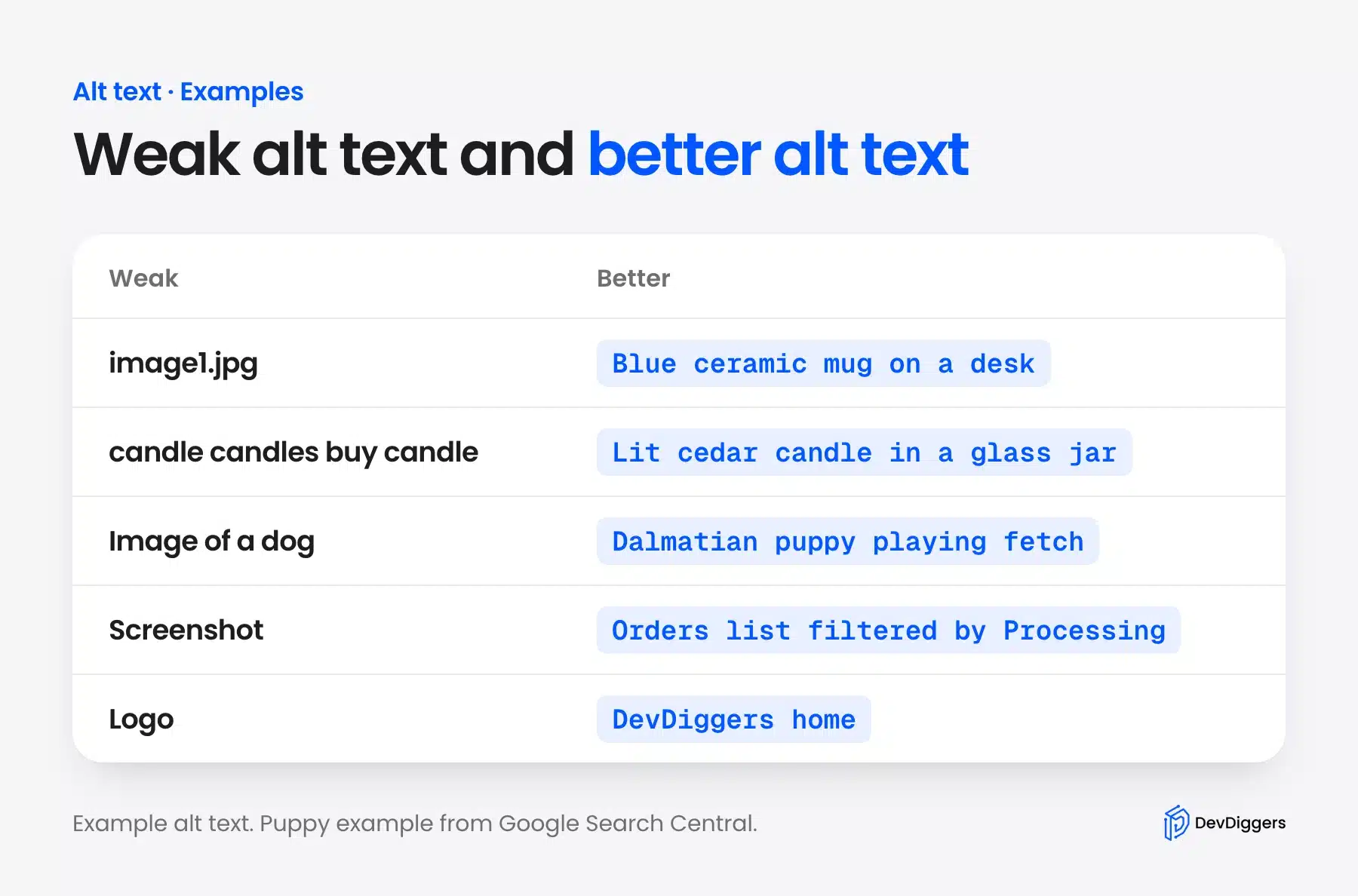
Descriptive file names help too. Google’s image guide prefers my-new-black-kitten.jpg over IMG00023.JPG, so rename the file before you upload.
Alt Text vs Title vs Caption vs Description
WordPress shows four text fields for each image, and they do different jobs. Alt text serves screen readers and search engines, and only the caption appears under the image for everyone. If you fill in only one field, make it the alt text.
| Field | What it does | Where it appears |
|---|---|---|
| Alt text | Describes the image for assistive tools and search engines | Read aloud, and shown if the image fails to load |
| Title | Names the media file in your library | Sometimes a hover tooltip, with little SEO value |
| Caption | Adds visible text under the image | Shown to every visitor |
| Description | Holds notes about the file | Its attachment page, not the post |
Alt Text for WooCommerce Product Images
Product images use the same Media Library fields, so the methods above all apply. The product image and gallery boxes on a product page open the same Media Library window. Describe the product itself, with the details a shopper would filter on, such as color, material or size.
Give every gallery image its own text instead of pasting one description across all of them. “Front view of the walnut desk” and “Drawer open on the walnut desk” tell a screen reader and Google two different things. Our guide to adding a video to a WooCommerce product gallery covers the gallery setup.
Stores with thousands of images can use the database query above to list the gaps. If you would rather hand that cleanup to a team, our WordPress development services include media and accessibility fixes.
Common Alt Text Mistakes
Most alt text problems come from a few repeated habits. They are easy to spot once you know them, and each one has a quick fix. The table below lists the six we see most often, with the fix beside each.
| Mistake | Fix |
|---|---|
| Leaving informative images blank | Describe what the image shows |
| Pasting the same text on every image | Write unique text for each image |
| Typing the file name | Describe the content, not the format |
| Stuffing keywords | Write for the listener, and use the keyword once at most |
| Starting with “image of” | Start with the subject |
| Tagging decorative images | Tick Mark as decorative instead |
Bulk tools add one more risk. If you run one, pick a setting that skips images that already have text, so it does not overwrite alt text you wrote by hand.
Conclusion
To add alt tags to images in WordPress, fill in the Alternative Text field in the Media Library, the block editor or the code editor. Tick Mark as decorative for images that add no information. Leave the rest to a short, specific description.
Start with the query above. It shows you exactly which images are missing text today, and the Media Library fixes them one at a time. Add alt text as you upload from now on, and the backlog stops growing.
Frequently Asked Questions (FAQs)
Q1. What is an alt tag in WordPress?
An alt tag is the alt attribute on an image. It holds a short description that screen readers read aloud and that search engines use to understand the picture. WordPress calls the field Alternative Text, and it does not show on the page.
Q2. Do all images need alt text?
Every image needs an alt attribute, but not every one needs a description. Informative images need a real description. Decorative images should carry an empty alt="", which tells screen readers to skip them.
Q3. How long should alt text be?
Keep it under about 125 characters. Some screen readers cut off longer text. Most images need only a short phrase, such as “Dalmatian puppy playing fetch”.
Q4. Does alt text help SEO?
Yes. Google’s image SEO guide says alt text helps it understand what an image shows, which matters for image search. It also says to keep alt text useful and in context, and it warns that keyword stuffing can look like spam.
Q5. Can I add alt text to many images at once?
WordPress has no built-in bulk editor for alt text. You can find gaps with the database query above, or use the official AI plugin, which supports bulk generation in the Media Library. Review every result before you keep it.
Q6. Can AI write alt text in WordPress?
Yes. The official AI plugin can generate alt text from the image block settings once you connect an AI provider. It needs WordPress 7.0 or newer and a connector for Anthropic, Google or OpenAI.
Q7. Why did my block alt text not update in the Media Library?
Alt text typed in the block editor belongs to that block in that post only. It does not change the Media Library item. Edit the Media Library field if you want the text to follow the image everywhere.
Q8. Does a featured image need alt text?
Yes, if it carries meaning. WordPress reads a featured image’s alt text from the Media Library, so fill in the Alternative Text field there. Leave it empty only when the image is purely decorative.