A WordPress Git setup tracks only the code you write, like your theme and custom plugins, and pushes it to the server in one command. You can set it up in about an hour, and rolling back a bad change then takes one revert and one push.
I built and tested the whole workflow on 9 October 2026 on our WordPress 7.1.3 test site, with Git 2.54.0 and WP-CLI 2.5.0. The test covered a real .gitignore, a push-to-deploy hook, a GitHub Actions workflow checked with actionlint 1.7.12 and a rollback. One test showed how a quick fix made on the server vanished on the next push without any warning.
Below you get what belongs in the repo, six steps to use Git with WordPress and a CI pipeline you can copy. Then come an honest look at committing build files, why the database stays out of Git and how to pick a method.
What Is WordPress Git and What Belongs in the Repo?
WordPress Git means keeping the code you wrote for a site under version control, so every change has a history and an author. The repo holds your theme, custom plugins and must-use plugins. WordPress core, uploads, third-party plugins, wp-config.php and the database all stay out.
That last list surprises people. Core is the same for every site and WP-CLI reinstalls it in seconds. Uploads are user content that changes all day, and wp-config.php holds your database password.
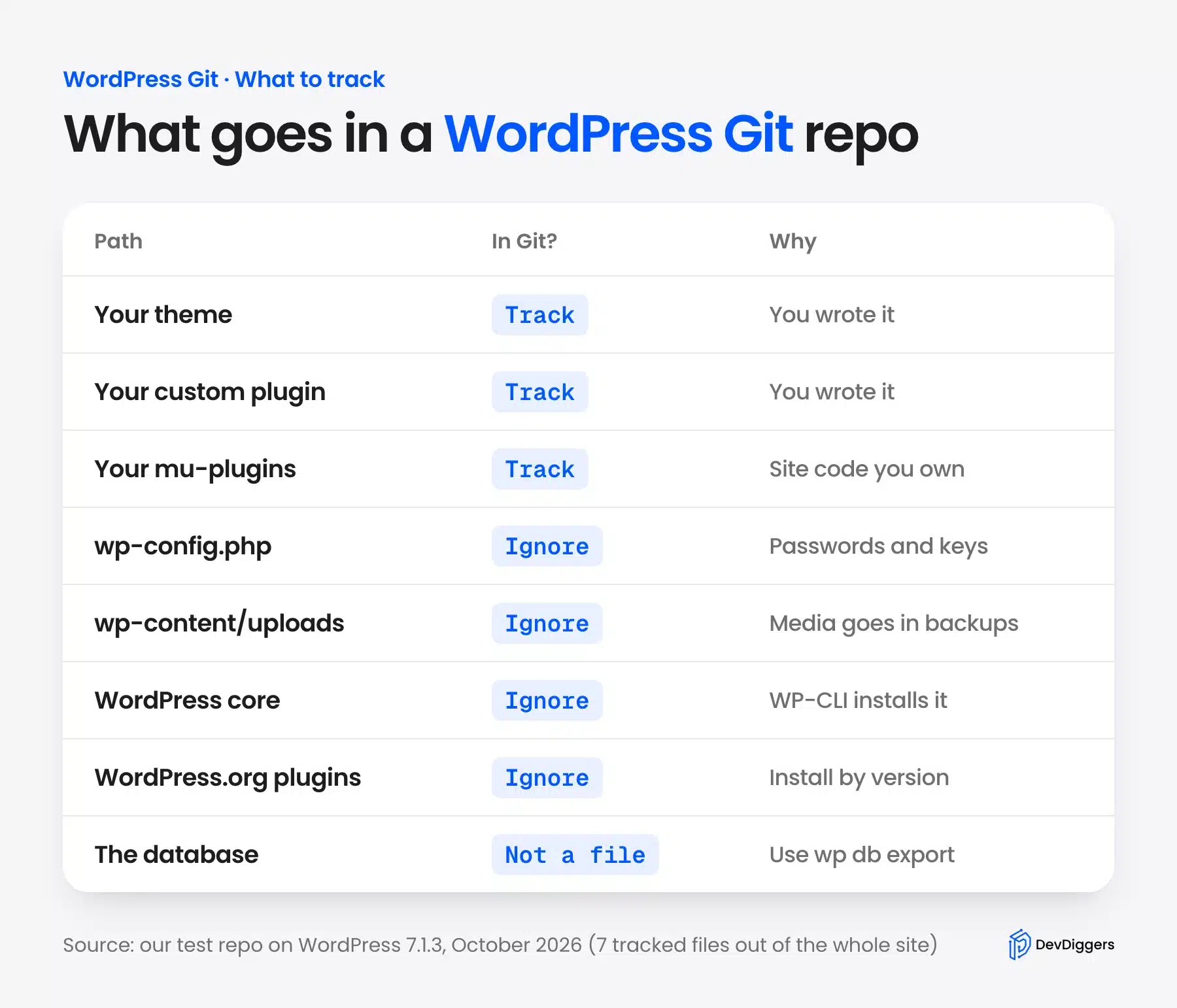
On our test site the repo tracked exactly 7 files: one .gitignore and six files of a small child theme. The WordPress install around them holds thousands of files, and none of them belong in Git.
There are two common layouts. One repo at the site root, like ours, keeps the theme, plugins and config rules together. One repo per theme or plugin suits agencies that reuse the same plugin on many sites.
Either way, the rule is the same. If you wrote it, track it. If WordPress, a vendor or a visitor wrote it, leave it out.
Worth knowing: Plugins from WordPress.org can still be pinned by version without committing their code. Teams that want that use Composer with the WordPress Packagist mirror, which is a separate setup from this guide.
How to Use Git With WordPress
To use Git with WordPress, pick the repo root and write a .gitignore first. Make a first commit and tag it, then work on a branch for each change. Add a push-to-deploy remote on the server, push, check the live site and roll back with git revert when needed.
Every step below ran on the test site, and each screenshot is the real terminal output. Start on a local copy, never on the live server.
Step 1: Pick the Repo Root and Write the .gitignore
Put the repo at the WordPress root, the folder that holds wp-config.php. Then let the .gitignore shut out everything you did not write. This keeps one repo for the whole site while tracking only your own code.
Our file ignores secrets, core, uploads, cache folders, WordPress.org plugins, default themes and node_modules. The gitignore documentation explains each pattern.
# Secrets and per-server settings
wp-config.php
.htaccess
.env

# WordPress core: installed with WP-CLI, never edited by hand
/wp-admin/
/wp-includes/
/*.php
/license.txt
/readme.html

# Content and files WordPress writes at runtime
/wp-content/uploads/
/wp-content/cache/
/wp-content/upgrade/
/wp-content/languages/

# Third-party code installed from WordPress.org
/wp-content/plugins/*
/wp-content/themes/twenty*/

# Build tools
node_modules/
*.log
Then prove it works with git check-ignore -v, which prints the exact line that ignores each file.
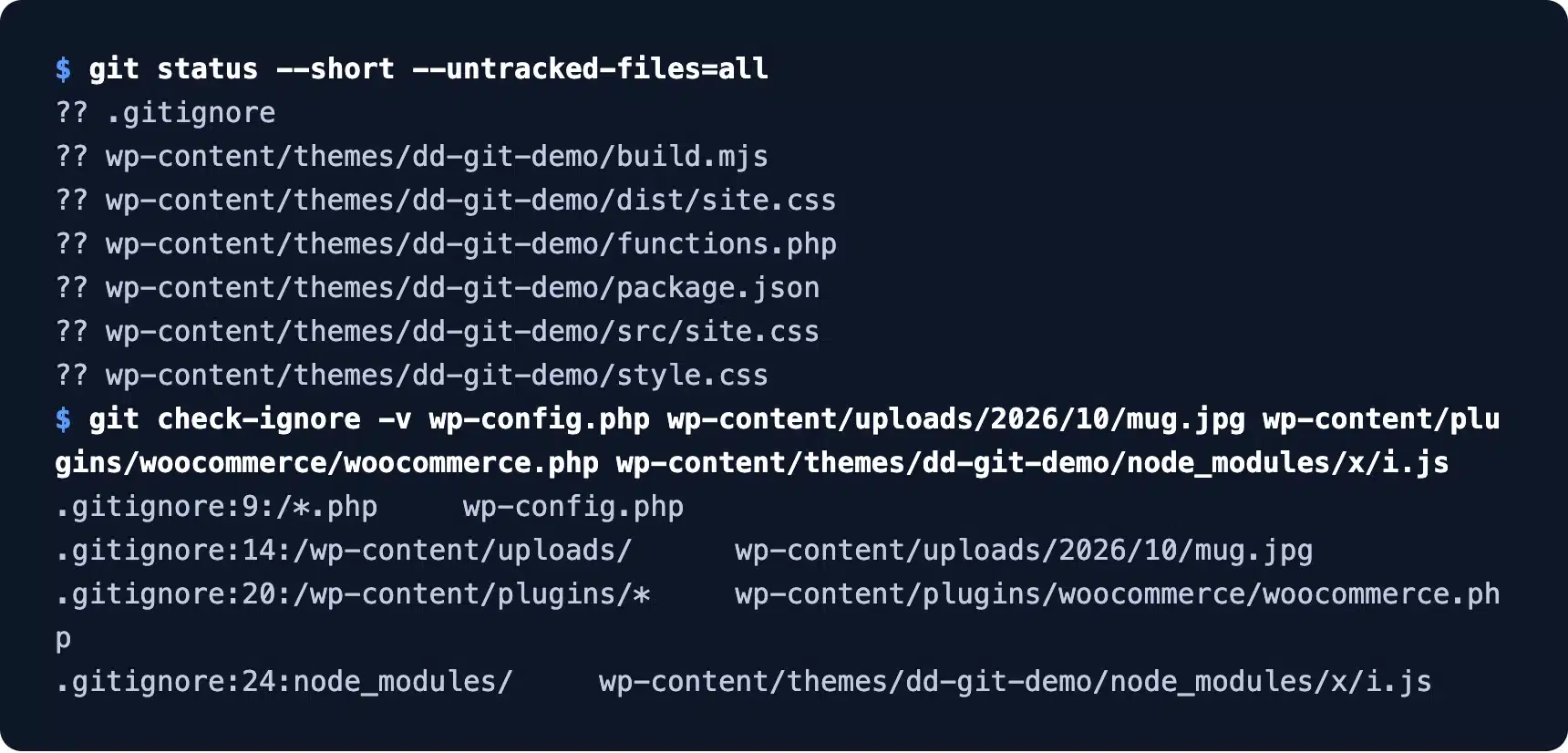
One small surprise showed up here. wp-config.php was matched by the /*.php line, not by its own line, because Git reports the last rule that matches. Both lines are harmless, but the check shows you which rule does the work.
Step 2: Make the First Commit and Tag It
Commit the starting point and give it a version tag, like v1.0.0. A tag is a fixed name for one commit, so you can always get back to the version that worked.
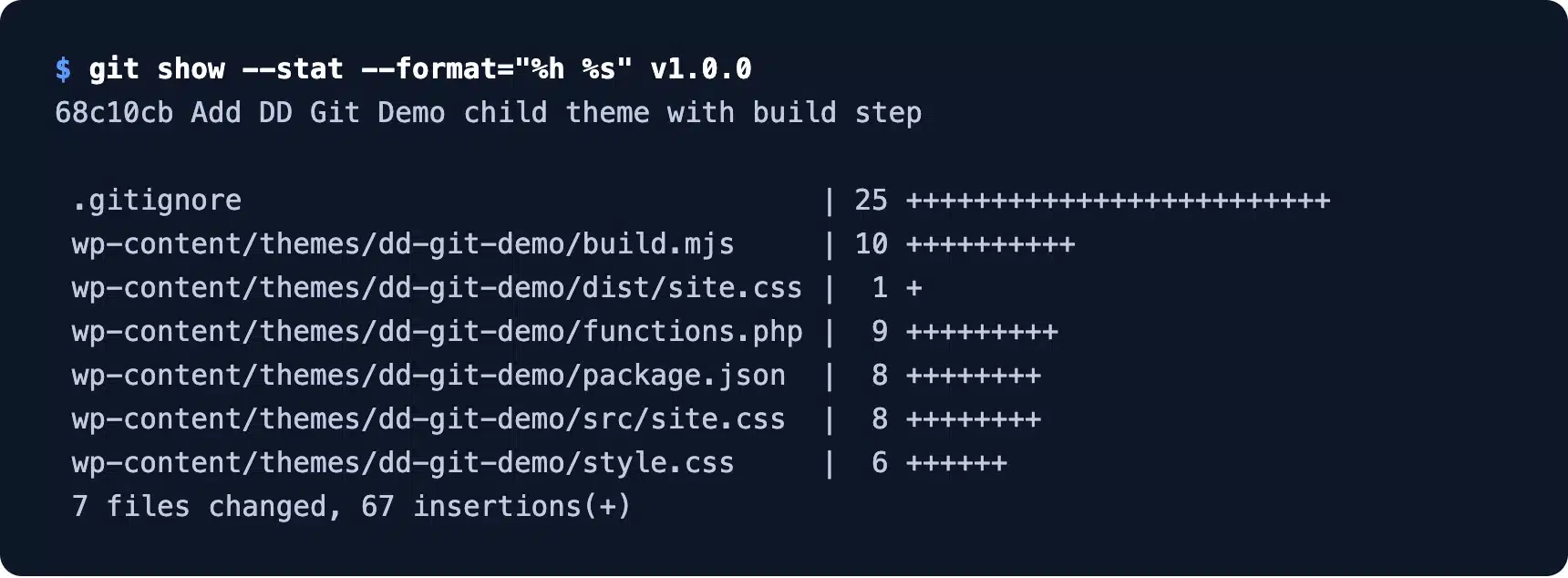
Our first commit held 7 files and 67 lines. If your first commit lists hundreds of files, the .gitignore missed something, so fix it before you push anywhere.
Step 3: Work on a Branch for Each Change
Branching keeps unfinished work off the main branch, which is the branch that goes live. Create a branch, make the change, run the build step, commit, then merge it back into main once it looks right.
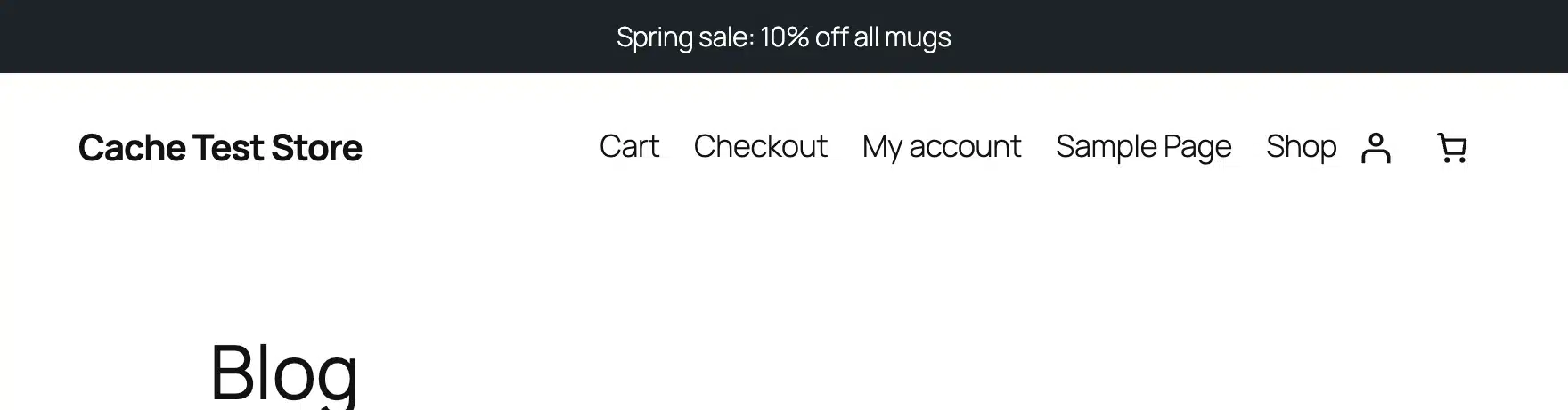
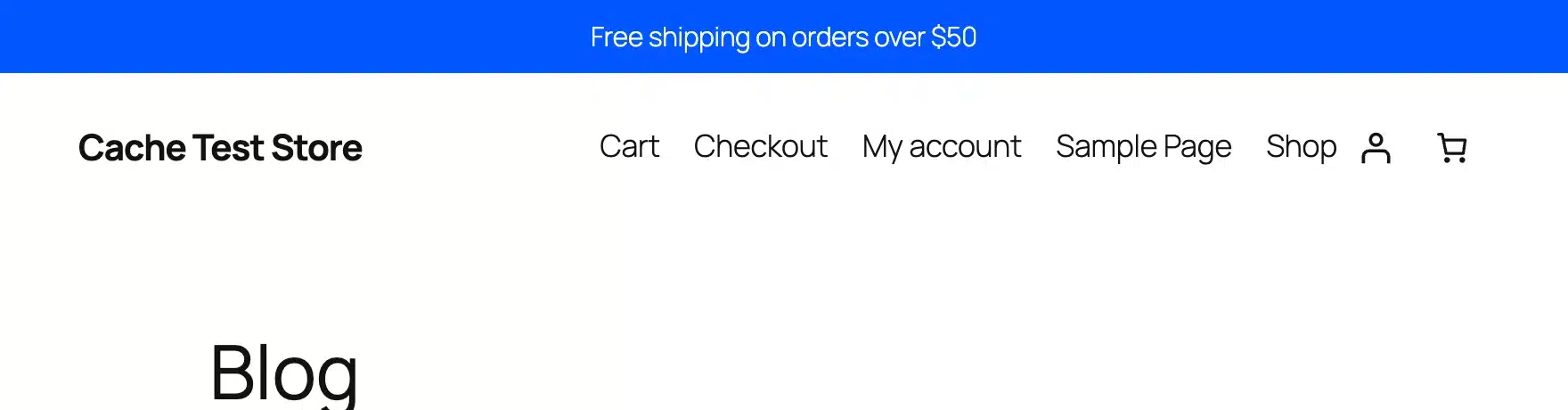
We changed the top notice bar from a dark “Spring sale” bar to a blue “Free shipping on orders over $50” bar. The diff touched 4 files: the PHP text, the source CSS, the theme version and the built CSS.
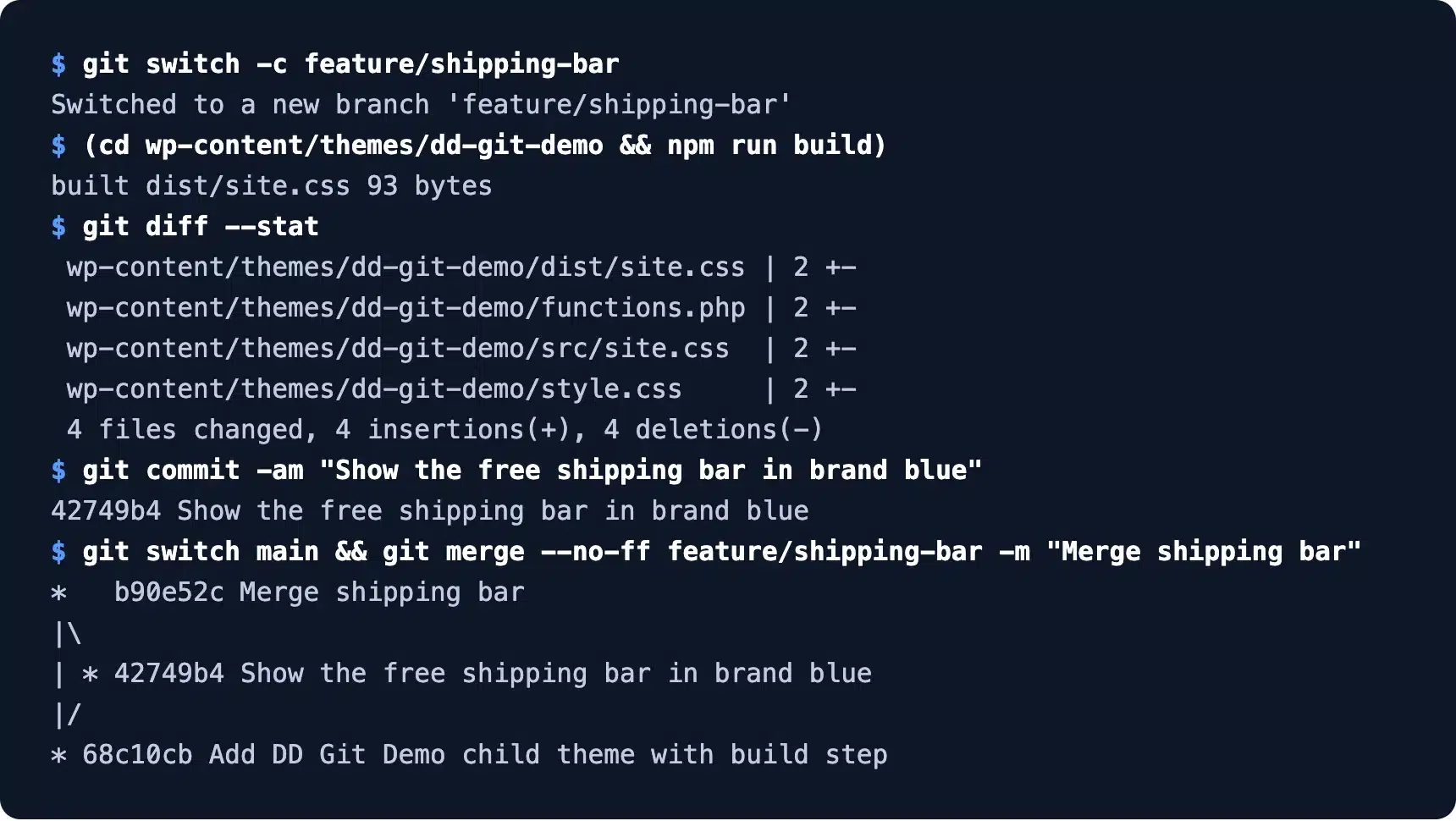
Name branches after the change, like feature/shipping-bar or fix/checkout-typo. Short names make the merge history readable months later, when you need to find the commit that broke something.
Many teams add a staging branch too. Pushing to it updates a staging copy of the site, and only a merge into main reaches the live store.
That fourth file is the built dist/site.css. Whether it belongs in Git at all is a real trade-off, covered further down.
Step 4: Set Up a Push-to-Deploy Remote
To deploy WordPress with Git, create a bare repo on the server and add a post-receive hook. Git runs that hook after every push, and the hook copies the pushed main branch into the live WordPress folder.
The Git hooks documentation describes post-receive and the one line per ref it receives. Here is our hook in full:
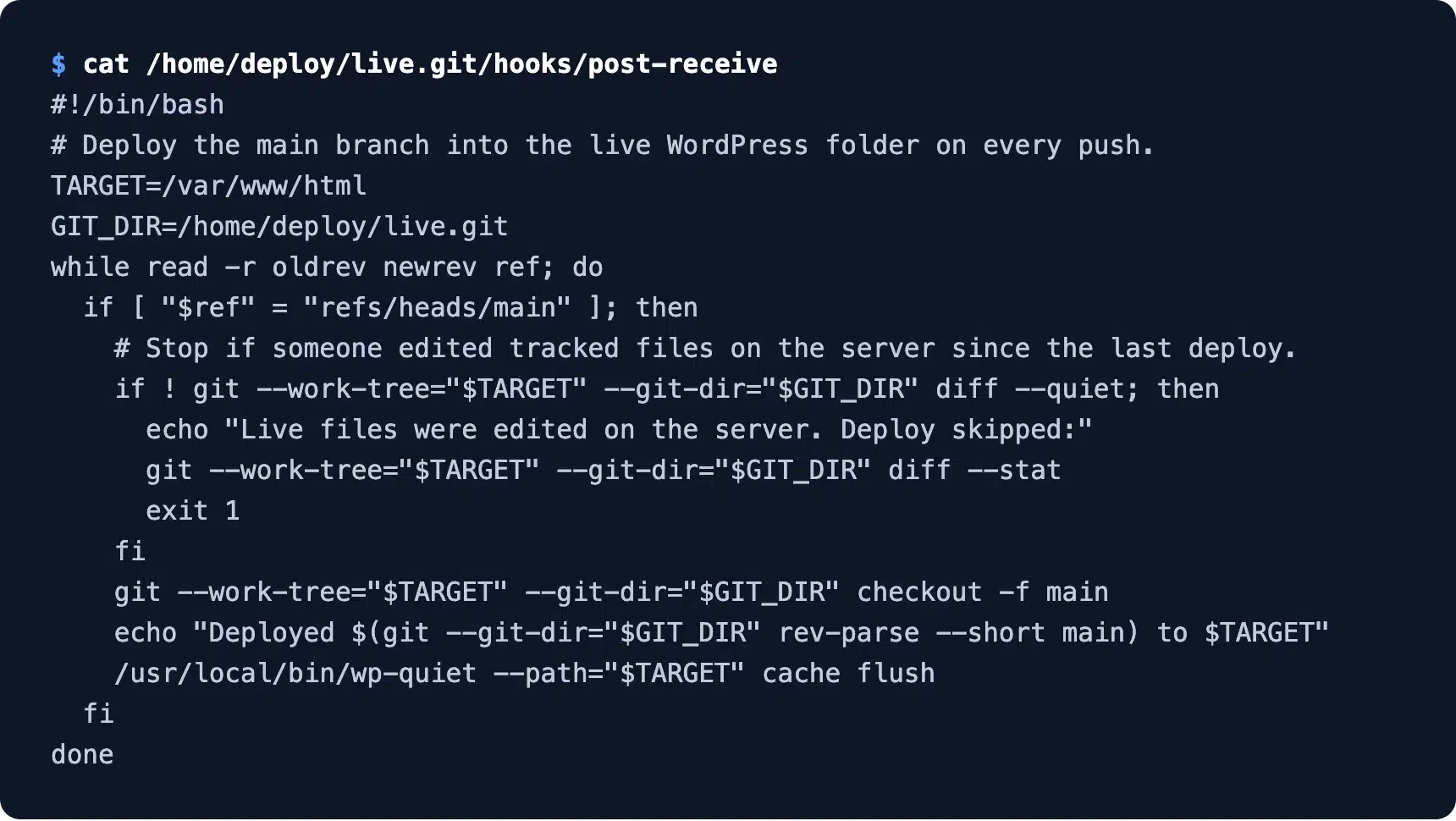
The hook uses git --work-tree to write files into the live folder while the history stays in the bare repo. It only touches tracked files, so core, uploads and wp-config.php on the server are never changed. The wp-quiet wrapper is WP-CLI with PHP notices hidden, because WP-CLI 2.5 prints deprecation notices on PHP 8.5.
On your own machine, add the server as a remote with git remote add production and the SSH address of the bare repo. Our test kept the bare repo and the site on one machine, so the remote was a folder path instead of an SSH address.
Step 5: Push and Check the Live Site
Push main to the production remote and the hook does the rest. Then open the live site and confirm the change is there, logged out, in a private window.
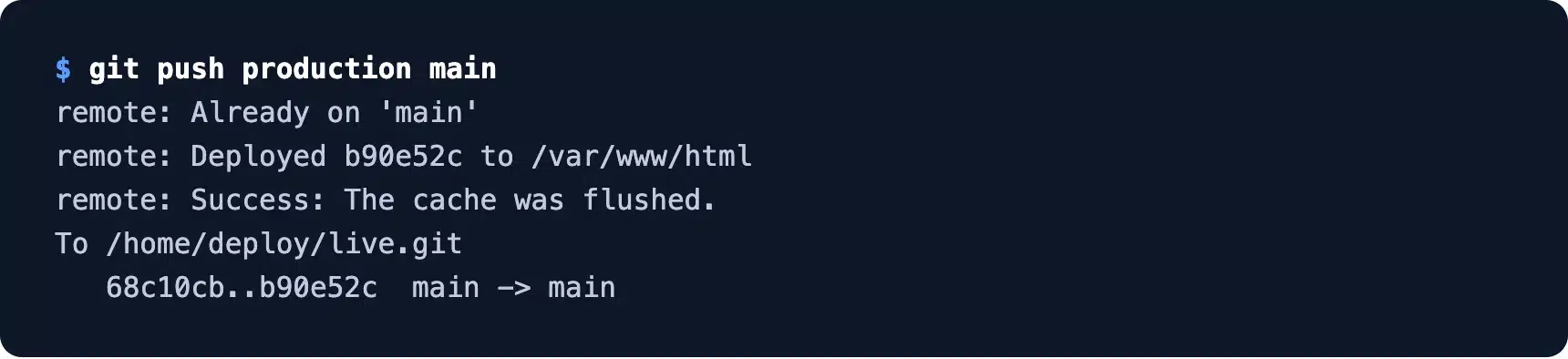
The hook printed the commit it deployed and flushed the cache. A later timed push took 1.35 seconds from typing git push to a live change.
Before the push the site showed the dark sale bar:
After the push the blue shipping bar was live:
Check these four things after every push:
- Logged-out view: Open the page in a private window, since logged-in admins often skip the page cache.
- Browser console: Look for 404 errors on CSS or JavaScript files, which mean a build file was not committed.
- Key pages: Load the cart, checkout and one product page on a store.
- Error log: Read the last lines of the PHP error log on the server.
Step 6: Roll Back With git revert
A rollback with git revert adds a new commit that undoes an old one, then you push it like any other change. History stays intact, so the team can see what was undone and why.
To undo a merge, pass -m 1 so Git knows which side to keep. We reverted the shipping bar merge, pushed, and the dark sale bar came back.
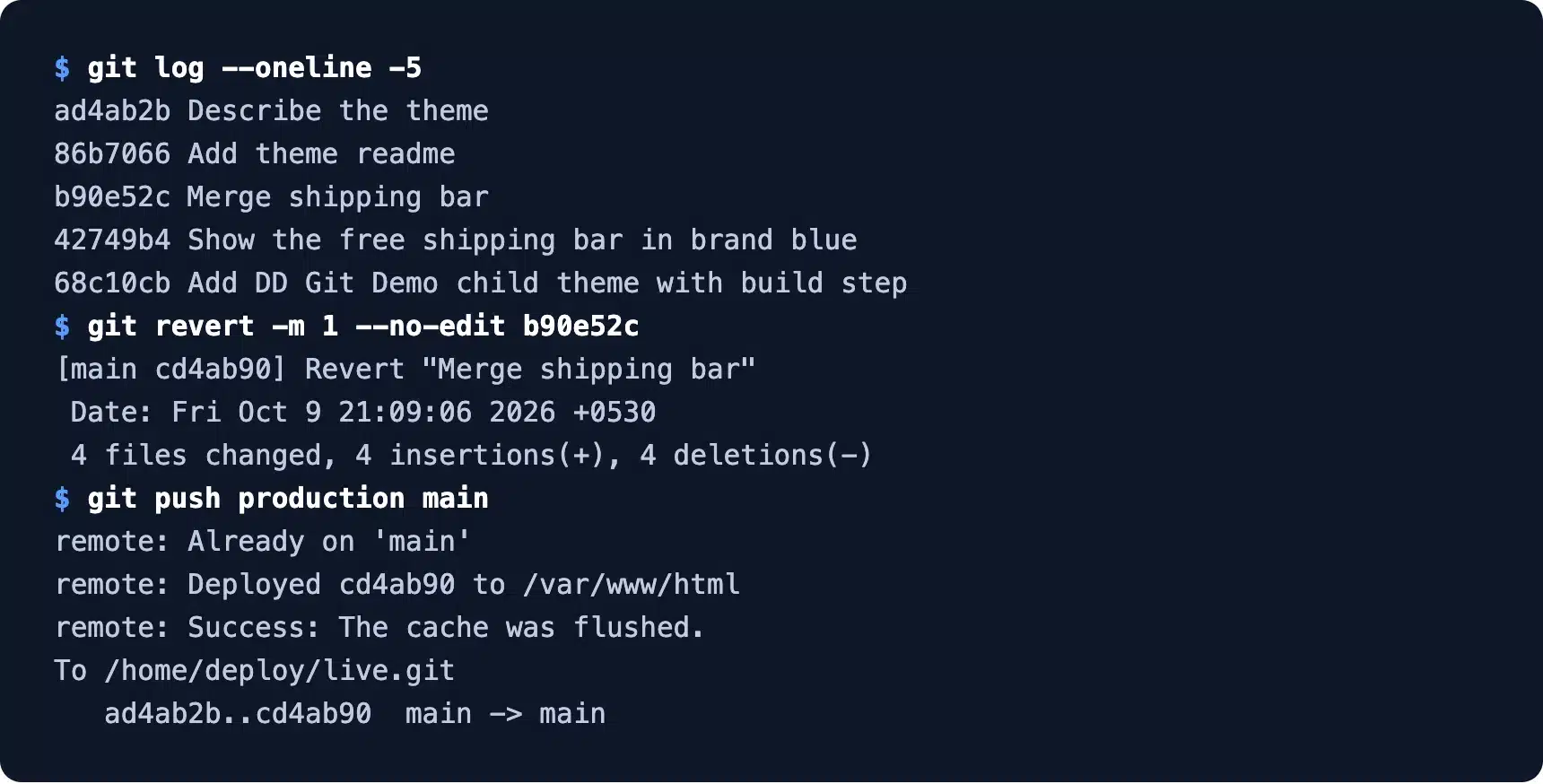
The git revert manual has one warning worth reading. Reverting a merge means a later merge of the same branch will not bring those changes back. To ship the feature again, revert the revert.
Tags give you a second way back. Point the hook at v1.0.0 instead of main, push, and the site returns to that exact version.
Writing hooks and pipelines can eat a week the first time. Our WordPress development services team sets up Git and releases for client sites. You get the same workflow without the trial and error.
How to Add WordPress CI/CD With GitHub Actions
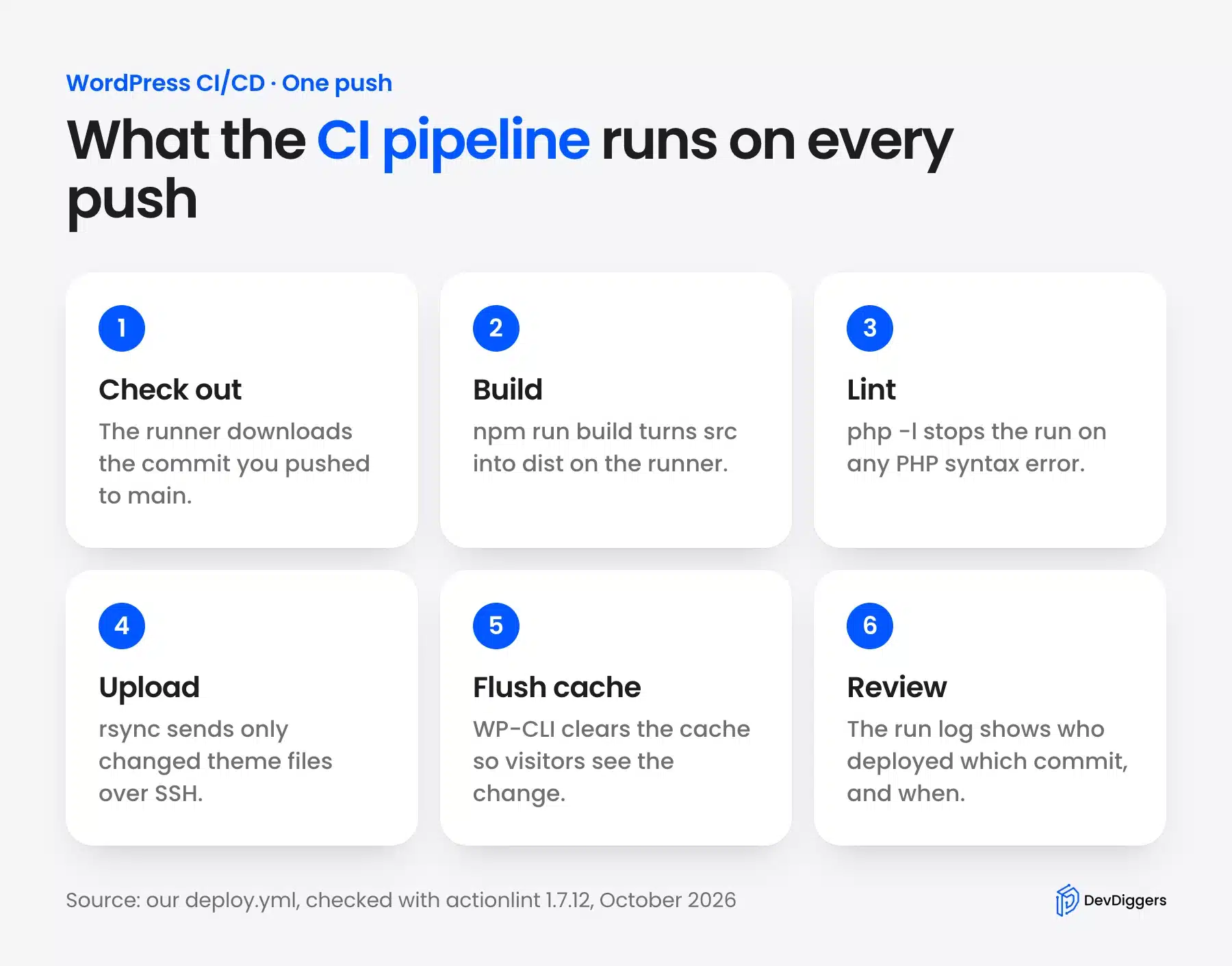
WordPress CI/CD means a service like GitHub Actions builds, checks and uploads your code on every push to main. You stop running the build on your laptop, and a broken PHP file stops the pipeline before it reaches the server.
Our pipeline runs six steps in order. Each run also leaves a log of who shipped which commit.
Step 1: Write the Workflow File
A GitHub Actions workflow is a YAML file in .github/workflows/ in your repo. Ours runs on every push to main and on a manual button, builds the theme and lints every PHP file. The workflow syntax reference lists every key it uses.
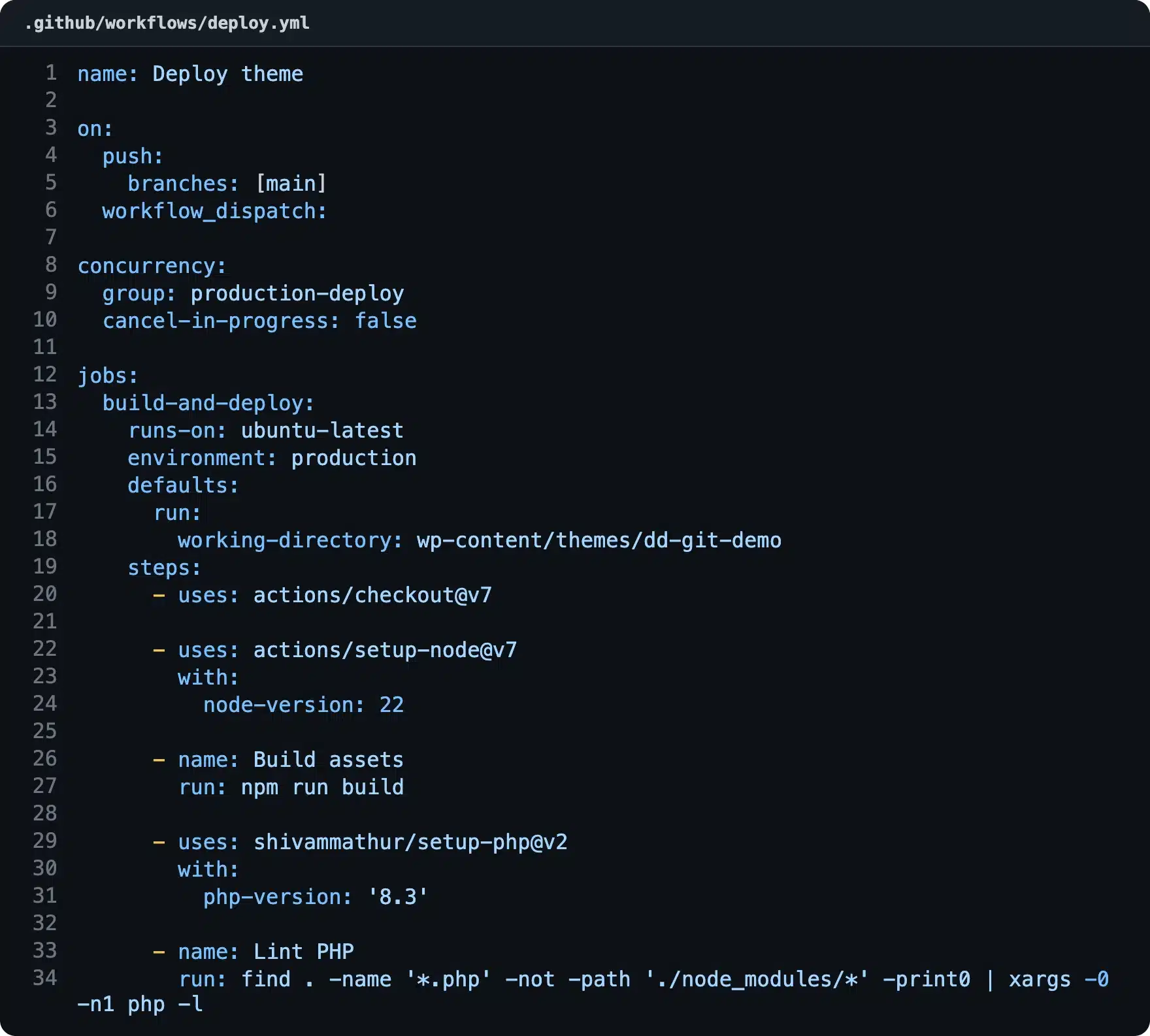
As of October 2026 the current major versions are actions/checkout@v7, released on 20 July 2026, and actions/setup-node@v7. Check the checkout releases page when you copy any workflow, because old examples still show v3 and v4.
The workflow_dispatch trigger adds a Run workflow button in the Actions tab. Use it to redeploy the current main without a new commit, for example after restoring a server.
The concurrency block makes a second push wait for the first one to finish. Two uploads running at once could leave the theme half old and half new.
Step 2: Store Server Details as Secrets
The upload step needs an SSH key, a host, a user and a path. Put all four in the repo’s Actions secrets, never in the YAML file, and read them into environment variables in the step that needs them.
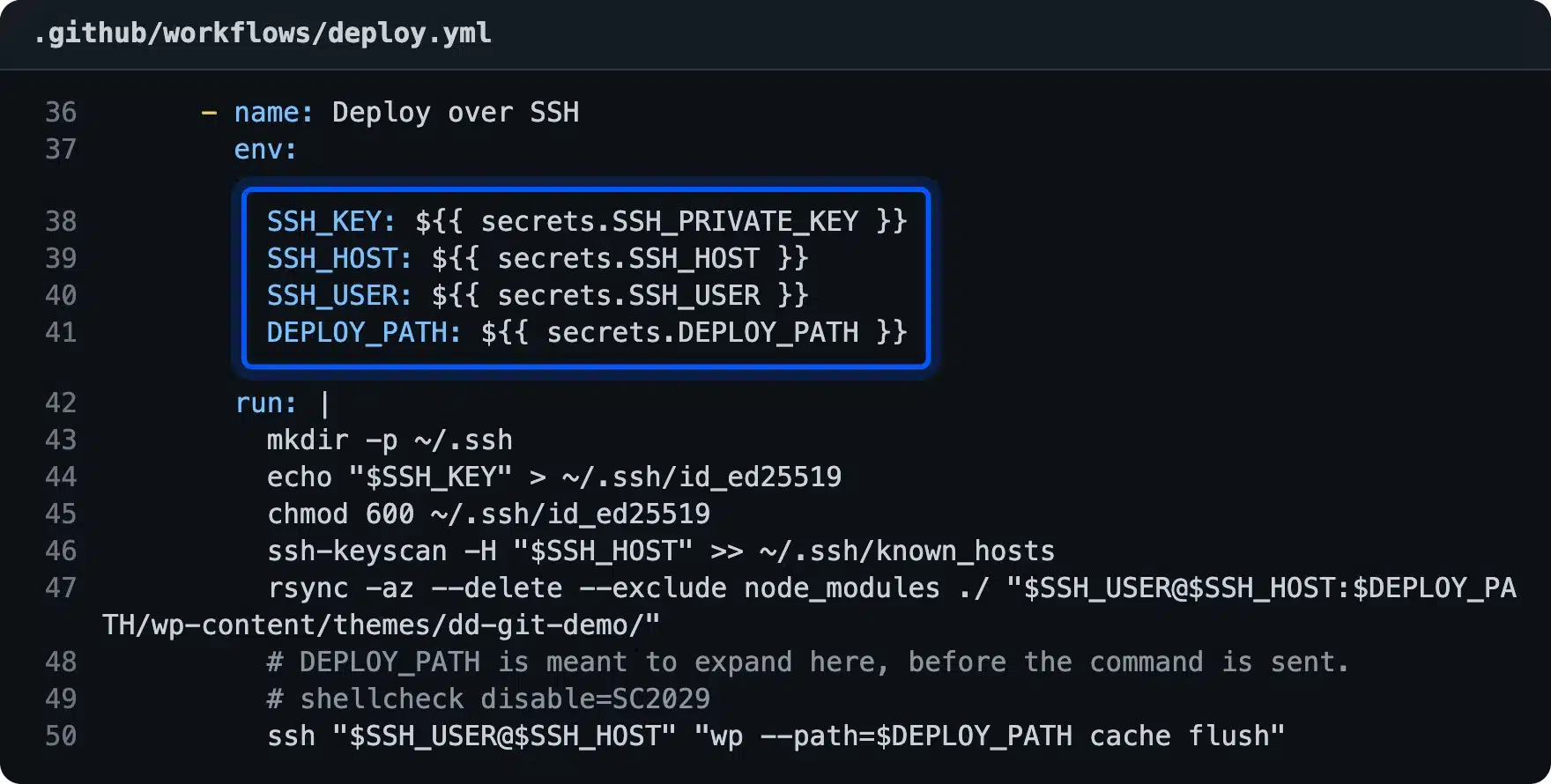
GitHub’s guide to using secrets explains that secrets are hidden in logs. The step then uses rsync --delete to upload only changed files and runs wp cache flush over SSH.
Use a deploy user that can write to the theme folder and nothing else. If the key leaks, the damage stays inside one folder.
Step 3: Lint the Workflow Before You Push
A typo in a workflow file only shows up after you push and the run fails on GitHub. actionlint checks the file on your machine first, including the shell scripts inside each run: block.
Our first draft failed. actionlint flagged an unquoted $SSH_HOST that could split on spaces, and an ssh line where a variable expands on the runner.
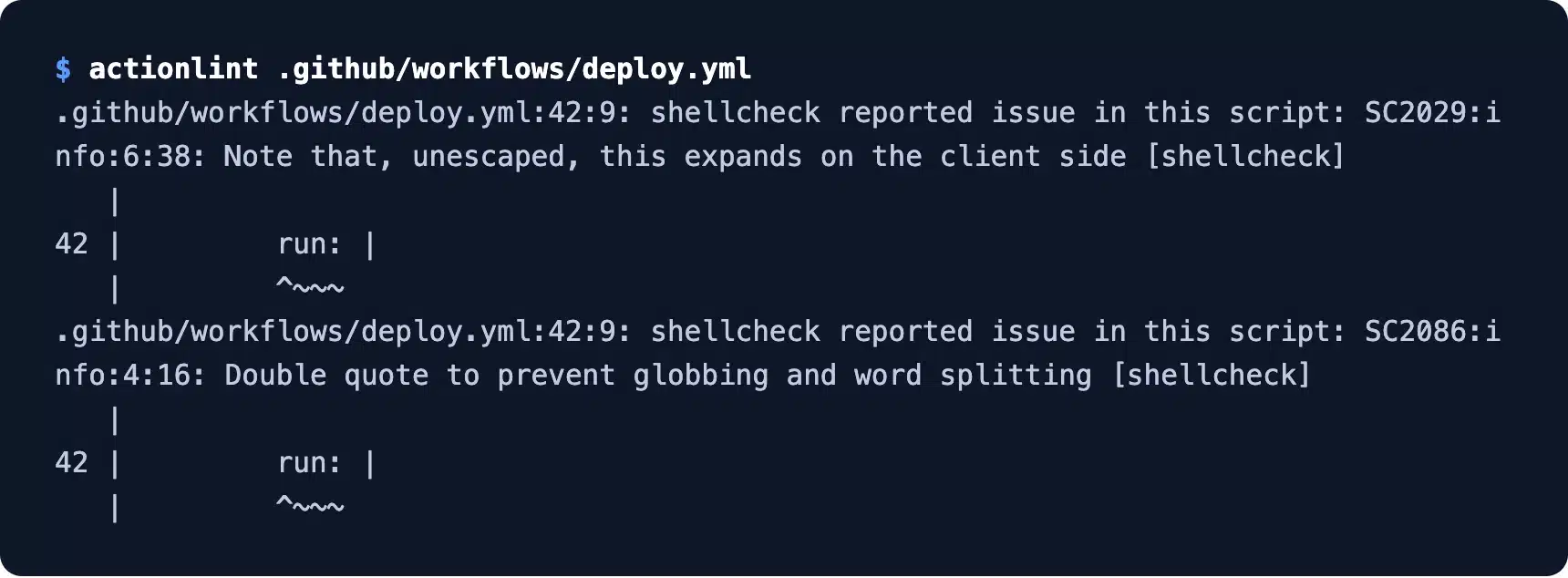
We quoted the host and marked the second line as intended, since the path should expand before the command is sent. The second run came back clean:

We did not push this workflow to a real GitHub repo, so no run log is shown. The file passed actionlint, and every command in it ran by hand on the test site.
Should You Commit Build Output (dist) to Git?
Committing build output means the compiled CSS and JavaScript in dist live in Git next to the source. The server then needs no Node.js or build step, and a plain pull or push is the whole deploy. The cost is a heavier history and a rule everyone must follow: rebuild before every commit.
The DevDiggers theme does this on purpose. Its rule is that dist is rebuilt and committed in the same commit as the source change, so the two never drift.
We measured what that costs in the real repo:
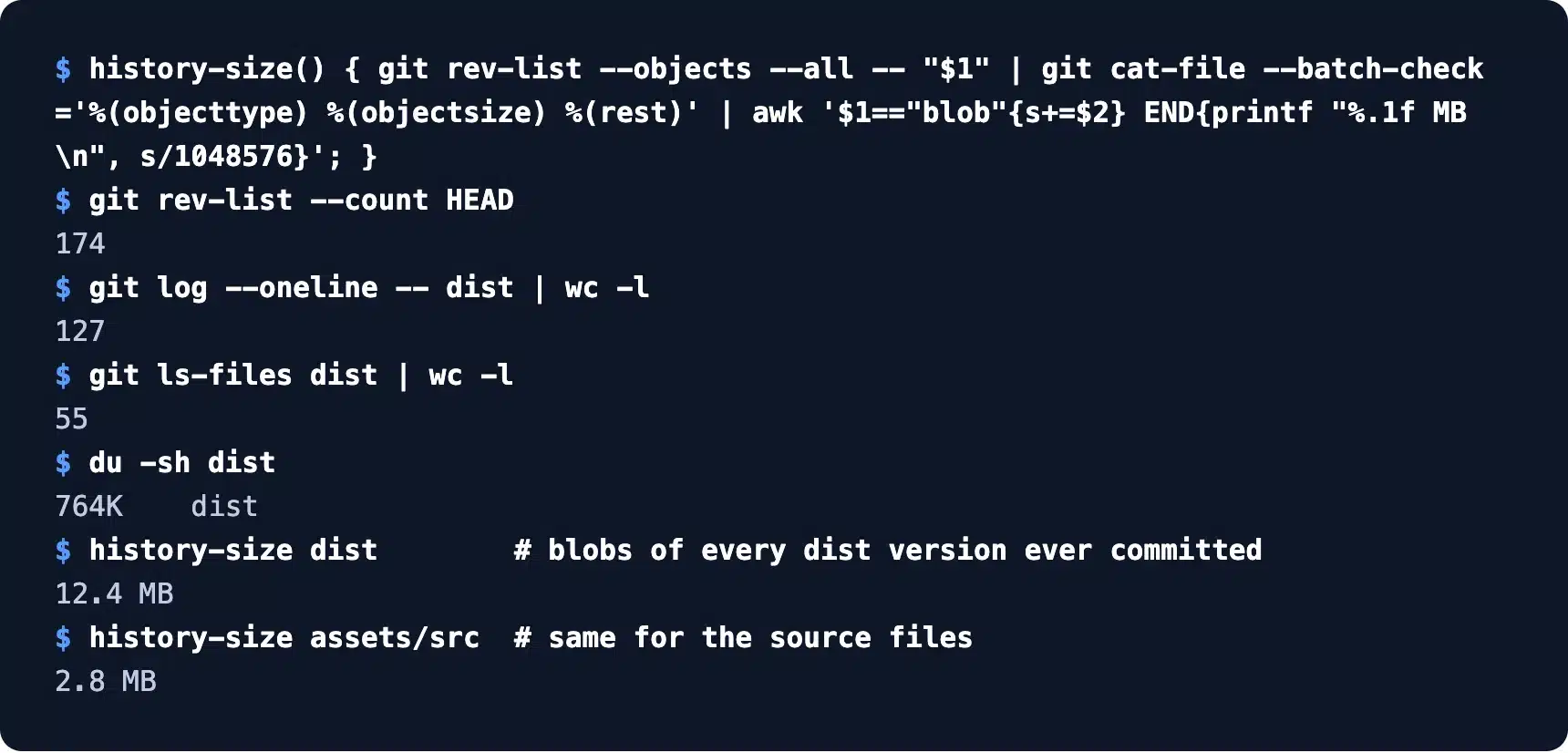
Of 174 commits, 127 touch dist. The folder is only 764 KB on disk across 55 files. But every saved version of it adds up to 12.4 MB, against 2.8 MB for every version of the source files.
That gap comes from minified files. A one-word CSS change rewrites the whole one-line file, so Git stores a fresh copy each time.
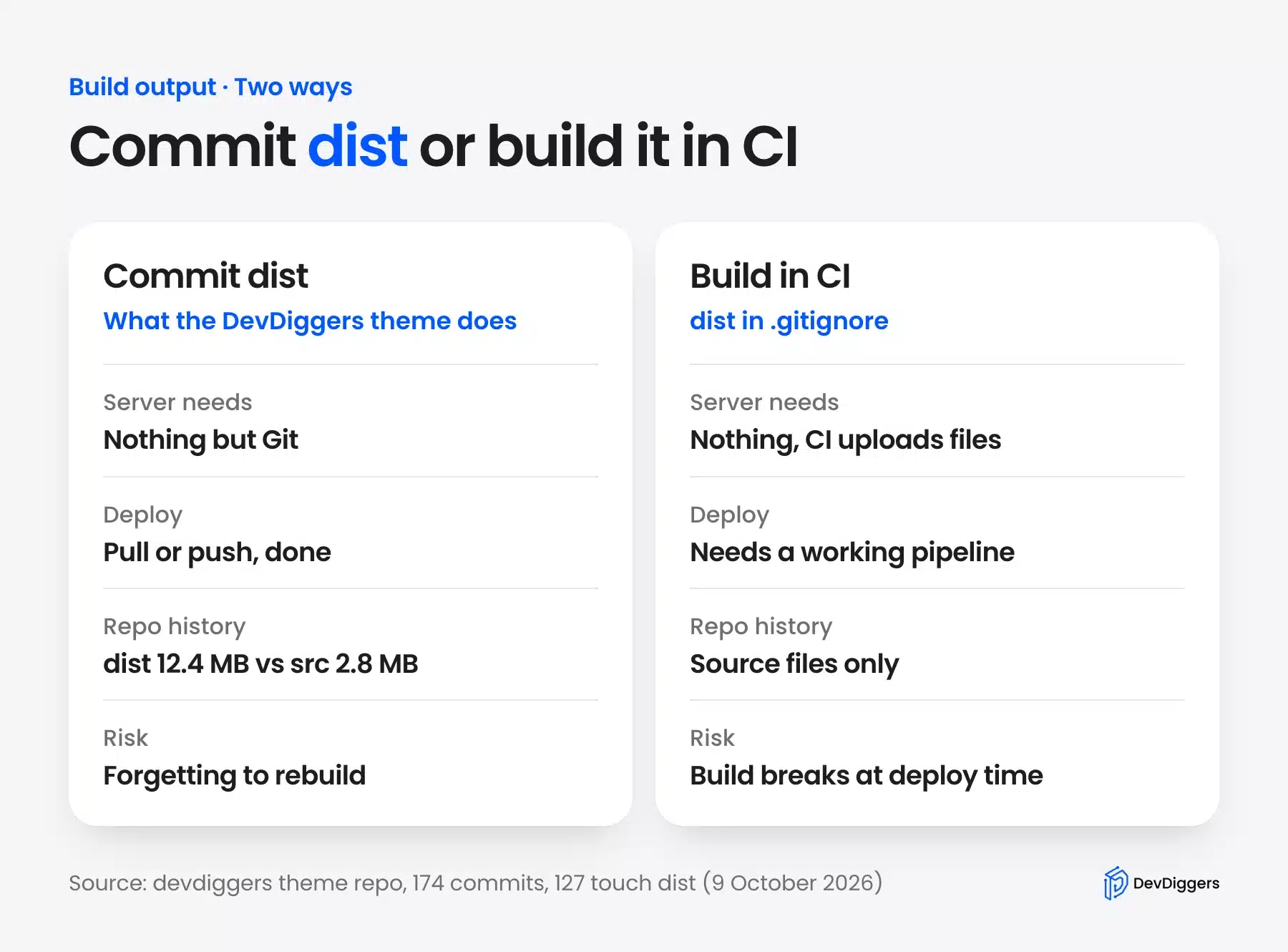
- Commit dist: Pick it when the host has no Node.js or when you deploy with a plain
git pull. Merge conflicts indistare solved by rebuilding, never by hand. - Build in CI: Pick it when a pipeline already runs on every push. Add
dist/to.gitignoreand let the runner build it.
Neither choice is wrong. The only bad setup is half of each, where dist is tracked but sometimes rebuilt on the server.
Why the Database Is Not in Git
The database holds posts, orders, users and settings, and it changes every time someone comments or buys. Git tracks files, so a database dump in the repo is stale within minutes. A pull would then overwrite real orders with old ones.
We proved the split on the test site. A new post went straight into MySQL, and Git saw no change at all. The active theme setting also lives in the database, which is why a revert of theme files never switched themes.
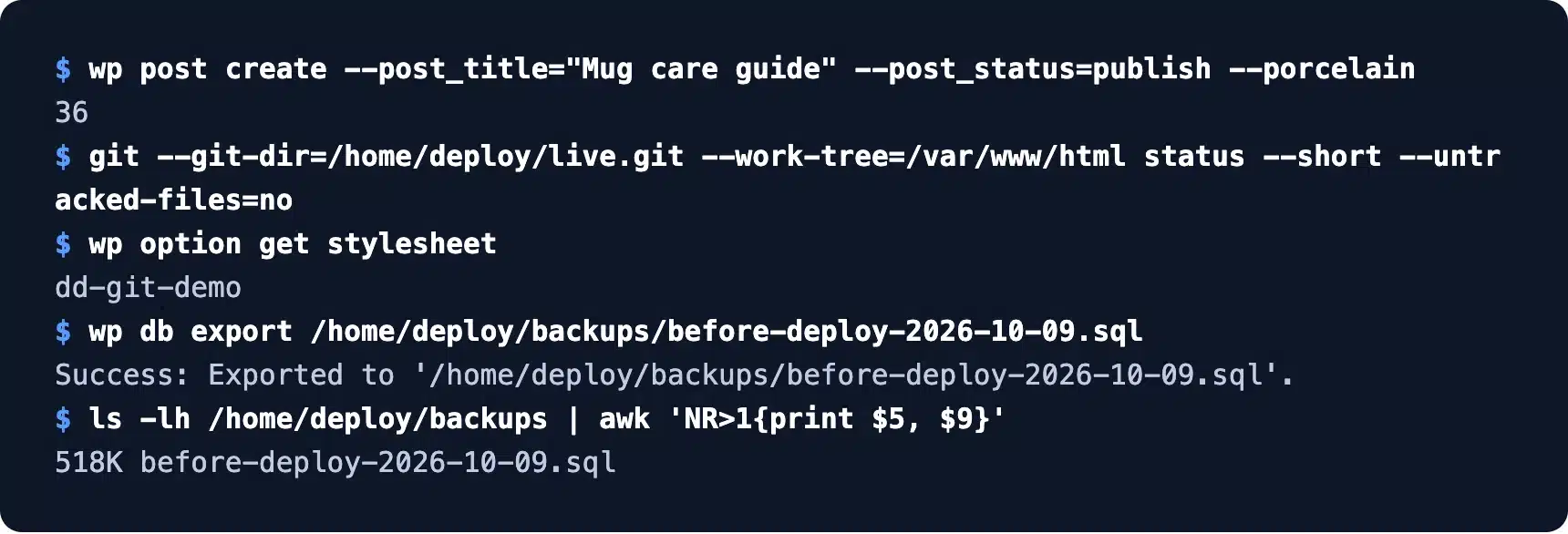
Back up the database before each deploy with wp db export, and keep the file outside the repo. Our export came to 518 KB.
The safe direction is down, never up. Copy the live database to staging when you need real data, then run wp search-replace to swap the live domain for the staging one. Only code travels up to live, through Git.
Settings changes are the hard part. A new page or widget made on staging must be made again on live, or moved with an export tool. Plugins that keep settings in code solve this for some sites.
What Breaks a WordPress Git Workflow?
Most Git deploys break because someone edits files on the live server. The next push then overwrites that edit without a word, since the hook writes the committed version over whatever is there. Secrets committed by mistake and missing build files are the next two.
We tested the first one. A quick price fix was made in the live functions.php, from $50 to $40. One unrelated push later, the server showed $50 again.
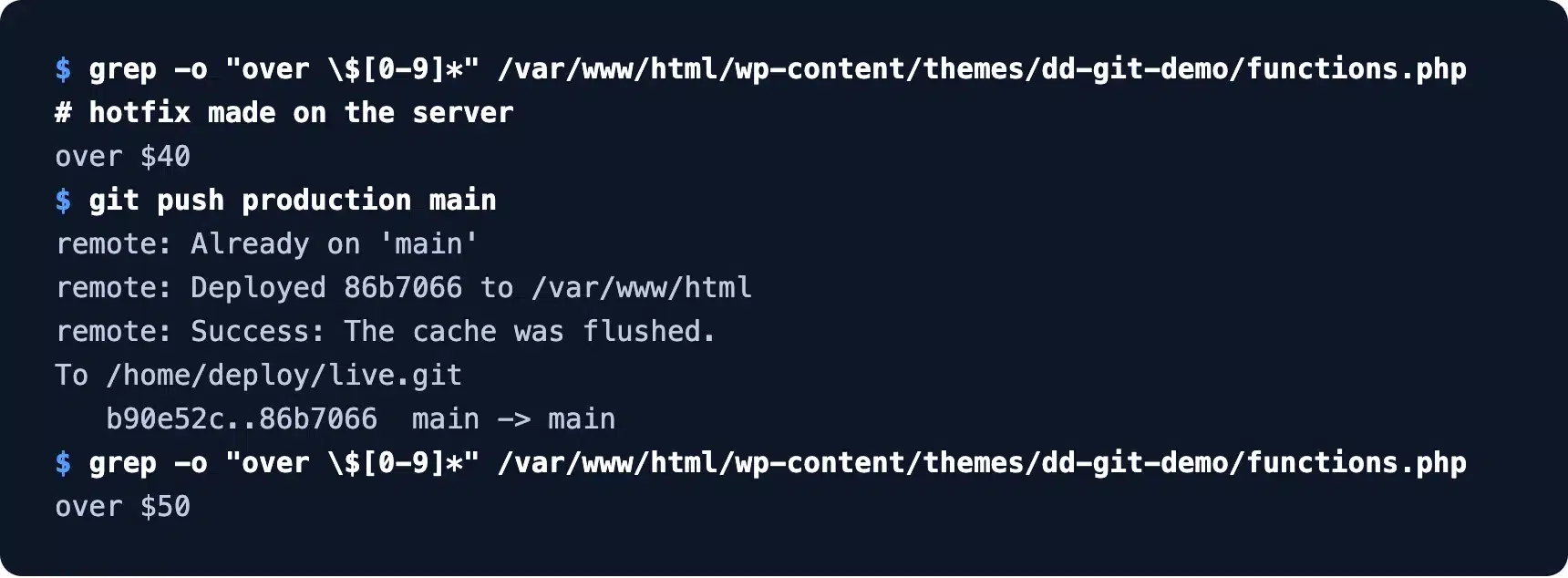
The fix is a guard at the top of the hook. It compares the live files with the last deploy and skips the checkout when they differ.
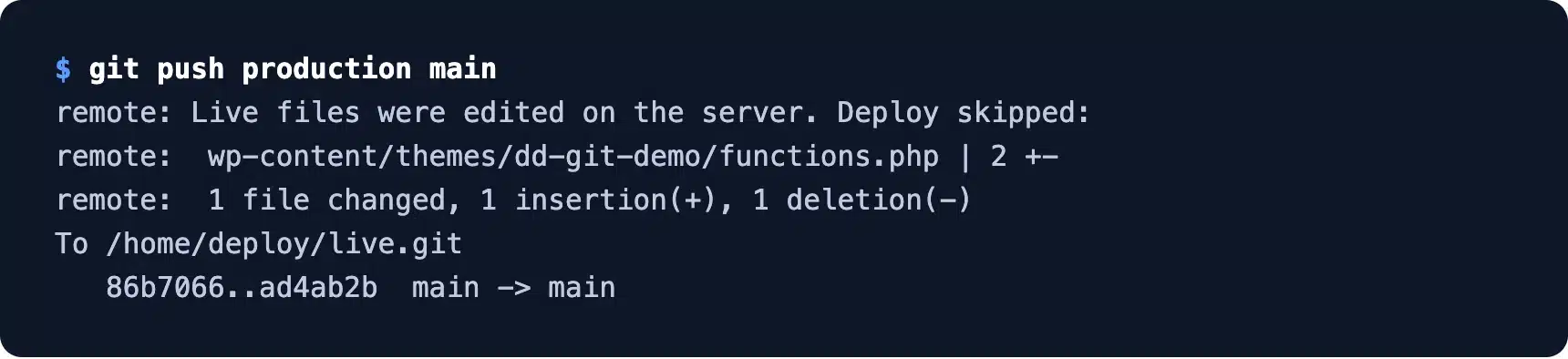
Note that the push itself still succeeded. The Git manual states that post-receive “does not affect the outcome” of the push, so the hook can only refuse to copy files. Move the hotfix into a commit, then push again.
Two more habits prevent the rest. Keep API keys for things like AI integration with WordPress in wp-config.php, never in tracked code. And if an AI website builder made your first theme draft, commit it before you edit it, so every later change is visible.
Which WordPress Deployment Method Fits Your Site?
A WordPress deployment method is how code gets from your machine to the live server. FTP uploads have no history, and a Git push hook suits one developer on an SSH host. A CI pipeline suits teams and themes with a build step.
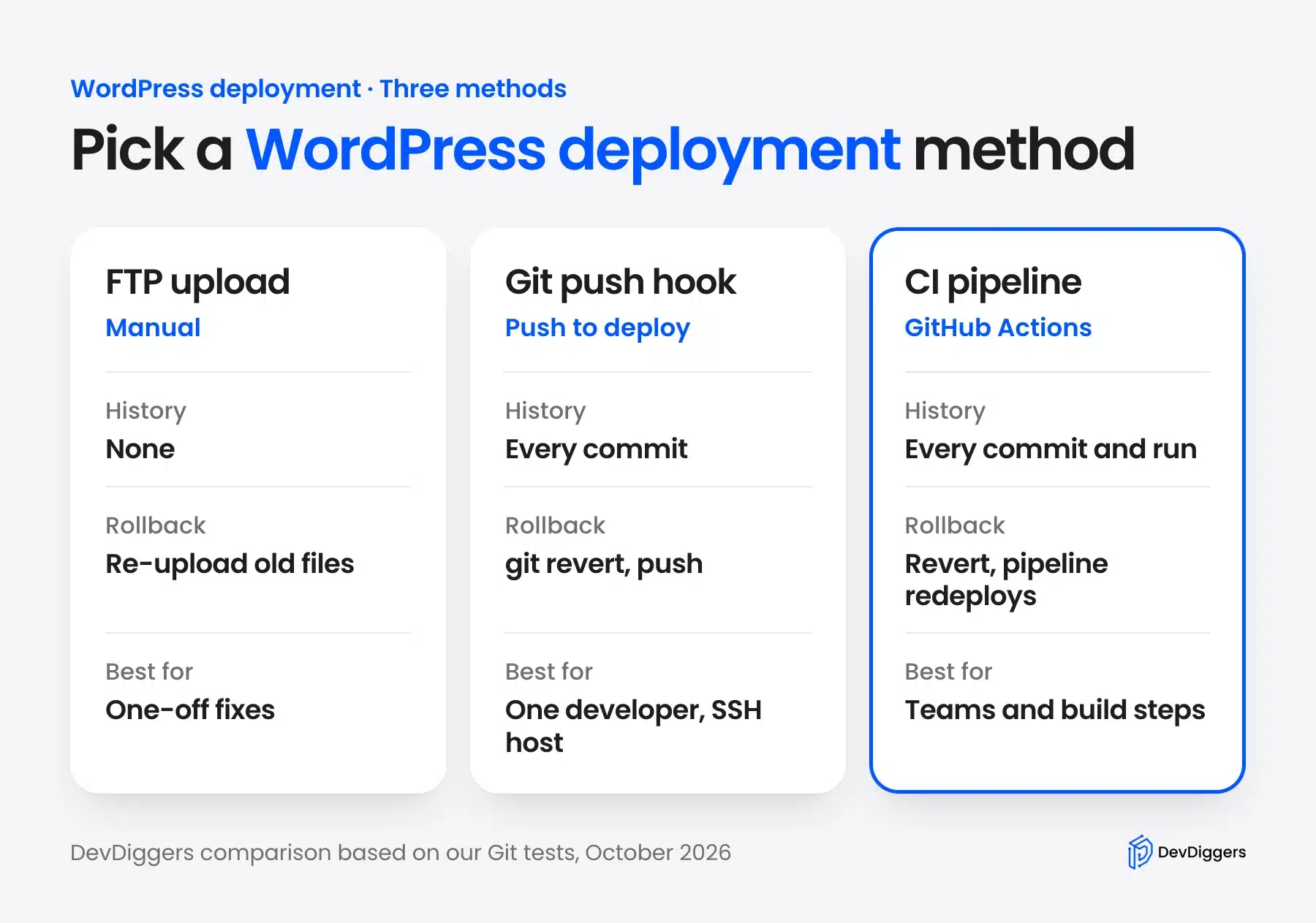
Pick the push hook if you work alone, your host gives you SSH and nothing needs building. It took us minutes to set up and pushes in about a second.
Pick CI when two or more people commit, when the theme has a build step or when you want a log of every release. It costs one YAML file and one set of secrets.
Some hosts build Git deploys in, so check before you write a hook. WordPress.com, for example, offers GitHub Deployments on its Business and Commerce plans. It connects a repo and deploys a theme, plugin or whole site from it.
Plugin-heavy stores gain the most. A long plugin list is often a sign that small custom snippets should move into one tracked plugin. Our look at whether 50 plugins are too much for a WordPress store covers the rest of that question.
Test each release on a local copy first, for example with Local WP for WordPress.
Conclusion
A working WordPress Git setup is mostly about what you leave out. Track your theme, custom plugins and must-use plugins, and ignore core, uploads, secrets and the database.
Push with a hook when you work alone, and add a GitHub Actions pipeline once a team or a build step joins. Guard the hook against server edits, and roll back with git revert. Whether you commit dist is your call, as long as everyone follows the same rule.
Frequently Asked Questions (FAQs)
Q1. How do I use Git for WordPress development?
Develop on a local copy, keep the repo at the site root and track only your own theme and plugins. Commit each change on a branch, merge it into main and push to a staging or live remote. The database and uploads move with WP-CLI exports and file syncs instead.
Q2. Should I put the whole WordPress install in Git?
No. Core is the same on every site and WP-CLI reinstalls it at any version in seconds. Tracking it adds thousands of files to every diff and hides your real changes.
Q3. Can I use Git on shared hosting?
You can if the host gives you SSH access with Git installed on the server. Without SSH, use a CI pipeline that uploads files over SFTP. Some hosts also offer their own Git deploy tools in the control panel.
Q4. How do I move the database between staging and live?
Export it with wp db export, import it with wp db import and run wp search-replace to swap the old domain for the new one. Never copy a staging database over a live store, because you would lose real orders placed in between.
Q5. Does WordPress itself use Git or SVN?
WordPress core is built in Subversion, and the core handbook states that the canonical repository is managed with it. Git mirrors copy every Subversion commit, so developers can still work in Git. Your own site code can live in Git either way.
Q6. What is the difference between git revert and git reset?
git revert adds a new commit that undoes an old one, so shared history stays intact. git reset moves the branch pointer back and rewrites history. That breaks the copies other people already pulled. Use revert on any branch that has been pushed.