Local WP is a free desktop app that runs a full WordPress site on your own computer. You need no hosting account to use it. You can install it and have a working local site in about ten minutes.
We use Local every day to build and test this very site, so every detail below comes from our own install. On our Mac it runs Local 10.1.2, and each site gets its own web server, PHP, database and email catcher on its own ports. We read those settings straight from the app’s files, which is also how we found the upload and memory limits most guides never mention.
First you get how to use LocalWP in five setup steps, with a screenshot at each one. Then come the features worth learning next, what Local builds on your disk, and how to move a finished site to live hosting. The last section covers the problems people hit most with Local.
What Is Local WP?
Local WP, often written LocalWP, is a free app from WP Engine that sets up WordPress on your own computer. It installs a web server, PHP and a database for each site, then installs WordPress on top. You open the site in your browser like any other website, but it only exists on your machine.
It used to be called Local by Flywheel, and many people still search for it under that name. The download page and help docs now live at localwp.com, and the app is free. The Local installation guide says so plainly: “It’s free and always will be.”
Local runs on macOS, Windows and Linux. The same guide lists macOS Monterey (12) or newer, 64-bit Windows 10 or 11, and Debian-based Linux such as Ubuntu. It also asks for 4GB of RAM and 1.5GB of free disk space.
Why Use Local WP for WordPress Development?
Local WordPress development means building on a copy that only you can see. That makes it the safest place to test anything that could break a live site.
You can try a new theme, update a plugin, or write custom code without a single visitor seeing a broken page. When it works, you move the change to the live site.
Local is also fast because nothing travels over the internet. Pages load from your own disk, so testing a change takes a refresh instead of an upload. And you can work offline, on a train or a plane, then sync the work later.
Running WordPress local also keeps experiments cheap. A local WordPress setup costs no hosting fee, so you can keep a test site for every client or plugin idea.
Here is how Local compares with the two other common ways to run WordPress on your computer:
| Local WP | XAMPP or MAMP | WordPress Playground | |
|---|---|---|---|
| Setup | One app, one click per site | Manual database and file setup | Runs in the browser, nothing to install |
| Each site isolated | Yes, own PHP and database | No, sites share one server | Yes |
| Email testing | Built in with Mailpit | Needs extra setup | No |
| Share a preview link | Yes, with Live Links | No | Yes, by sharing the blueprint |
| Keeps your data | Yes | Yes | Only if you export it |
| Best for | Real site building and testing | Developers who want full control | Quick tests and demos |
If you only need a throwaway test, our guide to WordPress Playground shows the browser option. For building and maintaining real sites, Local is the more practical choice.
How to Set Up WordPress Using Local WP: Step by Step
Setting up WordPress with Local WP takes five steps: download the app, create a site, set your admin login, open the site, and start building. The whole process takes about ten minutes on a normal connection. Every step below matches what you see on screen in the current app.
Step 1: Download and Install Local WP
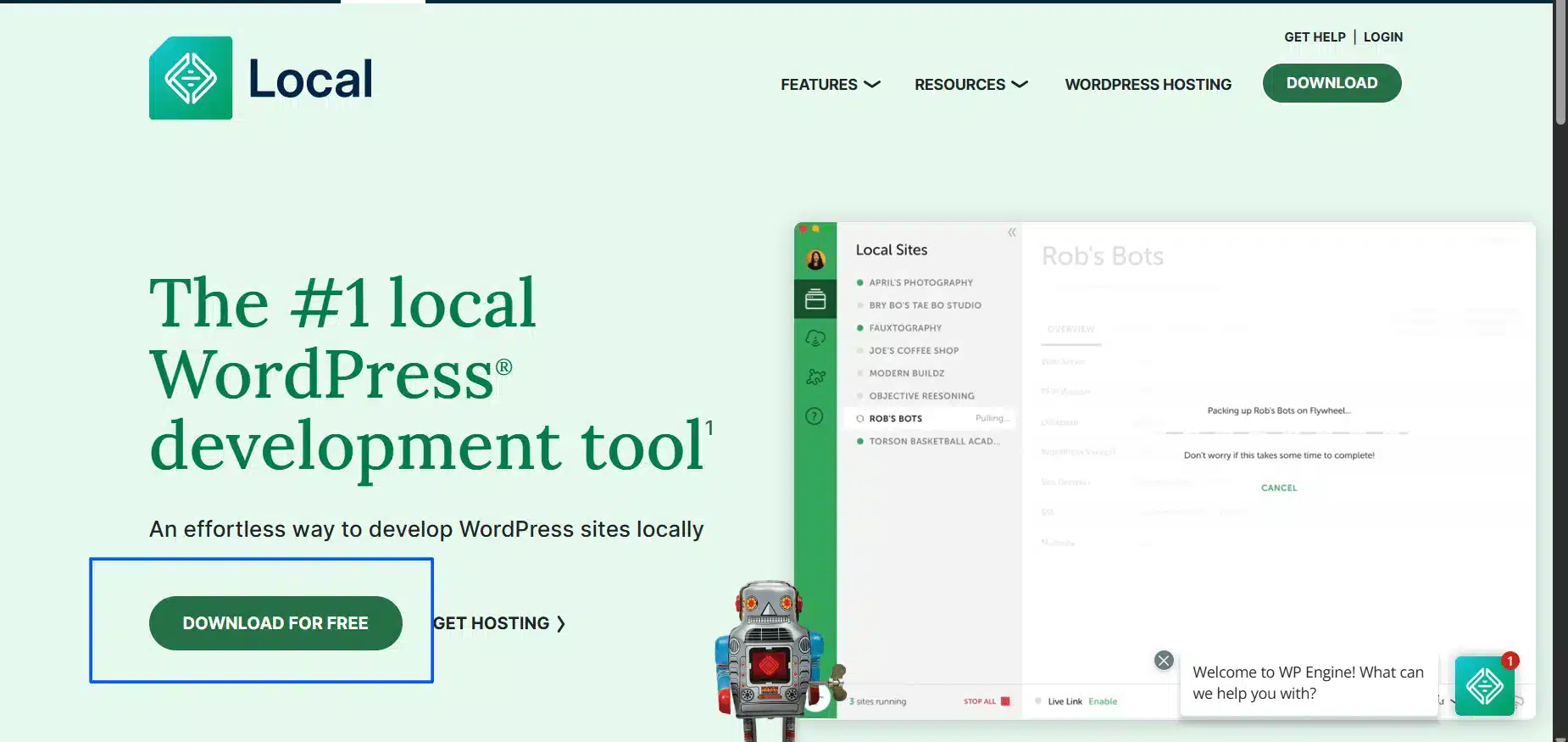
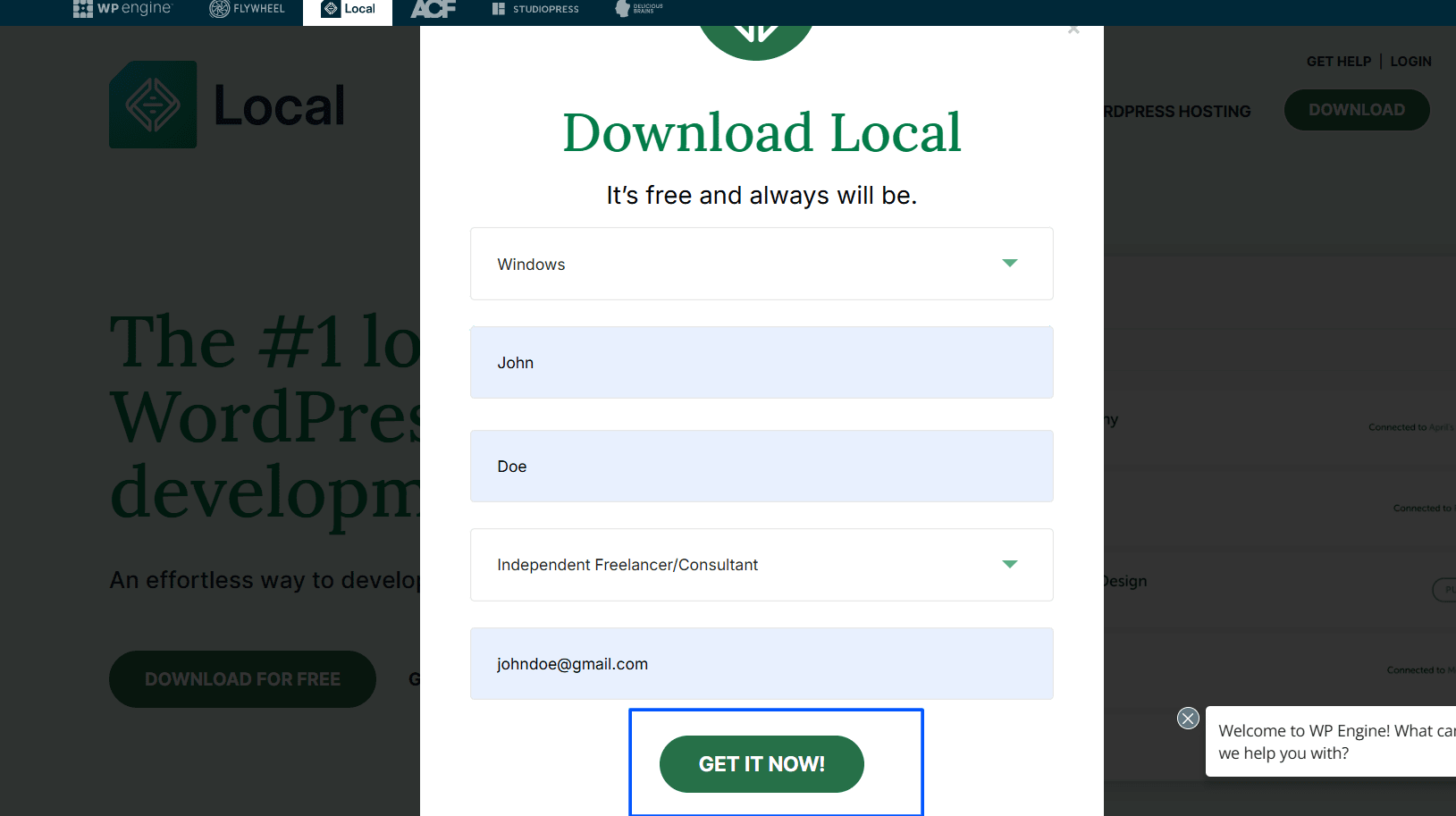
Go to localwp.com and click Download for free. Then choose your platform, macOS, Windows or Linux, and click Get it now to start the download.

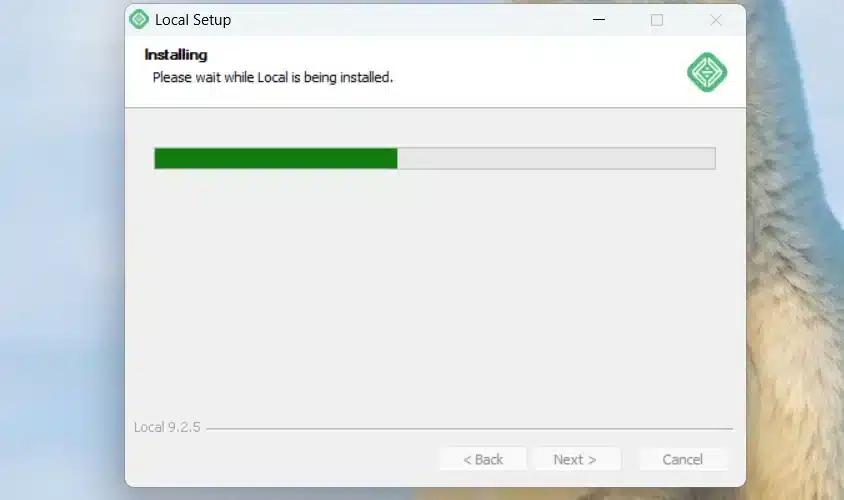
Open the file you downloaded and run the installer. On a Mac you drag Local into the Applications folder, and on Windows you follow the installer steps. The first launch can take a minute while Local sets up its services.
Step 2: Create a New Local WordPress Site
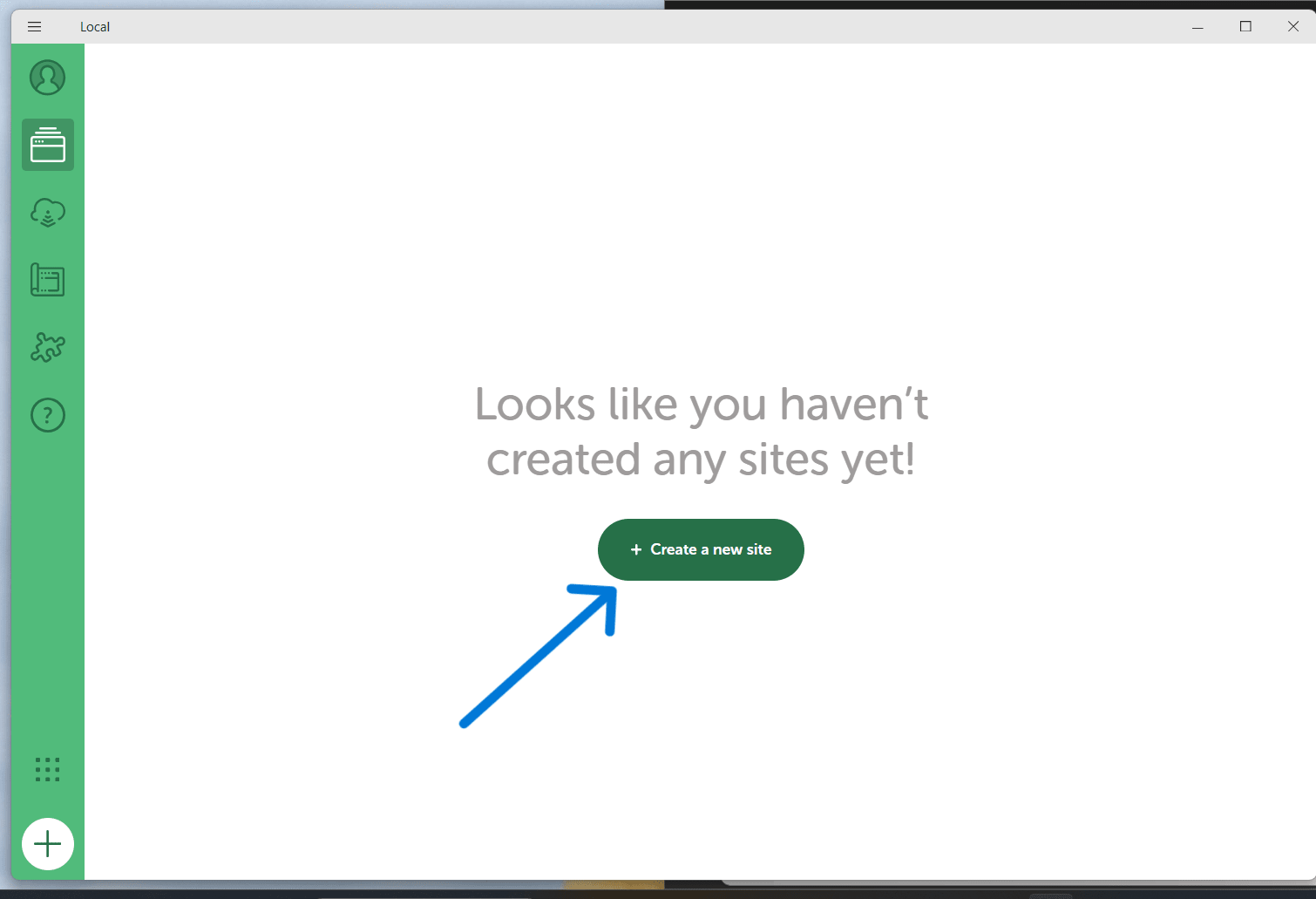
Open Local and click Create a new site, or the plus button at the bottom left. Choose Create a new site again on the next screen, since the other options start from a Blueprint or a backup.
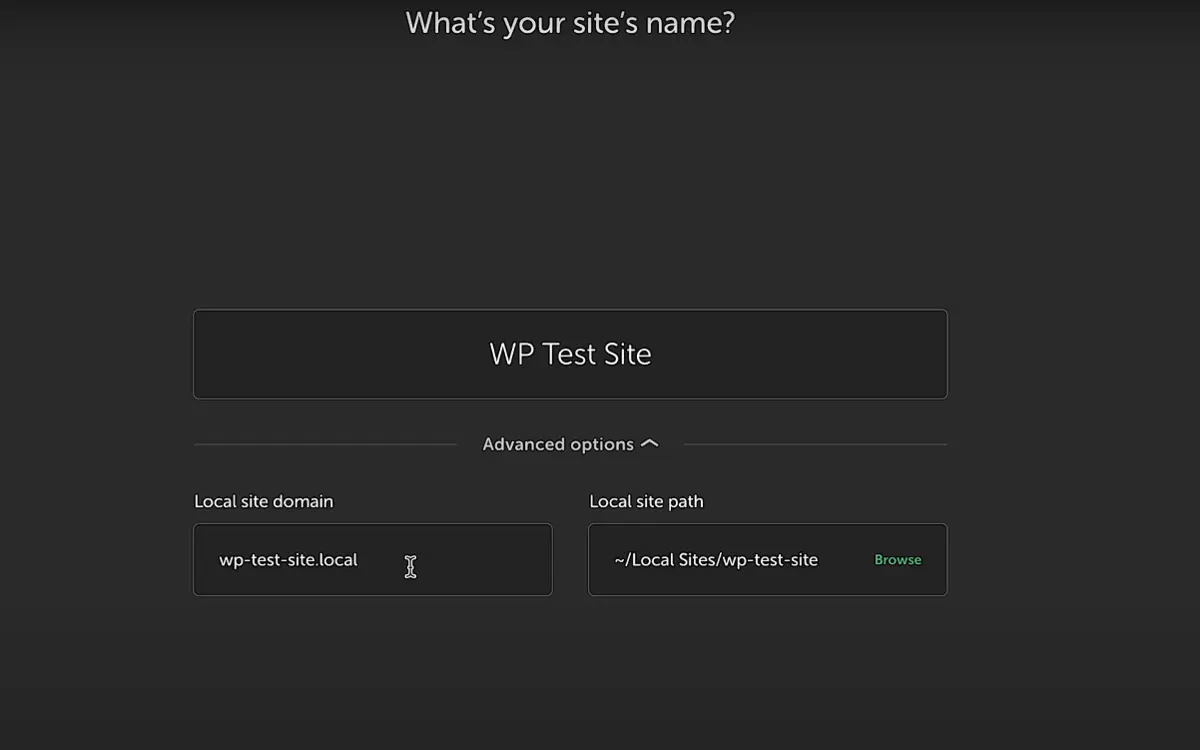
Type a site name. Local turns it into a domain ending in .local, so a site named “DevDiggers” becomes devdiggers.local, which is exactly the domain our own site uses.
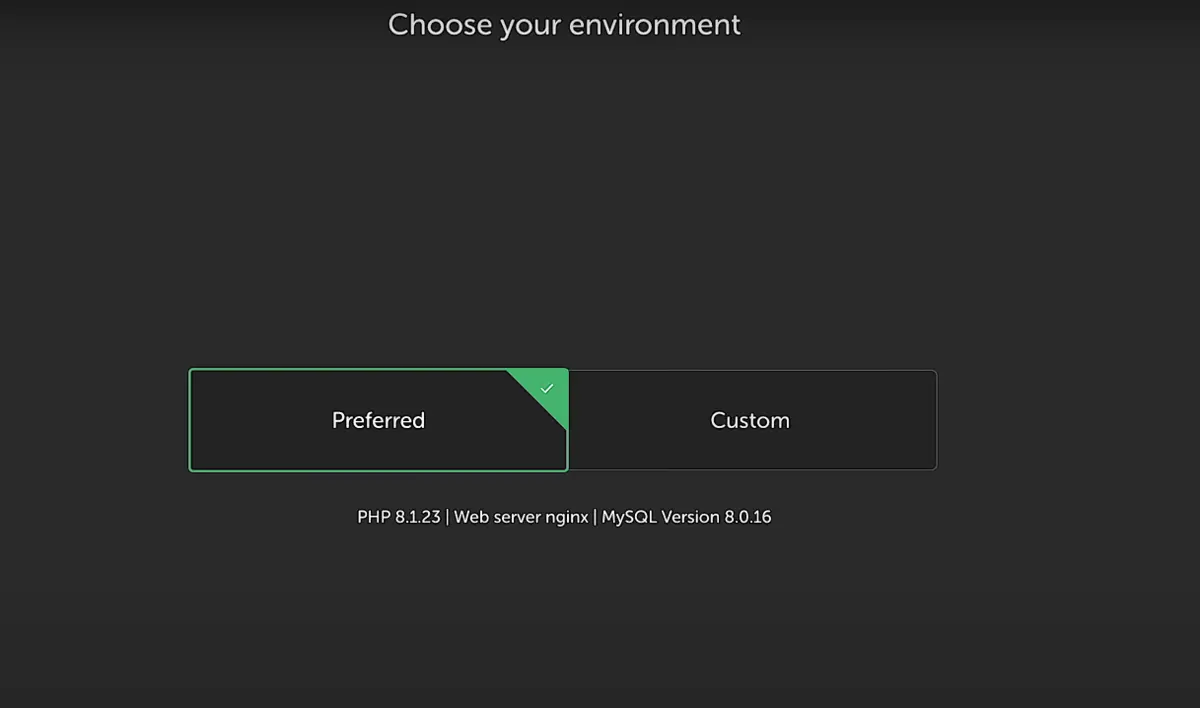
Next, choose an environment. Preferred picks sensible versions of PHP, the web server and the database for you. Custom lets you choose each one, which is useful when you want your local site to match a live host.
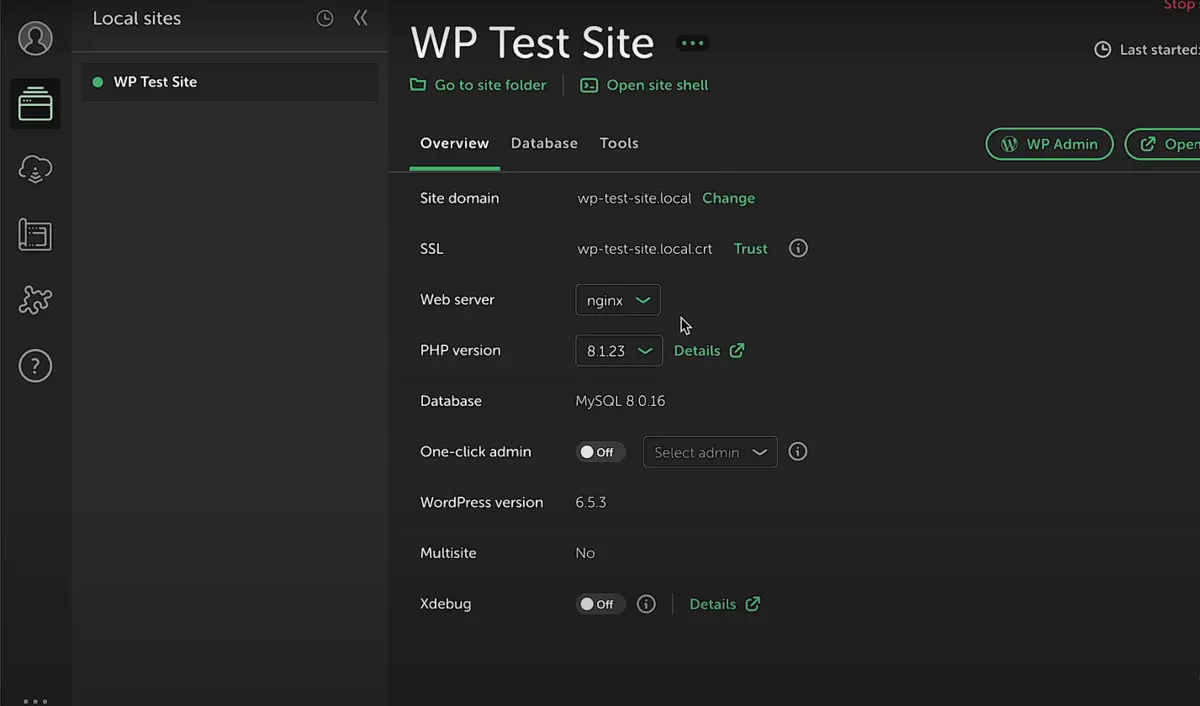
Tip: Match your live host if you can. Our local copy of devdiggers.com runs PHP 8.2.27 and MySQL 8.0.35. A bug caused by a PHP version then shows up locally before it reaches the live site.
Step 3: Create Your WordPress Admin User
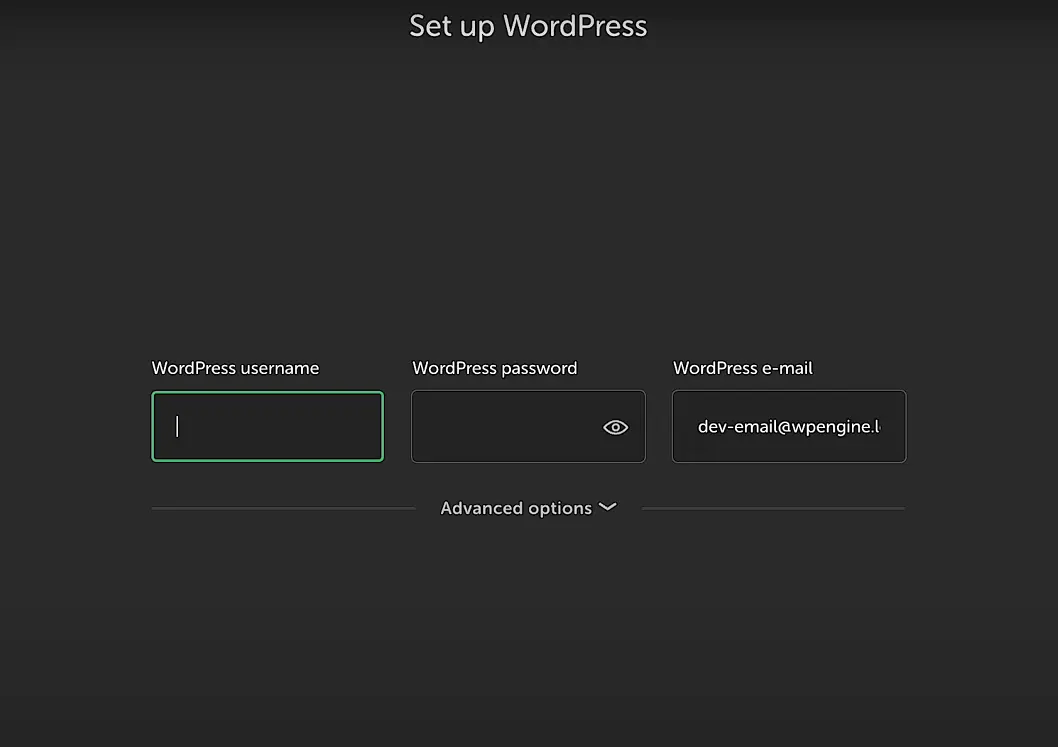
Enter a WordPress username, password and email address. These are the login details for this local site only, so they do not need to match your live site.
Click Add Site. Local downloads WordPress, creates the database and installs everything, which usually takes under a minute.
Step 4: View Your Local WordPress Site
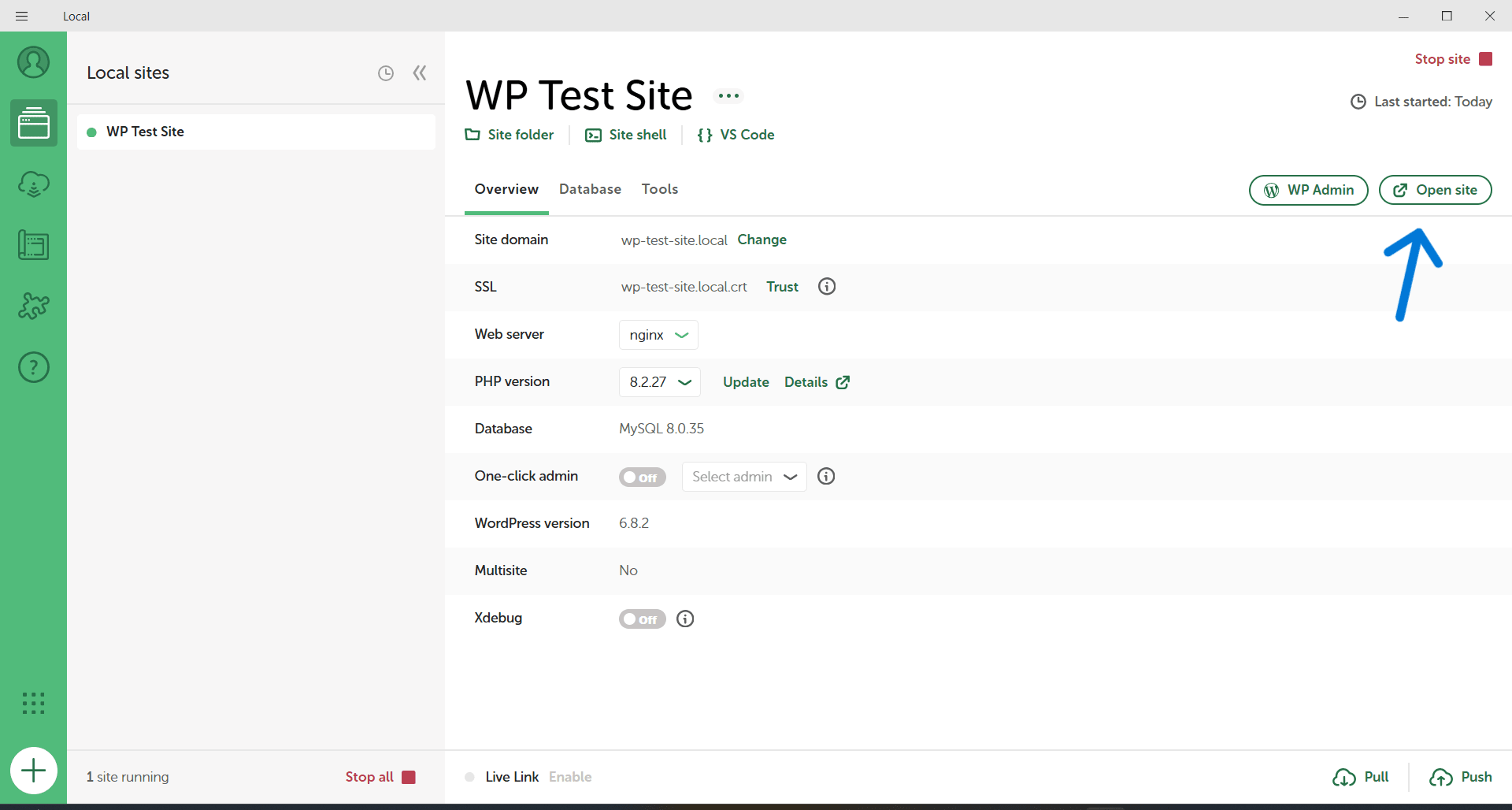
When the site is ready, Local shows its overview panel. Click Open site to see the front end in your browser.
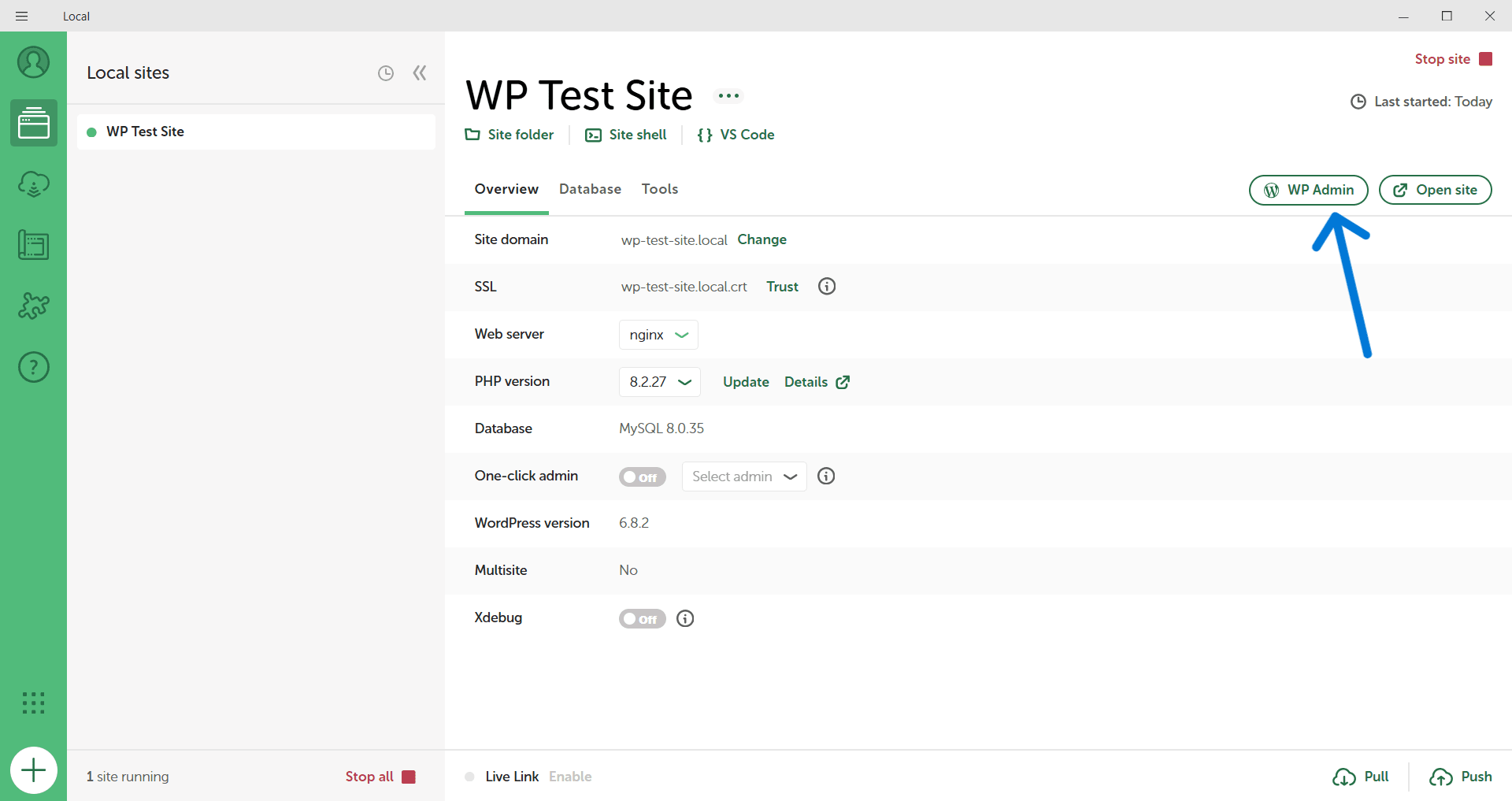
Click WP Admin to open the dashboard. This is the Local WP admin link people search for, and it simply opens your-site.local/wp-admin/ in your browser. Local also has a one-click admin option in the site overview, which logs you in without typing the password.
Step 5: Start Customizing, Testing and Extending Your Site
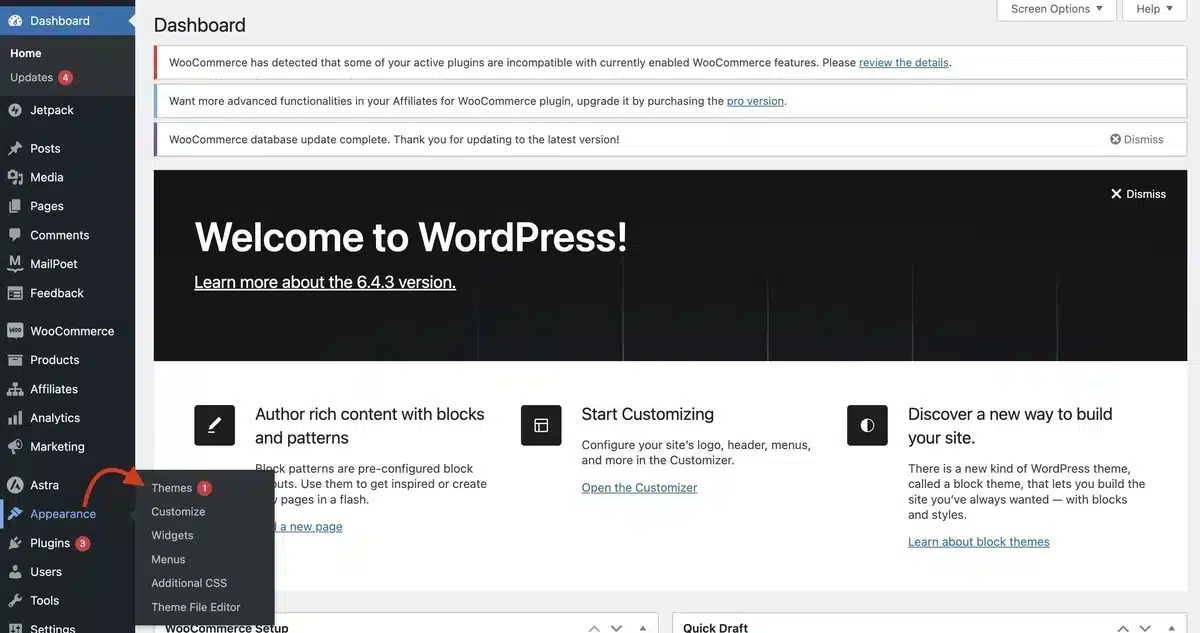
Your local site works like any WordPress site now. Install a theme under Appearance > Themes, add plugins under Plugins > Add New Plugin, and create pages as usual.

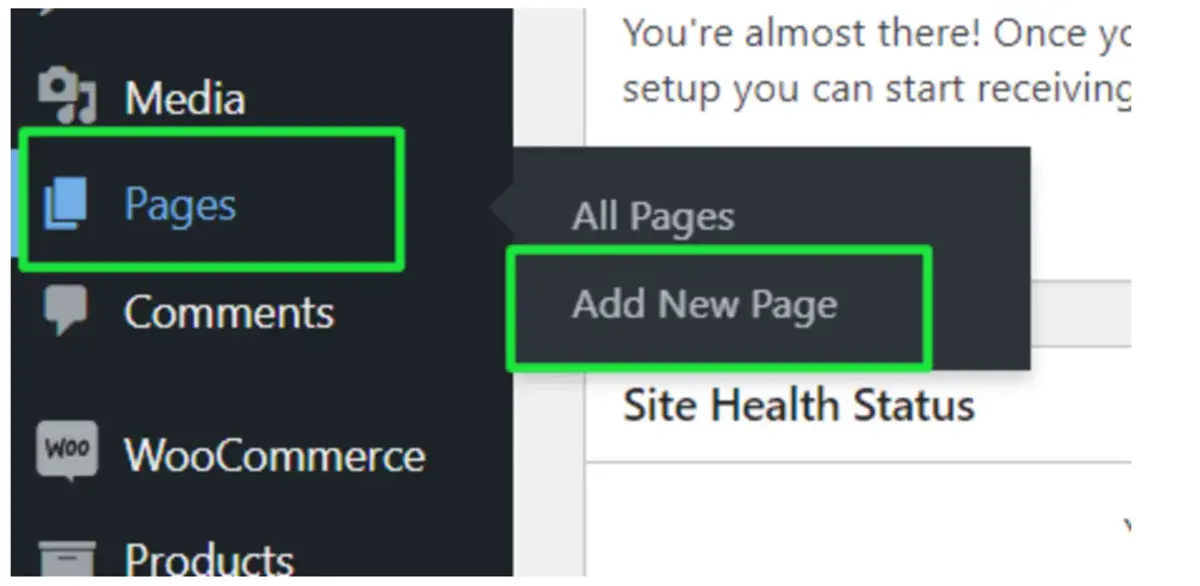
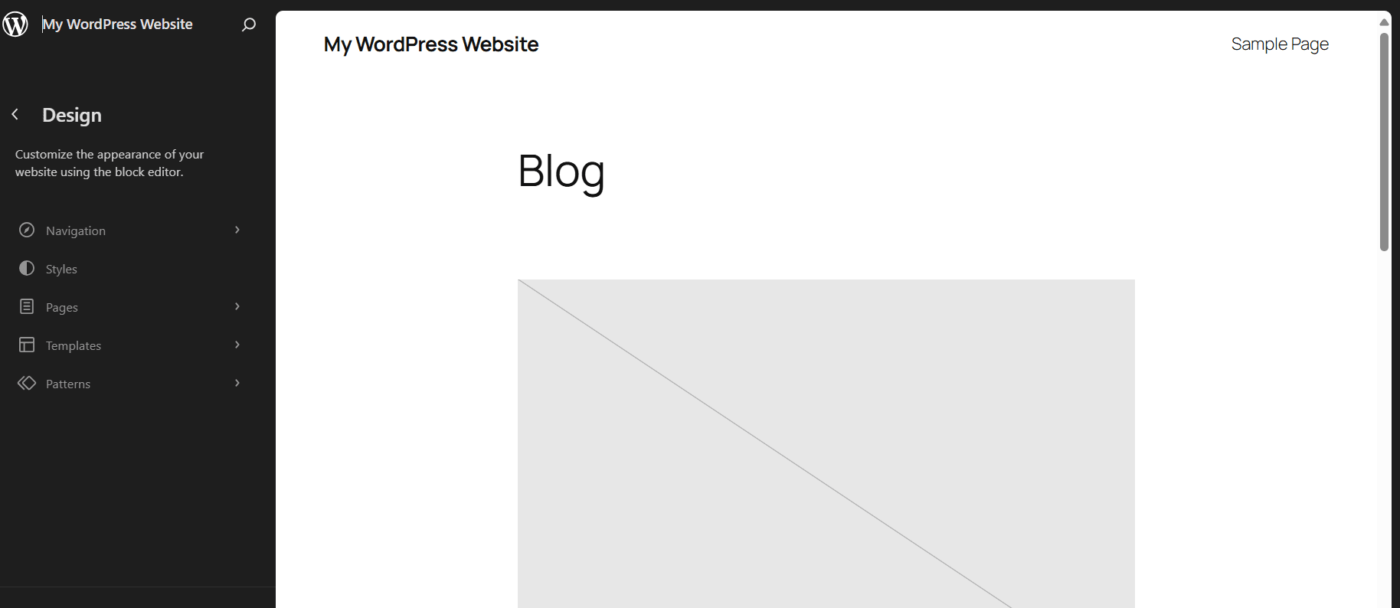
The theme and plugin files sit on your disk, so you can open them in any code editor. Changes show the moment you refresh the page because nothing needs uploading.
What Local WP Builds on Your Computer
Local WP gives every site its own folder and its own copy of each server, running on its own ports. On a Mac, sites live in a folder called Local Sites in your home folder. WordPress itself sits in each site’s app/public folder, the same layout you would find on a live host.
We read these details from our own install on September 23, 2026. Each site folder holds three parts: app for WordPress, conf for server settings, and logs for the server logs.
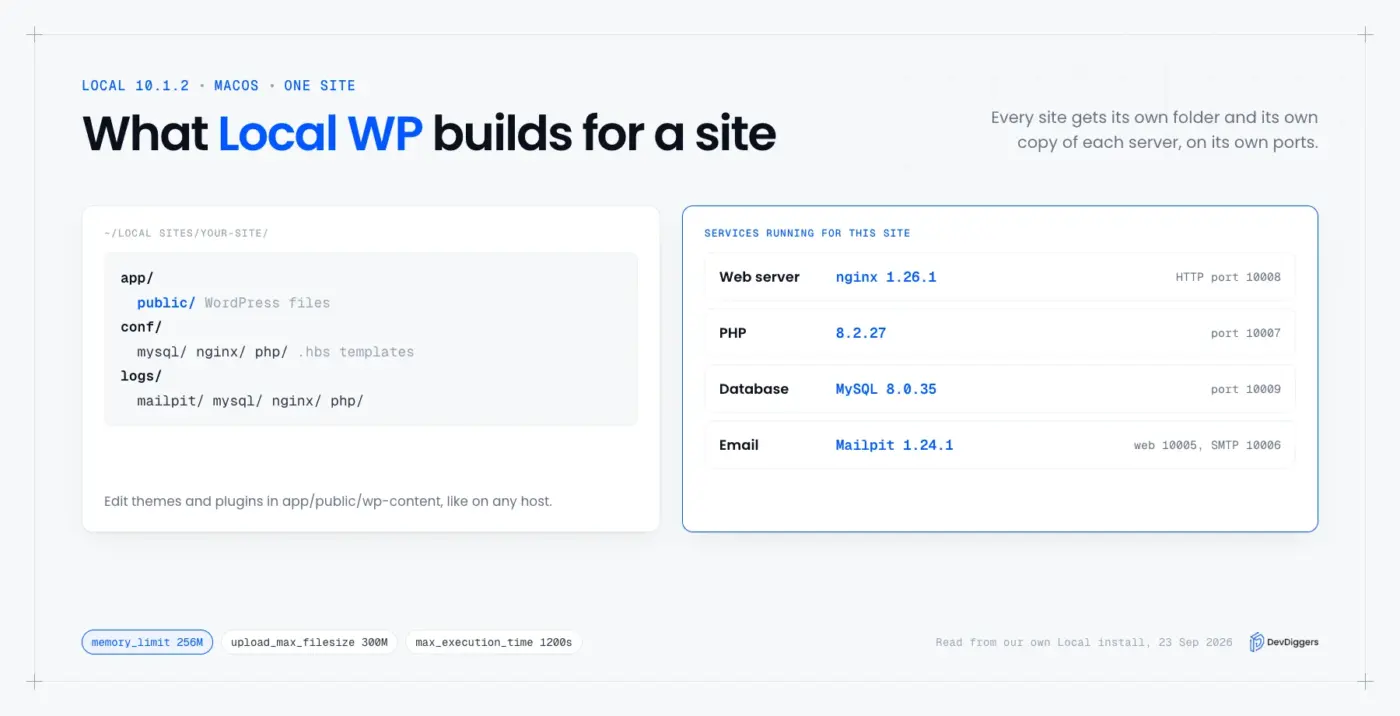
For our DevDiggers site, Local runs nginx 1.26.1 as the web server, PHP 8.2.27 and MySQL 8.0.35, plus Mailpit 1.24.1 for email. Each one listens on its own local port, starting at 10005 for this site, so several sites can run at once without clashing.
The conf folder holds the settings as templates, with a .hbs extension. Local builds the real config files from them when the site starts, so edit the templates and leave the generated files alone. The PHP template on our install set these limits:
memory_limit = 256M
upload_max_filesize = 300M
post_max_size = 1000M
max_execution_time = 1200
Those numbers are much higher than many shared hosts allow. A 300MB upload limit and a 20 minute time limit mean large imports and theme uploads rarely fail locally. The flip side is that something working in Local can still fail on a host with tighter limits, so test big imports on staging too.
Local also sets the environment type for you.
Our wp-config.php contains define( 'WP_ENVIRONMENT_TYPE', 'local' );, which plugins and themes can read with wp_get_environment_type(). That lets code skip things like live payment calls or analytics while you work locally. If your site loads tracking through Google Tag Manager in WordPress, a check on this value keeps your test visits out of the reports.
Local WP Features Worth Learning Next
Once your first site runs, a handful of Local WP features save the most time. Blueprints turn a set-up site into a reusable starting point, and Live Links share a local site with someone else. Mailpit, SSL and the built-in database tool cover the rest of daily work.
1. Site Cloning and Blueprints
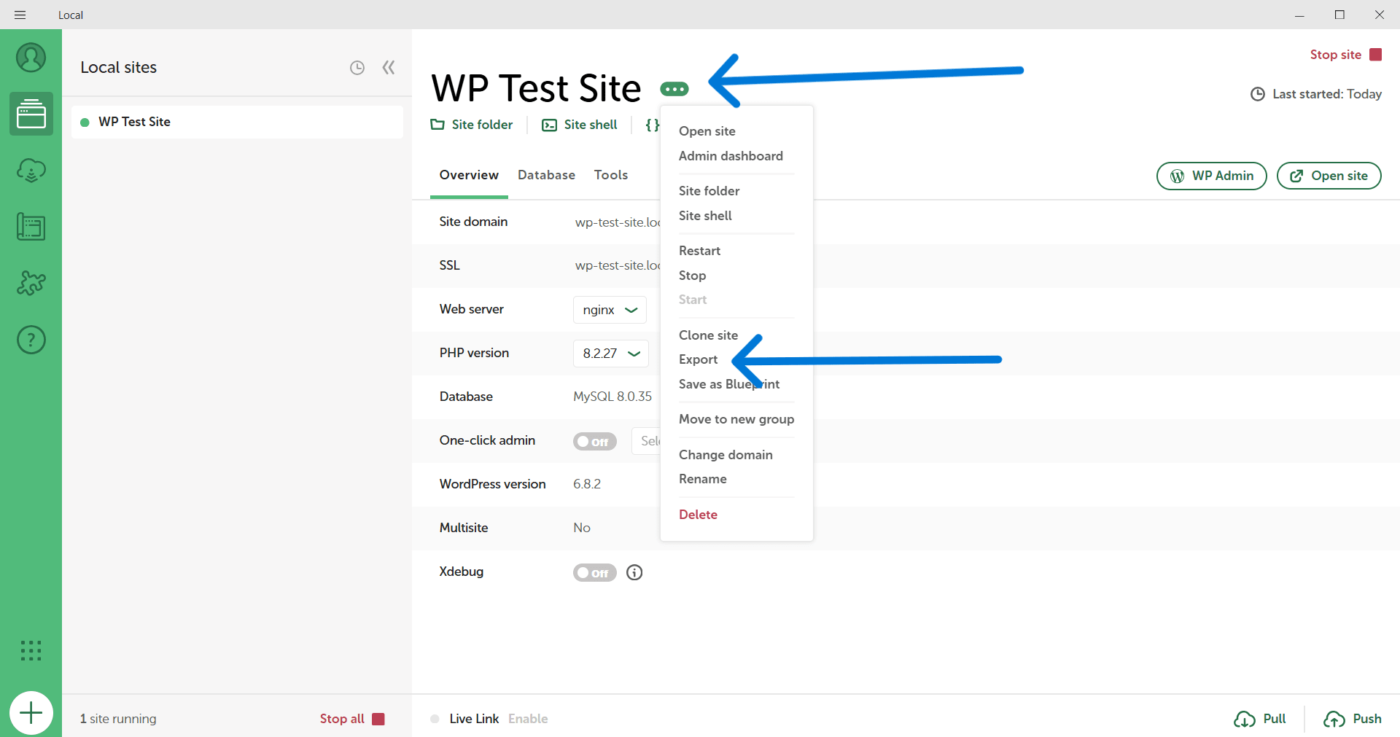
The Blueprints documentation describes a Blueprint as “a WordPress site package that can include themes, plugins, configured pages, site settings, and more.” To make one, start a site, open the … menu next to its name, and choose Save as Blueprint.
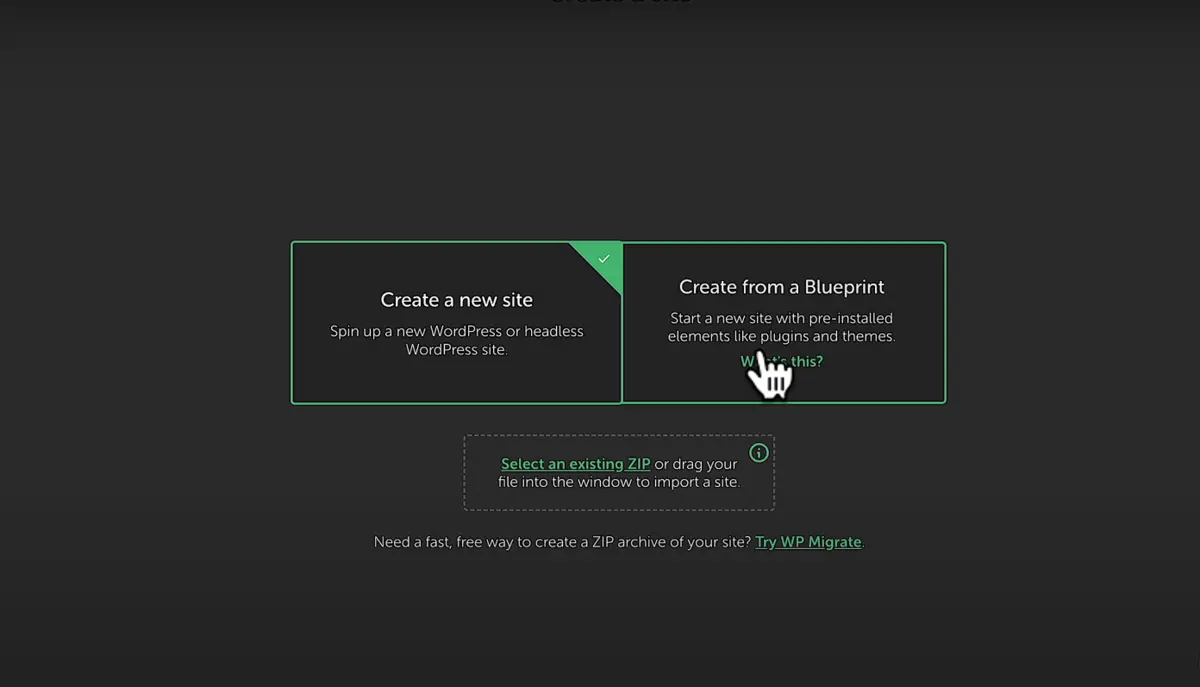
A good Blueprint holds only what every new site needs, such as your starter theme and the plugins you always install. Add settings like permalinks and time zone too. Leave out client content and license keys, since those differ per project.
This is how teams start every project from the same base. Save your usual theme, plugins and settings once, and each new site starts with them already in place.
2. Live Link Sharing
Live Links let someone else view your local site through a public web address while the site stays on your computer. The Live Links documentation says you need a free Local account, and each site gets a persistent address over HTTPS with Privacy Mode turned on.
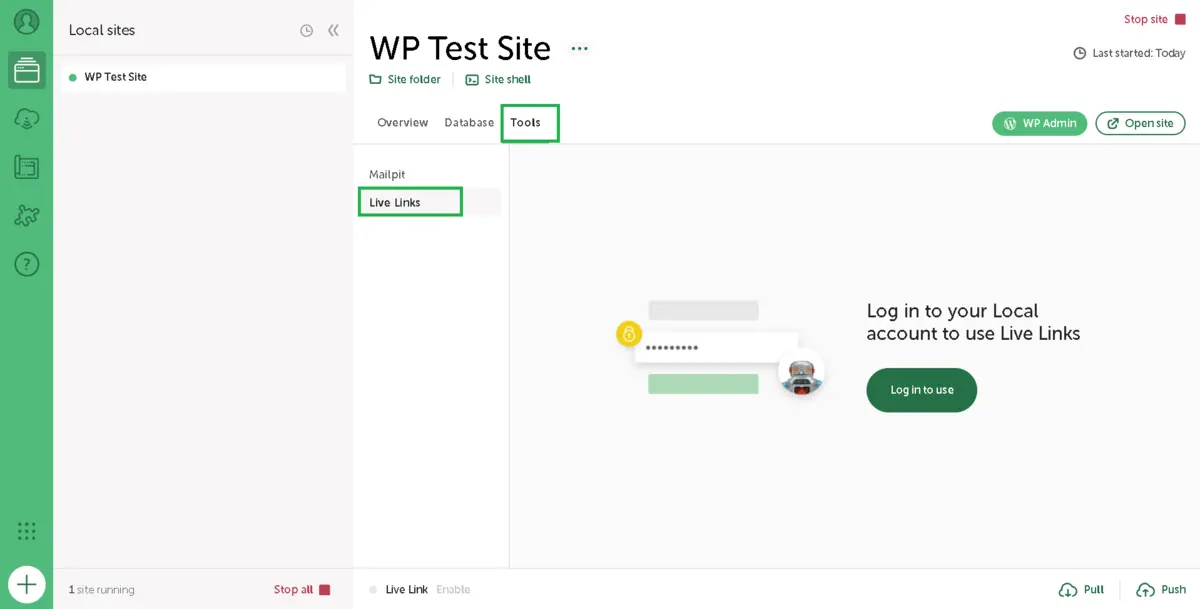
Because the address stays the same for that site, you can send it once and reuse it for every review round. Change the username and password from the same panel when a project ends, so an old client link stops working.
Use it to show a client a design before launch. Keep in mind that the link only works while Local and the site are running on your computer.
3. Mailpit for Email Testing
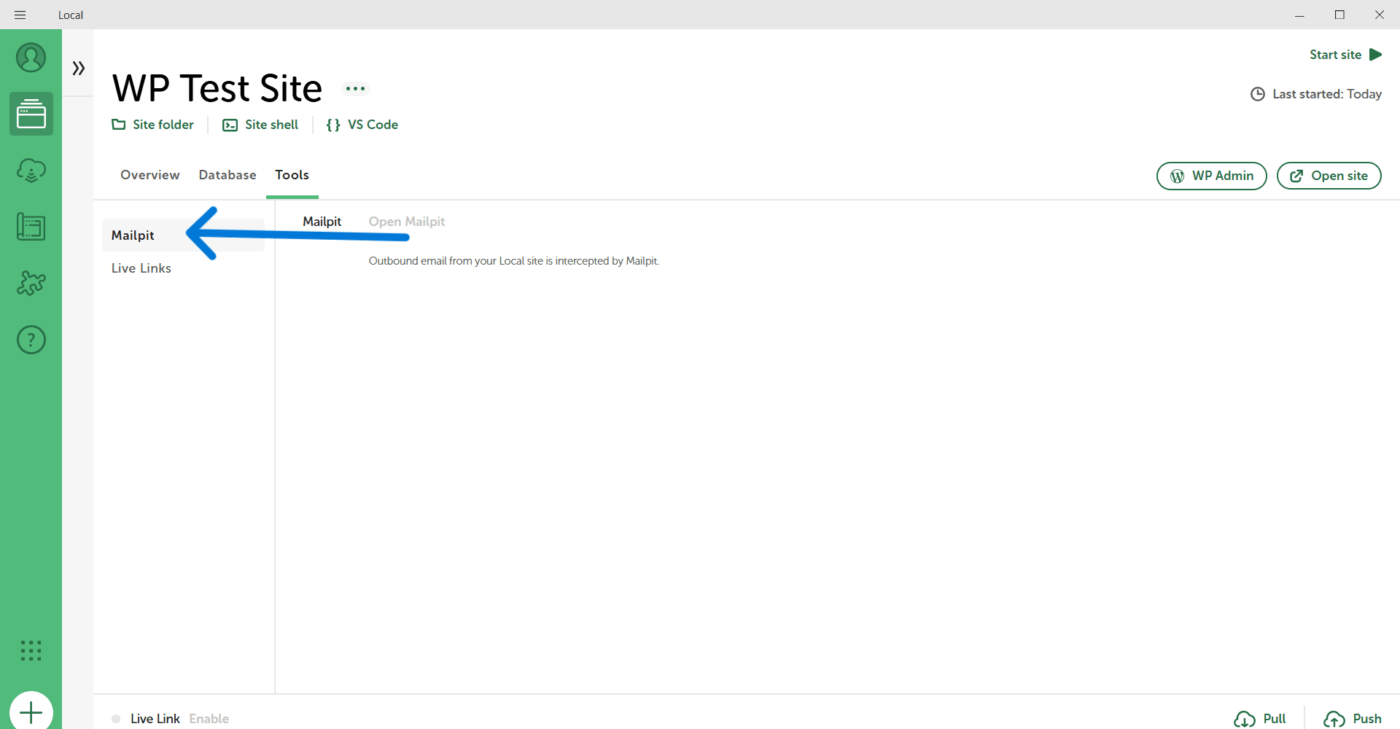
Every Local site catches its outgoing email in Mailpit instead of sending it. Open it from the site’s Tools tab to read order emails, password resets and form notifications. None of them can reach a real customer.
Mailpit only shows the email, so check that the form saved the entry as well. Our guide on how to check form submissions in WordPress shows where each form plugin stores them.
4. Flexible Server Environments
With a Custom environment, you choose the PHP version, the web server and the database per site. Our install had downloaded PHP from 7.4.30 up to 8.4.18, MySQL 8.0 and 8.4, MariaDB from 10.4 to 10.11, and both nginx and Apache.
Only versions you have used before are stored on your computer. Local downloads a new version the first time you pick it, which takes a minute, and keeps it for later sites.
You can also switch an existing site’s PHP version from its overview panel. That makes Local a quick way to test a plugin on an older or newer PHP before a host upgrade.
5. Add-ons and Developer Tools
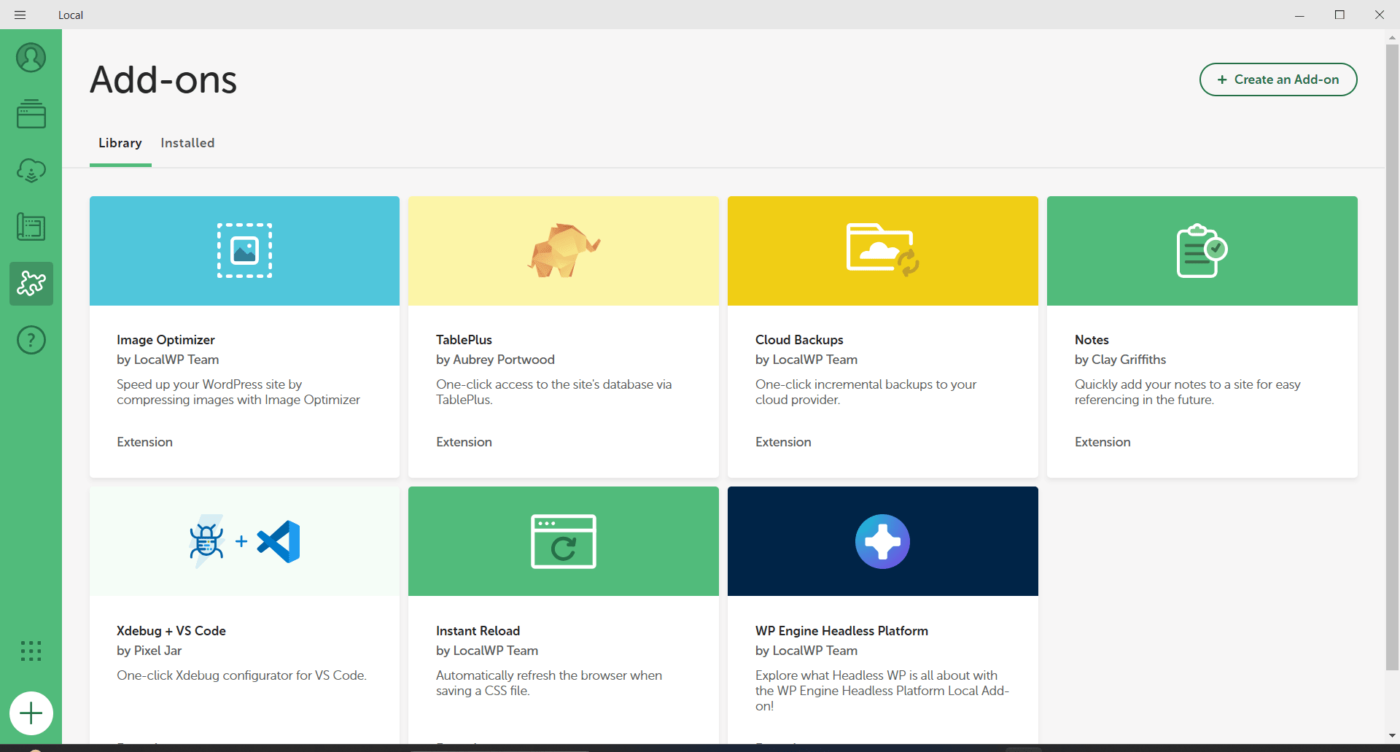
Local has an add-ons library for extra tools, such as image optimization or instant reload while you edit CSS. Open Add-ons in the left sidebar to browse and install them.
For command line work, each site has a Site shell option that opens a terminal with WP-CLI ready for that site. It is the fastest way to run a bulk command without setting anything up.
6. SSL for Every Local Site
Local can serve each site over HTTPS. In the site overview, click Trust next to the SSL setting, and your computer trusts the local certificate so the browser stops warning you.
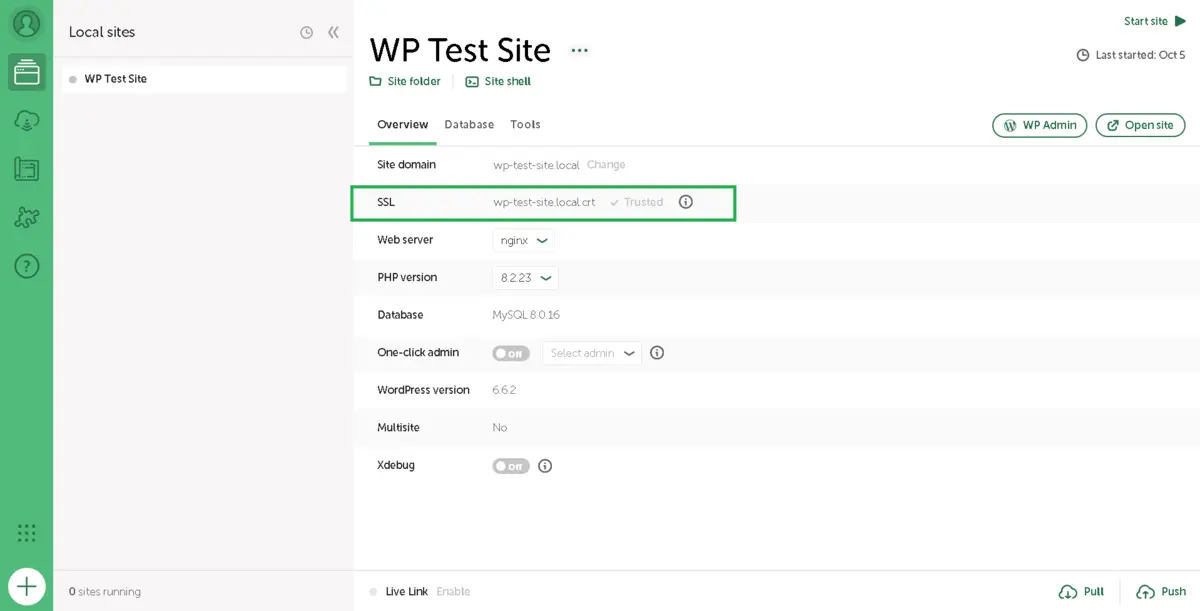
HTTPS locally matters for testing anything that needs a secure page, such as payment forms or browser features that only work over HTTPS.
7. Database Access
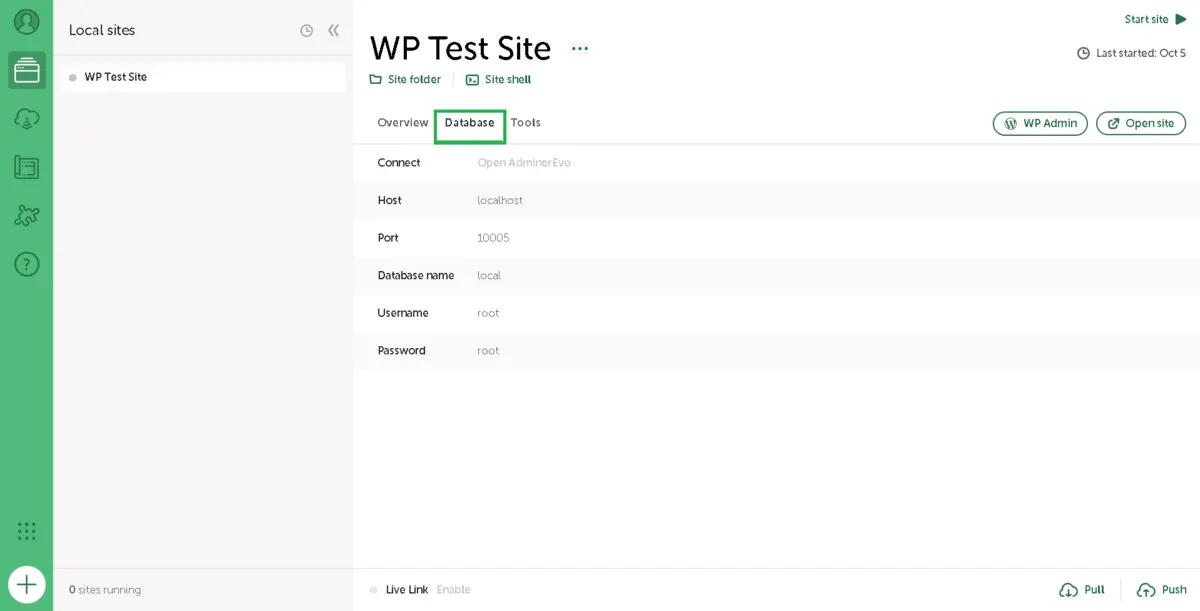
Open the Database tab and click Open Adminer to browse tables in your browser. The tab also shows the database name, user and local port if you prefer a desktop database tool.
Worth knowing: If a query on your local database fails with “No database selected,” the fix is the same as on a server. Our guide to MySQL error 1046 covers it, including dump imports.
How to Move a Local WP Site to Live Hosting
To move a Local WP site to live hosting, export it from Local as a zip file. Then import it on the host with a migration plugin or your host’s import tool. Hosts that support Local’s connect feature can push the site directly instead.
Right-click the site in Local and choose Export to create a zip of the files and the database. That zip is also a handy backup before any risky change.
After the import, open Settings > Permalinks on the live site and click Save Changes once, which rebuilds the rewrite rules for the new server. Our guide to pretty permalinks in WordPress explains the structure options if links return 404 errors.
Update the site address on the live host as well. A migration plugin usually swaps .local URLs for the live domain during the import. Check Settings > General afterwards to confirm both addresses show the real domain.
Test the imported site before pointing the domain at it. Links, images and forms should all use the live address, so search the page source for .local to catch leftovers. If the site takes payments, run a test order on the live host too, since its PHP limits may be stricter than Local’s.
Some moves carry more risk, such as a large store or a change of host. For those, our WordPress migration services team handles the transfer and checks every page afterwards.
Common Local WP Problems and Fixes
Most Local WP problems come from a site that will not start, a page that will not load, or a slow first start. Each has a quick fix inside the app. Restarting the site from its overview panel solves more issues than any other single step.
- Site will not start: Another app may be using the same port. Quit other local server tools such as XAMPP or MAMP, then start the site again.
- Browser shows a security warning: Click Trust next to SSL in the site overview, then reload the page.
- WP Admin link does not log in: Check the username in the site overview, or turn on one-click admin and pick your user.
- Changes do not show: Clear your browser cache or any caching plugin you installed on the local site.
- Site loads slowly the first time: Local starts its services on the first request, so the next page loads normally.
When a fix above does not work, read the logs. Each site folder has a logs folder, and on our install the useful files were logs/php/error.log and logs/nginx/error.log. A PHP fatal error or a missing file shows up there with the exact line that caused it.
Turning on WordPress debugging helps too. Edit wp-config.php in the site’s app/public folder and set WP_DEBUG to true, then reload the page to see the error on screen. Switch it back off before you export the site.
If a site still refuses to start, stop every other site in Local first. Several running sites use more memory, and on a laptop with 8GB of RAM that can slow everything down.
If a local site shows a list of files instead of your home page, WordPress’s own loader file may be missing. Our guide to index.php in WordPress explains how to restore it.
Conclusion
Local WP is the easiest way to run WordPress on your own computer. Download the free app, create a site, set a login and start building. Each site gets its own server stack, which on our install meant nginx 1.26.1, PHP 8.2.27 and MySQL 8.0.35, all isolated from other sites.
Learn Blueprints and Live Links next, since they save the most time. Match your live host’s PHP version in a Custom environment, and export a zip before any risky change. Then use a migration plugin or your host’s tools to take the finished site live.
Frequently Asked Questions (FAQs)
Q1. Is Local WP really free?
Yes. Local’s own installation guide says “It’s free and always will be.” You only need a free Local account for extras such as Live Links, and the core app costs nothing.
Q2. Where do I download Local WP?
Download it from the official site at localwp.com, which offers macOS, Windows and Linux versions. Avoid third-party download sites, since an installer from an unknown source can carry malware.
Q3. Is Local by Flywheel the same as Local WP?
Yes. Local by Flywheel was the earlier name for the same app, before it moved under WP Engine. Guides using either name describe the same tool, though screens have changed across versions.
Q4. Can I run more than one site in Local WP?
Yes. Each site gets its own folder, database and ports, so several can run at once. On our install, each site’s services used their own range of local ports, which keeps them from clashing.
Q5. Do I need an internet connection to use Local WP?
Only for downloading Local, WordPress, themes and plugins. Once a site is set up, it runs fully offline. Live Links and pushing a site to a host need a connection.
Q6. Can I use Local WP for WooCommerce stores?
Yes. A local WooCommerce store works like a live one, and Mailpit catches every order email. Use test payment modes only, since real payment gateways should never run against a local copy.