WordPress index.php is two different files with the same name. The one in your site’s root folder starts WordPress on every page load. The one in your theme folder is the template WordPress falls back to when nothing more specific exists.
We opened both files in a WordPress 7.1.1 install before writing this, and traced a live request through them with curl. So every code block below is copied straight from real core and theme files. That matters, because the default index.php is only 17 lines long and most guides show a longer version that does not exist.
You will see the exact default code and the 17 checks WordPress runs before it falls back to the theme’s index.php. You will also see how block themes replace it. After that come the empty “Silence is golden” files, why index.php shows up in URLs, and how to fix a missing or broken one.
What Is index.php in WordPress?
index.php in WordPress is the name of two files. The root index.php is the front door that loads WordPress for every visitor. The theme index.php is the last template in the hierarchy, used when no other template matches, so a classic theme needs one.
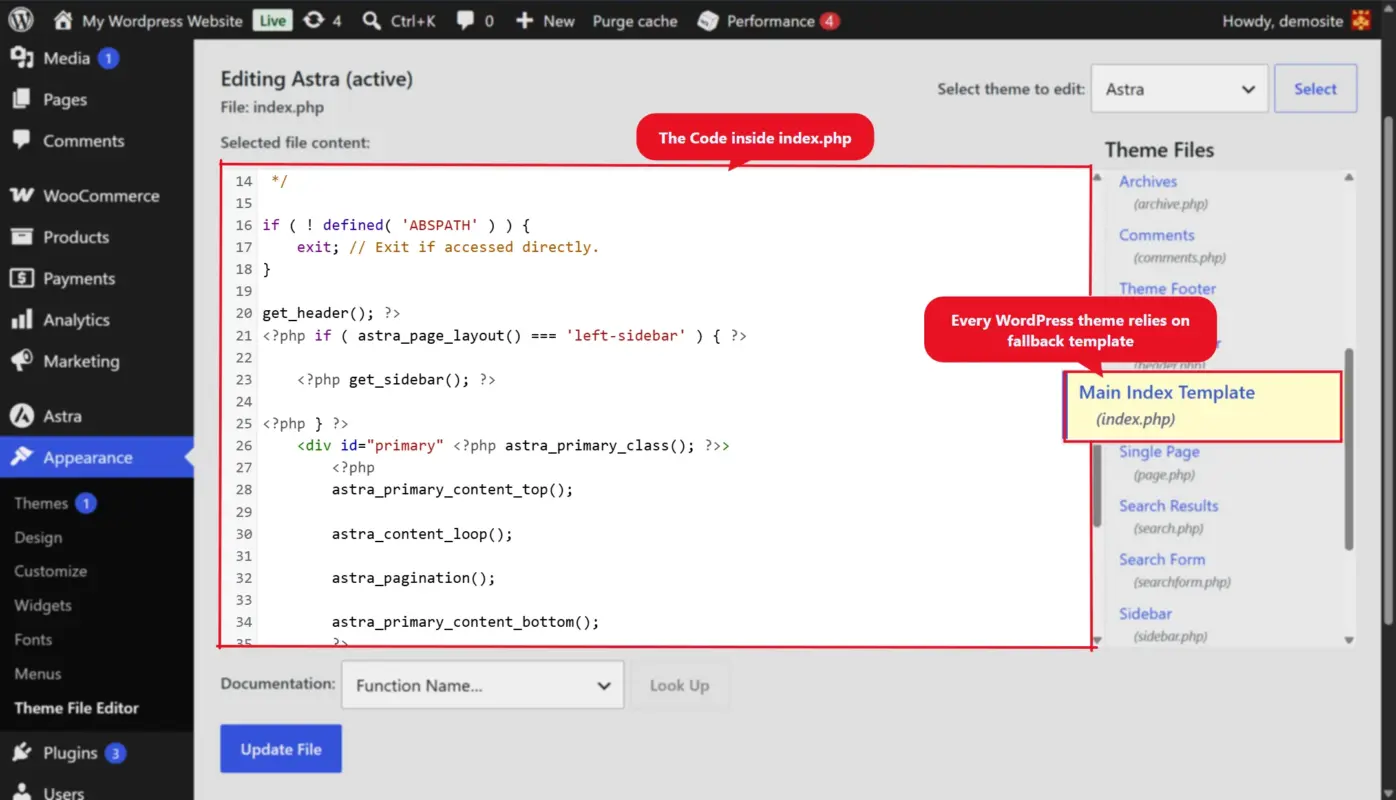
The two never replace each other. The root file runs first on every request. The theme file only runs at the end, when the theme has nothing better for that page.
This table shows the difference at a glance, using the files from our 7.1.1 test install:
| Root index.php | Theme index.php | |
|---|---|---|
| Location | The WordPress root folder, next to wp-config.php | wp-content/themes/your-theme/ |
| Job | Loads WordPress and tells it to use themes | Displays content when no other template fits |
| Size in 7.1.1 | 17 lines, most of them comments | Varies by theme, 22 lines in Kadence |
| Should you edit it? | Never | Only in a child theme |
| Replaced on updates? | Yes, on every core update | Yes, on every theme update |
To find the root file, open your host’s file manager or connect over SFTP. Look for the folder that holds wp-admin, wp-content and wp-includes side by side. That folder is the WordPress root, and index.php sits right next to them.
People searching for index.php WordPress help usually hit one of three problems, and the default index.php WordPress ships is rarely the cause. They need the default code back, they want to know why a page uses the wrong layout, or they see index.php in a URL. Each one gets its own section below.
The Default WordPress index.php Code
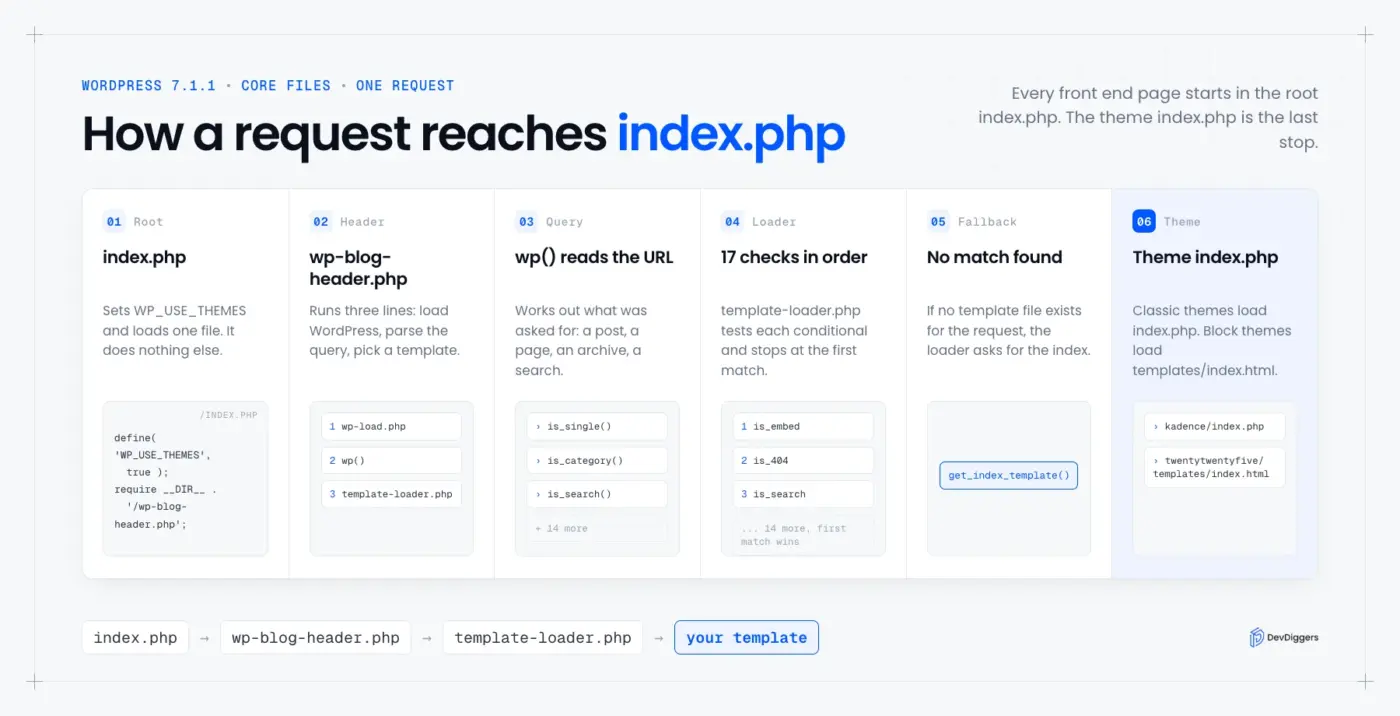
The default WordPress index.php in the root folder contains one constant and one require line, plus comments. It sets WP_USE_THEMES to true and loads wp-blog-header.php, which does the real work. The file is the same on every WordPress site at the same version.
This is the complete root index.php from WordPress 7.1.1, copied from our test install:
<?php
/**
 * Front to the WordPress application. This file doesn't do anything, but loads
 * wp-blog-header.php which does and tells WordPress to load the theme.
 *
 * @package WordPress
 */

/**
 * Tells WordPress to load the WordPress theme and output it.
 *
 * @var bool
 */
define( 'WP_USE_THEMES', true );

/** Loads the WordPress Environment and Template */
require __DIR__ . '/wp-blog-header.php';
The comment at the top says it plainly: “This file doesn’t do anything.” Its only jobs are to switch themes on and to hand over to the next file.
What wp-blog-header.php Does Next
The file index.php loads is almost as short. In 7.1.1, wp-blog-header.php runs three steps inside a guard that stops it running twice:
require_once __DIR__ . '/wp-load.php';
wp();
require_once ABSPATH . WPINC . '/template-loader.php';
The first line loads WordPress, including wp-config.php, your plugins and your theme’s functions.php. The second, wp(), reads the URL and works out what the visitor asked for. The third picks the template file, which the next section covers.
When You Need the WordPress Default index.php Code Back
If your root index.php was deleted, emptied or infected, copy the code above into a new file named index.php in the root folder. It is the same across recent versions, so the 7.1.1 copy works on any current install.
The safer route is to download the WordPress release that matches your site from WordPress.org and take index.php from the zip. That also gives you clean copies of the other root files if they were touched.
Worth checking: An infected index.php often has extra code before <?php or after the last line, such as a long eval or base64_decode string. The real file ends at the require line, so anything after it does not belong there.
How WordPress Picks a Template: index.php Is the Last Fallback
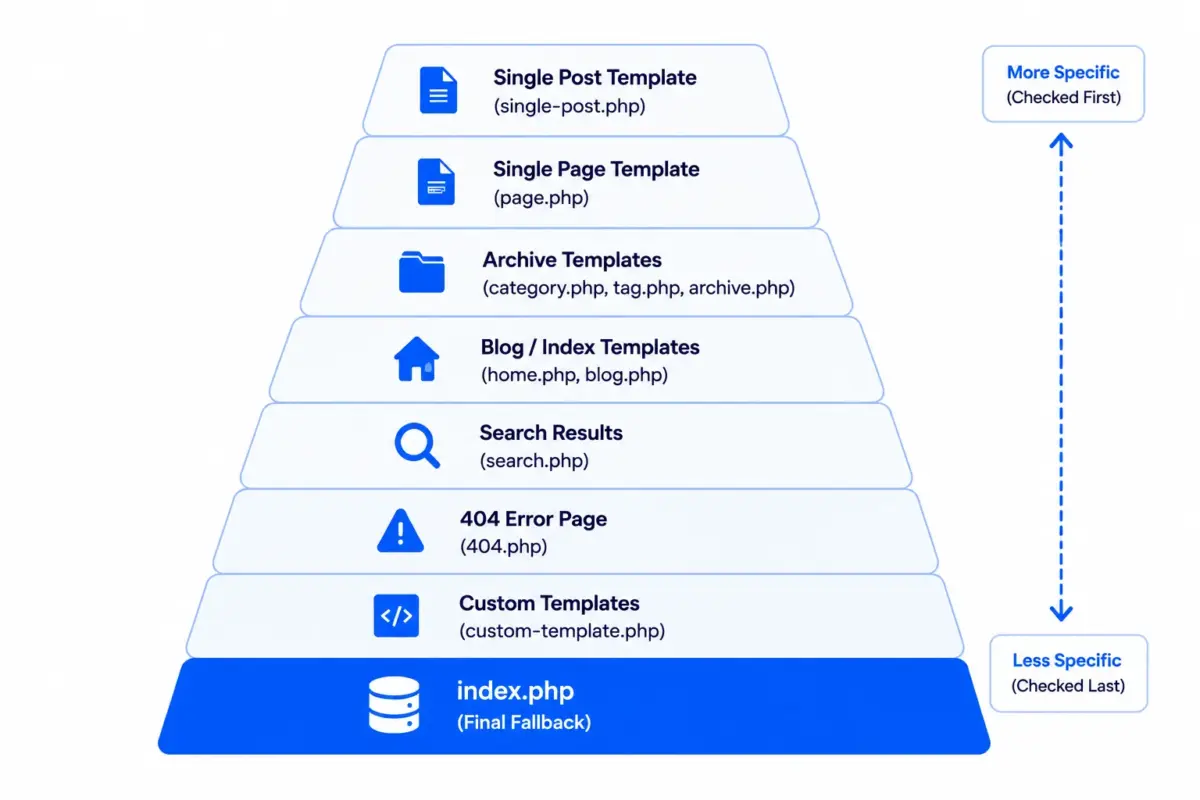
WordPress picks a template by running a fixed list of checks in template-loader.php, in order, and loading the first template file that exists. If none of them finds a file, it loads the theme’s index.php. That is why index.php is called the fallback template.
The template hierarchy documentation states the rule directly: “If WordPress cannot find any matching template file, the theme’s index.php file will be used.” What the documentation does not show is the loop that enforces it, so we opened wp-includes/template-loader.php in 7.1.1.
It runs 17 checks in this exact order:
is_embed, which loads the embed template.is_404, which loads404.php.is_search, which loadssearch.php.is_front_page, which loadsfront-page.php.is_home, which loadshome.php, the blog posts page.is_privacy_policy, which loadsprivacy-policy.php.is_post_type_archive, for custom post type archives.is_tax, for custom taxonomy archives.is_attachment, for media attachment pages.is_single, which loadssingle.phpand its variants.is_page, which loadspage.phpand custom page templates.is_singular, which loadssingular.php.is_category, which loadscategory.php.is_tag, which loadstag.php.is_author, which loadsauthor.php.is_date, which loadsdate.php.is_archive, which loadsarchive.php.
The loop stops at the first check that returns a template. Only when all 17 come back empty does the code call get_index_template(), which returns your theme’s index.php.
A Worked Example
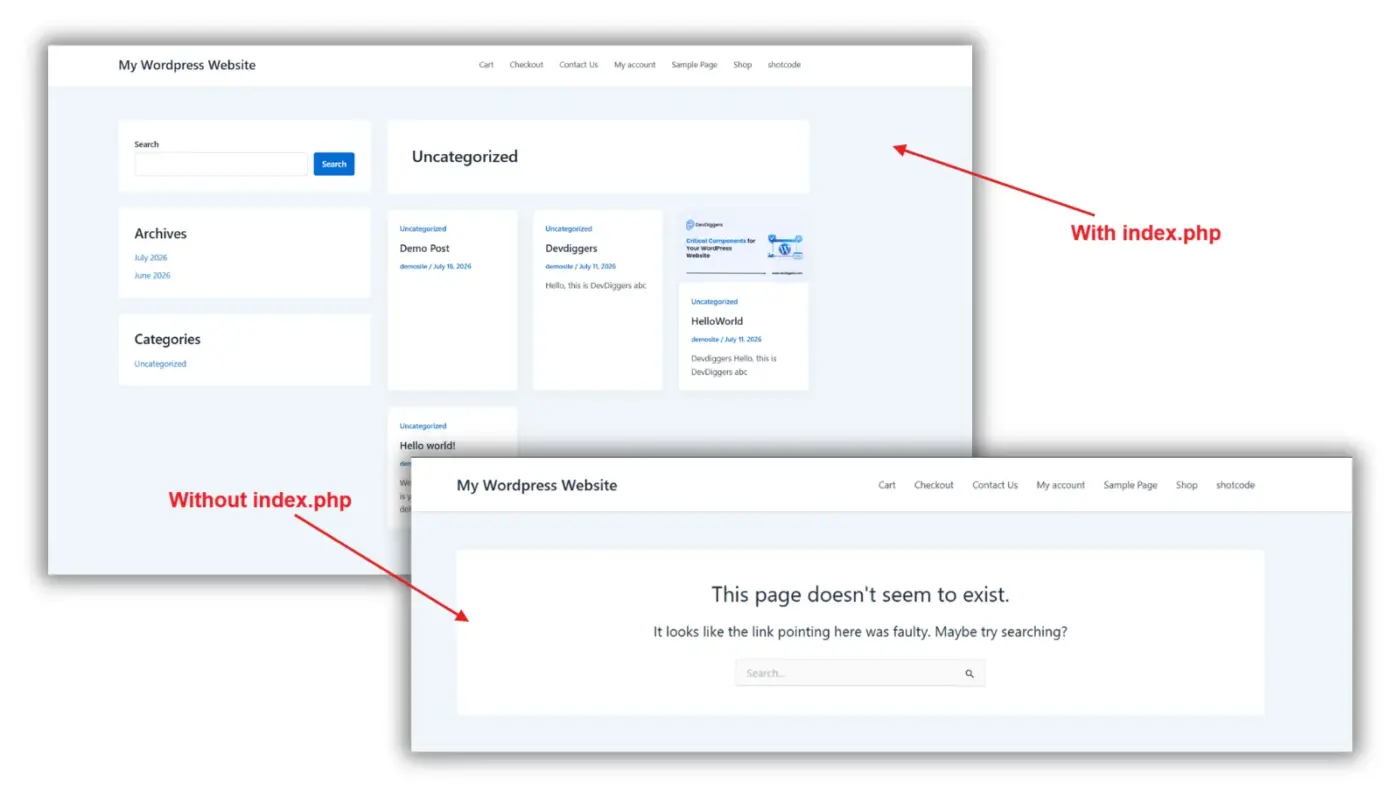
Say a visitor opens a tag archive at /tag/checkout/, and your theme has no tag.php and no archive.php. Check 14 finds nothing, check 17 finds nothing, and WordPress falls back to index.php. The tag page then looks exactly like your blog index.
That is a frequent reason a page “uses the wrong layout.” The theme is not broken. It simply has no template for that request, so it is doing what the fallback is there for.
How to See Which Template a Page Uses
The template loader passes its choice through the template_include filter just before loading it, in 7.1.1 as in earlier versions. So a two-line snippet in a child theme’s functions.php can log the chosen file while you debug:
add_filter( 'template_include', function ( $template ) { error_log( $template ); return $template; } );
Load the page, then read wp-content/debug.log with WP_DEBUG_LOG turned on. If the path ends in index.php, the fallback is in charge. Remove the snippet when you finish, since it writes a line on every page view.
The fix is to add the missing template in a child theme, such as tag.php for tags or archive.php for every archive at once. Our site’s own theme ships an index.php marked “Fallback template” for exactly this job, while the real layouts live in named templates.
What Goes Inside a Theme’s index.php
A theme’s index.php usually calls the header, runs the Loop to print posts, and calls the footer. The Loop is the WordPress code that repeats once per post in the current query. Because index.php can end up handling any request, it is often written as a general list of posts.
This is the full index.php from the Kadence theme, copied from our test install:
<?php
/**
 * The main archive template file
 *
 * @package kadence
 */

namespace Kadence;

if ( ! defined( 'ABSPATH' ) ) {
	exit;
}

get_header();

kadence()->print_styles( 'kadence-content' );
/**
 * Hook for main archive content.
 */
do_action( 'kadence_archive' );

get_footer();
Kadence keeps its index.php almost empty and moves the real output into a hook, kadence_archive. That is a common pattern in large themes, because it lets child themes and plugins change the output without replacing the file.
A simpler theme puts the Loop in the file itself. The Loop documentation describes it as the code WordPress uses to display posts, and a bare version looks like this:
<?php get_header(); ?>

<?php if ( have_posts() ) : ?>
	<?php while ( have_posts() ) : the_post(); ?>
		<h2><a href="<?php the_permalink(); ?>"><?php the_title(); ?></a></h2>
		<?php the_excerpt(); ?>
	<?php endwhile; ?>
	<?php the_posts_pagination(); ?>
<?php else : ?>
	<p><?php esc_html_e( 'Nothing found.', 'your-theme' ); ?></p>
<?php endif; ?>

<?php get_footer(); ?>
Header, Footer and Template Parts
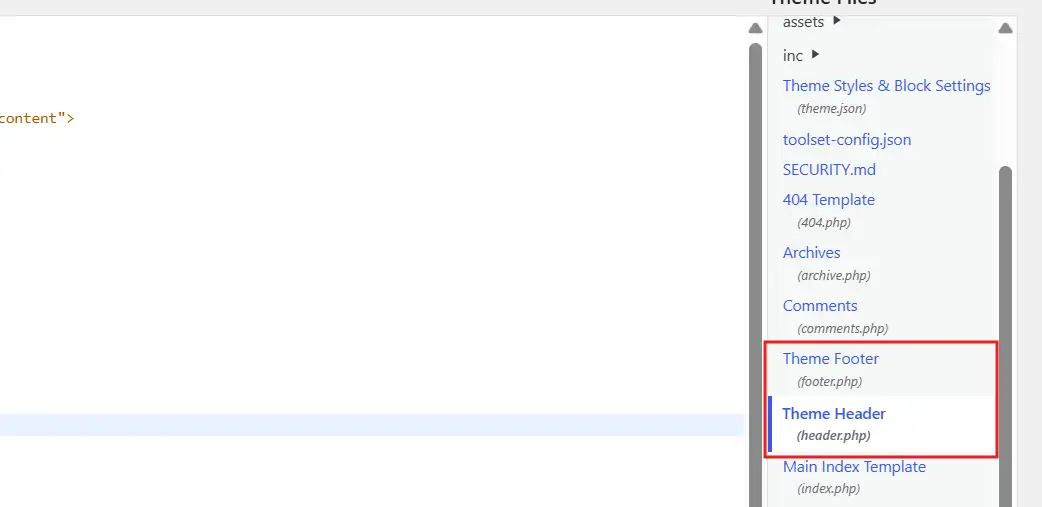
The get_header() and get_footer() calls load header.php and footer.php from the same theme. So a change to the site header is made once in header.php, and index.php plus every other template picks it up.
index.php vs functions.php
These two are easy to mix up, and they do opposite jobs. functions.php runs on every request to add features, register menus and load scripts. The theme’s index.php only runs when it is the chosen template, and it prints markup. Code that adds a feature belongs in functions.php or a plugin, never in index.php.
index.php in Block Themes: templates/index.html
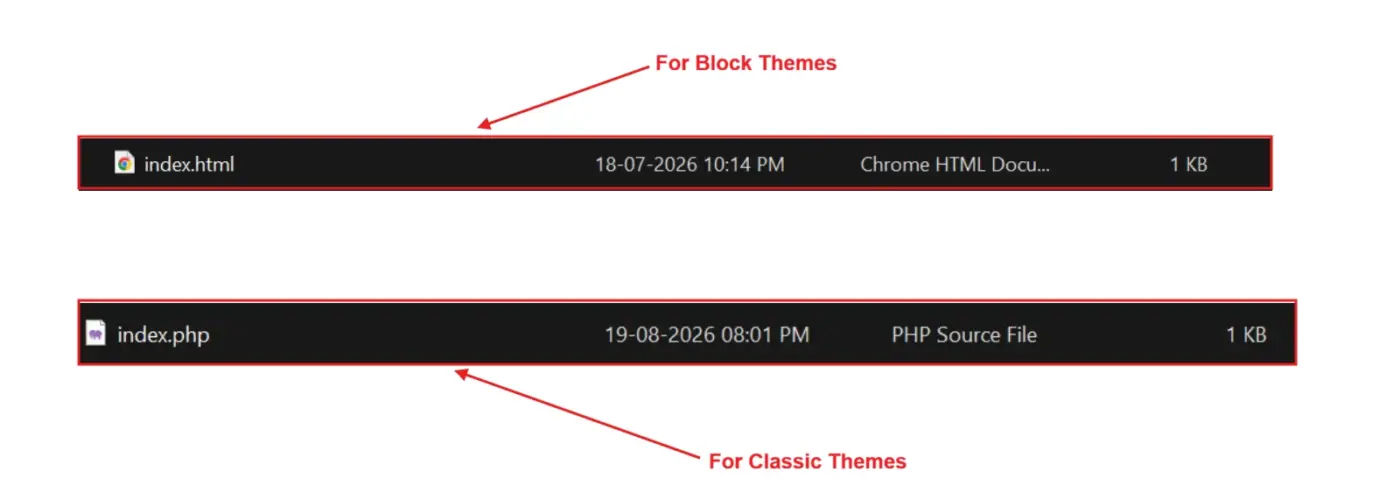
Block themes do not use an index.php template at all. They use templates/index.html, a file of block markup, as the fallback, and the same hierarchy applies with .html in place of .php. The site editor then lets you change that template without touching code.
The theme structure documentation lists two files a block theme needs: style.css and templates/index.html, which it calls “the default/fallback template.” There is no index.php in that list.
We checked the default themes in our 7.1.1 install to confirm it. Twenty Twenty-Five has no index.php anywhere, and its templates/index.html is a 471 byte file. Twenty Twenty-Four follows the same layout.
The rest of the hierarchy carries over with .html in place of .php. Twenty Twenty-Five ships eight templates: 404, archive, home, index, page, page-no-title, search and single. The loader checks them in the same order as the PHP ones, and index.html catches whatever is left.
Some themes mix both styles, keeping PHP templates while adding a theme.json file for settings. Those are still classic themes for this purpose, so they still need an index.php, and WordPress’s own check looks for either file.
Edits made in the Site Editor do not change the theme’s file. WordPress saves your changed template in the database and uses that copy from then on. The Reset option on a template deletes the saved copy, and the theme’s own index.html takes over again.
So if you are looking for index.php in a modern default theme and cannot find it, nothing is missing. Open Appearance > Editor > Templates and edit the Index template there instead.
The “Silence Is Golden” index.php Files
WordPress also puts small index.php files inside folders like wp-content, wp-content/plugins and wp-content/themes. Each one holds a single comment, // Silence is golden., and prints nothing at all. Their job is to stop a web server from listing the folder’s contents to visitors.
This is the whole file, 28 bytes long in our install:
<?php
// Silence is golden.
On a server with directory listing switched on, visiting /wp-content/plugins/ without this file would show every plugin folder by name. With it, the server runs the empty PHP file instead. We tested this on devdiggers.com and our testing site, and both answered /wp-content/plugins/ with a 200 status and a 0 byte page.
Leave these files in place. They cost nothing, and deleting one can expose a list of plugins that tells an attacker which versions to look up.
Not every folder gets one. Our install had silence files in wp-content, plugins and themes, and one added by a backup plugin, but none in uploads. The live server covered that gap itself: /wp-content/uploads/ returned a 404 instead of a file list.
That server rule is the stronger protection. On Apache, a line of Options -Indexes in .htaccess turns off folder listings for the whole site, and Nginx does not list folders unless its autoindex setting is on. The silence files are the backup for hosts where neither was set.
Why index.php Appears in Your URL
index.php appears in a WordPress URL when the site uses “almost pretty” permalinks, like example.com/index.php/sample-post/. WordPress falls back to that style when the server cannot rewrite URLs. On a site with working rewrites, WordPress redirects any index.php URL to the clean version.
WordPress’s customize permalinks documentation describes almost pretty permalinks as links with /index.php in front of the normal path. They work without server rewrite rules, which is why some hosts end up with them.
On a site with rewrites working, the extra segment never sticks. We tested this on our live site:
$ curl -sI https://devdiggers.com/index.php
HTTP/2 301
location: https://devdiggers.com/

$ curl -sI https://devdiggers.com/index.php/how-to-fix-mysql-error-1046/
HTTP/2 301
location: https://devdiggers.com/how-to-fix-mysql-error-1046/
Both responses carried x-redirect-by: WordPress, so WordPress core cleaned the URL itself. No plugin was involved.
The same happens to plain permalinks. Opening /?p=13599 on our site returned a 301 to this post’s clean address, because WordPress knows the post’s permalink and sends visitors there.
One look-alike is worth knowing about.
URLs such as /index.php?title=Main_Page come from MediaWiki, the software behind Wikipedia, and WordPress never uses them. If you see that pattern in your search data or server logs, it is usually bot traffic guessing at paths. Now and then it is another site on the same server.
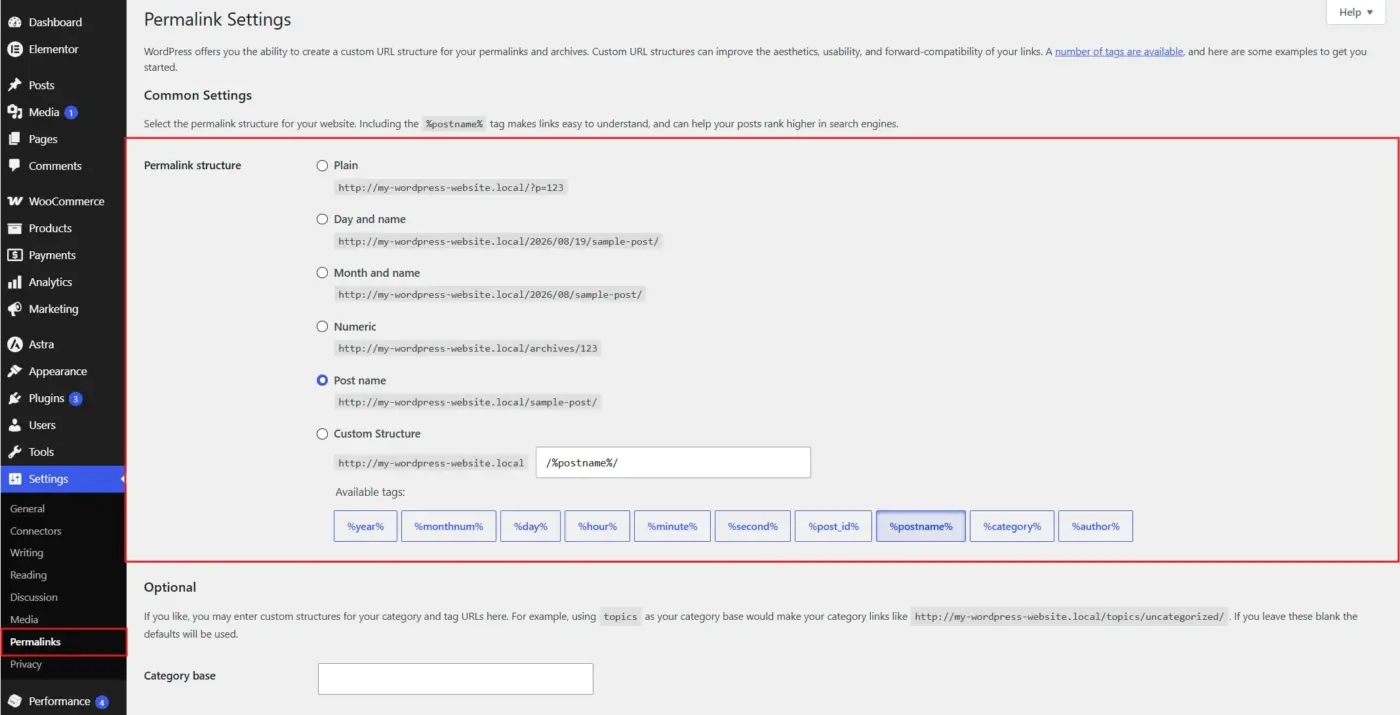
To remove index.php from your URLs, open Settings > Permalinks, choose Post name, and save. If the URLs still include it, your server is not reading the rewrite rules. Check that Apache’s mod_rewrite is on, or that your Nginx config passes requests to index.php.
When You Should and Should Not Edit index.php
You should never edit the root index.php, and you should only edit a theme’s index.php through a child theme. Core updates replace the root file, and theme updates replace the theme file, so direct edits disappear on the next update. A child theme copy survives both.
Here is when an edit makes sense:
- Change the fallback layout: Copy the theme’s index.php into a child theme and edit that copy.
- Change one kind of page: Add a specific template instead, such as
archive.php, so index.php stays a clean fallback. - Add a feature or a script: Use
functions.phpin the child theme or a plugin, never a template file.
Copying index.php Into a Child Theme
A child theme needs a folder of its own and a style.css whose header names the parent. Our testing site runs a child of Kadence, and its stylesheet header includes the line Template: kadence. That single line is what ties the child to its parent.
Copy the parent’s index.php into the child folder and edit the copy. WordPress looks in the child theme first, so your version wins, and the parent’s file stays untouched for the next update.
Keep the copy small. If the parent’s index.php only calls a hook, as Kadence’s does, hooking into kadence_archive from the child’s functions.php is often cleaner than copying the file at all.
That last one catches a lot of site owners. Tracking codes and chat widgets pasted into index.php only load on pages that fall back to it, so they go missing everywhere else. A plugin loads on every page instead, and our roundup of WordPress chatbot plugins covers the chat option most people were trying to add.
Tip: Edits to core and theme files are also the first thing a routine update undoes. If updates keep wiping changes, a WordPress care plan usually includes moving those edits into a child theme where they stay safe.
Missing or Broken index.php: How to Fix It
A missing or broken index.php shows up as a blank page, a list of files, or a 403 error at your domain’s root. Restoring it means putting back a clean copy that matches your WordPress version or your theme’s version. The fix takes a few minutes once you know which of the two files failed.
Use the symptom to find the file:
| What you see | Most likely cause | Fix |
|---|---|---|
| A list of files at your domain | Root index.php missing | Restore the root file from the WordPress zip |
| 403 Forbidden at your domain | Root index.php missing and listing disabled | Restore the root file, then clear caches |
| Blank white page | A PHP error in either file | Turn on WP_DEBUG and read the error |
| Every page looks like the blog | Theme has no specific templates | Add archive.php or page.php in a child theme |
| “Template is missing” under Appearance > Themes | Theme index.php deleted | Reinstall the theme from its source |
For the root file, match the version shown under Dashboard > Updates, or in wp-includes/version.php if the dashboard will not load. Our WordPress version history lists every release, so you can pick the right download.
Set the restored file’s permissions to 644, the usual value for WordPress PHP files. A file set to 600 or 000 can trigger the same 403 error you were trying to fix.
Check Every Core File at Once
If index.php was changed without your knowledge, other core files may have been changed too. WP-CLI can compare every core file against the official copies for your version with one command, described in the verify-checksums documentation:
wp core verify-checksums
On our 7.1.1 test install it printed Success: WordPress installation verifies against checksums. A changed or extra file is listed by name instead, which tells you exactly what to replace.
The check covers core files only. Your theme and plugins need their own check. For a theme’s index.php, compare it against a fresh download of the same theme version, or reinstall the theme if you never edited it.
Conclusion
WordPress index.php is two files.
One is a 17 line root file that starts WordPress. The other is a theme template that catches whatever the theme has no better file for. The root file should never change, and a theme’s index.php should only change through a child theme.
When a page shows the wrong layout, remember the 17 checks in template-loader.php and add the specific template the request is missing. When a URL shows index.php, fix the permalinks. When a folder list appears at your domain, restore the root file from a clean WordPress download.
Frequently Asked Questions (FAQs)
Q1. Is it safe to delete index.php in WordPress?
No. Deleting the root index.php stops your site loading, and deleting a classic theme’s index.php breaks that theme. The empty “Silence is golden” files are safe to keep and pointless to delete, since they only hide folder contents.
Q2. Where is index.php located in WordPress?
The main one sits in your WordPress root folder, usually called public_html or www, next to wp-config.php. A classic theme has its own inside wp-content/themes/theme-name/. Smaller copies sit in wp-content and its plugins and themes folders.
Q3. Can a WordPress theme work without index.php?
A block theme can, because it uses templates/index.html as its fallback instead.
A classic PHP theme cannot. WordPress 7.1.1 marks it broken with the message “Template is missing. Standalone themes need to have a templates/index.html or index.php template file.”
Q4. What is the difference between index.php and home.php?
The file home.php is the template for your blog posts page, checked fifth in the template loader. The file index.php is only used when home.php and every other matching template are missing. If your theme has both, home.php wins for the blog page.
Q5. Why is my index.php file showing code instead of a page?
Your server is serving PHP files as plain text, which means PHP is not running for that site. This is a hosting problem, so contact your host straight away. Visitors can read any passwords stored in PHP files while it lasts.
Q6. Does editing index.php affect SEO?
Only if the edit changes what the page shows, such as removing titles or content from the fallback layout. The root index.php has no effect on SEO at all, because it only loads WordPress. Clean URLs without index.php are better for readers, which is why WordPress redirects them away.