
The best WooCommerce biometric plugins let customers log in with a fingerprint or face scan instead of a password. They run on the WebAuthn standard built into modern browsers and phones. Passwords are the weak point of most login flows.
Store owners are catching on fast, and the plugin market for this has grown from a handful of niche tools into a real category with options at every price point. Below are six plugins worth a look, what each one does under the hood, and how to tell which one fits your store.
What Is WooCommerce Biometric Login?
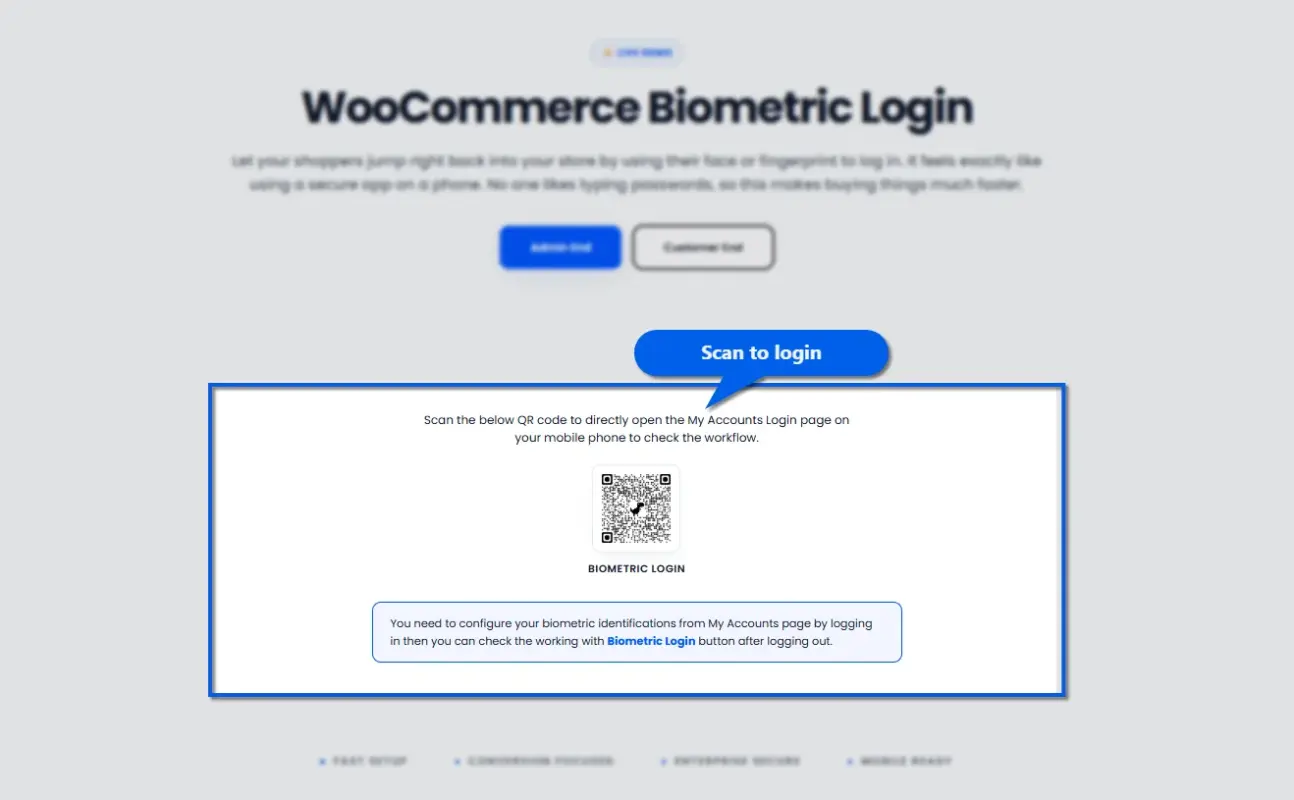
Biometric login swaps the password field for a fingerprint scan, a face scan, or a security key, using WebAuthn, the browser standard backed by Apple, Google, and Microsoft.
The flow is simple:
Customer registers a fingerprint or face scan once → taps a login button next time → verifies with their device → they’re in. No typing, no password reset email, no delay before checkout.
The customer’s biometric data never leaves their device. Your server only ever sees an encrypted key pair, not the fingerprint or face scan itself. That’s what makes this approach both more secure and easier to explain to privacy-conscious customers.
What to Check Before Choosing a Plugin
Run through these checks first, or you’ll likely be reinstalling something different in three months.
- HPOS compatibility: WooCommerce’s High-Performance Order Storage is now the default, so any plugin should declare compatibility on its page. See our guide on making a WooCommerce plugin HPOS compatible for the technical detail.
- Where the login button appears: Some plugins only support the account page; others add it to login and checkout too. Account-only won’t reduce checkout friction.
- Role restrictions: Can you limit biometric login to specific customer groups? Wholesale and membership stores usually need this, and not every plugin offers it.
- Fallback behaviour: A well-built plugin drops back to password login gracefully when a device doesn’t support WebAuthn.
- Support and update frequency: Check the changelog; WebAuthn shifts often across browsers, so a stale plugin is a risk.
Every plugin here also requires HTTPS. If your store isn’t there yet, that’s step zero, worth pairing with a WooCommerce security checklist.
6 Best WooCommerce Biometric Plugins: Everything you need
Here’s the lineup, ranked by how well each one fits a WooCommerce store specifically rather than a general WordPress site.
1. WooCommerce Biometric Login by DevDiggers
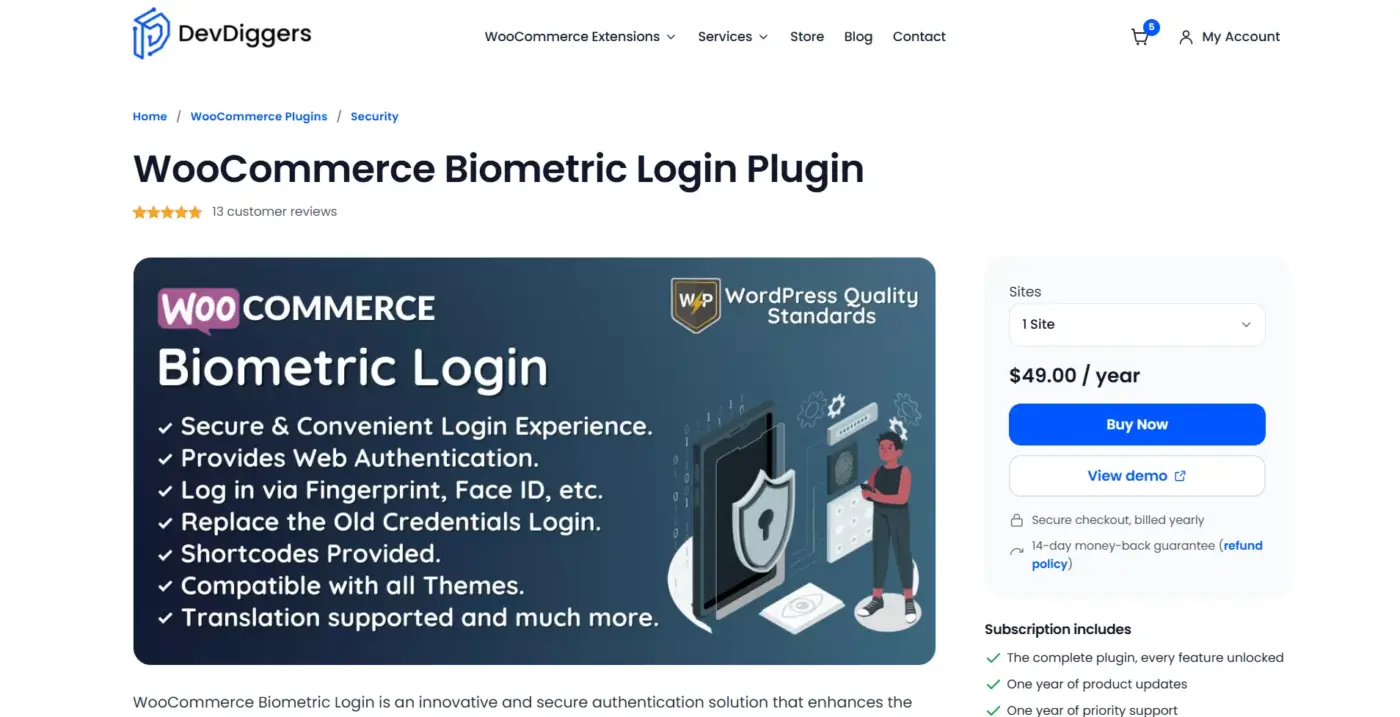
WooCommerce Biometric Login plugin by DevDiggers is the plugin built specifically for WooCommerce store owners, not repurposed from a general WordPress login tool. It’s one of the few options on this list that handles both account-page and checkout-page placement, and it ships with WooCommerce HPOS and multisite compatibility already built in. Progressive Web App support is a nice touch too, useful for stores where customers install the site to their phone’s home screen instead of bookmarking it.
Best for
store owners who prefer buying extensions directly through the official WooCommerce Marketplace and don’t specifically need biometric login on the checkout page.
Pricing
- Free of cost. Live Demo available
- Single-site license: $49/year
- 5 Sites Licence: $199/year
- 10 Sites Licence: $299/year
Subscription Includes
- WebAuthn-based login using fingerprint or facial recognition, no password needed
- Customers can register their biometric via My Account, then log in with it on future visits
- One year of product updates and priority support
- 14-day money-back guarantee
Limitations
Checkout-page placement takes a little extra configuration beyond the default account-page setup.
2. Biometric Login for WooCommerce by FME
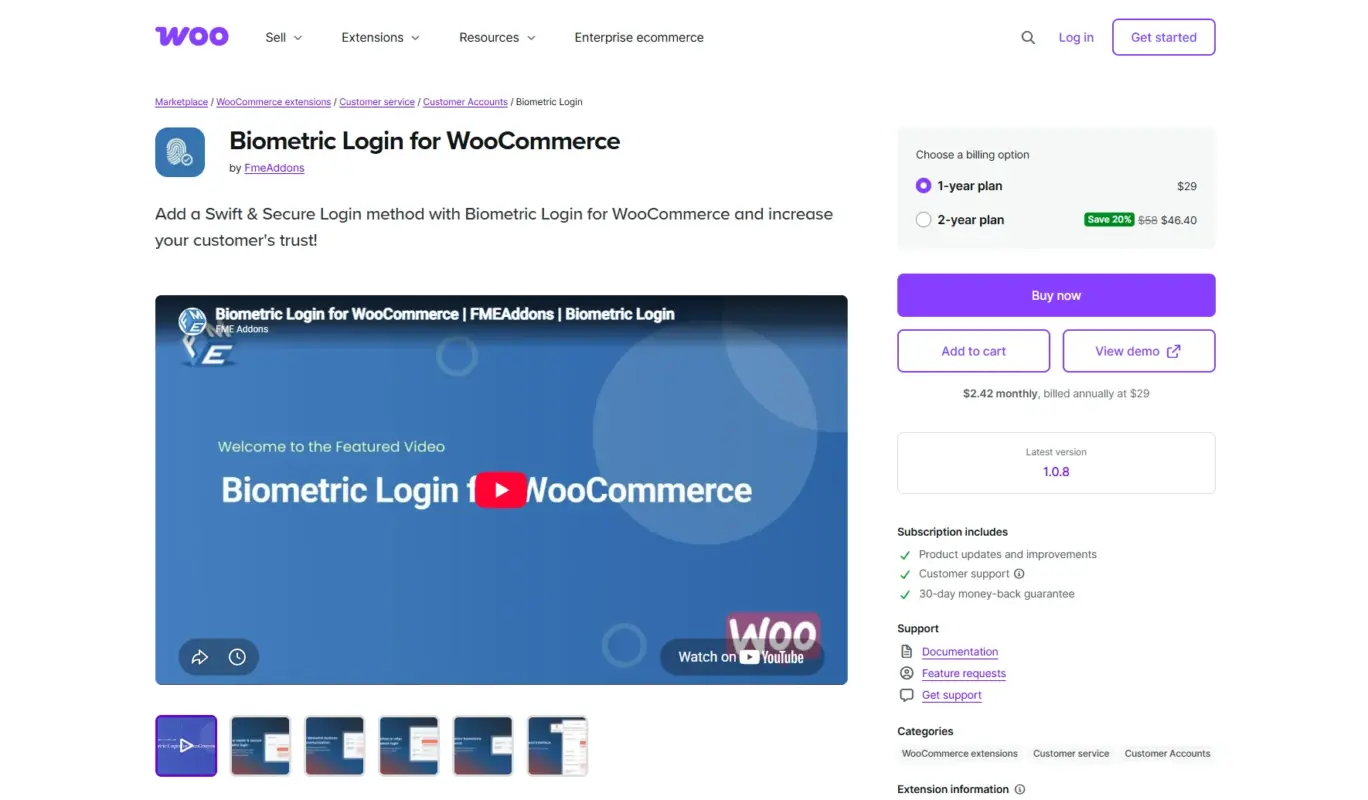
Biometric Login for WooCommerce by FME is the option most store owners stumble onto first, since it sits right on the official WooCommerce Marketplace. It handles fingerprint and security key registration with role-based restrictions, and it’s backed by a 30-day money-back guarantee that lowers the risk of trying it. The trade-off is scope: it’s built for account-page login rather than checkout, and the settings run lighter than a purpose-built WooCommerce extension.
Pricing
- 1-year plan: $29
- 2-year plan: $46
Passkey & Passwordless Login Support
- WebAuthn-based login via fingerprint or USB authenticator, no password required
- Integration with the WooCommerce login form; admins can position the button, restrict by user role, and customise the text
- Product updates and improvements
- Customer support
Limitations
- No customer reviews yet listed on the marketplace page
- Account-page login only, no built-in checkout-page placement.
- Configuration options run lighter than a dedicated WooCommerce-first build.
- Annual renewal required, unlike a one-time license.
3. Secure Passkeys

Secure Passkeys is built for WordPress broadly, with MemberPress and WooCommerce support layered on top rather than being the sole focus. Multiple passkeys per user are the standout feature here: a customer can register their phone and laptop separately, which reduces lockouts when they switch devices mid-purchase. The admin panel also gives real visibility into who’s registered what, which helps when support tickets come in about login trouble.
Best for
Stores that combine WooCommerce with a membership plugin and want one login system covering both.
Pricing
Free (no premium tier listed)
Passkey & Passwordless Login Support
- WebAuthn based passwordless login, supports fingerprint, Face ID, and security keys
- Integrates with the default WordPress login, WooCommerce, MemberPress, Easy Digital Downloads, and Ultimate Member
Limitations
- Not purpose-built for WooCommerce checkout placement.
- Support runs through the WordPress.org forum rather than a dedicated ticket system.
- Documentation leans general WordPress rather than WooCommerce-specific.
4. WP-WebAuthn

WP-WebAuthn is the developer’s pick on this list, bringing WebAuthn to WordPress through shortcodes and Gutenberg blocks rather than a polished settings page. It supports usernameless login and works across current browsers, but there’s no dedicated WooCommerce integration out of the box, so checkout placement means custom development work rather than flipping a toggle.
Best for
Developers and agencies building a custom biometric login flow rather than deploying an out-of-box solution.
Pricing
- Plugin: Free (open source, no premium tier or license key)
Passkey & Passwordless Login Support
- Passwordless login using FIDO2 and U2F devices like Passkeys, USB keys, fingerprint scanners, Windows Hello, and Face ID/Touch ID.
- Integrates with default WordPress login. Comes with 4 built-in shortcodes and 4 Gutenberg blocks, including a WebAuthn Login Form block. Beta multisite support
- Usernameless authentication
Limitations
- No dedicated WooCommerce integration; checkout placement needs custom development.
- Support runs through the WordPress.org community forum only, with no guaranteed response time.
- Multisite support is still in beta.
- Requires PHP extensions (gmp and mbstring) that not every host enables by default.
5. Multidots Passkey Login
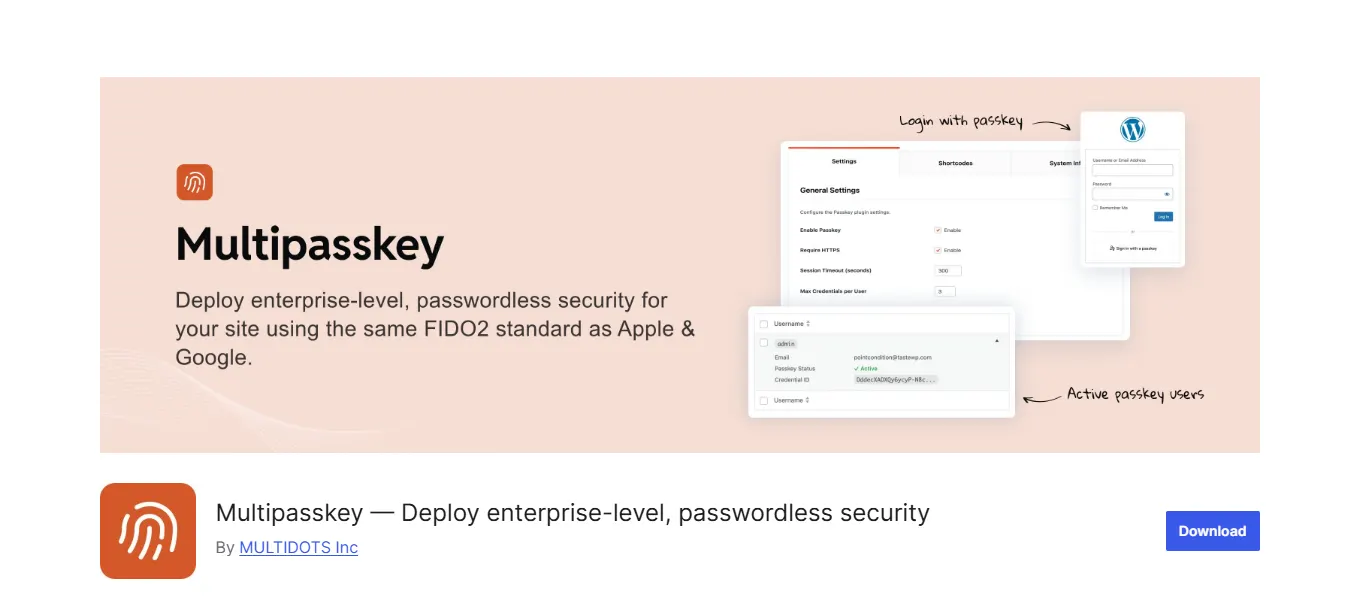
Multidots Passkey Login, listed on WordPress.org as Multipasskey, runs on FIDO2 and WebAuthn and supports Face ID, Touch ID, Windows Hello, or a device PIN. It’s one of the more actively developed options in this space, with a clean setup flow, though WooCommerce checkout support is listed as coming soon rather than fully shipped.
Best for
Teams planning ahead for WooCommerce passkey support, or agencies managing login across mixed WordPress and WooCommerce properties.
Pricing
Free (no paid tier listed at time of writing)
Passkey & Passwordless Login Support
- Passwordless login via passkeys, supports Touch ID, Face ID, Windows Hello, or device PIN, built on FIDO2/WebAuthn
- Works with existing WordPress accounts, includes shortcodes for login and registration buttons. Compatible with Multisite
Limitations
- WooCommerce-specific checkout support is listed as coming soon, not fully shipped.
- Shorter track record than more established options on this list.
- Documentation is lighter on WooCommerce-specific configuration steps.
6. AwareID

AwareID is the enterprise option on this list, running cloud-based biometric authentication instead of a self-hosted plugin. It’s built for regulated eCommerce, online gaming and sweepstakes operators on WooCommerce, and content access control where identity verification matters more than convenience. Setup means registering with Aware and connecting the plugin to their platform, not a simple activate-and-go install.
Best for
Larger or regulated WooCommerce operations that need enterprise-grade biometric infrastructure, not a plug-and-play extension.
Pricing
- Biometric authentication: $50,000/year + $0.05-$0.15/authentication as transaction fee
- WebEnroll licensing starting: $30,000/year
Passkey & Passwordless Login Support
- A modular, works with other systems biometric middleware platform offering automated fingerprint, palmprint, multi-print, and optional face identification.
- Available as stateless REST services (e.g., face similarity, liveness scoring, no data storage) or full managed solutions with duplicate identity prevention via subscription or server-based license.
Limitations
- No self-serve pricing or instant setup; onboarding requires contacting Aware directly.
- Cloud dependency means your login flow relies on Aware’s uptime, not just your own server.
- Overkill for most small to midsize WooCommerce stores without compliance requirements.
Why Do WooCommerce Stores Need Biometric Security?
Password-based login is the weakest point in most WooCommerce stores, and the data shows it.
70% average cart abandonment across eCommerce, with password friction as a real contributor. A survey covered by AskCyberSecurity found a quarter of shoppers would abandon a $100 cart over a forced password reset at checkout.
93% login success with passkeys, versus roughly 63% for traditional passwords, according to FIDO Alliance data via MojoAuth.
5 billion passkeys are in active use worldwide as of 2026, per the FIDO Alliance’s State of Passkeys report, with 90% consumer awareness. Your customers already use this technology daily. Biometric login on your store meets them where they already are, and closes off one of the more common paths to account takeover in the process.
How to Add a Biometric Verification to Your WooCommerce Store
Once you’ve picked a plugin from the list above, the process looks roughly the same across all six:
- Install and activate: Upload the plugin through your WordPress dashboard, or install it directly from WordPress.org if it’s a free option. Licensed purchases usually come as a zip file to upload manually.
- Open the plugin’s settings tab: Most WooCommerce-focused options add a dedicated tab under WooCommerce → Settings. General WordPress plugins usually add their own top-level settings page instead.
- Choose where the login button appears: Decide between above, below, or alongside the standard login form, and whether it should also show on checkout if the plugin supports that.
- Set role restrictions if needed: Limit biometric login to specific customer groups, like wholesale accounts, if the plugin offers that control.
- Register a test credential: Log in as a test customer, register a fingerprint or face scan, log out, then log back in with it before opening the feature to real customers.
- Confirm HTTPS is active site-wide: WebAuthn won’t fire on an unencrypted page, and this is worth checking before launch rather than after a support ticket comes in.
- Watch registrations for the first few weeks: Most plugins log who’s registered a credential. Use that data to decide whether checkout-page placement is worth adding, if you started with account-only.
Most stores are fully configured within fifteen minutes. The technical setup isn’t the hard part. Deciding where to place the button, and whether your abandonment problem is even login-related, is the decision that matters here.
Conclusion
Biometric login has moved past new idea status. Passwordless authentication now earns higher trust from a growing share of shoppers, and password friction still drives a real slice of cart abandonment. Adding this to your WooCommerce store is a low-risk move with a clear upside, whether you’re running a small storefront or managing checkout for a large catalogue.
WooCommerce Biometric Login plugin by DevDiggers covers the most ground for stores that want this built specifically for WooCommerce checkout. Not bolted on from a general WordPress plugin after the fact.
Whichever option you pick from this list, run the checks above first. That’s the step that saves you a reinstall three months from now.
If you’re still weighing whether this is worth doing at all, start smaller than a full rollout. Add biometric login to your account page only. Watch how many customers register a fingerprint or face scan over a month. Then decide whether checkout placement is worth the extra step. The data from your own store will tell you more than any standard in this guide, including this one.
Frequently Asked Questions (FAQs)
Q1. Is biometric login safe for a WooCommerce store?
Yes. The biometric data itself, whether a fingerprint or face scan, never leaves the customer’s device. Your server only stores an encrypted key. That’s why this method is considered more resistant to phishing than passwords.
Q2. Does biometric login replace passwords completely?
Not usually. Most WooCommerce biometric plugins run alongside password login rather than removing it. Customers on unsupported devices or older browsers can still get in the standard way.
Q3. Do these plugins work on mobile?
Yes, and mobile is where they matter most. Typing a password on a phone is slower and more error-prone than tapping a fingerprint sensor. Mobile makes up more than half of eCommerce traffic, so this is where the friction shows up most.
Q4. Will a biometric plugin slow down my checkout page?
A well-built one shouldn’t. The scripts involved are small, and the plugin should only load its assets on pages where the login form appears in the first place. Check your page speed before and after activation to confirm nothing changed.
Q5. Can I restrict biometric login to certain user roles?
Most plugins on this list support role-based restrictions, including WooCommerce Biometric Login by DevDiggers and Secure Passkeys. Check the specific plugin’s settings tab. The level of control varies from one to the next.
Q6. What happens if a customer loses the device they registered?
They’ll need to log in with their password as a fallback. From there, they can register a new device from their account page. This is exactly why keeping password login active as a backup matters for every option on this list, rather than removing it entirely.