If your WordPress hacked worries started with a strange redirect or a new admin, you can confirm it in about 15 minutes. Most hacks leave changed files, unknown users or hidden spam that a few free checks reveal.
I tested every check in this guide on 9 October 2026, on our test site running WordPress 7.1.3, WooCommerce 11.2 and Twenty Twenty-Five. I planted seven harmless hack traces on it, then ran each check to see which ones caught them. The built-in Site Health screen caught none of the seven, while WP-CLI and curl caught all seven.
Below you get the seven signs with the exact check for each and a side by side test of three scanners. Then come eight recovery steps in the right order. You also get an honest line on when to fix it yourself and when to hire help.
WordPress Hacked? What It Means and How It Happens
A WordPress hacked site is one where someone changed your files, database or users without permission. The goal is rarely to break the site. Attackers want to use your traffic and your server for spam links, redirects to scam pages, fake login forms or hosting their own malware.
Google sorts what it finds into a few groups in its Security Issues report.
Hacked content is spam text or links added to your pages. Code injection adds scripts or redirects. URL injection creates whole new pages you never wrote.
The way in is usually an old plugin, a reused password or a weak host. Core bugs happen too. On 17 July 2026 WordPress shipped version 7.0.2 to fix a critical remote code execution chain in core, with forced auto-updates for affected sites.
Worth knowing: That release also patched WordPress 6.9.5 and 6.8.6, and versions before 6.8 were not affected. If your dashboard shows anything older than those builds today, update before you start the checks below.
For this guide I planted the seven traces that show up most in Google’s examples, each one harmless and on a private test copy only:
- Hidden admin: A second administrator called wpsupport, recreated by a backdoor file.
- Edited core file: One extra comment line at the end of
wp-includes/load.php. - Extra core file: A do-nothing PHP file in
wp-admin/includes. - Edited plugin file: One extra line in WooCommerce’s main file.
- Must-use backdoor: A file in
mu-pluginsthat hides spam links for Googlebot. - Redirect rule: Four lines in
.htaccessthat send Google visitors to another domain. - Uploads file: A small PHP file inside the uploads folder.
Real attacks bundle several of these at once, so one hit on any check is reason enough to keep going.
Is My WordPress Site Hacked? Seven Signs to Check
Your WordPress site is hacked if you find an admin you did not create or files that fail an integrity check. Spam that only search engines see is another sure sign. Each sign below comes with the free check that caught it on our test site.
These are the signs WordPress hacked sites show most often in Google’s own examples and in our planted test. Start at the top, because the first three checks take under five minutes.
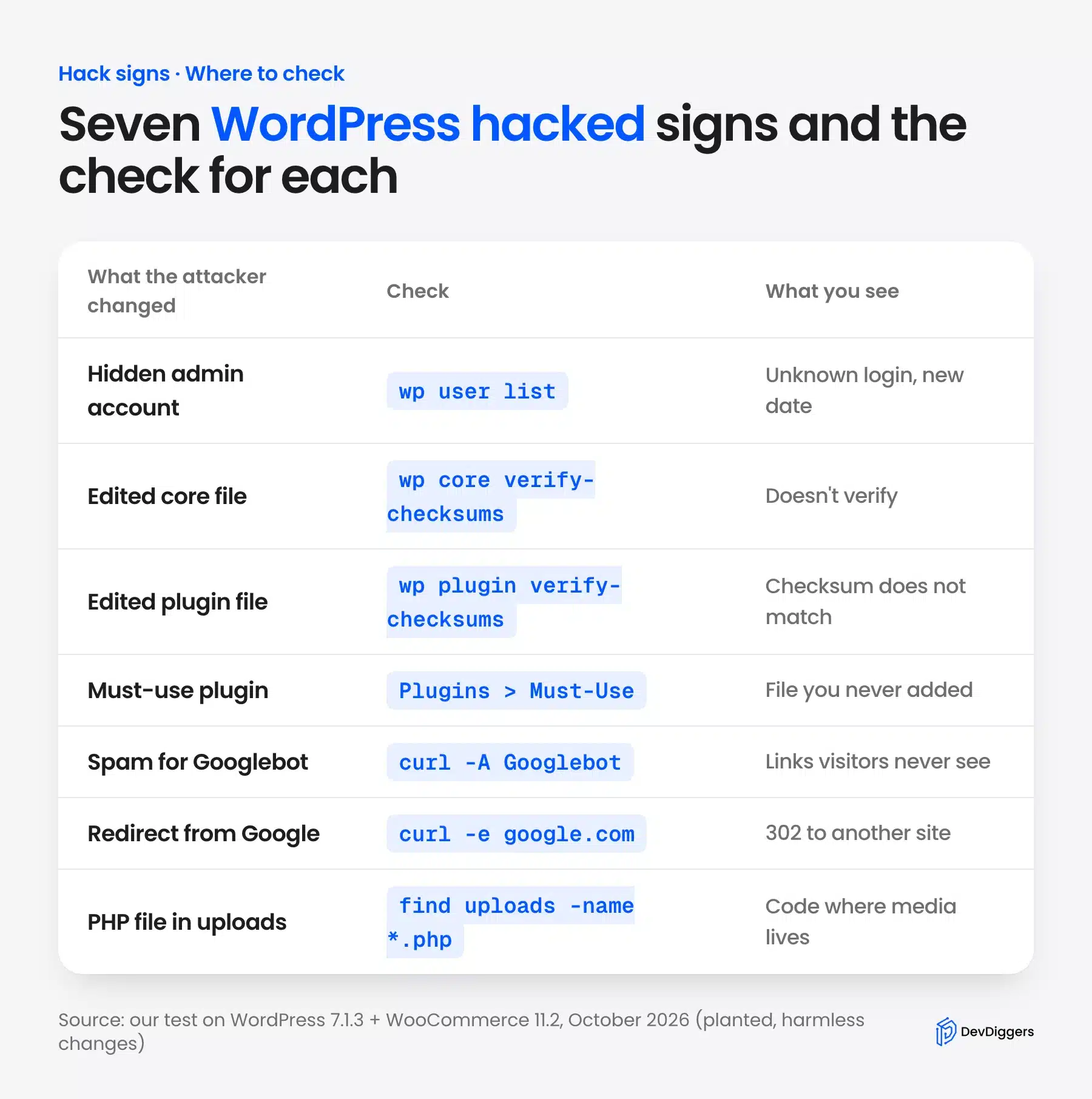
1. Unknown Admin Users in the Users List
A new administrator is the most common trace after a break-in, because it lets the attacker come back after you change your own password. This is admin user injection, and it often hides behind a harmless name like “wpsupport” or “wp-admin-backup”.
Open Users, then All Users, and click the Administrator filter. On our test site the planted account showed up as a second administrator with zero posts.
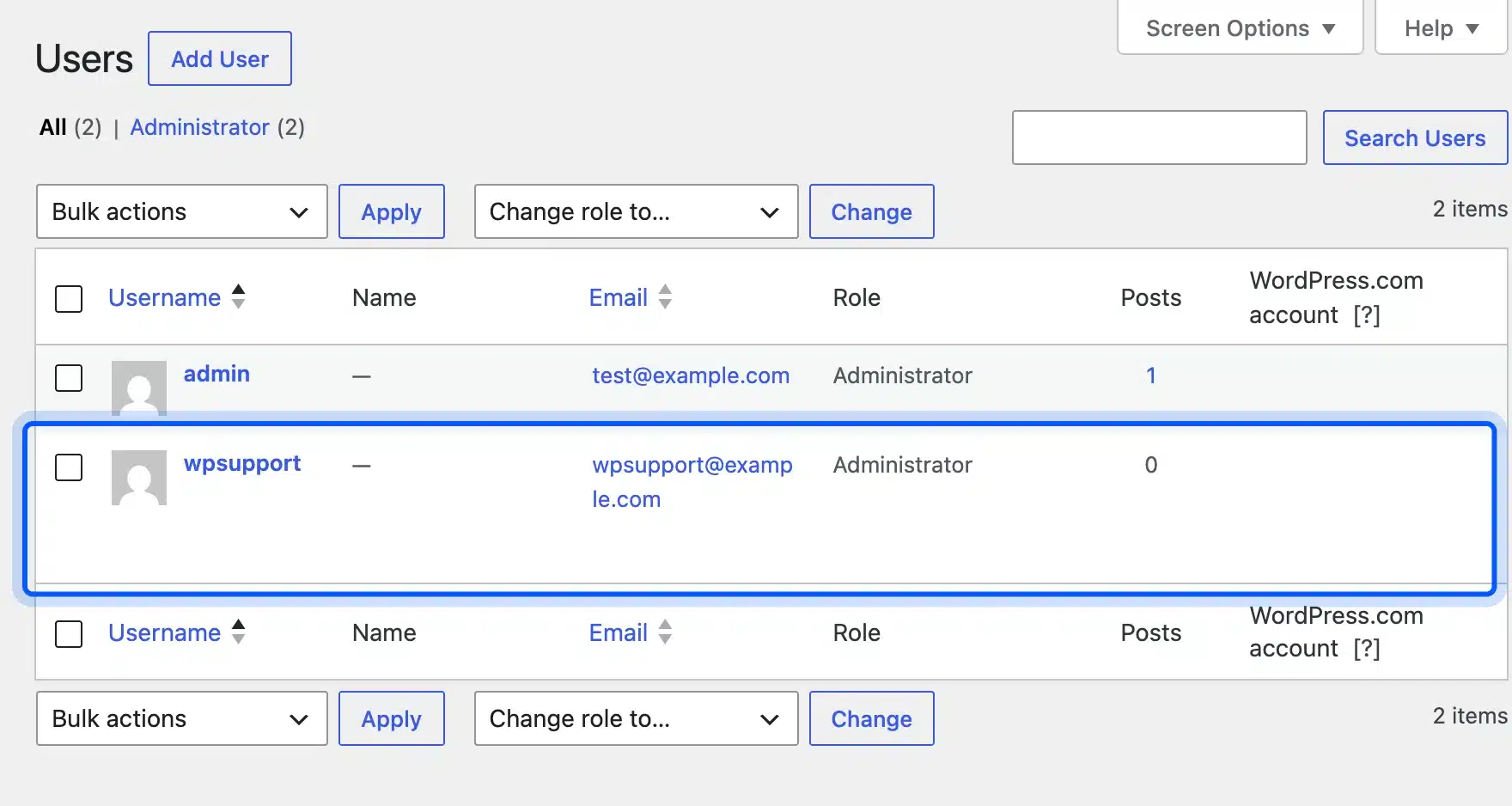
The dashboard does not show when an account was made, so use WP-CLI for that. The user_registered column gave the planted account away at once, because it was a day newer than the real admin.

Attackers also mine sites for admin email addresses to target, which our guide on how hackers mine WordPress for admin email addresses explains.
2. Redirects to Another Site Only From Google
A malicious redirect sends visitors somewhere else, and the smart ones fire only for people arriving from a search result. You type your address straight into the browser and see a normal site, so it can run for weeks before anyone notices.
We planted a four line rule at the top of .htaccess that checked the referrer for google. Then we fetched the home page twice with curl, once plain and once pretending to come from Google.
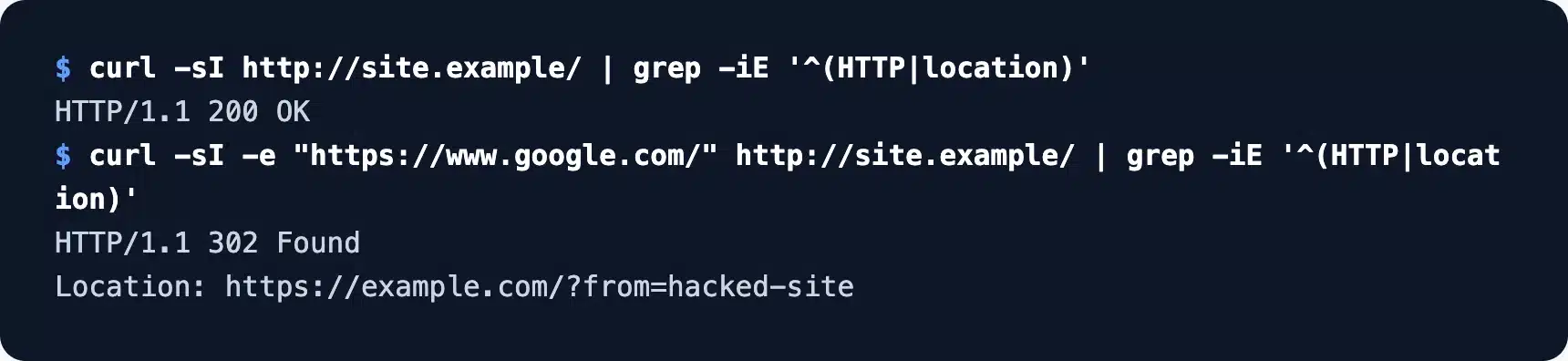
The plain request returned 200. The Google one returned a 302 to another domain. Google’s hacked site help suggests the same curl trick, because hackers often target “specific user-agents or referrers to avoid detection.”
3. Spam Links That Only Googlebot Sees
A pharma hack injects links for pills, casinos or fake shops into your pages, then hides them from you. The spam shows only when the visitor’s user agent says Googlebot, so your rankings fill with junk while the page looks clean in your browser.
Our planted file added two hidden pill links to the footer for Googlebot only. A normal curl found zero matches, and the same request with a Googlebot user agent printed both links.
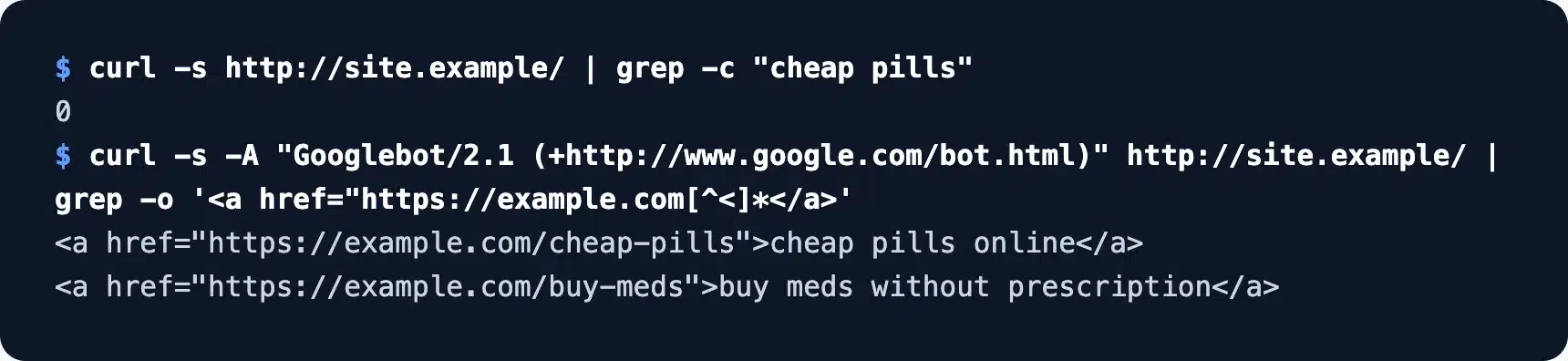
You can run the same test with Google’s own tools too. Search site:yourdomain.com viagra or site:yourdomain.com casino and look for pages you never wrote.
4. A Browser or Google Warning
A red Chrome warning or a “This site may be hacked” line under your Google result means Google already found the problem. Browsers that use Google Safe Browsing show the warning to every visitor, so traffic drops fast once it appears.
Check your domain on the public Safe Browsing site status page first. It needs no login and shows the current status with the date it was last updated.
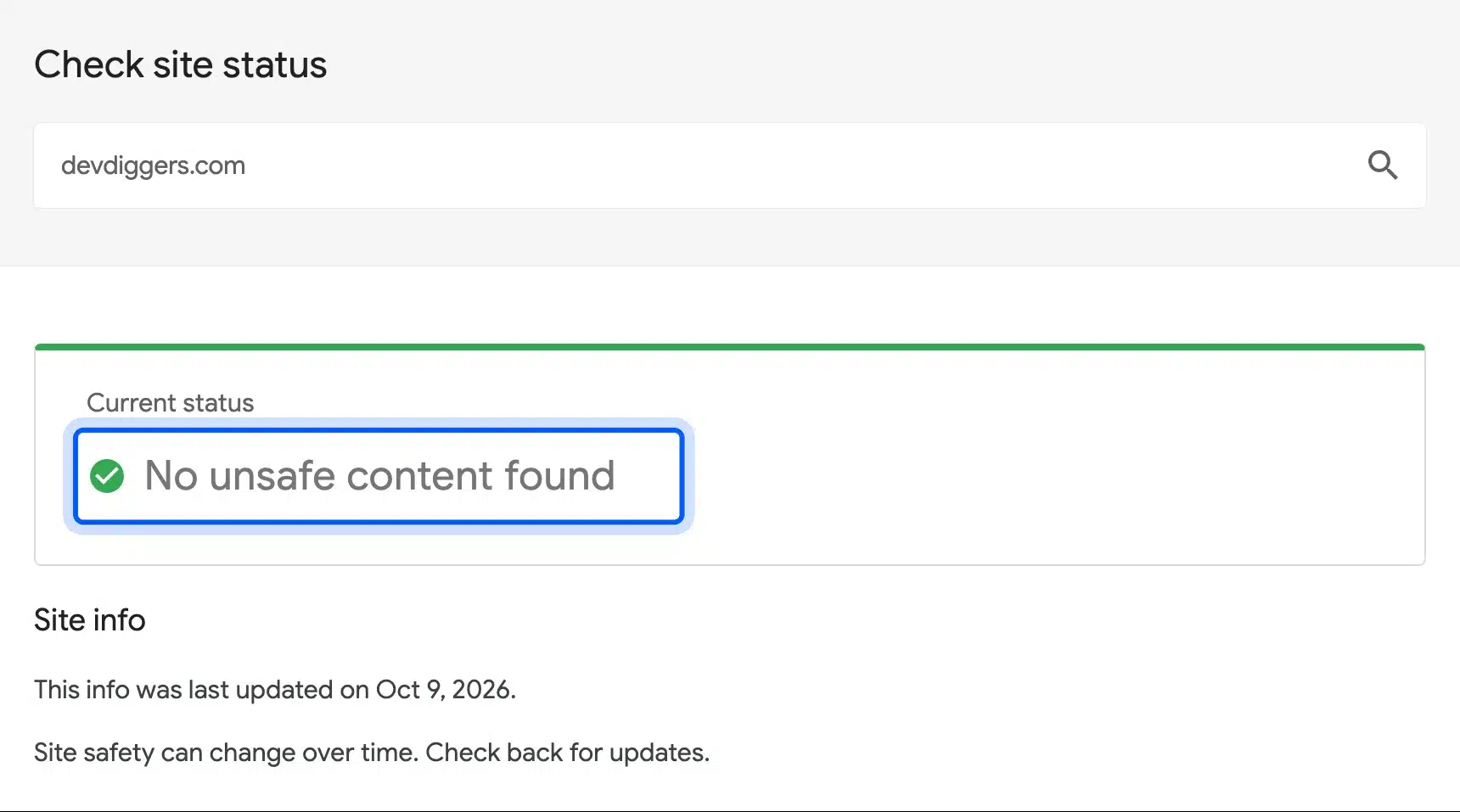
Then open Security & Manual Actions, then Security Issues in Search Console. Google calls the Security Issues report the “source of truth” because the browser warning depends on context and may not show for you.
5. Core or Plugin Files That Fail an Integrity Check
An integrity check compares every file on your server against the official copy from WordPress.org. Any file that was edited, or added where it should not exist, shows up by name. This is the strongest single test for a hacked install.
Run wp core verify-checksums for WordPress itself and wp plugin verify-checksums --all for plugins from the official directory. Both commands are in the WP-CLI handbook.
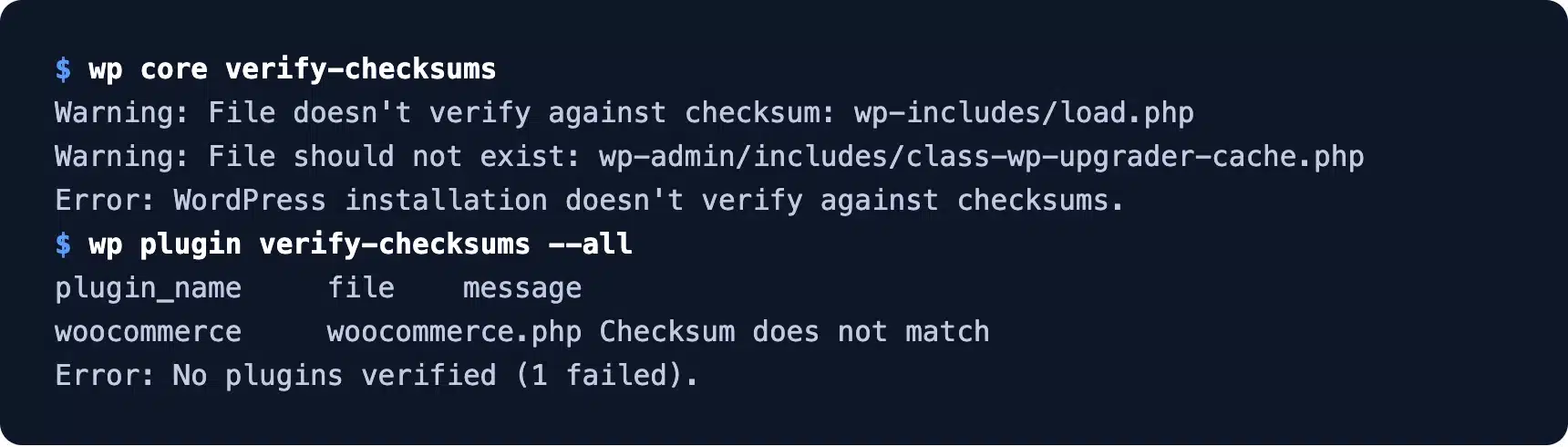
On our test site both commands failed. They named wp-includes/load.php as changed, an extra file in wp-admin/includes that should not exist and a changed woocommerce.php.
Note: Plugins bought outside WordPress.org, like most premium plugins, have no public checksums. For those, compare the folder with a fresh download from the vendor.
6. Files Changed on Dates You Did Not Touch
Files that changed this week, when nobody on your team updated anything, are worth a close look. A quick file search lists every PHP file modified in the last few days. It also finds code dropped into the uploads folder, where only media belongs.
We ran find for PHP files and .htaccess changed in the last 7 days. It listed exactly the six planted files and nothing else. To mimic a quiet site, I had dated every original file to 15 September first.
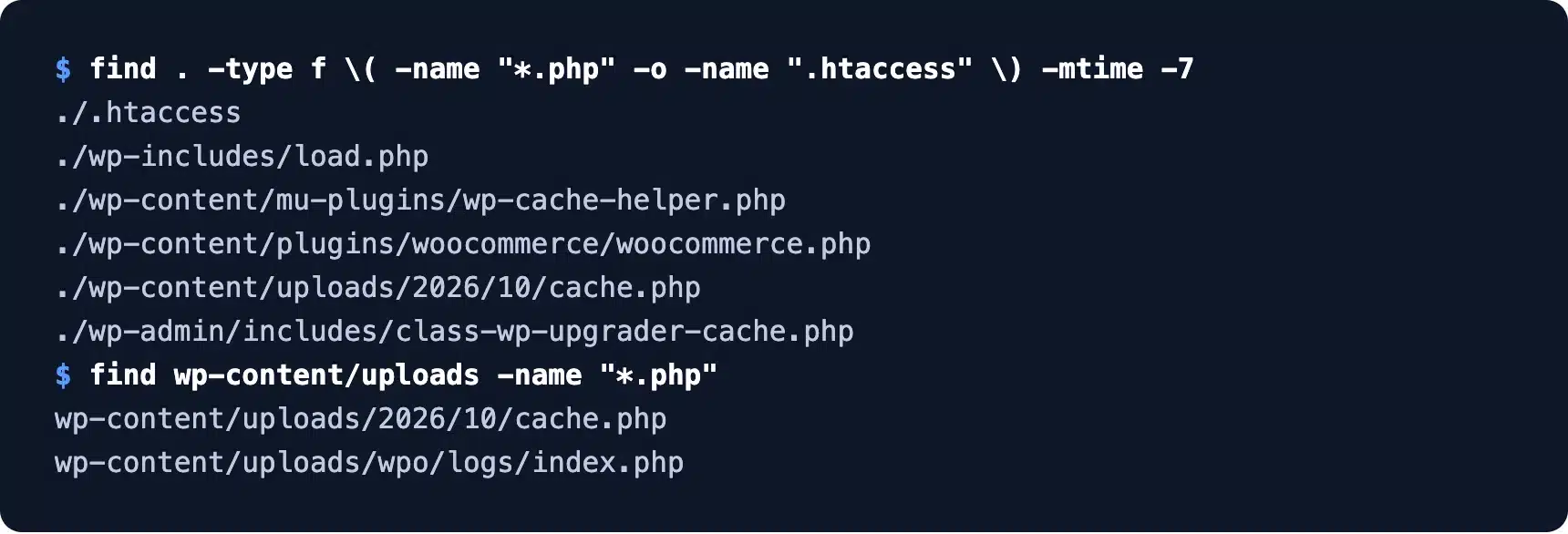
The date trick fails right after an update or a restore, since every file then carries a new date. Our first run, made straight after restoring the test site, listed 1,319 files for that reason. Run it on a site that has been quiet for a week.
The uploads check needs judgment too. Our test site had one harmless index.php from an old cache plugin in uploads, next to the planted file.
7. A Must-Use Plugin You Never Added
A must-use plugin is a PHP file in wp-content/mu-plugins that WordPress runs on every page load. Attackers like this folder because those files load automatically and cannot be switched off from the dashboard, as the WordPress handbook states.
Open Plugins and click the Must-Use link above the list. Our planted file sat there as wp-cache-helper.php, a name that sounds like part of a caching plugin.
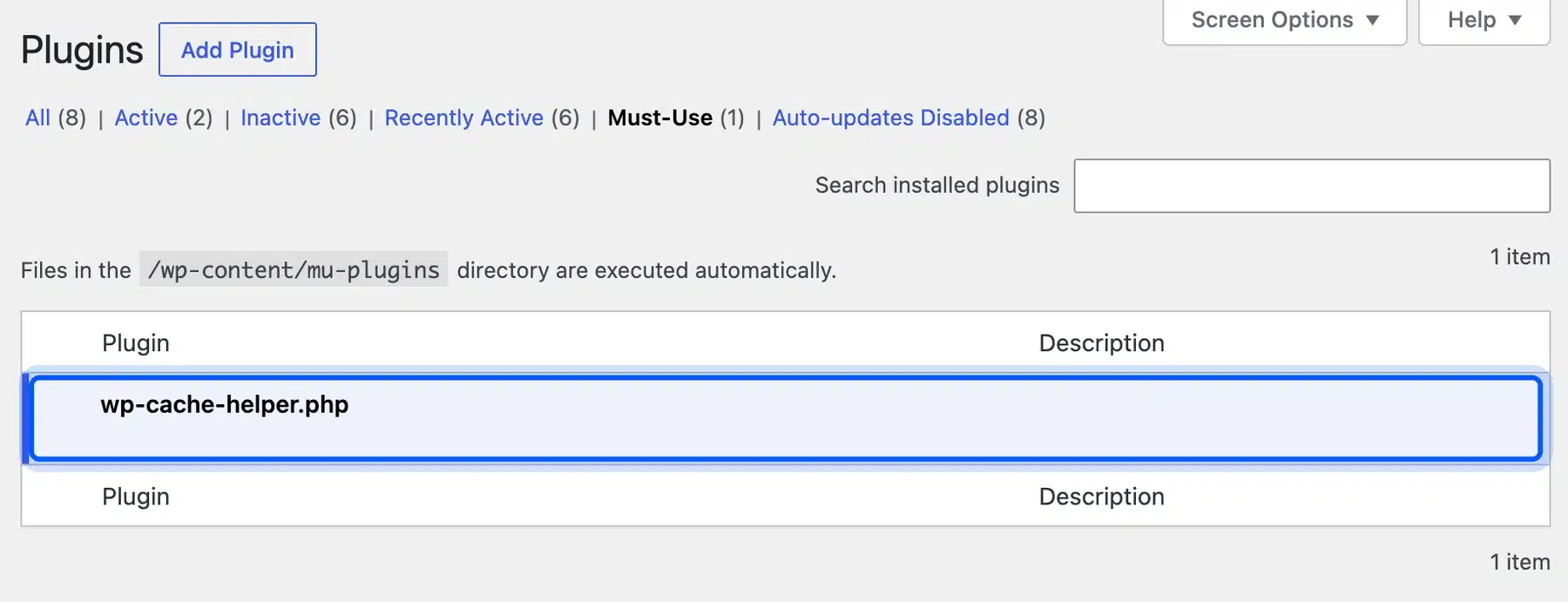
The All count at the top still said 1 plugin, because must-use files are left out of it. That is why most owners never look here.
Which Checks Catch a WordPress Hack?
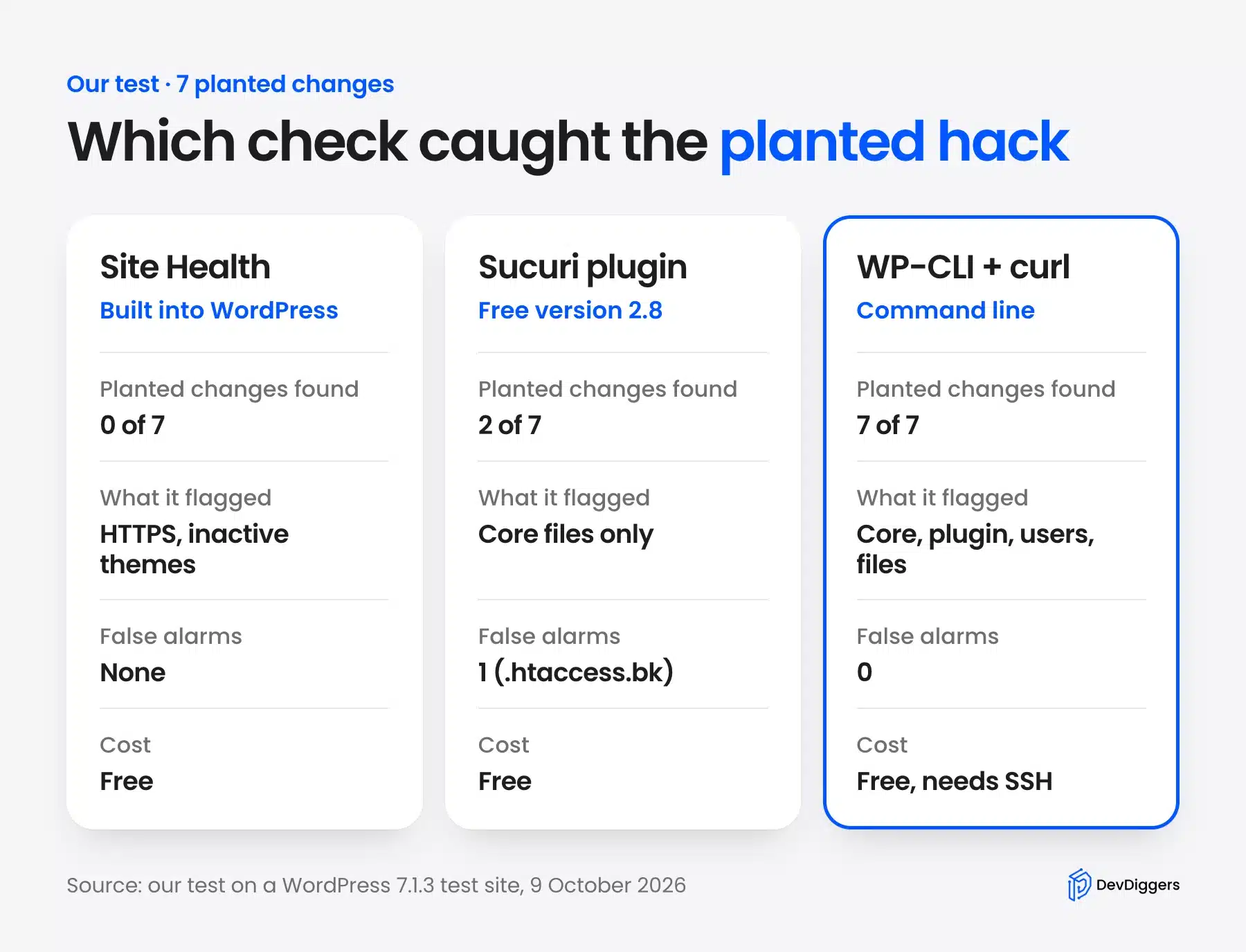
WP-CLI checksums, a WP-CLI user list, curl with a fake referrer or user agent and a file search caught our planted hack. Together they found all seven traces. Site Health found none, and the free Sucuri scanner found two of the seven.
That gap matters, because many owners stop after one green dashboard screen. Here is what each tool reported on the same site.
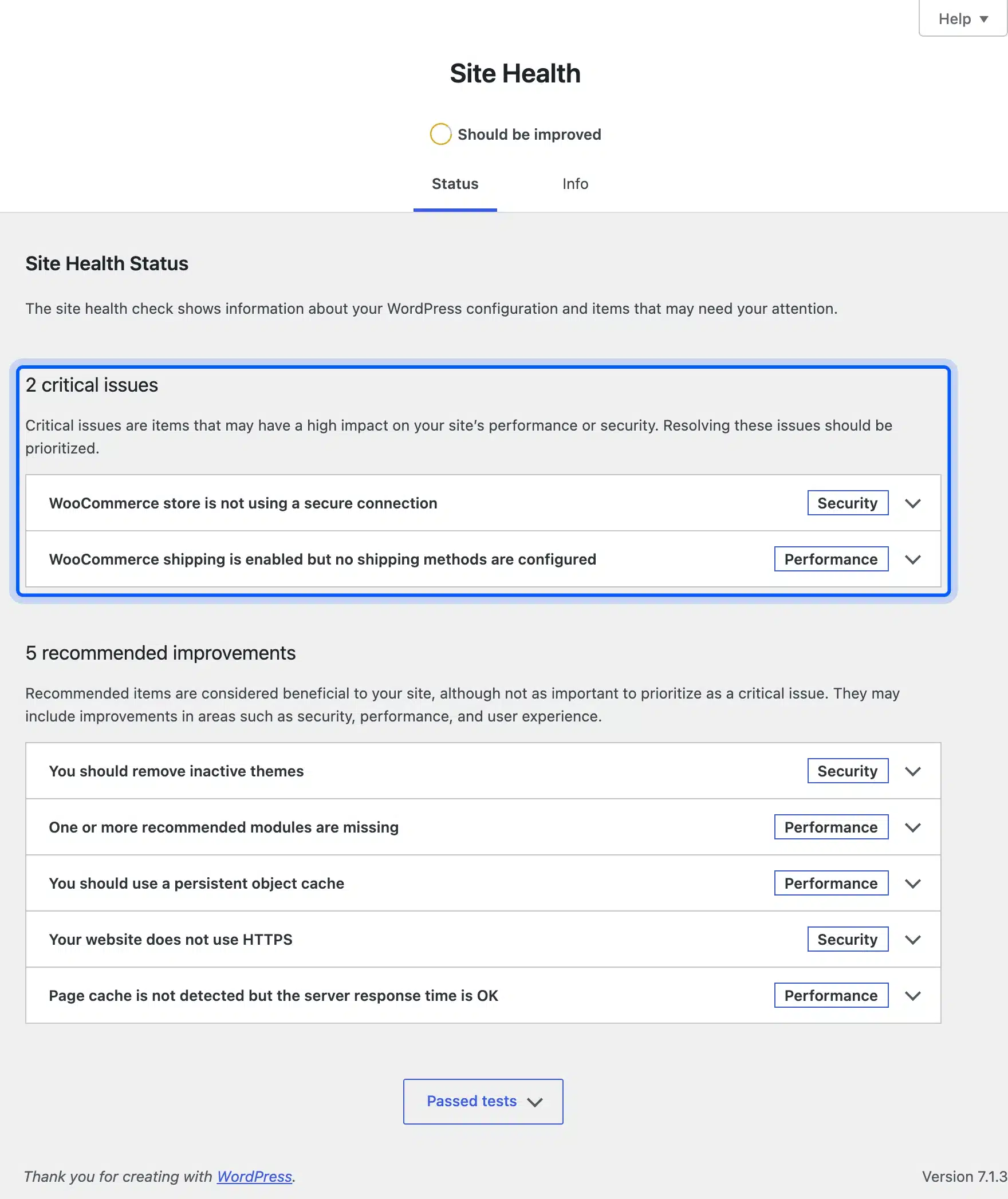
Site Health reported 2 critical issues and 5 recommendations. All of them were about HTTPS, inactive themes, caching and shipping settings. None of the planted files, users or redirects appeared.
The free Sucuri Security plugin, version 2.8, has a WordPress Integrity panel that compares core files. It flagged the changed load.php and the extra wp-admin file. It also flagged .htaccess.bk, a harmless backup copy on our test site.
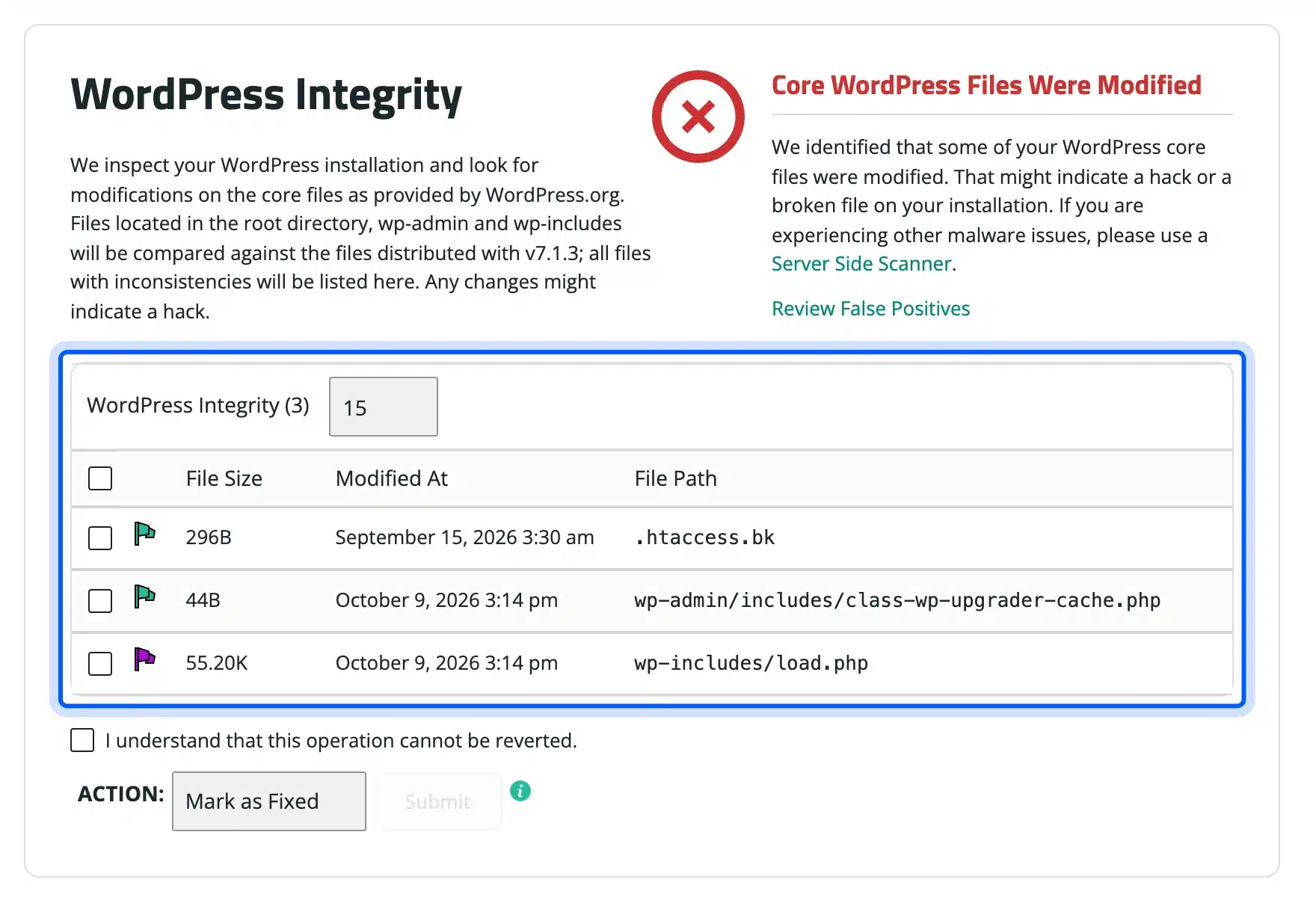
It missed the plugin file, the must-use backdoor, the uploads file, the .htaccess redirect and the hidden admin. Its remote SiteCheck scan only reads public pages, so it could not scan our private test site. A scanner is a good first pass, but it does not replace the command line checks above.
A pattern search is weaker still. Searching wp-content for eval( and base64_decode returned 7 files, and every one was legitimate WooCommerce code. The planted backdoor used neither function, so the search missed it.
How to Recover a Hacked WordPress Site
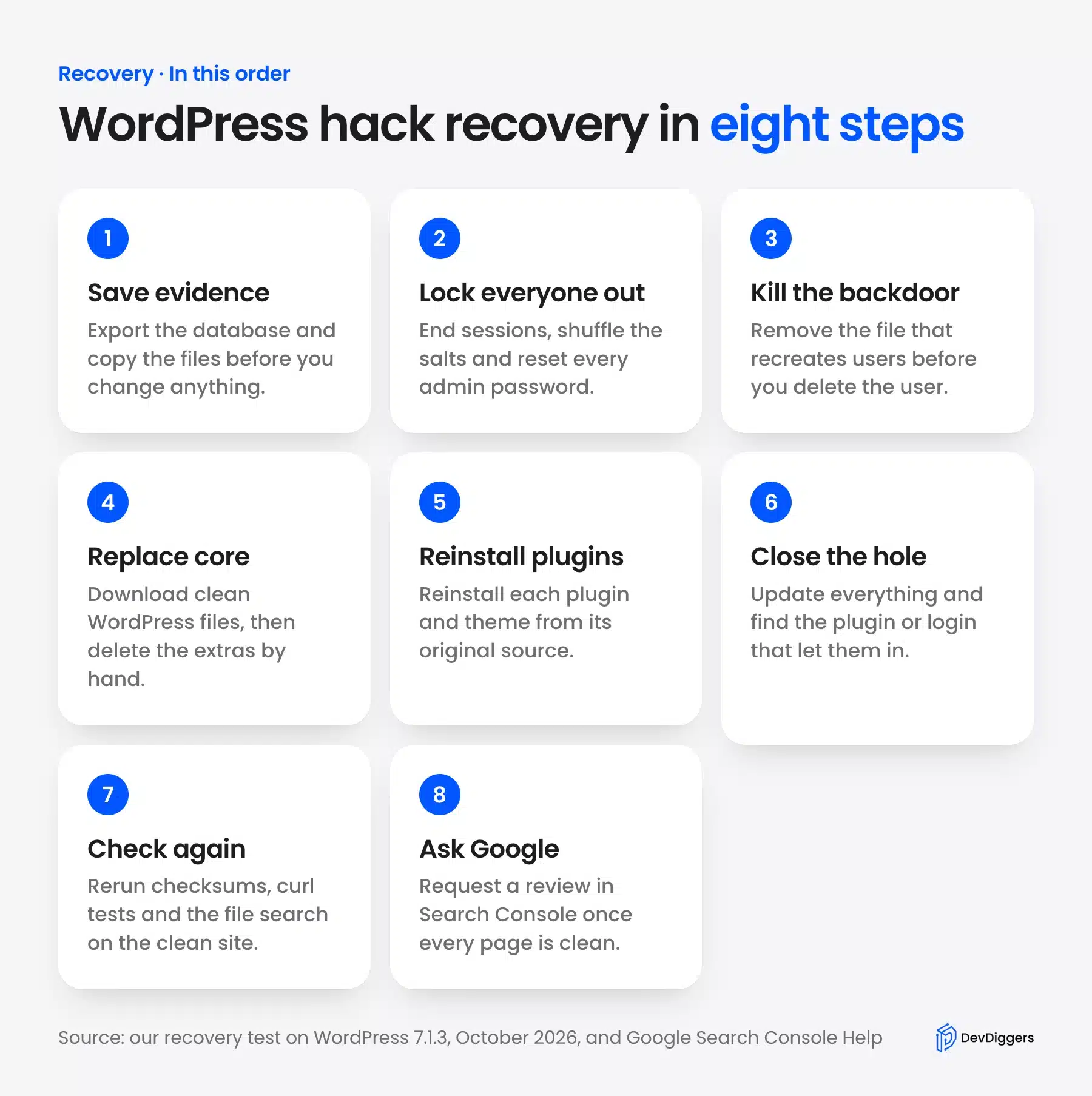
To recover a hacked WordPress site, save evidence first and lock every account out. Then remove the backdoor before the rogue admin, replace core and plugin files from clean sources and update everything. Check again, then ask Google for a review.
A WordPress hack recovery goes in that order for a reason. We tested it on the same site, and skipping the order made the hack come straight back in step 3.
Step 1: Save Evidence Before You Touch Anything
Export the database and copy every file before you delete a single line. That copy shows how the attacker got in, and it lets you get back any post or order you remove by mistake.
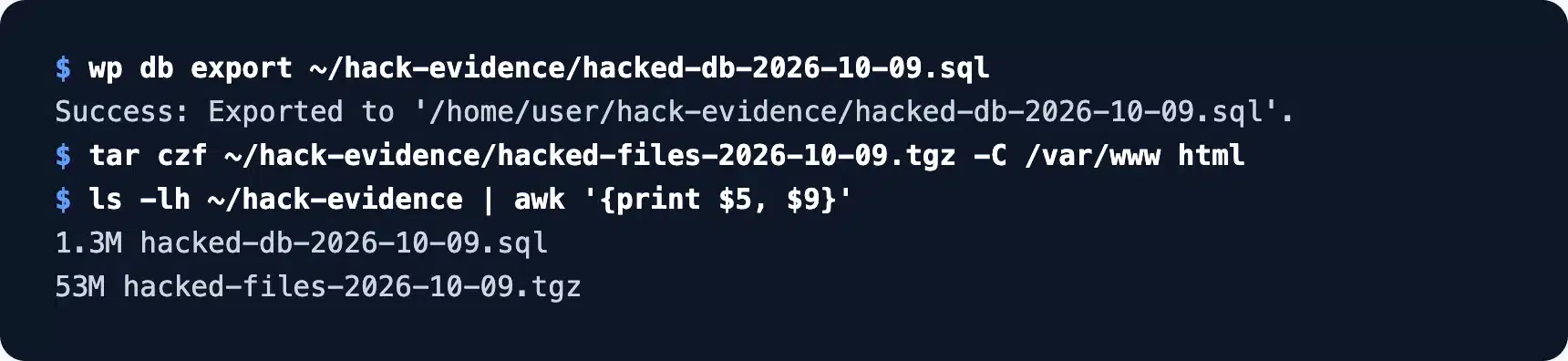
If visitors are being redirected or warned, put the site into maintenance mode or ask your host to block public traffic while you work. Do not delete files yet, even the ones that look bad at first sight.
Our hacked copy came to a 1.3 MB database file and a 53 MB archive of the files. Keep both off the server, and tell your host now if you are on shared hosting.
Step 2: Lock Every Account Out
Changing your own password is not enough. End every logged in session, change the secret keys in wp-config.php and reset each admin password, so any stolen cookie stops working at once.
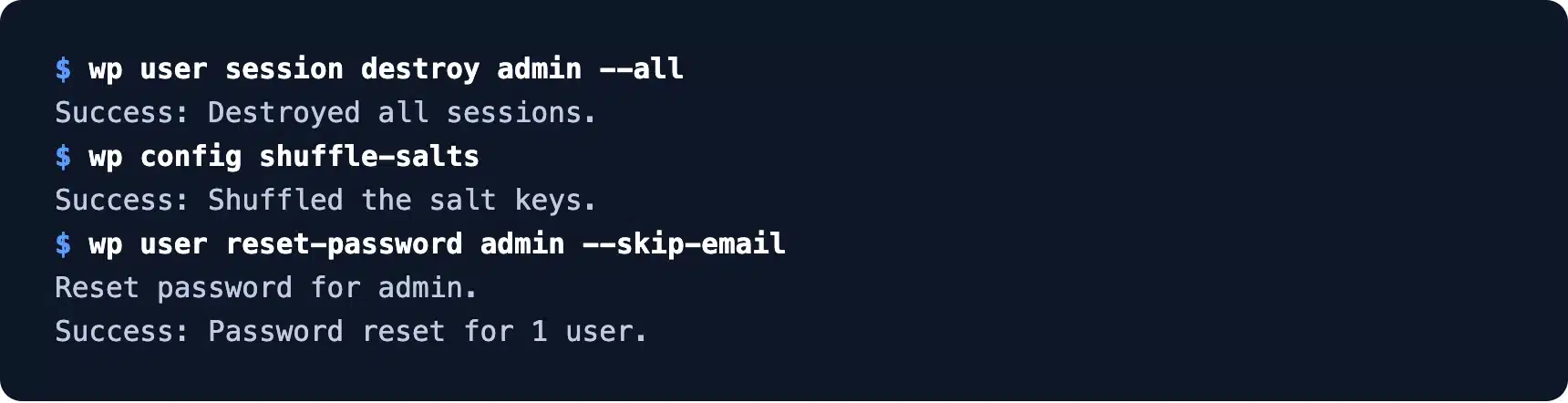
The wp config shuffle-salts command writes new keys for you, as the WP-CLI docs show. Also change your hosting, SFTP and database passwords, since an attacker may have read them from wp-config.php.
Step 3: Remove the Backdoor Before the Admin User
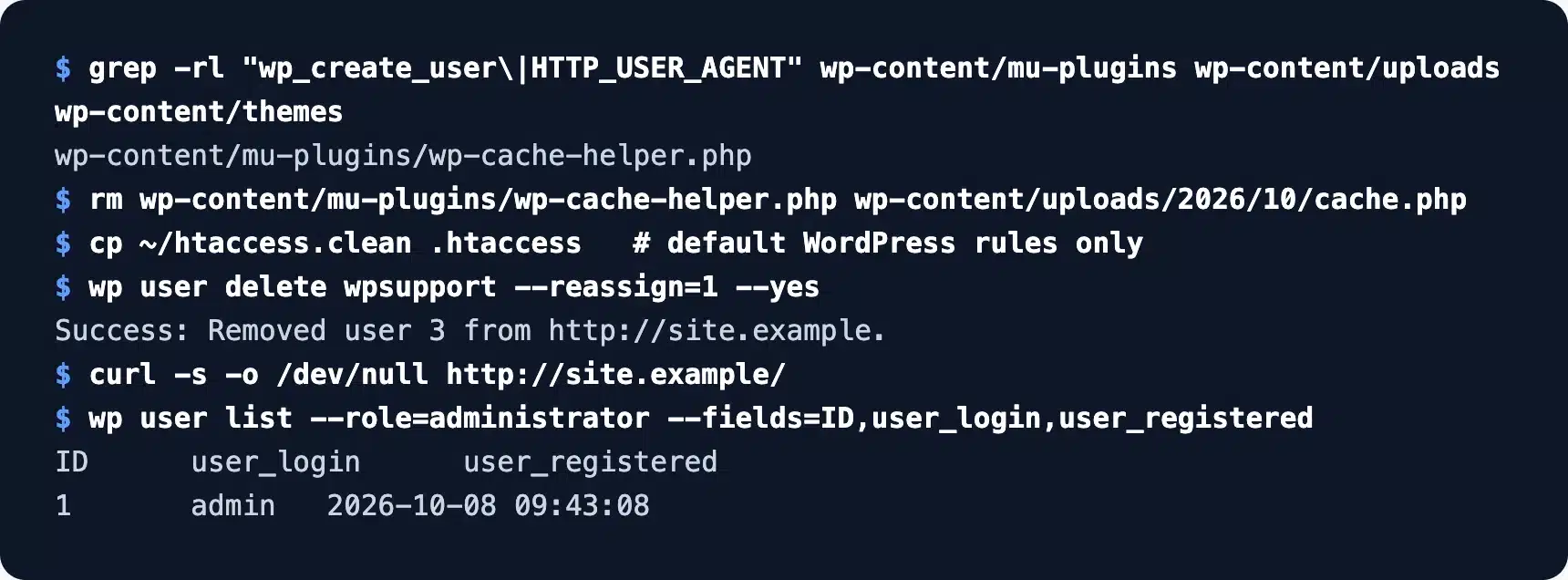
Delete the file that creates the rogue admin first, and only then delete the admin. If you do it the other way round, the backdoor simply makes the account again on the next page load.
That is exactly what happened on our test site. We deleted the wpsupport user first, loaded one page, and the account was back within seconds under a new ID.
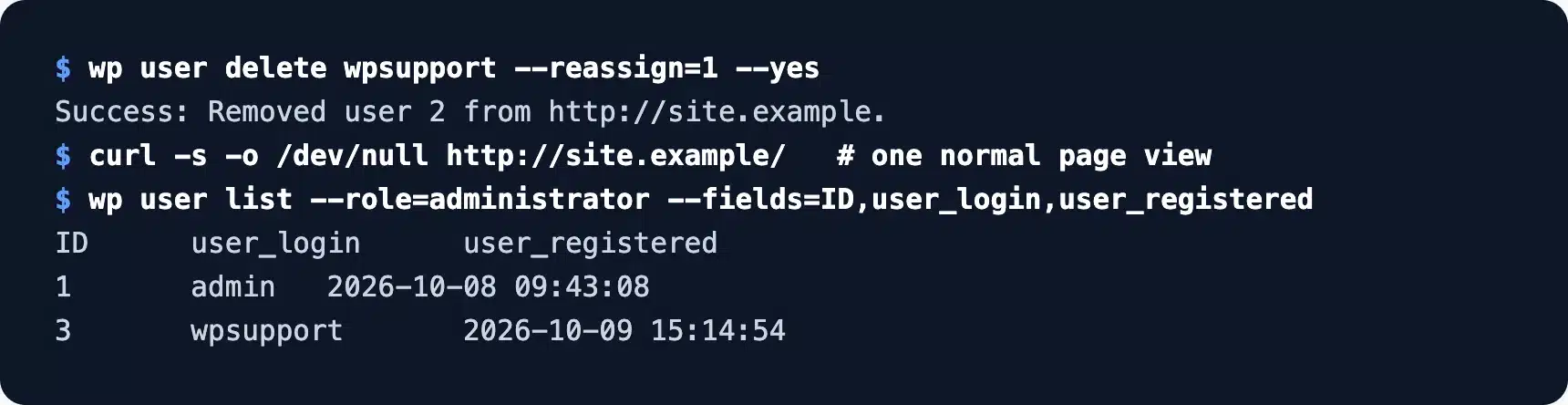
This reinfection loop is why so many owners say the hack keeps coming back. We then searched for the code that calls wp_create_user, removed the planted files and restored the default .htaccess. After that the deleted user stayed gone.
Step 4: Replace WordPress Core Files
Download a clean copy of WordPress over your current files, keeping the wp-content folder. With WP-CLI that is wp core download --force --skip-content with your exact version number.
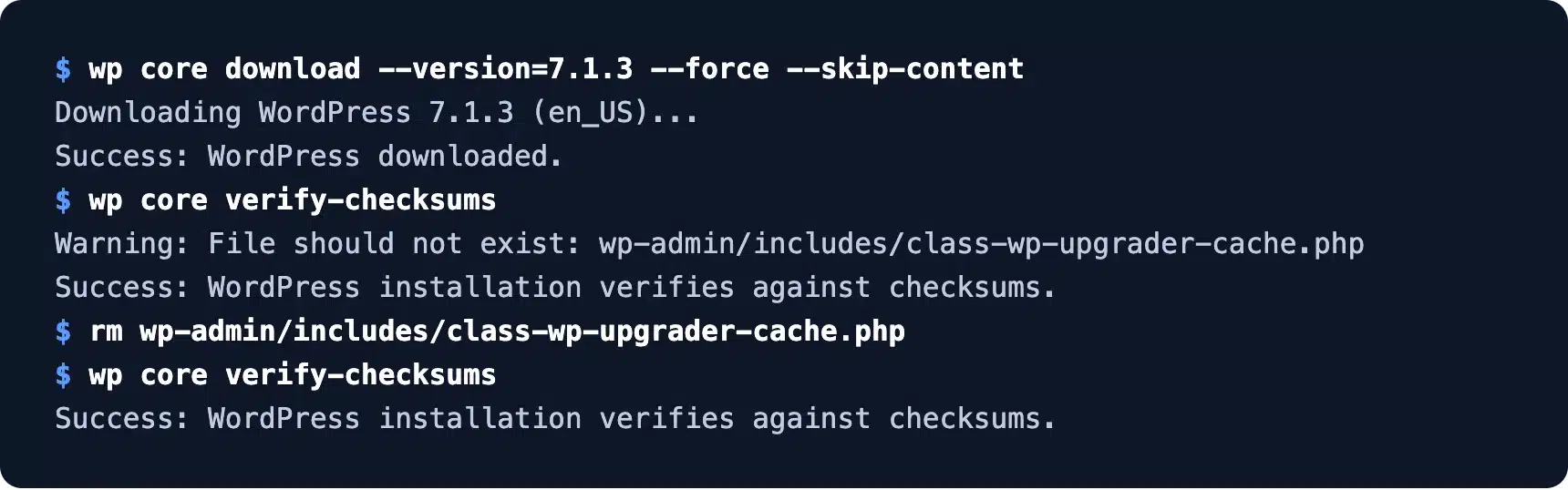
The reinstall replaced the edited load.php, but it left the extra file in wp-admin/includes in place. The checksum run even printed Success with only a warning about it. We deleted that file by hand, and the second check came back clean.
Warning: A fresh core download never removes extra files. Always read the warning lines above the final Success line.
Step 5: Reinstall Plugins and Themes From the Source
Reinstall every plugin and theme from WordPress.org or the vendor, at the version you run now. Delete anything you no longer use, because an inactive plugin can still be attacked.
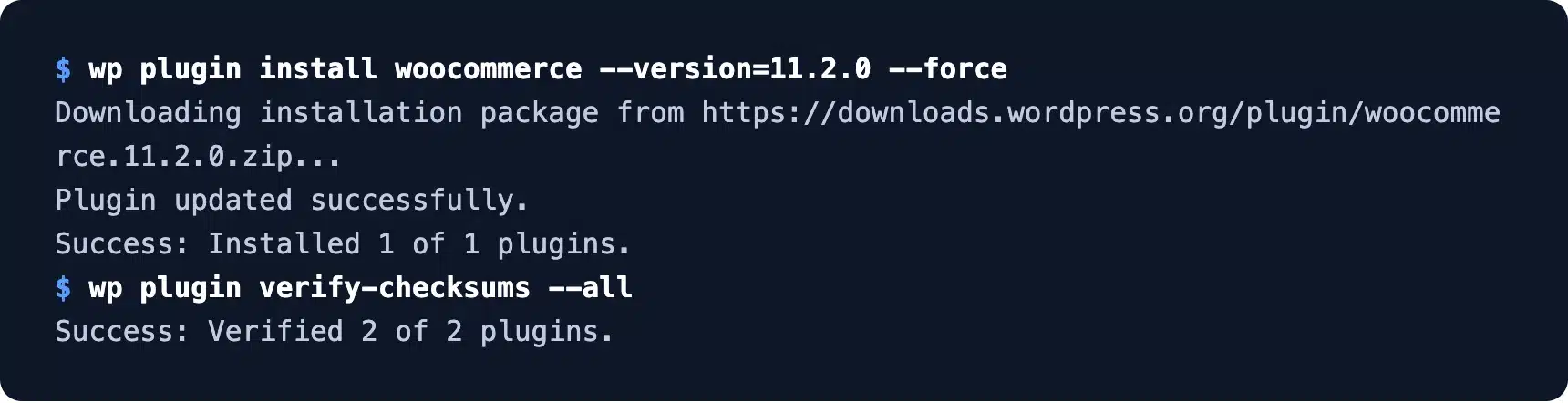
We reinstalled WooCommerce 11.2.0 with --force, and wp plugin verify-checksums --all then verified both plugins. Premium plugins need a fresh zip from your account with the vendor.
Step 6: Update Everything and Close the Hole
Cleaning the files does nothing if the way in is still open. Update WordPress, every plugin and every theme first. Then look for the cause: an outdated plugin, a shared password or an old account with too much access.
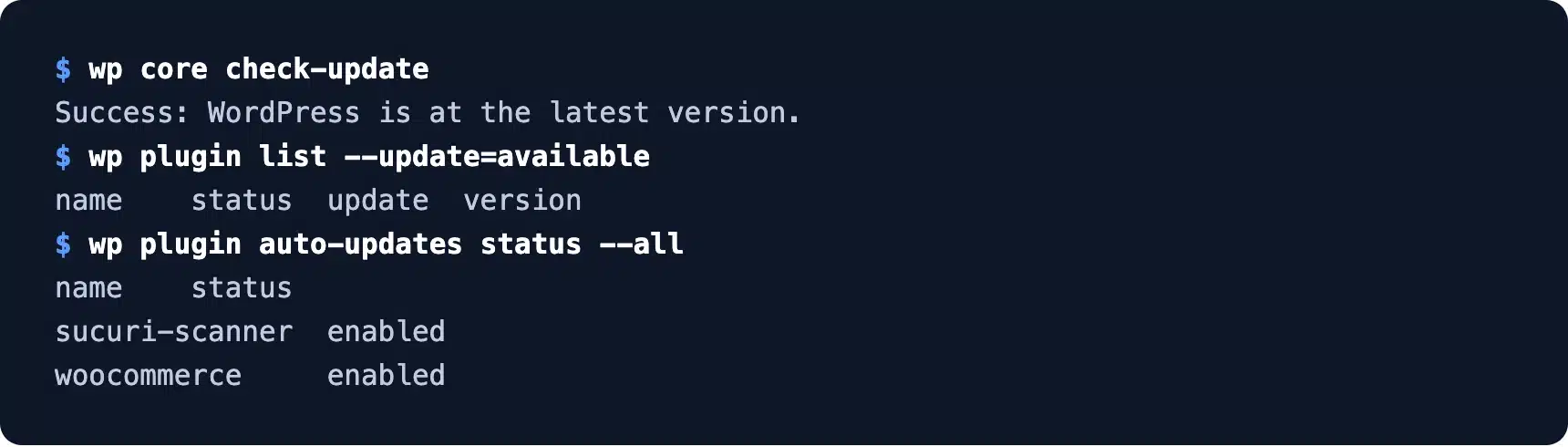
Turn on auto-updates for small, trusted plugins. Our guide on disabling automatic updates in WordPress shows where that setting lives. Use it in reverse if updates were switched off in the past.
Step 7: Check the Site Again
Run every check from the signs section again on the cleaned site. A clean result on all of them is what tells you the job is done.
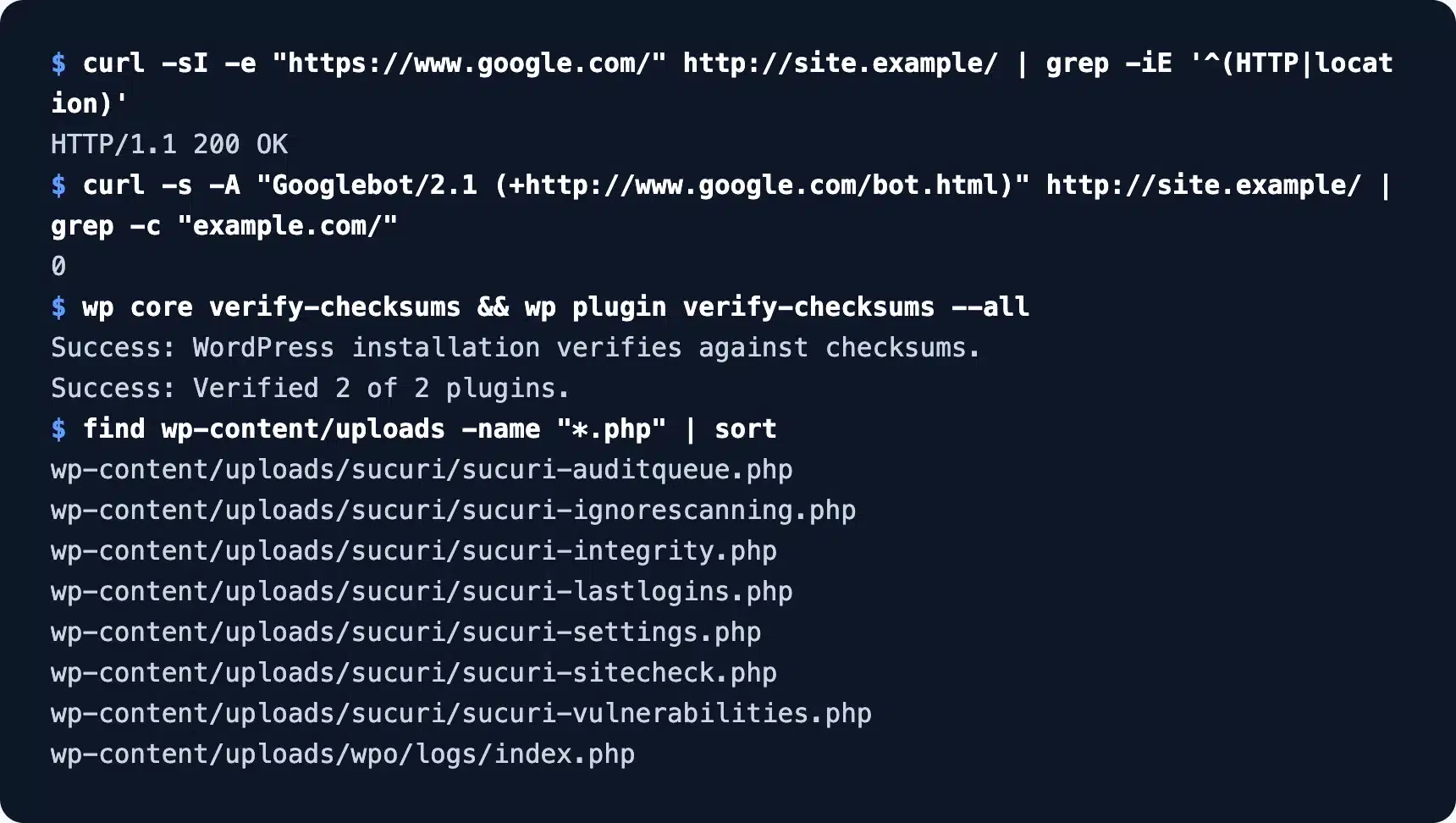
On our site the Google referrer got a 200, the Googlebot request found zero spam links and both checksum commands passed. The uploads folder now held only known files: seven from Sucuri itself and one empty index.php.
Step 8: Ask Google to Review the Site
If Google flagged the site, open the Security Issues report in Search Console and click Request Review once every page is clean. Describe what was wrong, what you fixed and what you checked afterwards.
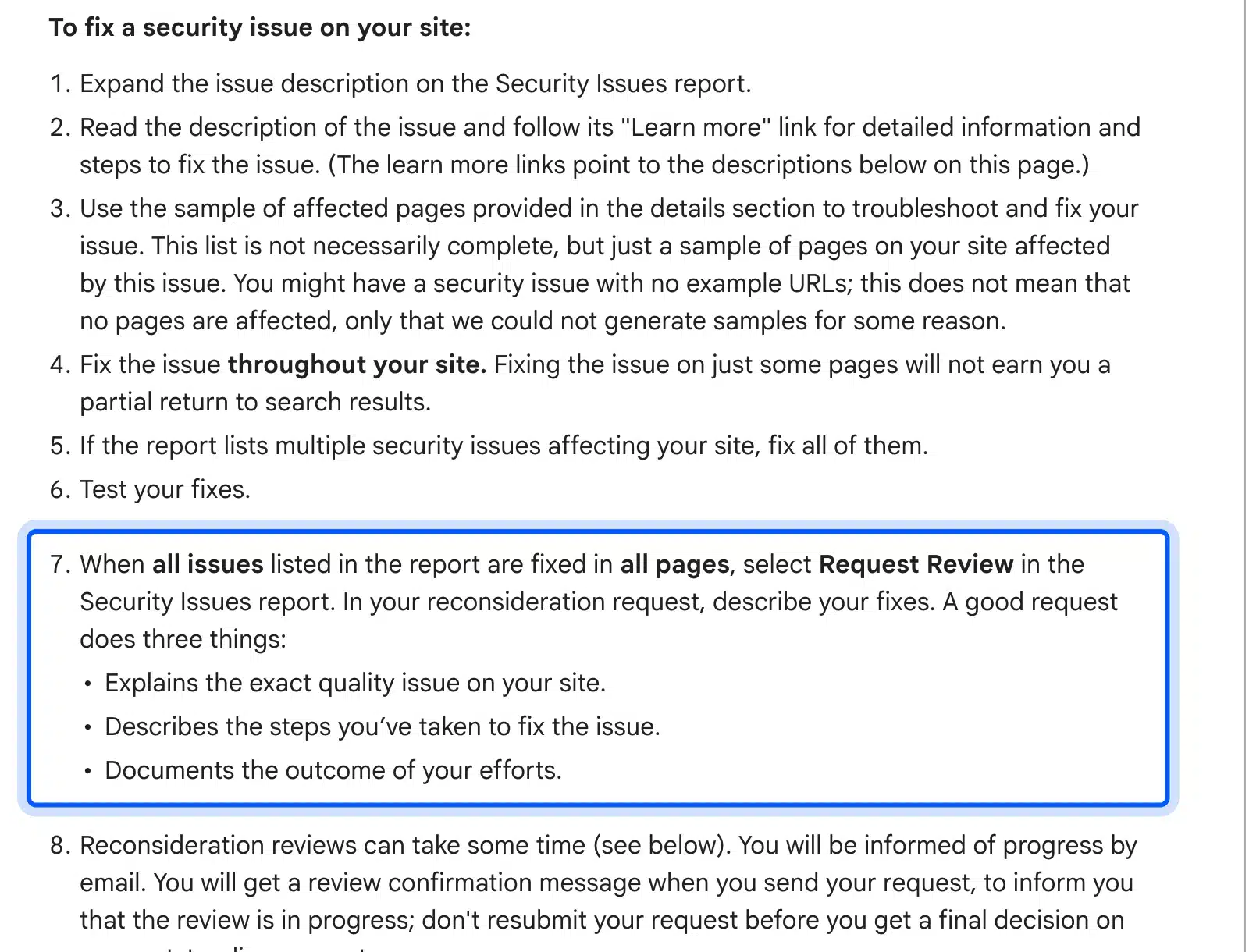
Google’s review guidance says most reviews take “several days or weeks.” Do not send a second request before the first one is answered, as that can slow the next one down.
When to Hire Help Instead
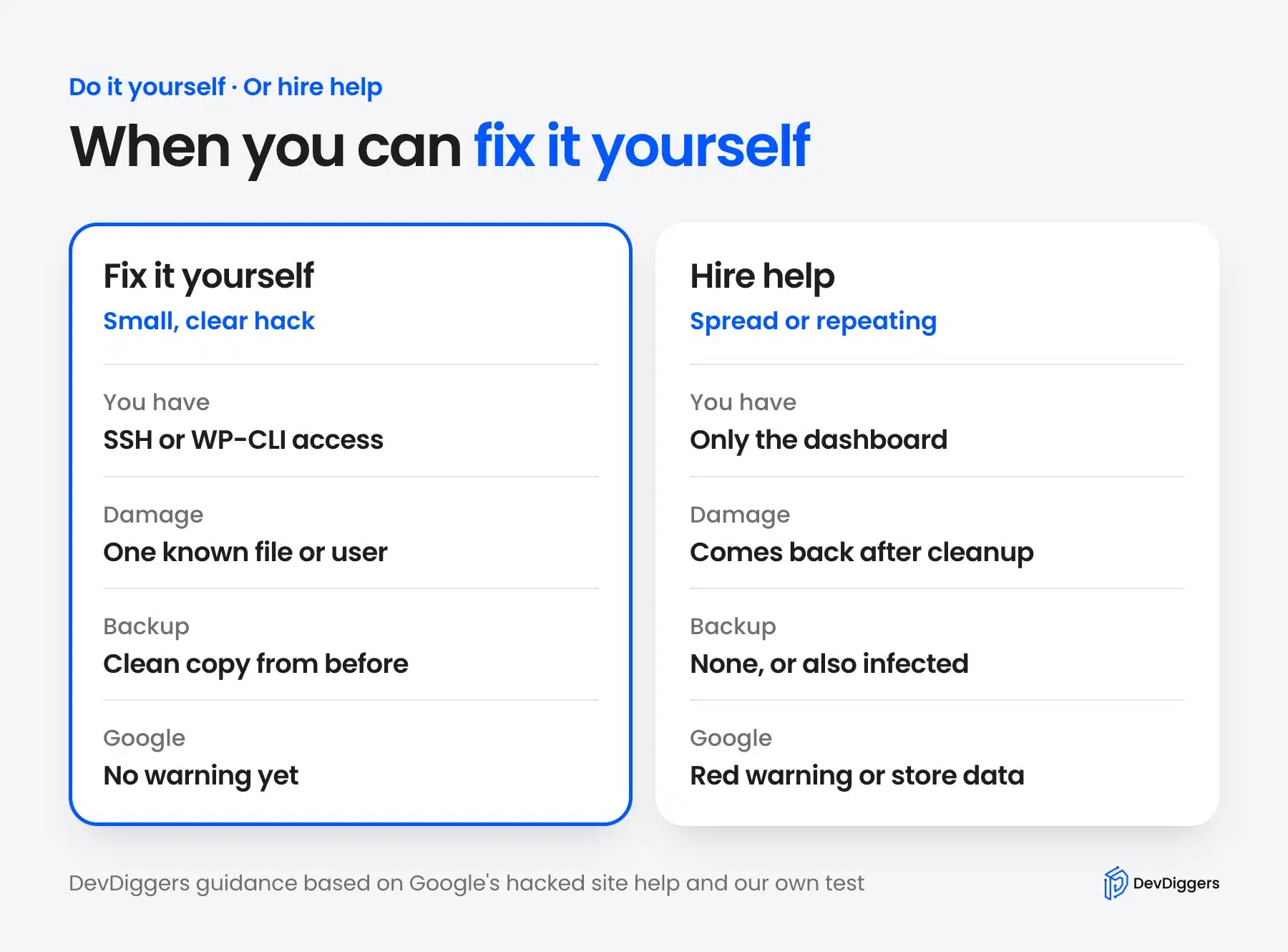
You can clean a hacked WordPress site yourself when you have SSH or WP-CLI access, a clean backup and one clear problem. Hire help when the hack comes back, when you only have the dashboard or when customer data on a store may be exposed.
Google’s Security Issues help says malware cleanup needs the ability to read code and server settings. If that is not you, you are better off paying for a day of expert time.
When you do hire someone, ask three things before you pay. Will they find and report how the attacker got in? Will they rerun the checks a week later, and will they file the Google review for you?
A cleanup that only deletes the files a scanner flags is the same trap our Sucuri test showed. It leaves the backdoor and the hidden admin behind, so the site is hacked again within days.
A store adds weight to the choice. Orders, addresses and payment tokens sit in the database, and a hacked checkout can collect card details from a fake form.
If you would rather hand the cleanup to a specialist, our WordPress security services cover malware removal, the root cause and hardening. A WordPress care plan is the cheaper route if you mostly want updates and monitoring afterwards.
How to Secure Your WordPress Website From Hackers
To secure your WordPress website from hackers, keep core and plugins updated and use strong passwords with two-factor login. Give admin access to as few people as possible. Run the integrity check every month, because the same checks that find a hack also stop the next one early.
- Updates: Turn on core and plugin auto-updates for anything small and trusted, and test big plugins on staging first.
- Logins: Use unique passwords and add two-factor login to every admin account.
- Fewer admins: Give editors and shop staff the smallest role that lets them work.
- Monthly checks: Run the two checksum commands, the admin user list and the must-use folder check once a month.
- Backups: Keep daily backups off the server, so you have a clean copy from before any hack.
Sucuri’s recommendations panel on our test site also pointed out that a user named admin still existed. Create a new admin with a less common name, move the content over and delete the old account.
Keep a short record of each monthly check. A dated note like “9 October, checksums clean, 1 admin” makes the next break-in much faster to date and trace.
Our WordPress security checklist has the full hardening list. Store owners should also work through the WooCommerce security checklist. For two-factor options, see our list of WooCommerce two-factor authentication plugins.
Conclusion
A WordPress hacked site shows itself through a handful of traces. Look for an unknown admin, files that fail a checksum, a must-use file you never added and spam aimed at Google. The free command line checks found all seven of our planted traces in minutes, while the built-in Site Health found none.
Recovery is about order more than tools. Save evidence, lock accounts, kill the backdoor before the user and replace files from clean sources. Then check again and only then ask Google for a review.
Frequently Asked Questions (FAQs)
Q1. Why does my WordPress site keep getting hacked?
A hack that comes back almost always means a backdoor was left behind or the original way in is still open. In our test, a hidden must-use file recreated a deleted admin within seconds. Remove the backdoor, rotate every password and update the plugin that let them in.
Q2. How long does it take to fix a hacked WordPress site?
A small, clear hack on a site you can reach with WP-CLI takes a few hours, including checks. A hack spread across many files can take a day or more. If Google flagged the site, its review adds several days or weeks on top.
Q3. Can I fix a hacked WordPress site without losing content?
Yes, in most cases. Posts, pages and orders live in the database, while core and plugin files can be replaced from clean copies without touching them. Export the database first, then remove only the spam rows and rogue users you find.
Q4. How do I know if my backup is clean?
Restore it to a staging site first, never straight onto the live server. Then run the checksum commands, the admin user list and the must-use folder check on it. A backup taken after the break-in carries the same backdoor.
Q5. Will my hosting company fix a hacked site for me?
Hosting plans differ here: some include malware cleanup, and others only suspend the account until you clean it. Ask your host what its plan includes before you pay for outside help. Even when the host cleans files, you still need to close the original hole.
Q6. Is WordPress easily hacked?
WordPress core is patched fast, and most break-ins come through outdated plugins, reused passwords or weak hosting. The July 2026 core fix showed that core bugs do happen. That release shipped with forced auto-updates for the affected versions.
Q7. Should I delete the hacked files or restore a backup?
Restore a backup when you have a clean one from before the hack and can accept losing newer content. Otherwise clean in place with the steps above, since a restore of an infected backup only resets the timer. Either way, run every check again afterwards.