
To add a canonical tag in WordPress, open the post and fill in the Canonical URL field in your SEO plugin. In Rank Math, that field sits on the Advanced tab. WordPress prints the tag in the page head for you.
Most posts do not need this step, because WordPress already adds a canonical tag that points to the post itself. You only set one by hand when two URLs show the same content, and you want search engines to rank one of them.
This guide shows three ways to set the tag, then tests each one. Every result comes from a WordPress 7.1.2 test site with Rank Math 1.0.279 and WooCommerce 11.1.2, checked in September 2026.
What Is a Canonical Tag in SEO?
A canonical tag is a link element in the page head that names the preferred URL for a page. Search engines use it when several URLs show the same or very similar content. It tells them which version to keep in results.
Google’s documentation calls the canonical URL the preferred version of a page. It also says the tag works as a hint that Google can override. If you set none, Google picks the version it thinks is best.
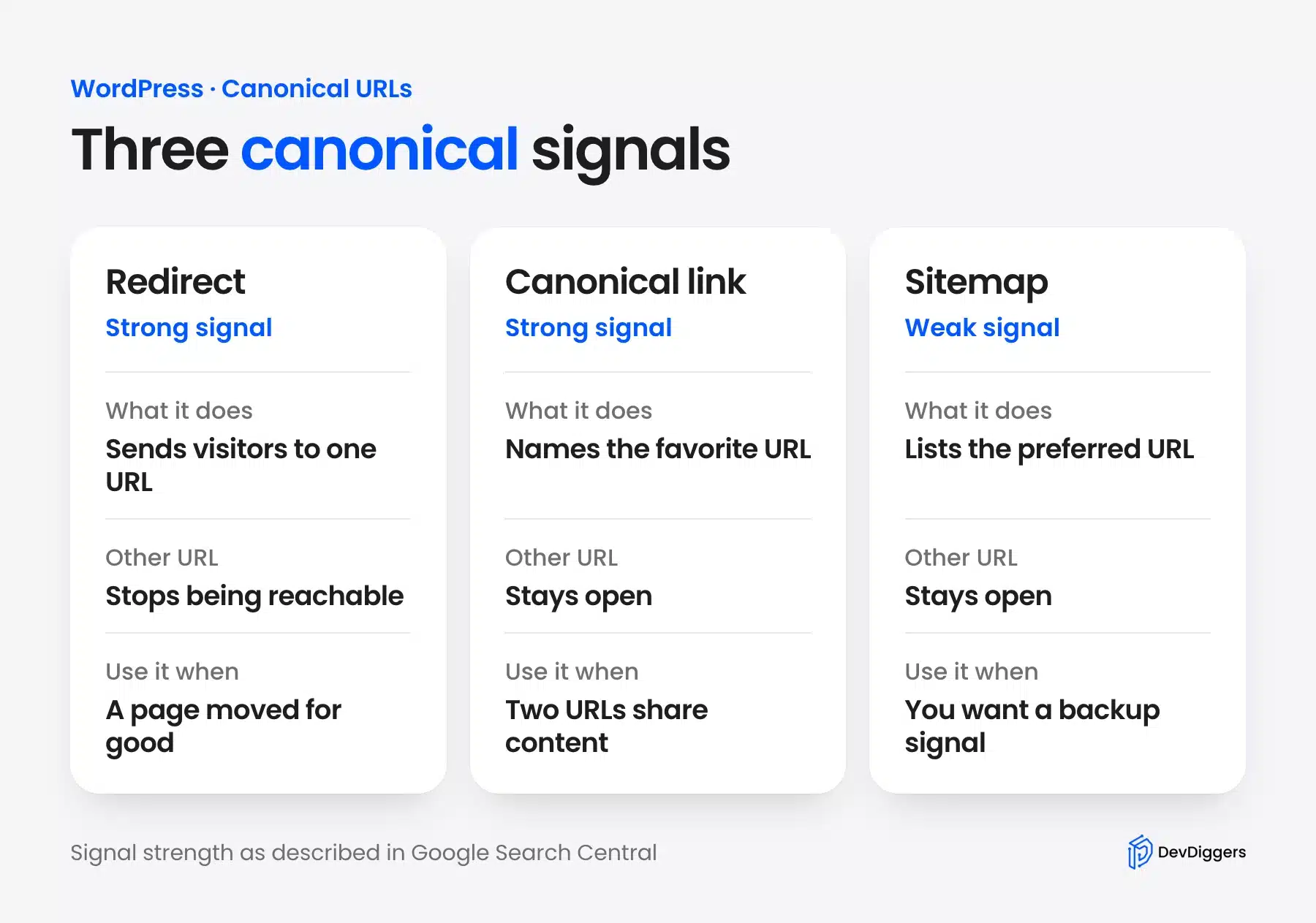
The same page ranks three ways to signal a canonical, from strongest to weakest. A redirect is a strong signal, a rel canonical link is a strong signal, and a sitemap entry is a weak signal. The methods can stack, so use more than one when they agree.
Does WordPress Add a Canonical Tag by Default?
Yes, for single posts and pages, even with no SEO plugin installed. WordPress core prints a canonical tag on singular content, pointing to the clean permalink. It does not print one on the home page or on archive pages, and an SEO plugin covers those.
The WordPress developer reference says the function outputs the tag for singular queries. We tested a fresh site with no SEO plugin, and the results matched.
| URL we loaded | Canonical tag in the page |
|---|---|
A post at /?p=4 | The clean date-based permalink of that post |
The same post with &foo=bar added | The same clean permalink |
| The home page | None |
| A category archive | None |
The second row matters for tracking links. A post shared with extra query parameters still names one clean URL as its canonical.
When to Use a Canonical Tag
Use a canonical tag when two or more URLs show the same content and you want one of them to rank. Common cases are tracking parameters, sorting options on shop pages and very similar posts. A page with no duplicates needs only the default self-referencing tag.
Our tests covered three of these cases. A post loaded with an extra query parameter kept its clean canonical, and sorted and tracked shop URLs named their base pages.
Two posts on one topic could be joined by setting the second post’s canonical URL.
Merging two similar posts is often a better fix than a tag. A canonical tag keeps both pages live and only names a favorite. If one post has no reason to exist, redirect it to the other and update your internal links.
How to Add a Canonical Tag in WordPress With Rank Math
You add a canonical tag in WordPress with Rank Math by opening the post and clicking the Rank Math icon in the editor toolbar. Go to the Advanced tab and type the preferred URL into the Canonical URL field. Save the post, and Rank Math prints that URL in the canonical tag.
The field is prefilled with the post’s own URL as a placeholder. Leave it empty to keep the default self-referencing tag, which is what most posts need. Rank Math 1.0.279 was the current version on WordPress.org in September 2026, as its plugin listing shows.
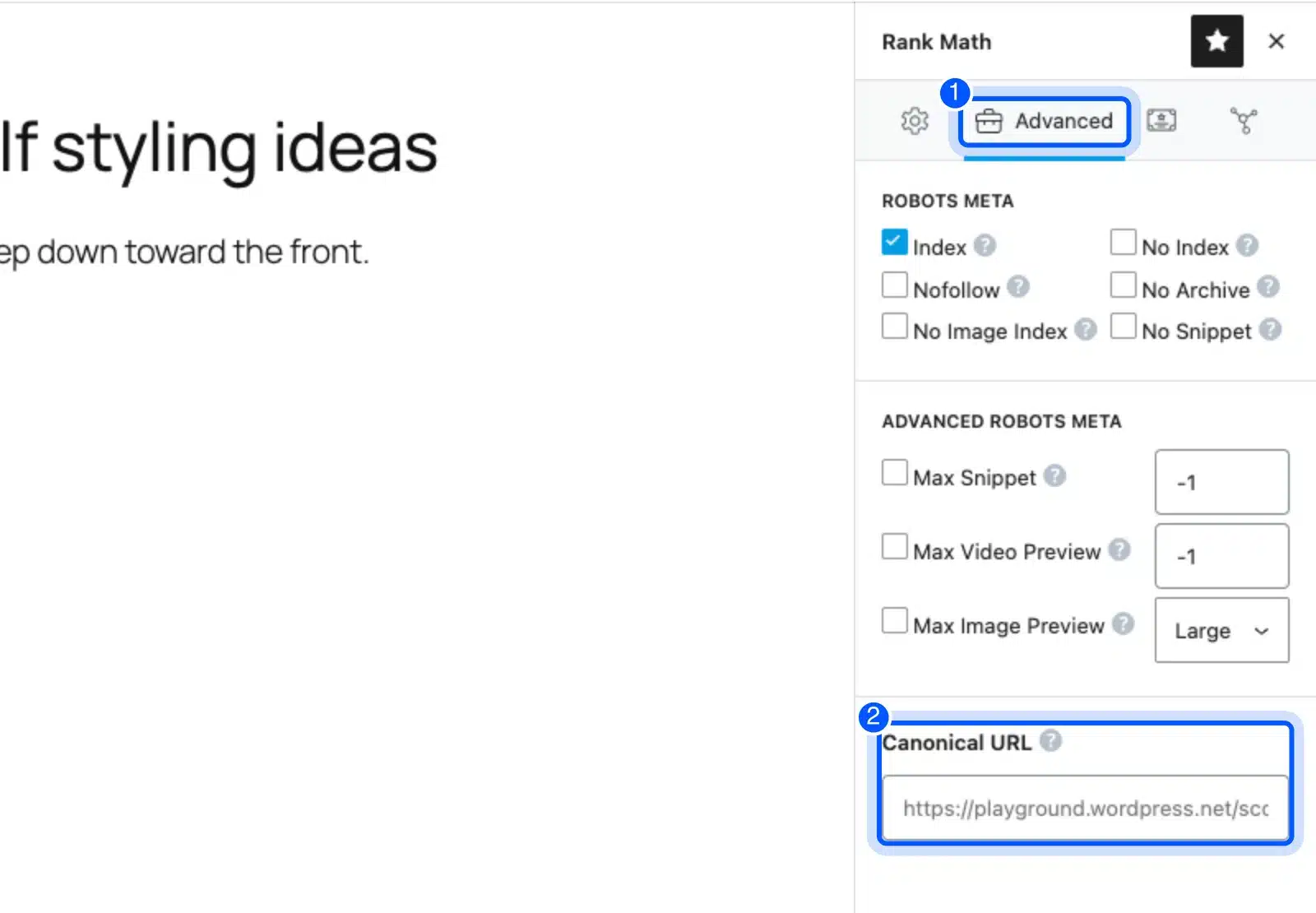
We made two test posts on the same topic. We typed the first post’s URL into the Canonical URL field of the second one and saved. Then we loaded the second post and read its head.
<link rel="canonical" href="https://example.com/candle-shelf-styling/" />
That is the line the second post now printed, and it named the first post. Before the change, the second post printed its own URL.
Add a Canonical Tag in WordPress Without a Plugin
Use the get_canonical_url filter. It runs for every post, receives the canonical URL and the post object, and returns the URL to print. Add it through a code snippet plugin or your child theme, and change the URL for the posts you choose.
The filter has existed since WordPress 4.6, according to the hook reference. We added this snippet with the Code Snippets plugin, version 3.10.2.
add_filter( 'get_canonical_url', function ( $canonical_url, $post ) {
	if ( 5 === $post->ID ) {
		return home_url( '/?p=4' );
	}
	return $canonical_url;
}, 10, 2 );
Change the post ID and the URL to fit your case. Every other post keeps its default tag, because the function returns the original URL.
Put the code in a child theme’s functions.php file, not in the parent theme, so a theme update cannot erase it. Our guide to a WordPress child theme shows the setup. A snippet plugin avoids theme files altogether.
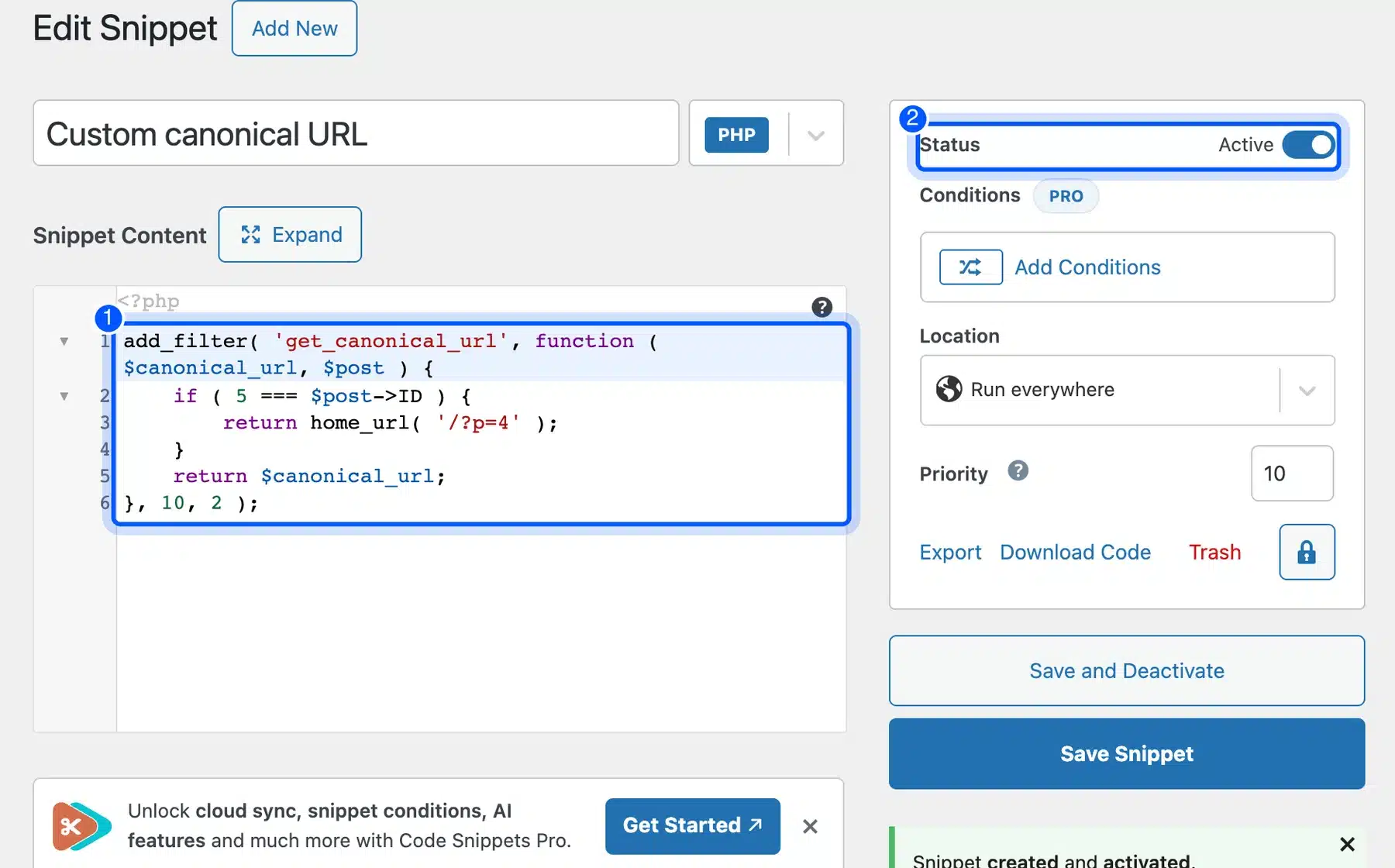
After we saved the snippet, post 5 printed a canonical URL that ended in /?p=4. Post 4 still printed its own permalink. Only the listed post changed.
Do not paste a second hard-coded canonical tag into header.php. WordPress already prints one, so you would send two tags and confuse crawlers.
Canonical Tags for WooCommerce Stores
Shop pages create many URLs for the same content, such as sorting and tracking parameters. Rank Math kept the canonical tag clean on our WooCommerce test store. Sorted shop pages and tracked product pages all pointed to their base URLs.
We loaded each URL below on a store with WooCommerce 11.1.2 and Rank Math. The canonical tag always named the clean version.
| URL we loaded | Canonical tag names |
|---|---|
/shop/?orderby=price | /shop/ |
/shop/?orderby=price&utm_source=news | /shop/ |
/product/cedar-candle/?utm_source=news | /product/cedar-candle/ |
/product-category/candles/?orderby=price | /product-category/candles/ |
The site search page printed no canonical tag at all. That fits the usual advice to keep search result pages out of the index.
Rank Math handled these URLs by default on our test store. If you use another SEO plugin, or a theme with custom filters, run the same URL checks before you trust the result.
If you need help with shop SEO, our WooCommerce SEO guide and WooCommerce SEO services cover it in more depth.
How to Check a Canonical Tag
Open the page in your browser, view the page source and search for canonical. Exactly one tag should appear in the head, with an absolute URL. You can also inspect the URL in Google Search Console to see which canonical Google chose.
The URL Inspection tool shows two fields. Google’s help page says the user-declared canonical is the one your page names. The Google-selected canonical is the page Google chose, and it may differ from yours.
A quick check after a change saves trouble. Test one post, one page, one archive and one product, since each type can behave differently.
When we read the source of each test URL above, every page carried exactly one canonical link in its head. None carried two, even with Rank Math and WordPress core both active.
Canonical Tag Mistakes to Avoid
Most canonical problems come from conflicting signals, and each one is easy to avoid. Point the tag at a page that matches the content, use absolute URLs, and keep one tag per page. Google’s documentation names all three habits in one place.
- Relative URLs: Google asks for absolute paths in the link element.
- Wrong location: The tag only counts inside the head section, as Google notes.
- Blocked pages: Google says not to use robots.txt to handle duplicates.
- Mixed signals: Do not name one URL in the tag and redirect to another.
Also avoid pointing a canonical at an unrelated page. If a page should leave the index, use a redirect or a noindex setting instead. Our guides to redirecting a URL in WordPress and removing a noindex tag cover those cases.
Conclusion
You now know how to add a canonical tag in WordPress with a plugin, with a filter and on a WooCommerce store. Most sites only need the default self-referencing tag. Set one by hand only when two URLs share the same content.
Test the result in the page source after every change. If you want an expert review of your duplicate URLs, our WordPress SEO experts can audit them for you.
Frequently Asked Questions (FAQs)
Q1. What is a canonical tag in SEO?
A canonical tag is a link element in the page head that names the preferred URL for a page. Search engines use it to choose one version when several URLs show the same content. Google treats it as a strong hint.
Q2. How do I add a canonical tag in WordPress?
Open the post, go to the Advanced tab of your SEO plugin and type the preferred URL in the Canonical URL field. In Rank Math, the field is on the Advanced tab. Save the post to apply it.
Q3. Does WordPress add canonical tags automatically?
Yes, for single posts and pages. WordPress prints a rel canonical tag that points to the clean permalink. On our test site, the home page and category archives printed no tag without an SEO plugin.
Q4. Should every page have a self-referencing canonical tag?
Google recommends including a canonical link on the canonical page itself. That is what WordPress and Rank Math do by default. It is a safe default for pages that have no duplicates.
Q5. Can I set a canonical URL on another domain?
Yes, the link element accepts an absolute URL on any domain. Use it only when the other site truly hosts the same content, because the tag asks search engines to rank that other URL.
Q6. Is a canonical tag the same as a redirect?
No. A redirect sends visitors to a new URL, while a canonical tag leaves both URLs open and only names a favorite. Google calls a redirect a strong signal and a canonical link a strong signal too.
Q7. How do I check a canonical tag?
View the page source and search for rel canonical. You should find one tag in the head with an absolute URL. Google Search Console’s URL Inspection tool also shows the canonical Google selected.
Q8. Can Google ignore my canonical tag?
Yes. Google treats the tag as a hint, and its help page says there is no guarantee it will choose your preferred URL. Consistent signals, such as redirects and sitemaps, make it more likely.