Learning how to redirect a page or URL in WordPress takes only a few minutes once you know where to look. Most sites won’t need a single line of code.
We checked every method in October 2026 against the WordPress 7.1 core code, the Redirection plugin docs and Google’s redirect guide. You’ll find three ways to redirect a page or URL in WordPress, plus the Nginx rule and a whole-site move.
Pick whichever fits your setup. A plugin gives you a no-code fix, .htaccess gives server-level control, and WordPress’s built-in slug redirect handles a fast rename.
Whichever method you choose, the goal is the same. Send old traffic to the right place, without losing rankings or leaving visitors stuck on a 404 page.
What a Redirect Does and Why It Matters
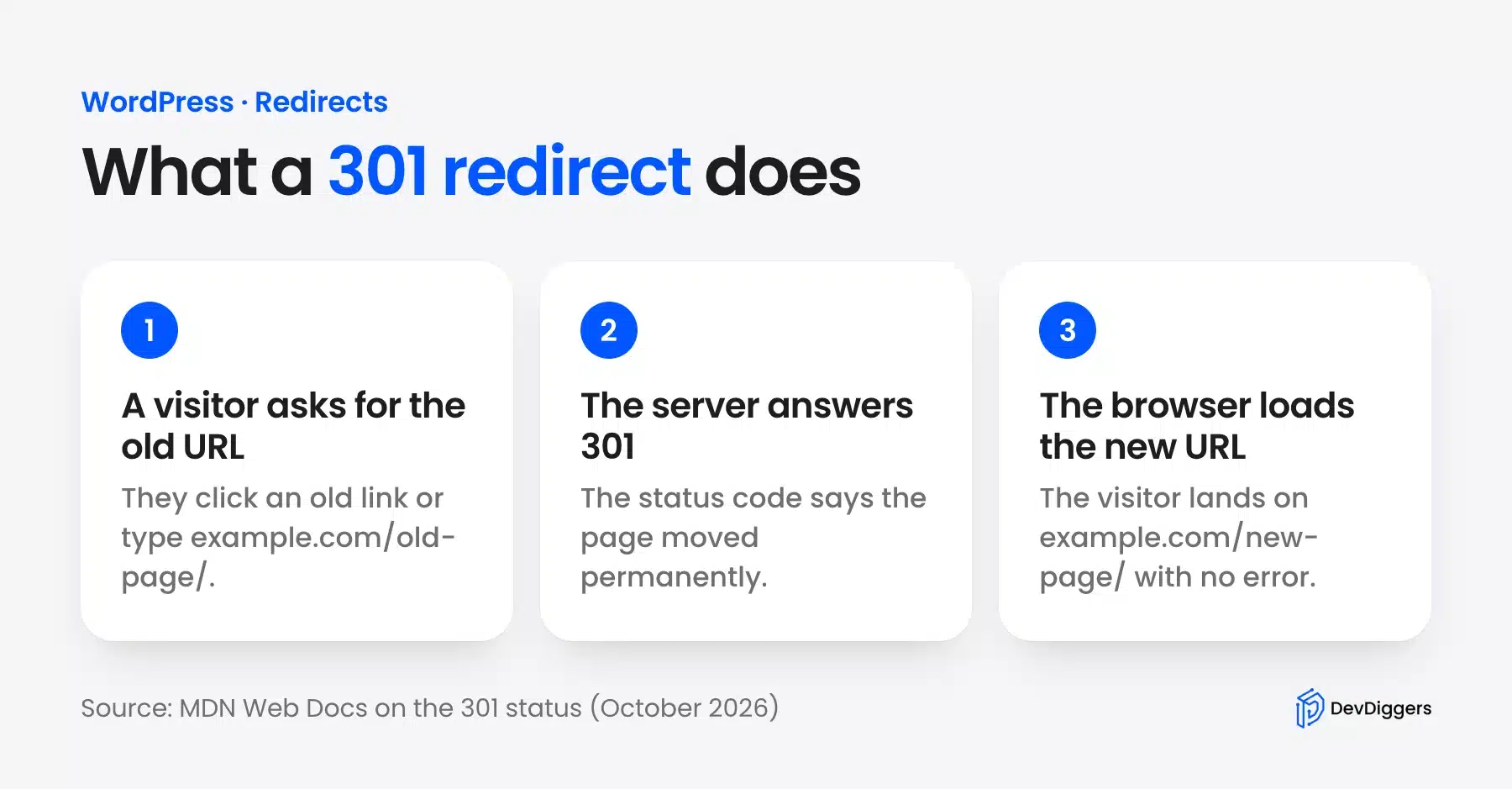
A redirect points visitors from an old URL to a new one automatically, without them ever seeing an error page. WordPress needs this whenever you delete a page, rename a slug, or move your site to a new domain. For a full domain move, follow our guide to migrate a WordPress website to a new domain.
Skipping this step costs more than it looks like. An Ahrefs study of about 2 million websites found that at least 66.5% of the links pointing to them since 2013 had died. Redirects keep your own links off that list.
Every WordPress page has a permalink, the address people click to reach it. Change that address, and the old one needs somewhere to go, or it turns into a broken link and a 404 error.
301 vs 302: Which One Do You Need?
Choose a 301 redirect when the move is permanent, like a deleted page or a renamed slug. This is the setting to use whenever you redirect a page or URL in WordPress for good. It passes almost all the original page’s ranking power to the new URL. Search engines then treat the new address as the real one going forward. For a move that will be undone later, our guide to the HTTP 302 status code explains when a temporary redirect fits.
A redirect moves visitors to the new URL. A canonical tag keeps both URLs live and tells Google which one to index.
Choose a 302 redirect only when the change is temporary, such as a short sales page. Google’s site move guide says 301 and other permanent redirects don’t cause a loss in PageRank. It also says to keep them for at least a year.
Getting this backwards is a common mistake. Google’s redirect documentation says a permanent redirect shows the new URL in results, while a temporary one keeps showing the old URL. Search engines hold off on passing full authority to a page they still expect to change back.
Quick Decision: Which Method Fits You?
The right method depends on your server access and how many URLs move. A plugin suits most site owners and works on any host. Server rules suit people who edit config files, and the slug redirect only covers renamed posts.
| Your Situation | Best Method |
|---|---|
| Comfortable with a dashboard but not with code | WordPress plugin |
| Comfortable editing server files and wanting zero plugins | .htaccess file |
| Renaming one published post and wanting the fastest fix | Built-in slug redirect |
| Moving dozens of pages at once | Plugin with bulk CSV import |
| Hosting on Nginx | A return 301 rule in the server block |
| Moving the whole site to a new domain | Redirection Relocate Site or a domain-wide rule |
Method 1: Redirect a Page or URL in WordPress Using a Plugin
This is the fastest option if you want to avoid touching server files entirely.
- From your WordPress dashboard, go to Plugins > Add Plugin.
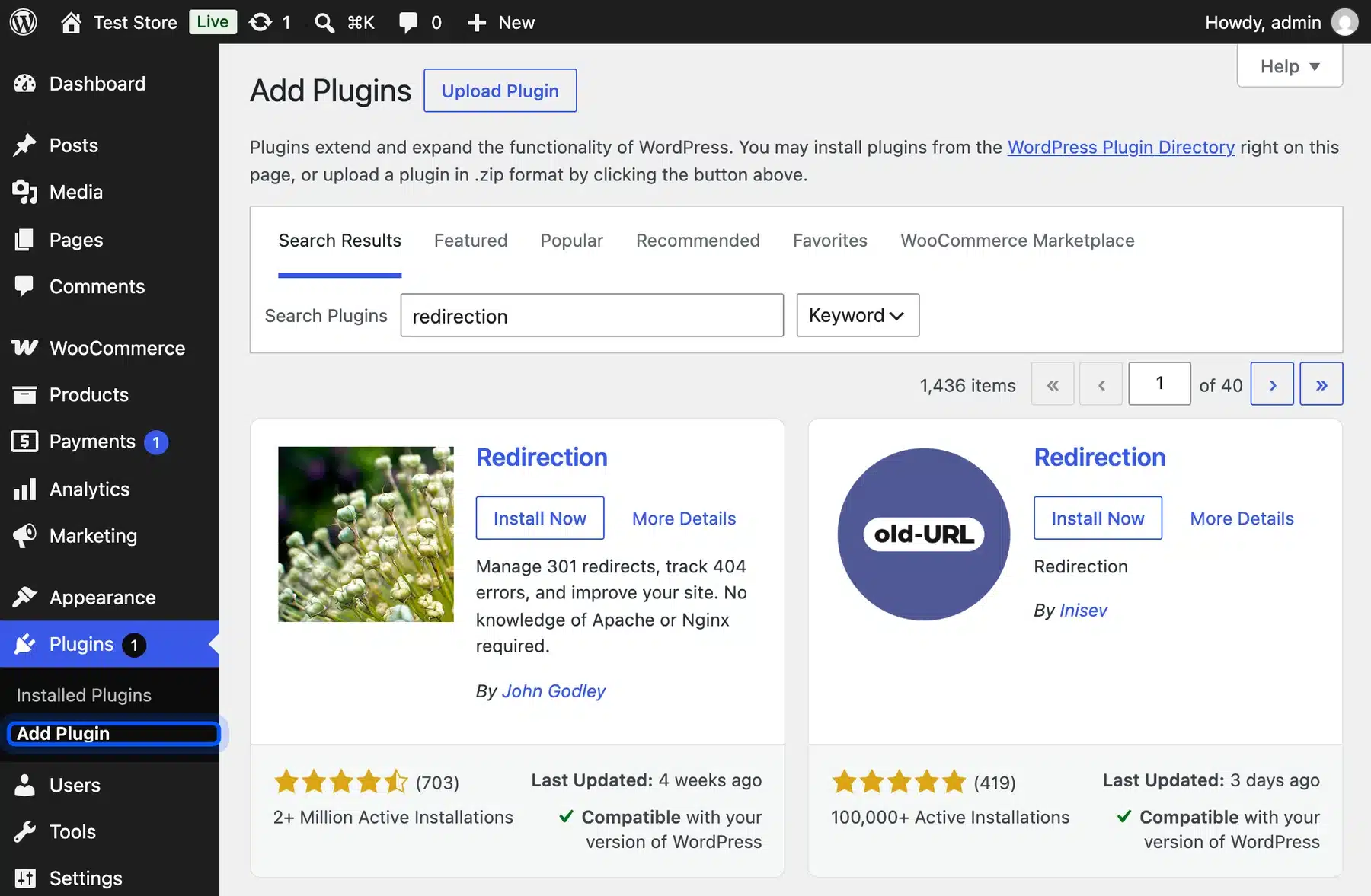
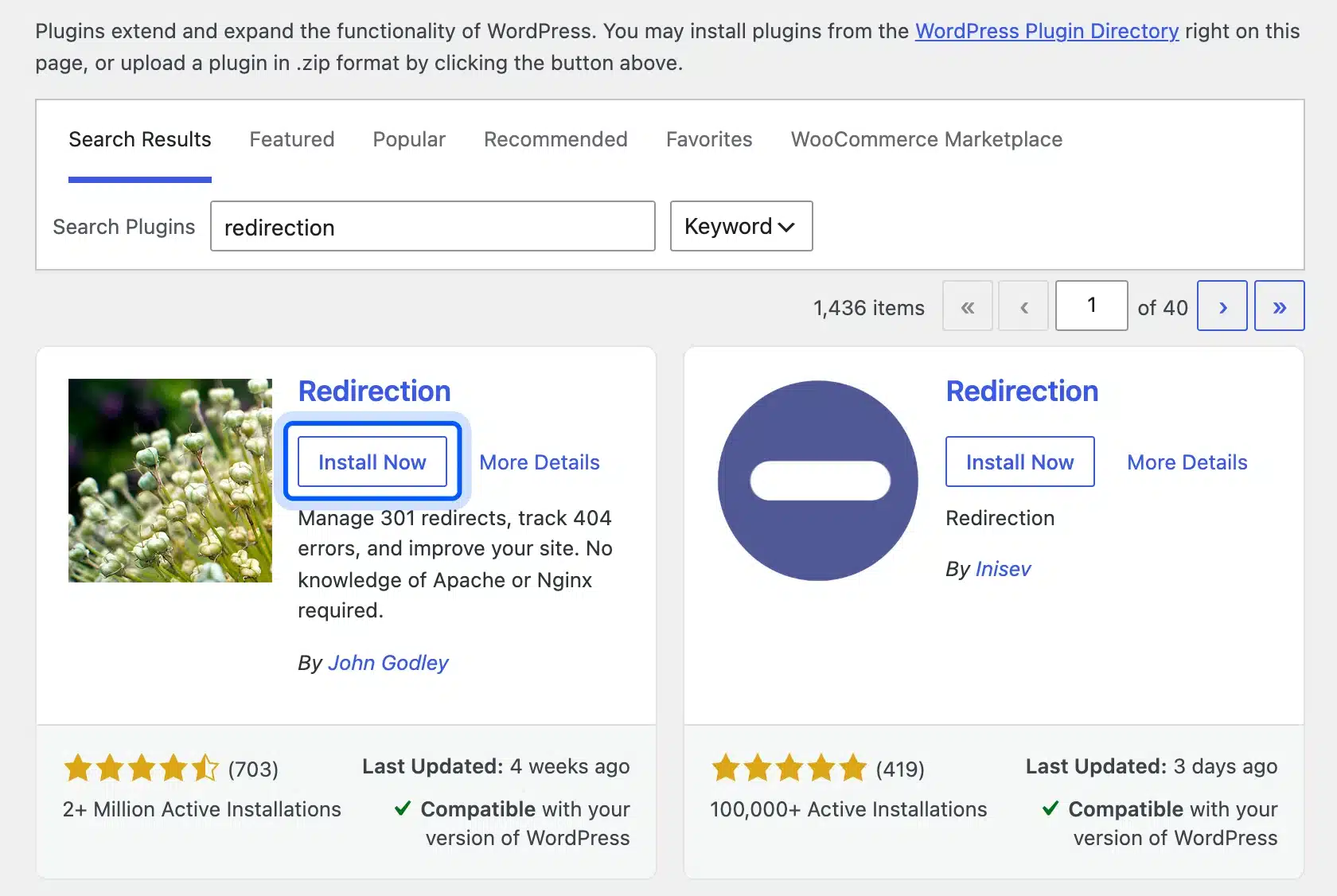
- Search for Redirection. Click Install Now and then Activate. It is free and has over 2 million active installs as of October 2026.
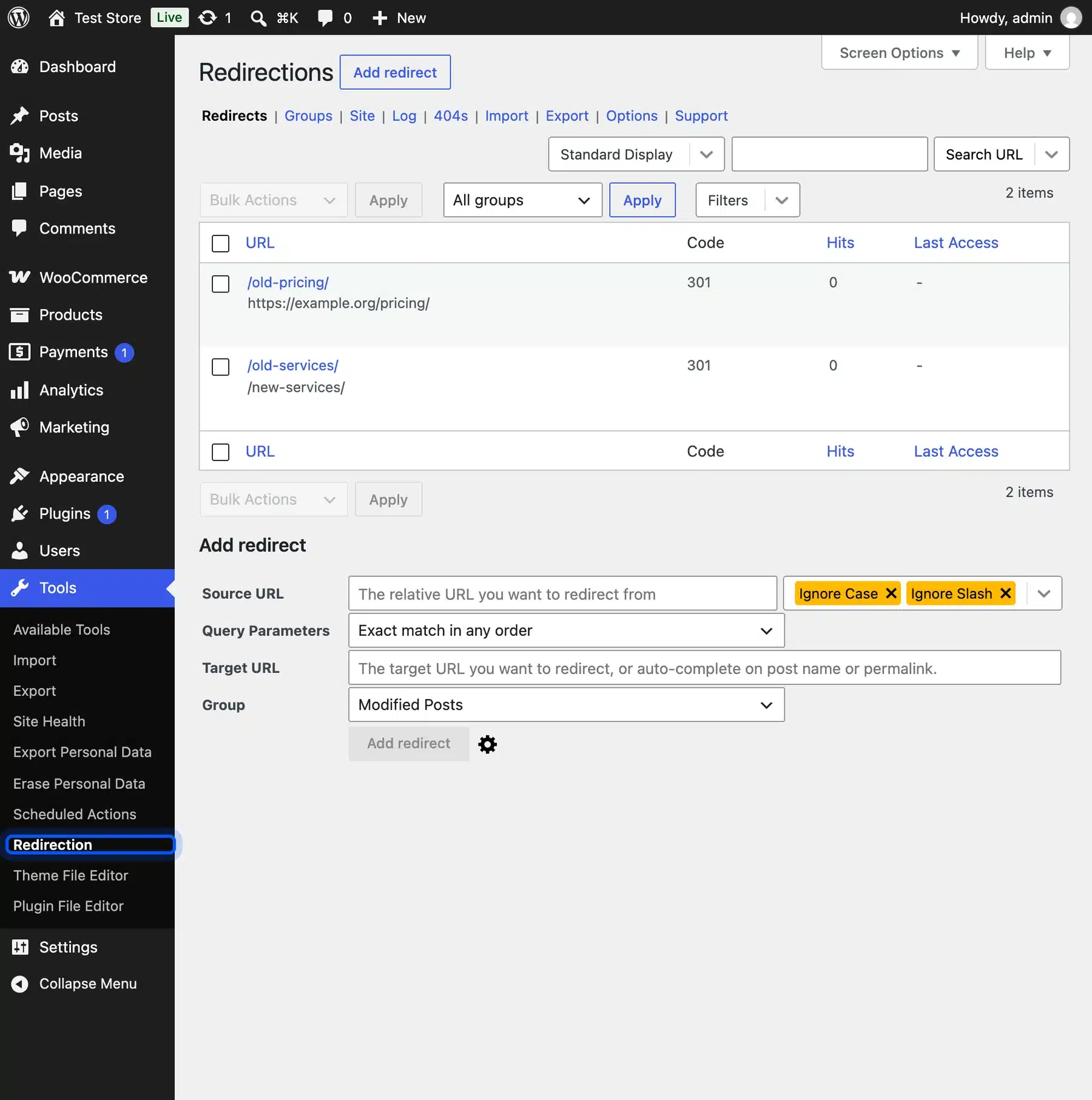
- Go to Tools > Redirection to open the redirect list and its settings.
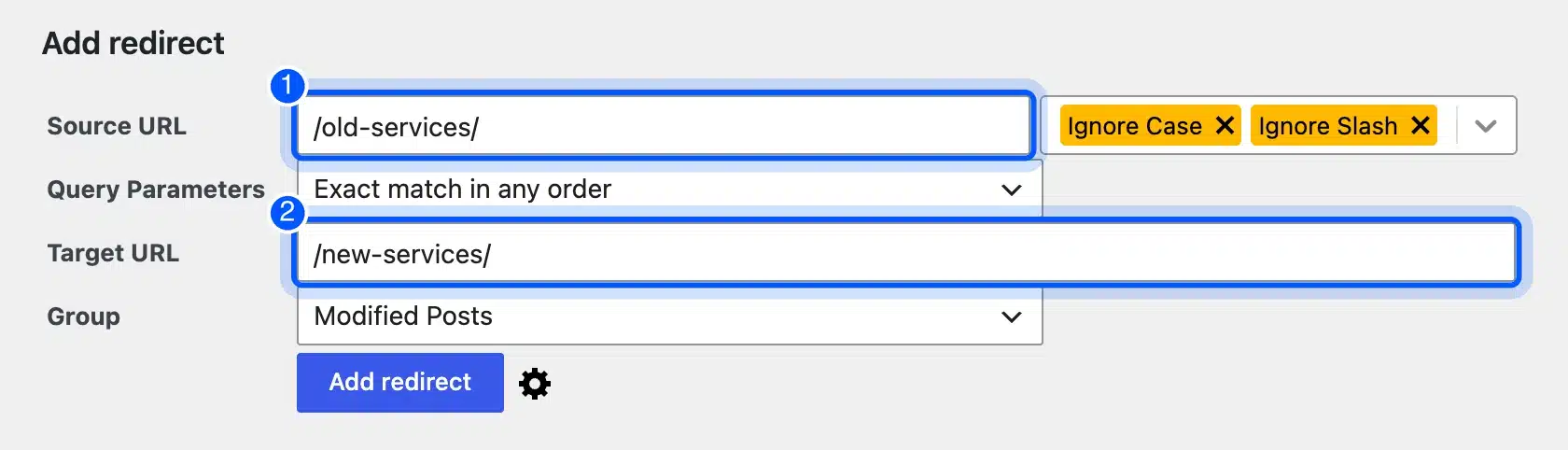
- Enter the old page’s path in the Source URL field and the new page’s path in the Target URL field.
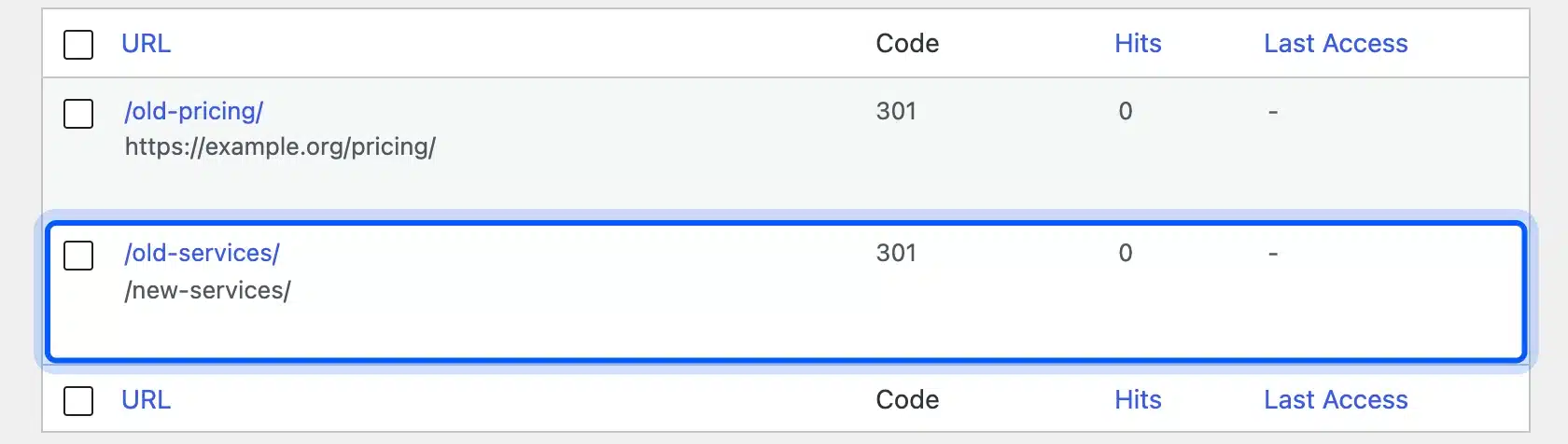
- Set the type to 301 for a permanent move or 302 for a temporary one and click Add Redirect.
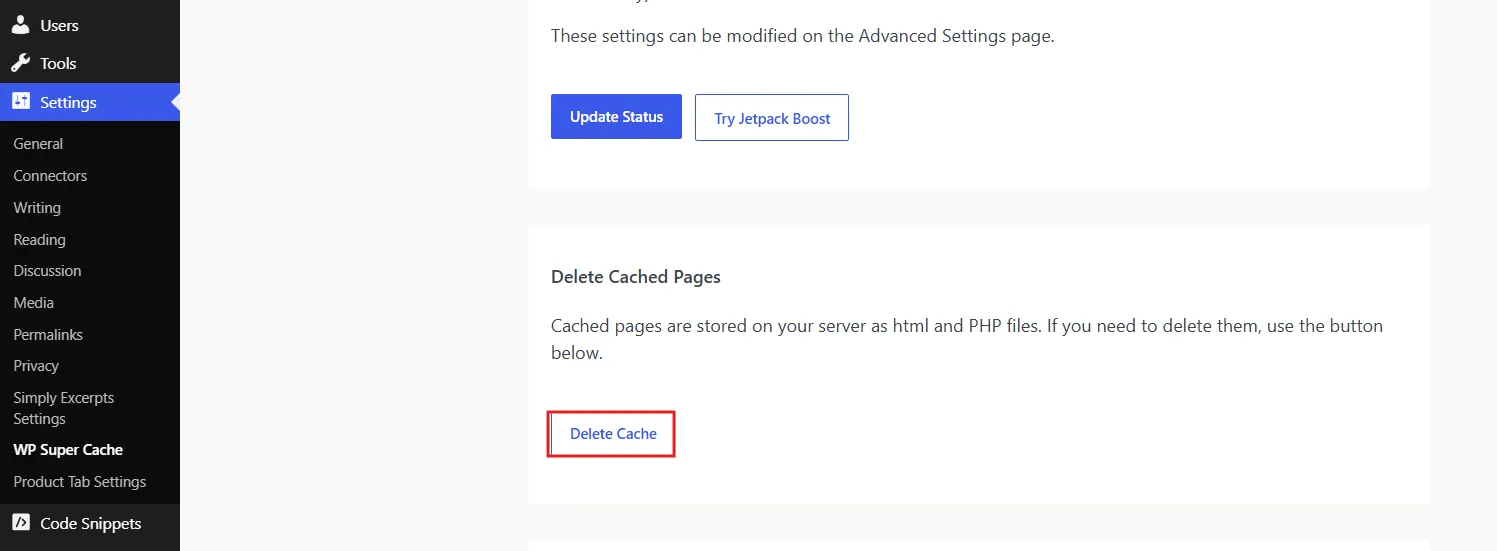
- Then clear the Cached pages using a caching plugin like WP Super Cache.
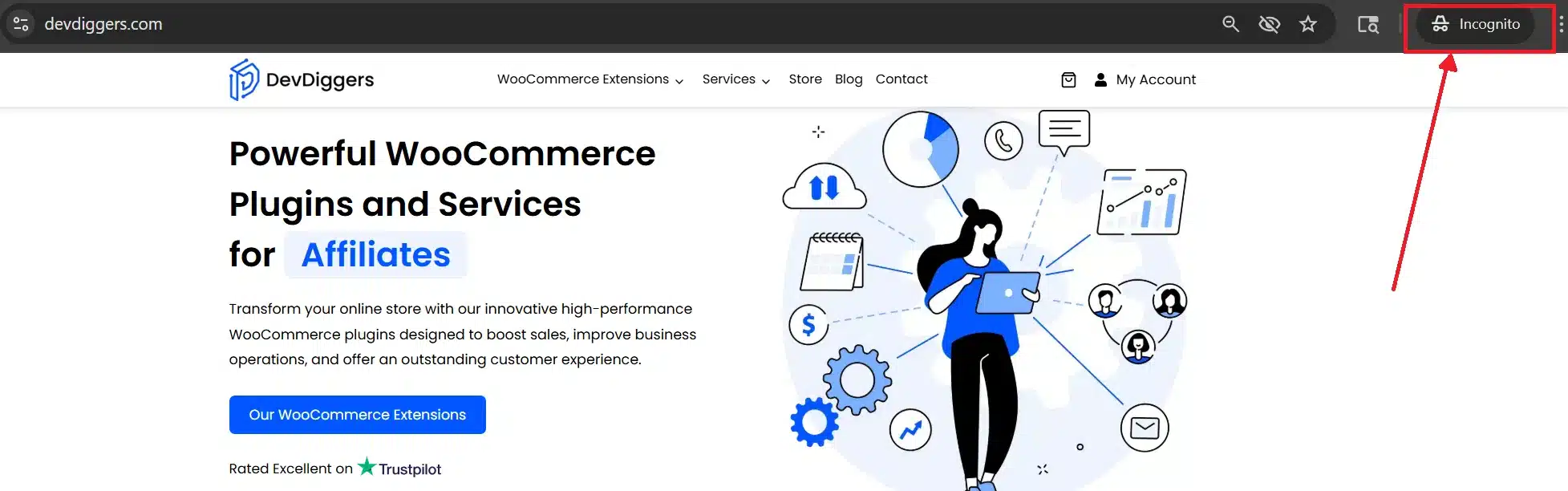
- Open the old URL in a private browser window to confirm it lands on the new page right away.
Managing a large migration? Most redirect plugins accept a CSV file with old and new paths listed side by side. That saves you from adding hundreds of redirects one at a time.
Method 2: Redirect Using the .htaccess File
This works directly on the server with no plugin involved. Use it if you want to redirect a page or URL in WordPress without adding any extra tools.
- Open your site’s root folder through FTP or your host’s File Manager. Save a backup copy of
.htaccessfirst and keep the original file in place. One typo here can take the whole site down.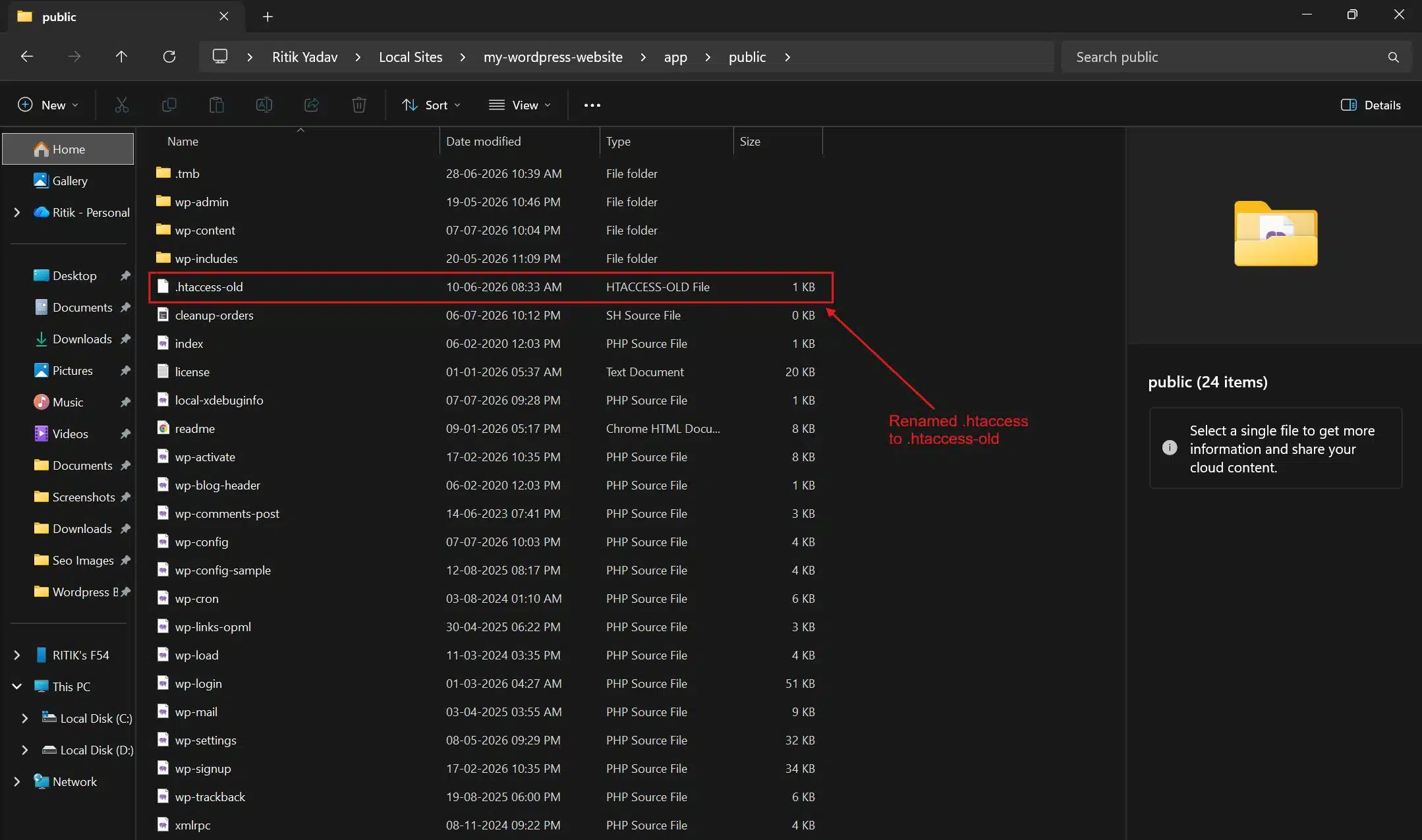
- Open the original file and add a line like
Redirect 301 /old-page/ https://yourdomain.com/new-page/above the# BEGIN WordPressline. This uses the Apache Redirect directive. Save the file.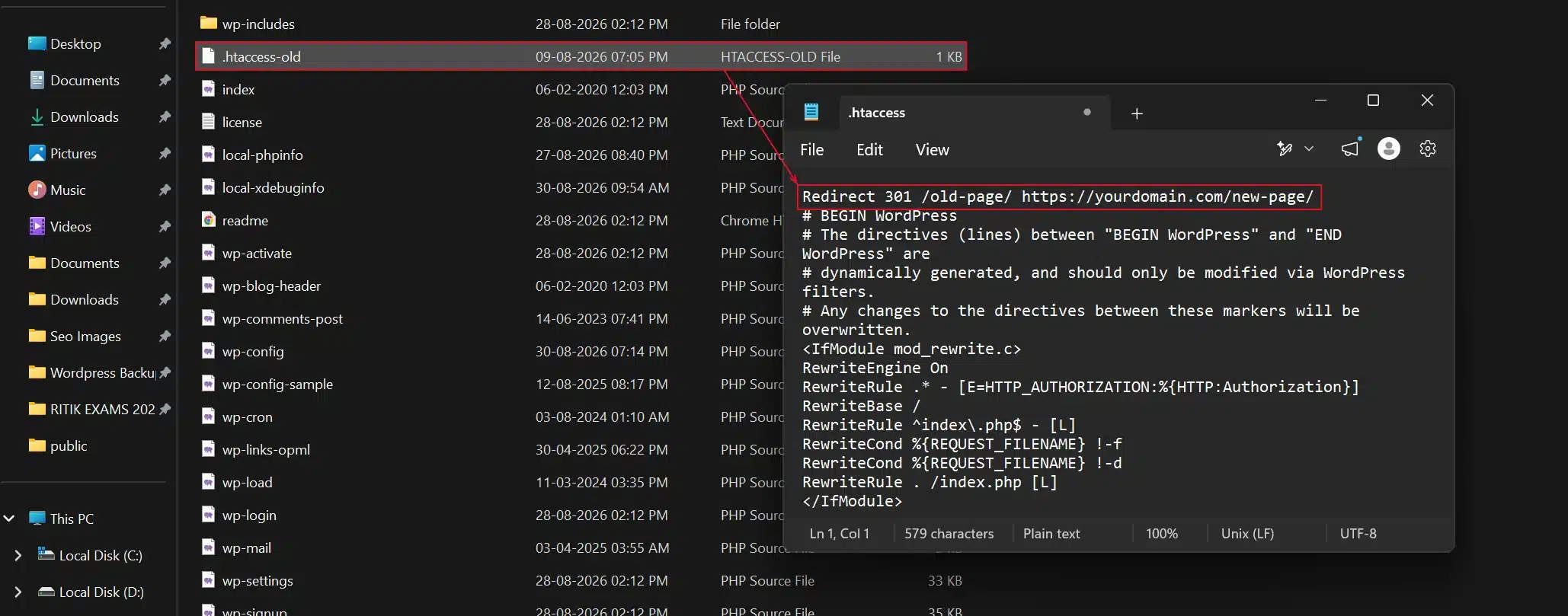
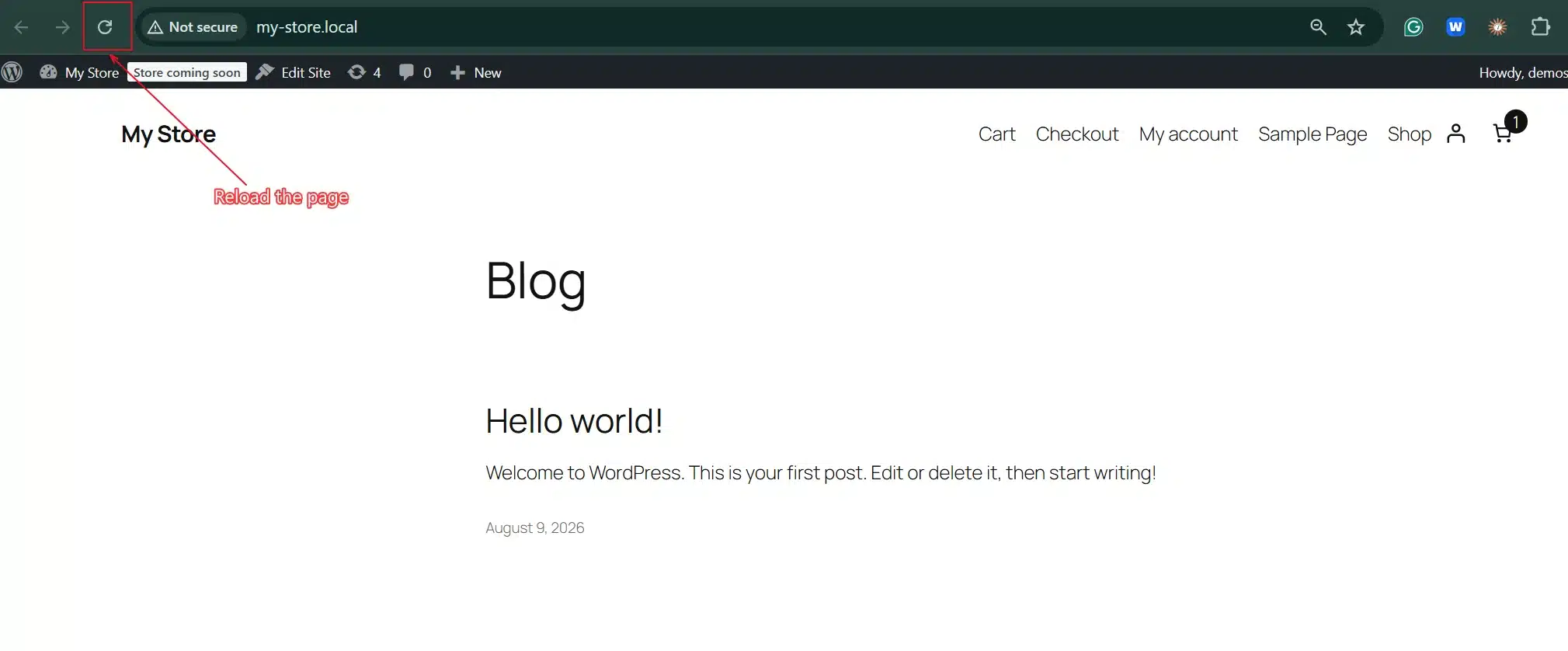
- Upload the updated file back to the same location and reload the Old URL to confirm the redirect fires correctly.
- If nothing happens, open Tools > Site Health > Info > Server to see which web server your host runs. Nginx ignores
.htaccessfiles. Use the Nginx rule in the next section instead.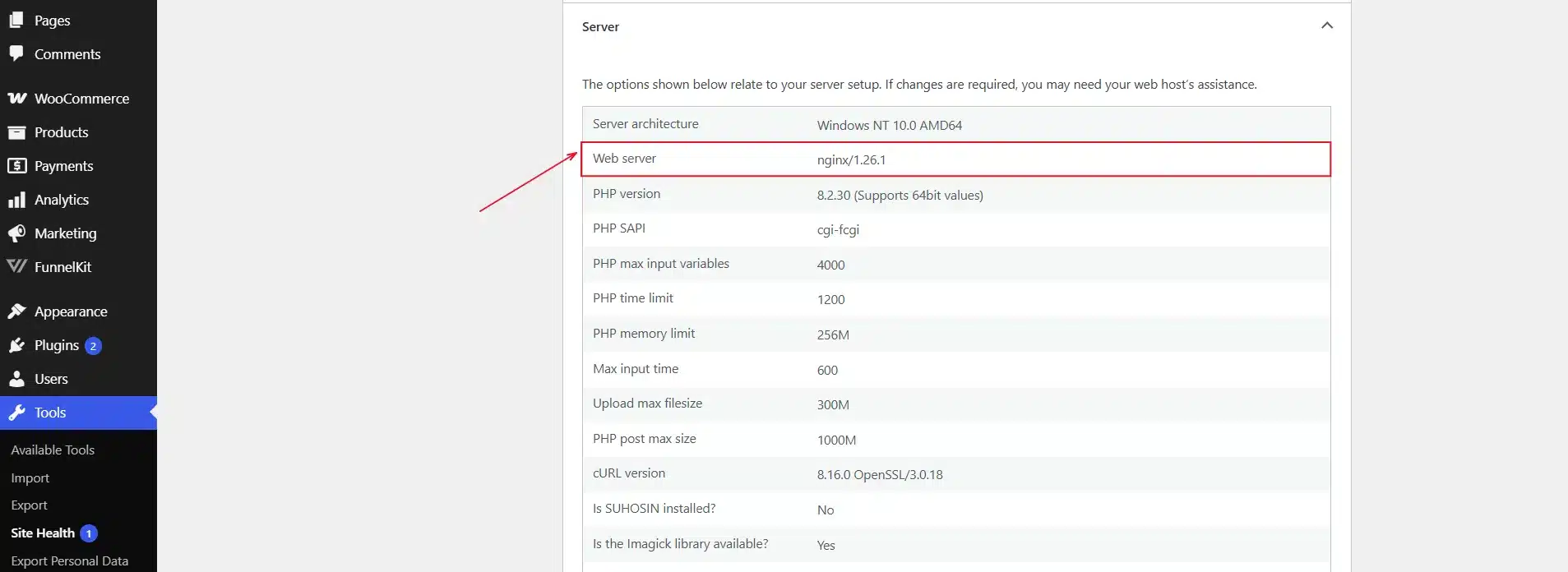
How to Redirect a URL on Nginx
Nginx does not read .htaccess files. Apache rules do nothing there. On Nginx you redirect a URL with a return 301 line inside the site’s server block. You or your host edit that config file, test it with nginx -t and then reload Nginx to apply it.
This snippet sends one old page to its new address. The Nginx return directive stops processing and sends the status code with the new URL.
location = /old-page/ {
    return 301 https://yourdomain.com/new-page/;
}
Many managed WordPress hosts block direct access to the Nginx config. On those hosts, add the redirect in the hosting dashboard or use the Redirection plugin from Method 1. The plugin works the same on Apache and Nginx because WordPress itself sends the redirect.
Method 3: Redirect Using WordPress’s Built-In Slug Redirect
Change the slug of a published post and WordPress saves the old slug in a hidden _wp_old_slug field. A visit to the old address then runs wp_old_slug_redirect(), which sends the visitor to the new URL with a 301. It works for posts and products. It does not work for pages, because core skips hierarchical post types.
- Open the published post you want to rename from Posts > All Posts.

- Open the Post tab in the editor sidebar to reach the link settings.
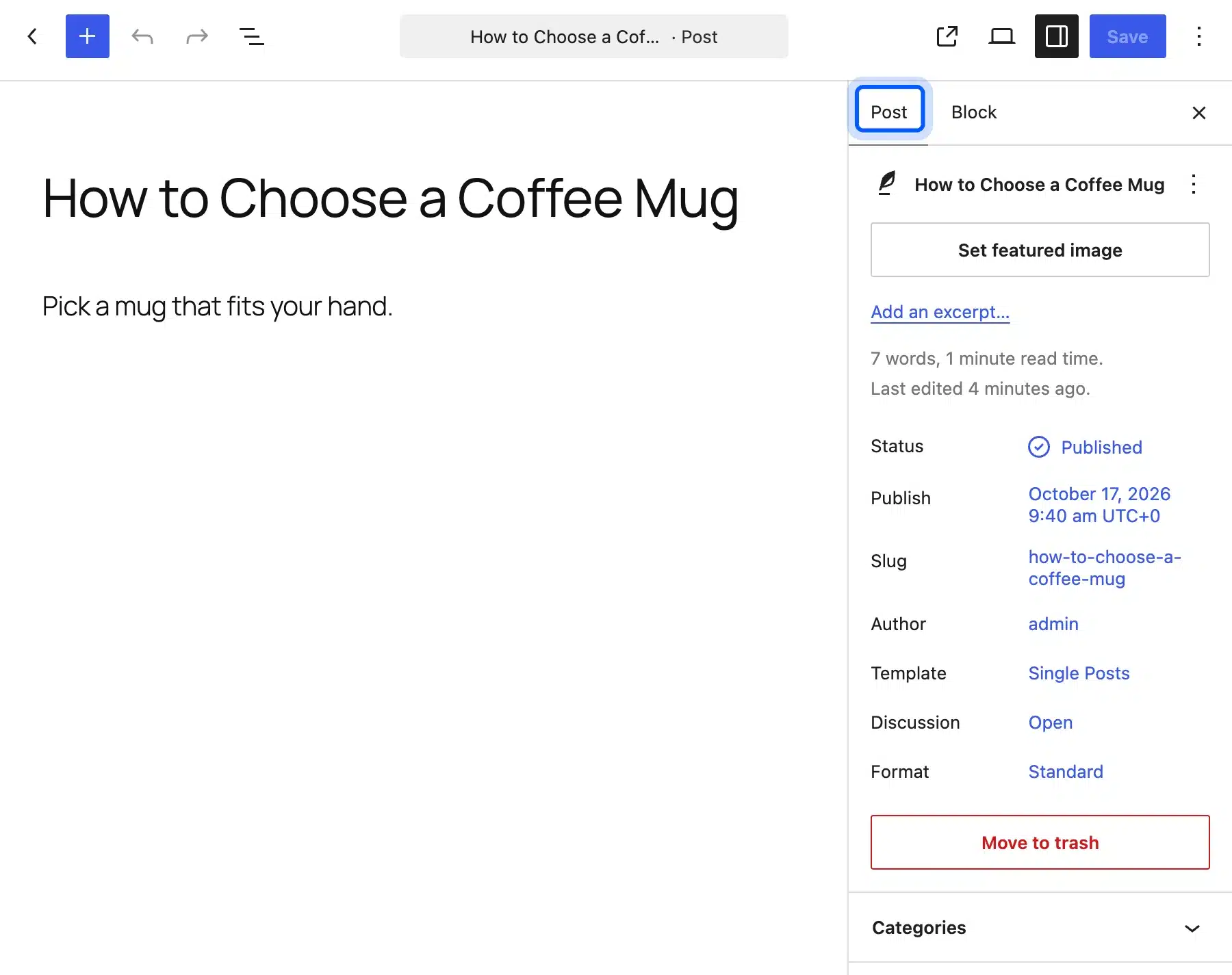
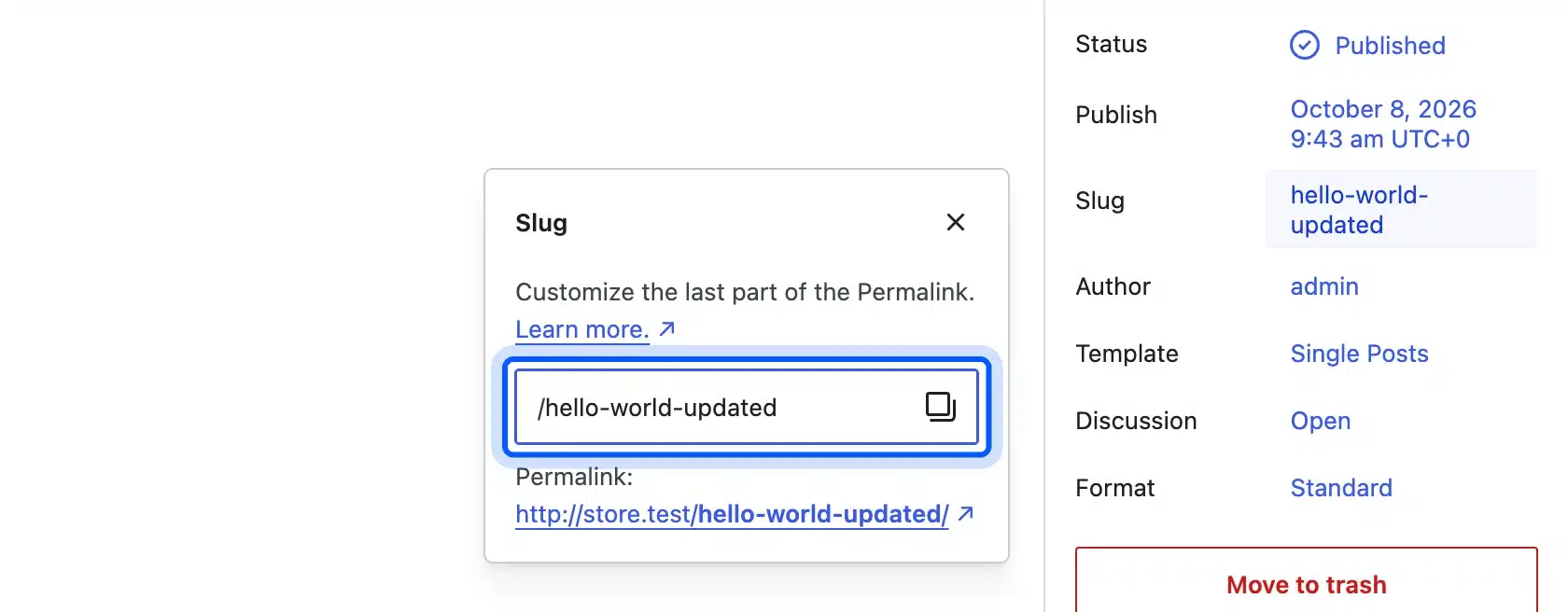
- Click Slug next to the Post Status field below the title and type in the new slug.
- Click Save. WordPress stores the old slug and forwards visitors from it on its own.
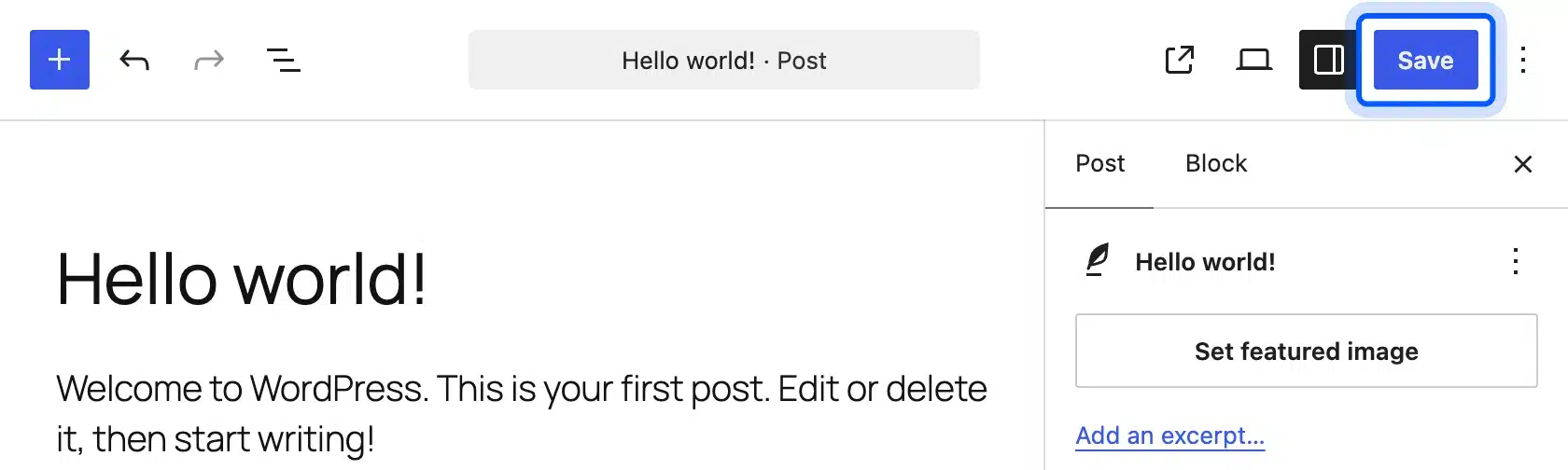
Worth knowing: It stops working the moment another post claims that old slug for itself. Renamed pages get no automatic redirect. Use Method 1 or Method 2 for them.
How to Redirect a WordPress Site to Another URL
To redirect a whole WordPress site to another URL, keep the old domain live. Then send every path to the same path on the new domain. The Redirection plugin does this with its Relocate Site option. On the server you can use one domain-wide .htaccess rule or one Nginx server block.
In the plugin, go to Tools > Redirection > Site and enter the new domain under Relocate Site. The Redirection site options guide says the old site’s paths then map to the same paths on the new domain. The plugin must stay active on the old domain for this to keep working.

Place this rule at the top of the old domain’s .htaccess file on an Apache host. It keeps the path. A visit to old-domain.com/blog/ lands on new-domain.com/blog/.
RewriteEngine On
RewriteCond %{HTTP_HOST} ^(www\.)?old-domain\.com$ [NC]
RewriteRule ^(.*)$ https://new-domain.com/$1 [R=301,L]
On Nginx, give the old domain its own server block that returns a 301 with the original request path.
server {
    listen 80;
    server_name old-domain.com www.old-domain.com;
    return 301 https://new-domain.com$request_uri;
}
Keep the same block for port 443 with the old domain’s SSL certificate. Without it, visitors who type the HTTPS address see a certificate error before the redirect runs.
How to Redirect a WordPress Page to an External URL
You redirect a WordPress page to an external URL the same way as an internal one. Put the full address with https:// in the target field or rule. Redirection, .htaccess and Nginx all accept a target on another domain, such as a partner store or a booking tool.
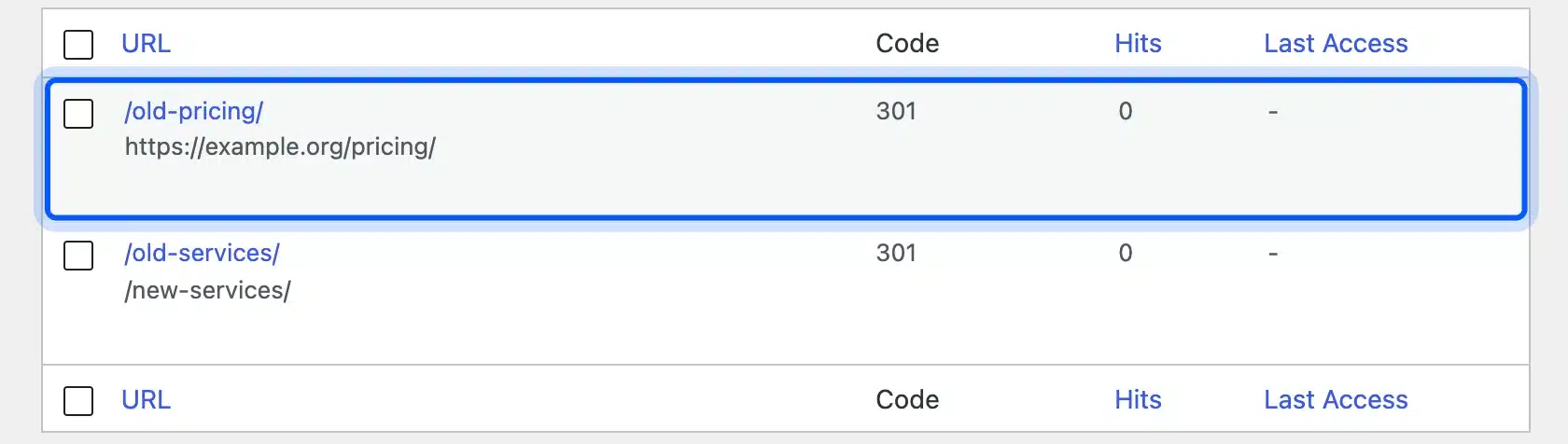
Use a 302 when the external link is temporary, like a sale hosted on another platform. Use a 301 only when the content has moved there for good. Google’s guide treats the permanent target as the address to show in results.
A redirect changes the address bar. To keep one address while WordPress runs on a subdomain, mask a subdomain URL with a reverse proxy.
How to Test That Your Redirect Works
Once you redirect a page or URL in WordPress, always confirm it before moving on. A redirect that looks correct in your plugin settings can still fail in the browser.
- Open a private or incognito browser window that is separate from your regular one.
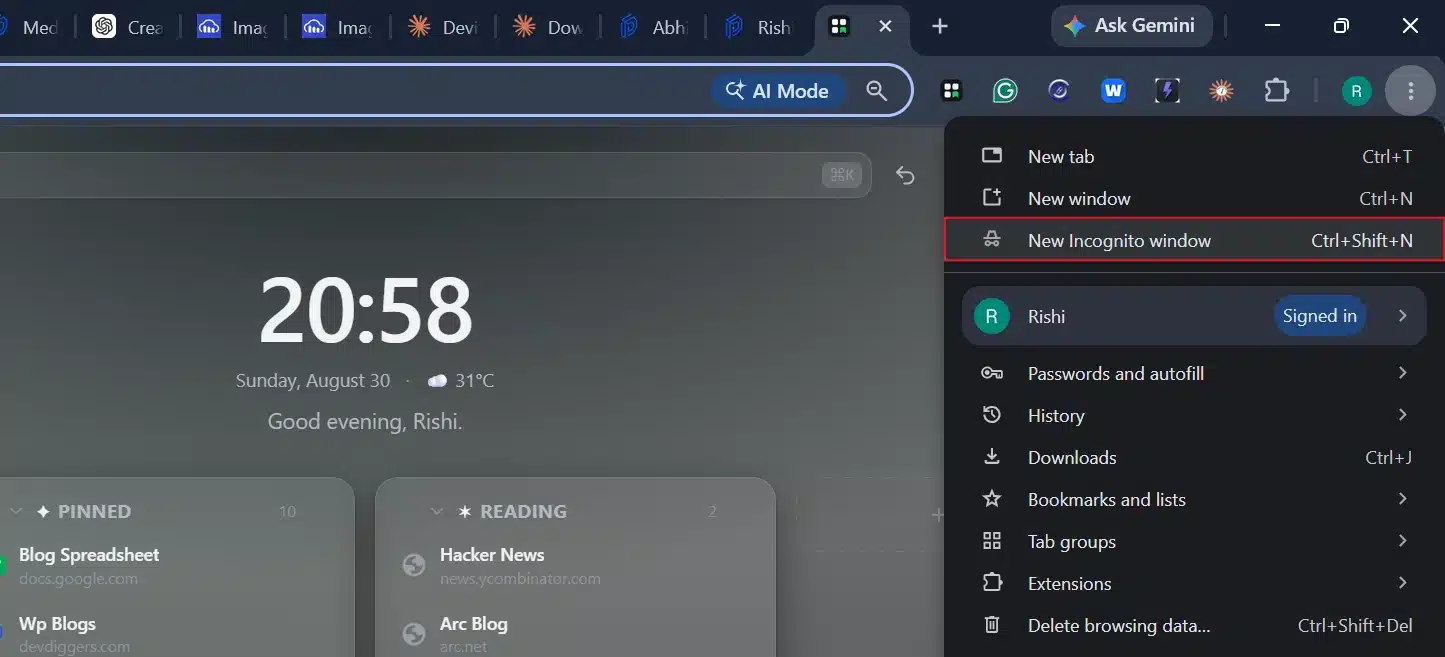
- Paste the old URL into the address bar and press Enter.
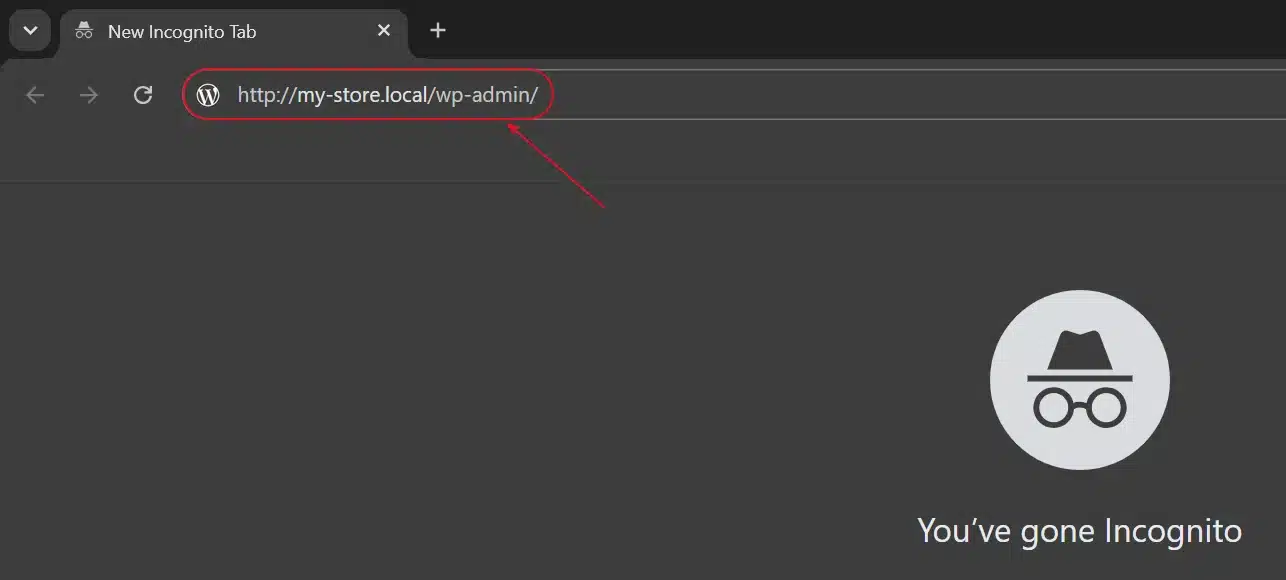
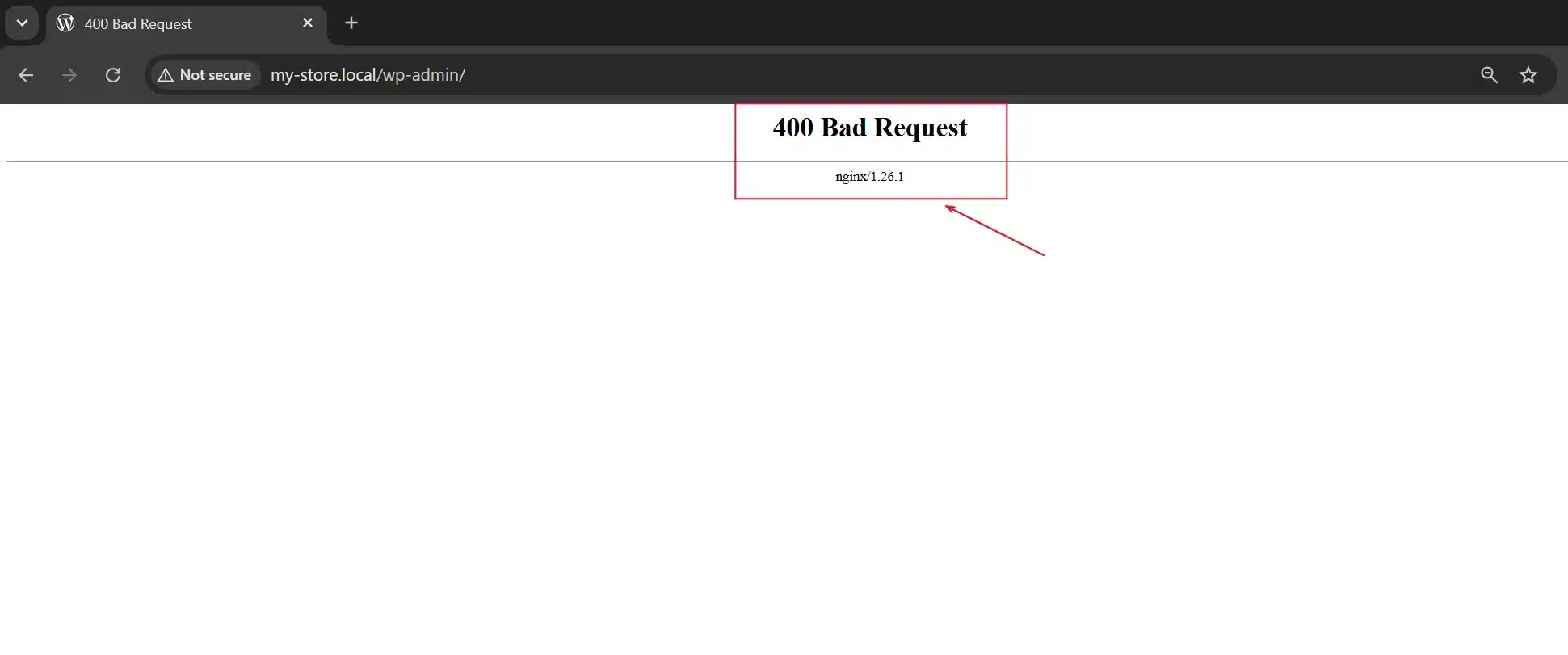
- Watch where you land. The new page means it works, and an error means the redirect wasn’t saved. A loop back to the same page means two rules are fighting over it.
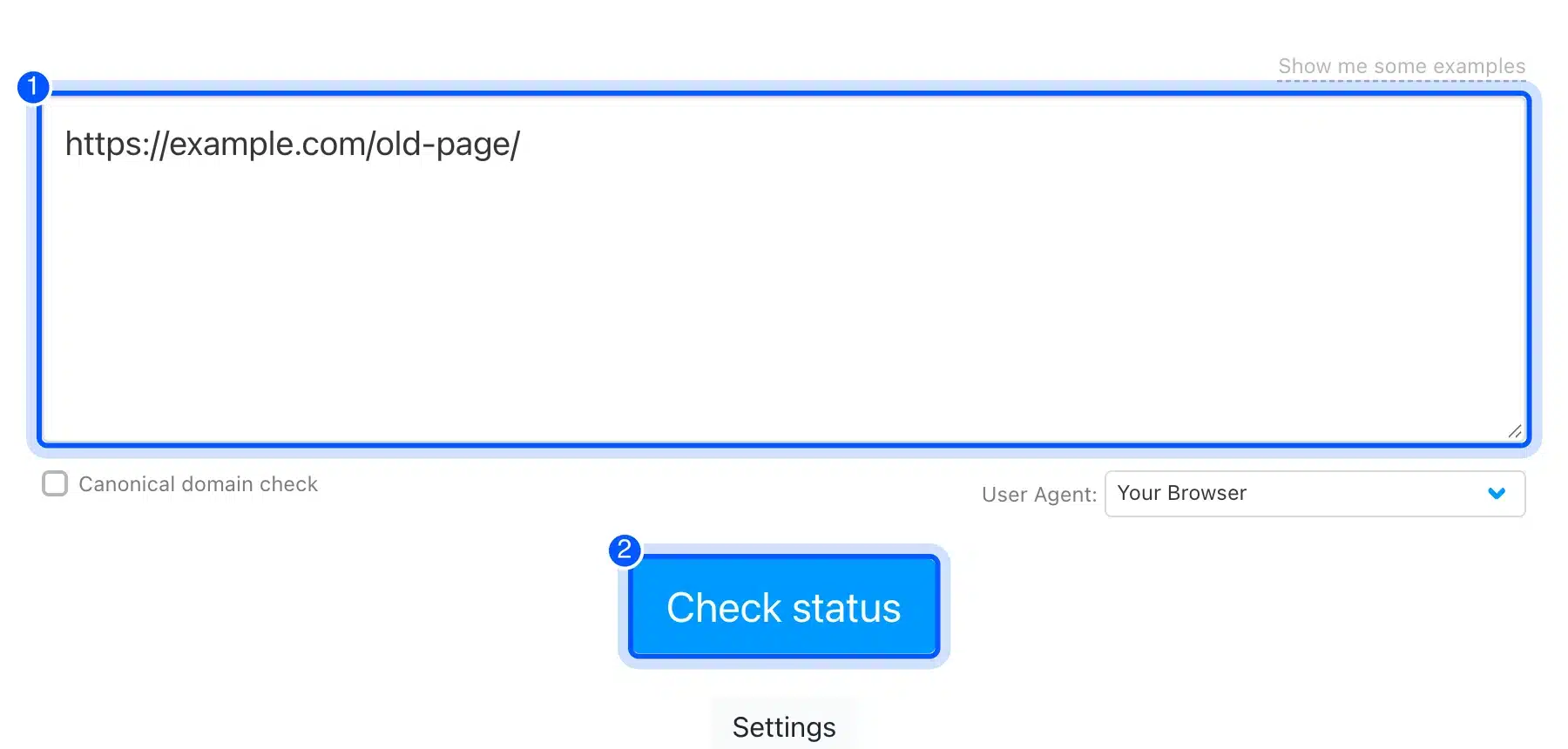
- Run the old URL through httpstatus.io to see the exact status code returned, confirming it’s a real 301 and not a soft redirect.
- For a second opinion, check the URL inspection tool inside Google Search Console. Give it a few days after a big migration before you draw conclusions. Search engine bots don’t revisit every page at once.
Common Redirect Mistakes That Break SEO or Create Loops
Even when you redirect a page or URL in WordPress correctly, a few common errors can undo the work. Redirects are one piece of a healthy site. Our list of critical components for your WordPress website covers the rest.
- Redirect chains: Page A sends visitors to B, which sends them to C. Every extra hop adds load time and gives crawlers more work. Point A straight to the final destination.
- Redirect loops: A sends to B, and B sends back to A. This usually means a plugin and an
.htaccessrule are fighting over the same URL. - Wrong redirect type: A permanent move stuck on a 302 won’t pass full ranking value. The new page stays lower in results than it should.
- Unrelated destinations: Sending an old product page to your homepage avoids a 404, but it’s a poor match. Search engines notice the mismatch quickly.
- Forgotten internal links: A redirect fixes the front door, but links inside your own site still point to the old URL. Update them, or every click adds an unnecessary hop.
- Missing “/”: WordPress often treats
/pageand/page/as the same URL, but some redirect rules don’t. Test both versions if a redirect seems to work sometimes and not others.
Conclusion
Learning how to redirect a page or URL in WordPress is one of those skills that pays off the moment you need it. It’s worth learning once. You’re never stuck when a page moves.
Once you’ve picked a method, the process itself only takes a few minutes. That’s true whether you go with a plugin, a manual .htaccess edit, or WordPress’s own slug redirect.
The part people skip is testing. Always open the old URL in a private window and confirm it lands where it should before you consider the job done.
Redirects protect the traffic, links, and rankings you’ve already earned. Set one up correctly, and visitors and search engines never notice anything changed at all.
Frequently Asked Questions (FAQs)
Q1. Does WordPress redirect automatically when I change a page’s URL?
Yes for published posts and products. Rename the slug and WordPress stores the old one and forwards visitors with a 301. Pages are skipped. A renamed page needs a plugin or an .htaccess rule.
Q2. What’s the difference between a 301 and a 302 redirect in WordPress?
A 301 tells search engines the move is permanent. It passes ranking value straight to the new URL. A 302 signals a temporary change, and ranking authority usually stays with the original page until the move is confirmed.
Q3. Can I redirect a page in WordPress without installing a plugin?
Yes. Edit the .htaccess file directly on an Apache host or add a return 301 rule on Nginx. You can also rename a published post’s slug and let WordPress’s built-in redirect handle it.
Q4. Will redirecting a page hurt my search rankings?
Not if it’s set up correctly. A properly configured 301 preserves nearly all the original page’s ranking power. Rankings usually only suffer from missing, chained, or mismatched redirects.
Q5. How long should I keep old redirects active?
Indefinitely in most cases. External sites can keep linking to an old URL for years. Removing a working redirect too soon brings back the exact errors you fixed.
Q6. What’s the best WordPress redirect plugin for beginners?
To redirect a page or URL in WordPress through a simple dashboard, try the Redirection plugin. It’s free, handles thousands of redirects, and needs no code. Yoast SEO’s redirect manager works well if you already use Yoast.
Q7. Do I need to redirect a page if I’m just fixing a typo in the URL?
Yes, if the page is already live and indexed. Even a one-letter slug change counts as a new URL to search engines. The old address still needs somewhere to go.
Q8. Can I redirect an entire WordPress site to a new domain?
Yes, though it takes more setup than a single page. You’ll usually combine a domain-wide .htaccess rule with an updated sitemap and submit the new domain in Google Search Console.
Q9. Does redirecting too many pages slow down my WordPress site?
A handful of redirects has no noticeable effect. Thousands of them, especially chained ones, can add slight delay. Keep your redirect list clean and remove ones you no longer need.
Q10. Can I redirect a page in WordPress to an external website?
Yes. Every method in this guide works the same way whether the destination is on your own domain or somewhere else entirely. Just use the full web address as the target.