The critical components for your WordPress website are hosting, core updates, your theme, plugins, the database, security, backups, caching, and your permalink structure. Miss one of these and something eventually breaks, slows down, or gets hacked.
WordPress runs a huge share of the web today, and that scale is exactly why these fundamentals matter. W3Techs’ usage statistics show WordPress remains the most widely used content management system on the internet in 2026, which also means it’s one of the most common targets for automated attacks and outdated setups.
This guide walks through all 9. Each section tells you exactly where to look inside your WordPress dashboard. Take a screenshot as you go, and you’ll have your own setup checklist by the end.
Some of this applies whether you run a blog or a full WooCommerce store. A few sections matter more if you’re selling products. We’ll flag those as we go.
Most site owners only fix these things after something breaks: a checkout error, a hacked login page, a homepage that suddenly loads in 8 seconds instead of 2. This guide catches problems before they cost you sales or search rankings.
You don’t need to be a developer to work through this. Every section tells you the exact menu path inside your WordPress dashboard, so you can follow along on your own site as you read, screenshot in hand.
1. Hosting: The Foundation Everything Else Sits On
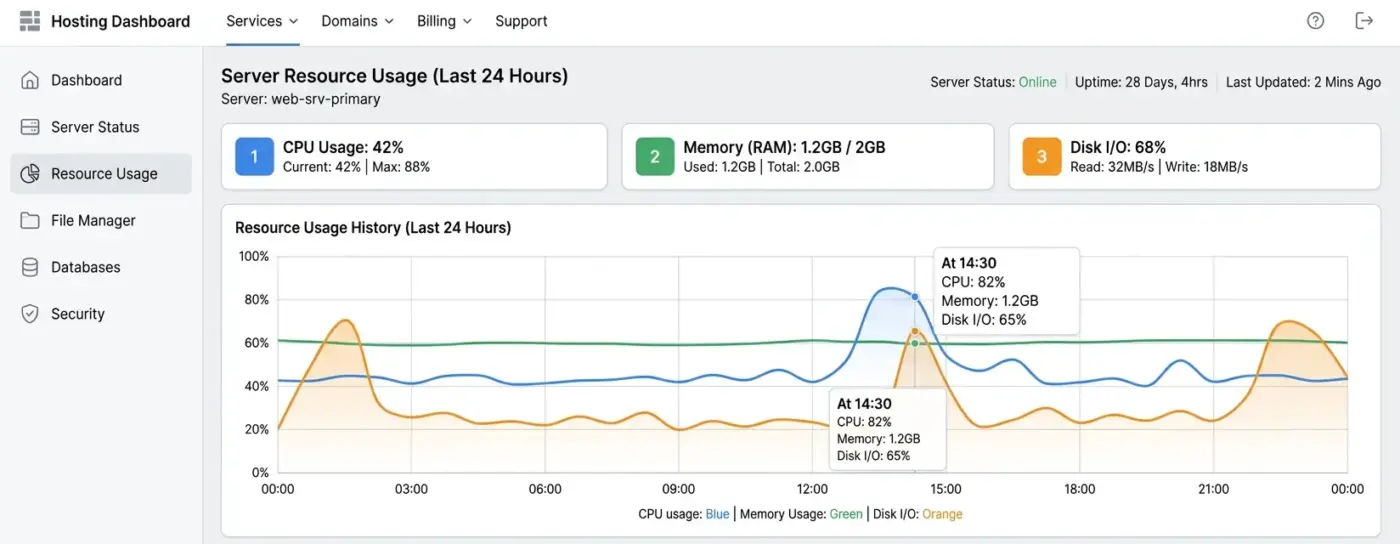
Your host decides how fast your pages load and how often your site stays online. A cheap shared plan might work for a small blog. It will not survive a traffic spike or a busy sale day.
What to check
Log into your hosting control panel (cPanel, Plesk, or your host’s custom dashboard) and look for your resource usage stats: CPU, memory, and disk space.
If you’re maxing out the CPU regularly, that’s your sign to upgrade. Most managed WordPress hosts show this on the main dashboard screen, no digging required.
For WooCommerce stores, hosting matters even more. Checkout pages are dynamic. They can’t be fully cached the way a blog post can. A host built for WordPress specifically (not generic shared hosting) handles this load far better.
Common mistake
Staying on the cheapest hosting tier long after your traffic has outgrown it. Store owners often notice this only during a sale, when the site slows down or times out under load.
Quick tip
Run a load time test with a free tool like PageSpeed Insights or GTmetrix once a month. A sudden jump in load time, even without a traffic spike, usually points back to your hosting plan running out of room.
Managed WordPress hosts (WP Engine, Kinsta, SiteGround’s WordPress-specific plans) handle core updates, basic security, and server-level caching for you. Generic shared hosting leaves all of that on your plate.
2. WordPress Core: Keep It Updated
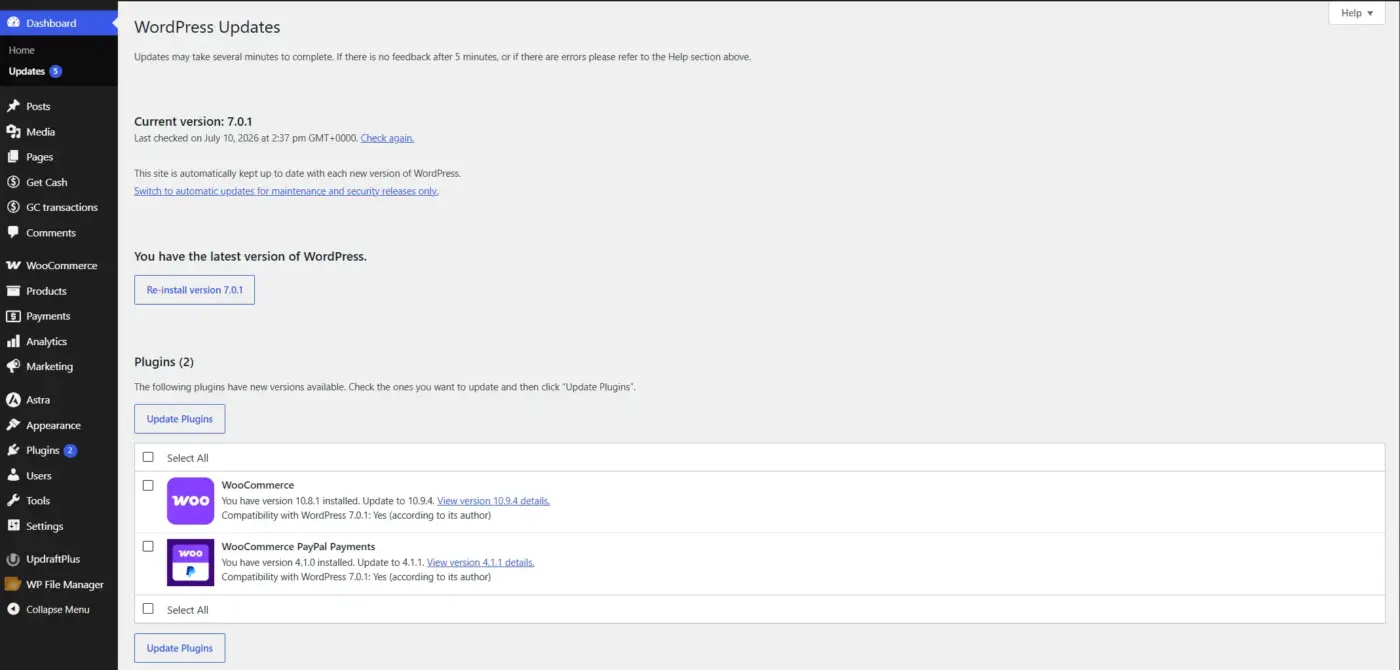
WordPress core is the engine. Every plugin and theme depends on it running the current version. An outdated core is one of the most common ways sites get compromised.
What to check
Go to Dashboard > Updates in your WP admin sidebar.
If you see a number next to “Updates” in the left menu, that’s your cue. Click through, back up first, then update core.
Auto-updates for core are on by default for minor releases. Major versions, like the WordPress 7.0 release, usually need manual approval. Test on a staging site first if your store depends on custom plugins.
Common mistake
Disabling auto-updates entirely and then forgetting the site exists for six months. Every skipped update is a known security gap that stays open until you patch it.
Quick tip
Most managed hosts offer a one-click staging clone. Update the staging copy first, click through your checkout flow and main pages, then push the update live once you’re confident nothing broke.
If you’d rather turn auto-updates off for full manual control, DevDiggers has a guide on how to disable automatic updates in WordPress that covers both quick methods safely.
3. Theme: Fewer Bloated Features, Better Performance
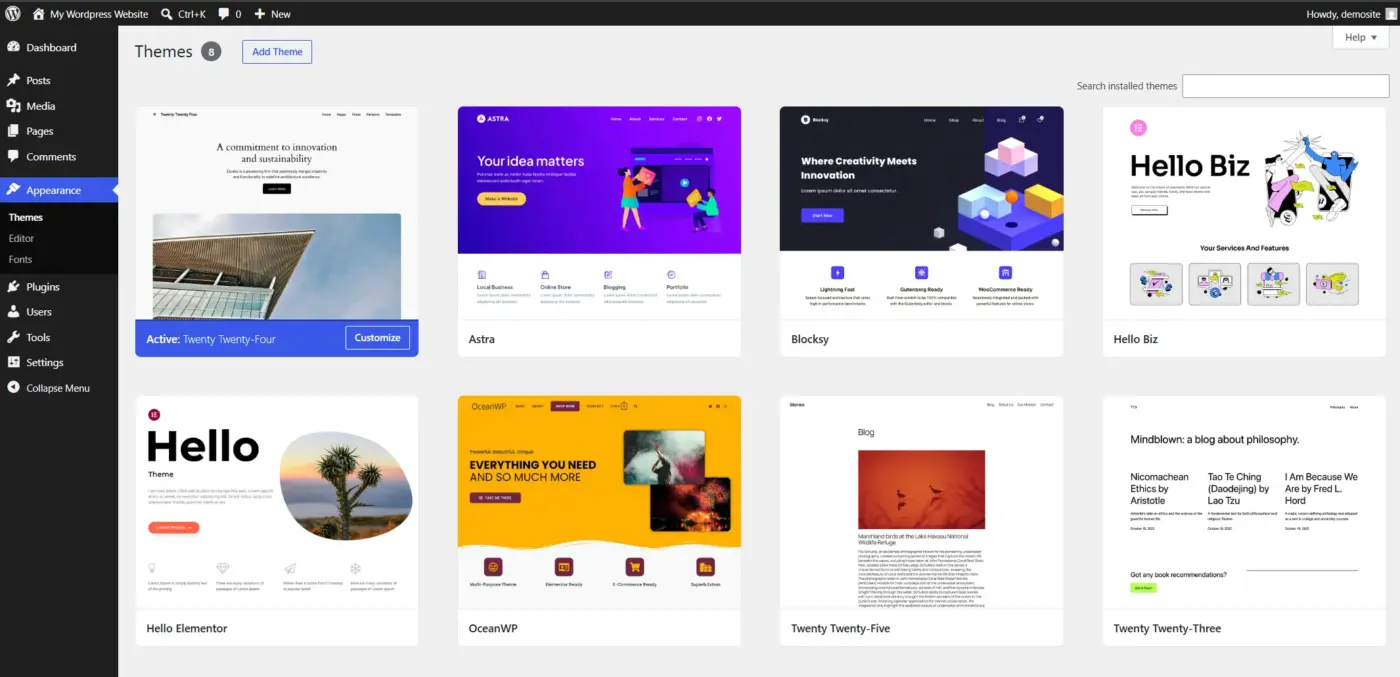
Your theme controls layout and speed just as much as it controls looks. A theme packed with unused sliders, animations, and builder scripts drags your load time down.
Where to check
Go to Appearance > Themes to see what’s installed and active.
Delete themes you’re not using. Even inactive themes sit in your file system and can carry security risks if left unpatched.
If you’re building a child theme for custom edits, DevDiggers has a full walkthrough on how to create a WordPress child theme that keeps your changes safe during theme updates.
Common mistake
Editing a parent theme’s files directly. The next theme update wipes out every custom change. A child theme solves this permanently and takes about ten minutes to set up.
Quick tip
If you’re running WooCommerce, check that your theme is built for it specifically. A generic blog theme forces WooCommerce to load its own default styling on top, which often looks mismatched and adds extra CSS weight.
For store owners chasing speed, DevDiggers tested and ranked the fastest WooCommerce themes for 2026 based on real load-time results, not just marketing claims.
4. Plugins: Quality Over Quantity
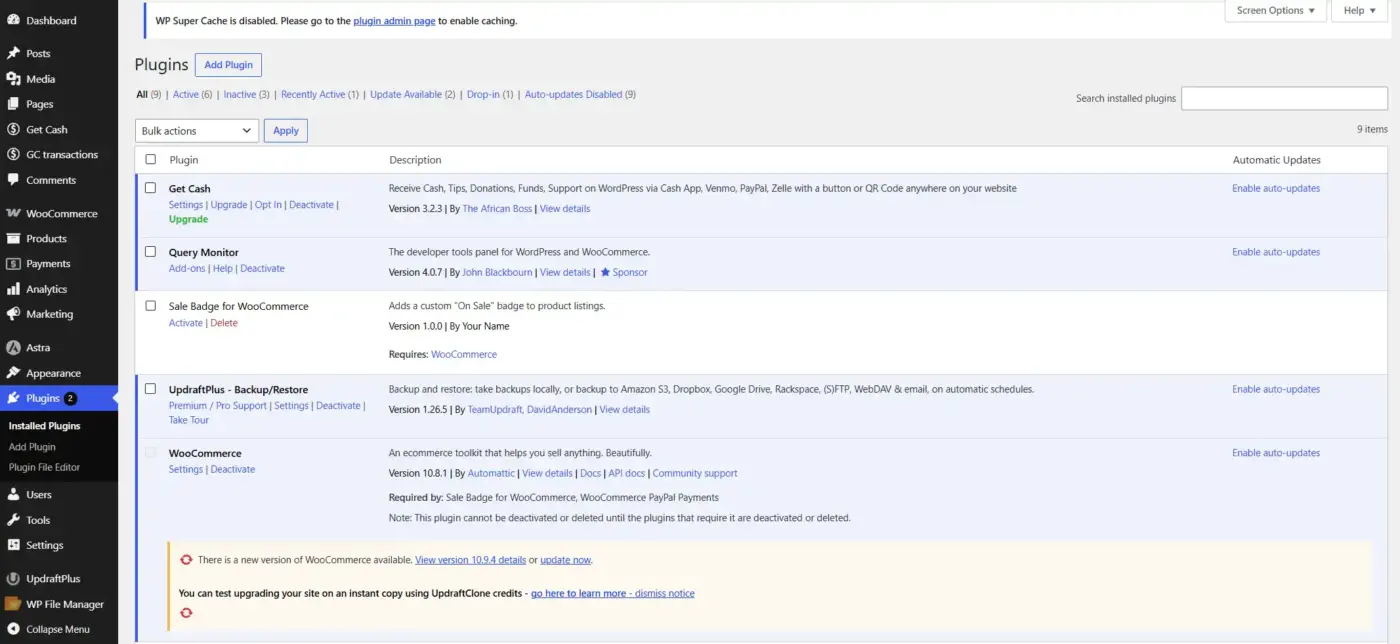
Plugins add features. They also add risk. Every plugin is code written by someone else, running on your site, with access to your data.
Where to check
Go to Plugins > Installed Plugins.
Look at three things here: how many plugins are active, how many are outdated, and how many you actually recognise. Deactivate and delete anything you don’t use.
Running 50 plugins on a small store is rarely a good sign. Fewer, well-maintained plugins from trusted developers beat a pile of one-off tools you installed once and forgot.
Common mistake
Installing a plugin to test a feature, deciding against it, and then leaving the deactivated plugin sitting in your files. Deactivated plugins still carry vulnerabilities if never removed.
Quick tip
Before installing anything new, check the plugin’s last updated date and active install count on the WordPress.org repository page. A plugin untouched for over a year is a real risk sign.
If you’re worried about plugin count specifically, DevDiggers answers the “how many is too many” question directly in ” Are 50 plugins too many for your WordPress eShop, and it’s worth checking your plugin conflicts periodically using the guide on how to check for plugin conflicts on WordPress.
5. Database: Where Everything Actually Lives
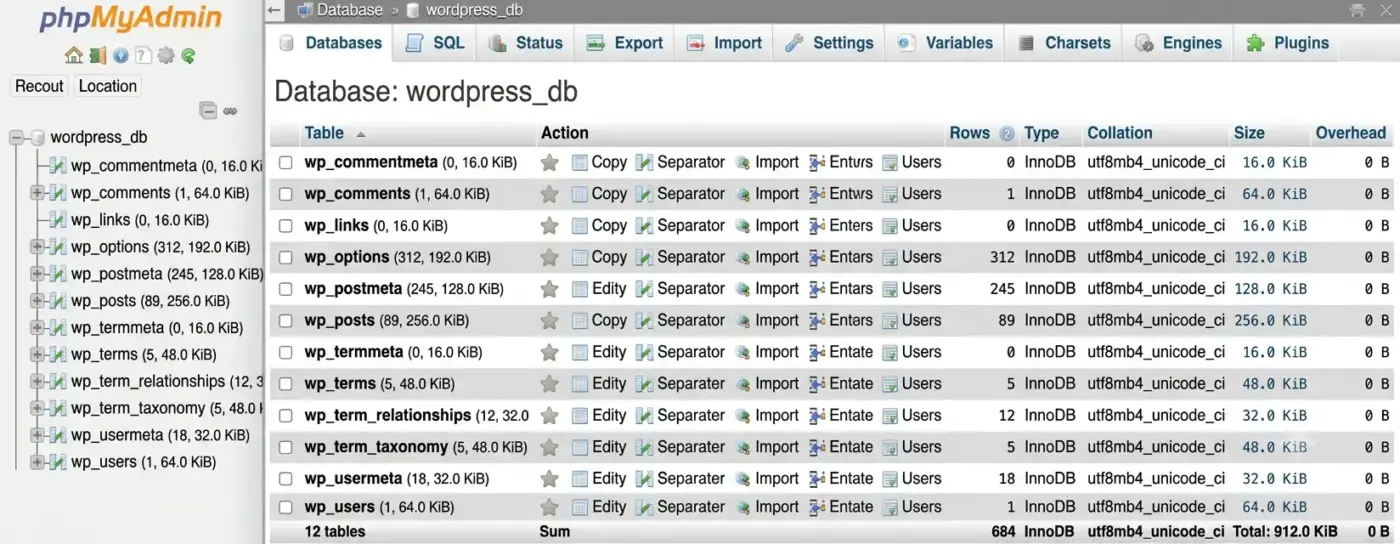
Your posts, pages, settings, and (if you run WooCommerce) every order and product live in your database. A bloated, unoptimized database slows every single page load.
Where to check
Most hosts give you phpMyAdmin access, or you can use a plugin like WP-Optimize under Tools in your dashboard.
Clean out post revisions, spam comments, and expired transients every few months. On WooCommerce stores, this matters even more since order data accumulates fast.
DevDiggers covers this in detail in the guide to how many tables there are in default WordPress, which is worth a read if you’ve never opened your database before.
Common mistake
Never touching the database at all until a “disk full” or connection error forces the issue. By then, you’re troubleshooting under pressure instead of doing routine cleanup.
Quick tip
Schedule a database optimisation pass right after each major content push or sale event, since that’s when post revisions, order records, and session data pile up fastest.
If you ever hit storage limits, DevDiggers has a direct fix guide for the WordPress database error disk full message, along with steps for changing your WordPress database prefix if you want an extra layer of protection against automated attacks.
6. Security: SSL, Firewalls, and Login Protection

Security is not a single setting. It’s a stack, an SSL certificate, a firewall or security plugin, strong login rules, and file permission checks.
Where to check
Confirm your SSL is active by looking for the padlock icon in your browser address bar, then check your security plugin’s dashboard, usually under a sidebar item like Wordfence or Sucuri.
Limit login attempts. Use two-factor authentication on admin accounts. These two changes alone stop most automated attacks.
For a full walkthrough, DevDiggers has a WordPress security checklist with 25 steps and a separate guide on renewing your SSL certificate if yours is close to expiring.
Common mistake
Assuming a security plugin alone is enough. A firewall stops a lot, but weak passwords, an exposed admin URL, and an outdated PHP version can still let attackers in.
Quick tip
Rename or protect your default /wp-admin login URL. It’s one of the simplest changes you can make, and it cuts down automated login attempts significantly.
If bots keep hammering your login page, DevDiggers walks through how to set up WordPress brute force protection the right way, and there’s a focused fix guide for common SSL issues in WordPress if your padlock icon isn’t showing correctly.
7. Backups: Your Undo Button
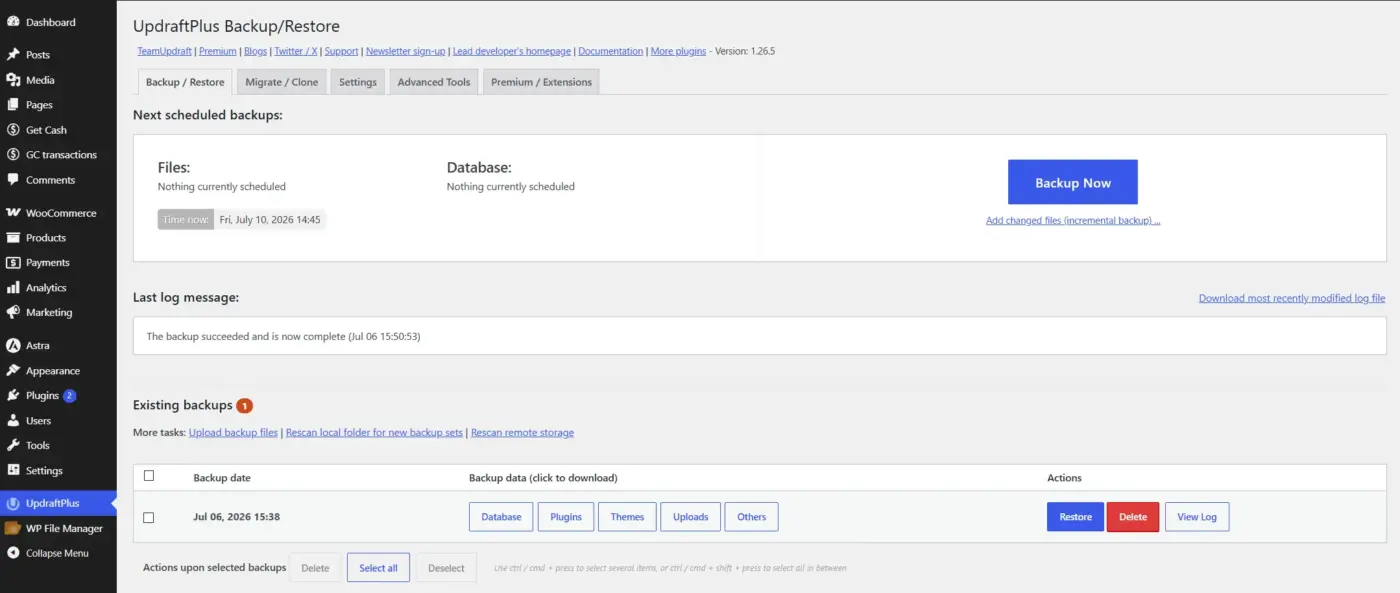
No matter how careful you are, something eventually goes wrong: a bad update, a hack, an accidental edit. Backups are the only real recovery plan.
Where to check
if you’re using a backup plugin like UpdraftPlus, go to Settings > UpdraftPlus Backups to see your schedule and last successful run.
Store backups off-site, not just on your own server. If your server fails, an on-server backup fails with it.
WordPress.org’s own advanced administration handbook recommends keeping 3 to 5 recent backups stored in different locations, such as your host, a cloud service, and a local download, so a single failure never leaves you without a working copy.
Running WooCommerce? DevDiggers has a focused guide on how to back up the WooCommerce database specifically, since order and customer data need extra care.
Common mistake
Setting up a backup plugin once and never checking if it’s actually running. Backup jobs silently fail more often than people realise, usually from storage quota issues or expired API keys.
Quick tip
Do a test restore on a staging site at least twice a year. A backup you’ve never restored from is a backup you can’t fully trust yet.
For WooCommerce stores specifically, keeping a clean record of products matters too. DevDiggers covers this in the guide to WooCommerce product backup, which is worth pairing with your regular database backup routine.
8. Caching and Performance
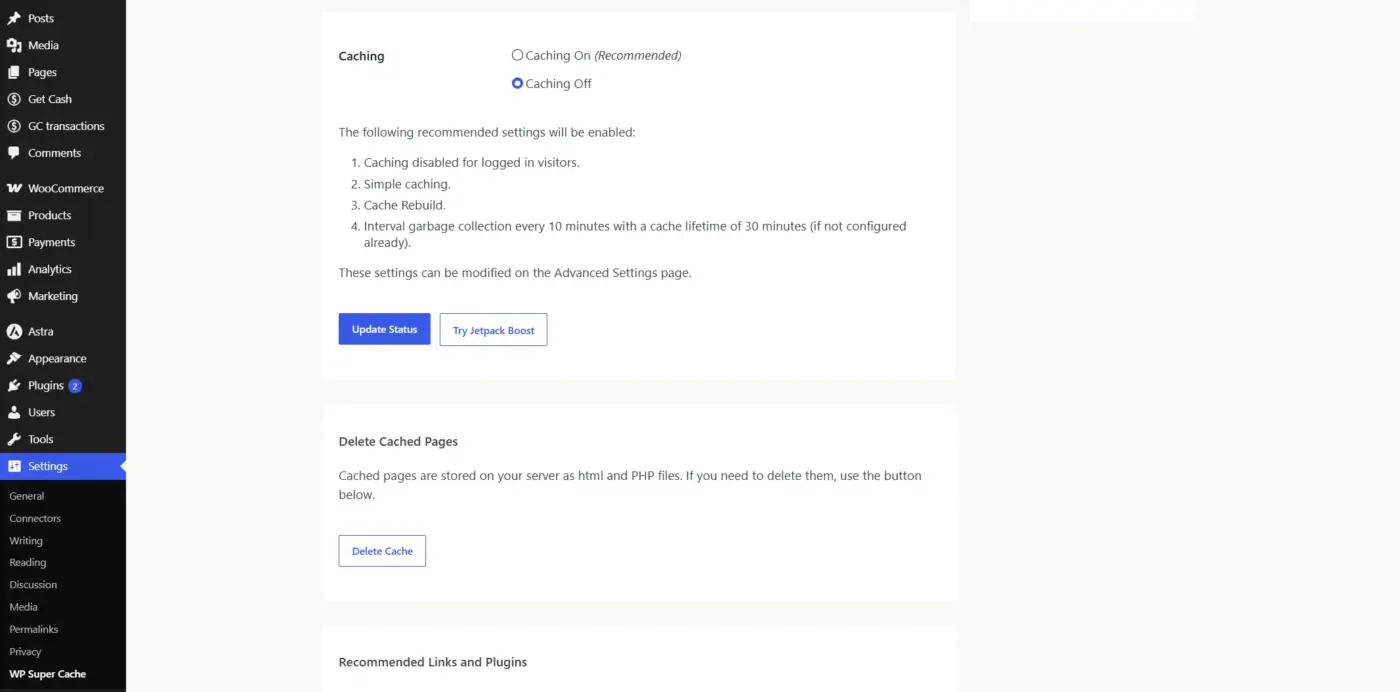
Caching stores a ready-made version of your page so WordPress doesn’t rebuild it from scratch on every visit. This is one of the fastest wins for site speed.
Where to check
If you have a caching plugin installed, look for its settings page, often labelled WP Rocket, W3 Total Cache, or similar, in your left sidebar.
Turn on page caching, then test your homepage load time before and after. Most sites see a real jump in speed here.
Speed isn’t just about user experience, either. Google’s own Core Web Vitals documentation recommends keeping your Largest Contentful Paint under 2.5 seconds, since this metric factors directly into search rankings.
If you want a broader comparison first, DevDiggers ranked the 10 best WordPress caching plugins for 2026, and there’s a dedicated fix guide if your site is loading slowly even after caching is on.
Common mistake
Enabling caching but leaving images unoptimized. Caching speeds up how pages are served, but a 4MB hero image still takes just as long to download on the first visit.
Quick tip
Pair your caching plugin with image compression and lazy loading. Most caching plugins include basic lazy loading as a toggle, so check your plugin’s settings tab before installing a second tool for the same job.
Speed issues sometimes come down to server response time rather than caching at all. DevDiggers explains this in the guide on how to reduce TTFB in WordPress, and covers a broader diagnosis of why is WordPress so slow.
9. Permalinks and SEO Foundation
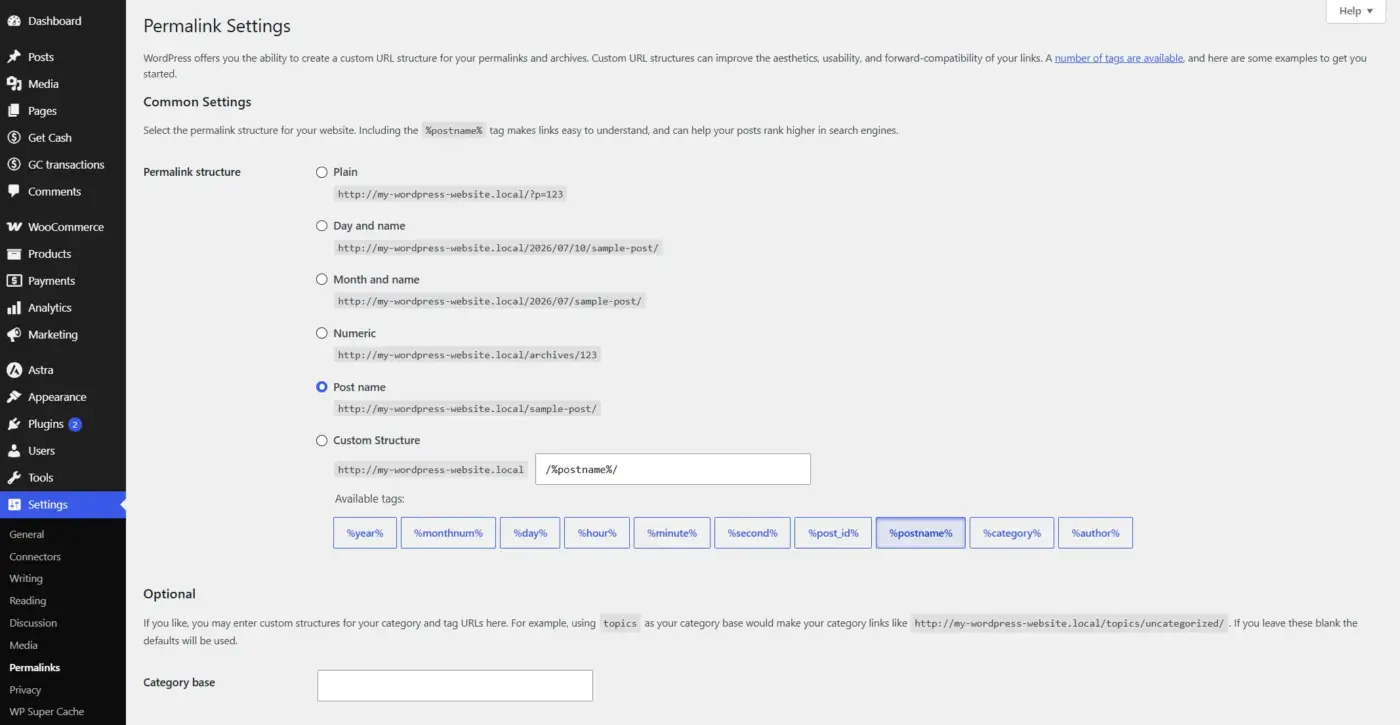
Your permalink structure decides what your URLs look like. Clean URLs (like yoursite.com/blog-title) read better and rank better than default query-string URLs.
Where to check
Go to Settings > Permalinks in your dashboard.
Choose Post name as your structure if you haven’t already. Changing this on a live site with existing traffic needs a redirect plan, so check with a developer first if you’re not sure.
DevDiggers breaks this down further in Understanding WordPress Permalinks, including what happens to your existing links if you change the structure later.
Common mistake
Changing permalink structure on a site with existing backlinks and search rankings, without setting up 301 redirects first. Every old URL that isn’t redirected turns into a 404 error.
Quick tip
Before changing anything, export a list of your current URLs. Compare it against your new structure once the change is live, and redirect any URL that no longer matches.
If old URLs are already broken from a past change, DevDiggers has a step-by-step guide on how to redirect a page or URL in WordPress to fix them without losing your existing SEO value.
Quick Reference Checklist
| Component | Where to Check | How Often |
|---|---|---|
| Hosting | Hosting control panel, resource usage tab | Monthly |
| Core updates | Dashboard > Updates | Weekly |
| Theme | Appearance > Themes | Quarterly |
| Plugins | Plugins > Installed Plugins | Monthly |
| Database | phpMyAdmin or a database plugin | Quarterly |
| Security | SSL padlock, security plugin dashboard | Monthly |
| Backups | Backup plugin settings | Weekly (verify) |
| Caching | Caching plugin settings | After major changes |
| Permalinks | Settings > Permalinks | Once, then rarely |
Screenshot each row as you check it. In a few months, you’ll have a running record of exactly what changed and when, which is genuinely useful if something breaks and you need to trace it back.
Conclusion
Nine components, one working site. Skip hosting, and nothing else matters, since a slow or unstable server undermines every other fix. Skip backups, and one bad day can undo months of work.
Go through this list once, screenshot each settings page as you check it, and you’ll have a personal history record. Revisit it every quarter. WordPress, your plugins, and your theme all update constantly, and last quarter’s settings don’t always carry over cleanly.
None of these 9 components work in isolation. A fast host doesn’t help if your database is bloated. A strong firewall doesn’t help if your backups have silently stopped running. Treat this as one connected system, not nine separate to-do items.
If any of these feel like more than you want to handle solo, DevDiggers’ WordPress development services cover setup, security, and ongoing maintenance for exactly this kind of work. For store owners specifically, the WooCommerce development services page covers checkout, plugin, and performance work built around live stores.
Frequently Asked Questions (FAQs)
Q1. What is the most critical component of a WordPress website?
There isn’t a single one. Hosting sets your speed limit, security protects everything else, and backups are your safety net if something fails. All three work together.
Q2. How often should I check these 9 components?
Run a full check quarterly. Check backups and security logs monthly, since those change the fastest and carry the highest risk if ignored.
Q3. Do I need all 9 components for a small blog?
Yes, though some need less attention. A blog needs lighter security than a store handling payments, but hosting, backups, and core updates matter regardless of site size.
Q4. Can plugins alone fix a slow WordPress site?
Not on their own. A caching plugin helps, but if your hosting plan is underpowered or your theme is bloated, plugins only patch part of the problem.
Q5. Is a free WordPress theme safe to use long term?
It can be if it’s from the official WordPress theme repository and gets regular updates. Avoid themes downloaded from random third-party sites, since those are a common malware source.
Q6. What happens if I skip database maintenance?
Your site slows down gradually as revisions, spam comments, and expired data pile up. On WooCommerce stores, this also makes admin screens like orders and reports noticeably slower to load.
Q7. Should developers and store owners handle these 9 components differently?
The checklist is the same, but the depth changes. Developers usually handle theme code, database structure, and plugin conflicts directly. Store owners tend to focus on hosting choice, backup verification, and keeping plugins updated through the dashboard.
Q8. How do I know if my WordPress site has already been compromised?
Watch for unexpected admin accounts, unfamiliar files in your theme folder, sudden traffic drops, or your host flagging malware. A security plugin scan is the fastest first check if something feels off.