Want to reduce TTFB in WordPress, and don’t know the main cause? Your server is taking too long to process and respond to each page request. The most effective fixes involve enabling full-page caching, upgrading your hosting setup, adding an always-active data cache, and keeping PHP updated to the latest stable version. Done right, these changes can drop your server speed from well over a second to well under 200ms.
Here’s the problem most WordPress site owners face. They run a PageSpeed Insights test, see the annoying “Reduce server response times (TTFB)” warning, and have no idea where to start. Shared hosting is the easy target to blame, but it’s rarely the only issue.
A heavy plugin stack, a database nobody’s cleaned in years, and PHP running two versions behind all add up quietly in the background.
The good news? These are all fixable. This guide walks you through exactly what TTFB is, why yours is slow, and 10 clear steps to bring it down fast.
Why Does TTFB Matter for WordPress?
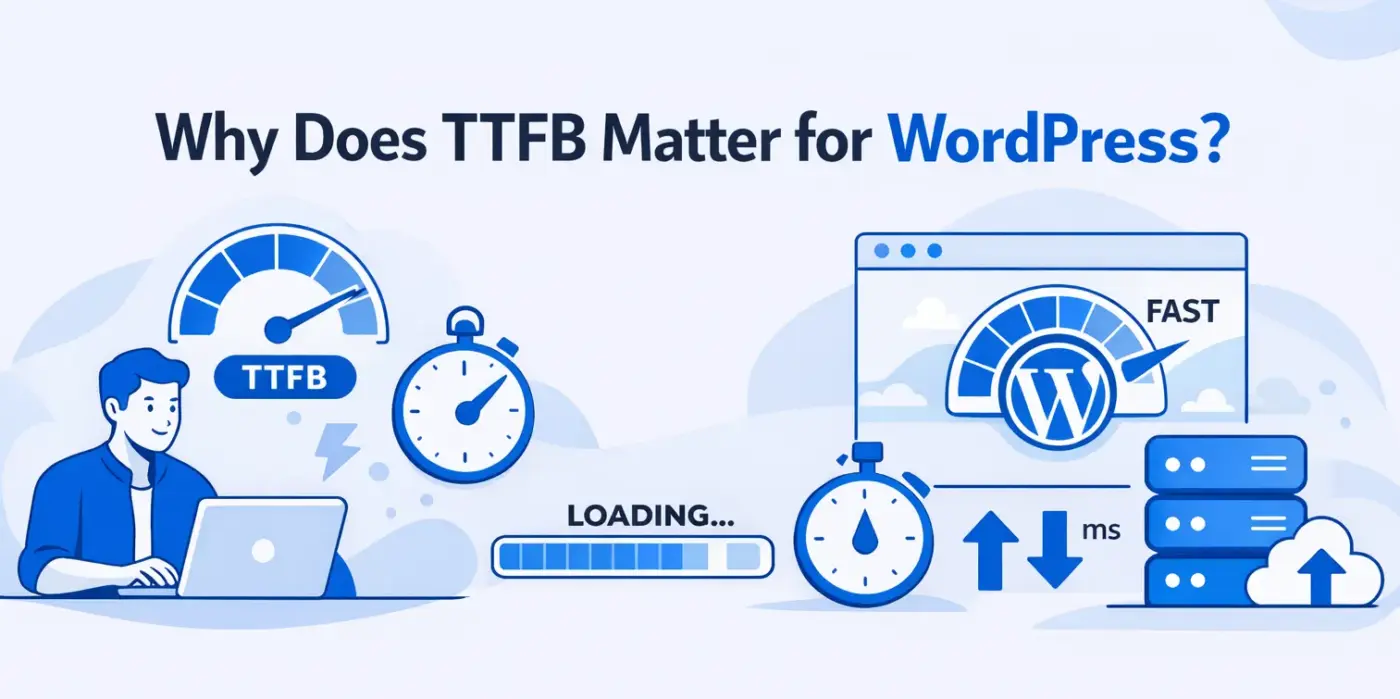
TTFB stands for Time to First Byte. It measures the time between a user’s browser sending a request to your server and the moment that server sends back the very first byte of a response. Everything happens before your page even starts loading visually.
More precisely, TTFB captures several layers of work as DNS resolution, TCP connection, TLS connection setup for HTTPS, and then the actual server processing time. That last part, server processing, is where WordPress often falls down.
What counts as a good TTFB score?
According to Google’s TTFB guidelines, aim for a TTFB of less than 0.8 seconds. Scores from 800ms to 1,800ms need improvement, and anything above 1,800ms is poor.
Aim for under 200ms. That’s the level managed WordPress hosts and well-improved sites achieve. It’s a good north star.
TTFB isn’t a Core Web Vitals metric, so it’s not necessary to hit the good threshold if other Core Web Vitals score well. Ignoring it entirely is a big mistake.
How TTFB affects Website Performance
TTFB is a metric. It comes before every other user experience metric; a high TTFB adds time to every metric that follows it.
According to the 2025 Web Almanac performance chapter, sites with poor LCP spend an average of 2.27 seconds on TTFB, which nearly exhausts the 2.5-second LCP limit. You can improve images, defer scripts, eliminate load-blocking resources, but if TTFB is eating your LCP budget.
Michael Wiegand says that “a delay of just 1 second in page speed increases bounce rates by 32%” and impacts user trust and SEO rankings. For WooCommerce stores, a slow server response at checkout is money leaving the table.
Reasons For Slow WordPress TTFB
Most articles jump straight to fixes. That’s a mistake if you don’t understand what’s actually causing the delay. Here’s what’s really going on.
1. Hosting factor
Shared hosting delivers TTFB of 800ms to 2 seconds. When you’re on a shared server, you’re competing for CPU and memory with dozens of other websites. A sudden traffic increase on another site can slow yours down.
2. WordPress generates pages dynamically
The cause for high TTFB is the time it takes for PHP and database queries to build your webpages. A cached page gets served in milliseconds. An uncached can take two or more seconds to generate.
3. Uncleaned database and heavy plugins
An unoptimised WordPress database becomes heavy with unnecessary data and delayed queries from database slow processes, increasing TTFB. Sites with 40+ plugins can reduce TTFB by hundreds of milliseconds by removing unused ones.
How to Reduce TTFB in WordPress: 10 Proven Ways
1. Switch to better hosting
If you’re on shared hosting and your TTFB is consistently above 1,000ms, no amount of caching or code optimisation will solve the main problem permanently. Upgrade to a VPS, managed WordPress hosting, or a quality cloud provider.
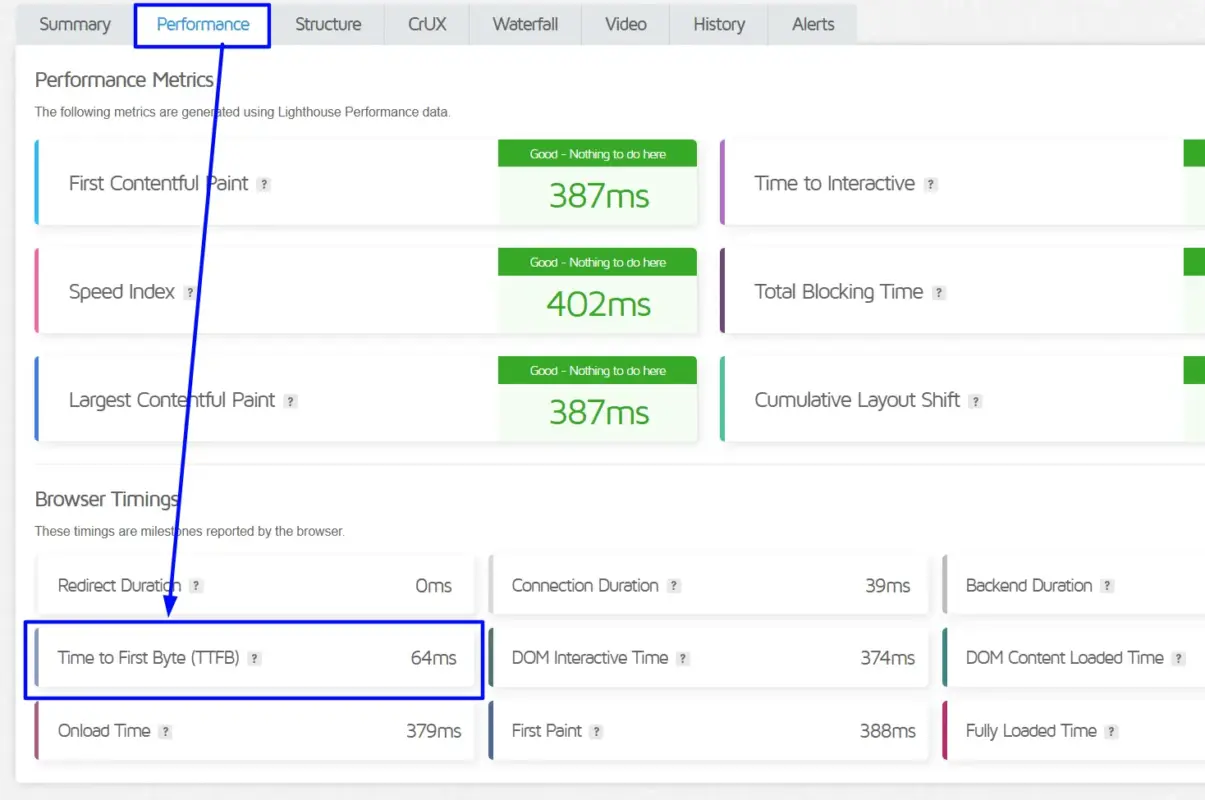
GTmetrix gives you a waterfall chart to see exactly how long the initial HTML document takes to start loading. You can check Time to First Byte, which defines better hosting.
The difference between good and mediocre hosting on TTFB alone can be 500ms-1,500ms. That’s not a small optimisation, it’s transformative.
2. Enable full-page caching

With page caching in place, pages are pre-built before a visitor hits the site. All the PHP processing and database lookups required to generate the HTML are done in advance.
When the visitor arrives, the server provides the cached HTML file immediately. Typically, it takes less than 4 seconds to generate a WordPress page, whereas a cached page is available in a few hundred milliseconds.
Use a caching plugin like WP Rocket. Make sure full-page caching is actually enabled, not just browser caching. They’re very different things.
3. Add an active object cache with Redis
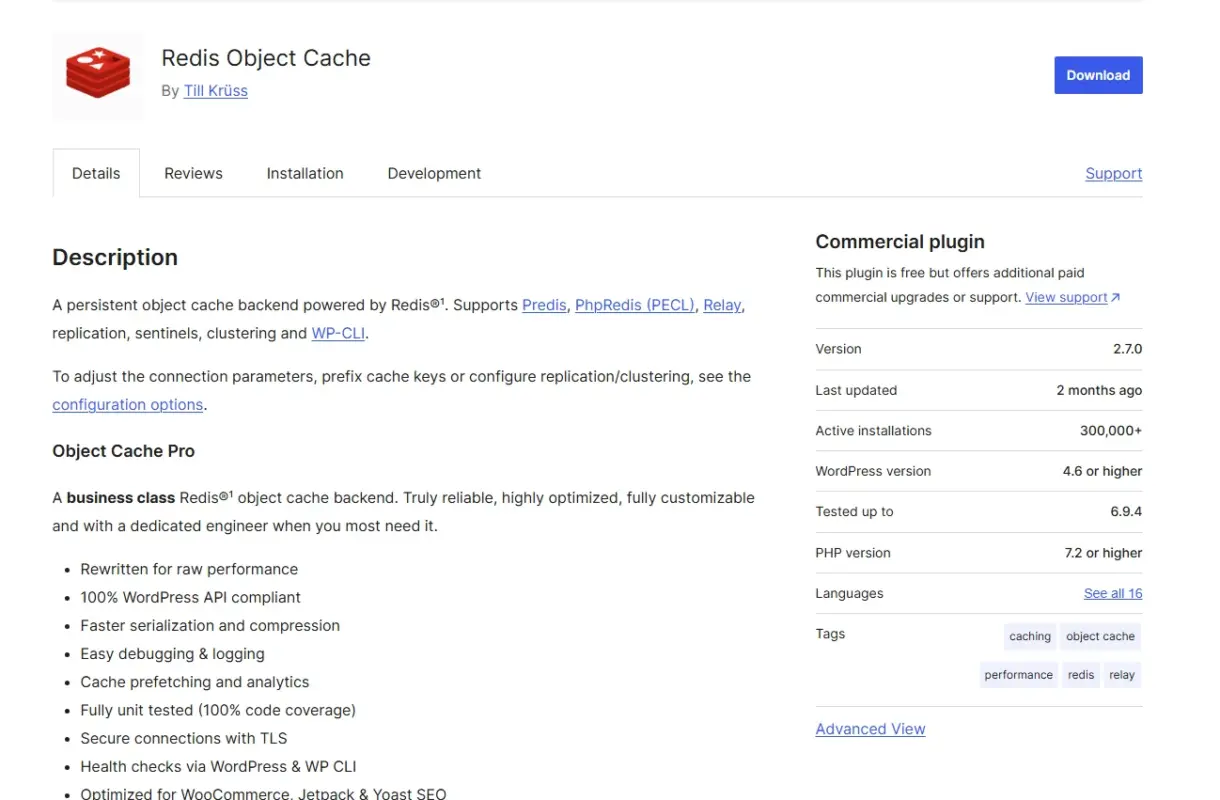
Full-page caching works for logged-out visitors. But your WooCommerce cart pages, checkout, and account pages can’t be full-page cached. That’s where object caching helps, where needed.
Memcached and Redis are in-memory caches used for WordPress object caching. Having quality hosting that supports Memcached or Redis. WordPress pulls the results from RAM. This improves speed on dynamic, logged-in content.
Check with your hosting provider if Redis or Memcached is available. Many managed WordPress hosts include Redis at no extra cost. Add the Redis data Cache plugin. Google’s TTFB guide covers server-side and object caching in more detail.
4. Use a CDN to reduce geographic delay
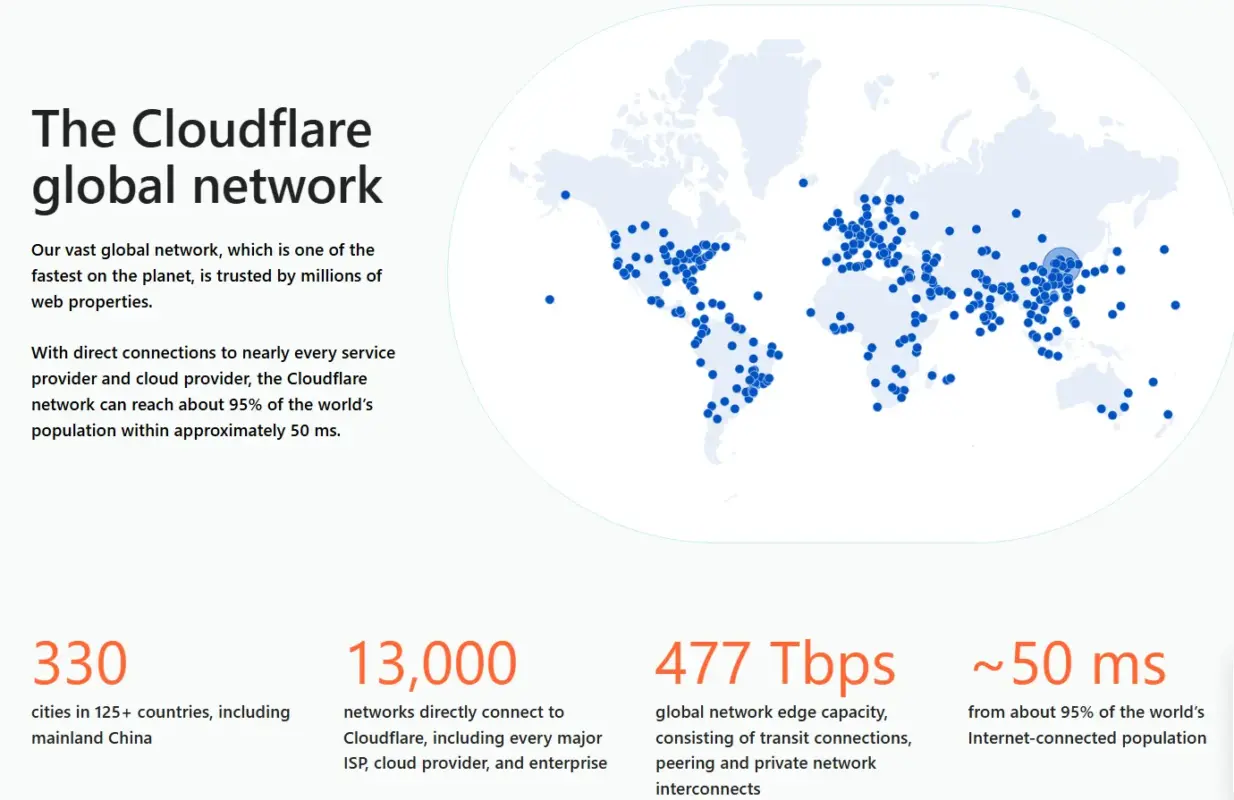
A CDN distributes cached copies of your site across global servers. When a visitor is far from your server, without a CDN, the request travels long distances. With a CDN, they receive a cached response from a server nearby.
Network transmission can account for almost 40% of TTFB. A CDN attacks that directly. Cloudflare is the most common choice and offers a solid free tier. For most sites, enabling Cloudflare alone will visibly reduce TTFB for visitors outside your server’s home region.
5. Update PHP to the latest stable version
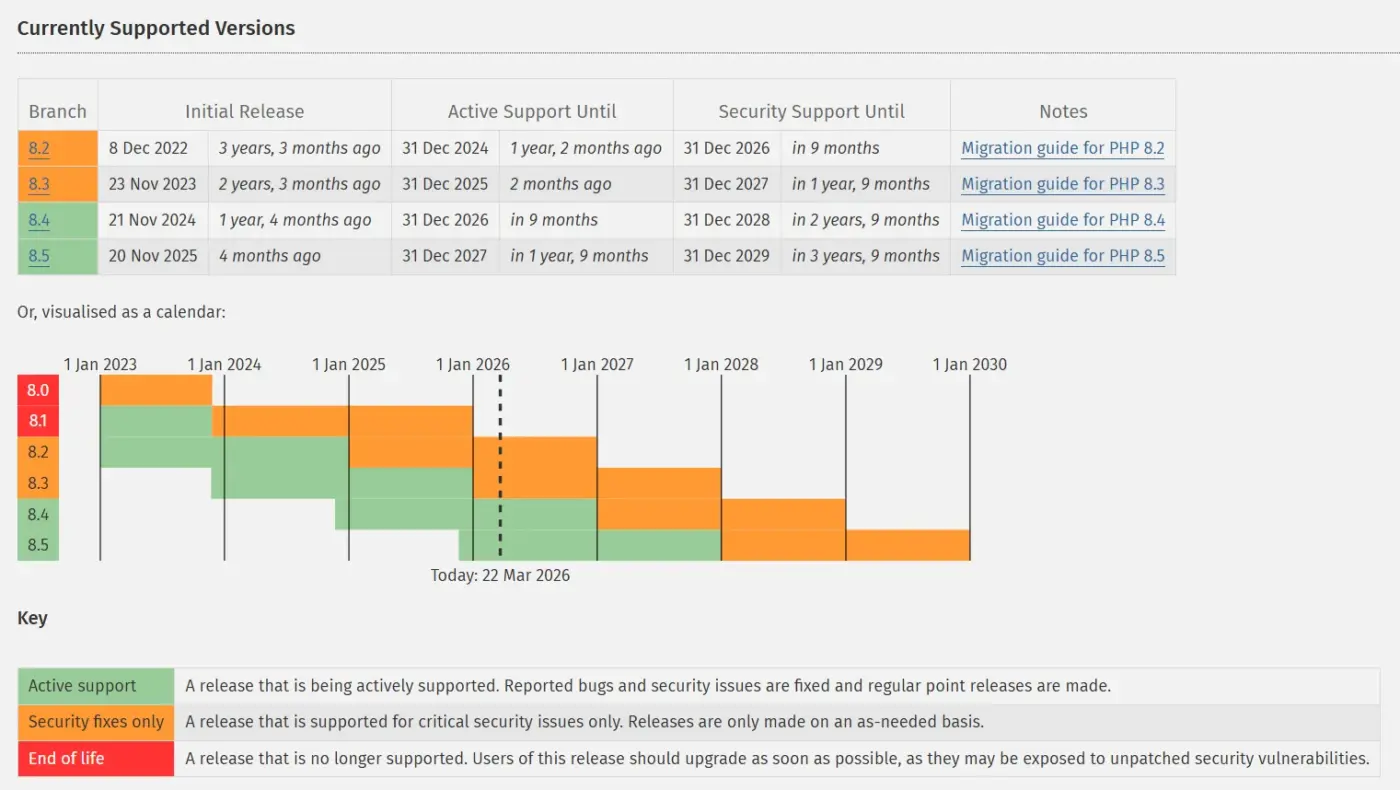
PHP 8.x is considered to be meaningfully faster for WordPress than older versions. Each major PHP version brings performance improvements that translate directly into faster page generation.
PHP 8.0 introduced the JIT compiler, and PHP 8.3 and 8.2 brought further efficiency gains. Check your current PHP version in your hosting control panel and update it. The official PHP supported versions page shows what’s still actively maintained.
Most shared and managed hosts let you switch PHP versions in one click. Test your site after upgrading to catch any errors, especially with older plugins.
6. Clean and optimise your WordPress database
Your database accumulates junk over time as thousands of post revisions, auto-draft posts, spam comments sitting in the queue, old temporary data, and unused tables left behind by deleted plugins. All of that adds weight to every query WordPress runs.
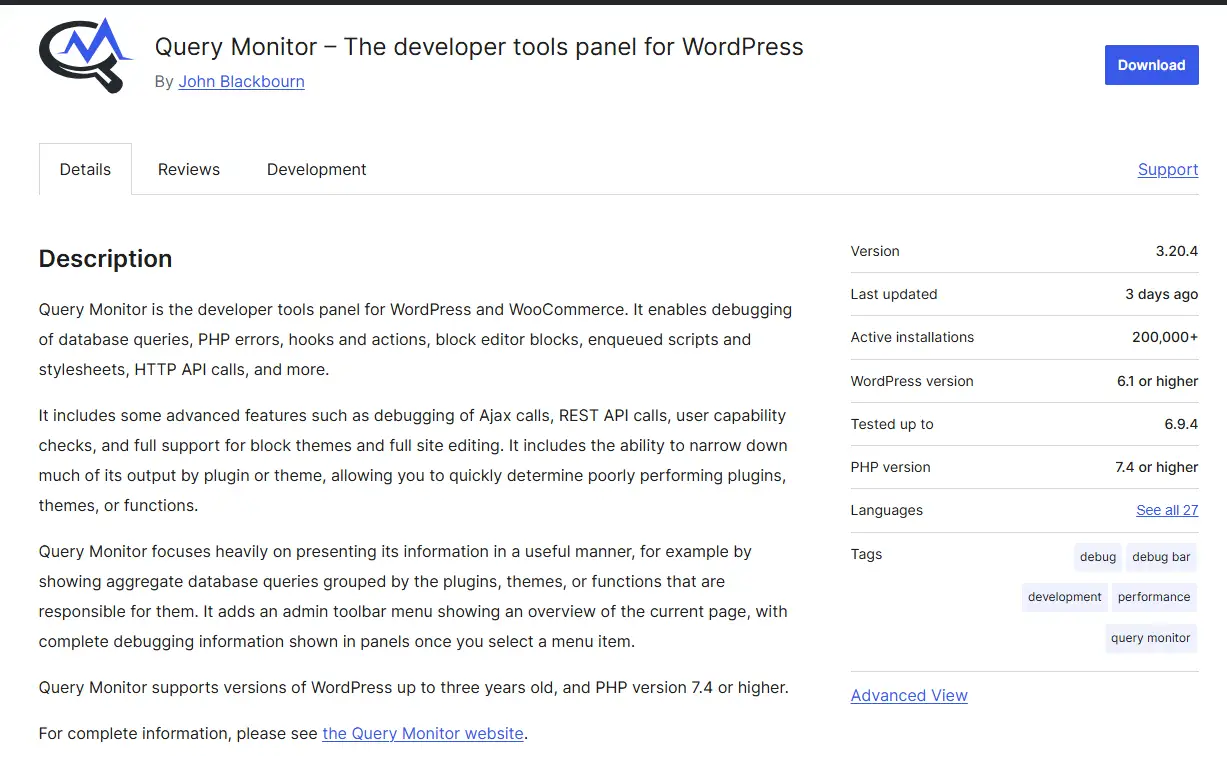
Installing Query Monitor shows you every database query running on each page load, how long each one takes, and which plugin or theme triggered it. If one plugin is responsible for 30 slow queries on every page, you’ll see it immediately.
7. Detect unused JavaScript added by plugins
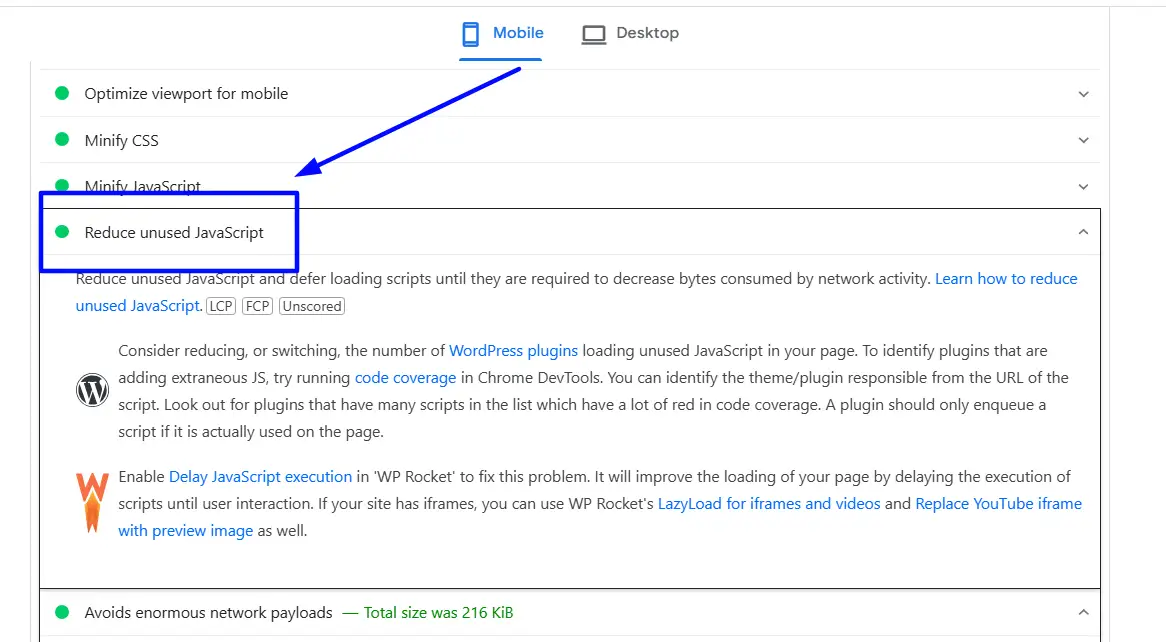
Many plugins load scripts on every page—even when they’re not needed. Tools like Google PageSpeed Insights highlight this under “Reduce unused JavaScript.”
These unused files often come from plugins that are active but not fully used. Removing or replacing such plugins can instantly improve load time and reduce server load.
8. Enable GZIP or Brotli compression
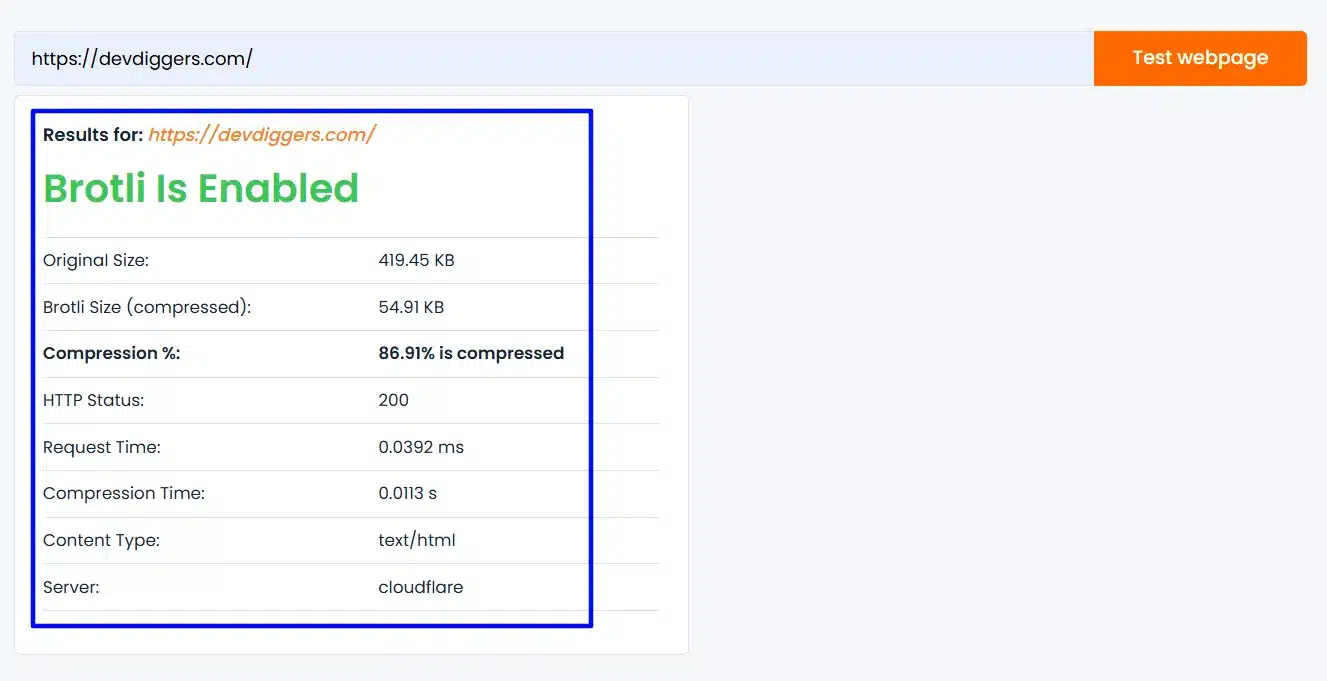
Compression doesn’t directly reduce TTFB, but it does reduce the size of the server response. A smaller response leads to faster transfer time. On many server setups, GZIP is available but not enabled.
In Apache, add the necessary configuration to your file. On Nginx, enable GZIP in your configuration settings. Brotli is a newer compression format, and many CDNs enable it automatically.
You can verify whether compression is active using tools like GiftOfSpeed. Look for the “Content-Encoding: gzip” or br header on the initial HTML document.
9. Use HTTP/2 or HTTP/3
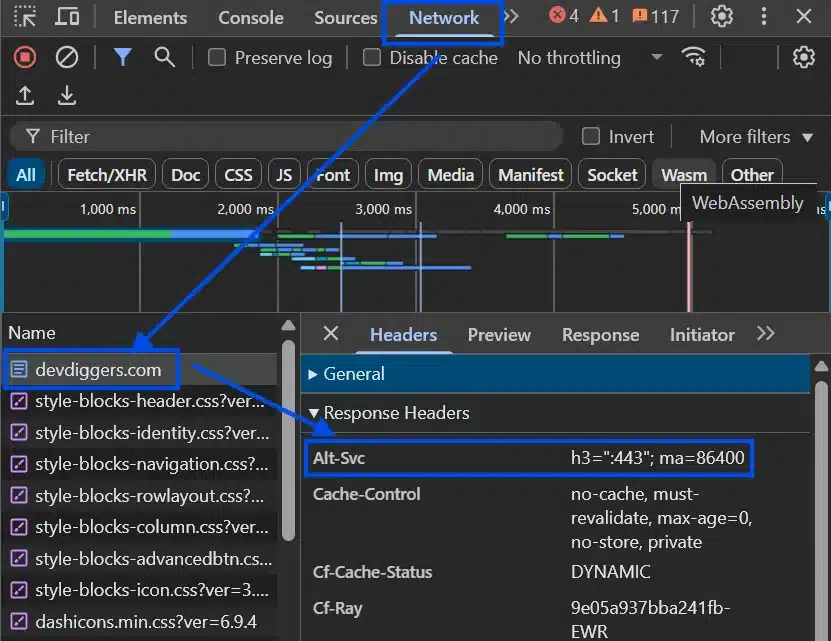
If you are still running on HTTP/1.1, you’re leaving performance on the table. HTTP/2 allows multiple requests, allowing multiple requests over a single connection instead of sequential loading. HTTP/3 offers lower delay, especially on high-delay connections.
Hosts support HTTP/2 if you’re running HTTPS. Check your protocol in the Network tab of Chrome DevTools. h1 stands for HTTP/1.1, h2 stands for HTTP/2, h3 stands for HTTP/3.
10. Upgrade to a premium DNS provider
Your default DNS provider may add 50ms-200ms of delay to every single request. Premium DNS providers like Cloudflare DNS, AWS Route 53, or Bunny DNS have globally distributed nameservers that resolve queries much faster.
Update the nameservers on your domain registrar to point to your Amazon Route 53-hosted zone, then migrate your DNS records into Route 53. Amazon automatically propagates your DNS globally across its highly redundant Anycast network.
For high-traffic sites, this alone can make a measurable difference in real-user TTFB measurements.
When DIY Optimisation Isn’t Enough?
The fixes above can be done without a developer. But there are situations where the issue runs deeper.
If the TTFB is still above 1,500ms, the problem is a basically misconfigured server, a theme or plugin generating very bad numbers of database queries, or server configuration issues that only a developer can resolve.
A single poorly written plugin was responsible for 200+ database queries on every uncached page load. Plugin audits and Query Monitor reveal slow points that settings can’t fix.
Speed optimisation can reduce bounce rates and increase organic traffic after fixing Core Web Vitals. The pattern is consistent, fixing TTFB and server response time unlocks the extra capacity that all other optimisations need to actually show results.
If you’ve exhausted the DIY fixes, our WordPress speed optimization services cover server configuration audits, data cache setup, database optimization, and full Core Web Vitals remediation. We get sites to load in under 2 seconds.
Conclusion
Reducing TTFB requires serving cached pages, removing unnecessary work from the critical path, and giving your server the resources it needs to respond quickly.
Enabling full-page caching, upgrading to quality hosting, adding Redis or Memcached for object caching, and keeping PHP current. You will solve the majority of TTFB problems. Other fixes like DNS, CDN, HTTP/2, compression, and database cleanup are optimizations.
TTFB is still impacting your Core Web Vitals scores; it’s time to bring in deeper expertise. Check out our professional WordPress speed optimisation services and let’s get your site performing the way it should.
Frequently Asked Questions(FAQs)
Q1. What is a good TTFB for a WordPress site?
A TTFB of 800ms or less is considered good, 800–1,800ms needs improvement, and above 1,800ms is poor. Optimised WordPress sites typically achieve 100–300ms TTFB. Above 800ms, start with full-page caching and upgrade hosting.
Q2. Does TTFB affect SEO?
TTFB doesn’t directly affect rankings, but it heavily influences your Core Web Vitals scores, particularly LCP. Since TFB doesn’t affect rankings directly but impacts Core Web Vitals, particularly LCP. A poor TTFB that lowers your LCP score can reduce search visibility. Fix TTFB to improve Core Web Vitals.
Q3. Why is my WordPress TTFB slow, even with a caching plugin?
Common causes of high TTFB include full-page caching not being enabled or not working on tested pages with URL parameters, logged-in sessions, or personalized content may bypass it, slow hosting that caching can’t fix, and caching plugins excluded from certain pages by rules.
Q4. How do I check what’s causing slow TTFB in WordPress?
Install Query Monitor. It reveals every database query, showing the plugin or theme and query time. A page with 200+ queries indicates issues. Test a plain HTML file on your server to separate hosting delays from application-level delays. If HTML TTFB is fast and WordPress pages are slow, the issue is in WordPress, not the server.
Q5. Can too many plugins cause high TTFB?
Every active plugin runs code on each page load; some run multiple database queries or external API calls. A single poorly coded plugin can cause more TTFB damage than ten well-built ones. Use Query Monitor to identify plugins generating the most queries and longest execution times, and remove unnecessary ones.