

To change the WordPress database prefix, edit $table_prefix in wp-config.php and rename every table that starts with the old prefix. The default prefix is wp_. With a backup ready the job takes about 20 minutes.
We checked every step in October 2026 against the WordPress core schema, the WP-CLI handbook. A new prefix is a small layer of obscurity. It does not stop a working SQL injection, which can read your table names from the database itself.
This tutorial covers the manual method in phpMyAdmin, a WP-CLI method and a note on security plugins. You will also find the multisite caveats and a table of fixes for common errors.
What Is The WordPress Database Prefix?
The WordPress database prefix is the text added to the start of every table name, and the default is wp_. A single-site install creates 12 core database tables with it. Plugins such as WooCommerce add their own tables with the same prefix.
For example:
- wp_posts: stores blog posts and custom post types
- wp_users: stores user logins and credentials
- wp_options: stores site options
This is referred to as the WordPress database prefix and is stored in your site’s wp-config.php file. It looks like this:
$table_prefix = 'wp_';
WordPress adds this prefix to every core table and to the tables most plugins create. It works fine as it is. The only downside is that automated scripts can guess your table names without looking.
Some site owners change it to something random, such as x9u3_ or mysite_. The best time to do that is during a new install, before plugins add their own tables.
Why Change The WordPress Database Prefix?
Changing the WordPress database prefix stops scripts that assume tables named wp_users or wp_options. It does nothing against an attacker who already has a working SQL injection. The WordPress hardening guide lists it under security through obscurity for that reason.
Attackers know most WordPress sites keep the default prefix. Some automated scripts target wp_users or wp_options directly. A working injection can still list your real table names through information_schema. The new prefix only slows down the lazy scripts.
Changing the WordPress DB prefix adds one small layer of obscurity to your site security. It will not stop a skilled attacker. It does make your site a little less attractive to bots and quick-hit scripts.
Key Benefits Of Changing The Prefix
- Stops scripts that assume the default wp_ table names.
- Gives automated hacking tools one more thing to guess.
- Adds to other security steps such as a firewall and login protection.
- Needs no extra plugin when you do it by hand.
The real protection comes from keeping plugins updated, giving the database user only the rights WordPress needs and running a web application firewall. Treat the prefix change as a small extra step on top of those.
In short, changing the prefix of the WordPress database is not a fix on its own. It is a cheap extra step that fits into a wider security plan.
Before You Change The WordPress Database Prefix
Important: Before you change the WordPress database prefix, take the safety steps below. One wrong query can lock you out of the dashboard or take the whole site down.
Changing the prefix is safe when you prepare for it. Back up the files and database, put the site in maintenance mode and practice on a staging copy first. Write down the current prefix too. These four steps take a few minutes and let you undo any mistake.
1. Back Up Your Entire Site
Before you change your WordPress database prefix, you should have done a backup of:
- Your WordPress files (themes, plugins and uploads)
- Your whole database
Tools to use:
- UpdraftPlus
- All-In-One WP Migration
- Or manually using phpMyAdmin + FTP
Store your backup in a cloud drive like Google Drive or Dropbox.
2. Turn On Maintenance Mode
Changing your database prefix may mean briefly taking your site down. To avoid your visitors or clients being confused, turn on maintenance mode.
Use These Plugins:
- SeedProd
- WP Maintenance
3. Test In A Staging Environment First
Never test on a live site before you have practiced the change. If your host offers staging, as Cloudways, SiteGround and Kinsta do, try it there first.
Test it all in staging: logins, plugins, forms and dashboards. Then repeat it on the live site.
4. Record Your Current Prefix
Just in case things go wrong, make a note of your current database prefix (typically wp_) so you can easily go back to this prefix if necessary.
How To Change The WordPress Database Prefix (Manual Method)
The manual method changes the WordPress database prefix in two places: the $table_prefix line in wp-config.php and every table name in phpMyAdmin. Then you rename the few rows that store the old prefix as data. It suits anyone comfortable editing files and running SQL queries.
If phpMyAdmin answers a query with “No database selected”, our MySQL error 1046 guide explains the fix.
- Estimated time: 15 to 25 minutes
- Risk level: Moderate (back up first)
Step 1: Edit Your wp-config.php File
The prefix of your WordPress database is defined in your wp-config.php file.
- Access your WordPress root folder (via FTP, File Manager, or local setup).

- Locate and open the wp-config.php file.

- Look for this line:
$table_prefix = 'wp_'and replace ‘wp_’ with a new unique prefix. For example:$table_prefix = 'x9u3_';
Tip: Use letters, numbers and underscores but do not begin with a number.
Step 2: Rename All Database Tables in phpMyAdmin
Next, we’ll rename your database tables to include the new prefix.
Here’s How To Do It:
- Open phpMyAdmin from your hosting control panel.

- Select your WordPress database from the left sidebar.

- You’ll see a list of tables that look like this:
- wp_posts
- wp_users
- wp_comments
- Rename the tables so they include the new prefix you want (x9u3_ in this example).
You can do this one at a time or run a batch of SQL queries, such as:

RENAME TABLE wp_posts TO x9u3_posts;
RENAME TABLE wp_users TO x9u3_users;
RENAME TABLE wp_options TO x9u3_options;
-- repeat for all tables
Note: A single-site WordPress install has exactly 12 core tables. WooCommerce and other plugins add their own, and each one needs the new prefix. Run
SHOW TABLES LIKE 'wp\_%';to list them all.
Step 3: Modify the Table Entries Using the Old Prefix
Some WordPress settings hold the old table prefix in the actual data, especially in the options and usermeta.
Start With The Options Table:
SELECT * FROM x9u3_options WHERE option_name LIKE 'wp\_%';
- You may see rows such as
wp_user_roles.
- Rename only
wp_user_rolestox9u3_user_roles. Core options such aswp_page_for_privacy_policystart with wp_ by name and must stay as they are.
Then Check Your Usermeta Table:
SELECT * FROM x9u3_usermeta WHERE meta_key LIKE 'wp\_%';
- You should see entries such as
wp_capabilitiesandwp_user_level.
- You will want to manually replace wp_ with your new prefix in each row.
This step keeps your user roles and permissions working.
Step 4: Test Your Site
Once all the changes are done:
- Clear your browser cache.
- Navigate to your WordPress site.
- Log in to the admin dashboard.
- Click around your site and test the important functions:
- Posts/pages load.
- The plugins are functioning.
- Login/logout works.
- No blank screens or errors.
If your site crashes or you get a “cannot find table” error, check your prefix in wp-config.php and your table names in phpMyAdmin.
How to Change the Database Prefix With WP-CLI
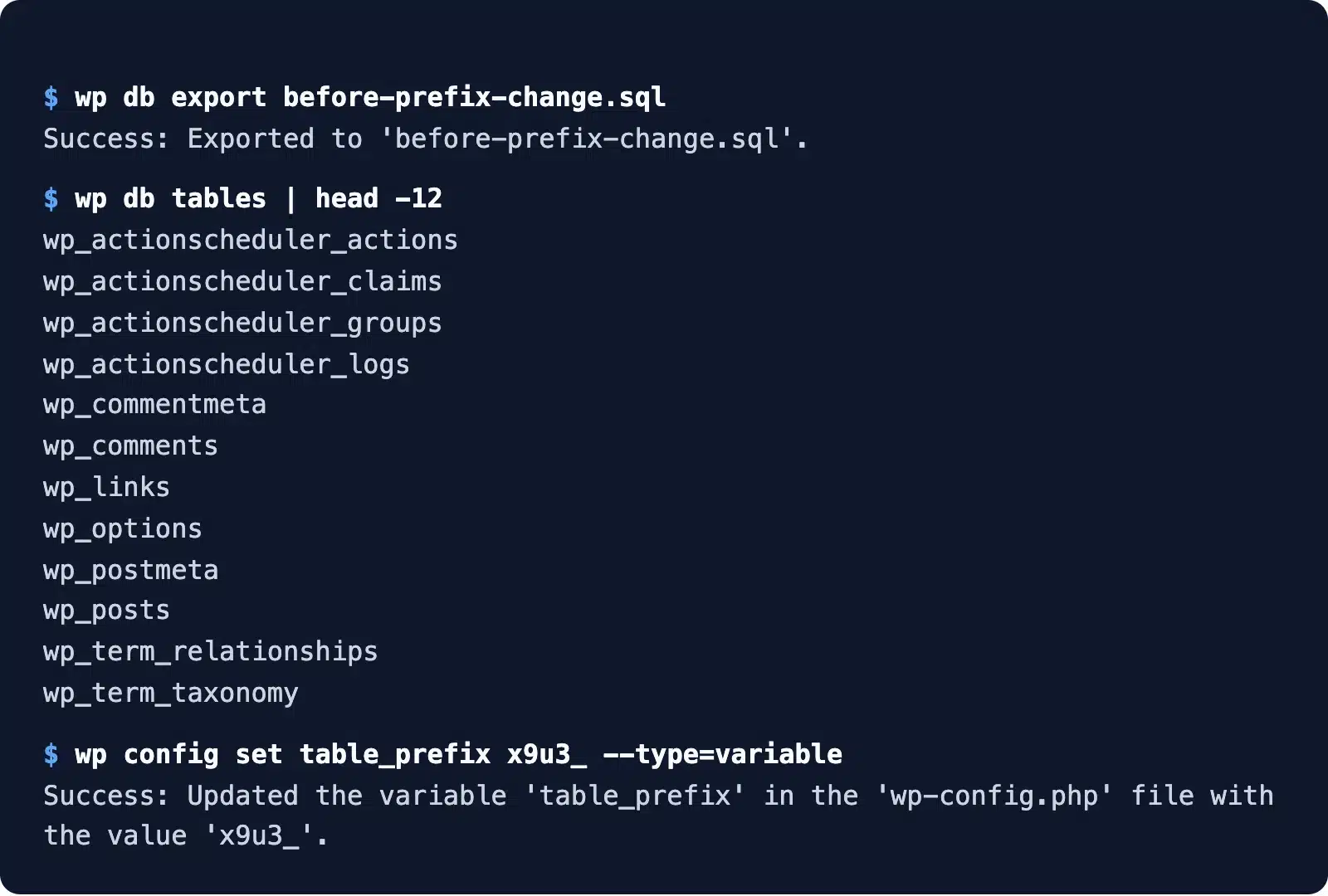
WP-CLI changes the WordPress database prefix from the command line in about a minute. You export a backup, rename every table with the old prefix and update the $table_prefix line. Two update queries then fix the options and usermeta rows. Use it when your host gives you SSH access.
Run these commands from the WordPress root folder. The wp db tables command lists every table with the current prefix. Then wp config set edits wp-config.php:
wp db export before-prefix-change.sql
for t in $(wp db tables --all-tables-with-prefix); do
  wp db query "RENAME TABLE $t TO x9u3_${t#wp_};"
done
wp config set table_prefix x9u3_ --type=variable
wp db query "UPDATE x9u3_options SET option_name = 'x9u3_user_roles' WHERE option_name = 'wp_user_roles';"
wp db query "UPDATE x9u3_usermeta SET meta_key = CONCAT('x9u3_', SUBSTRING(meta_key, 4)) WHERE meta_key LIKE 'wp\\_%';"
Replace x9u3_ with your own prefix in every line. The loop strips wp_ from each table name and adds the new prefix in front.
Warning: The last query renames every usermeta key that starts with wp_. On a site where a plugin saved its own keys with that start by chance, check the rows with a SELECT first.
Multisite and Plugins That Hardcode wp_
On multisite, every subsite has its own tables named wp_2_, wp_3_ and so on. The loop above renames them too. Each subsite options table also holds its own row such as wp_2_user_roles, and each one needs renaming by hand.
The network tables also take the new prefix. Those are blogs, blogmeta, site, sitemeta, signups and registration_log. Test the whole change on a staging copy of the network first.
Some plugins write wp_ into their SQL by hand and skip $wpdb->prefix. Those plugins break after the change. Check each plugin screen and your error log once the site is back up.
Can A Plugin Change The WordPress Database Prefix?
Not in the current free security plugins we tested. Older versions of Solid Security, formerly iThemes Security, had a Change Database Table Prefix tool. The current version, now called Kadence Security, has no prefix tool in its settings on WordPress 7.1. Use the phpMyAdmin or WP-CLI method above.
What Could Go Wrong and How to Fix It
Most problems after a prefix change come from a table or row that kept the old prefix. A white screen means wp-config.php and the table names do not match. A lost admin login means the usermeta or options rows still say wp_. The table below matches each symptom to its fix.
| Problem | Likely Cause | Solution |
|---|---|---|
| White Screen of Death (WSOD) | Incorrect prefix in wp-config.php or typo in renamed tables | 1. Reopen wp-config.php and verify $table_prefix value matches the actual database table names in phpMyAdmin.2. Revert to backup if needed. |
| Can’t log into WP Admin | 1. Corrupted usermeta table2. meta_key still using the old prefix | 1. Rename leftover wp_ keys such as wp_capabilities in usermeta.2. Rename wp_user_roles in the options table. |
| Database connection error | The server can’t find the right tables | 1. Double-check that all tables were renamed properly. 2. Confirm your new prefix was applied to every table. |
| Broken plugins or widgets | Some plugins may store the prefix in custom tables or options | 1. Check plugin settings or reinstall the affected plugin. 2. Look for custom database tables not covered in the prefix change. |
| Random site errors (500, blank pages) | Incomplete or partial table renaming | 1. Go through each renamed table in phpMyAdmin. 2. Ensure no table is still using the old prefix. |
| The site still references old prefix | Missed wp_ entries in options or usermeta | 1. Run this SQL:SELECT * FROM yourprefix_options WHERE option_name LIKE 'wp\_%';And: SELECT * FROM yourprefix_usermeta WHERE meta_key LIKE 'wp\_%';2. Manually update any leftover rows. |
Conclusion
You now know how to change the WordPress database prefix by hand and with WP-CLI.
Changing the default wp_ prefix is a small obscurity step. It turns away scripts that guess table names, but it does not stop a real SQL injection. Pair it with plugin updates, a database user with limited rights and a firewall.
For the rest of the list, work through our WordPress security checklist.
Frequently Asked Questions (FAQs)
Q1. Is it safe to change the WordPress database prefix?
Yes, it’s safe so long as you follow the correct steps and ensure that you back up your site first. With the manual method or WP-CLI, changing the prefix is a great way of increasing security without having a time cost in your content, theme and design.
Q2. What is the default WordPress table prefix?
The default table prefix in WordPress is wp_. It is set by the line $table_prefix = ‘wp_’; in wp-config.php. Every core table starts with it, for example wp_posts and wp_users.
Q3. Does this increase WordPress security?
Only a little. A new prefix turns away scripts that assume the default wp_ table names. It does not stop a working SQL injection, so keep plugins updated and run a web application firewall (WAF) as well.
Q4. Can the prefix change be automated?
Yes. Developers can script it with WP-CLI using wp db query and wp config set. We found no one-click prefix tool in the current free Kadence Security plugin.
Q5. How often should I be changing the database prefix?
Changing it just once, at deployment or early in the life cycle, usually works. Unlike passwords, with the prefix, you only need to change it if you think it has been compromised or when you are completely hardening your security.