You can fix the WordPress White Screen of Death (WSOD) by finding which file, plugin, or theme crashed PHP, then correcting it through recovery mode, FTP, or a quick config edit. Most sites come back within 15-30 minutes once you know where to look.
Anyone who has run a WordPress site long enough has hit this exact wall. No error, no warning, just a blank page and someone asking why the site is down.
Most guides on how to fix WordPress White Screen of Death make you read through a wall of theory about PHP fatal errors before they let you touch anything. This one skips that part.
You’ll get a fast diagnosis table first, then ten steps ordered from safest to most advanced, each with a time estimate.
What Causes the WordPress White Screen of Death?
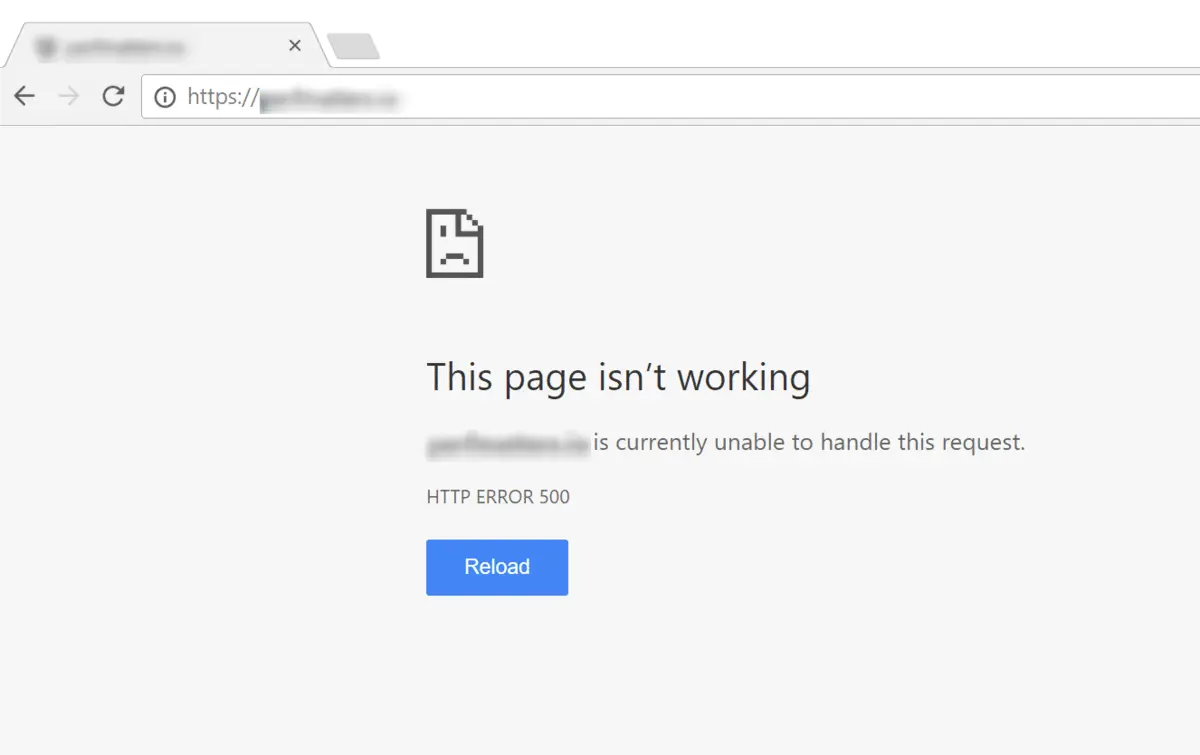
WordPress white screen of death happens when PHP hits a fatal error and stops running before it can render anything. Your server doesn’t send an error page. It sends nothing, which is why the screen is blank instead of showing a 404 or a 500.
Four causes account for almost every case:
- Plugin conflicts. A plugin update clashes with your WordPress version, your PHP version, or another plugin. This is the single most common trigger, and it happens most often right after an automatic overnight update. Two plugins that both hook into the same WordPress function, without checking whether the other has already declared it, are a classic recipe for this.
- Theme errors. A missing semicolon or a stray bracket in functions.php crashes PHP immediately. So does a theme built for an older PHP version running on a newer server. Child themes usually dodge this problem since the parent theme’s core code stays untouched, which is one reason we recommend editing a child theme rather than the parent directly.
- Memory exhaustion. Your site runs out of allocated PHP memory mid-request. WooCommerce stores, page builders, and sites running a dozen-plus plugins hit this constantly. Generating a large product export or running a bulk import are two of the most common triggers, since both ask PHP to hold far more data in memory than a normal page load does.
- Corrupted or missing core files. A bad file transfer, an interrupted update, or manual edits to wp-config.php or .htaccess can leave WordPress unable to start. A dropped internet connection mid-upload over FTP is a surprisingly frequent cause of this one, since it can leave a core file half-written on the server without any obvious warning.
The WordPress.org Advanced Administration Handbook recommends deactivating and reactivating plugins one at a time. If the admin screens are inaccessible, switching to a default theme through FTP is the next standard move. That’s the same order this guide follows below, just with the missing detail filled in.
How to Fix WordPress White Screen of Death (WSOD): Step-by-Step Guide
Work through these in order. Skip ahead only if the diagnosis table above already pointed you to a specific step. Back up your site before step 4 if you haven’t already. That one sentence saves people more grief than anything else in this guide.
Step 1: Back Up Before You Touch Anything
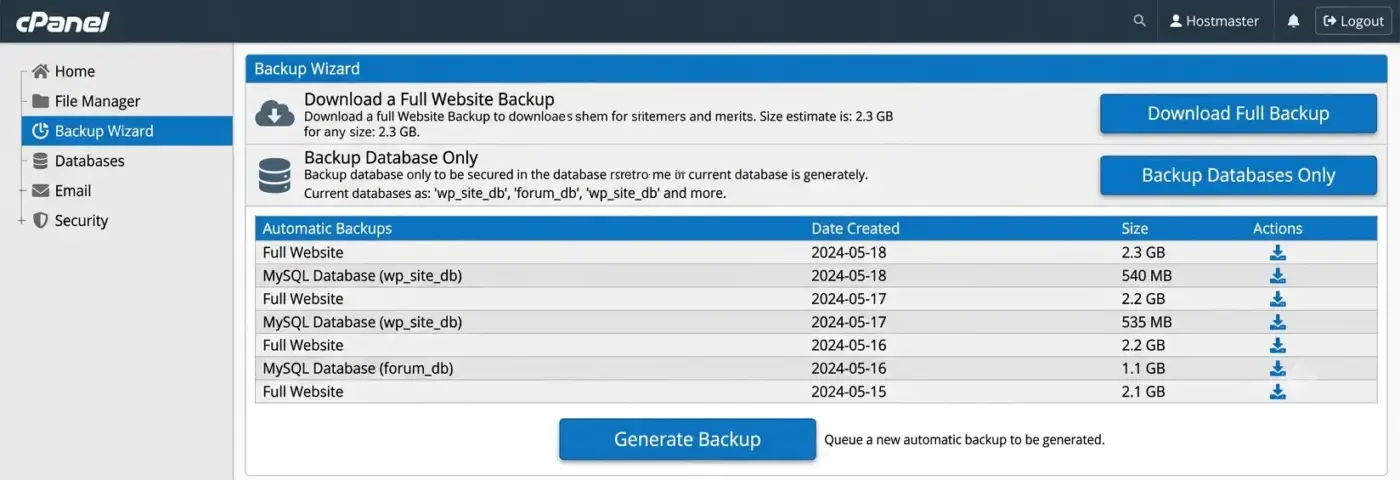
Export your database and download wp-config.php, .htaccess, and your active theme’s functions.php using the hosting panel or the Updraft plugin. If your host offers one-click backups, use that instead. You want a restore point before you start editing anything, not after something goes wrong.
Step 2: Check Whether wp-admin Loads
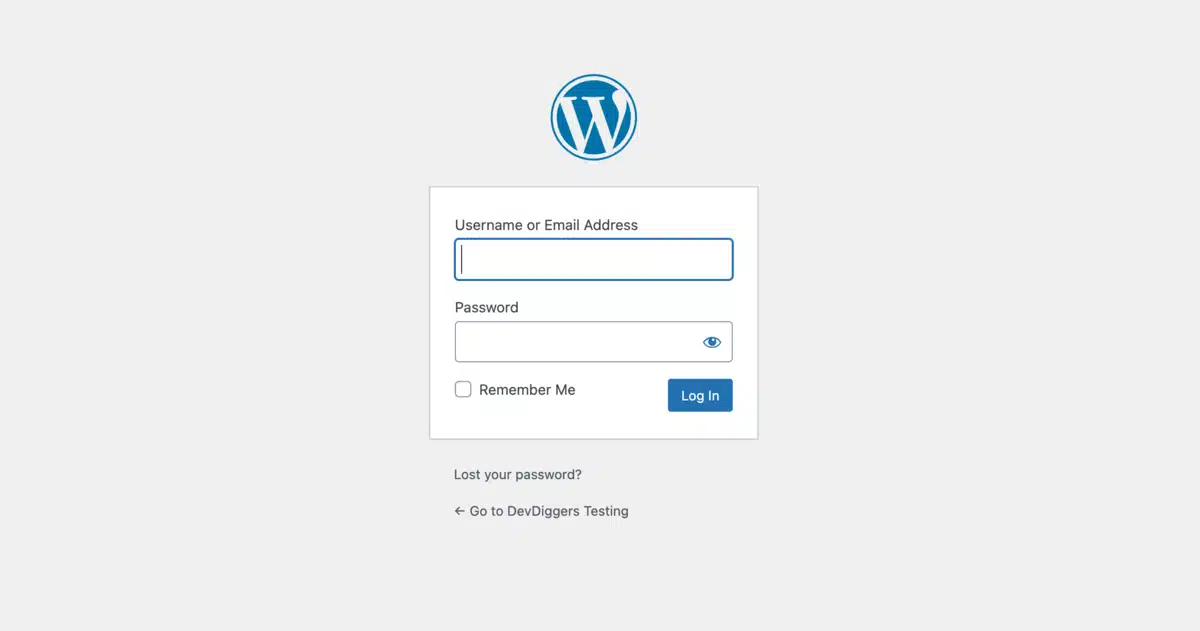
Visit yourdomain.com/wp-admin. If it loads but the frontend doesn’t, your problem is almost certainly theme-related, so skip to Step 5. If both are blank, keep going in order.
Step 3: Use WordPress Recovery Mode If You’re on 5.2+
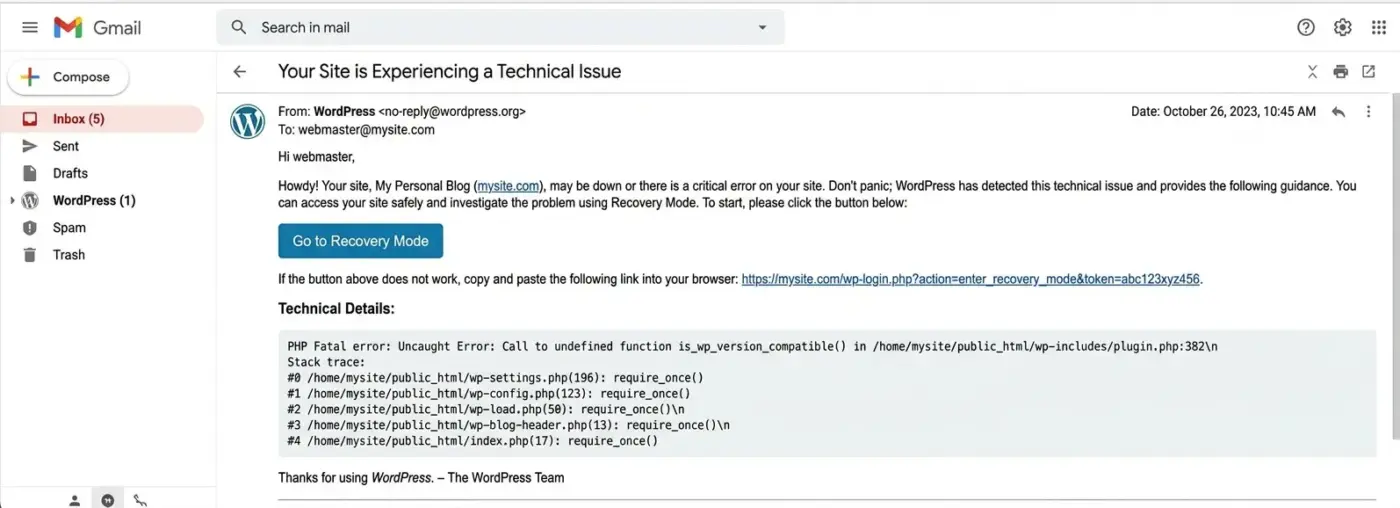
Since WordPress 5.2, a fatal error usually shows “There has been a critical error on your website” instead of a plain white screen. WordPress also emails your admin address a recovery link, so check that inbox first. Clicking the link drops you into recovery mode with the broken plugin or theme flagged for you, no FTP required. If you never received the email or can’t find it, our guide on accessing WordPress admin during a fatal error covers the workaround.
Step 4: Disable Plugins via FTP or File System
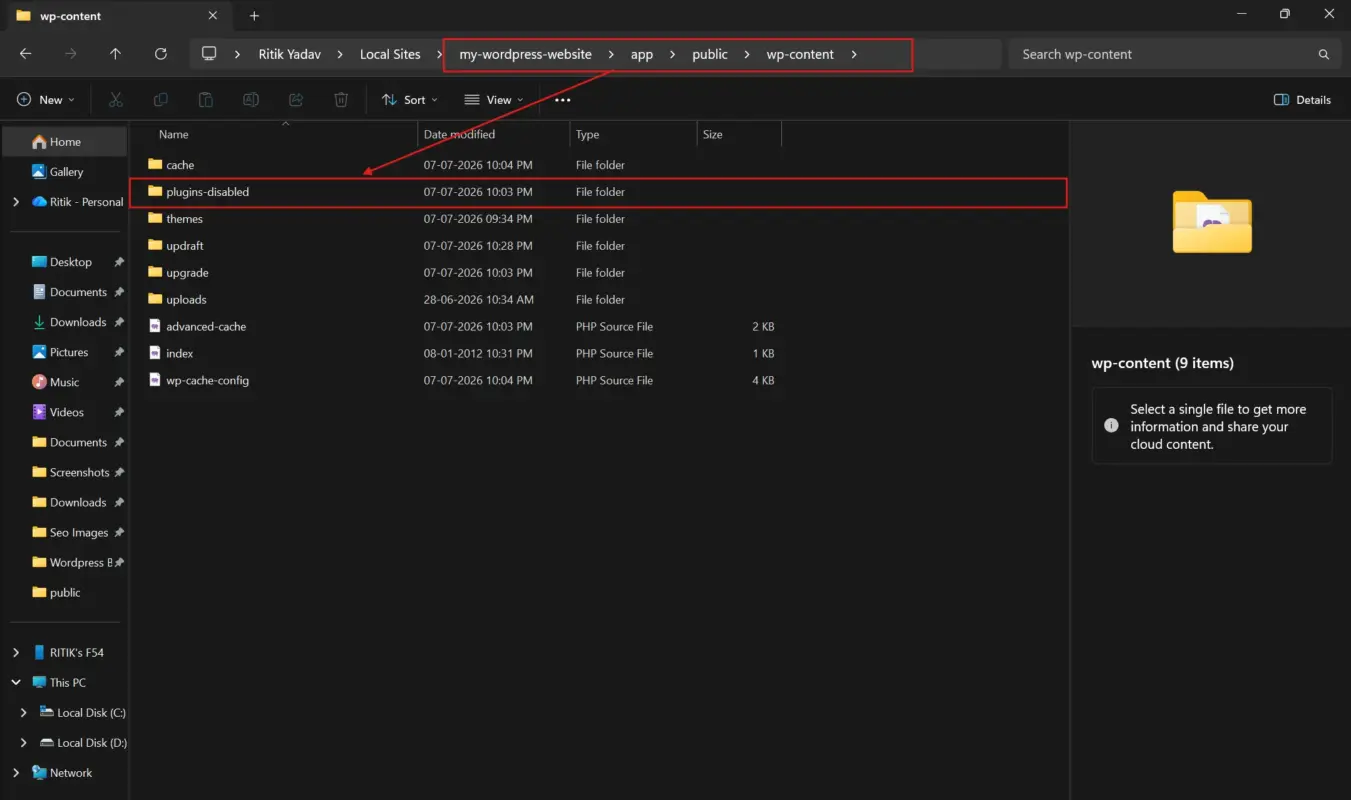
Connect to your site with an FTP client such as FileZilla or the System File Manager. Go to wp-content, then rename the plugins folder to plugins-disabled. Reload your site. If it comes back, rename the folder back to plugins. Then rename each plugin’s individual subfolder one at a time, reloading after each, until the white screen returns. That’s your cause.
This is slower than deactivating everything at once from the dashboard, but if the dashboard is also blank, FTP is your only option. Once you’ve found the broken plugin, our guide on how to check for plugin conflicts in WordPress walks through isolating it faster next time. Sometimes the plugin won’t reactivate without crashing the site again. If that happens, see our post on how to fix a plugin that triggered a fatal error.
If you can reach wp-admin at all, installing the Query Monitor plugin before you start disabling anything is worth the extra two minutes. It shows you exactly which plugin’s PHP file threw the error, which turns a rename-and-reload guessing game into a direct read of the actual stack trace. It won’t help if the admin area itself is blank, but on a partially white screen, it often skips the entire renaming process below.
Step 5: Switch to a Default Theme
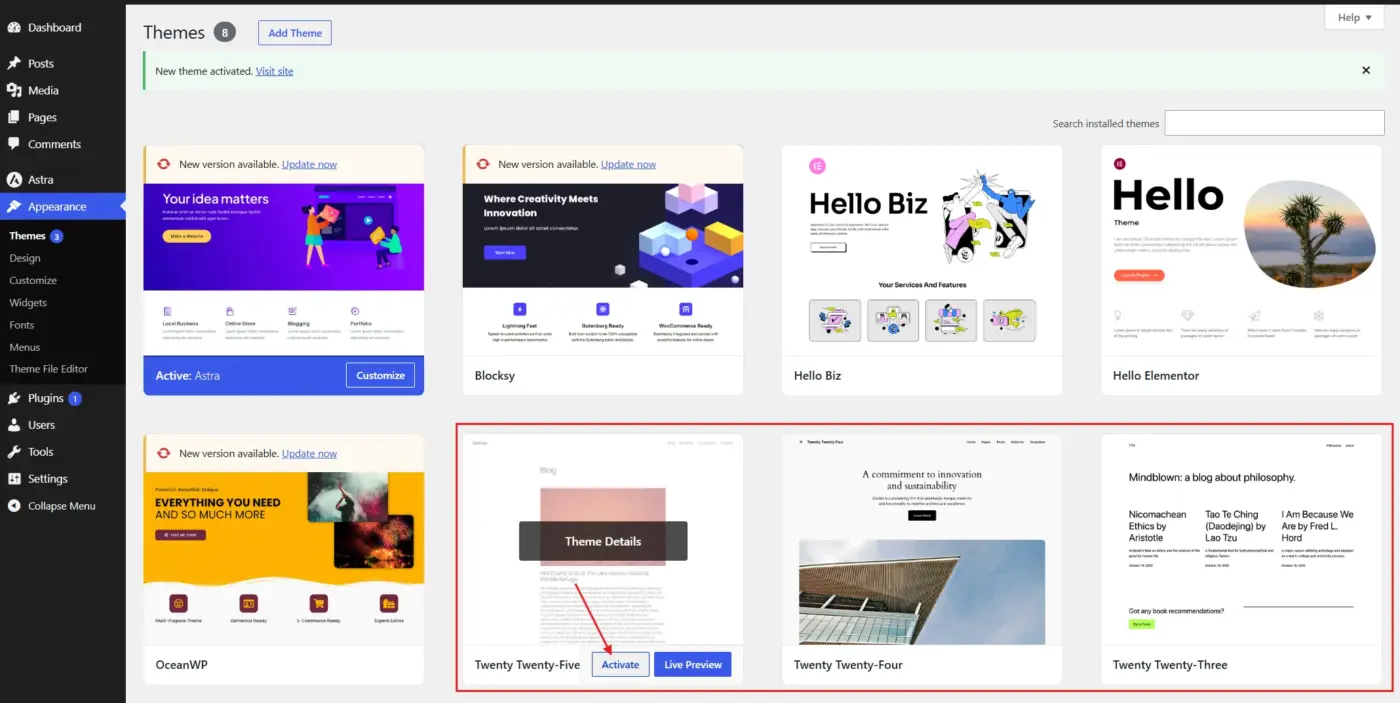
If wp-admin works but the frontend doesn’t, go to Appearance>Themes, and activate Twenty Twenty-Four or another default theme. If you can’t reach the dashboard, rename your active theme’s folder inside wp-content/themes through FTP. WordPress falls back to the last available default theme automatically.
Step 6: Clear Every Cache Layer
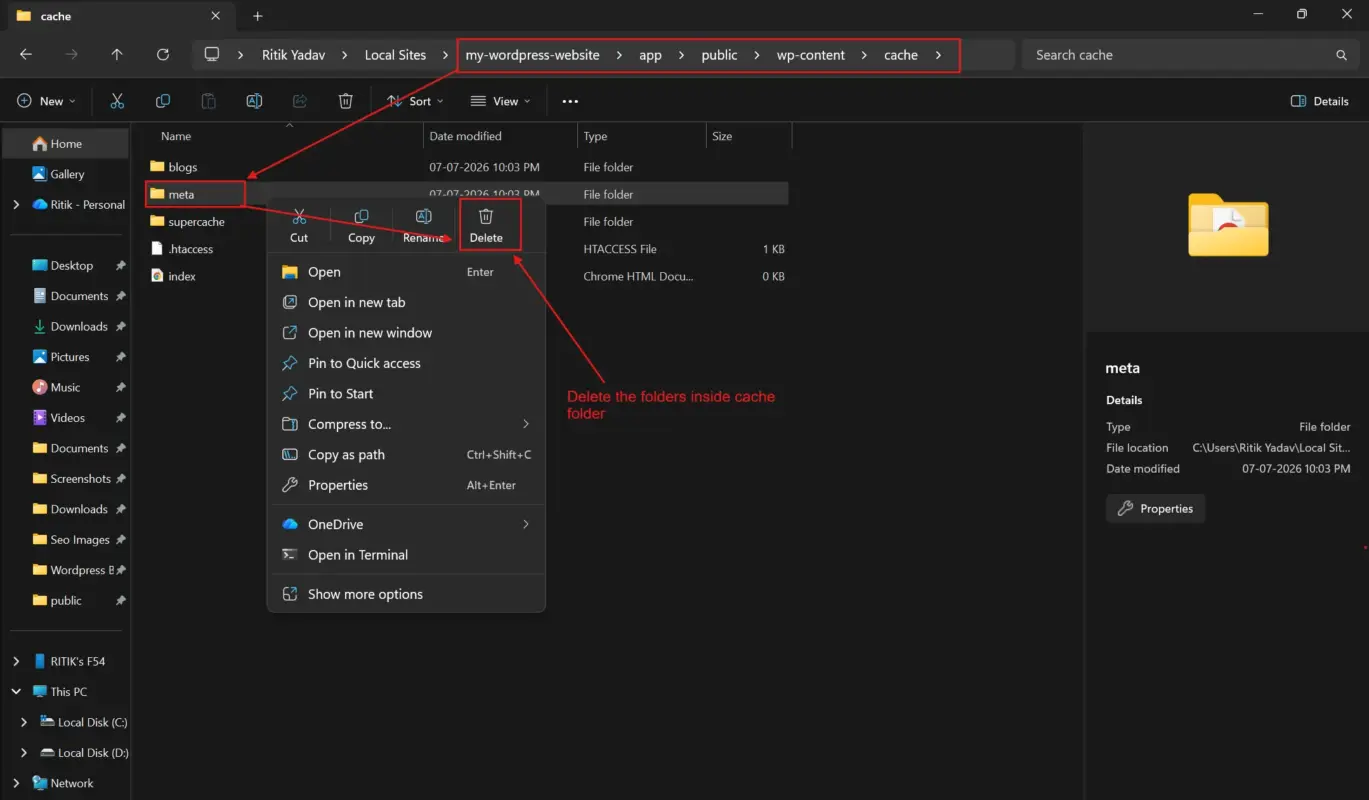
Clear your caching plugin, your host’s server-side cache if it has one, and your browser cache, in that order. An outdated cached page is rarely the real cause. But it’s the fastest step to rule out, so do it before you assume something more serious is wrong.
Step 7: Raise the PHP Memory Limit
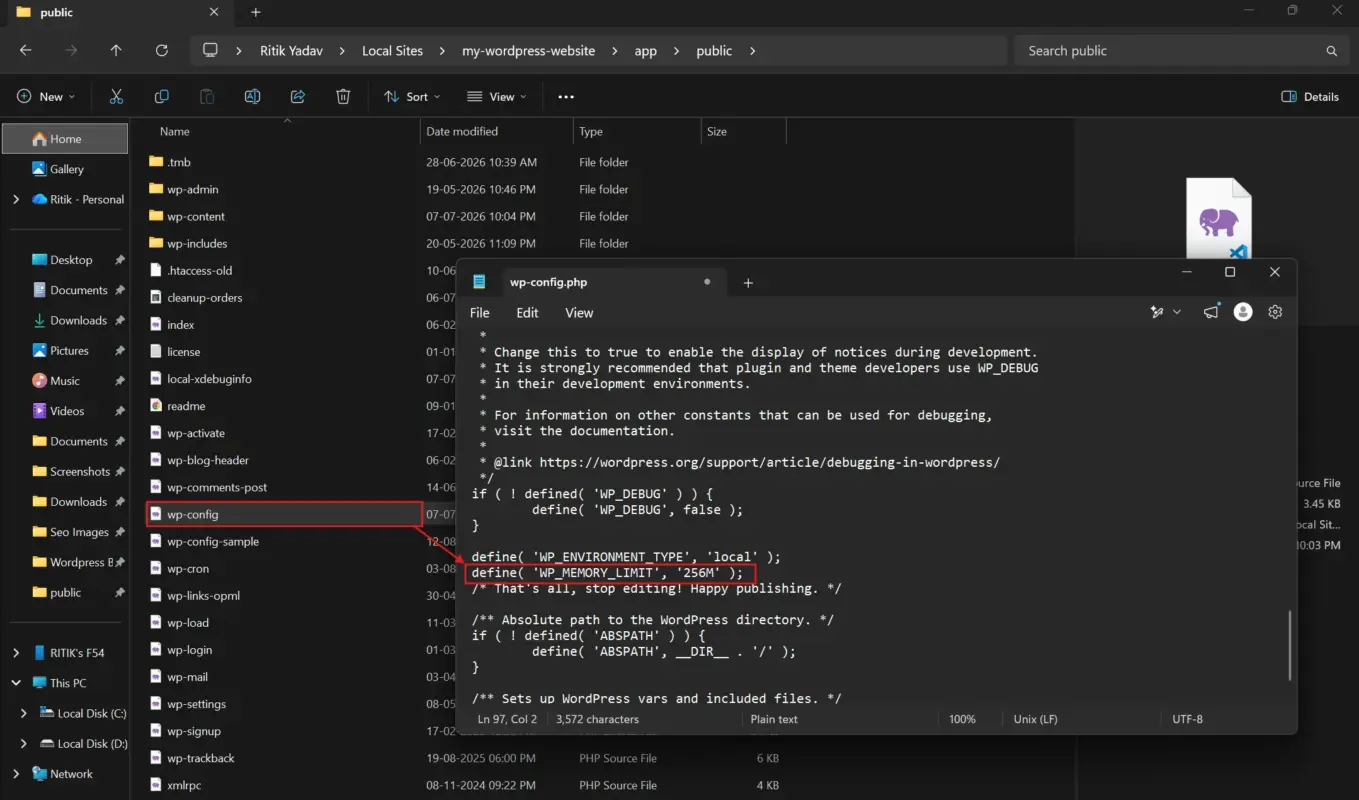
Open wp-config.php and add this line above the “That’s all, stop editing!” comment:
define( 'WP_MEMORY_LIMIT', '256M' );
According to the PHP manual’s core configuration reference, the memory_limit directive sets the maximum memory a script can allocate before PHP kills it. WordPress’s default of 40MB is thin for anything beyond a basic blog. If you’re already at 256M and still hitting this wall, the real fix is server-side. Ask your host to raise the PHP memory_limit directly, since the wp-config.php setting can’t exceed what the server allows.
Step 8: Fix File and Folder Permissions
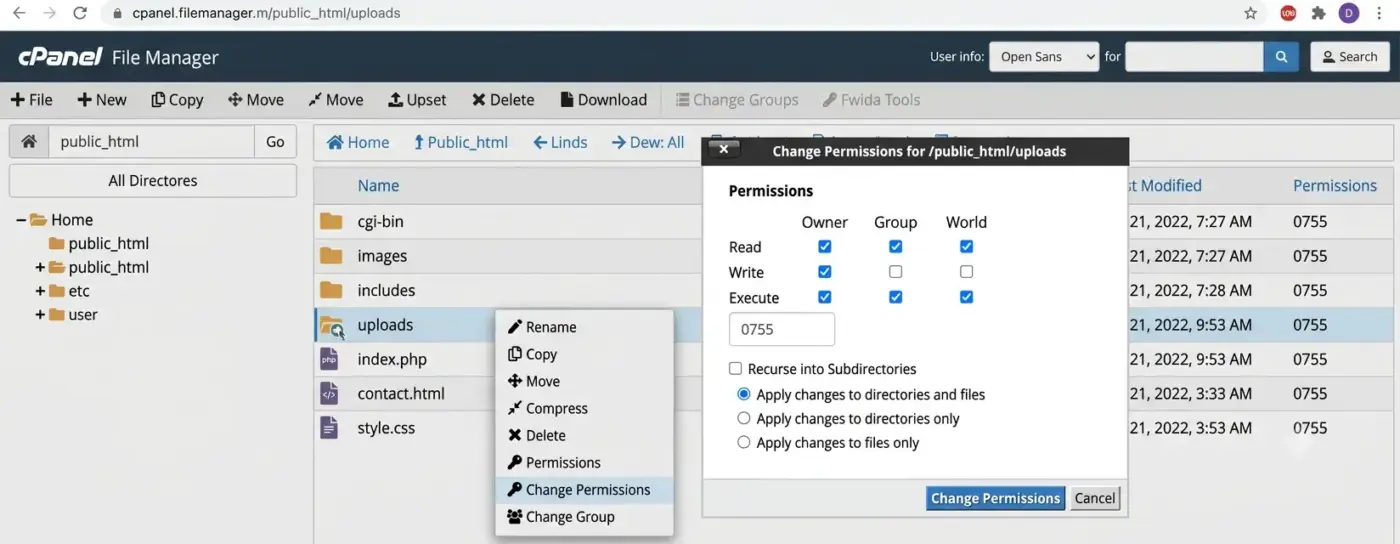
Incorrect permissions after a migration or a backup restore can block WordPress from reading the files it needs. The standard is folders at 755 and files at 644, with wp-config.php locked down further to 440 or 400 since it holds your database credentials. Most FTP clients let you set this in bulk through a right-click menu, recursively applying it to subdirectories.
Step 9: Resolve a Stuck Update or Corrupted .htaccess
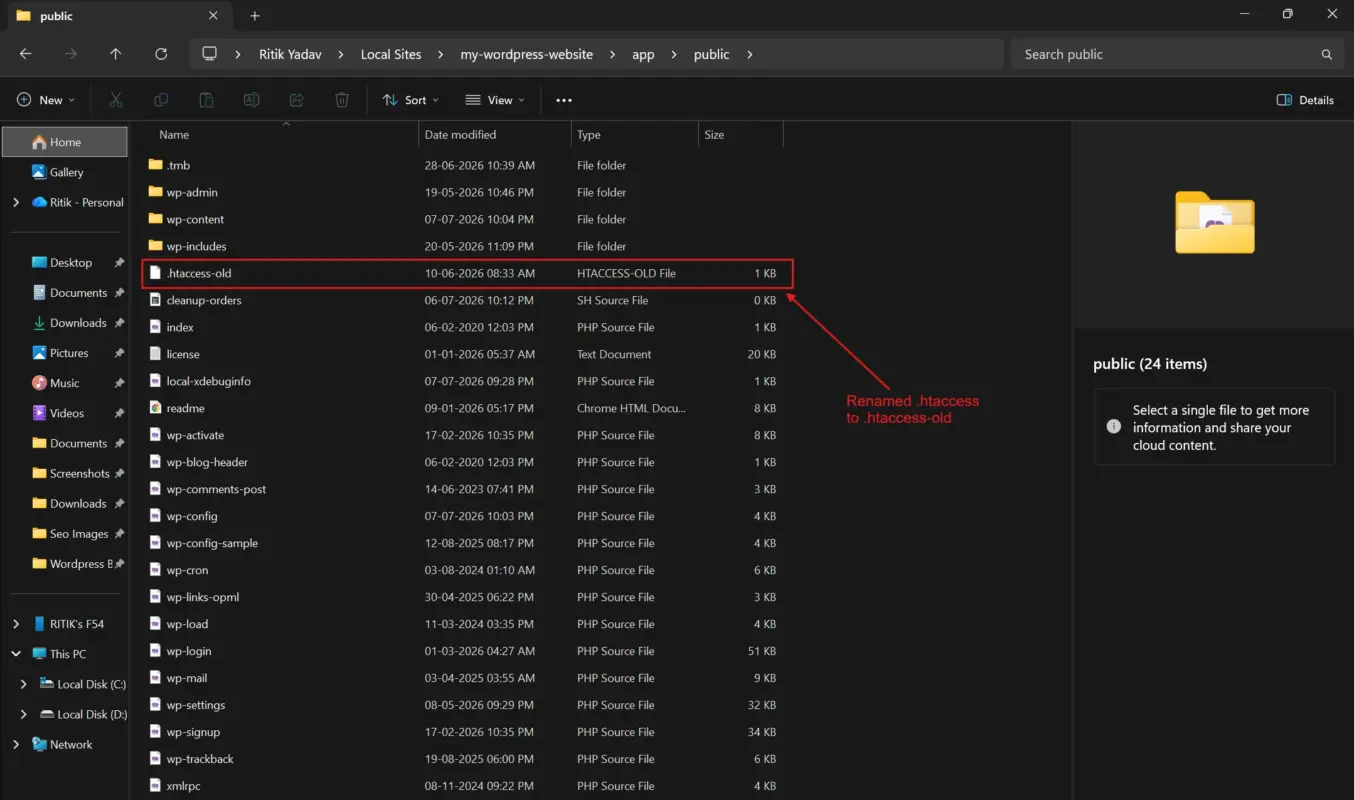
If the white screen started right after an update, check for a .maintenance file in your root directory. Delete it if one is stuck there. Then rename .htaccess to .htaccess-old and reload the site. If that fixes it, go to Settings>Permalinks, and click Save to recreate a clean .htaccess file. The wp-config.php reference on developer.wordpress.org is worth bookmarking here. A bad manual edit to that file is a quietly overlooked cause of a stuck update.
Step 10: Restore From Backup as a Last Resort
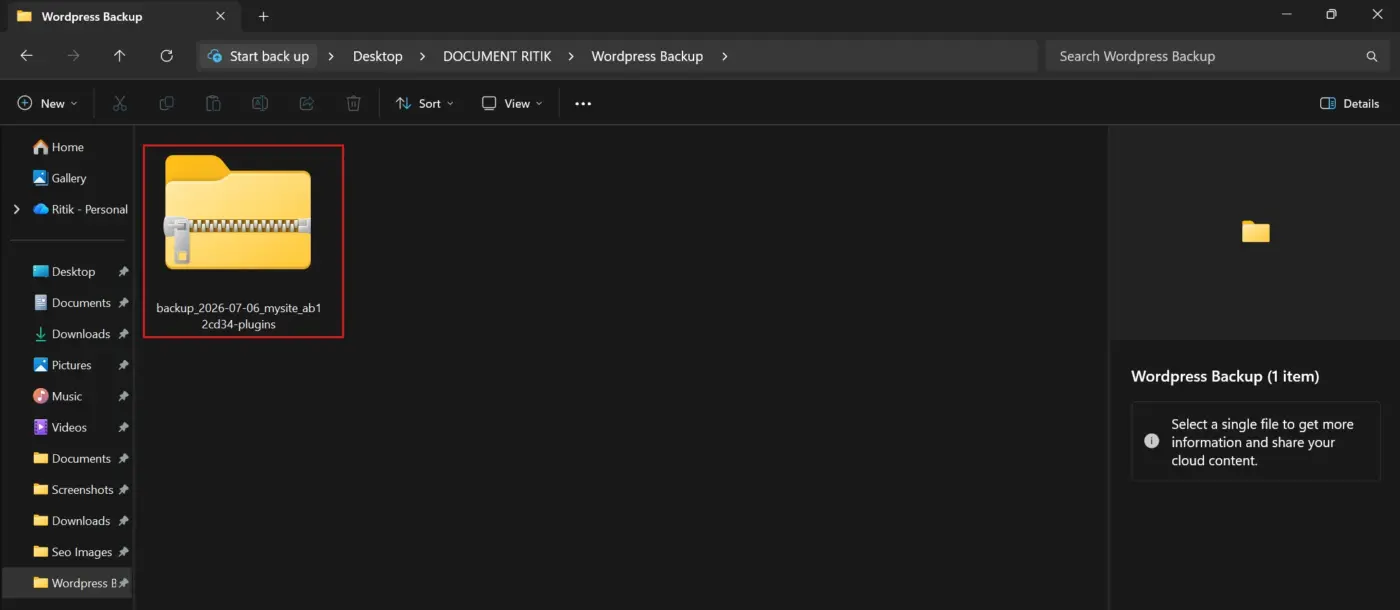
If none of the above worked, restore the backup you made in Step 1, or the most recent backup your host keeps automatically. This won’t tell you what caused the problem, but it gets the site live again while you investigate with less time pressure. If restoring doesn’t fix it either, the issue is likely server-level, and it’s time to contact your host directly.
Bonus Step: Reinstall Core WordPress Files
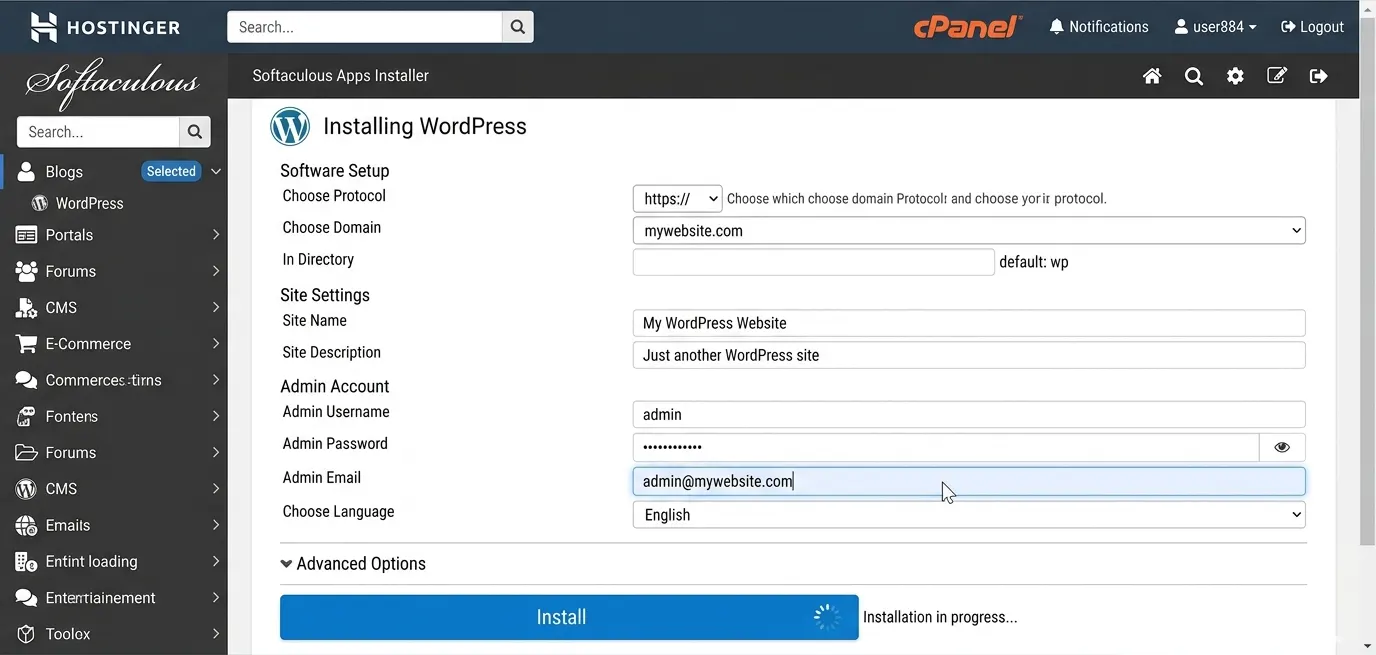
If a restore isn’t available or the same white screen keeps returning even on a restored backup, corrupted core files may be the real cause. Download a fresh copy of WordPress from WordPress.org, then upload the wp-admin and wp-includes folders over your existing ones through FTP. Skip wp-content entirely. That folder holds your themes, plugins, and uploads, and overwriting it would wipe out your actual site. This step replaces every core file WordPress itself relies on to boot, without touching a single thing you or your plugins created.
Quick Diagnosis: Find Your Cause
Before you open a single file, answer one question: can you log into wp-admin? The answer tells you which half of this guide applies to you. It saves you from trying fixes that were never going to work.
| What you see | Likely cause | Solution |
|---|---|---|
| Frontend is blank, wp-admin loads fine | A theme template or a widget is broken | Step 5 |
| Both the frontend and wp-admin are blank | A plugin or PHP memory limit is the usual cause | Step 4 or 7 |
| “Critical error” message with an email mention | WordPress 5.2+ caught it for you | Step 3 |
| Blank screen only right after an update | A stuck update or a corrupted core file | Step 9 |
| Blank screen on one post or page only | A specific plugin shortcode or block is failing | Step 4 |
That last row gets skipped by almost every other guide on this topic. A single broken page doesn’t mean your whole site crashed. It usually means one plugin’s shortcode or block choked on that specific page. The rest of the site can stay live while you isolate it.
WSoD on a WooCommerce Store: What to Check First
The eCommerce stores get hit harder by the white screen of death than a basic blog does. That’s mostly because they run more plugins and more custom code on the checkout path. If your store goes white mid-sale, check your payment gateway plugin and any custom checkout field plugins before anything else. Those are the most memory-hungry, most often updated plugins on a typical WooCommerce build. That makes them the most likely trigger.
Worth knowing: A white screen limited to the checkout or cart page usually means one plugin’s script, not a server-wide problem. This is especially true when the rest of the store still loads fine. That cuts your search down a lot before you touch FTP at all.
How to Prevent White Screen of Death From Happening Again?
You can’t eliminate this risk completely, but you can cut it down a lot. A few habits do most of the work.
Update one plugin at a time instead of updating everything in a batch, so a conflict is obvious the moment it happens. Turn off automatic background updates for anything beyond minor WordPress core releases, and update on your own schedule instead. Our guide on how to disable automatic updates in WordPress covers the setting. Keep a staging copy of your site for testing plugin and theme changes before they touch production. Set your PHP memory limit above the WordPress default from the start instead of waiting for a crash to force the issue.
Test major PHP version upgrades on staging before your host applies them to your live site. Most hosts will schedule this for you if you ask, and it catches theme and plugin incompatibilities before they take your site down. It’s also worth keeping Query Monitor installed permanently on a staging environment, so the moment something breaks during testing, you already know which plugin caused it instead of starting the search from zero.
Honestly, most of the WSoD cases that land on a developer’s desk trace back to one of these habits being skipped. It’s rarely some unusual server bug. The fix is rarely impressive. It’s just consistency.
Conclusion
WordPress white screen of death looks alarming, but it’s one of the most fixable errors in WordPress once you know the order to work through. Start with the quick diagnosis table, then use recovery mode if you’re on WordPress 5.2 or later.
Isolate plugins and themes through FTP if the dashboard won’t load. Most sites are back online within half an hour. If you’ve worked through all ten steps and the white screen is still there, the problem has likely moved past a DIY fix. That’s when it’s worth looping in your host or a WordPress developer directly.
Frequently Asked Questions (FAQs)
Q1. Does clearing my browser cache fix the white screen of death?
Rarely as the root cause, but it’s worth ruling out first since it takes seconds. If clearing your cache and reloading in a private browser window doesn’t change anything, move on to checking plugins and themes.
Q2. Can the white screen of death affect just one page instead of the whole site?
Yes. If only a single post or page goes blank while the rest of the site works, the cause is usually one plugin’s shortcode or block. It’s not a site-wide PHP error.
Q3. Will I lose my content if I get a white screen of death?
No. WSoD is a display and execution error, not data loss. Your posts, pages, and database remain intact while you troubleshoot, and a backup restore only becomes necessary if you can’t isolate the actual cause.
Q4. How do I know if it’s a plugin or my hosting server causing the white screen?
Check if other sites on the same server or hosting account are also affected. If only your site is down, it’s almost always a plugin, theme, or file issue on your end instead of a server-wide outage.
Q5. Is the white screen of death the same as the “critical error” message?
They’re the same core problem. WordPress 5.2 introduced fatal error protection, so instead of a blank page, you now see “There has been a critical error on your website.” A recovery email arrives too, which makes the fix easier to find.
Q6. Do I need coding knowledge to fix the WordPress white screen of death?
Not for most cases. Renaming folders through FTP, adjusting a line in wp-config.php, and using recovery mode all involve following exact steps instead of writing code. If you reach the point of editing PHP files directly, that’s when hiring a developer starts to make sense.