
The “plugin could not be activated because it triggered a fatal error” message means a plugin’s code caused a PHP fatal error. WordPress stopped the plugin before that error could crash your site. The block protects you, and the fault sits in the plugin or its environment.
We checked every step here in October 2026 against the WordPress debugging docs and PHP’s list of supported versions. The usual causes are plugin conflicts and a PHP version the plugin does not support.
If the error started right after a WooCommerce update, you can downgrade the WooCommerce plugin while you wait for a fix.
Many guides tell you to start disabling plugins right away. That is only half the job. Read the error message first, because it usually names the file and line at fault.
This guide explains what triggers the error, how to read it with WP_DEBUG and how to fix it step by step. It also covers what to do when you are locked out of the dashboard.
What Does “Plugin Could Not Be Activated Because It Triggered a Fatal Error” Mean?
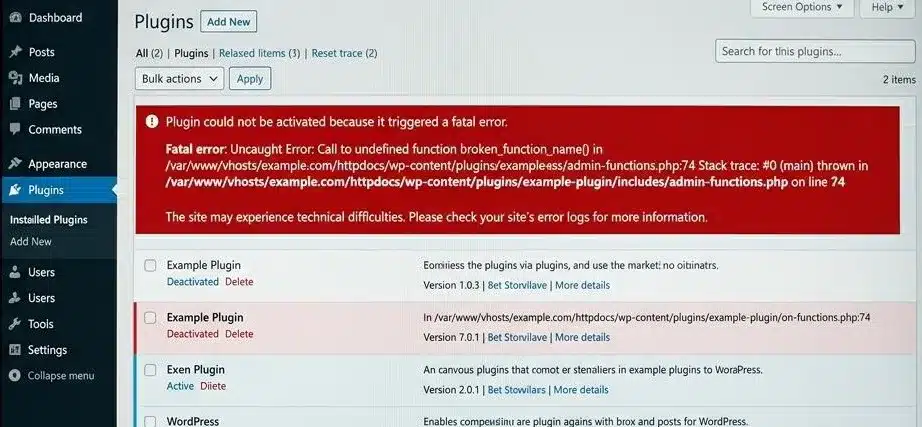
This error is a built-in safety precaution in WordPress. When you click to activate a plugin, it runs the plugin code. If that code generates a fatal PHP error, WordPress will stop the activation immediately and roll it back. The site will stay active. The plugin will remain deactivated.
When the error appears in your dashboard, the headline message is just one part of the error notice. Look closer. The notice will typically contain a file path, a line number, and some explanatory text about what has happened. This information tells you exactly where the issue exists. Most people ignore the message and start guessing. Don’t. The detail is your quickest way to fix the error.
A PHP fatal error means the script is so broken that it cannot keep running. Warnings and notices let a script continue. Fatal errors stop it on the spot.
Common examples include calling a function that does not exist or a class another plugin failed to load. Another is PHP syntax that your server’s PHP version does not support.
Common Causes of the WordPress Plugin Activation Error
Knowing the cause tells you which fix to try first. An activation error does not always mean the plugin is broken. The context around it matters.
- Conflict between installed plugins: Two plugins can declare a function or class with the same name. PHP then stops with a “Cannot redeclare” fatal error. Missing dependencies cause the same error when Plugin A needs Plugin B active first and it is not.
- PHP version incompatibility: A plugin built for PHP 8.1 or later fails on a server still running PHP 7.4. Older plugins can also break on newer PHP versions when they use removed syntax or functions. As of October 2026, WordPress recommends PHP 8.3 or greater.
- Memory Limit Set Too Low: WordPress and PHP each set a memory limit. A plugin that needs more memory than the limit allows fails with an “Allowed memory size exhausted” fatal error. Raising the limit in step 4 below fixes it.
- Corrupted or Incomplete Installation of a Plugin: If a downloaded plugin was interrupted while downloading or if the zip file was not fully extracted, it will include missing or corrupted files. When PHP tries to load a file that does not exist or has partial code, it will generate a fatal error.
- File Permission Problems: PHP must be able to read a plugin’s files to run it. Wrong permissions on the plugin folder or its files block that access. This shows up mostly on VPS and dedicated servers set up by hand.
- Theme Conflict: A function in your theme can share a name with a function in the plugin. PHP then stops with a fatal error. Switching to a default theme for a moment tells you quickly whether this is the cause.
Read the Error Before You Fix It (Enable WP_DEBUG)
Many guides skip straight to fixes without showing you where the error came from. Reading the real error first makes troubleshooting much faster.
WordPress has a built-in debug mode called WP_DEBUG. With logging turned on, it writes PHP errors to a debug.log file in your wp-content folder.
How to Enable WP_DEBUG
You’ll need FTP access or access to your hosting file manager. Open the wp-config.php file in the root of your WordPress installation.
Find this line:
define( 'WP_DEBUG', false );
Replace it with these three lines:
define( 'WP_DEBUG', true );
define( 'WP_DEBUG_LOG', true );
define( 'WP_DEBUG_DISPLAY', false );
Setting WP_DEBUG_DISPLAY to false keeps errors out of the front end. Setting WP_DEBUG_LOG to true writes them to the log file instead. Save and re-upload the file.
Now try to activate the plugin again. Open wp-content/debug.log next and look for the newest entries. Each entry names the error, the file it came from and the line number.
Obtaining this information allows you to assess whether you have a plugin conflict, a missing function, a PHP version conflict, or something else entirely. See WordPress’s official debugging documentation for a complete breakdown of debug constants and what each constant does.
Note: Don’t forget to go back and turn off WP_DEBUG when you are finished.
How to Fix the Plugin Fatal Error (Step by Step)
Start by doing the short and simple checks.
1. Upgrade to the current version of WordPress
Plugins are built and tested against recent WordPress versions. An outdated WordPress core can lack functions that a plugin calls, and activation then fails.
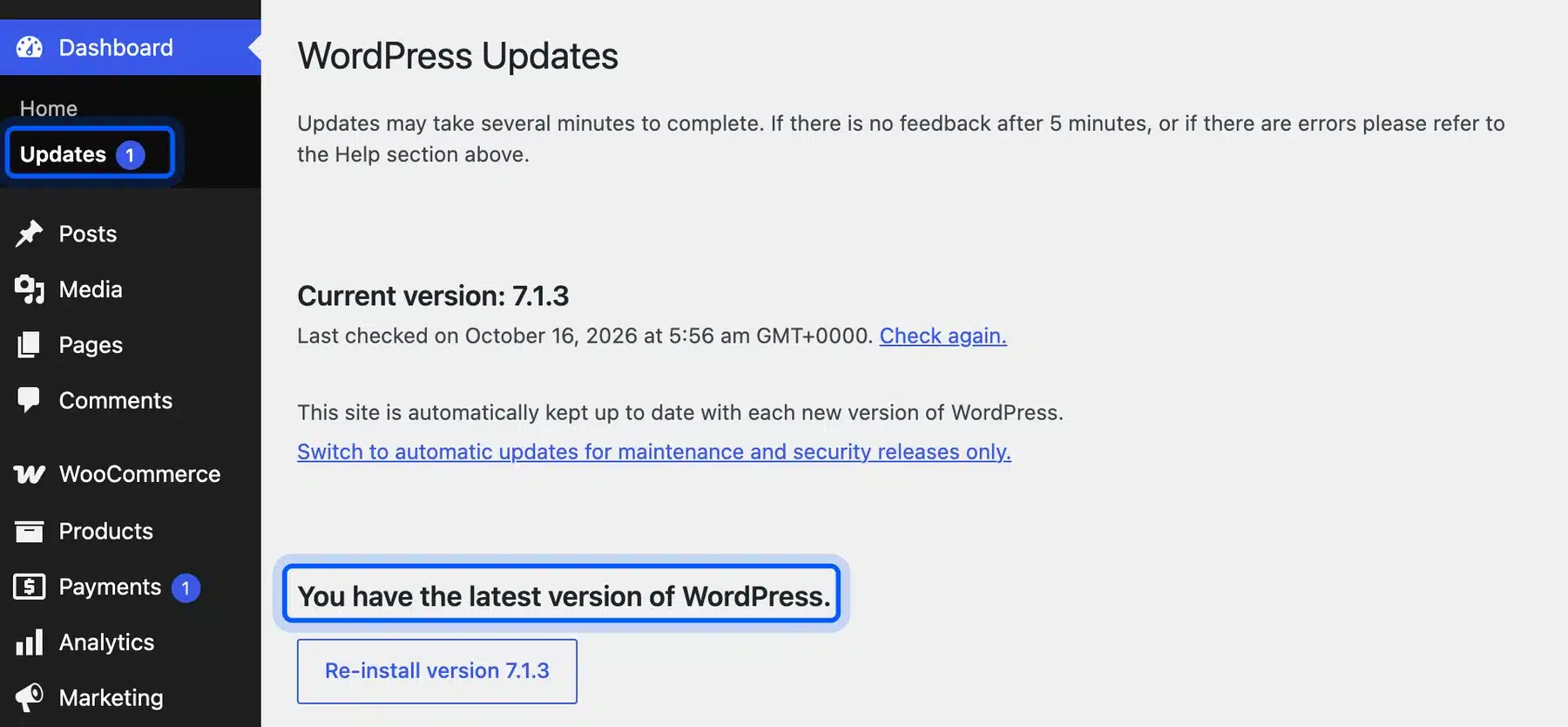
Go to Dashboard > Updates and install any available WordPress update. Then try activating the plugin again.
2. Turn Off Plugins That Are Interfering with Each Other
If your error logs have something similar to “Cannot redeclare function X” or “Class Y already defined,” you may have two plugins that have conflicting functions. The purpose of the following steps is to discover which plugin is interfering with the other.
Go to Plugins > Installed Plugins and select every plugin except the one you want to activate. Choose Deactivate from the Bulk actions menu and click Apply. Then try activating your plugin again.
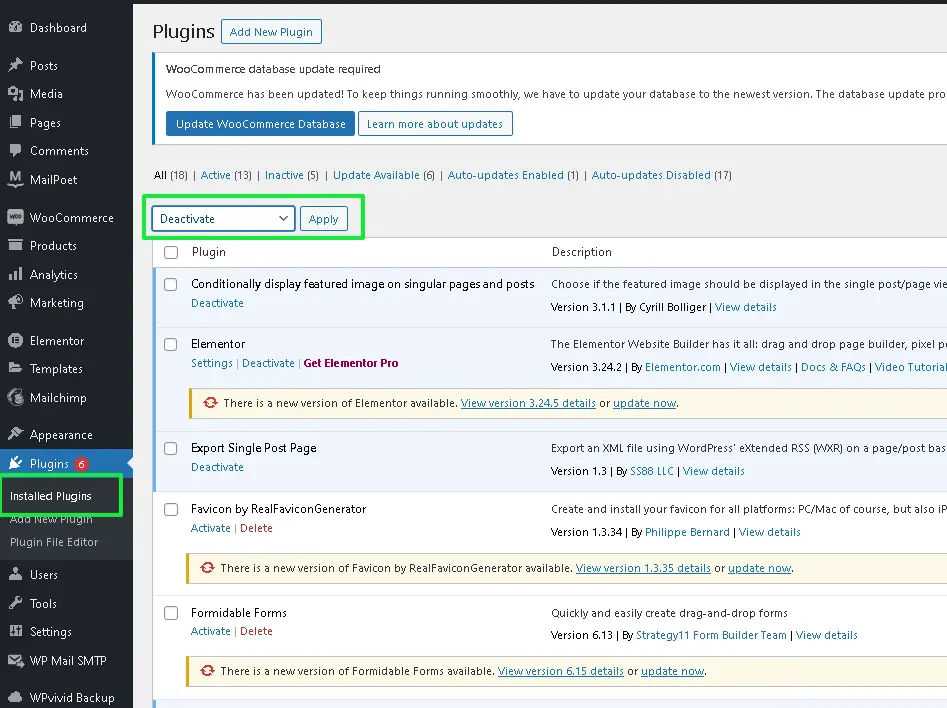
If the plugin activates, you have a conflict. You can then activate one plugin at a time and test each time you activate to see which one causes the problems.
If you cannot access your dashboard, you can skip to the “Fix Without wp-admin Access” section below.
3. Switch to a Default Theme Temporarily
To rule out your theme, switch to a default WordPress theme. Go to Appearance > Themes and activate Twenty Twenty-Five or another default theme. Then try activating the plugin again.
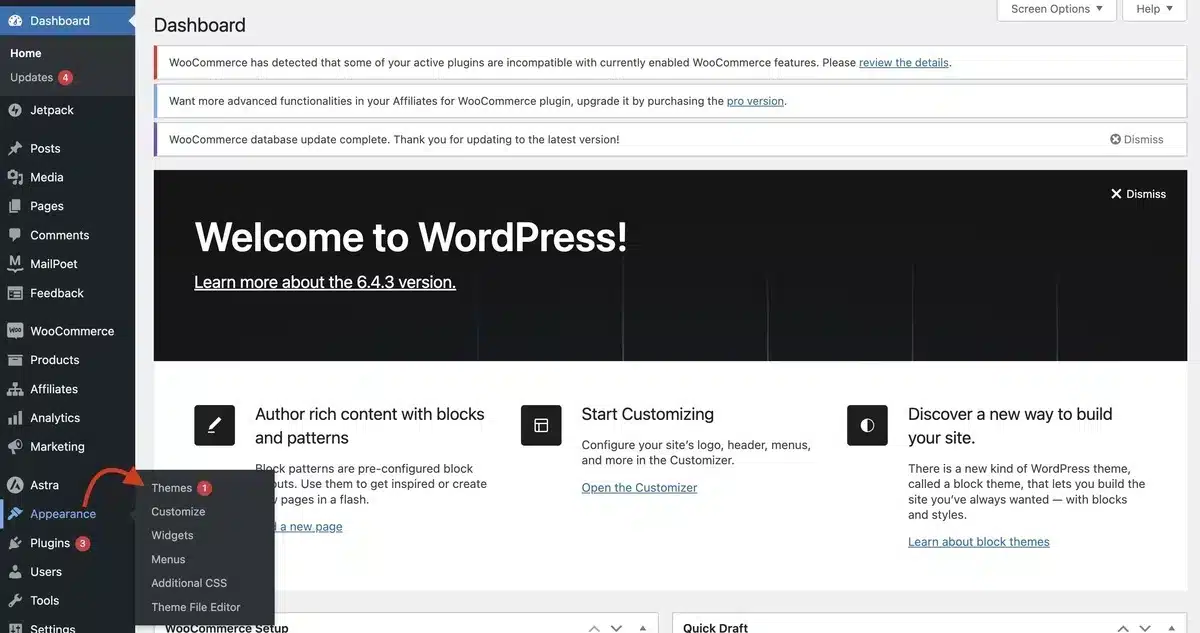
If the error is gone, your active theme is part of the conflict. Check its functions.php file for a function or class name that the plugin also uses. Theme conflicts are less common, but the test takes about a minute.
4. Increase the PHP Memory Limit
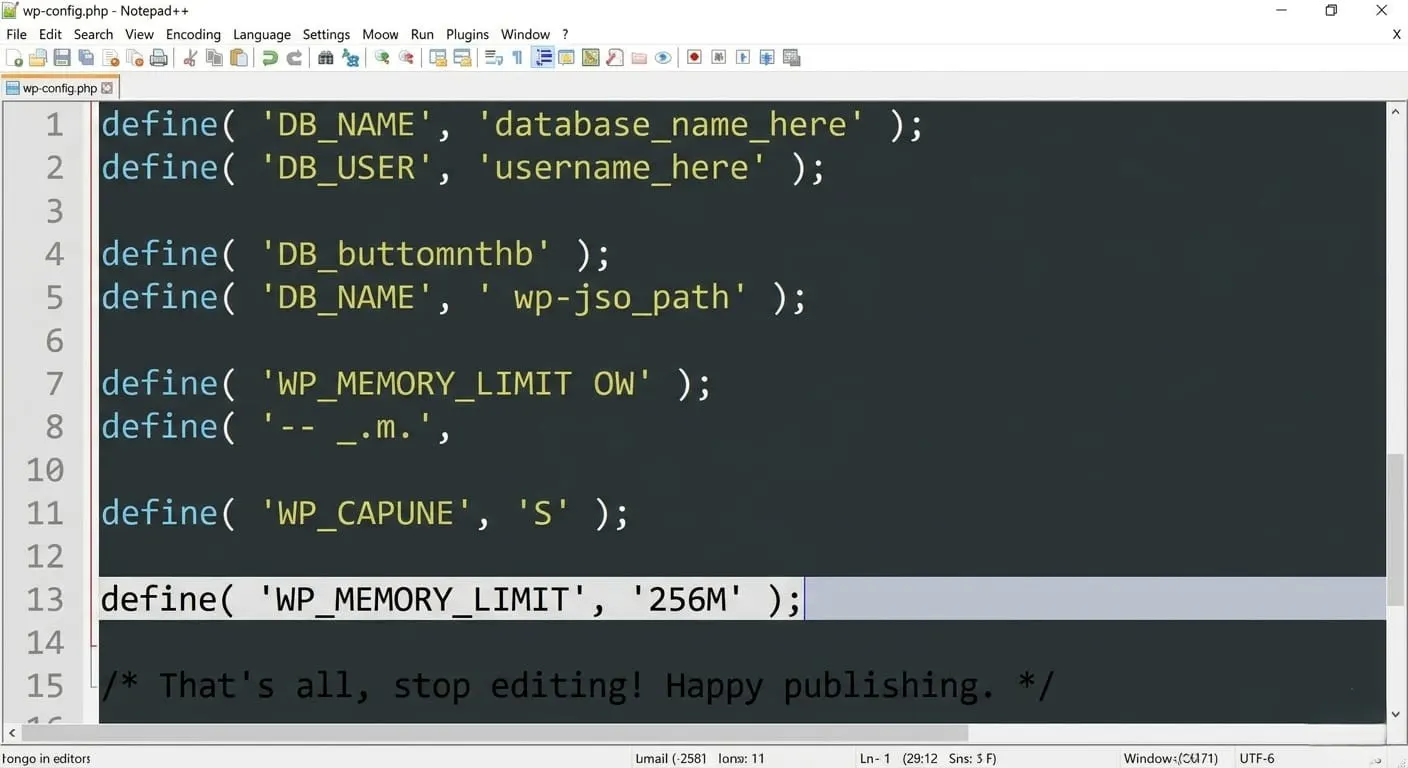
If your error log states “Allowed Memory Size of X bytes exhausted,” the problem is your PHP memory limit. The simplest way to raise it is in wp-config.php.
Open your wp-config.php file and find the comment near the bottom that starts like this:
/* That's all, stop editing!
Add this line directly above it:
define( 'WP_MEMORY_LIMIT', '256M' );
Save and upload the file. Try activating the plugin again. If your hosting plan caps memory, ask your host to raise the PHP memory limit on their side.
5. Check and Update Your PHP Version
Log in to your hosting control panel to see your PHP version. Most panels show it under a section named PHP or Software. Compare it with the Requires PHP value on each plugin’s WordPress.org page.
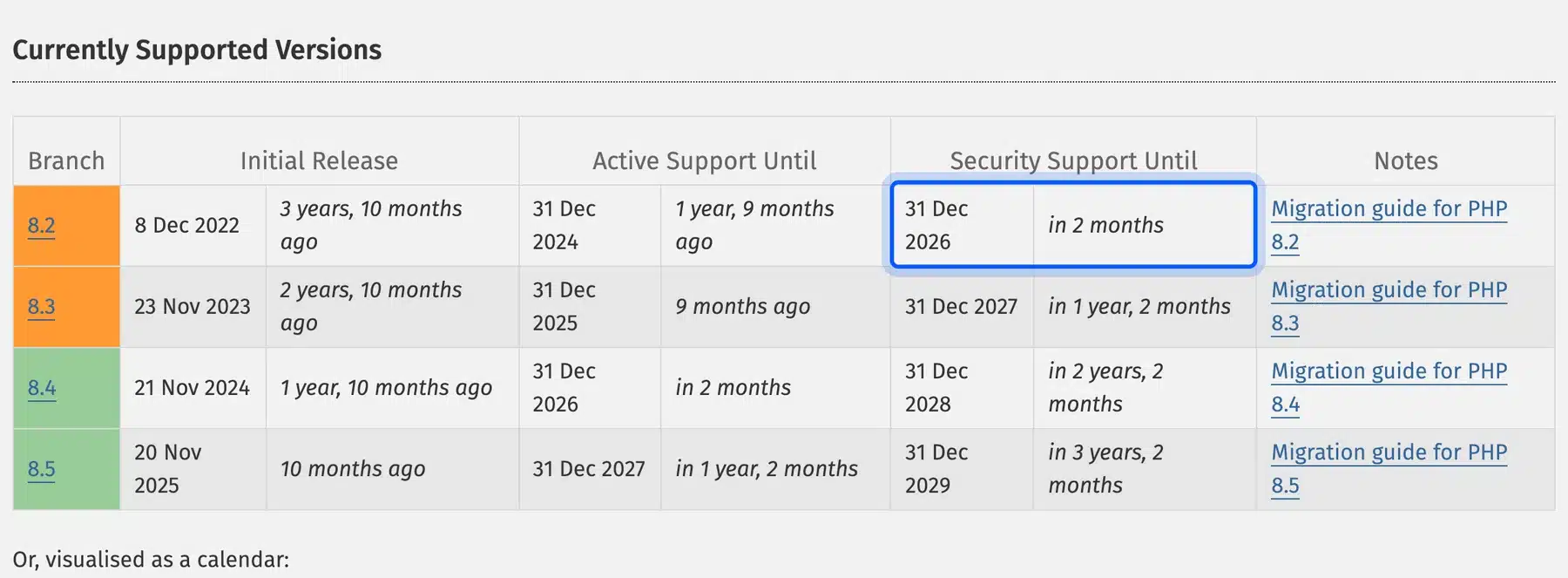
PHP’s supported versions page shows which branches still get security updates. As of October 2026 those are PHP 8.2 to 8.5, and PHP 8.2 loses security support on 31 December 2026. Most hosts let you switch PHP versions from a dropdown in the control panel. Test the change on a staging site first. A free way to do that is a local copy of the site made with Local WP.
6. Check Your File Permissions
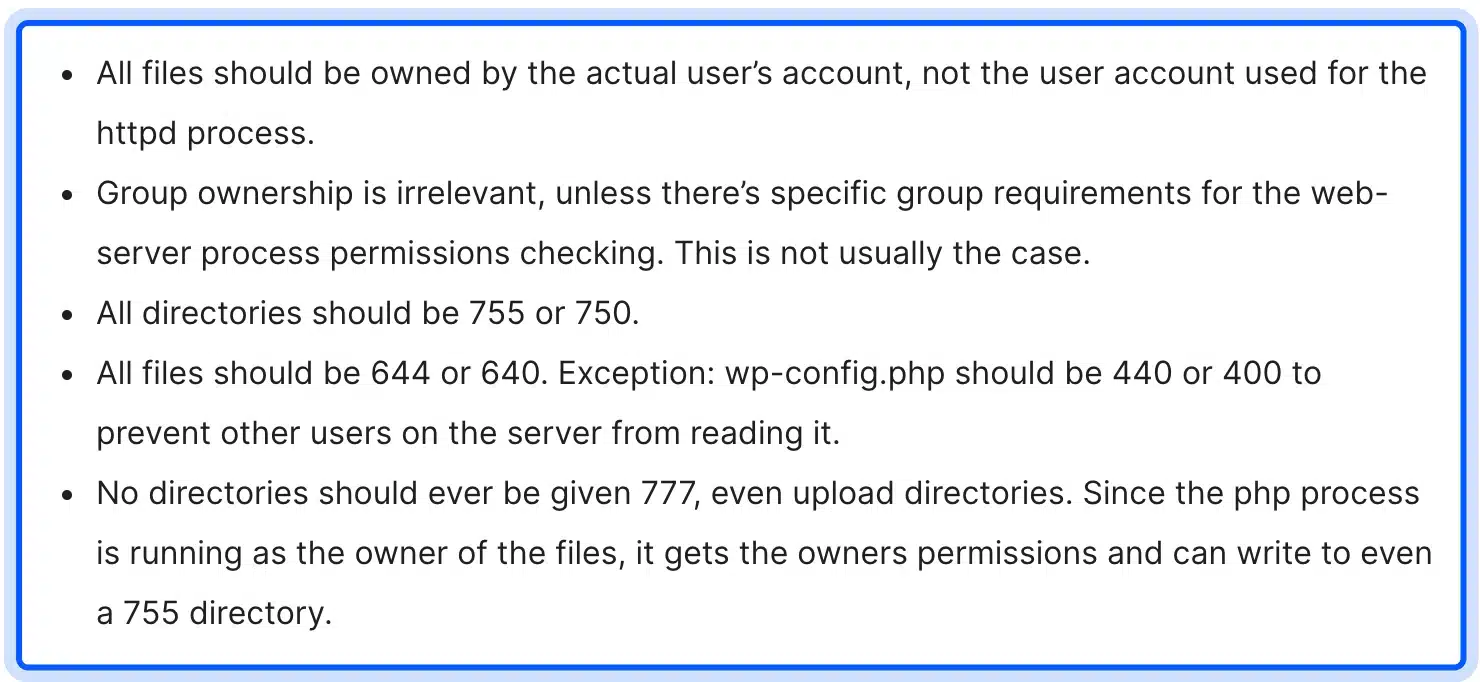
If your error messages state “failed to open stream: Permission denied,” the issue is likely with file permissions. Typically, file permissions for WordPress plugins will be 644 (for individual files) and 755 (for plugin directories).
You can check and change permissions in your FTP program. Connect to the server and open wp-content/plugins/. Right-click the folder of the failing plugin and choose File Permissions or CHMOD.
Set every directory to 755 and every file to 644. Use the option that applies them recursively to update everything at once.
7. Re-download and Manually Reinstall the Plugin

It is likely that your plugin has been corrupted if your error log indicates either a missing file or a parse error. Delete the plugin folder using FTP and then download a fresh copy from the official plugin source.
To manually reinstall the plugin, go to Plugins > Add Plugin > Upload Plugin, select the newly downloaded zip file and click Install Now. After installing, try to activate it.
For a plugin bought on CodeCanyon, upload the zip inside the download as shown in how to install or update CodeCanyon plugins.
Download WordPress.org plugins only from wordpress.org/plugins. Copies on third-party sites can be outdated or carry malware.
How to Fix This Without Access to Your wp-admin
Sometimes the fatal error locks you out of the dashboard as well. You can still fix it through FTP or your host’s file manager. WordPress may also email the site admin a recovery mode link that opens the dashboard with the faulty plugin paused.
Our guide on how to access WordPress admin with a fatal error warning explains that recovery link and the email it comes in. The three options below work even when no email arrives.
- The first option is to rename the plugins folder. Connect through FTP, open
wp-contentand renamepluginstoplugins_old. WordPress cannot load any plugins now. Log in, rename the folder back topluginsand activate your plugins one at a time. - The second option is to rename the specific plugin by navigating to
wp-content/plugins/and renaming the folder of the specific plugin that is causing the error. WordPress will then automatically deactivate that plugin. You may now log in to your account and troubleshoot from within your dashboard. - In the third method to troubleshoot, re-enable debugging on your WordPress site (WP_DEBUG) through FTP by directly editing
wp-config.phpas instructed in the WP_DEBUG documentation. The log file will be stored inwp-content/debug.log, regardless of whether you can log in or not.
How to Prevent the WordPress Plugin Fatal Error in the Future
Fixing the error once is the first step. Most of these errors can be avoided with a few habits.
- Test Plugins on a Staging Site: A staging site is a private copy of your store where you can install and activate plugins without risk. Many hosts offer one-click staging.
- Only Install Plugins from Trusted Sources: Plugins in the WordPress.org directory pass a review for security, compatibility and guideline compliance before approval. Download premium plugins only from the developer’s own site. Copies from third-party sites are often outdated and can carry malware.
- Keep WordPress Core, PHP and Plugins Up to Date: Running a supported PHP version with the current WordPress core avoids most compatibility problems. If your site also needs to be faster, our WordPress speed optimization services can help.
- Back Up Your Site Before You Install a Plugin: A backup plugin is the quickest way to save your entire site. If anything breaks after the install, restore the copy from before it. A reliable backup is also part of how you keep your WordPress site secure.
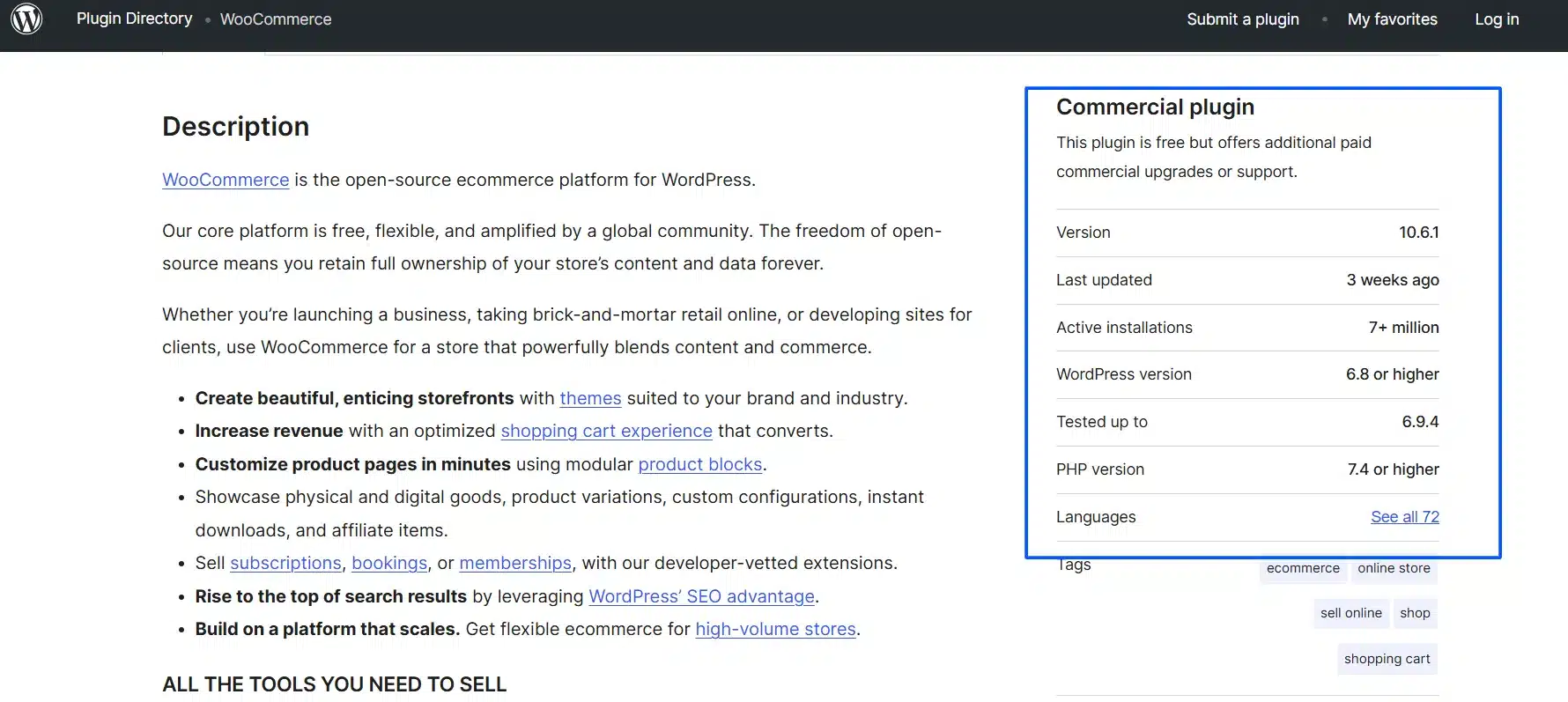
- Read the plugin’s requirements before installing: Every plugin on WordPress.org lists its required PHP version, required WordPress version, and tested-up-to version. Two minutes of checking those details before installation will save you a lot of time.
Conclusion
This error means a plugin’s PHP code failed while WordPress tried to activate it. Read the error with WP_DEBUG before you start ruling out causes. Most cases come down to plugin conflicts, an unsupported PHP version or a low memory limit. You can fix all three without a developer.
If this error keeps coming back across several plugins on your WooCommerce store, look at the server. An old PHP version, a low memory limit or a plugin stack that has not been audited is the likely cause.
Our WooCommerce development services cover this kind of server and plugin audit. Reach out if you want us to check what is happening on your server.
Frequently Asked Questions (FAQs)
Q1. What is the reason that “the plugin could not be activated due to a fatal error” occurs?
The most common causes for this error are: plugin conflicts, incompatible PHP versions, low memory limits, or corrupted plugin files.
Q2. Where can I find out what the exact error was that caused the failure of activating a plugin?
Turn on WP_DEBUG and WP_DEBUG_LOG in your wp-config.php file. WordPress then writes the error messages to a debug.log file inside your wp-content folder.
Q3. I cannot access the WordPress dashboard to fix the error; is there another way I can do this?
Yes, you can do this by renaming the plugin folder via FTP or through your host’s file manager, or you can disable all of your plugins to be able to access your site again.
Q4. Will updating the PHP version help fix the problems I am experiencing with activating plugins?
Yes, updating to a version of PHP that is compatible with your version of WordPress will usually fix issues that occur because of outdated or unsupported code.
Q5. How do I avoid getting plugin activation errors in the future?
Make sure to keep your version of WordPress, your plugins, and your version of PHP up to date. Always use plugins that you know are safe and try testing them out on a staging server before you install them on your production server.