The best WordPress caching plugins dramatically cut your site’s load time by serving pre-built HTML pages instead of making your server rebuild them from scratch on every visit.
According to DebugHawk’s Q4 2025 WordPress Performance Report, which analysed 5.7 million real pageviews, cached pages delivered a median TTFB of 106ms compared to 723ms for uncached pages on the same sites. That’s a 7x difference from one change.
Having worked across hundreds of WordPress and WooCommerce builds, we’ve seen this play out consistently: caching is the single highest-impact performance fix available to most sites. But here’s what most guides won’t tell you: installing the wrong plugin for your server type can leave most of that gain on the table.
In this post, we cover the 10 best options available in 2026, how to pick the right one for your setup, and exactly what to get right on WooCommerce stores.
What WordPress Caching Actually Does?
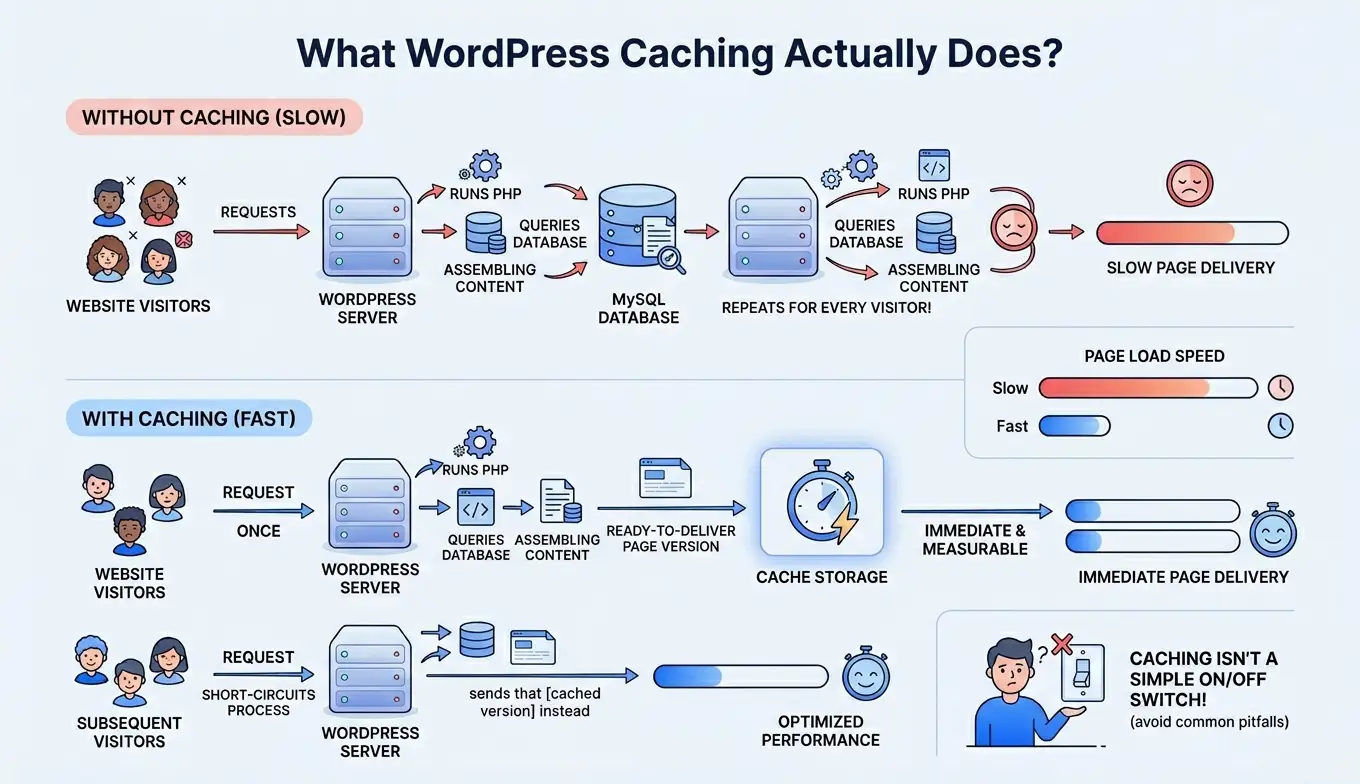
WordPress is a dynamic CMS. Every time someone visits your site, it runs PHP, queries your MySQL database, assembles content, and delivers a page. On a busy site or a slow server, that process takes time. Often, a lot of time.
Caching short-circuits that process. Instead of rebuilding the page on every request, the server stores a ready-to-deliver version and sends that instead. The performance difference is immediate and measurable.
But the problems start when people treat caching as a simple on/off switch. It’s not.
The Four Types of Caching You Should Know About
- Page caching: It generates static HTML versions of your pages so the server skips PHP and database queries entirely for repeat visitors. Every plugin in this list does this. It’s the most impactful type for most sites.
- Object caching: It stores the results of database queries in memory (usually via Redis or Memcached) so WordPress doesn’t repeat expensive lookups on every request. This matters most on WooCommerce stores, membership sites, and any site with logged-in users, where full-page caching can’t help as much.
- Browser caching: It instructs visitors’ browsers to store static files (CSS, JavaScript, images) locally so they don’t re-download them on every page visit. This improves repeat-visit performance rather than first-load speed.
- Opcode caching: It stores compiled PHP code in memory so the server doesn’t have to recompile scripts on every request. Most managed hosts handle this automatically via OPcache. It’s not something a plugin controls, but it’s part of the full picture.
What Happens When Caching Is Misconfigured?
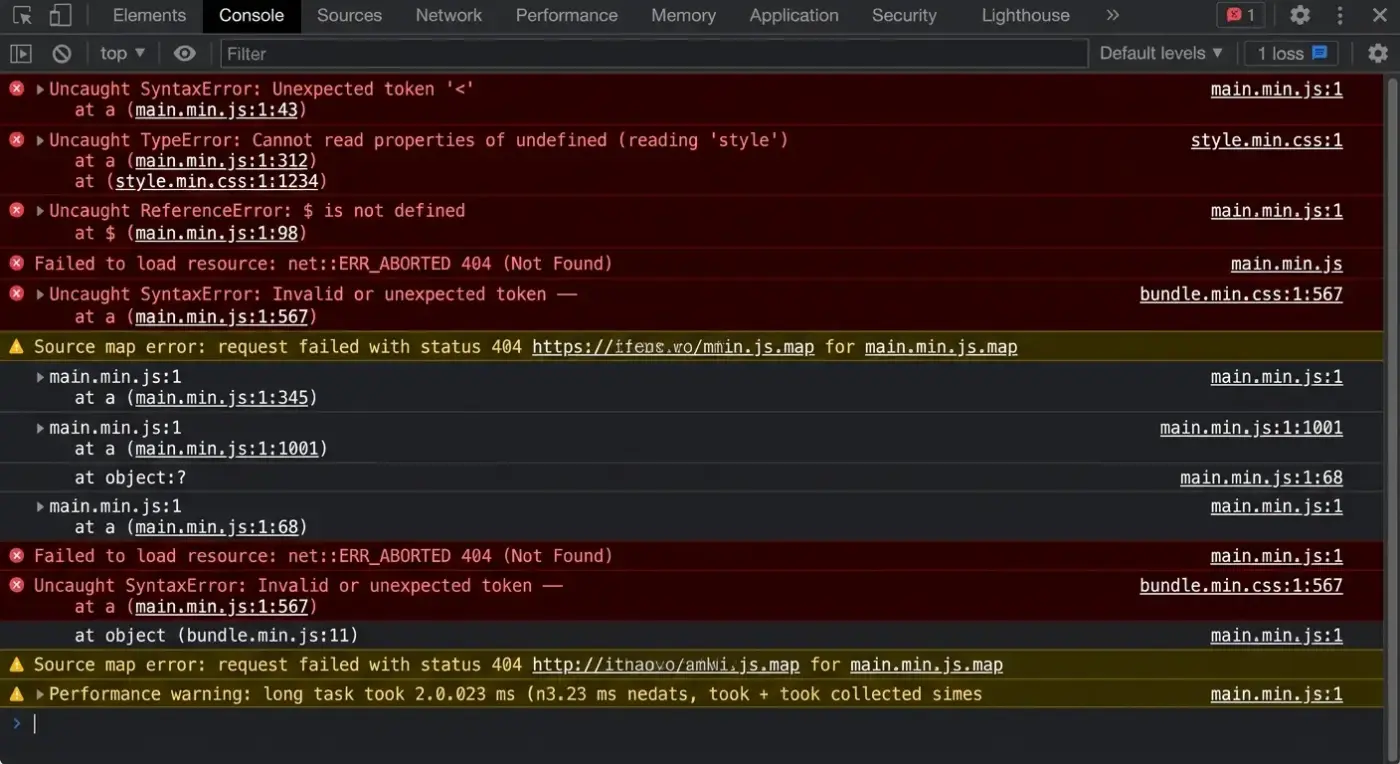
This is where things get expensive. Most caching guides skip this part entirely.
Turn on aggressive CSS and JavaScript minification without testing, and you can silently break your checkout forms, navigation menus, or third-party integrations. Combine CSS and JavaScript files, and you create dynamic filenames that change every time you clear the cache. That breaks cached versions in Cloudflare and in visitors’ browsers, meaning repeat visitors can end up seeing a broken layout.
On a WooCommerce store, the stakes are higher. If you cache the cart or checkout pages, customers can see each other’s cart contents or see stale pricing. That’s not a theory. It happens. We cover the specific pages to exclude in the WooCommerce section below.
The safe approach: turn on page caching first. Test your site. Then enable additional optimizations one at a time, testing after each one.
How to Pick the Right Caching Plugin Before You Install Anything?
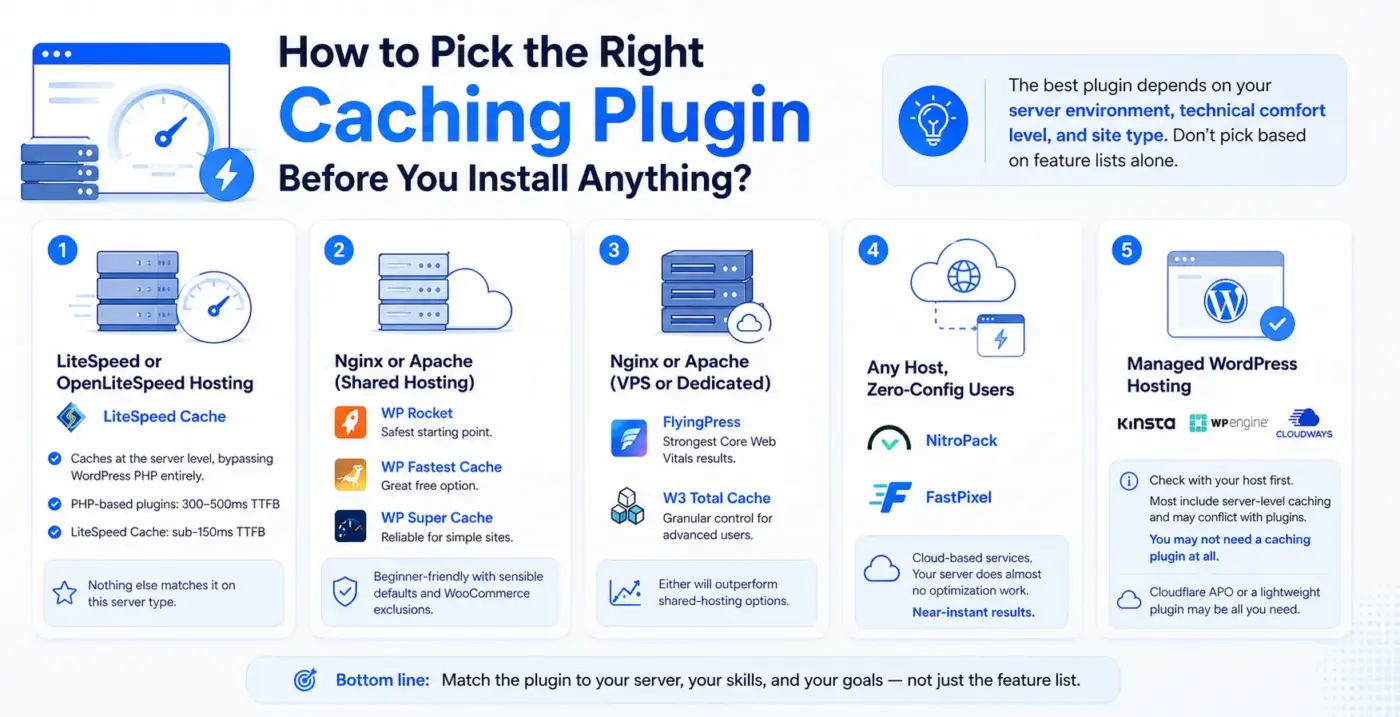
Here’s the thing most comparison articles skip: the best plugin for your site depends on your server environment, your technical comfort level, and your site type. Picking based on feature lists alone is a mistake.
Match Your Plugin to Your Server Type
- LiteSpeed or OpenLiteSpeed hosting: It caches at the server level, bypassing WordPress PHP entirely. PHP-based caching plugins on the same hardware typically deliver TTFB in the 300–500ms range. LiteSpeed Cache on a LiteSpeed server routinely hits sub-150ms. The architecture is fundamentally different, and nothing else matches it on that server type.
- Nginx or Apache (shared hosting): WP Rocket is the safest starting point. It’s beginner-friendly, activates sensible defaults on installation, and handles WooCommerce exclusions automatically. If budget is a concern, WP Fastest Cache or WP Super Cache are reliable free options for simple sites.
- Nginx or Apache (VPS or dedicated): FlyingPress if you want the strongest Core Web Vitals results. W3 Total Cache is for you if you want granular control and you’re comfortable with configuration. Either will outperform shared-hosting options.
- Any host, for non-technical users who want zero configuration: NitroPack or FastPixel. Both are cloud-based services. Your server does almost no optimization work. This trades some control for near-instant results.
- Managed WordPress hosting (Kinsta, WP Engine, Cloudways): Check with your host first. Most managed hosts include server-level caching and may conflict with additional caching plugins. In many cases, you don’t need a caching plugin at all. A lightweight performance plugin like Cloudflare APO may be all you need on top.
What to Turn Off Even on the Best Plugins?
This section saves you a support ticket.
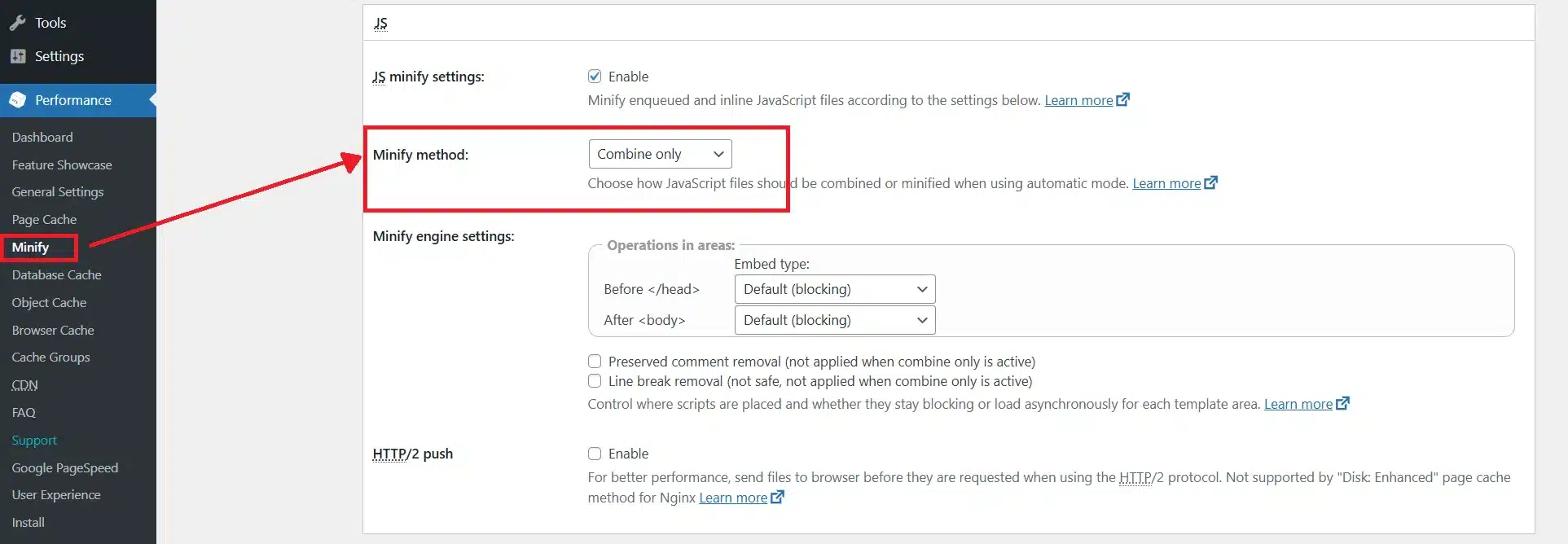
- Disable the CSS and JavaScript combination: Modern HTTP/2 and HTTP/3 servers handle multiple parallel requests efficiently. For example, in W3 Total Cache, the JS Minify method is often set to “Combine only” by default. Combining files creates dynamic filenames that invalidate CDN and browser caches every time you clear. The “gain” is zero on modern stacks, and the breakage risk is real.
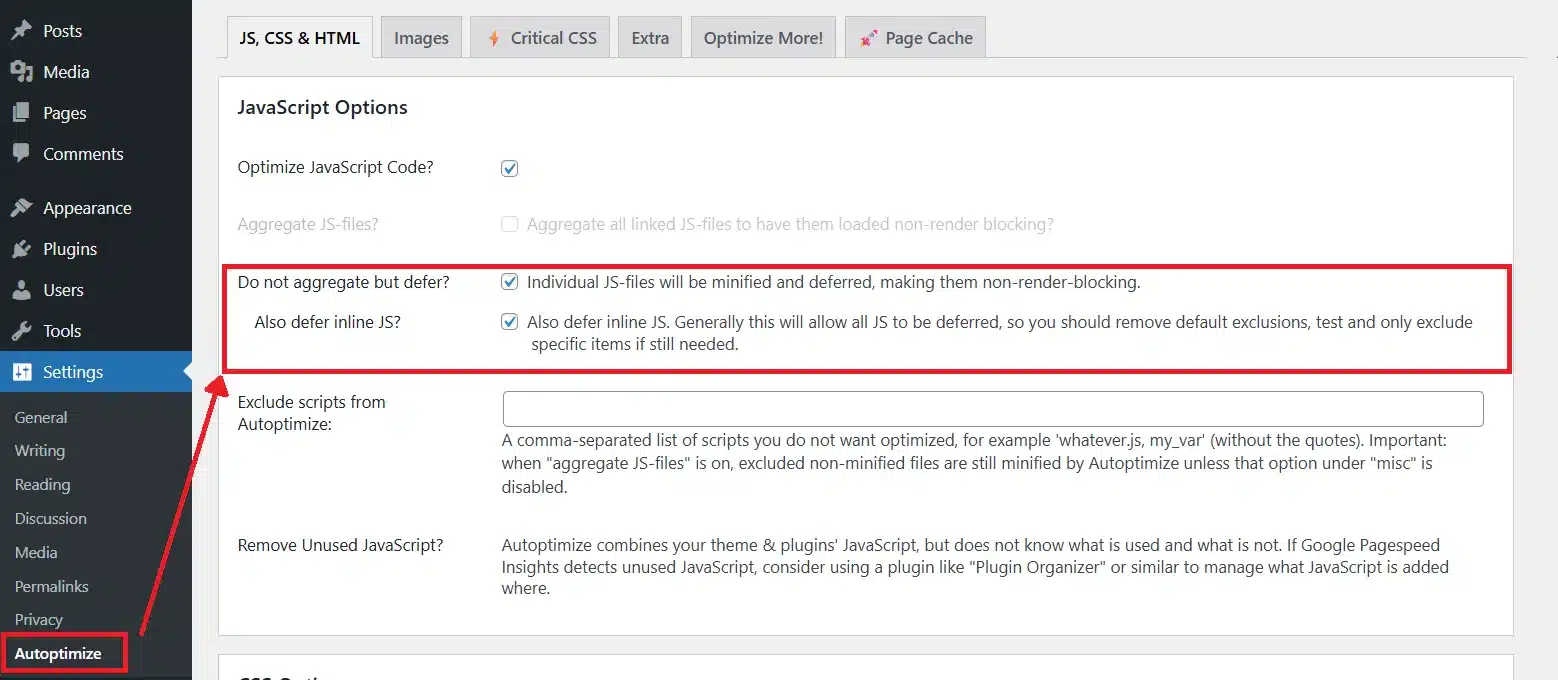
- Be cautious with JavaScript deferral: Deferring all JavaScript is not always safe. Autoptimize, for instance, gives you options like “Do not aggregate but defer” and “Also defer inline JS”. Test interactive elements like add-to-cart buttons, contact forms, and third-party chat widgets after enabling this.
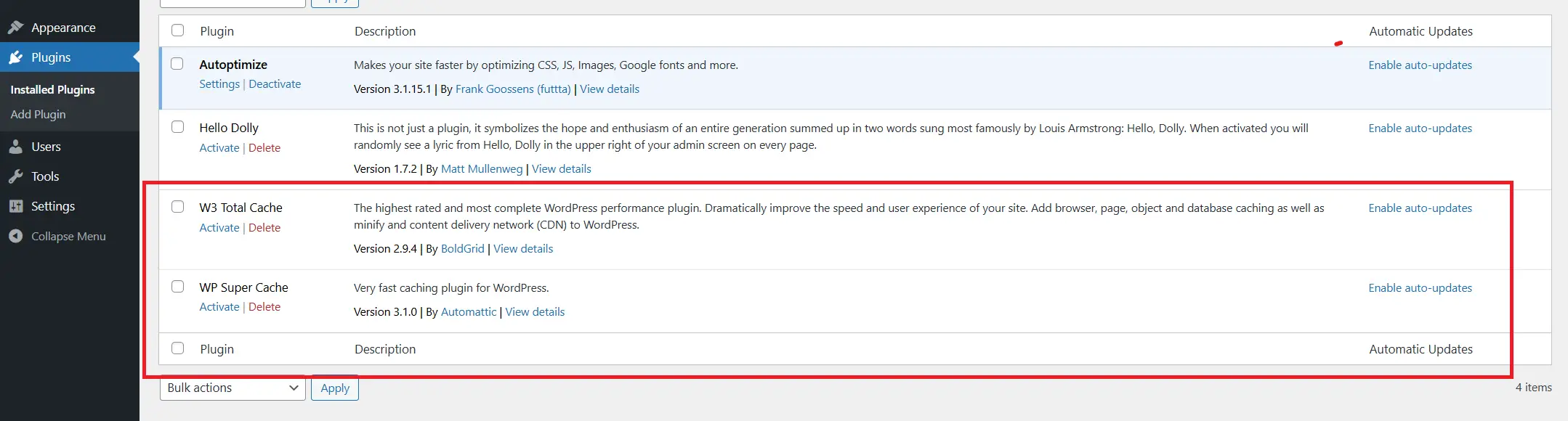
- Don’t run two full caching plugins at once: They’ll override each other’s rules, reduce cache hit rate, and in some cases serve conflicting versions of the same page. So pick one and disable the other plugins with the same functionality.
The 10 Best WordPress Caching Plugins Compared
1. WP Rocket — Best Overall for Most Sites
WP Rocket activates page caching, browser caching, and GZIP compression the moment you install it. No configuration required to get working results. The interface is clean and approachable, which matters if you’re not a developer managing this day-to-day.
Beyond the basics, it includes lazy loading for images and iframes, JavaScript delay (executes scripts only after user interaction), unused CSS removal, critical CSS generation, and database cleanup. It also detects WooCommerce automatically and excludes cart, checkout, and account pages from the cache without you doing a thing.
CDN and Cloudflare integration is well-documented. For agencies managing multiple client sites, the multi-site pricing tiers make it practical at scale.
Best for
- Most WordPress sites
- WooCommerce stores
- Agencies
- Non-technical users who want strong results without configuration time
Pricing
- Single site: $59/year
- 3 sites: $119/year
- up to 50 sites: $299/year
Pros
- Instant results on activation
- 14-day money-back guarantee
- Automatic WooCommerce exclusions
- Excellent support and documentation
- Consistent updates
Cons
- No free version
- Paid-only access creates friction for budget-conscious users
- On LiteSpeed servers, it won’t outperform LiteSpeed Cache
2. LiteSpeed Cache — Best Free Plugin
LiteSpeed Cache is completely free and has over 7 million active installs on WordPress.org. On a LiteSpeed or OpenLiteSpeed server, it caches at the server level. Pages are served before WordPress even initialises. That’s a fundamentally different architecture to PHP-based plugins, and the performance difference is consistent across real-world tests.
It includes image optimization, CSS/JS minification, critical CSS generation, lazy loading, database cleanup, and QUIC.cloud CDN integration, all in one package. On the right server, it replaces several plugins at once.
The trade-off is setup complexity. There are a lot of settings, and going in without a plan can produce unpredictable results. On a non-LiteSpeed server, most of its server-level advantages disappear and you’d be better served by a different option.
Best for
- Sites on LiteSpeed or OpenLiteSpeed hosting
- Strong choice for users willing to invest time in configuration
Pricing
Free of Cost
Pros
- Best TTFB results when matched with compatible hosting
- Replaces multiple plugins
- Completely free
Cons
- Complex interface
- Full benefit requires LiteSpeed hosting
- Steeper learning curve than WP Rocket
3. FlyingPress — Best for Core Web Vitals on Nginx/Apache
FlyingPress consistently shows the highest proportion of “good” Core Web Vitals scores in Chrome’s UX Report data. It does things other caching plugins still haven’t added: lazy rendering of HTML elements, self-hosted YouTube placeholder images, background image lazy loading, and smarter LCP preloading that adapts page-by-page rather than applying a one-size template.
It integrates with FlyingCDN, which runs on Cloudflare Enterprise. For dynamic WooCommerce sites, the Enterprise-tier features (Argo Smart Routing, advanced WAF, Mirage, and Polish for images) deliver measurably better TTFB and security than standard Cloudflare plans.
FlyingPress is also notably stable. Updates come quickly when issues arise. It doesn’t have the support-forum history of conflicts that some more established plugins carry.
Best for
- Developers and performance-focused users on Nginx or Apache servers
- Who wants the best Core Web Vitals results
Pricing
- Starts From $49/year
- No free version
Pros
- Best Core Web Vitals outcomes
- Unique features not found in other plugins
- Fast release cycle
- Cloudflare Enterprise CDN option
Cons
- No free version
- Requires some configuration knowledge
- Less name recognition than WP Rocket or LiteSpeed Cache
4. W3 Total Cache — Best for Developers Who Want Full Control
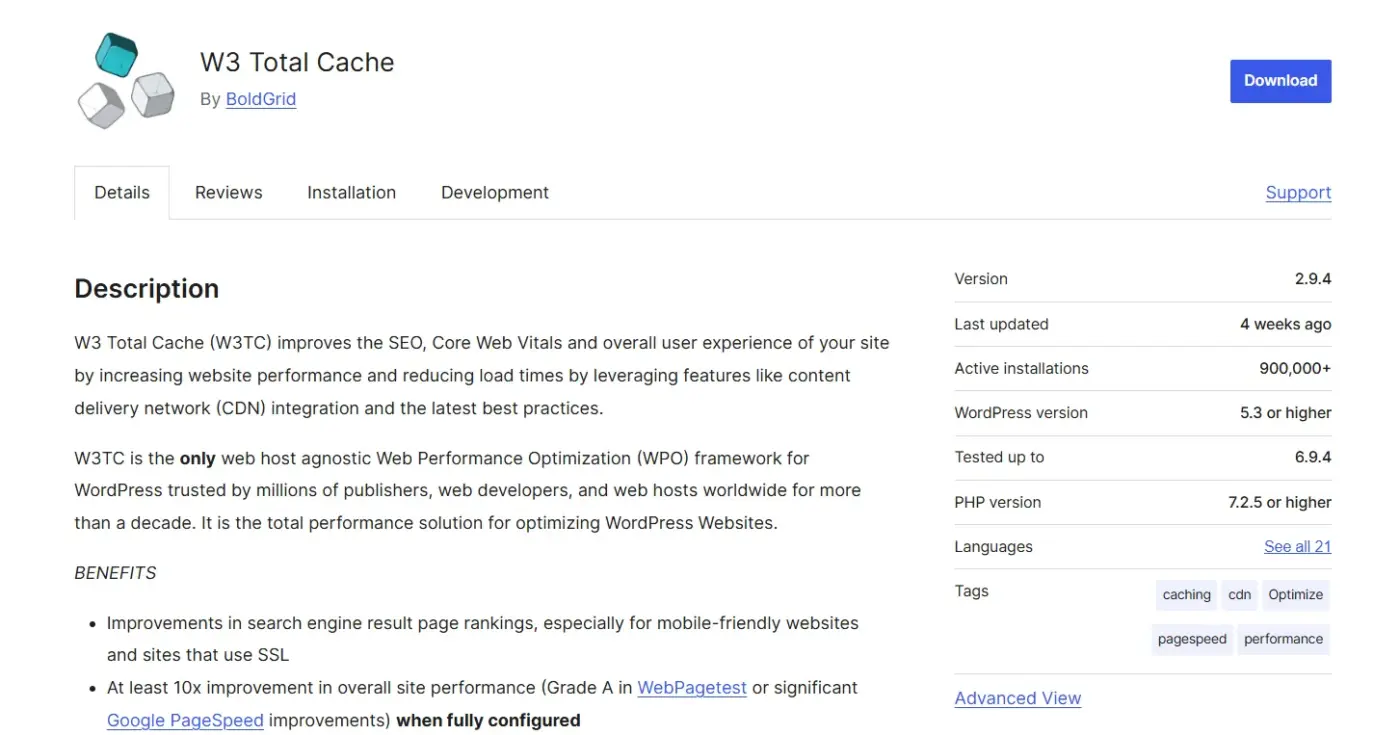
W3 Total Cache is one of the oldest caching plugins in the WordPress ecosystem and remains the most configurable. It supports every major caching layer: page cache, object cache, database cache, browser cache, opcode cache, and CDN integration. For developers who want to tune every variable, nothing else comes close.
That said, the interface is not for beginners. The settings panel is dense, and misconfiguration is easier here than with most other plugins. Most casual users don’t need this level of control, and the time cost of getting it right is real.
Best for
- Experienced developers
- Agencies managing high-traffic sites
- Technical users who need granular control
Pricing
- Free version available
- Pro version $99/year
Pros
- Unmatched configuration depth
- Supports every caching layer
- The free version is powerful
Cons
- Steep learning curve
- Easy to misconfigure
- Interface hasn’t aged gracefully
- Not recommended for beginners
5. WP Super Cache — Best Simple Free Option
WP Super Cache is built by Automattic (the company behind WordPress.com) and is natively compatible with WooCommerce. It’s one of the most straightforward free caching plugins available, generating static HTML files that bypass PHP entirely.
It does what it says. Page caching works reliably, and WooCommerce sends signals to the plugin so cart, checkout, and My Account pages are excluded by default. The feature set is limited compared to modern alternatives, and it hasn’t kept pace with Core Web Vitals optimizations, but for a simple blog or small business site on shared hosting, it’s a solid, zero-cost starting point.
Best for
- Beginners
- Simple blogs
- Small sites on shared hosting with limited budgets
Pricing
- Free of cost
- No premium version
Pros
- Free
- Maintained by Automattic
- Native WooCommerce compatibility
- Simple setup
Cons
- Limited feature set
- No Core Web Vitals-specific optimizations
- Minimal ongoing development
6. WP Fastest Cache — Best Easy Middle Ground
WP Fastest Cache sits between WP Super Cache (too basic) and W3 Total Cache (too complex). The free version handles page caching, minification, browser caching, and GZIP compression well. The interface is beginner-friendly without sacrificing too much capability.
The free version requires manual WooCommerce exclusion setup. The Pro version adds a dedicated WooCommerce addon that handles cookie-based exclusions and cart/checkout bypasses automatically. It also adds object caching via Redis, mobile cache, and CDN support.
For a budget-conscious WooCommerce store owner who doesn’t want to commit to WP Rocket’s pricing, the Pro version of WP Fastest Cache is worth a look.
Best for
- Users who want a simple but capable plugin
- Without WP Rocket’s price tag
Pricing
- Free version available
- Pro: $49.99 one-time payment
Pros
- Clean interface
- Capable free version
- Affordable Pro tier
- Good WooCommerce support in Pro
Cons
- Free version needs manual WooCommerce exclusion setup
- Lacks Core Web Vitals-specific features compared to WP Rocket or FlyingPress
7. WP-Optimize — Best All-in-One Free Option
WP-Optimize started as a database cleaner and has since grown into a full caching and optimization plugin. It combines page caching, image compression, and database cleanup in a single free package. That’s a meaningful advantage for users who’d otherwise install three separate plugins.
It’s not the fastest caching plugin available, and it won’t match WP Rocket or FlyingPress on raw performance metrics. But for a small site owner who wants to consolidate tools without spending money, it covers the bases well.
Best for
- Users who want caching
- database optimization
- and image compression from a single free plugin
Pricing
- Free Demo available
- Premium: $49/year
Pros
- Combines caching, database cleanup, and image compression
- free tier available
- User-friendly interface
Cons
- Not the fastest pure caching option
- Less specialized than dedicated caching plugins.
8. NitroPack — Best for Zero Configuration
NitroPack is architecturally different from every other plugin on this list. It’s a cloud service. Your content is delivered through NitroPack’s infrastructure, which handles caching, CDN delivery, image optimization, and code optimization automatically. You connect the site, choose an optimization level, and it runs.
For non-technical site owners who want a fast site without touching any settings, this is the value proposition. NitroPack handles WooCommerce dynamic content properly, which many self-hosted plugins still get wrong.
Best for
- Non-technical owners who want maximum automation
- Agencies delivering managed performance solutions
Pricing
- Free tier: 1,000 page views/month
- Paid tier: $22/month
Pros
- Near-zero configuration
- Works on any hosting
- Handles WooCommerce well
- Cloud-based, so no server resource use
Cons
- Page-view pricing scales poorly for high-traffic sites
- Expensive relative to self-hosted alternatives
- And less control over optimizations
9. FastPixel — Best Cloud Option With a Real Free Tier
FastPixel is built by the ShortPixel team and takes the same cloud-based approach as NitroPack, but with a more generous free tier and a feature that stands out: per-page critical CSS generation.
Most plugins generate critical CSS per template. FastPixel does it per page. Your homepage gets optimized separately from your product pages. That granularity produces better Largest Contentful Paint results.
The cloud architecture means image processing, code minification, and cache generation all happen off your server. HTTP Archive data shows FastPixel sites consistently achieving strong Core Web Vitals scores compared to traditional caching plugins.
Best for
- Users who want cloud-based optimization
- with a meaningful free tier
- and a strong Core Web Vitals focus
Pricing
- Free tier: 1,000 page views/month
- Paid tier: $8.33/month for 300,000 views across 3 sites
Pros
- Per-page critical CSS
- Generous free tier
- Strong Core Web Vitals scores
- Very fast setup
Cons
- Page-view pricing model
- Lesser-known than established options
- Cloud dependency
10. Cloudflare (With APO) — Best Add-On for Managed Hosting Sites
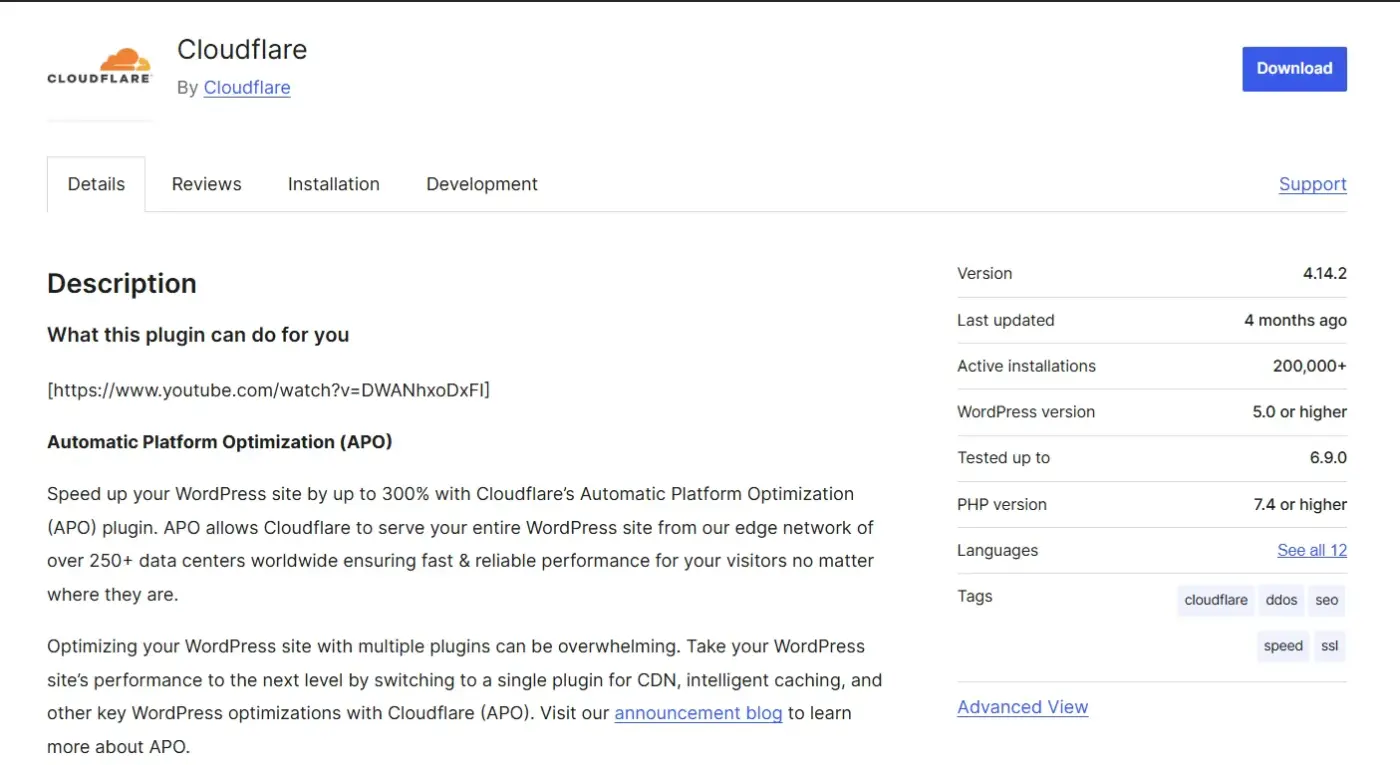
Cloudflare itself is not a traditional caching plugin, but it belongs on this list because it’s what many managed WordPress hosting users actually need. If you’re on Kinsta, WP Engine, or Cloudways, where server-level caching is already handled, adding another caching plugin can cause conflicts.
Cloudflare’s Automatic Platform Optimization (APO) caches full HTML pages at the edge, meaning visitors globally get near-local response times without touching your server setup.
The free Cloudflare plan already improves static asset delivery from global edge locations. APO goes further, adding full-page HTML caching at Cloudflare’s edge.
Best for
- Sites on managed WordPress hosting that already have server-level caching
- And sites with international audiences
Pricing
- Free base plan
- APO: $5/month
Pros
- Works alongside managed hosting
- Includes caching
- Supports global edge delivery
- And maintains an affordable, minimal plugin footprint
Cons
- Not a full-featured caching plugin
- APO requires a paid Cloudflare plan
- The configuration requires DNS changes, which some users find intimidating.
Quick Comparison Table
| Plugin | Best For | Free Version | Paid From | WooCommerce Auto-Exclusions | Setup Complexity |
|---|---|---|---|---|---|
| WP Rocket | Best overall | No | $59/year | Yes | Low |
| LiteSpeed Cache | LiteSpeed hosting | Yes (free only) | Free | Yes | Medium |
| FlyingPress | Core Web Vitals / Nginx | No | $49/year | Manual | Medium |
| W3 Total Cache | Full control/developers | Yes | $99/year | Manual | High |
| WP Super Cache | Simple blogs | Yes (free only) | Free | Yes | Low |
| WP Fastest Cache | Budget middle ground | Yes | $49.99 (Pro) | Pro only | Low |
| WP-Optimize | All-in-one free | Yes | $49/year | Manual | Low |
| NitroPack | Zero configuration | Limited | $22/month | Yes | Very Low |
| FastPixel | Cloud with free tier | Yes | ~$8.33/month | Yes | Very Low |
| Cloudflare APO | Managed hosting add-on | Partial | $5/month | N/A | Low |
WooCommerce Caching (What You Must Get Right)
WooCommerce caching is not the same as caching a blog. A standard WordPress site can cache nearly every page aggressively. A WooCommerce store has pages and cookies that carry session state, cart contents, user authentication, and real-time pricing. Cache the wrong thing, and you create problems that cost you sales.
Most plugins don’t handle this perfectly out of the box. And the ones that do still rely on you to understand the rules.
Pages You Should Never Cache on a WooCommerce Store
According to WooCommerce’s official caching documentation, the following pages must always be excluded from the page cache:
- Cart (
/cart/) - Checkout (
/checkout/) - My Account (
/my-account/) - Any URL containing
?add-to-cart= - Any WooCommerce API endpoint (
?wc-api=)
Here’s a real scenario of what happens when you don’t. A customer adds a product to their cart and proceeds to checkout. Another customer visits the same site shortly after. If the cart page is cached, that second customer can see the first customer’s cart contents served from the cached version. That’s not a hypothetical. It’s a well-documented caching misconfiguration that happens when WooCommerce exclusion rules are missing.
WP Rocket, WP Super Cache, NitroPack, and FastPixel handle these exclusions automatically when they detect WooCommerce. W3 Total Cache, FlyingPress, and WP-Optimize require manual exclusion setup. WP Fastest Cache handles it automatically in the Pro version only.
If you’re fixing a slow WordPress site that runs WooCommerce, checking your exclusion rules is one of the first things to verify.
Object Caching With Redis for WooCommerce
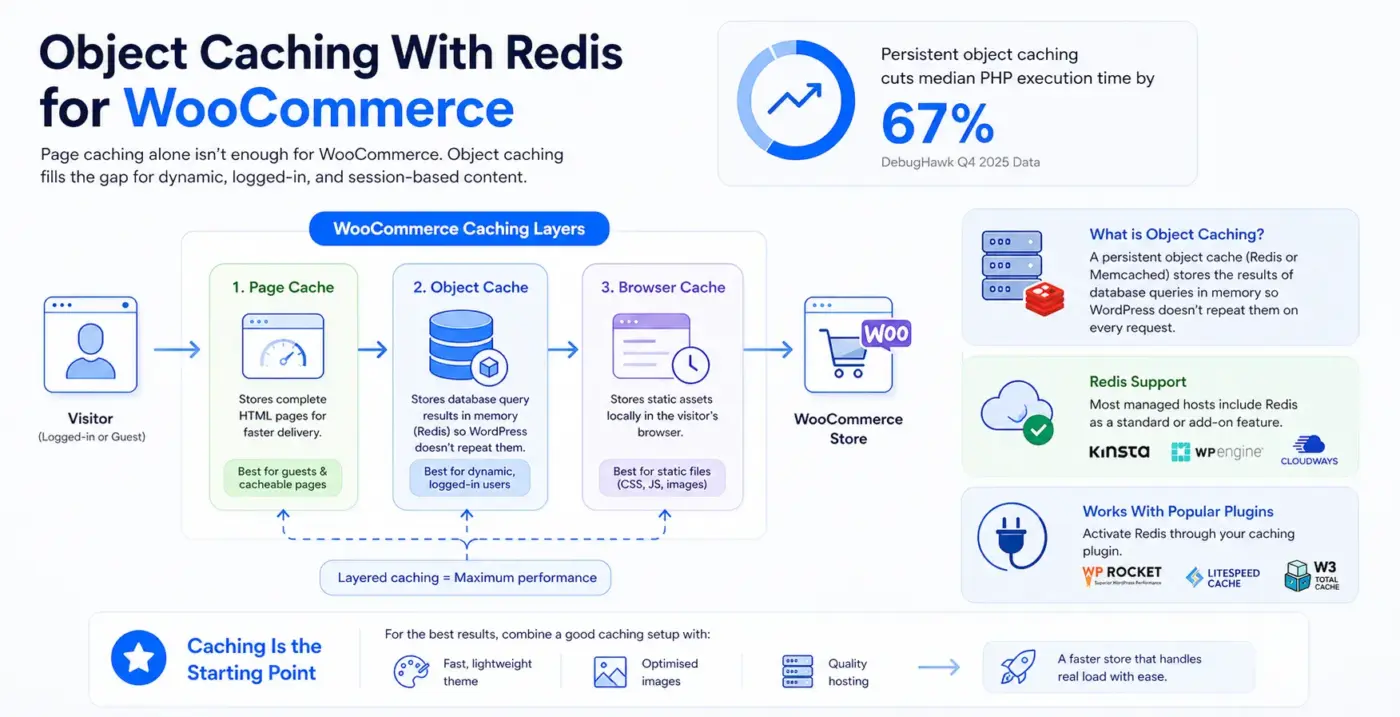
Here’s where most caching guides stop short. Page caching is less effective on WooCommerce stores because a large portion of traffic involves logged-in users, carts, and dynamic pricing. Pages with session-based content can’t be served from a full-page cache.
This is where object caching fills the gap. A persistent object cache (typically Redis or Memcached) stores the results of database queries in memory so WordPress doesn’t repeat them on every request. According to the DebugHawk Q4 2025 data, persistent object caching cuts median PHP execution time by 67%. On a WooCommerce store, that improvement shows up on every page a logged-in customer visits.
To use Redis, your host needs to support it. Kinsta, WP Engine, Cloudways, and most managed hosts include Redis as a standard or add-on feature. You then activate it through your caching plugin. WP Rocket, LiteSpeed Cache, and W3 Total Cache all support Redis integration.
If you want to learn more about the broader steps to speed up a WooCommerce website, caching is the starting point, but it works best alongside a fast theme, optimised images, and a quality host. Pairing a good caching setup with fast WooCommerce themes can produce a noticeable difference in how your store performs under real load.
How to Validate Your Cache Is Working After Setup
Installing a caching plugin doesn’t mean caching is working. Here’s how to confirm it’s actually doing its job.
- Check your response headers: Using your browser’s developer tools (Network tab), load any page and look for the response headers. A cached page will typically show
X-Cache: HITorCf-Cache-Status: HIT. If you seeMISS, The page is not being served from cache. This is also how you can reduce TTFB in WordPress by confirming that your cache layer is actually intercepting requests.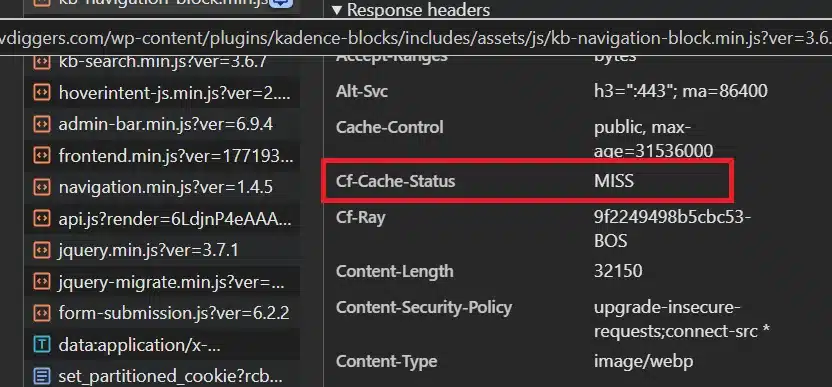
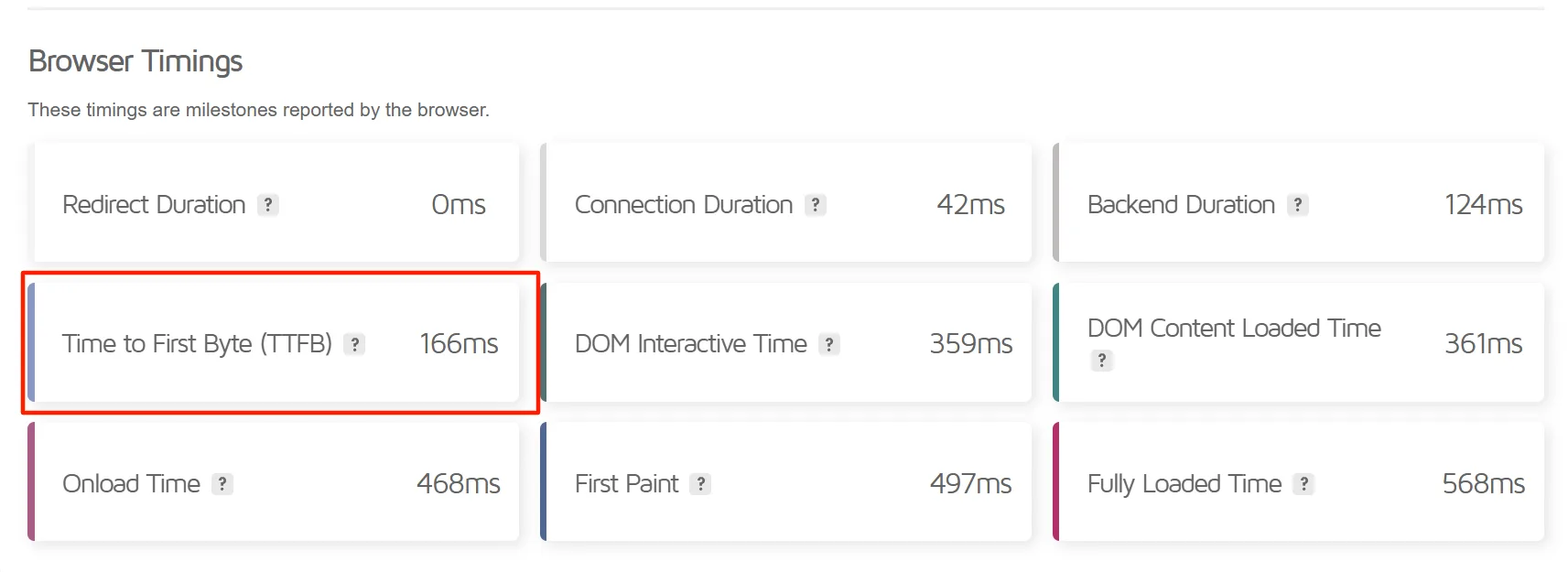
- Run a TTFB test before and after: Use GTmetrix or Google PageSpeed Insights and note the Time to First Byte before enabling caching, then again after. A working cache should drop TTFB noticeably, often by several hundred milliseconds.
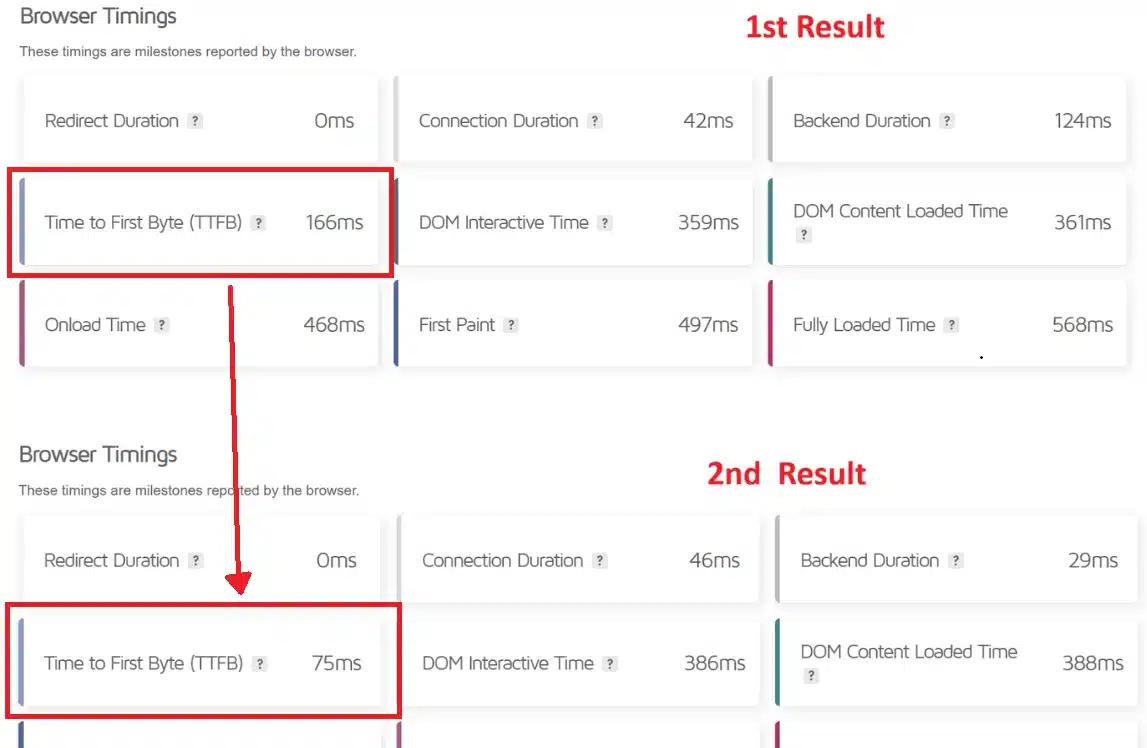
- Run the test twice: The first page load after clearing the cache will always be slower because the cache needs to be built. The second load should be significantly faster. If the second load isn’t faster, something is wrong with your setup.
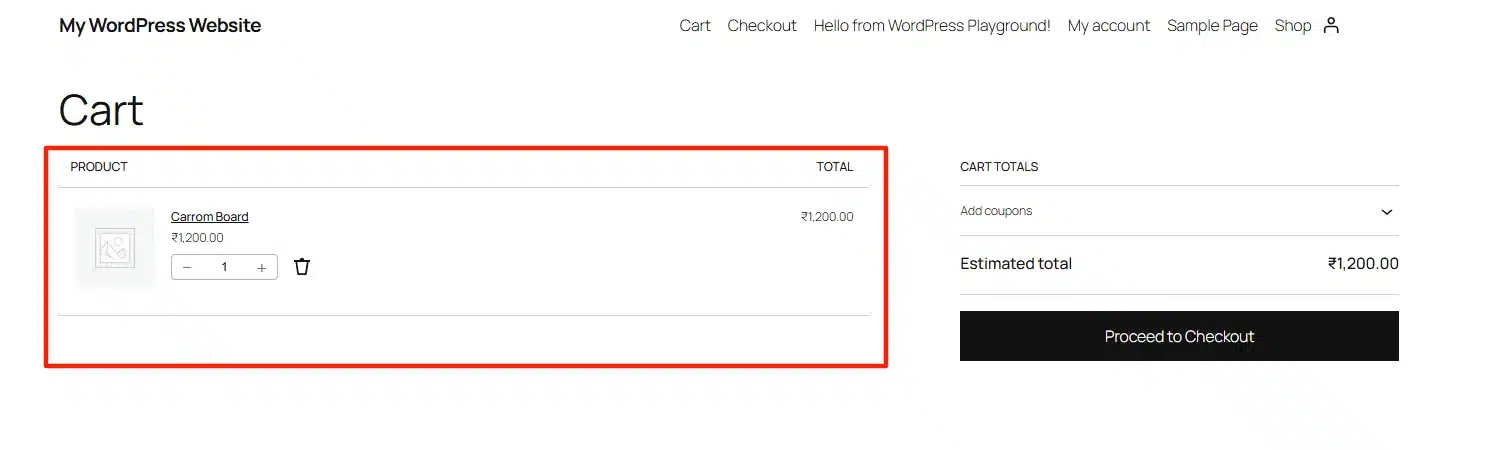
- Check your WooCommerce pages specifically: Visit your cart, checkout, and My Account pages. Add a product to your cart and verify the cart count updates correctly. If it shows a stale count or someone else’s items, your exclusion rules aren’t working.
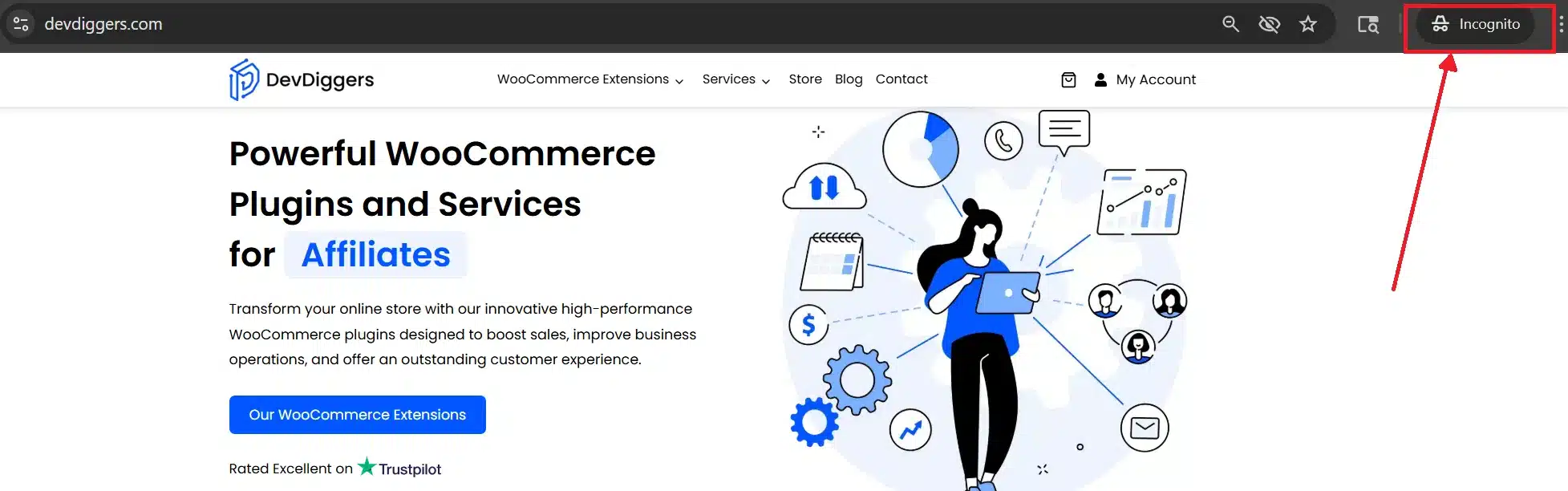
- Use an incognito window: Caching plugins often don’t serve cached pages to logged-in users (including admins). Test from an incognito or private browsing window to see what a real visitor experiences.
Conclusion
The best WordPress caching plugins in 2026 are more capable than ever, but the right choice still depends on your setup. On a LiteSpeed server, LiteSpeed Cache is the clear answer.
On Nginx or Apache, WP Rocket is the safest all-round pick, and FlyingPress is the strongest option if Core Web Vitals are your priority. For WooCommerce stores, automatic exclusion rules and object caching support are non-negotiable features.
Whatever plugin you choose, start with page caching, test before enabling advanced settings, and always verify your WooCommerce exclusion rules are working. A properly configured cache on the best WordPress caching plugin is one of the highest-return performance investments you can make, often more impactful than upgrading your hosting.
If you want someone to handle the configuration for you, DevDiggers’ WordPress speed optimization services cover caching setup, Core Web Vitals improvements, and WooCommerce-specific performance work. We also have a broader guide on how to fix slow website loading if you want to tackle it step by step on your own.
Frequently Asked Questions(FAQs)
Q1. Can I use more than one caching plugin at the same time?
No. Running two full-page caching plugins simultaneously causes conflicts. They override each other’s rules, reduce cache hit rate, and can serve inconsistent versions of the same page to different visitors. Pick one and disable all others. You can pair a caching plugin with a separate performance plugin (for image optimization or database cleanup), but never two page caching plugins.
Q2. Does a caching plugin replace the need for good hosting?
No, and this is one of the most common misunderstandings. A caching plugin cannot overcome a slow hosting foundation. If your server has throttled PHP workers, inadequate RAM, or slow storage, the plugin is working against a ceiling it can’t break through. Good hosting sets the floor. Caching maximises what’s possible within it.
Q3. Do free WordPress caching plugins actually work?
Yes, several do. LiteSpeed Cache, WP Super Cache, and the free version of WP-Optimize all deliver real performance improvements. The free versions are genuinely capable for most small-to-medium sites. Paid plugins like WP Rocket earn their cost through ease of use, automatic WooCommerce exclusions, and stronger support, not through exclusive technology that free plugins can’t replicate.
Q4. What is object caching and does my site need it?
Object caching stores the results of database queries in fast in-memory storage (usually Redis), so WordPress doesn’t repeat the same queries on every page request. If your site has logged-in users, a WooCommerce store, or a membership area, object caching is worth enabling. The DebugHawk Q4 2025 data shows it cuts median PHP execution time by 67%. For mostly static blogs or simple business sites, page caching alone is often sufficient.
Q5. Will a caching plugin break my WooCommerce store?
It can, but only if configured incorrectly. The most common issue is failing to exclude the cart, checkout, and My Account pages from the full-page cache. When those pages are cached, customers can see stale or incorrect session data. Plugins like WP Rocket, WP Super Cache, NitroPack, and FastPixel handle these exclusions automatically when they detect WooCommerce. For any plugin that doesn’t, you need to add these exclusions manually before going live.
Q6. Does Google’s Core Web Vitals update affect which caching plugin I should use?
Google’s December 2025 update increased the weight of Core Web Vitals as a ranking tiebreaker. TTFB remains the most commonly failed metric on WordPress sites, according to CrUX data, with only 32% of WordPress sites passing the threshold. A caching plugin that also addresses unused CSS removal, LCP preloading, and JavaScript deferral (such as WP Rocket, FlyingPress, or LiteSpeed Cache on a compatible server) will do more for your search visibility than one that only handles page caching.