You can speed up a WooCommerce website in about a weekend, even if you have never touched a line of code. Most guides on this topic explain the theory behind site speed and stop there.
This one is different. Every step below shows the exact screen you will land on and the exact button to click. That way, you can follow along and screenshot your own progress as you go.
A one-second delay on your product pages can cut conversions by more than five percent, according to research from HubSpot. Slow stores also lose mobile shoppers fast. Half of them leave a page that takes longer than three seconds to load.
Here is what you will learn. First, how to check your current speed score. Then ten concrete steps, ordered by how much impact each one has on a real WooCommerce store.
How to Check Your WooCommerce Site’s Current Speed
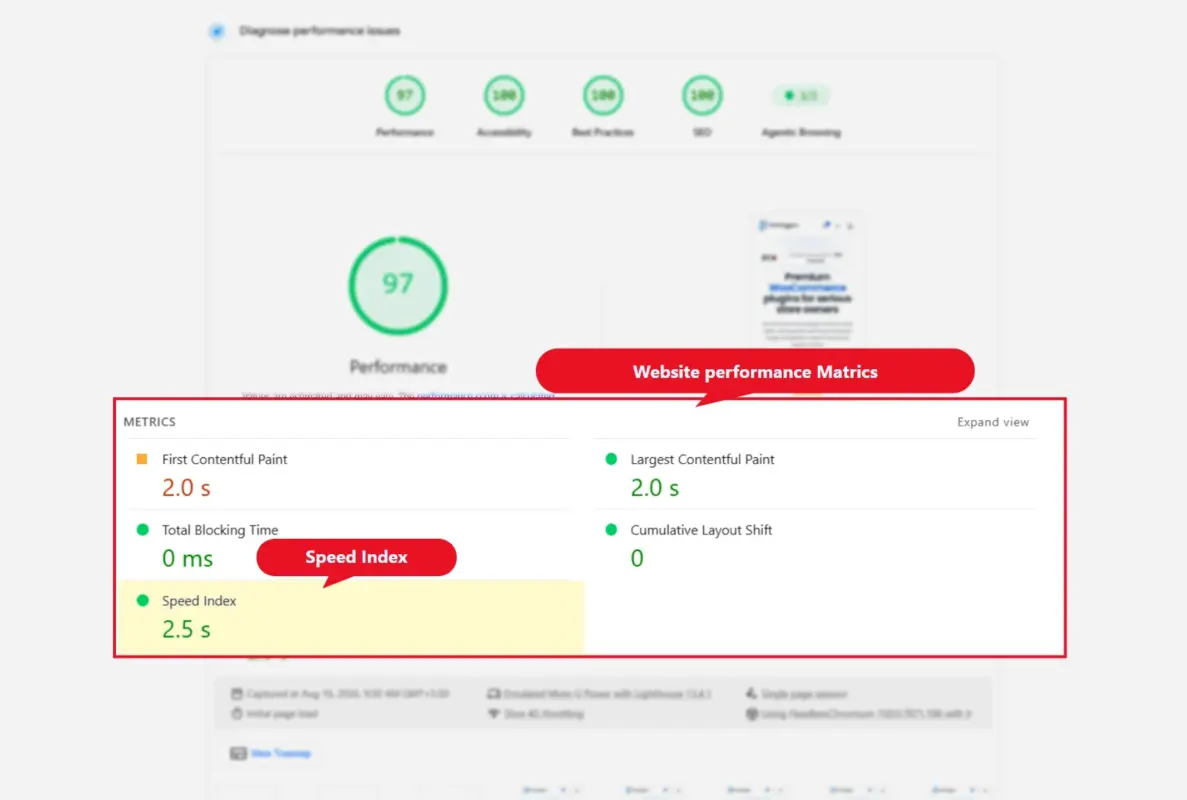
Before you touch a single setting, find out where you stand today. Open Google PageSpeed Insights and paste in your homepage URL.
Run the same test again, once on a product page and once on your cart page. Product pages and cart pages behave differently from your homepage, so a single test never tells the whole story.
Pay attention to two numbers on the report. Largest Contentful Paint (LCP) tracks how fast your main content appears on screen. Time to First Byte (TTFB) tracks how fast your server responds before anything even starts loading.
If you want the deeper mechanics behind that second number, DevDiggers has a full breakdown on how to reduce TTFB in WordPress. It walks through server response time in more depth than fits here.
Write your starting scores down somewhere you will remember. You will want to compare them after Step 3, since caching usually produces the biggest jump of the entire process.
What You Need Before You Start
You do not need coding skills for any step in this guide. You do need admin access to your WordPress dashboard and access to your hosting control panel.
Back up your site before you begin. Most hosts include a one-click backup tool, usually labelled Backups or Snapshots in your hosting panel. If yours does not, install a free backup plugin first.
Set aside about two hours for the first pass. Steps 1 through 3 alone will take most of that time, and they will speed up your WooCommerce website more than anything else on this list.
Have your hosting login and your WordPress admin login ready before you start. Switching between the two dashboards is something you will do constantly throughout this guide.
10 Steps to Speed Up a WooCommerce Website
These ten steps are ordered by impact, not by how easy each one is. Start at the top of the list.
If you only have an hour this week, Steps 1 through 3 alone will fix most of what is slowing your store down. The rest of the list is where you go once those three are handled.
1. Pick Hosting Built for WooCommerce
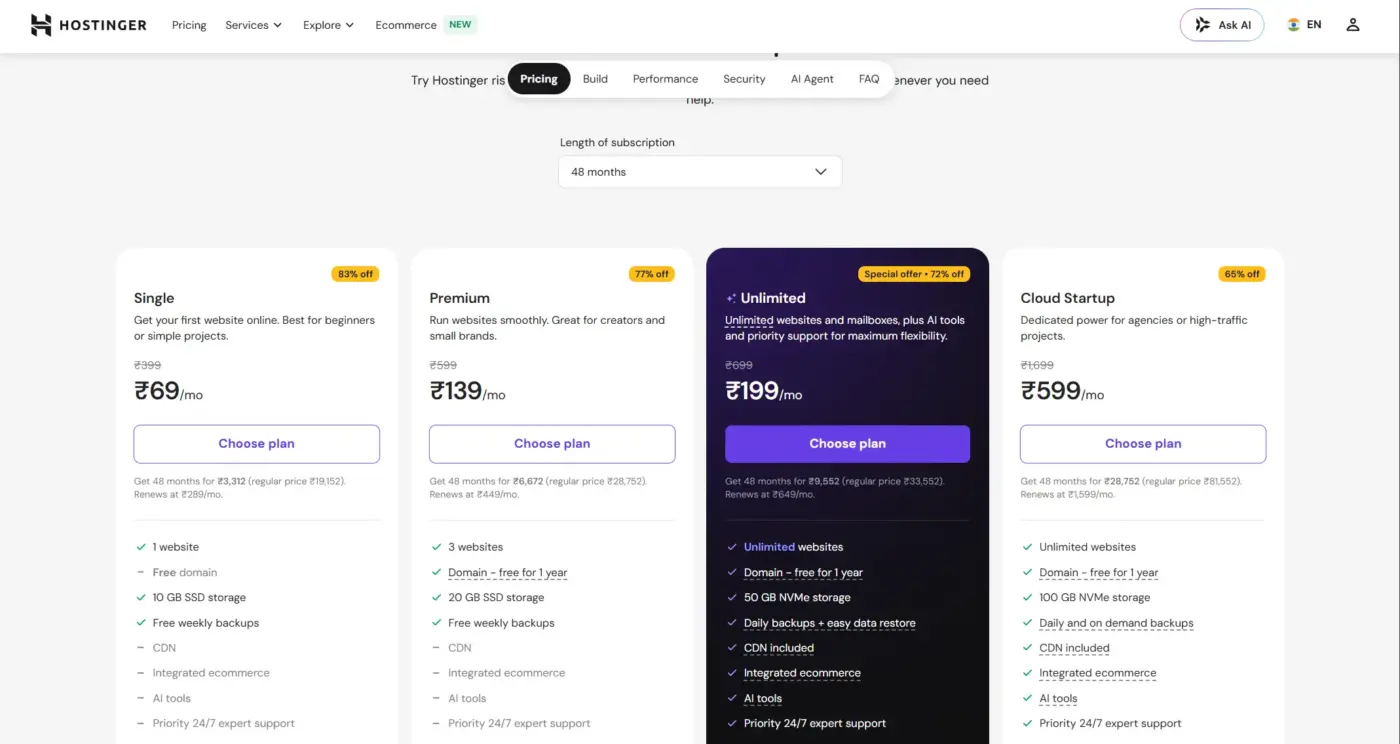
Your host sets the ceiling on everything else you do here. A cheap shared plan cannot be fixed with plugins alone, no matter how carefully you configure them.
Log into your current hosting panel and check what your plan includes. Look for these three features on the plan comparison page:
- Server-level caching: Built into the hosting stack itself, not something you install separately through a plugin.
- PHP 8.1 or newer available: Check under your hosting panel’s PHP settings, usually labelled “PHP Version” or “Select PHP Version.”
- A staging environment: So you can test changes here without risking your live store in front of paying customers.
We regularly see stores on entry-level shared plans struggle to load in under six seconds during a sale. Moving to a WooCommerce-specific plan alone often cuts that number in half, before you touch a single plugin.
If switching hosts feels like too big a step right now, move on to Step 2. You can always come back to this one once the smaller fixes are done.
Hosting alone will not speed up a WooCommerce website by itself, but it removes the ceiling that every other step here runs into. Everything after this step works better once your hosting is no longer the main problem.
2. Switch to a Fast WooCommerce Theme
- Log into your WordPress dashboard and go to Appearance → Themes.
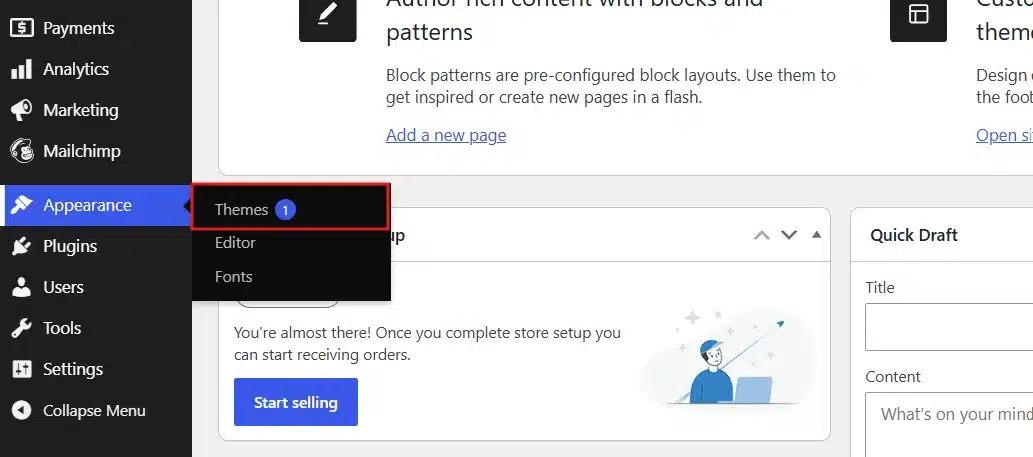
- Click Add New Theme in the top left corner of the screen.
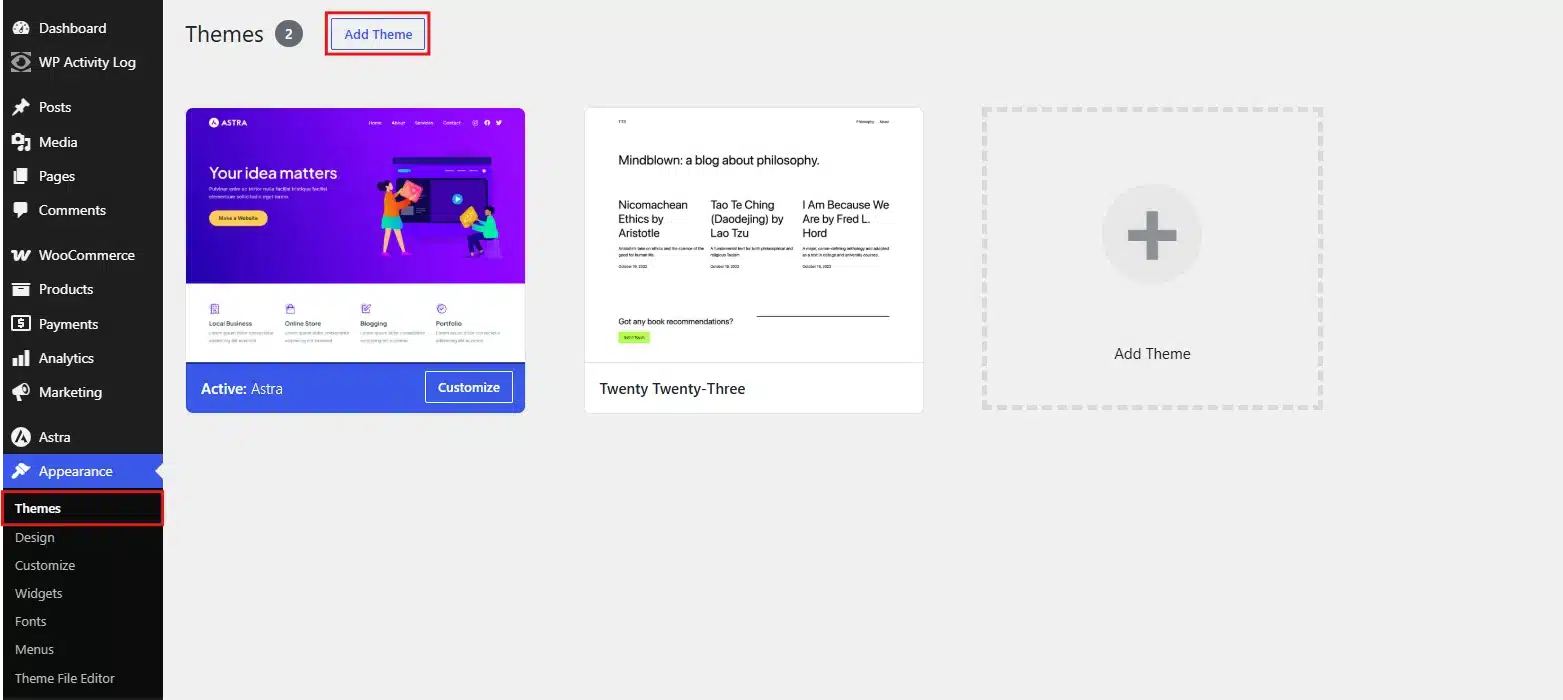
- Install and activate a lightweight option like Astra or GeneratePress.
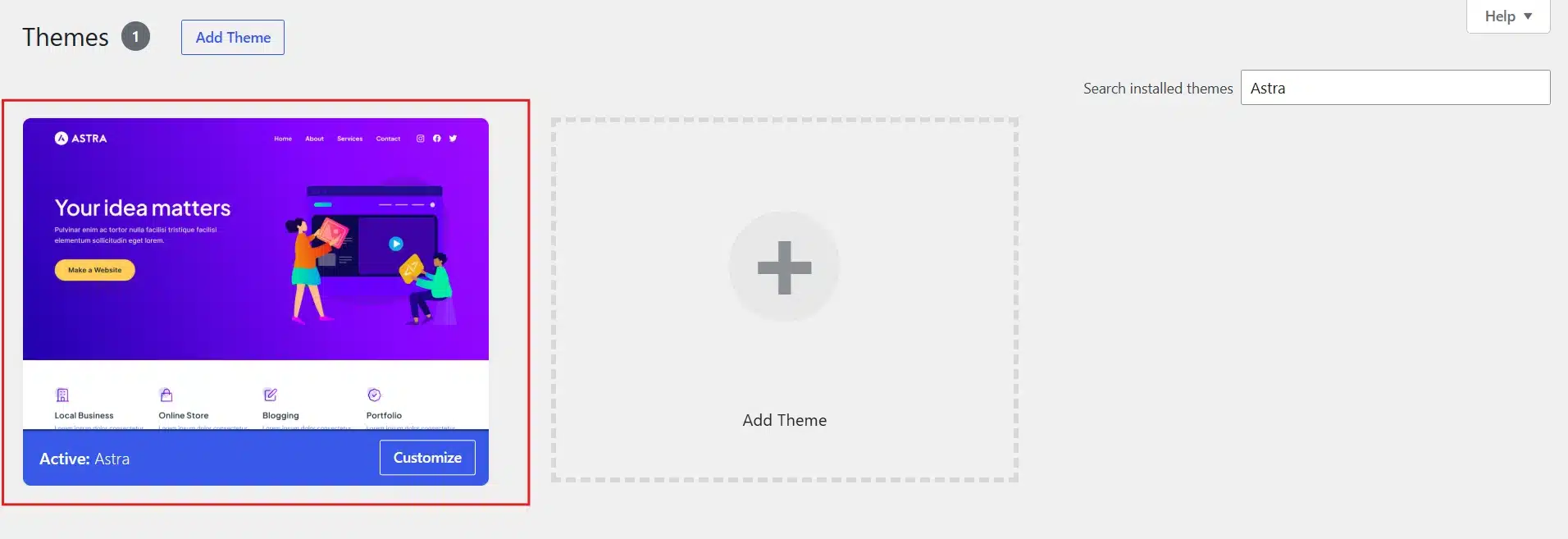
Heavy multi-purpose themes load dozens of scripts and stylesheets your store never uses. Every one of those extra files adds a small delay, and those delays add up fast on a busy shop page.
DevDiggers tested a full range of options in its guide to the fastest WooCommerce themes, with real load-time comparisons for each one. Worth a look before you settle on a final choice.
Test your homepage and a product page again after switching. A theme change alone can shave a full second off a bloated store, sometimes more.
A lightweight theme is one of the fastest ways to speed up a WooCommerce website without touching a single plugin setting.
3. Turn On a Caching Plugin
Caching is the single biggest fix most stores can make to speed up a WooCommerce website. It saves a ready-made copy of your page, so WordPress does not rebuild it from scratch on every single visit.
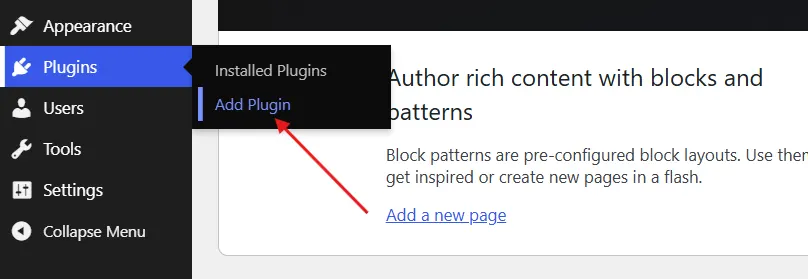
- Go to Plugins → Add Plugin in your dashboard sidebar.
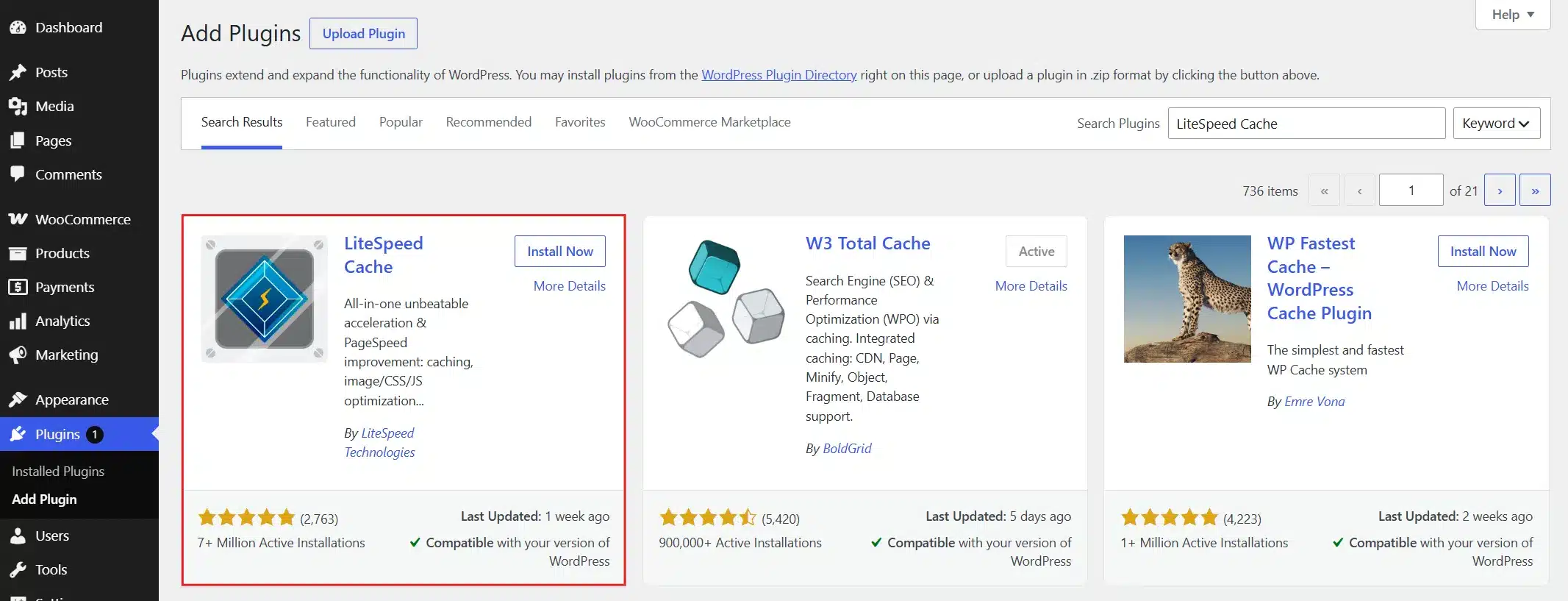
- Install and activate a caching plugin like LiteSpeed Cache.
- Open the plugin’s settings page from your left sidebar menu. Turn on page caching first, since that one setting alone does most of the actual work.
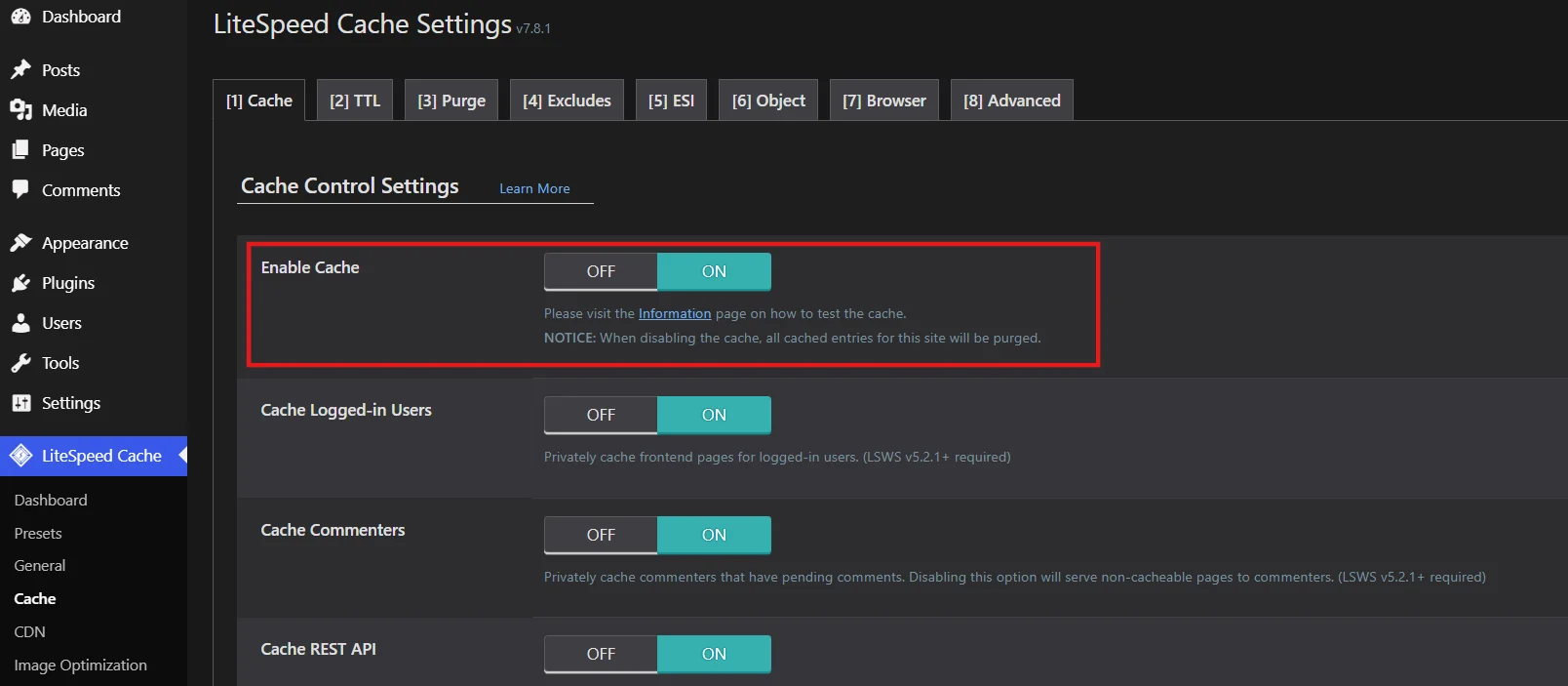
Never cache your cart, checkout, or account pages. Most caching plugins exclude these automatically for WooCommerce, but check the settings screen yourself to confirm before you move on.
A cached checkout page can show customers the wrong cart total, which is a mistake that costs real sales. It is worth the extra thirty seconds to double-check this one setting.
For a side-by-side comparison of the popular options, see DevDiggers’ roundup of WordPress caching plugins. Run your speed test again once caching is live and compare the new numbers to the ones you saved earlier. Most stores that want to speed up a WooCommerce website see their biggest single jump right here.
4. Compress and Resize Your Product Images
Product photos are usually the heaviest files on any WooCommerce page. An uncompressed photo straight from a phone camera can run 4-8 MB. That is far bigger than any page needs to display them well.
Before uploading new photos, resize them to the exact dimensions your theme displays them at. A 1200px wide image for a thumbnail that only shows at 300px is wasted bandwidth on every single page load.
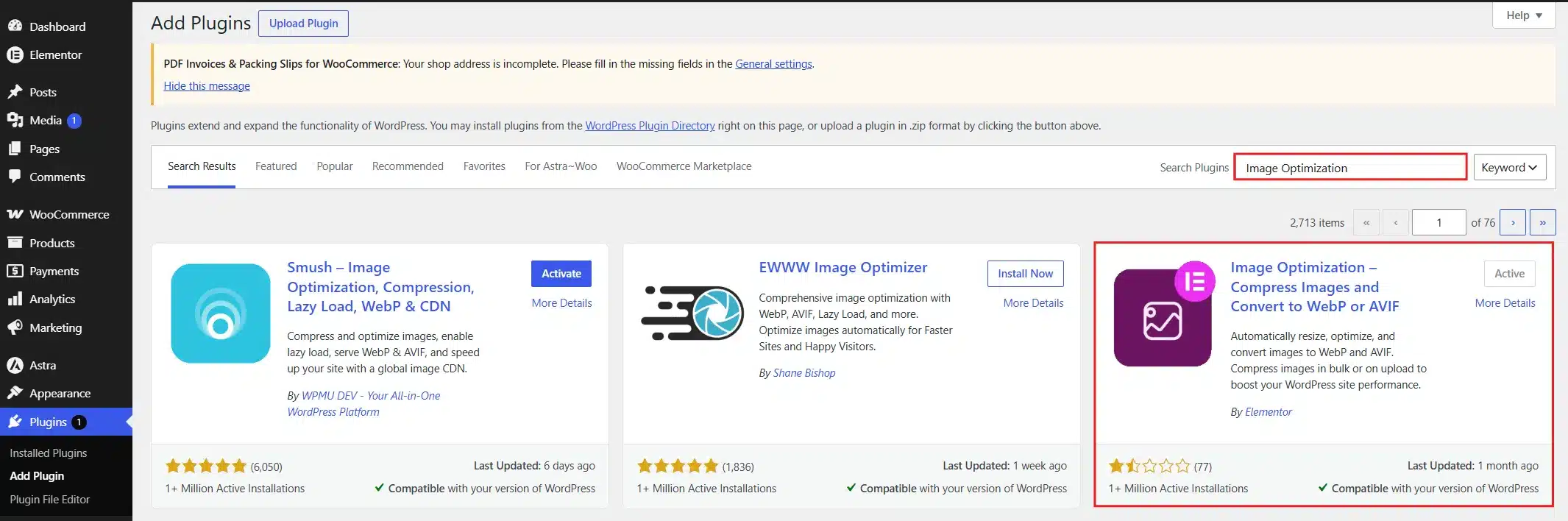
- Install and activate the Image Optimization plugin from the WordPress Plugin Directory.
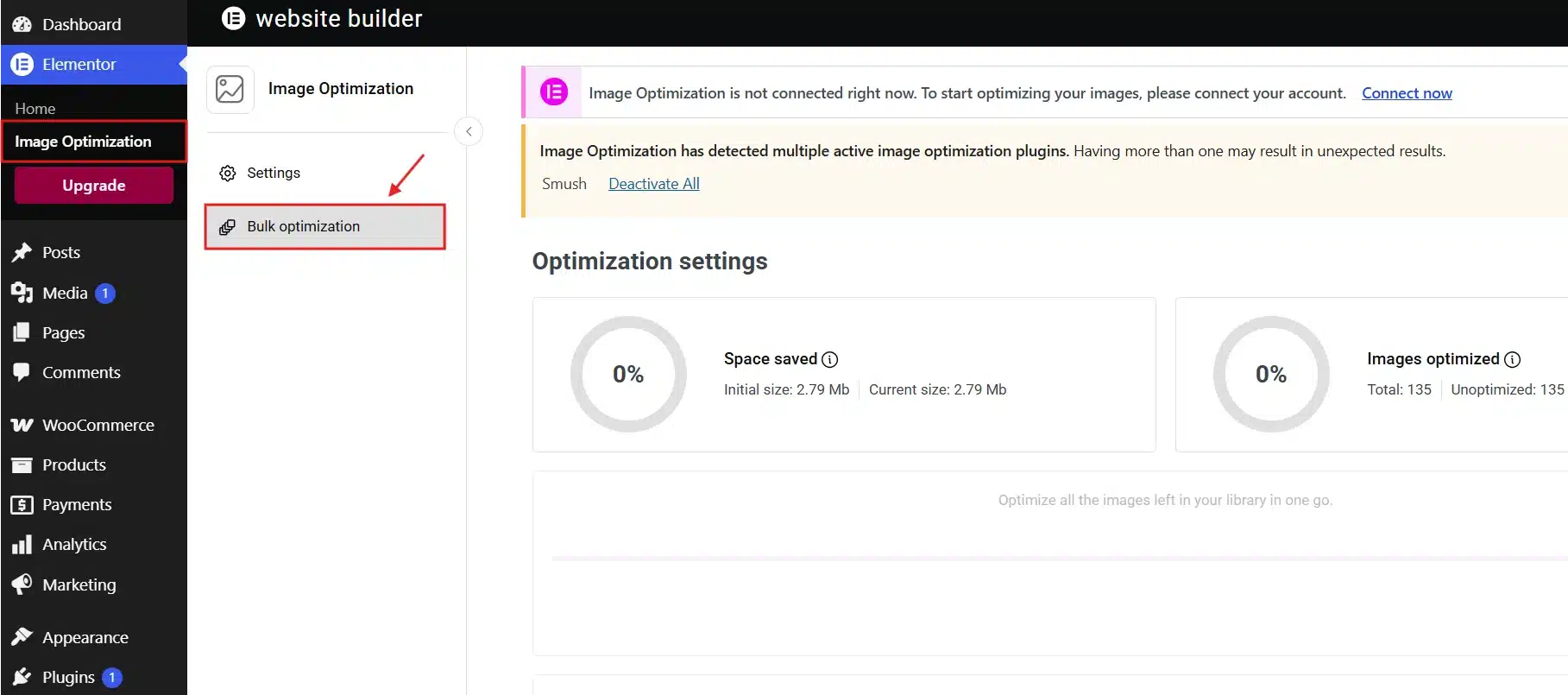
- Most plugins add a Bulk Optimize button under their own settings page. Click it and let the plugin work through your existing catalog in the background.
Switch new uploads to WebP format where your theme supports it. DevDiggers covers the full process in its guide on image optimization in WordPress, including which formats work best for product photography.
Image weight is one of the easiest wins when you want to speed up your WooCommerce website, since it rarely needs any code changes at all.
5. Add a Content Delivery Network
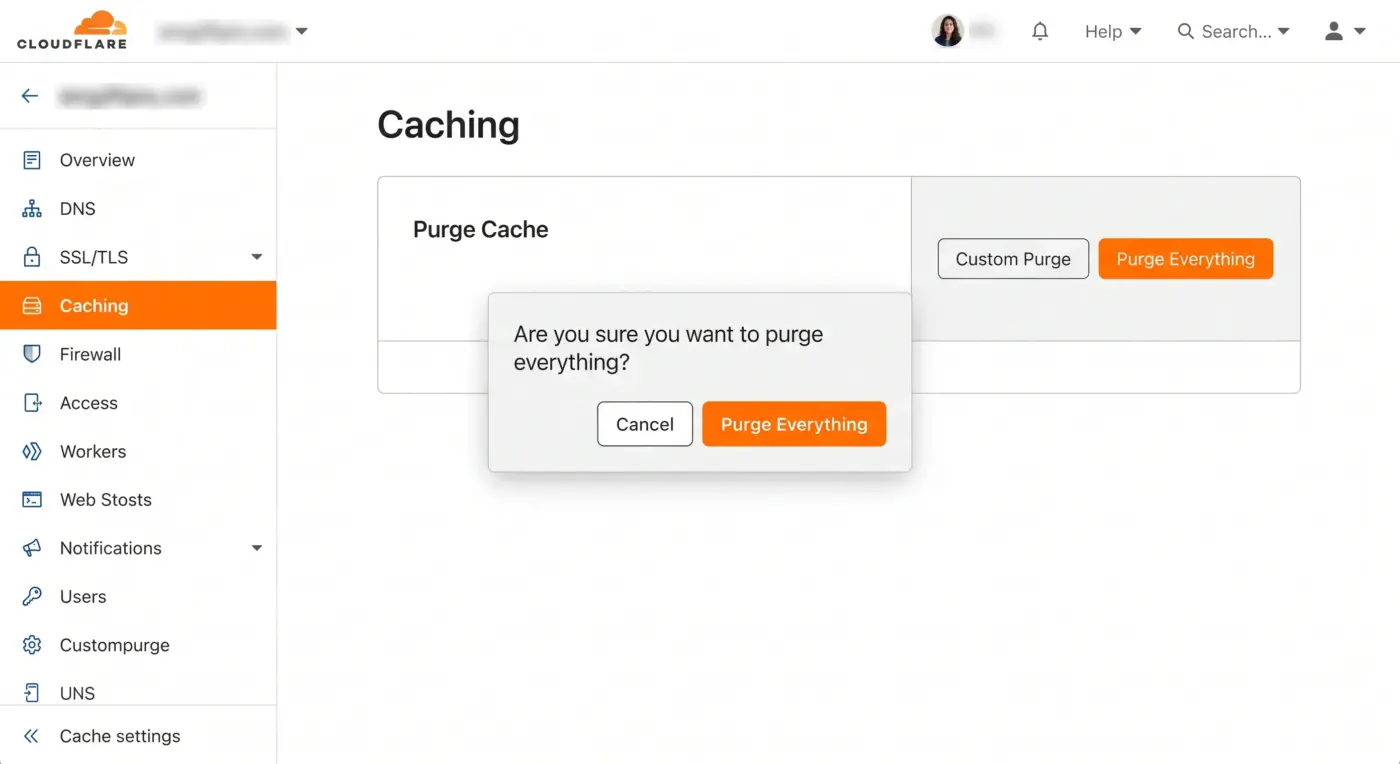
A CDN stores copies of your images, scripts, and stylesheets on servers spread around the world. Visitors then pull those files from whichever server sits closest to them geographically.
If your caching plugin includes CDN integration, look for a CDN tab in its settings menu. Enter your CDN provider’s details there and save the changes.
Cloudflare’s free tier works well for most small to mid-sized stores. Connecting it takes about ten minutes through your domain’s DNS settings, and most hosts walk you through the exact steps in their own documentation.
This step matters most if you sell to customers outside your hosting server’s country. A store hosted in the United States and selling to shoppers in India will feel a real, noticeable difference here.
A CDN will not single-handedly speed up a WooCommerce website with a slow host underneath it, but it removes distance as a factor for every visitor.
6. Keep WordPress, WooCommerce, and Plugins Updated
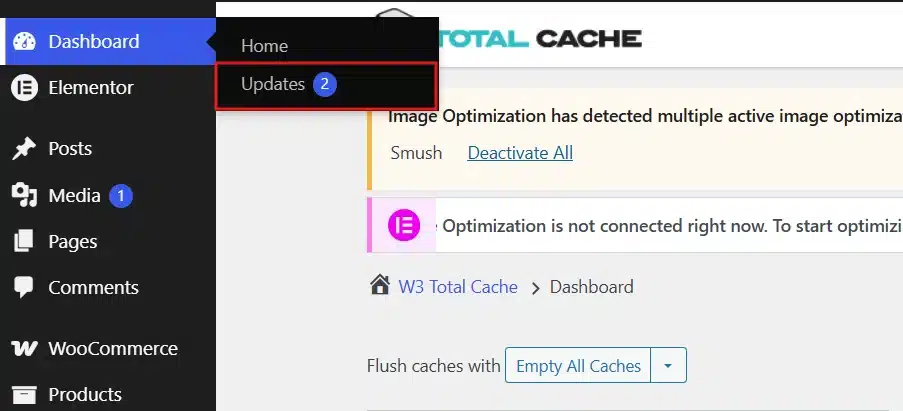
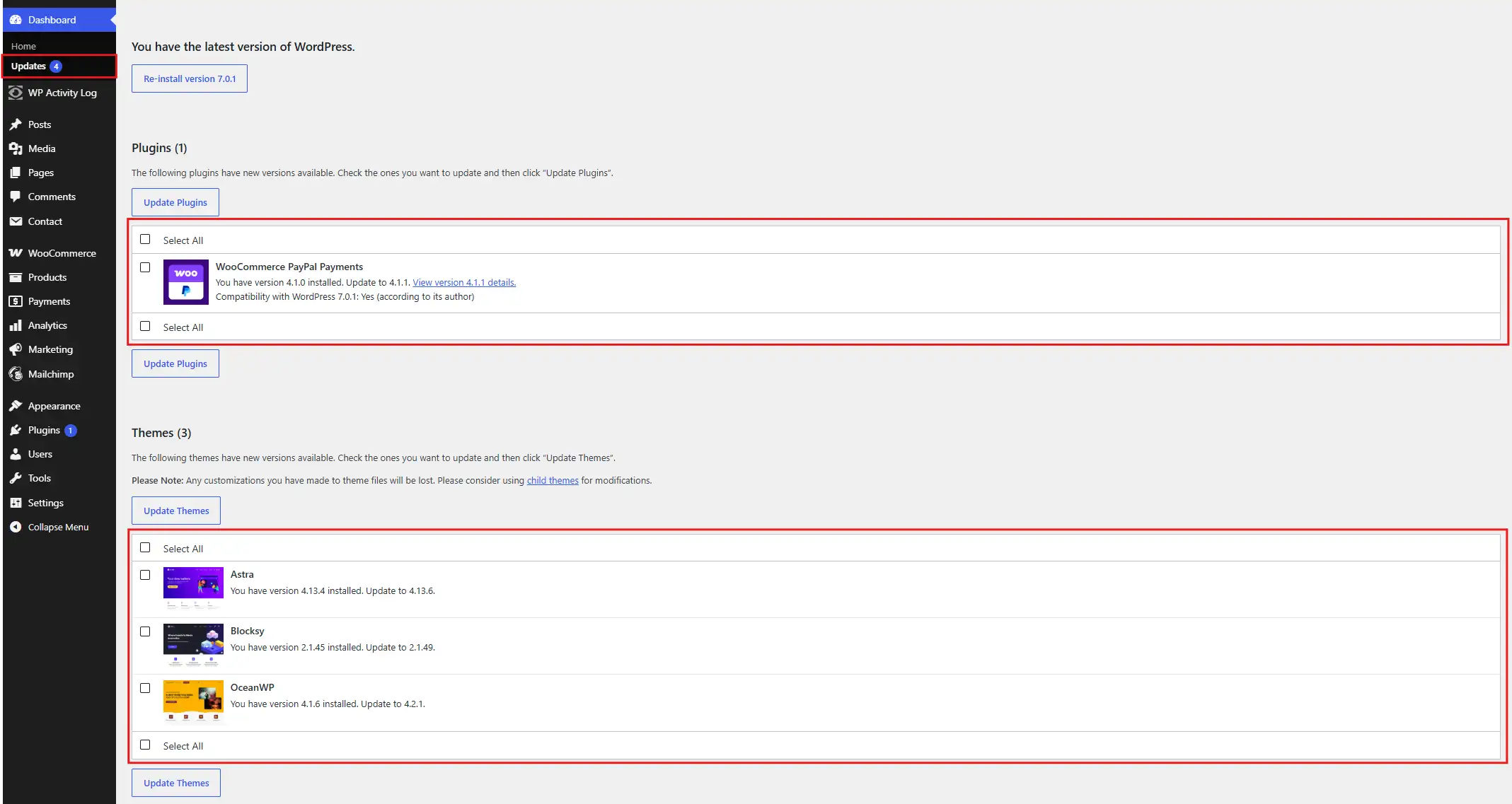
- Go to Dashboard > Updates in your WordPress admin panel. Any plugin or theme with an update waiting shows up here with a checkbox next to its name.
- Select all of them, then click Update Plugins. Do the same on the Themes tab just above it.
Outdated code is not just a security risk sitting quietly in the background. Every WooCommerce release ships with query improvements and bug fixes that affect real load times, especially around checkout.
Stores still running WooCommerce versions from before High-Performance Order Storage (HPOS) became stable often see the biggest jump right here. Older order storage queries the database far more heavily during checkout than the newer system does.
Keeping everything current is a small habit that quietly helps speed up your WooCommerce website all year round, not just on the day you run through this checklist.
7. Remove Plugins You Do Not Use
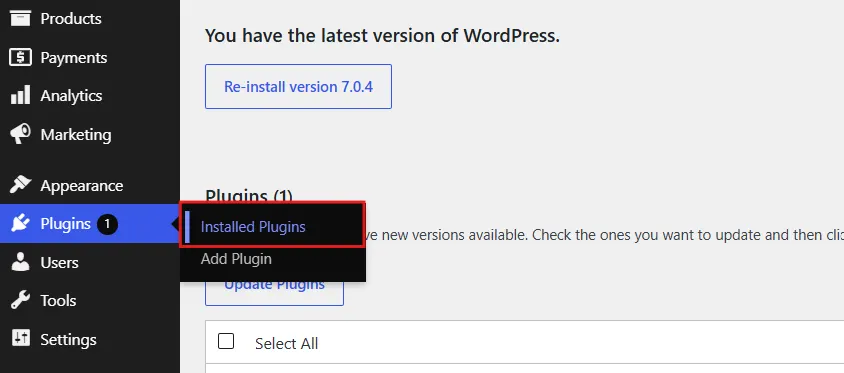
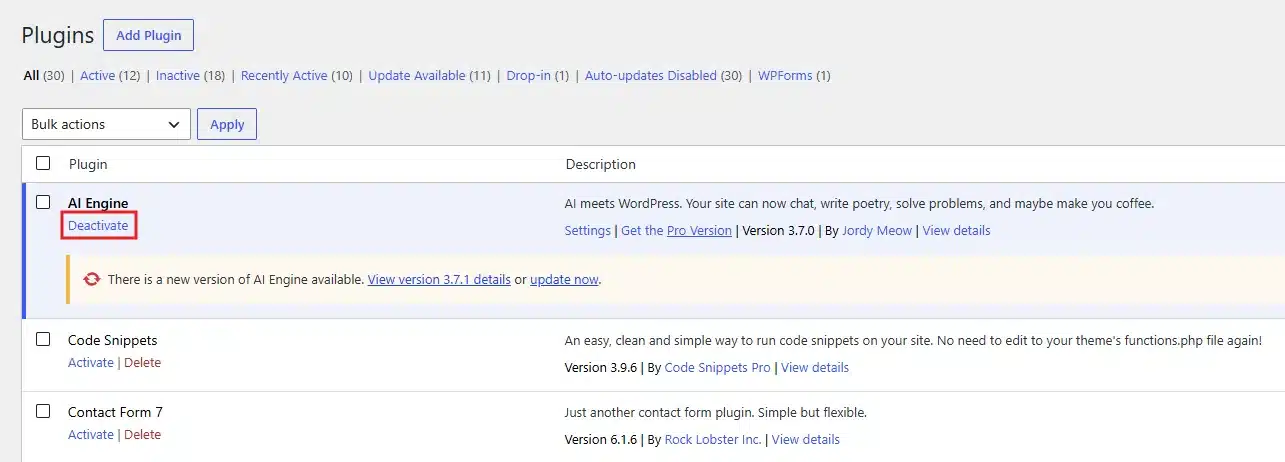
- Go to Plugins > Installed Plugins and read through the full list carefully. Every active plugin adds scripts, styles, and database queries, whether you use its features daily or not.
- Deactivate anything you installed once to test and then forgot about. Click Deactivate, then Delete, for anything you are certain your store no longer needs.
Fewer, well-built plugins from trusted developers beat a pile of one-off tools installed months ago and never removed. If you are unsure whether your plugin count is a real problem for your store, DevDiggers breaks down how many plugins is too many for a typical shop of your size.
8. Clean Up Your WooCommerce Database
Over time, your database fills up with post revisions, expired transients, and leftover data from plugins you removed months back. None of it helps your store run any faster.
- Install and activate Database cleanup Plugins like WP Optimize from the WordPress Directory.
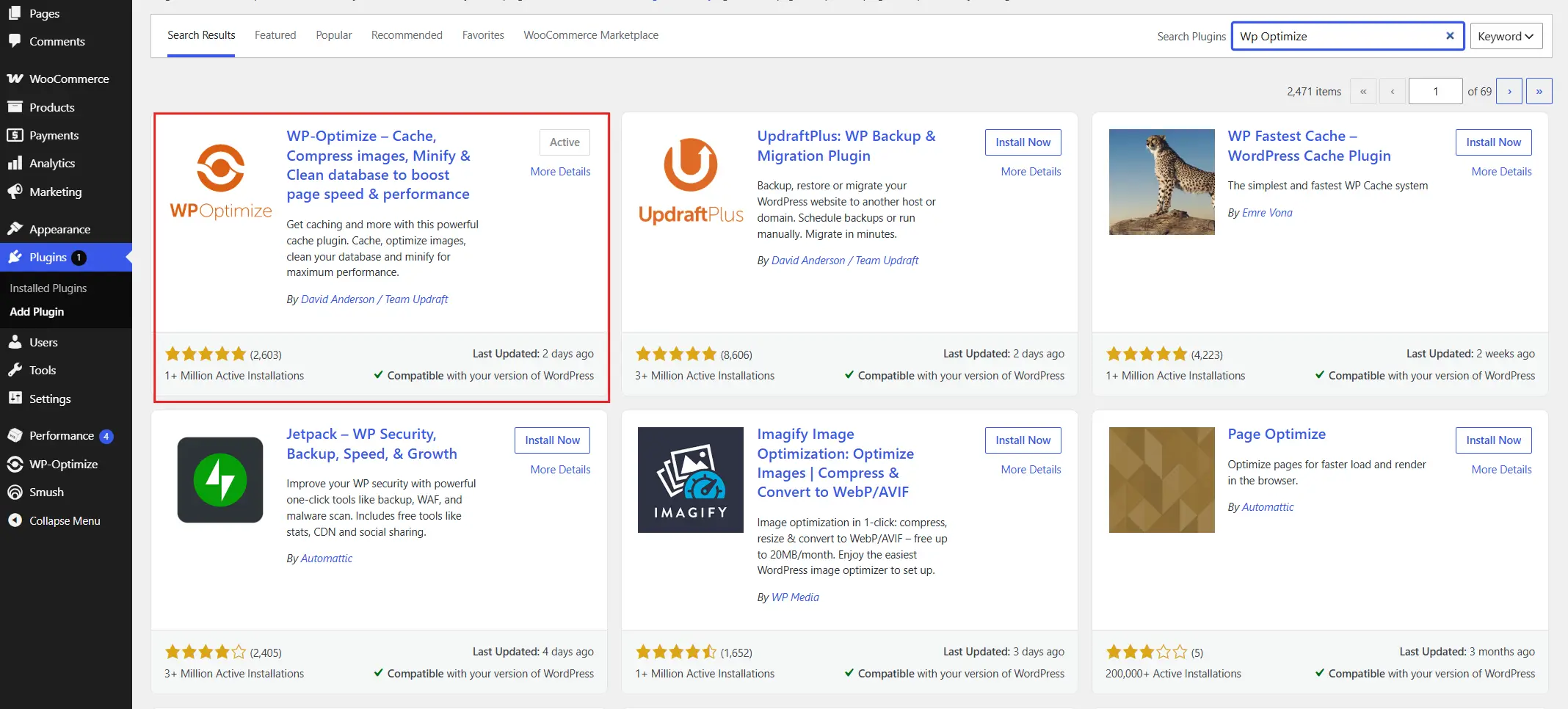
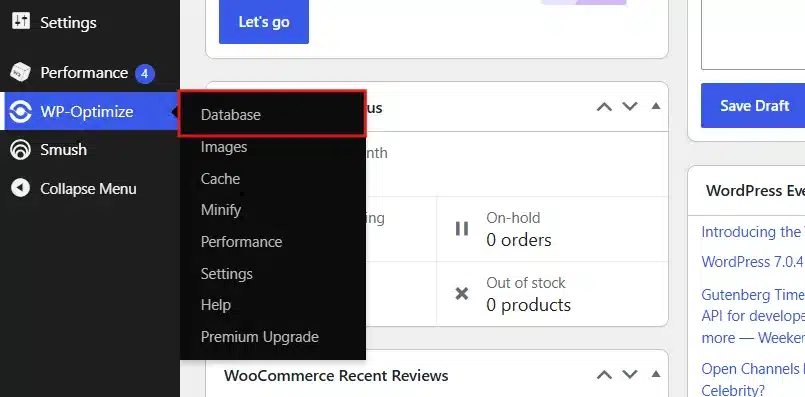
- Once installed and active, open its dashboard and look for a section labelled Database or Optimization.
- Click Run Optimization to clean up any bulky parts from the database.
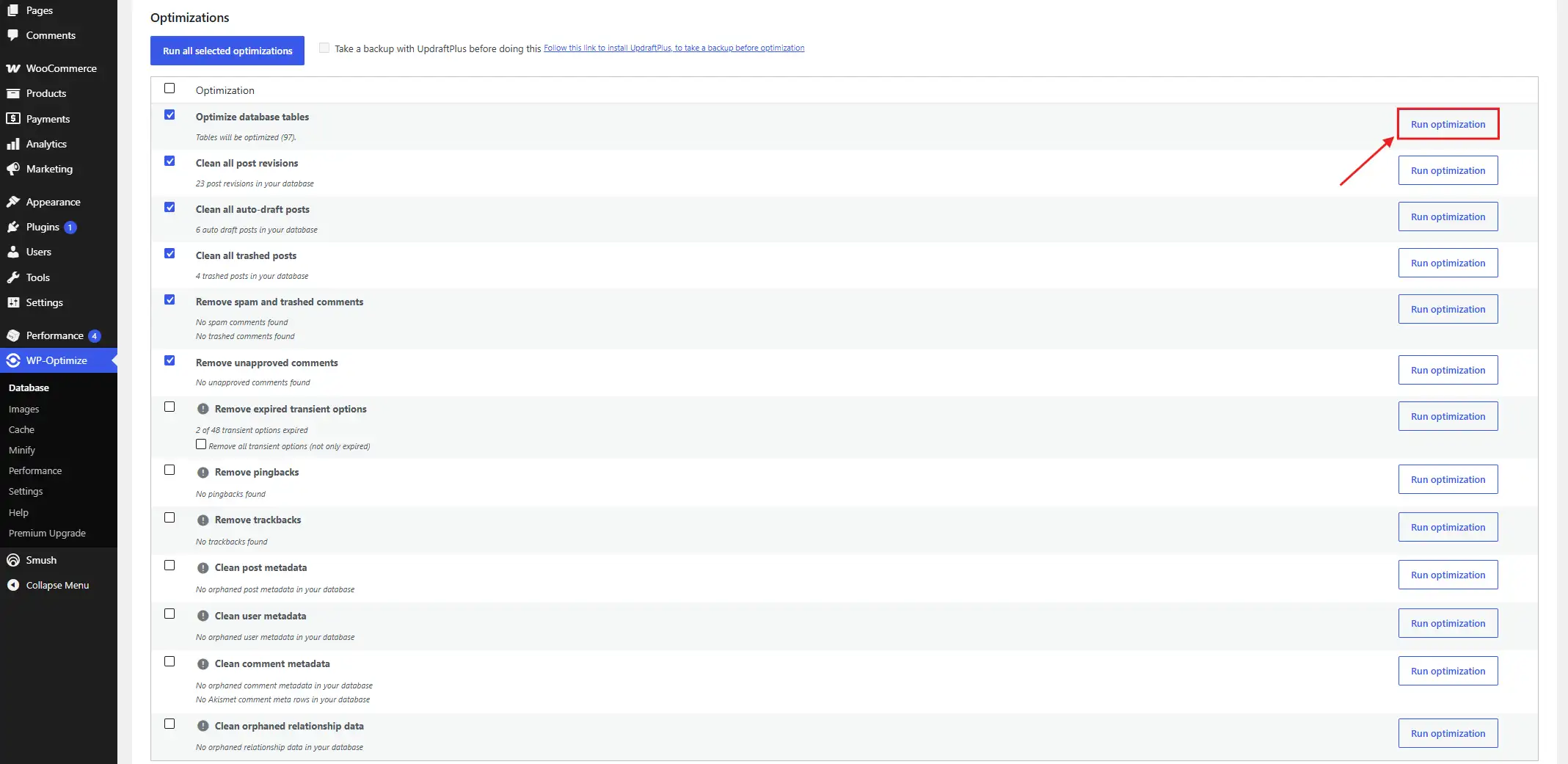
Note: Back up your site beforehand, every time, with no exceptions. A database cleanup is safe in almost every case, but skipping the backup step is never worth the risk it carries.
Stores that have run for a few years without ever touching this step tend to see the biggest change here. A bloated database quietly slows down every single page, not only the ones with heavy content.
A clean database is one of the less obvious ways to speed up a WooCommerce website, but store owners who skip it often wonder why their other fixes did not help more.
9. Update Your PHP Version
- Go to Tools → Site Health in your WordPress dashboard.
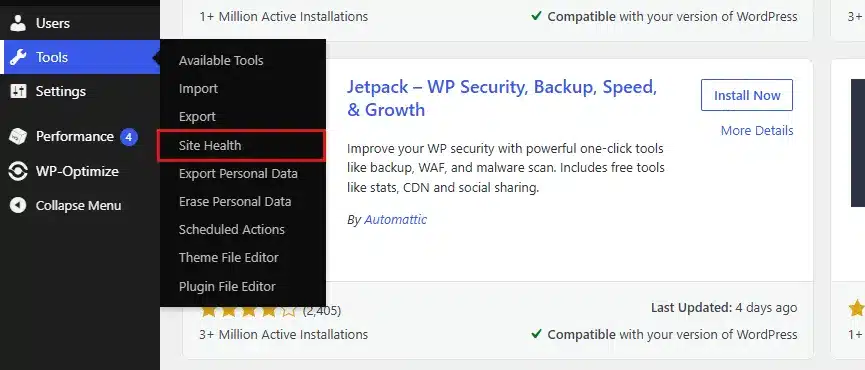
- Click the Info → Server tab to check your current PHP version.
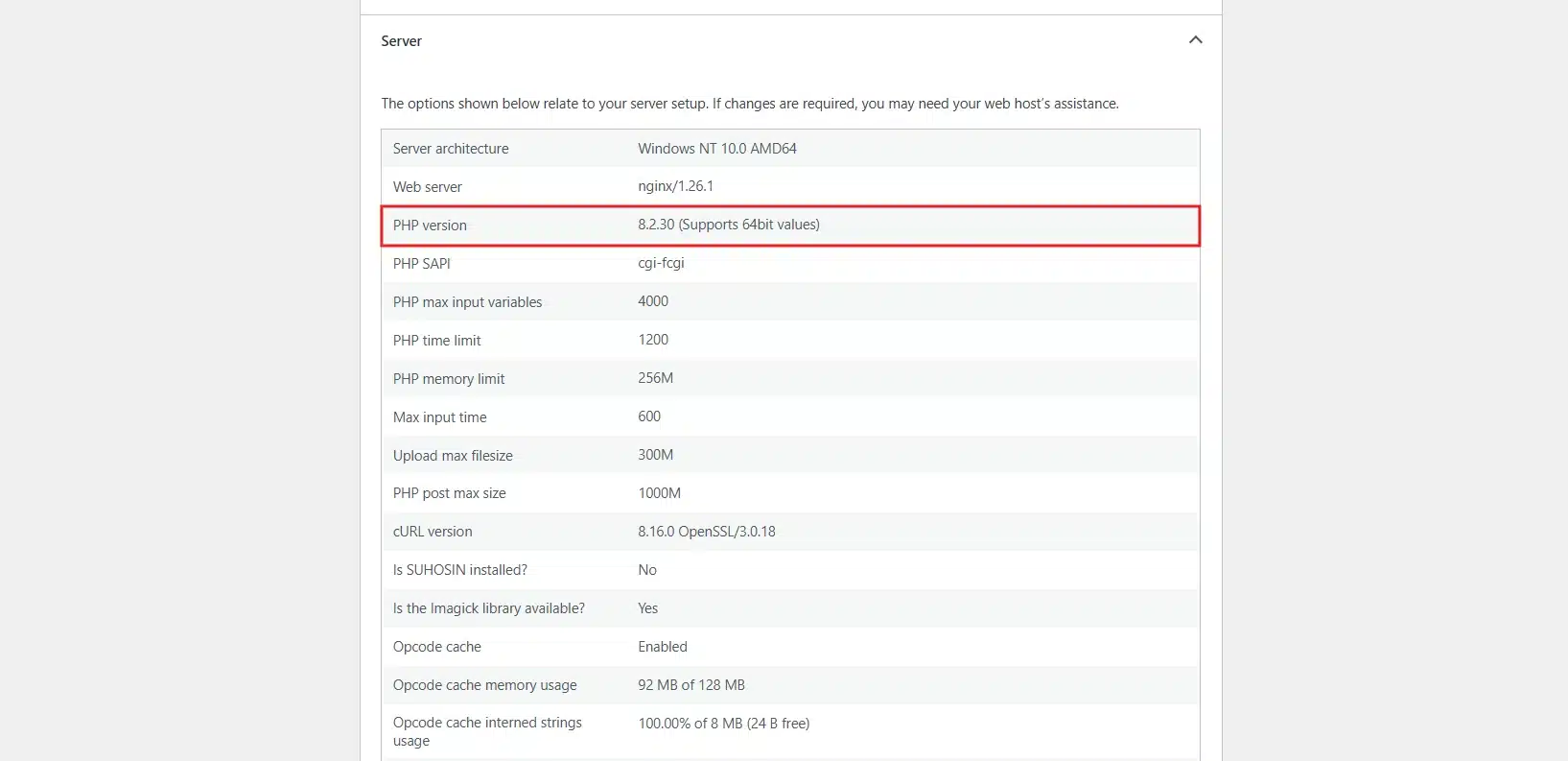
- If you are running anything below PHP 8.1. Choose the newest stable version your host offers from your hosting control panel.
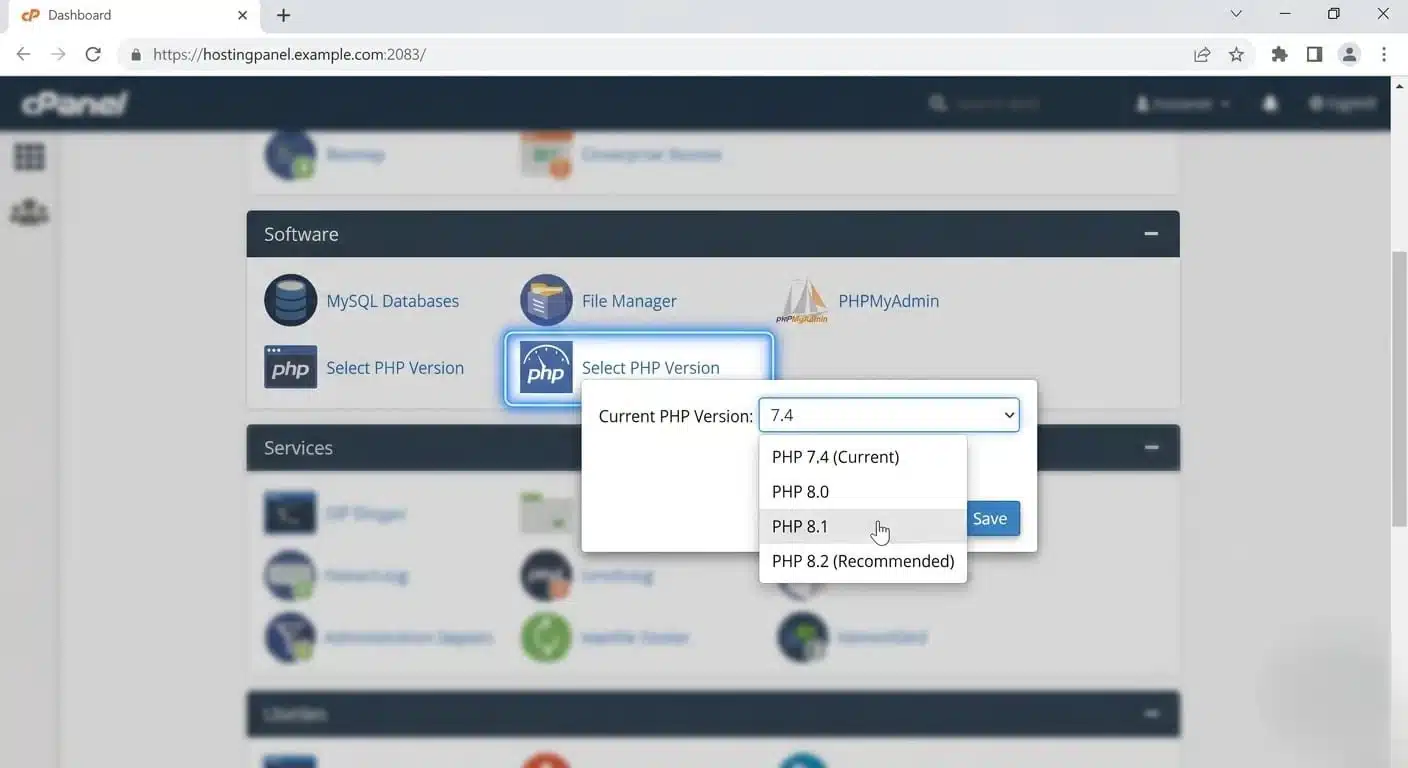
PHP 8 processes WooCommerce’s product and cart logic noticeably faster than PHP 7, based on performance testing from the PHP project itself.
Test your checkout flow right after making this change. An older plugin can occasionally break on a newer PHP version, so this is one step worth checking by hand rather than trusting blindly.
A modern PHP version alone will not speed up a WooCommerce website that is also stuck on cheap hosting, but paired with Step 1 it makes a real, measurable difference.
10. Turn On Lazy Loading for Images
Lazy loading delays offscreen images until a visitor scrolls down to them, instead of loading every product photo on a page all at once.
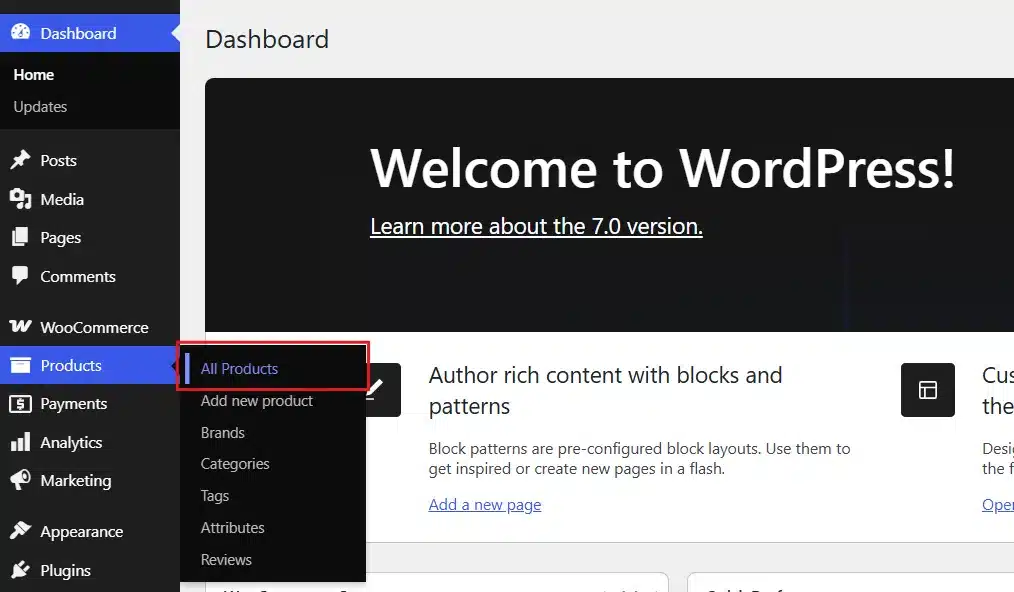
- Go to Products → All products and preview any product in your WordPress Dashboard.
- Open the page source of the page.
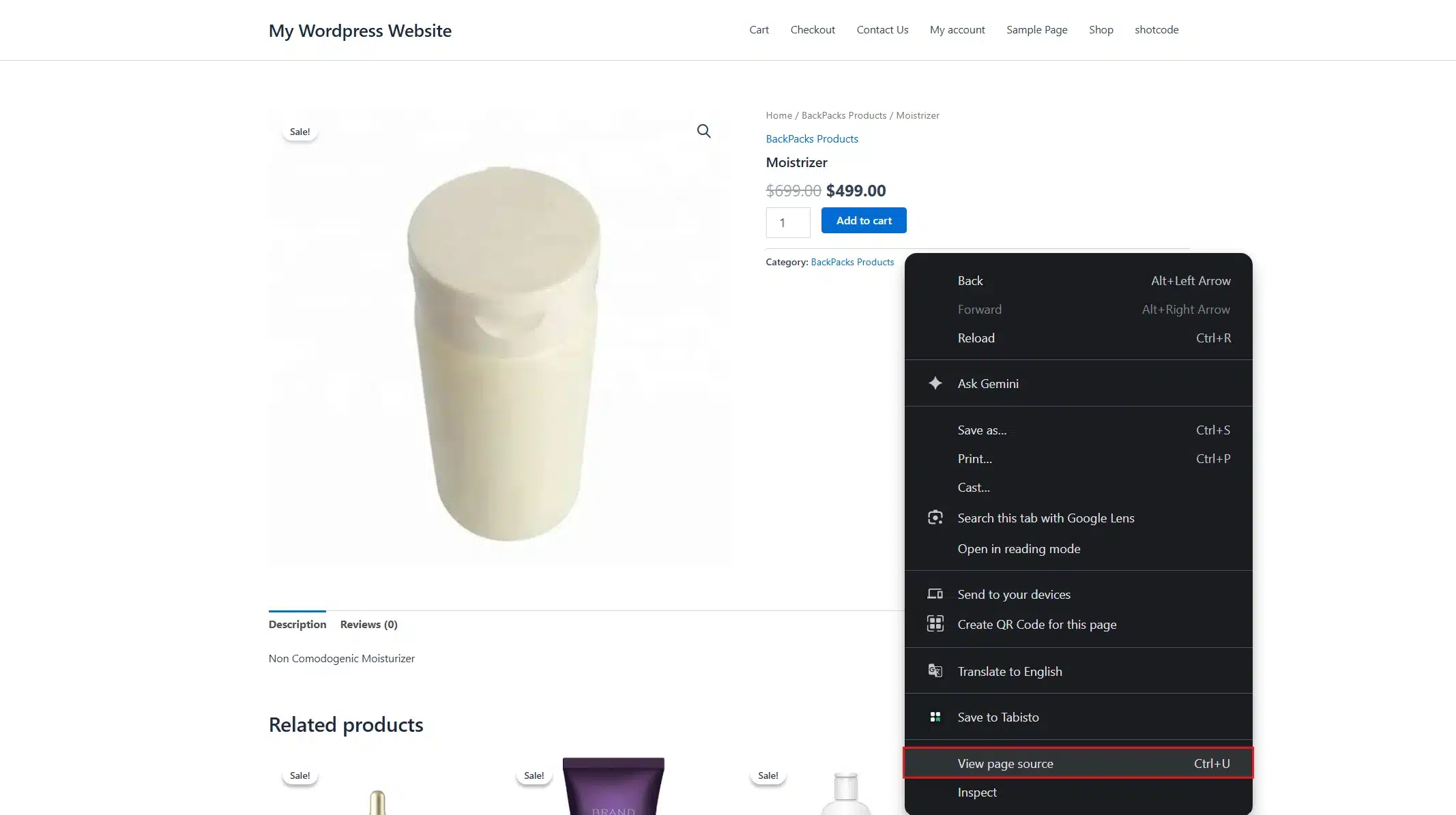
- Search
loading="lazy"in the page source. If it is present, then the theme has lazy loading on by default.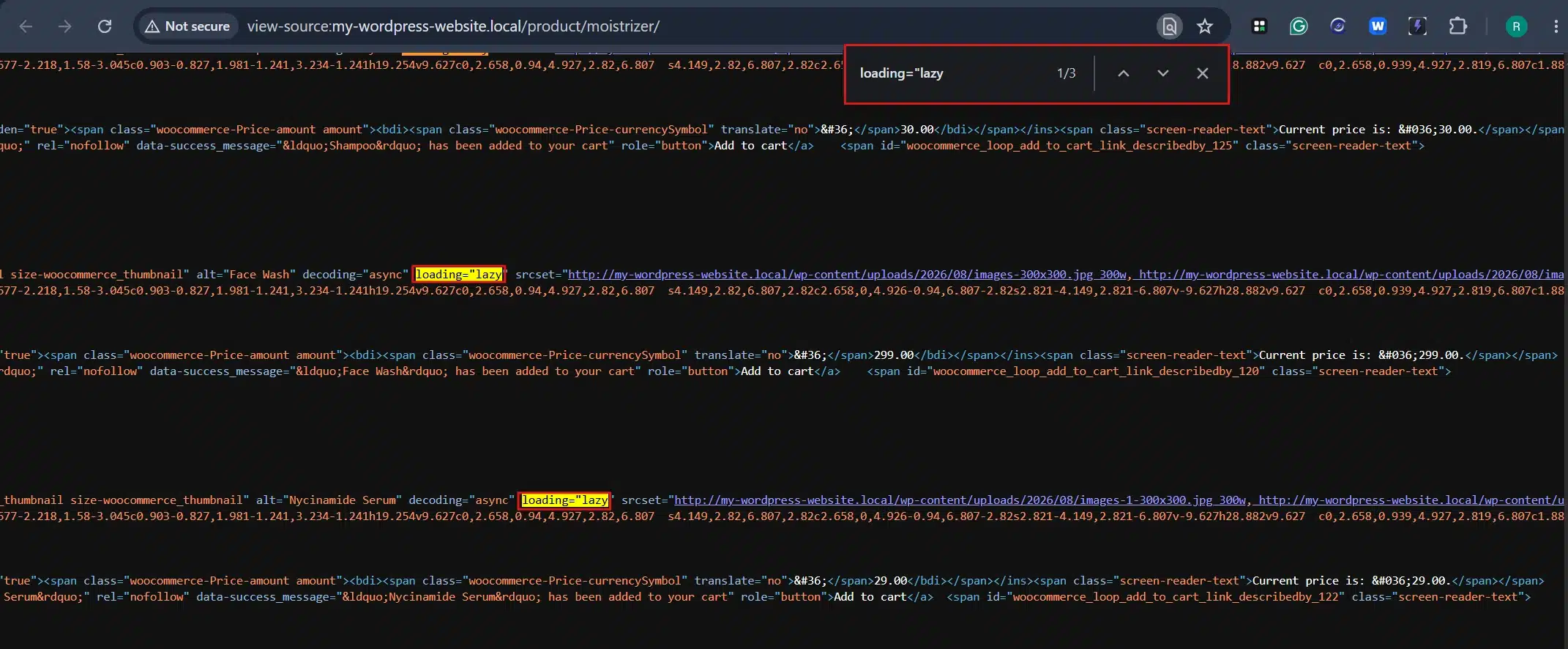
WordPress has included this natively since version 5.5, so most modern themes turn it on by default. Confirm it is active under your theme’s performance settings, or your caching plugin’s Media tab if it offers the option there.
This step matters most on category and shop pages. Dozens of product thumbnails would otherwise load at once on those pages, whether a visitor scrolls that far down or not.
It is a small setting, but it plays its part when you add up every step here to speed up your WooCommerce website as a whole.
How Long Does It Take to See Results?
Most stores see a visible change within a day of completing Steps 1-3. Caching alone can cut load times in half on a site that was never optimized before.
The remaining steps compound rather than replace each other. A fast host with no caching still feels slow to visitors. A cached site full of 6 MB product photos will not score well either. The cache cannot fix a problem it was never built to solve.
Run your PageSpeed Insights test again after finishing all ten steps. Compare the new numbers against the ones you wrote down back at the start.
If your store still feels Slow after all ten steps, the main problem is often something specific to your setup. A poorly coded plugin or a heavy theme customization can hide behind an otherwise solid checklist.
That is a good point to bring in DevDiggers for a WordPress speed optimization service. A closer look at your Query Monitor report often finds the exact cause.
Conclusion
You do not need a developer to speed up a WooCommerce website. The ten steps above cover hosting, caching, images, and the smaller fixes that add up, all ordered around real impact rather than convenience.
Start with Steps 1-3 if you only have an hour to spare this week. They tend to produce the biggest visible jump for the least amount of effort.
Come back to this guide every few months. Plugins update and product catalogs grow. A store that loaded fast at launch can slowly drift back toward slow, often without anyone noticing until a customer complains.
Frequently Asked Questions(FAQs)
Q1. How much does it cost to speed up a WooCommerce website?
Most of the ten steps here use free plugins and settings changes you can make yourself with no outside help. The only likely cost is upgrading to WooCommerce-friendly hosting, which typically runs $20 to $50 a month more than basic shared hosting.
Q2. Will speeding up my store increase sales?
Yes, in most cases it will. Faster load times reduce cart abandonment and improve your mobile bounce rate, and both of those feed directly into your overall conversion rate.
Q3. Can I speed up my site without a caching plugin?
Not effectively, no. Caching addresses server load in a way that image compression and plugin cleanup cannot replace on their own. That is why it stays near the top of this list.
Q4. Does WooCommerce slow down WordPress by itself?
Not inherently, no. WooCommerce adds dynamic features like cart and checkout that cannot be cached the same way a normal blog post can. That is why hosting and caching setup matter more here than on a simple WordPress site.
Q5. How often should I redo these speed checks?
Run a PageSpeed Insights test every time you add a new plugin, switch themes, or notice a jump in product count. Quarterly checks work well for most stores even without any specific trigger.
Q6. What is a good WooCommerce page load time to aim for?
Aim for under three seconds on both desktop and mobile, since that is roughly where most shoppers start to abandon a page. Stores that finish all ten steps in this guide typically land between one and two seconds on a well-optimized product page.