
To add bullet points in WordPress, insert a List block in the block editor and type your first item. Press Enter for each new bullet, and press Enter twice to leave the list. It takes about ten seconds.
The block editor gives you three ways in. You can search for the block, type a shortcut such as * at the start of a line, or edit the HTML directly. This guide covers each one, plus nested lists, bullet styles, colors and fixes for lists that break.
Every screenshot comes from a fresh WordPress 7.1.2 test site running the Twenty Twenty-Five theme, checked in September 2026. Where the official List block guide and our tests differ from older tutorials, we say so.
What Is a Bullet Point List in WordPress?
A bullet point list is an unordered list. WordPress builds it with the List block, which outputs an HTML <ul> element with one <li> per item. Use bullets when the order of the items does not matter, and use a numbered list when it does.
The List block handles both kinds. A single button in its toolbar switches between them, so you never pick the wrong type for good. Each item is its own List Item block inside the list.
How to Add Bullet Points in WordPress With the List Block
The List block is the standard way to add bullet points in WordPress. Click the plus icon or type /list on an empty line and choose List. Type the first item, press Enter for the next one, and press Enter twice to finish the list.
- Open the post: Edit a post or page in the block editor.
- Start the block: Type
/liston an empty line and press Enter. - Type the items: Write the first item, then press Enter for each new bullet.
- Leave the list: Press Enter twice on an empty bullet to return to a paragraph.
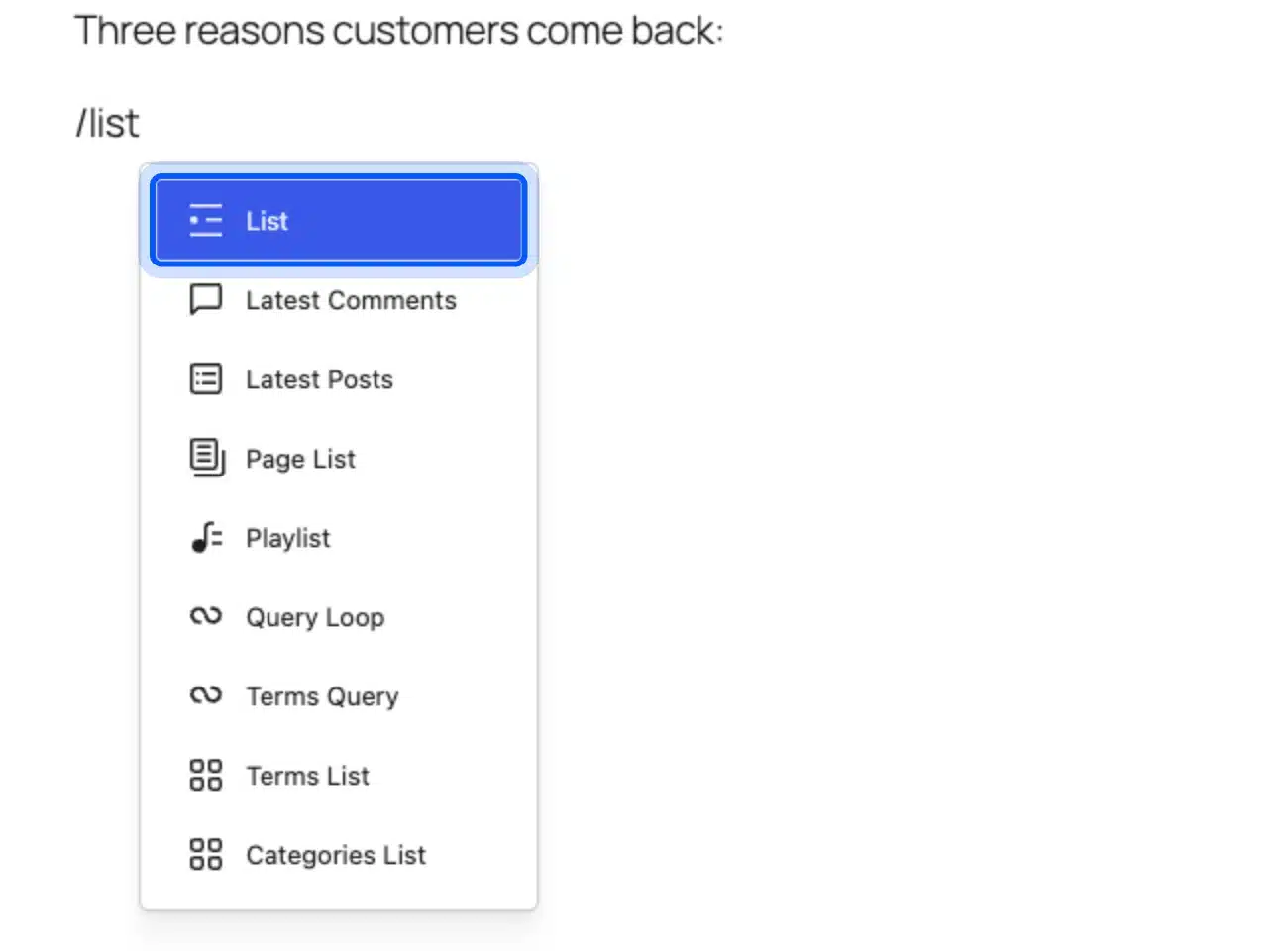
The official guide says you can also click the Block Inserter (+) and search for List. The result is the same block.
Add Bullet Points With a Keyboard Shortcut
A keyboard shortcut is the fastest way to start a bulleted list. Type an asterisk or a hyphen followed by a space at the start of an empty line. The block editor turns that line into a bulleted List block as soon as you press the space bar.
We tested three triggers. An asterisk and a space created a bulleted list, and so did a hyphen and a space. Typing 1. and a space created a numbered list.
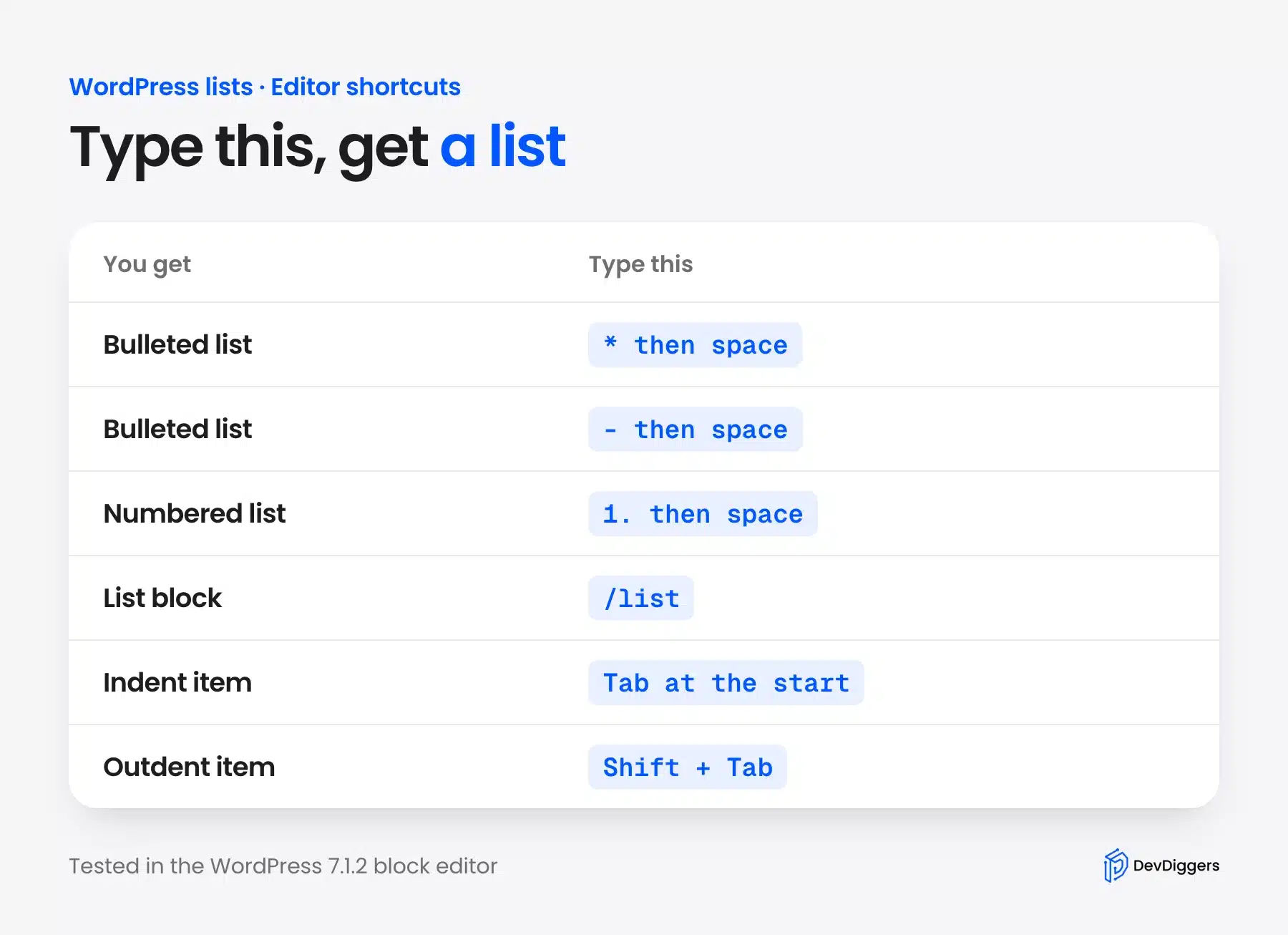
Press Enter after each item as usual. These shortcuts work only at the start of a fresh line, so they do nothing in the middle of a sentence.
How to Turn Existing Text Into a Bullet List
You can turn lines you already wrote into a bullet list without retyping them. Select the paragraphs, open the block type menu at the left of the toolbar and choose List. WordPress puts each paragraph into its own list item inside one List block.
To select several paragraphs, click into the last one and press Shift with the Up arrow until every line is highlighted. The toolbar then shows Multiple blocks selected. Open the first button and pick List from the Transform to menu.
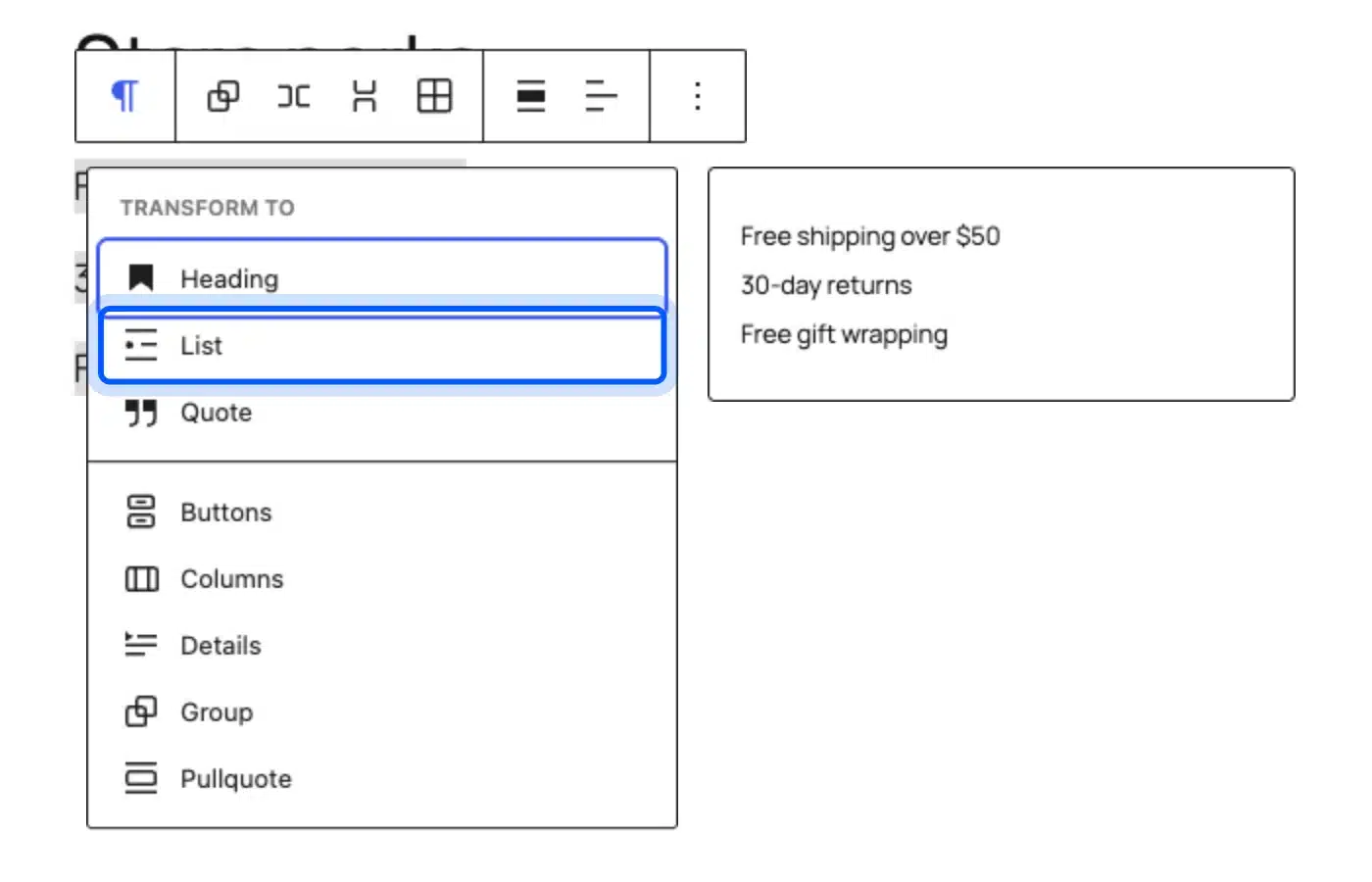
We tested this with three paragraphs. The result was one List block with three items, and the text stayed exactly as typed.
How to Make a Nested Bullet List in WordPress
A nested list is a bullet list inside another bullet. Select the item you want to move, then click Indent in the block toolbar. The item shifts one level to the right and takes a new bullet style, which is usually a hollow circle.
Click Outdent to move it back.
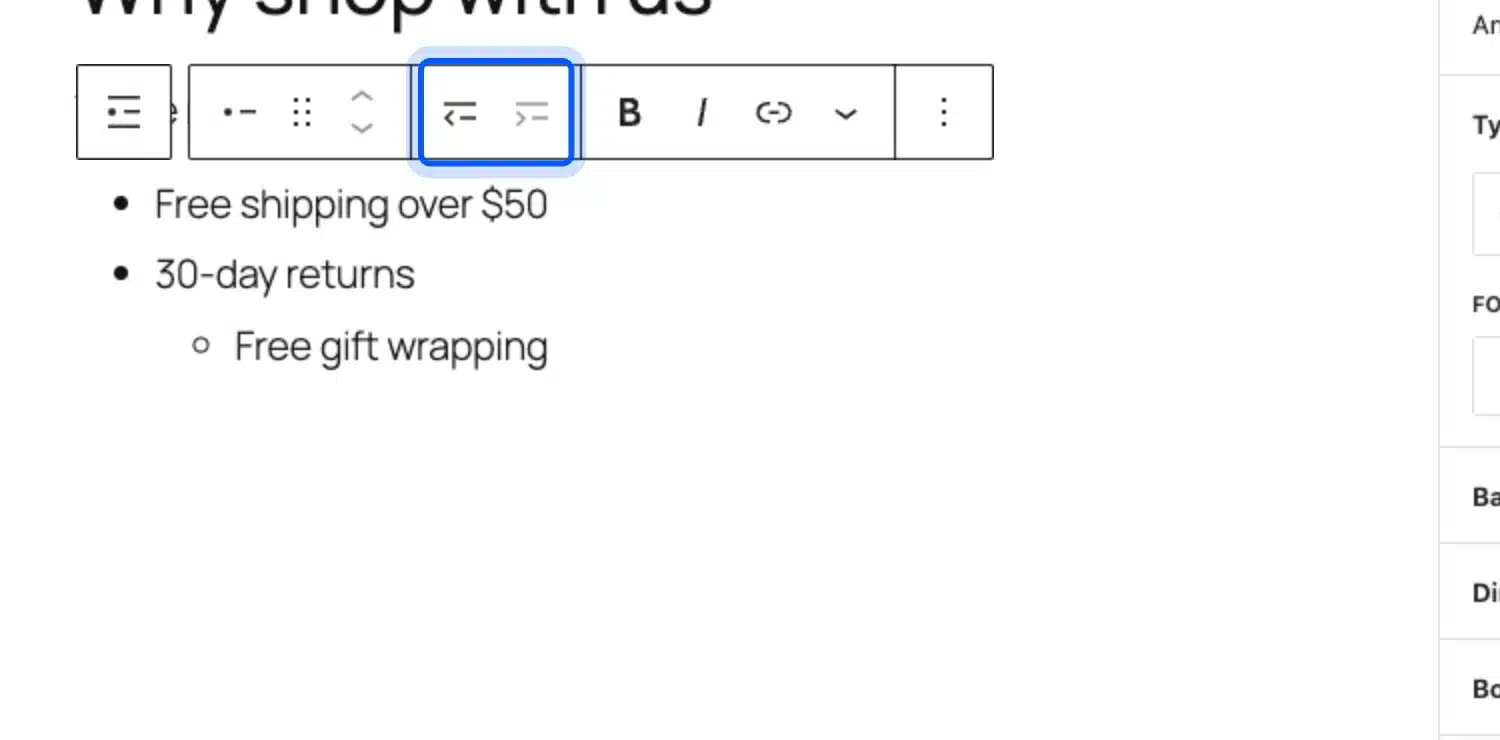
You can also use the keyboard. The official guide names Tab to indent and Shift+Tab to outdent, and we tested both. Tab indented only when the cursor sat at the start of the item, so press Home first.
Every nested list WordPress creates is still one List block, so it keeps the theme’s list styling.
Tip: If Tab moves focus out of the list instead of indenting, your cursor is at the end of the item. Press Home, then Tab again.
How to Add a Numbered List in WordPress
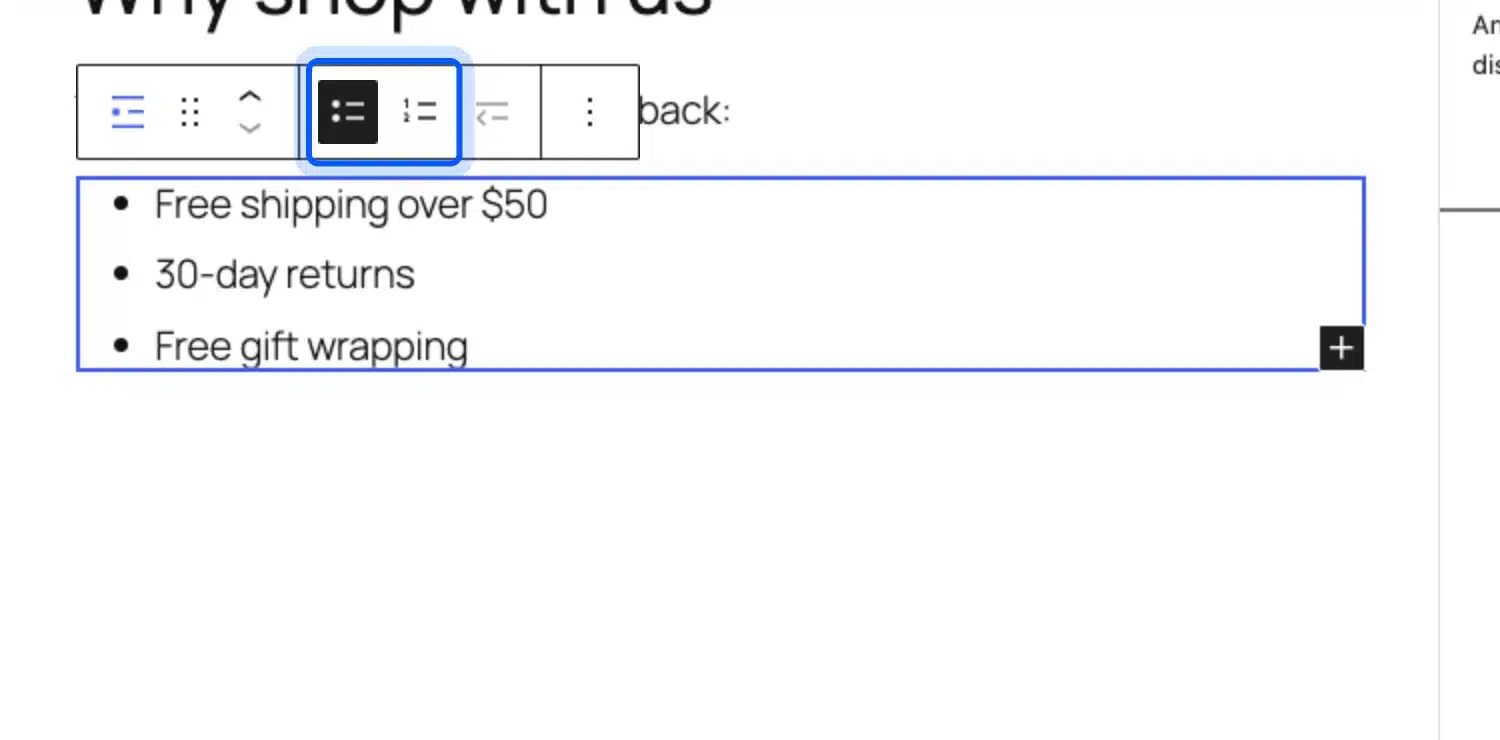
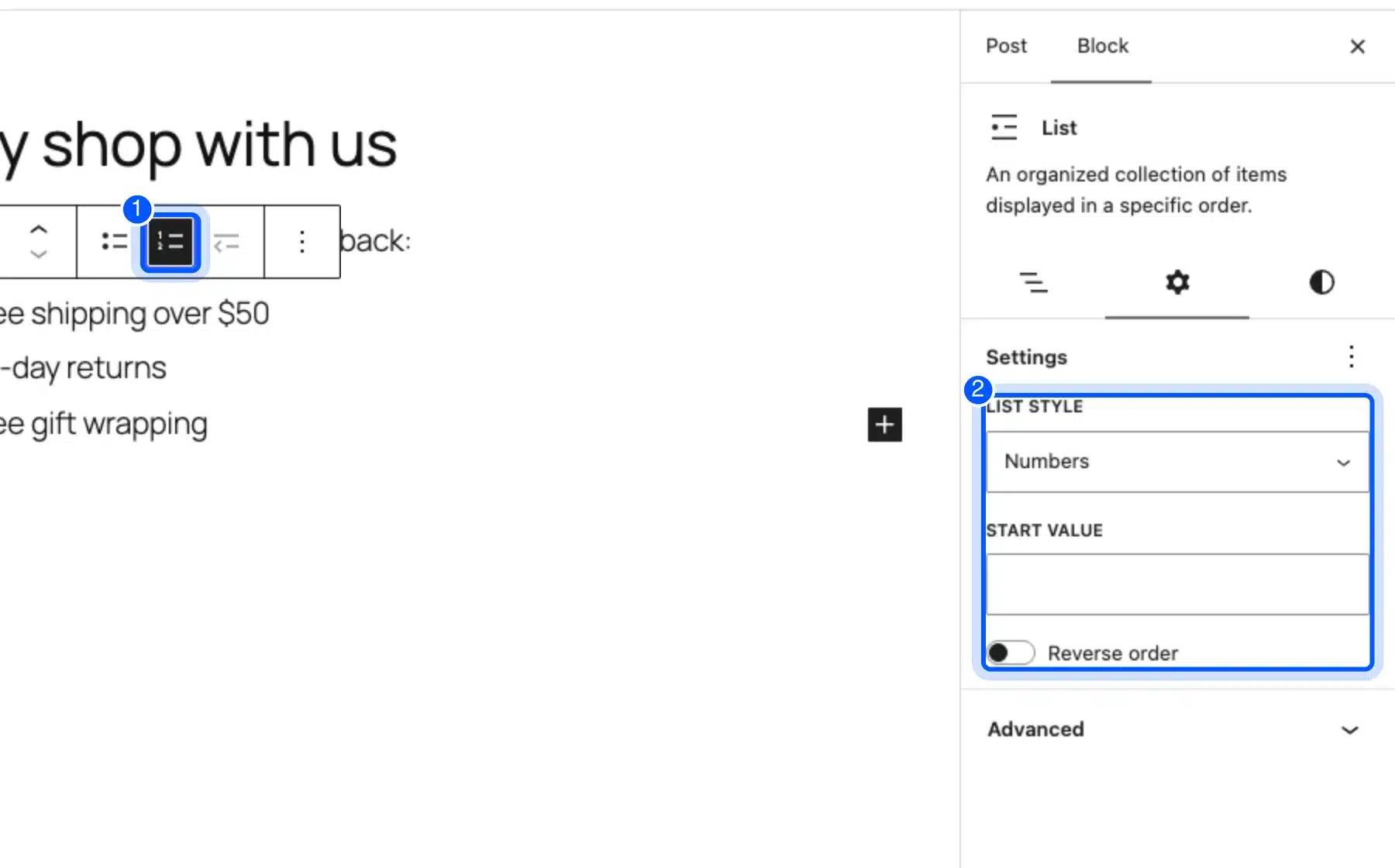
A numbered list uses the same List block with one setting changed. Select the whole List block, then choose the Ordered button in the toolbar. The bullets become numbers, and the Settings tab adds a list style, a start value and a reverse order switch.
To select the whole block rather than one item, click the small list icon at the left end of the toolbar. It is labeled Select parent block.
After you switch to Ordered, the Settings tab lists the list style, start value and reverse order options. The list style menu offers numbers, uppercase and lowercase letters, and uppercase and lowercase Roman numerals.
Click Unordered to switch back. Nothing you typed is lost.
Bullets or Numbers: Which List Should You Use?
Use bullets when the items could be reordered without changing their meaning, such as features or benefits. Use numbers when the order matters, such as setup steps or rankings. If you plan to say “step 3” in the text, you need numbers.
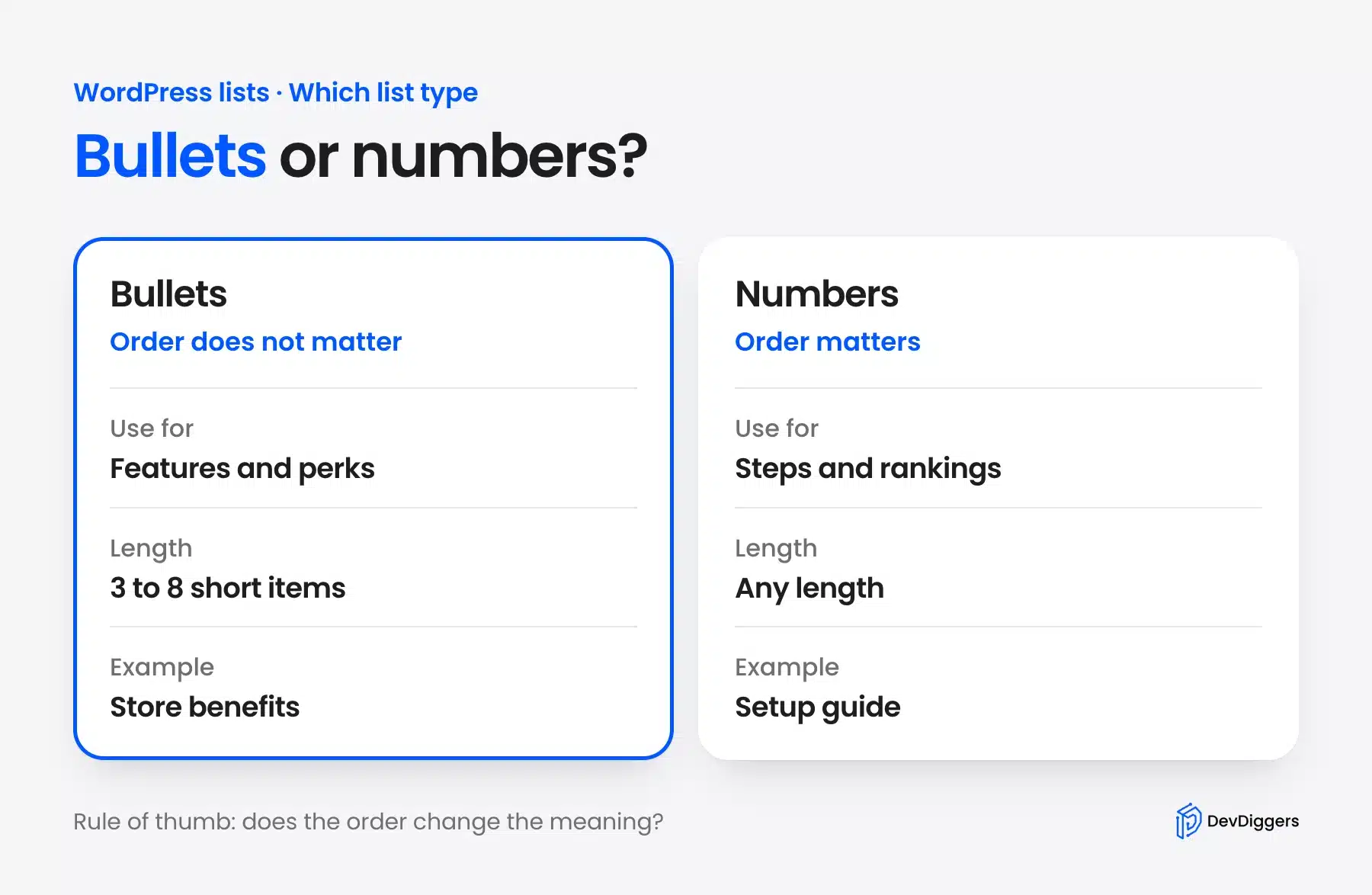
Short lists read best. Three to eight brief items are easy to scan, and longer lists often work better as a table or as separate headings.
How to Change the Bullet Style in WordPress
You can change the bullet symbol from the Styles tab of the List block. Select the whole list, open the Styles tab and choose a style from the two or three buttons shown. On our test site, the Twenty Twenty-Five theme offered Default and Checkmark.
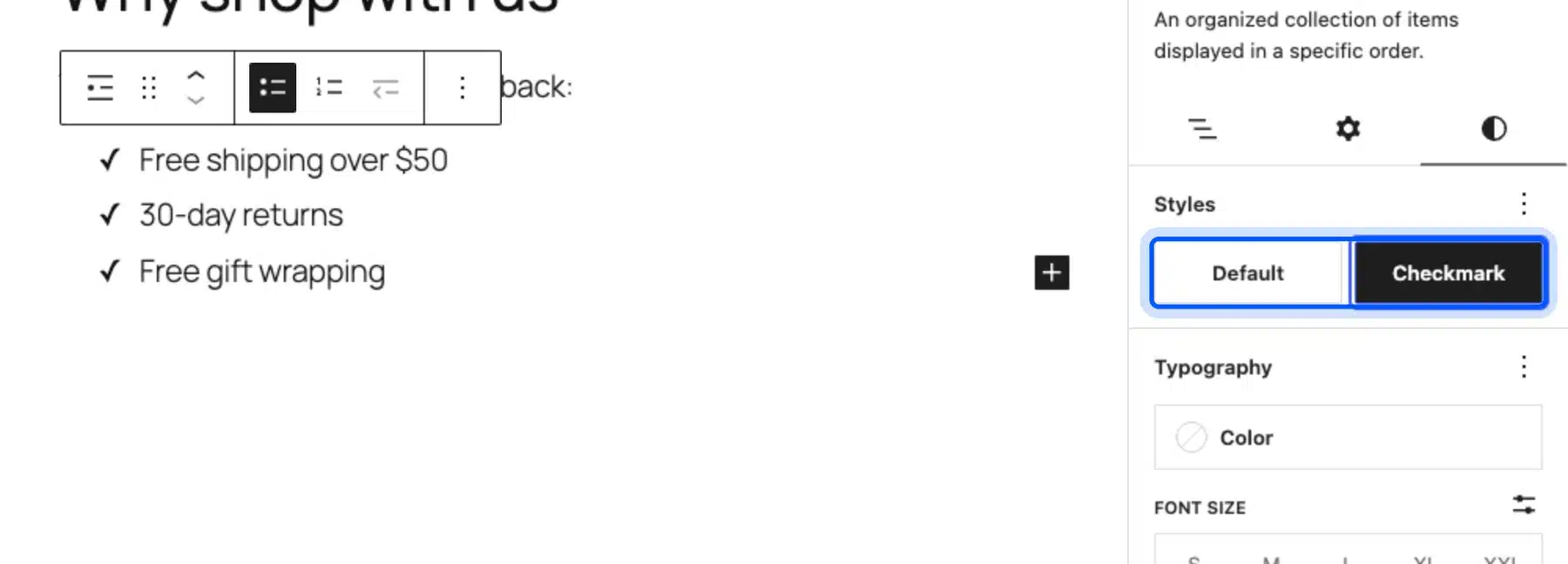
The official guide says these style options may be different depending on your theme. Some tutorials list Circle and Square styles, but those did not appear in our test. Your theme decides which styles you see.
How to Change Bullet Color With CSS
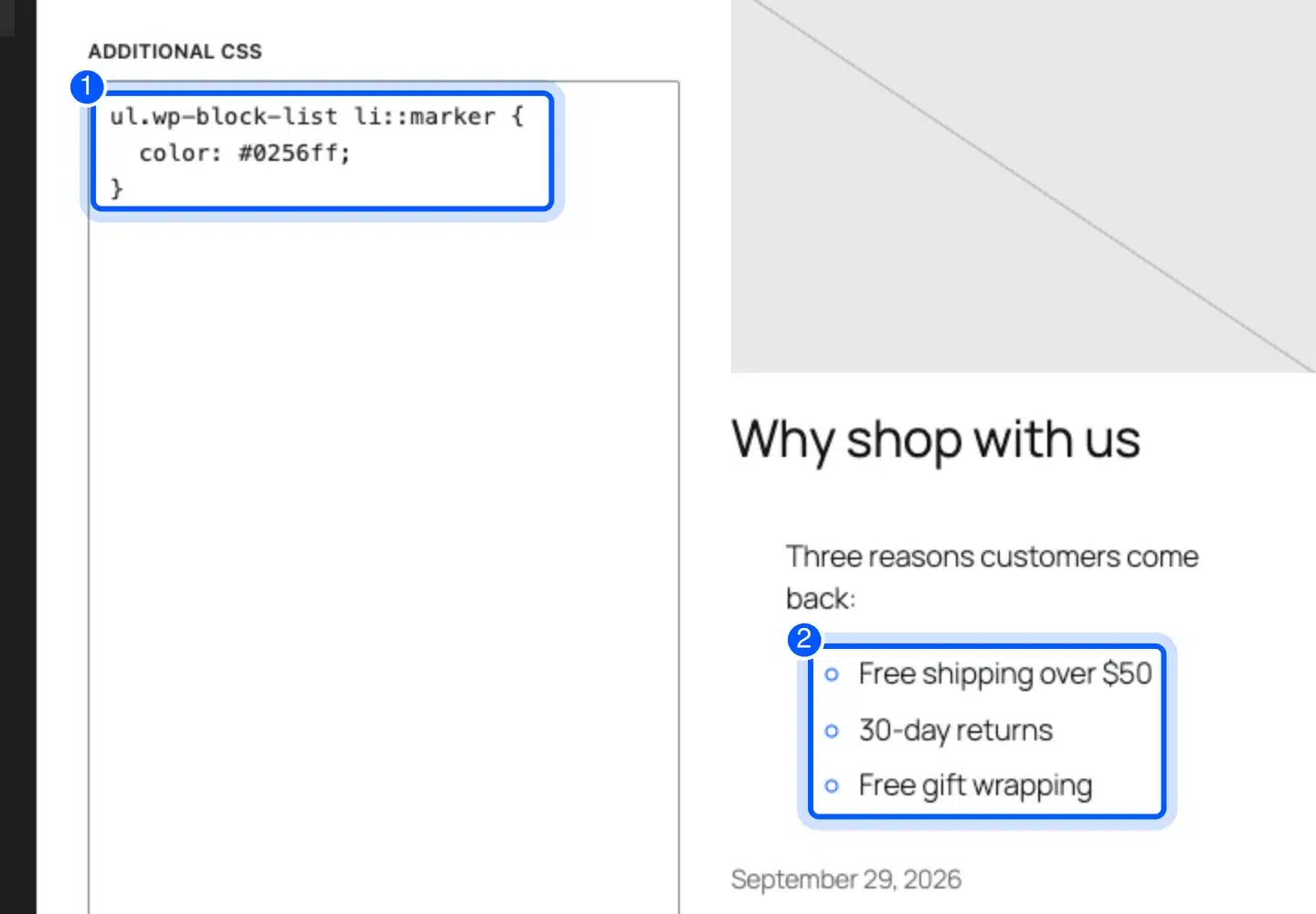
To change the bullet color, target the ::marker pseudo-element in Additional CSS. In the Site Editor, open Styles, choose Additional CSS and add a rule. The marker controls only the bullet symbol, so the text keeps its own color and size.
ul.wp-block-list li::marker {
  color: #0256ff;
}
In our test, the preview updated as we typed the rule, and the bullets turned blue.
Sites with a classic theme add the same rule under Appearance, then Customize, then Additional CSS.
Browser support has limits, though. MDN marks ::marker as limited availability and lists color and font properties as allowed.
The same page shows a content value that swaps the bullet for a symbol of your choice. Check the result in Safari and Chrome before you rely on it.
How to Add Bullet Points in the Code Editor
The code editor shows the exact markup WordPress saves for your list. Open the three-dot menu at the top right, choose Code editor and look for <ul class="wp-block-list">. Each bullet sits in an <li> tag, wrapped in a List Item block comment.
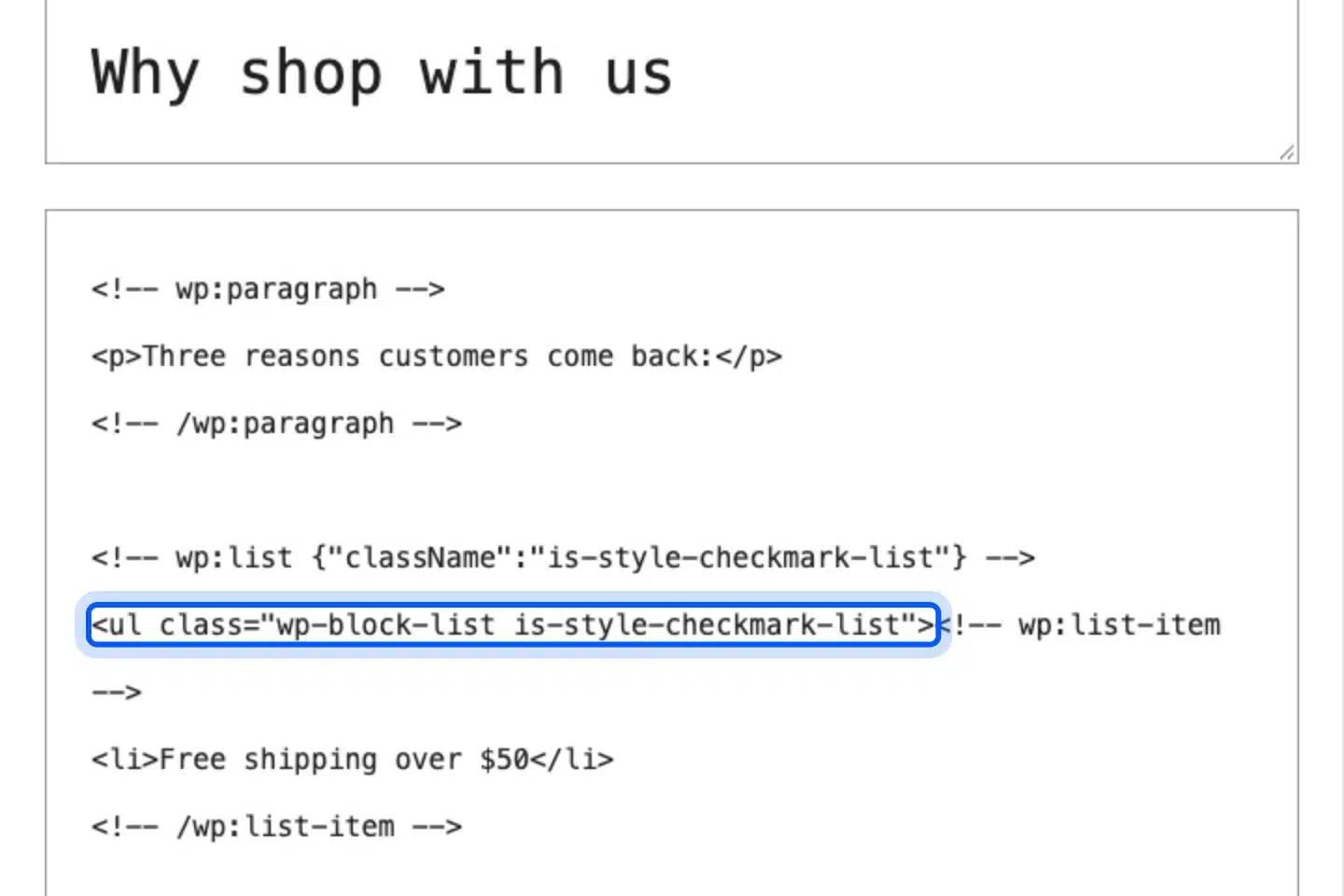
Notice the class on the tag. After we picked the Checkmark style, the list carried is-style-checkmark-list. That is how the theme knows which symbol to draw.
If you write the list yourself, keep the block comments around it:
<!-- wp:list -->
<ul class="wp-block-list"><!-- wp:list-item -->
<li>Free shipping over $50</li>
<!-- /wp:list-item -->

<!-- wp:list-item -->
<li>30-day returns</li>
<!-- /wp:list-item --></ul>
<!-- /wp:list -->
Bare <ul> and <li> tags also work, but the editor may show them as an HTML block instead of a List block. Switch back to the visual editor and check that the list appears as you expect.
How to Add Bullet Points in the Classic Editor
The Classic block gives you the older word-processor toolbar inside the block editor. Add a Classic block, click Edit contents, and use the Bulleted list button. Sites that still run the Classic Editor plugin show the same toolbar on every post.
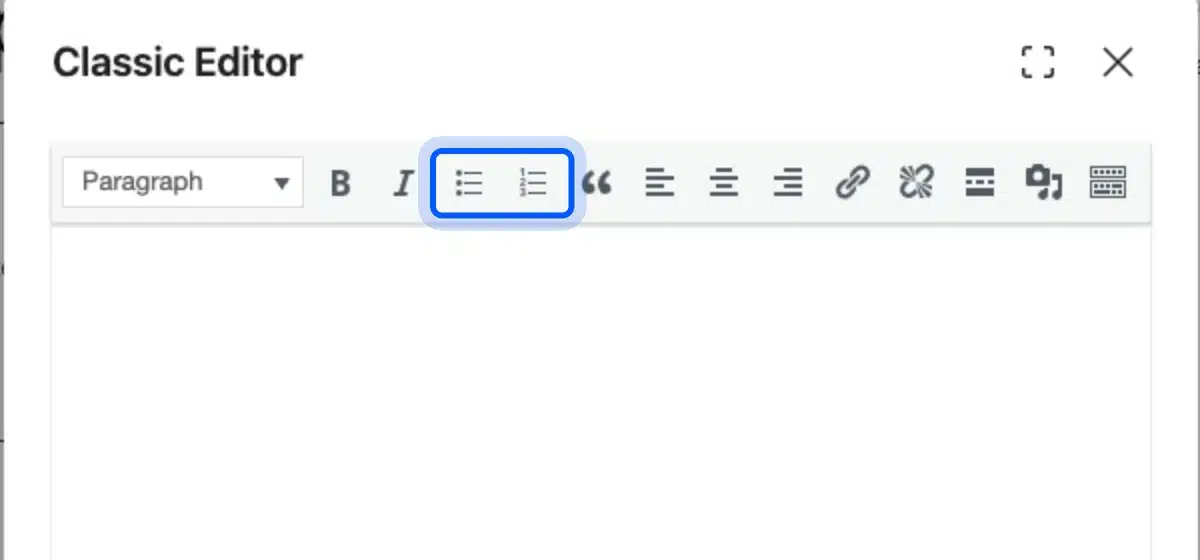
Hover over the button and its tooltip shows the keyboard shortcut for your system. On our Mac test it read Control plus Option plus U.
Highlight the lines first, then click the button, and the classic editor turns each line into a bullet. For a new site, the List block is the better choice because it supports the block styles above.
Best Practices for Bullet Lists in Blog Posts
Good bullet lists are short, parallel and easy to scan. Keep each bullet to one idea, and write every item in the same grammatical shape. A reader who skims your post should be able to understand the list without reading the paragraphs around it.
Follow these rules when you write a list:
- Lead in: Introduce the list with a sentence that ends in a colon.
- Length: Keep it to three to eight items, and split anything longer.
- Shape: Start each item the same way, such as with a verb or a bold label.
- Depth: Nest no more than two levels, because deeper lists are hard to read.
- Count: Never make a list of one item. Write a sentence instead.
How to Fix Bullet Points That Look Wrong
Most broken lists come from one of three causes: a theme rule, pasted formatting or a stale cache. Find the cause first, then apply the matching fix from the table below. Each fix takes about a minute, and none needs a plugin.
| Problem | Fix |
|---|---|
| Bullets are missing on the live page | Your theme may set list-style: none. Add ul.wp-block-list { list-style: disc; } in Additional CSS |
| Bullets vanish after pasting from Word or Docs | Paste as plain text with Ctrl+Shift+V or Cmd+Shift+V, then rebuild the list |
| A nested item shows the wrong list type | Select that item and choose Unordered or Ordered |
| The list looks right in the editor but not live | Clear your caching plugin and your browser cache |
| The list appears as raw HTML text | Paste it into a Custom HTML block, or use the code editor |
If a fix does not help, inspect the list in your browser and look for a CSS rule that hides the marker. For pasted content, see our guide to copying and pasting in WordPress. Our WordPress development services team handles theme styling problems like this.
Conclusion
To add bullet points in WordPress, use the List block. Type /list, or start a line with an asterisk or a hyphen and a space, and press Enter for each item. Use Indent for sub-bullets and the Ordered button for numbers.
Style the list from the Styles tab, and change marker color with a short CSS rule. When something breaks, check the theme’s list style and any pasted formatting first. If you write long guides, you can also read our post on how to write a blog post outline.
Frequently Asked Questions (FAQs)
Q1. What is the shortcut for bullet points in WordPress?
Type an asterisk or a hyphen followed by a space at the start of an empty line. The block editor turns the line into a bulleted list as soon as you press the space bar.
Q2. How do I add bullet points in a WordPress post?
Type /list on an empty line and press Enter to insert the List block. Type each item and press Enter for the next bullet. Press Enter twice on an empty bullet to leave the list.
Q3. How do I make a numbered list instead?
Select the List block and click the Ordered button in the toolbar. You can also start a line with 1. and a space. The Settings tab then lets you change the list style, the start value and the order.
Q4. How do I indent a bullet point?
Click Indent in the block toolbar, or put the cursor at the start of the item and press Tab. Use Outdent or Shift+Tab to move it back. Tab does not indent when the cursor is at the end of the item.
Q5. Can I change the bullet symbol in WordPress?
Yes, if your theme offers list styles. Open the Styles tab of the List block and choose one. Our test theme offered Default and Checkmark, and your theme may offer different ones.
Q6. How do I change the bullet color?
Add a ::marker rule in Additional CSS, such as ul.wp-block-list li::marker { color: #0256ff; }. The rule changes the bullet and leaves the text alone. MDN notes limited browser support, so test in more than one browser.
Q7. Why are my bullet points not showing?
Your theme may hide the markers with list-style: none, or pasted formatting may conflict with the list. Add a list-style: disc rule for the list, or paste as plain text and rebuild it.
Q8. Can I add bullet points without a plugin?
Yes. The List block, the keyboard shortcuts, the code editor and the Classic block are all part of WordPress. None of them needs a plugin.