
To copy and paste in WordPress without formatting issues, paste into the block editor and let it turn your text into blocks. It drops fonts, sizes and colors from Google Docs or Word but keeps headings, lists, bold, italic and links.
When the result still looks wrong, a plain text paste or the Code editor clears what slipped through. The Classic Editor needs its own routine, and this guide covers that too.
We checked these paste rules against the block editor’s own paste code and the WordPress.org documentation for WordPress 7.1 in October 2026. The steps cover the block editor, the Classic block and the Classic Editor plugin.
Why Copy-Paste Gets Messy in WordPress?
Copy and paste gets messy because Google Docs and Microsoft Word copy hidden styling along with your words. That styling carries fonts, sizes, colors and spacing that clash with your theme. WordPress cleans most of it in the block editor, but some pastes still bring stray line breaks and spaces.
The Technical Reason Behind This Problem
Most modern word processors (Docs and Word) have automatic rich text formatting. This rich text formatting includes:
- Font family and size
- Line spacing and margins
- Bold, italic and underlined
- Colors and highlights
- Indents and bullet styles
- Embedded styles (like
<span style="...">)
When you copy text from these tools, you copy the words and all the hidden formatting code with them.
WordPress then has to decide what to keep from that hidden code. The block editor turns it into blocks and drops most styles. The Classic Editor’s Visual tab keeps more of it.
This creates unexpected HTML, extra tags, inline styles, or even non-breaking spaces that can make your content:
- Look inconsistent
- Display strangely on mobile
- Come apart in block layouts
- Conflict with custom themes or page builders
Real World Example: Copying from Google Docs
Let’s say you wrote your blog in Google Docs and used a few things like:
- A custom font (Lora)
- 14pt text
- A title/subheading with color
- Some text that was underlined
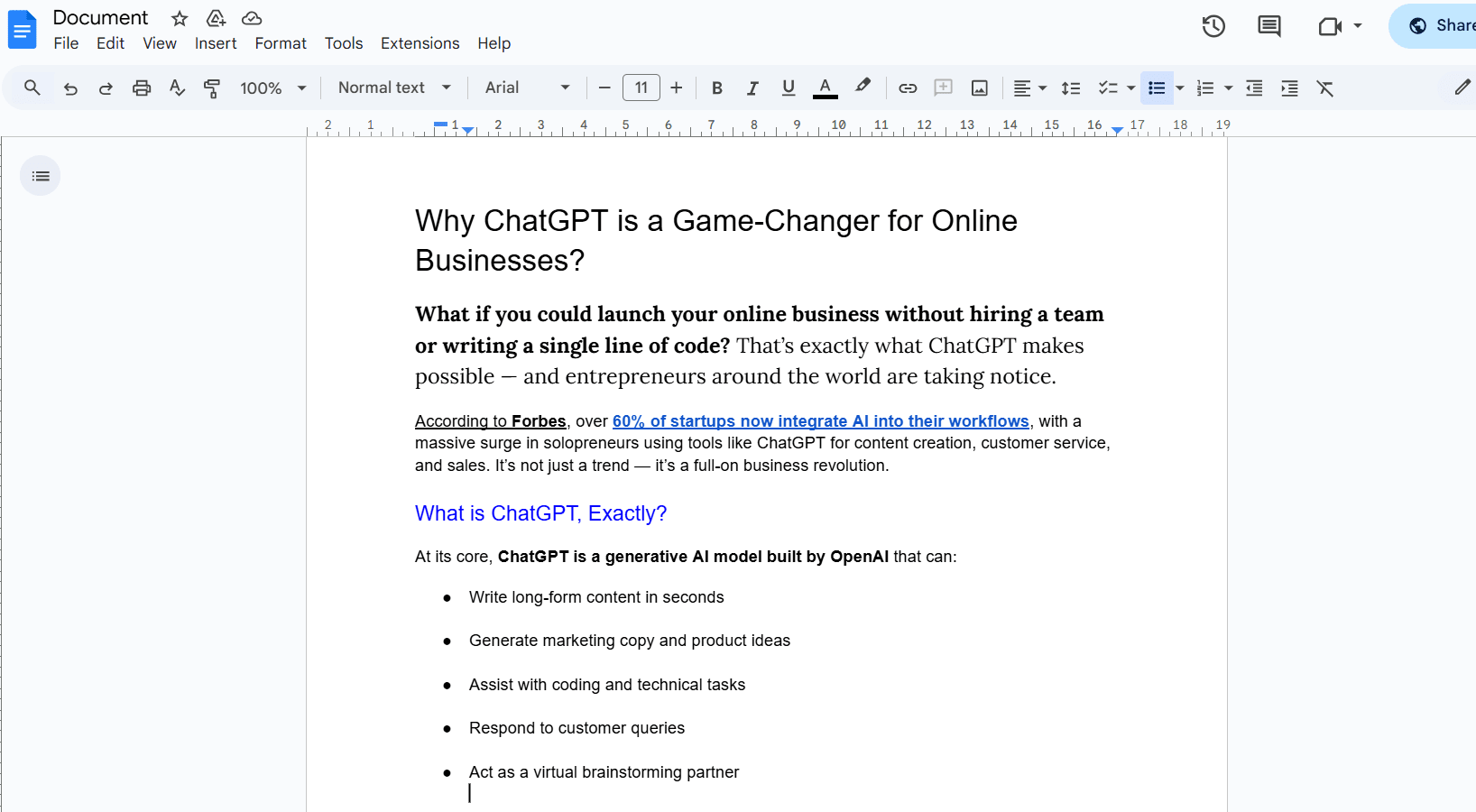
Now, you copy and paste this directly into WordPress using the Visual editor.
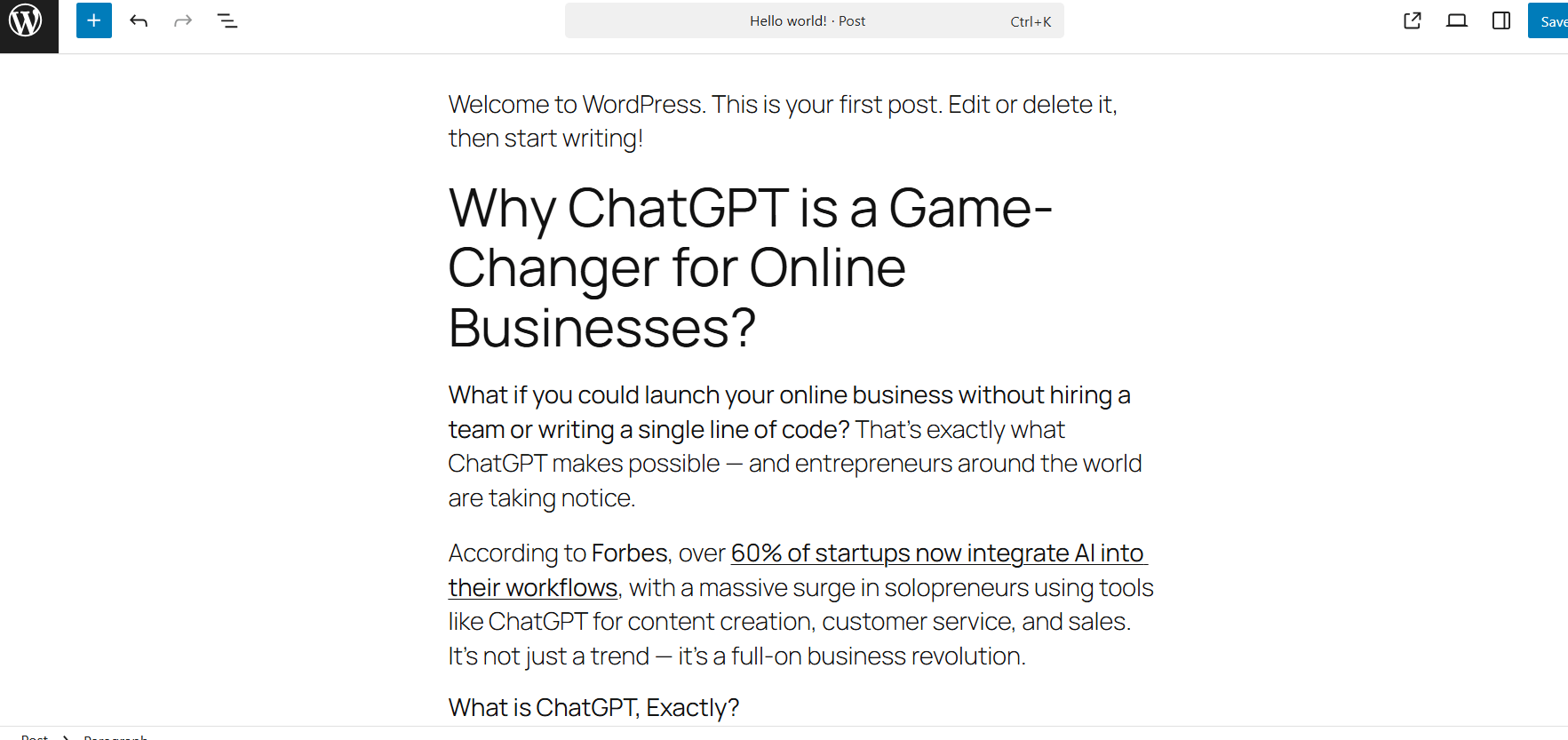
Here is the kind of hidden code the Visual tab can keep, even when you cannot see it:
<span style="font-family: Lora; font-size:14pt;">
</span>
<h3 style="color:#0256FF;">What is ChatGPT, Exactly</h3>
<u>According to Forbes</u>
Those inline styles now sit inside your post. If your theme uses a different font or spacing, the pasted text will not match the rest of the page.
In short, WordPress works best with clean content. Text pasted from formatted sources brings extra code that your theme never asked for.
How to Copy and Paste into WordPress Properly (Block + Classic Editor)
To copy and paste in WordPress cleanly, first check which editor you use. In the block editor, a normal paste keeps structure and drops styling, and a plain text paste drops both. In the Classic Editor, paste into the Text tab or clear formatting after you paste.
If blocks are new to you, read our block editor basics before you paste a long draft.
Lists are often the first thing to break on paste. It helps to know how to add bullet points in WordPress with the List block.
Start by checking which editor you are using. WordPress supports two main editors:
| Editor Type | Interface Description |
| Block Editor (Gutenberg) | Introduced in WordPress 5.0 in December 2018. Uses blocks for paragraphs, images and more. |
| Classic Editor | The old TinyMCE-style editor. Still used via plugin or older themes. |
To determine which one you are using:
- If you see Add Block buttons and movable content blocks, you are using the block editor (Gutenberg).
- If you see a single word-processor style box with Visual and Text tabs, you are using the Classic Editor.
How you paste your content will differ depending on which editor you are using. We will discuss both.
1. Copying into Gutenberg (Block Editor)
The block editor handles pasted content well. When you paste from Google Docs or Word, it turns headings, lists and paragraphs into blocks. It keeps bold, italic, strikethrough and links, and it drops fonts, sizes, colors and underline.
So a normal paste with Ctrl + V is usually enough. A plain text paste strips everything, including headings and lists. Use it for text from web pages or chat apps where the structure is messy. Plain text written in Markdown, such as # for a heading, still turns into blocks.
To copy a whole page with its featured image and template instead of loose text, learn how to duplicate a page in WordPress.
Paste as Plain Text When You Want Zero Formatting
- Open up Google Docs or MS Word: Write or finalize your content there.

- Copy the Content: Use Ctrl + C or CMD + C or right click > copy.

- In WordPress, click inside a paragraph block where you want the content.

- Use your keyboard shortcut:
- Windows: CTRL + Shift + V
- Mac: CMD + Shift + V (Option + Shift + CMD + V in Safari)
- Then you will format manually inside WordPress: Add heading blocks, lists, bold and images as you need.

A plain text paste removes every inline style, font and hidden tag. You start from a clean slate and format with WordPress’s own blocks.
2. Copying into Classic Editor (Old TinyMCE)
Unlike the new block-based editor, the Classic Editor is much more sensitive to formatting issues. If you still use it, you’ll want to be extra careful.
When pasting into the Classic Editor, mostly in Visual mode, it often pulls in the font, size, spacing, and color from Word or Docs. We have explained 2 options below for clean pasting in the classic editor.
Option 1: Paste Into Text Mode First
- Copy content from Docs or Word.
- In the WordPress Classic Editor, switch from the Visual tab to the Text/Code (HTML mode) tab.

- Paste your content here.

- Now, switch back to the Visual tab and do any formatting you want with WordPress Tools.

Option 2: Use Notepad/TextEdit as a Buffer
- Paste the content into Notepad to strip the formatting.

- Then, copy it again from Notepad.

- Next, paste it into the Visual tab of the Classic Editor.

- Finally, you can add any bolding, headings, or links as necessary.
Tip: Click Toolbar Toggle in the Classic Editor to show the second toolbar row. It holds a Paste as text button and a Clear formatting eraser. The Advanced Editor Tools plugin, formerly TinyMCE Advanced, adds more buttons to the editor.
How to Fix Formatting Issues After Pasting
Formatting problems after a paste come from hidden HTML and inline CSS that slipped into your post. The Code editor in the block editor shows that code so you can delete it. It takes a few minutes and leaves your words untouched.
Typical signs include:
- Random font changes
- Bizarre line breaks
- Colored backgrounds behind text
- Bullet points messed up
- Text alignment inconsistencies
It happens. And it can be annoying, especially since you thought everything in Google Docs or MS Word looked fine.
The problem? All that hidden formatting that we talked about earlier slipped through and was wrapped in your content as either HTML or in-line CSS. And you’ve got to fix that now.
The fix below works on most of these problems.
Fast Fix: Code Editor or Text Tab to Get Rid of the Garbage
The quickest way to clean these problems is to remove the unwanted styles by hand. Use the Code editor in the block editor or the Text tab in the Classic Editor.
Here’s how that works:
- For the Gutenberg editor, click the three dots (⋮) in the upper right corner of your screen.

- Now click Code Editor.

- You’ll see the raw HTML behind your content.

- Now scroll through and look for things like:
- <span style=”…”>
- <font> tags
- <div> tags with inline styles
- Strange characters like
 or .
- Delete those wrappers or clean up the tags. Leave your words alone and remove only the extra styling.
- When you are done, click Exit code editor. Your post now follows your theme’s styling.

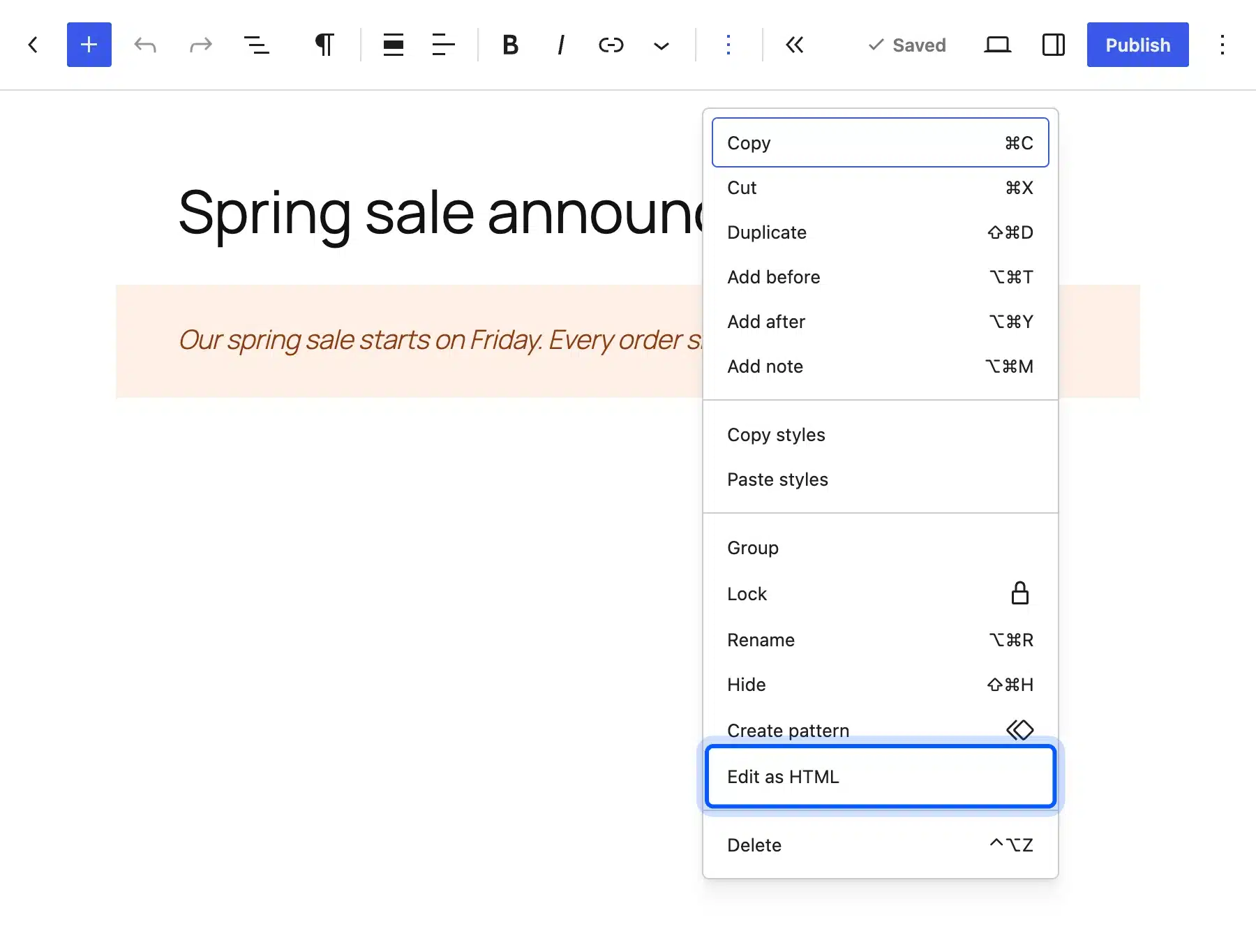
Pro Tip: For one messy block, choose Edit as HTML from that block’s three-dot menu. You clean that block alone without opening the whole post in the Code editor.
The next time a paste goes wrong, open the code view and remove the stray HTML. Your layout then matches your theme again.
How to Remove Formatting in WordPress
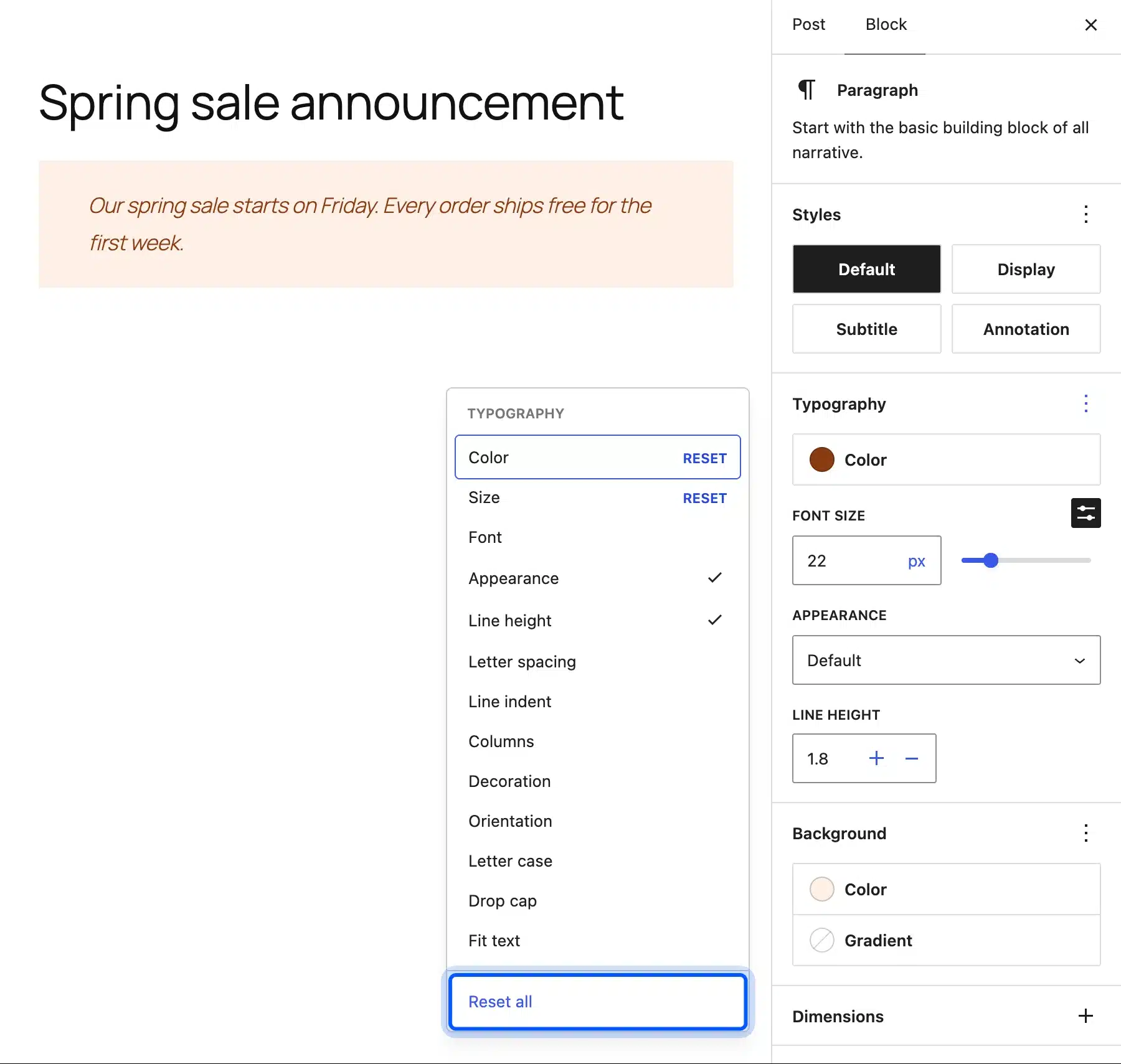
To remove formatting in WordPress, clear it block by block instead of rewriting the post. Reset a block’s typography and color in the sidebar, or edit one block as HTML. Pasted Classic content turns into clean blocks with the Convert to blocks button.
- Reset block styles: Select the block and open the Settings sidebar. In the Typography or Color panel, open the three-dot menu and click Reset all.
- Edit one block as HTML: Open the block’s three-dot menu and choose Edit as HTML. Delete the span tags and style attributes, and click Edit visually when you are done.
- Convert Classic content: Text pasted into a Classic block keeps its old styling. Click Convert to blocks in its toolbar and WordPress rebuilds it as blocks.
- Classic Editor: Select the text and click the Clear formatting eraser on the second toolbar row.
- Start over: Delete the pasted blocks and paste the text again as plain text.
WordPress documents the Convert to blocks option in its Classic block guide. The paste rules themselves live in the block editor’s raw handling code on GitHub.
Conclusion
Now you know how to copy and paste in WordPress without carrying hidden styling into your posts.
Whether you’re using the Gutenberg Block Editor or the Classic Editor, the main thing to remember is this:
In the block editor, a normal paste is usually enough. Switch to a plain text paste when the source is messy, and format with WordPress blocks afterward.
And if things have already gone wrong, use the Code Editor to clean house.
Here are some highlights of what was covered:
- Why does formatting get broken when you copy from Word or Docs?
- How to paste cleanly in Gutenberg and Classic?
- How to fix messy formatting when pasting fast?
- How to remove formatting block by block when a paste goes wrong.
Native WordPress formatting keeps your design consistent and your HTML light on mobile.
Keep that habit and every post will match your theme.
Frequently Asked Questions (FAQs)
Q1. Why do I get formatting changes when pasting into WordPress?
Google Docs and Microsoft Word copy hidden styling along with your text, such as fonts, colors and spacing. The block editor strips most of it. The Classic Editor’s Visual tab keeps more, and that clashes with your theme.
Q2. What is the best way to copy + paste into WordPress and not have formatting issues?
In the block editor, a normal paste with Ctrl + V keeps headings, lists, bold and links and drops fonts and colors. For zero formatting, paste as plain text with Ctrl + Shift + V or Cmd + Shift + V on a Mac.
Q3. Can I copy + paste from Google Docs to WordPress?
Yes. A normal paste turns Google Docs headings, lists and paragraphs into WordPress blocks. If stray styling comes along, paste again as plain text and format with blocks.
Q4. How do I fix content I already pasted into WordPress?
Open the Code editor in the block editor or the Text tab in the Classic Editor. Delete span tags, font tags and style attributes, and leave your words in place. For one block, use Edit as HTML from its three-dot menu.
Q5. Is it wise to write directly in WordPress and avoid these problems altogether?
Yes. Writing in the block editor avoids pasted styling altogether. It also keeps your content light and matching your theme.