A WordPress vulnerability scanner checks your core, plugin and theme versions against lists of known security flaws. You can scan WordPress for vulnerabilities and malware in one session with free tools.
We tested this in October 2026 on a WordPress 7.1.3 test site running an old Duplicator 1.3.26 plugin. We added two inert fake infected files, then ran WP-CLI, WP Vulnerability, Anti-Malware Security and Sucuri Security. We also scanned devdiggers.com with Sucuri SiteCheck, but we did not run Wordfence or WPScan because both need an account or token.
This guide covers the three scan types, six steps and how to judge false positives. It also shows how often to scan and what to do when a scan finds real malware.
What a WordPress Vulnerability Scanner Checks
A WordPress vulnerability scanner compares the versions of your core, plugins and themes with a database of known flaws. A malware scanner is different, because it reads your files for code that should not be there. A file integrity check is a third tool, which compares your files with the originals.
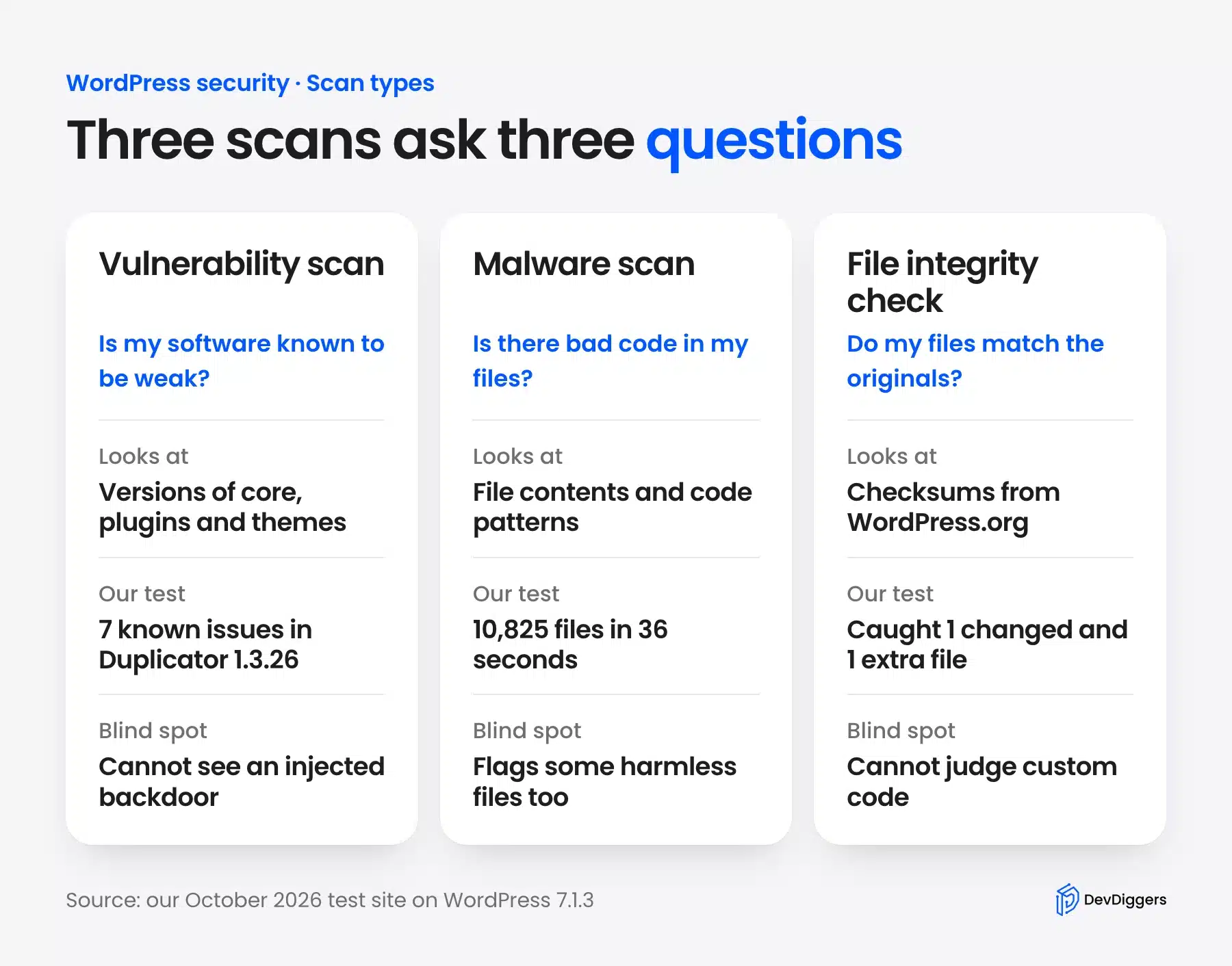
The case for scanning is plugins. Patchstack’s 2026 report counted 11,334 new WordPress vulnerabilities in 2025, and 91% were in plugins. Only 6 were in WordPress core.
The same report puts the median time to mass exploitation of heavily targeted flaws at 5 hours. Each public flaw also gets a CVE number from the CVE Program, so a scanner result usually names one.
WPScan is the best-known command-line scanner. Its GitHub page says it needs Ruby 3.3 or newer and an API token, and the free tier allows 25 requests a day. We used tools with no token instead.
How to Scan WordPress for Vulnerabilities and Malware
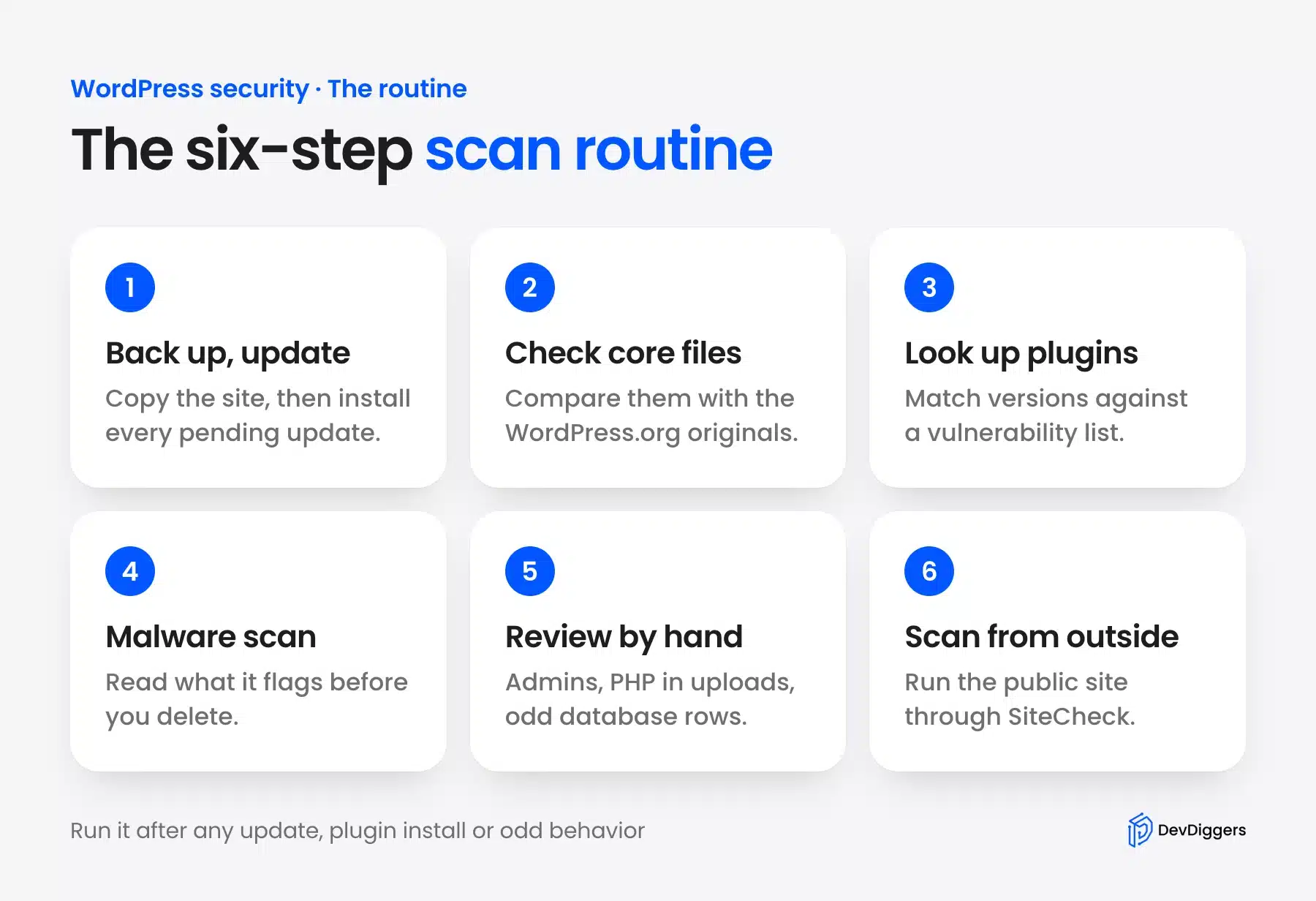
Scanning WordPress takes six steps: update, check core files, look up plugins, run a malware scan, review by hand and scan from outside. Each step below names a free tool and shows what it returned on our test site. Run them in this order, because each one rules something out for the next.
Step 1: Back Up and Update Everything First
Start with a backup, then install every pending update. Updates close most known flaws, and a backup lets you undo a bad update or a bad cleanup. The WordPress.org hacked-site guide also says to take one more snapshot before cleaning, even when the site is infected.
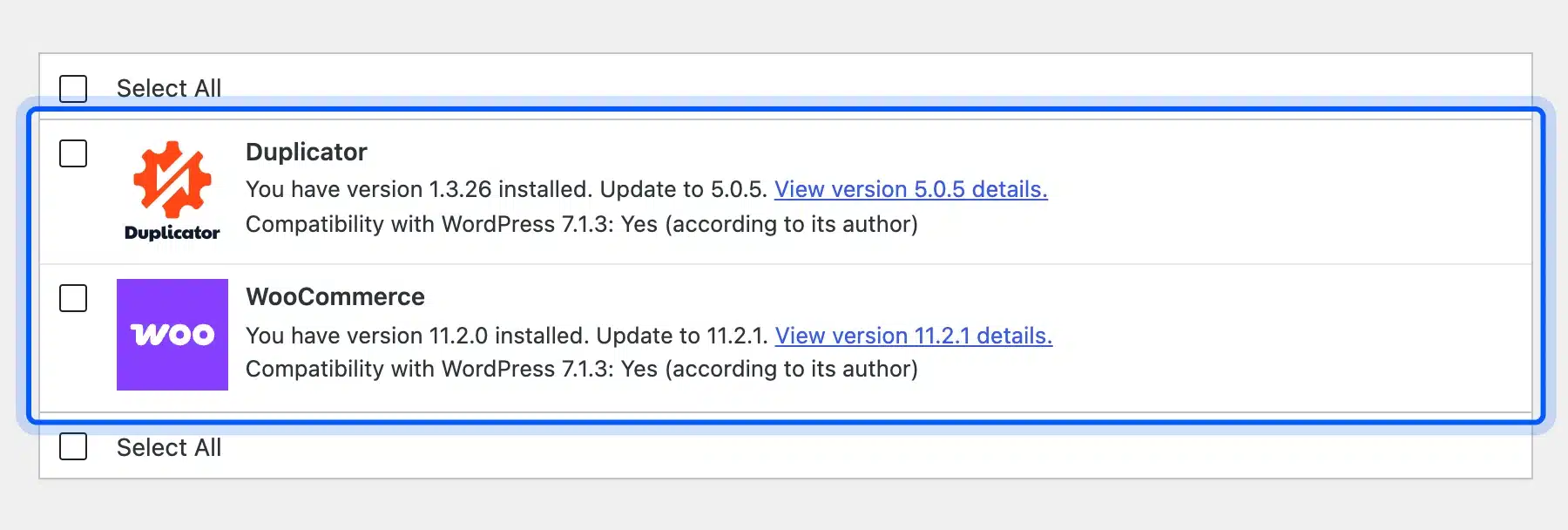
On our test site the Updates screen listed two plugins. WooCommerce 11.2.0 had 11.2.1 waiting, and Duplicator 1.3.26 had 5.0.5 waiting. For a store, our guide to backing up the WooCommerce database covers orders and customers.
Step 2: Check Core Files With WP-CLI and Sucuri
A file integrity check compares your files with the checksums WordPress.org publishes. The WP-CLI verify-checksums docs say the command downloads the checksums for your version and compares them with your local files.
We edited wp-includes/load.php and added wp-admin/includes/update-old.php. WP-CLI 2.5.0 flagged both: one file did not match its checksum and one file should not exist.
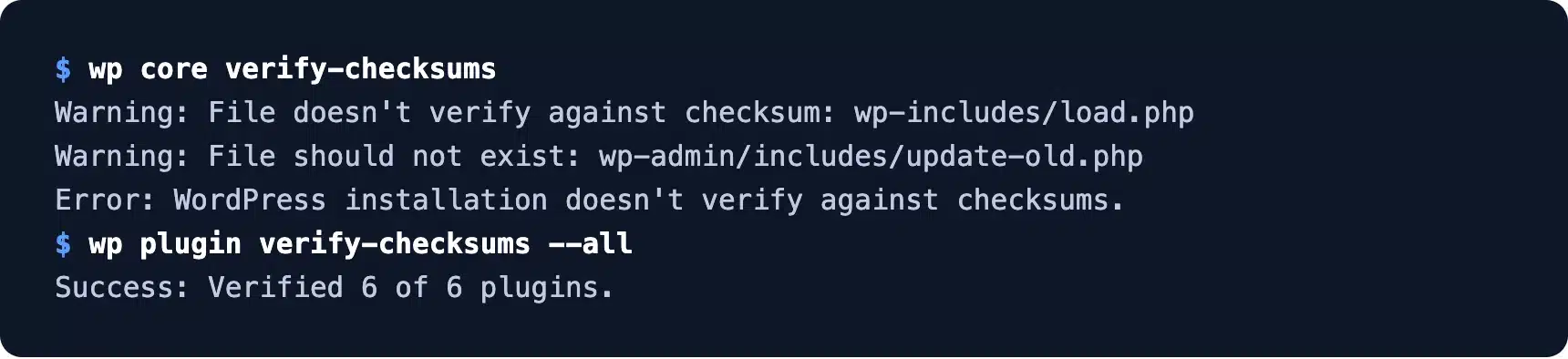
The plugin command passed all 6 plugins, including our vulnerable Duplicator 1.3.26. Checksums prove a file is the published one. They do not prove the published version is safe.
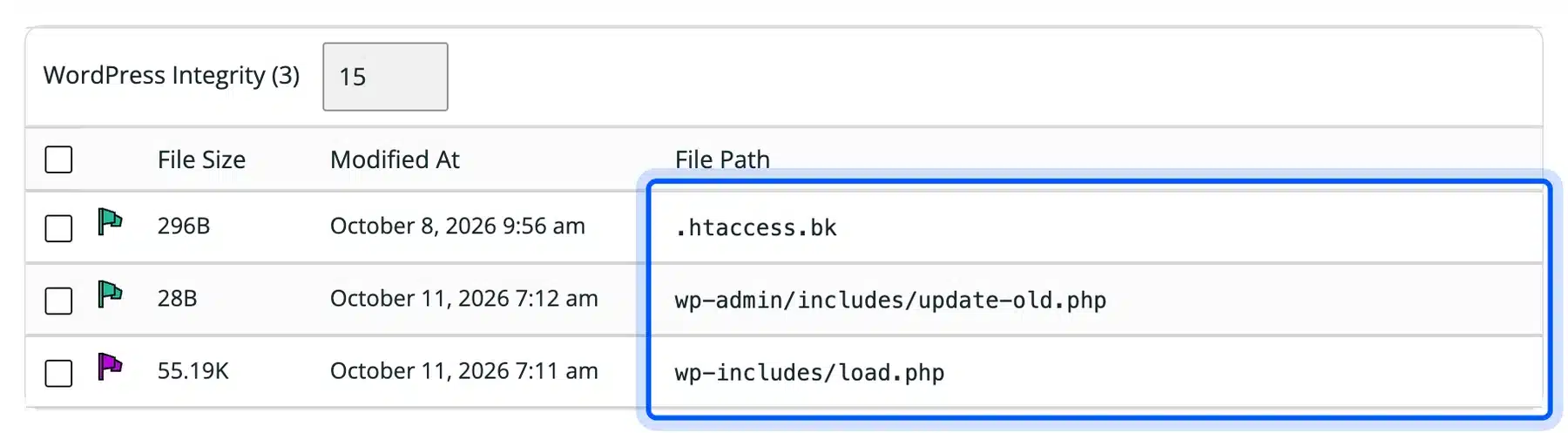
The free Sucuri Security plugin runs a similar check inside the dashboard. Its WordPress Integrity panel listed three files: our two changes plus a leftover .htaccess.bk backup that was already in the site root.
That leftover was harmless, but old copies of config files should not sit in a web folder.
Step 3: Look Up Plugin Vulnerabilities
A vulnerability scan matches your installed versions to known flaws. We used the free WP Vulnerability plugin, which needs no account. WordPress.org lists it at 10,000+ installs and a 5.0 rating from 20 reviews.
It flagged Duplicator 1.3.26 with 7 known issues. The worst entry was rated 7.5 High, marked actively exploited since 2021-11-03 and fixed in version 1.3.28. Its entries cite sources such as CVE.org, Wordfence, WPScan and Patchstack.
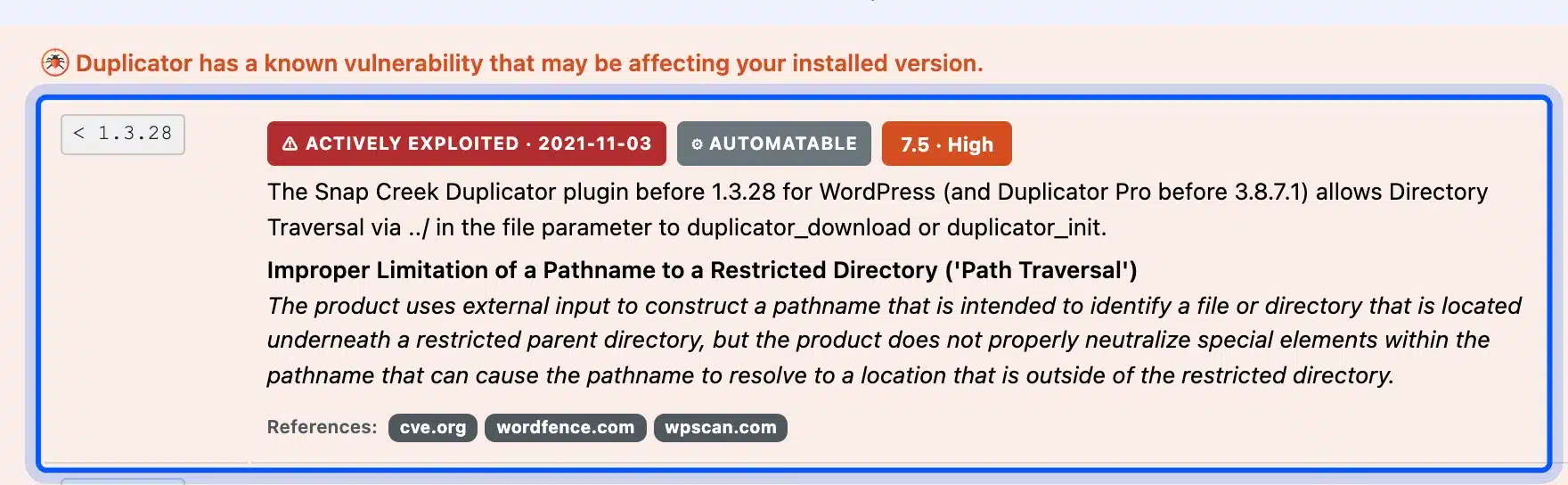
Each entry shows an affected range, a severity badge and the fixed version. The range is the quickest clue: if your version sits below the number shown, update to that version or newer. Our entry read below 1.3.28, so the 5.0.5 update covered it.
Patchstack’s Duplicator page lists 12 patched entries and none present for the latest version. So the fix for our test site was the update from Step 1.
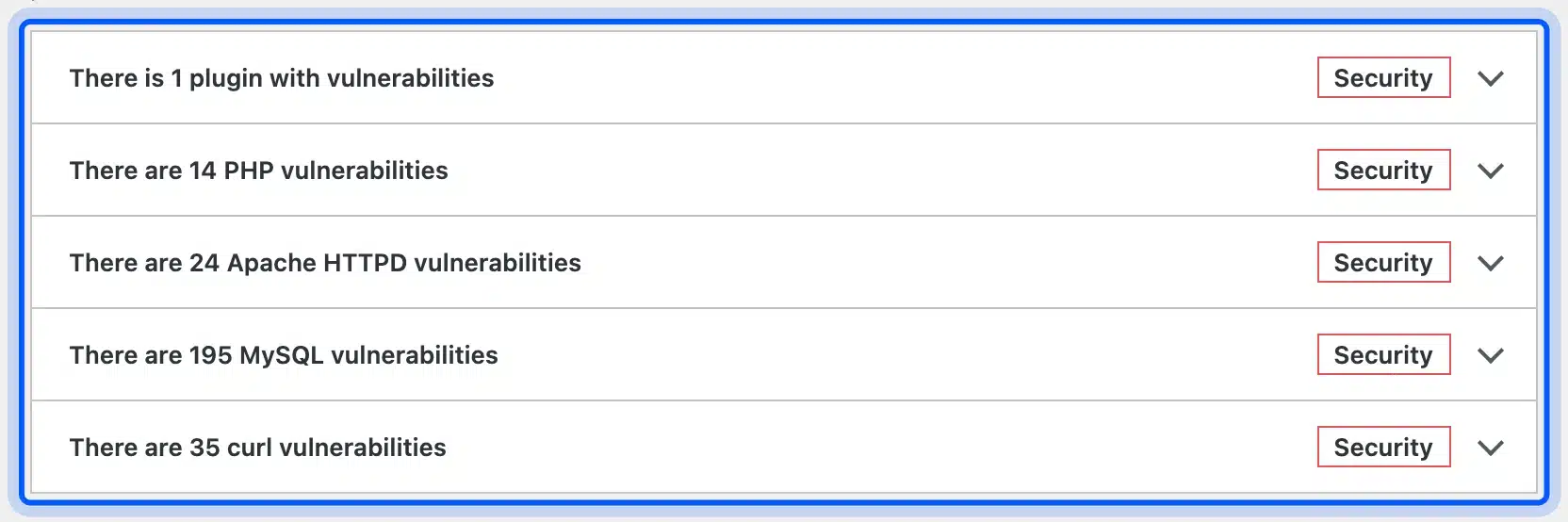
The plugin also adds checks to Site Health. Ours reported 1 plugin with vulnerabilities, plus counts for PHP 8.5.5 (14), Apache 2.4.67 (24), MySQL (195) and curl (35). Those server counts are version matches, so ask your host which ones still apply.
Step 4: Run a WordPress Malware Scanner
A WordPress malware scanner reads file contents for suspicious code. We used Anti-Malware Security and Brute-Force Firewall from WordPress.org, also known as GOTMLS. It listed 100,000+ installs and a 4.9 rating from 783 ratings in October 2026.
Open Anti-Malware in the dashboard menu, then click Run Complete Scan. The scan finished in 36 seconds.
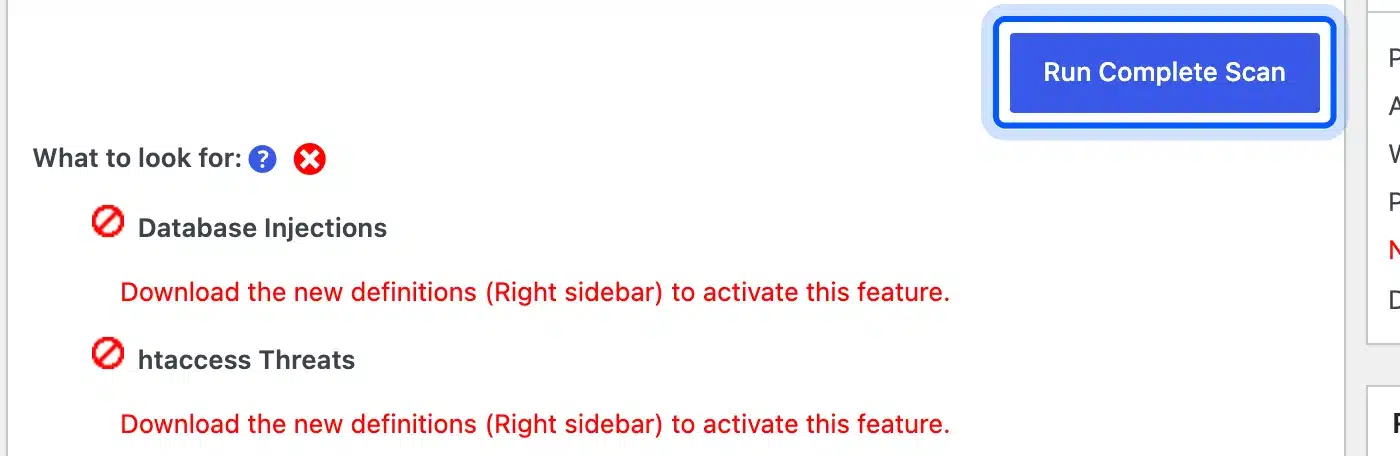
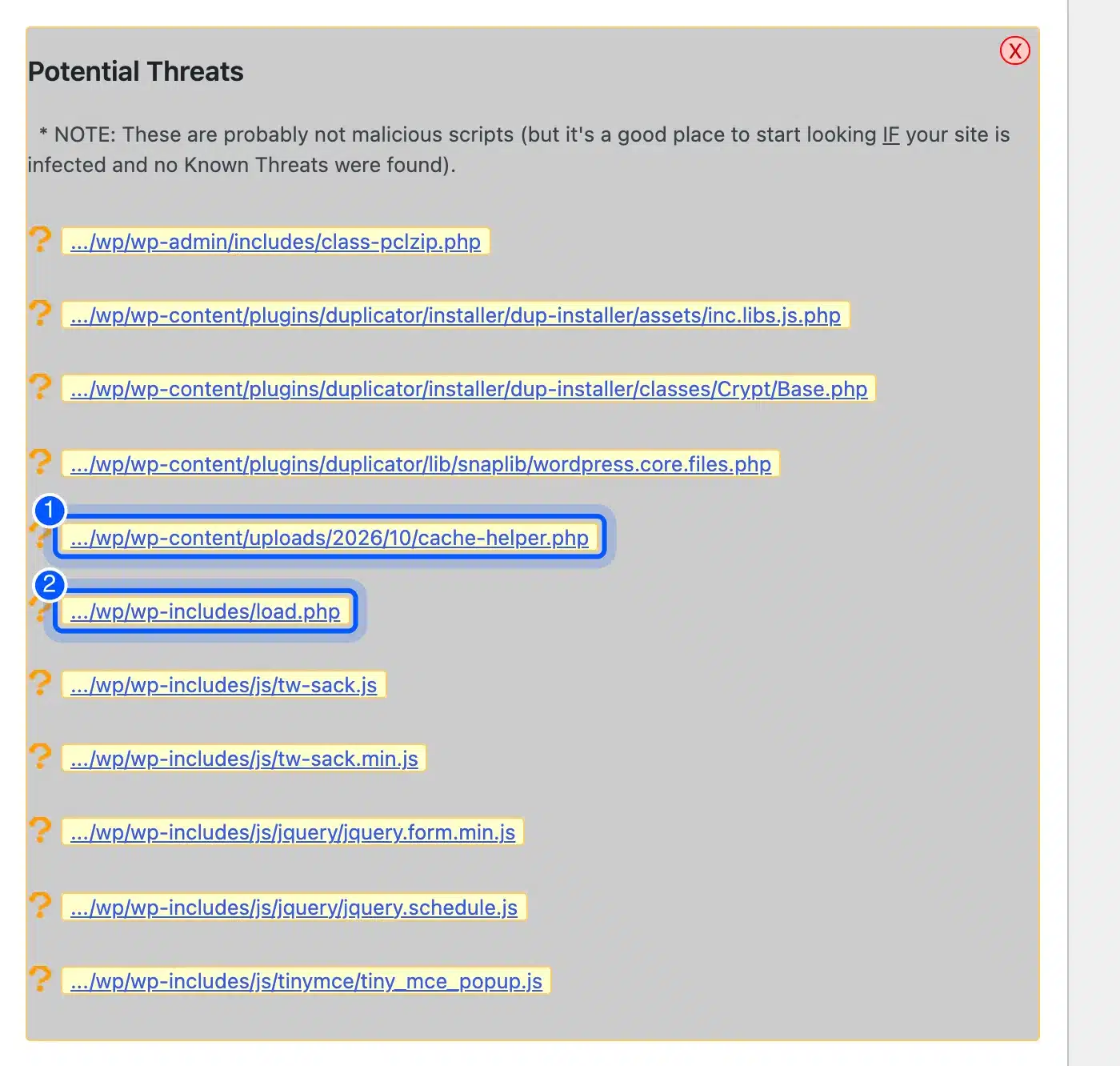
It checked 10,825 files in 1,629 folders and reported 0 known threats and 11 potential threats. The five definition checks were switched off, because the plugin wants a free key to download new definitions. We did not register, so only the Potential Threats check ran.
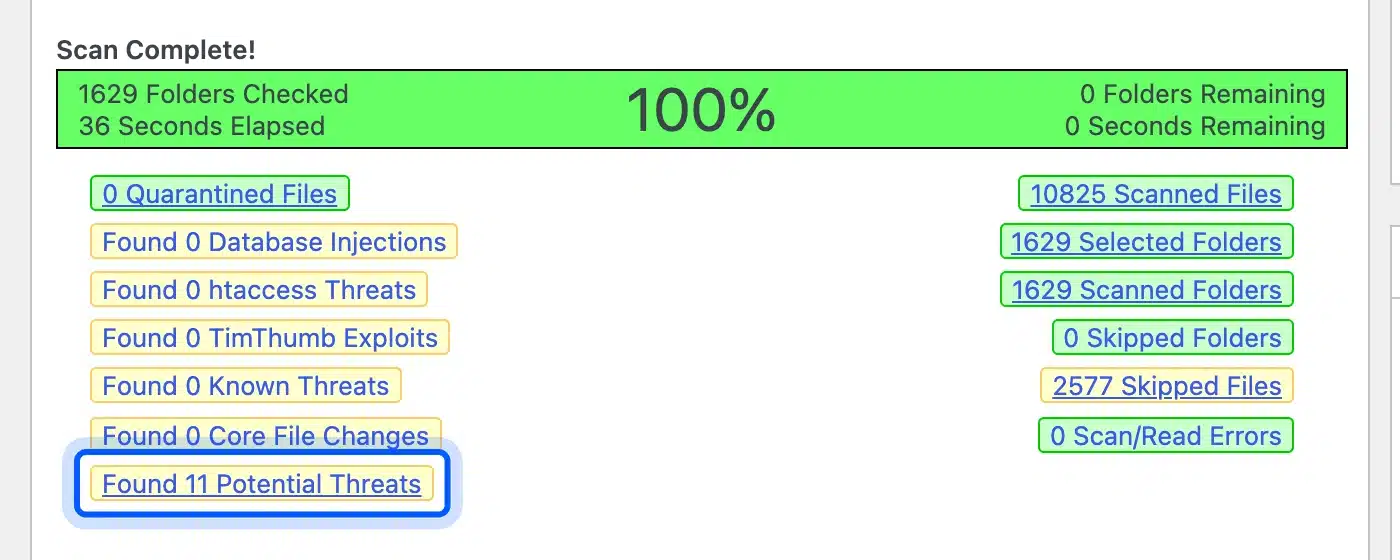
Do not click quarantine or repair on a flagged file yet. Moving a normal file out of its folder can break the site, so judge each flag first using the section on false positives below.
Two of the 11 were ours: cache-helper.php and the edited load.php. The other nine were normal files, including WordPress’s class-pclzip.php, three Duplicator files, two tw-sack scripts, two jQuery plugins and a TinyMCE popup.
Step 5: Review Users, Uploads and the Database by Hand
Scanners miss things, so three quick checks cover the gaps. Look for unknown administrators, PHP files in uploads and code injected into the database. Attackers also harvest admin emails, which we cover in our guide on how hackers mine WordPress for admin email addresses.
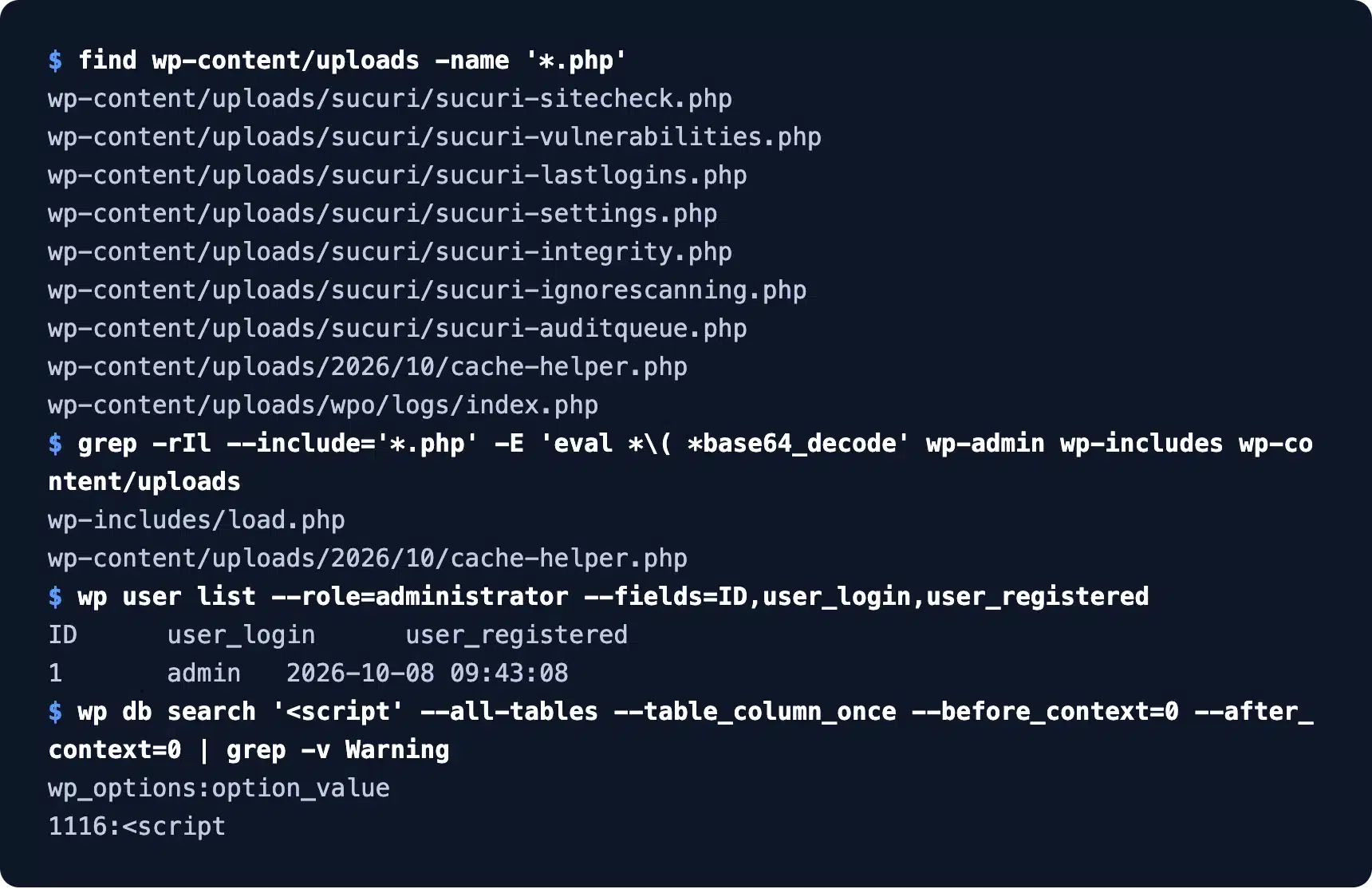
Our admin list showed one user. A search of wp-content/uploads found 9 PHP files: 7 were Sucuri’s own data files, 1 was a logging plugin’s index.php and 1 was our fake. A grep for eval(base64_decode found only the two files we planted.
A database search for a script tag found one hit. It was a Google Tag Manager snippet in the options table from our test data.
Step 6: Scan From the Outside With Sucuri SiteCheck
An outside scanner sees your public pages the way a visitor does. Sucuri SiteCheck is free and needs only a URL.
We scanned devdiggers.com. It reported no malware, none of 9 blacklists and a low security risk. It also gave one hardening note: a missing Content-Security-Policy directive.
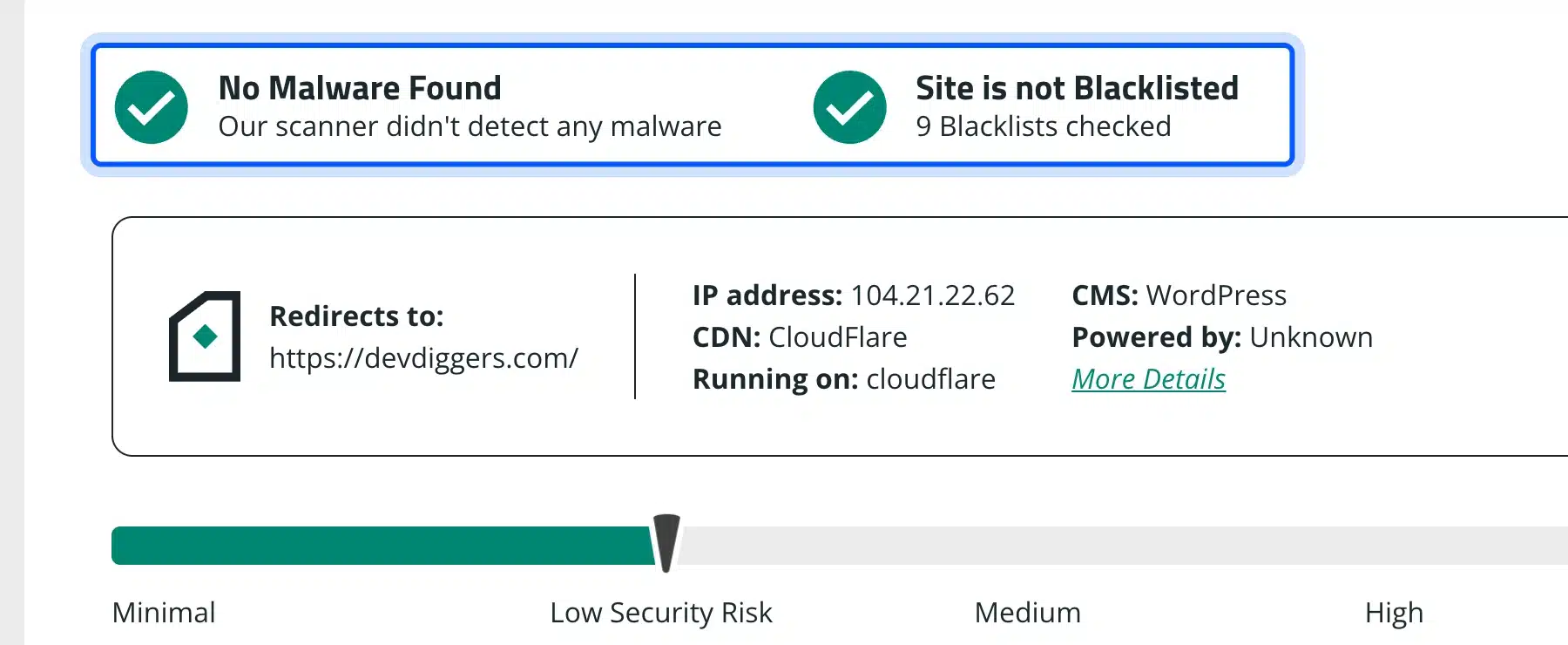
SiteCheck cannot read files on your server. The WordPress.org guide says application scanners and remote scanners look for different things, and that using both improves your odds.
WordPress Malware Scanner Options Compared
A WordPress malware scanner is either a plugin that reads your files or a remote scanner that checks your public pages. Plugins find more, but they run on your server. Remote scanners need no install, but they see far less than a plugin does.
| Tool | Type | Free tier (checked October 2026) | Our result |
|---|---|---|---|
| Wordfence Security | Plugin | 5+ million installs, 4.7 from 5,024 reviews. Signatures delayed 30 days on free. | Not run: asks for a free license first |
| Sucuri Security | Plugin | 600,000+ installs, 4.2 from 384 reviews. Vulnerability scan needs a paid key. | Integrity check listed 3 files |
| Anti-Malware Security | Plugin | 100,000+ installs, 4.9 from 783 ratings. New definitions need a free key. | 11 potential threats, 2 real |
| WP Vulnerability | Plugin | 10,000+ installs, 5.0 from 20 reviews. No account. | 7 issues for Duplicator 1.3.26 |
| WPScan | Command line | Free for non-commercial use, 25 API requests a day. | Not run: needs Ruby 3.3 and a token |
| Sucuri SiteCheck | Remote | Free, URL only. | No malware, 9 blacklists clear |
The Wordfence plugin is the most installed option, and its free scan covers core, theme and plugin files. Its dashboard told us “You must install a license to continue,” so we stopped there and did not create an account.
For a free stack, we would pair WP Vulnerability for versions with one integrity check and one malware plugin. Add SiteCheck for the outside view. Free tiers change often, so read each listing again before you rely on one.
How to Tell a Real Threat From a False Positive
A false positive is a harmless file that a scanner flags anyway. On our test site, 9 of 11 flagged files were normal WordPress or plugin files. Judge each flag by where the file sits, whether it matches the original and what the code does.
- Location: A PHP file in uploads is suspicious, and a PHP file in a plugin folder usually is not. Our fake sat in uploads.
- Original match: Compare the file with its WordPress.org checksum. Our edited load.php failed that check, while class-pclzip.php passed.
- Code behavior: Look for eval with base64_decode, long encoded strings and requests to unknown domains.
- Timing: Compare modified dates. Sucuri showed load.php changed minutes before our scan, while the .htaccess.bk leftover was three days older. A new date on an old file deserves a closer look.
Version-based scanners add their own noise. Our Site Health screen listed 195 MySQL vulnerabilities, and a version match does not prove your server is exposed.
Worth checking: Sucuri flagged .htaccess.bk in our site root before we changed anything. It was a leftover backup, which is exactly the kind of file you should delete or move.
What a WordPress Security Scan Cannot Catch
A scan reports only the problems its checks and signatures cover, so a clean result is never proof of safety. Our tests exposed four gaps, and each one has a simple fix you can apply today. Read these gaps before you trust a clean report from any free tool.
- Vulnerable but unmodified: The plugin checksum check passed all 6 plugins, including Duplicator 1.3.26 with 7 known flaws. Pair it with a version lookup.
- Definitions behind a key: Anti-Malware ran one of its six checks, because the other five wait for a free key. Wordfence’s own scan screen says free signature updates arrive 30 days late.
- Paid vulnerability data: The Sucuri plugin page says its vulnerability scanners need a valid WAF API key. The free plugin gave us integrity data only.
- Outside view only: SiteCheck reads public pages, so it cannot see a backdoor sitting in uploads.
A scan also cannot tell you how the attacker got in. The WordPress.org guide files that question under forensics, and it needs access and error logs.
How Often to Run a WordPress Security Scan
Run an automatic WordPress security scan at least weekly, and scan by hand after every update or plugin install. WP Vulnerability defaults to a weekly notification on Monday at 00:00, with daily and never as the other choices. Stores should pick daily, since Patchstack puts the median time to mass exploitation at 5 hours.
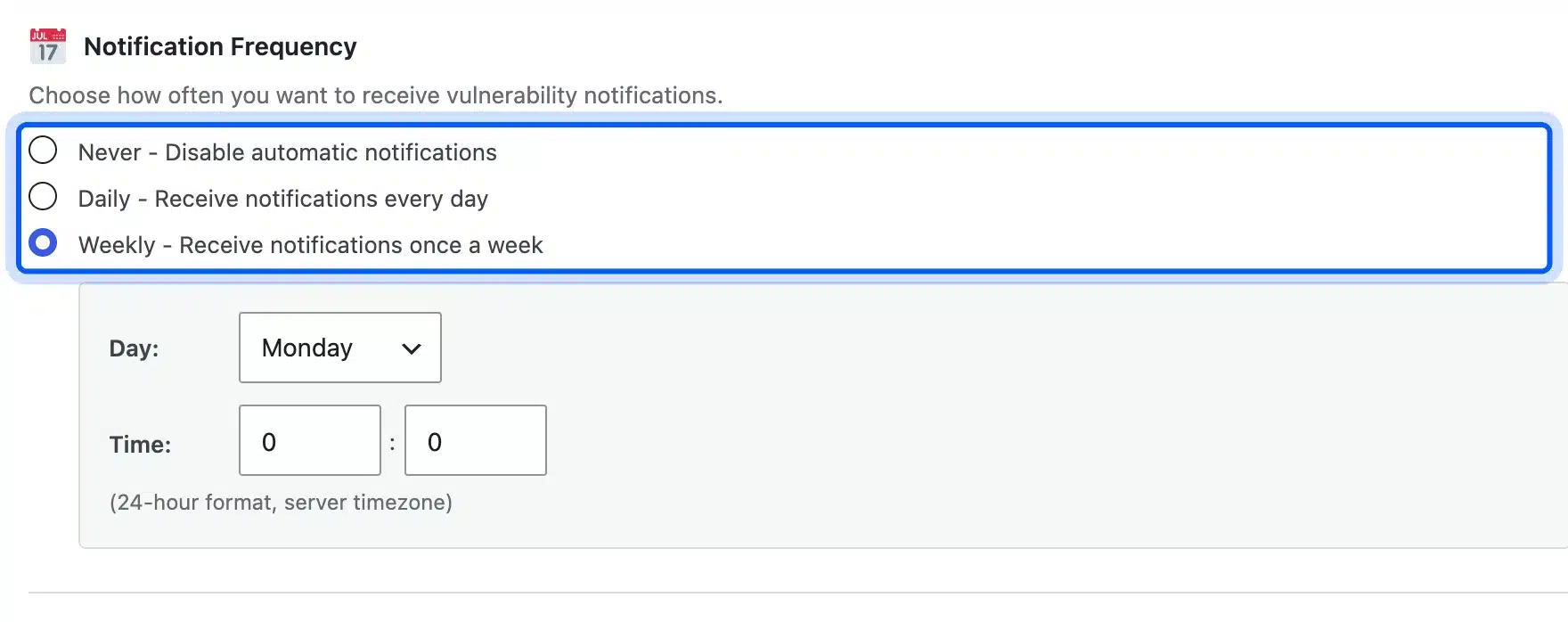
The plugin caches vulnerability data for 12 hours by default, so a daily setting never lags far behind. Pair the scheduled scan with a monthly manual pass through the six steps.
Also scan right after three events. Those are a core or plugin update, an admin account or login alert you do not recognize, and a warning email from your host.
A care plan can own that schedule for you. Our guide to what a WordPress care plan includes explains the routine work.
What to Do When a Scan Finds Malware
If a scan finds real malware, do not just delete the flagged file. Take a backup of the infected site, find how the attacker got in, and clean every infected file and database row. Then rescan to confirm the site is clean.
The WordPress.org hacked-site guide gives the order we would follow:
- Snapshot first: Copy the infected site before cleaning, so you keep a bad copy to study.
- Replace core folders: Upload fresh wp-admin and wp-includes folders over FTP, not the dashboard reinstall, which only overwrites existing files.
- Check .htaccess: The guide calls it one of the most common files attackers change.
- Reset access: Change passwords after the site is clean, and replace the secret keys in wp-config.php.
- Update and rescan: Install every update, then run the six steps again.
Cleanup is separate work from scanning. If you would rather hand it off, our WordPress security services remove infected files and database entries and read the logs for the entry point. They also rescan free for 30 days.
Afterward, close the gaps with our WordPress security checklist. For logins, see how to limit login attempts in WordPress. Store owners can use the WooCommerce security checklist.
Conclusion
A WordPress vulnerability scanner tells you which versions are known to be weak, and a malware scan tells you whether bad code is already inside. Neither one is enough alone.
On our test site, the version scan found 7 issues in an old plugin. The integrity check caught our two file changes, and the malware scan flagged 11 files with 2 of them real.
Use the six steps weekly, update first and judge every flag before you delete it. If a scan finds something real, back up the site before you touch it.
Frequently Asked Questions (FAQs)
Q1. Is there a free WordPress vulnerability scanner?
Yes. The WP Vulnerability plugin matches your core, plugin and theme versions to known flaws without an account. WPScan is free for non-commercial use but needs an API token with a 25 request daily limit.
Q2. Can I scan a WordPress site for malware without a plugin?
Yes. Run wp core verify-checksums over WP-CLI, search uploads for PHP files and paste your URL into Sucuri SiteCheck. These checks need no plugin, but they see less than a file scanner.
Q3. Does a clean scan mean my WordPress site is safe?
No. A scan only finds what its checks and signatures cover. Our plugin checksum check passed a plugin version with 7 known flaws, so a clean result is one signal and not a guarantee.
Q4. How long does a WordPress security scan take?
The file scan on our test site took 36 seconds for 10,825 files. A bigger site with more plugins and uploads takes longer. SiteCheck returned its result within the 45 seconds we allowed.
Q5. Should I delete every file a scanner flags?
No. Nine of the 11 files our scanner flagged were normal WordPress or plugin files. Check the location, compare the file with its original and back up the site before you delete anything.
Q6. Can a scanner remove malware for me?
Some tools quarantine files, but removing a hidden backdoor means finding how the attacker got in. SiteCheck tells you to sign up for removal. A cleanup service handles files, the database and the entry point.
Q7. Can I scan a site I do not own?
Only with the owner’s permission. Run scans on sites you own or have written permission to test, and keep WPScan style tests away from other people’s servers.