
ERR_SSL_PROTOCOL_ERROR means Chrome opened a connection to the site but could not complete the secure handshake. The server sent back something that was not valid TLS. Chrome stopped and showed “This site can’t provide a secure connection”.
We tested this in October 2026 on a test server with Chrome 155, Apache 2.4.67 and nginx 1.31.6. We also read the Chromium source code that decides when Chrome shows this error. That is why the fixes below are sorted by cause and not by guesswork.
Some people meet the error on a page they visit, and others meet it on their own site. This guide covers what the error means and what causes it. It then shows how to fix it as a visitor and as a site owner, and it says what we could not reproduce.
What Is ERR_SSL_PROTOCOL_ERROR and What Does It Mean?
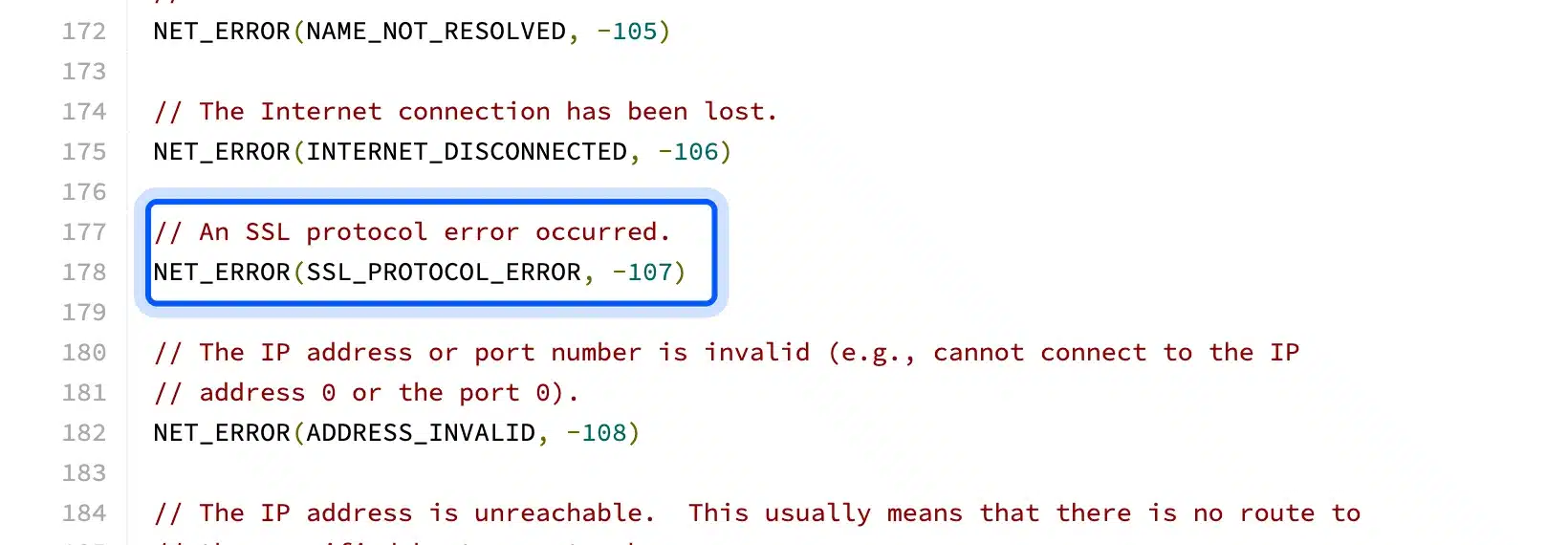
ERR_SSL_PROTOCOL_ERROR is a Chrome network error with the code -107 and the description “An SSL protocol error occurred”. It appears when the TLS handshake with a website fails in a way that no more specific Chrome error covers. Browsers built on Chromium share the same error list.
Chrome’s own source code defines the error as An SSL protocol error occurred with the code -107. It is the catch-all for handshake trouble.
Chrome has separate codes for an expired certificate, an untrusted issuer and a TLS version mismatch. So this error usually means the reply itself was wrong.
The code does not say who is at fault. A broken web server and a blocking firewall end the handshake the same way. One error can mean different fixes for different people. That is why other guides disagree about the fix and why the checks below start by finding out which side has the problem.
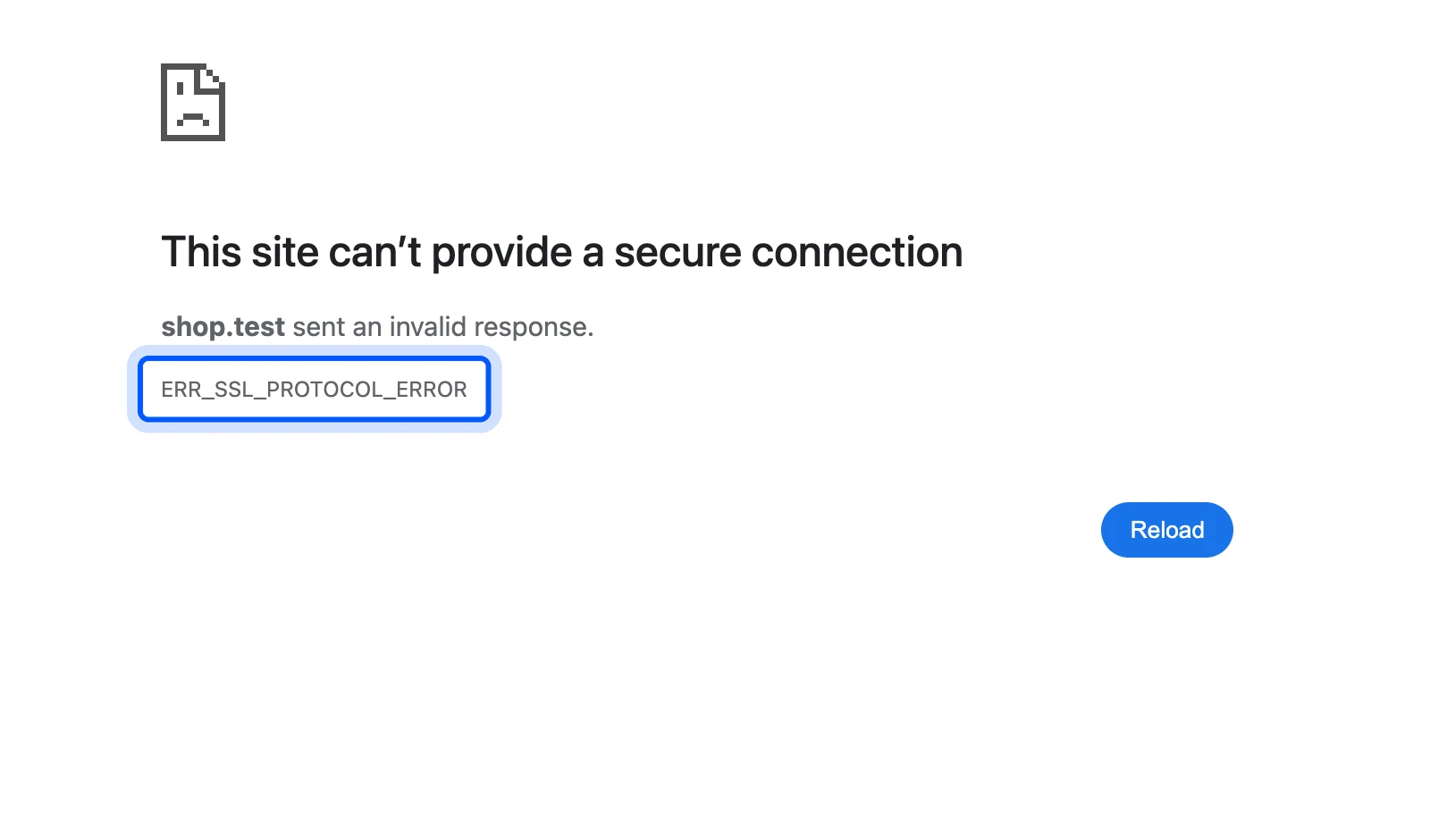
Here is what the visitor sees. Chrome shows the heading “This site can’t provide a secure connection”, names the site, and prints the error code. Chrome offers a Reload button and no option to continue anyway.
What Causes ERR_SSL_PROTOCOL_ERROR?
The most common cause is a server that answers a TLS request with plain HTTP. The next most likely cause is a firewall, proxy or antivirus program that interferes with the handshake. A broken or unexpected reply from any other device on the path produces the same error.
Chromium maps any TLS failure that it does not recognize to this error.
The OpenSSL error mapping in Chromium ends with a default case that returns ERR_SSL_PROTOCOL_ERROR. A second rule in Chrome’s socket code covers firewalls. Some buggy ones send an access denied alert when they block a page, and Chrome turns that into the same generic protocol error.
A handshake works like a short conversation. Chrome sends a hello message that only a TLS server can read, and the server must answer in TLS with its certificate. A server that replies with a web page instead gives Chrome nothing it can use.
These are the causes that we could confirm, in order of how often they come up for site owners:
- Plain HTTP on port 443: The web server listens on the HTTPS port but has TLS switched off for that site. We reproduced this on Apache and on nginx.
- A firewall or proxy in the middle: Security software that blocks or rewrites HTTPS traffic can end the handshake early. This is why the error sometimes affects only one network.
- Antivirus HTTPS scanning: Security software that scans encrypted traffic sits between Chrome and the site. If it fails or blocks the handshake, Chrome gets a reply it cannot use.
- A broken reply from a proxy or load balancer: Any device that sits in front of the site and returns non-TLS data on port 443 triggers the error.
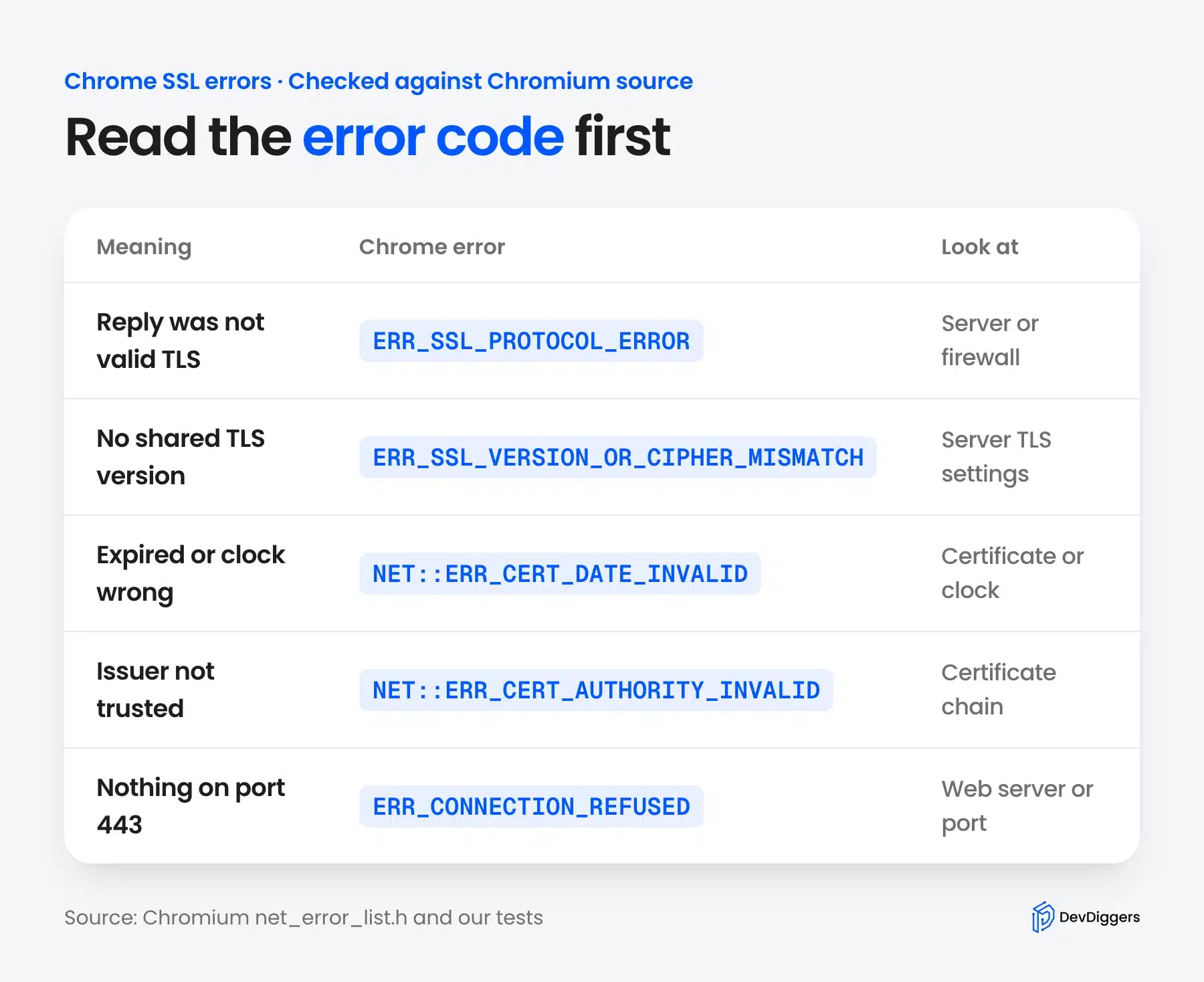
Other errors look similar but point somewhere else. The infographic below shows which Chrome code points where.
Is ERR_SSL_PROTOCOL_ERROR Dangerous?
ERR_SSL_PROTOCOL_ERROR is not dangerous in itself. It means the secure connection was never made. Chrome loaded nothing from the site and no page content reached your computer. The real risk comes from the shortcuts that visitors try next, such as turning off security checks.
In our test Chrome showed only a Reload button for this error, and you should not look for a way around it. Turning off HTTPS checks to reach one page leaves every other page you open less protected.
No browser extension can repair a server that does not speak TLS. If you run the site, every visitor who reaches the same server sees the same dead end. Check the site from a second network as soon as you hear about it.
How to Fix ERR_SSL_PROTOCOL_ERROR as a Visitor
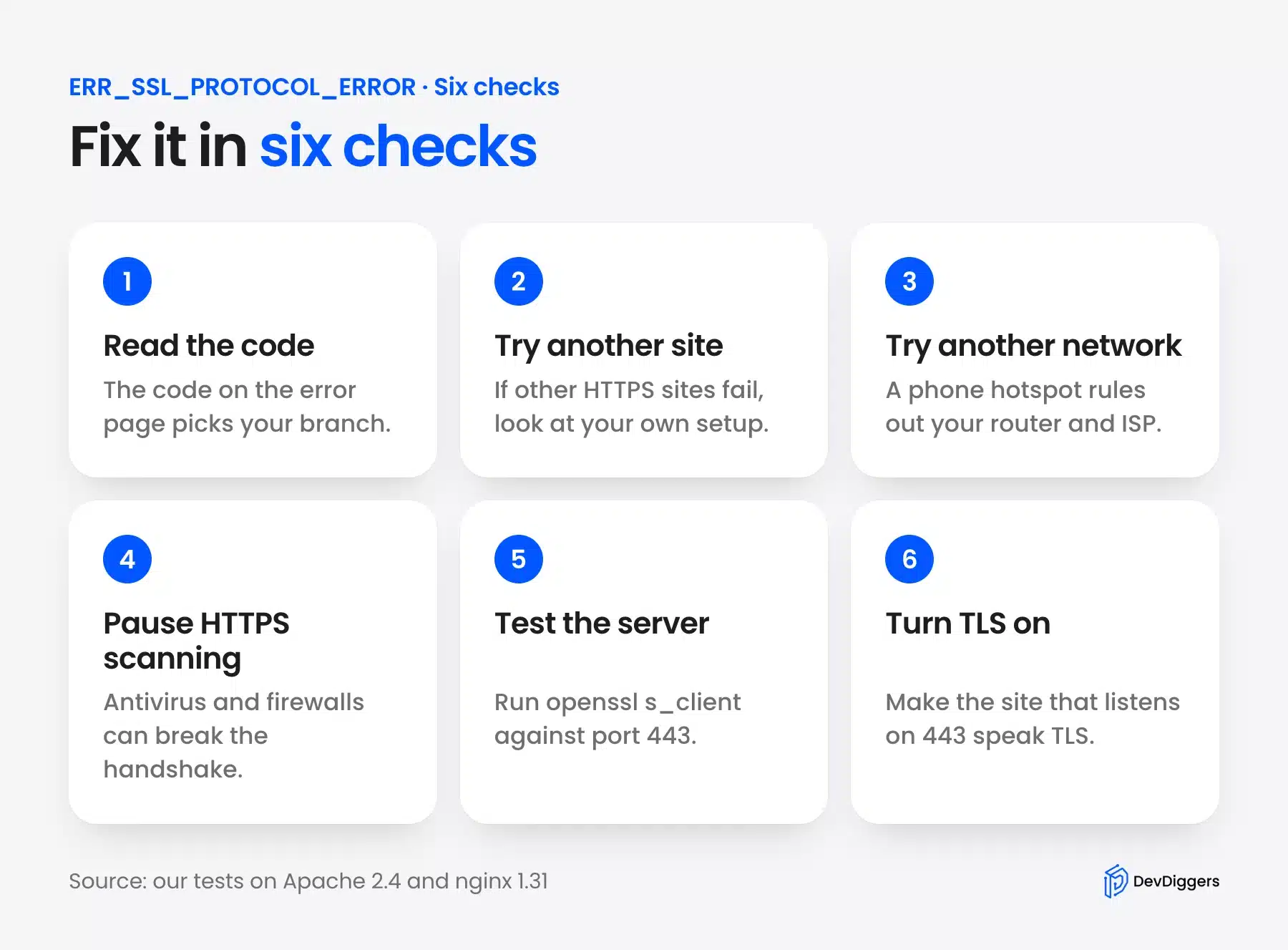
You can fix ERR_SSL_PROTOCOL_ERROR as a visitor by finding out whether the fault is on your side. Test another site, test another network and then pause HTTPS scanning in your security software. If every device and network fails, the problem is on the website.
Work through these checks in order. Each one rules out a different part of the path between you and the server.
- Read the code first: Look at the line under the heading on Chrome’s error page. If it says ERR_SSL_PROTOCOL_ERROR, follow this list. A different code, such as NET::ERR_CERT_DATE_INVALID, has its own cause and is covered in a later section.
- Try another site and another device: Open a few other HTTPS sites and then open the failing site on a phone. If only one site fails on every device, the website is the cause and you can skip to the site owner section.
- Switch networks: Connect the phone to mobile data or a hotspot and load the site again. A site that works there points to your router, ISP or office firewall.
- Turn off your extensions: Open chrome://extensions, switch every extension off, and reload the page. If it loads, switch them back on one at a time until the error returns.
- Pause HTTPS scanning: Open your antivirus or firewall settings and turn off the option that scans encrypted connections. Test the page and then turn the protection back on right away.
- Disconnect any VPN or proxy: A VPN or proxy sits between you and the site and can return its own error page on port 443. Turn it off and reload.
- Update Chrome and your operating system: An old browser may not support the protocols a site requires. Update Chrome from the About page, restart it, and try again.
Note: Clearing cached images and cookies is a common tip, but Chrome raises this error during a live handshake. Old cache is a rare cause. Try it only after the checks above.
The system clock gets a lot of attention in other guides. In Chrome’s error list a wrong clock is tied to the certificate date error NET::ERR_CERT_DATE_INVALID and not to ERR_SSL_PROTOCOL_ERROR. Check the clock if the page shows the date error.
If nothing in the list helps, contact the site owner. Send the full error code, the time you saw it and whether the page loads on mobile data. Those three facts tell them whether to look at the server or at your network.
How to Fix ERR_SSL_PROTOCOL_ERROR as a Site Owner
To fix ERR_SSL_PROTOCOL_ERROR on your own site, test port 443 from the command line and find out whether it answers in plain HTTP. If it does, switch TLS on for the site that listens on that port. Then reload the page and test again.
Run the checks below from any computer. Replace example.com with your domain.
- Look at the handshake: Run
openssl s_client -connect example.com:443 -servername example.com. If the server speaks plain HTTP, OpenSSL prints “wrong version number” and no certificate. On our test server curl also failed the handshake with a TLS alert. - Ask the same port for plain HTTP: Run
curl -I http://example.com:443. If that returns headers such as HTTP/1.1 200 OK, port 443 is answering without TLS and this is your problem. - Switch TLS on for the right site: Find the virtual host or server block that listens on 443 and add the TLS settings. The Apache and nginx examples are below.
- Reload the web server and test again: Restart or reload Apache or nginx and then load the site in Chrome and run the openssl command once more. A working site prints a certificate chain.
- Check what sits in front of the site: A CDN, proxy or load balancer must return TLS on port 443 as well. Test your server directly with the same openssl command to see which layer fails.
- Review the TLS versions: Chrome’s error list says TLS 1.0 and 1.1 now cause a version mismatch error, which is a different code. Keep TLS 1.2 and 1.3 enabled.
This table shows how to read what the commands print:
| What you see | What it means | Next step |
|---|---|---|
| openssl prints “wrong version number” and no certificate | The server answers in plain HTTP on port 443 | Turn TLS on for that site |
| curl returns HTTP/1.1 200 OK for the http:// URL on port 443 | The same port serves the site without TLS | Turn TLS on for that site |
| openssl prints a connection error such as “Connection refused” | Nothing listens on port 443 | Start the web server or open the port |
| openssl prints a certificate chain | TLS works at the server | Look at the proxy, CDN or the visitor’s network |
On Apache, the site on port 443 needs the mod_ssl module and an SSLEngine on line. The Apache SSL how-to lists the minimum directives. A virtual host written for port 443 without SSLEngine on sends plain HTTP, which is the case we reproduced:
LoadModule ssl_module modules/mod_ssl.so

Listen 443
<VirtualHost *:443>
    ServerName www.example.com
    SSLEngine on
    SSLCertificateFile "/path/to/www.example.com.cert"
    SSLCertificateKeyFile "/path/to/www.example.com.key"
</VirtualHost>
On nginx the fix sits in the listen line. The nginx HTTPS documentation says the ssl parameter must be enabled on listening sockets.
We loaded the same certificate files with and without ssl on nginx 1.31.6. Without it Chrome showed ERR_SSL_PROTOCOL_ERROR, and with it the page loaded.
server {
    listen              443 ssl;
    server_name         www.example.com;
    ssl_certificate     www.example.com.crt;
    ssl_certificate_key www.example.com.key;
}
Note: Our Apache and nginx tests used a self-signed certificate that we told Chrome to accept. A real site needs a certificate from a trusted authority, or Chrome shows a certificate error after the handshake works.
What If You See a Different Chrome Error?
If the error code is not ERR_SSL_PROTOCOL_ERROR, the cause is different and so is the fix. A certificate problem, a closed port and a TLS version mismatch each have their own Chrome code. Match your code to the cause before you change any setting.
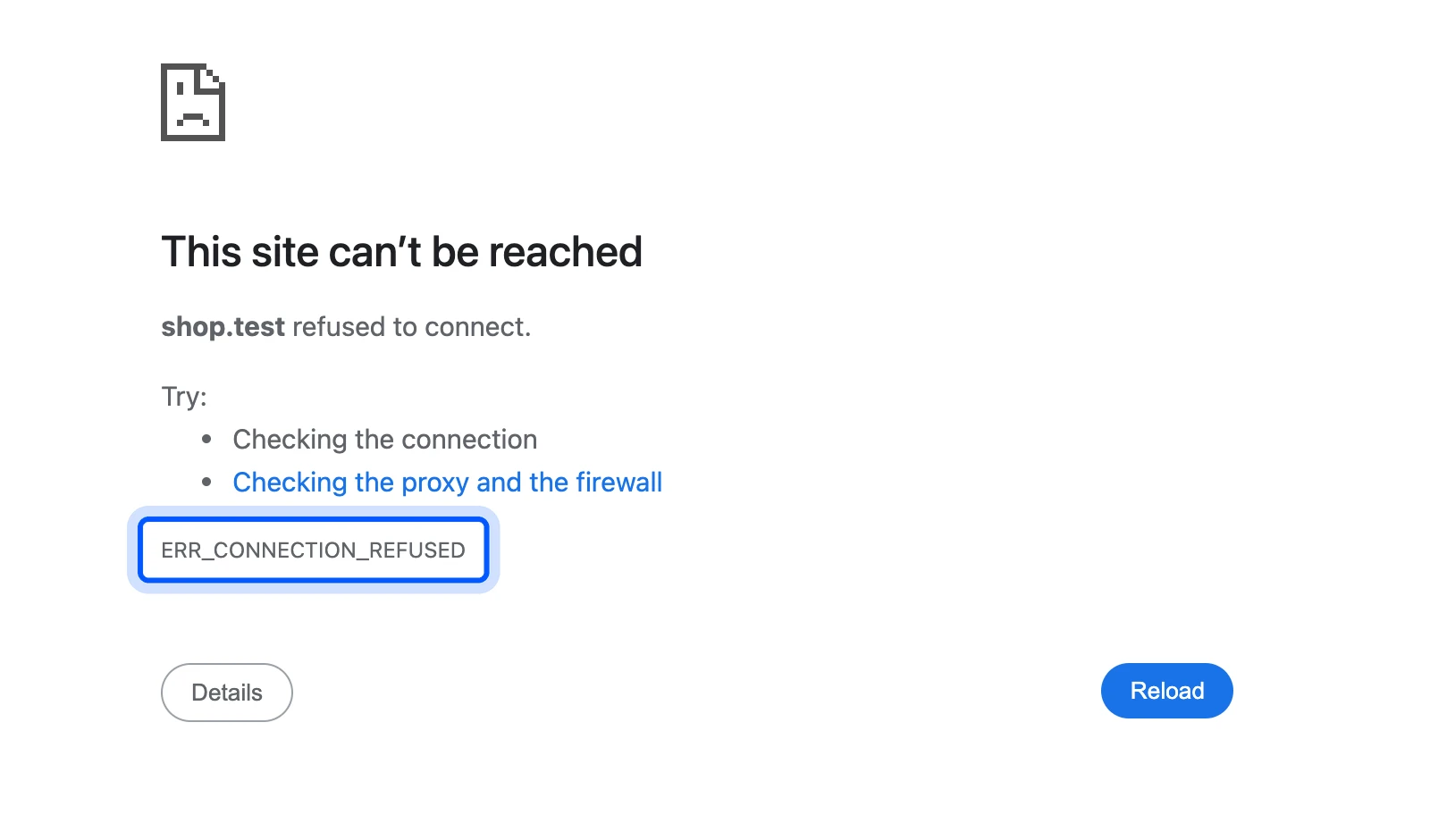
We saw two of them while testing. A server with nothing listening on port 443 gave ERR_CONNECTION_REFUSED. That means the web server is stopped or the port is blocked.
A server with a working but untrusted certificate gave NET::ERR_CERT_AUTHORITY_INVALID. Chrome’s error list says this can mean a self-signed certificate or an issuer that Chrome does not trust. That is a certificate problem, and our guide on how to renew your SSL certificate covers the usual fixes.
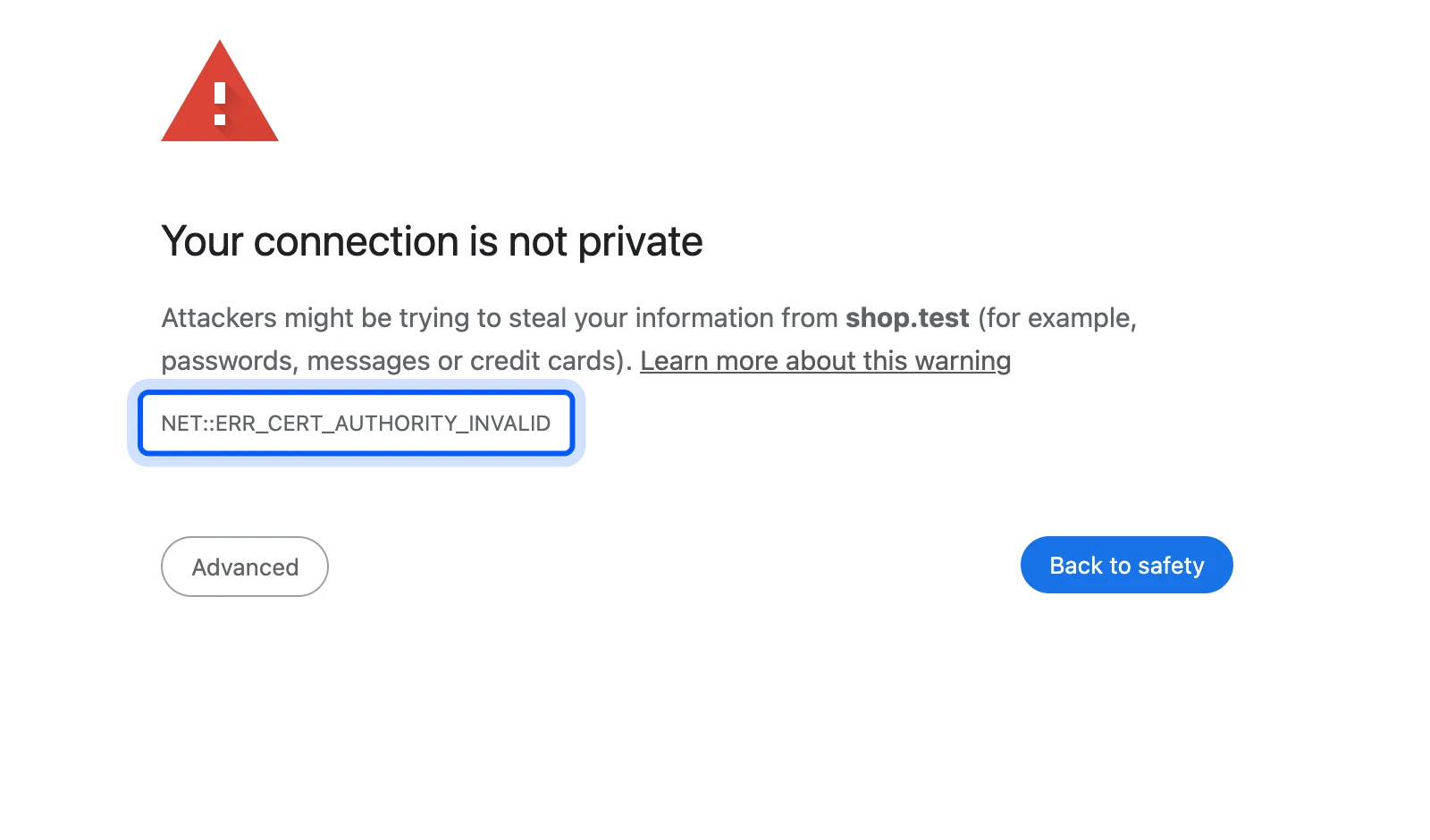
A server that offers only old TLS versions gives a third code. Chrome’s error list says TLS 1.0 and 1.1 now cause ERR_SSL_VERSION_OR_CIPHER_MISMATCH. The nginx documentation says that since version 1.27.3 the default protocols are TLS 1.2 and TLS 1.3, when the OpenSSL library supports them.
Mixed content is another common suspect, and it is not a cause. MDN describes mixed content as a page that loads over HTTPS but pulls in some resources over HTTP. Browsers upgrade or block those requests and show a console warning, but the page still loads.
ERR_SSL_PROTOCOL_ERROR on a WordPress Site
On a WordPress site the error usually follows a move to HTTPS. Someone sets the site address to https:// before port 443 answers, or the web server has no TLS settings for that site. WordPress itself is rarely the cause.
The fix is on the server first and in WordPress second. Start with the server steps above. If you force HTTPS and then hit a loop instead, read our guide to the ERR_TOO_MANY_REDIRECTS error.
Once openssl prints a certificate, open Settings > General. Confirm that the WordPress Address and Site Address use https:// and match the certificate’s domain name.
If the address is wrong and you cannot log in, WordPress documents how to set the site URL in wp-config.php. You add two lines with the new address. After that you can no longer edit those two values on the General settings page.
define( 'WP_HOME', 'https://www.example.com' );
define( 'WP_SITEURL', 'https://www.example.com' );
HTTPS is also one part of our WordPress security checklist. Our guides on common SSL problems in WordPress and on finding your site’s IP address help when you compare DNS records with the server.
If you cannot reach the web server settings, our WordPress maintenance services include server checks.
What We Could Not Reproduce
We reproduced the plain HTTP cause on Apache, nginx and a basic web server. We read the Chromium source for the rest. Antivirus scanning, proxies, VPNs, the Windows and macOS settings, Firefox and Safari all need setups that we do not run.
That is why the firewall and antivirus fixes above come from Chrome’s source code and common practice, and are written as things to rule out. They are not results from our test server. If a step on that list fixes your error, the cause was on your side of the connection.
If you can run one of these setups yourself, change one thing at a time. Change a setting, reload the page, and undo the change when nothing happens. Two changes at once hide which one worked.
Conclusion
ERR_SSL_PROTOCOL_ERROR is a failed handshake in which the server’s reply was not valid TLS. As a visitor, test another network and pause HTTPS scanning. As a site owner, check whether port 443 answers in plain HTTP and switch TLS on for that site.
Read the code on the Chrome page before you change anything. A date, issuer or connection error is a different problem with a different fix.
Frequently Asked Questions (FAQs)
Q1. Is ERR_SSL_PROTOCOL_ERROR a problem with my browser or with the website?
Test the same site on another device and on mobile data. If it fails everywhere, the website or its server is the cause. If it only fails on one device or network, look at that device’s security software, VPN or network.
Q2. Can I bypass ERR_SSL_PROTOCOL_ERROR in Chrome?
No. Chrome shows only a Reload button for this error, because no secure connection exists to continue with. The fix is to correct the cause, such as the server’s TLS settings or a firewall that blocks the handshake.
Q3. Does a wrong system clock cause ERR_SSL_PROTOCOL_ERROR?
Chrome’s error list ties a wrong clock to NET::ERR_CERT_DATE_INVALID. So a clock problem usually shows that code. If your page shows ERR_SSL_PROTOCOL_ERROR, look at the server, the network and your security software first.
Q4. Can antivirus software cause ERR_SSL_PROTOCOL_ERROR?
Yes, it can. Chrome’s source code says some buggy firewalls block pages with an alert that Chrome turns into this error. Pause the HTTPS scanning option in your antivirus, test the page, and turn it back on.
Q5. Why do I get ERR_SSL_PROTOCOL_ERROR on my WordPress site after installing SSL?
The web server may still send plain HTTP on port 443 for your domain. Check that the site’s virtual host or server block has TLS enabled and then confirm the WordPress Address and Site Address use https://. A plugin cannot fix a server that does not speak TLS.
Q6. Does ERR_SSL_PROTOCOL_ERROR look the same in Firefox and Safari?
Not exactly. This is a Chrome and Chromium error name. We only tested Chrome. Other browsers use their own wording for failed handshakes. Use the openssl commands above to see what the server returns.