
Here is how to create a membership site: decide what members pay for, then build it on WordPress with a membership plugin. You create a paid level, lock your content to it and connect recurring payments. A first working version takes an afternoon.
We built the same small club three times in October 2026 on a WordPress 7.1 test site. The free Simple Membership, Ultimate Member and Kadence Memberships plugins each locked the same page. Then we opened it as a logged-out visitor, and the three results differed more than the plugin pages suggest.
This guide covers the business side first: models, pricing tiers and real costs. Then it walks through the build and compares the three free plugins we tested. It ends with onboarding, churn and payment retries, the part that keeps revenue coming.
What Is a Membership Website?
A membership website is a site where people pay, or sign up, to reach content or a community that others cannot see. Members usually pay a monthly or yearly fee, so the site earns recurring revenue. The plugin behind it handles accounts, access rules and the payments that open each level.
The members-only part can be almost anything that keeps its value over time. Common examples are a library of guides, an online course, a private forum or a paid newsletter archive.
What makes it a membership, and not a shop, is the ongoing relationship. A store sells a product once. A membership sells access, and the member decides every month or year whether that access is still worth the price.
That difference shapes every choice below. Your content plan, your pricing and even your welcome email all exist to win the next renewal.
A membership can also be free. Many sites use a free tier to collect sign-ups, then sell an upgrade to the paid level once the reader trusts the content.
Hosted website builders and course platforms sell membership features too. They bundle hosting and payments for a monthly fee, but your content and member list live on their platform.
WordPress keeps both on a site you control. You can move hosts, change plugins or export members without asking anyone, which is why this guide builds on WordPress.
Membership Business Models That Work on WordPress
Five membership models cover most sites built on WordPress. They are a content library, an online course, a paid community site, member pricing in a store and software licenses. Each one charges for ongoing access but asks a different amount of new work from you every month, which decides how far it can grow.
- Content library: Guides, templates or videos that grow every month. Members pay for the archive plus whatever comes next.
- Online course: A fixed set of lessons, often released one module at a time. It works well with a yearly price or a one-time fee.
- Paid community site: A forum, group or chat where members talk to each other and to you. The members create part of the value.
- Member pricing in a store: A WooCommerce shop where members get lower prices, free shipping or early access to stock.
- Software licenses: Plugins, themes or apps sold as yearly licenses that include updates and support.
The last model is how DevDiggers sells its own plugins. Our WooCommerce Hide Price For Guest plugin, for example, is a yearly license that starts at $39, read from our store in October 2026. That plugin also fits the member pricing model, because it hides prices until a shopper logs in.
Pick the model you can keep feeding. A community needs you in the room often, because members notice when the host goes quiet. A content library needs a steady publishing rhythm, and a course needs a big build up front with lighter upkeep later.
A recurring revenue website lives or dies on that rhythm. If members see nothing new for two months, the renewal email becomes a cancellation reminder.
Test the idea before you build anything. Ask your email list or social followers to pay a founding member price for the first three months, and set a launch date.
If 20 people pay up front, you have real demand and your first members. If nobody pays, you saved weeks of setup, and the answers you got tell you what to change.
How to Price a Membership Website
Price a membership website with two or three tiers at most: a monthly plan, a yearly plan with a discount, and an optional free tier. Fewer pricing tiers make the choice easy. Our worked example below uses $12 a month, which shows how fees, churn and yearly plans change what you keep.
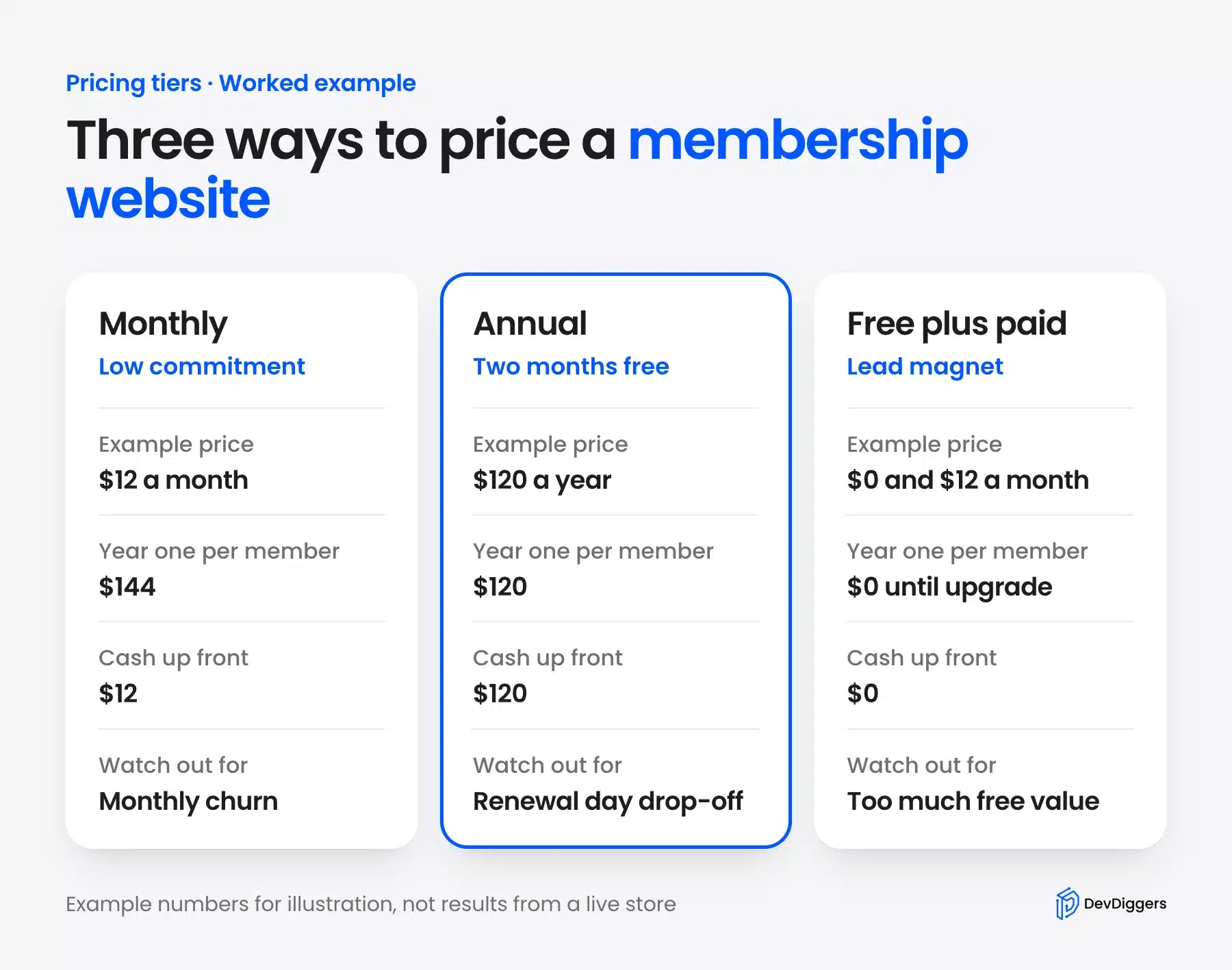
Say your club charges $12 a month and reaches 200 paying members. That is $2,400 in monthly recurring revenue before fees.
Card fees come off each charge. On Stripe’s US pricing page, domestic cards cost 2.9% plus 30 cents per successful transaction, and Stripe Billing adds 0.7% of billing volume. On a $12 charge that works out to about 73 cents, so roughly 6% of each payment goes to fees.
A yearly plan at $120 changes the math. The member pays the equivalent of 10 months, so you give up $24 per member each year. In return you get the cash up front and one renewal decision a year instead of twelve.
The fee also shrinks. One $120 charge costs about $4.62 at the same rates, against about $8.78 for twelve monthly charges.
Tip: Show the yearly price as “two months free” next to the monthly plan. Members compare the two plans on one screen, so the saving should be visible at a glance.
A free tier works best as a sample. Give away a few guides or one lesson, and keep the library, the community or the course behind the paid level.
Decide three policies before the first sale, because members ask about them in week one:
- Free trial: A 7 day trial lowers the barrier, but only offer it if new members can get value inside those days.
- Refunds: State a clear window, such as 14 days, on the join page and in the welcome email.
- Price increases: Keep early members on their original price. A locked-in rate is a strong reason to stay subscribed.
Write each policy in one short sentence on the join page. Vague terms create support emails that a single clear line would have avoided.
How Much Does It Cost to Build a Membership Site?
A basic WordPress membership site costs your domain, your hosting and card fees, because the plugins we tested are free on WordPress.org. Paid membership plugins add a yearly license. A WooCommerce based setup with WooCommerce Memberships listed at $199 a year on WooCommerce.com in October 2026.
| Cost item | Free plugin route | Paid plugin route |
|---|---|---|
| Domain | Yearly registration fee | Same |
| Hosting | A host with enough storage for your content | Same |
| Membership plugin | $0 (Simple Membership, Ultimate Member, Kadence Memberships) | Yearly license, such as WooCommerce Memberships at $199 |
| Payments | 2.9% + 30 cents per US card charge on Stripe, plus 0.7% Billing | Same |
| Add-ons | Free Stripe add-on for Kadence Memberships | Often bundled or sold separately |
The plugin price matters less than it looks. On our worked example, Stripe fees on 200 monthly members come to about $146 a month. Two months of fees already pass the $199 yearly license of WooCommerce Memberships.
Your time is the real cost. Writing the first batch of content, recording lessons or seeding a community takes far longer than the plugin setup in the next section.
Budget for a few one-time costs as well. A theme that looks right for your niche, a logo and maybe a few hours of design work all come before the first member pays.
Keep the first version small. One level, five strong pieces of content and a working join page are enough to learn whether people will pay.
If you would rather hand the build to a team, our WooCommerce development services cover custom membership stores. The steps below are the ones you would follow yourself.
How to Create a Membership Site With WordPress
Here is how to create a membership site with WordPress: install a membership plugin, then create a level with a price and an access period. Restrict your members-only pages to that level and check them while logged out. Finally, connect recurring payments and build a join page that welcomes new members.
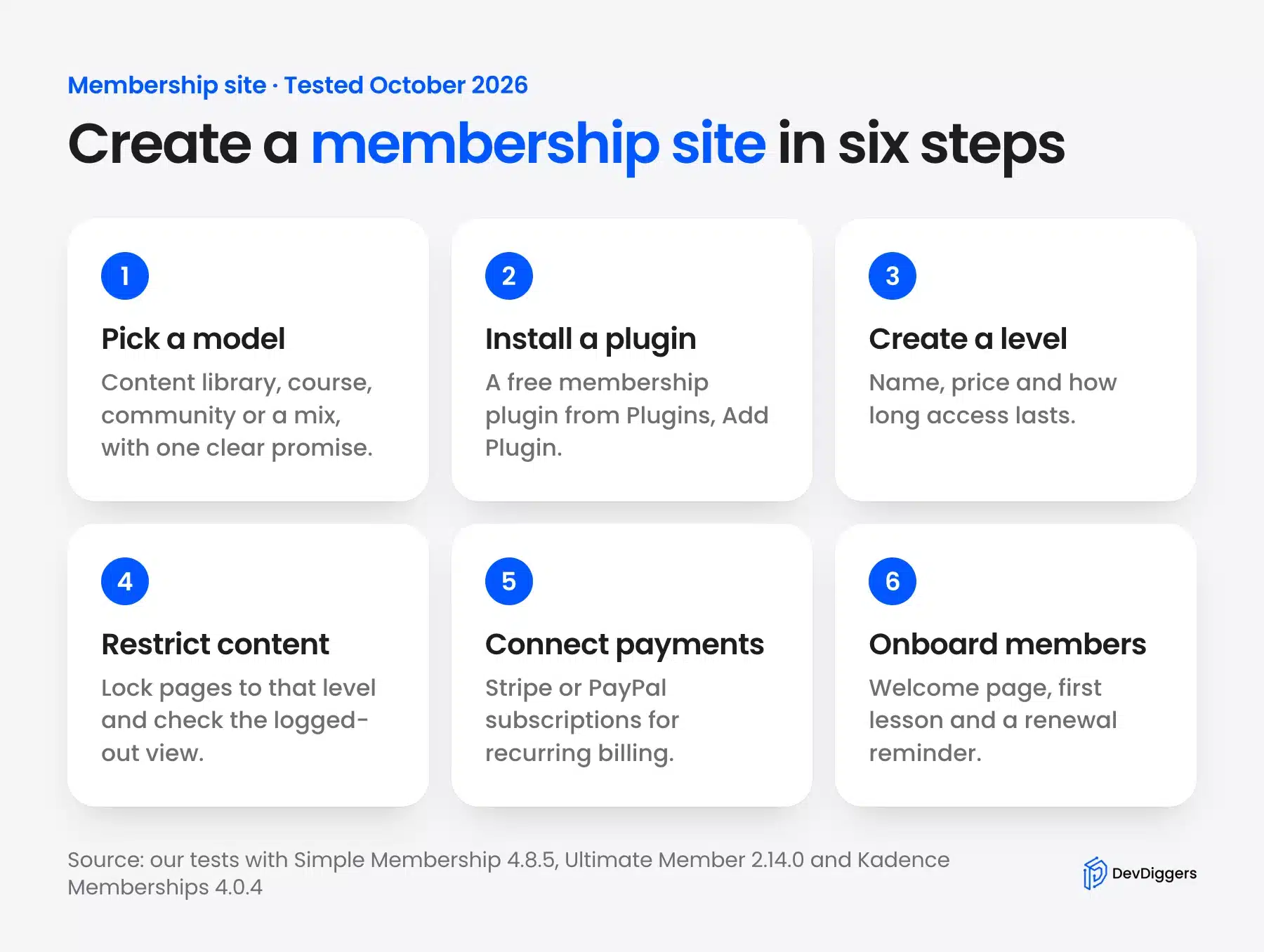
We ran these steps with Simple Membership 4.8.5 for the main test. The Kadence Memberships screens appear where that plugin showed something Simple Membership did not.
Step 1: Install a Free Membership Plugin
Open Plugins, then Add Plugin, and search for “membership”. On our test site that search returned 2,066 results, with Simple Membership first.
- Search the directory: Type “membership” into the Search Plugins field.
- Install and activate: Click Install Now on the Simple Membership card, then Activate.
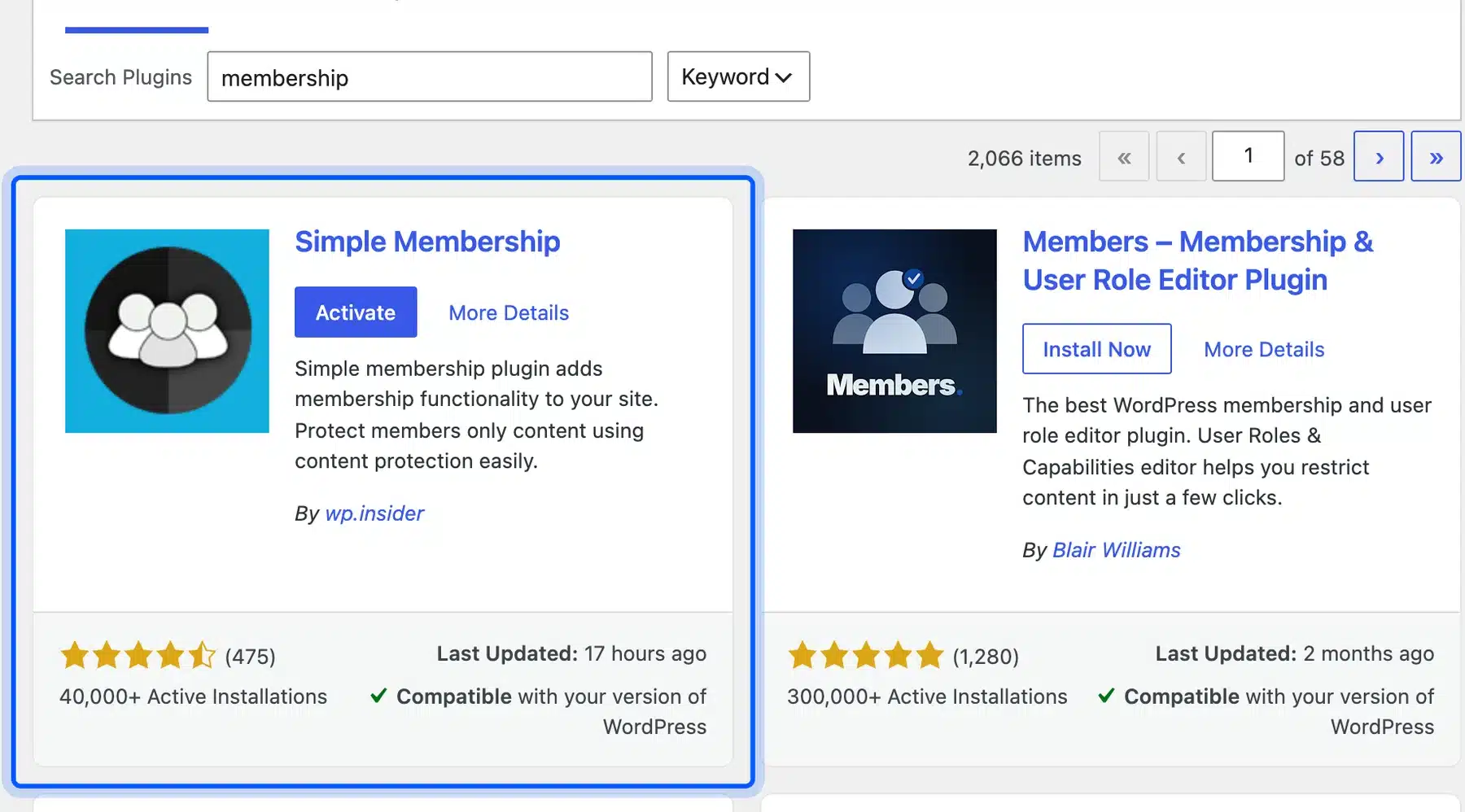
On activation, Simple Membership created its own pages: Join Us, Registration, Member Login, Profile, Password Reset and Thank You. You will use the Join Us and Member Login pages later.
The Simple Membership listing on WordPress.org showed 40,000+ active installs, version 4.8.5 and a last update on 9 October 2026.
Step 2: Create a Membership Level
A level is the product you sell: a name, a WordPress role and how long access lasts. Go to WP Membership, then Membership Levels, and click Add Level.
- Name the level: We called ours Roasters Club.
- Pick the role: Subscriber is the default and fits most members.
- Set the access duration: We chose Expire After 1 Months, so access ends unless the member renews.
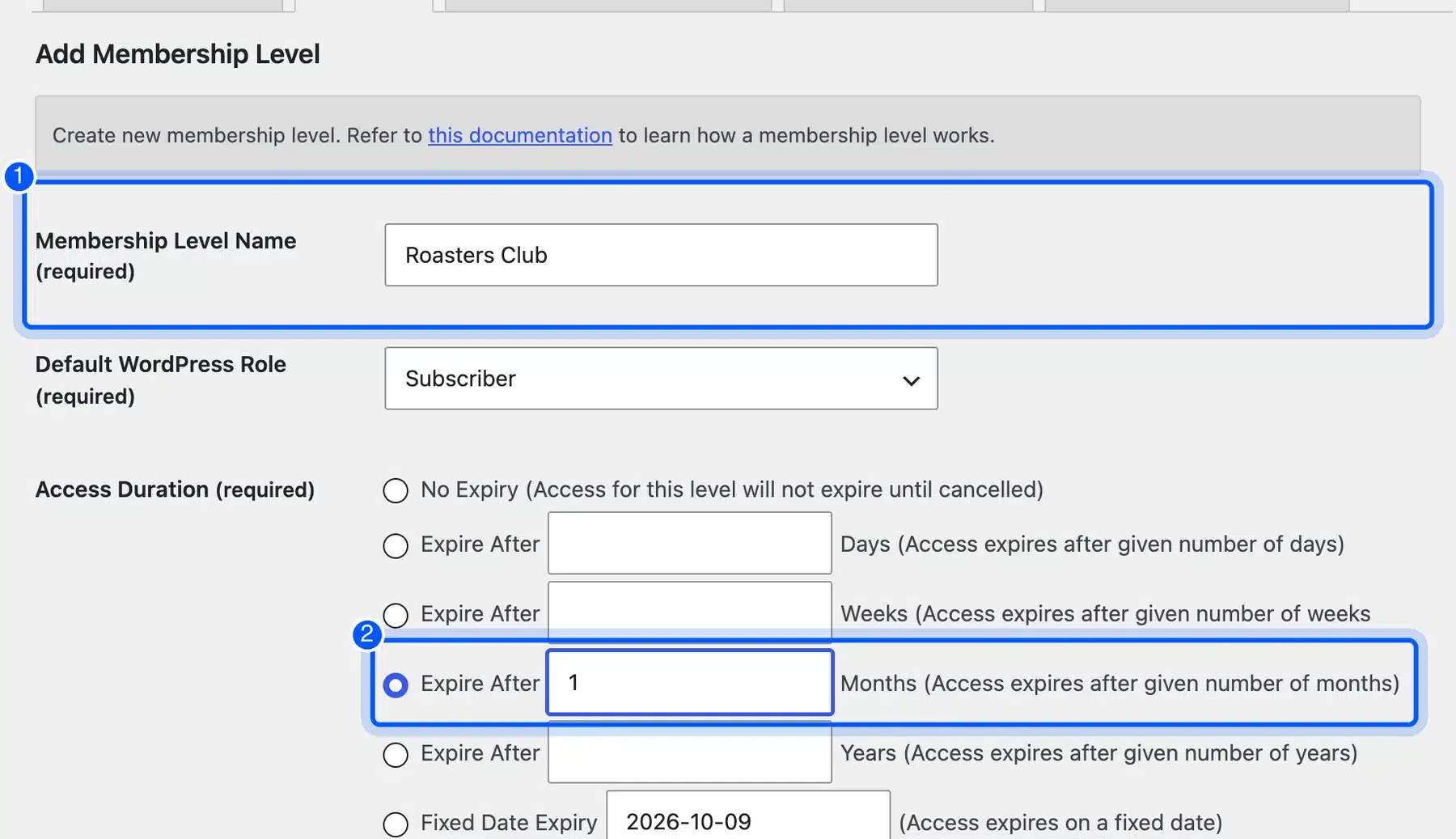
- Save it: Click Add New Membership Level. The level then shows in the list with its role and “1 Month(s)” of access.
The duration options are wider than they look. Simple Membership also offers no expiry, days, weeks, years, a fixed date and a yearly expiry date for calendar-year memberships.
Step 3: Restrict a Page to Members
Content gating happens on each page or post. Open the page in the editor, expand the Meta Boxes panel at the bottom, and find the Simple WP Membership Protection box.
- Turn protection on: Choose “Yes, Protect this content.”
- Pick the level: Tick Roasters Club under the membership levels that can access it.
- Save the page: Click Save in the editor toolbar.
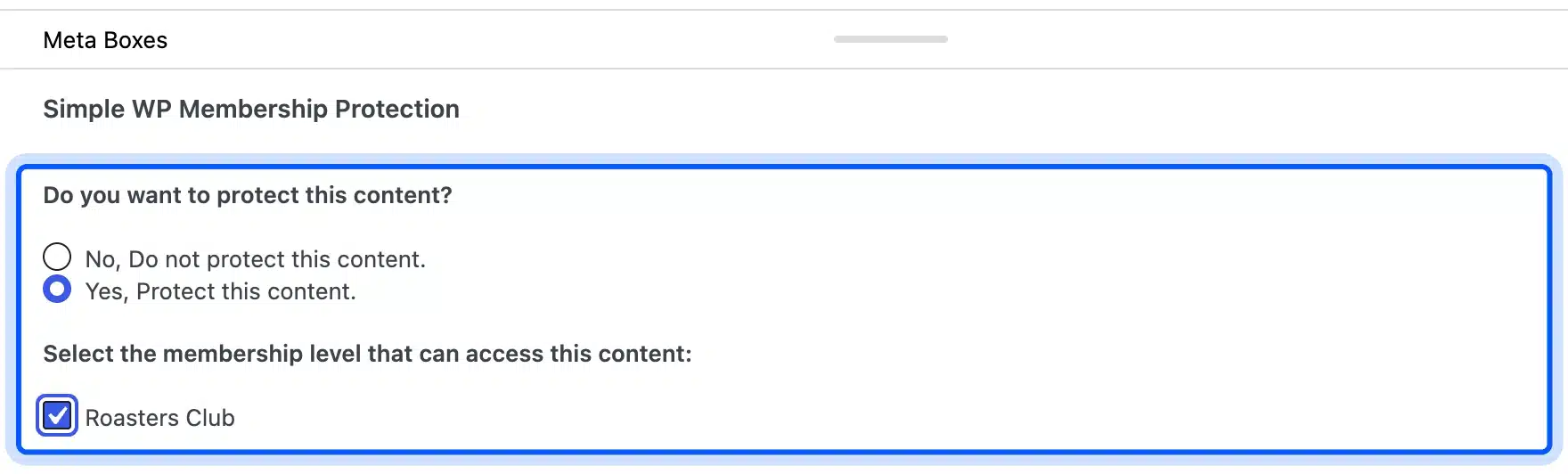
We protected a page called Home Roasting Masterclass. It held two short paragraphs of lesson notes, which made the locked and unlocked views easy to compare.
If a page should simply stay out of menus or search, a membership plugin is overkill. Our guide on how to hide a page in WordPress covers lighter options.
Step 4: Check the Locked Page as a Visitor
Always open the protected page in a private window before you launch. That is the only way to see exactly what a stranger sees.
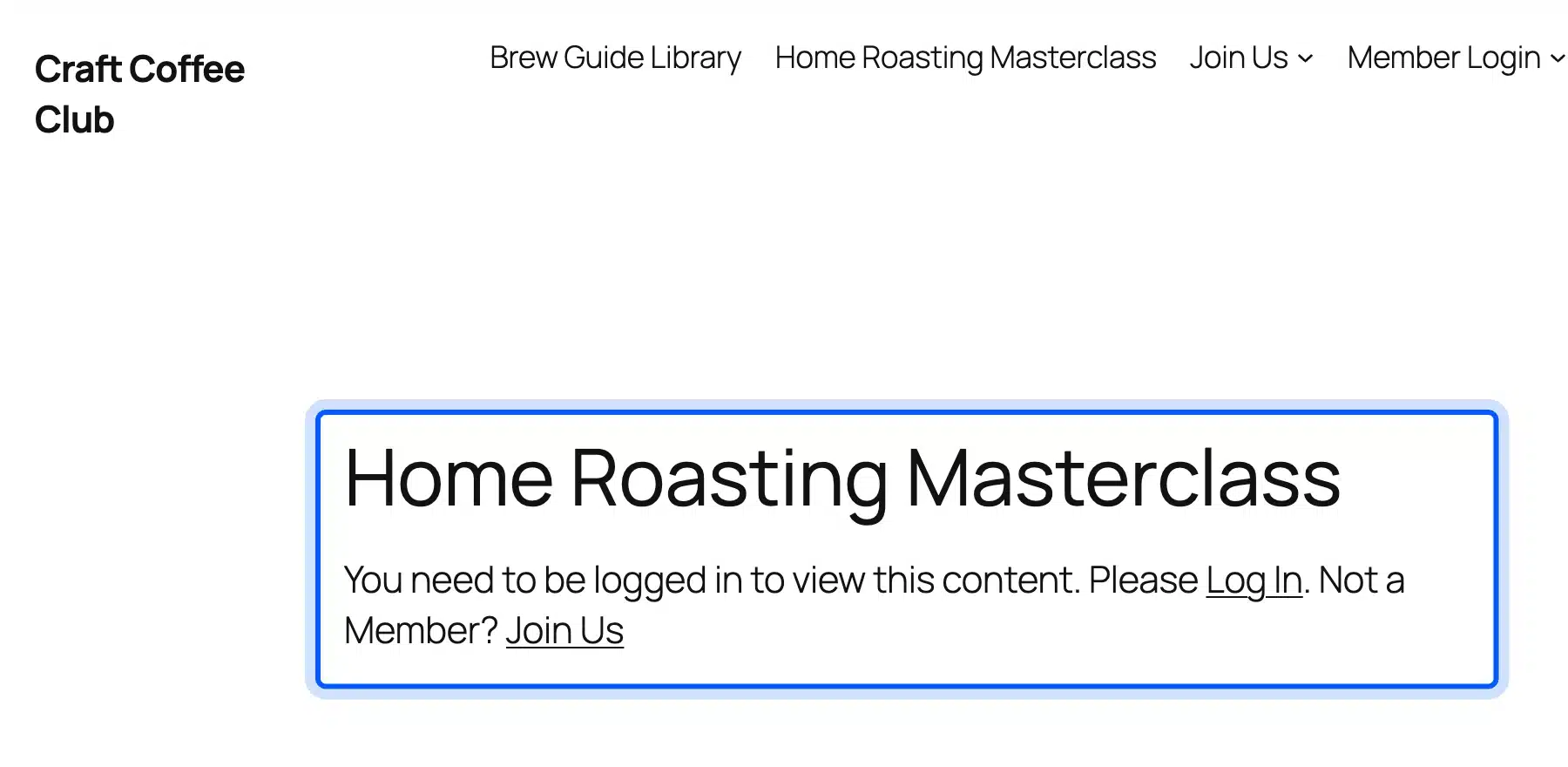
On our test site, a logged-out visitor saw the page title and one line of text. It read “You need to be logged in to view this content,” with links to Log In and Join Us.
Next, we created a test member on the Roasters Club level from WP Membership, then Members, and logged in through the Member Login page. The same page then showed both lesson paragraphs.
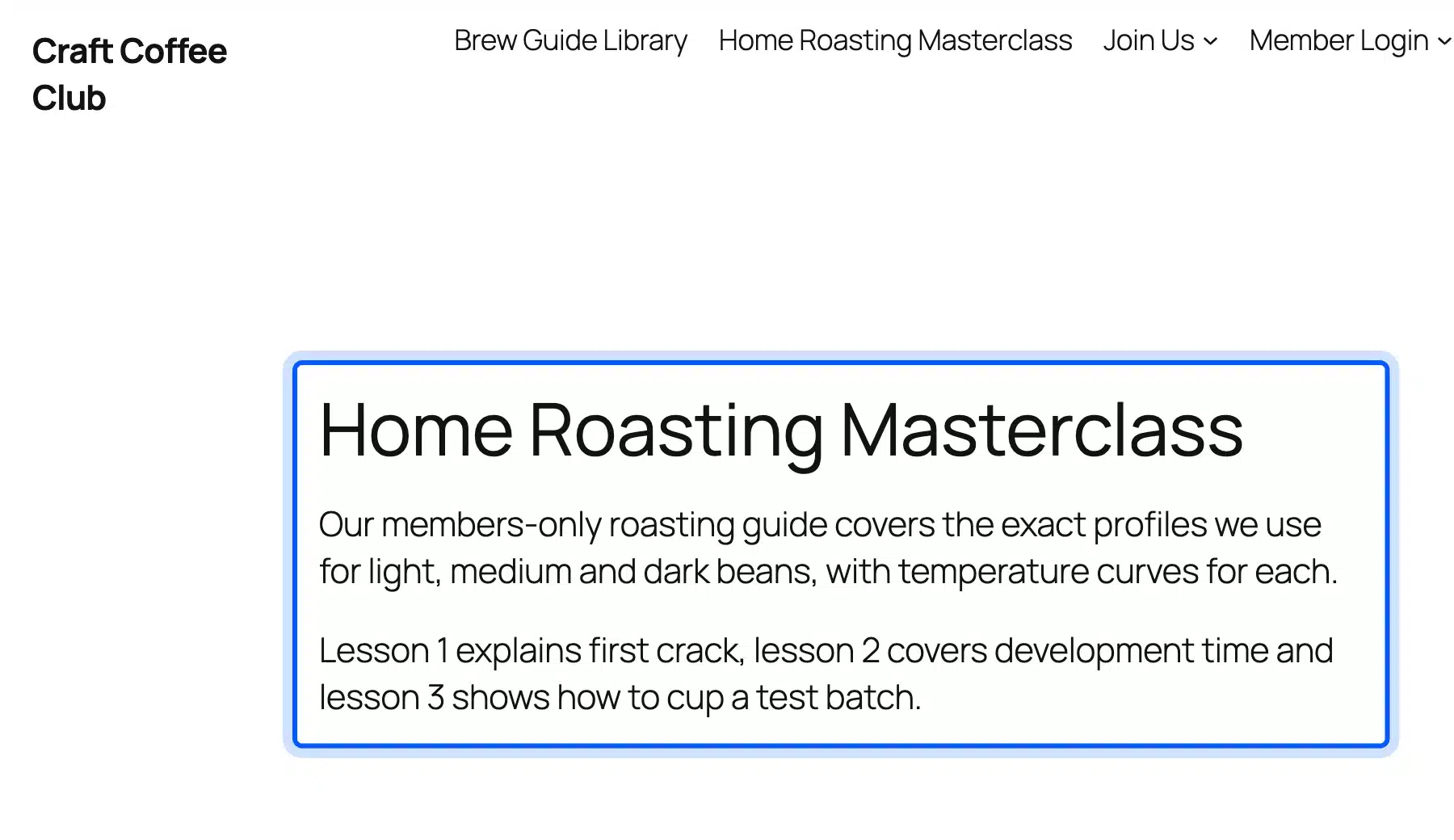
Worth checking: The page title stayed visible to visitors in this test. Write titles you are happy for anyone to read, because they also show in menus and search results.
Step 5: Connect Recurring Payments
Simple Membership takes payments through buttons you place on the Join Us page. Go to WP Membership, then Payments, then Create New Button, and pick a button type.
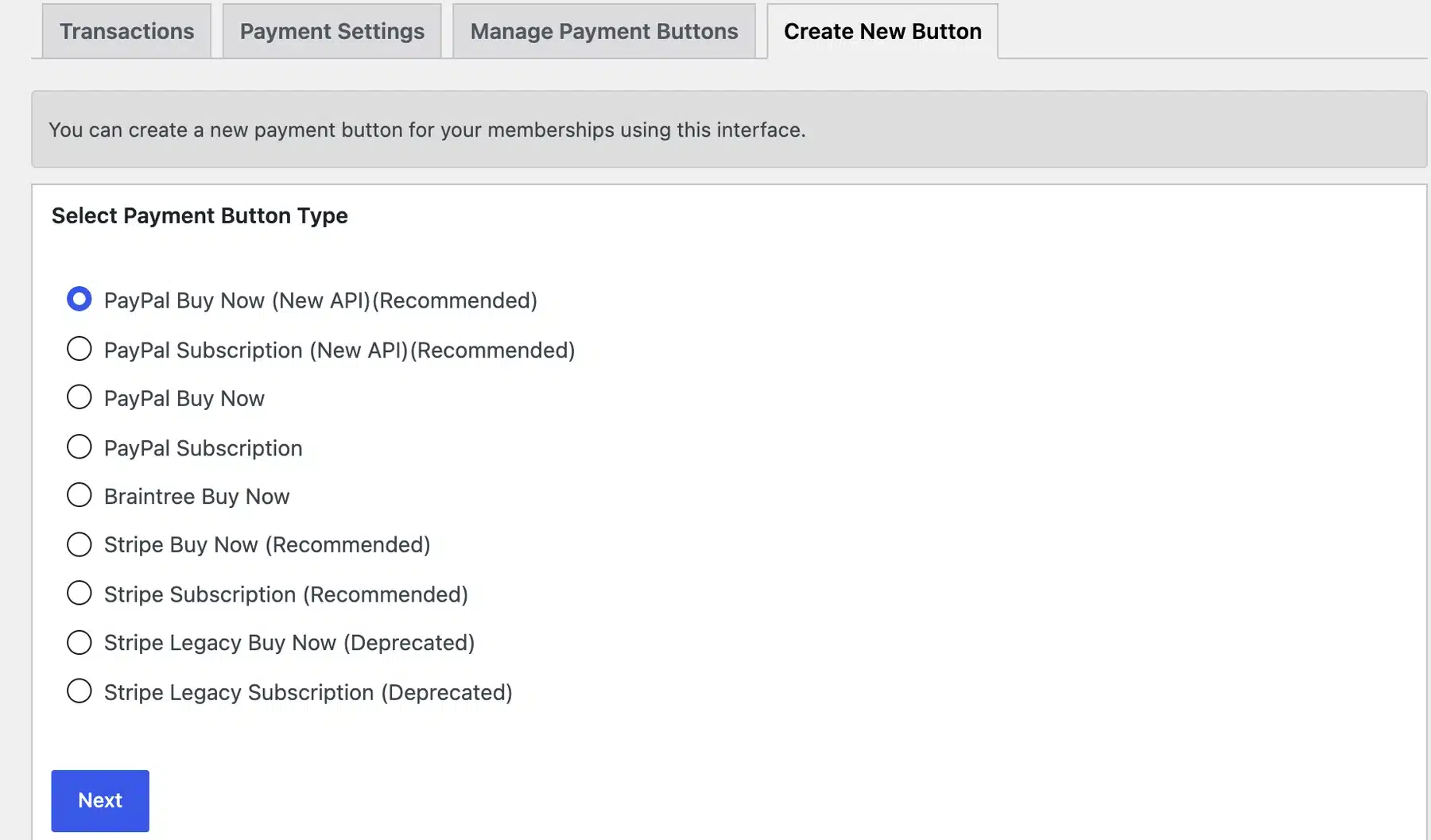
The free plugin listed nine types, including Stripe Subscription and PayPal Subscription, both marked Recommended. Choose a subscription type for monthly or yearly billing, because a Buy Now button charges once.
We did not connect a live Stripe or PayPal account for this guide. So no real card was charged, and the renewal itself was not tested.
Once the button exists, its shortcode goes on the Join Us page. The member pays, and the plugin creates the account on the level tied to that button.
Step 6: Build the Join Page and Onboarding
The join page is your sales page. It needs the price, what members get, and the payment button or registration form.
Kadence Memberships builds this page for you. When we set its Redirect Page to the Register page, a logged-out visitor who opened a locked page landed on the registration form.
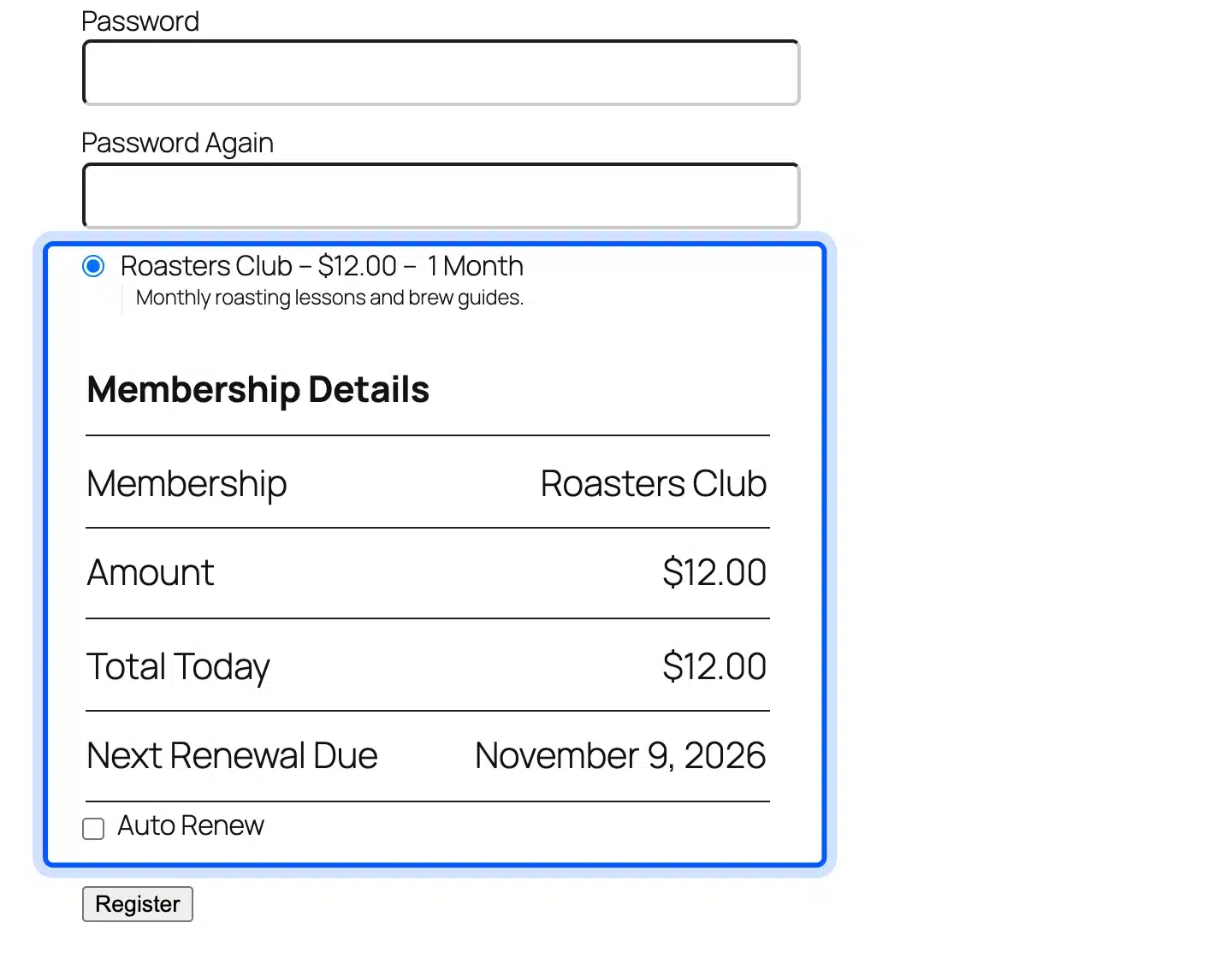
That form showed “Roasters Club, $12.00, 1 Month” and a Membership Details table. It listed Total Today at $12.00 and the Next Renewal Due as 9 November 2026, one month after our test.
After the join page, plan the first hour of membership. A welcome page, one quick win and a clear next lesson do more for renewals than any feature list.
Free Membership Plugins We Tested
We tested three free WordPress.org plugins on the same test site, one at a time, with the same page locked in each. Simple Membership handled levels, gating and payment buttons on its own. Ultimate Member restricted pages by role, while Kadence Memberships added prices and renewal dates to its levels.
| Plugin | Version tested | Active installs | Levels with prices | Logged-out view on our test site |
|---|---|---|---|---|
| Simple Membership | 4.8.5 | 40,000+ | Yes, through payment buttons | Login prompt with Join Us link |
| Ultimate Member | 2.14.0 | 200,000+ | No, uses WordPress roles | “Restricted content” title only |
| Kadence Memberships | 4.0.4 | 9,000+ | Yes, on the level itself | Redirect to the page you choose |
Install counts come from each plugin’s WordPress.org listing on 10 October 2026.
Simple Membership
Simple Membership is the most complete free option we tested. Levels, page protection, member accounts and Stripe or PayPal buttons all live in one plugin.
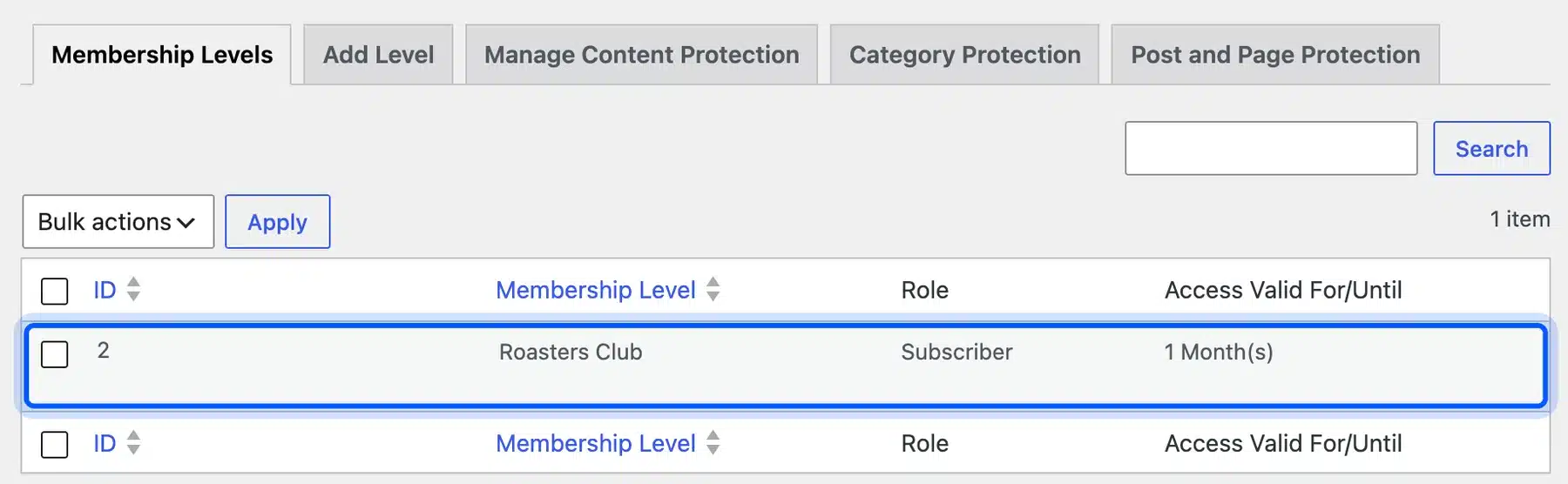
Its admin screens look dated, and the price lives on the payment button rather than on the level. Name each button after its level so the two stay easy to match.
It suits a content library or course that needs payments without extra plugins.
Ultimate Member
Ultimate Member is a profile and registration plugin with content restriction built in. On each page, the Ultimate Member: Content Restriction box sets who can see it.
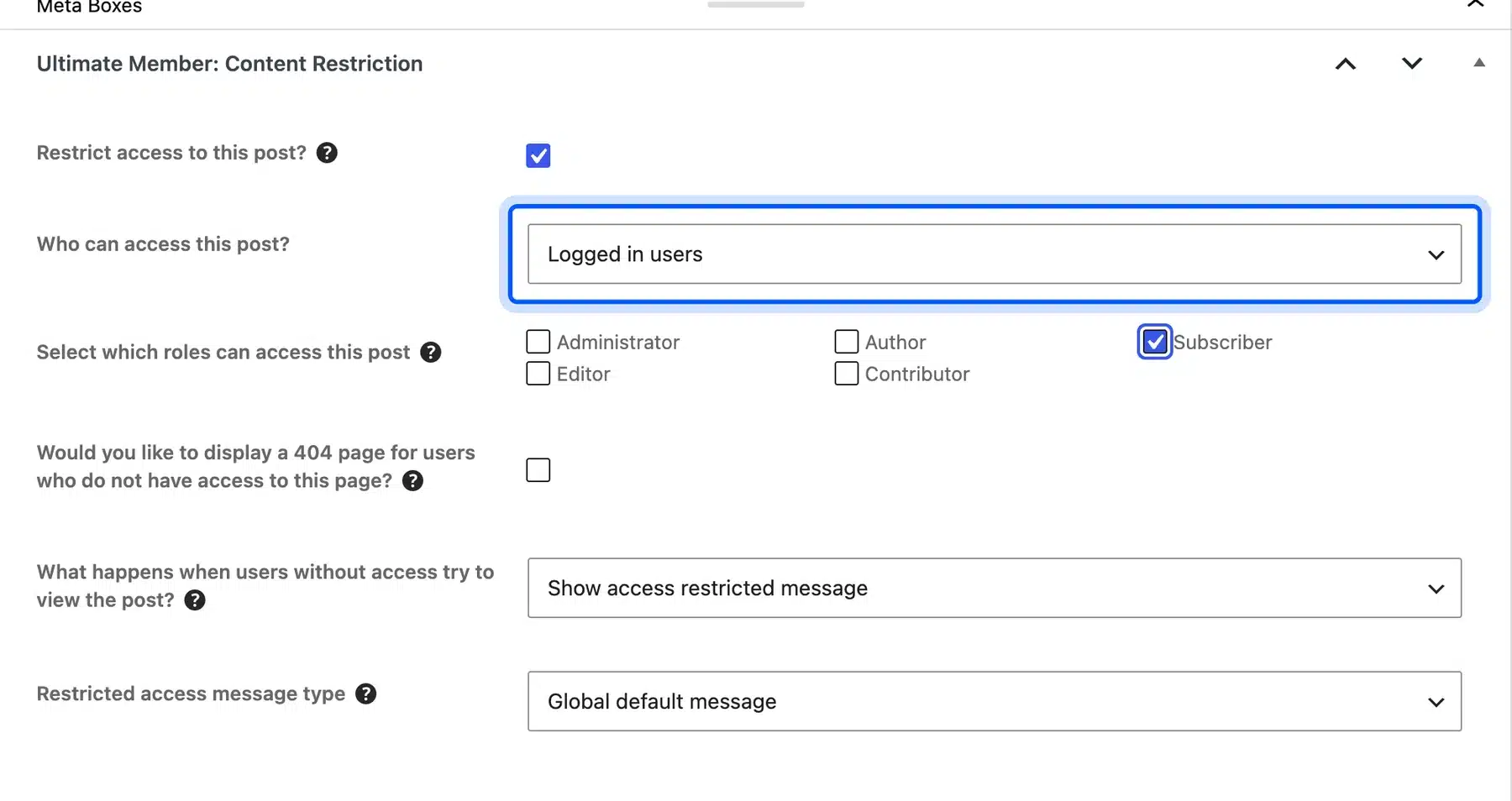
We set the Brew Guide Library page to Logged in users and the Subscriber role. Then we opened it logged out.
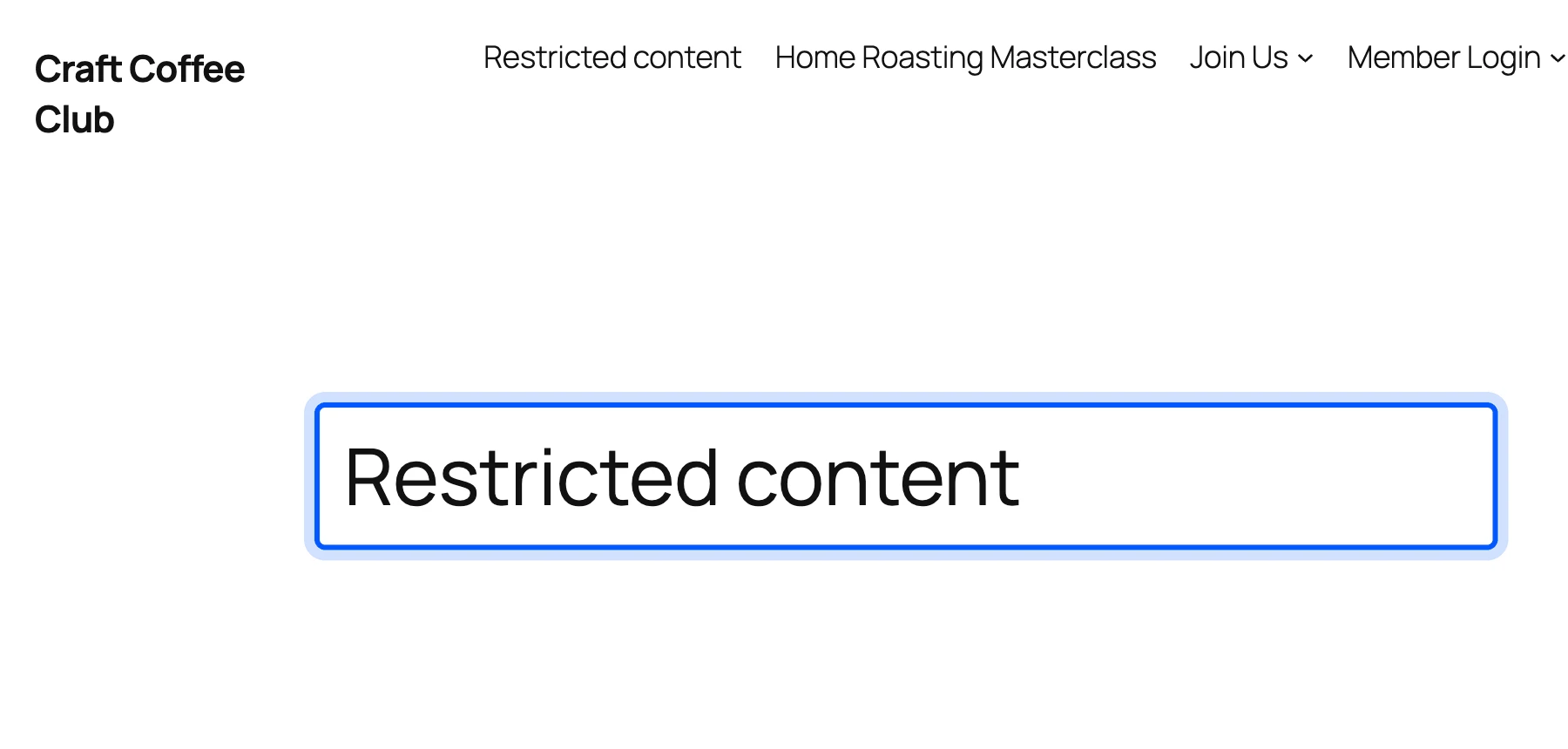
With the Twenty Twenty-Five theme, the visitor saw a “Restricted content” title and no login link, even with “Show access restricted message” selected. The menu label for that page changed to “Restricted content” too.
So set a custom restricted message or a redirect before launch. The Ultimate Member listing on WordPress.org showed 200,000+ installs and version 2.14.0.
It suits a community or directory site where profiles matter more than paid levels.
Kadence Memberships
Kadence Memberships still uses the restrict-content slug on WordPress.org. Its levels carry a name, a duration and a price, which made the pricing step faster than in the other two.
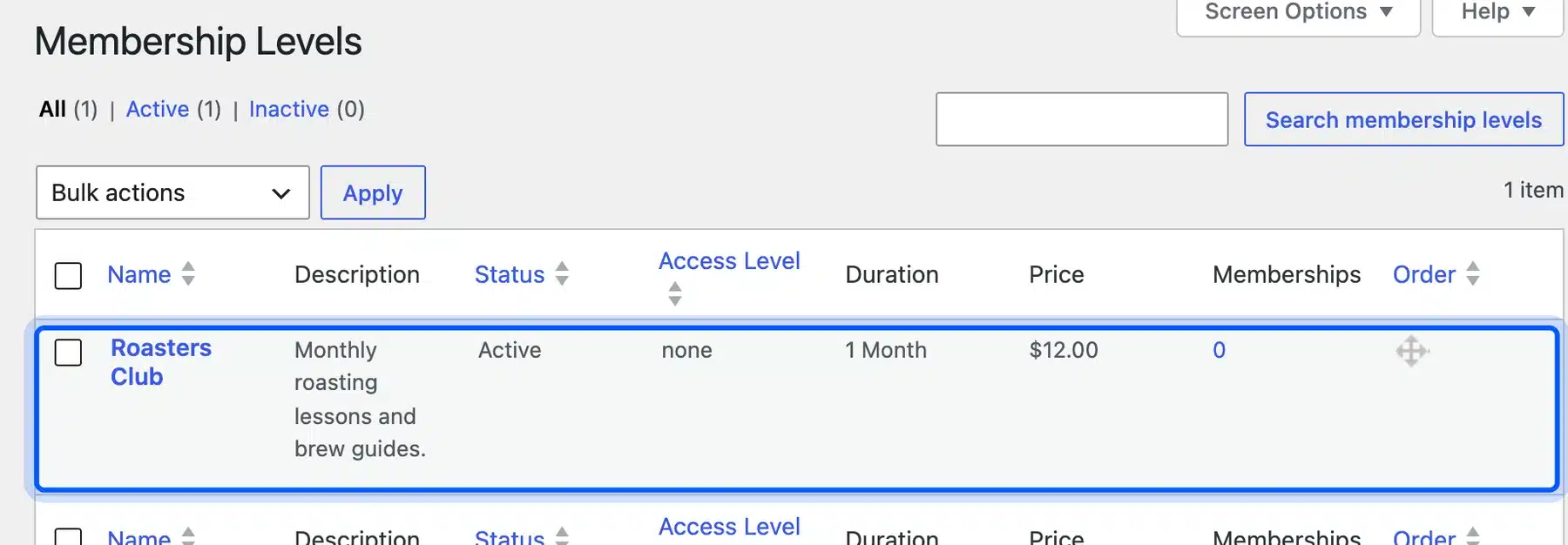
On each page, the Restrict this content box offers Everyone, members of a level, an access level or a user role. It also has a “Show excerpt” option for a teaser.
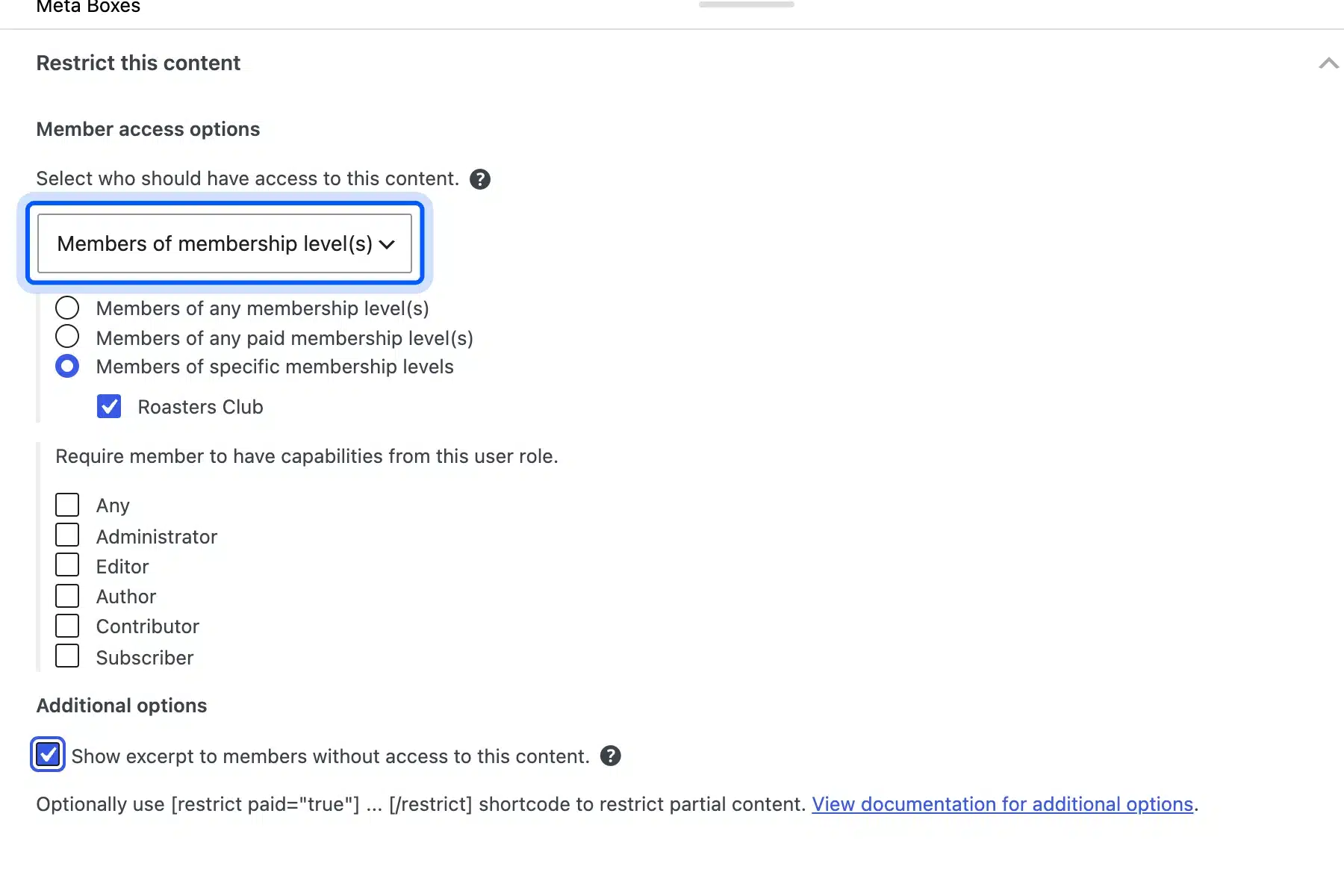
By default on our install, a logged-out visitor on a locked page got a 302 redirect to the home page. That is confusing, so set the Redirect Page under Settings, then Misc, to your registration page.
Card payments need its free Stripe add-on, according to the plugin’s own welcome screen. The Kadence Memberships listing showed 9,000+ installs and version 4.0.4.
It also asked to share usage data on first use. We clicked Skip, and every feature kept working.
Paid Options: MemberPress and WooCommerce Memberships
Two paid plugins come up in almost every membership comparison: MemberPress and WooCommerce Memberships. Neither has a free version you can install from the WordPress plugin screen. We did not test either one, so this section sticks to what their own pages and docs state as of October 2026.
MemberPress is not listed on WordPress.org, so there is no free version to try from Plugins, then Add Plugin.
WooCommerce Memberships documentation describes an extension that restricts posts, pages and WooCommerce products to members. The docs say memberships can be recurring when it runs alongside WooCommerce Subscriptions, and content can be dripped over time.
It suits a store that already runs on WooCommerce and wants member pricing or members-only products. Its listed price was $199 a year on WooCommerce.com in October 2026.
The same docs list three ways a customer gets a membership: buying a product, registering for an account, or being assigned one by hand. That makes it easy to bundle access with a physical product, such as a coffee subscription box that includes the brew guide library.
It can also restrict WooCommerce products. Per the docs, you can hide a product from non-members or keep it visible while only members can buy it.
One more name is missing from WordPress.org. The Paid Memberships Pro listing says the plugin was closed on 17 October 2024 at the author’s request. It did not appear in our plugin search.
Can You Create a Membership Site With WordPress for Free?
Yes, you can create a membership site with WordPress for free, apart from hosting and a domain. Simple Membership handled levels, gating and Stripe or PayPal buttons in our test with no paid add-on. Payment processors still take a fee on each charge, and some features cost extra.
Here is where the free route ends on the plugins we tested:
- Kadence Memberships: Card payments need the free Stripe add-on, and several features sit in its Pro add-ons.
- Ultimate Member: Its content restriction works by login state and role, and we found no price field in that box.
- Simple Membership: Its Add-ons screen lists extensions for jobs the core plugin leaves out.
A free build is a sound way to test demand. Launch with one level, a handful of members and the free plugin, then pay for more once renewals prove the idea.
Upgrade when the free setup starts costing you time every week. Typical signs are manual member edits, payments you reconcile by hand or a feature you keep working around.
At that point the math is simple. If a $199 yearly plugin saves you two hours a month, it pays for itself at almost any hourly rate you would charge a client.
The list of websites you can make in WordPress shows how far the same free core can stretch beyond memberships.
Onboarding, Churn and Payment Retries
Churn is the share of members who leave in a period, and it decides whether a membership grows. Good onboarding lowers the share who quit by choice. Payment retries win back members who leave only because a card failed, and both matter more than new features.
Measure churn the same way every month. Divide the members you lost by the members you had at the start, then multiply by 100.
Using our worked example, losing 10 of 200 members in a month is 5% churn. At that rate, a member stays about 20 months on average, which is $240 at $12 a month. Our guide on how to calculate customer lifetime value in eCommerce walks through the same formula for stores.
Onboarding That Gets Members to Their First Win
Onboarding is the first week of a membership. The goal is one quick result, such as a finished lesson or a first post in the community.
- Welcome page: Send new members to a page that says what to do first. The home page makes them hunt for it.
- First lesson or resource: Link one short item that takes under 15 minutes.
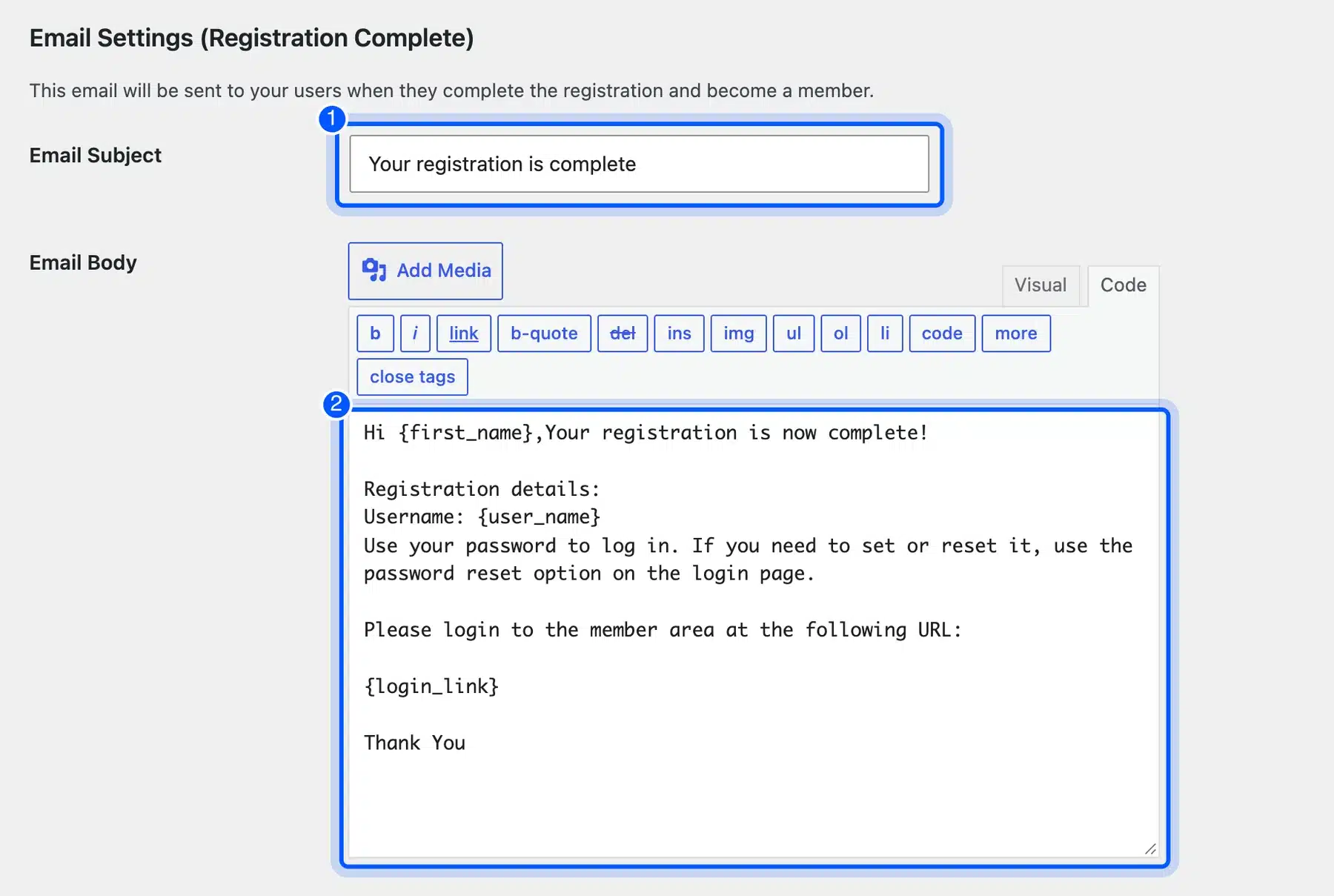
- Email sequence: Send a welcome, a day three nudge and a week one check-in. Simple Membership’s Registration Complete email covers the first one, with merge tags such as {first_name} and {login_link}.
For the email part, our roundup of email marketing plugins for WooCommerce compares tools that send these sequences from WordPress.
Payment Retries for Failed Renewals
Some churn is not a decision at all. A card expires or a bank declines a renewal, and the member drops out without meaning to.
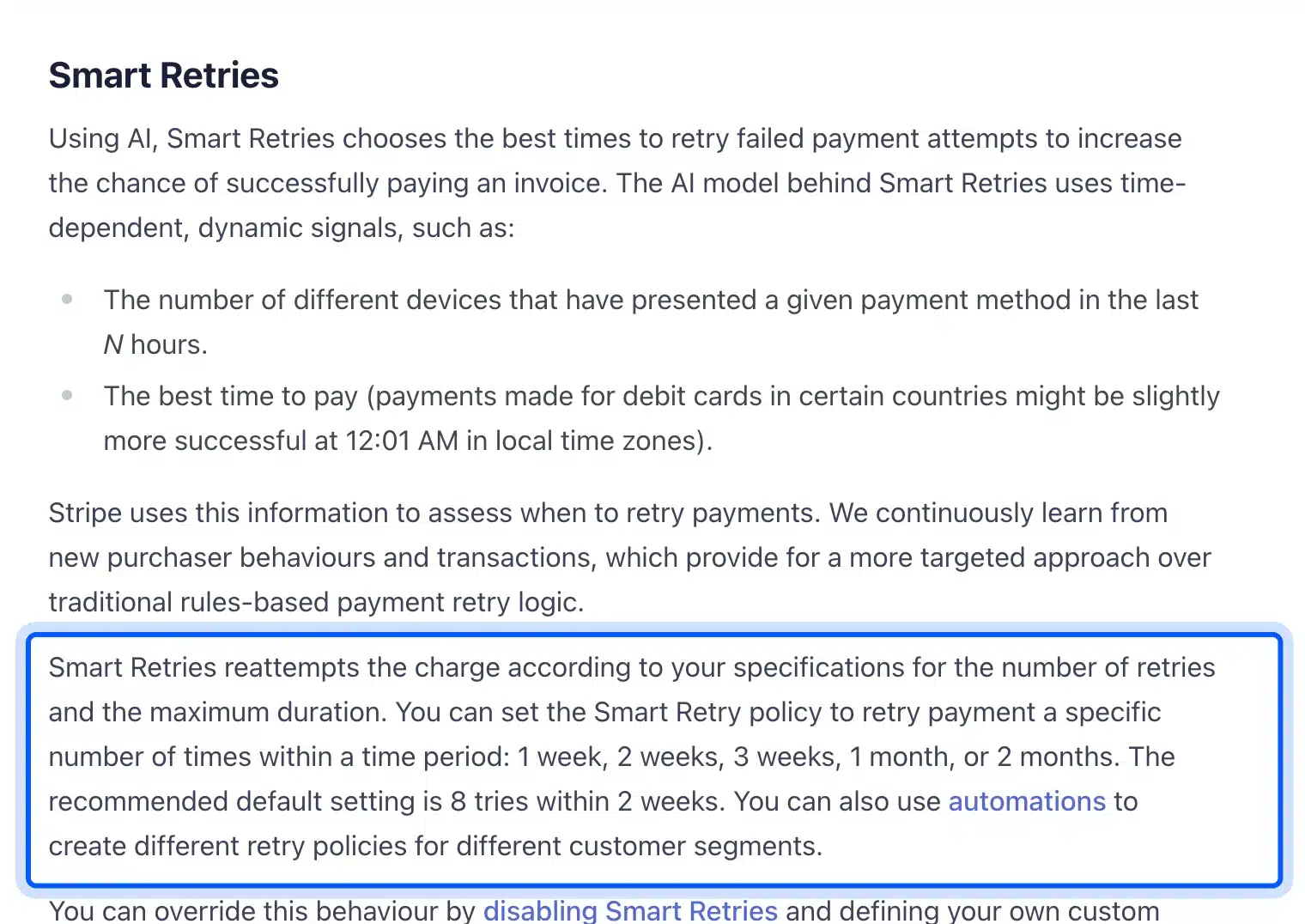
Stripe’s Smart Retries documentation states that the recommended default setting is 8 tries within 2 weeks. The same page lists cases Stripe does not retry, including payments on India-issued cards.
So check two things before launch. First, that your plugin uses a subscription payment type, which lets the processor retry. Second, that members get an email asking them to update their card when a renewal fails.
Membership Site Mistakes to Avoid
Most membership sites that stall make the same few mistakes, and none of them is about the plugin. Too many pricing tiers, no plan for monthly content and an untested locked view hurt more than any missing feature. Each mistake below has a plain fix you can apply before launch.
- Too many tiers: Three or more paid levels slow the decision down. Start with monthly and yearly.
- Untested gating: Our Ultimate Member test showed an empty “Restricted content” page by default. Check every locked page logged out.
- One-time payment buttons: A Buy Now button charges once and never renews. Use a subscription button type.
- No content calendar: Members renew for what comes next. Plan three months of releases before launch.
- Ignoring failed payments: Turn on retries and card update emails so a declined card does not end a membership.
- Locking everything: A visitor who sees no sample has no reason to trust the paid level. Keep one guide or lesson public.
- Hiding the cancel option: Members who cannot find it email you or dispute the charge with their bank. Put it on the account page.
- Launching to nobody: Collect emails before launch, so the first week brings real members instead of an empty forum.
Work through this list one week before launch. Most items take minutes to fix then, and hours once members are inside.
If you run a store as well, keep the shop pages strong too. Our list of WooCommerce 3D product view plugins shows one way to make members-only products easier to judge before buying.
Conclusion
Learning how to create a membership site starts with the business: one model, two pricing tiers and a content plan you can keep up. Then the WordPress build is quick. A free plugin, one level, one locked page and a subscription payment button are enough to launch.
Our tests showed why the logged-out check matters. The same locked page gave a login prompt in Simple Membership and an empty “Restricted content” page in Ultimate Member. Kadence Memberships sent the visitor to the home page.
Fix that view, turn on payment retries and give new members a quick first win. Those three habits protect renewals better than any extra feature.
Frequently Asked Questions (FAQs)
Q1. How do membership sites make money?
Membership sites charge a recurring fee, usually monthly or yearly, for access to content, a community or member prices. Some also sell one-time courses or add-ons to existing members.
Q2. What is the difference between a membership and a subscription?
A membership sells access to something, such as a library or a community. A subscription is the billing method that renews the payment, so most paid memberships run on a subscription.
Q3. How many members do you need to make a membership site profitable?
It depends on your costs and price. At $12 a month, 200 members bring in $2,400 a month before fees. Divide your monthly costs by your price to find your break-even count.
Q4. Can you drip content on a WordPress membership site?
Yes, with the right plugin. The WooCommerce Memberships documentation describes scheduling when members get access to each piece of content, which it calls content dripping.
Q5. Do I need WooCommerce to run a membership site?
No. Simple Membership, Ultimate Member and Kadence Memberships all ran on our test site without WooCommerce. You only need WooCommerce for extensions such as WooCommerce Memberships or member pricing in a store.
Q6. What is a paid community site?
A paid community site is a membership where the main value is the group itself, such as a forum or chat. Members pay to talk with each other and with the host, and the content grows from their posts.
Q7. Is Paid Memberships Pro still available on WordPress.org?
No. Its WordPress.org listing says the plugin was closed on 17 October 2024 at the author’s request and is not available for download there.