
Knowing how to hide a page in WordPress starts with one question: who should stop seeing it? Menus, Google, your own site search and logged-out visitors each need a different setting, and none of them hides the page everywhere at once.
We set up each method on our WordPress 7.1.3 test store in October 2026, running WooCommerce 11.2 and Twenty Twenty-Five. Then we checked every page as a logged-out visitor, in the page source, in the sitemap and in site search.
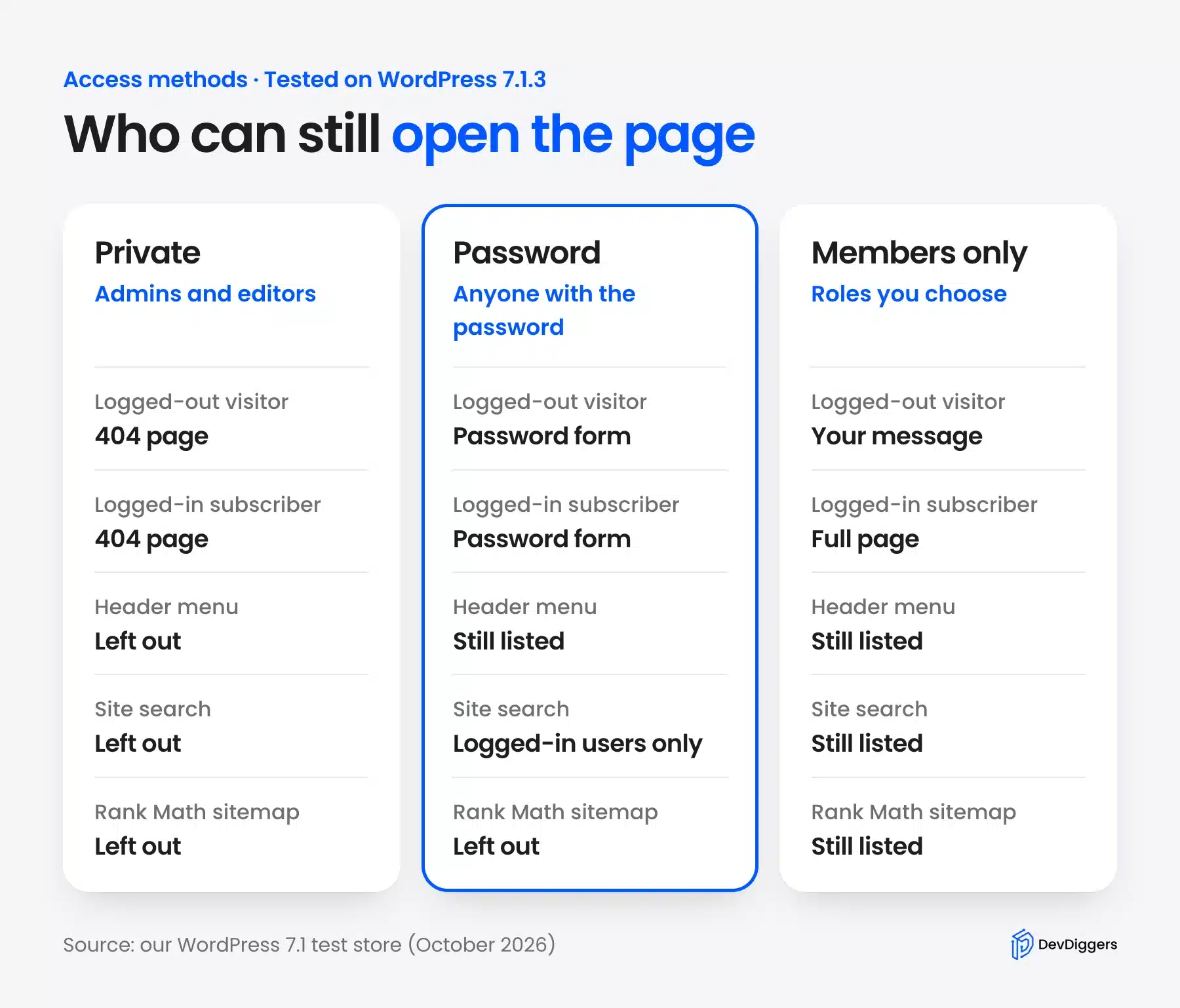
This guide opens with a table that matches each method to the people it hides the page from. Six tested methods follow. The guide ends with the page title fix and the things hiding leaves in plain view.
How to Hide a Page in WordPress: Start With Who Should Not See It
How to hide a page in WordPress depends on the audience you want to block. A menu link, a search result, a Google listing and the page itself are four separate doors. Each method below closes one or two of them, and the right pick is the door that matters to you.
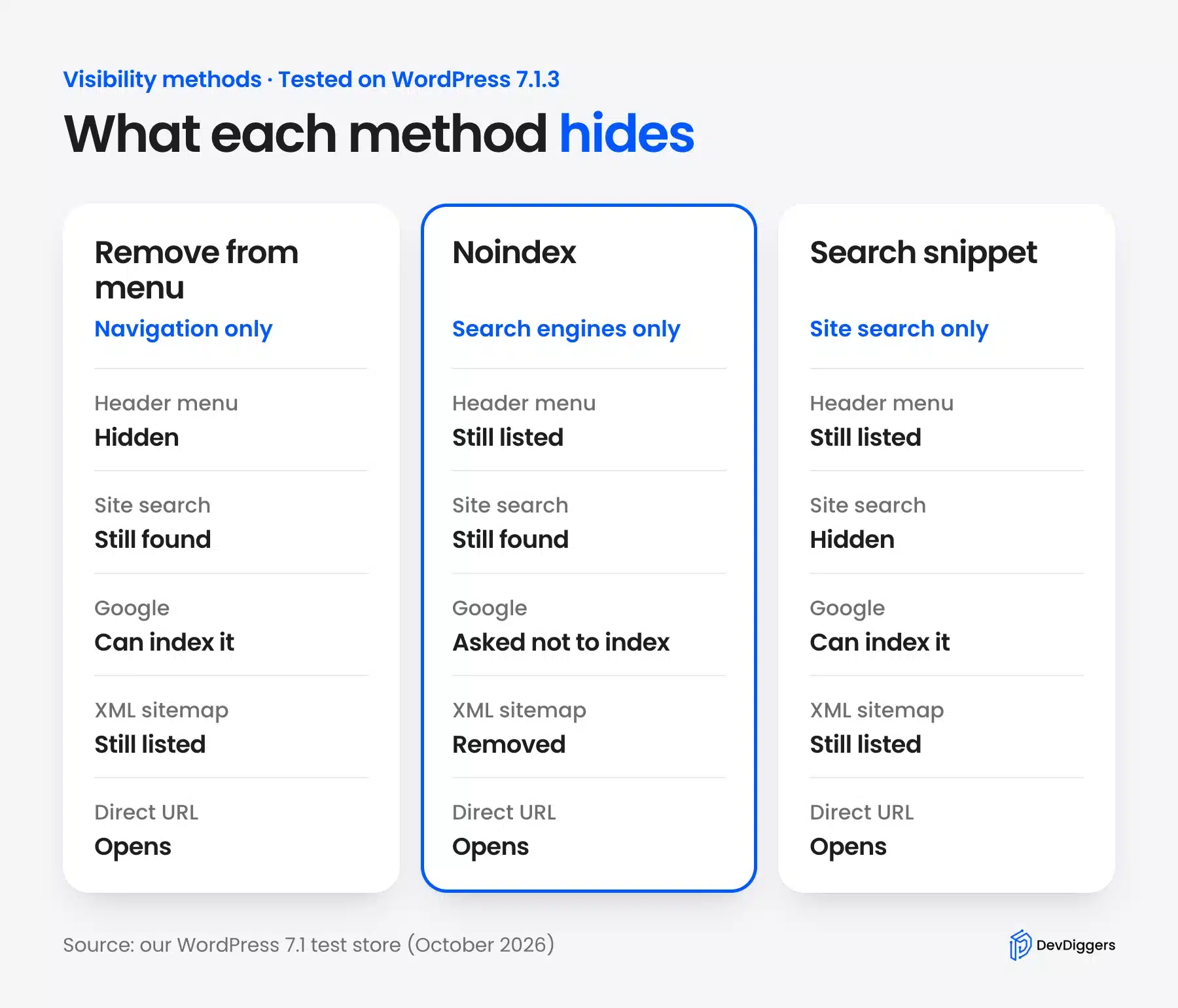
The table shows what each method changed on our test store. “Visible” means a logged-out visitor or Google could still reach the page that way.
| Method | Header menu | Site search | Logged-out visitor with the URL | |
|---|---|---|---|---|
| Private status | Hidden | Hidden | Hidden | 404 page |
| Password protected | Visible | Hidden for guests | Title can be indexed | Password form |
| Members only (plugin) | Visible | Visible | Visible | Your message |
| Remove from menu | Hidden | Visible | Visible | Full page |
| Noindex | Visible | Visible | Asked to drop it | Full page |
| Site search snippet | Visible | Hidden | Visible | Full page |
So a thank-you page that should open for buyers but stay out of Google and site search needs two methods together. A page that nobody outside the team should read needs only one: Private.
Here is a worked example. Say a store has a wholesale price page, a thank-you page and a staff handbook. The price page gets a password, the thank-you page gets noindex plus menu removal plus the search snippet, and the handbook goes private.
Hiding the whole website is a different job with different tools. If that is your goal, follow our guide to unpublish a WordPress site instead of repeating a page method on every page.
Method 1: Make a WordPress Private Page
A WordPress private page stays published but only admins and editors can open it. Every other visitor gets the theme’s 404 page, and the page drops out of menus, site search and the sitemap. Use it for internal pages that nobody outside your team should read.
The WordPress documentation says normal users and visitors “will not be aware of private content.” Our test matched that line on every screen we checked.
- Open the page in the block editor.
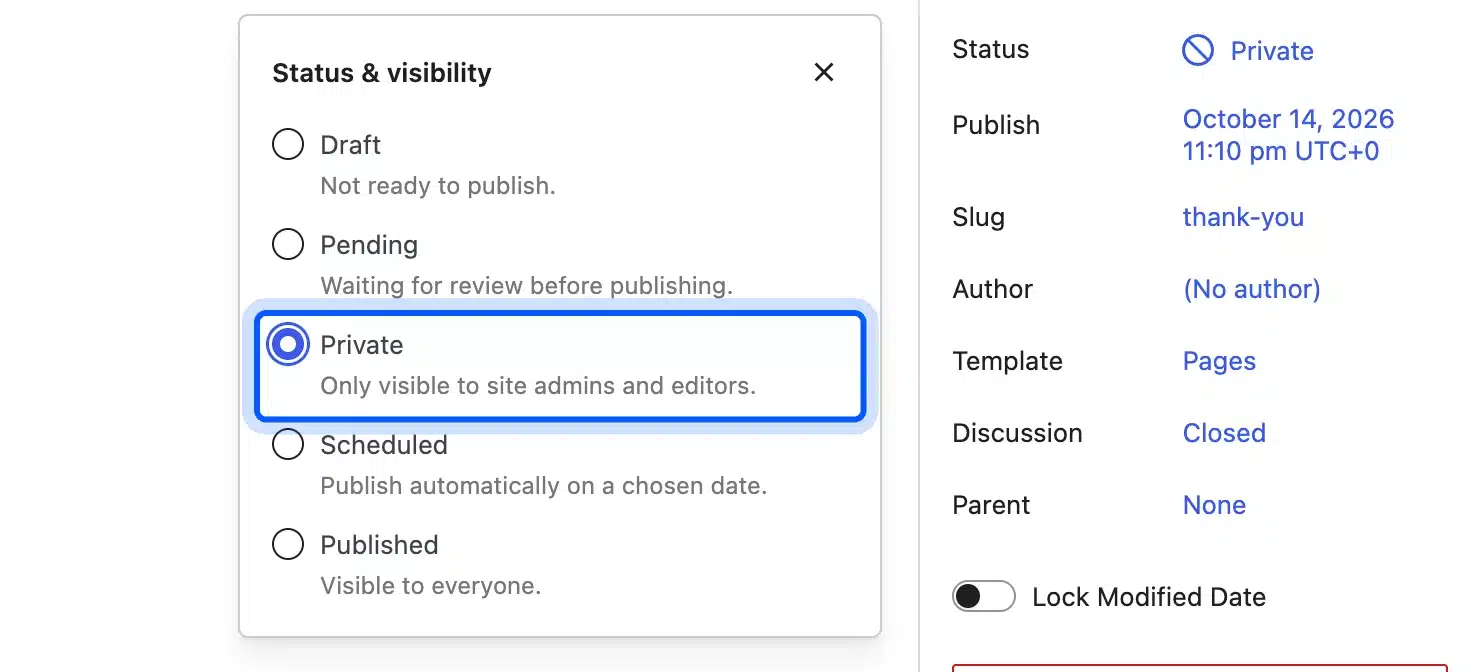
- Click the Status row in the Page sidebar.
- Choose Private, which reads “Only visible to site admins and editors.”
- Click Save.
We made a page called Team Handbook private and opened its URL in a logged-out browser. WordPress answered with Page not found, and the header menu skipped the page.
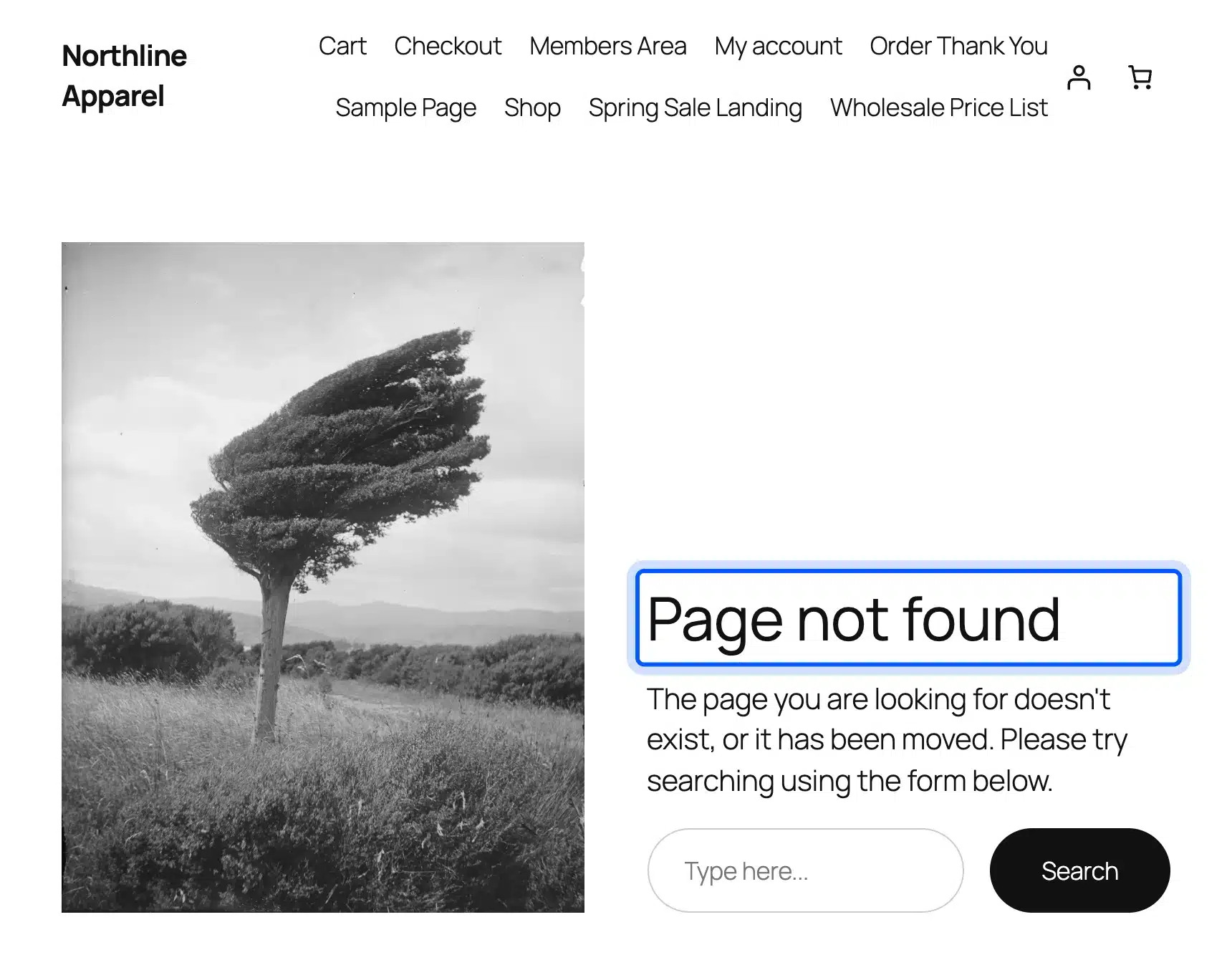
A logged-in subscriber got the same 404 page in our test. Private is meant for staff. Customers with accounts are locked out too.
The same documentation warns that other editors and admins can open and edit private pages. Draft and Pending also return a 404 page to visitors, but they unpublish the page instead of hiding a live one.
Method 2: Password Protect a Page in WordPress
You can password protect a page in WordPress from the same Status panel without a plugin. Visitors see the page title and a password form until they type the password. Anyone who has the password can read the page, logged in or not.
- Open the page and click the Status row.
- Tick Password protected.
- Type a password in the Password field.
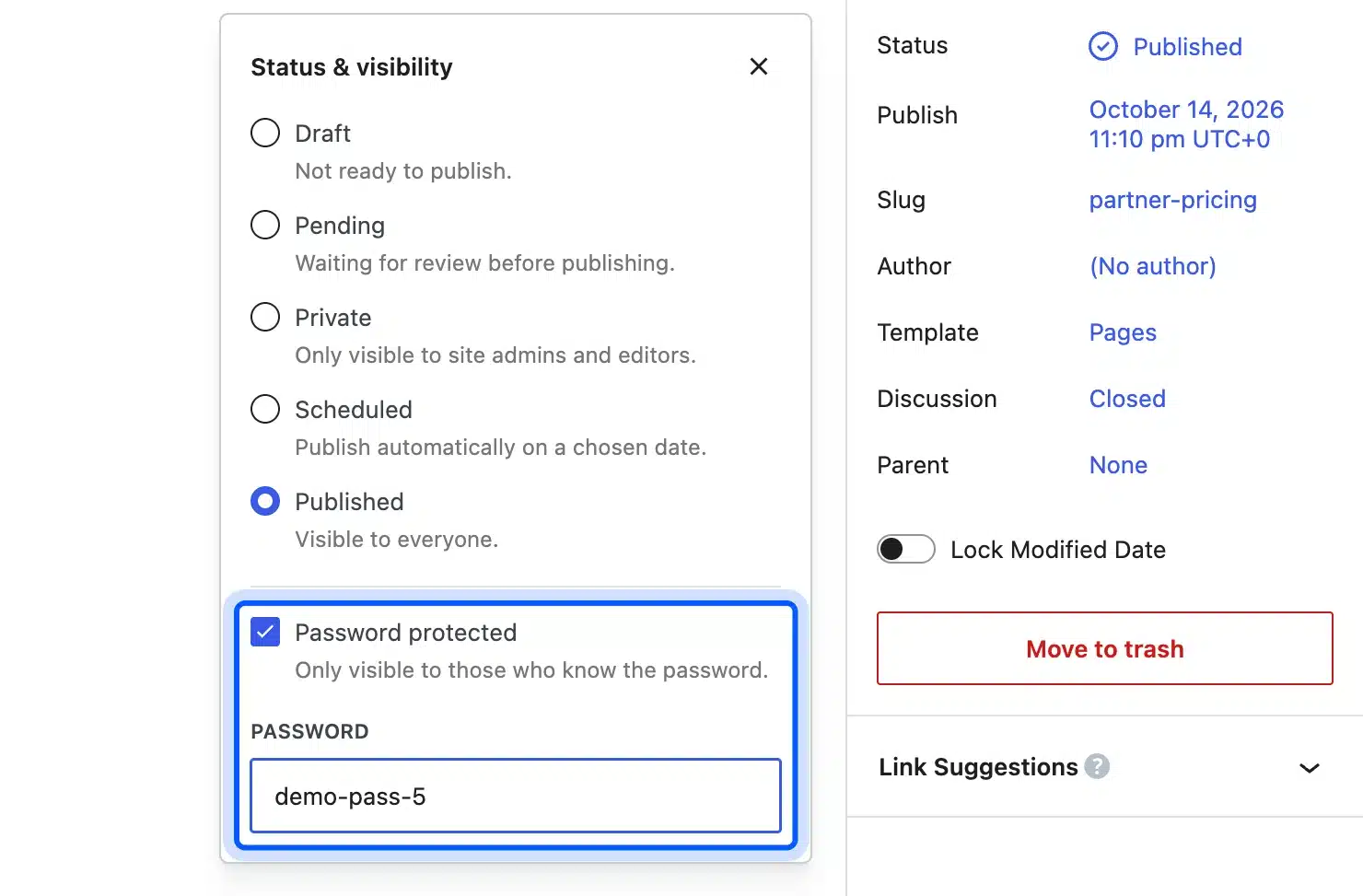
- Click Save.
Our Wholesale Price List page showed “Protected: Wholesale Price List” and the password form to a logged-out visitor. The header menu kept listing it by its plain title.
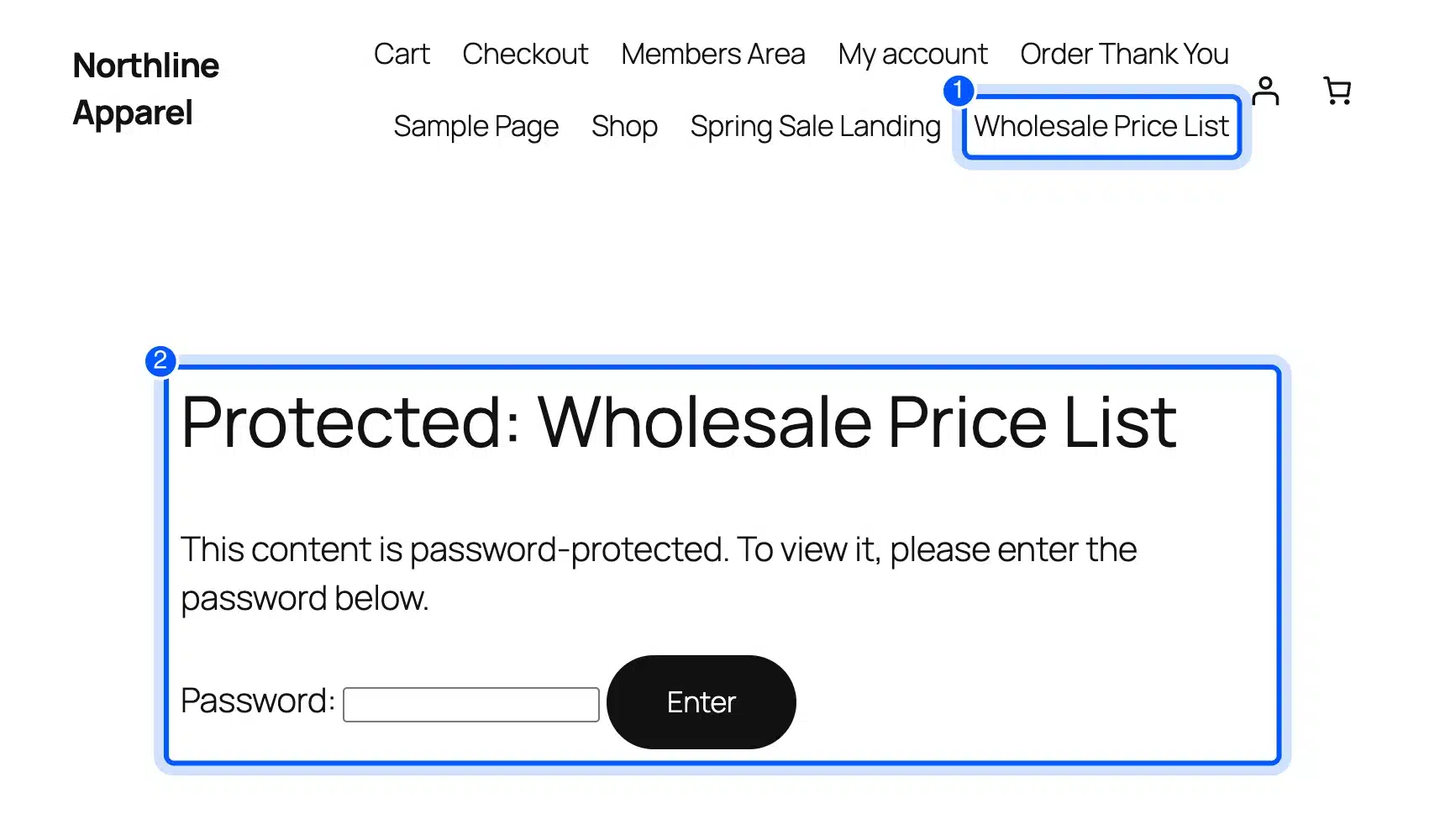
Site search treats this page in two ways. WordPress core adds a “no password” condition to every search run by a logged-out visitor. Guests never find the page.
A logged-in subscriber searching “wholesale” did find it in our test.
WordPress remembers a correct password in a browser cookie for 10 days, the default set in core’s wp-login.php. Changing the password makes every visitor type the new one.
Admins and editors never see the form at all. The visibility documentation says they “do not need the password to be able to see your protected posts.”
The built-in WordPress sitemap at /wp-sitemap.xml listed the protected page in our test. Rank Math’s sitemap left it out once we installed that plugin. Remove the menu link too (Method 4) if the page should not be advertised.
Method 3: Show a Page to Logged-In Members Only
A members-only page opens for logged-in users with the roles you pick and shows everyone else a message. We used the free Members plugin because WordPress core has no setting for this. It restricted our page by role without a line of code.
The Members plugin page lists version 3.2.28 as tested up to WordPress 7.1.3 and runs on more than 300,000 sites as of October 2026. Its Content Permissions panel limits a page to chosen roles.
- Install and activate Members from
Plugins > Add New Plugin. - Open the page and scroll the Page sidebar to Content Permissions (Members).
- Tick the roles that may read the page. We ticked Subscriber and Customer.
- Type the message other visitors should see under Error Message. The panel saves by itself.
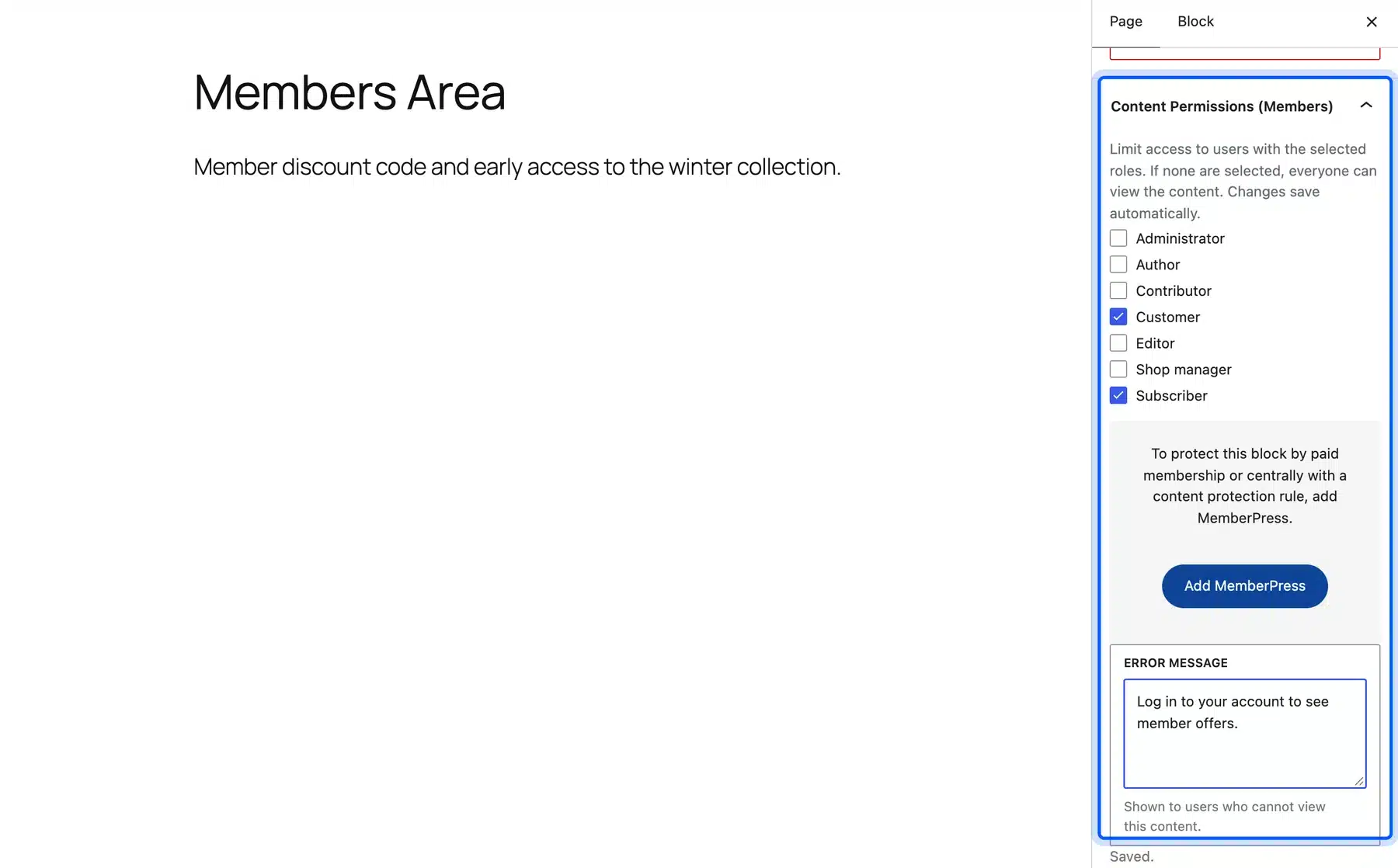
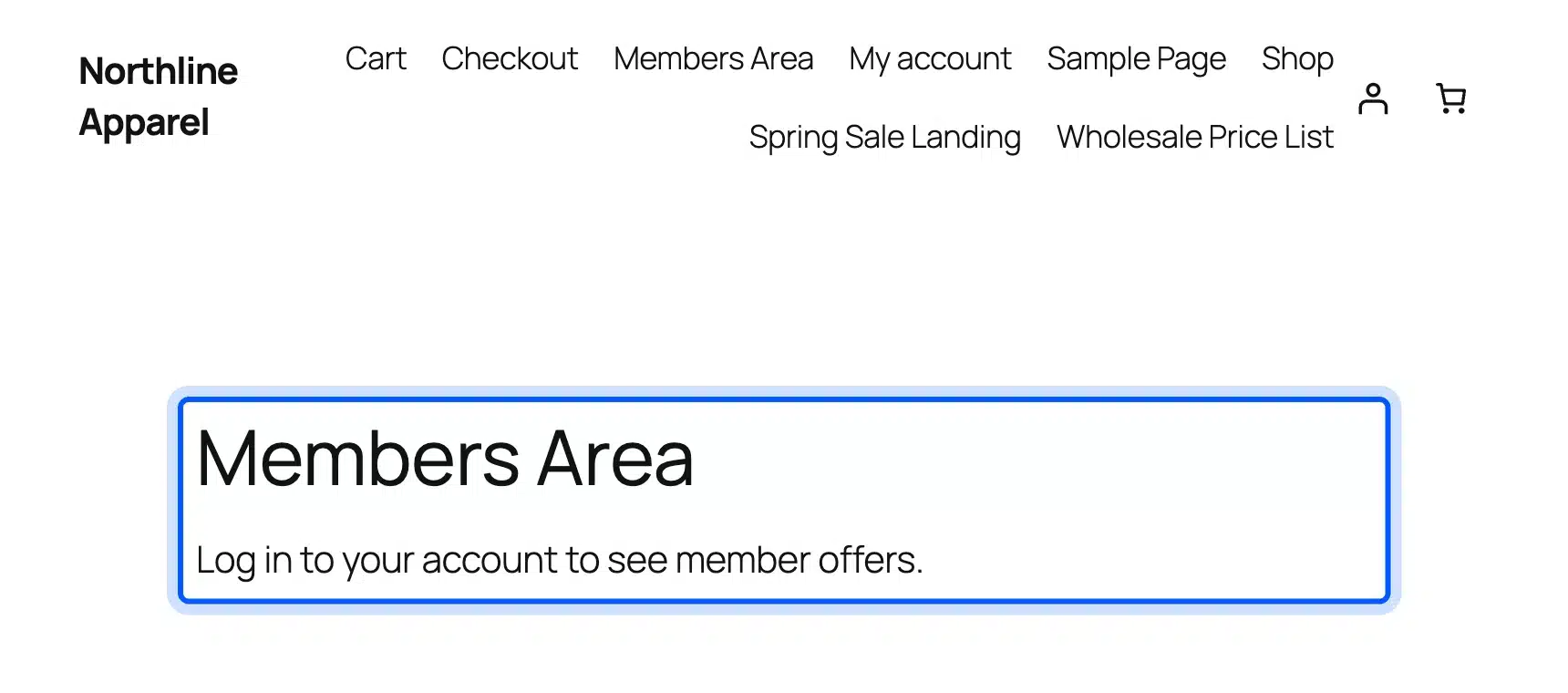
A logged-out visitor then saw our message on the Members Area page. A logged-in subscriber saw the full content, and the page dropped out of the REST API.
Here is the catch we did not expect. Rank Math built the meta description from the hidden text.
The first sentence of the members content sat in the page source. It also showed in the Open Graph and Twitter tags.
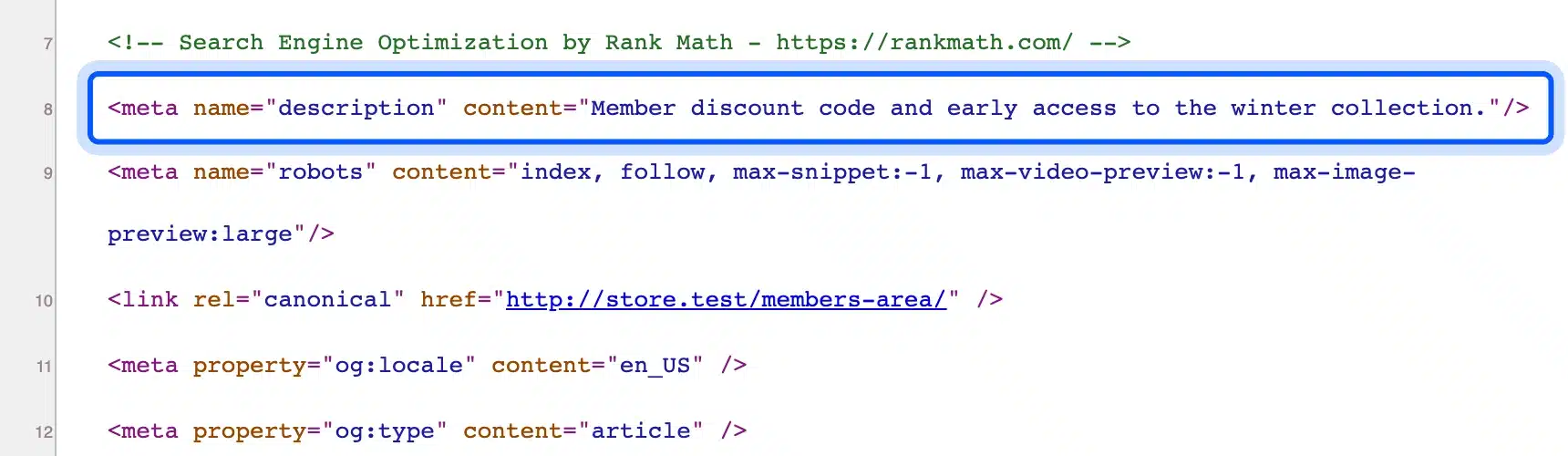
Warning: Write your own meta description for a members-only page, or noindex it. A custom Rank Math description removed the leaked text from the source in our test.
The page also stayed in the menu, in site search results and in the sitemap. Members hides the content only. Pair it with Methods 4 to 6 when the page itself should be hard to find.
Prefer code over a plugin? This snippet sends logged-out visitors to the login screen and back to the page after login. Replace vip-preview with your page slug and add it to a small custom plugin:
add_action( 'template_redirect', function () {
	if ( is_page( 'vip-preview' ) && ! is_user_logged_in() ) {
		wp_safe_redirect( wp_login_url( get_permalink() ) );
		exit;
	}
} );
Our logged-out request returned a 302 redirect to wp-login.php with a redirect_to value. Every logged-in role can read the page this way, subscribers included.
Method 4: Hide a Page From the Menu
Removing a page from the menu hides the link and nothing else. The page stays published, keeps its URL and still turns up in site search and Google. Block themes add a catch: Twenty Twenty-Five lists every published page in its header automatically.
The Navigation block documentation says the Page List block “adds newly published pages to the menu.” So every test page we created landed in our header without a click. This is worth knowing before adding pages in WordPress on a block theme.
- Go to
Appearance > Editor > Navigationand click the menu preview to open the editor. - Click the menu in the canvas and select Page List in the Settings sidebar.
- Click Edit in the block toolbar. Click Edit again in the Edit Page List dialog.
- Hover the page in the sidebar list, open its Options menu and click Remove.
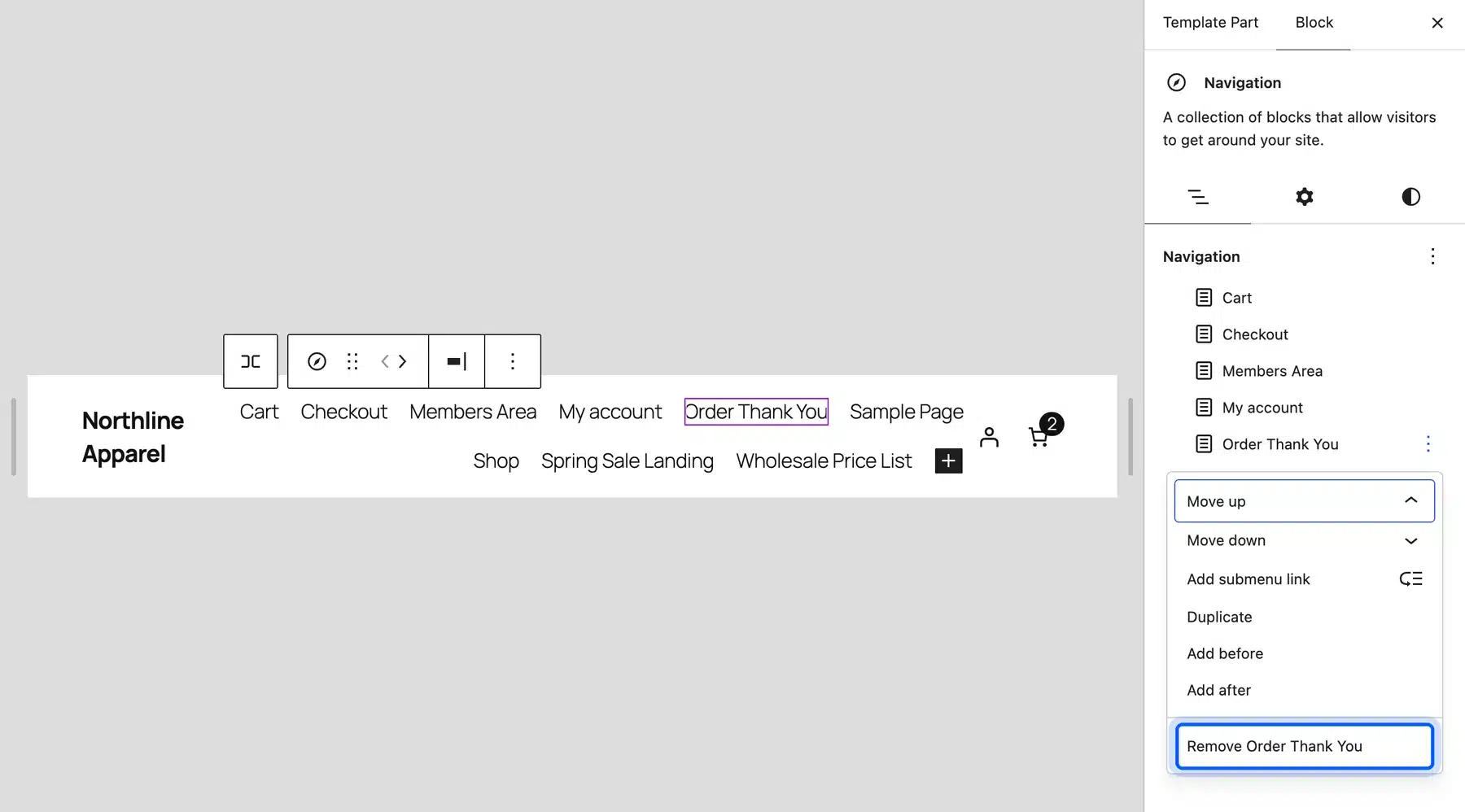
- Click Save.
Step 3 turns the list into fixed links, and the docs confirm new pages are no longer added automatically. Add future pages to the menu by hand from then on.
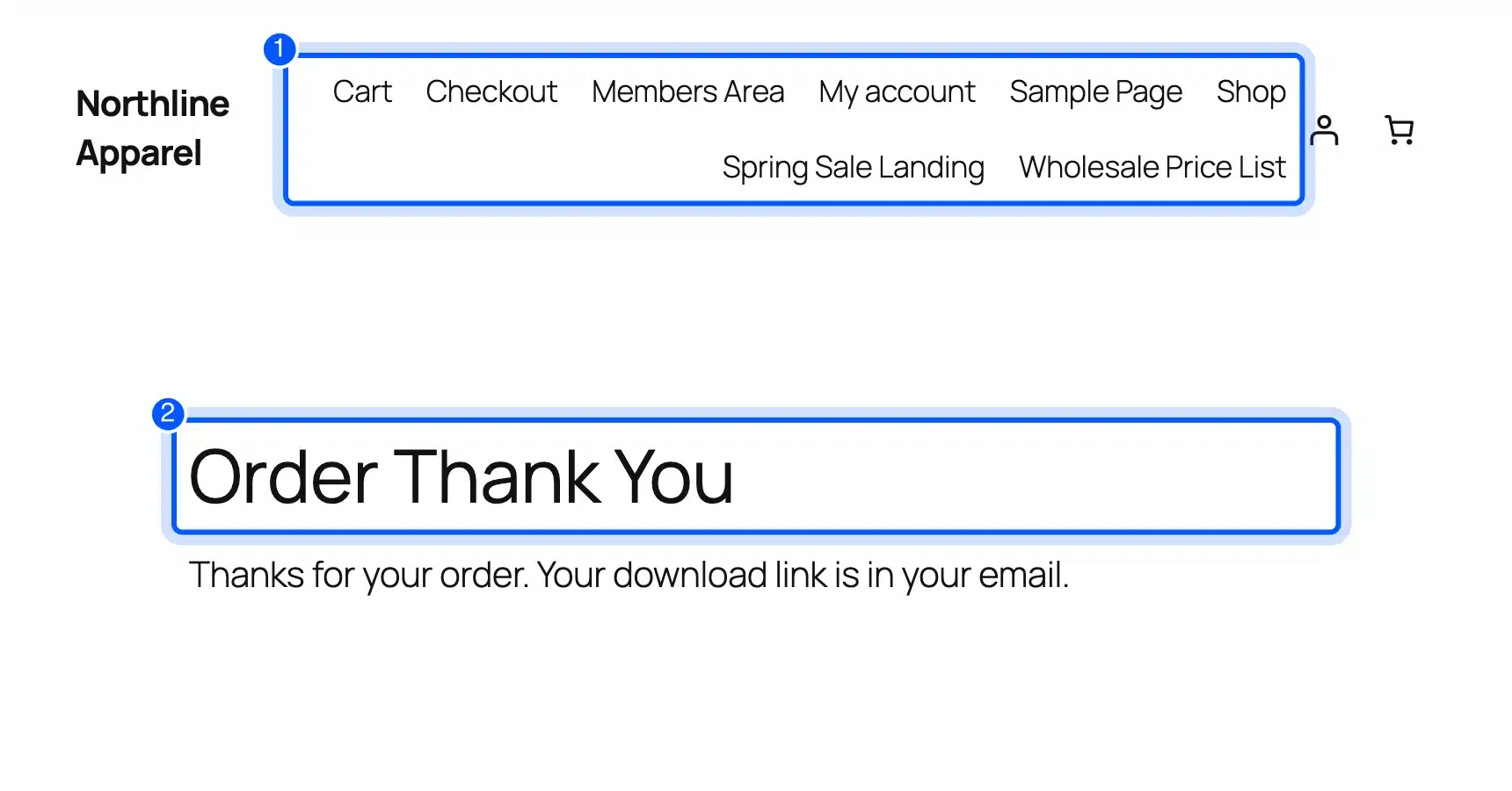
After saving, Order Thank You left our header. Its URL still loaded the full page for a logged-out visitor.
Classic themes do the same job under Appearance > Menus. Delete the menu item there and save the menu.
Method 5: Hide a Page From Google With Noindex
A noindex tag asks Google to keep a page out of its results while visitors can still open it. Core WordPress has no per-page noindex setting and needs an SEO plugin for it. We used the free Rank Math plugin and confirmed the tag in the page source.
Google’s documentation says noindex is used “to prevent indexing content by search engines that support the noindex rule.” We tested Rank Math 1.0.280, which is tested up to WordPress 7.1.3.
- Install and activate Rank Math SEO.
- Open the page and click the Rank Math score button in the editor toolbar.
- Open the Advanced tab and tick No Index under Robots Meta.
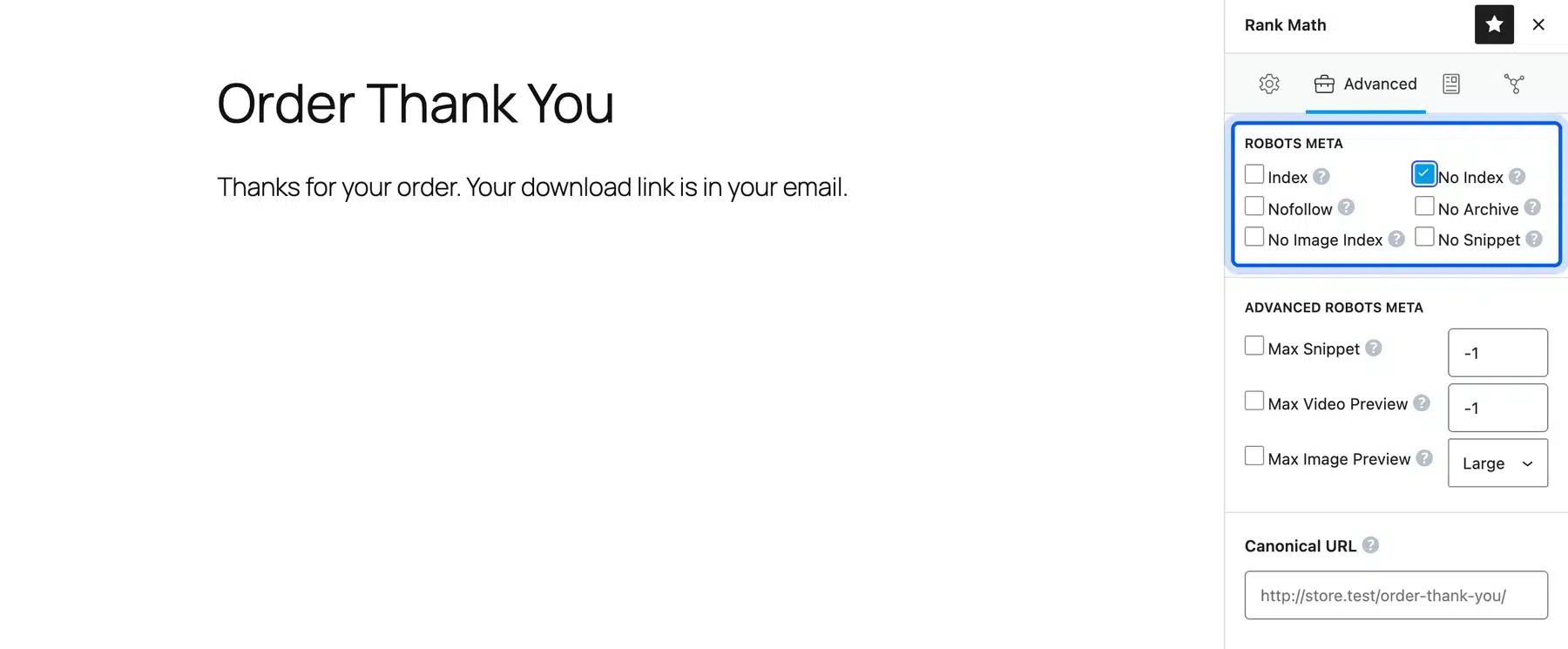
- Click Save.
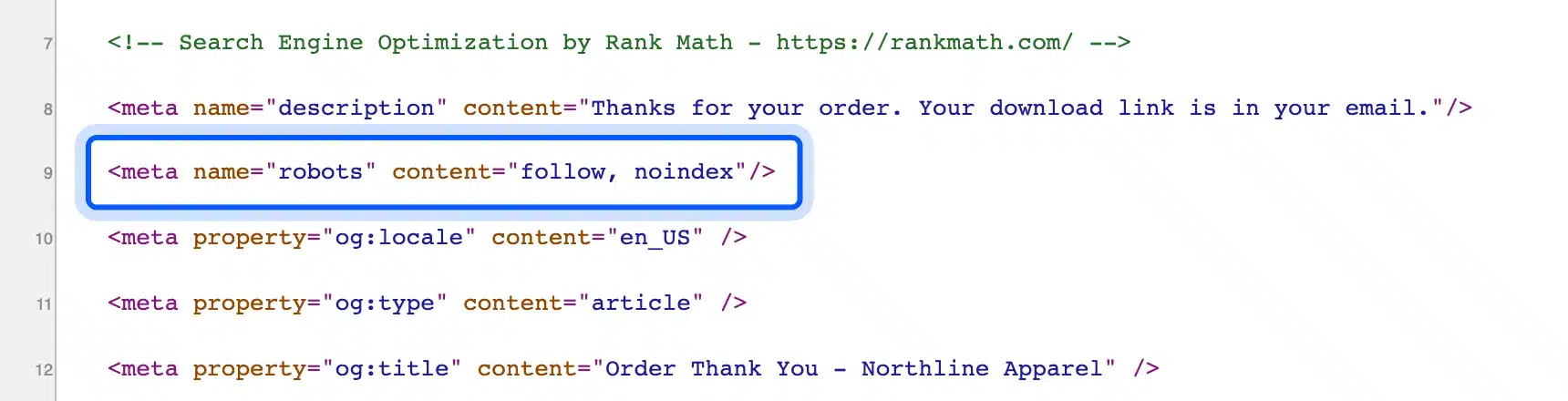
The page source then carried <meta name="robots" content="follow, noindex"/>. That line is what Google reads on its next crawl.
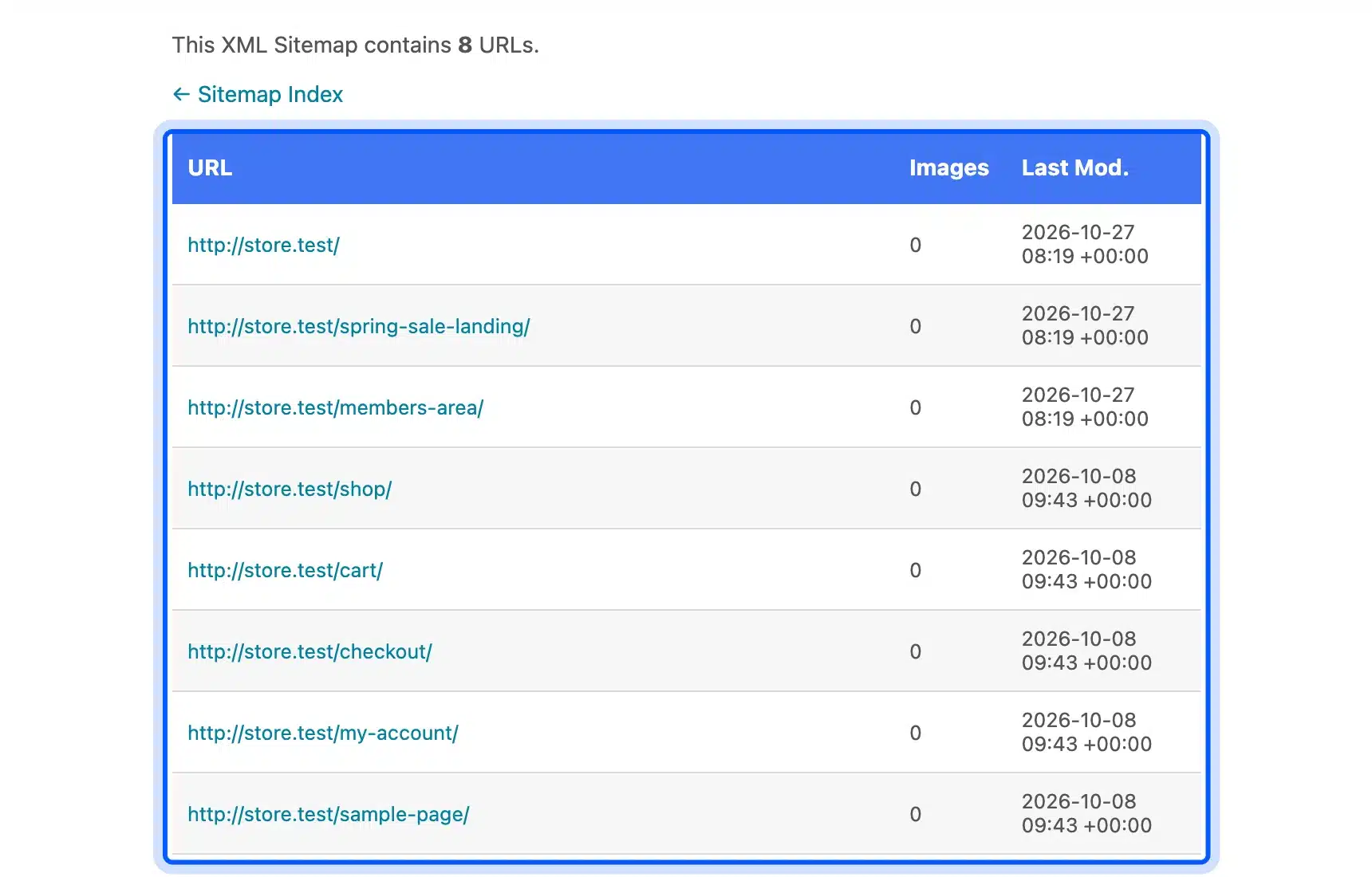
Rank Math also dropped the page from /page-sitemap.xml. The sitemap listed 8 URLs, and Order Thank You was not one of them.
Do not block the same page in robots.txt. Google’s robots.txt guide says it is “not a mechanism for keeping a web page out of Google,” and a blocked page hides its noindex tag.
Noindex left the page in our header menu and in site search. To undo it later, see how to remove the noindex tag in WordPress.
Method 6: Hide a Page From WordPress Site Search
WordPress site search finds every published page whose title or text matches, hidden from the menu or not. A short pre_get_posts snippet removes chosen pages from search results only. The page stays in the menu, in Google and in the sitemap.
Our Order Thank You page, already removed from the menu, still came up for the search “thank.” That is the gap this method closes.
The pre_get_posts hook “fires after the query variable object is created, but before the actual query is run.” The reference also recommends an is_admin() check so admin screens are left alone. Replace 37 with your page ID, which shows as post=37 in the editor URL:
add_action( 'pre_get_posts', function ( $query ) {
	if ( is_admin() || ! $query->is_main_query() || ! $query->is_search() ) {
		return;
	}
	$hidden_ids = array( 37 ); // Page IDs to keep out of site search.
	$query->set( 'post__not_in', array_merge( (array) $query->get( 'post__not_in' ), $hidden_ids ) );
} );
To hide several pages, list every ID inside the array, such as array( 37, 52, 108 ). A new page you want hidden later needs its ID added here too.
The three checks keep it narrow. It skips admin screens, skips extra queries such as widgets and runs only on search results. It also keeps any exclusions another plugin already set.
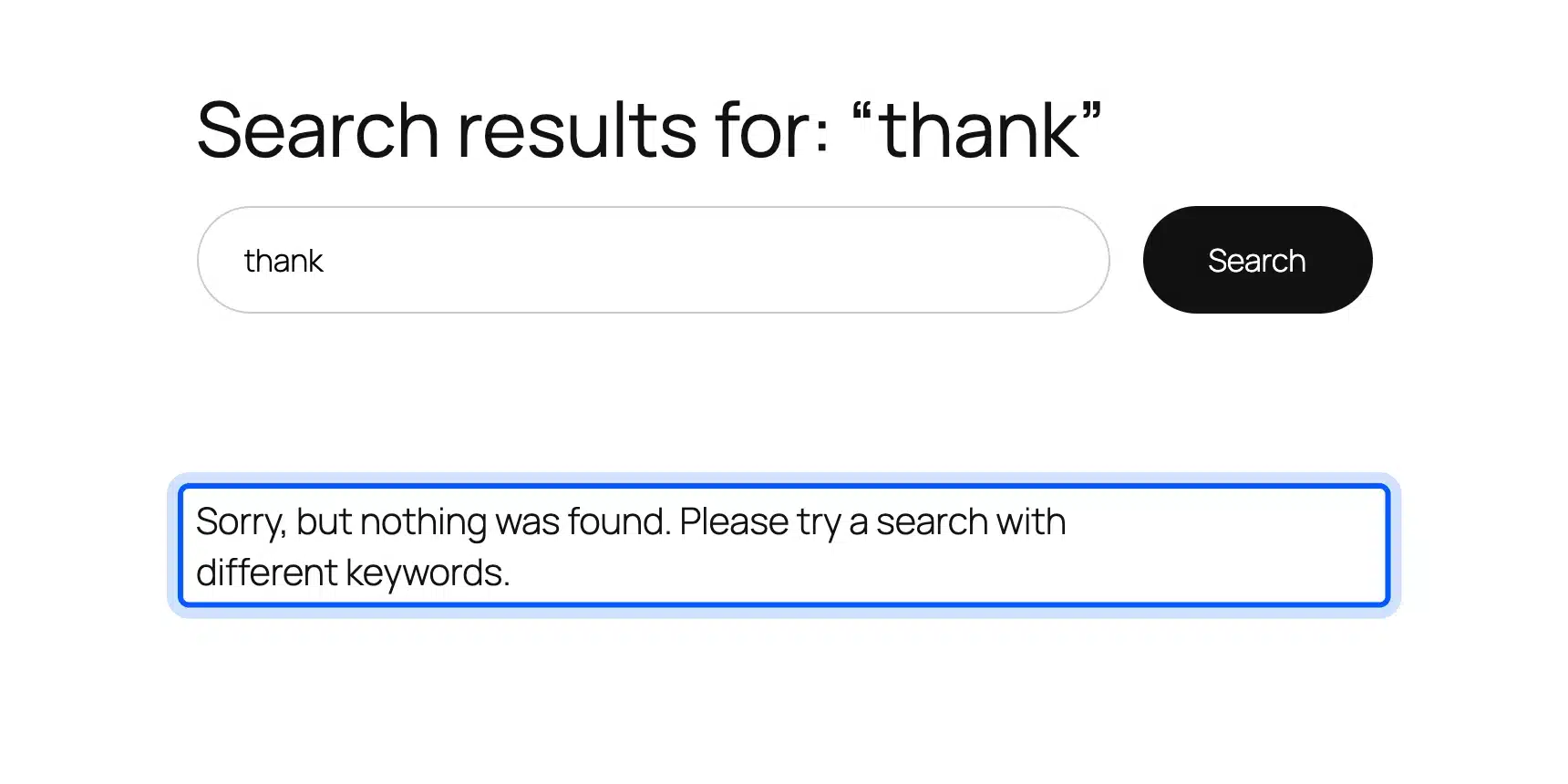
After we added the snippet, the same search returned “Sorry, but nothing was found.” The page URL still opened normally, and the admin Pages search still found it.
One limit showed up in testing. The REST search at /wp-json/wp/v2/search still returned the page, because that request is not the main query. If you are building a new search box, our guide shows how to add a search bar in WordPress.
How to Hide a Page Title in WordPress
Hiding a page title keeps the page visible and removes only the heading above the content. Twenty Twenty-Five ships a template called Page No Title that does this for one page. Other block themes offer a similar template or a title block you can delete.
- Open the page and click the template name in the Page sidebar.
- Choose Change template and pick Page No Title.
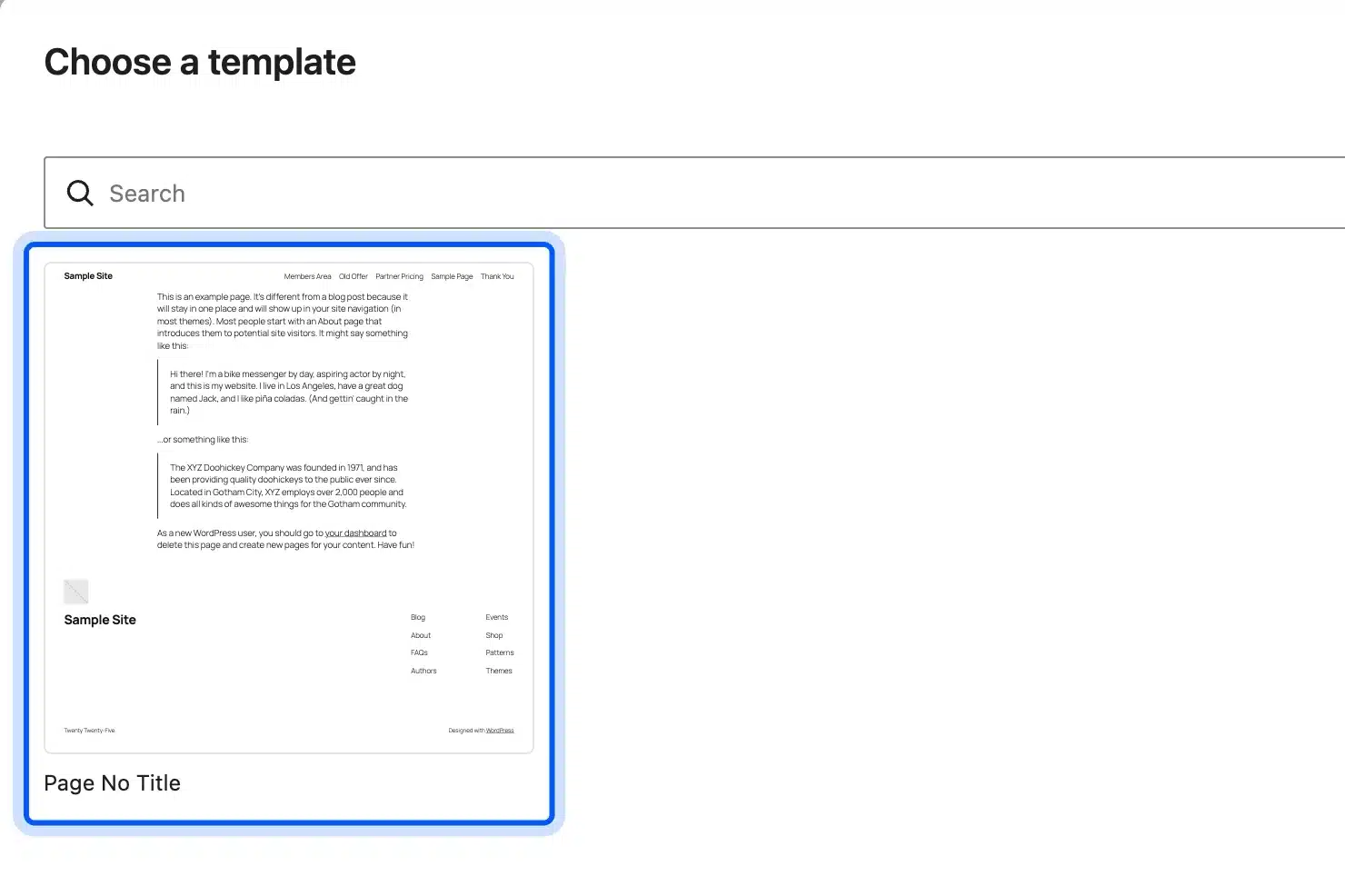
- Click Save.
The front end then had no h1 heading. Add a heading inside the content if the page should rank, since search engines read it as the page topic.
Some themes put the title in the main Page template instead. Deleting the Title block there hides the heading on every page that uses that template. A per-page template is the safer choice.
Featured images work the same way on posts. Our guide shows how to hide the featured image in a WordPress post.
What Hiding a Page Leaves Visible
Hiding a page changes what WordPress shows on screen, but files, APIs and some sitemaps can still reveal it. We found four leftovers on our test store while checking each method. Most guides on this topic mention one of them at most.
- Uploaded files: An image attached to our private page still loaded by its direct URL for a logged-out visitor, even though its attachment page returned 404.
- REST API: The password page appeared at
/wp-json/wp/v2/pageswith its title and an empty, protected content field. A noindexed page appeared there in full. - Core sitemap: Before any SEO plugin,
/wp-sitemap.xmllisted the password-protected page next to public ones. - Meta tags: The members-only text leaked into the meta description in Method 3.
The uploads folder is the one most people miss. WordPress serves files from /wp-content/uploads/ directly. A PDF linked from a private page opens for anyone who has its address.
The REST API matters if a theme, an app or a headless front end reads your content. A noindexed page is public data there, because noindex only speaks to search engines.
Keep real secrets out of WordPress pages and use storage with proper access control.
And do not delete a page just to hide it. A redirect keeps old links working. Learn how to redirect a page or URL in WordPress before you remove anything.
Conclusion
Learning how to hide a page in WordPress comes down to naming who should not see it. Private locks out everyone but staff, and password protection lets in anyone with the password.
Members only shows a page to chosen roles, but write its meta description yourself. Menu removal, noindex and the site search snippet each hide one view and leave the page reachable.
Combine them when one is not enough. A thank-you page usually needs all three: out of the menu, out of Google and out of site search.
Frequently Asked Questions (FAQs)
Q1. Does a private page show up in Google?
No. A private page returns a 404 page to every logged-out visitor, and Google’s crawler sees that same 404 page. Our test store also left it out of the menu, site search and the sitemap.
Q2. Can subscribers see a private page?
No. Private reads “Only visible to site admins and editors,” and our logged-in subscriber got a 404 page. Use a members-only page or the login redirect snippet when every logged-in user should see it.
Q3. Can I hide a page from other admins or editors?
Not with core settings. The WordPress documentation warns that editors and admins can open private and password-protected content without the password. Limiting what staff can open needs a role editor plugin such as Members.
Q4. Does hiding a page hurt my SEO?
Only if that page was meant to rank. Private, password and noindex all keep a page out of results, which suits thank-you and internal pages. Menu removal alone changes nothing for search engines.
Q5. Can I hide a WooCommerce product instead of a page?
Yes, products have their own visibility settings in WooCommerce. Our guide covers how to hide private products in WooCommerce so they stay out of the shop and search.
Q6. Will a hidden page still open from an old bookmark?
It depends on the method. Menu removal, noindex and the search snippet leave the URL working for everyone. Private returns a 404 page and password protection shows the form until the visitor types the password.