Knowing how to hide private products from your WooCommerce store is something most store owners figure out the hard way. You set a product to Private, assume it is hidden, and then discover it still shows up in the shop with Private slapped in front of the title. Not exactly the clean online store you had in mind.
WooCommerce gives you several ways to control product visibility, but each one works differently. Some block the shop page. Some block search results. Some do neither but feel like they should. Picking the wrong method means your private products stay visible to customers, or worse, to Google.
This guide covers five tested methods for hiding private products from your WooCommerce store, like built-in visibility settings, catalogue visibility controls, a PHP code fix for the admin-view bug, role-based hiding, and plugin-based approaches. By the end, you will know which method fits your store and exactly how to set it up.
What Does Hiding a Product Mean in WooCommerce?
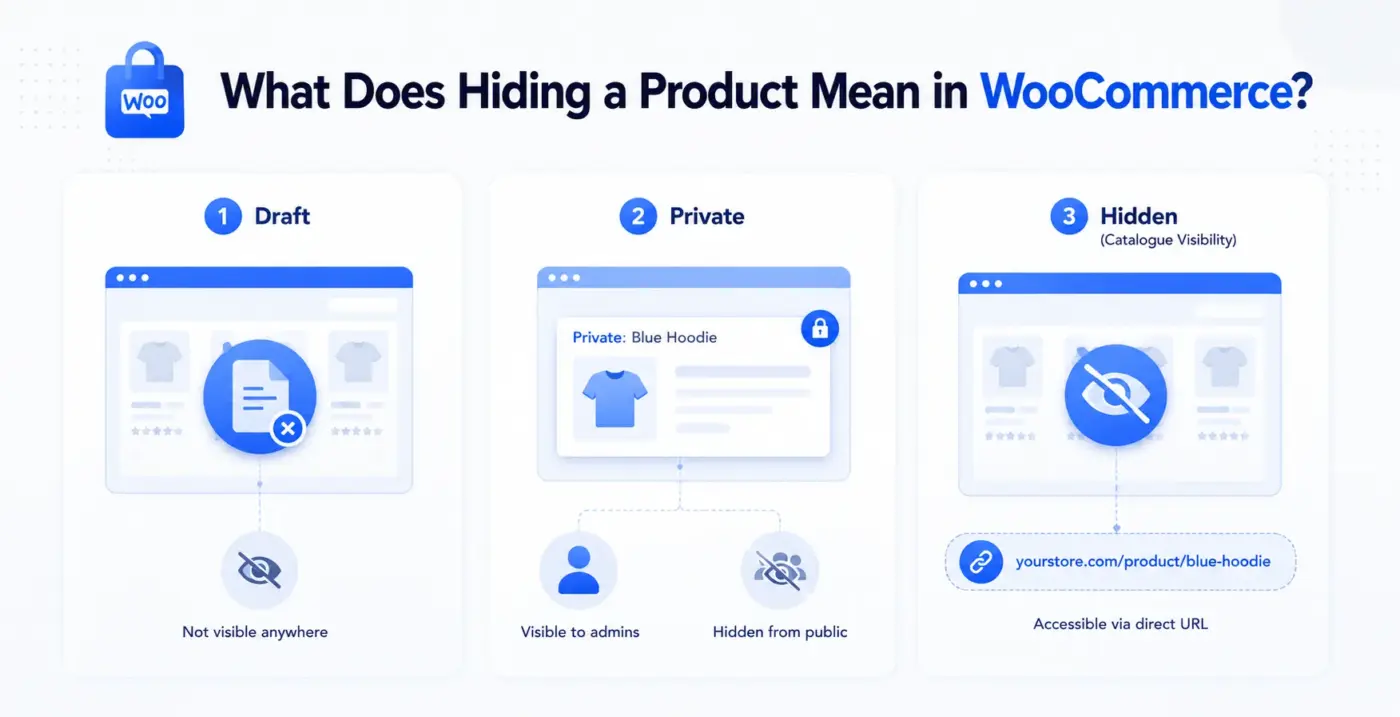
Before picking a method, it helps to understand what WooCommerce’s visibility options do. There are three states that most store owners confuse.
- Draft removes the product from the public entirely. Nobody can view it, buy it, or find it. It is essentially off. Use this when a product is not ready yet and should not exist anywhere on the frontend.
- Private is a WordPress post status. It keeps the product live in the database and accessible to admins and shop managers, but hides it from public shop pages and search results. The catch? When you are logged in as an admin, WooCommerce shows private products on the shop page and category pages. The Private prefix appears in the title. Most tutorials skip this detail entirely.
- Hidden (Catalogue Visibility) is a WooCommerce-specific setting. It removes the product from shop pages and search results, but the product page is still accessible via a direct URL. Anyone with a link can still view and buy it.
How to Hide Private Products from Your WooCommerce Store: 5 Methods
Pick the method that matches your goal from the table above, then follow the steps.
Method 1: Set Product Status to Private
This is the fastest no-code option for keeping a product out of public view while keeping it available for backend use, manual billing, or admin use.
- Go to Products > All Products in your WordPress dashboard.
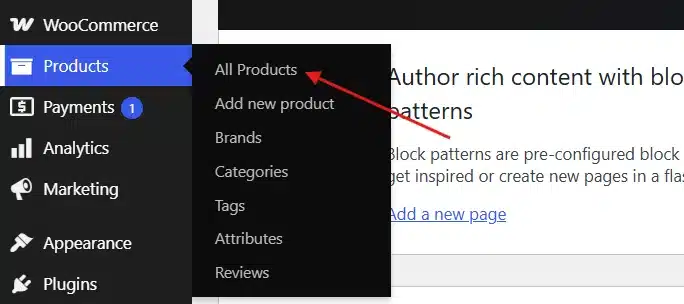
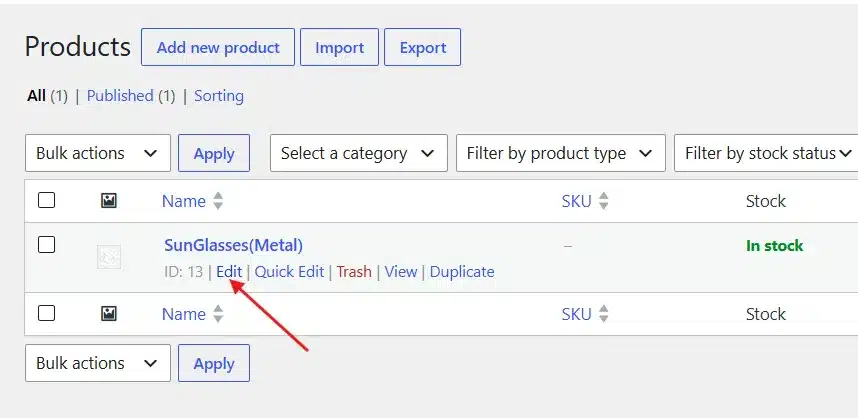
- Click Edit on the product you want to hide.
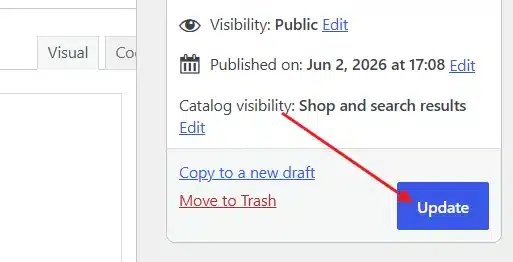
- In the Publish box on the right side, find the Visibility option and click Edit next to it.
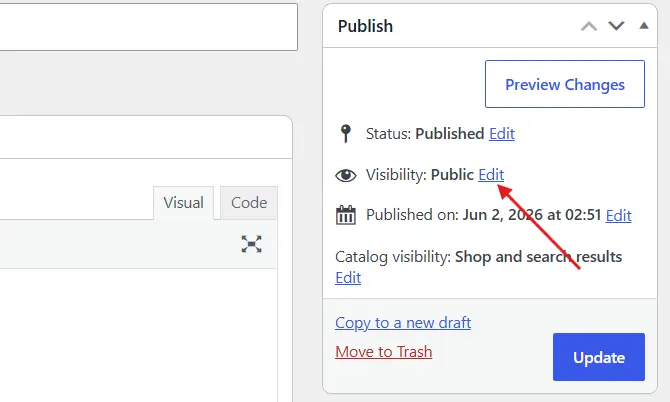
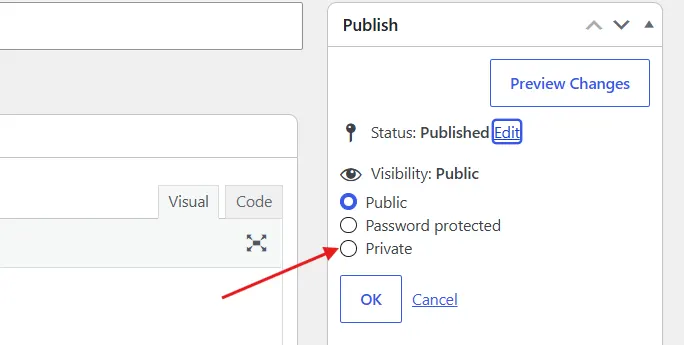
- Select Private from the dropdown.
- Click OK, then click Update to save.
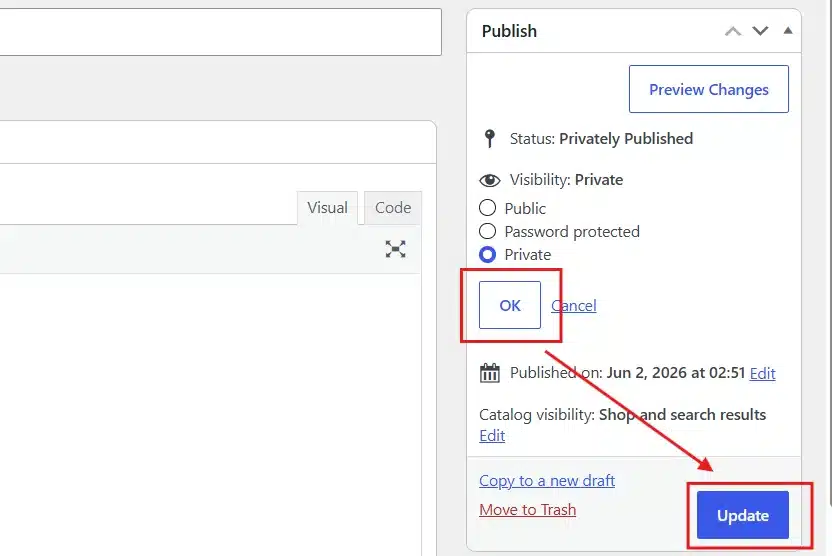
The product will no longer appear on shop pages or in search results for guests and regular customers. Admins and shop managers can still see it in the backend, and they will see it on the frontend too if they are logged in. That is the known limitation of this method. Method 3 below fixes it.
Setting a parent product to Private does not automatically hide its variations. If you are working with variable products, check each variation’s visibility separately.
Method 2: Set Catalogue Visibility to Hidden
Use this when you want a product active and purchasable via direct link, just not easy to find through shop browsing or search.
- In the Publish box, click Edit next to Catalogue visibility.
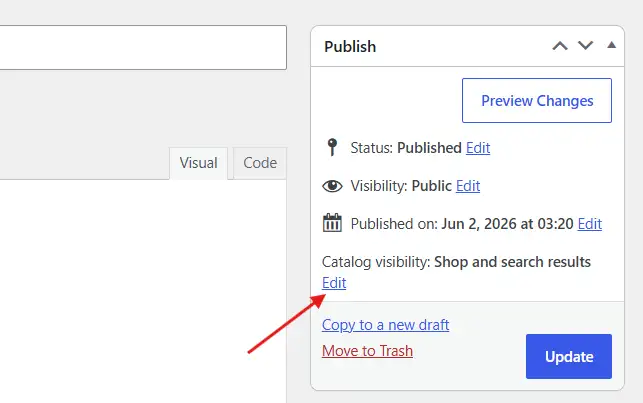
- Select Hidden from the dropdown.
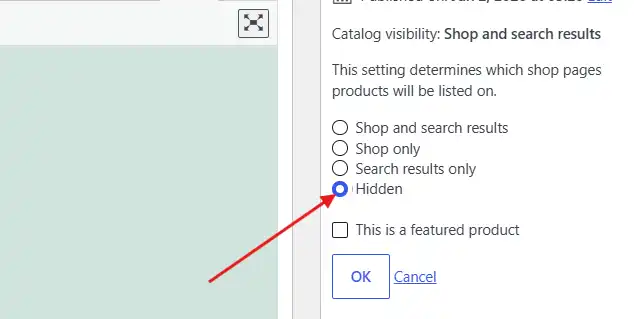
- Click OK, then Update to save.
The product disappears from the shop page and WooCommerce search results. But the direct product URL still works. Someone with the link can view the product, add it to the cart, and buy it without any difficulty.
This method suits products you share through a private link, like a wholesale-only SKU or a special bundle for a specific client. Do not use it if full privacy is the goal. The direct URL remains open to anyone who has it or guesses it.
WooCommerce catalogue visibility settings affect the WooCommerce product loop. They do not control the WordPress default search or external search plugins. If you have SearchWP or ElasticPress installed, test whether hidden products still appear there.
Method 3: Hide Private Products from Admin View Using PHP
You have set products to Private, but when you are logged in as an admin and browse your own shop, you can still see them with Private in the title. This is the default WordPress behaviour that admins see private posts. It is not a bug, but it makes the frontend look messy and does not show what customers see.
The fix is a single code snippet added to your child theme’s functions.php file.
- Go to Appearance > Theme File Editor.
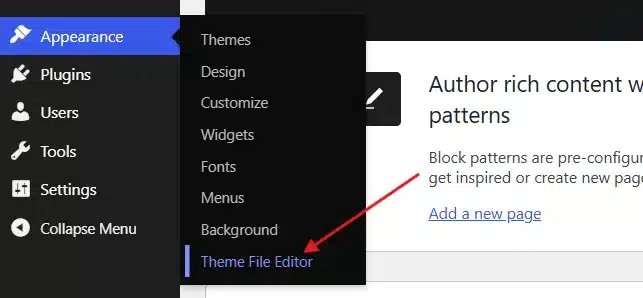
- Select your child theme from the dropdown and open
functions.php.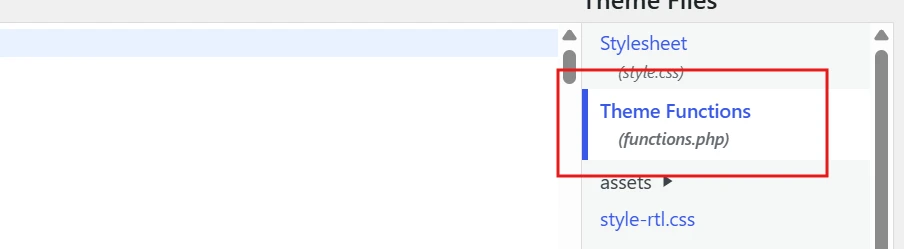
- Add the following code at the end of the file:
/**
 * Hide private products from the WooCommerce shop and archive pages
 * Works for all users including admins and shop managers
 * Compatible with WooCommerce 8+
 */
add_filter( 'posts_where', 'devdiggers_hide_private_products_frontend' );

function devdiggers_hide_private_products_frontend( $where ) {
    if ( is_admin() ) return $where;
    global $wpdb;
    return " $where AND {$wpdb->posts}.post_status != 'private' ";
}
- Update the file.
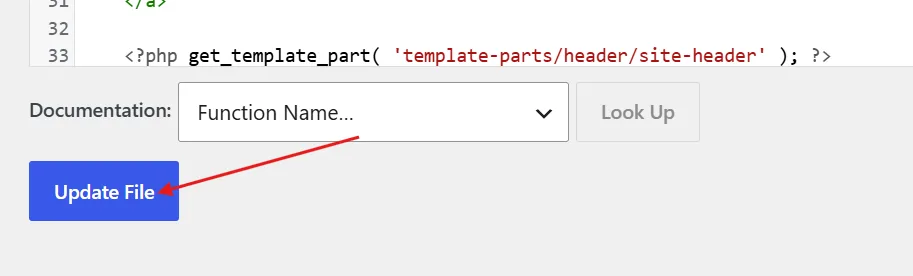
After saving, refresh your shop page while logged in as admin. Private products should no longer appear.
A technical note worth flagging is that the filter modifies the posts_where condition used by WordPress to query the wp_posts table. It targets post_status != 'private' at the database level. Because of that, it hides all private WordPress posts (pages, posts, and products) on the frontend. If you have private pages you still want visible to admins, this approach is too broad. A more targeted version $wpdb->posts.post_type = 'product' can scope it to products only.
Always place custom code in a child theme, not your parent theme. If you update the parent theme, the code gets overwritten.
Method 4: Hide Products by User Role (Free Plugin)
For B2B stores, wholesale operations, or any store where product visibility depends on customer type, role-based control is the right approach. You want Customer A to see the full catalogue. Customer B (say, a registered wholesale buyer) sees a different set. Guest visitors see only what you want them to see.
The free Product Visibility by User Role for WooCommerce plugin from WordPress.org handles this without any code. It has been updated consistently through 2026 and works with current WooCommerce versions.
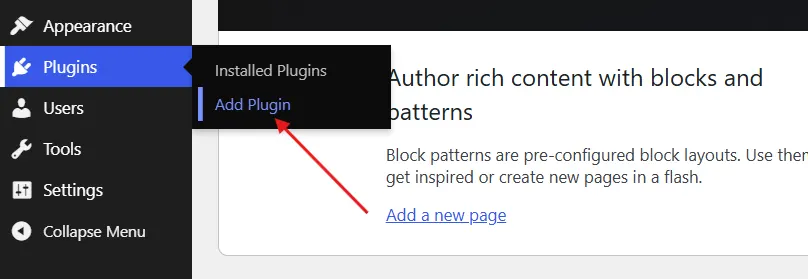
- Go to Plugins > Add Plugin.
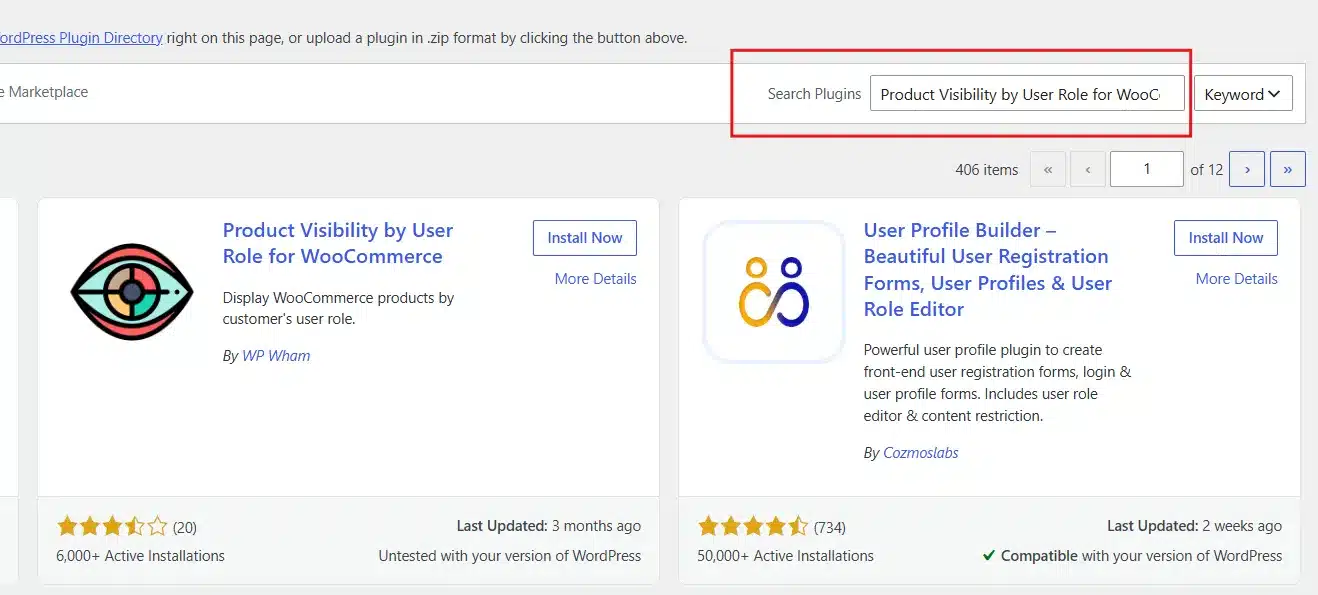
- Then, search for Product Visibility by User Role for WooCommerce.
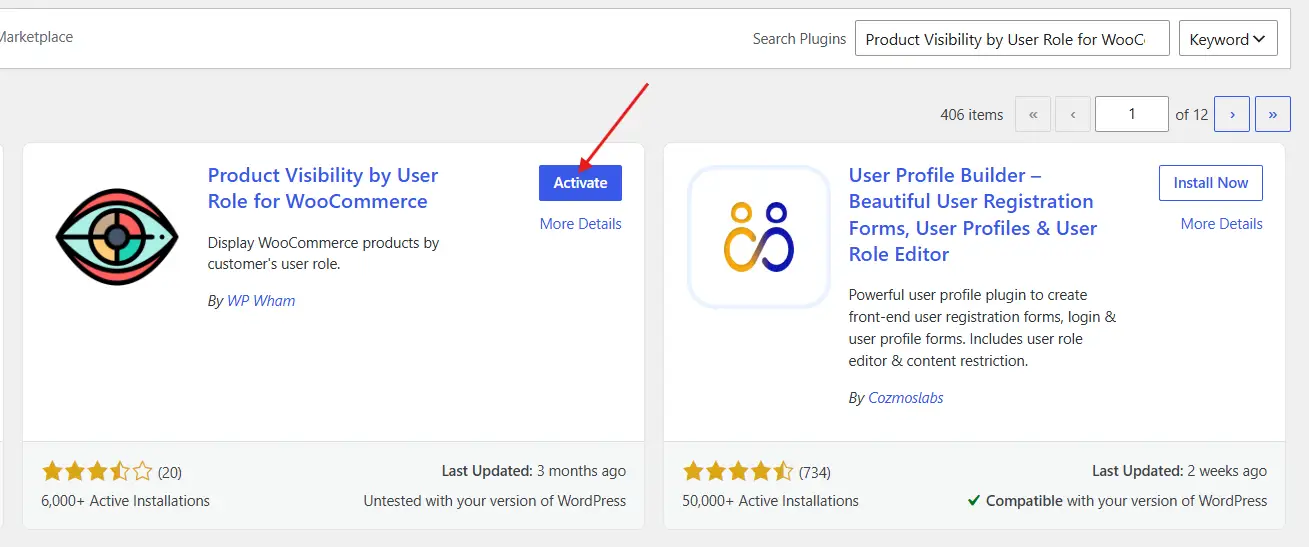
- Install and activate the plugin.
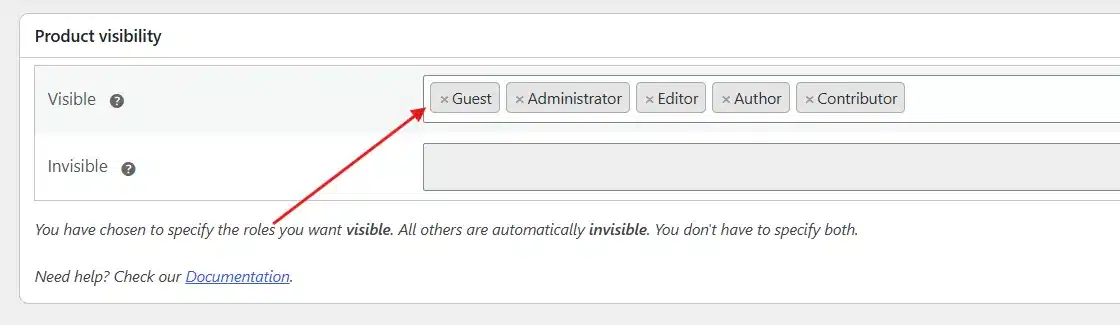
- Choose the user roles that should not see this product from the product visibility panel.
- Update the product.
The plugin hides products in the shop, category pages, and search results for the restricted roles. Products are also non-purchasable for users who do not have access, even if they land on the direct URL.
For bulk management across many products or categories, the Pro version adds batch controls. The free version works per product.
One thing we see often in support conversations around role-based visibility is that admins sometimes wonder why their role-restricted products still appear in widget-based recent product lists or homepage sliders. Most product loop widgets respect the main WooCommerce query, but some page builder widgets and custom shortcodes run their own queries and bypass role filters entirely. Test your homepage and sidebar widgets after setting up role-based hiding. Our WooCommerce shortcodes guide lists the attributes each product shortcode accepts.
Method 5: Use a Plugin for Flexible Visibility Control
If your store is growing and you are managing private products alongside pricing access rules, a plugin approach gives you more control than code alone.
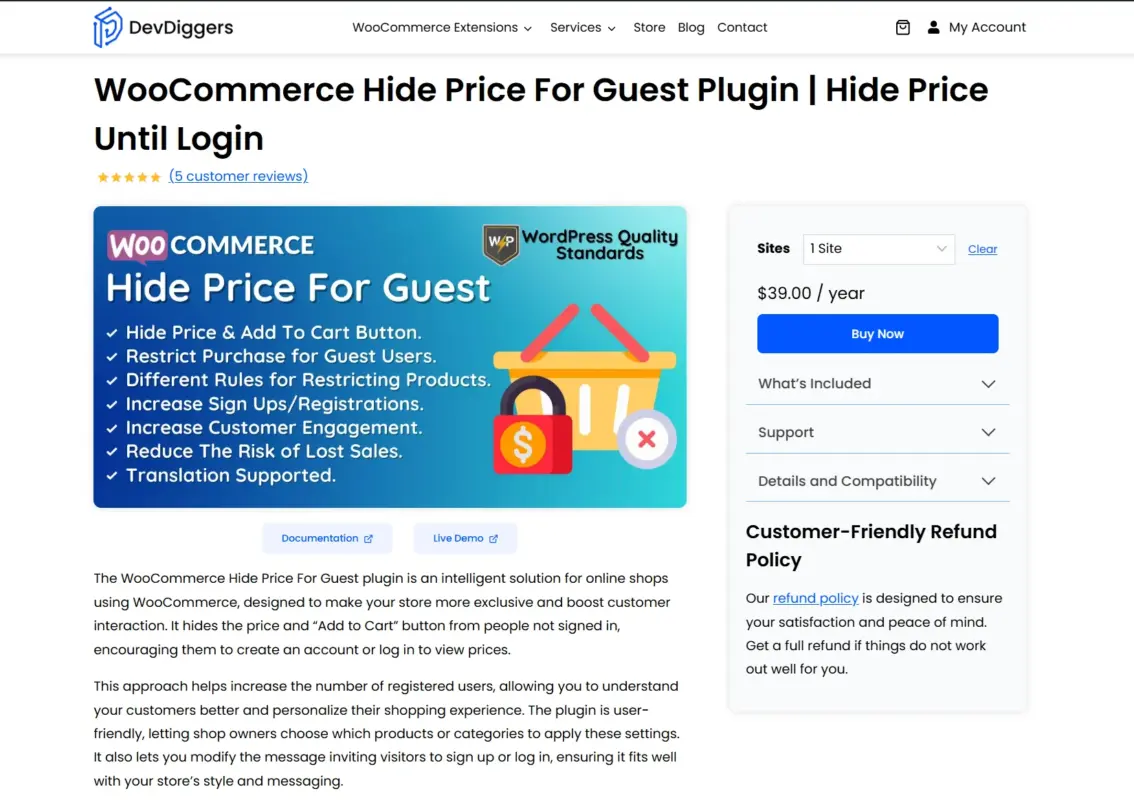
A store wants to hide not just the product listing from guests, but also the price itself. A guest visiting a product URL should not see the price or the Add to Cart button. This is a step beyond visibility control and into access control.
For that use case, the WooCommerce Hide Price For Guest plugin built by DevDiggers handles both: it hides prices and the add-to-cart button for non-logged-in users, on specific products or store-wide, with customizable messaging to prompt login or signup.
Most stores doing serious private-catalogue work end up combining Method 3 or Method 4 with a price-hiding layer. Visibility removes the product from browse and search. Price control protects the details if someone lands on the URL directly.
If you need custom WooCommerce development for more complex visibility requirements, the WooCommerce development services at DevDiggers can handle role-based access logic, custom product gating, and visibility rules that go beyond what ready-made plugins offer.
Which Method Should You Use?
| Method | Best For | Blocks Shop Page | Blocks Search | Blocks Direct URL | Requires Login | Setup Time | Plugin Needed |
|---|---|---|---|---|---|---|---|
| Draft | Temporarily hiding a product during editing | Yes | Yes | Yes | No | Under 1 min | No |
| Private Status | Hiding from guests but keeping visible to admins | Yes (guests only) | Yes | No | No | Under 1 min | No |
| Catalogue Visibility: Hidden | Hiding from shop/search but keeping URL accessible | Yes | Yes | No | No | Under 1 min | No |
| PHP Snippet (admin fix) | Fixing the admin-view bug after using Private Status | Yes (for admins) | Yes | No | No | ~5 mins | No |
| Role-Based Plugin (Free) | Showing different products to retail vs wholesale | Yes (by role) | Yes (by role) | Depends on the plugin | Yes | Low–Medium | Yes (free) |
| Role-Based Plugin (Pro) | Bulk managing 50+ hidden products | Yes (by role) | Yes (by role) | Depends on the plugin | Yes | Medium | Yes (paid) |
Common Mistakes When Hiding WooCommerce Products
- Thinking Hidden means blocked: Setting catalogue visibility to Hidden removes the product from shop pages and search, but the product URL stays live. If you share that URL anywhere, customers can still access it. For full blocking, use Private status or Draft.
- Forgetting product variations: Variable products have parent products and individual variations. Setting the parent to Private or Hidden does not always carry over to variations, especially in older WooCommerce setups. After hiding a variable product, test a direct URL to one of its variations to confirm it is also restricted.
- Using Draft when you mean Private: Draft products cannot be used for anything on the backend, either. If you want to keep a product available for manual orders or admin use while hiding it from public view, Draft is the wrong choice. Private is the right one.
- Not checking third-party search plugins: WooCommerce’s catalogue visibility controls the native WooCommerce product query. Plugins like SearchWP, Relevanssi, or Doofinder run separate queries. A product set to Hidden in WooCommerce may still appear in results from those plugins. Always test search behaviour after changing visibility.
- Applying visibility changes to the wrong environment: This one comes up more than you would expect. Changes made on a staging site do not carry over to production automatically. If you tested a visibility rule on staging and then pushed only theme files, the product-level visibility settings are still in the database and did not move with the deployment.
Does Hiding a Product Affect SEO?
This is a question that comes up in almost every conversation about WooCommerce product visibility, and the answer depends on how you hide the product.
- Private status removes the product from WooCommerce shop pages and search, but the product URL can still be scanned by search engines if it was previously listed or if other pages link to it. WordPress does not automatically add
noindexto private posts. If you want Google to stop indexing a previously-public product, set it to Private and also add anoindexdirective using an SEO plugin like Yoast or Rank Math. - Hidden catalogue visibility leaves the product URL fully accessible and crawlable. Google can index it. If that product should not appear in search results, mark it
noindexmanually. - Draft status removes the product URL entirely. Any existing Google index entries will eventually drop as Google scans again and gets a 404 or redirect.
Practical Tip: If you are hiding products that were previously ranked or getting organic traffic, set up a 301 redirect from the old product URL to a relevant category page before removing them from the sitemap. This preserves any link value that the product page had gained.
For a broader look at how to protect your store’s content and organic visibility, the WooCommerce SEO guide covers product page optimisation, sitemap control, and technical SEO in detail.
If you are concerned about competitors or content copy tools accessing your product data through direct URLs, the guide on how to prevent content scraping on your WordPress site covers that angle separately. Visibility settings alone do not protect against scraping.
Conclusion
You can hide private products from your WooCommerce store without a complex setup. For most stores, Method 1 or Method 2 handles basic visibility in under a minute. If you are logged in as admin and seeing your own private products on the frontend, the PHP snippet in Method 3 solves that in five minutes. B2B and wholesale stores managing different product views per customer type will get the most out of Method 4.
Hiding a product from shop pages and search does not automatically block direct URL access. If full privacy matters, combine visibility settings with a noindex directive and consider whether Draft status is a better fit than Private.
For stores that need to control both product visibility and pricing access for guests, combining these methods with a dedicated tool like the WooCommerce Hide Price plugin gives you full control without touching much code.
Review your WooCommerce security checklist while you are at it. Visibility controls are one layer of store management. Security settings are another, and they often work together in ways that are worth checking.
Frequently Asked Questions (FAQs)
Q1. Can I hide a WooCommerce product without deleting it?
Yes. Setting a product to Private or changing its catalogue visibility to Hidden keeps it in your database and usable for backend operations. It disappears from shop pages and search results without being deleted.
Q2. Why can I still see my private WooCommerce products when I am logged in?
WordPress shows private posts to administrators and shop managers by default. This is not a bug; it is intended behaviour. The PHP snippet in Method 3 of this guide removes private products from the frontend for all users, including admins.
Q3. Does hiding a product stop Google from indexing it?
Not automatically. Private status and Hidden catalogue visibility do not add a noindex tag. If you want Google to stop indexing a hidden product, use an SEO plugin like Yoast or Rank Math to set the page to noindex. Draft status removes the URL entirely.
Q4. How can I restrict WooCommerce products based on user roles?
Yes, but this requires role-based visibility control. The free Product Visibility by User Role for WooCommerce plugin lets you restrict products by WordPress user role. For more detailed control at the individual customer level, a custom development approach is usually needed.
Q5. Will hiding a product affect its sales data or order history?
No. Visibility settings only control whether the product appears in frontend browsing. Past orders, sales reports, and stock data are stored in the database independently and are not affected by visibility changes.