
Here is how to sell digital products online with WooCommerce: create a virtual, downloadable product, attach the file and let WooCommerce deliver it after payment. The core setup needs no extra plugin and takes under an hour.
We tested the full flow in October 2026 on a WordPress 7.1 test store running WooCommerce 11.2.1. We sold a $19 PDF guide to a guest buyer, granted access, downloaded it until the limit hit, and tried to open the file directly. DevDiggers also sells its own plugins as digital products on WooCommerce.
This hub covers the setup step by step, the three file download methods, and when buyers get their files. It also covers file protection, license keys and taxes on digital goods. Our guides for ebooks, fonts and music go deeper on each product type.
What Counts as a Digital Product?
A digital product is anything a buyer receives as a file or online access instead of a parcel. Ebooks, templates, fonts, music, courses and software all qualify. Because there is nothing to ship, you make the product once and sell it again and again, and delivery happens the moment payment clears.
Most digital products fall into a few families:
- Documents: Ebooks, guides, workbooks, printables and planners, usually as PDF files.
- Design assets: Fonts, templates, icons, presets and stock photos.
- Audio and video: Music tracks, sample packs, podcasts and recorded classes.
- Software: Plugins, themes, apps and scripts, often sold with a license key.
- Access: Courses, memberships and communities that people reach after logging in.
Each family has its own quirks. Our guides cover how to sell ebooks online and how to sell fonts online with WordPress.
For audio, see how to sell music online with WooCommerce, which includes a preview player and MP3 or WAV versions.
This page covers what all WooCommerce digital products share: the product setup, delivery, access rules, protection and tax.
Access products work differently from files. A course or community sells ongoing access, so it needs a membership or subscription plugin on top of the steps below.
Giving a file away for free is simpler still. To share a free guide, you can add a downloadable PDF to WordPress with no store at all.
How to Sell Digital Products Online With WooCommerce
Here is how to sell digital products online with WooCommerce: set up payments, then create a Virtual and Downloadable product with your file attached. Choose a file download method and decide when buyers get access. Finally, check that the file folder is protected and run a test purchase before launch.
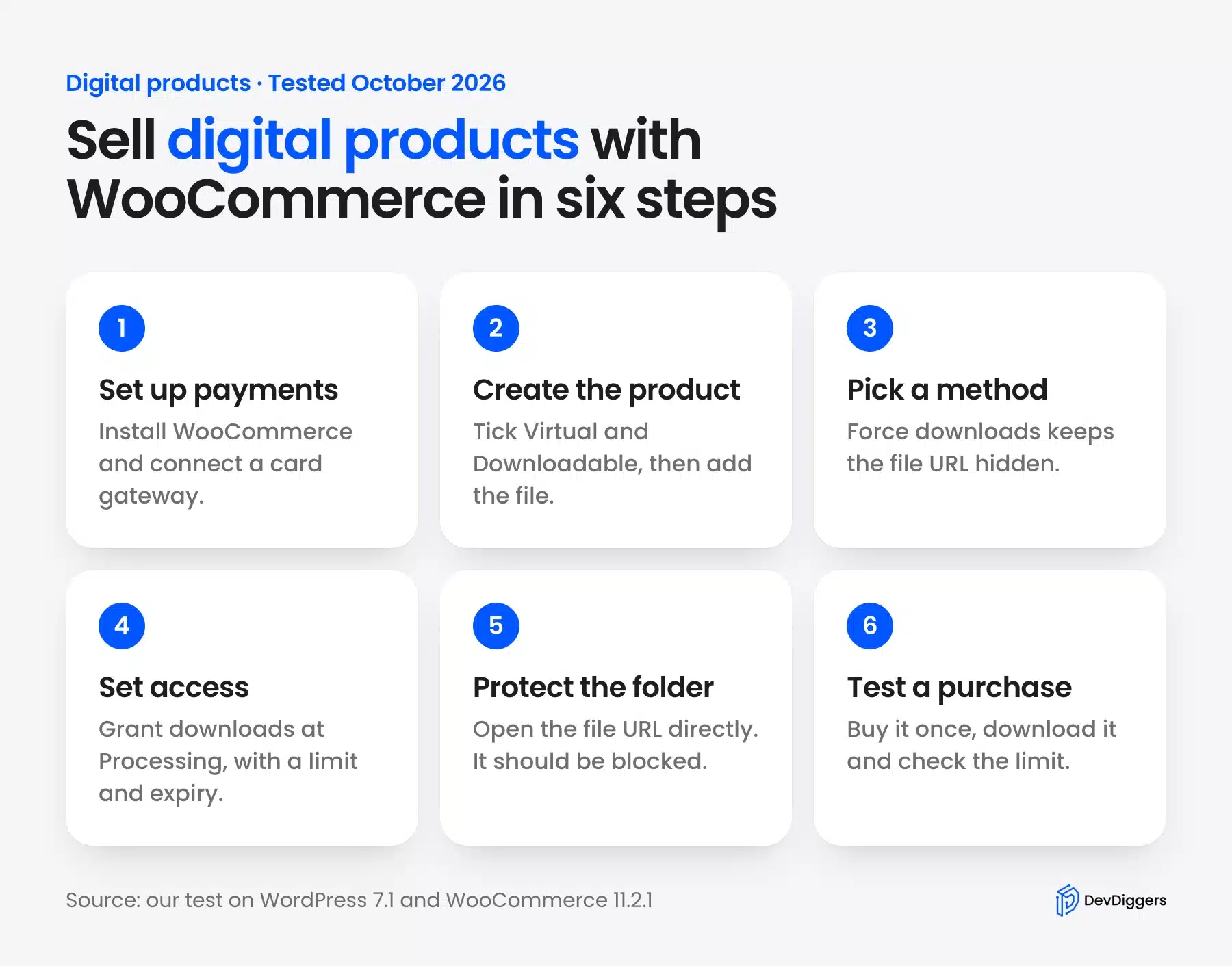
We followed these six steps on our test store. Each one shows the real screen and the result we got.
Step 1: Install WooCommerce and Set Up Payments
Install WooCommerce from Plugins, then Add Plugin, and finish the setup screens. Then open WooCommerce, Settings, Payments.
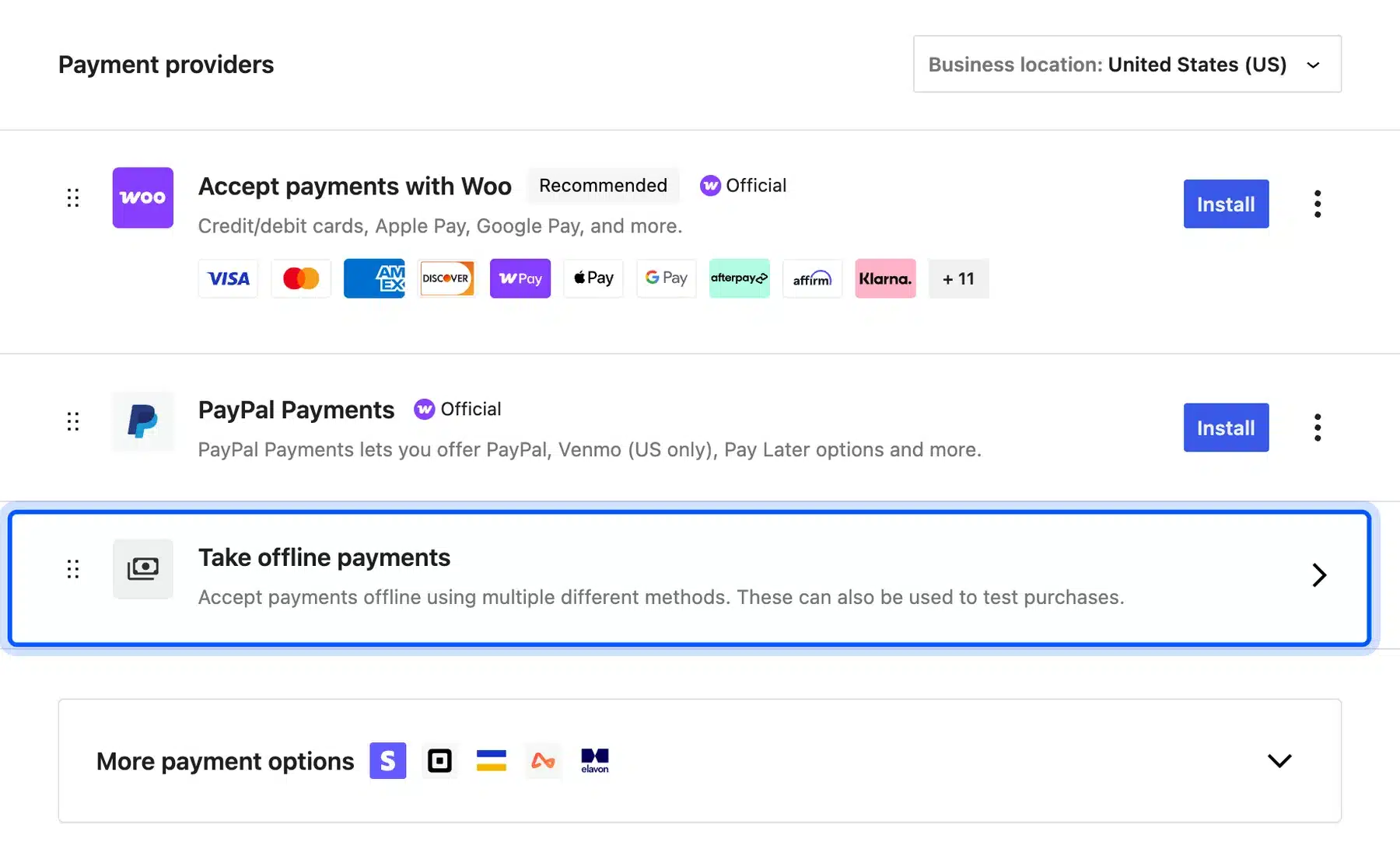
For real sales, connect a card gateway such as WooPayments, Stripe or PayPal. The screen itself notes that offline payments “can also be used to test purchases”.
We used Check payments for our test order, so no real card was charged. That also showed what happens when payment is not confirmed yet, which matters in Step 4.
Step 2: Create a Virtual Downloadable Product
Go to Products, then Add New. Enter the product name and price, then set the product data panel like this:
- Tick Virtual: This removes shipping, because nothing is posted.
- Tick Downloadable: This adds the Downloadable files table.
- Add the file: Click Add File, give it a name buyers will see, and click Choose file to upload it.
- Set a download limit and expiry: We used 3 downloads and 7 days.
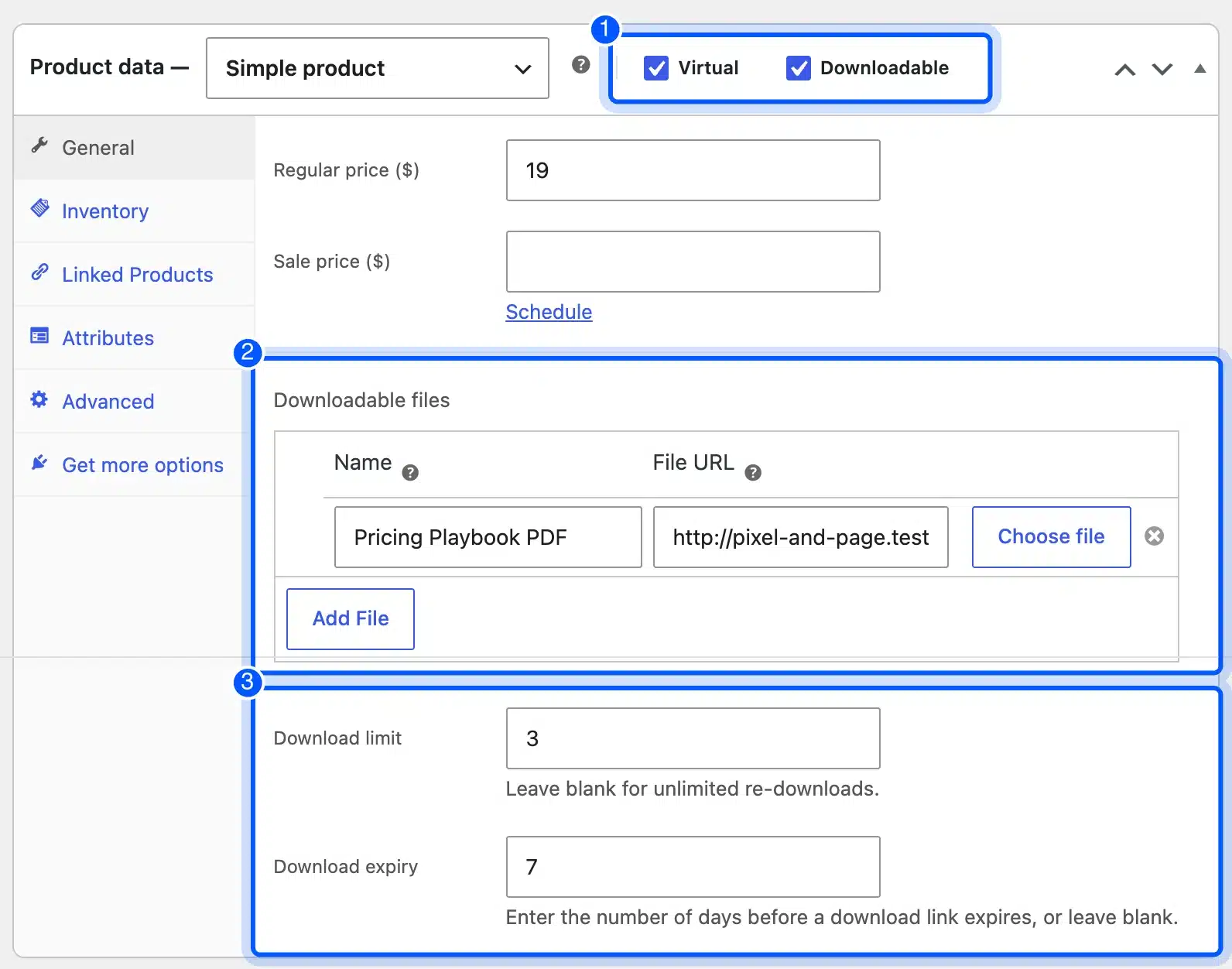
Upload the file from this product screen. The WooCommerce download handling guide recommends that over picking a file from the Media Library. WooCommerce then stored our PDF in the woocommerce_uploads folder and added a random string to the file name.
Our file landed as pricing-playbook-d2p2xu.pdf. That extra string makes the URL hard to guess, which helps if the folder protection ever fails.
Step 3: Choose the File Download Method
Open WooCommerce, Settings, Products, then Downloadable products. The File download method decides how the file reaches the buyer.
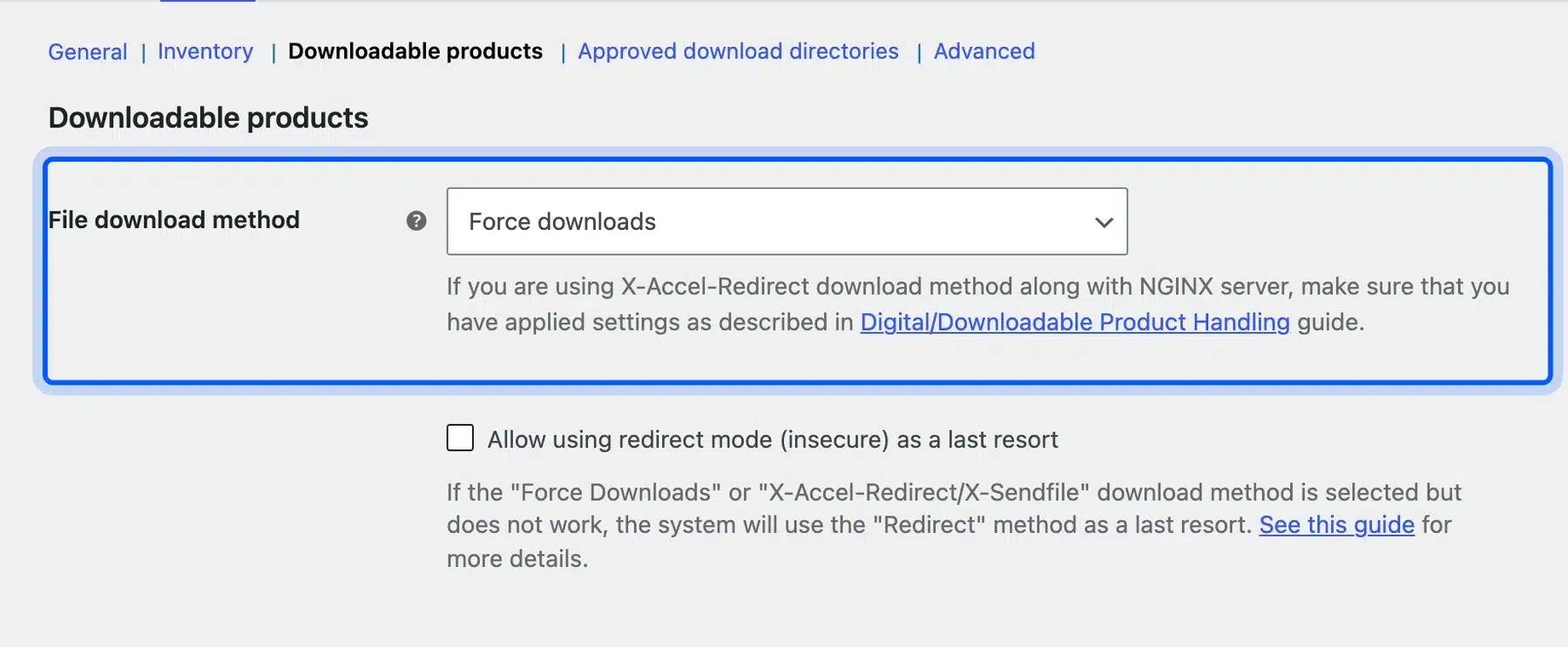
Our store defaulted to Force downloads, which is the right choice for most shops. The “Allow using redirect mode (insecure) as a last resort” box was unticked, and we left it that way.
The WooCommerce guide to digital downloadable product handling explains each method. Force downloads delivers files through PHP, which prevents direct linking.
X-Accel-Redirect or X-Sendfile hands delivery to the web server, which helps with large files if your host supports it. Redirect only is insecure: anyone with the URL can open the file.
Step 4: Decide When Buyers Get Access
The Access restriction settings sit on the same screen. Our defaults were “Downloads require login” off and “Grant access to downloadable products after payment” on.
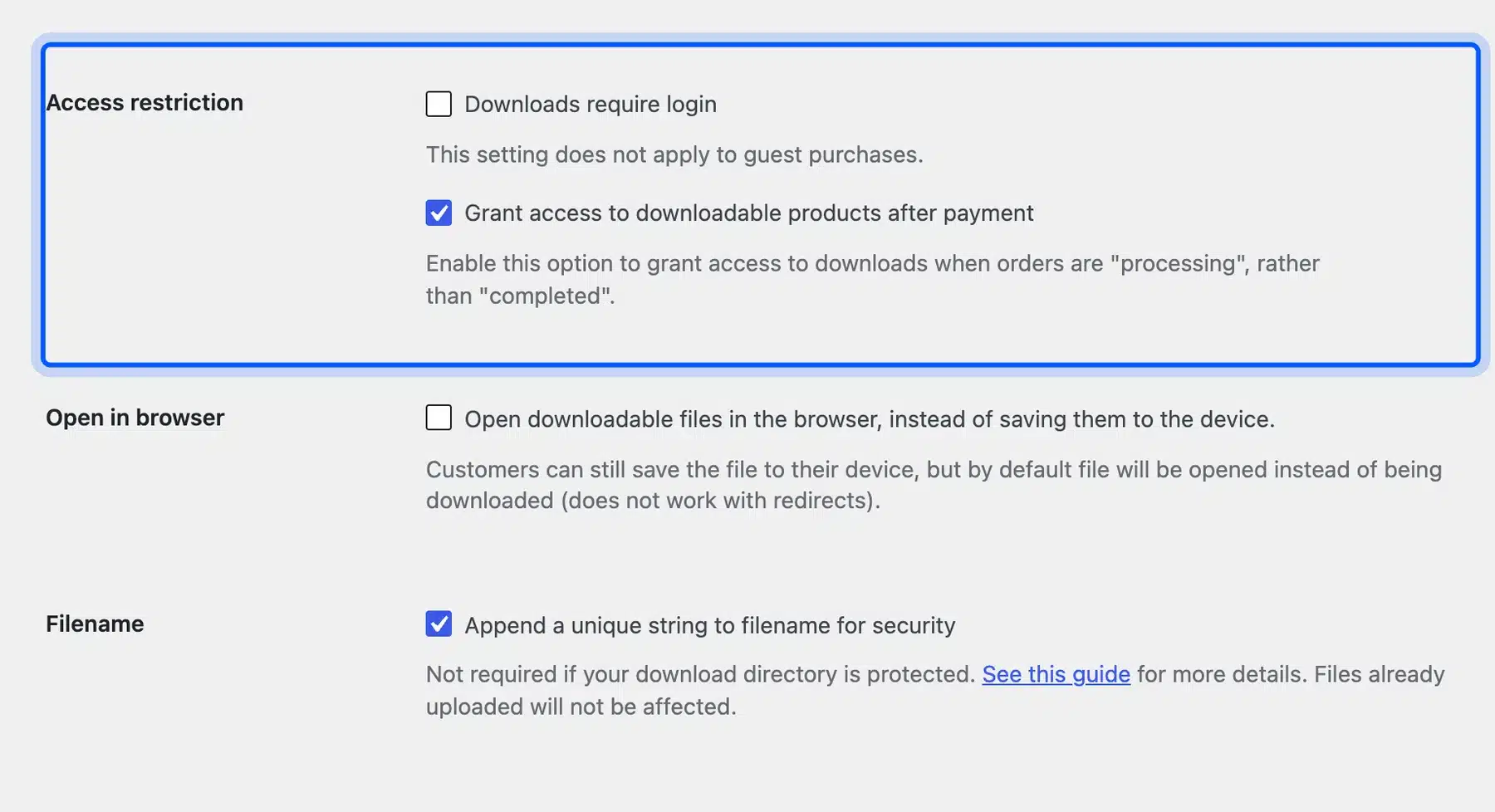
The second setting grants access when an order is Processing, rather than waiting for Completed. Our test showed what that means in practice.
Our guest order paid by check went On hold, which WooCommerce’s order status guide describes as awaiting payment. Its thank you page showed no Downloads section, and moving the order to Processing added the download permission at once.
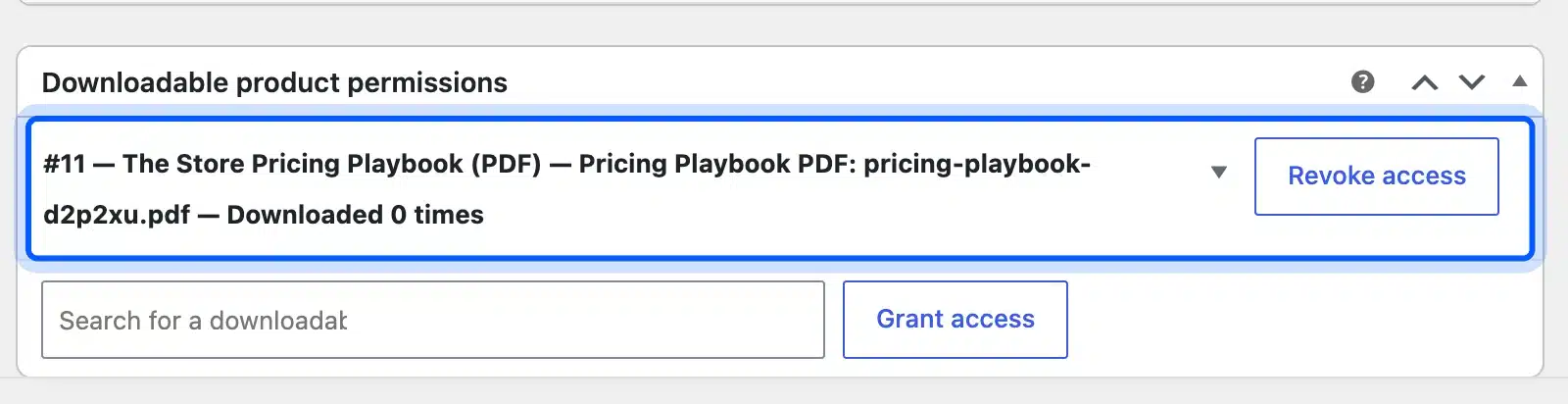
The permission box listed the product, the file name and “Downloaded 0 times”, with a Revoke access button. You can also grant access by hand from the same box.
Step 5: Check That Your Download Folder Is Protected
File protection means a stranger cannot fetch your file by guessing its address. WooCommerce stores product files in wp-content/uploads/woocommerce_uploads/ and adds an .htaccess file there that reads “deny from all”.
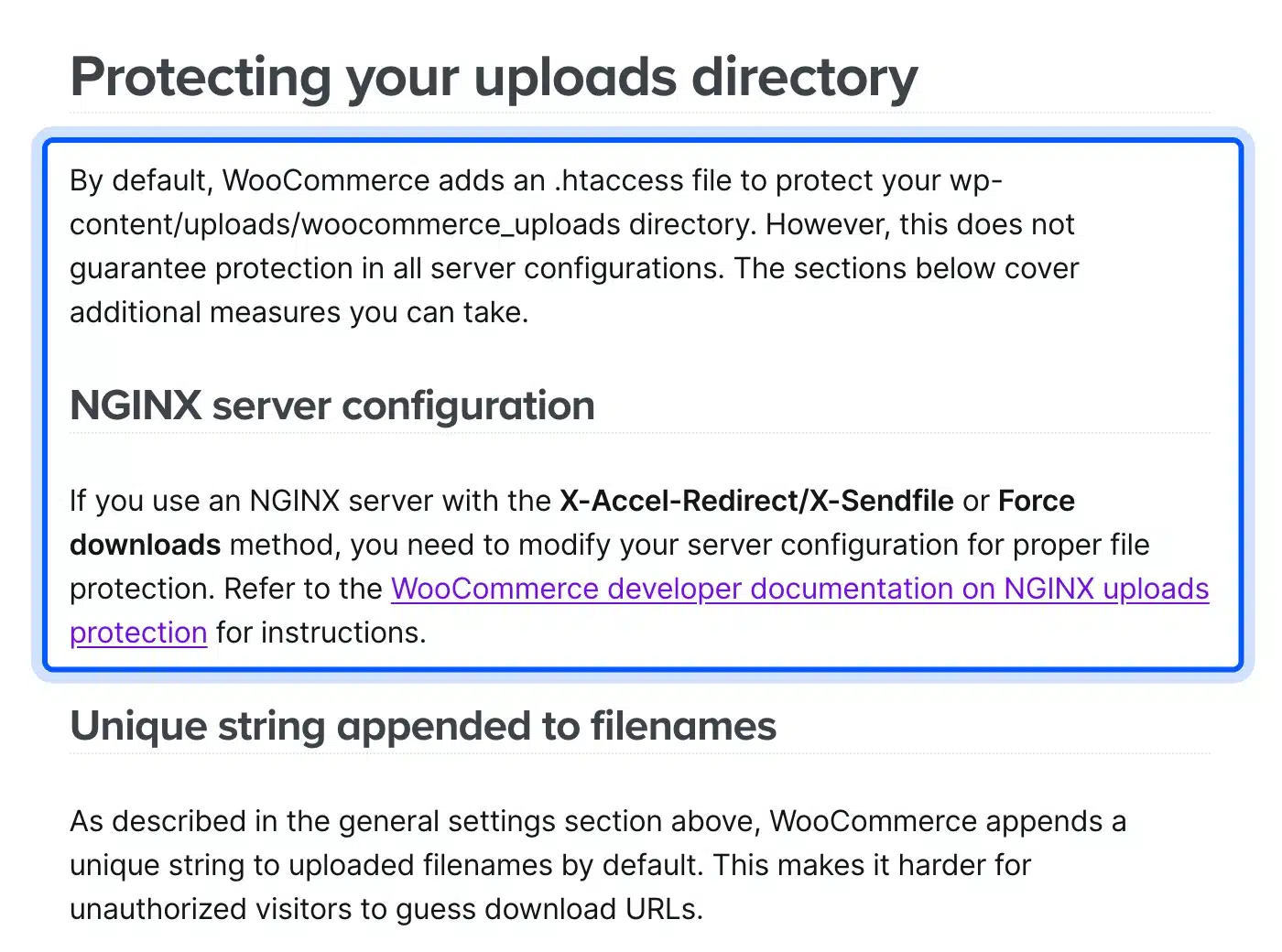
That file only works on Apache servers that read .htaccess. WooCommerce’s handling guide says it “does not guarantee protection in all server configurations”, and NGINX needs its own server rule.
Our test store runs on a server that ignores .htaccess, like NGINX. Opening the PDF’s direct URL there returned the full file with a 200 status, so the folder was not protected at all.
The fix is a deny rule in your server settings, which your host can add in a few minutes. Then open the file URL in a private window: a 403 or 404 means the folder is safe.
Step 6: Test a Purchase and the Download Link
Buy your own product once, as a guest, before launch. Then open the order confirmation page and click the download link.
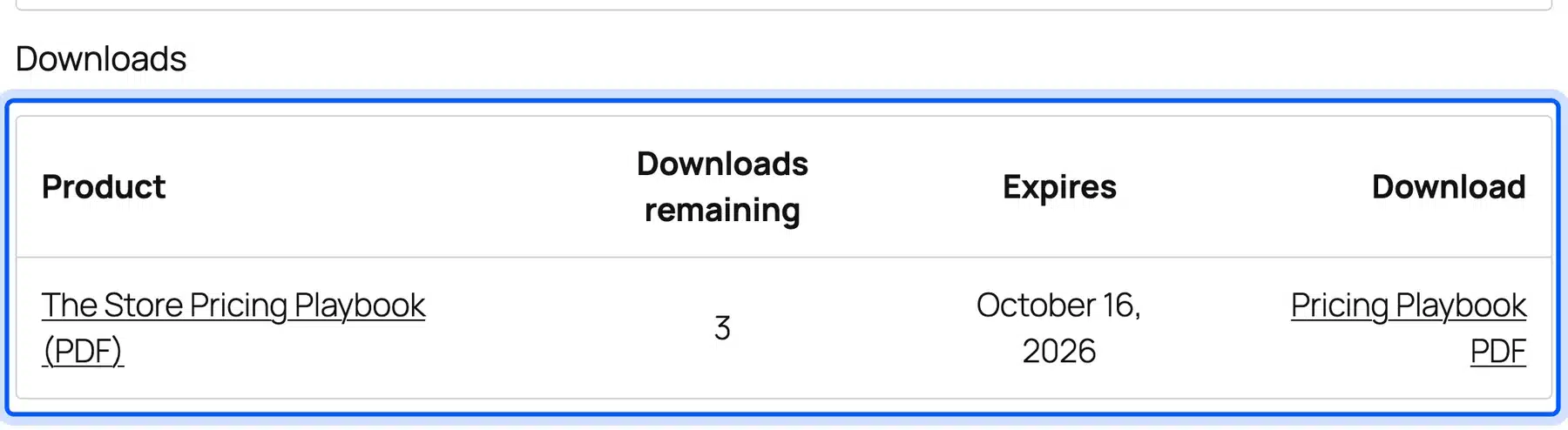
Our thank you page showed a Downloads table with 3 downloads remaining and an expiry of October 16, 2026, seven days after the order. The link worked without logging in, because guest purchases skip the login rule.
We then used the link four times. Downloads one to three each returned the 662 byte PDF as an attachment.
The fourth returned a 403 and the message “Sorry, you have reached your download limit for this file”.
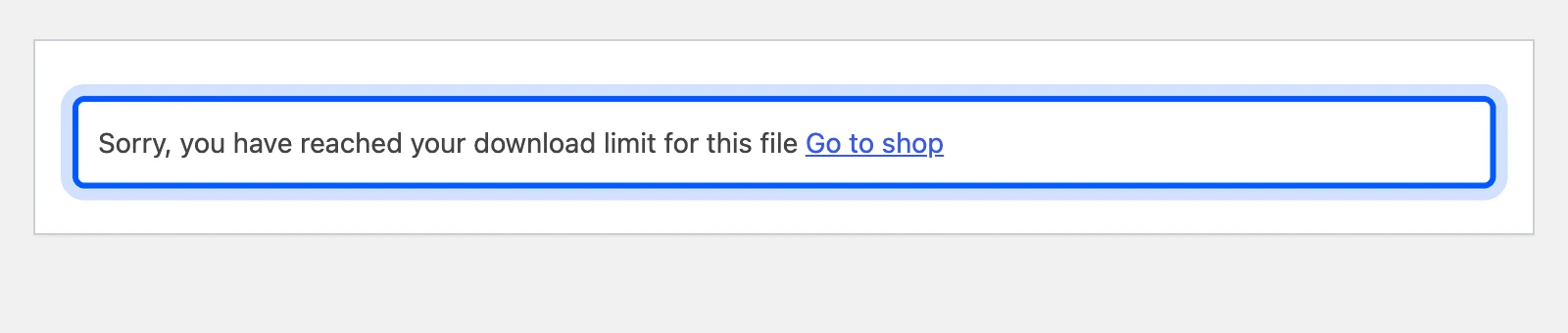
So the limit counts every fetch of the link, and the buyer sees a plain message with a Go to shop link. Set the limit high enough for a buyer who switches devices.
Which File Download Method Should You Use?
Use Force downloads on most WooCommerce stores, because it hides the real file URL and works on almost any host. Switch to X-Accel-Redirect or X-Sendfile when you sell large files and your host supports it. Avoid Redirect only, because anyone who gets the link can share the file.
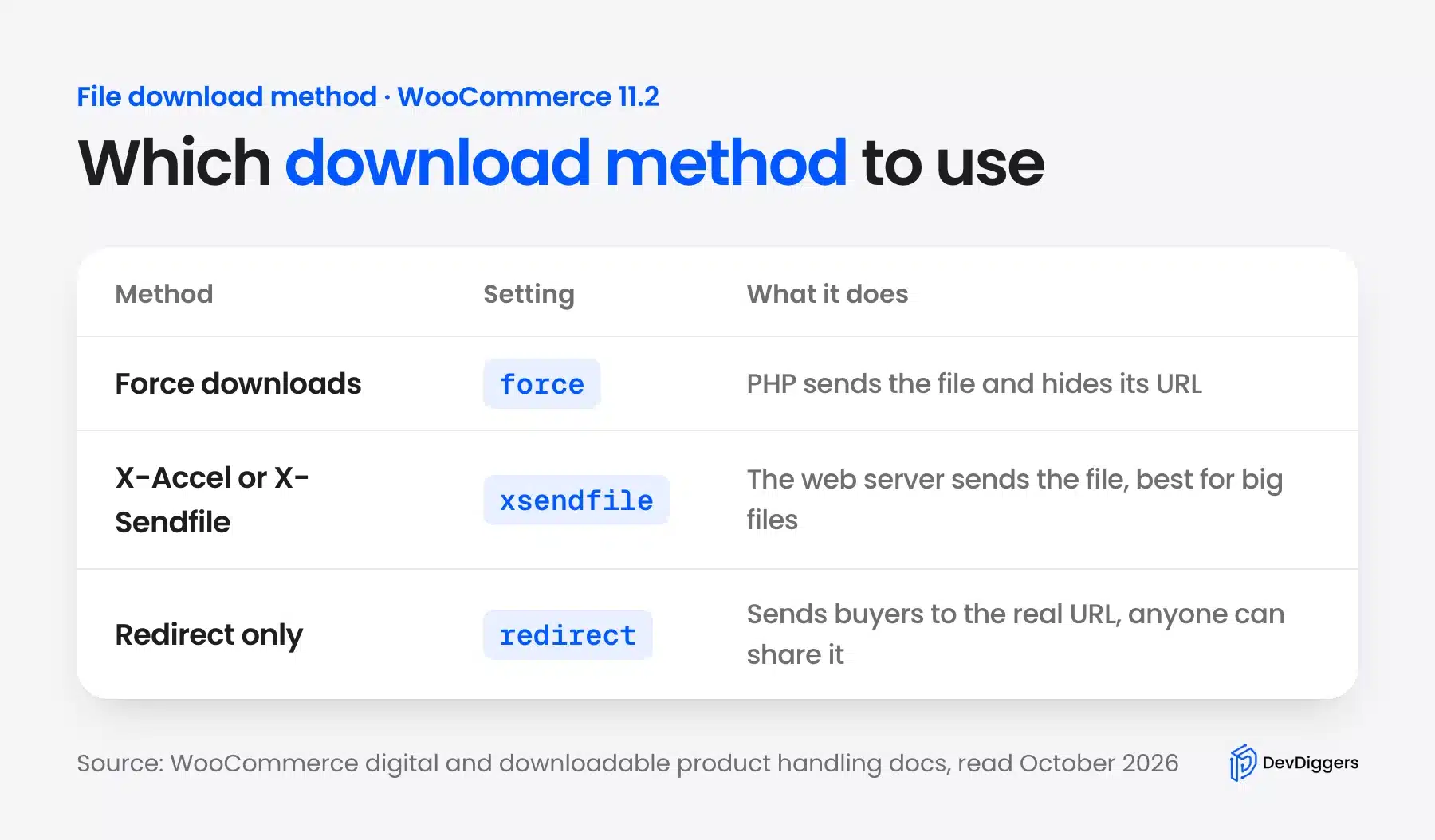
The setting values are force, xsendfile and redirect, which matters if your host or developer changes them in code.
Large files are where Force downloads can struggle. PHP has to stream every byte, so a slow server may time out on a big video course or sample pack.
If that happens, ask your host whether the X-Accel-Redirect or X-Sendfile module is available before you switch. Changing the method without that module breaks every download link at once.
After any change, place a fresh test order and download the file once. An old order’s link proves nothing, because it may still be cached by your browser.
Worth checking: If you switch to X-Accel-Redirect on NGINX, the server rule from Step 5 matters even more. Both settings live in the server configuration, so ask your host to set them up together.
Download Limits, Expiry and the Delivery Email
Download limits cap how many times one buyer can fetch a file, and expiry sets how many days the link stays valid. Both live on each product. The delivery email sends the same download links, so buyers can come back to them later without searching for the thank you page.
For most products, these settings work well:
- Ebooks and PDFs: 3 to 5 downloads and no expiry, because buyers re-read them on new devices.
- Software and plugins: Unlimited downloads tied to an active license, so updates keep working.
- Music and audio: A few downloads with a 7 to 30 day expiry, since buyers usually grab files once.
- Courses and videos: Stream them inside a membership rather than as one huge download.
Leave the limit blank for unlimited downloads. The product screen says so under the field, and expiry works the same way.
Logged-in customers also get a Downloads tab in My account. A guest has only the email and the thank you page, so a clear delivery email matters more for guest checkout.
Tip: Write the product’s download name as something a buyer recognizes, such as “Pricing Playbook PDF”. That name shows in the Downloads table and the email, while the real file name stays hidden.
License Keys and Subscriptions for Software
Software sold as a digital product usually needs a license key, and often a yearly renewal. WooCommerce does not create license keys by itself, so stores add a license plugin. A subscription extension then handles renewals that keep updates and support running for each customer.
DevDiggers sells its own WooCommerce plugins this way, as yearly licenses through a WooCommerce store. Each license unlocks updates and support for the period the customer paid for.
For keys, the free License Manager for WooCommerce listing showed 6,000+ active installs and version 3.0.20 in October 2026. Its listing describes automatic key generation, email delivery of keys and REST API endpoints for checking them.
For renewals, WooCommerce Subscriptions is the official paid extension. A yearly license then renews like any other subscription, with the order and the key tied together.
Decide what an expired license means before you sell the first one. A product that keeps working while updates and support stop is easier for buyers to accept than a tool that switches off.
Write that rule on the product page and in the license email. Buyers then renew for updates they can see, instead of feeling locked out.
If your product needs custom licensing, update checks or a client area, our WooCommerce development services team builds that layer. The tools above cover most shops without custom code.
Taxes on Digital Goods
VAT on digital goods follows the buyer’s location in many countries. Selling into the EU is the case most small stores meet first. Above a shared €10,000 threshold, VAT is due in the customer’s member state, and the One-Stop Shop lets you report it through one registration.
The US government’s EU VAT country commercial guide sets out that rule for electronic services. It describes one common €10,000 threshold, above which VAT must be paid where the customer is.
The same guide explains that sellers register once for the One-Stop Shop scheme to cover their EU VAT returns, instead of registering in each country.
In WooCommerce, turn on taxes under WooCommerce, Settings, General, then set the rates under the Tax tab. If you sell worldwide, a tax plugin or service that looks up rates by country saves a lot of manual work.
US sales tax on digital goods is set state by state, and the rules differ widely. Check with an accountant before you sell into states where you might owe tax.
Important: Tax rules change, and this section is a starting point rather than tax advice. Ask an accountant who knows your countries before you file.
How to Create Digital Products to Sell Online
The easiest digital products to create start from something you already know or already make. Turn a process you repeat into a template, a guide or a short course. Then test demand with a small version before you build the full product.
A good first product solves one narrow problem. “A pricing checklist for new WooCommerce stores” sells more easily than “everything about running a shop”.
Validate before you build. Write the sales page first and collect email sign-ups, or presell at a discount to people who already follow you.
Then build the smallest version that delivers the promise. A 20 page PDF that fixes one problem beats a 200 page book nobody finishes.
Price it for the result it gives. The hours it took do not matter to the buyer. A template that saves a store owner a day of work is worth more than its page count suggests.
Your product page does much of the selling, because buyers cannot hold the product. Include these on every page:
- Contents: The file type, the number of pages, tracks or templates, and the file size.
- A preview: A sample page, a short audio clip or a screenshot of the template in use.
- Who it is for: One sentence on the buyer it helps, and one on who should skip it.
- Delivery and limits: How the download arrives, how many times it works and for how long.
That last point also cuts support emails. Buyers who know the limit before paying rarely ask why a link stopped working.
Your Own Store or a Marketplace?
A marketplace brings buyers but keeps the customer relationship and takes a cut of each sale. Your own WooCommerce store keeps the customer list and the full price apart from card fees. Many sellers start on a marketplace to test demand, then move their best products to their own site.
Your own store also gives you the protection and access settings from this guide. You decide the download limit, the expiry and how the folder is secured.
Your own store also keeps the buyer’s email address. That list is what you sell the next product to, and a marketplace usually keeps it for itself.
The trade-off is traffic. A marketplace already has shoppers searching, while your store has to earn every visitor through search, email or social posts.
A sensible path is to use both for a while. List one product on a marketplace to test demand, and send buyers to your own store for the next one.
Not ready to run a full store? Our guide on how to sell on WordPress without WooCommerce covers lighter options for a single product.
Mistakes to Avoid When Selling Digital Downloads
Most problems with digital downloads come from settings nobody checked before launch. An unprotected folder, the Redirect method and an untested purchase cause most of the trouble. Each mistake below takes minutes to fix before your first sale and much longer after it.
- Linking files from the Media Library: Files there sit in the public uploads folder. Upload them from the product screen instead.
- Trusting the .htaccess file on NGINX: Our test showed the file served openly on a server that ignores it. Ask your host for a deny rule.
- Using Redirect only: It exposes the real file URL, which buyers can share.
- Limits that are too strict: One download fails a buyer whose first attempt drops. Allow at least three.
- Never testing as a guest: Buy your own product once and click every link a customer gets.
- Hiding the file details: Buyers who do not know the format or size before paying are the ones who ask for refunds.
- Forgetting old buyers: A product update means nothing if past buyers never hear about it. Email them when a new version lands.
To sell digital downloads well, treat delivery as part of the product. A buyer judges you by the first five minutes after paying.
Conclusion
Now you know how to sell digital products online with WooCommerce. You need one virtual, downloadable product, a protected file and a delivery method that hides the real URL. The core setup is free and quick, and our test store had a working sale in one session.
The two checks that matter most came from our test. On a server that ignores .htaccess, the product file was open to anyone with the URL. With “Grant access after payment” on, downloads appeared only once the order reached Processing.
Fix the folder, keep Force downloads, and buy your own product once before launch.
Frequently Asked Questions (FAQs)
Q1. Do I need a plugin to sell digital downloads with WooCommerce?
No. WooCommerce sells digital downloads on its own with the Virtual and Downloadable options. You only add plugins for extras such as license keys, subscriptions or tax lookups.
Q2. What is the best file format for digital products?
Use the format buyers can open without extra software. PDF works for ebooks and guides, ZIP for bundles of files, and MP3 or WAV for audio.
Q3. How do customers download their digital products?
They get the links on the order confirmation page and in the order email. Logged-in customers also find them under the Downloads tab in My account.
Q4. Can I sell digital products without a website?
Yes, marketplaces let you list products without your own site. You give up the customer list and pay their fees, which is why many sellers move to their own store later.
Q5. How do I stop people sharing my download links?
Use Force downloads, set a download limit and an expiry, and protect the uploads folder. A limit of three downloads stopped our fourth attempt with a 403.
Q6. Do I charge VAT on digital products?
Often, yes, depending on where the buyer lives. For EU buyers above the €10,000 threshold, VAT is due in the customer’s country, as the EU VAT guide from trade.gov explains.