Are you interested in providing a downloadable eBook, checklist, white paper, or guide to your visitors? It’s a great idea to learn how to add a downloadable PDF to WordPress, whether you’re looking to provide value, grow your email list, or just want to provide content that your audience can download and reference later.
But here’s the problem — many WordPress users have no idea how to do it. But the good news? It’s easier than you think!
In this guide, I’m going to show you how to add a downloadable PDF to WordPress using two simple methods — one using the built-in features in WordPress, and the other using a powerful plugin. And you’ll still be able to do it without code, a developer, or troubleshooting, so don’t worry!
At the end of this guide, you’ll be able to upload, link, and share PDFs on your site, like a pro, in just a few clicks!
Why Add a Downloadable PDF to Your Website?
If you’re asking yourself why you should learn how to add a downloadable PDF to WordPress in your spare time, the answer is simple: PDFs can create better engagement, better SEO, new leads, and a better user experience overall.
So now you can see why you should learn how to add a downloadable PDF to your WordPress:
1. Better User Engagement
Free content is one way to get users to spend longer on your website. Whether it’s a cheat sheet, e-book, or how-to guide, “downloadable” resources help users engage longer on your website. Users appreciate the choice to save, print, or share their content, which leads to greater trust and time on site.
According to HubSpot, content upgrades (which include downloadable PDFs) can increase conversion rates between 20 – 30%.
2. Generate Leads Like a Pro
PDFs make excellent lead magnets. If you offer a PDF with a form, you can collect emails and build a subscriber list. This is an accepted best practice within content marketing, and works especially well for newsletters, product launches, and online courses.
Example: Download our free 10-page SEO checklist – enter your email!
3. Create Better Accessibility for Your Content
While some users prefer to read or watch long-format content directly in a browser, there are just as many who want to download it to read offline.
This is especially true for students, professionals, and those on mobile devices. When you offer users the option to download a PDF of your long-format content, you are providing an improved user experience.
4. Enhance SEO with Smart PDF Use
Believe it or not, Google can index PDFs, as long as you’re not blocking your PDFs in your site settings. Downloadable formats can show up in search results! Just make sure your PDF has relevant keywords, text (no images), and links that are clickable.
5. Build Brand Authority
PDFs that are custom-designed demonstrate professionalism and polish. Whether your document is a branded brochure, industry report, product manual, or anything in between, all of these assets reinforce your brand identity and lend credibility to your site.
6. Shareable & Printable
PDFs are easy to email, share, or print – unlike a standard blog post. PDFs work well for portfolios, presentations, offline sessions, or to hand out as a physical printout.
How to Add a Downloadable PDF to WordPress: 3 Easy Methods
Learning how to add a downloadable PDF to WordPress is so easy, and there are several ways to do it. Whether you are brand new to WordPress or if you want more advanced features like download tracking or gated content, there is an option for you.
In this section, you will learn how to add a downloadable PDF to WordPress using three easy methods:
- Method 1: Use the WordPress Media Library (Quick & Easy – No Plugin)
- Method 2: Show the PDF on the page with the File block (No Plugin)
- Method 3: Use a WordPress PDF Plugin (More features: stats, buttons, gated content)
Here is each one.
Method 1: Add Downloadable PDFs with WordPress Media Library (No Plugin)
The quickest way to upload and share the downloadable PDF on your website is this method, which is clean without any unnecessary fuss. If you want a streamlined option, this is it!
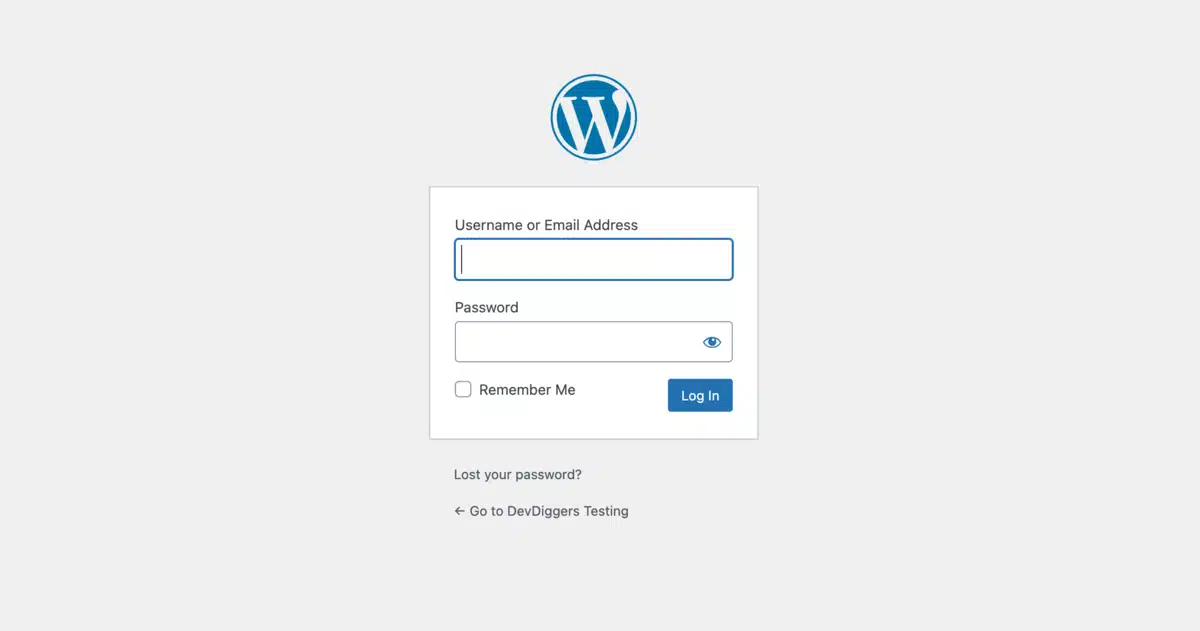
Step 1: Log in to Your WordPress Dashboard
From your admin panel, go to yourdomain.com/wp-admin.
Step 2: Upload the PDF File to Your Media Library
- From the left-hand sidebar, go to Media > Add Media File.

- Click Select Files.

- Select the PDF you saved on your device, and it will upload, then click the file name to view its details in the WordPress media library.

- Copy the “File URL” located on the right — this is your PDF’s public link.

Step 3: Add the PDF Download Link on Any Page or Post
- Open the post or page where you want the download (PDF file) to appear.

- Highlight the anchor text (for example, “Download Our Free PDF”).

- Click on the “Insert Link” button in the toolbar. Paste the PDF URL.

- For an optional good User Experience (UX) option, toggle “Open in new tab” so the user does not lose their current page when viewing the PDF.

That’s it! You have successfully added a downloadable PDF to your WordPress site without the use of plugins.
Bonus Tip:
Want a fancier look? Use a button instead of plain text:
<a href="https://yoursite.com/wp-content/uploads/your-file.pdf" class="button" download>📥 Download PDF</a>
Best For: Beginners, bloggers, or anyone sharing free PDFs without tracking.
Method 2: Embed a PDF Inline Using the File Block
The File block is the native way to display a PDF directly on a WordPress page, so visitors can read it without downloading it. The block is built into the Gutenberg editor since WordPress 5.0.
According to the WordPress File block documentation, the block renders a scrollable PDF viewer when the “Show inline embed” setting is turned on.
- Step 1: Upload your PDF to the Media Library first (follow Steps 1 and 2 from Method 1 above).
- Step 2: Open the post or page in the Block Editor. Click the + icon to add a new block.
- Step 3: Search for the File and select the File block.
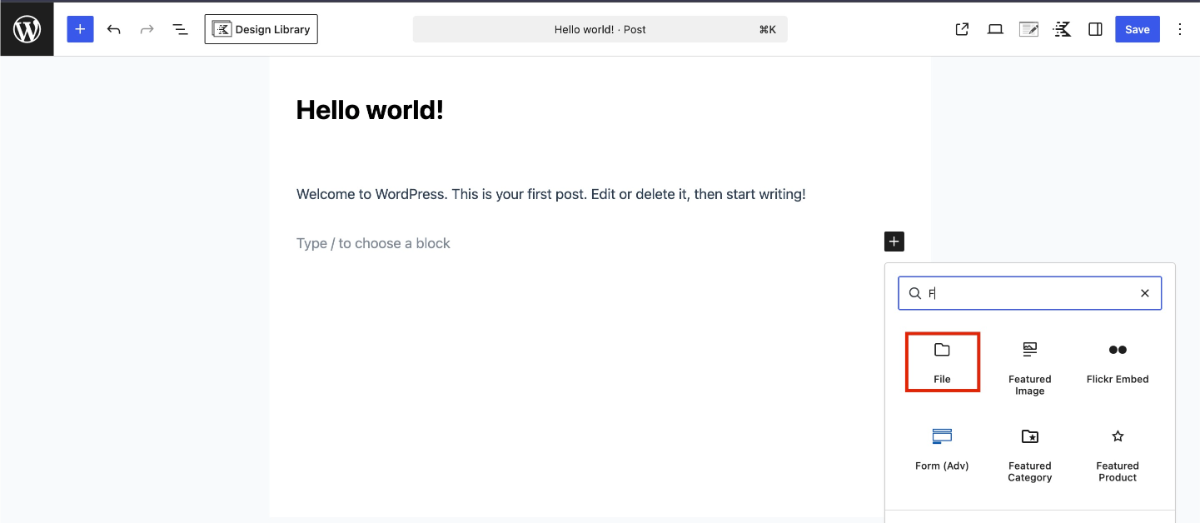
- Step 4: Click Media Library and choose your uploaded PDF. Click Insert.
- Step 5: Select the File block to open its settings in the right sidebar.
- Step 6: Under PDF settings, turn on Show inline embed. The PDF now displays inline rather than as a plain link.
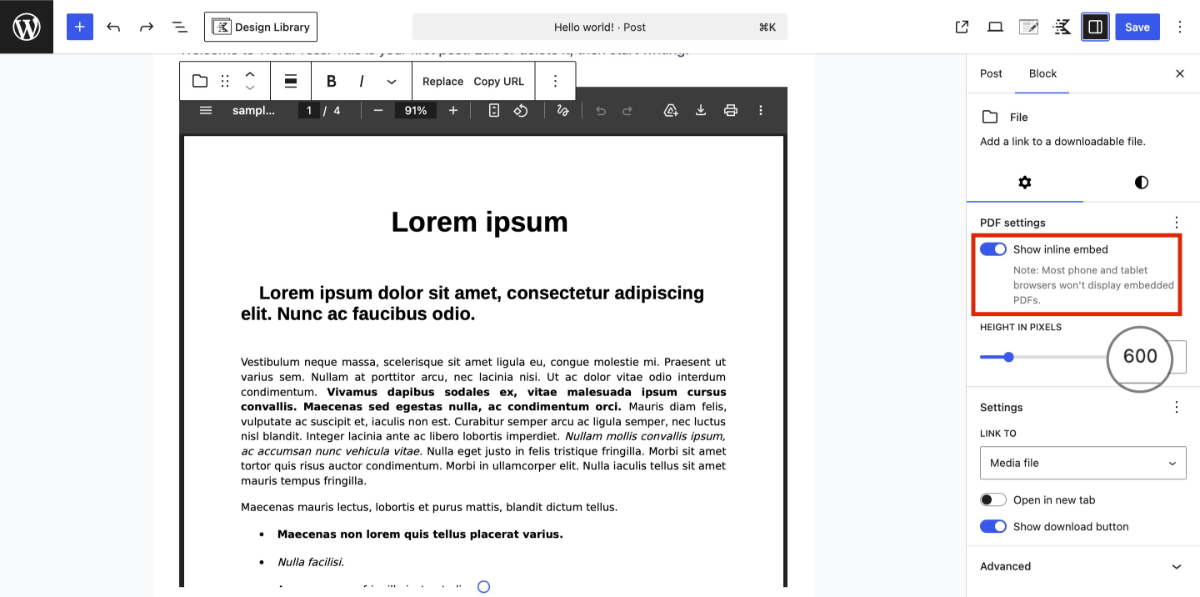
- Step 7: Set a Height in pixels if needed. 600 to 800 pixels is a reasonable starting point for most documents. Then save or publish.
The mobile display problem most guides skip: When you embed a PDF in WordPress using the File block, iOS Safari often shows a blank white area instead of the PDF. This happens because Safari on older iOS versions does not support inline PDF rendering in iframes. The fix is to also keep the download link visible below the embed, so mobile visitors still have a working fallback. Turn on the Download button option in the File block settings to handle this automatically.
The File block works well for single documents. It does not offer download tracking or access controls. For those, use a plugin (Method 3).
Method 3: Use a Plugin For Downloadable PDFs (With Features)
If you want to do collecting, button use, restricting follow-ups, or embedding PDFs, using a plugin is your best bet.
There are super options out there. Here we’ll use the example of the Download Monitor plugin.
Step 1: Install & Activate the Plugin
- Go to Plugins > Add Plugin.

- Search for Download Monitor.

- Select Install Now, then Activate.

Step 2: Upload Your PDF File
- Go to Downloads > Add Download.

- Enter a title for your file (i.e., “Free SEO Guide 2025”).

- Scroll down to Downloadable Files.

- Click Upload File, and upload your PDF.

- Optional: Add categories, tags, or a Featured Image.

Step 3: Publish, Copy Shortcode
Once published, you will get a shortcode like below, so copy it:
[download id="6"]

Step 4: Insert Shortcode Into Any Page or Post
Paste your shortcode anywhere you want a downloadable PDF link/button to appear.

And there you have it! You now have a downloadable PDF that is trackable, stylable, and customizable.
Best for: Marketers, Educators, and business owners who wish for more control over their downloads.
Common PDF Mistakes That Break User Experience
This section covers what goes wrong after you add a PDF to WordPress. None of these are covered in most how-to guides, but they come up constantly.
- Renaming the file after linking it: Once you upload a PDF to WordPress and link to it, the file gets a permanent URL in your media library. If you delete and re-upload the file under a new name (say, to fix a typo in the filename), every link and embed on your site pointing to the old URL breaks silently. No error page, just a broken download. Use a stable, descriptive filename from the start. A slug-style name like
2026-seo-checklist.pdfis better thanfinalv3.pdforSEO Checklist (1).pdf. Per the guidance on optimizing files before uploading, the same principle applies to all media: get the filename right before it goes live. - Skipping compression: A 40 MB annual report embedded inline will cause the page to load slowly, and many mobile visitors will time out before the PDF renders. Compress PDFs to under 5 MB for inline embeds. For download-only files, under 15 MB is a reasonable ceiling for most use cases.
- Not testing on mobile: The iOS Safari blank-embed issue from Method 2 is the most common complaint we see. Open your page on an actual iPhone after publishing, not just in desktop Chrome. They behave differently.
- Blocking search engines from indexing your PDF without meaning to: If you add
X-Robots-Tag: noindexto all file types at the server level (a setting some caching or security plugins apply by default), your PDFs will be excluded from Google entirely. More on this in the next section.
Good practice for managing media files in WordPress applies to PDFs too. Treat file uploads as permanent links from the moment they go live.
Does Adding a PDF Affect Your WordPress SEO?
Short answer: yes, and mostly in a good way, if you set it up correctly.
Google can index PDF files, and they can rank in search results as standalone pages. A well-structured PDF with text-based content (not scanned images), descriptive title metadata, and keyword-relevant content can rank for long-tail queries. Google reads the PDF’s internal title, author field, and body text.
A few things that affect whether your PDF helps or hurts SEO:
- Use text-based PDFs, not image scans: Google cannot read a scanned image of a document. If your PDF is a scanned file, it will not contribute search-readable content. A text-based PDF, exported from Word or Acrobat, is what you want.
- Name the file like a URL slug:
wordpress-pdf-guide-2026.pdfsignals topic relevance to Google.document (3).pdfdoes not. - Decide whether to let Google index it: If your PDF is a lead magnet behind a form, you probably do not want Google indexing it directly. In that case, add a
noindexmeta directive to the PDF or restrict access via server rules. If it is freely available content you want to rank, leave it open to crawlers. - Link to the PDF from relevant page content: Google uses anchor text and surrounding context to understand what a PDF is about. A link that says “download our complete eCommerce onboarding checklist” sends clearer signals than “click here.”
The SEO benefits of PDFs are real but limited. Think of them as supplementary pages, not replacements for well-improved blog posts.
Final Thoughts
Learning how to add a downloadable PDF in WordPress is more than programming; it is also an intelligent way to provide genuine value, build your audience base, and bolster engagement on your site
Regardless of whether you went quick application with the WordPress Media Library or deep into the features of a plugin, you are now well aware of how to add a downloadable PDF to WordPress without breaking into a sweat.
Let’s do a recap:
- Want something speedy and efficient? Use the built-in WordPress uploader.
- Need more control or reporting? A plugin like Download Monitor is the way to go.
Pro Tip: Always name your file, think of alt text when possible, and employ CTA buttons to grab that attention for downloads.
At the end of the day, PDFs allow you to connect with your audiences in a way that a blog post alone cannot. So, go for it – upload that lead magnet, eBook, or cheat sheet, and give your audience something they can take!
FAQs on How to Add a Downloadable PDF to WordPress
Q1. Can I add a PDF to download in WordPress without a plugin?
Yes, I have uploaded my PDF to the media library and am now going to link it in a post or a page. It is very easy to add downloadable PDFs to WordPress – no tools needed.
Q2. How do I ensure the PDF opens in a new tab?
When you put your PDF link in your content, just check the box to open it in a new tab in your link settings. This way, users do not leave your site when downloading the file.
Q3. Can I track how many times a user downloaded the PDF?
No. Not out-of-the-box – however, if you download a plugin like Download Monitor, you can track downloads and user behaviors for PDF downloads.
Q4. Can I use a PDF viewer instead of a link to download the PDF?
Yes! Several plugins provide you with the option of embedding PDFs in a browser tab, like the PDF Embedder Plugin and the Embed Any Document plugin. The Embed Any Document plugin will support embedding a PDF or other types of documents directly into a page or post, and users will have the option to preview the file before downloading it.
Q5. Are PDFs on my WordPress site indexed by Google?
Yes! Provided you don’t prevent search engines from indexing your PDFs in your settings, Google will index your PDFs. The site file should be text-based (not image-based), contain relevant keywords, and be appropriately named.