You can disable auto excerpt on WordPress in under five minutes by going to Settings, then Reading, and switching your feed setting from Summary to Full Text. That said, this only fixes feeds and won’t touch your archive pages.
We’ve watched dozens of client sites get their post previews cut off mid-sentence because of this exact default. It’s a small thing, but it makes a homepage look unfinished.
This guide walks through six separate methods, from a simple dashboard toggle to safe code changes, so you can pick the one that fits your comfort level.
You’ll also learn how to confirm the change actually worked, and how to fix the most common issues that come up afterwards.
What Is an Auto Excerpt in WordPress?
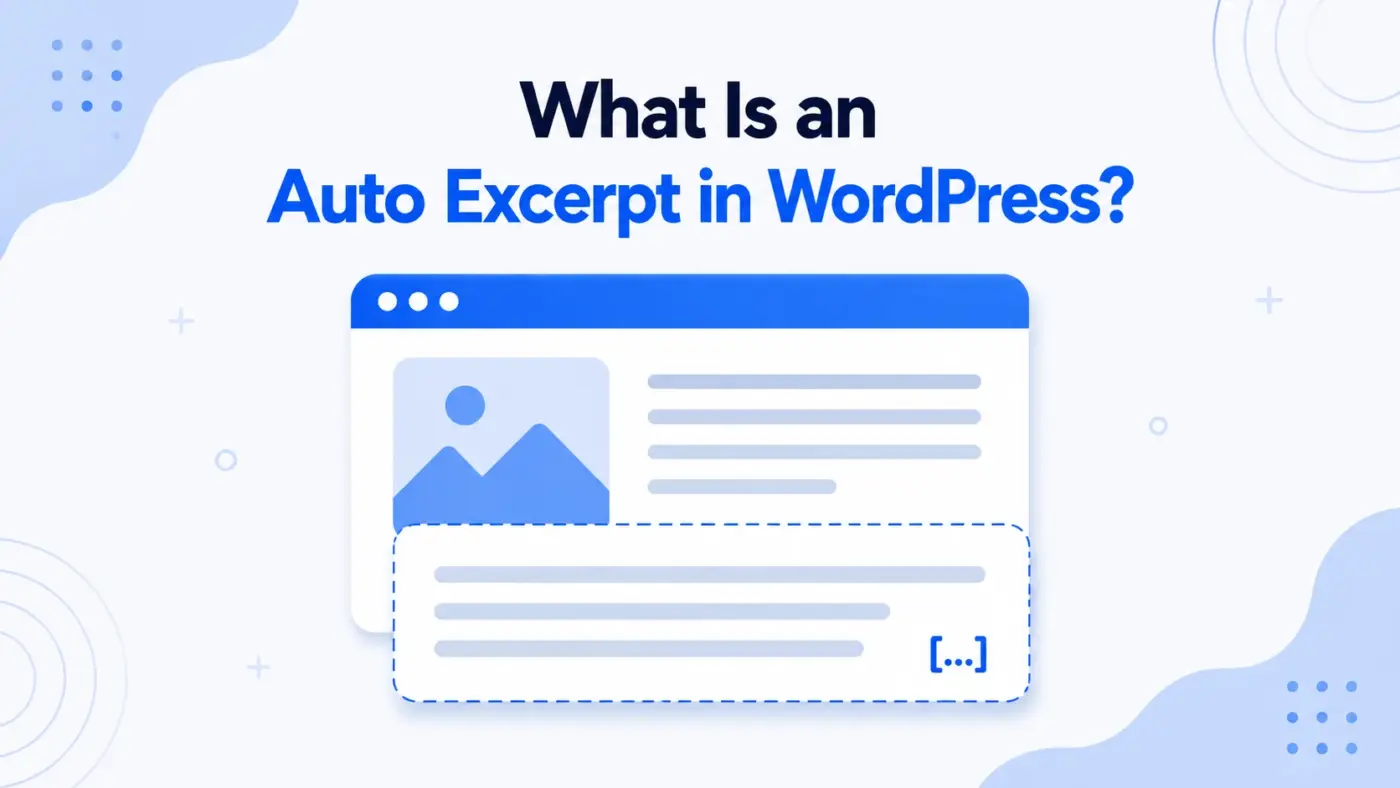
An auto excerpt is a short preview WordPress generates for you automatically. If you never type your own summary, WordPress grabs the first 55 words of your post content.
It then strips out any HTML formatting and tacks on a “[…]” at the end. This preview shows up on your homepage, blog archive, category pages, search results, and RSS feeds.
The function responsible for this is called wp_trim_excerpt(). It runs quietly in the background every time your theme calls the_excerpt() instead of the_content(), a distinction WordPress’s own excerpts documentation confirms as the root cause of this behaviour.
Here’s the part most guides skip: there is no single dashboard switch that turns this off everywhere at once. Different parts of your site pull excerpts through different code paths, so disabling it fully usually takes more than one step.
That’s exactly why this guide covers six separate WordPress excerpt settings and methods instead of just one. Some fix feeds only. Others fix your entire site. You’ll know which is which as we go.
Why Disable Auto Excerpts on WordPress?
Before touching any settings, it helps to know what you’re actually solving for. Here are the main reasons store owners and bloggers turn this feature off.
- Awkward mid-sentence cuts: The 55-word limit doesn’t care where your sentence ends. If your post opens with a list, a quote, or a table, the auto-generated preview can look broken or confusing to a first-time visitor.
- Weak SEO framing: Search engines and social platforms sometimes pull your excerpt as a preview snippet. A generic auto-cut paragraph rarely represents your content SEO goals as well as a purpose-written summary that includes your target phrase.
- Design inconsistency: Many themes display excerpts inside cards or grids on the blog page. An abruptly cut excerpt can throw off spacing, leave orphaned words hanging, or look unfinished next to neatly written ones.
- Content strategy control: Some site owners prefer a teaser plus gated content strategy, where the visible preview is deliberately short and convincing rather than a random slice of the article. Custom excerpts make that possible.
- RSS feed exposure: If your feed setting is left on Full Text, your entire post content becomes visible to any RSS reader, including tools built to copy and republish content elsewhere. If that’s a concern for you, our guide on how to prevent content scraping on WordPress covers additional protections you can pair with your excerpt settings.
None of these reasons forces you into one specific method. That’s why we’ve broken this into six clear options below, starting with the simplest.
Before You Start: What You’ll Need
A few basics will make this process smoother, especially if you’re planning to try more than one method.
- Admin access to your WordPress dashboard.
- A recent full site backup, especially before touching any code.
- Fifteen to twenty minutes, since some methods involve testing across multiple pages.
- FTP or hosting file manager access, only needed if you choose the code-based methods.
You do not need coding experience for Methods 1, 2, and 5. Methods 3, 4, and 6 involve short code snippets, but we’ll walk through exactly where each line goes.
Method 1: Change It From Settings, Then Reading (No Code)
This is the fastest fix, and it’s the first thing to try. It controls how your content appears in RSS feeds, and on some themes, it also affects archive pages.
- Log in to your WordPress dashboard.
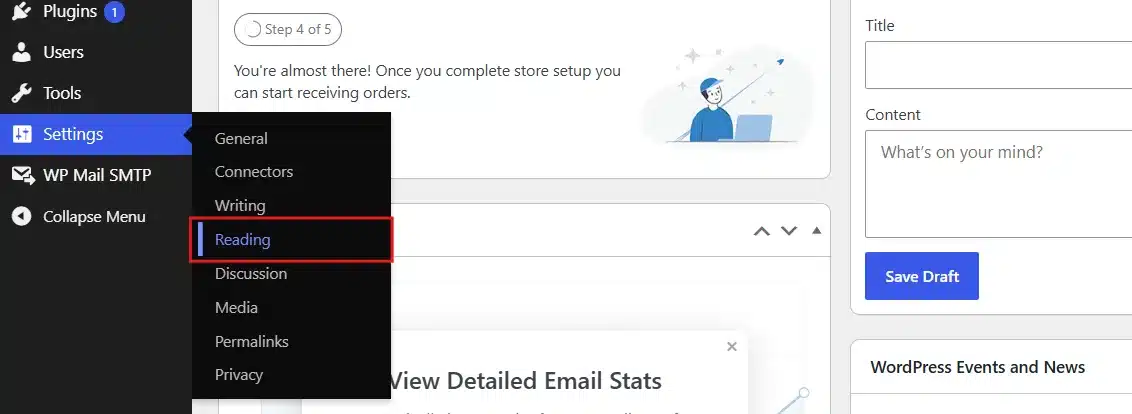
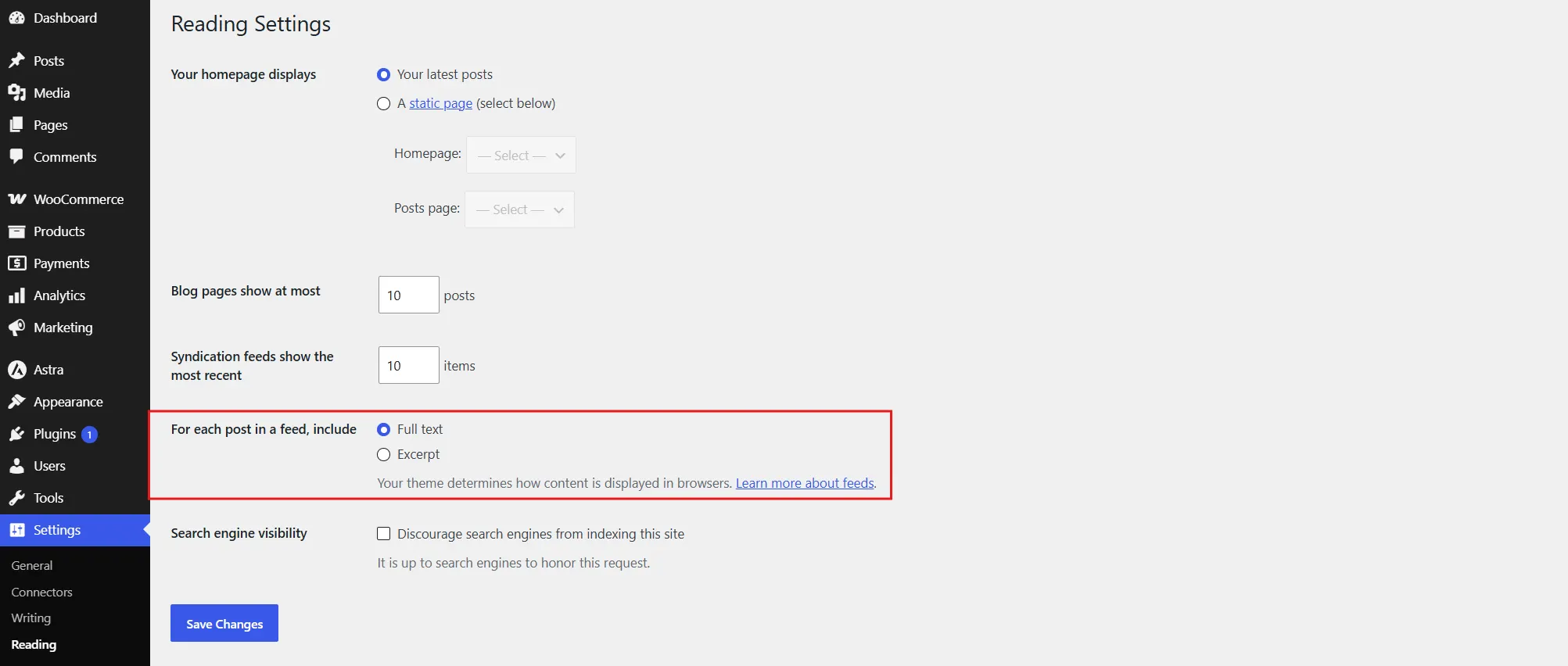
- In the left sidebar, hover over Settings, then click Reading.
- Scroll down to For each post in a feed, include and click Full text.
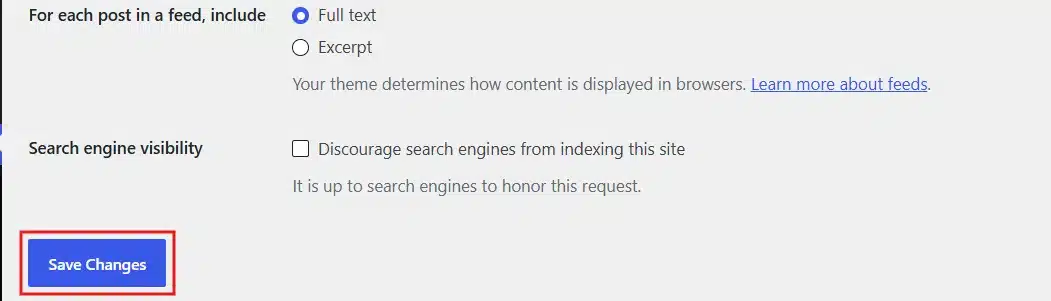
- Scroll to the bottom of the page and click the blue Save Changes button.
- Visit your site’s feed at
yourdomain.com/feedto confirm the change went through.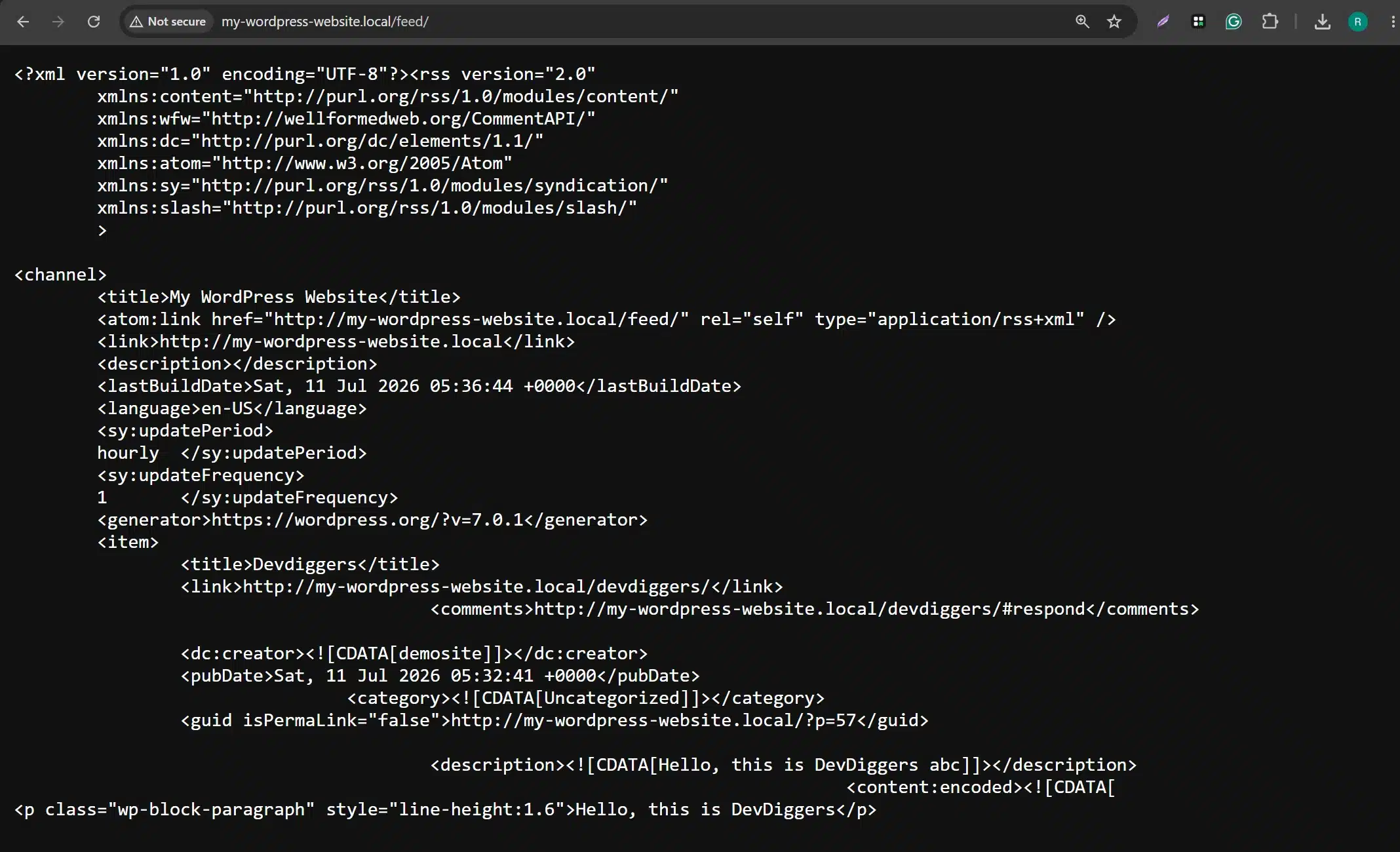
This method carries an important limitation. It only reliably controls your RSS feed output. Many themes still show excerpts on the homepage and category archives regardless of this setting, since those pages often call the_excerpt() directly in their template code.
If your archive pages still show cut-off previews after saving this setting, move on to one of the methods below.
Method 2: Write a Manual Custom Excerpt for Each Post
This method doesn’t disable the auto-excerpt feature globally. Instead, it makes sure WordPress never needs to generate one, because you’re supplying your own text every time.
- Open the post you want to edit, or click Posts, then Add New for a fresh one.
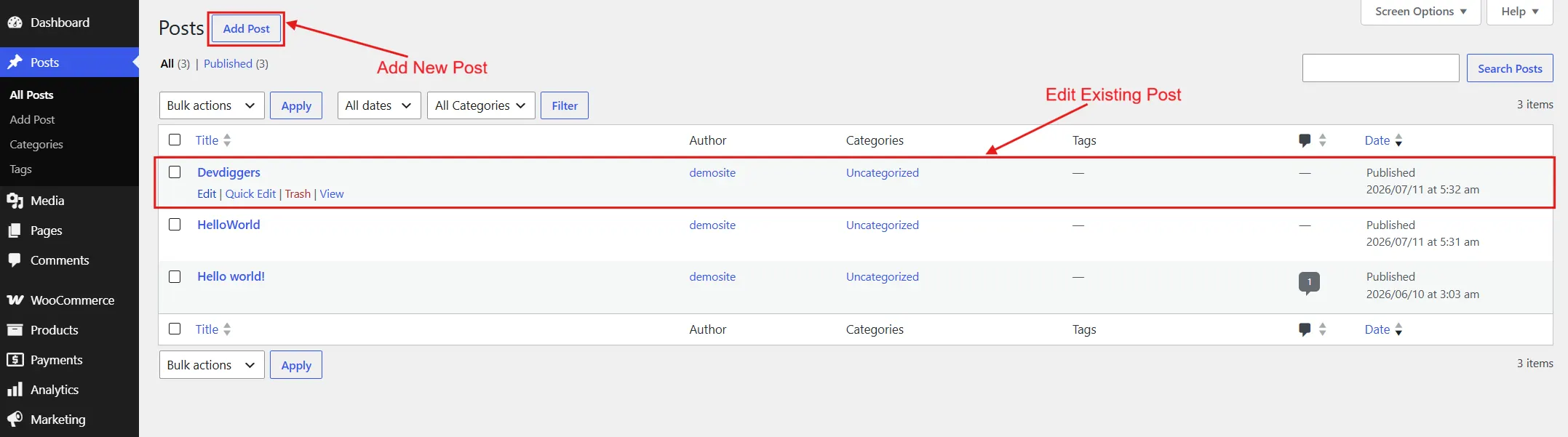
- In the Block Editor, look at the right-hand sidebar and click the Post tab if it isn’t already selected.
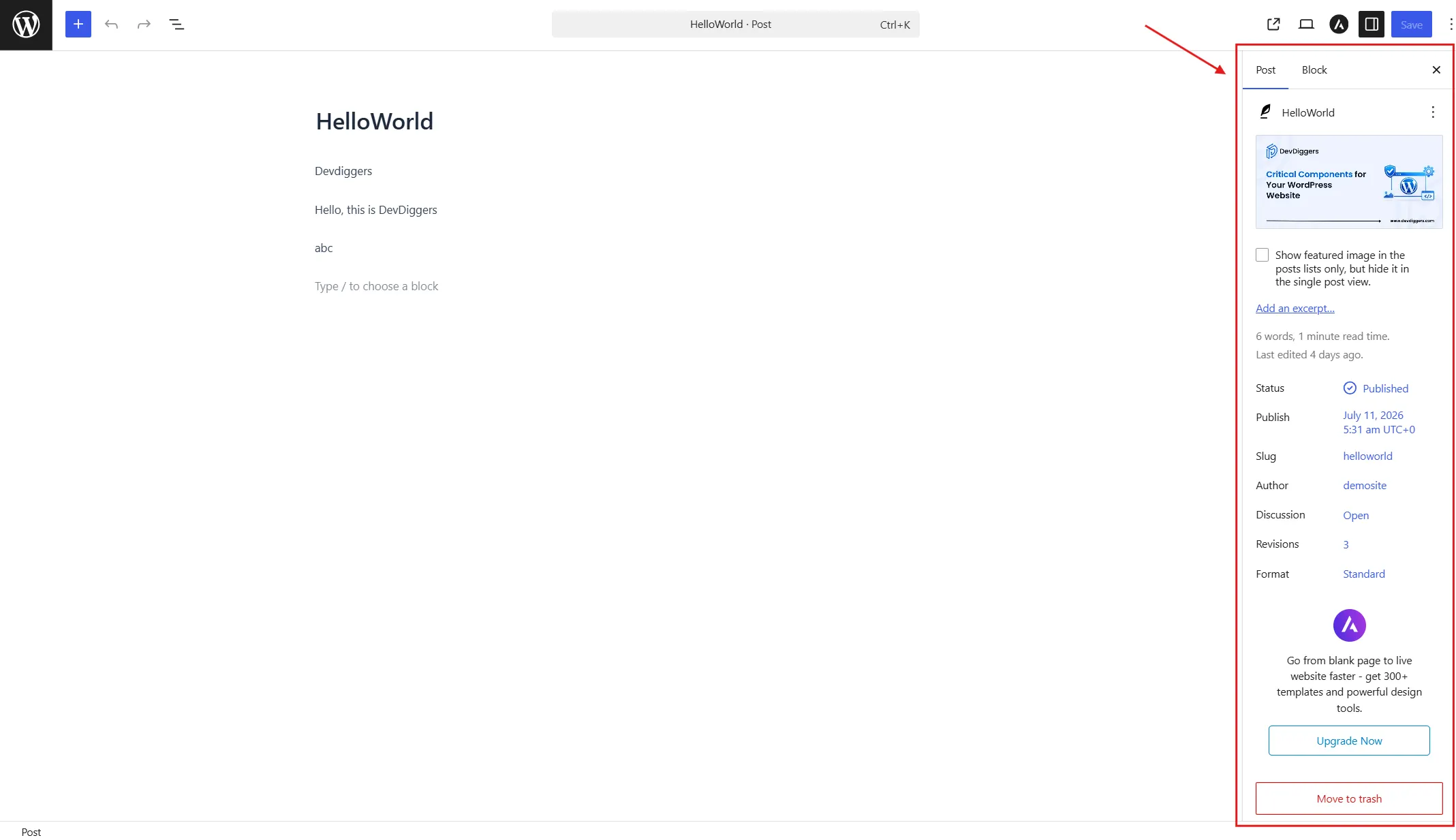
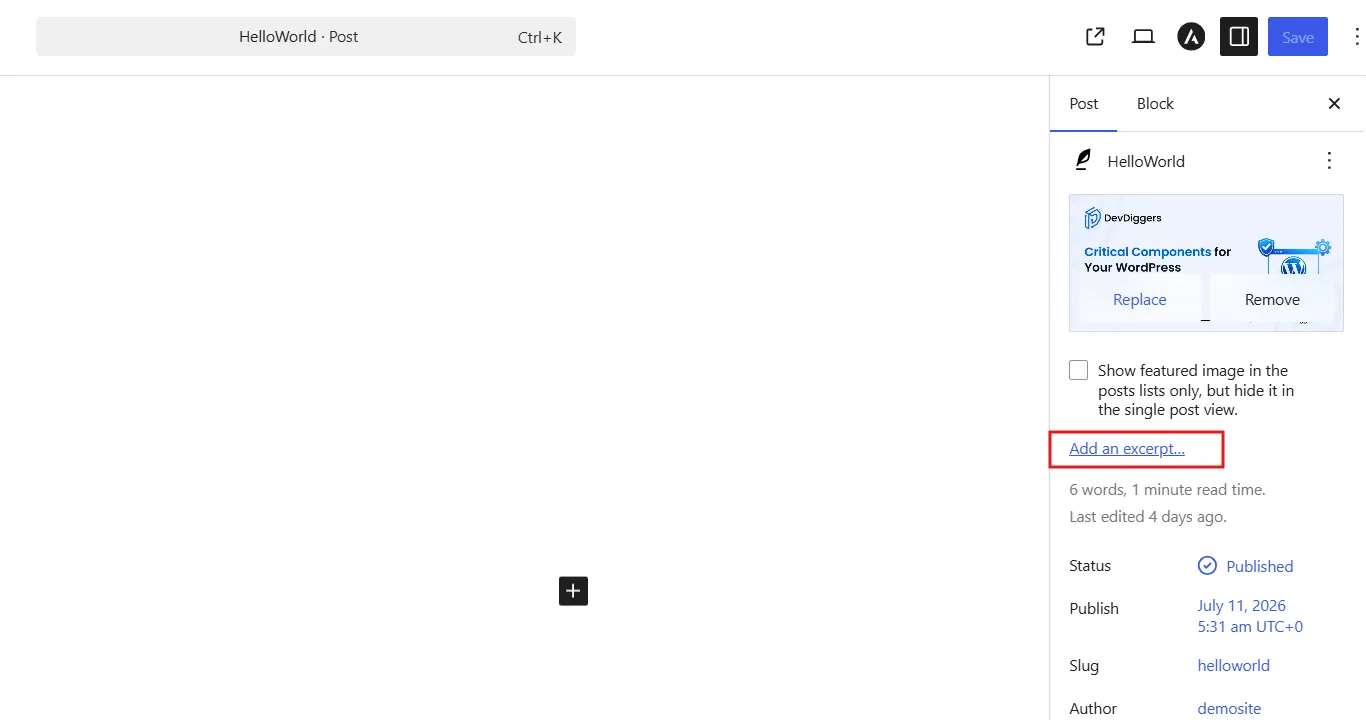
- Scroll down and click Excerpt to expand that section.
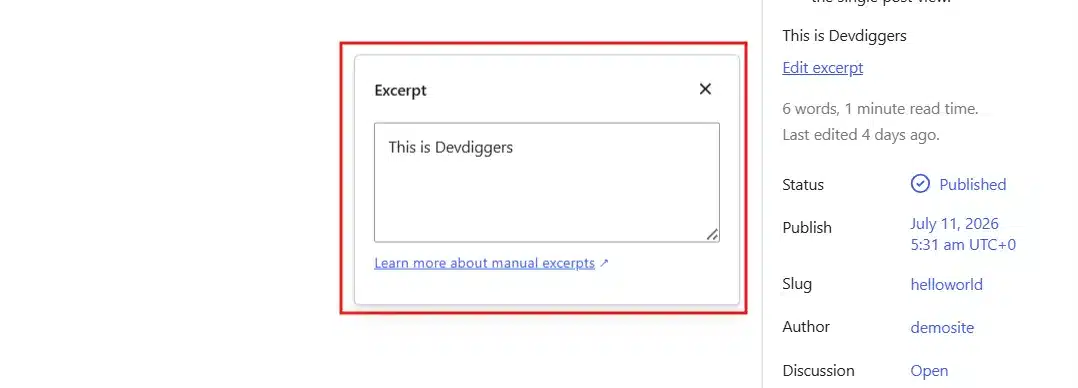
- Type your own two- to three-sentence summary directly into the text box.
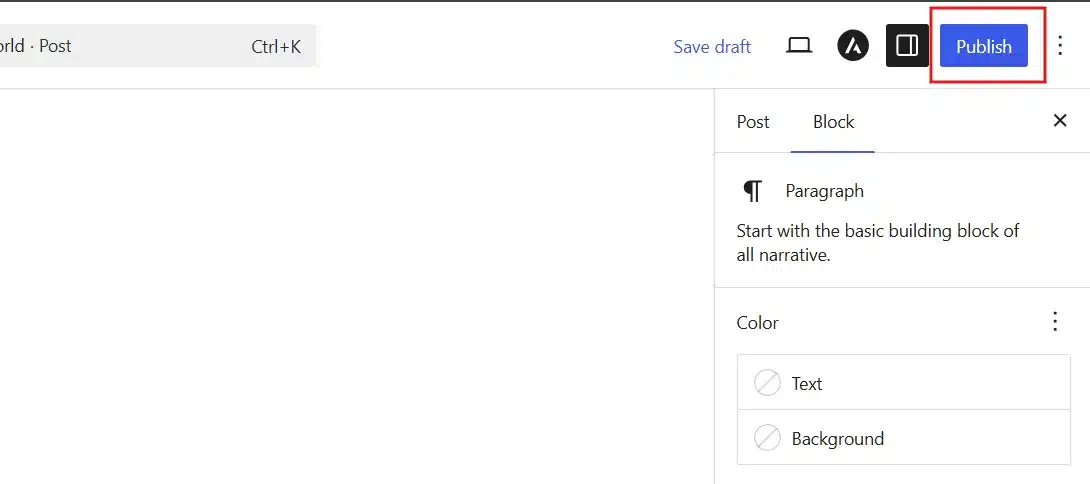
- Click Update or Publish to save the post with your custom excerpt in place.
If you’re using the older Classic Editor, the Excerpt box may be hidden by default. Click Screen Options at the top right of the screen and check the box labelled Excerpt to reveal it.
Quick tip: Keep your manual excerpts between 50 and 160 characters if you also want them to double as a strong meta description. This length works well across search results, social shares, and archive cards alike.
This approach works well if you publish occasionally and want full editorial control. It gets repetitive fast on sites publishing many posts weekly, which is where the next methods come in.
Method 3: Edit functions.php to Disable Excerpts Site-Wide
This method uses a shortcode snippet to stop WordPress from auto-generating excerpts anywhere on your site. It only shows a manual excerpt if you wrote one yourself.
Warning before you start: Always create a full backup first. A single typo in this file can take your entire site down. We strongly recommend using a WordPress child theme so your changes survive future theme updates.
Here it is, plain and numbered:
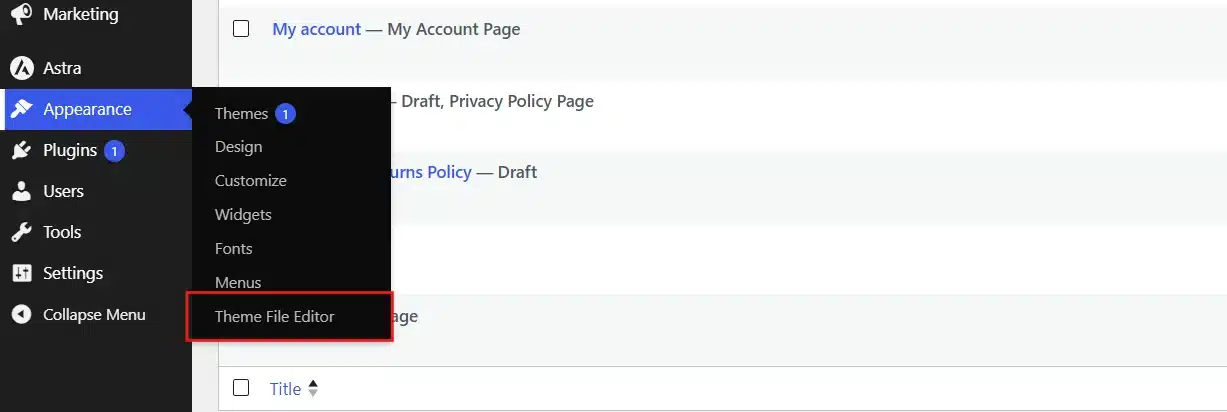
- Go to Appearance > Theme File Editor. On older WordPress versions, this may be labelled Theme Editor.
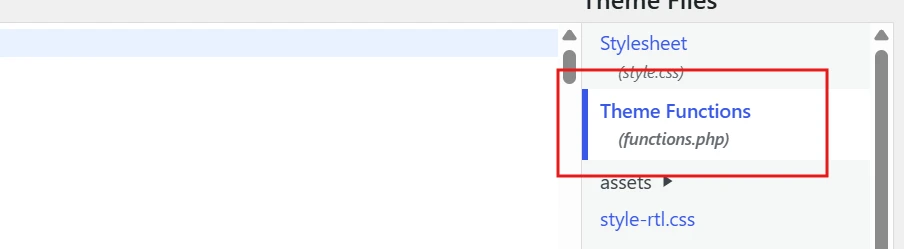
- In the right-hand file list, find and click functions.php to open it.
- Scroll to the very bottom of the file and paste this code:
add_filter( 'get_the_excerpt', 'disable_auto_excerpt', 99 );

function disable_auto_excerpt( $excerpt ) {
    if ( ! has_excerpt() ) {
        return '';
    }
    return $excerpt;
}
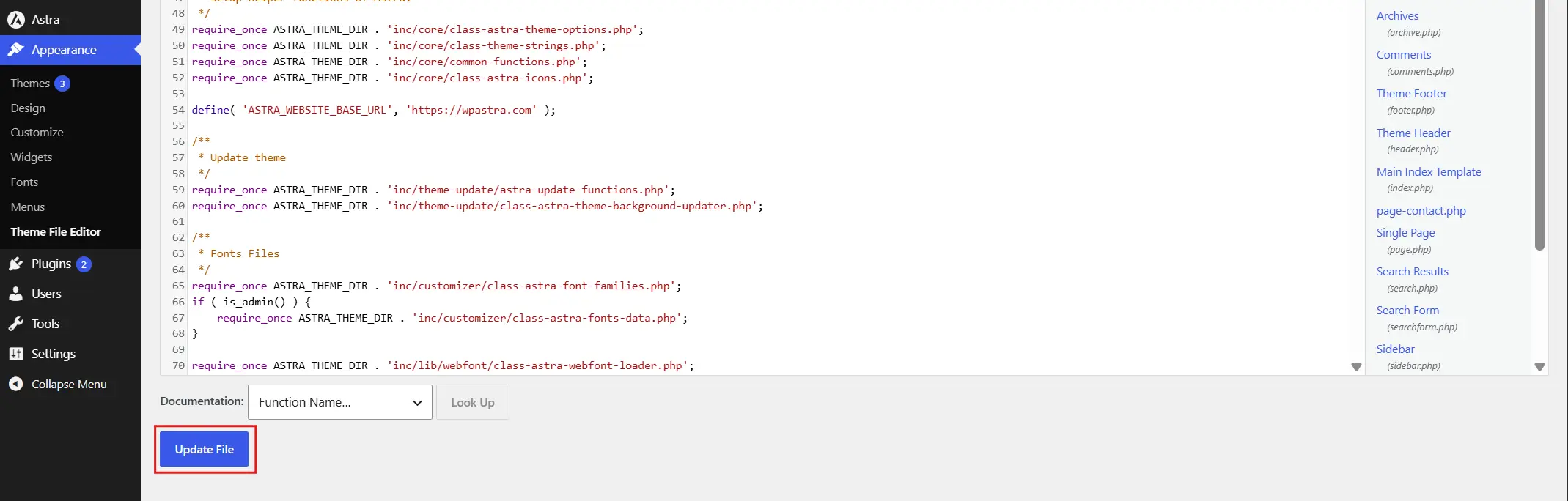
- Click the Update File button to save your changes.
At Last, refresh your homepage and archive pages to confirm excerpts have disappeared from posts without a manual one.
Here’s what that snippet actually does, explained plainly. WordPress calls the get_the_excerpt filter every time it needs to display a preview. The function checkshas_excerpt(), which asks a simple yes/no question: did this specific post get a manually written excerpt?
If the answer is no, the function returns an empty string instead of the usual auto-cut text. Posts that already have manual excerpts keep showing them exactly as written.
If you’d rather remove the automatic trimming behaviour entirely, you can use this shorter alternative instead:
remove_filter( 'get_the_excerpt', 'wp_trim_excerpt' );
This line unhooks WordPress’s default trimming function completely. Posts without a manual excerpt will then show a blank space where the excerpt used to be, so pair this with a template check if you go this route.
If activating a plugin ever breaks your site after code changes like this, our guide on how to fix a plugin that triggered a fatal error walks through recovering safely.
Method 4: Use a Safe Custom Plugin Instead of Editing Theme Files
If editing functions.php makes you nervous, wrapping the same code inside a tiny custom plugin is a safer alternative. Plugin code survives theme changes and theme updates without being overwritten.
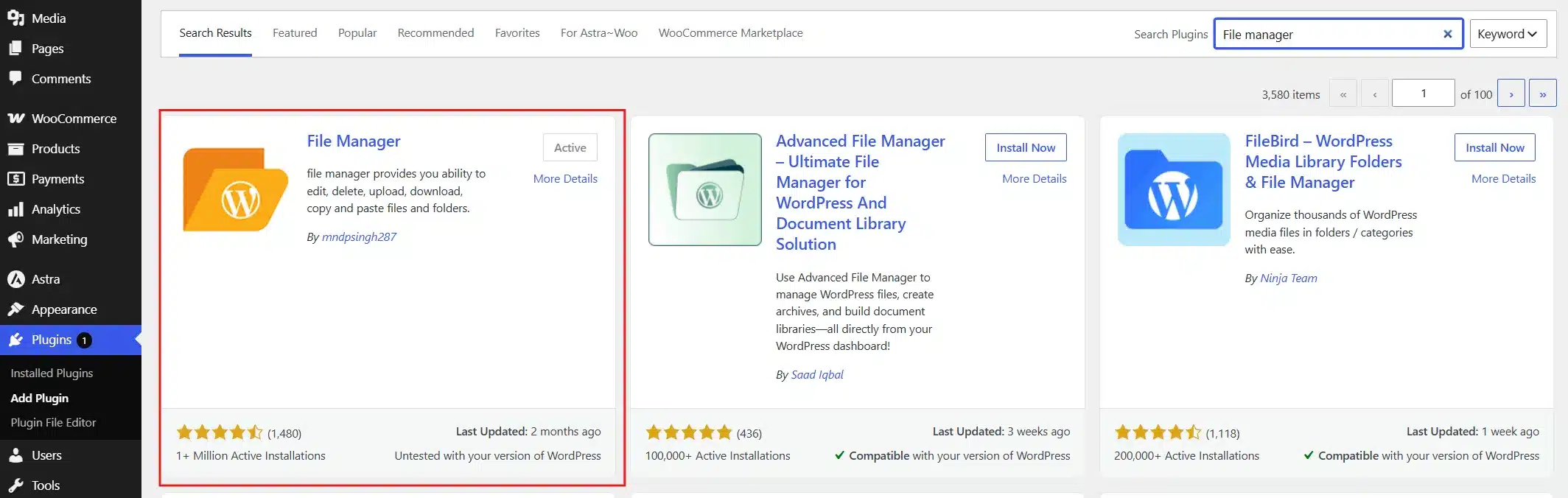
- Connect to your site through FTP or your hosting file manager, or use the WPfileManager Plugin in your WordPress dashboard if the site is already created.
- Navigate to the
wp-content/plugins/folder.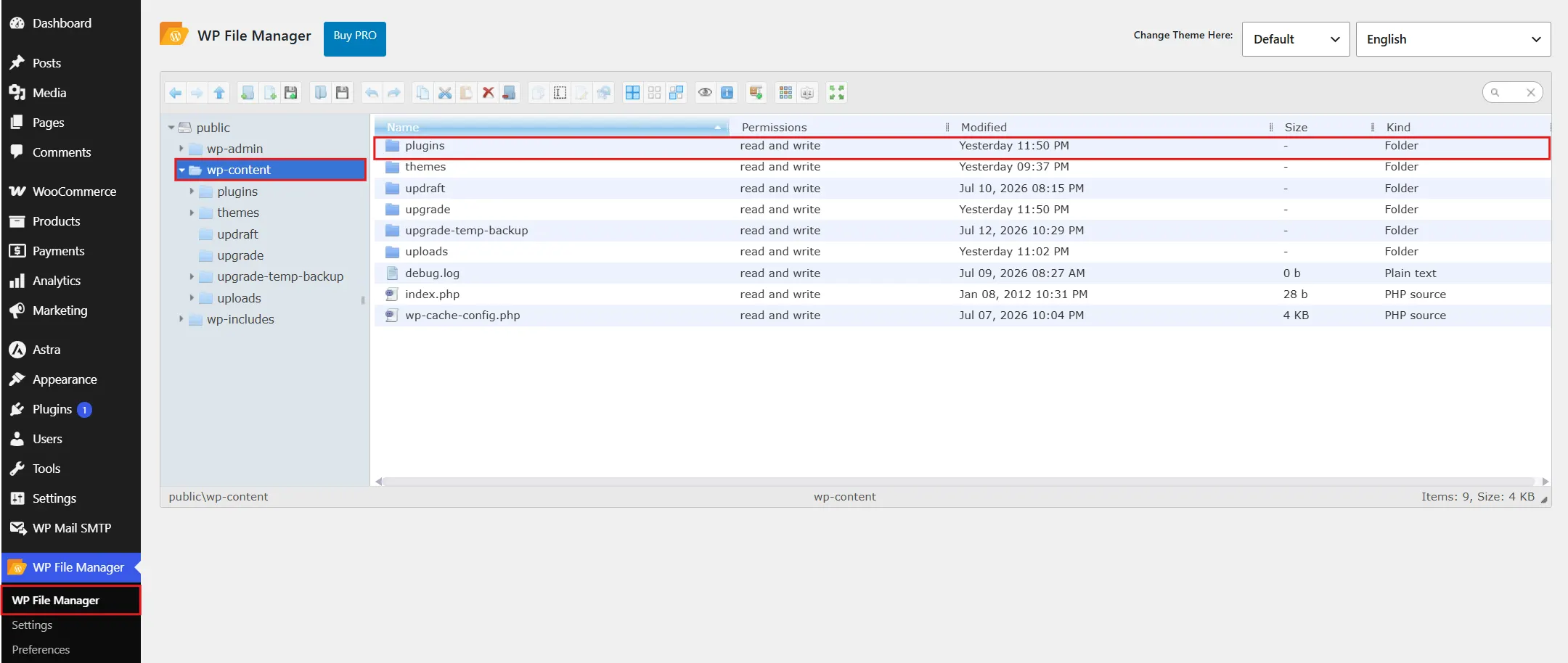
- Create a new folder and name it something clear, like
disable-auto-excerpt.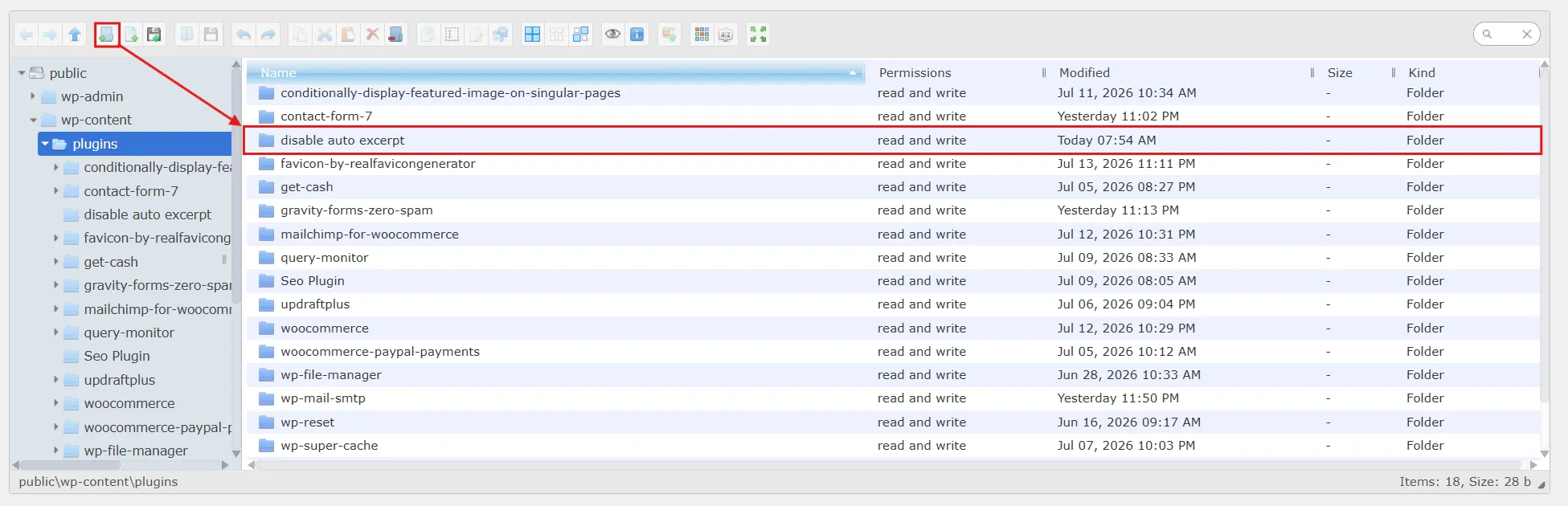
- Inside that folder, create a new file named
disable-auto-excerpt.php.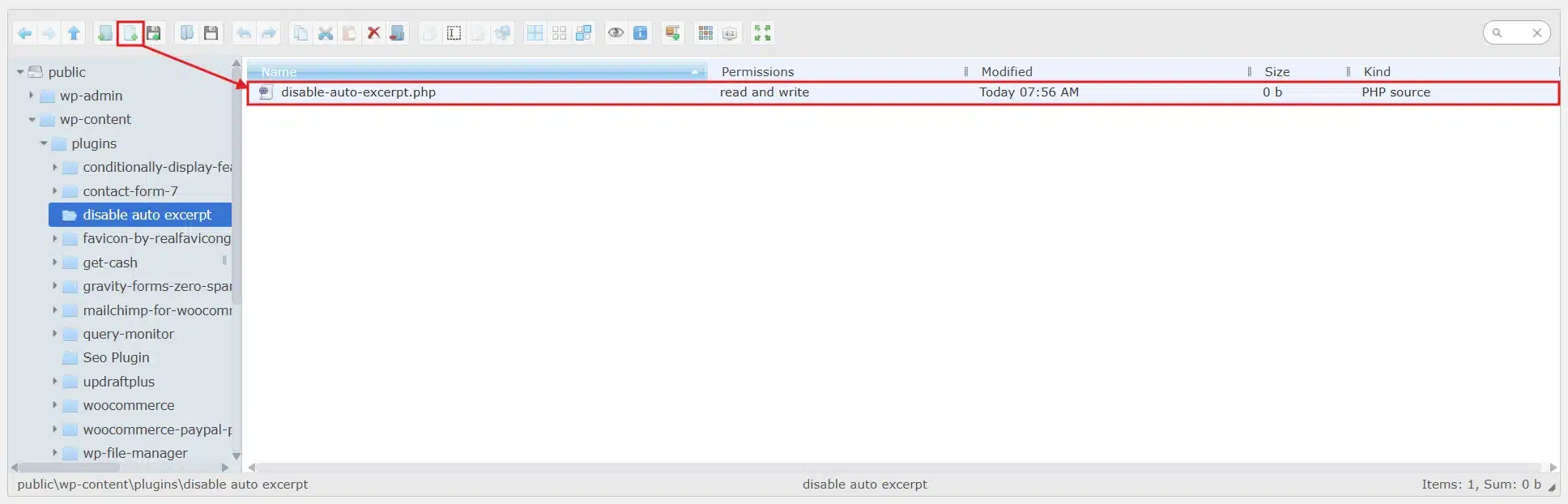
- Paste the following code into that new file and save the file.
<?php
/**
 * Plugin Name: Disable Auto Excerpt
 * Description: Disables auto-generated excerpts in WordPress.
 * Version: 1.0
 */

add_filter( 'get_the_excerpt', 'my_disable_auto_excerpt', 99 );

function my_disable_auto_excerpt( $excerpt ) {
    if ( ! has_excerpt() ) {
        return '';
    }
    return $excerpt;
}
- Go to Plugins, find Disable Auto Excerpt in the list, and click Activate.
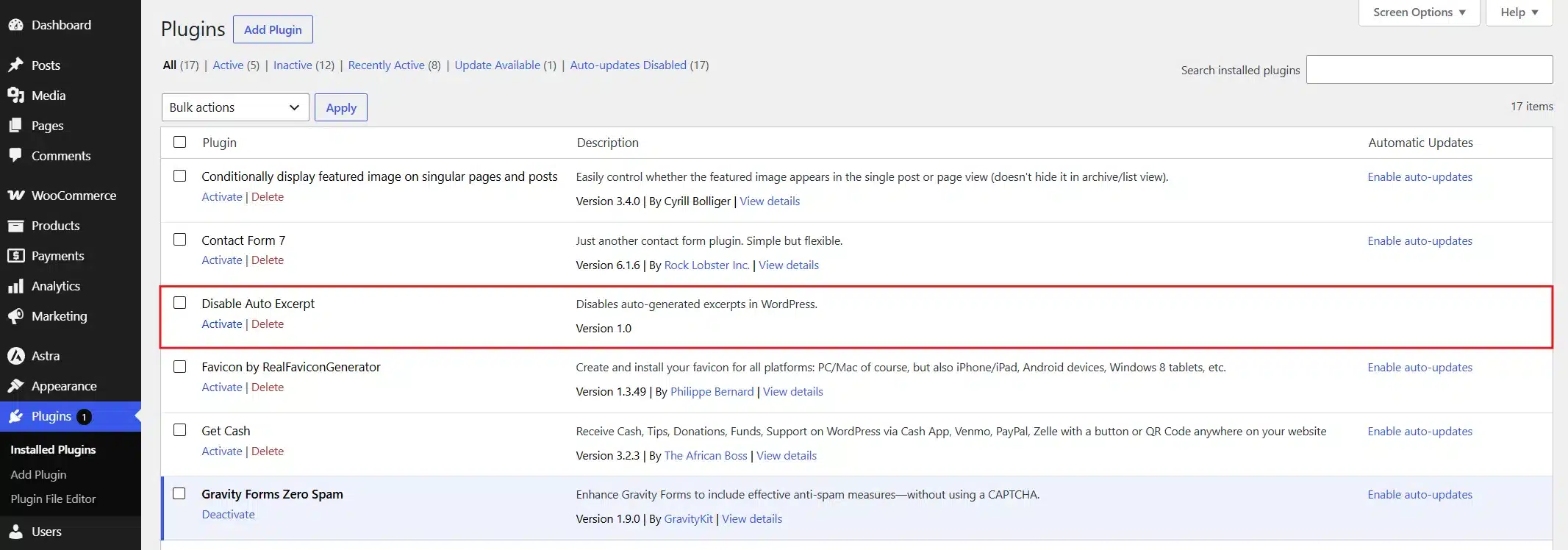
From this point forward, the behaviour is identical to Method 3, but it lives outside your theme entirely. If you ever switch themes down the road, this fix keeps working without any extra effort on your part.
Method 5: Install a Ready-Made Plugin (Zero Code)
If you’d rather skip code completely, several free plugins in the WordPress repository handle this for you with a visual settings screen.
- From your dashboard, go to Plugins, then click Add New.
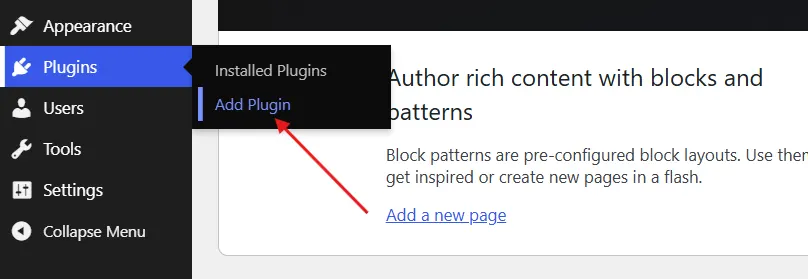
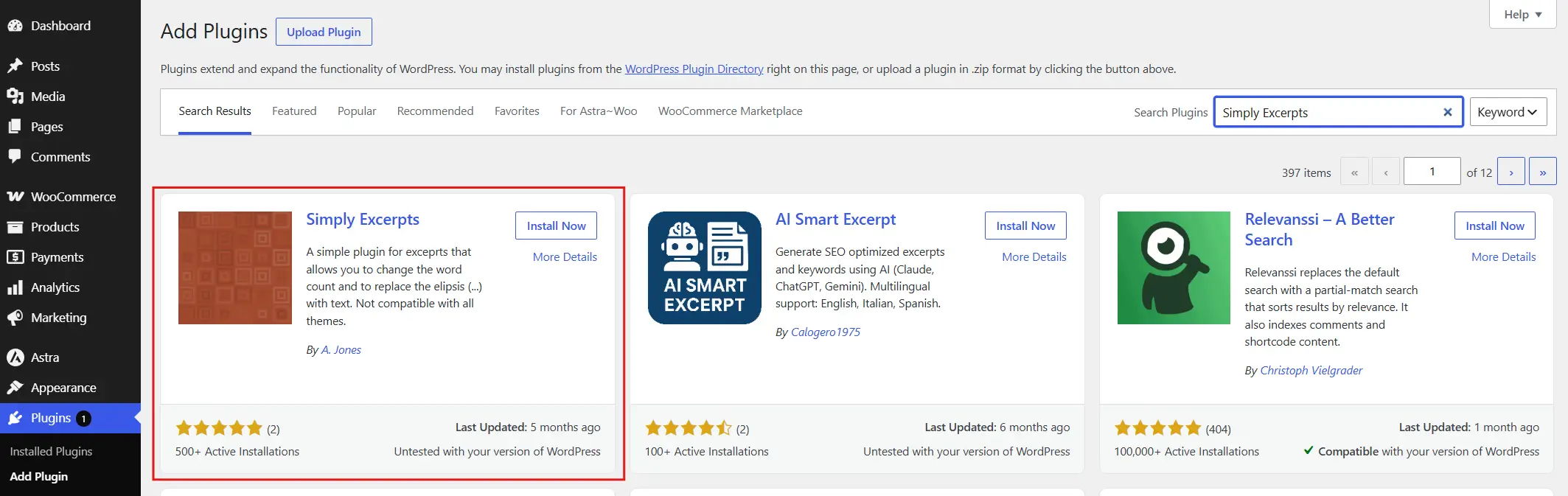
- Install and activate the Simply Excerpts plugin.
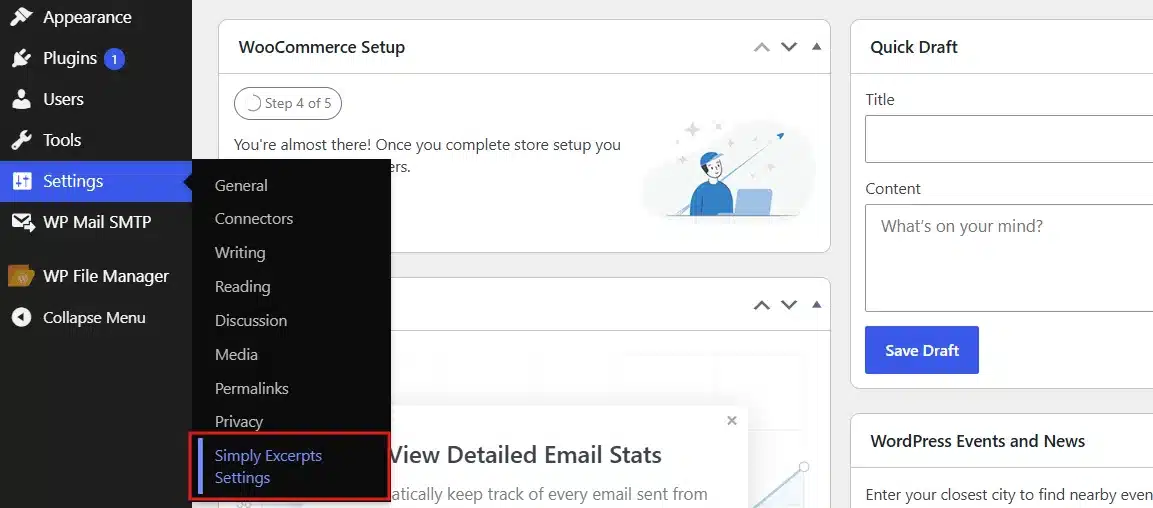
- Go to Settings, then click Simply Excerpt Settings.
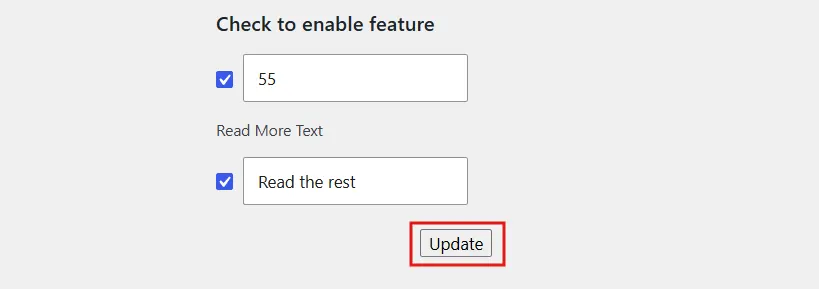
- Select the Excerpt by Words or Characters and enter your preferred number. Optionally, check “Read More Text” and type your custom replacement text.
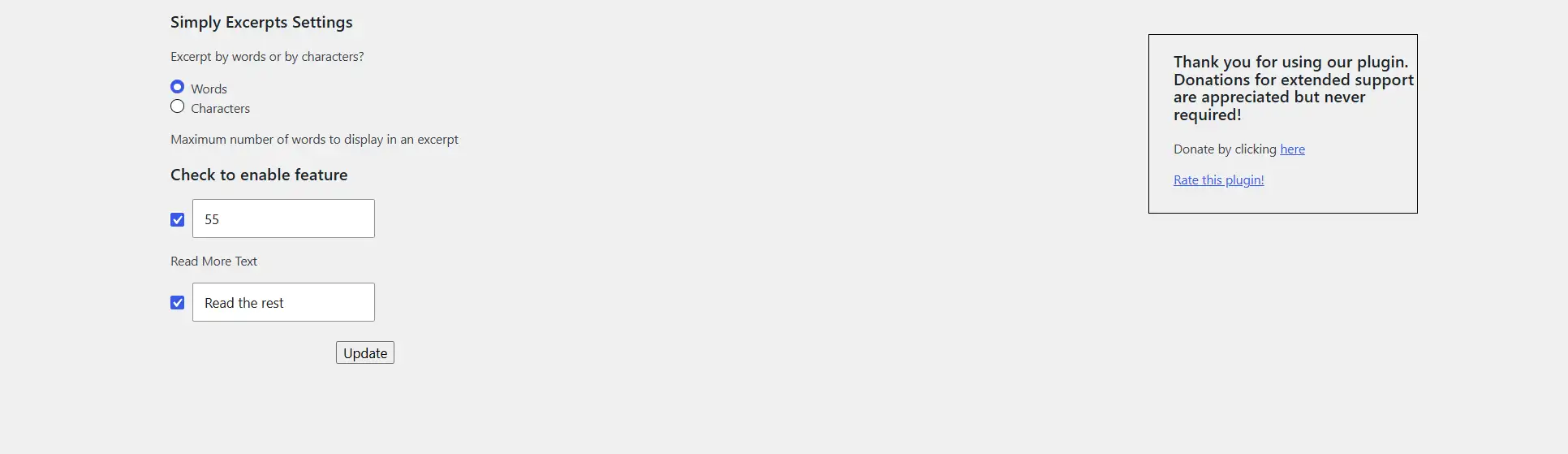
- Click Update to Save Changes.
A couple of other well-known options worth trying include Excerpt Editor, which adds a friendlier excerpt panel to your editor screen, and plugins that let you manage excerpt behaviour right from the WordPress Reading settings screen without opening a single file.
Trade-off: The method leads to more active plugins on your site, which is a small maintenance cost worth weighing against the convenience.
Method 6: Adjust Excerpt Length Instead of Fully Disabling It
Sometimes the real problem isn’t excerpts existing, it’s that 55 words feel too short or too long for your layout. This method changes the length instead of removing the feature outright.
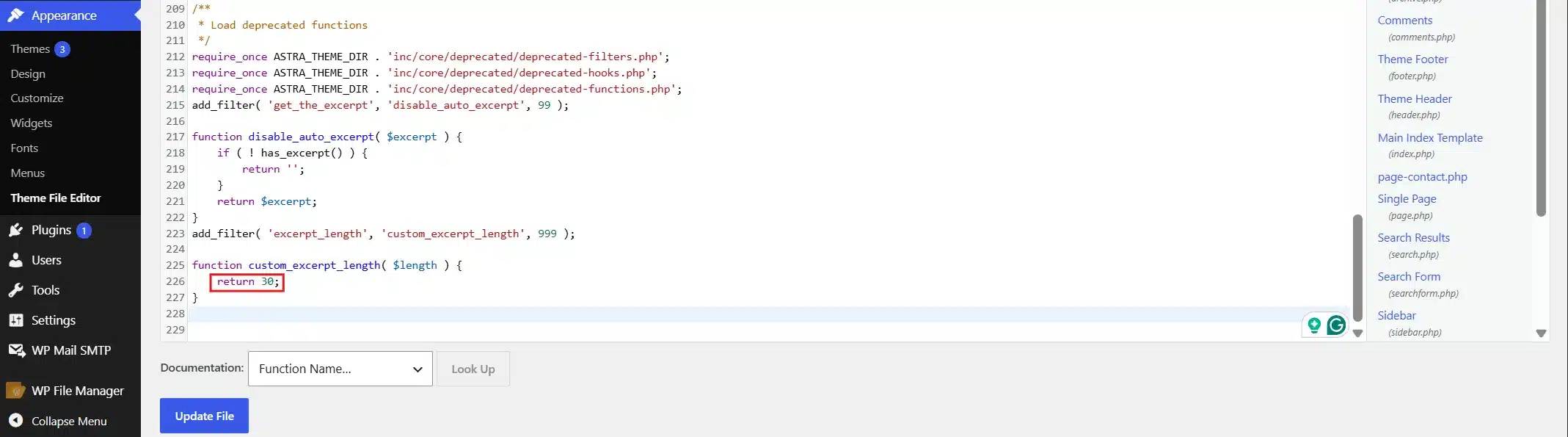
- Open functions.php through Appearance, then Theme File Editor, the same way you did in Method 3.
- Paste this snippet at the bottom of the file to change the word count:
add_filter( 'excerpt_length', 'custom_excerpt_length', 999 );

function custom_excerpt_length( $length ) {
    return 30;
}
- Replace the number 30 with whichever word count fits your design best.
- Optionally, replace the default “[…]” ending with a clickable link using this snippet:
add_filter( 'excerpt_more', 'custom_excerpt_more' );

function custom_excerpt_more( $more ) {
    return '... <a href="' . get_permalink() . '">Read More</a>';
}
- Click Update File to save both changes.
This uses WordPress’s built-in excerpt_length filter, one of the cleanest hooks in WordPress core for this exact purpose. It doesn’t fight against the platform’s default behaviour; it simply reshapes it.
If your goal is a more polished preview rather than zero preview, this is often the better long-term choice over fully disabling excerpts.
Which Method Should You Actually Use?
Here’s a quick way to match your situation to the right method.
| Your Situation | Best Method |
|---|---|
| Just want RSS feeds fixed, nothing else | Method 1 |
| Publish occasionally, want full control per post | Method 2 |
| Comfortable with code, want it disabled everywhere | Method 3 |
| Want code-based control that survives theme changes | Method 4 |
| Prefer zero code and a visual settings screen | Method 5 |
| Excerpts are fine, just need a different length | Method 6 |
Most sites end up combining two of these. A common pairing is Method 1 for feeds plus Method 2 for post previews, giving you clean control without touching a single line of code.
How to Confirm Auto Excerpts Are Really Gone?
Don’t skip this step. A change that looks successful in one place can still be showing old behaviour somewhere else on your site.
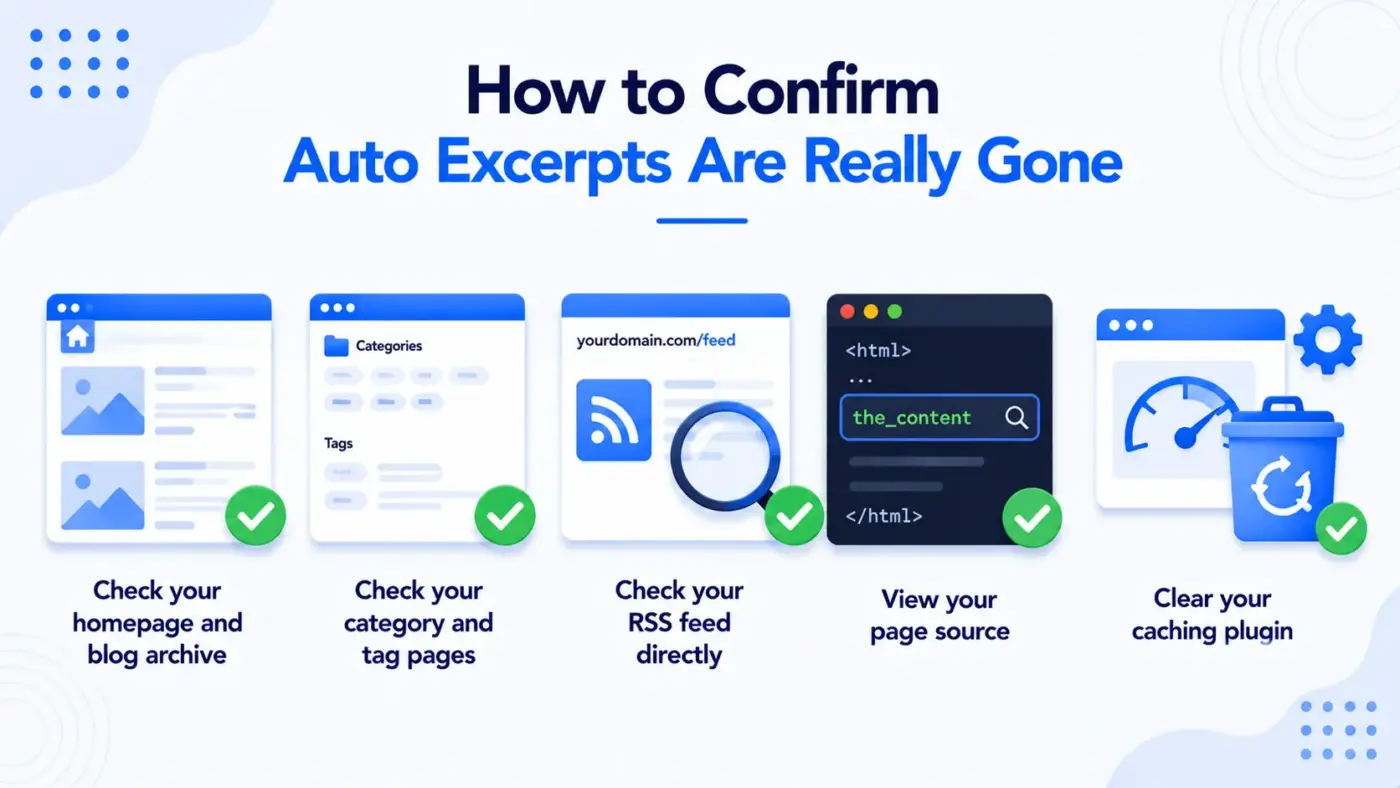
- Check your homepage and blog archive: Load these pages in a fresh browser tab and look closely at how each post preview appears.
- Check your category and tag pages: These often use separate template files, so a fix that worked on your homepage doesn’t always carry over automatically.
- Check your RSS feed directly: Visit
yourdomain.com/feedin your browser and look for full content instead of a trimmed version. - View your page source. Right-click any archive page and choose View Page Source, then search for
the_contentto confirm which function your theme is actually calling. - Clear your caching plugin: If you use a caching plugin or a CDN, clear the cache after making changes. Cached pages can keep showing the old excerpt behaviour for hours, otherwise.
Common Problems and Fixes
Even with careful steps, a few issues show up often enough to cover here directly.
- Excerpts are still showing after adding code. Double-check that you edited the correct functions.php file. If you’re using a child theme, the child theme’s file is the one that matters, not the parent theme’s.
- A blank gap appears where the excerpt used to be. This happens when your theme’s template still reserves visual space for an excerpt block. You may need to adjust the archive.php or content.php template file to hide that container when no excerpt exists.
- Changes disappeared after a theme update. This confirms you edited the parent theme’s functions.php directly. Switch to Method 4’s custom plugin approach, or set up a proper child theme so future updates won’t erase your work.
- A plugin conflict is overriding your code. SEO plugins and page builders sometimes hook into the same excerpt functions you’re editing. Temporarily deactivate other plugins one at a time to isolate which one is interfering.
- The site shows a white screen after editing functions.php. This almost always means a syntax error, like a missing semicolon or bracket. Access the file through FTP, remove the code you just added, and try again more carefully.
Conclusion
Learning how to disable auto excerpt on WordPress really comes down to picking the method that matches your comfort level and how much control you actually need. The Reading settings toggle handles feeds in seconds, manual excerpts give you full editorial control post by post, and the code-based methods offer a permanent, site-wide fix once you’re ready for them.
Whichever route you choose, always verify the result across your homepage, archives, and RSS feed rather than assuming one screen tells the whole story. A few extra minutes of testing now save a confusing troubleshooting session later.
Frequently Asked Questions(FAQs)
Q1. Does disabling auto excerpts hurt my SEO?
No, and it can actually help. Search engines rely on your meta description far more than your on-page excerpt, but replacing a randomly cut auto excerpt with a purposeful summary tends to improve click-through rates from both search results and social shares.
Q2. Will this slow down my website?
No. Excerpt generation happens server-side and adds a negligible amount of processing time. You won’t notice any measurable difference in page speed after making this change.
Q3. Can I disable excerpts for only one post type, like WooCommerce products?
Yes. Adjust the conditional check in the Method 3 code to target a specific post type. Replace has_excerpt() with something like is_singular('product') && ! has_excerpt() to limit the effect to WooCommerce product pages only.
Q4. What happens to old posts that never had a manual excerpt written?
They’ll simply show no preview text or a blank space, depending on your theme, once you apply Method 3 or Method 4. Posts that already have manual excerpts continue displaying them exactly as before.
Q5. Is it better to disable excerpts completely or just shorten them?
It depends on your layout. If your theme’s design depends on having some preview text for visual balance, Method 6 usually looks cleaner than a fully empty excerpt space. If you’re displaying full content instead, disabling entirely tends to work better.