
WordPress Playground is a free tool that runs a full WordPress site inside your browser tab with no hosting or server setup. You open one web page and get a working admin screen. The project docs put a fresh load at 5 to 10 seconds.
We tested the web version in October 2026 on WordPress 7.1.3 and PHP 8.3. We uploaded a plugin zip, ran WP-CLI, exported a copy and imported it into a new Playground. Every screenshot below comes from those tests.
This guide covers setup, saving, the Query API, Blueprints and the built-in developer tools. It also lists the limits that surprise people.
What Is WordPress Playground?
WordPress Playground is a free tool that runs a complete WordPress site inside your browser tab. The official docs describe it as an online tool to experiment and learn about WordPress. Nothing installs on your computer and nothing touches a live site.
The project is open source under the GPL v2 or later. It also runs in Node.js and VS Code according to the about page. This guide sticks to the browser version at playground.wordpress.net because that is where most people start.
The docs list these main uses:
- Starting a new WordPress site quickly.
- Trying out a block, theme or plugin.
- Testing a specific WordPress or PHP version.
- Using it as a zero-setup local development environment.
Playground does not use MySQL. Its Database tab says it runs a MySQL emulation backed by SQLite. Your whole site lives in one small file of about 516 KB on a fresh install.
That design explains most of its limits. A normal host expects MySQL. We come back to that in the limits section below.
You can run WordPress in your browser on a laptop or a phone. You do not need to be a developer to try it. A store owner can test a plugin update on it before touching a live shop.
Playground also differs from the tools people used before it. A local app installs a server on your computer and a staging site lives on your host. Playground needs neither.
| Option | Where it runs | Setup time | Best for |
|---|---|---|---|
| WordPress Playground | Your browser tab | Seconds | Throwaway tests and demos |
| Local server app | Your computer | Minutes to install once | Long projects offline |
| Staging site | Your web host | Minutes per copy | Final checks on a copy of your live site |
The setup times in that table are our own rough view and not a measured benchmark. Only the Playground load times come from the docs. Pick the tool that matches how long the site needs to live.
How to Use WordPress Playground in Your Browser
You can use WordPress Playground in four steps. Open the site, pick your PHP and WordPress versions, choose a starting point and add your own plugin or theme. A fresh site is ready in seconds and you are already signed in as admin.
Step 1: Open the Playground Site
Go to playground.wordpress.net. The page loads a WordPress site called My WordPress Website and logs you in as admin. A welcome page confirms it with the note that you are logged in.
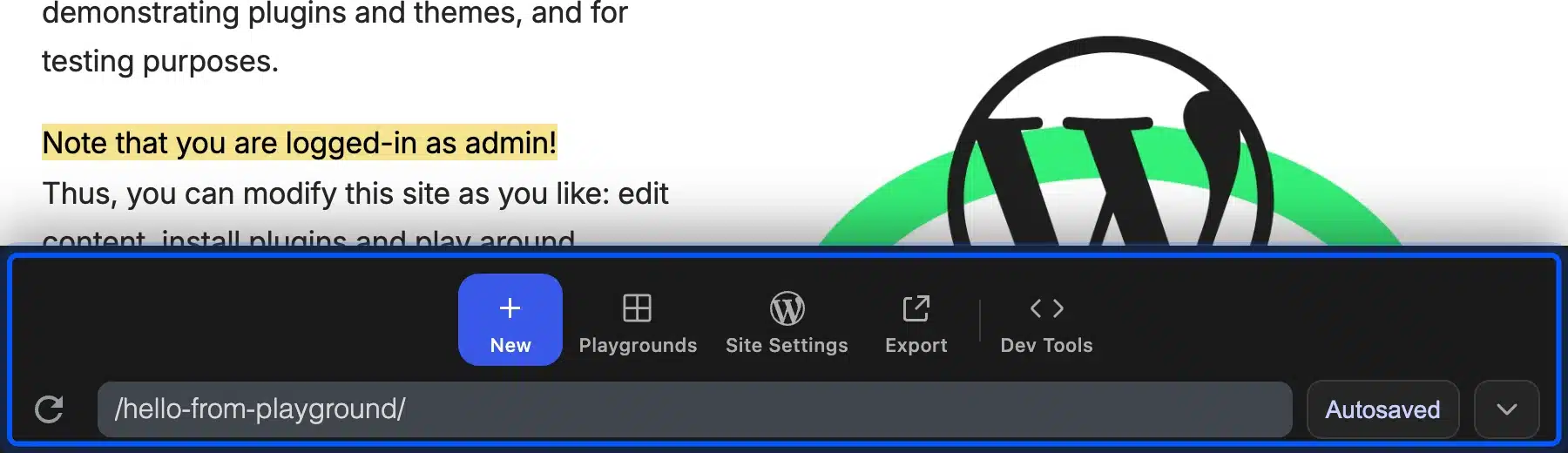
A floating bar at the bottom of the screen is the Dock. It holds the address field, the save status and five tools: New, Playgrounds, Site Settings, Export and Dev Tools. Everything in this guide starts from that bar.
Step 2: Choose PHP and WordPress Versions
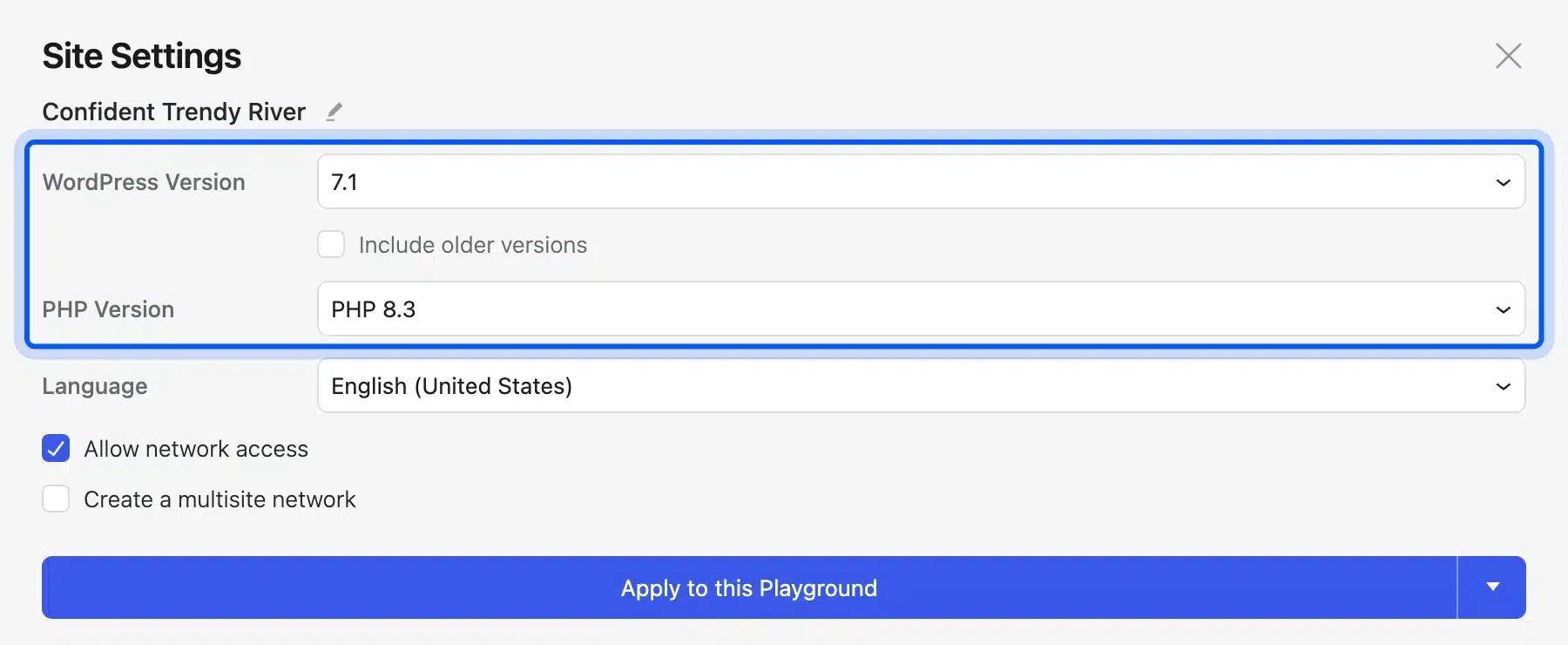
Click Site Settings in the Dock. The panel shows a WordPress Version field set to 7.1 and a PHP Version field set to PHP 8.3 on our test. It also has a language list and two checkboxes for network access and a multisite network.
Change a version and press Apply to this Playground. This is the fastest way to check a plugin on an older PHP release. For the full release list see our WordPress version history.
Step 3: Start From a Blueprint or a Clean Site
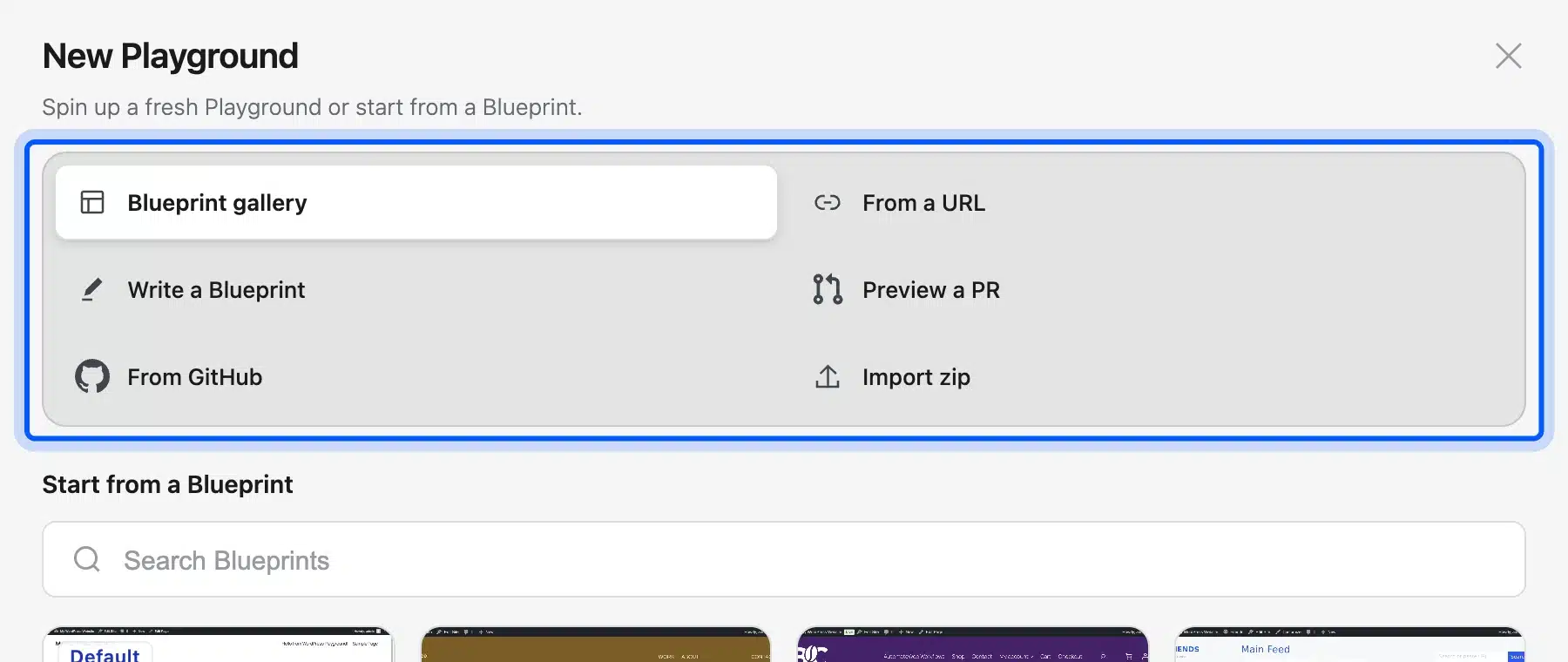
Click New. The New Playground window offers six ways to start: Blueprint gallery, From a URL, Write a Blueprint, Preview a PR, From GitHub and Import zip. The gallery starts with Vanilla WordPress for a clean install.
Other gallery entries load ready-made sites such as a coffee shop built on WooCommerce. A Blueprint is a small JSON file that describes a site. We show how to write one in a later section.
Step 4: Upload a Plugin or Theme Zip
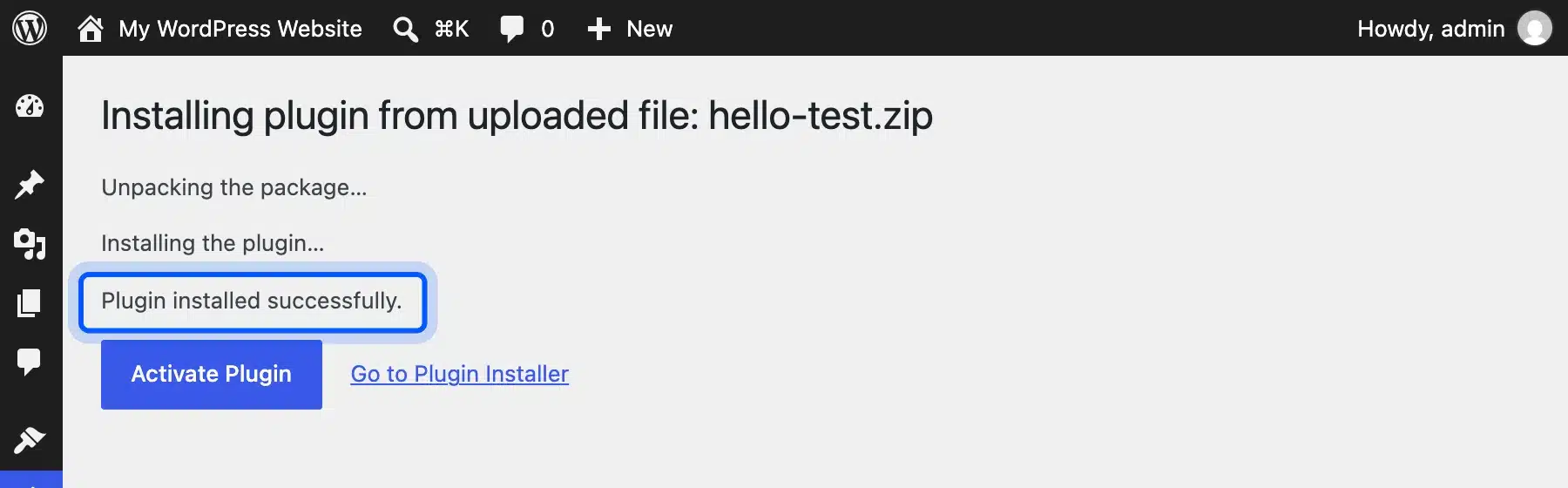
Open Plugins > Add Plugin > Upload Plugin inside the Playground admin and choose a zip from your computer. Playground installs it like any WordPress site does. We uploaded a small test plugin and saw the Plugin installed successfully message.
This shows that Playground is not limited to plugins from WordPress.org. You can test a premium plugin zip or your own build the same way. Search the directory from the same screen for anything public.
Saving Your WordPress Playground Site
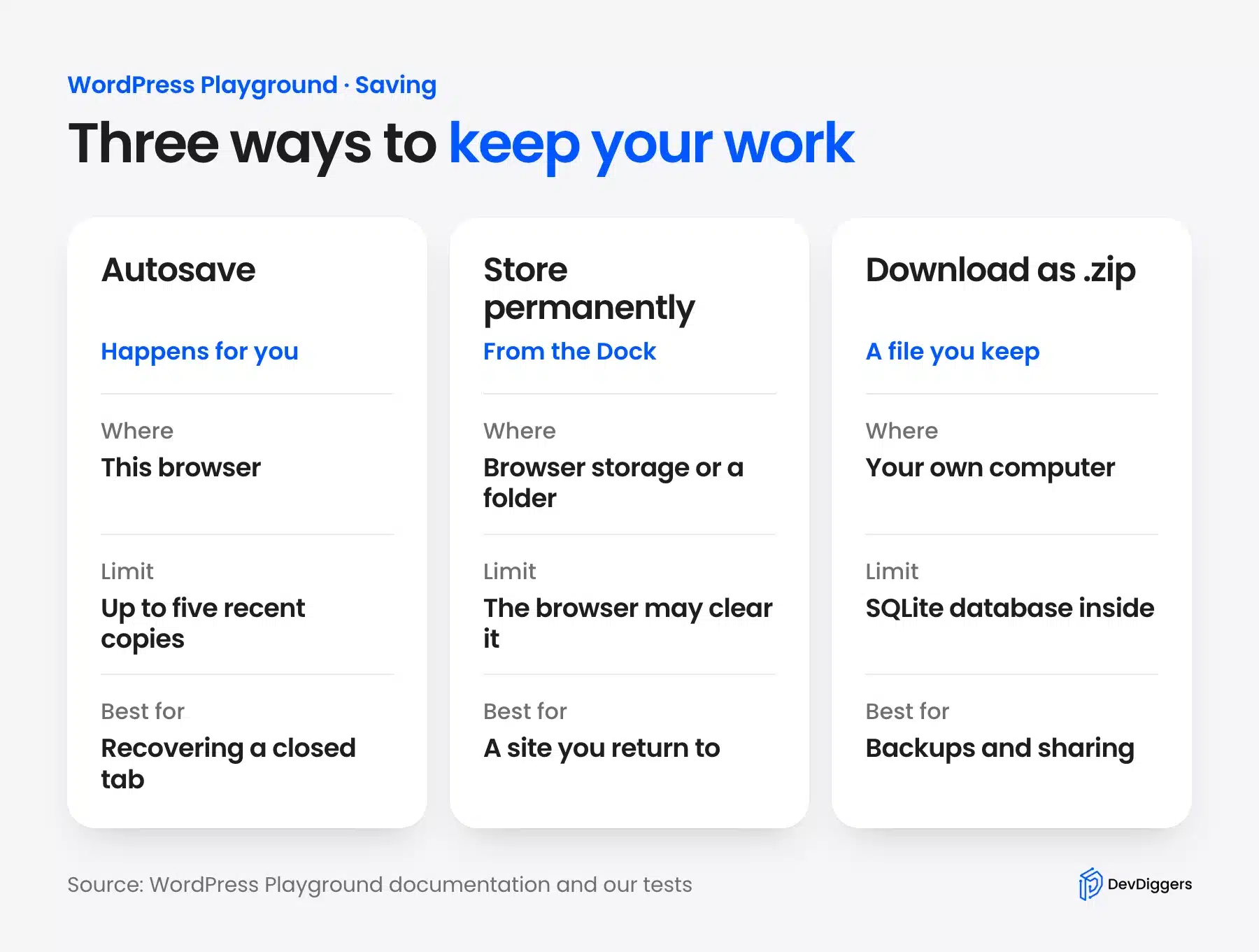
Playground keeps your work in your browser by default. It autosaves recent copies and lets you store one permanently or download it as a zip. The web instance docs describe all three paths and the Dock buttons that control them.
Autosave and the Playgrounds List
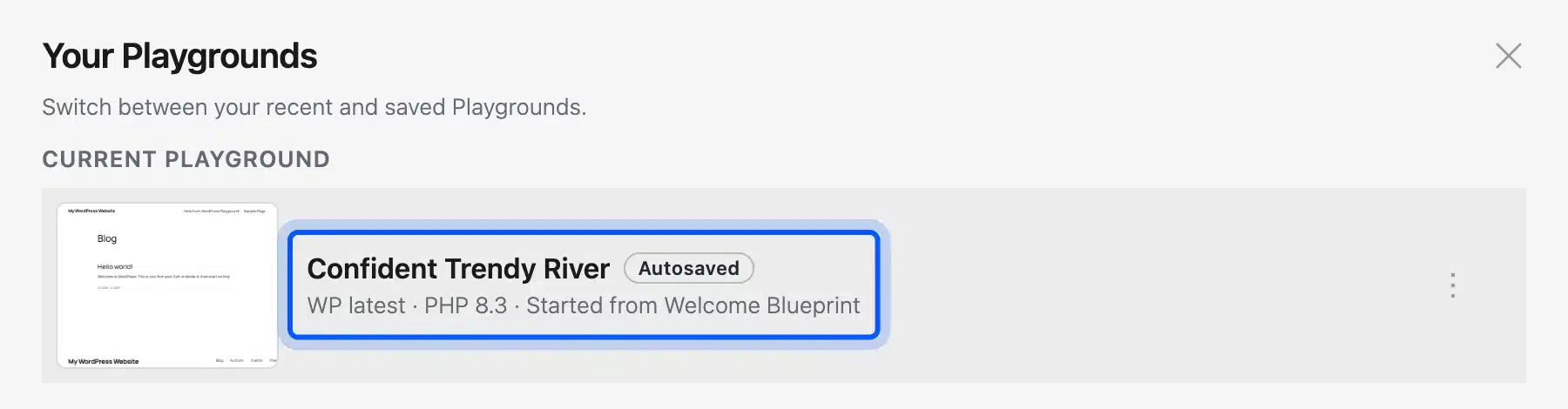
The status pill next to the address field reads Autosaved. Playground keeps up to five recent autosaves and drops the oldest when a sixth arrives. The limitations page calls them recovery points and not long-term backups.
Click Playgrounds in the Dock to see the current site and switch between recent and saved ones. Each entry shows the WordPress version and the PHP version. Our test site picked a random name by itself.
Store a Playground Permanently
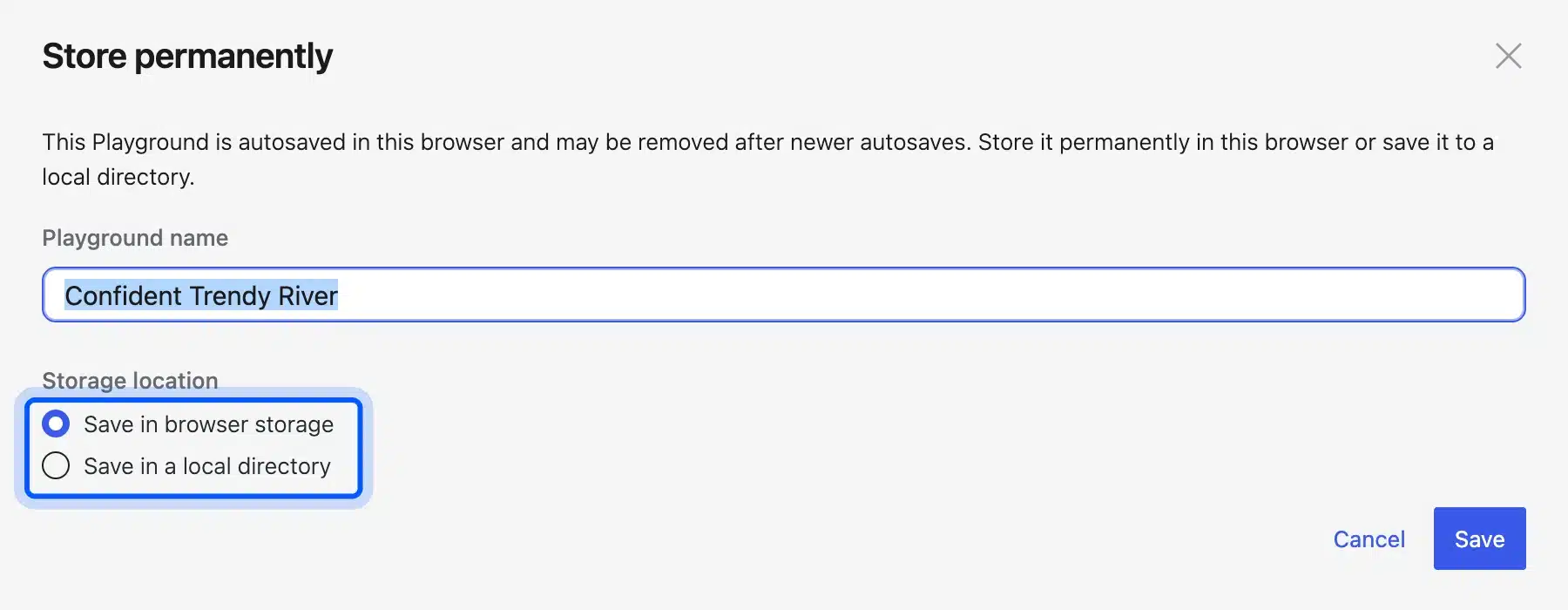
Click the Autosaved pill to open Store permanently. Give the site a name and choose Save in browser storage or Save in a local directory. The panel warns that an autosave may be removed after newer autosaves.
Browser storage can still be cleared by the browser itself. The limitations page names storage pressure and private browsing as causes. A saved site is a convenience and not a backup.
Download a Zip Copy
Click Export and press Download as .zip. The panel says it saves files and the database along with your edits. Our test export came to 8.3 MB with 248 files.
The zip holds a wp-content folder with plugins and themes and a wp-config.php file. It also holds the SQLite database file. A regular MySQL host cannot read that file directly.
We then tested the round trip. We uploaded a small plugin, activated it and exported the site. We opened a fresh Playground and used New > Import zip.
Playground reported that the site was imported. Running wp plugin list in the Terminal showed our plugin as active. The import landed on the WordPress login screen first because the session does not travel inside the zip.
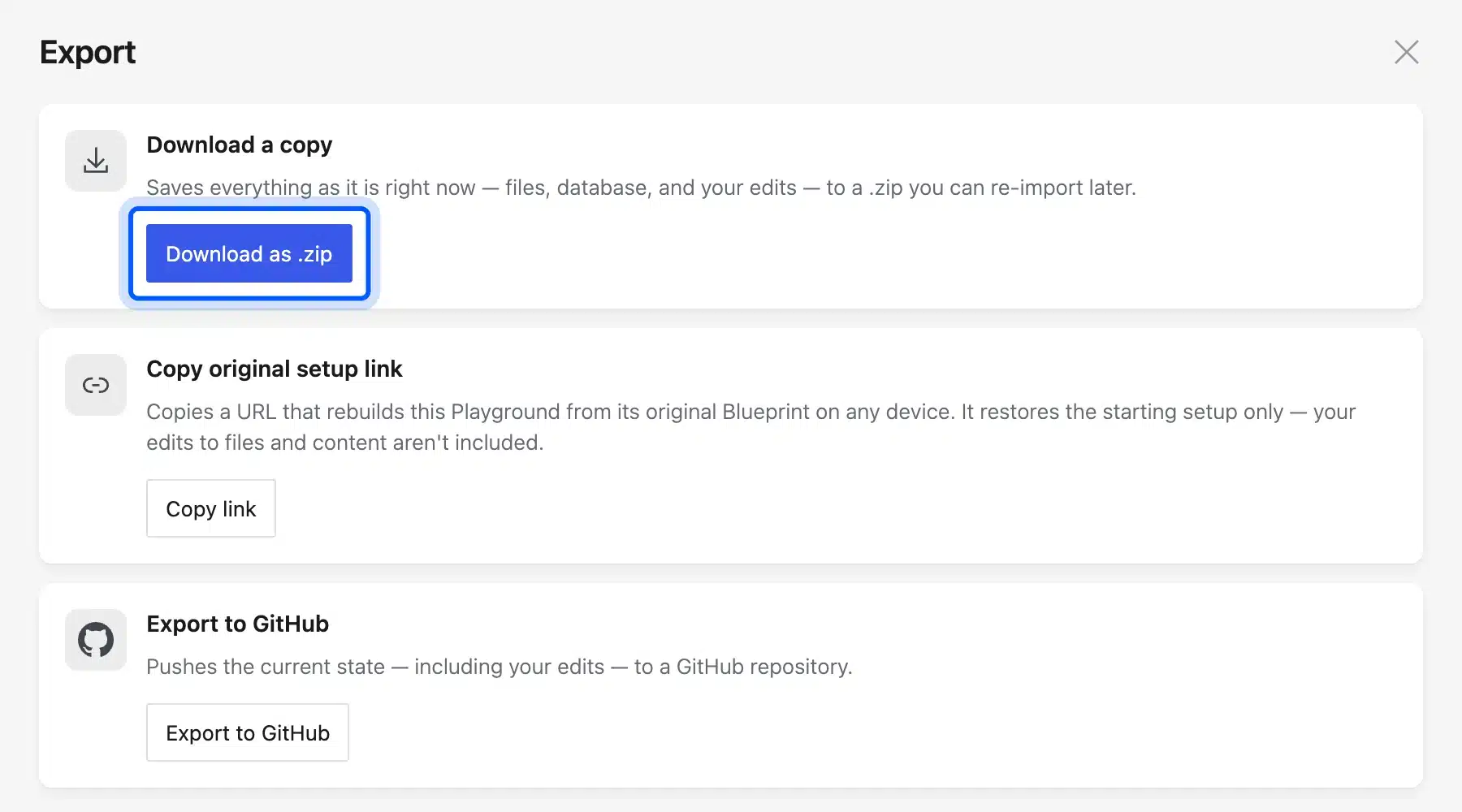
Export also offers a Copy original setup link button. It copies a URL that rebuilds the site from its original Blueprint. The panel says your later edits are not included.
The same panel has an Export to GitHub button. The about page says you can connect a Playground to a GitHub repository and open a pull request to save changes. We did not connect a GitHub account in our tests.
WordPress Playground Query API Parameters
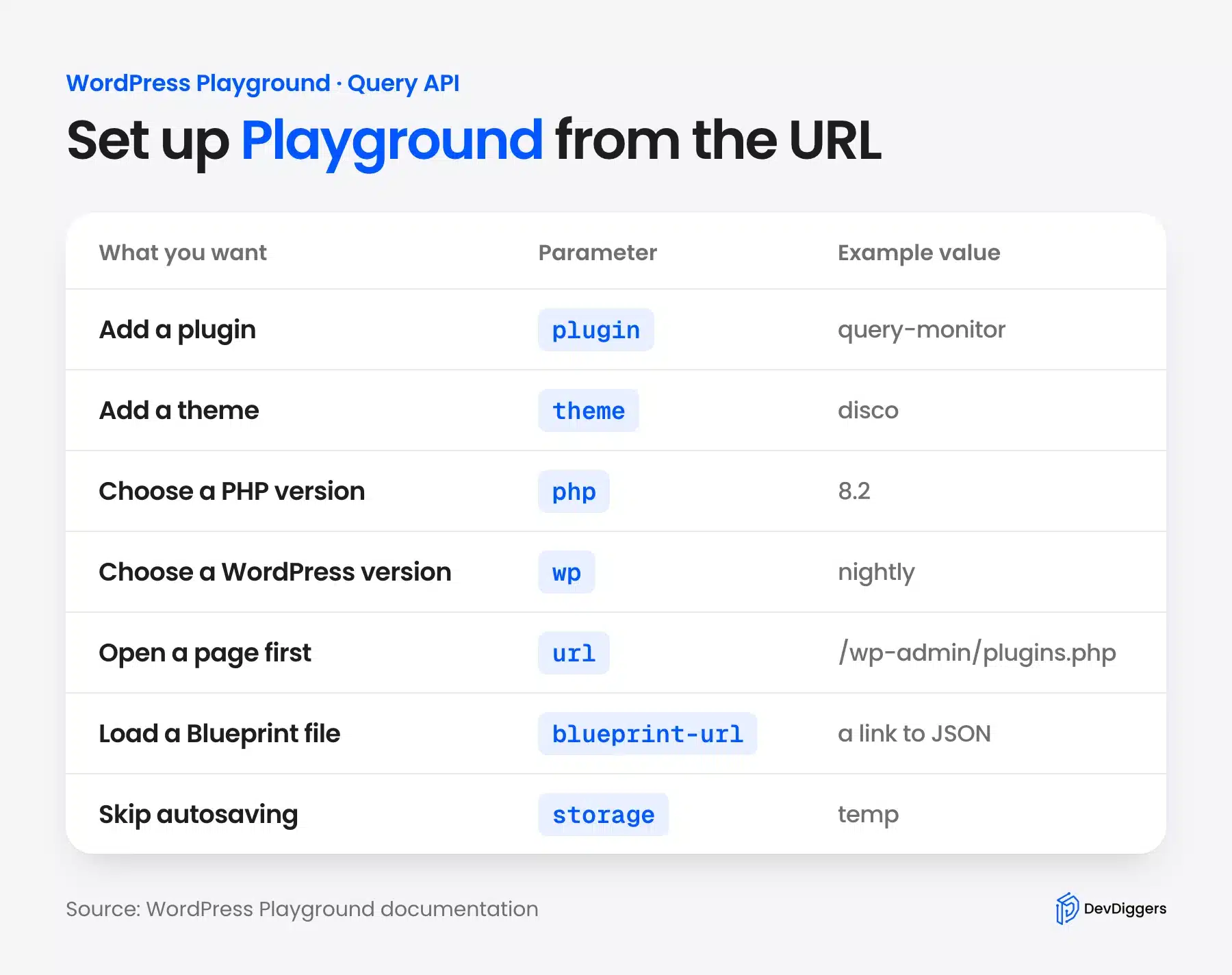
The Query API lets you configure a Playground through parameters in the URL. The Query API docs list about 35 of them. The common ones set plugins and themes along with the PHP and WordPress versions and the first page that opens.
A link such as playground.wordpress.net/?plugin=query-monitor&php=8.2&url=/wp-admin/plugins.php rebuilds the same site for anyone. We opened that exact link. Query Monitor 4.0.7 was installed and active and the browser landed on the Plugins screen.
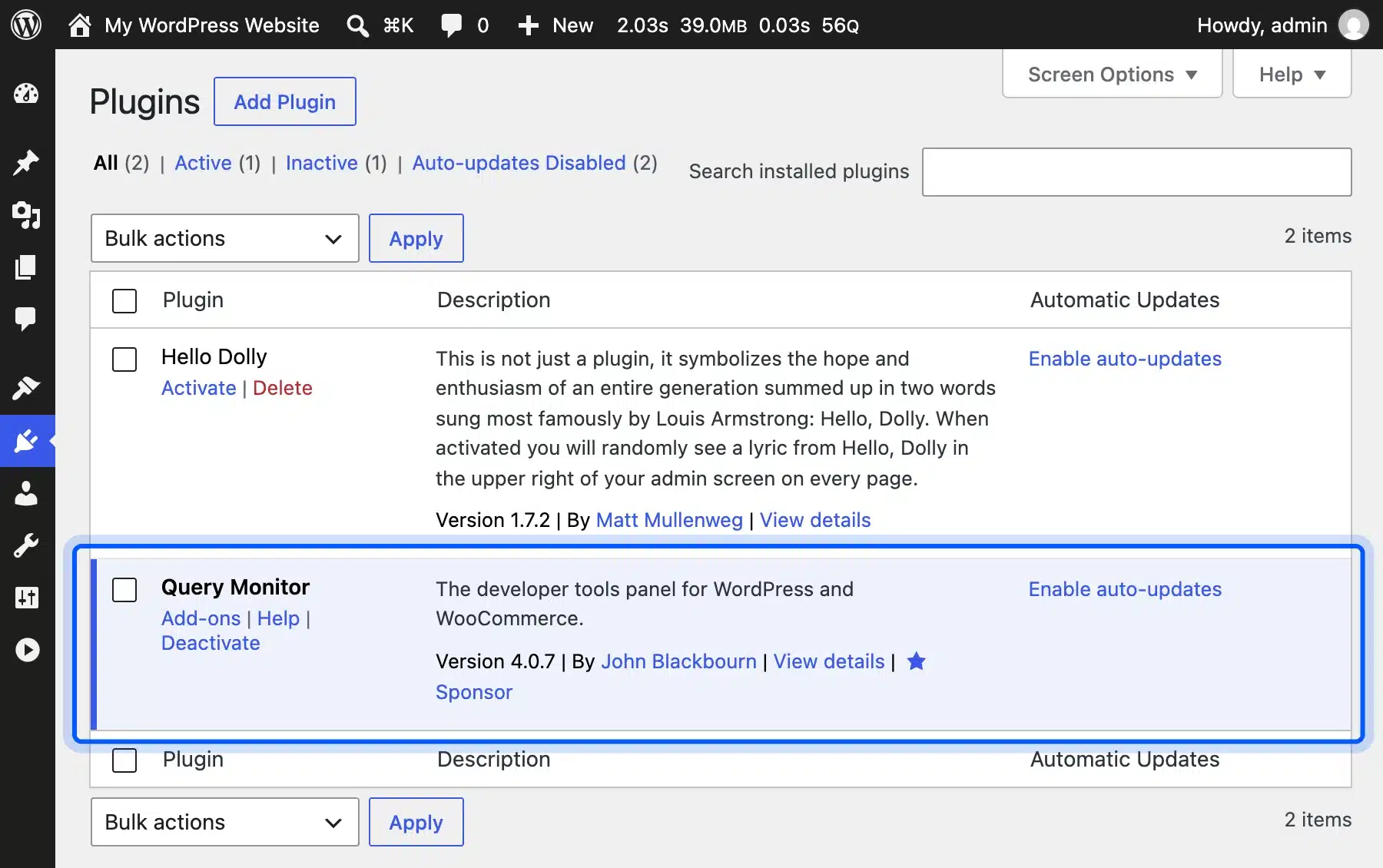
Repeat plugin= to add several plugins. The docs say installing a plugin or theme this way also logs you in as admin. A link like this is the quickest way to share a bug with a developer.
Other parameters change how the site behaves. The docs say networking=no turns off network support and multisite=yes turns on multisite mode. The language parameter sets the locale and needs networking on so translations can download.
These are the parameters you will use most:
- plugin: Installs a plugin by its WordPress.org directory slug.
- theme: Installs a theme by its directory slug.
- php: Loads a PHP version from 7.4 through 8.5 in the current docs.
- wp: Loads a WordPress version such as latest or nightly.
- url: Opens a page inside the site first.
- storage: Set it to temp for a site that is discarded on refresh.
Write a Blueprint for WordPress Playground
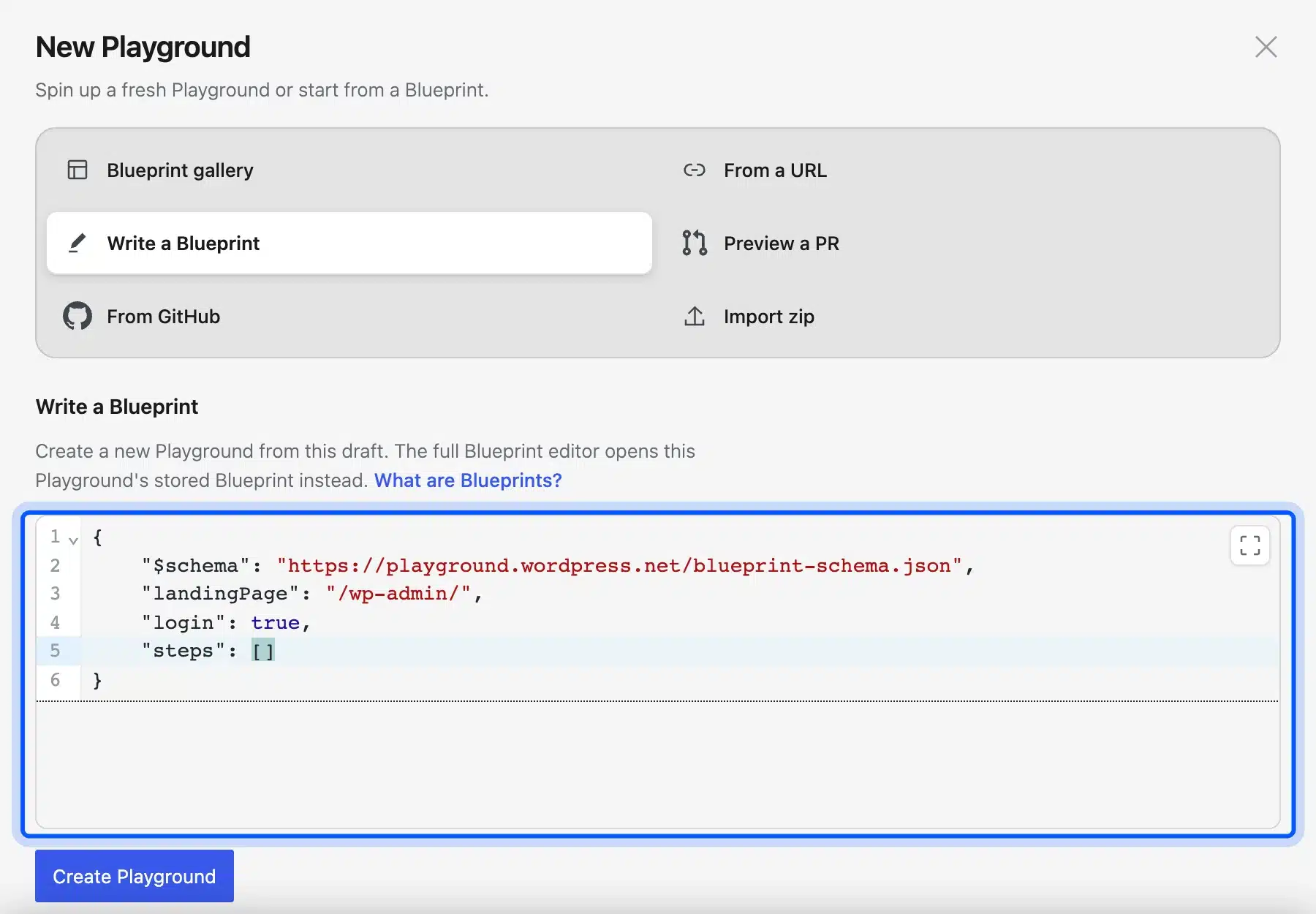
A Blueprint is a JSON file that tells Playground how to build a site. The Blueprints guide says to put it in the URL after a hash sign or point the blueprint-url parameter at a file. The format uses a steps list for actions such as login and installPlugin.
Here is a small Blueprint that opens the Plugins screen and installs Query Monitor:
{
  "$schema": "https://playground.wordpress.net/blueprint-schema.json",
  "landingPage": "/wp-admin/plugins.php",
  "preferredVersions": { "php": "8.3", "wp": "latest" },
  "steps": [
    { "step": "login", "username": "admin", "password": "password" },
    {
      "step": "installPlugin",
      "pluginData": { "resource": "wordpress.org/plugins", "slug": "query-monitor" },
      "options": { "activate": true }
    }
  ]
}
We loaded this JSON in the URL fragment. Playground installed and activated Query Monitor on WordPress 7.1.3. The login step uses the throwaway admin account that Playground documents for its own sites.
Each part of the file has one job:
- $schema: Gives editors autocomplete and checks.
- landingPage: Sets the first page that opens.
- preferredVersions: Asks for a PHP and WordPress version.
- steps: Runs actions in order from top to bottom.
A step can also run PHP code with runPHP. The limitations page says WordPress functions in that step need wp-load.php loaded first. Without it the code cannot call functions such as get_option.
Pick the Query API for a quick setup with a few plugins. Pick a Blueprint when you need a login step or PHP code or several actions in a set order. A long Blueprint is easier to keep in a file and share with the blueprint-url parameter.
The guide links to Blueprints 101 as the next read. To try your own file without a URL, use New > Write a Blueprint.
Dev Tools Inside WordPress Playground
Dev Tools adds six panels to the Dock for people who build things. They are Blueprint, Database, Terminal, Files, Logs and Email. All of them work on the Playground you have open, and none of them needs a server or a login to anything.
- Terminal: Runs PHP snippets or WP-CLI commands in a box with a Run button. We ran
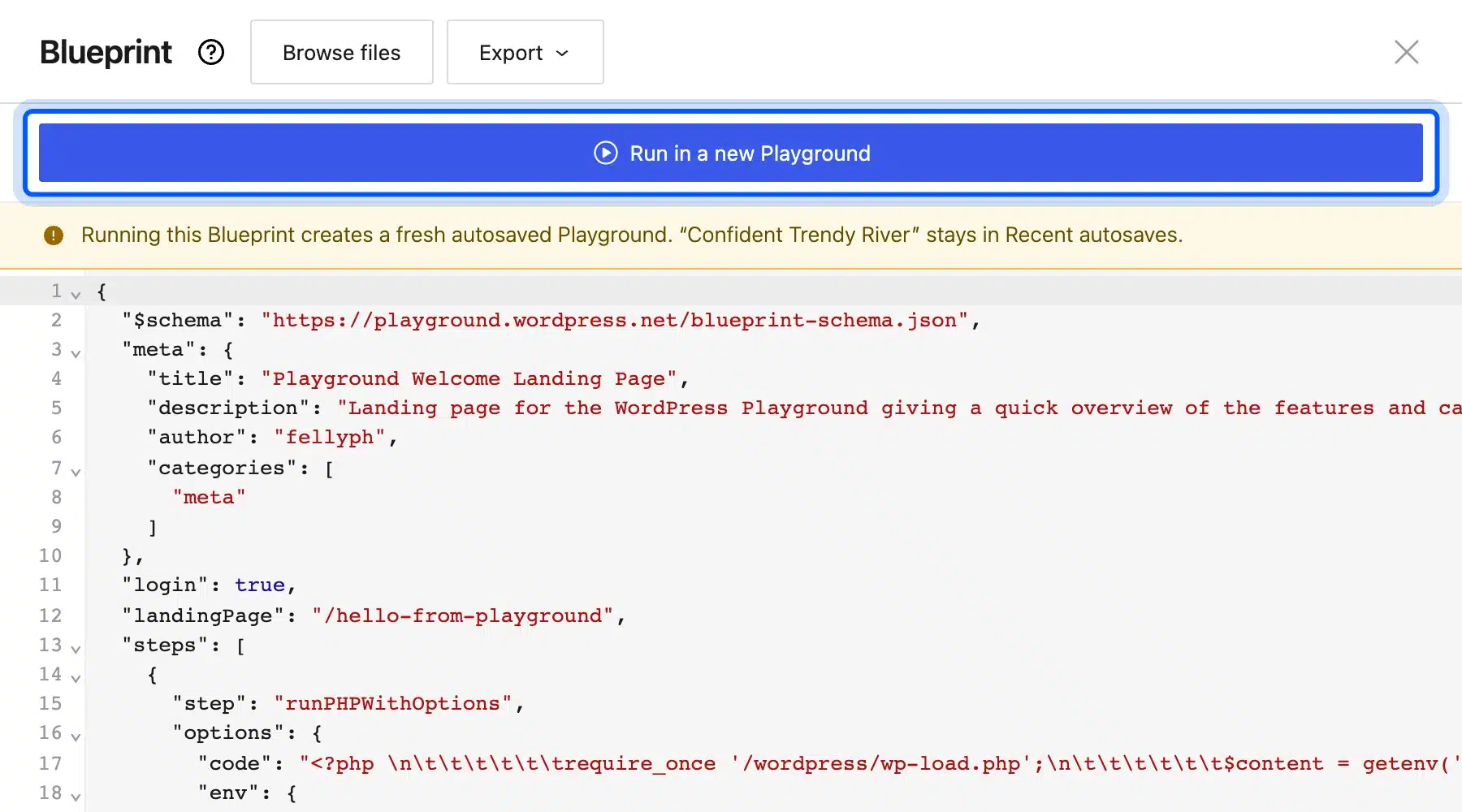
wp core versionand it returned 7.1.3. - Blueprint: Shows the stored JSON for the current site with a Run in a new Playground button.
- Database: Reports a MySQL emulation backed by SQLite. It labels the tools as early access and offers Adminer and phpMyAdmin.
- Files: Opens a code editor with a Browse files button and a Save button. It opened wp-config.php first on our site.
- Logs: Shows the PHP error log with a search box and filters for errors and warnings and notices.
- Email: Lists the emails the Playground sends. It said No emails yet on our fresh site.
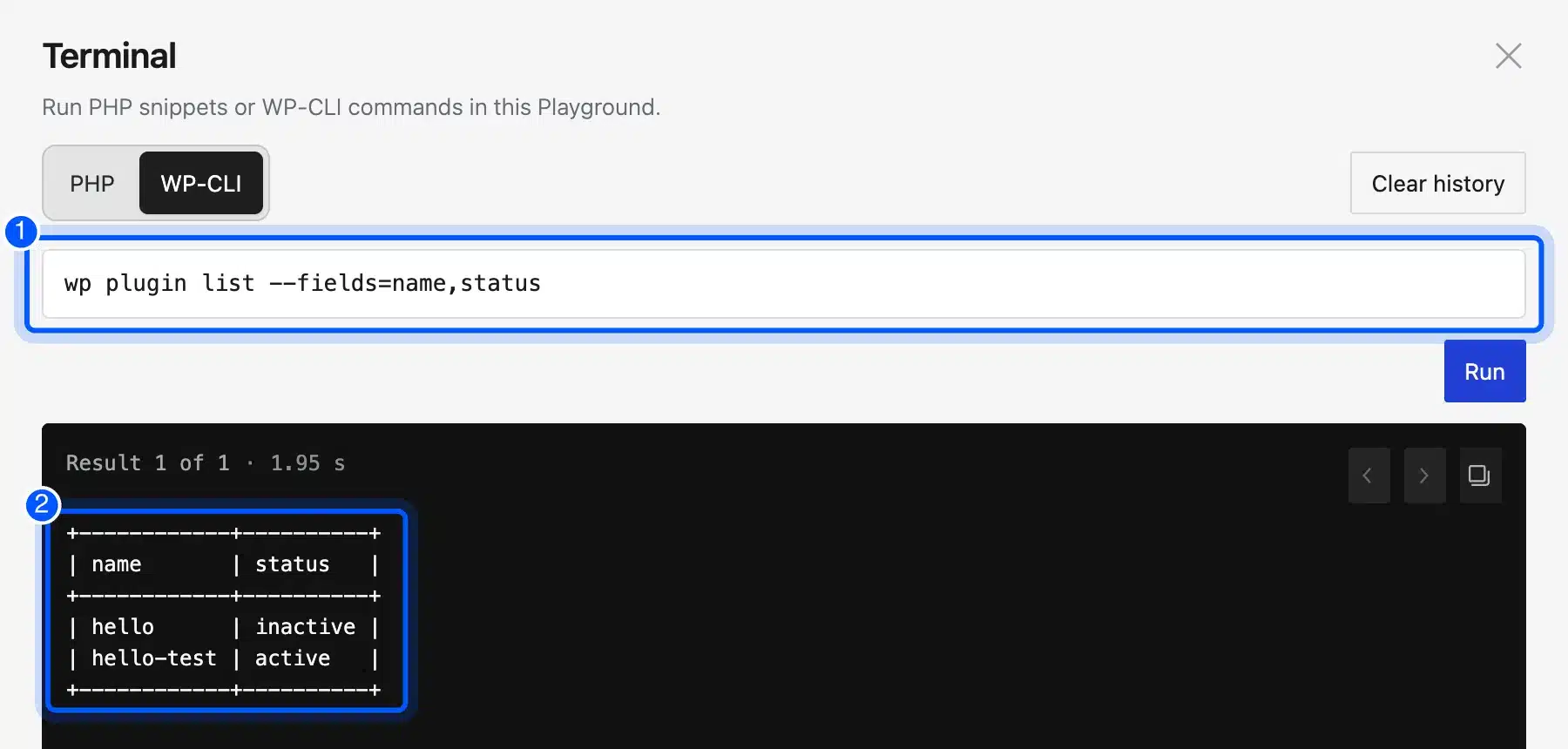
The docs warn that WP-CLI support is partial. Because Playground runs in a browser it does not support the full range of commands. Test the command you need before you rely on it.
Use WordPress Playground as a WordPress Sandbox
You can use WordPress Playground as a WordPress sandbox for plugins and themes. It also works as a quick WordPress test site and a live demo. It suits any task where you want a fresh site and an easy way to throw it away.
- Sandbox for a new plugin: Upload the zip and click through its settings with no risk to your store. Our guide on plugin conflicts in WordPress shows what to look for.
- Test site for versions: Set the PHP and WordPress versions in Site Settings and see what breaks before you update a live site.
- WordPress demo site you can share: Send a Query API link or a Blueprint and the other person gets the same setup in their own browser.
- WordPress test environment for a bug report: Reproduce an issue on a clean install and share the link.
A safe routine for a plugin update looks like this. Match the PHP and WordPress versions of your live site in Site Settings. Install the plugin from its zip and click through the screens your customers use.
Check the Logs tab for new PHP errors after each step. Then repeat the update on your real site with a backup in hand. Playground shows you problems early but it cannot promise your host will behave the same.
The sandbox idea has a catch. A site that starts from a link always starts clean. Any content you want to keep must be saved or exported before you close the tab.
If you are ready for a real site, our guide to creating a WordPress site from scratch picks up where Playground stops. It covers hosting and the first setup steps on a live domain.
WordPress Playground Limits to Know
WordPress Playground has real limits that matter before you rely on it. It is not a permanent server and has no public address. Your content stays in the browser unless you export it and load times grow with plugin size.
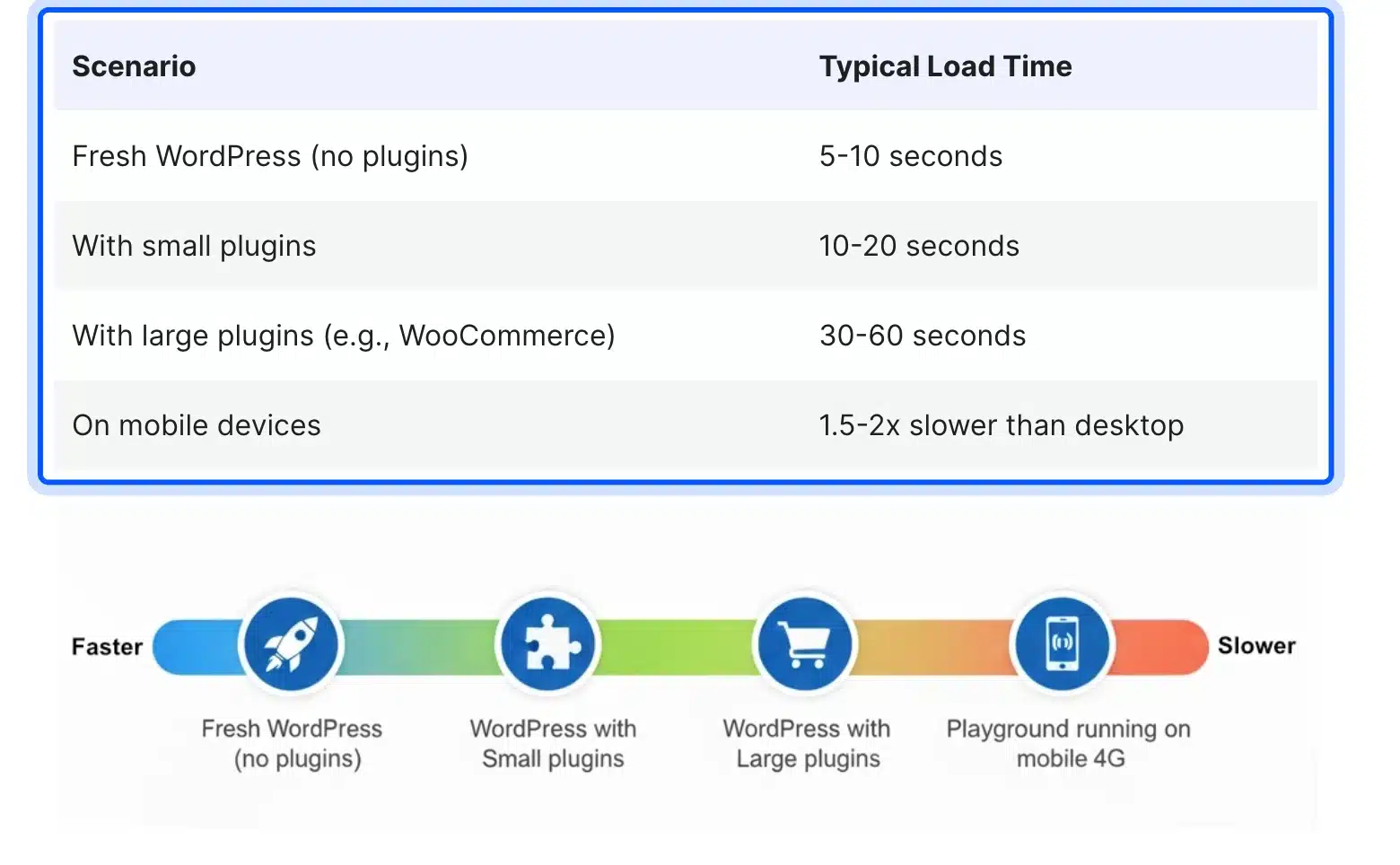
The limitations page lists typical load times. A fresh WordPress takes 5 to 10 seconds. Small plugins take 10 to 20 seconds.
Large plugins such as WooCommerce take 30 to 60 seconds. Mobile devices are 1.5 to 2 times slower than desktop. The WASM files alone are 15 to 30 MB according to the same page.
These are the limits that matter most:
- Networking: The about page says persistent connections to some outside services are limited. That covers automation and email tools.
- Persistence: Content disappears when you leave unless you save or export it.
- WP-CLI: Only a subset of commands works.
- Iframe quirks: Links with target set to top reload the page you are working on.
- Database: Plugins that need real MySQL features may behave differently on the SQLite emulation.
The last point matters when you move a build to a live host. The exported zip holds a SQLite file. WordPress itself asks for MySQL 8.0 or MariaDB 10.11 or greater as of October 2026.
You need a proper database export before a move. Our self-hosted WordPress guide explains the hosting side.
If you want that move handled for you, see our WordPress migration services.
Conclusion
WordPress Playground gives you a working WordPress site in a browser tab within seconds. Use the Dock to set versions and save work and use the Query API or a Blueprint to rebuild a setup from a link. Treat every site as temporary until you export it.
Remember the limits. Load times grow with plugins and WP-CLI is partial.
The zip carries a SQLite database. A site that must stay online still needs real hosting.
Frequently Asked Questions (FAQs)
Q1. Is WordPress Playground free to use?
Yes. The official docs describe it as free and open source software under the GPL v2 or later. You need only a modern browser and no account.
Q2. Does WordPress Playground save my work?
It autosaves up to five recent copies in your browser. The limitations page says to store a copy permanently or export a zip for anything you want to keep.
Q3. Can I install my own plugin or theme in WordPress Playground?
Yes. We uploaded a plugin zip through Plugins > Add Plugin > Upload Plugin and it installed and activated. You can also add directory plugins with the plugin parameter or a Blueprint step.
Q4. Does WordPress Playground use MySQL?
No. Its Database tab reports a MySQL emulation backed by SQLite. Most plugins run normally but a plugin that needs real MySQL features can behave differently.
Q5. Can WordPress Playground send email?
It has an Email tab that lists the emails a Playground sends. The about page says connections to email services are limited. Check that tab to see what your site tried to send.
Q6. Which PHP versions can I choose in WordPress Playground?
The Query API docs list PHP 7.4 and 8.0 through 8.5 as of October 2026. Pick one with the php parameter or in Site Settings.
Q7. Is WordPress Playground safe for testing a plugin?
The about page says it is completely isolated from your actual website. Your live site and files stay untouched while you test.