You can customize the WooCommerce product page in three ways: edit its template with blocks, add features with plugins, or change it with code. The block method needs no code and works on any block theme. Plugins and code cover the cases that blocks do not.
This guide was tested on WooCommerce 11.1.2 and WordPress 7.1.3 in October 2026. Twenty Twenty-Five served as the block theme and Storefront as the classic theme. Every block name, menu path and code result below comes from that test site, and the official WooCommerce documentation backs the template steps.
You will learn what you can change, which method fits your theme, and how to change the WooCommerce product page layout step by step. You also get a result that surprised us. The same hook code that works on a classic theme prints a second price on a block theme.
What Can You Change on a WooCommerce Product Page?
On a block theme, you can move, restyle or remove every part of the WooCommerce product page. Each part is a block in the Single Product template. The default page holds a gallery, title, rating, price, summary, add to cart form, product meta, tabs and related products.
The WooCommerce documentation lists the blocks that make up the page. They are Store Breadcrumbs, Product Image Gallery, Product Title, Product Rating and Product Price. The list continues with Product Summary, Add to Cart with Options, Product Meta, Product Details and Related Products.
It says each block can be repositioned or removed entirely.
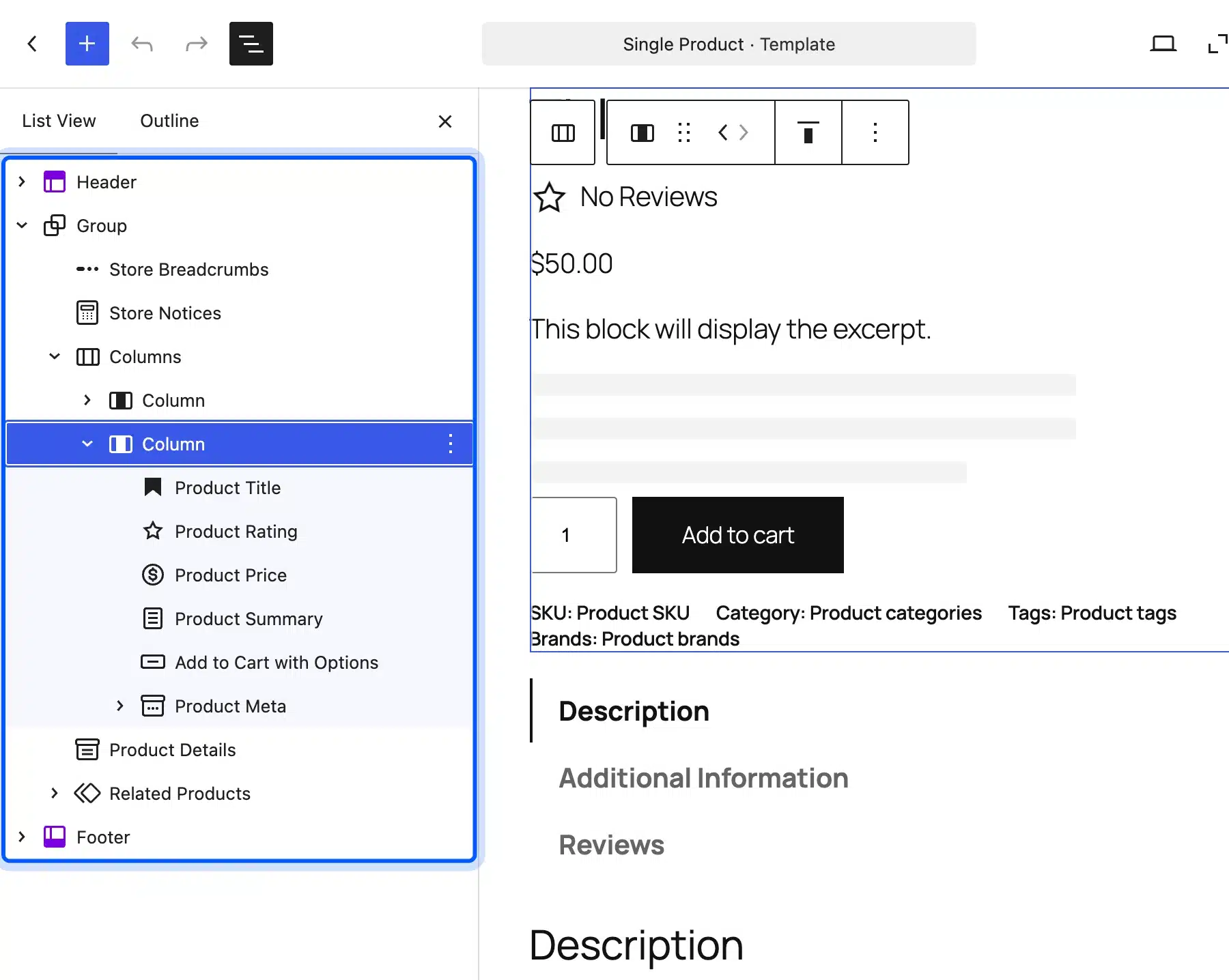
On the test site, the List View of the Single Product template showed the same structure. A Group held Store Breadcrumbs, Store Notices and a Columns block with two columns.
The left column held the Product Image Gallery. The right column held the title, rating, price, summary, Add to Cart with Options and Product Meta. Product Details and Related Products sat below.
Which Method Should You Use?
Use the Site Editor on a block theme, a plugin for features that WooCommerce lacks, and hooks on a classic theme. Most stores combine two methods, with blocks for layout and a plugin for features. Pick the one that matches your theme first, then add the others only if you need them.
| Your situation | Best method | Code needed |
|---|---|---|
| Block theme, layout changes | Site Editor template | No |
| Any theme, a new feature | Plugin | No |
| Classic theme, layout changes | Hooks or template override | Yes |
| One special product | Product-specific template | No |
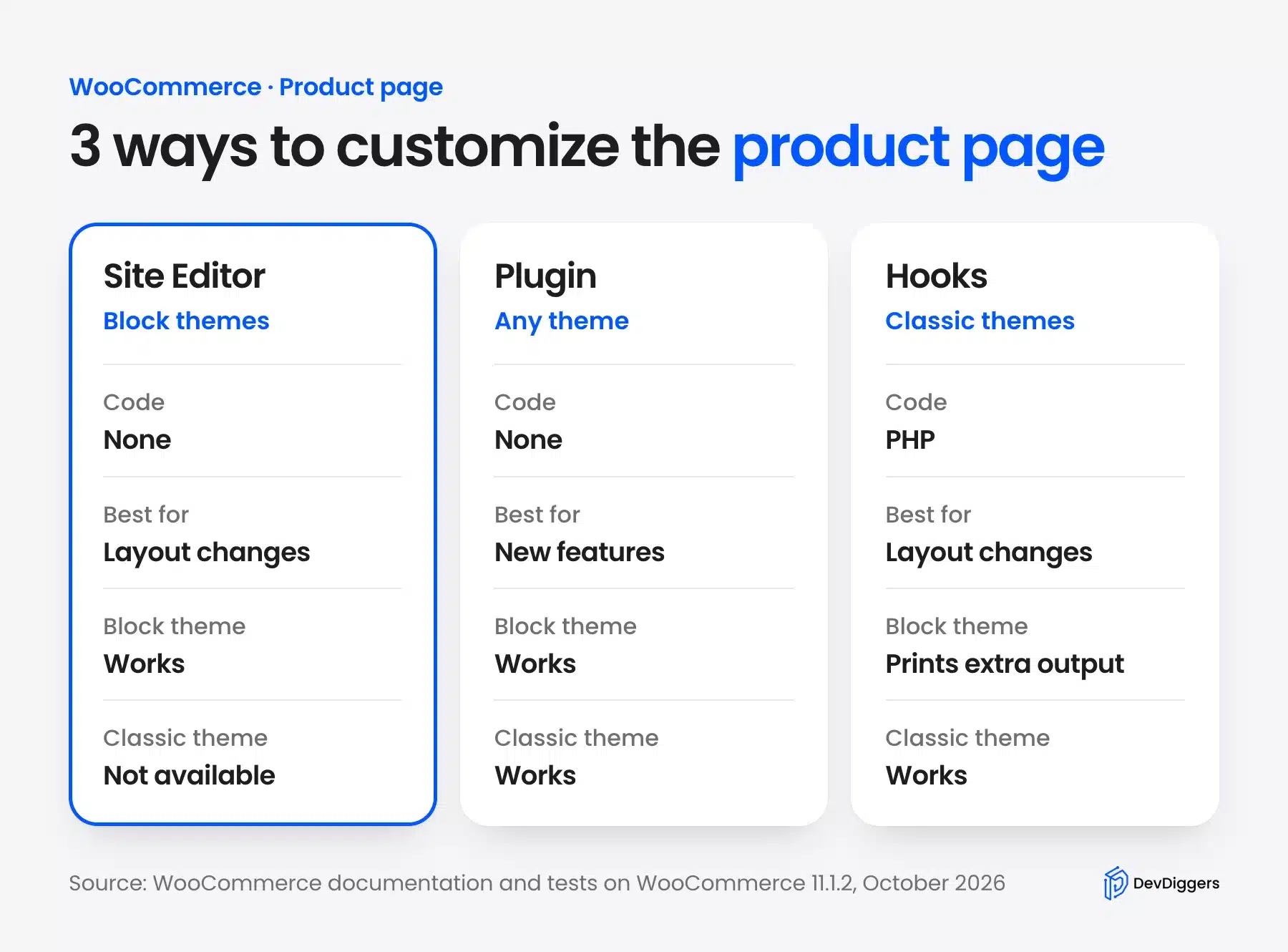
Choose the block method first whenever it can do the job, because it needs no code and survives theme updates. Use a plugin next for a feature that blocks cannot build. Keep hooks for classic themes where no other option exists.
Ask yourself three things. Does your theme use blocks, do you need a feature or only a layout, and does the change cover every product? Your answers point to a row in the table above.
You can check your theme type in one step. If Appearance > Editor exists in your dashboard, your theme is a block theme. If Appearance > Customize and Appearance > Widgets exist instead, it is a classic theme.
How to Change the WooCommerce Product Page Layout With the Site Editor
To change the WooCommerce product page layout on a block theme, open Appearance > Editor > Templates, filter by WooCommerce and open Single Product. Select any block in the template, then move, edit or delete it. Click Save when you finish, and the change applies to every product.
- Open the template list: Go to Appearance > Editor and click Templates. The left menu lists All templates, your theme and WooCommerce.
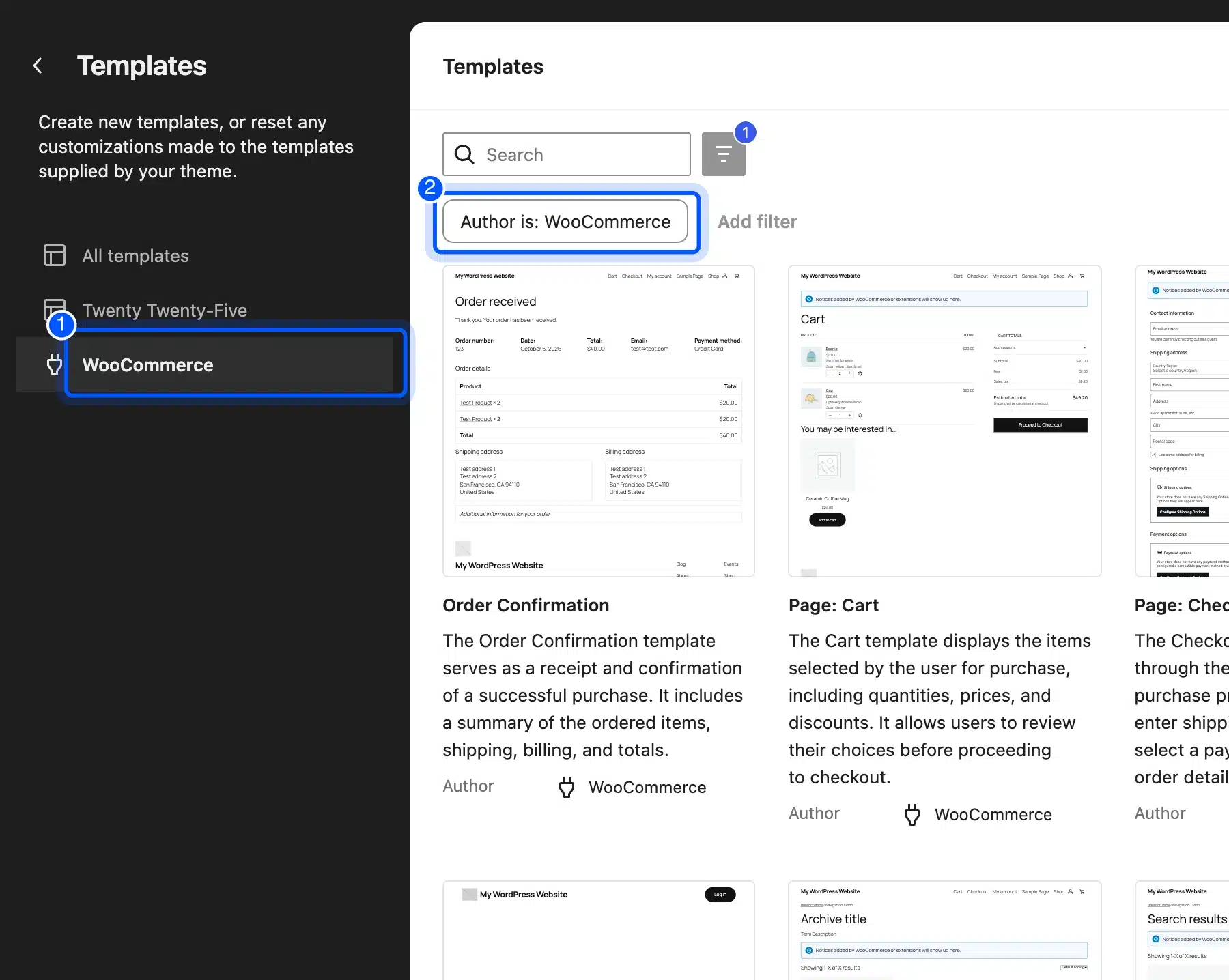
- Open Single Product: Click WooCommerce, then open the Single Product template. The editor loads the page with sample content.
- Open List View: Click the Document Overview button so you can select blocks by name.
- Change a block: Select a block, such as Product Meta, and use the toolbar to move or remove it.
- Save: Click Save. WordPress shows a Template updated message when the change is stored.
The WooCommerce guide gives the path as Appearance > Editor > Templates > WooCommerce > Single Product. On the test site, the Templates screen had a left menu with All templates, Twenty Twenty-Five and WooCommerce. The WooCommerce entry showed an Author is WooCommerce filter.
How to Add a Trust Note Under the Add to Cart Button
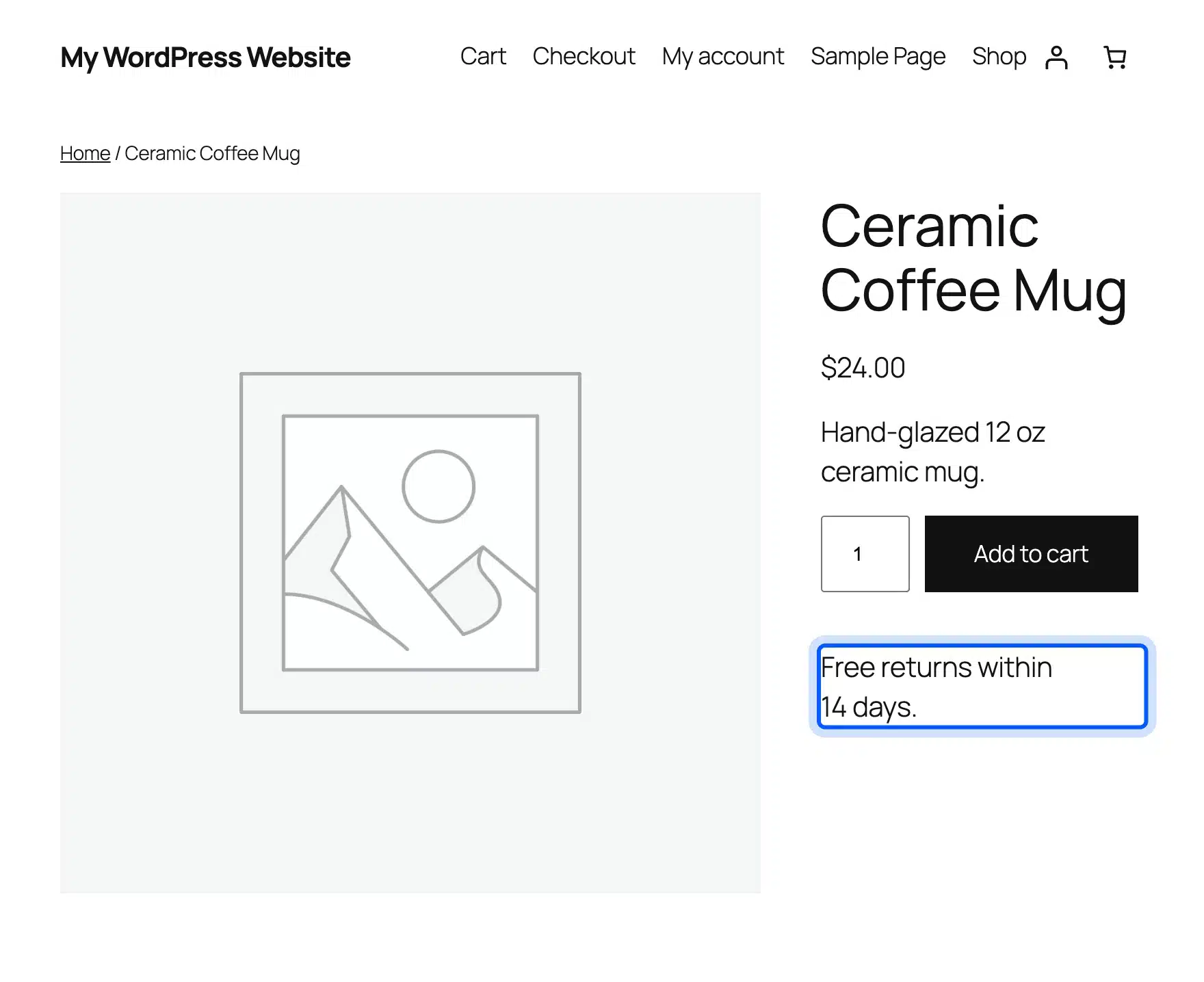
To add a trust note, select the Add to Cart with Options block in List View. Insert a Paragraph block after it and type your message. We added the line Free returns within 14 days. on the test site, saved the template and reloaded a product.
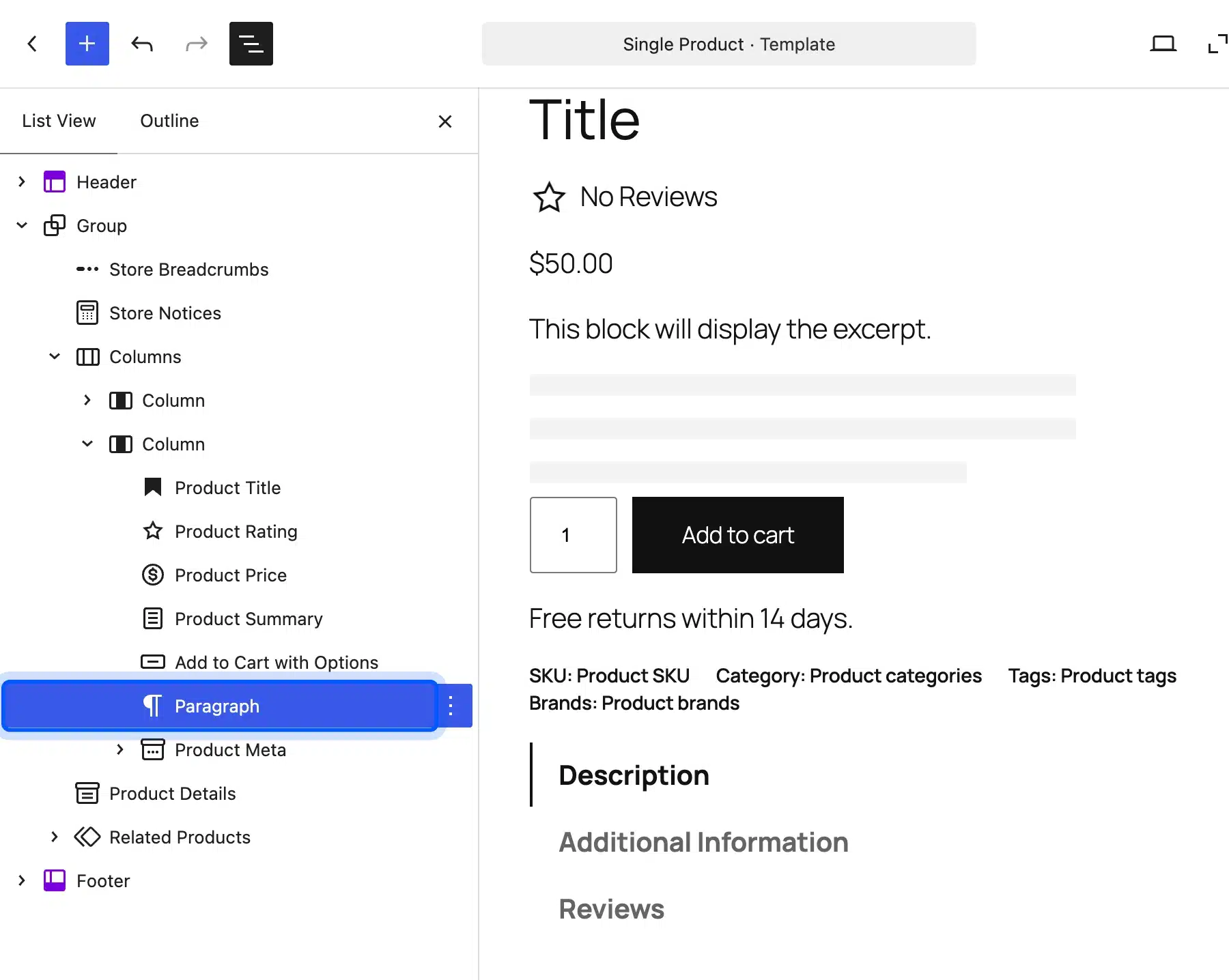
After saving, the front end of the product page showed the new line under the Add to Cart button. Because it sits in the template, it appears on every product, which is the right place for store-wide policies such as returns or shipping time.
Tip: Keep store-wide notes short and put product-specific facts in the product description. A note that repeats on every product should read as true for every product.
How to Create a Template for One Product
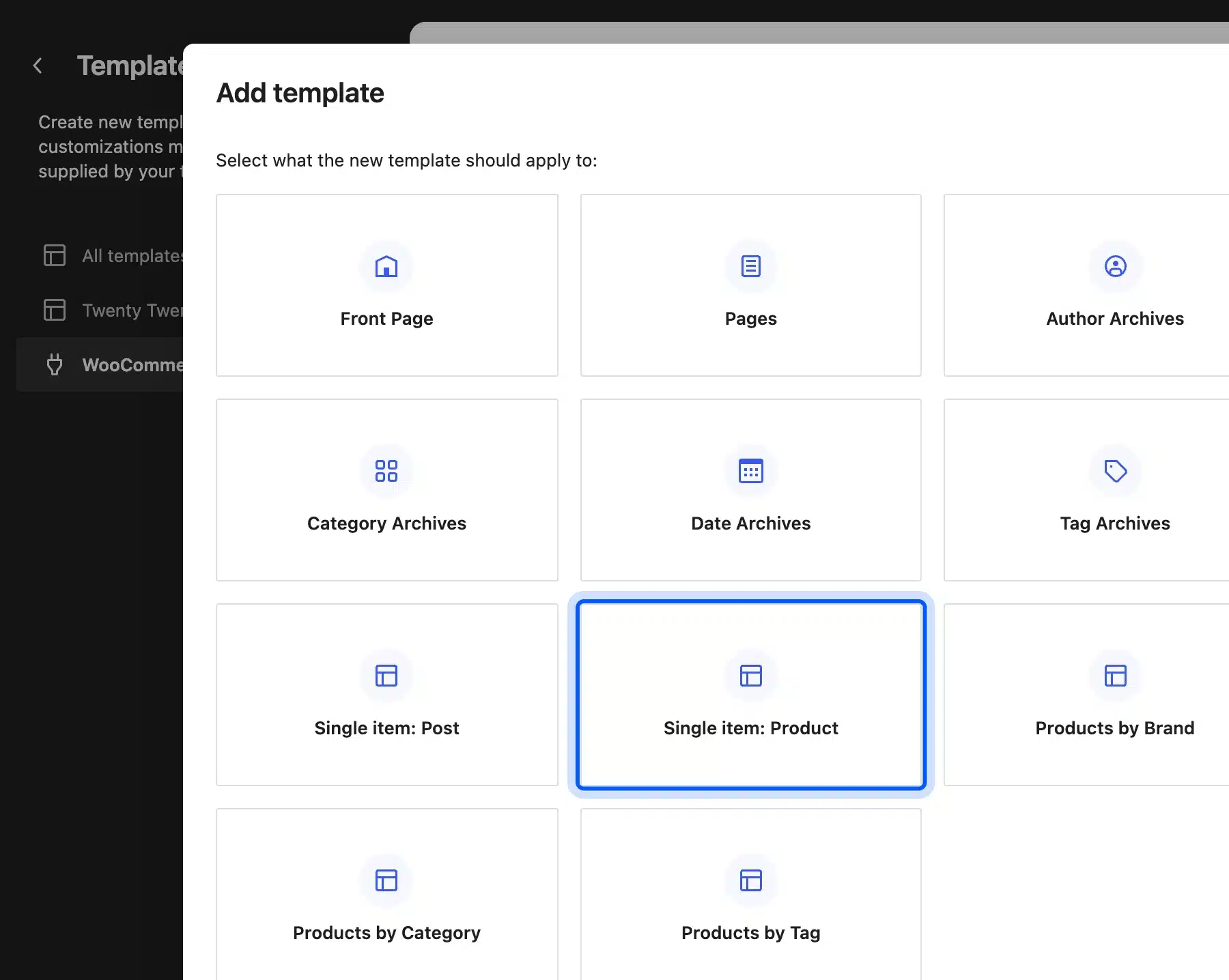
To give one product its own layout, add a product-specific template. Go to Appearance > Editor > Templates, click Add Template, choose Single item: Product and pick the product. The WooCommerce documentation says the editor then opens a blank template that you can build with patterns and blocks.
On the test site, the Add template dialog listed twelve choices, including Single item: Post, Single item: Product, Products by Category and Custom template. The Single item: Product choice appeared a moment after the dialog opened, so wait for the full list to load.
Use a product-specific template for a flagship product, a bundle or a launch page. For everything else, keep the shared template, because one template is easier to maintain than fifty.
How to Customize the WooCommerce Product Page With Plugins
Use a plugin when you need a feature that the default page does not include. Examples are a 3D viewer, a quantity discount table or a back-in-stock form. A plugin adds a block, a button or a panel to the page and keeps working when you change the layout.
DevDiggers sells five plugins that change what a product page can do. We read each one’s data from the store’s product API in October 2026, and all five are sold as yearly licenses. The prices below are the lowest tier.
| Plugin | What it adds to the product page | Lowest tier |
|---|---|---|
| WooCommerce Product View in AR | A 3D and augmented reality viewer | $59 a year |
| WooCommerce Tiered Pricing | A quantity discount table | $49 a year |
| WooCommerce Waitlist | A join waitlist button on out of stock products | $29 a year |
| WooCommerce Price Drop Notifier | A form where shoppers name the price they want | $29 a year |
| WooCommerce Product Share For Discounts | Share buttons that earn the sharer a discount | $49 a year |
Pick a plugin by the problem on your page.
A plugin cannot fix a slow or cluttered page. If the gallery is heavy, the page stays slow no matter which feature you add.
A product that sells out often needs a waitlist, and a product with a wide price range may need tiered pricing. Add one feature at a time and check the page on a phone after each one.
Also read the plugin’s documentation before you buy. Check that it works with blocks as well as classic templates, because some features only render in one of them. A short test on a staging copy answers that question in minutes.
How to Back Up Before You Change the Template
Test every template change on a staging copy before you touch the live store. A staging site is a private copy where a broken layout costs nothing. Our guide to creating a WordPress staging site explains how to set one up in a few steps.
If you edit the live template anyway, take a backup first and keep the Templates screen in mind.
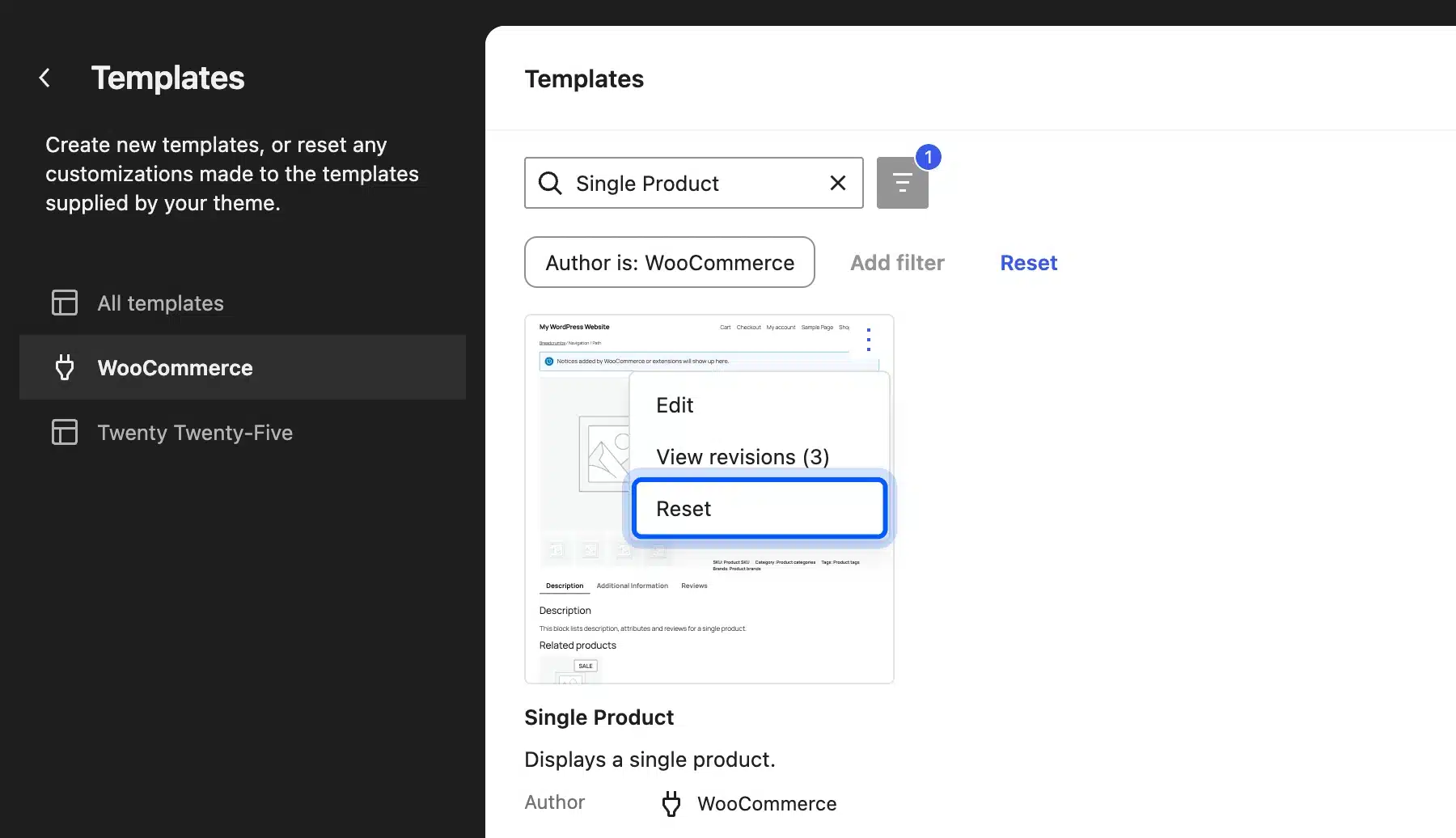
Each template has an actions menu. On the test site, the Single Product card offered Edit, View revisions and Reset. Keep a dated note of each change you make so that you can undo one without losing the others.
Reset opens a dialog that asks Reset to default and clear all customizations. It returns that one template to the version that WooCommerce and your theme supply, so other templates stay as you edited them.
How to Customize the WooCommerce Product Page With Hooks
On a classic theme, you customize the WooCommerce product page with action hooks. WooCommerce prints each part of the page through a hook with a priority number. You can remove a part and add it back with a different priority, which works without editing template files.
The default order comes from WooCommerce’s template hooks file. All of these print on the woocommerce_single_product_summary hook.
The title prints at priority 5, and the rating and price print at 10. The excerpt prints at 20, add to cart at 30, product meta at 40 and sharing at 50.
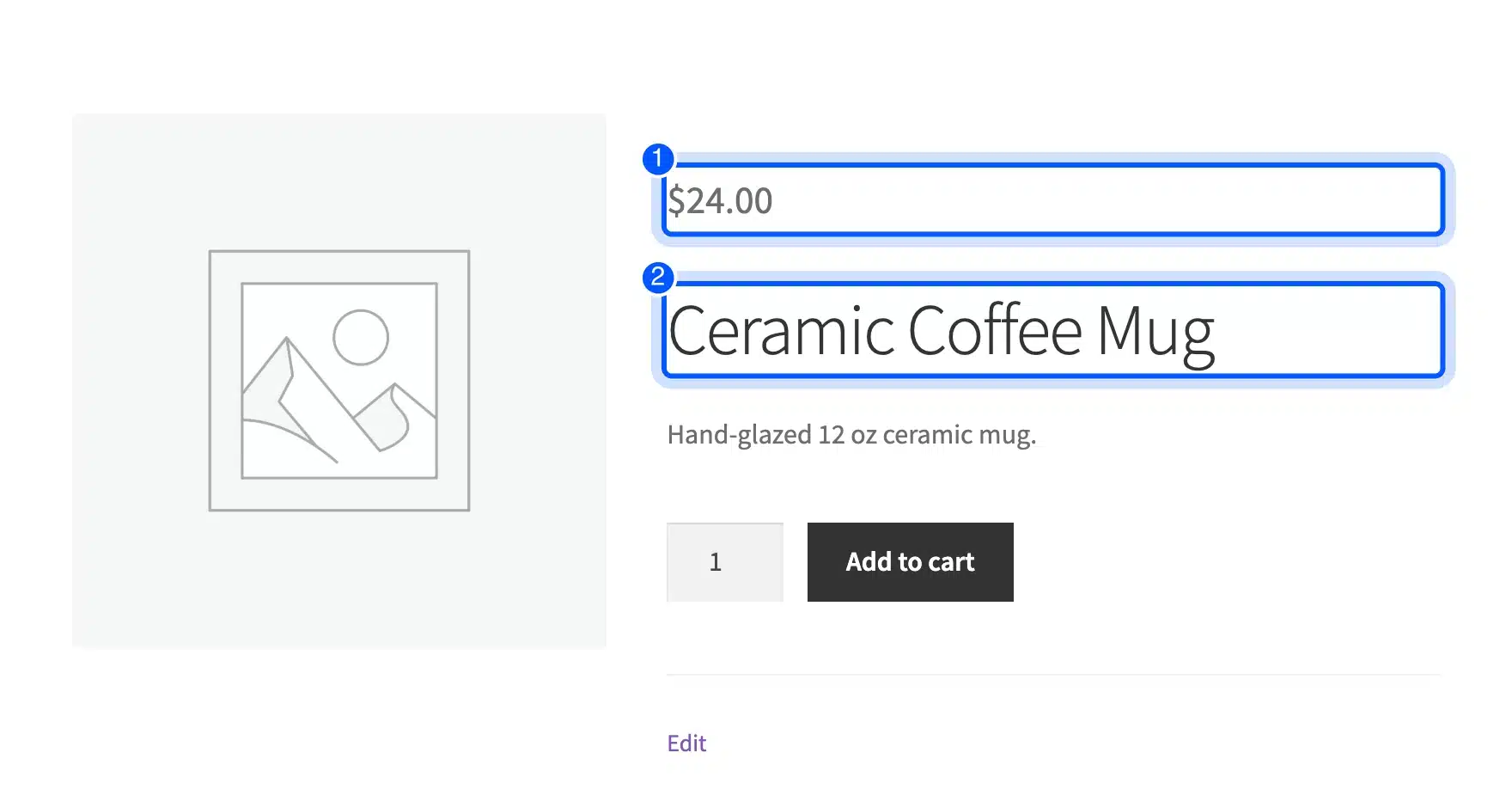
This snippet moves the price above the title by giving it priority 4:
add_action( 'init', function () {
	remove_action( 'woocommerce_single_product_summary', 'woocommerce_template_single_price', 10 );
	add_action( 'woocommerce_single_product_summary', 'woocommerce_template_single_price', 4 );
} );
On the Storefront test site, the price printed above the product title after we added the code. Put snippets like this in a child theme or a code snippets plugin, never in a file that a theme update replaces.
If you need to change the markup itself, copy the template file into your theme. The WooCommerce developer docs say to copy files from the plugin’s templates folder into a woocommerce folder inside your theme. Keep the same structure and avoid deleting hooks.
Do Hooks Work on Block Themes?
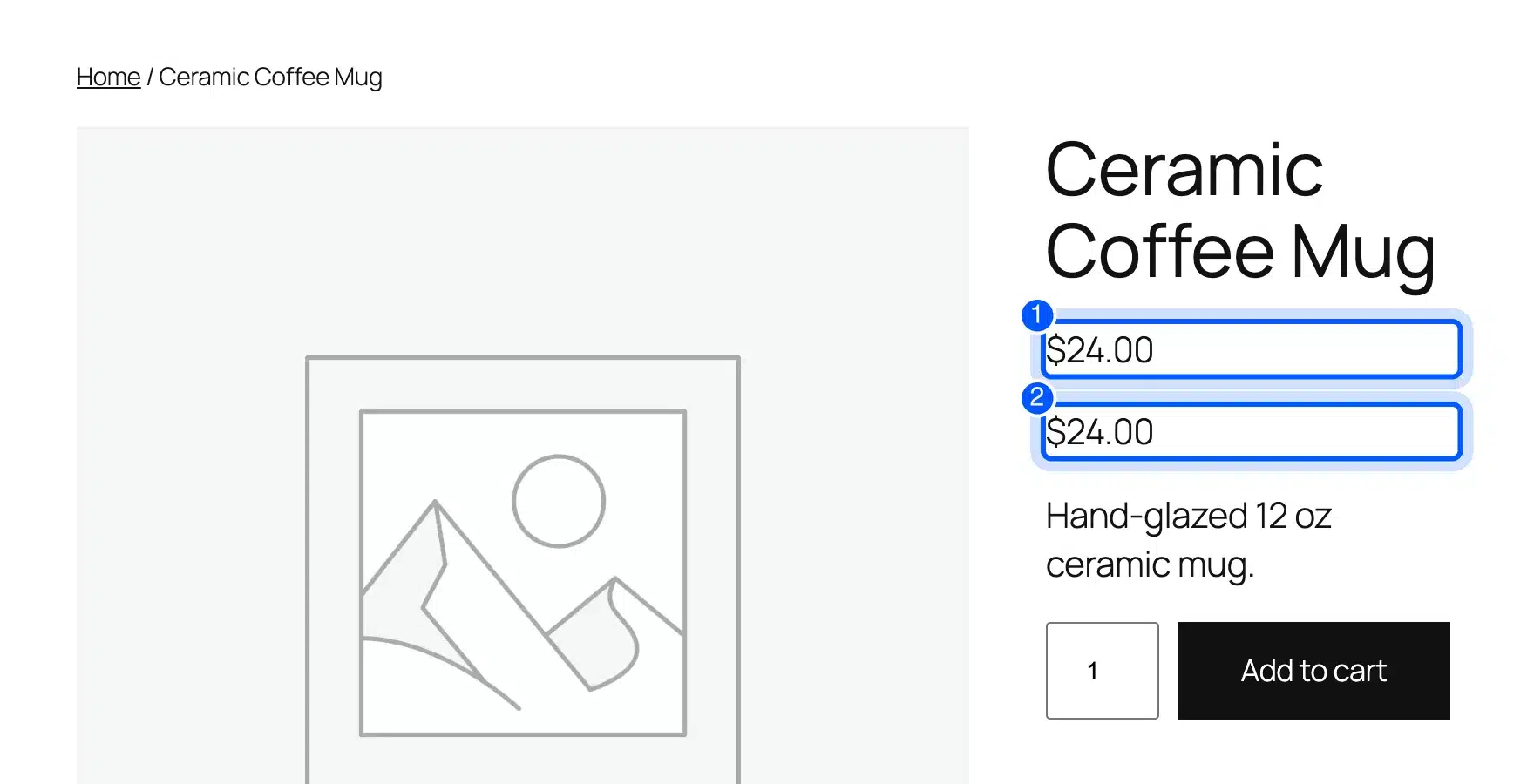
Hooks do not move the blocks of a block theme template. On the test site, the same snippet added a second price on Twenty Twenty-Five instead of moving the existing one. The original Product Price block stayed where the template put it, and the hook printed another price below the title.
That result matters because many older tutorials give hook snippets as the only method.
A snippet that works for years on a classic theme can quietly misbehave after a move to a block theme. On a block theme, use the Site Editor steps above, and keep hooks for classic themes. If a plugin you use relies on a hook, test it on a staging copy before you trust it on a live store.
The test is simple. Add the snippet on staging, reload a real product and look for output that appears twice or in the wrong place. If you see it, remove the snippet and make the change in the template instead.
How to Change Product Tabs, Gallery and Related Products
To change the tabs, gallery or related products, edit the Product Details, Product Image Gallery and Related Products blocks on a block theme. Each block has its own settings in the sidebar. On a classic theme, use the filters and hooks for the same parts.
For tab names, follow our guide on how to change the product page tab titles in WordPress. To add a clip to the gallery, read how to add video in a WooCommerce product gallery. To reorder the attributes that the page lists for a product, see our post on changing the order of WooCommerce product attributes.
A tab only helps if the buyer opens it. Put the facts needed before a purchase, such as size and material, in the short summary near the price. Keep the longer story in the Description tab, where readers who want it can find it.
On the test site, the Product Details block showed Description and Reviews tabs on the front end. The same block in the template editor listed three tabs: Description, a tab for product attributes and Reviews. The tabs you see on a product depend on its data.
Product Page Optimization: What to Check After You Customize
Product page optimization means checking that the page answers a buyer’s questions fast. After you customize the page, check that the main image loads quickly and that the price, shipping and returns are easy to find. These checks matter more than any layout trick.
A short checklist works well for an eCommerce product page. Use it after every layout change, and compare the page with our guide on designing product pages for impulse and considered purchases.
- Gallery: Use sharp images that load fast, and compress them first, as our guide to WordPress image optimization explains.
- Price and stock: Show the final price and the stock status without a click.
- Delivery and returns: Put shipping time and the returns policy close to the Add to Cart button.
- Proof: Keep reviews and ratings visible, because buyers look for them before they add to cart.
- Mobile layout: Check the page at phone width, since the two columns stack.
- Follow-up: Capture visitors who leave without buying, for example with the email marketing plugins we reviewed.
These are product page best practices that you can apply without code. Add one change at a time so that you can tell which one helped.
Common Mistakes When You Customize the Product Page
Most problems come from editing in the wrong place or changing too much at once. The five mistakes below cost store owners the most time. Each one has a quick fix, and you can check your own store against the list before you publish a change.
- Using hooks on a block theme: The snippet prints extra output, so use the Site Editor instead.
- Editing core plugin files: A WooCommerce update overwrites them, so use templates, hooks or a child theme.
- Deleting hooks in a template override: The documentation warns against it, because plugins use them to add content.
- Customizing before backing up: Take a backup first, then edit the template.
- Changing everything at once: Change one thing, check the page and move on.
A simple routine keeps customizing safe. Back up, change one block, save, reload a real product and check the page on a phone. Then wait for a week of normal traffic before you judge the result, because a single day of sales can mislead.
Conclusion
To customize the WooCommerce product page, edit the Single Product template in the Site Editor if you run a block theme. Add a plugin for features, and use hooks only on a classic theme. The block method is the safest because it needs no code and survives updates.
Start with one change, such as a returns note under Add to Cart, and check the page on a phone. If you need a custom layout or a feature built for your store, our WooCommerce developers can build it.
Frequently Asked Questions (FAQs)
Q1. Do I need to know code to customize the WooCommerce product page?
No code is needed on a block theme. The Site Editor lets you move, edit and remove blocks without code. Hooks and template overrides need basic PHP and apply to classic themes.
Q2. Will my customizations break after a WooCommerce update?
Template edits and hooks usually survive updates. Edits to core plugin files do not, because updates overwrite them. The WooCommerce developer docs say never to edit files inside the core plugin.
Q3. Can I use a different layout for one product?
Yes. Create a product-specific template from Appearance > Editor > Templates by choosing Add Template and then Single item: Product. The WooCommerce documentation lists the same steps.
Q4. How do I restore the default product page?
Go to Appearance > Editor > Templates, filter by WooCommerce and open the actions menu of the Single Product card. Choose Reset and confirm the dialog. WordPress then falls back to the template that WooCommerce and your theme supply.
Q5. Is it safe to edit WooCommerce template files directly?
Not inside the plugin folder. Copy the file into a woocommerce folder in your theme instead, and keep the hooks in place. The developer docs warn against deleting hooks, since plugins use them.
Q6. Can I use Elementor or another page builder?
Yes, page builders can build product templates, but they use their own tools and often need a paid version. The steps in this guide use only WordPress and WooCommerce.
Q7. Does customizing the product page affect SEO?
It can. A heavy layout or large unoptimized images slow the page, and removing the title or description blocks removes content that search engines read. Keep the Product Title and Product Details blocks on the page.
Q8. How do I know if I have a block theme or a classic theme?
Look at the Appearance menu. A block theme shows an Editor entry and no Widgets entry, while a classic theme shows Customize and Widgets. The Twenty Twenty-Five test site listed only Themes, Editor and Fonts.