
To check WooCommerce product data table entries, open Products, then All Products, and read the SKU, stock and price columns. Open a product to see every field in the Product data box. For fields the admin hides, query the database.
WooCommerce does not keep products in one table. It splits them across wp_posts, wp_postmeta and a lookup table called wp_wc_product_meta_lookup. Which one you read depends on the question you are trying to answer.
This guide covers three ways to check the data, from the admin screens to raw SQL. Every screenshot and every query result comes from a fresh WooCommerce 11.1.2 test store with three products, checked in September 2026.
What Is the WooCommerce Product Data Table?
There is no single product data table in WooCommerce. Products are stored as posts, with their prices, stock and SKU kept as meta values in the database. A separate lookup table copies the most used fields so shop queries stay fast for shoppers.
The admin shows all of it together.
The WooCommerce database description says the lookup table indexes product metadata to improve query performance. It lists columns such as sku, min_price, max_price, stock_quantity and total_sales.
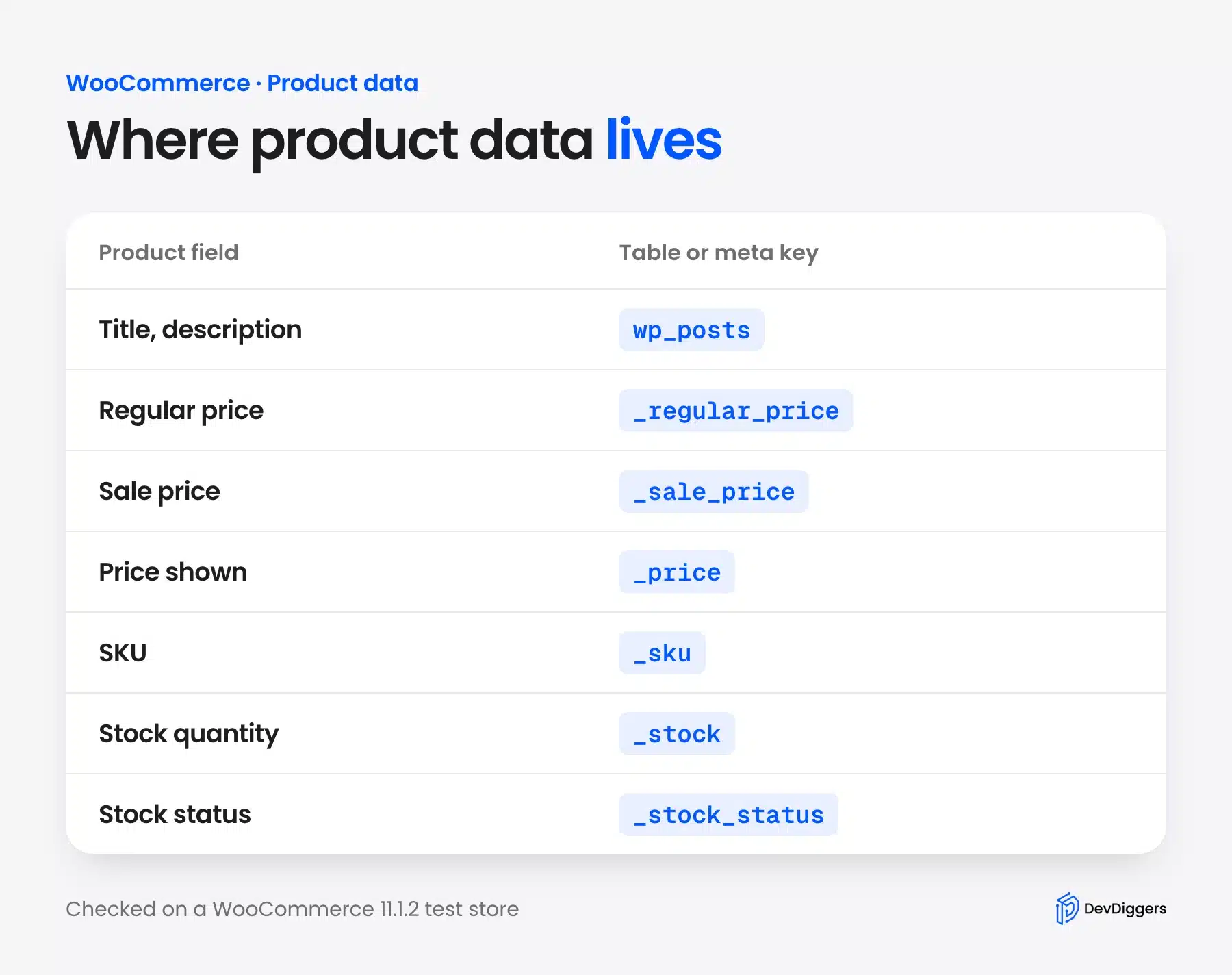
One thing did not change with High-Performance Order Storage. The official HPOS documentation says it affects order data only, so products stay where they are. Our guide to a HPOS compatible plugin covers what does move.
Method 1: Check WooCommerce Product Data Table in the Admin
The admin is the safest way to check WooCommerce product data table values. Open Products, then All Products, to see each product’s SKU, stock status and price. Click a product’s name to open the full Product data box with every field.
- Open the list: In the dashboard, go to Products, then All Products.
- Read the columns: Check SKU, Stock and Price for each product.
- Open a product: Click its name to open the editor.
- Read the Product data box: Use the General, Inventory and other tabs on the left.
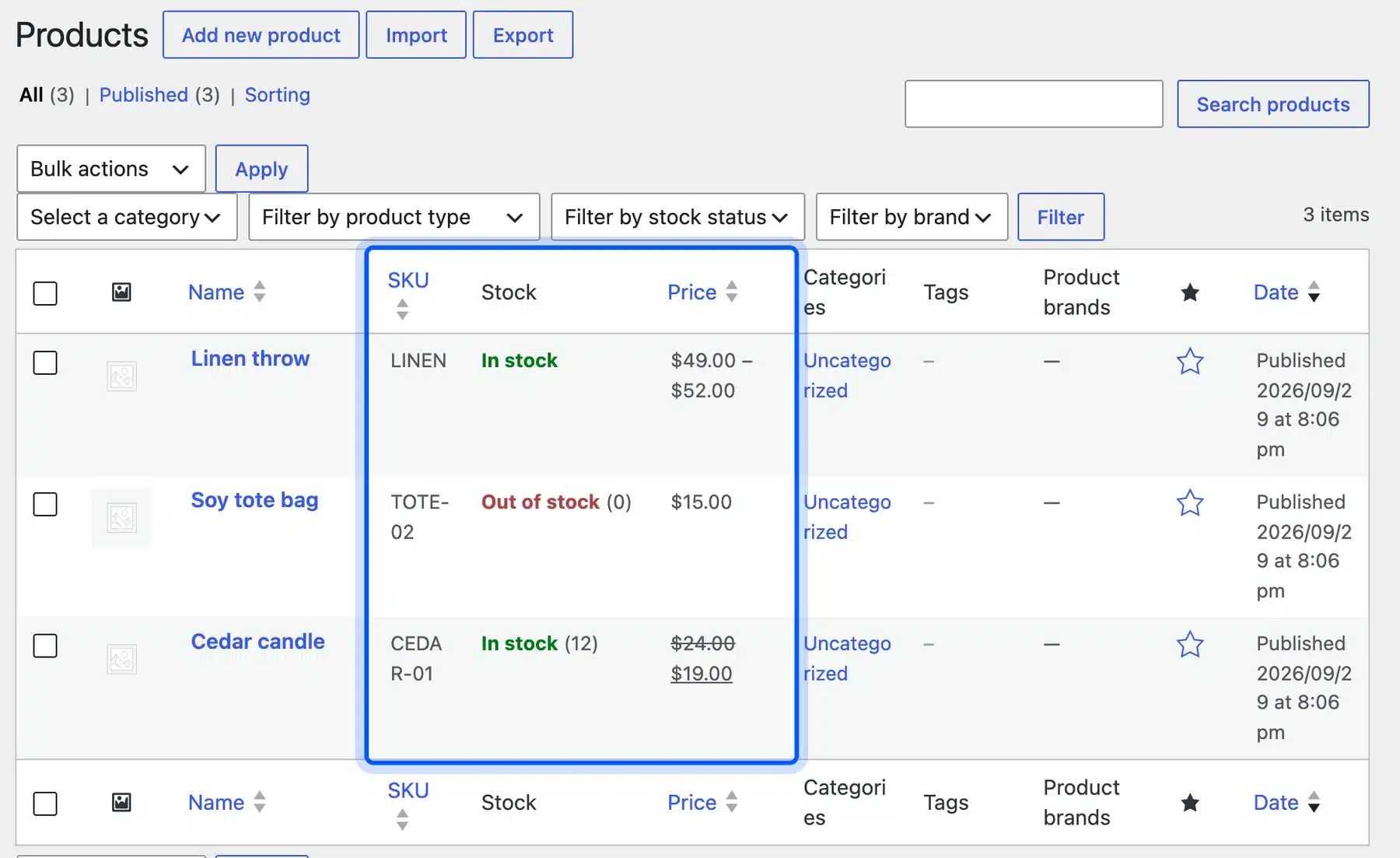
The filters above the list narrow the view fast. You can filter by category, product type or stock status, and the search box finds a product by name or SKU.
The list shows a range for the variable product, $49.00 to $52.00. It shows the sale product as a struck-through $24.00 and a live $19.00. Stock shows a quantity in brackets when the product tracks stock.
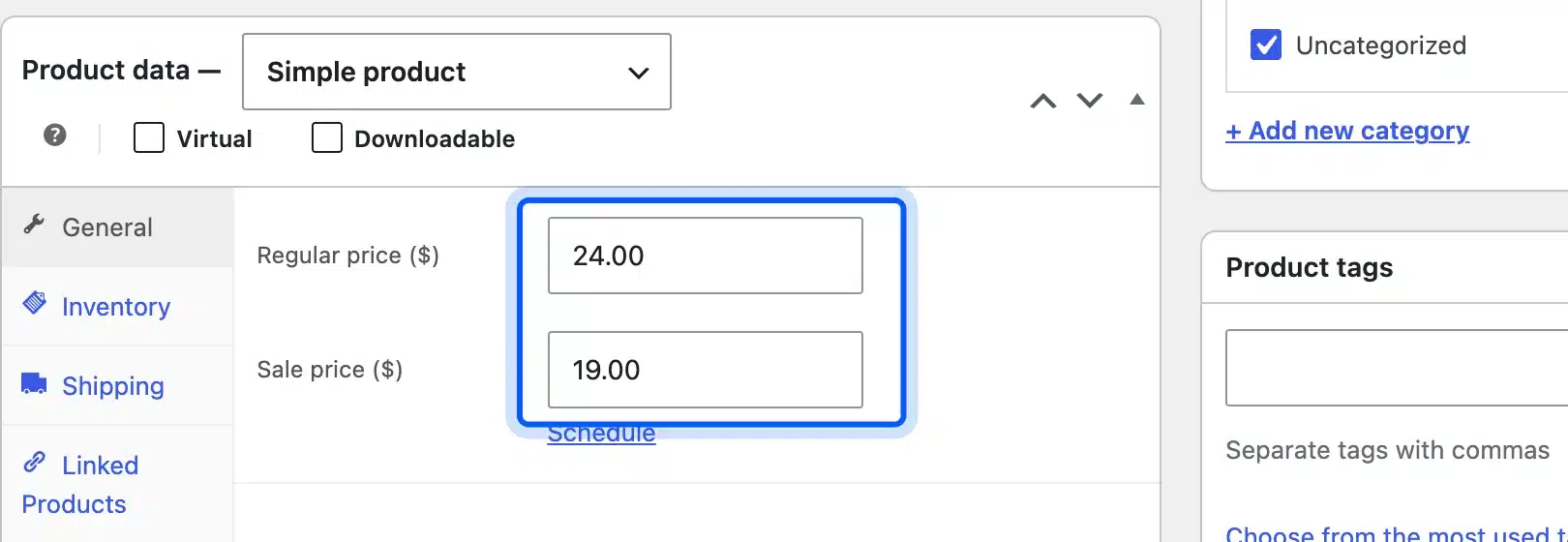
The General tab holds the regular price and the sale price. On our Cedar candle they read 24.00 and 19.00.
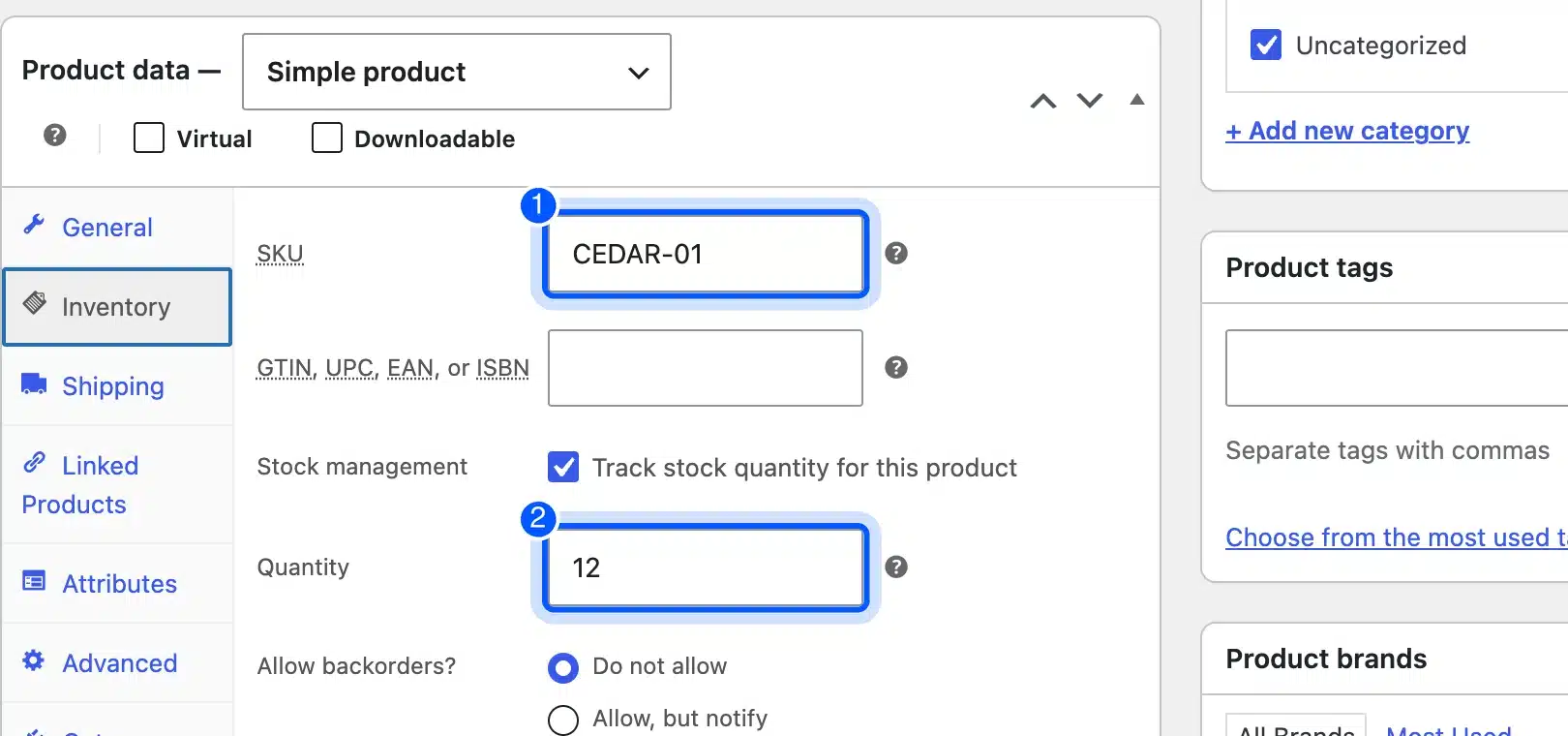
The Inventory tab holds the SKU, the stock management checkbox and the quantity. It also has backorder settings.
For variable products, each variation has its own price, SKU and stock. Our guide to WooCommerce variable products shows where to find them.
Method 2: Export the Product Data to a CSV File
A CSV export gives you the whole catalog in one file you can search and sort. Go to Products, click Export, choose the columns and click Generate CSV. Open the file in a spreadsheet to check prices, SKUs and stock side by side.
- Open the exporter: On the Products screen, click Export.
- Choose columns: Pick Export all columns, or select only the ones you need.
- Filter if needed: Choose product types or a category.
- Generate the file: Click Generate CSV and open the download.
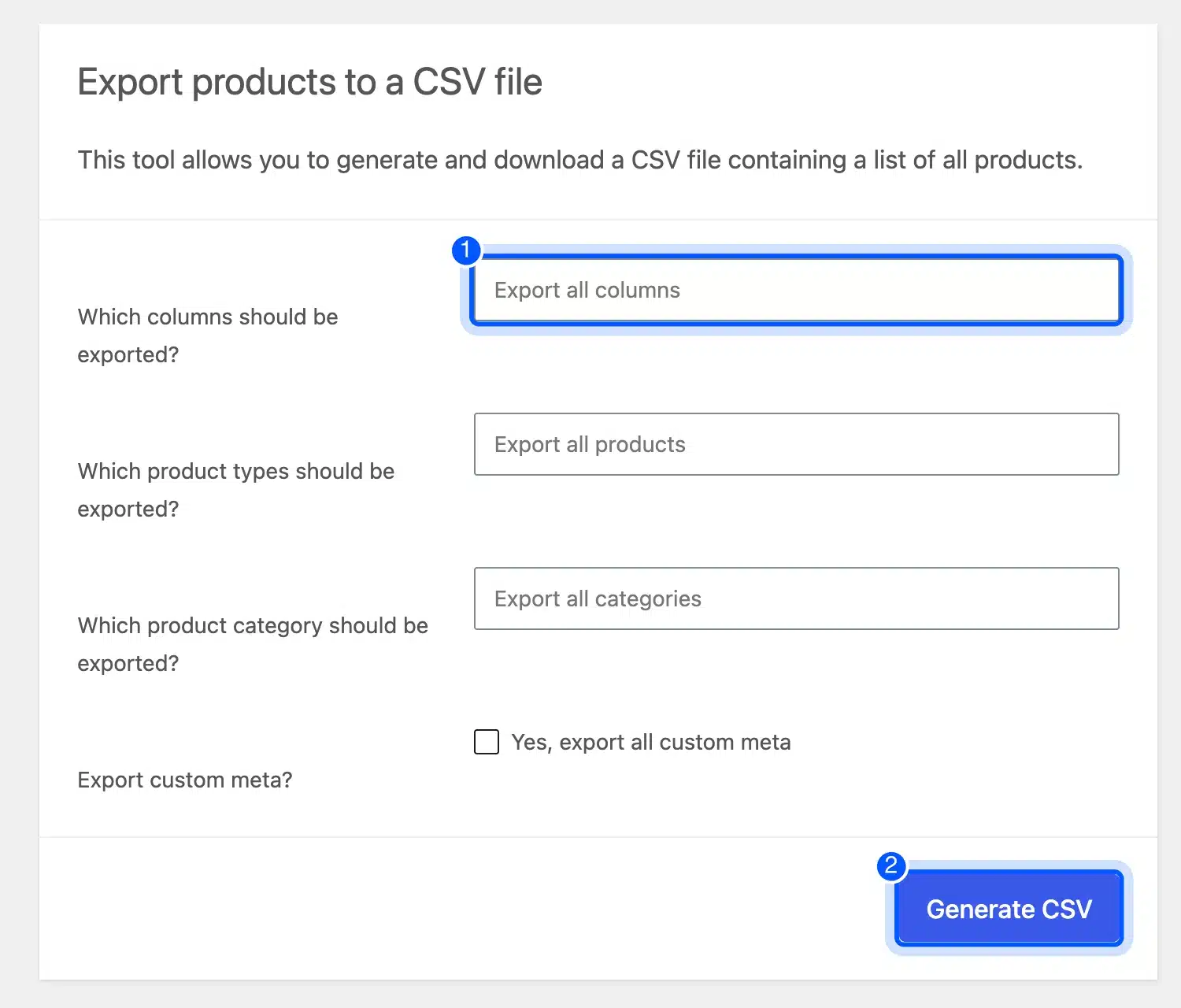
The screen also asks whether to export custom meta. Tick that box if a plugin stores extra product fields you want to check.
We ran the exporter on our test store. Each variation came out as its own row with the type variation, and the Parent column held the parent SKU, LINEN. The variable product itself was a separate row with the type variable.
That row-per-variation layout matters when you audit prices. A filter on the Type column separates products from variations in seconds.
When you open the file, check three things first. Compare the Regular price and Sale price columns, look at the stock columns, and scan the SKU column for blanks. On our Cedar candle row, the sale price read 19.00 and the regular price read 24.00.
Method 3: Check the Product Data Tables in the Database
The database shows every field, including ones the admin hides. Open phpMyAdmin or run wp db query, then read wp_posts for the product rows and wp_postmeta for their fields. Change the wp_ prefix if yours differs, and take a backup first.
Start with the product rows. Both simple products and variations are posts, and variations point to their parent through post_parent.
SELECT ID, post_title, post_type, post_status, post_parent
FROM wp_posts
WHERE post_type IN ('product', 'product_variation')
ORDER BY ID;
On our test store, this returned five rows. Three had the type product, and two had the type product_variation with post_parent set to 12, the Linen throw.
The wp_postmeta product data stores one row per field, so a single product returns many rows.
Next, read the fields of one product by its ID. Here we used ID 10, the Cedar candle.
SELECT meta_key, meta_value
FROM wp_postmeta
WHERE post_id = 10
ORDER BY meta_key;
| meta_key | meta_value |
|---|---|
_regular_price | 24.00 |
_sale_price | 19.00 |
_price | 19.00 |
_sku | CEDAR-01 |
_manage_stock | yes |
_stock | 12 |
_stock_status | instock |
The query returned more keys, such as _tax_status, _virtual and total_sales. The table above lists the ones that matter most. Notice that _price matches the sale price, because _price is the active price.
Finally, read the lookup table. It holds a copy of the most used fields on one row per product.
SELECT * FROM wp_wc_product_meta_lookup ORDER BY product_id;
For the Cedar candle, the row showed sku CEDAR-01, min_price 19, max_price 19, onsale 1, stock_quantity 12 and stock_status instock. The full column list on WooCommerce 11.1.2 was:
- Identity:
product_id,skuandglobal_unique_id. - Price:
min_price,max_priceandonsale. - Stock:
stock_quantityandstock_status. - Type flags:
virtual,downloadable,tax_statusandtax_class. - Sales data:
rating_count,average_ratingandtotal_sales.
Warning: Back up the database before you change anything. Our guide to WooCommerce product backup explains how. Read-only queries are safe, but a wrong UPDATE can break a live store.
What to Do When the Lookup Table Is Wrong
If the lookup table does not match the product, regenerate it from the WooCommerce tools. Go to WooCommerce, then Status, then Tools, and find Product lookup tables. Click Regenerate and wait, because the screen warns that the process may take a while.
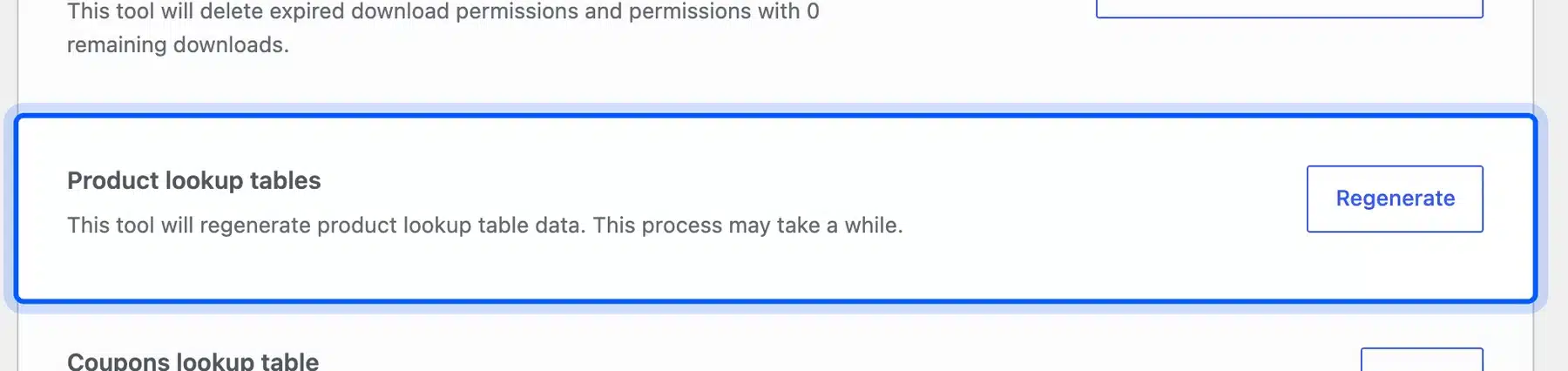
Do not edit the lookup table by hand. It is built from the meta values, so fix the meta or the product in the admin, then regenerate.
Which Method Should You Use?
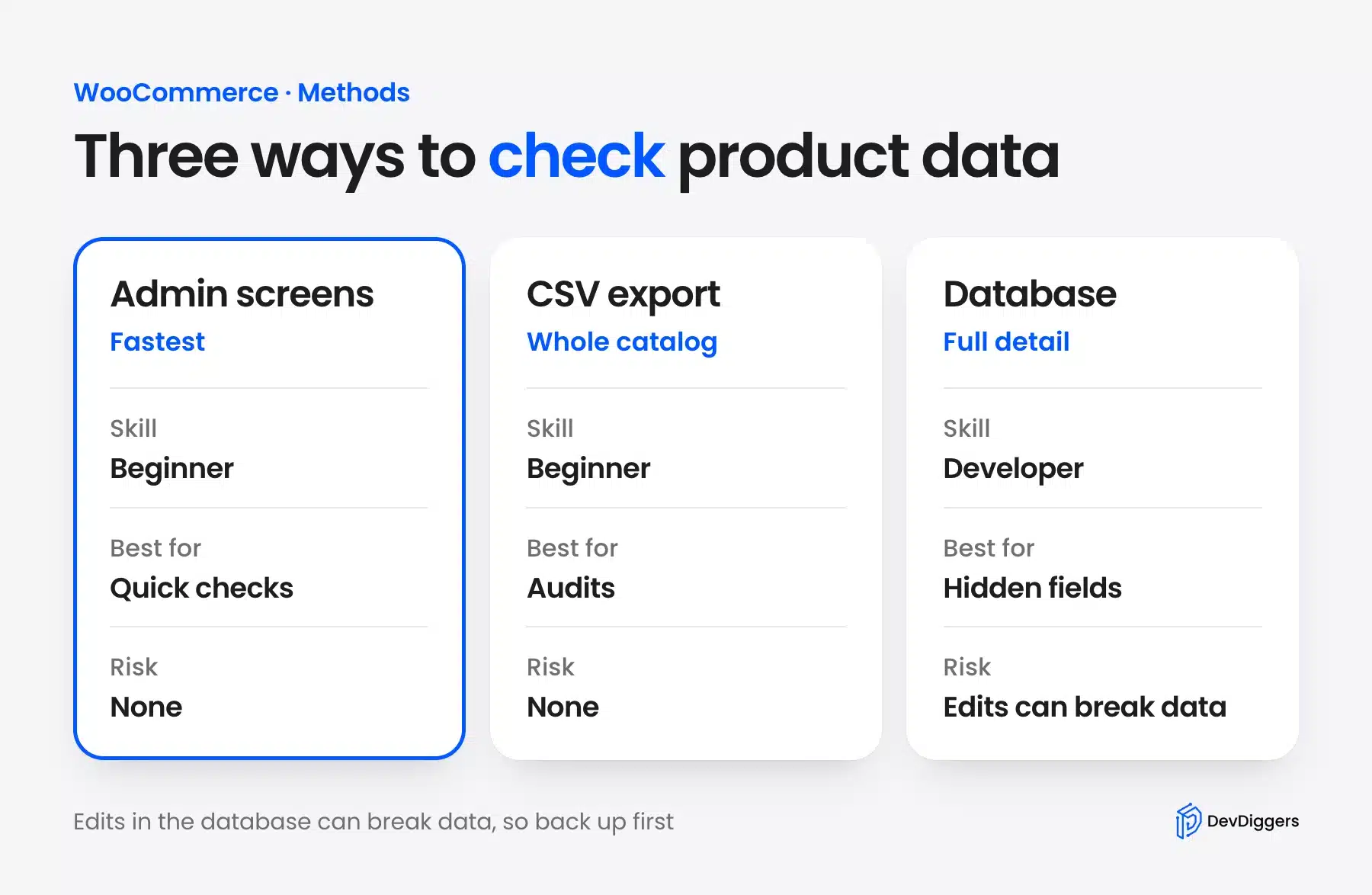
Use the admin for a quick look at one product. Use a CSV export to audit the whole catalog. Use the database only when you need a field the admin hides, or when you are debugging a bug that the screens cannot explain.
Store owners sometimes ask about showing product data in a table on the front end for shoppers. That is a different job, and a product table plugin handles it. Those plugins read the same fields you checked here.
Product Fields Worth Checking First
Most product problems trace back to a small set of fields. Check these first, in this order, before you start blaming plugins or themes. The table names each field and the meta keys to compare, and every check takes seconds.
| Field | What to check |
|---|---|
| Price | Compare _regular_price, _sale_price and _price. The shop shows _price |
| Stock | Compare _manage_stock, _stock and _stock_status |
| SKU | Check _sku on the product and on each variation |
| Variations | Each variation is its own product_variation row with its own price and SKU |
| Lookup table | Confirm the lookup row matches the product, then regenerate if not |
If a product seems to have vanished from the shop, check its publish status, its stock status and whether every variation has a price. The first two checks in the table catch most of these cases.
Conclusion
To check WooCommerce product data table entries, start in Products, then All Products. Move to the CSV export to audit many products at once. Use the database, with a backup first, only for fields the admin does not show.
Remember that products live in wp_posts and wp_postmeta, with a lookup table copy for speed. If the lookup table looks wrong, regenerate it from WooCommerce Status Tools. If your data needs a deeper fix, our WooCommerce development services team can help.
Frequently Asked Questions (FAQs)
Q1. Where is WooCommerce product data stored?
Products are posts in wp_posts, and their fields sit in wp_postmeta as meta_key and meta_value pairs. A lookup table, wp_wc_product_meta_lookup, holds a fast copy of price, stock and SKU. Variations are separate product_variation rows.
Q2. Which table stores the WooCommerce product price?
The price lives in wp_postmeta as _regular_price, _sale_price and _price. The _price key is the active price that shoppers see. The lookup table also holds min_price and max_price copies.
Q3. How do I export WooCommerce product data?
Go to Products, click Export, choose your columns and click Generate CSV. Open the file in a spreadsheet. Each variation exports as its own row with the parent SKU in the Parent column.
Q4. Does HPOS change where products are stored?
No. The official HPOS documentation says it affects order data only. Products still use wp_posts and wp_postmeta.
Q5. What is the wc_product_meta_lookup table?
It is a table that copies the most used product fields, such as SKU, price range, stock and sales, into one row per product. WooCommerce uses it to make shop queries faster. You can rebuild it from WooCommerce, Status, Tools.
Q6. Is it safe to edit product data in the database?
Reading is safe. Editing is risky, so take a backup first and change values in the admin when you can. If you do edit meta directly, regenerate the lookup tables afterward.
Q7. How do I find a product by its SKU?
In the admin, search for the SKU on the products screen. In the database, query wp_postmeta for meta_key = '_sku' and read the post_id. The lookup table also has a sku column.
Q8. Why does my product show the wrong price?
Compare _regular_price, _sale_price and _price for that product. The shop shows _price, so a mismatch points to a saved sale or a stale value. Re-save the product, then regenerate the lookup tables if the lookup row still differs.