A Google Shopping feed is the file that tells Google what your WooCommerce store sells and what each product costs. A clean feed can put your products into free listings on Google at no cost.
Building the file is the easy half, because a plugin can generate it in a few clicks, but passing Google’s checks is harder. We ran a test feed from a WooCommerce 11.1.2 store, and valid XML still failed on two rules.
This guide follows the order that avoids rework, starting with the route and ending with fixes for each item disapproval.
What a Google Shopping Feed Is and Why Stores Need One
A Google Shopping feed is a file of product data that you send to Google Merchant Center. Each product in the file lists feed attributes such as title, price, availability, image and identifier. Google then uses that data to build free listings and to power any Shopping ads you run.
Free listings cost nothing, and Google’s free listings page says products can appear on Search, Maps, Gemini, YouTube, the Shopping tab, Images and Lens. The same page adds a warning that your products are not guaranteed to show.
That warning is why a WooCommerce product feed deserves care. Google matches your products to searches using the data you send, so weak data means fewer matches.
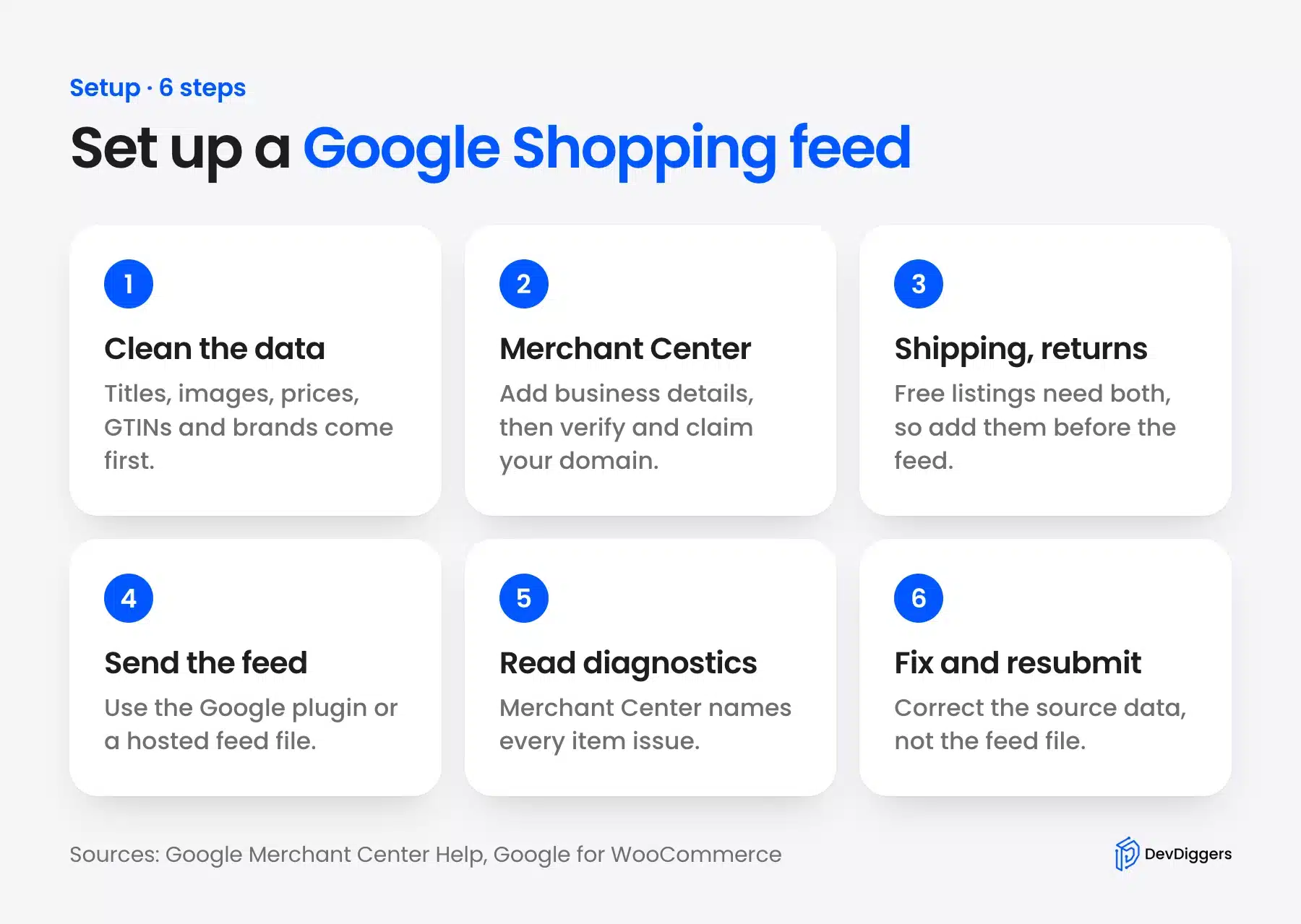
Here is the whole product feed setup on one page:
Choose the Right Route for Your WooCommerce Store
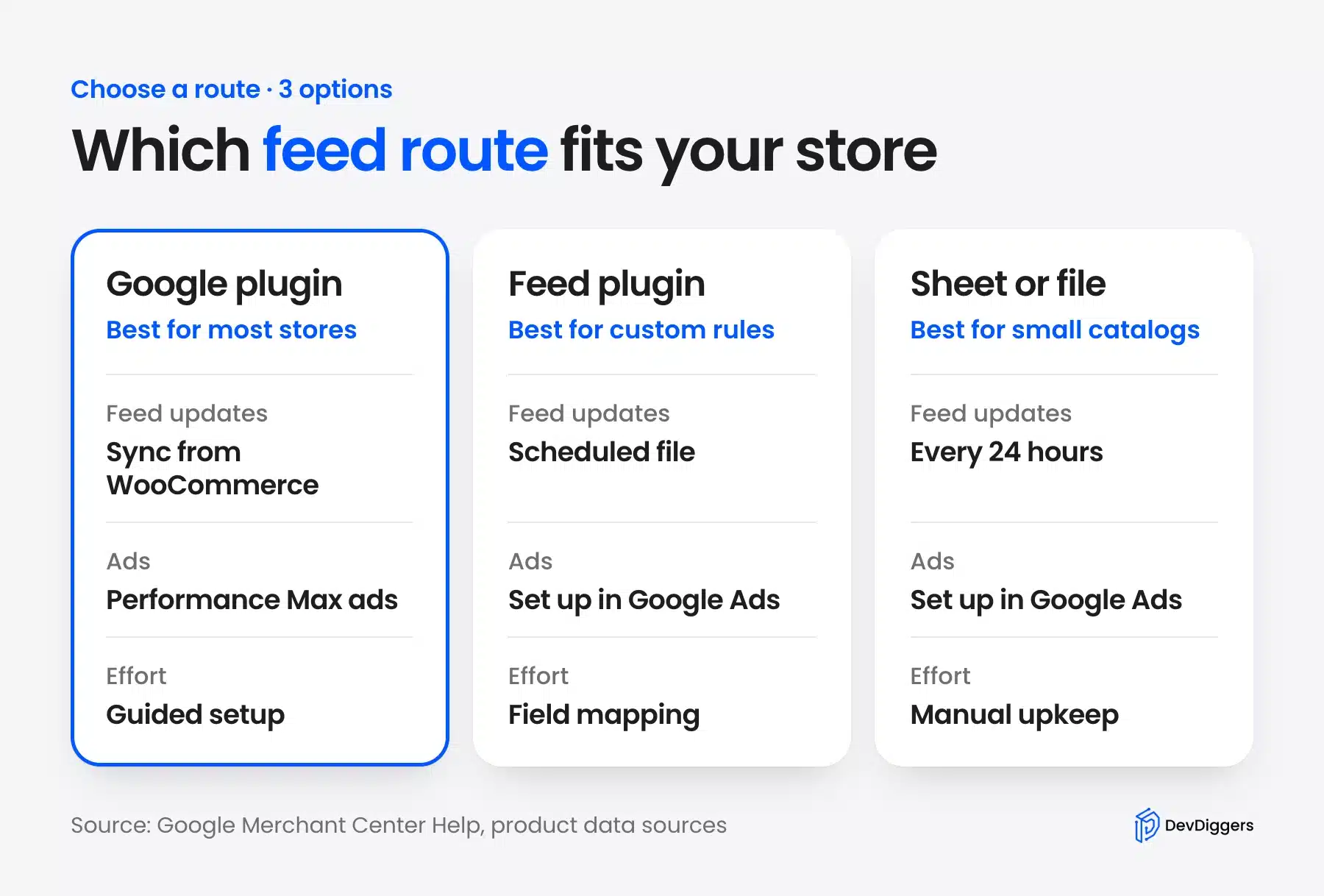
Most WooCommerce stores should start with the Google for WooCommerce plugin, which syncs products and runs Performance Max ads. Consider a separate feed plugin only if you must rewrite titles or values by category. Use a spreadsheet or hosted file only for a catalog small enough to maintain by hand.
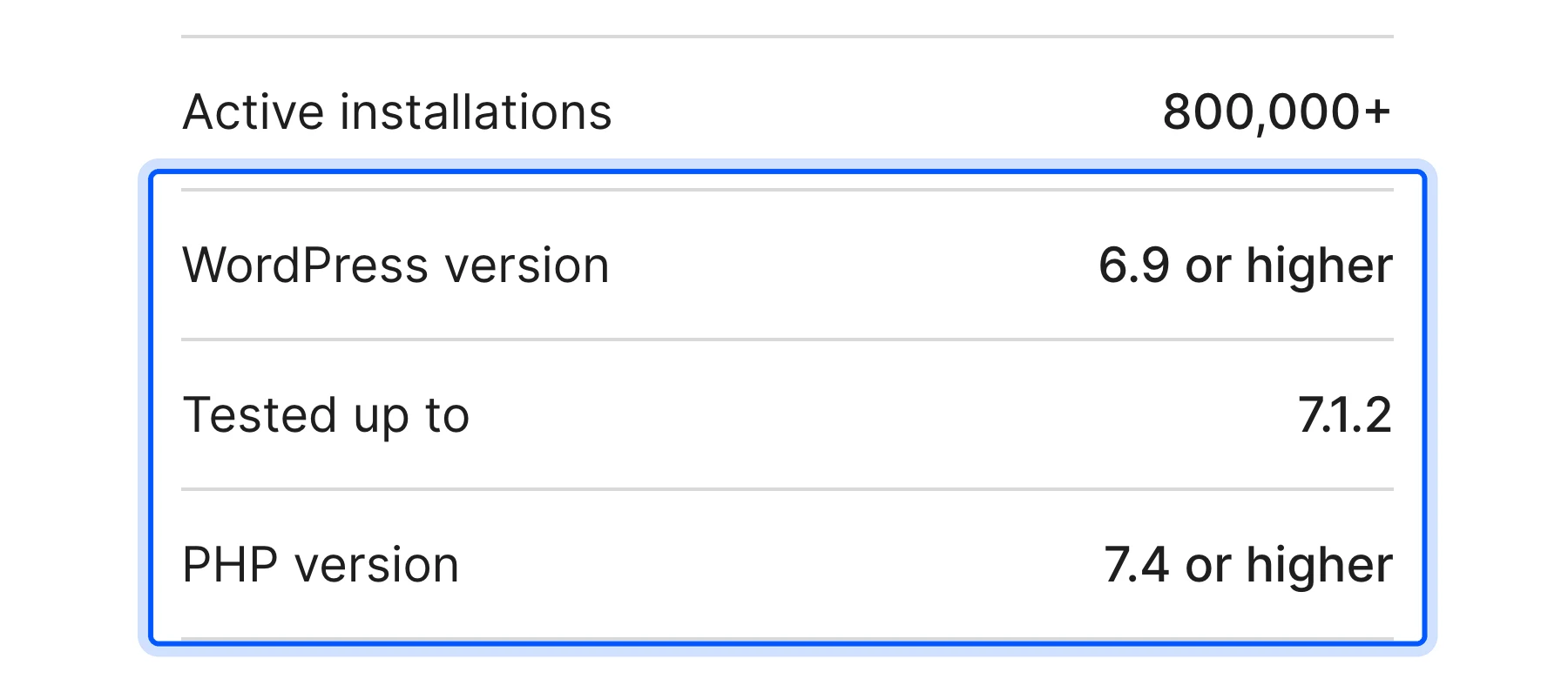
As of September 2026 the plugin is at version 3.9.4 with more than 800,000 active installs. It needs WordPress 6.9, PHP 7.4 and WooCommerce 10.9 or newer, according to its WordPress.org listing. The rating is 2.7 out of 5 from 267 reviews, so test it on a staging copy first.
Each route trades effort for control. The plugin’s FAQ says Product Sync sends all your WooCommerce product data to Merchant Center.
You can then edit products one at a time or in bulk. A feed file gives you full control of every value, but you own the upkeep. That upkeep is why the plugin wins for most stores.
One check matters more this year, because Google sunset the Content API for Shopping on August 18, 2026. Google’s Content API page names the Merchant API as the replacement and says requests began to see progressive errors from September 1, 2026.
Worth checking: Open a feed plugin’s changelog before you install it and look for Merchant API support. A plugin that still depends on the old API will not keep your Google Merchant Center feed in sync.
Prepare Your Product Data Before You Send Anything
Google limits products when the source data is weak, so fix it in WooCommerce first. The required feed attributes are id, title, description, link, image link, price and availability. The rules in Google’s product data specification set the exact format and limits for each one.
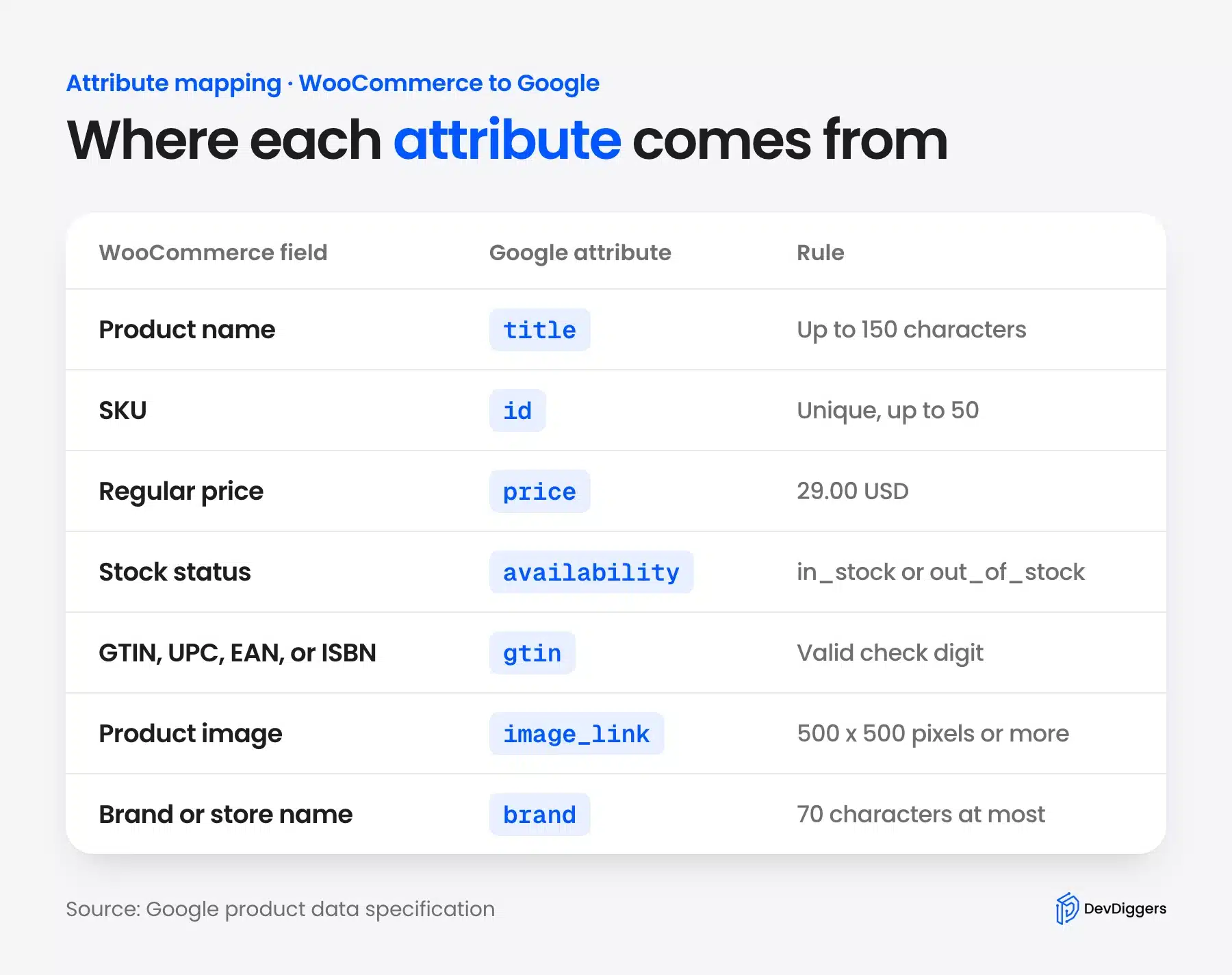
These are the limits that catch most stores, all taken from the same Google specification:
- Title: Up to 150 characters, and it must match the title on the product page.
- Description: Up to 5,000 characters that describe the product on its landing page.
- Price: ISO 4217 format, for example 15.00 USD.
- Availability: One of in_stock, out_of_stock, preorder or backorder.
- Image: At least 500 x 500 pixels, with enforcement beginning January 31, 2027.
Price needs the most care. Google’s specification says the price and currency must match your landing page, your structured data and the checkout. A cached page or a stale sync breaks that match, so check the feed against a live product page.
Stock status needs the same care. WooCommerce marks a product In stock, Out of stock or On backorder, and Google’s backorder value also requires an availability date. If you sell backordered items, plan for that extra field.
A catalog that needs new copy at scale can start with AI for WooCommerce product descriptions. Review every result before it goes live. Large photos also slow your pages, so optimizing WordPress images helps before you send them.
Add GTINs and Brands the Way Google Expects
A GTIN is the barcode number that identifies a product, and Google strongly recommends it whenever one exists. WooCommerce has offered a native GTIN field on the Inventory tab since version 9.2, released in August 2024. Google accepts 8, 12, 13 or 14 digits and requires a correct check digit.
Ask the manufacturer or supplier for the number printed under each barcode. Then open a product, choose the Inventory tab and fill in the field labeled GTIN, UPC, EAN, or ISBN. The field works on variations too, so each variation of a variable product can carry its own code.
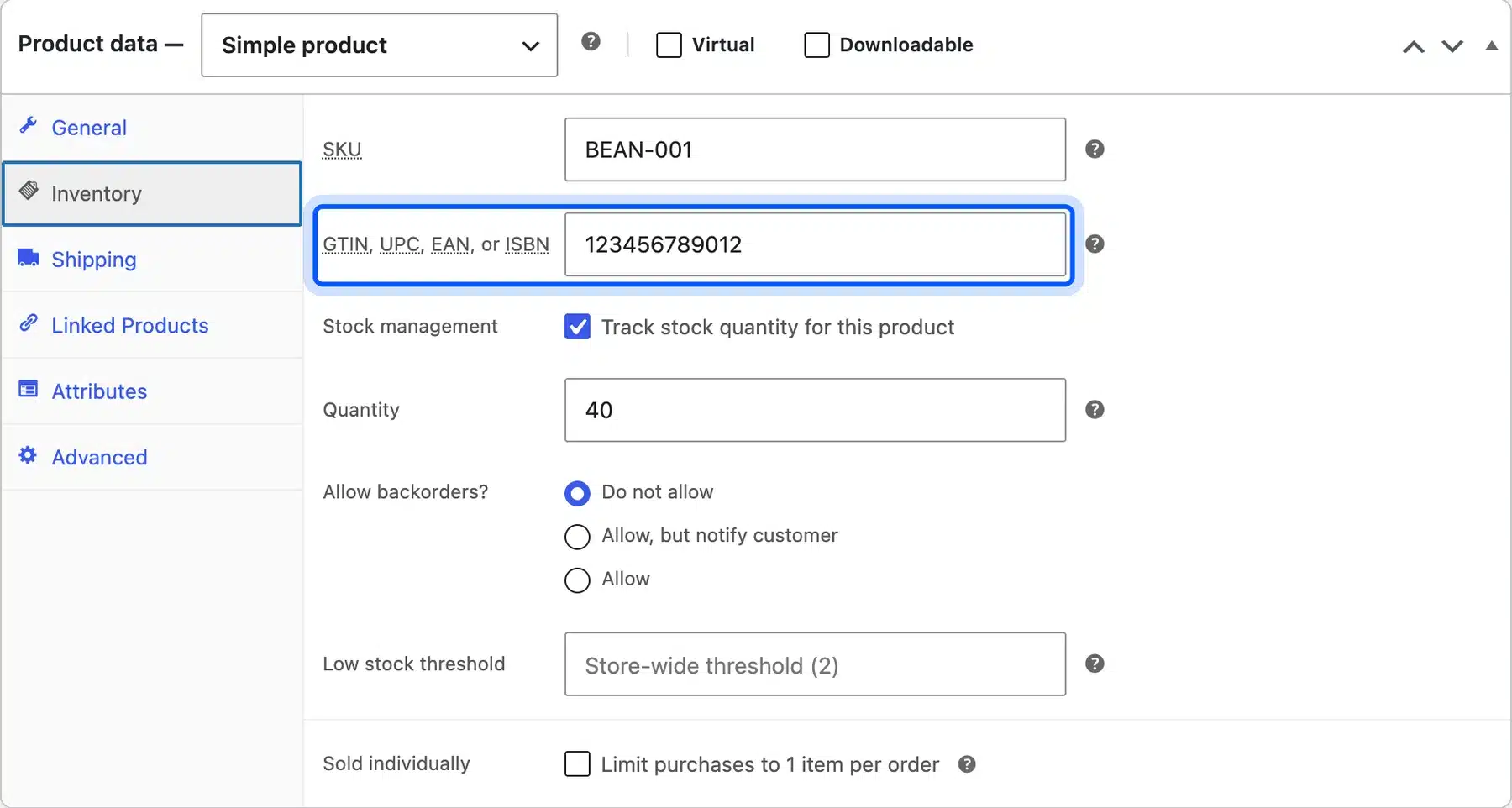
Variations get the same field. Our test shirt has sizes S, M and L, and each size carries its own valid code.
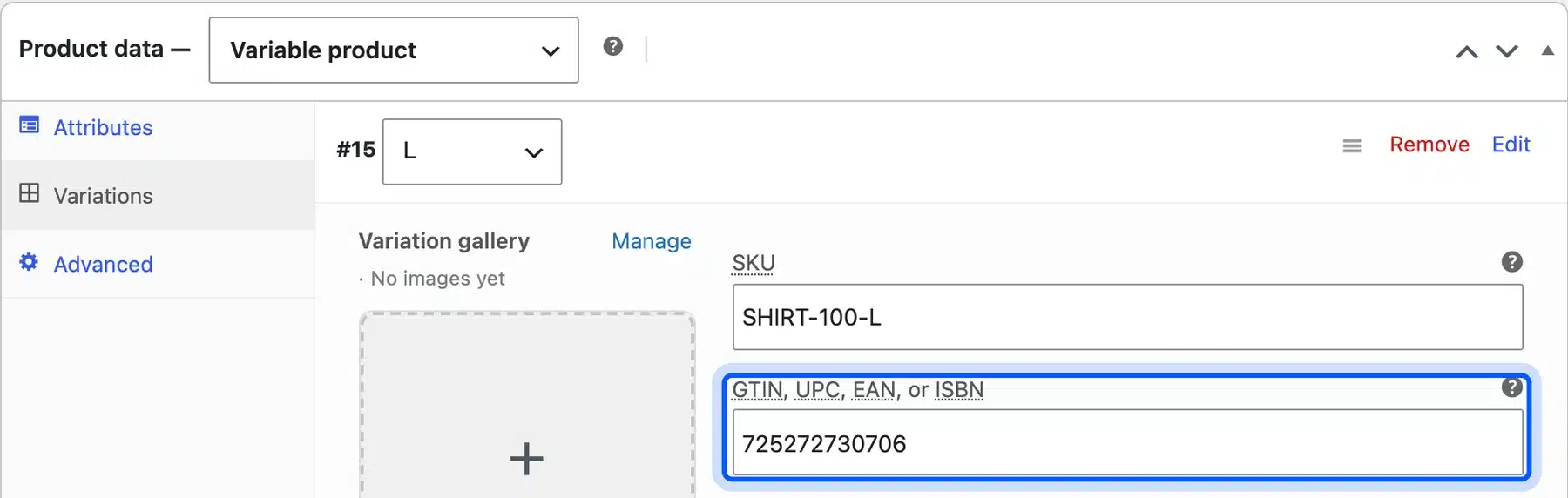
We tested how strict that field is on a clean WooCommerce 11.1.2 test store. It rejected a duplicate GTIN with the message “Invalid or duplicated GTIN, UPC, EAN or ISBN.” It also saved 123456789013, a GTIN with a wrong check digit, without any warning.
Worth checking: In our test WooCommerce checked that a GTIN was unique but never checked its check digit. A typo passes there and can limit the product’s visibility in Merchant Center, because Google requires a correct check digit.
This function returns true only when the length and check digit are right. We ran it on valid UPC, EAN-13 and EAN-8 codes plus codes with a bad check digit or length. It sorted all of them correctly:
function dd_gtin_is_valid( $gtin ) {
	$digits = preg_replace( '/[\s-]/', '', (string) $gtin );
	if ( ! ctype_digit( $digits ) || ! in_array( strlen( $digits ), array( 8, 12, 13, 14 ), true ) ) {
		return false;
	}
	$check = (int) substr( $digits, -1 );
	$sum   = 0;
	foreach ( str_split( strrev( substr( $digits, 0, -1 ) ) ) as $i => $d ) {
		$sum += (int) $d * ( 0 === $i % 2 ? 3 : 1 );
	}
	return ( 10 - $sum % 10 ) % 10 === $check;
}
Set the Brand Correctly
Google requires a brand for new products, except movies, books and musical recordings. It also says to leave the field empty for products that truly have no brand. Values such as “N/A”, “Generic” and “No brand” are not allowed, as the brand attribute rules show.
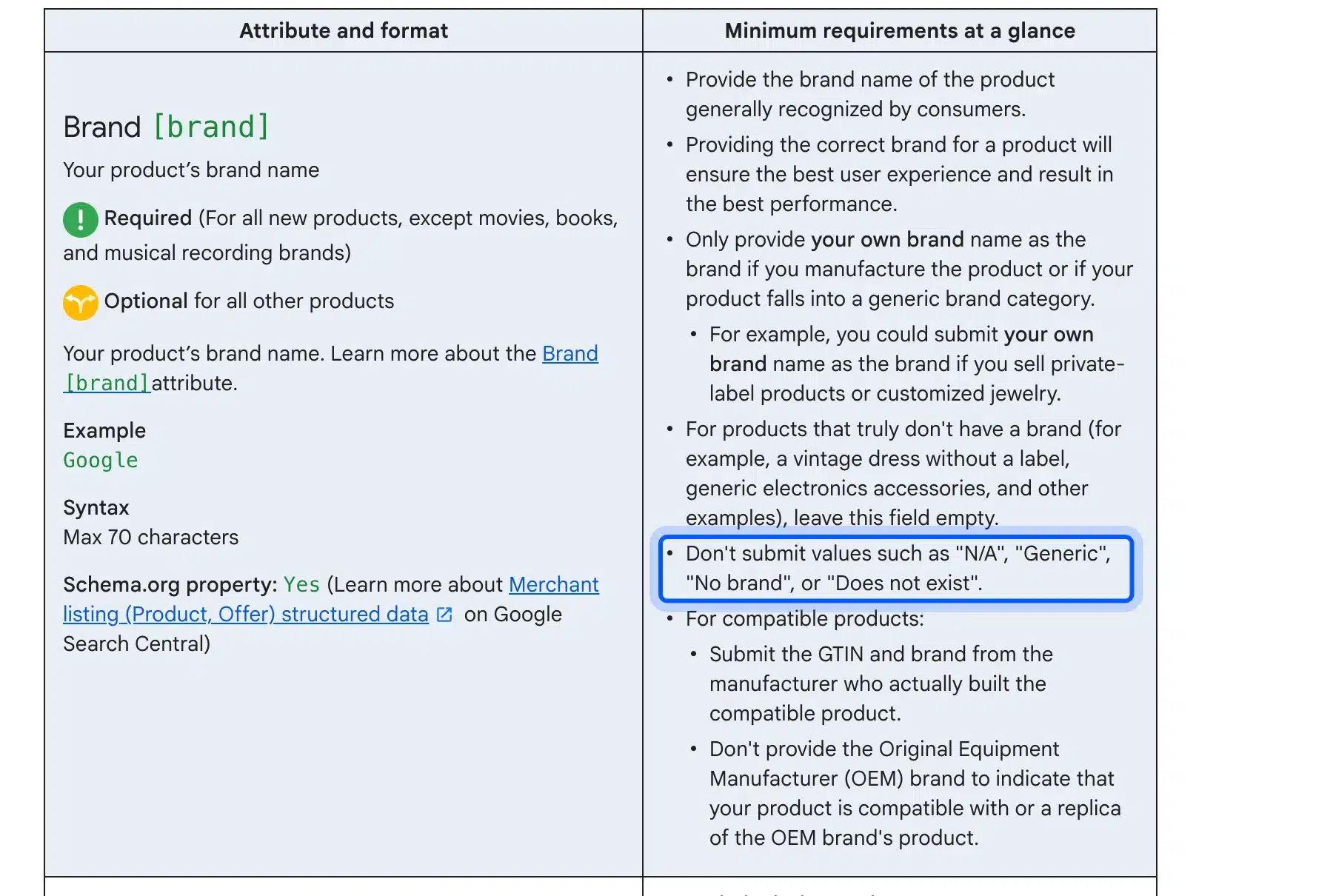
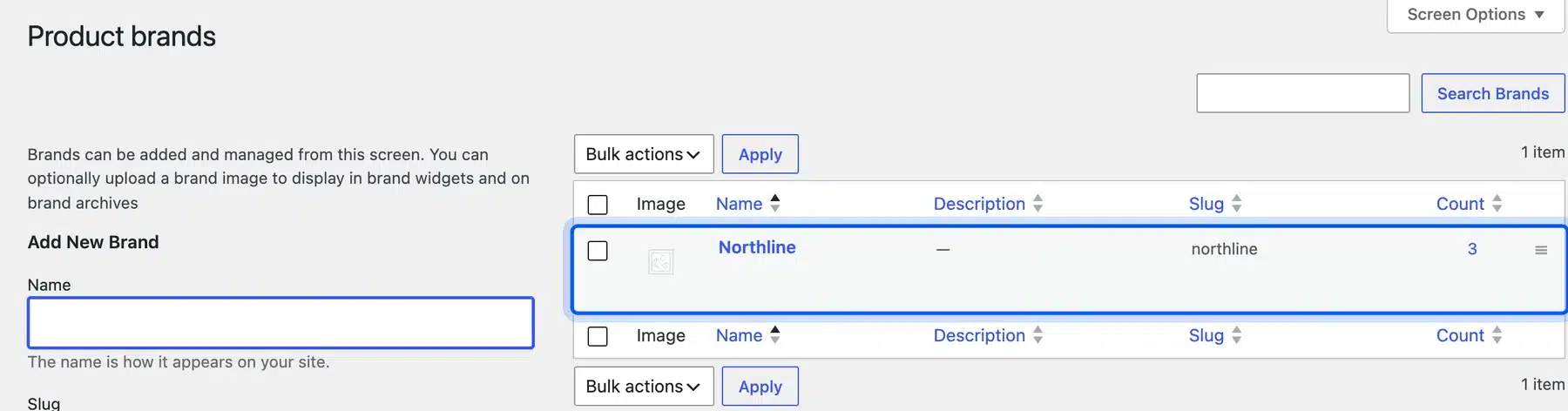
WooCommerce 11.1.2 has a Brands screen under Products, so you create a brand once and assign it to every product. In our test store one brand covered three products, including a variable product.
What to Do When a Product Has No GTIN
Handmade and private-label items often have no barcode. Google says MPN is required only when a product lacks a manufacturer-assigned GTIN. Set identifier_exists to “no” only when no unique identifiers exist, and never when the product has one.
Set Up Google Merchant Center
Merchant Center is the Google account that receives your feed and reports every problem with it. You create it with your business details, then verify and claim your website domain. Google’s free listings page also asks for shipping settings and a return policy.
Verifying proves you can edit your site, and claiming links the domain to your account, as Google’s page on verifying and claiming a URL explains. Google offers email, an HTML tag or file, Google Tag Manager and Google Analytics as methods. It may verify you automatically if it already knows your site through Analytics or Search Console.
You do not have to open Merchant Center first. The plugin’s setup documentation says it lets you create a new Merchant Center account if you have none. Either order works, but the domain claim and shipping settings still need to be right.
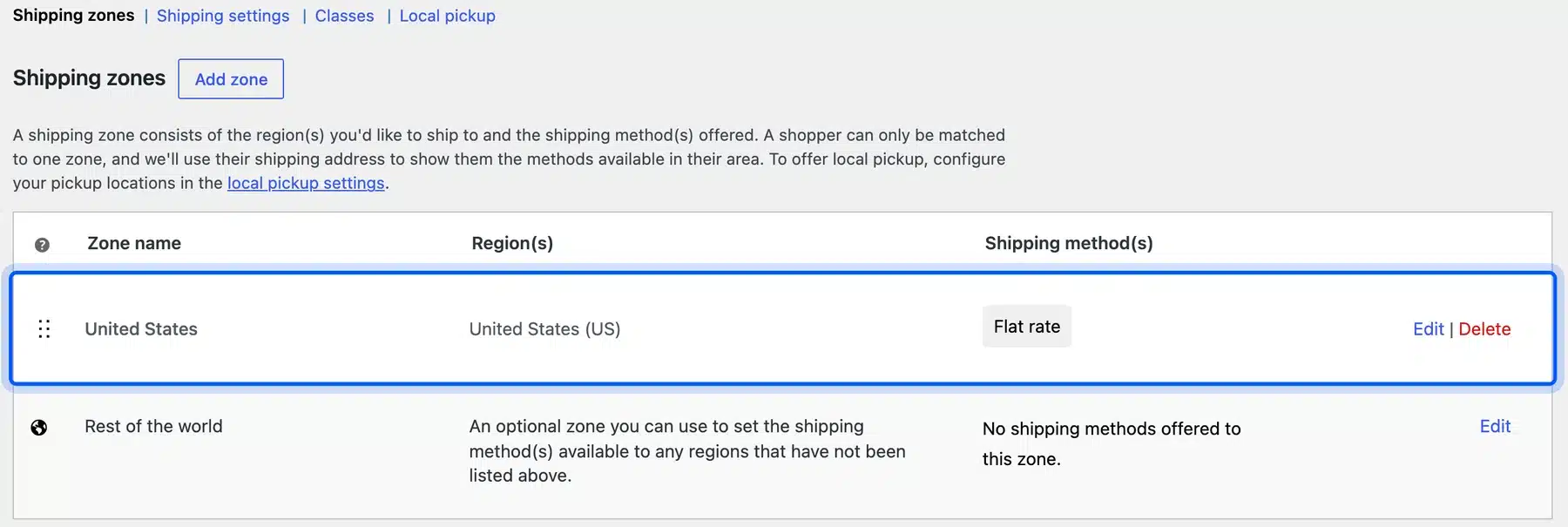
For shipping, Google says you can set up shipping settings in Merchant Center or add costs with the shipping attribute. The same page says shipping is required in 29 or more countries, including the US. It also asks you to show your return policy on your website.
In WooCommerce, the same rates live under Settings, then Shipping. Each zone lists the regions it covers and the methods it offers.
Connect the Google for WooCommerce Plugin
Install Google for WooCommerce from the Plugins screen, then open Marketing and choose Google for WooCommerce. The plugin connects your store to Merchant Center and syncs your whole product catalog automatically. Its setup documentation lists every step in order, from the first connection to the final review.
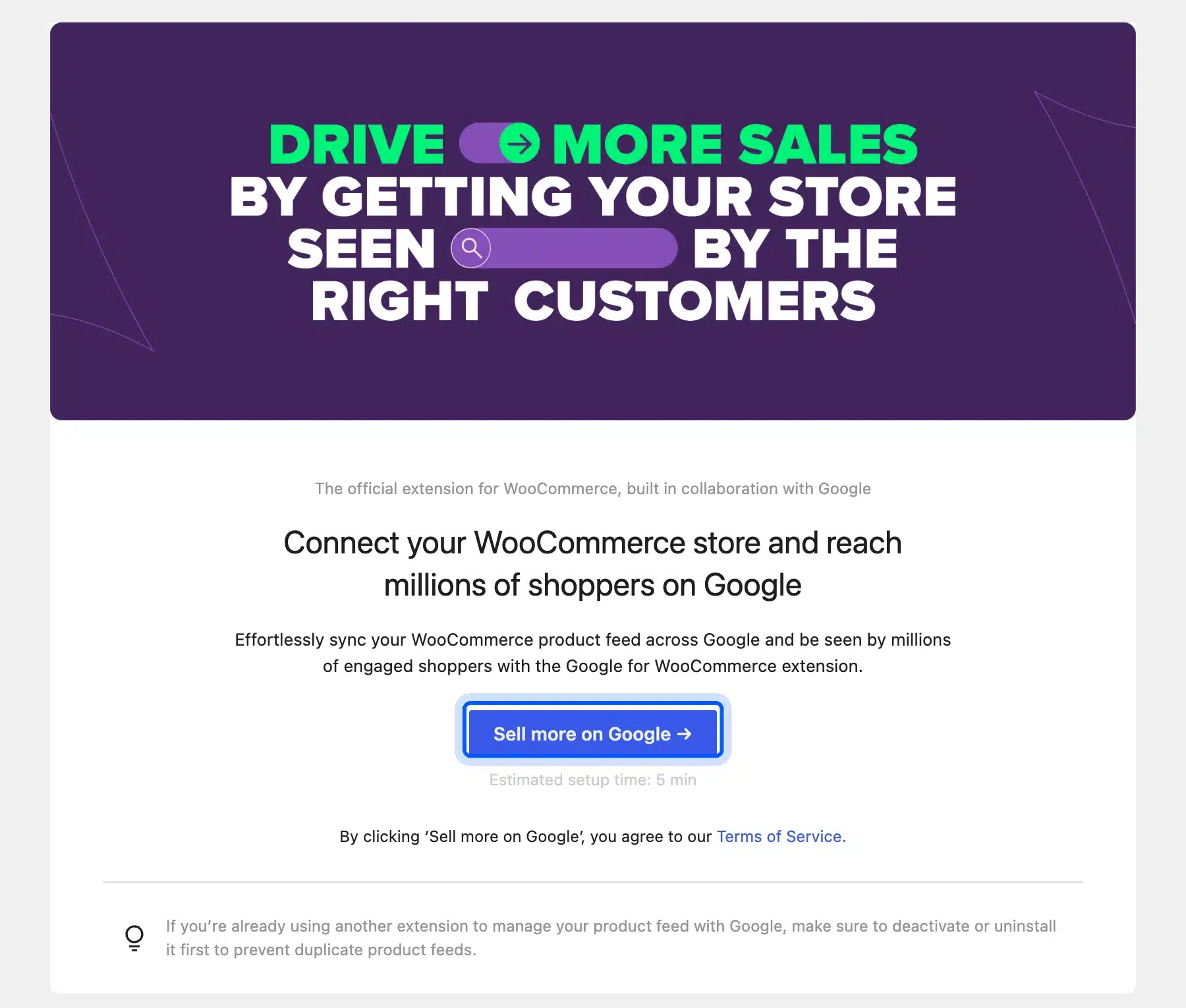
Two details on that start screen are worth reading before you click. The button shows an estimated setup time of five minutes. A note below it says to deactivate or uninstall any other extension that manages your Google product feed, which prevents duplicate feeds.
The documentation then has you connect your Google account and confirm the Merchant Center account. Next you choose your site language and target countries.
After that you set shipping and tax rates. The last step is an optional Performance Max campaign that you can skip.
Attribute mapping is where the plugin’s feed rules live. Under Marketing, Google for WooCommerce, the Attributes tab applies category-level rules to products that have no value set. A value entered on a single product overrides those global rules.
Upload a WooCommerce Product Feed File Instead
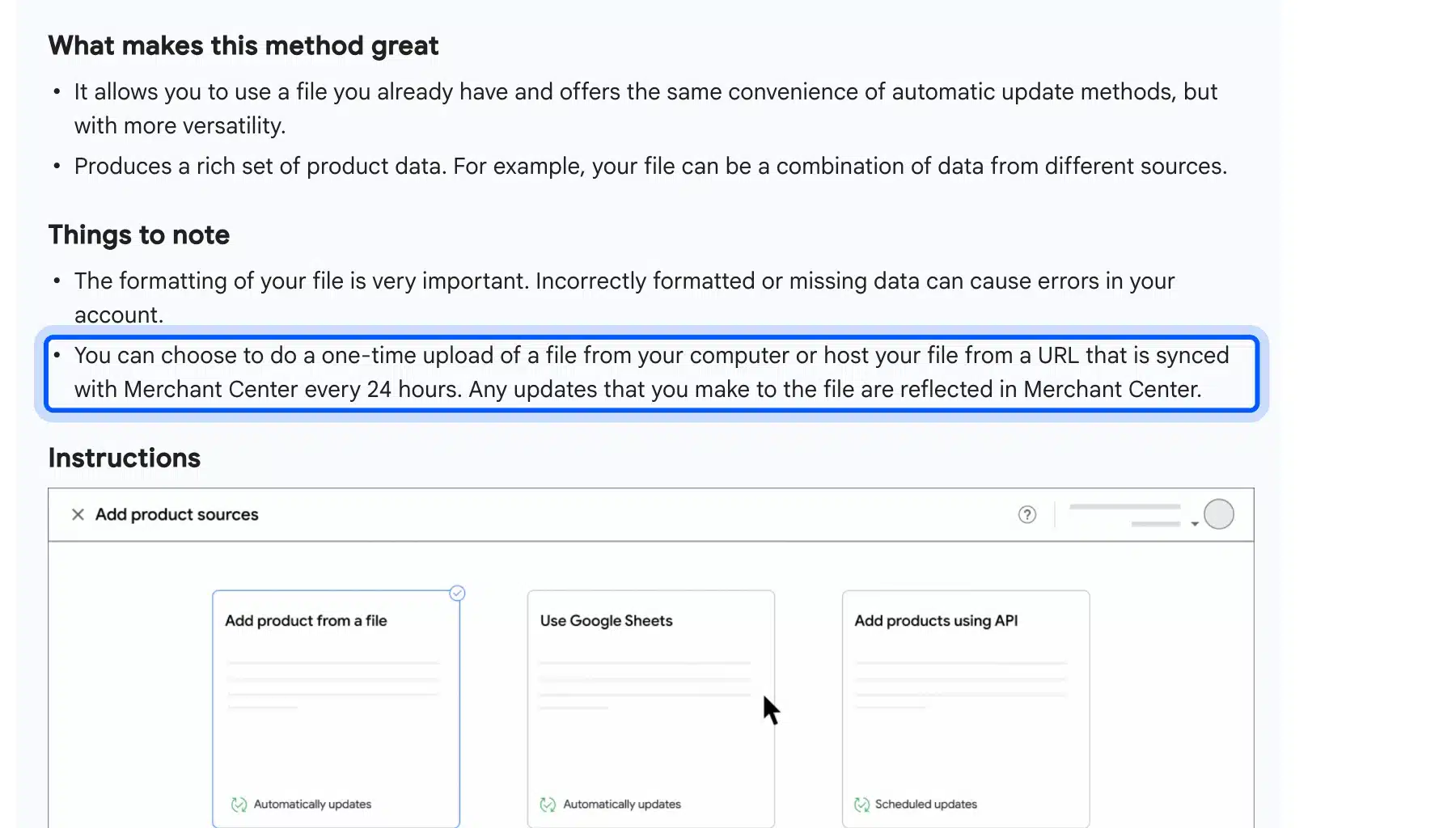
You can give Merchant Center a product file instead of using a plugin. Upload it once from your computer, or host it at a URL so Google retrieves it every 24 hours. The Merchant Center file method describes both options in detail.
Google warns that incorrectly formatted or missing data can cause errors in your account.
Google accepts tab-delimited text and XML files that follow RSS 2.0 or Atom 1.0, according to its product file specifications. XML attributes use the g: prefix with the http://base.google.com/ns/1.0 namespace. Here is one item from a feed we generated in the test store, with an image link added:
<item>
<g:id>BEAN-001</g:id>
<g:title>Merino Wool Beanie</g:title>
<g:description>Merino Wool Beanie from the Northline test store.</g:description>
<g:link>https://example.com/product/merino-wool-beanie/</g:link>
<g:image_link>https://example.com/wp-content/uploads/merino-wool-beanie.jpg</g:image_link>
<g:price>29.00 USD</g:price>
<g:availability>in_stock</g:availability>
<g:condition>new</g:condition>
<g:brand>Northline</g:brand>
<g:gtin>123456789012</g:gtin>
</item>
A hand-built file is fine for a small catalog, but it drifts out of date quickly. A hosted file that WooCommerce regenerates fixes that.
Test Your Feed Before Google Does
Run your own checks before Merchant Center sees the file, because Google reports problems only after it processes the upload. Test that every item has the required attributes, that prices and availability use Google’s formats, and that each GTIN has a valid check digit. A short script can do all three in seconds.
We built the feed above from three test products and ran exactly those checks. All three items failed.
None had an image link because the test products had no images, and the tote bag’s GTIN failed the check digit. Well-formed XML told us nothing about either problem.
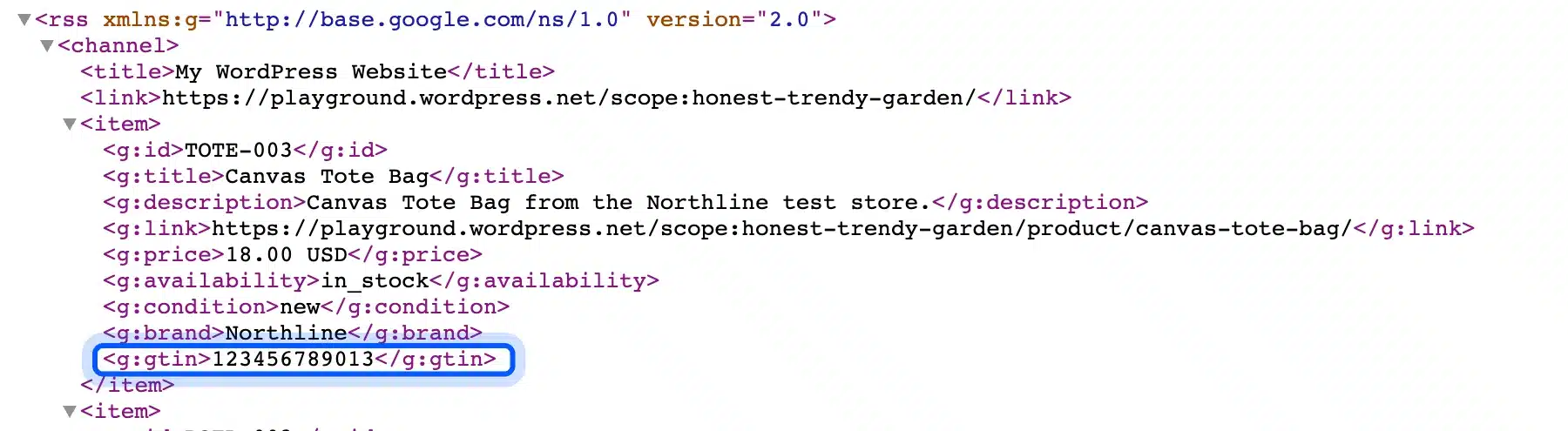
The script also confirmed two things that worked. The water bottle on sale came out with a price of 24.50 USD and a sale_price of 19.90 USD, and its stock status became out_of_stock. Google’s specification says sale_price is sent in addition to a price set to the non-sale amount, so that output was correct.
The checks below are the ones worth repeating on your own file:
- Required attributes: Every item has an id, title, description, link, image link, price and availability.
- Formats: Prices read like 29.00 USD, and availability is one of the four allowed values.
- Identifiers: Each GTIN passes the check digit, and items without one say so.
- Brand: The field holds a real brand or stays empty.
If you would rather hand the cleanup to specialists, our WooCommerce SEO services cover product schema, category pages and other store SEO work.
Fix Disapproved Products and Feed Issues
Merchant Center shows products with problems on the Needs attention tab in the Products section. Each issue names the cause and the affected products. Fix the cause in WooCommerce first, because the next sync can overwrite an edit made only in the feed file.
Google’s help page on product page issues explains the fix and re-review flow. After you correct an issue you can request a website check, and Google says review can take up to 12 hours. Sync delays also matter, since Google says platform integrations can take 24 to 48 hours to reflect changes.
| Issue | Usual cause | Fix |
|---|---|---|
| Product page unavailable | A 404, too many redirects, a server error or a blocked robots.txt file | Repair the landing page, then request a website check |
| Missing or incorrect GTIN | A typo or a wrong check digit | Correct the code in the Inventory tab, or remove it if none exists |
| Missing brand | The field is empty, or holds “N/A” or “Generic” | Enter the real brand, or leave it empty for unbranded items |
| Image too small | A file under 500 x 500 pixels | Replace it with a larger image |
| Price differs from the page | A sync delay or a cached price | Wait for the next sync, then compare the feed with the page |
Tip: Search Console shows the same crawl problems from Google’s side. Our guide to submitting your site to Google covers the setup.
Attribute mapping and other feed rules fill gaps in the data, such as a missing condition or age group. They cannot repair a wrong price or a bad GTIN, so fix real errors in the product itself.
Conclusion
A working Google Shopping feed starts with clean product data, and the plugin you pick matters much less. Fix titles, images, prices, GTINs and brands in WooCommerce first, then connect Merchant Center and let the sync do the rest. Read the Needs attention tab weekly, because item issues return whenever a product changes.
Stores with thousands of products often need the technical cleanup done in bulk. Our WordPress SEO services cover technical audits and code-level fixes.
Frequently Asked Questions (FAQs)
Q1. Is a Google Shopping feed free?
Free listings cost nothing, according to Google’s free listings page. Ads are separate. The Google for WooCommerce FAQ says its Performance Max campaigns are pay-per-click, so you pay only when someone clicks.
Q2. How long until my products show up?
Google says a hosted file or Sheet syncs every 24 hours, and platform integrations can take 24 to 48 hours to reflect changes. The Merchant Center documentation gives both figures. Google also says products are not guaranteed to show.
Q3. Do I need a GTIN for every product?
No. Google says to set identifier_exists to “no” only when a product truly has no unique identifiers. Read the identifier rules before you leave the field empty.
Q4. What replaced the Content API for Shopping?
Google’s Content API page says the Merchant API is the successor. The old API was sunset on August 18, 2026. Check that any feed plugin you use supports the new one.
Q5. Can I edit the feed file directly?
You can for a file you host yourself. With a plugin, edit the product in WooCommerce instead, because the next sync replaces the feed from your store data. The plugin’s attribute mapping rules cover values that no product field holds.
Q6. Does the plugin work with variable products?
WooCommerce 9.2 added the GTIN field to variations as well as main products, per its developer blog. Give each variation its own code. Our guide to variable products explains how variations are stored.