
Changing the order of WooCommerce product attributes takes about five minutes once you know which screen controls what. For most stores, it’s fully doable without touching a line of code.
We’ve fixed this exact issue on client stores more times than we can count. It’s almost never the attribute itself that’s broken.
Most guides treat this as one task. It’s really three: reordering values inside one attribute, reordering attributes on a single product, and reordering the dropdowns on a variable product.
If you’re also trying to reorder product options in WooCommerce more broadly, including categories and tags, that’s a related but separate process from attributes.
This guide walks through all three ways to change the order of WooCommerce product attributes, plus troubleshooting steps and a code snippet for developers who need to automate it.
Where is the WooCommerce store attribute order?
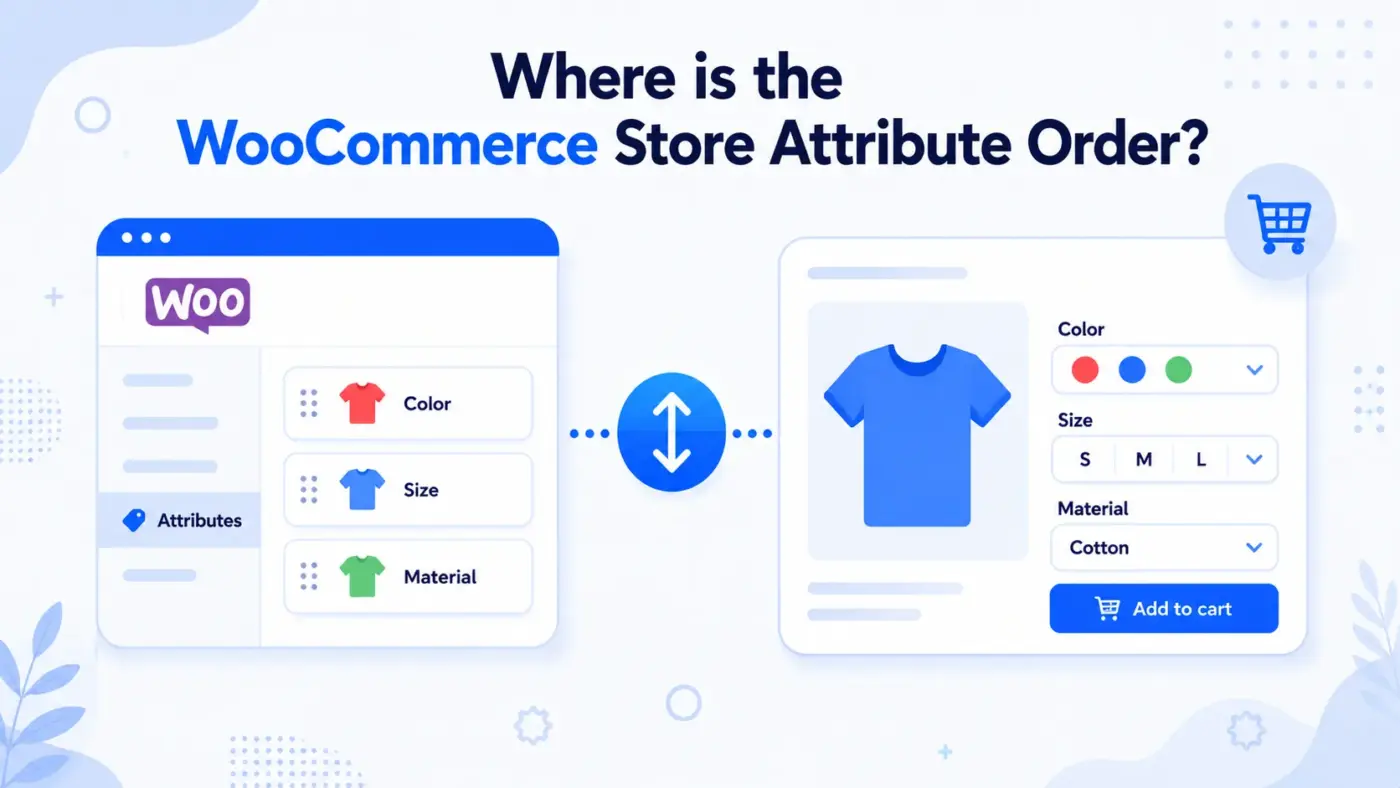
WooCommerce stores attributes in two separate places, and mixing them up is the biggest reason reordering attempts fail. Global attributes, created under Products > Attributes and reused across your catalogue, keep their term order independently of how attributes appear on any single product page.
A global attribute like Colour or Size has its own sort order setting: Name, numeric, Term ID, Menu Order, or Custom Ordering. This decides how values like red, blue, green, or S, M, L line up wherever the attribute appears. Each product also has its own attribute list with its own order, set inside the product editor. Change one, and the other stays exactly as it was.
That’s why a store owner can spend twenty minutes dragging attribute values around, save the changes, and still see the wrong order on the product page. The values got reordered. The attribute itself, on that product, wasn’t touched at all.
Per WooCommerce’s documentation, global attribute values keep the same order across the store’s Values field once a sort order is assigned, so fixing it once at the attribute level saves repeating the fix on every product.
Baymard Institute’s research found that solid sorting lets shoppers sequence by the attributes they care about, and the same logic applies here. Get the order wrong, and you’re adding friction to a decision the customer is already trying to make quickly.
Here’s what each Default Sort Order option does, since picking the wrong one is where most reordering attempts stall out before they even start:
| Sort Order Option | What It Does |
|---|---|
| Name | Alphabetical, A to Z. Fine for Material or Brand, wrong for Size. |
| Name (numeric) | Sorts by the numeric value in the term name. Good for shoe sizes or storage capacity. |
| Term ID | Sorts by creation order in the database. Rarely useful on purpose. |
| Menu Order | Uses a manually assigned number per term. |
| Custom Ordering | Enables drag and drop in Configure Terms. This is the one you want for anything that isn’t naturally alphabetical or numeric. |
A clothing store selling shirts in XS through XL is a good example. Name sorting would list them as L, M, S, XL, XS, alphabetically, which makes no sense to a shopper. Custom Ordering lets you drag them into XS, S, M, L, XL instead, matching how people expect sizes to read.
How to Reorder Global Attribute Values (Step by Step)
This is the method most stores need: reordering the values inside a single global attribute, like putting Small before Medium instead of after it alphabetically.
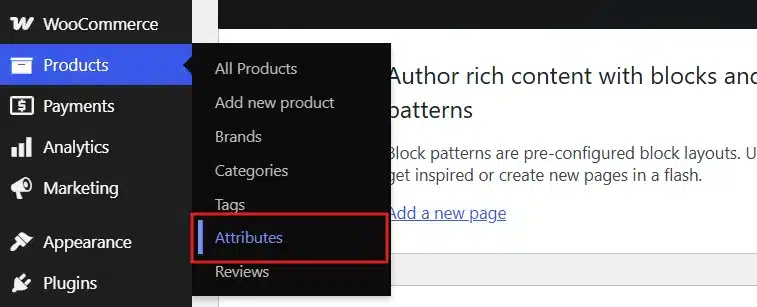
- Go to Products > Attributes in your WordPress dashboard.
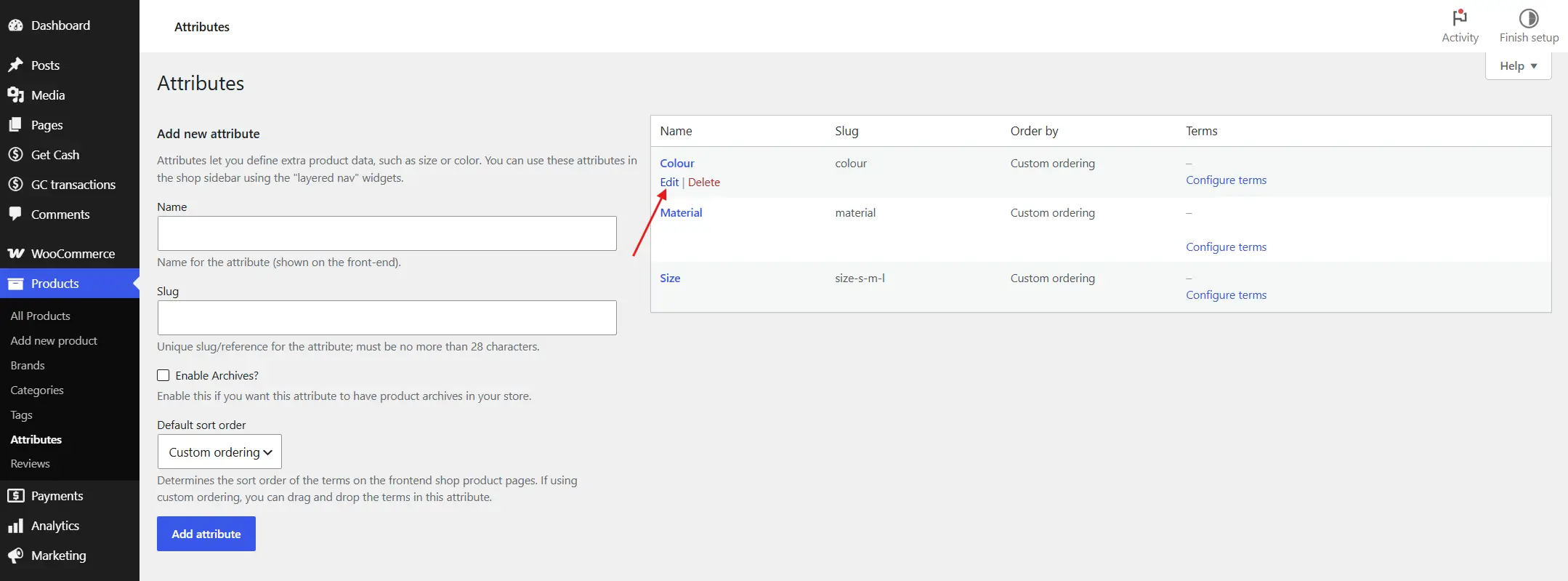
- Find the attribute you want to reorder (Colour, Size, Material, whatever applies) and click Edit.
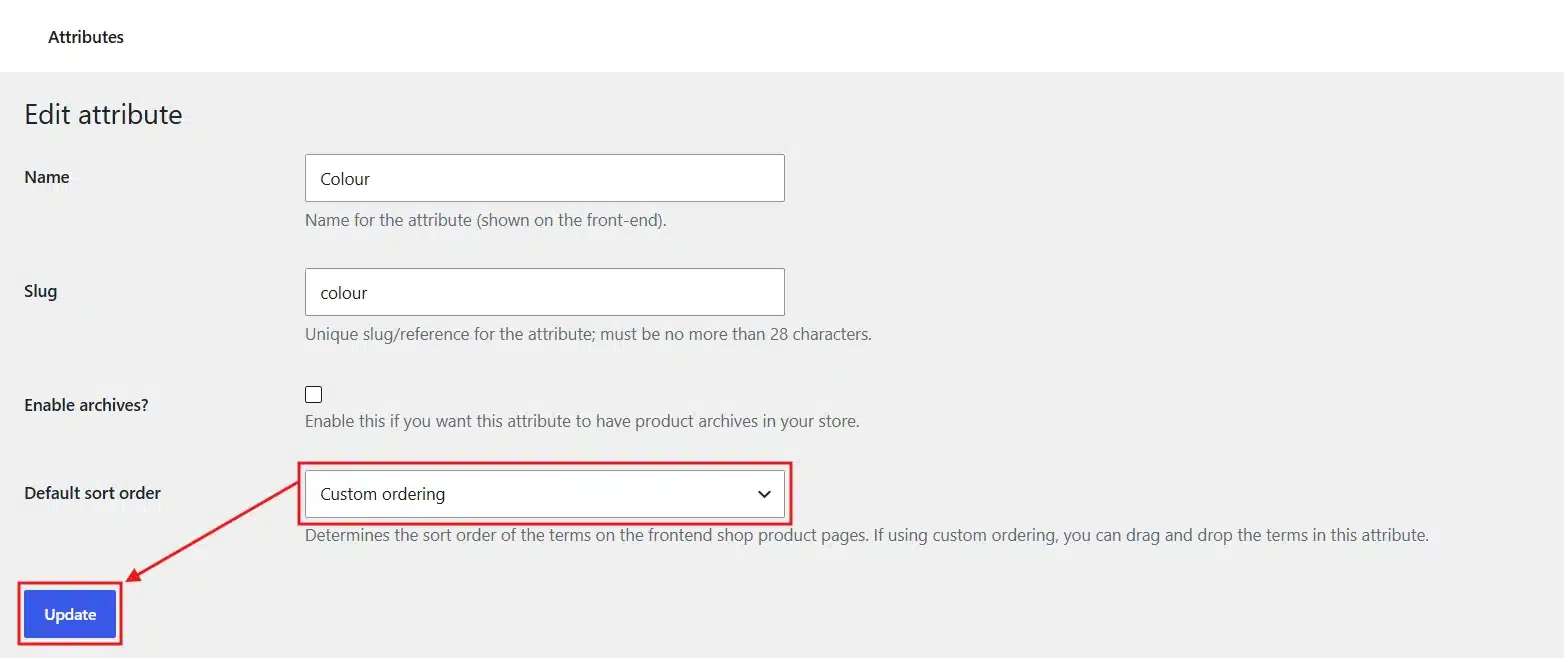
- Scroll to the Default Sort Order field and select Custom Ordering. Click Update.
- Click Configure Terms next to that same attribute.
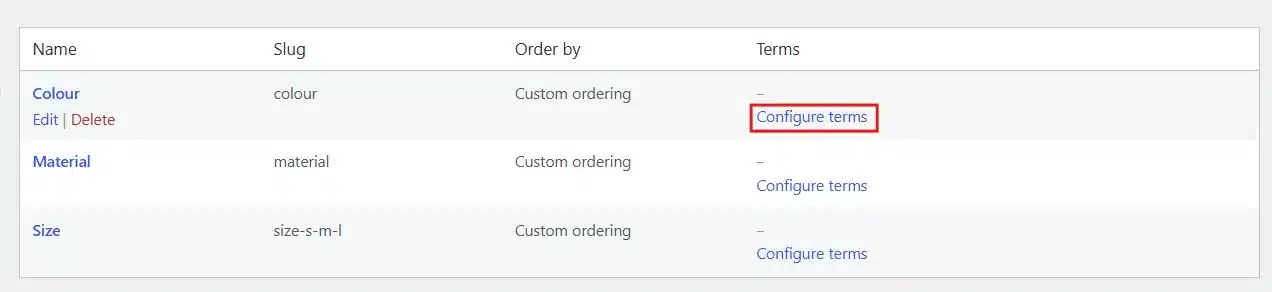
- Drag each term by the crosshair icon into the order you want. Changes save automatically as you drop them.
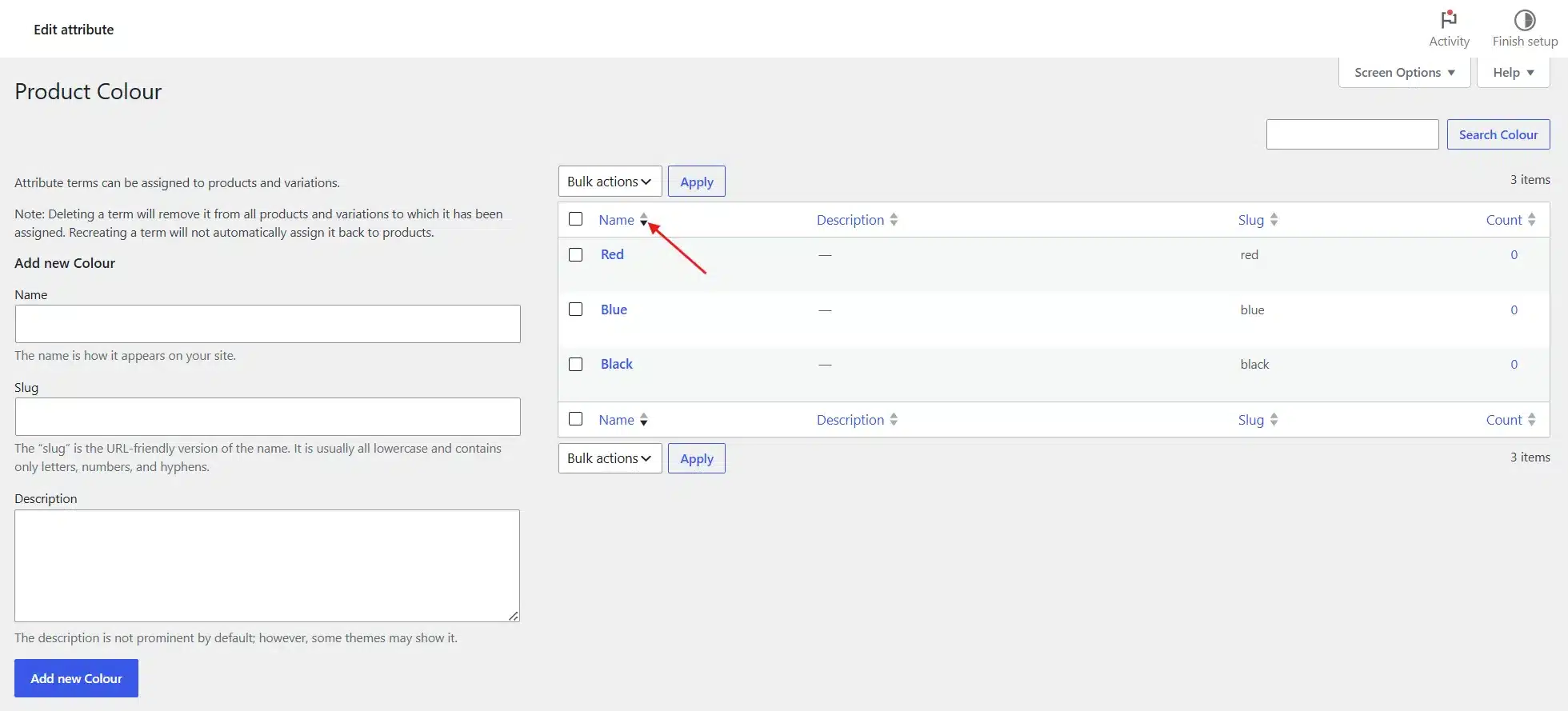
Skip step 3, and the rest won’t work. Custom Ordering is the only sort mode that respects manual drag and drop. Leave it set to Name or Term ID, and WooCommerce will quietly ignore any dragging you do in Configure Terms.
One more thing worth flagging: this method changes the order everywhere that attribute is used, across every product in your store. That’s the point for a global attribute. If you only want to change the order on one product, keep reading. That’s a different screen entirely.
How to Reorder Attributes on a Single Product
Sometimes the values are already in the right order, but the attributes themselves show up in the wrong sequence on one particular product. Size might need to appear before Colour on a clothing product, even though your store lists Colour first everywhere else.
- Go to Products > All Products and open the product you want to fix.
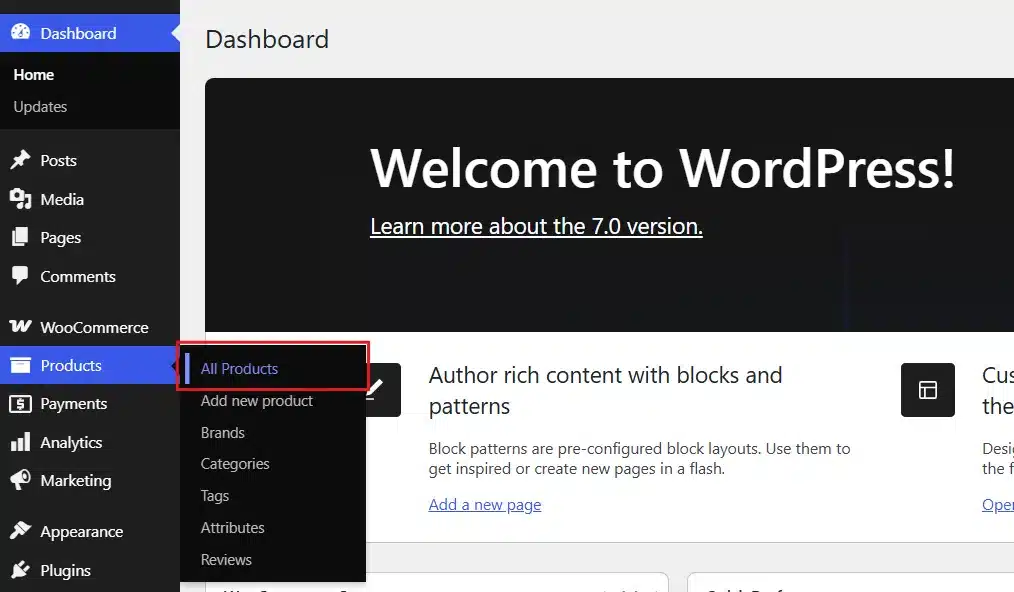
- In the Product Data box, click the Attributes tab.
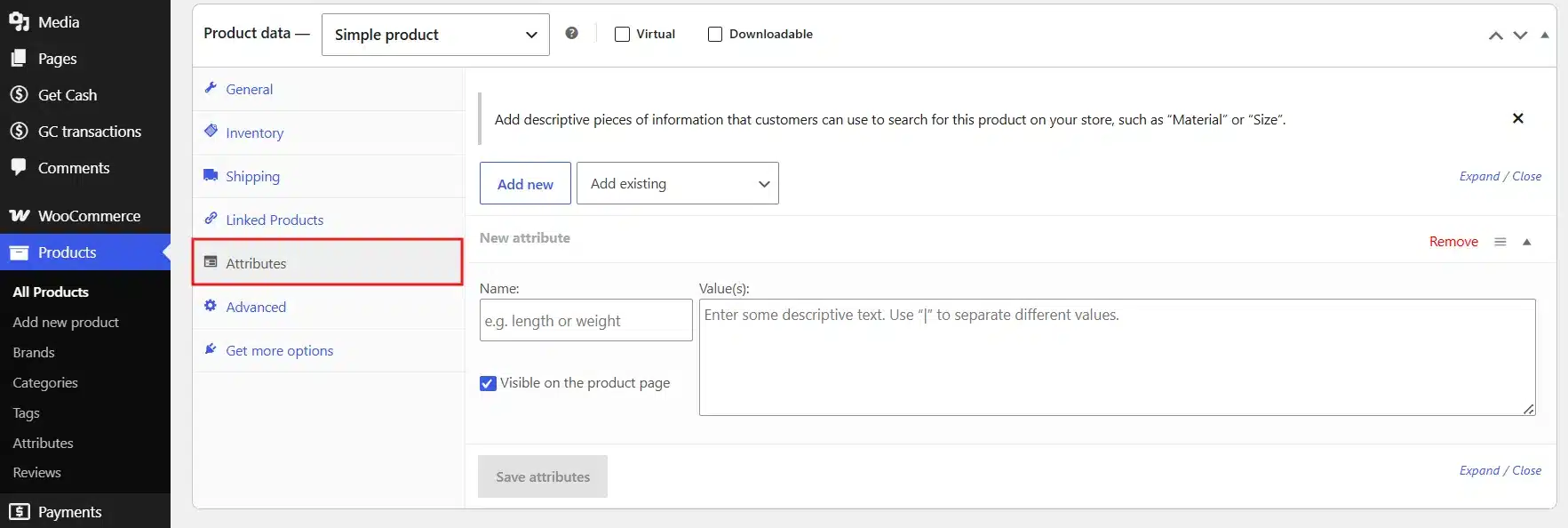
- Drag each attribute row up or down by its handle to reorder it.
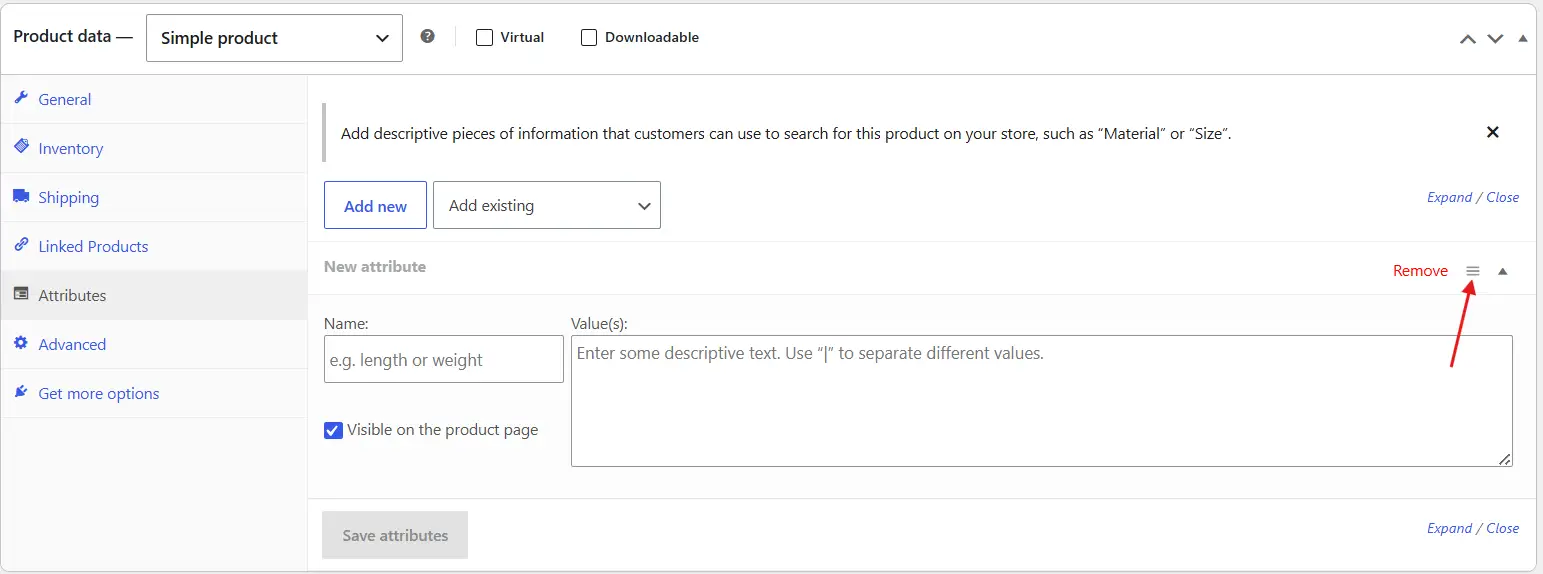
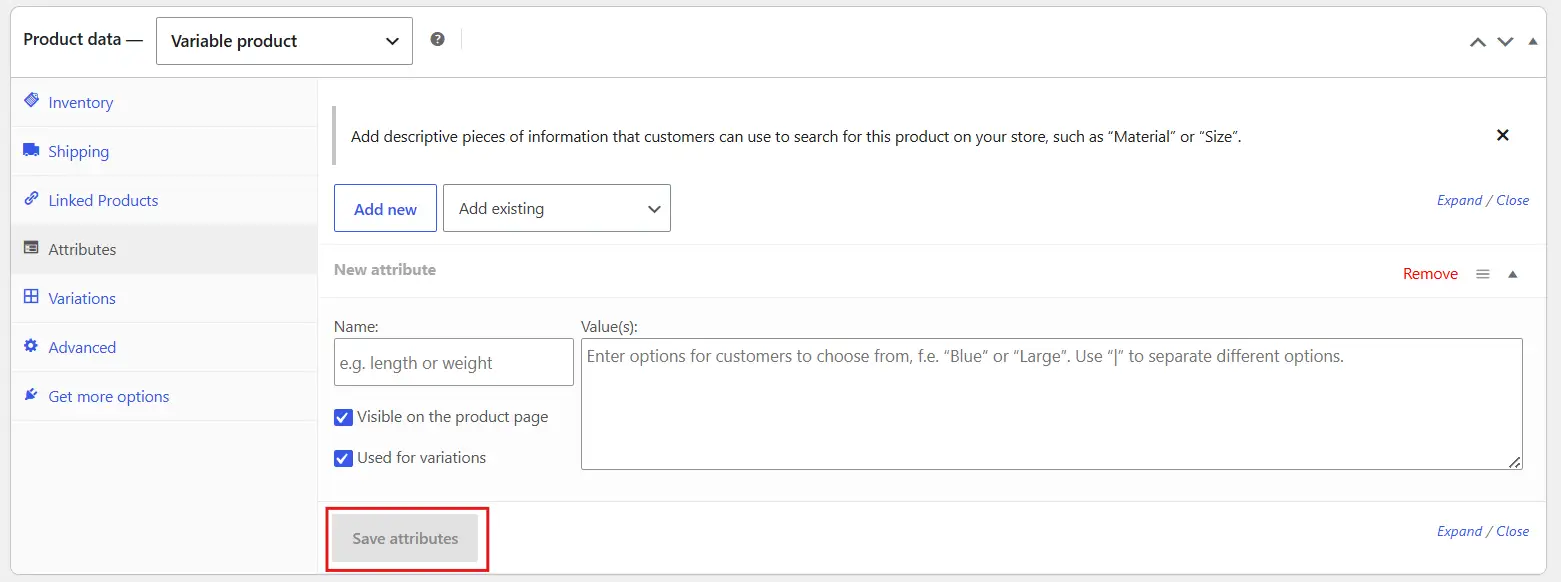
- Click Save Attributes, then Update the product.
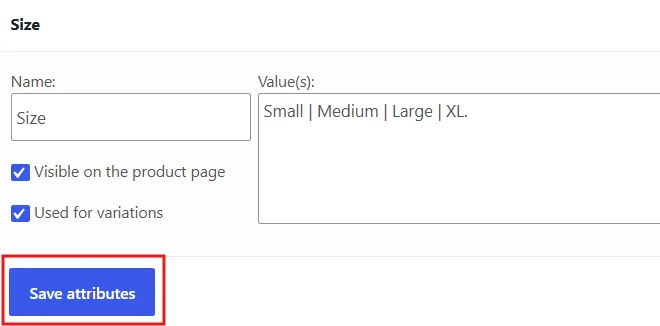
This is also where custom, non-global attributes live. If you’re selling packaged food and need ingredients listed by weight for legal reasons, this per-product screen is the only place to control that order, since there’s no shared Configure Terms list for a custom attribute.
A store owner ran into exactly this on the WordPress support forums, needing an ingredient order to follow legal labelling requirements that varied by product. The fix isn’t a plugin setting. It’s dragging rows on each product’s Attributes tab, or writing a small function for hundreds of products at once (more on that below).
If your attribute doesn’t appear in Products > Attributes at all, it’s custom and product-level, so Configure Terms doesn’t apply. The Attributes tab on the product itself is your only control.
Reordering Attributes for Variable Products
Variable products add one more layer because attribute order also decides the order of the dropdown selectors shoppers use to pick a variation. Here are the easy steps:
- Go to Products > All Products and open the product you want to fix.
- Select Variable Product from the dropdown in the Product Data section.
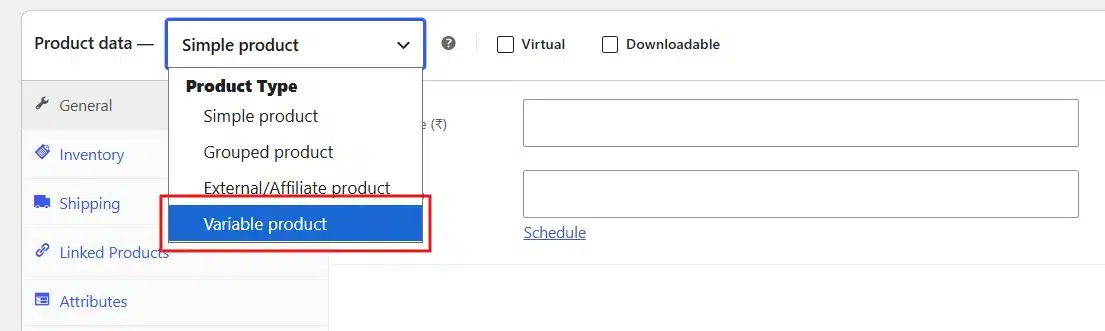
- Click on the Attributes tab, same as before.
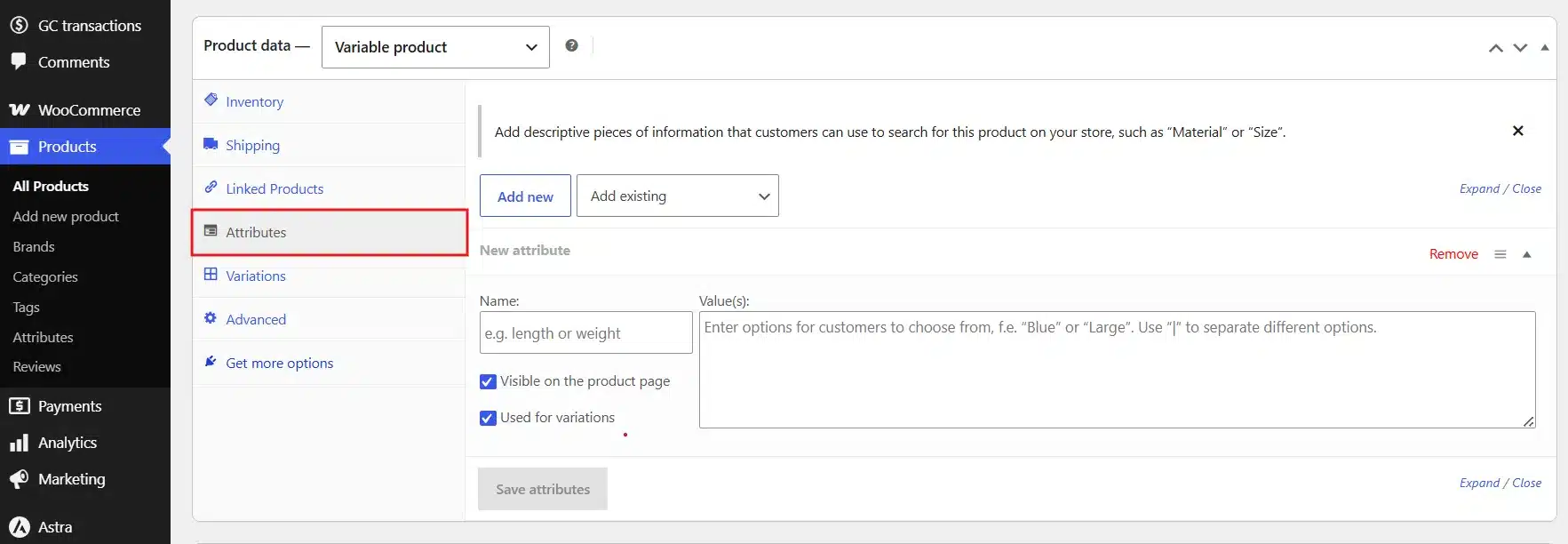
- Use the same drag handles to reorder the attributes. Whichever one sits on top appears as the first dropdown on the front end.
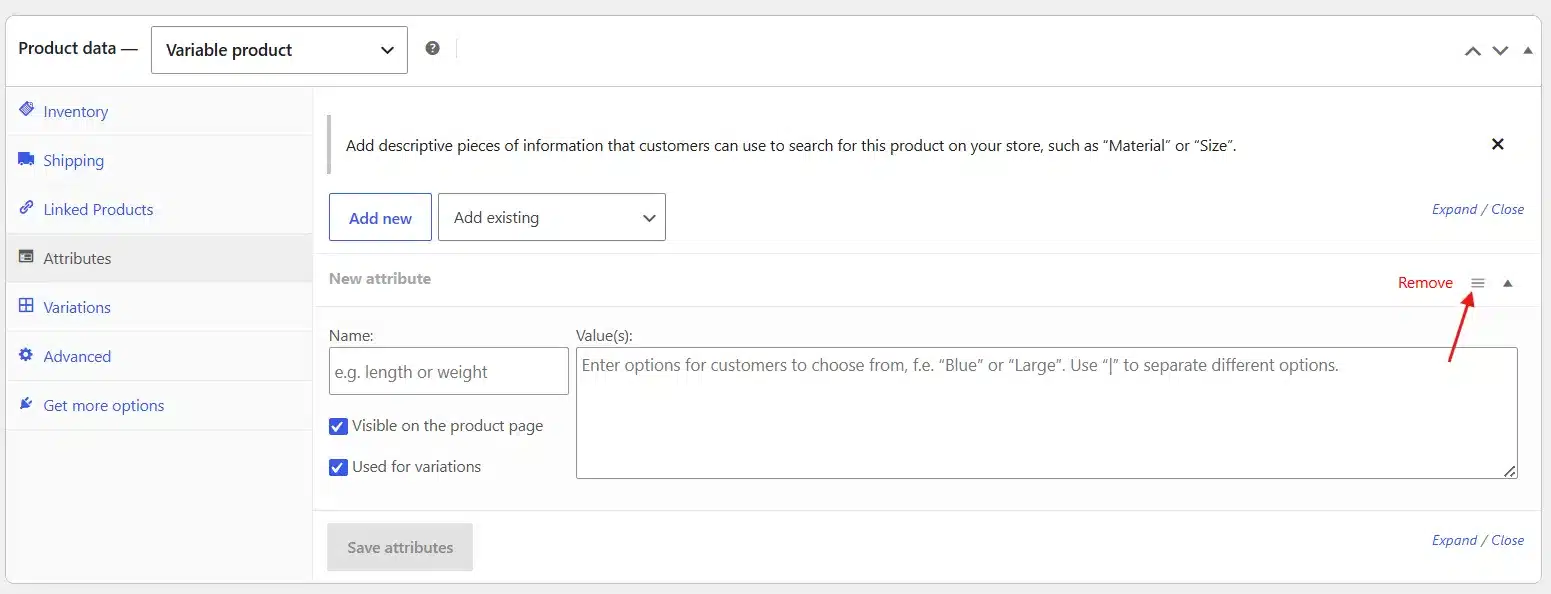
- Click Save or Update to lock in the new order.
If the order looks wrong, clear your cache. WooCommerce sometimes caches variation data separately from attribute data, so a saved reorder can look correct in the editor but lag on the storefront until the cache clears.
Picture a furniture store selling a sofa in three fabrics and five leg finishes. Drag Fabric above Leg Finish, and the shopper picks fabric first, then narrows to a finish available in it. Flip the order, and they start with the less important decision before reaching the one that actually drives the sale.
For setting up variable products from scratch, our guide on WooCommerce variable products covers attributes, values, and generating variations in more depth.
How does Attribute Order Affect Filtering and Search?
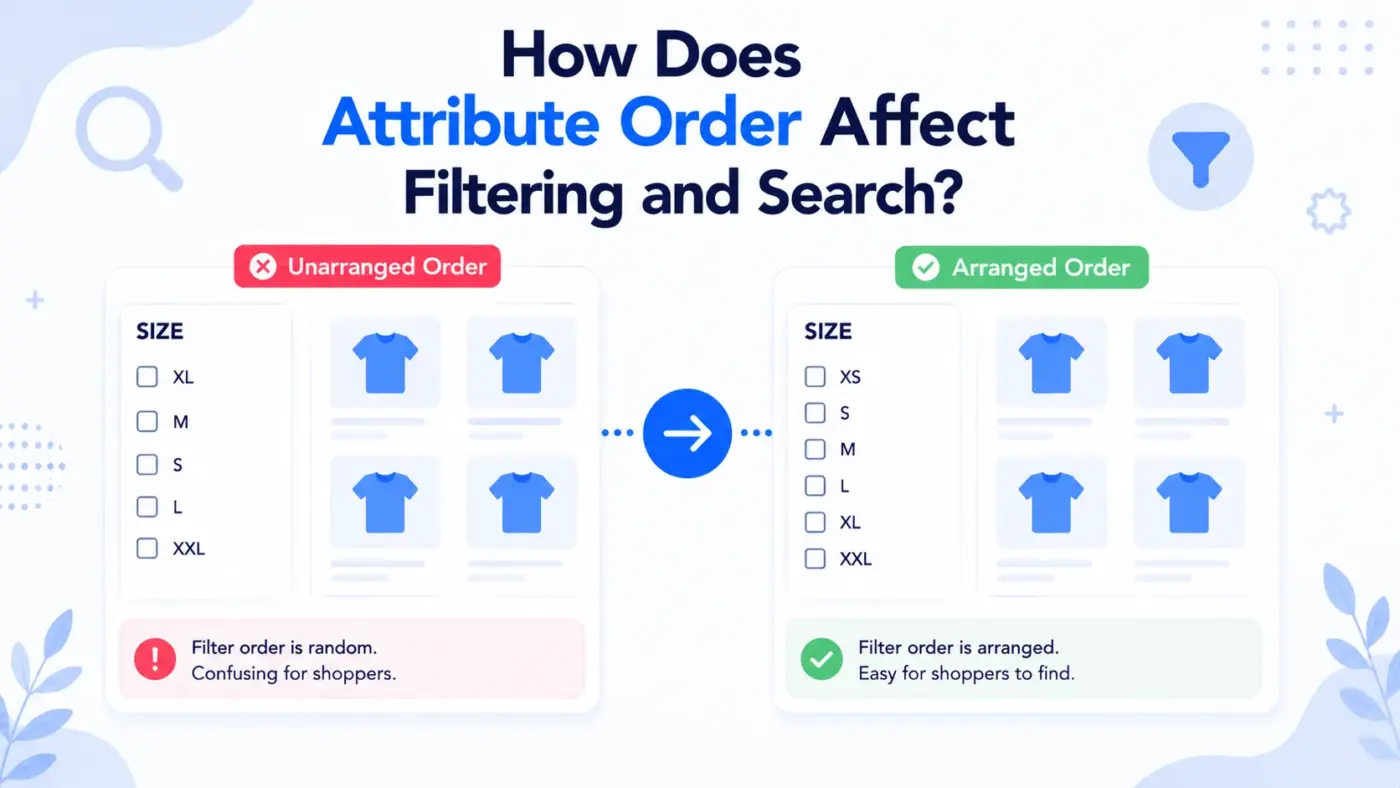
Attribute order doesn’t just change what shoppers see on the product page. It shapes how attributes behave in filter widgets and layered navigation, too.
WooCommerce’s default filter widgets pull terms in whatever order the attribute’s Default Sort Order specifies. If Custom Ordering is set, your filter sidebar respects the same manual order you configured. If it’s left on Name, the filter list sorts alphabetically regardless of how the product page displays those same values, which can look inconsistent to a shopper comparing the filter sidebar against the product grid.
This is easy to miss because the two displays feel unrelated. A store owner fixes the product page order and assumes the job is done, then finds the category page filter still lists Extra Large before Small.
Baymard Institute’s product list research points to the same underlying issue across the eCommerce sites it benchmarks: filtering and sorting are treated as separate problems by store owners when shoppers experience them as one continuous decision.
The fix is the same Custom Ordering setting covered above. Set it once at the attribute level, and both the product page and the filter widget pull from that order consistently.
Why Your Attribute Order Isn’t Saving (Troubleshooting)?
If you followed every step above and the front end still shows the old order, the problem usually isn’t WooCommerce. It’s one of three things sitting between your changes and the page your customer sees.
- Caching plugins: Page caches and object caches like Redis or WP Rocket store a snapshot of the product page. Your database has the new order. The cached version being served doesn’t. Clear the specific product’s cache, or purge the full cache if you’re not sure which page is outdated.
- Theme template overrides: If your theme copied WooCommerce’s attribute display template into its own files, and that copy hasn’t been updated in a while, it might render attributes in a fixed order that ignores your sort settings entirely. Check your theme’s woocommerce/ folder for a copy of content-single-product.php or a template part handling attributes.
- Browser cache: This sounds obvious, but it catches more people than it should. Hard refresh the page (Ctrl+Shift+R or Cmd+Shift+R) before assuming the fix didn’t work.
- Page builders and shortcode displays: Some page builder components and third-party shortcodes pull attribute data on their own schedule, separate from WooCommerce’s native template. If attributes are showing through a builder element rather than the default product template, that module may have its own caching or its own query, and clearing WooCommerce’s cache alone won’t touch it. Check the module’s settings for a refresh or rebuild option.
We’ve walked more than one client through this exact sequence, and caching is behind it most of the time. Check that first before touching any code, and work down the list in order rather than jumping straight to a template edit.
Reordering Attributes With Code (For Developers)
If you’re managing dozens or hundreds of products and dragging terms one at a time isn’t practical, a small code snippet can sort attribute terms programmatically instead.
WooCommerce runs attribute terms through a filter called woocommerce_product_attribute_terms before displaying them. Hooking into that filter lets you define your own sort logic: alphabetical, numeric, or based on a custom field you’ve already set up.
add_filter( 'woocommerce_product_attribute_terms', 'custom_sort_attribute_terms', 10, 2 );
function custom_sort_attribute_terms( $terms, $attribute ) {
    usort( $terms, function( $a, $b ) {
        return strcmp( $a->name, $b->name );
    });
    return $terms;
}
Add this to your child theme’s functions.php file, not the parent theme, so the change survives theme updates. This example sorts alphabetically, but you can swap the comparison logic for anything your catalogue needs, including a numeric size scale or a custom priority field.
If you need a fixed custom order instead of alphabetical, you can map term names to a priority array and sort against that instead:
add_filter( 'woocommerce_product_attribute_terms', 'custom_priority_sort', 10, 2 );
function custom_priority_sort( $terms, $attribute ) {
    $priority = array( 'XS' => 1, 'S' => 2, 'M' => 3, 'L' => 4, 'XL' => 5 );
    usort( $terms, function( $a, $b ) use ( $priority ) {
        $a_pos = isset( $priority[ $a->name ] ) ? $priority[ $a->name ] : 999;
        $b_pos = isset( $priority[ $b->name ] ) ? $priority[ $b->name ] : 999;
        return $a_pos <=> $b_pos;
    });
    return $terms;
}
This approach is useful when Custom Ordering in the admin gets repetitive to maintain by hand, for example, if new terms get added frequently and you always want them to fall into the same predictable spots. Test any snippet like this on staging first. A typo in the priority array won’t throw a fatal error, but it will quietly push mismatched terms to the end of the list.
For anything more involved, like syncing attribute order with an external inventory system across thousands of SKUs, most stores hand this one off to a developer rather than debugging hooks on a live site.
Best Practices for Ordering Product Attributes
Once the technical part is sorted, a few practical habits keep attribute order useful instead of just correct.
Order attributes by what customers decide first. For clothing, that’s usually Size before Colour. For electronics, it might be Model before Storage Capacity. Watch how customers search and filter your catalogue, and match that sequence.
Keep global attributes consistent across similar products. If Colour comes before Size on one t-shirt, it should come before Size on every t-shirt. Inconsistent order across a category confuses shoppers browsing multiple listings side by side.
Use attribute swatches for visual attributes like Color. Order matters even more here, since shoppers scan swatches faster than they read dropdown text.
Review attribute order after a catalogue migration or import. Bulk imports frequently reset Default Sort Order back to Name, undoing any Custom Ordering you’d set before the import ran. It’s a quick check that saves a support ticket later.
Check your WooCommerce shop page settings too. Default product sorting on the shop page is a separate setting from attribute order, but the two work together to shape how organised your catalogue feels overall.
Not every store needs a developer for this. Most attribute order problems get solved with the steps above. But if you’re managing a large catalogue, syncing orders with an external system, or short on time to test every combination yourself, DevDiggers offers WooCommerce development services that can build and test that logic for you.
Conclusion
Changing the order of WooCommerce product attributes depends on which screen you’re working in. Global attribute values get reordered under Products > Attributes with Custom Ordering turned on. Attribute order on one product gets set from that product’s Attributes tab. Variable products use the same per-product order to control which dropdown shoppers see first.
If a reorder doesn’t show up on the front end, check caching before you assume something’s broken. It usually is caching. For larger catalogues, a short code snippet or a development team can handle the sorting logic so you’re not dragging rows one product at a time.
Get the order right once, and your product pages stop confusing shoppers and start guiding them toward a decision faster.
Frequently Asked Questions (FAQs)
Q1. Does the order of WooCommerce attributes affect SEO?
Not directly. Google doesn’t rank pages based on which attribute appears first in the display. Where order matters for SEO is indirectly: a confusing attribute layout increases bounce rate, and that’s a signal that can affect how a page performs over time.
Q2. Can I reorder attributes without installing a plugin?
Yes. Both global attribute values and per-product attribute order can be changed using WooCommerce’s built-in Custom Ordering setting and the drag-and-drop Attributes tab. No plugin is required for either method.
Q3. Why don’t my attribute changes show up on the front end right away?
This is almost always a caching issue rather than a WooCommerce problem. Clear your page cache, object cache, and browser cache in that order, then reload the product page.
Q4. Is there a limit to how many attribute terms I can reorder?
WooCommerce doesn’t cap the number of terms you can reorder through Configure Terms, but very long lists of 50 or more terms get slow to drag manually. At that scale, the code snippet method or a spreadsheet-based bulk editor is faster, and it also reduces the chance of accidentally dropping a term in the wrong spot during a long manual session.
Q5. Do global and custom attributes sort the same way?
No. Global attributes have a shared Default Sort Order setting and a Configure Terms screen. Custom, non-global attributes only exist on the product they’re added to, so their order is set entirely from that product’s Attributes tab.
Q6. Will reordering attributes change my existing orders or variations?
No. Reordering changes how attributes display and how variation dropdowns are sequenced going forward. It doesn’t alter data already saved on past orders or the actual variation records themselves.