
Have you ever found yourself on a website trying to find the Contact page, but the About page was located first? Or perhaps the Services section was located at the bottom of the navigation bar? It just seems like a mess, doesn’t it? More importantly, it looks unprofessional and chaotic, even if the content is great.
Now, picture if that were happening on your site. Potential customers are clicking around, feeling confused and annoyed with the layout. They can’t find what they’re looking for, so they leave. And that’s traffic—and money—lost in seconds! Ouch.
If you’ve been wondering how to reorder pages in WordPress while scratching your head, and have felt a bit overwhelmed or not known how to get started, you’re not alone; the default settings don’t always help, but you have options!
In this guide, we will detail for you 4 simple methods for reordering your pages simply and quickly (no coding, no frustration!). No matter if you’re a blogger, small business, or agency, this step-by-step guide will help your site work and look like a professional one.
Why Reorder Pages in WordPress?
Reordering pages can feel like a small adjustment, but it can have a significant effect on how visitors navigate and experience your site.
Here are three reasons why spending a few minutes learning how to reorder pages in WordPress is worth it:
- Enhances User Experience (and Decreases Bounce): Visitors expect your site to “just make sense.” If your Contact page comes first, or your About page is towards the end, visitors can become frustrated and leave your site. When you order pages logically, you are keeping people engaged – and clicking.
- Better page order = Better SEO: Search engines look for your site structure to find out what pages are most valuable. When your pages are ordered clearly, especially through your navigation and internal linking, you help crawlers index your content effectively.
- Builds Brand Credibility: A poor site can undermine factors of trust, even if you market a quality product or service. Think of your page layout like a storefront. If a store layout is not intuitive or features are out of order, people walk out. By reordering your pages, you are placing your best content front and center.
- Aligns With Your Funnel Flow: Suppose you want users to go to your Services, read your Pricing, and then Contact you. That’s the order you want them to follow, and it’s worth it to have them go through that order. If you have a strong structure, you can lead your visitors through a conversion journey intentionally instead of hoping they do.
- It’s Easy to Solve (Once You Know): The most exciting thing about learning how to reorder pages in WordPress is that it is fairly quick to learn, and you have options: by settings, customise the menu, drag and drop plugins, or even custom code if you are comfortable tinkering with WordPress.
So, if your site feels clunky or all over the place, one of the fastest things you can do to clean that up and improve conversions is to reorder your pages.
How To Reorder Pages in WordPress: 4 Methods (Beginner to Advanced)
WordPress does not always make page ordering easy, especially for those new to WordPress. However, don’t panic! Once you know where you’re going (and where to click), it’s easy to change the order of pages.
So, let’s consider four tried-and-true methods to reorder your pages in WordPress—from fast manual methods to advanced customization.
Whatever the purpose of your website — personal, client project — you’ll find a solution to fit your needs!
Method 1: Use the “Page Attributes” Order Field (No Plugin Required)
Under every WordPress page, there is a hidden feature called Page Attributes that allows you to assign a numeric value to order the page
Steps
- Go to Pages > All Pages from your WordPress dashboard.

- Click Edit on the page you want to reorder.
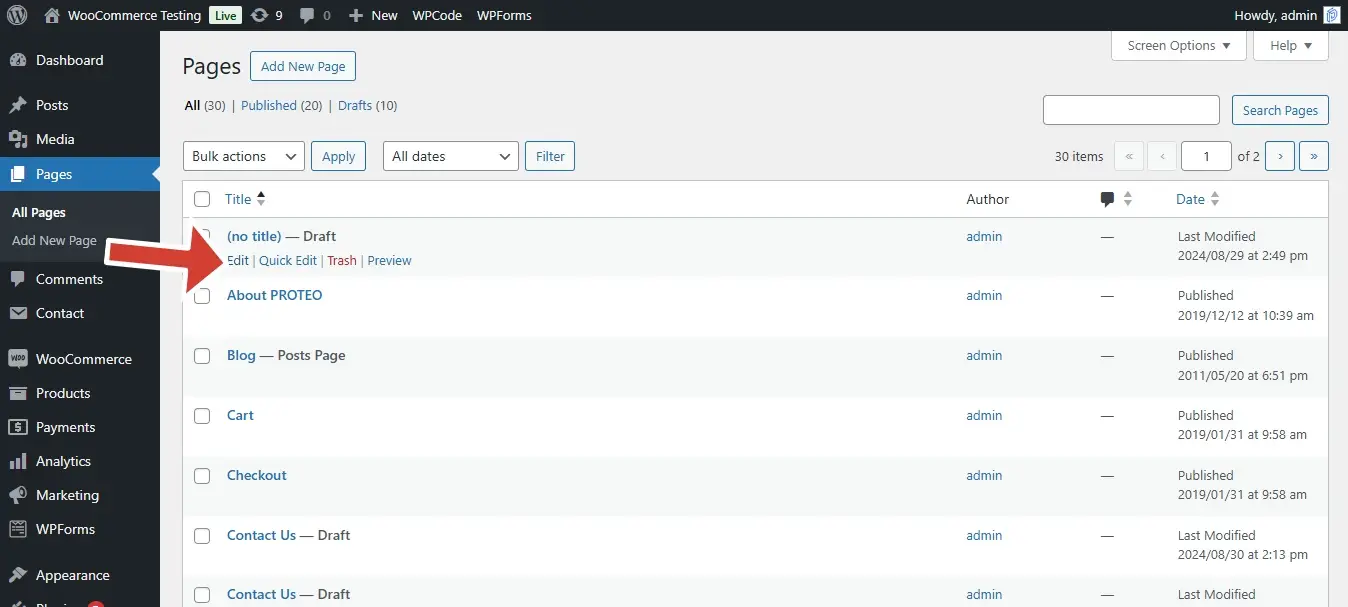
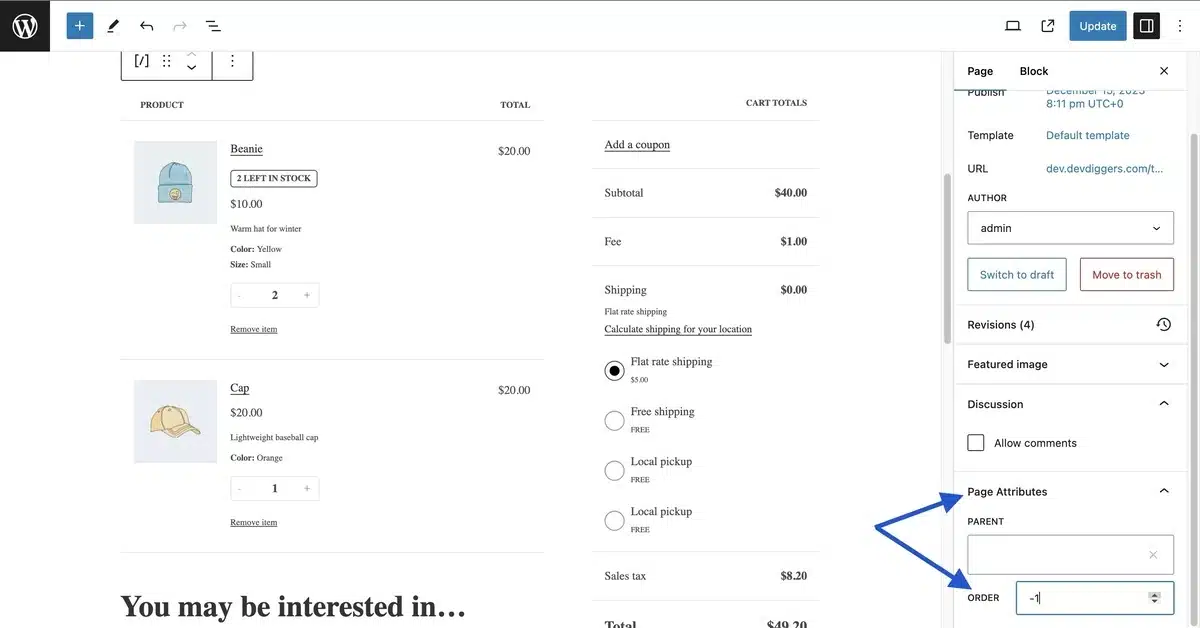
- On the right of the page, find Page Attributes. In the Page Attributes, there will be a box called Order. Input a number (example: 0 for 1st, 1 for 2nd, 2 for 3rd…).
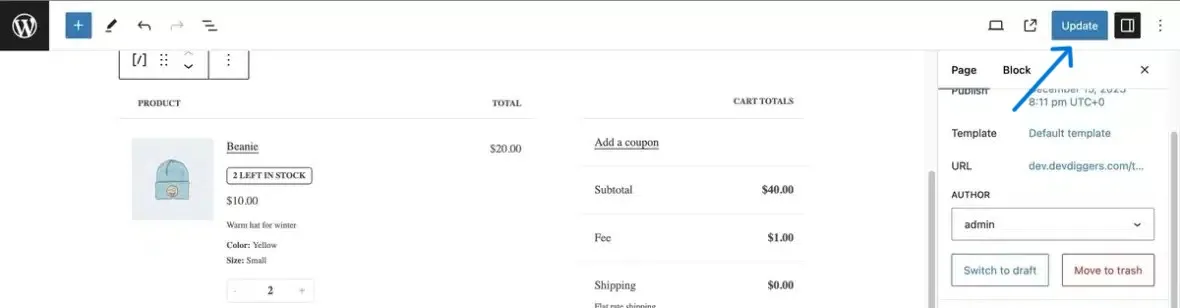
- Click Update.
Pro Tip: Use increments of 10, 20, 30, and so on instead of 1, 2, 3. This way, if you later add new pages, you’ll have space to slide them in without having to renumber everything.
Pros
- No plugin/code required.
- Great for static sites with only a few pages.
- This feature is persistent in the WordPress core.
Cons
- Does not include menus unless they are automatically generated.
- It can be tedious with large sites.
Best For
Manually reordering a small number of static pages.
Use Case
A simple business website that has 5–10 core pages (Home, About, Services, Blog, Contact).
Method 2: Rearrange Pages via the WordPress Menu
While Page Attributes lets you change what is listed inside WordPress, Menus lets you control what the users actually see.
Steps
- Go to Appearance > Menus.

- Select your primary menu (or create a new one).

- In the left panel, check the pages you want to add to the menu, then click “Add to Menu”.

- Use drag and drop to reorder the menu items as you prefer. Use indentation to create subpages (dropdowns).
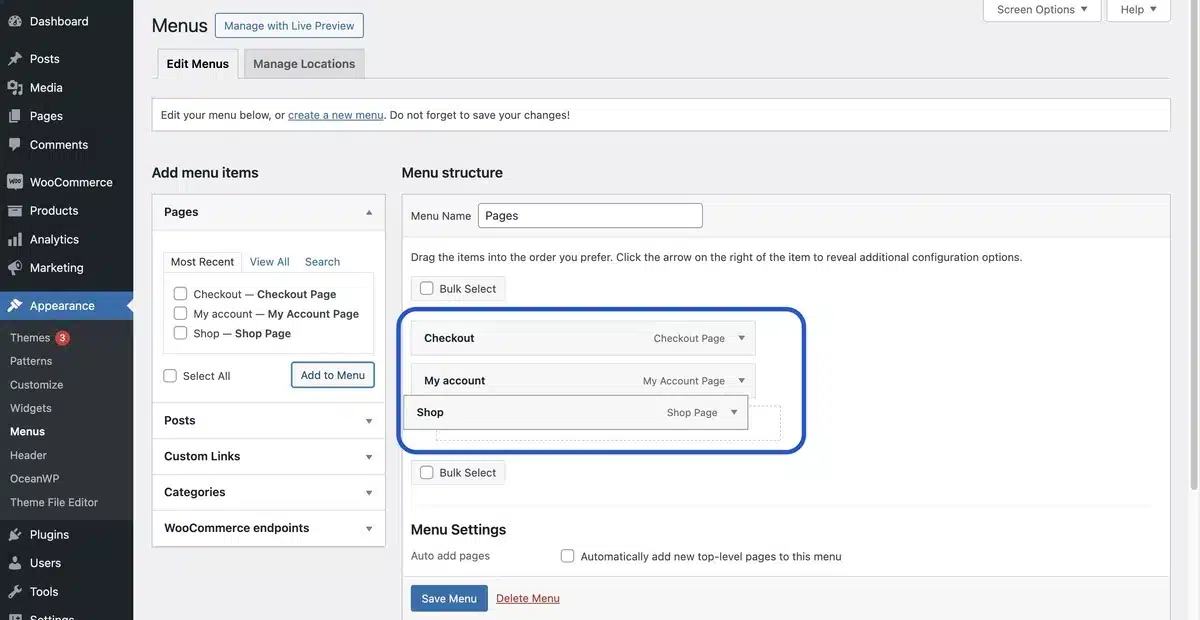
- Click “Save Menu” when finished.

Pros
- Visual and intuitive drag-and-drop
- Dropdown menus (make subpages underneath a main parent page)
- You have full control over the site’s navigation (menu & sub-menus)
Cons
- Changes applied with Menus only apply to the front-end navigation and not to the listing of pages in the back-end.
- Need to manually sync at the WordPress admin level whenever you add a new page.
Best For
Reordering pages for users as they’re presented in the navigation.
Use Case
An agency site that would like a clean top-level menu, with a subpage for each service category.
Method 3: Use a Plugin (Drag-and-Drop Visual Reordering)
Let’s face it, manually editing order fields isn’t fun. If you want to use a nicely designed, more modern solution, simply install a plugin such as:
Plugin Recommendation: Simple Page Ordering
This free plugin adds drag-and-drop capabilities to your page list from your WordPress dashboard.
Steps
- Go to Plugins > Add Plugin.

- Search for Simple Page Ordering, and then click Install.
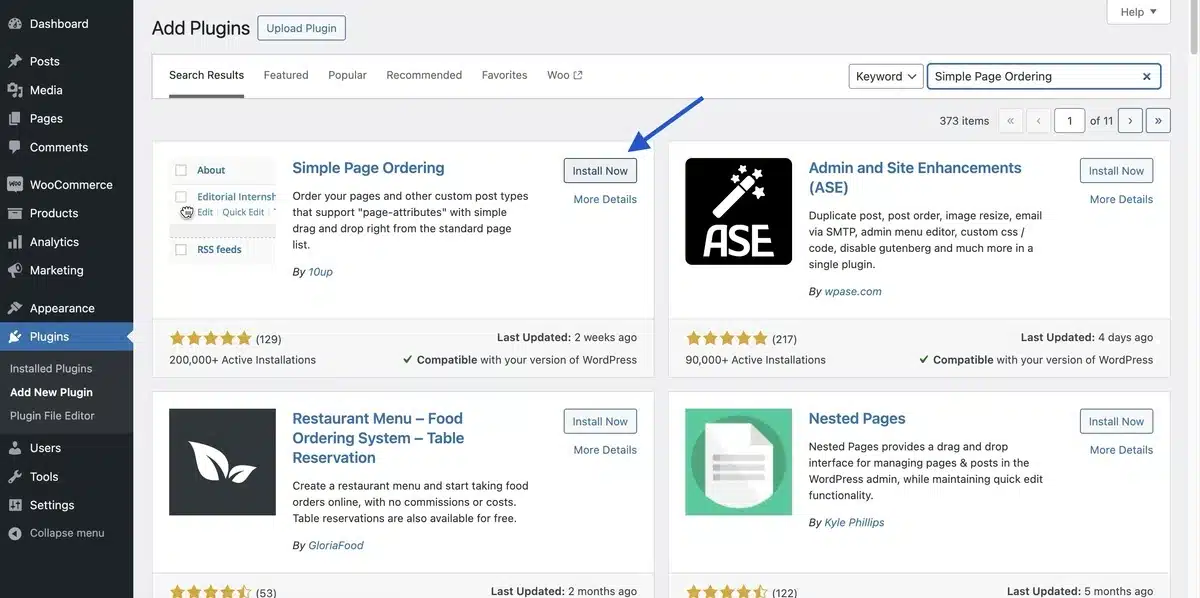
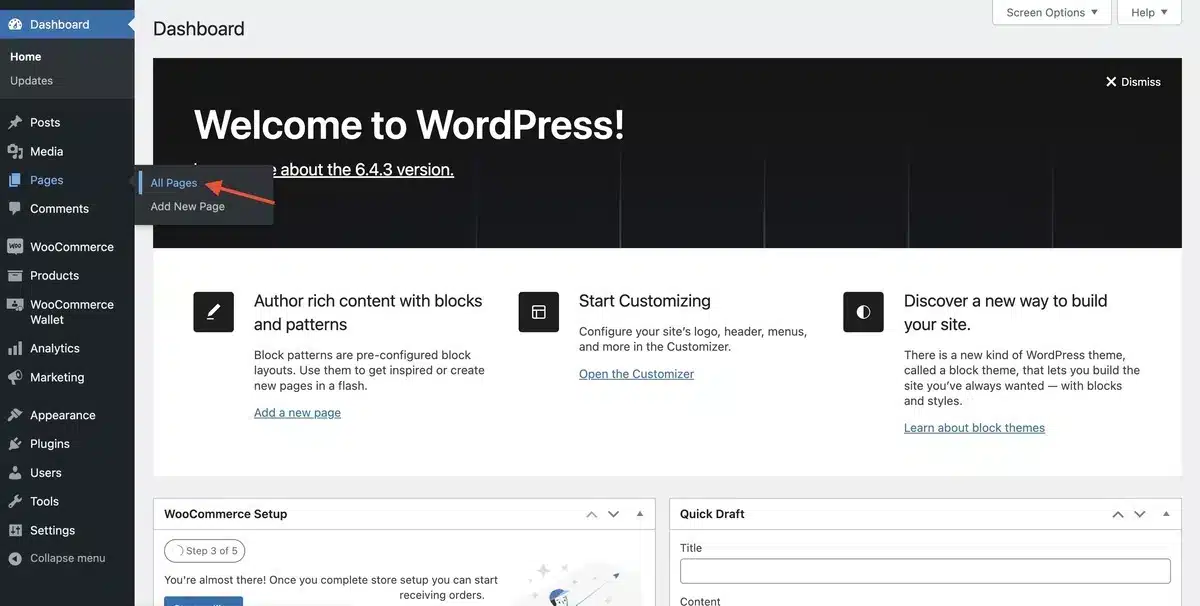
- Then, click Activate, and once activated, go to Pages > All Pages.
- Once that is done, just drag and drop pages to reorder them.
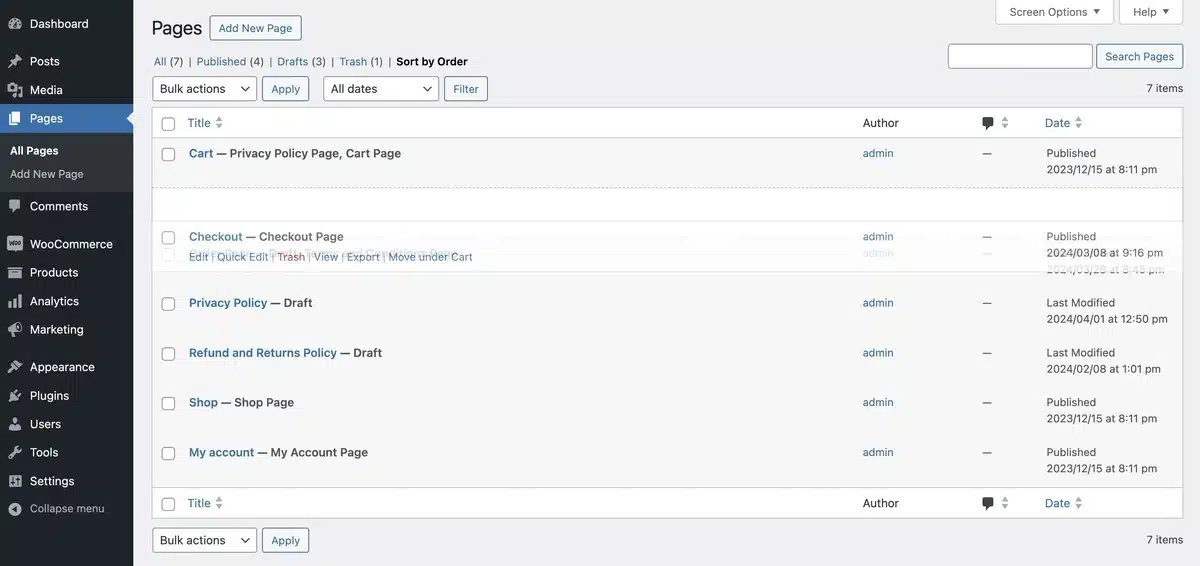
That’s it!
Pros
- Super easy to use
- Also works with custom post types
- Ideal for users with a ton of pages
Cons
- Requires using a plugin (even though it’s lightweight, it’s still an additional dependency)
- Rarely could it potentially conflict with certain page builders
Best For
Users who enjoy an uncomplicated drag-and-drop interface on all pages.
Use Case
For large websites or blogs with 20+ pages that need reordering done quickly and regularly.
Bonus: The Simple Page Ordering plugin allows for drag-and-drop ordering, also for custom post types such as portfolio items or testimonials.
Method 4: Code-Based Page Reordering (For Developers)
If you are building a custom theme or want a global solution without a plugin, you can modify your query in WordPress to comply with menu_order.
Add This Code to functions.php
function reorder_pages_by_menu_order($query) {
    if ( ! is_admin() && $query->is_main_query() && is_page() ) {
        $query->set( 'orderby', 'menu_order' );
        $query->set( 'order', 'ASC' );
    }
}
add_action( 'pre_get_posts', 'reorder_pages_by_menu_order' );
Important: Back up your theme before you modify any files. Even better, consider using a child theme to negate any loss when you update your theme.
This code will ensure that every front-end page query will comply with the determined order you set in Page Attributes.
Pros
- Clean and devoid of plugins
- Automatically added to the site
- Allow unique or custom logic without drag and drop
Cons
- Needs access to the theme and knowledge of PHP.
- There is a risk of breaking the site if it is incorrectly pasted.
Best For
Developers or advanced users who want total control of page hierarchy in WordPress.
Use Case
Custom-built WordPress or headless CMS that requires ordering to be integrated into the reflected template logic.
Final Thoughts
Reordering your pages on a WordPress site may not sound like that big of a deal, and it might not be until you realize just how it can affect user experience, conversion, and even your rankings.
Whether you’re managing a basic portfolio or an elaborate business site, knowing how to reorder pages in WordPress will help you manage your site’s flow and professionalism.
Here’s a quick overview of your options:
- Use Page Attributes for a quick and dirty way to fix it.
- Customize your Menus for more control over what users see.
- Use Simple Page Ordering for a no-fuss, drag-and-drop way to reorder pages.
- Use some custom PHP code if you want full developer means.
No matter how you choose to go about it, just remember this: when your pages are being arranged with intention, your visitors won’t get lost, and neither will your potential conversions.
Take Action Today: Select one of the methods on the list for today and organize your most important pages in the order they should be displayed. In just a few clicks, you’ll be improving your structure, user experience, and SEO!
FAQs — People Also Ask
Q1. Is it possible to drag-and-drop reorder pages in WordPress without needing a plugin?
WordPress does not allow for drag-and-drop reordering of pages from the dashboard by default. If you would like to be able to drag-and-drop reorder pages, you will want to use a plugin such as Simple Page Ordering.
Q2. Will reordering pages affect my permalinks or SEO ranking?
Reordering pages will not affect your URL’s structure or any existing SEO ranking, unless you change the permalink structure or remove any existing backlinks.
Q3. Why does changing the page order not reflect on the mobile menu?
In some cases, themes have a separate mobile menu configuration. Make sure that you are using the updated menu in Appearance > Menus, and check your theme’s mobile settings.
Q4. Can I reorder child pages and parent pages separately?
Yes. Each set of child pages housed under a parent can be reordered independently, through either Page Attributes or by drag-and-drop, but will not change the order of the parent.
Q5. How do I reorder WooCommerce pages (i.e., Shop, Cart, Checkout)?
WooCommerce pages are usually controlled by short codes and assigned within WooCommerce settings. To reorder your WooCommerce pages in a navigational setting (within your menu), you’ll need to go through the Menus section under Appearance > Menus.