

Have you ever visited a WordPress site and thought, “Wow, I wish mine looked like that”? If so, you’re not alone. The combination of a clean homepage style, trendy typography, and smooth scrolling animations can create an impression that lingers.
Although it is a challenge to create a pretty WordPress site from scratch (or anywhere close), time, skill, creativity, and attention to detail – it’s not easy! What if you could jump through the guesswork and learn how to copy someone else’s WordPress site design – the smart way and an ethical way?
In this step-by-step guide, I will show you exactly how to analyze, then copy, and or re-imagine whatever WordPress design that inspires you. I will show you some tools that I have used, techniques, and tips that will help you duplicate their layout, theme, fonts, colors, and functionality, while being as original or legal as you can. It will be fun, I promise.
When we’re done, you’ll know how to copy someone else’s WordPress website design while being confident, creative, and without breaking any rules!
Why Should You Copy Someone Else’s WordPress Website Design?
Copying another website’s design definitely sounds, at first, a little… I dunno, shady? But hey, wait! We’re not talking about copying content or stealing code here. We’re comparing and taking inspiration from sites that engage their visitors well.
In fact, ethically learning how to copy someone else’s WordPress website design may very well be one of the quickest ways to improve your own. Here’s why:
- Save Time and Remove Guesswork: Why reinvent the wheel when someone else has already built a beautiful and functional site? You will be able to analyze a successful design instead of starting from scratch, thus accelerating the creative process. You will already be familiar with what worked and what didn’t when you begin.
- Learn from Successful UX and UI: Successful websites are frequently built on design and user experience psychological principles. You can learn lessons by analyzing the structure, color scheme, button locations, and typography of these successful sites.
- Know Your Competition: Are you curious to see why your competitor’s site is beating you organically or converting a higher percentage of visitors? Sometimes it’s not just about SEO or content – often it might just be their design and structure that creates trust. You can try to recapture their layout by taking some of the key structural elements.
- Create Faster Prototypes for Clients: If you are a web designer or developer, knowing how to copy someone else’s WordPress website design that someone else meticulously articulated prepares you to deliver faster prototypes for them. If you show some quick mockups or themes that occur in an environment they are already comfortable with, it will be perceived as a smoother and collaborative process.
- Follow Current Design Trends: There are many different web design trends, and they change quickly. When you borrow ideas and designs from newer, well-designed WordPress websites, you’re not copying – you’re achieving a modern and contemporary design expectation. Familiarity with more current designs can upgrade your credibility and first impressions right away.
How To Copy Someone Else’s WordPress Website Design in 12 Steps
Now we’re getting into the good stuff — how to copy someone else’s WordPress website design: step-by-step! You can kind of think of this as a blueprint for dissecting any WordPress site you like and creating something that looks just as gorgeous for yourself (without doing anything unethical).
And don’t forget, we aren’t capturing content and using it as our own, or stealing someone’s brand. We are copying the structure, styles, and experience while putting our own twist on it.
Step 1: Identify What You Want to Recreate
Before you touch any code or plugins, you need to have clarity. This means going to the WordPress site you love and evaluating what exactly you love about it. Is it the layout of the homepage?
Maybe you like the hero section, especially where there is a large statement with action over a background video. Or is it the sticky header, the typography, the color combinations, or the Product pages?
Whatever it is, write it down. Make a list of the areas you specifically like from the design, such as:
- Header and navigation bar
- Layout or grid for the page
- Fonts and sizes
- Colors and button style
- Footer
- The responsiveness on mobile
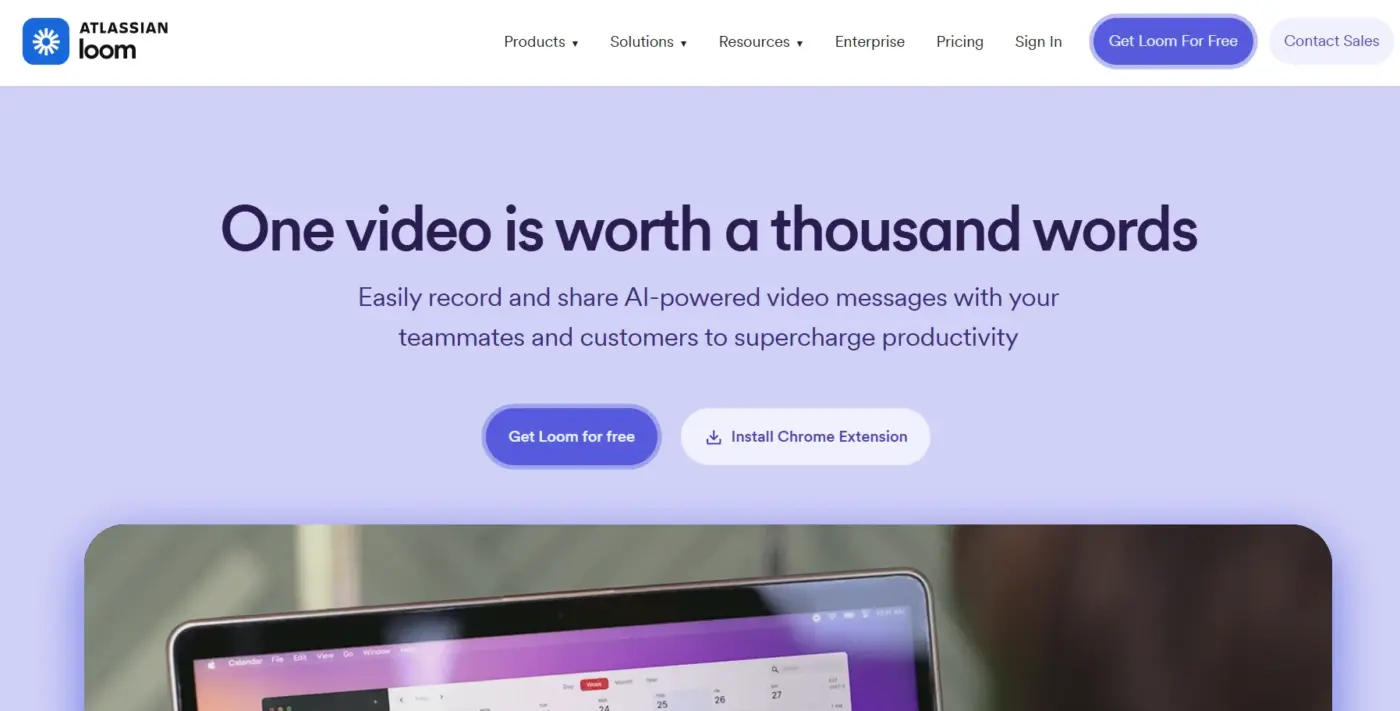
Using Loom or Lightshot, take annotated screenshots as a reference. This can be your visual checklist throughout your project. The more detailed you can get with the things you break down today, the easier the rebuild will be later.
Step 2: Use Inspect Element for Design Details
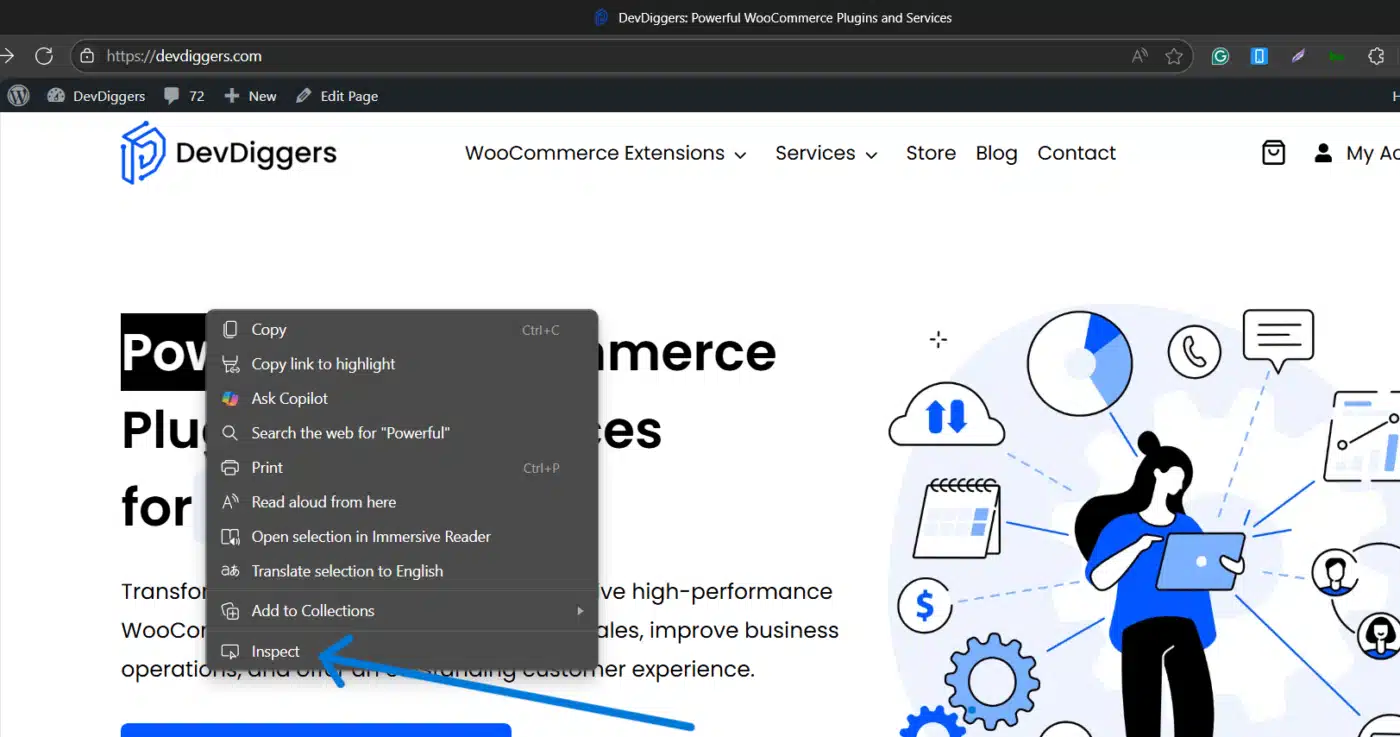
Now the fun begins. Right-click on any area of the page and choose Inspect (or key Ctrl+Shift+I in Chrome, etc.) This opens up the browser’s dev tools with complete transparency of the HTML structure and CSS styles.
You will be able to:
- View margin/padding settings
- Determine CSS classes and IDs
- View color hex codes and font families
- View where elements sit within a layout hierarchy
In the “Styles” panel, you can even temporarily edit code and see how it changes in real-time. This is a nice way to test how certain styling changes might look on your version. Make sure to take note of anything you want to recreate — you’re even able to copy/paste parts of the CSS into your site’s customizer (with some adjustments).
Inspect Element is like X-ray vision for web design; the best part is it’s free!
Step 3: Identify Their WordPress Themes
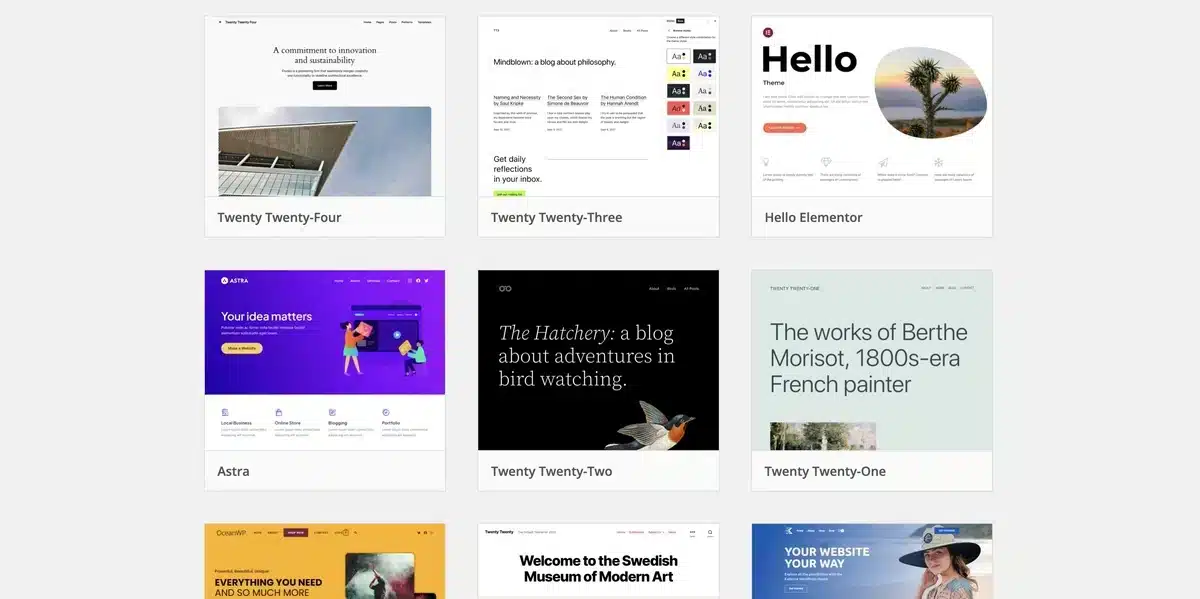
Want to know what theme or plugins a WordPress site is using? Well, you don’t have to guess!
You can use free tools such as:
- WPThemeDetector.com
- IsItWP
- BuiltWith.com
These tools expose:
- Active theme (name, version, author)
- Any parent and child theme used
- Any popular plugins (SEO, page builders, sliders, popups)
This is helpful so that you can use the same theme or find a similar one that has the same customization options. For example, if they are using GeneratePress with Elementor, you’ll want to do everything you can to replicate that setup, so you aren’t too far pulled from their layout and ability.
Step 4: Select the Theme or Page Builder on Your Website

After you have determined what the original website was built on, it’s time to set up your environment.
If the theme is a premium theme, consider purchasing it for full access and updates. Otherwise, select a multipurpose theme such as:
- Astra
- OceanWP
- Kadence
- Hello Elementor (if using Elementor)
Install a good page builder that will make the layout building simple.
- Elementor (Free or Pro)
- WPBakery
- Beaver Builder
- Divi
These products allow you to click and drag the elements you want into place, replicate any of the layouts you saw previously, and adjust padding, spacing, animations, and more without ever needing to touch code!
By selecting the same builder products and theme framework, you have positioned yourself to replicate the entire WordPress website design efficiently.
Step 5: Rebuild Layout Structure Manually

Assuming your website is out of the box, you are now going to start rebuilding the layout, section by section.
Use your previous screenshots and Inspect Element information to help guide you. Every page builder has sections, columns, and widgets that can easily mimic the structure of whatever page you build. You’ll need to start recreating:
- The hero section (with an image or video background)
- Feature grids or service boxes
- Testimonials or reviews carousels
- Call-to-action blocks
- Footer with multi-columns of widgets
Keep calm and take your time, work by one row at a time. To help you be precise with spacing, whenever you need, return to your target website and use the browser dev tools to check padding, margin, and the width of elements.
Always remember to preview regularly in tablet view and mobile view. Great design doesn’t just end at the desktop.
Step 6: Align the Typography and Fonts
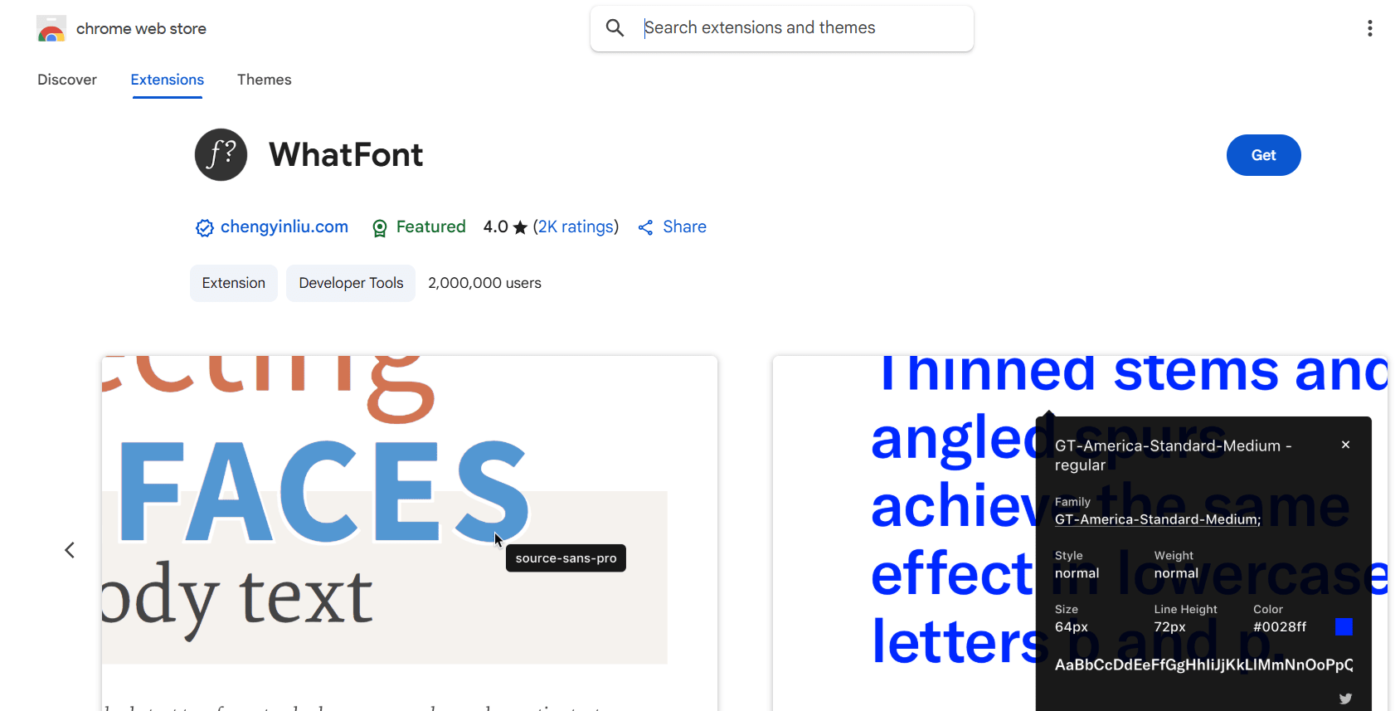
Typography is one of the largest aspects of any personality of a website. The weight of headings, the elegance of body copy, and the amount of line space — all of it takes a specific experience. If you’re trying to replicate someone’s WordPress website design, getting the fonts correct is a critical task.
Begin by identifying the fonts by using tools such as:
- WhatFont (Chrome Extension)
- Google Chrome Inspect → Computed → Font Family
- Fonts in Use (if available)
Then you’ll install those fonts by:
- Google Fonts from within your theme/page builder
- Upload via a plugin like Use Any Font or Custom Fonts by Brainstorm Force
Tweak your font size, weight, line height, and spacing to match. Most builders have global typography settings, and so you can update everything from that one place (which you’ll save a ton of time).
Step 7: Recreate the Color Palette
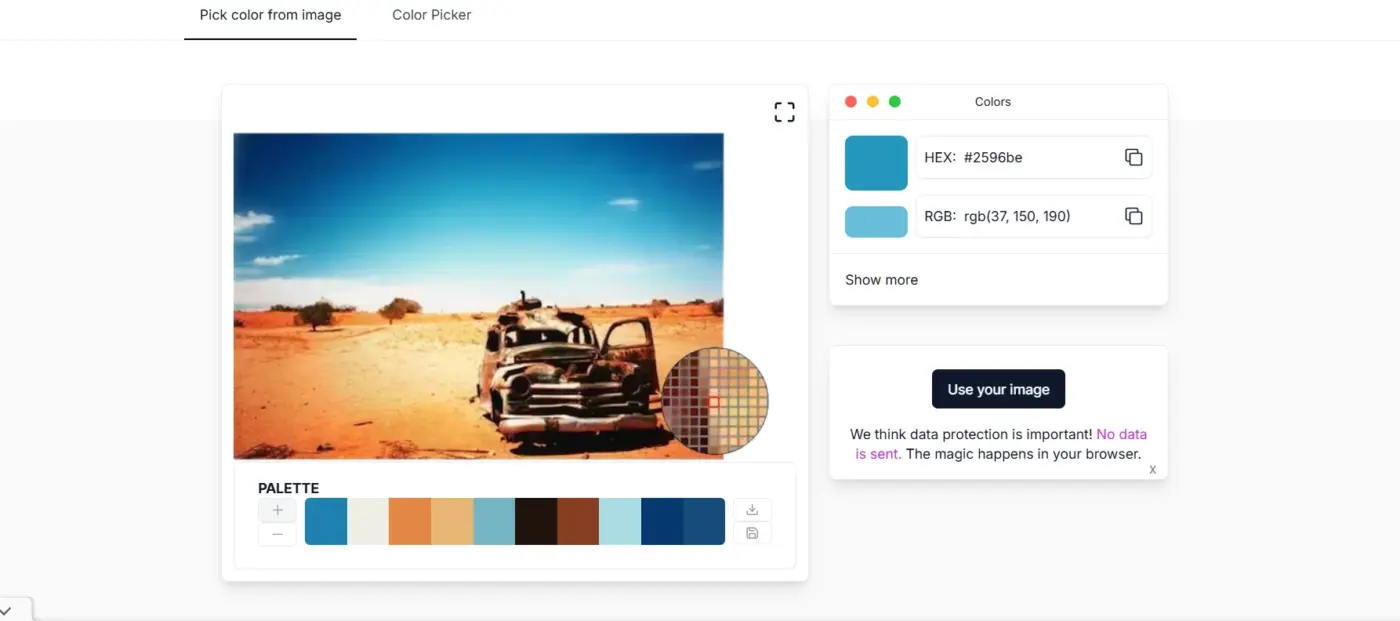
The color scheme might be the most recognizable part of any design. Knowing some of the best website color schemes can help you achieve the same emotional and tone conveyance as your site inspiration does. If you can replicate it, your site should have the same feeling and character — all that is left to do is properly accomplish each element.
You can extract color palettes from computer browsers with things like:
- ColorZilla (for Chrome and Firefox)
- Eye Dropper
- Or taking a screenshot and uploading to ImageColorPicker.com
You’ll want to capture the main, secondary, and accent colors you find in the main components, like:
- Backgrounds
- Buttons
- Headings
- Links
Once you obtain all of the hex codes, you would then use them in your global color settings in your WordPress theme or page builder to ensure consistency when adding multiple components to your page.
You will also want to check for hover effects or gradients – that can be easily overlooked, but still very important. If the original site or component is using a dark mode, entire components with contrasting blocks of color, or background color tones to break up their layout, it’s important that you use the same color tone throughout your layout.
Finally, you can test for the accessible use of color contrast. There are many tools available now. Here’s a good one for your consideration: WebAIM Contrast Checker. In general, a good design is not just about looking good. It’s making sure that it is usable by everyone.
Step 8: Add Animations and Interactive Elements

Design isn’t just about aesthetics – it’s also about motion! Subtle animations can really sell your website and make it feel more professional.
Look for:
- Fade-ins, slide-ups, or zooms
- Hover animation on buttons or images
- Sticky or shrinking header
- Scroll-activated animations
You can do the same as the above animations with:
- Elementor Pro’s Motion Effects
- AOS (Animate on Scroll) Library
- Lotties
- Custom CSS transitions (for example:
transition: all 0.3s ease-in-out;)
Many animations don’t involve code at all, since most builders today have built-in toggles for entrance/exit animation and even scrolling behavior.
As always, don’t go overboard. Use animations to direct attention, not distract. Too much will hurt performance and annoy visitors.
Step 9: Use Similar or Better Plugins
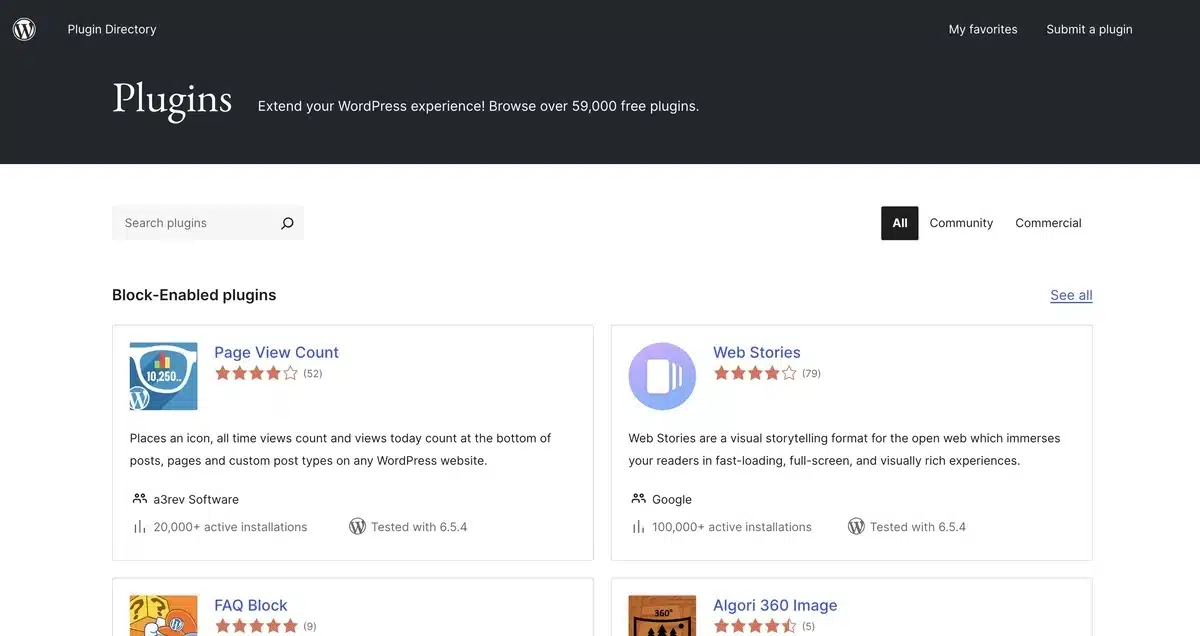
Looks are important, but so is functionality. If the website you are copying has specific features like popups, sliders, sticky bars, or live chat, those are typically powered by a WordPress plugin.
Use BuiltWith or inspect the source code (search for /wp-content/plugins/) to identify:
- Sliders: Smart Slider 3, Revolution Slider
- Popups: Popup Maker, OptinMonster
- Forms: WPForms, Contact Form 7
- SEO: Yoast, RankMath
- Performance: WP Rocket, Autoptimize
Install similar plugins from reputable sources. In many cases, you could find better options that allow greater control or are more lightweight.
Always ensure that plugins:
- Have updates made regularly
- Are compatible with your WordPress installation and PHP version.
- Do not bog down your website (run a test on GTmetrix or PageSpeed Insights).
Step 10: Make it Mobile Ready

Now that we have built out the design and features of our WordPress website, it is time to make it entirely mobile-friendly, just like the original.
More than 60% of your traffic comes from mobile devices, so mobile response is not optional.
Here’s how to do it:
- Use the responsive mode in your page builder (e.g., Elementor’s Mobile View)
- Adjust font sizes, padding, and spacing for smaller screens
- Ensure images resize correctly with CSS rules like
max-width: 100% - Avoid popups or hover-only features that don’t work on mobile
Test your site across:
- iPhones and Androids
- Tablets like the iPad
- Browser dev tools’ responsive simulator
You can also use the Mobile-Friendly Test to identify critical issues.
Correcting any of these will make a noticeable improvement in your bounce rate and search rankings!
Step 11: Optimize Performance and Load Speed

It’s nice to copy a great design, but not if your site takes forever to load. Fast-loading websites provide better user experience (UX), SEO, and conversions.
Here are a few steps to replicate not just the design, but the speed of a high-performing WordPress site:
Key Actions:
- Use a lightweight theme (like GeneratePress, Astra, or Hello Elementor)
- Install a caching plugin: WP Rocket or W3 Total Cache
- Compress images using ShortPixel or Smush
- Minify CSS/JS using Autoptimize
- Consider a CDN (e.g., Cloudflare) for global load balancing
Run your site through:
Then, compare the speed metrics to the original site you are copying. We want to meet or beat their Largest Contentful Paint (LCP) and First Input Delay (FID) numbers.
Step 12: Include Your Branding and Personal Touch
At this point, your website probably looks nearly identical to the one you admired — mission accomplished, right?
Not exactly. Now it’s time to make it yours.
Add your:
- Brand colors (if different)
- Logo and favicon
- Unique copy and CTAs
- Custom illustrations or photos
- Social proof and testimonials
Remember you’re copying the structure and feel, not the identity. Even if you are drawing inspiration from another WordPress build, the result must showcase your own brand personality, aspirations, and audience.
Use this time to improve the user experience, reinforce your value proposition, and be unique, despite the similarities in design base.
Common Issues When Copying Someone Else’s WordPress Website Design
It is not always easy to copy a WordPress website design, even if you have a solid plan and all of the tools needed. There are a few common difficulties and pitfalls that many people run into, especially when trying to reverse-engineer a design without knowing how they constructed that design.
Here are five primary challenges to watch for, along with how you can avoid them:
1. Inadvertently Copying Copyrighted Material
One of the biggest (and most harmful) mistakes that people make is copying copyrighted material — including images, logos, graphics, and even text — without permission. It’s fine to be inspired by someone’s layout or design, but if you are going to take their actual assets, you may find yourself in legal trouble.
Solution:
Use royalty-free resources for media:
- Images: Unsplash, Pexels, Pixabay
- Icons: Flaticon, IconScout
- Fonts: Google Fonts, Font Squirrel
Make sure you rewrite any copy you see, even if it is “just placeholder text.” Keep inspired by the structure, but create your own content.
2. Mismatching functionality
You may match the look of a website, but if it does not function the same — whether that means modals opening, animations triggering, dynamic content, forms that even submit, etc. — then you are creating a bad user experience.
Common issues:
- The button does nothing
- Hover or scroll effects are missing
- Layouts that fall apart on mobile
Solution:
Make sure to thoroughly inspect the original site’s functionality using the developer tools and test the interactions. If you discover that a feature is missing on your end, it is probably being generated by a plugin or custom JavaScript — track it down and come up with the equivalent.
3. Conflicting Plugins or Theme Incompatibility
When you are trying to copy another person’s site (meaning you’ve added a bunch of third-party plugins to copy functionality), it’s important to know that not all plugins work well together, or with your theme. This could lead to:
- Awkward loading speeds
- Layout shifts
- Errors in your admin dashboard
Solution:
Only select trusted, lightweight plugins that have consistently high ratings and recent updates. Test them in a staging site before you go live. You can also troubleshoot plugin conflicts using the Health Check & Troubleshooting Plugin.
4. Poor Mobile Responsiveness
A lot of beginners design only on desktop and forget to test how the copied layout looks on smaller screens. What looks good on your laptop could be a hot mess on mobile — and the quickest way to lose users.
Solution:
Manually adjust your layout settings for tablets and phones in the builder’s responsive mode. This includes adjusting breakpoints, padding, font sizes, and ensuring that you remove anything that doesn’t translate well to mobile (like hover navigation).
Make sure you also double-check:
- Touch targets (small buttons = bad UX)
- Font readability between mobile & desktop
- Navigation (can they find their way through it?)
5. Over-Customization without Strategy
While it is quite easy to get carried away making modifications to every little detail until it resembles the original design with pixel-perfect accuracy, you do not always need to do this.
Getting “too exact” often leaves behind bloated code, snail-paced performance, and inflexible designs that are going to make it hard to scale the site later on.
Solution:
Instead of replicating the design, try to consider replicating the user experience instead. Make sure to focus on:
- Clean, modular structure
- Good usability
- Running speed/responsiveness
- Ease of editing or revising in the future
If you cannot recreate the specific effect or widget without heavy and complicated custom coding, then instead try to replace that complex modifiable bit of code with an alternative that produces a similar user experience but offers better flexibility.
Conclusion: Build Better by Studying the Best
That’s it – a complete, ethical, and strategic breakdown of how to copy someone else’s WordPress website design without cutting corners or breaking any laws.
The reality is that great design doesn’t happen in a vacuum. Most great websites are built by studying, tracking, testing, and remixing what already works. If you follow the 12 actionable steps we discussed, you’re going to not only learn how to recreate a very nice WordPress layout, but you’re also going to develop some practical skills that will refine your eye for UX, balance and layout, performance, and branding.
So as you take the next step, keep in mind…
- Be inspired, don’t copy blindly. Make it your own by using your original content, branding, and functionality.
- Use the right tools. The tools you need to do this are page builders, theme detectors, and any of the browser dev tools.
- Be performance mindful. No one is going to stick around for your beautiful website if it’s slow.
- Test everything. Polished matters, your site needs to be responsive, plugins must work, and include all of that in your testing.
Most importantly, keep learning. Each time you break down and build a design, you are getting better at your craft, you are refining your workflow, and you’re building better websites, faster.
No matter if you’re a freelancer, an agency, or just running your own site, knowing how to copy someone else’s WordPress website design can be a superpower for your enjoyment.
Now go get inspired and execute!
Frequently Asked Questions (FAQs)
Q1. Is copying a WordPress website design illegal?
Yes and no — if you are copying the design layout and structure, as opposed to the content, images, logos, and branding, then it is not illegal. Just be sure to use your own, or royalty-free, assets, and again, your own text.
Q2. Is there a way to find out what theme a WordPress site is using?
Yes. Simply use the WPThemeDetector.com or IsItWP to find the active theme, and if you are lucky, even the builder plug-in.
Q3. What is the easiest way to copy a homepage design?
Use Inspect Element to see the layout and CSS, then create it using the page builder of your choice – Elementor, Divi, etc. You can create the sections and set the spacing, fonts, and colors without code.
Q4. Can I use the exact same plug-ins they are using?
Yes, if they are free or commercially available plug-ins. Just be sure to install from a trusted source, verify compatibility, and thoroughly test.
Q5. What if I cannot recreate the design the same?
That is fine. You should aim to capture user experience and style, not create things pixel-perfectly. Your focus should be on creating a clear, fast, functional design, as that is all users care about.



2 responses
I’ve created a theme but I didn’t think it would be so hard finding a way to get it all in a zip folder on my pc without using All In One Migration etc. How do I now download the created theme, recommended plugins and content etc to upload to another website like you do when you buy a brand new theme.
If you want to download themes and plugins from your site, you can activate this plugin, “Download Plugins and Themes in ZIP from Dashboard“. Then, you will be able to download any plugin or theme from your site.