

WooCommerce inventory tracking is built into the plugin and takes about 15 minutes to set up. You switch on stock management once, then give each product a count that drops with every sale.
I tested every setting in this guide in October 2026 on our test store running WordPress 7.1.3, WooCommerce 11.2 and Twenty Twenty-Five. I placed real checkout orders, ran a refund, canceled orders, bulk edited stock and updated counts with WP-CLI. Each stock email in this post is one that store sent.
You get the six setup steps first, then how orders and refunds move your counts. After that come the Stock report, bulk updates, the limits of the built-in tools and the mistakes our test exposed.
What WooCommerce Inventory Tracking Does
WooCommerce inventory tracking keeps a stock count for each product or variation and lowers it when an order is placed. It sends low stock, out of stock and backorder emails to an address you choose. It also releases stock from unpaid checkouts and writes every change into the order notes.
The WooCommerce inventory settings documentation puts it plainly: you enter quantities, and WooCommerce subtracts items as sales are made or orders are returned. That is the basic inventory management WooCommerce gives every store for free. It hides a lot of moving parts, so we logged each one on the test store.
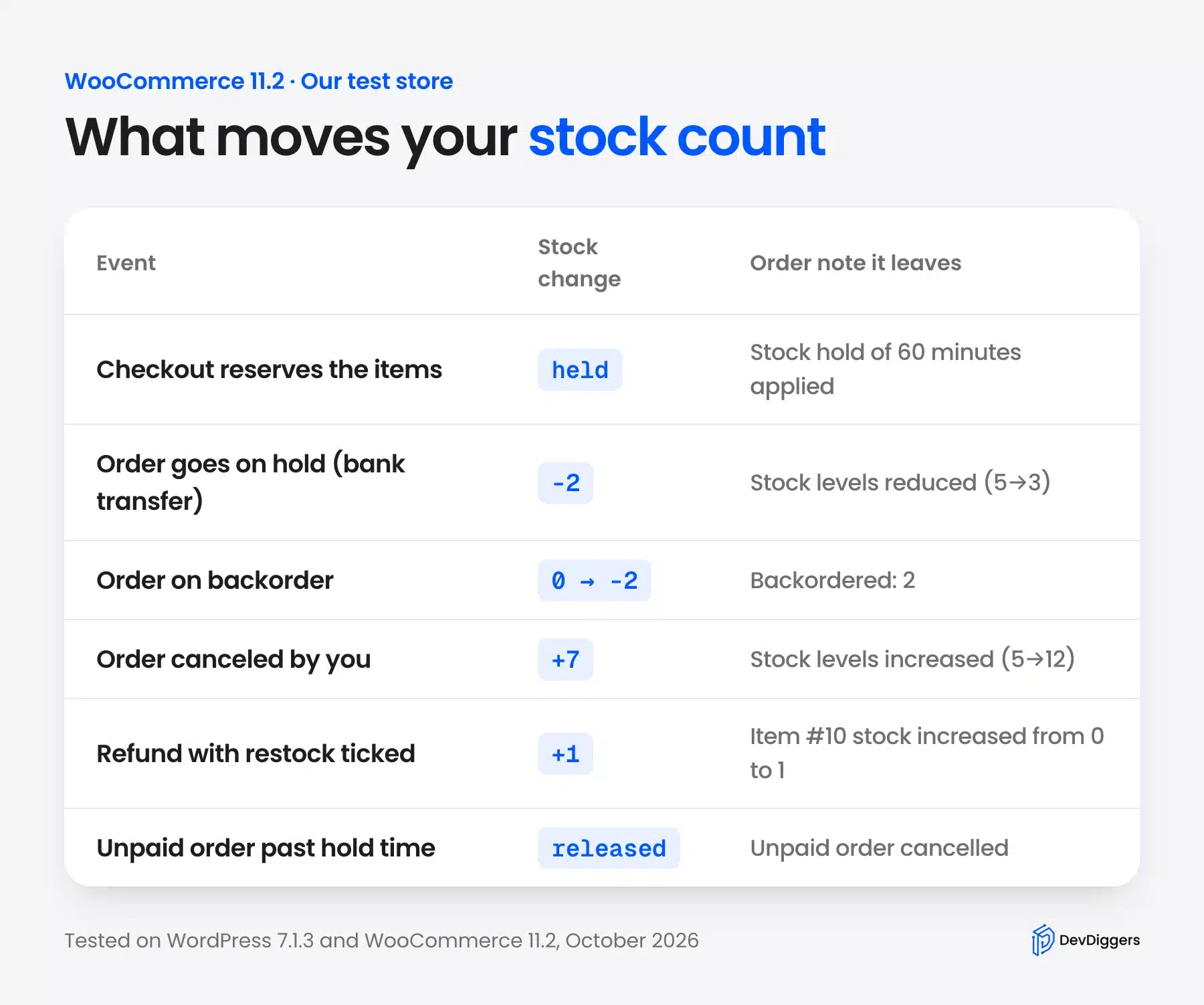
The table above is the real record from our tests. Each row is an event we triggered, the change it made to the count and the exact order note WooCommerce wrote.
Two things stood out early.
Stock drops when an order reaches On hold or Processing, and a checkout also places a short hold on the items. So the number you see on a product is the stock still free to sell. Units already sold but not yet shipped are gone from it.
How to Manage Inventory in WooCommerce
To manage inventory in WooCommerce, turn on Manage stock under WooCommerce, Settings, Products, Inventory. Then set your alert thresholds and give every product a SKU and a quantity. Finish by choosing a backorder rule and a hold time for unpaid checkouts, which takes six steps in total.
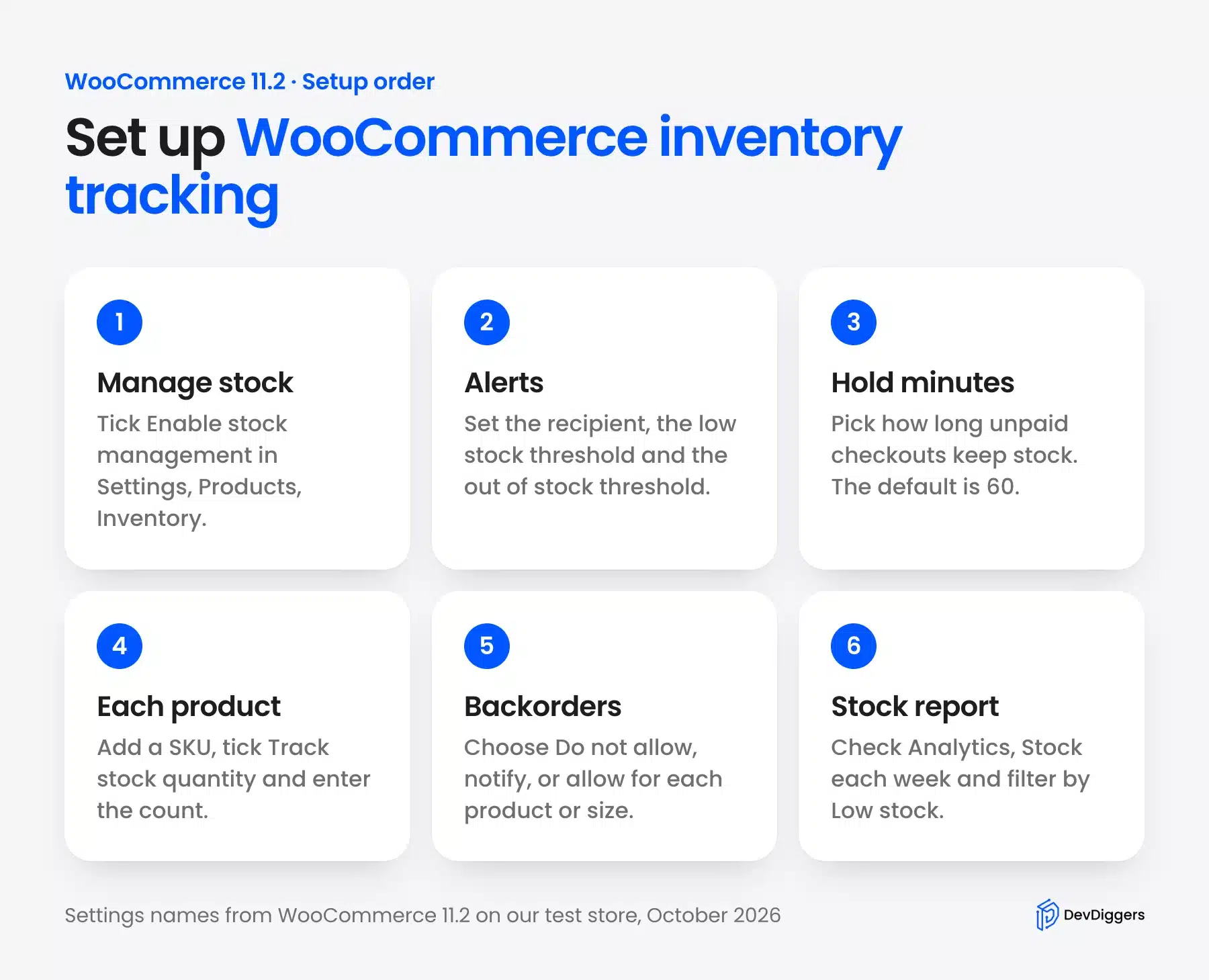
Every WooCommerce manage inventory option starts on the store settings screen, so do those first. The product fields only appear once the store level switch is on, which is the first thing new store owners trip over.
Step 1: Turn On Manage Stock for the Store
Go to WooCommerce, then Settings, then the Products tab, and open the Inventory link. Tick Enable stock management and save. Until this box is ticked, the Track stock quantity option never shows up on your products.
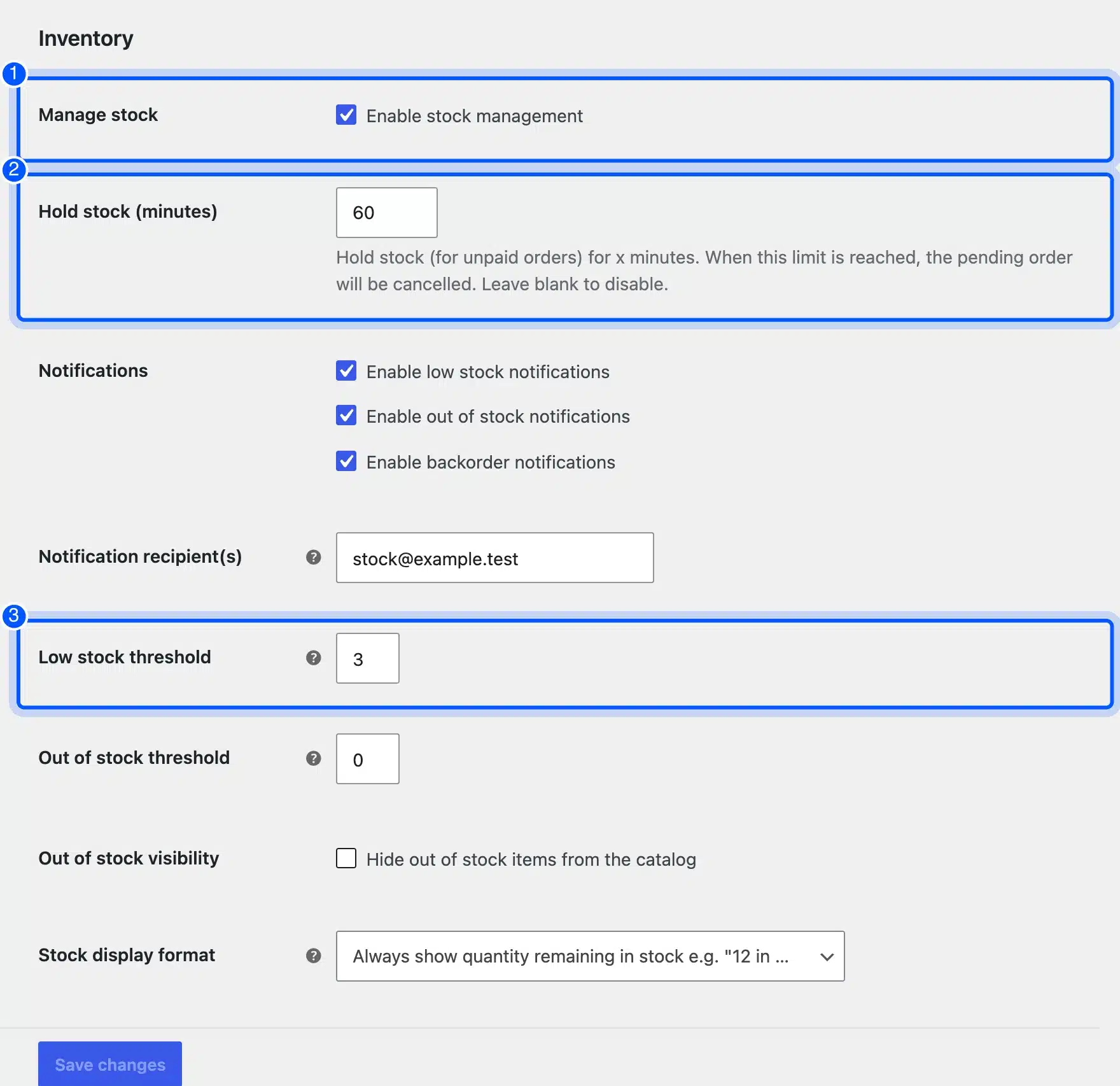
The same screen holds every store wide stock rule. These are the fields we set on the test store:
- Manage stock: Ticked, so WooCommerce keeps a count for physical products.
- Hold stock (minutes): Left at the default of 60 minutes for unpaid orders.
- Notification recipient(s): One inbox that a person reads every day.
- Low stock threshold: Set to 3 for the whole store.
- Out of stock threshold: Left at 0, so a product sells out at zero.
- Out of stock visibility: Unticked, so sold out products stay visible in the catalog.
The stock display format sits at the bottom. It can show the exact count, show it only when stock is low, or never show it.
Step 2: Set Low Stock and Out of Stock Thresholds
The low stock threshold is the count that triggers a warning email. The out of stock threshold is the count that flips a product to Out of stock. Keep all three notification boxes ticked: low stock, out of stock and backorder.
We bought 7 of our Green Ceramic Mug, which started at 12 with a product threshold of 5. The email below arrived the moment the order was placed. Later orders sold out two mugs and backordered a third.
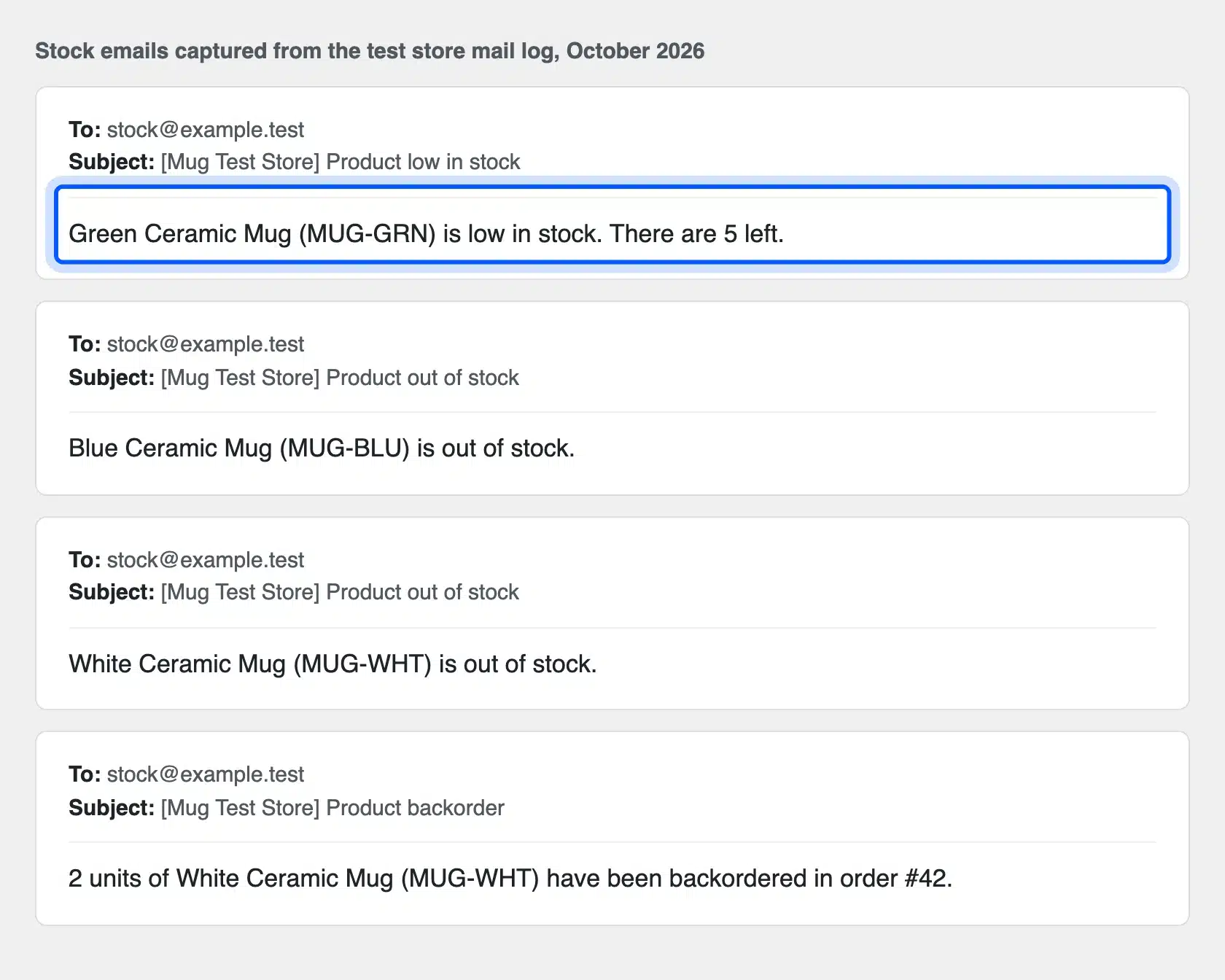
The emails are plain text and very short. Each one names the product, its SKU and the count, with the store name in the subject line.
Tip: Set the threshold to what you sell during your supplier’s delivery time. If a supplier takes 10 days and you sell 2 a day, a threshold of 20 gives you time to reorder.
Step 3: Track Stock on Each Product
Open a product, scroll to Product data and click the Inventory tab. Fill in the SKU, tick Track stock quantity for this product and type the quantity you have. The low stock threshold field here overrides the store value for this one product.
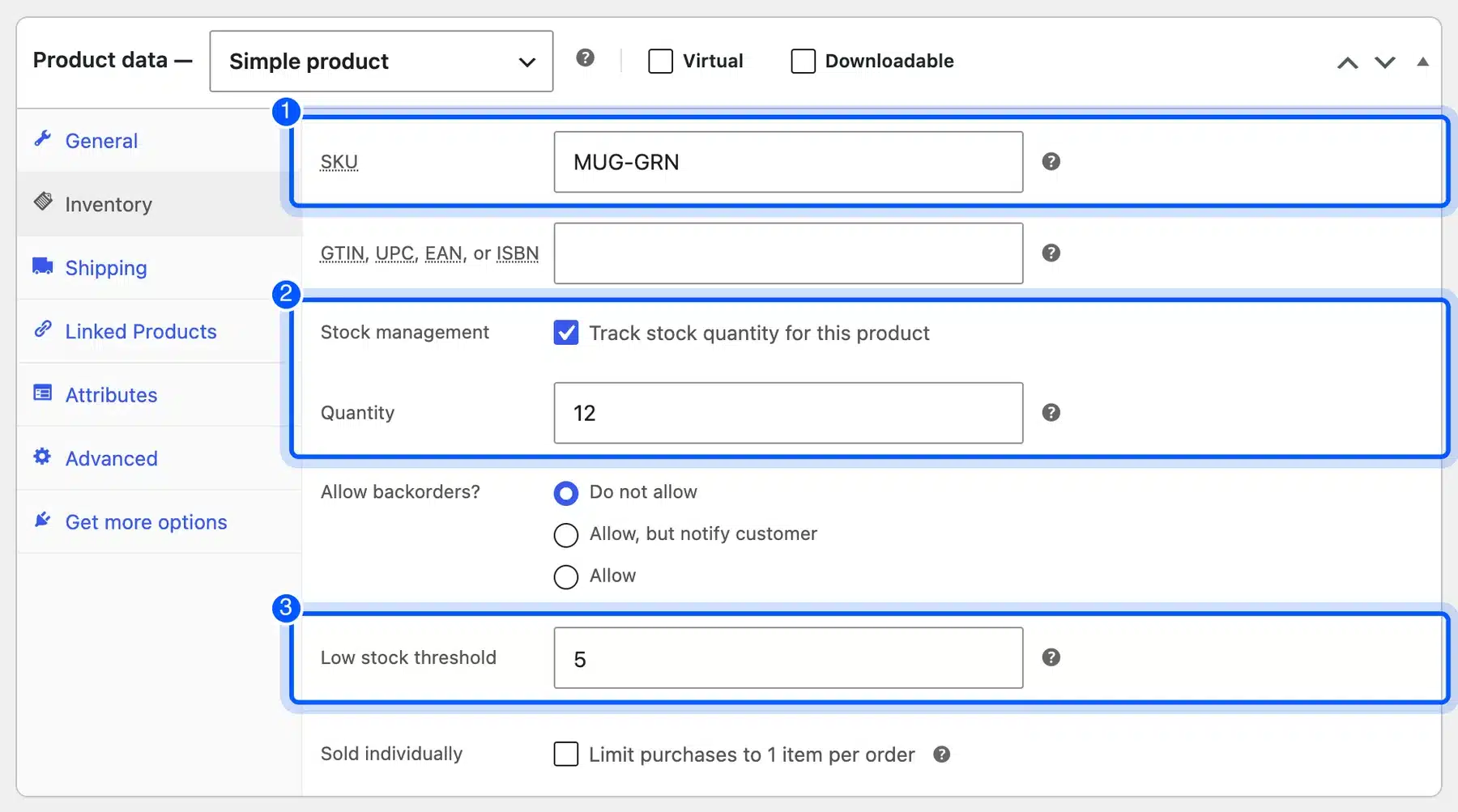
The product editor settings guide calls a SKU a unique identifier used to search for and track a product. Give every product one before you sell. Our stock emails, refund panel and Stock report all printed the SKU next to the name.
A product without tracking shows N/A in the Stock report, as nine of our mugs did. That is the quickest way to spot products you forgot to set up.
Step 4: Track Stock for Each Variation
Variable products keep a separate count for each variation, so a shirt in Small and Large needs two numbers. Open the product, click the Variations tab, expand one variation and tick Manage stock? to show its own stock fields.
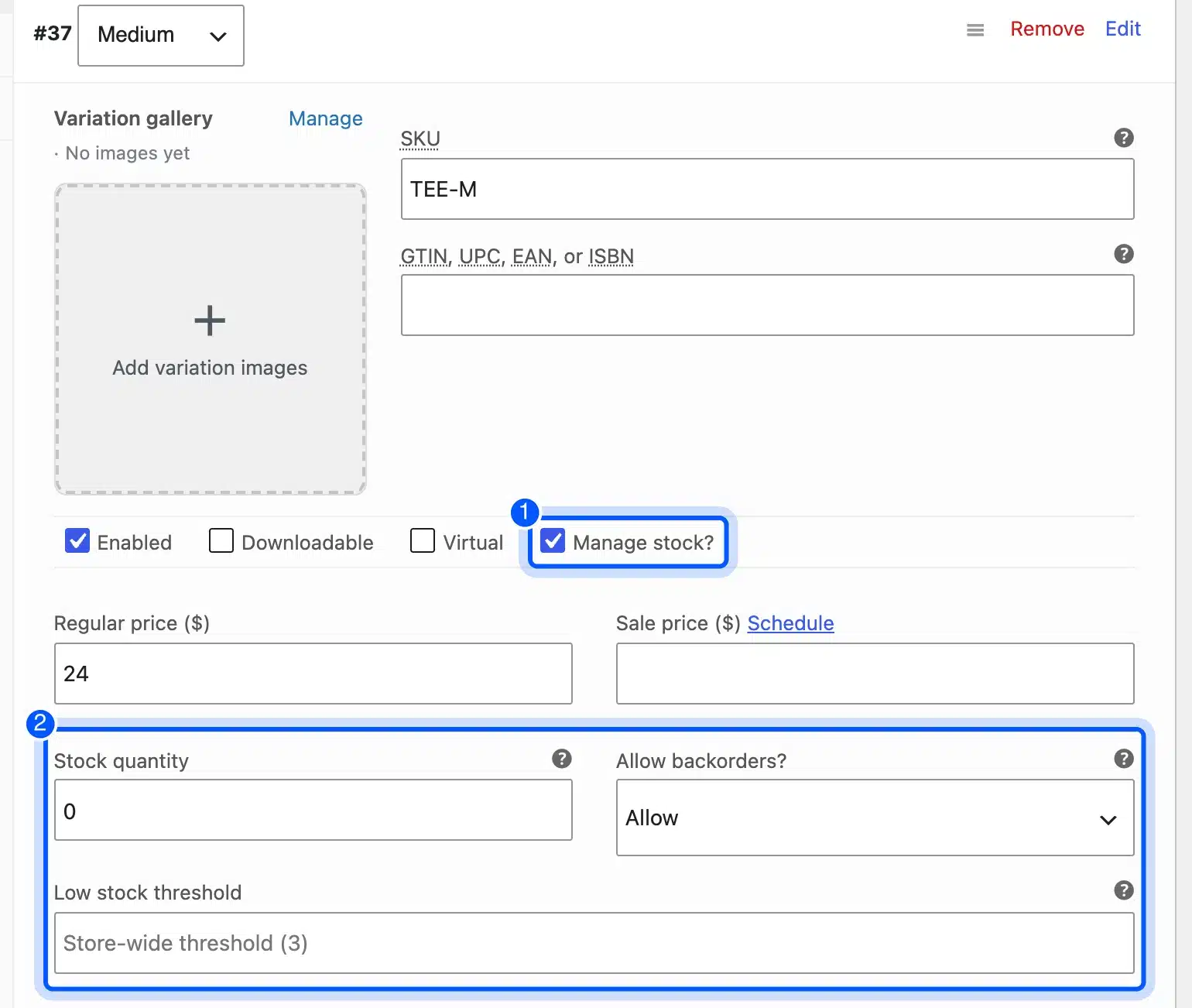
Our Cotton T-Shirt had Small at 4, Medium at 0 and Large at 10. Medium was set to allow backorders while the others were not, which only works at the variation level.
The low stock field showed “Store-wide threshold (3)” as its placeholder. So a blank variation falls back to the store setting, which saves time on large size runs. The variable product guide covers attributes and variations in more depth, and our guide to creating WooCommerce variable products walks through the setup screens.
Step 5: Choose a Backorder Rule
Backorders decide what happens when a tracked product reaches zero. You get three choices on each product or variation:
- Blocked: The Do not allow option means the product shows Out of stock and cannot be bought.
- Allowed with a notice: With Allow, but notify customer, shoppers can buy it and see an “Available on backorder” notice.
- Allowed quietly: With Allow, shoppers can buy it and it looks the same as an in stock product.
We set the White Ceramic Mug to 0 with Allow, but notify customer. The product page showed the notice below, and the cart still let a guest buy 2.
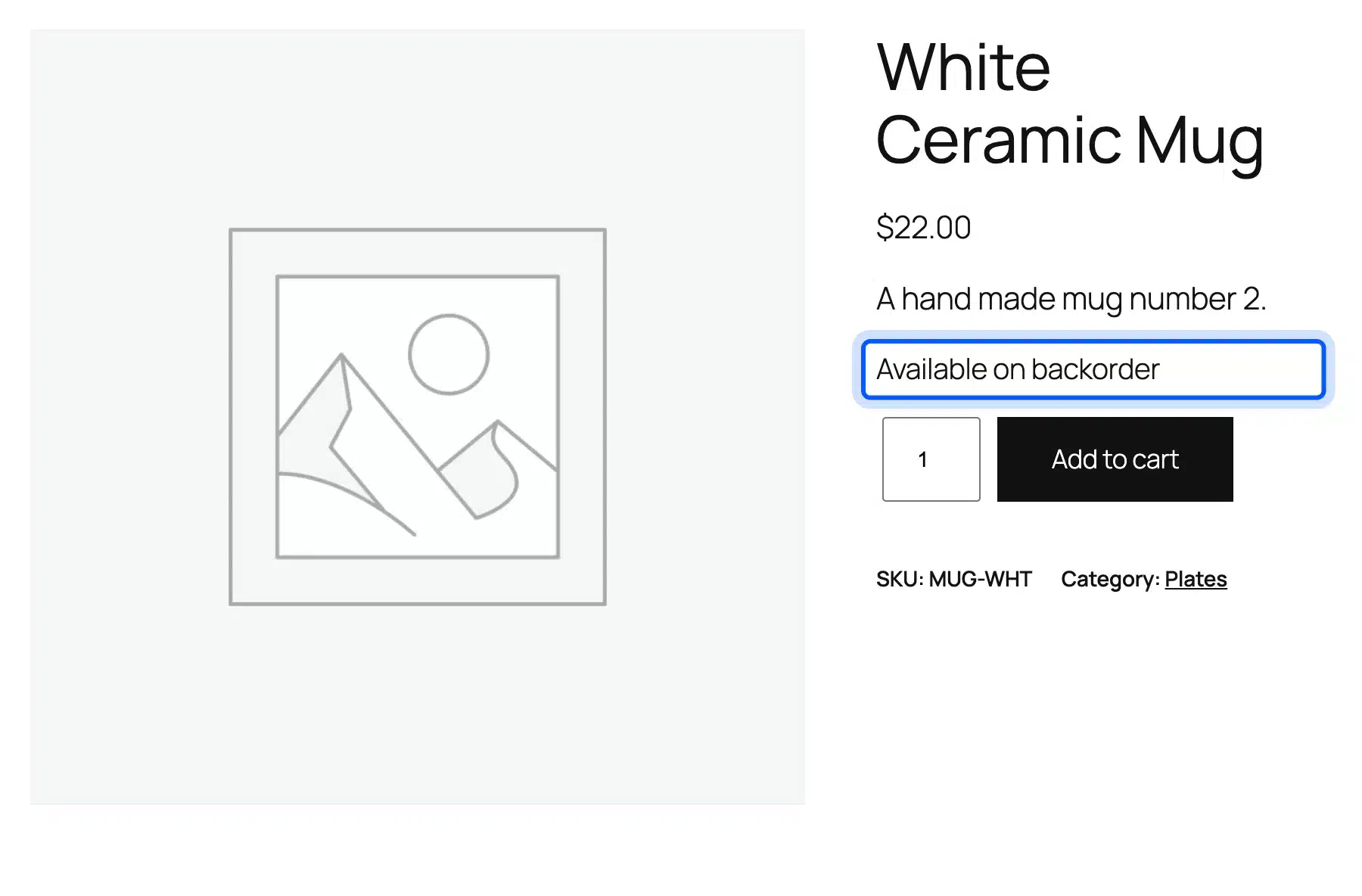
That order took the stock from 0 to -2 and added “Backordered: 2” to the order line. A backorder email went to the stock inbox at the same time.
If you would rather collect emails than take money, the WooCommerce Waitlist plugin swaps the dead end for a join list button. It costs from $29 a year, as of October 2026.
Step 6: Set Hold Stock Minutes for Unpaid Orders
Hold stock keeps items reserved for an unpaid order for the minutes you set, 60 by default. When the time runs out, WooCommerce cancels the pending order and frees the stock. The settings page notes this only applies to Pending payment orders, never to On hold ones.
You can test this without waiting an hour. We backdated a Pending payment order for 2 mugs by two hours, then ran the cleanup task WooCommerce schedules for unpaid orders. The order was canceled with the note below.
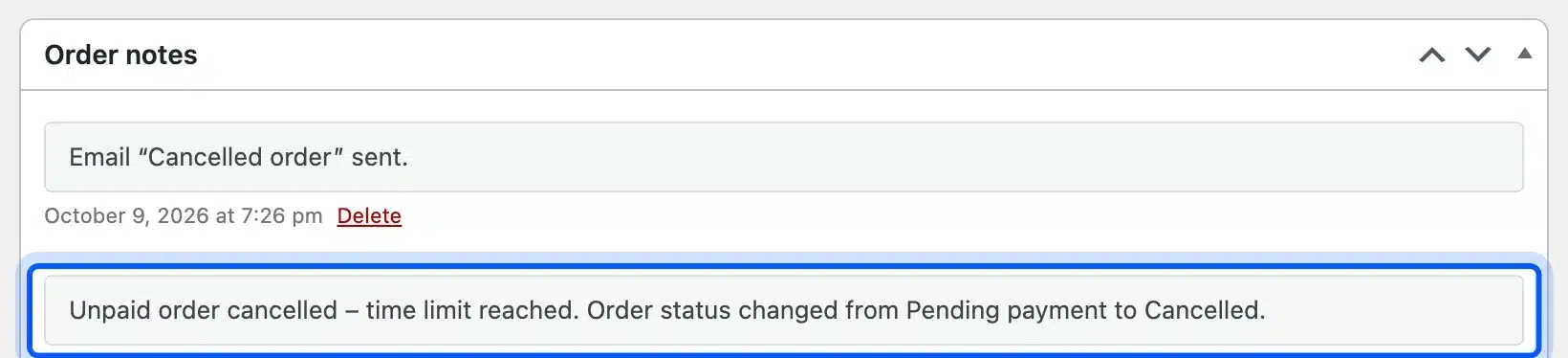
Every order placed through the block checkout also got a “Stock hold of 60 minutes applied” note, listing each item and its SKU. The backordered mug order got no hold note, because there was no stock to hold.
How Orders and Refunds Change Stock Levels
Stock levels in WooCommerce drop when an order reaches On hold or Processing. They rise again when an order is canceled, refunded with restock ticked, or left unpaid past the hold time. Each change writes an order note, so the order screen doubles as your stock history.
Here is the record from one order of 3 Blue Ceramic Mugs. The mug started at 3 after an earlier sale, so this order sold it out.
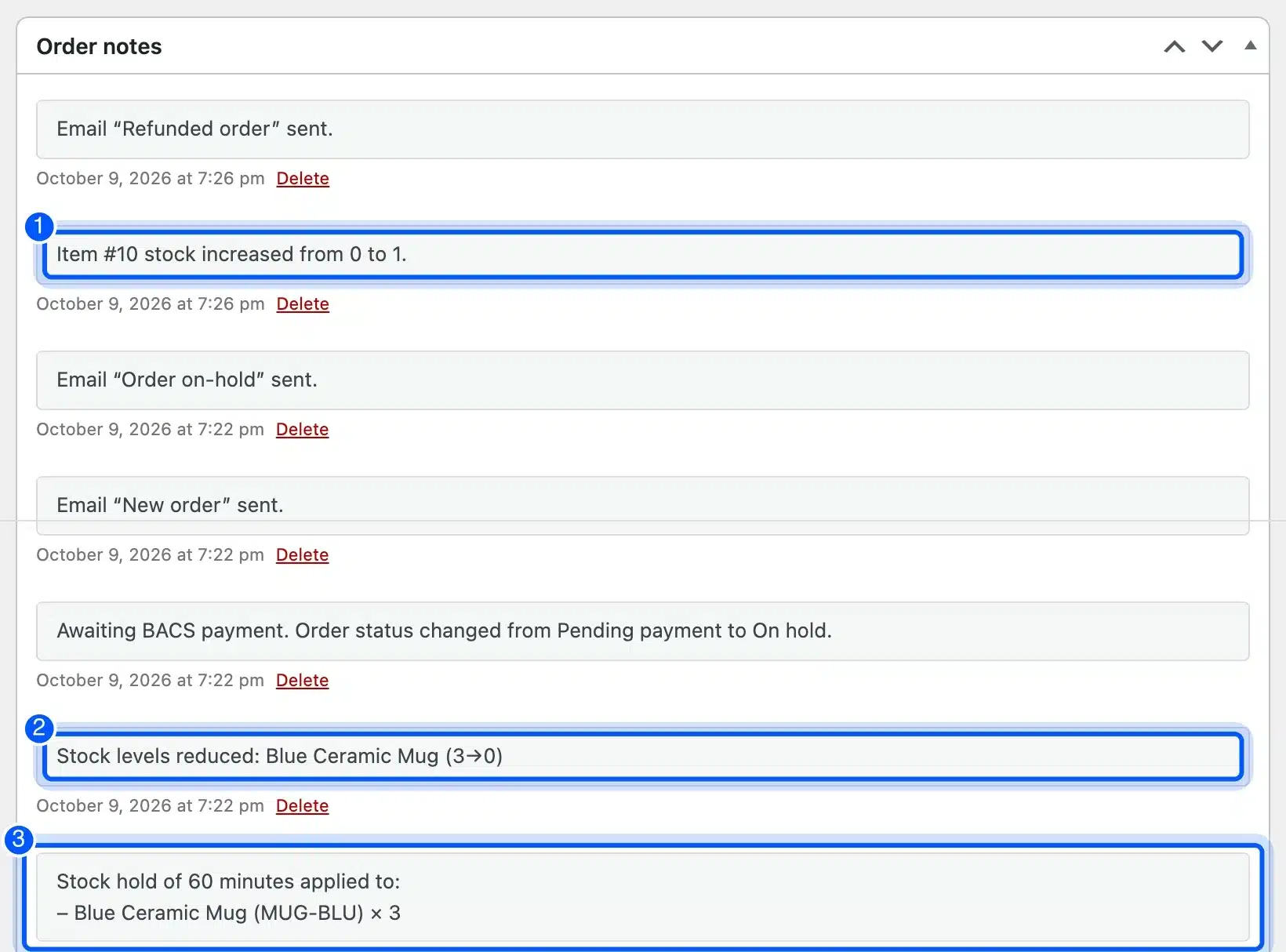
Read the notes from the bottom up. The checkout placed a 60 minute hold, the bank transfer order reduced stock from 3 to 0, and a later refund put 1 mug back.
That refund note reads “Item #10 stock increased from 0 to 1”. It names the product ID rather than the product name, so keep a SKU list handy when you read refund history.
Restock Refunded Items
A refund only returns stock when you tick the restock box. The WooCommerce refunds guide describes it as the option to restock products by ticking “Restock refunded items” while processing a refund.
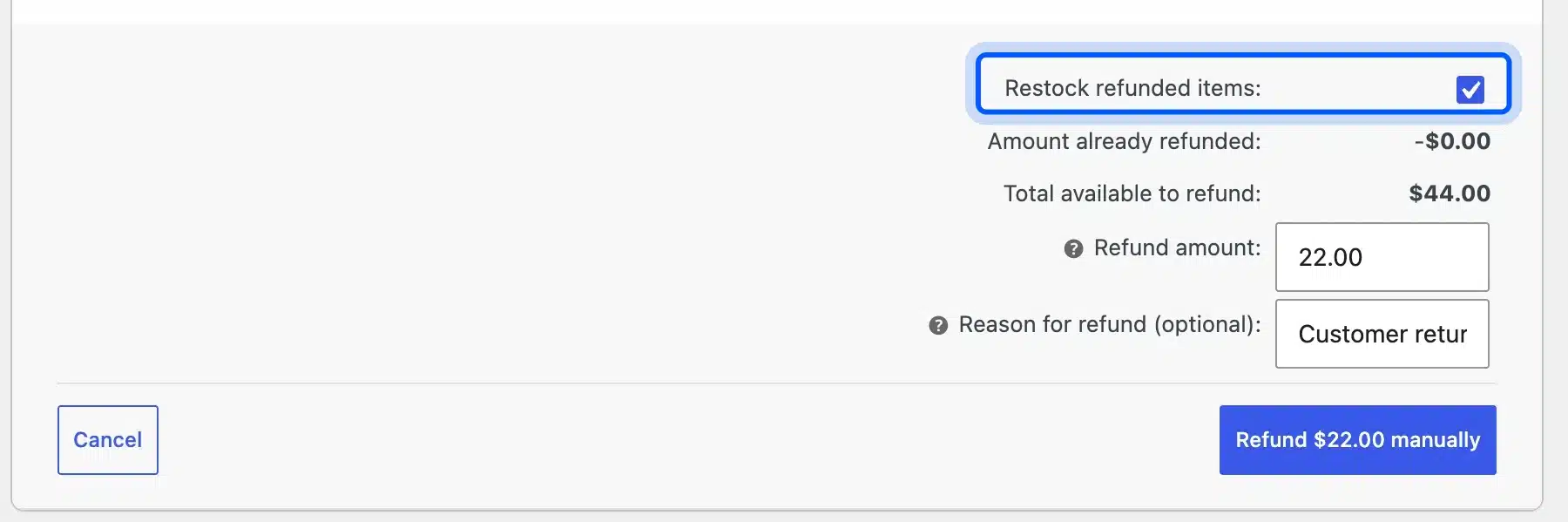
Enter the quantity to refund on the item line first. WooCommerce fills in the refund amount for you, $22.00 for one mug in our test.
Leave the box unticked when the item will not go back on the shelf. A chipped mug should not reappear as sellable stock.
Canceled Orders Return Stock
Canceling an order that already reduced stock adds it back in one step. We canceled our Green Ceramic Mug order for 7 while it sat On hold. The note read “Stock levels increased” and the count went from 5 back to 12.
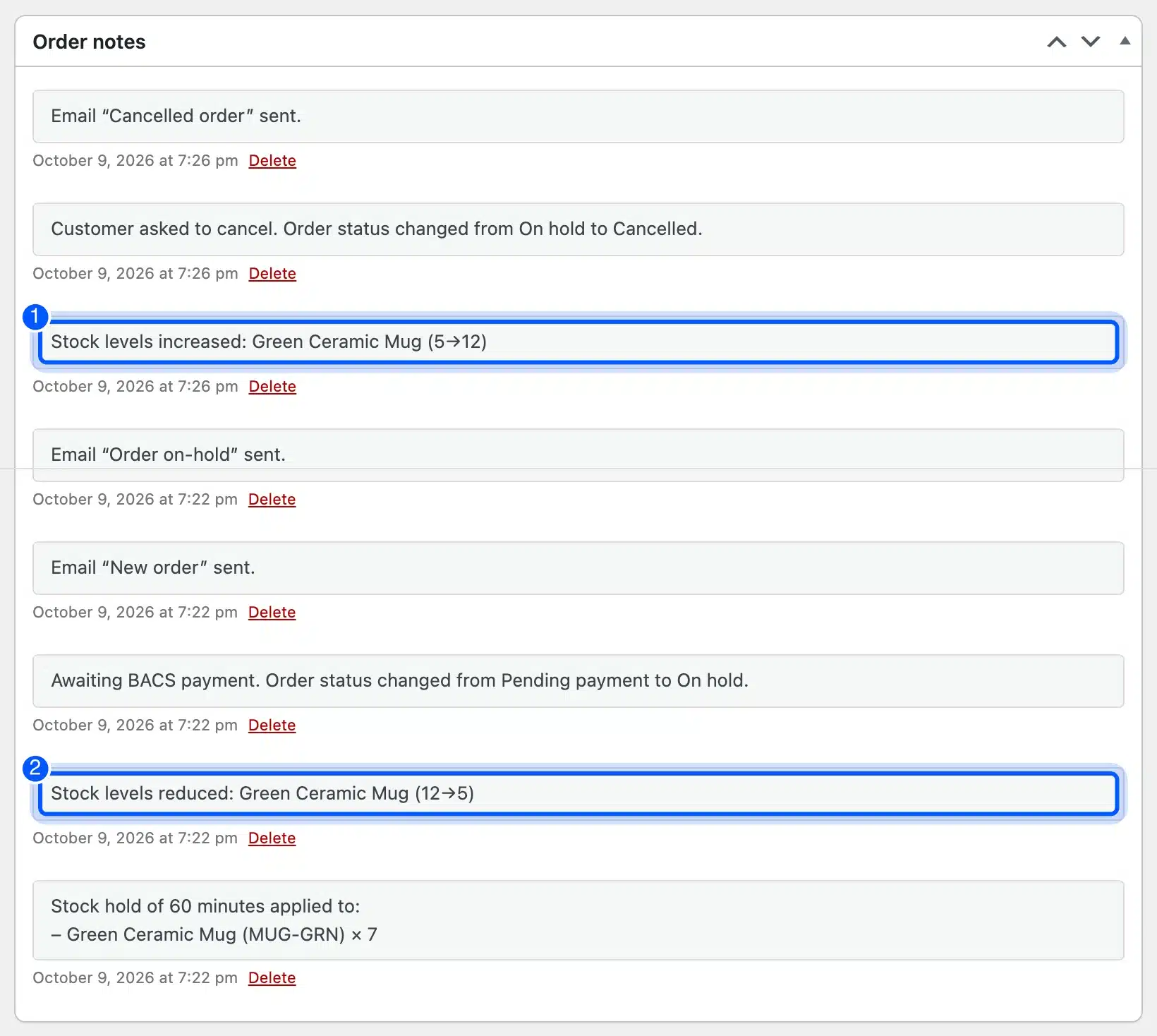
This matters most for bank transfer and check payments. Those orders reduce stock at On hold, so an unpaid one keeps stock locked until someone cancels it by hand.
Worth knowing: Hold stock minutes will not clear an On hold order. If you accept bank transfers, check the On hold list every few days and cancel the orders nobody paid.
Reading the WooCommerce Stock Report
The Stock report lives under Analytics, then Stock, and lists every product and variation with its SKU, status and quantity. A Show menu filters it to Out of stock, Low stock, In stock or On backorder. A summary line under the table counts each group.
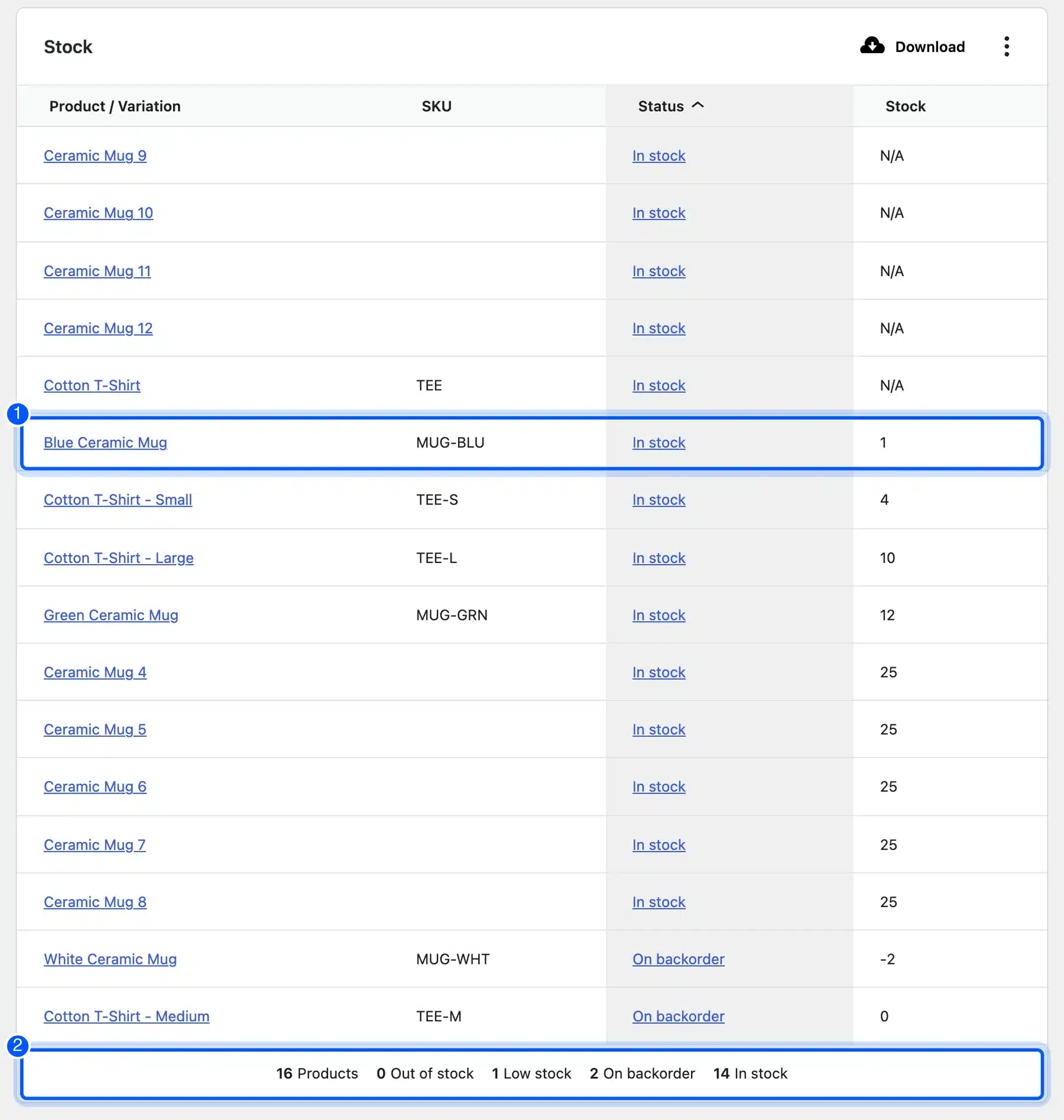
The Stock report documentation says it shows the current stock status and inventory quantity for products and variations. Our report counted 16 products: 14 in stock, 2 on backorder, 0 out of stock and 1 low stock.
The low stock count surprised us. The Blue Ceramic Mug had 1 left against a threshold of 3, and the Low stock filter listed it. Yet its status column still said In stock.
Low stock is a report filter, and the product status never changes to it. So a theme or feed that only reads stock status will never see it, and only the email or this report will warn you.
Updating Stock for Many Products at Once
You can update stock for many products at once in two ways that ship with WooCommerce. Bulk edit in the Products list changes up to a page of products in one save. WP-CLI and the REST API change counts from a script, which suits supplier feeds and warehouse exports.
Bulk Edit in the Products List
Go to Products, tick the products to change, pick Edit from Bulk actions and click Apply. Set Manage stock? to Yes, choose “Change to:” next to Stock qty and type the new count.
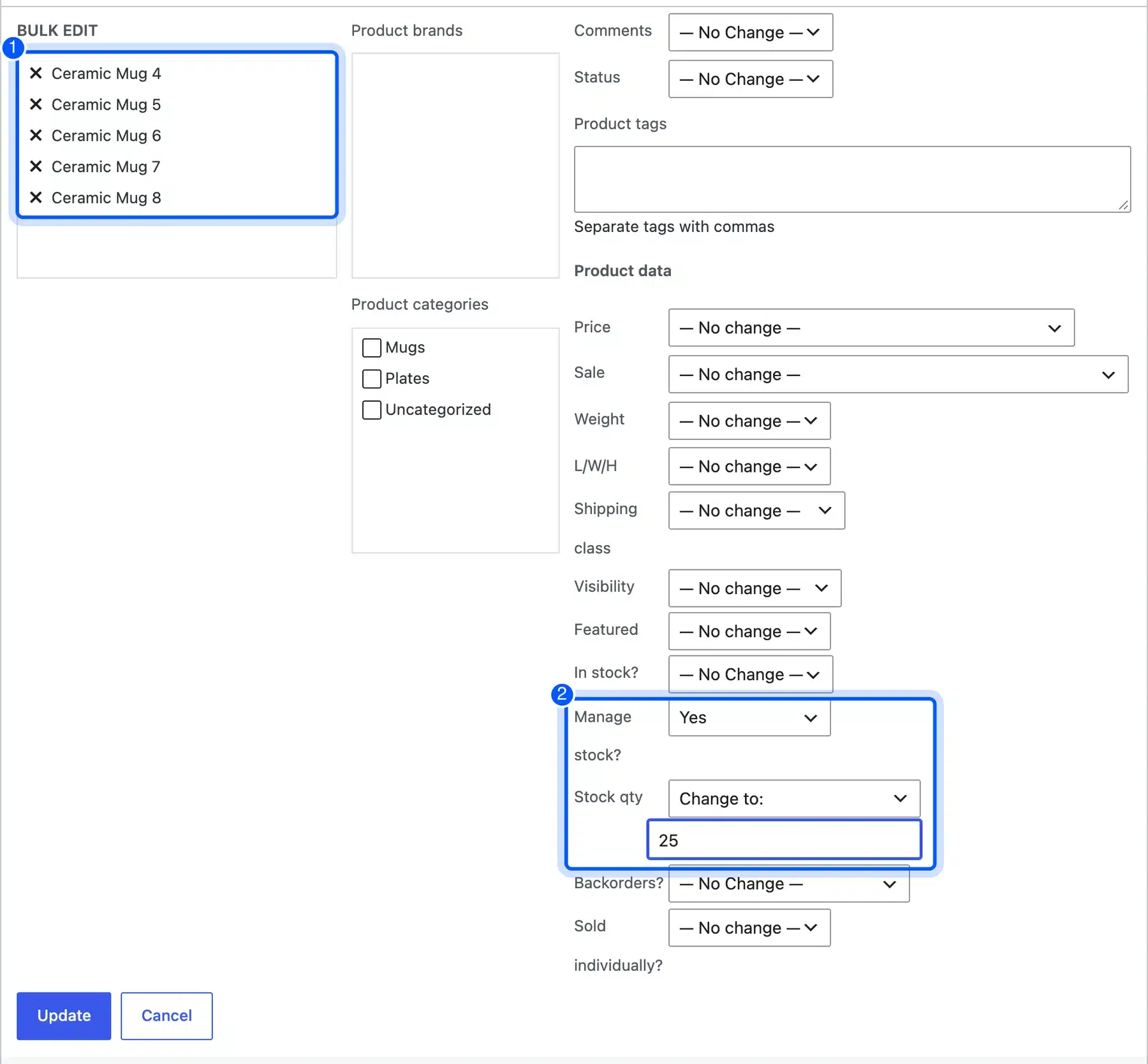
We set five untracked mugs to 25 in one update. All five turned on stock tracking and showed “In stock (25)” in the product list.
The Stock qty menu can also increase or decrease existing counts by a set amount. That helps after a delivery that adds the same quantity to many products.
WP-CLI and the REST API
WP-CLI changes stock from the server command line, one product or variation per command. The WC-CLI commands reference lists product and product variation update commands that accept stock_quantity.
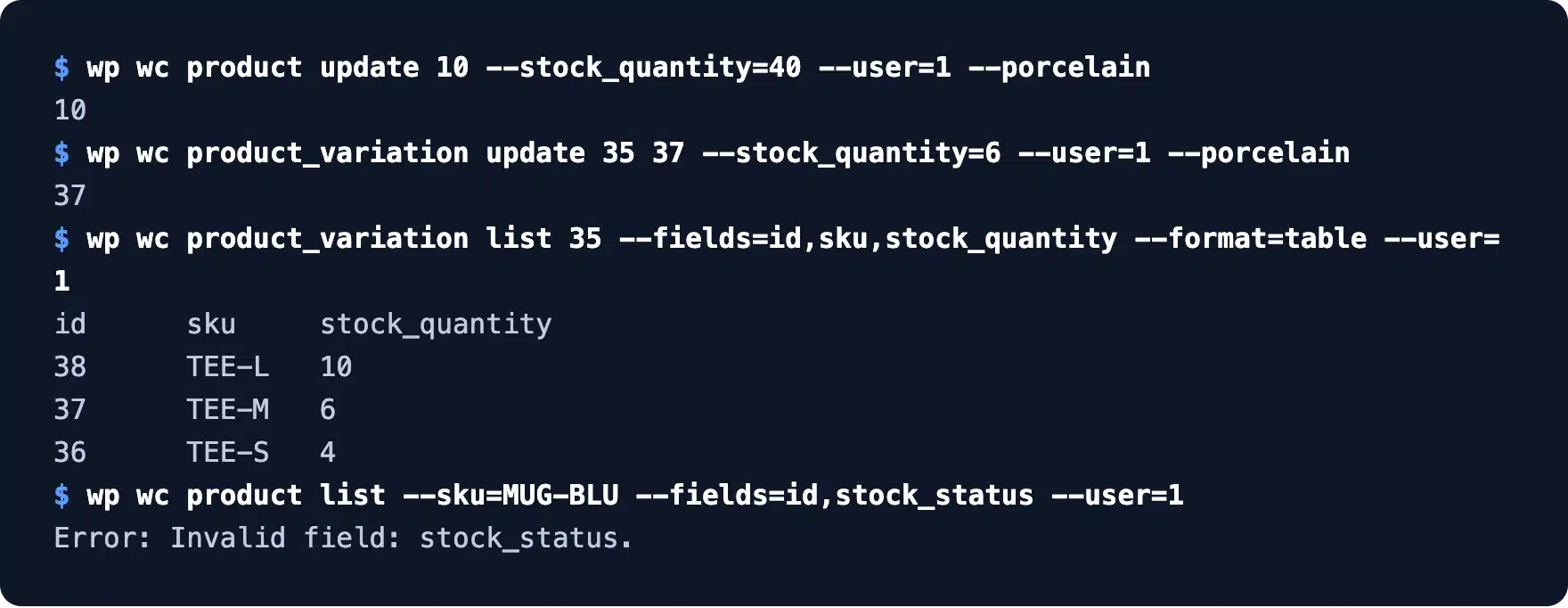
Our commands set the Blue mug to 40 and the Medium shirt to 6, and the variation list confirmed the new counts. One field tripped us up: asking WP-CLI for stock_status returned “Error: Invalid field: stock_status.”
Request stock_quantity or in_stock instead, which both worked in our test. For remote updates, the WooCommerce REST API updates a product with the same stock_quantity field over HTTPS.
Limits of the Stock Management WooCommerce Includes
The stock management WooCommerce includes covers one stock pool per product and nothing more. It has no multi-location stock, no purchase orders, no supplier records and no count history beyond order notes. Stores that sell from two warehouses or build products from parts outgrow it.
Here is what we could not do on the test store without an extra plugin:
- Multi-location stock: One quantity per product, with no way to split it between a shop and a warehouse.
- Raw materials: No way to tie a finished mug to the clay and glaze it uses.
- Stock history: Changes made in the product editor leave no log at all.
- Waitlists: A sold out product offers no way to collect buyer emails.
Size is a separate question from features. Our test of how many products WooCommerce can handle covers catalog limits and what slows a large store down.
For sold out products, a waitlist keeps the sale alive. Our roundup of the best WooCommerce waitlist plugins compares the options, and the best WooCommerce pre-order plugins cover stock that has not arrived yet.
Custom needs, like syncing counts with a warehouse system, take code. That is where WooCommerce development services fit, for a store that has outgrown one stock pool.
Common Stock Management Mistakes in WooCommerce
Most stock management mistakes in WooCommerce come from settings that look done but are not. In our test, each one below would have caused wrong counts or missed alerts on a live store. We either hit them ourselves or confirmed them by watching the counts.
Check these before you trust your numbers:
- Store switch off: Product stock fields stay hidden until Manage stock is ticked in the settings.
- Default recipient: Alerts go to the admin email unless you change Notification recipient(s).
- Refunds without restock: A refunded item stays sold unless you tick Restock refunded items.
- Old On hold orders: Bank transfer orders keep stock locked because hold minutes skip them.
- Shared SKUs: Two products on one SKU make every email and report harder to read.
- Backorders left on: A product set to Allow quietly sells into negative stock.
Important: Count your real stock once a quarter and correct the quantity field. Orders, refunds and cancels keep the numbers close, but breakage and returns outside WooCommerce never reach them.
Conclusion
WooCommerce inventory tracking handles a single store well once you turn it on at both levels. Tick Manage stock, give every product a SKU and a count, and send alerts to an inbox someone reads.
Our test showed the parts most guides skip. Refunds only restock when you tick the box, and On hold orders ignore the hold timer. Low stock appears only in emails and the Stock report, never as a status.
Set it up in the order above, then check the Stock report each week. When you need multi-location stock or a warehouse sync, that is the point to add a plugin or custom code.
Frequently Asked Questions (FAQs)
Q1. Does WooCommerce have inventory management built in?
Yes. WooCommerce includes stock counts, low and out of stock emails, backorders, a hold timer for unpaid orders and a Stock report. You turn it on under WooCommerce, Settings, Products, Inventory.
Q2. Does WooCommerce restock items when an order is refunded?
Only if you tick Restock refunded items in the refund panel. In our test the restock added 1 mug back and wrote a note on the order. Without the tick, the stock count stays the same.
Q3. How do I hide out of stock products in WooCommerce?
Tick Hide out of stock items from the catalog under the Out of stock visibility setting. It sits on the same Inventory settings screen as Manage stock. Sold out products then drop out of the shop and category pages.
Q4. Can WooCommerce track inventory across multiple locations?
Not on its own. Core WooCommerce keeps one stock number per product or variation. Tracking a shop and a warehouse separately needs a multi-location inventory plugin or a custom sync.
Q5. How do I export WooCommerce inventory?
Use the Download button on the Analytics Stock report, or export products as CSV from the Products screen. The product CSV includes Stock, In stock?, Backorders allowed? and Low stock amount columns.
Q6. Why is my WooCommerce stock showing a negative number?
A negative count means the product allows backorders and sold more than you had. Our White Ceramic Mug went from 0 to -2 after a backorder sale. Set backorders to Do not allow if you never want that.
Q7. Does WooCommerce reduce stock for pending orders?
No, a Pending payment order does not reduce the count. The checkout holds the items for your hold stock minutes instead, then frees them if payment never arrives. Stock drops once the order reaches On hold or Processing.