WooCommerce payment gateways mostly charge the same 2.9% plus 30 cents on a US card. So the real choice comes down to payout speed, country support and setup. WooPayments or Stripe suits most US card-first stores, PayPal Payments adds PayPal and Venmo buyers, and Square fits shops that also sell in person.
We installed nine free gateway plugins from WordPress.org on a test store in October 2026: WordPress 7.1.3, WooCommerce 11.2.0 and PHP 8.3. We connected no real accounts, so every screen below is what you see before signing in. The fees come from each vendor’s own US pricing page, checked the same month.
Below you get a fee table, a worked $100 order, and a close look at each gateway with its real settings screen. Then come the hosted vs onsite and PCI questions, payout times, a four step setup, and the code for a custom gateway.
WooCommerce Payment Gateways Compared at a Glance
The main WooCommerce payment gateways charge 2.89% to 3.49% plus a fixed fee on a US card, as of October 2026. WooPayments, Stripe, Square and Amazon Pay all sit at 2.9% plus 30 cents. PayPal’s own button costs more, and Authorize.net adds a $25 monthly fee on top.
Use the table to shortlist two or three, then read their sections below. Every rate is the vendor’s published US rate for a domestic card, and each one varies by country.
| Gateway | US card rate | International card | Monthly fee | Official Woo plugin |
|---|---|---|---|---|
| WooPayments | 2.9% + $0.30 | +1.5% | None for online payments | Yes |
| Stripe | 2.9% + $0.30 | +1.5% | None | Yes |
| PayPal Payments | 3.49% + $0.49 (PayPal button) | +1.5% | None | Yes |
| Square | 2.9% + $0.30 (online API) | +1.5% | None on the Free plan | Yes |
| Authorize.net | 2.9% + $0.30 | Not listed | $25 | No (free plugin by Pledged Plugins) |
| Amazon Pay | 2.9% + $0.30 | 3.9% cross-border fee | None listed | Yes |
| PayPal Enterprise Payments (Braintree) | 2.89% + $0.29 | +1% | None listed | Yes |
| Mollie | 1.80% + €0.25 (EEA consumer cards) | 3.25% + €0.25 | None for online | Yes |
| Razorpay | 2% (India) | Up to 3% | None | Yes |
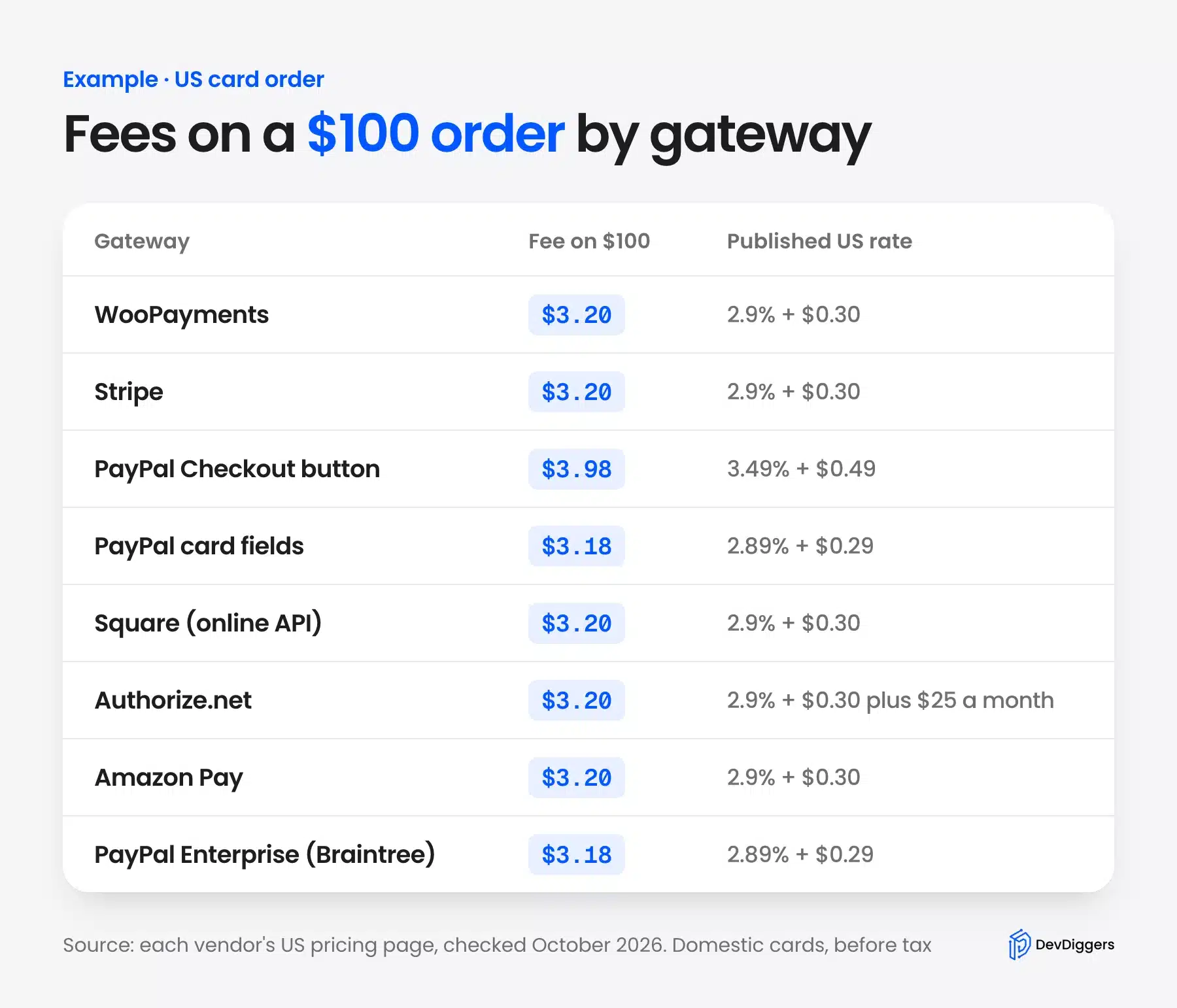
Turned into money, the gap between the cheapest and the dearest card rate is under a dollar on a typical order. The PayPal button is the outlier, at 78 cents more than WooPayments on $100.
Note: These are list rates before tax for a domestic card. Disputes, currency conversion and instant payouts cost extra, and large stores can ask Stripe, PayPal and Braintree for custom pricing.
How WooCommerce Payment Gateways Work
A WooCommerce payment gateway is a plugin that sends the shopper’s card or wallet details to a payment company. The company approves or declines the charge, and the plugin updates your order. Cards always need one, because WooCommerce ships only offline methods such as bank transfer and cash on delivery.
On our test store, every installed gateway appeared on one screen, the Payments tab of the WooCommerce settings. With our nine plugins active, that screen listed 22 separate rows. PayPal Enterprise Payments alone added ten of them, one per local method such as Venmo, ACH, iDEAL and BLIK.
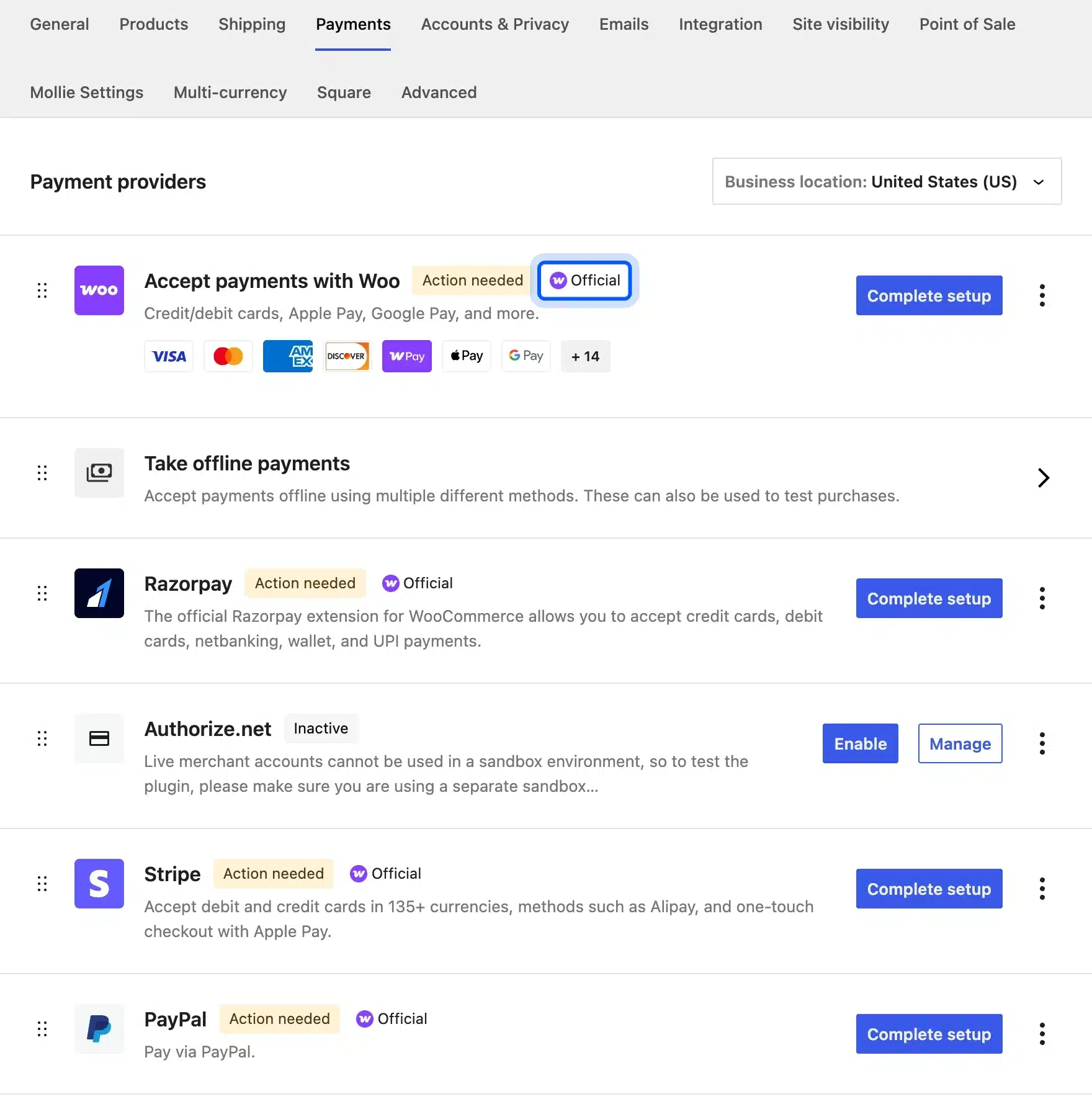
The purple Official badge marks plugins built or vetted by WooCommerce. Eight of our nine had it. The Authorize.net plugin did not, because WooCommerce’s own Authorize.net extension is a paid one and we tested the free alternative.
Each row also says Action needed until you connect an account. That status matters more than it looks. A gateway that reads enabled but never finished setup can still appear at checkout and fail on the shopper.
The 9 WooCommerce Payment Gateways in Detail
These nine WooCommerce payment gateways cover cards, PayPal buyers, in person sales and a bank’s merchant account. They also cover Amazon shoppers plus regional methods in India and Europe. Each one below was installed on our test store, and each section shows its real settings screen before any account is connected.
1. WooPayments
WooPayments is WooCommerce’s own gateway, built on Stripe and managed from your WooCommerce dashboard. It charges 2.9% plus 30 cents on a US card and adds 1.5% for international cards, as of October 2026. It suits US and European stores that want cards and wallets without a second dashboard.
Clicking Complete setup opened a four step wizard: choose payment methods, connect with WordPress.com, activate payments, then submit for verification. Apple Pay, Google Pay, WooPay, Affirm, Afterpay, Klarna and Amazon Pay were switched on by default in the first step.
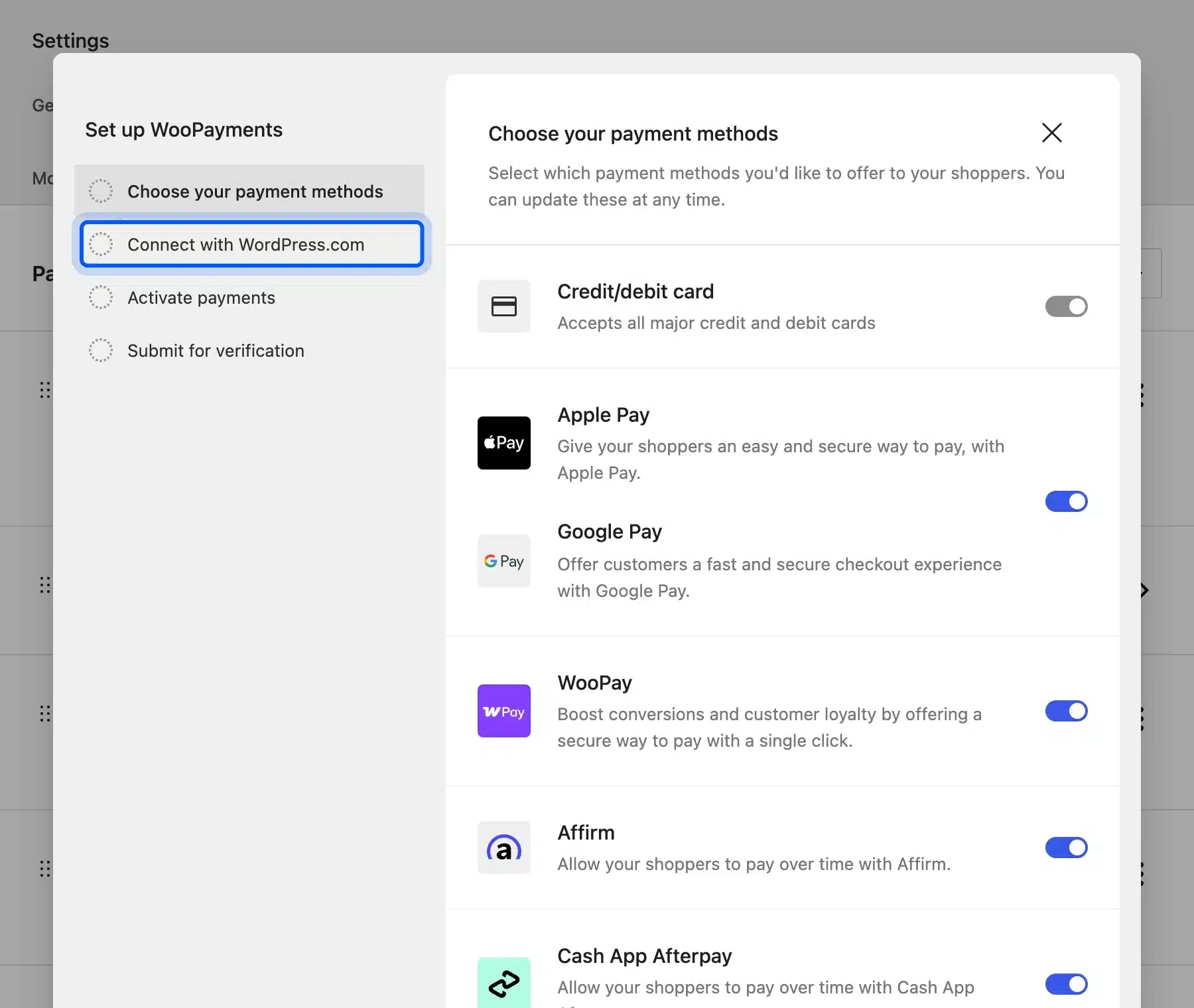
Under the hood the plugin registered 16 separate payment methods on our store, from cards to SEPA Direct Debit and WeChat Pay. You need a WordPress.com account to finish, which surprises people who expect a plain API key.
- Key features: Cards, Apple Pay, Google Pay, Klarna, Affirm and Afterpay, plus multi-currency and in-person payments on one account.
- Pricing: Free plugin. WooPayments fees are 2.9% + $0.30 per US card, +1.5% international, +1% currency conversion and $15 per dispute, refunded if you win.
- Best for: Stores in one of the 38 supported countries that want payments inside WooCommerce.
2. Stripe
Stripe’s official WooCommerce plugin connects your store to a full Stripe account, with the same 2.9% plus 30 cents US card rate as WooPayments. It accepts cards in 135+ currencies and many local methods. Pick it when you already run Stripe for other products or want Stripe’s own dashboard and reports.
Before an account exists, the Stripe settings page shows a single card: create or connect an account, or create a test account. The test account option is useful, because you can try a full checkout without real money.
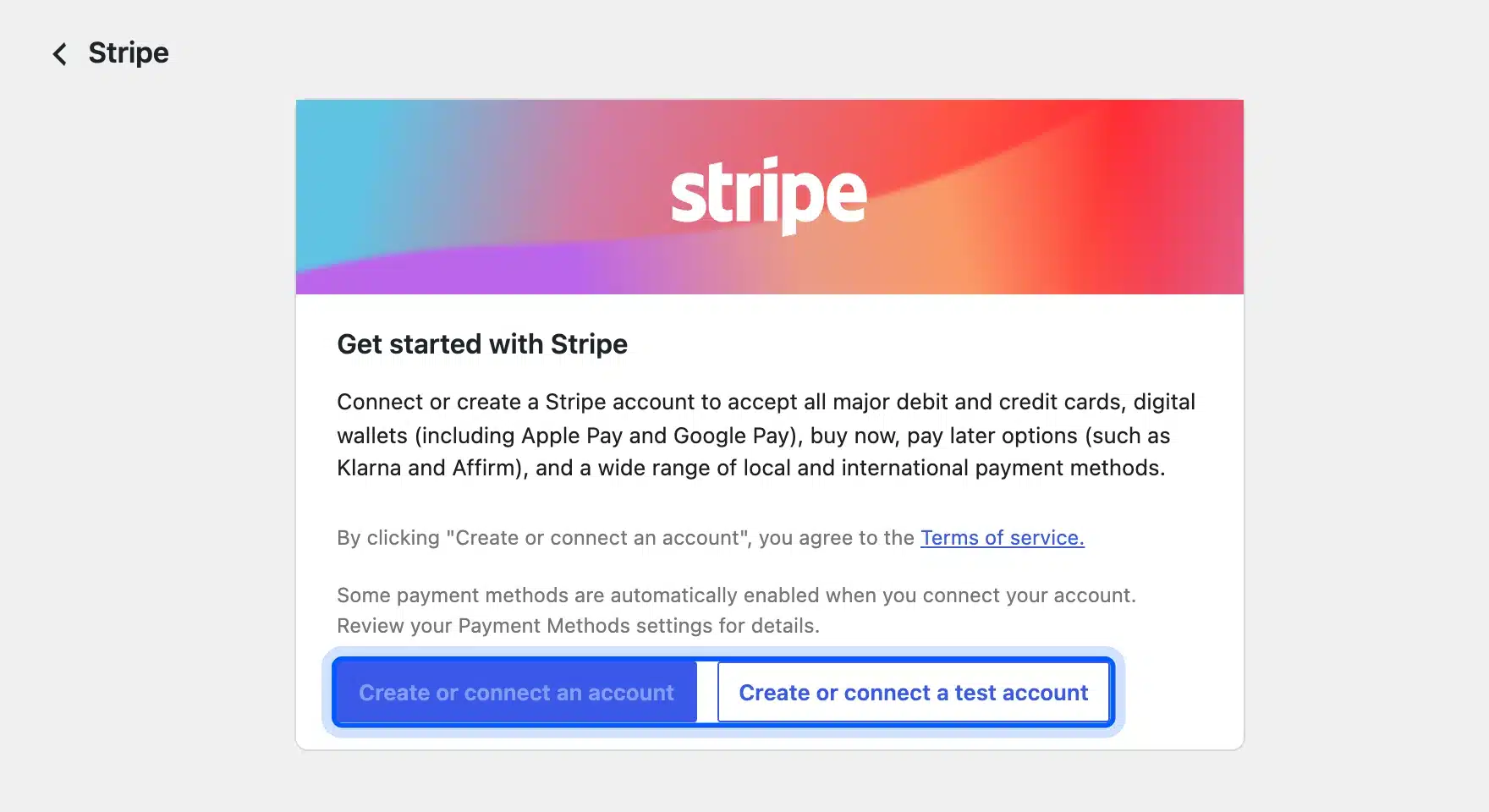
Version 11.0.1 registered 22 gateway IDs on our store, one for each method: cards, ACH, Klarna, Affirm, Cash App, iDEAL, Boleto and more. Most stay hidden until you turn them on in the Stripe dashboard.
- Key features: Cards, Apple Pay, Google Pay, Link, ACH Direct Debit and buy now pay later, with test mode and Radar fraud screening.
- Pricing: Free plugin. Stripe pricing is 2.9% + 30¢ for domestic cards, +1.5% international, +1% conversion, and ACH at 0.8% capped at $5.
- Best for: Stores that sell in many currencies or already use Stripe elsewhere.
3. PayPal Payments
PayPal Payments is the official plugin that adds PayPal, Venmo, Pay Later and card fields to WooCommerce checkout. The PayPal button costs 3.49% plus 49 cents in the US, which is the priciest card-style rate here. Its card fields cost less, at 2.89% plus 29 cents.
The welcome screen printed its own rates and the label Deposits: Instant, which no other gateway screen did. Those printed prices say they date from February 1st, 2025, yet they still matched PayPal’s live fee page in October 2026.
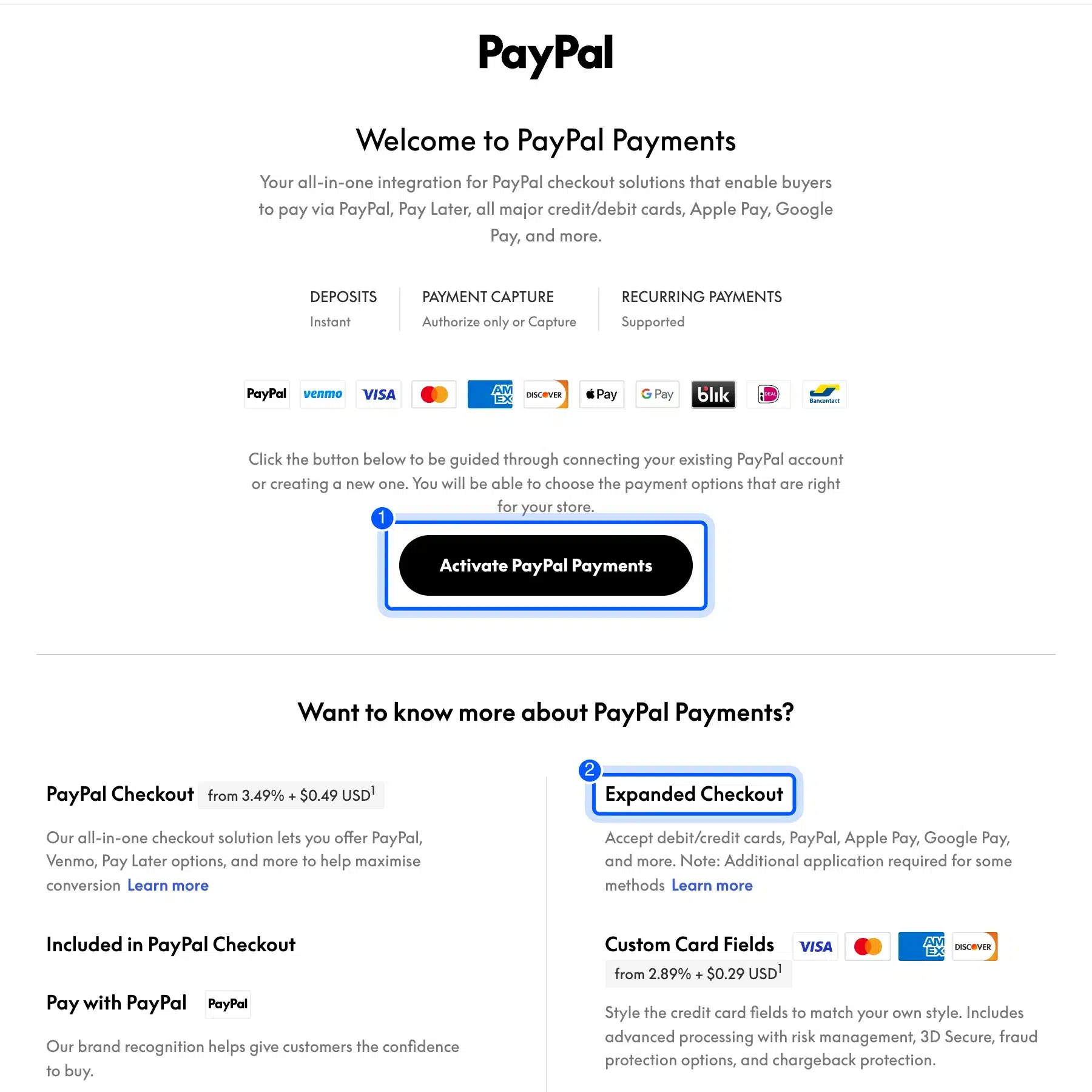
If many of your buyers carry Venmo, our guide on setting up Venmo in WordPress and WooCommerce walks through it with this same plugin.
- Key features: PayPal button, Venmo, Pay Later offers, card fields, Apple Pay and Google Pay, and Fastlane guest checkout.
- Pricing: Free plugin. PayPal’s US fees are 3.49% + $0.49 for PayPal Checkout, 2.89% + $0.29 for advanced card payments and 4.99% + $0.49 for Pay Later.
- Best for: Stores whose buyers trust PayPal, and any store that wants Venmo.
4. Square
Square’s official plugin links your WooCommerce store to a Square account, so one product catalog and one payout cover online and counter sales. Online card payments through Square’s API cost 2.9% plus 30 cents in the US. In-person taps cost 2.6% plus 15 cents on the Free plan.
The first time we opened WooCommerce settings after activating it, Square redirected us to its own onboarding wizard. That is harmless but confusing if several plugins are being set up at once.
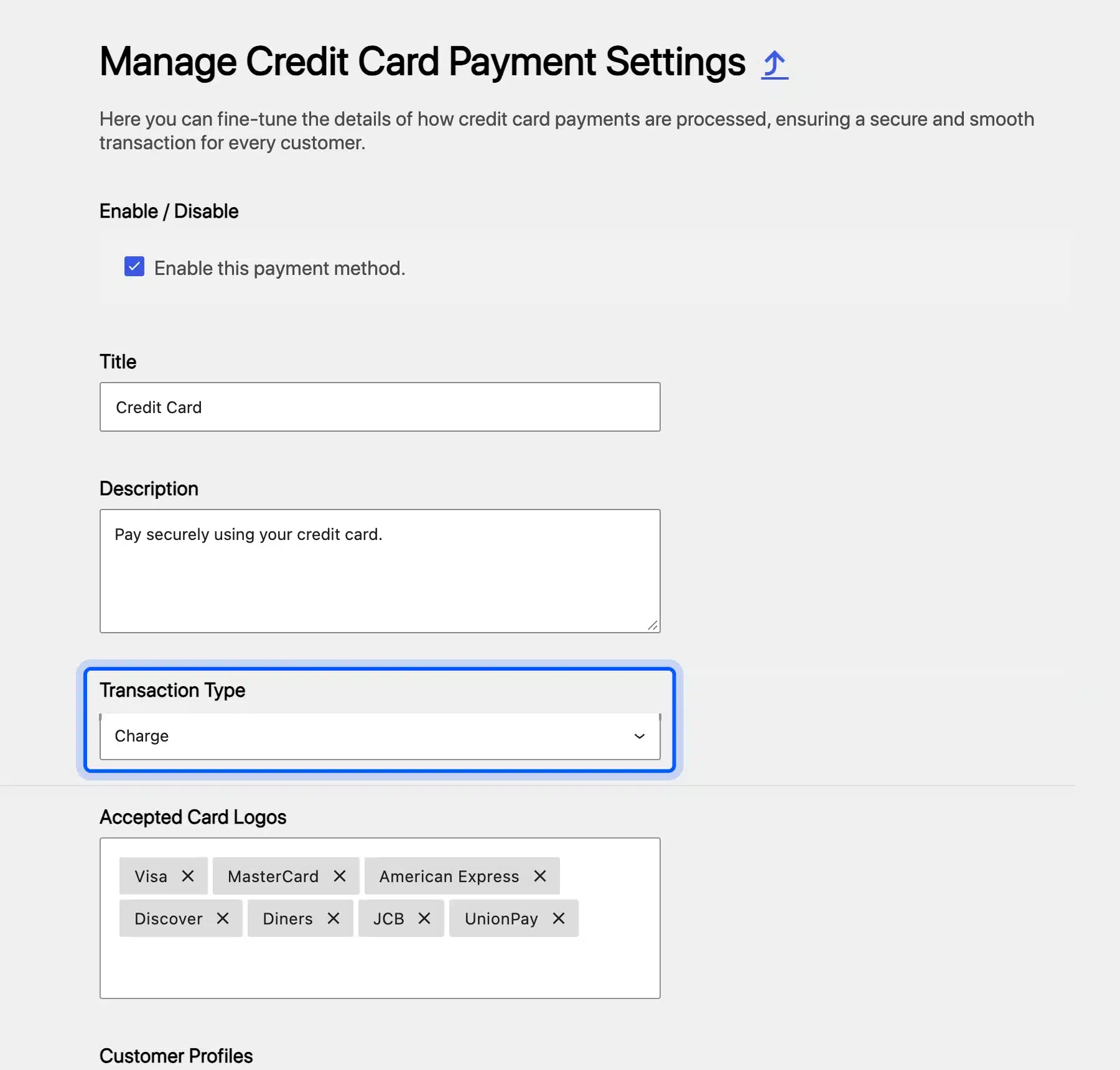
The settings page offers Charge or Authorize as the transaction type, digital wallets, and saved cards for repeat buyers. It also added two more rows to the Payments screen: Cash App Pay and Square gift cards.
- Key features: Inventory sync with Square POS, Apple Pay, Google Pay, Cash App Pay, gift cards and saved cards.
- Pricing: Free plugin. Square’s fees are 2.9% + 30¢ for the Online API, 2.6% + 15¢ in person, and +1.5% for cards issued abroad.
- Best for: Shops, cafes and market stalls that sell in person and online.
5. Authorize.net
Authorize.net is a long-running gateway that many US banks resell with their merchant accounts. Its all-in-one plan costs 2.9% plus 30 cents plus $25 a month. A gateway-only plan for stores that already hold a merchant account costs 10 cents a transaction plus the same $25.
WooCommerce’s own Authorize.net extension is paid, so we tested the free plugin by Pledged Plugins, version 6.1.28. Sandbox mode was ticked by default, which is safe, but a store must untick it before taking live orders.
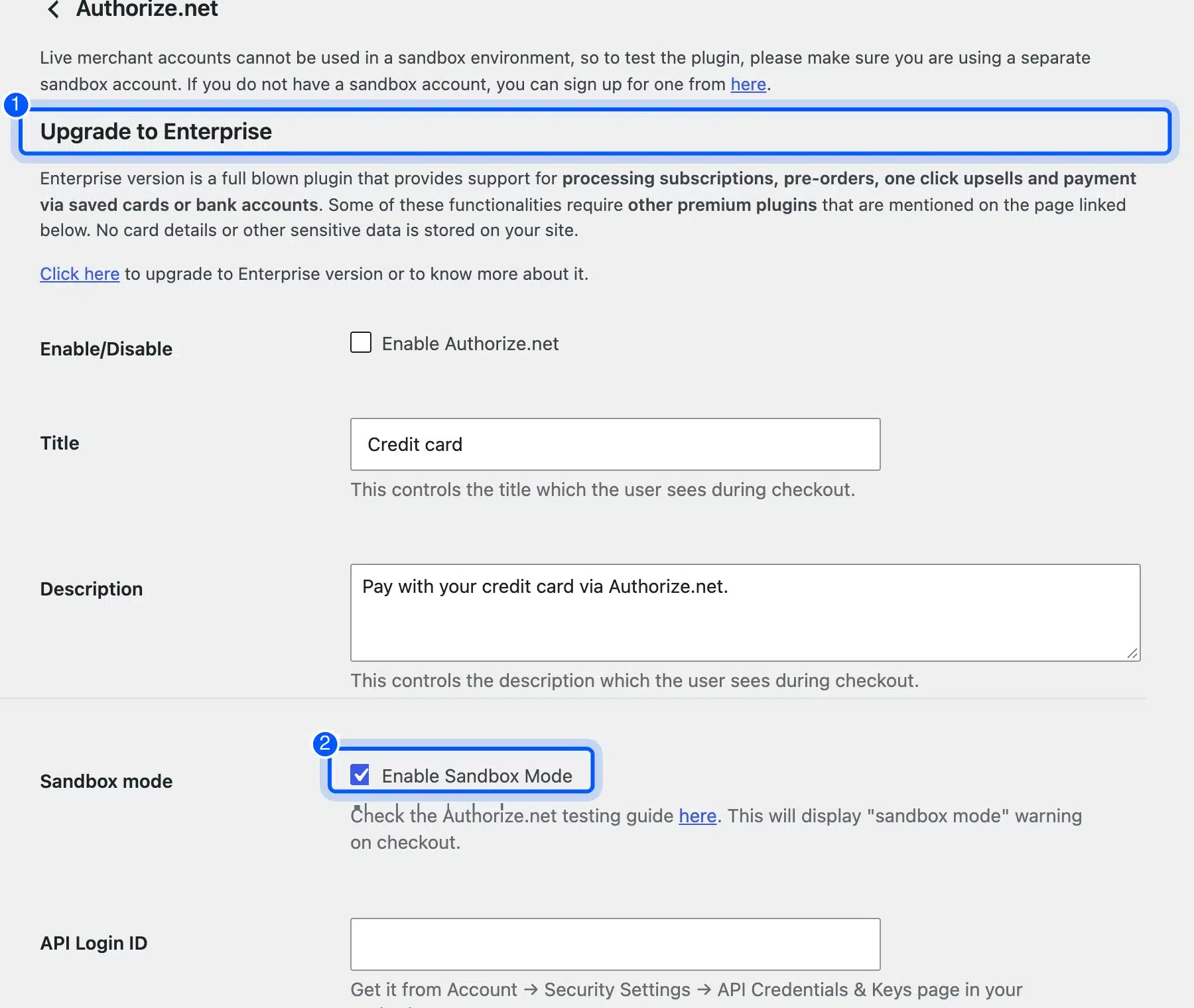
The settings page also states that subscriptions, pre-orders and saved bank payments need the plugin’s paid Enterprise version. A subscription store should read that line before choosing it.
- Key features: Credit card payments, Apple Pay and Google Pay, sandbox mode and charge or authorize capture.
- Pricing: Free plugin. Authorize.net pricing is $25 a month plus 2.9% + 30¢ (all-in-one) or 10¢ per transaction (gateway only). There is no setup fee.
- Best for: US stores whose bank already set them up with Authorize.net.
6. Amazon Pay
Amazon Pay lets shoppers check out with the address and card already saved in their Amazon account. The US fee is 2.9% plus a 30 cent authorization fee, with a 3.9% cross-border fee for payment methods issued outside the US. It works best next to a main card gateway, as an extra button.
On our test store, version 2.6.2 stopped its settings page with a critical error while its onboarding step generated an OpenSSL key pair. The plugin needs a working OpenSSL extension in PHP, so confirm your host provides it before setup.
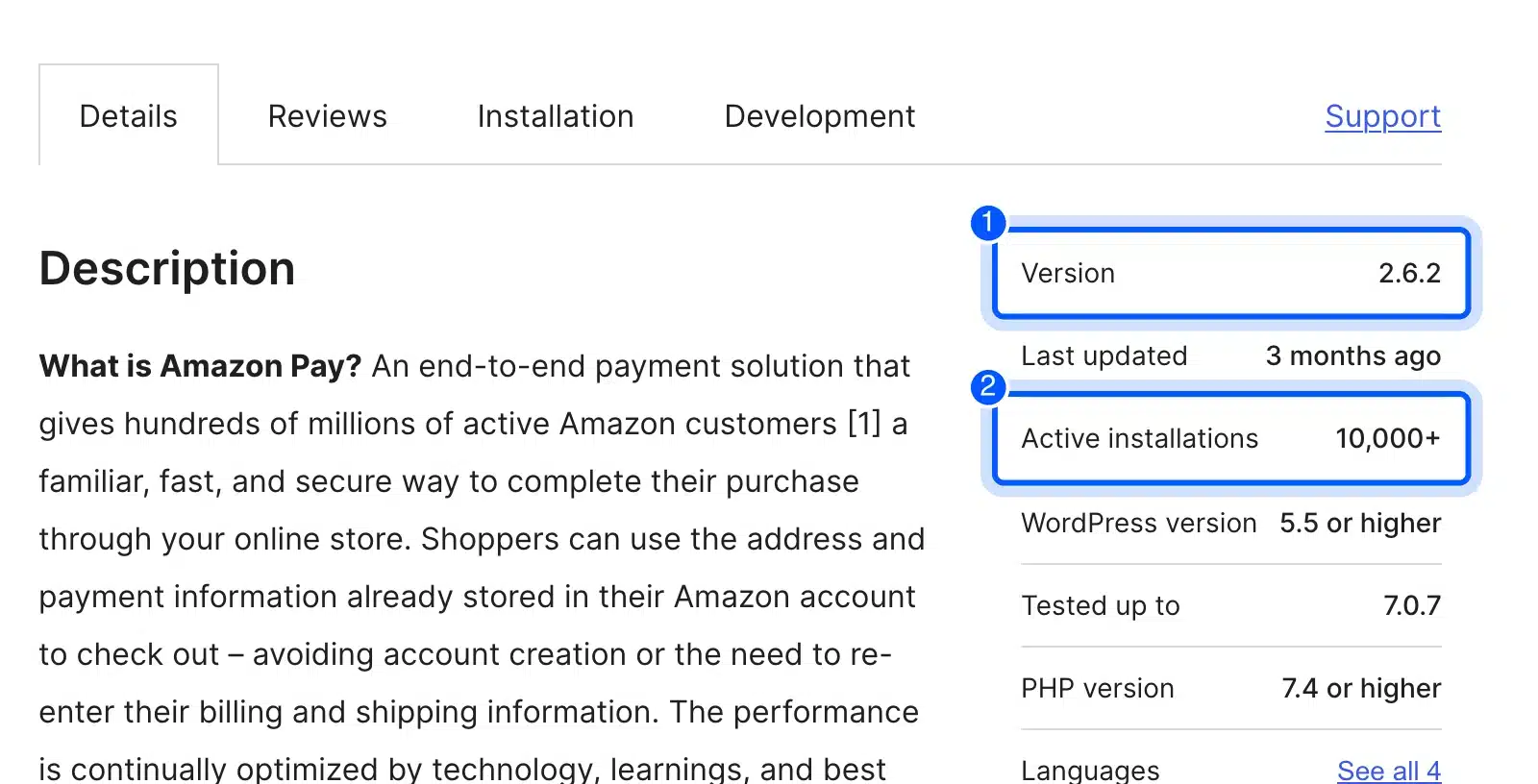
The WordPress.org listing showed version 2.6.2, 10,000+ active installations and “Tested up to 7.0.7”, one release behind the WordPress 7.1.3 we ran.
- Key features: Amazon checkout button, Amazon Pay Express on product and cart pages, and Amazon address autofill.
- Pricing: Free plugin. Amazon Pay fees are 2.9% + $0.30 per US transaction and 3.9% for cross-border payment methods.
- Best for: US stores whose buyers already shop on Amazon.
7. PayPal Enterprise Payments (Braintree)
PayPal Enterprise Payments is the new name of the official Braintree plugin, now version 3.12.1. It runs cards, PayPal, Venmo and ACH through one Braintree merchant account. Cards cost 2.89% plus 29 cents in the US, which is slightly below Stripe and WooPayments.
The settings default to the Production environment, so a test store must switch Environment to Sandbox first. The plugin also warned that its card method could not run with the PayPal credentials alone.
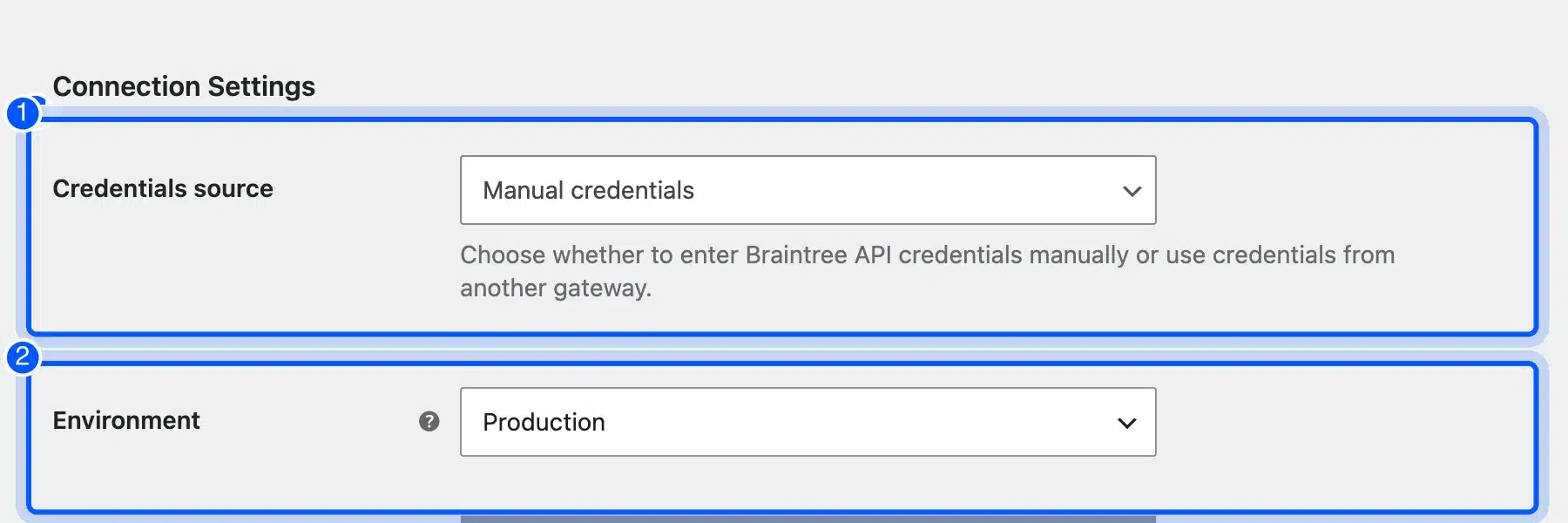
It also switched its PayPal button to enabled on activation, before any credentials existed. Turn that off until setup is done.
- Key features: Cards, PayPal, Venmo, ACH Direct Debit and European methods like iDEAL, Bancontact and BLIK, plus saved cards.
- Pricing: Free plugin. PayPal Braintree fees are 2.89% + $0.29 for cards, 3.49% + $0.49 for Venmo and 0.75% for ACH capped at $5.
- Best for: Larger US stores that want PayPal and cards on one merchant account.
8. Mollie
Mollie is a European payment company with an official WooCommerce plugin that adds iDEAL, Bancontact, cards and other local methods. European consumer cards cost 1.80% plus 25 euro cents, and iDEAL costs 32 euro cents a payment. Choose it for stores selling into the Netherlands, Belgium or Germany.
Setup works with API keys rather than an account wizard. The settings tab explains where to find them in the Mollie Dashboard and offers separate Live and Test key fields, plus a Payment Mode switch.
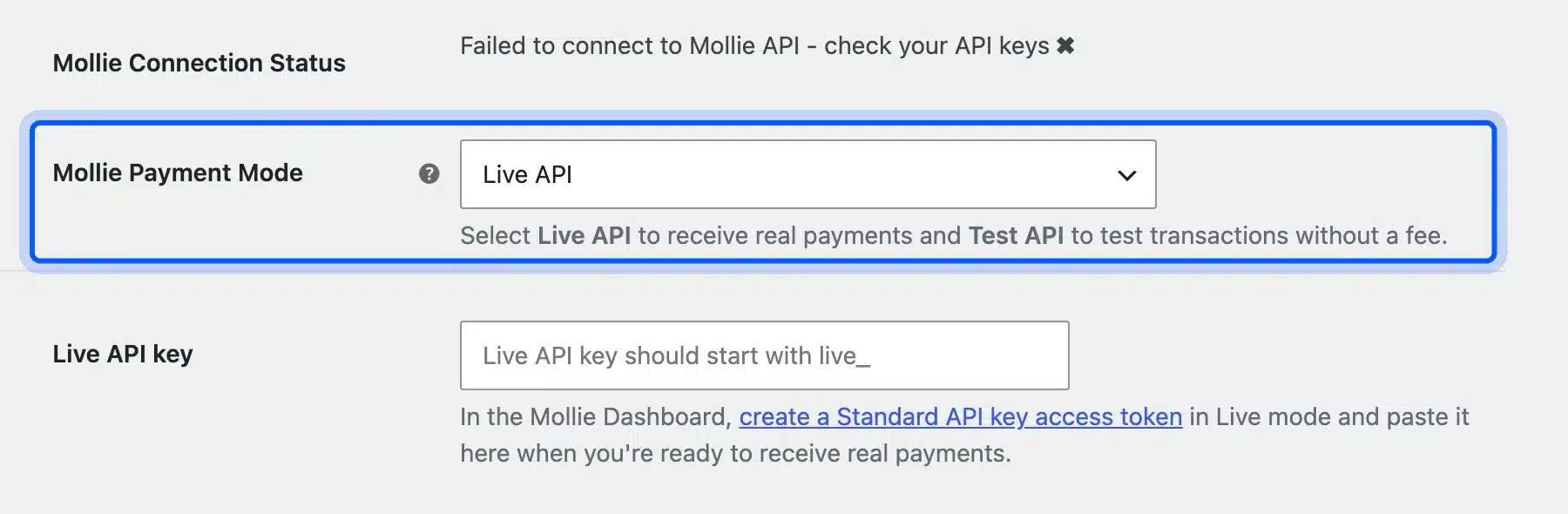
Until a key was saved, the plugin showed “Failed to connect to Mollie API” as its connection status. That is a clear signal, and it is better than a gateway that fails quietly at checkout.
- Key features: Cards, iDEAL, Bancontact, SEPA and Klarna, with payments shown in the shopper’s language.
- Pricing: Free plugin. Mollie pricing is 1.80% + €0.25 for EEA consumer cards, 3.25% + €0.25 for other cards and €0.32 for iDEAL.
- Best for: Stores selling in the Netherlands, Belgium and the rest of the EU.
9. Razorpay
Razorpay is the official choice for stores registered in India, where UPI and netbanking matter more than cards. Its standard plan charges 2% per successful domestic payment plus 18% GST on that fee. International cards cost up to 3%.
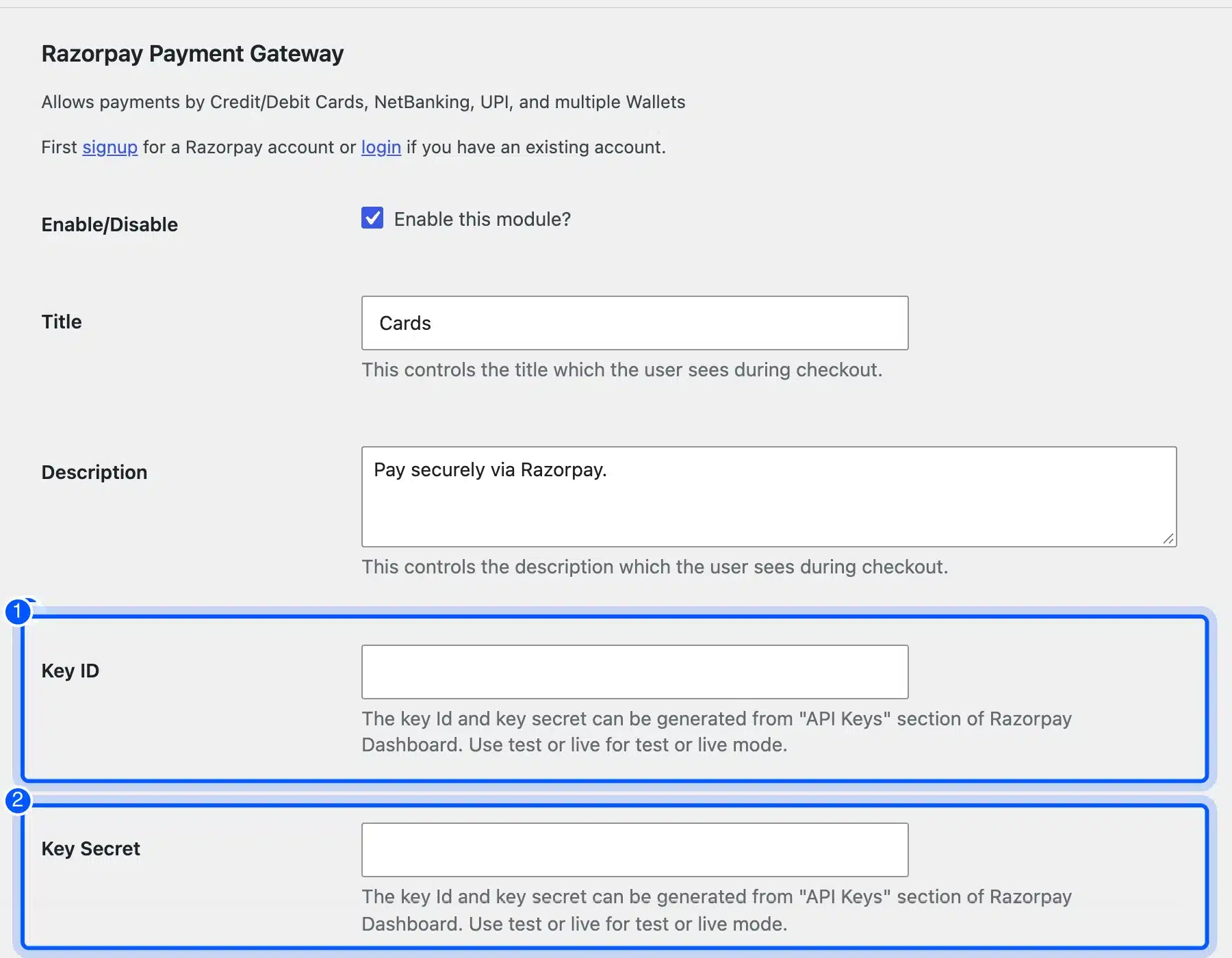
The settings ask for a Key ID and Key Secret from the Razorpay Dashboard. On our store, the plugin turned itself on and switched debug logging on by default, before either key was entered.
We kept this guide global on purpose. Our roundup of the best WooCommerce payment gateways for India compares Razorpay with the other Indian options in detail.
- Key features: UPI, cards, netbanking and wallets, with test and live keys.
- Pricing: Free plugin. Razorpay pricing is 2% per domestic transaction plus GST, up to 3% for international cards, and no setup fee.
- Best for: Stores registered in India.
Hosted vs Onsite Payment Gateways
A hosted gateway sends the shopper to the payment company’s page or window to pay. An onsite gateway shows the card fields inside your own checkout instead. Both are safe when built right, but they differ in branding and in how much security work stays with you.
The PayPal button is the classic hosted flow: the shopper approves the payment in a PayPal window. Stripe, WooPayments, Square and Braintree draw their card fields in an iframe served by the provider. The page looks like yours, yet the raw card number never touches your server.
That iframe model is why most official plugins feel onsite yet keep you out of the heaviest card security rules. A fully direct integration, where card numbers pass through your server, is rare today and needs far more security work.
Which should you pick? Choose the iframe style for a smooth branded checkout, and add a hosted PayPal or Amazon Pay button for buyers who prefer those accounts. If you also want fewer checkout steps, see how to set up one-click checkout in WooCommerce.
PCI Compliance for WooCommerce Payments
PCI compliance is the card industry’s security standard, and it applies to every store that takes cards, even through a gateway plugin. Hosted and iframe gateways shrink your share of the work a lot. They do not remove it, so you still answer your processor’s questionnaire once a year.
WooCommerce’s own PCI guide says that with off-site or hosted-field gateways, “your site is not directly handling raw cardholder data.” It adds that PCI-DSS still applies, “though your compliance scope may be significantly reduced.”
The same page notes that official gateways keep only partial data when they save cards as tokens, such as the last four digits. So a saved card in WooCommerce is a token, never the full number.
The practical work left on your side is plain. Keep WordPress, WooCommerce and every plugin updated, run HTTPS everywhere, use strong admin passwords and limit who can log in. Our guide on whether WooCommerce is PCI compliant covers the questionnaire step by step.
Worth knowing: A gateway also changes your fraud exposure. Stripe includes Radar screening, and our post on how to prevent eCommerce fraud lists the store-side checks that help with any gateway.
Transaction Fees on a Real Order
On a $100 US card order, most WooCommerce payment gateways keep about $3.20 in transaction fees. PayPal’s card fields and Braintree keep $3.18, and the PayPal button keeps $3.98. The real differences show up on international cards, currency conversion and monthly fees rather than on the base rate.
Here is the same $100 order worked out once, so you can check the arithmetic:
- WooPayments, Stripe, Square and Amazon Pay: 2.9% of $100 is $2.90, plus $0.30, so $3.20.
- PayPal card fields and Braintree: 2.89% of $100 is $2.89, plus $0.29, so $3.18.
- PayPal Checkout button: 3.49% of $100 is $3.49, plus $0.49, so $3.98.
- Authorize.net all-in-one: $3.20 per order, plus $25 a month, which is $0.25 an order at 100 orders a month.
Now say the same order comes from a card issued in Canada. WooPayments, Stripe and Square add 1.5%, so the fee rises to $4.70. Braintree adds 1%, so its fee becomes $4.18.
Currency conversion stacks on top of that. Showing a price in euros to a US-based Stripe account adds another 1%, which pushes a $100 international order to $5.70.
Monthly volume changes the picture too. At 20 orders a month, Authorize.net’s $25 fee works out to $1.25 an order, which makes it the dearest option for a small store. At 1,000 orders, the same fee drops to 2.5 cents an order.
Tip: Count your real mix before switching. If 30% of your orders come from abroad, compare the international surcharge first, since that is where these gateways differ most.
Payout Time and Cash Flow
Payout time is how long a gateway holds your money before it reaches your bank. WooPayments pays US stores after a 2 business day pending period, and Stripe lists the same 2 day settlement for the US. Both hold the first payout longer, so plan cash flow for your first week.
WooPayments’ deposit schedule says the first payout for new accounts is sent after a 7 day waiting period. That wait starts at your first successful payment and cannot be waived. After it, daily payouts are the default for almost all accounts.
Stripe’s payouts guide says the first payout usually completes within 7 to 14 days, depending on your industry, country and risk level. Later payouts follow your chosen schedule.
PayPal works differently: money lands in your PayPal balance right away, which its plugin screen labels as instant deposits. Moving it to a bank is a separate step. Both Stripe and WooPayments also sell instant payouts for 1.5% of the amount.
How to Integrate a Payment Gateway in WooCommerce
Integrating a payment gateway in WooCommerce takes four steps and about 20 minutes per gateway, plus however long the provider takes to verify your business. Install the gateway plugin, connect your account, run a test payment in sandbox mode, then switch to live and place one real order.
The same steps apply to every gateway above. Only the account screens differ.
Step 1: Install the Gateway Plugin
Go to Plugins, then Add Plugin, and search for the gateway by name. Install the one published by the provider or by WooCommerce, then click Activate.
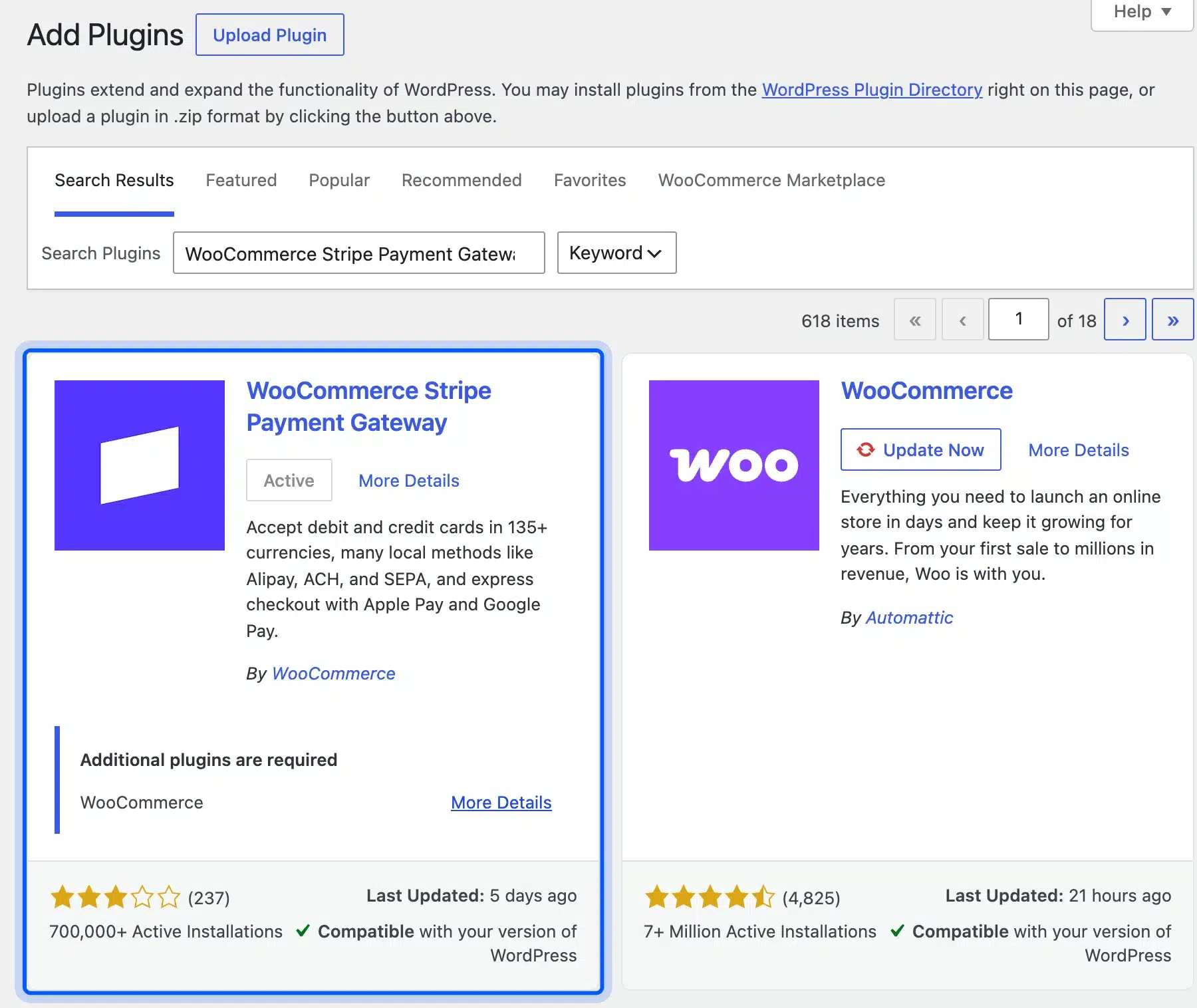
Check the author line before you install. Several gateways have look-alike plugins by third parties, and only some of them carry WooCommerce’s Official badge on the Payments screen.
Step 2: Connect Your Account or API Keys
Open WooCommerce, then Settings, then Payments, and click Complete setup on the new gateway. WooPayments, Stripe, PayPal and Square start a sign-in wizard, while Authorize.net, Razorpay and Mollie ask you to paste API keys.
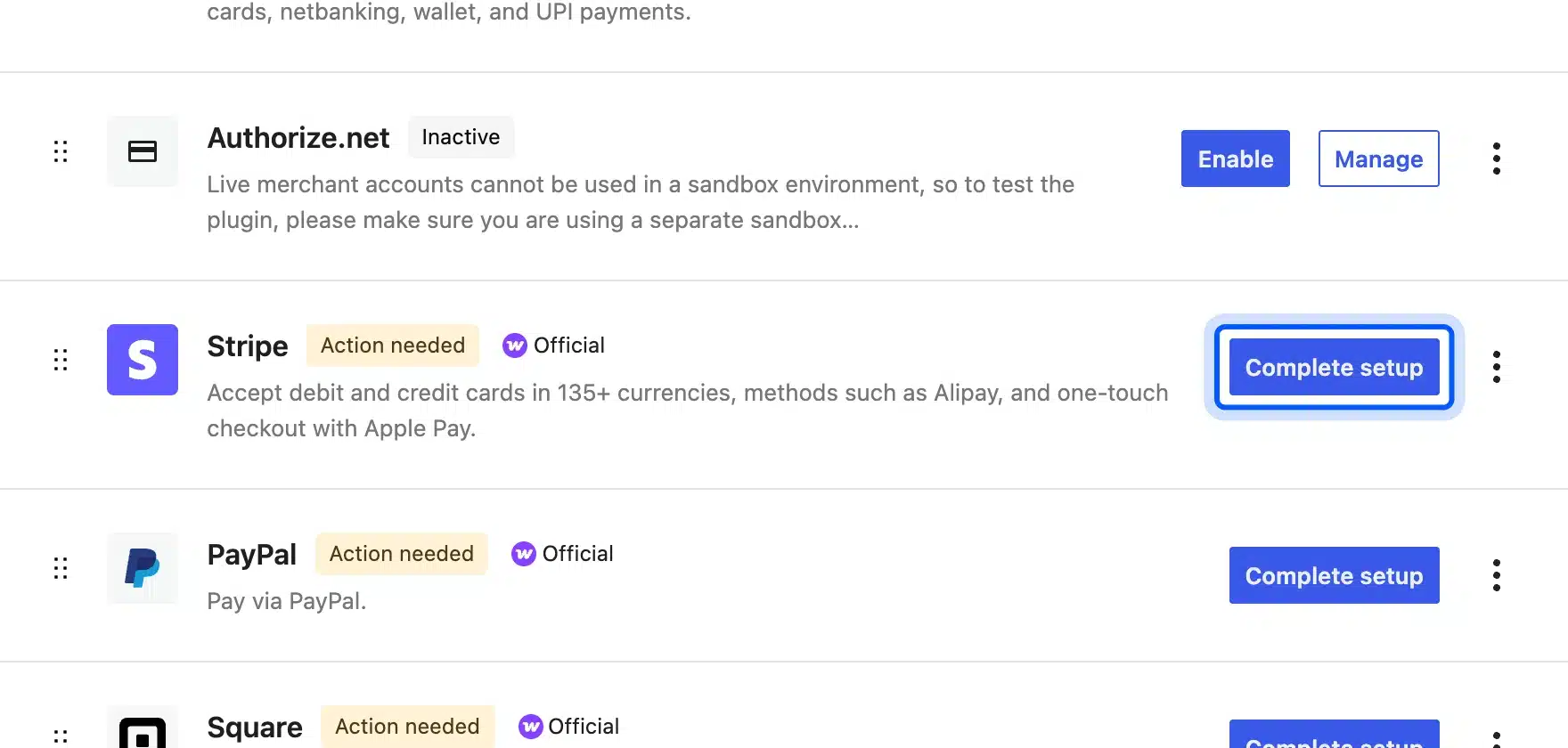
Paste test keys first if the gateway offers them. Live and test keys look alike, so name each one in your password manager.
Step 3: Turn On Test or Sandbox Mode
Every gateway in this guide has a test mode, but the switch sits in a different place for each. Square asks you to pick Sandbox under Environment Selection before you connect.
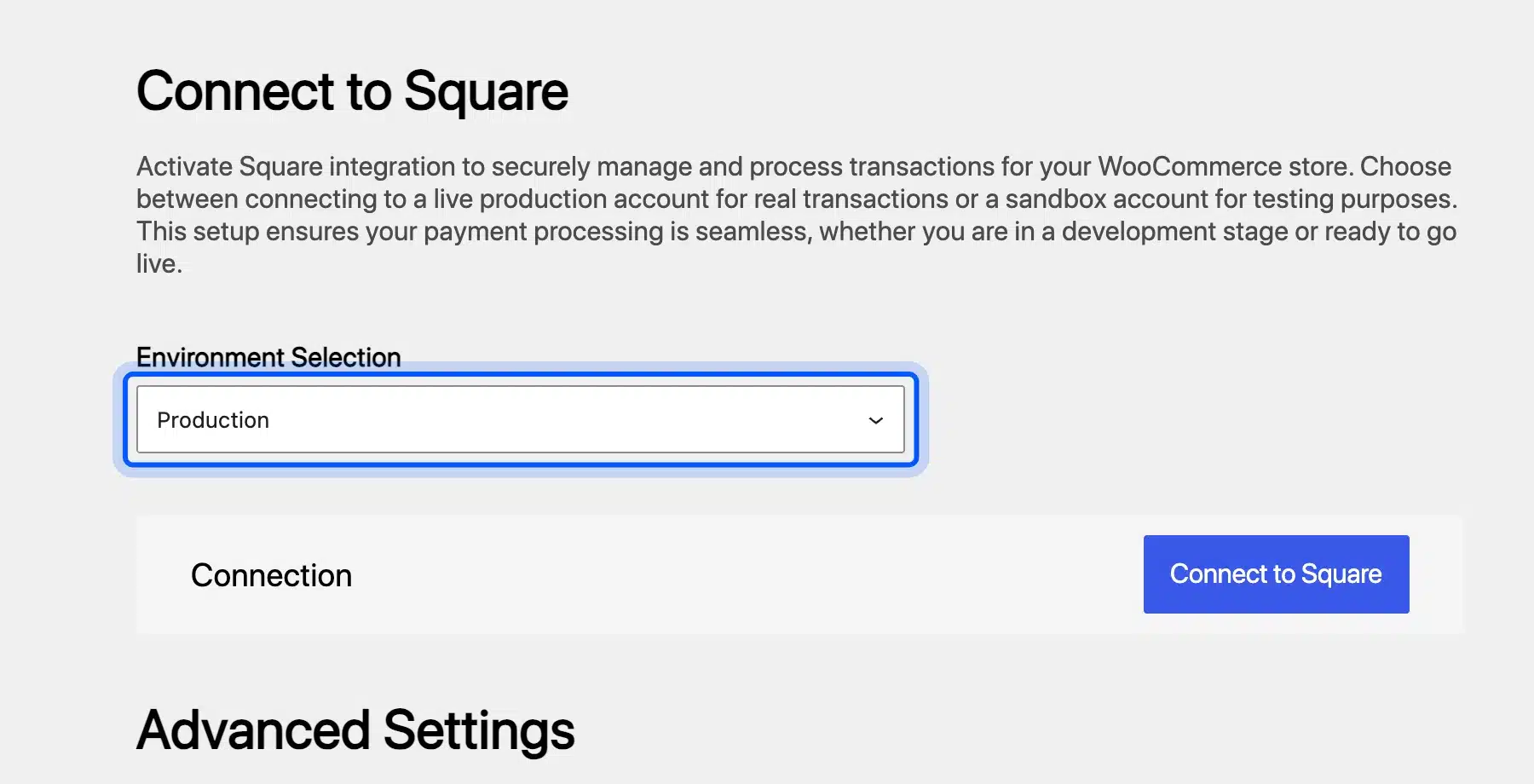
Braintree defaults to Production and Authorize.net defaults to sandbox, so read the setting rather than assuming. Stripe and WooPayments offer a separate test account during setup.
Step 4: Run a Test Order at Checkout
Add a product to the cart, open the checkout page and confirm the new method shows under Payment options. Pay with the provider’s test card, then check that the order reaches Processing in WooCommerce.
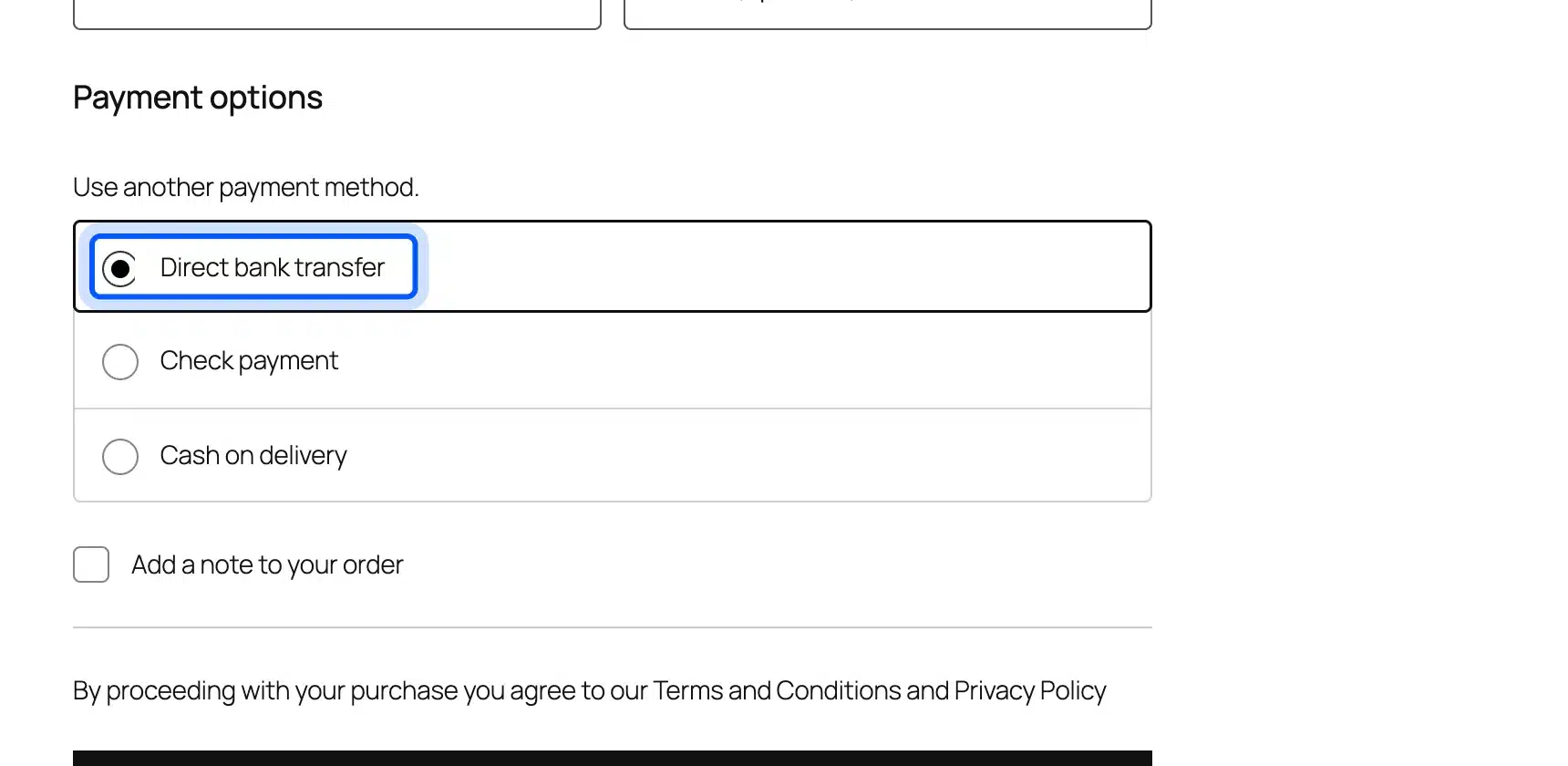
Then refund the test order from the order screen, to confirm refunds reach the gateway too. Switch to live mode only after both work, and place one small real order to finish the WooCommerce payment integration.
How to Add a Custom Payment Gateway in WooCommerce
A custom payment gateway in WooCommerce is a small plugin that extends the WC_Payment_Gateway class and registers it with the woocommerce_payment_gateways filter. WooCommerce’s developer docs give the full pattern. Classic checkout picks it up at once, but the block checkout needs extra JavaScript before the method appears.
This is the core of the pattern from the Payment Gateway API docs, which we installed as a test plugin:
add_action( 'plugins_loaded', 'init_your_gateway_class' );

function init_your_gateway_class() {
    class WC_Gateway_Your_Gateway extends WC_Payment_Gateway {
        public function __construct() {
            $this->id                 = 'your_gateway';
            $this->method_title       = __( 'Your Gateway', 'your-text-domain' );
            $this->method_description = __( 'Accept card payments with Your Gateway.', 'your-text-domain' );
            $this->has_fields         = true;
        }
    }
}

function add_your_gateway_class( $methods ) {
    $methods[] = 'WC_Gateway_Your_Gateway';
    return $methods;
}
add_filter( 'woocommerce_payment_gateways', 'add_your_gateway_class' );
Your class then needs a process_payment() method that talks to the provider and returns a result of success plus a redirect to the thank you page.
We enabled the test gateway and checked both checkout types on WooCommerce 11.2.0. It appeared on a classic shortcode checkout page right away.
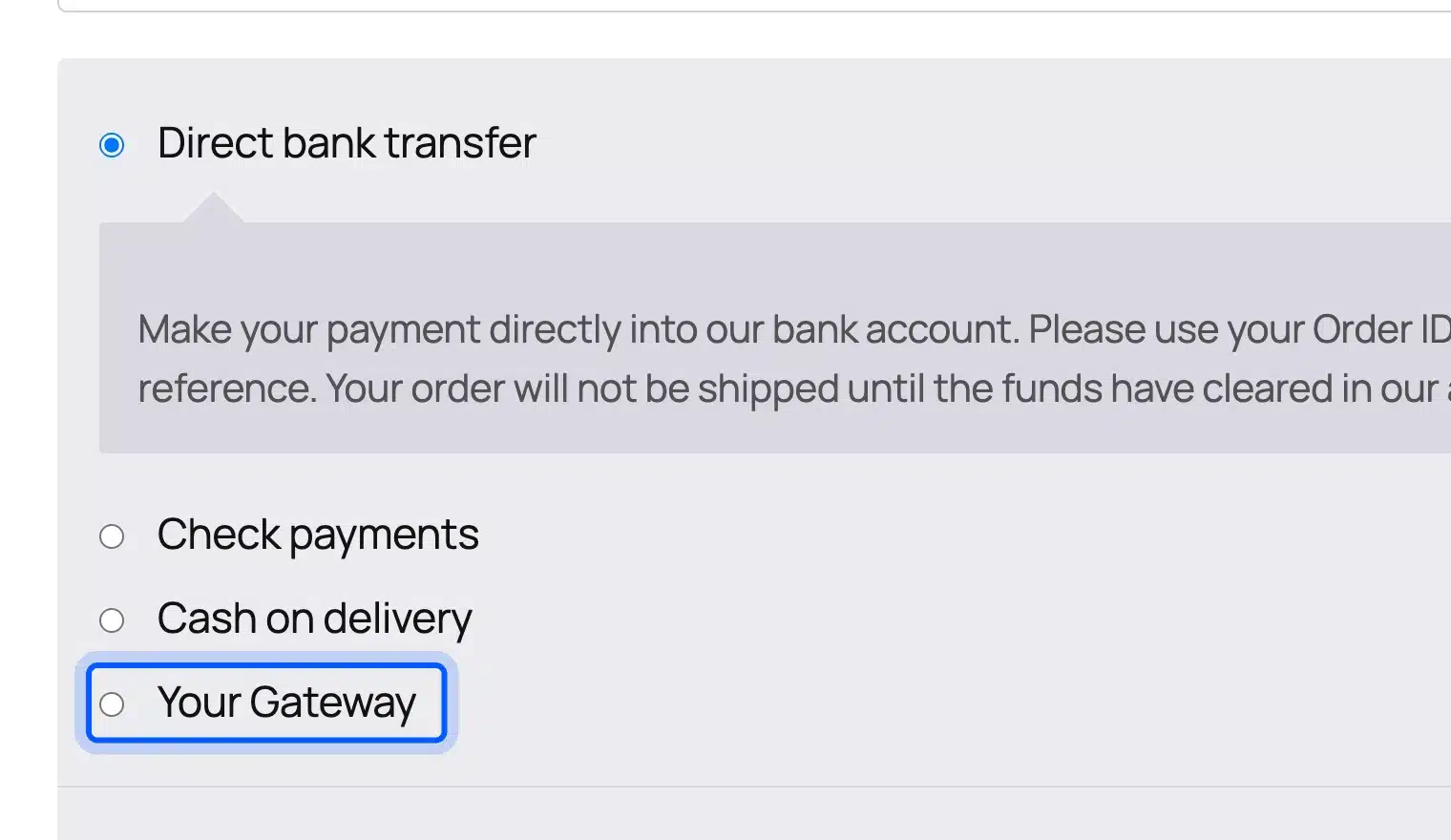
On the default block checkout, the same enabled gateway was missing. Only bank transfer, check and cash on delivery showed. The block checkout needs a payment method integration written in JavaScript before a custom method appears there.
That gap is where most custom gateway projects stall, along with refunds, webhooks and saved cards. If you need a provider no plugin supports, our WooCommerce development services team builds and tests custom gateways for both checkout types.
How to Choose the Right Payment Gateway for WooCommerce
The right payment gateway for WooCommerce depends on where your store is registered, where your buyers live and how you sell. Start with the card payment gateway WooCommerce supports best in your country, then add PayPal or a regional method when buyers ask. Two gateways cover most stores well.
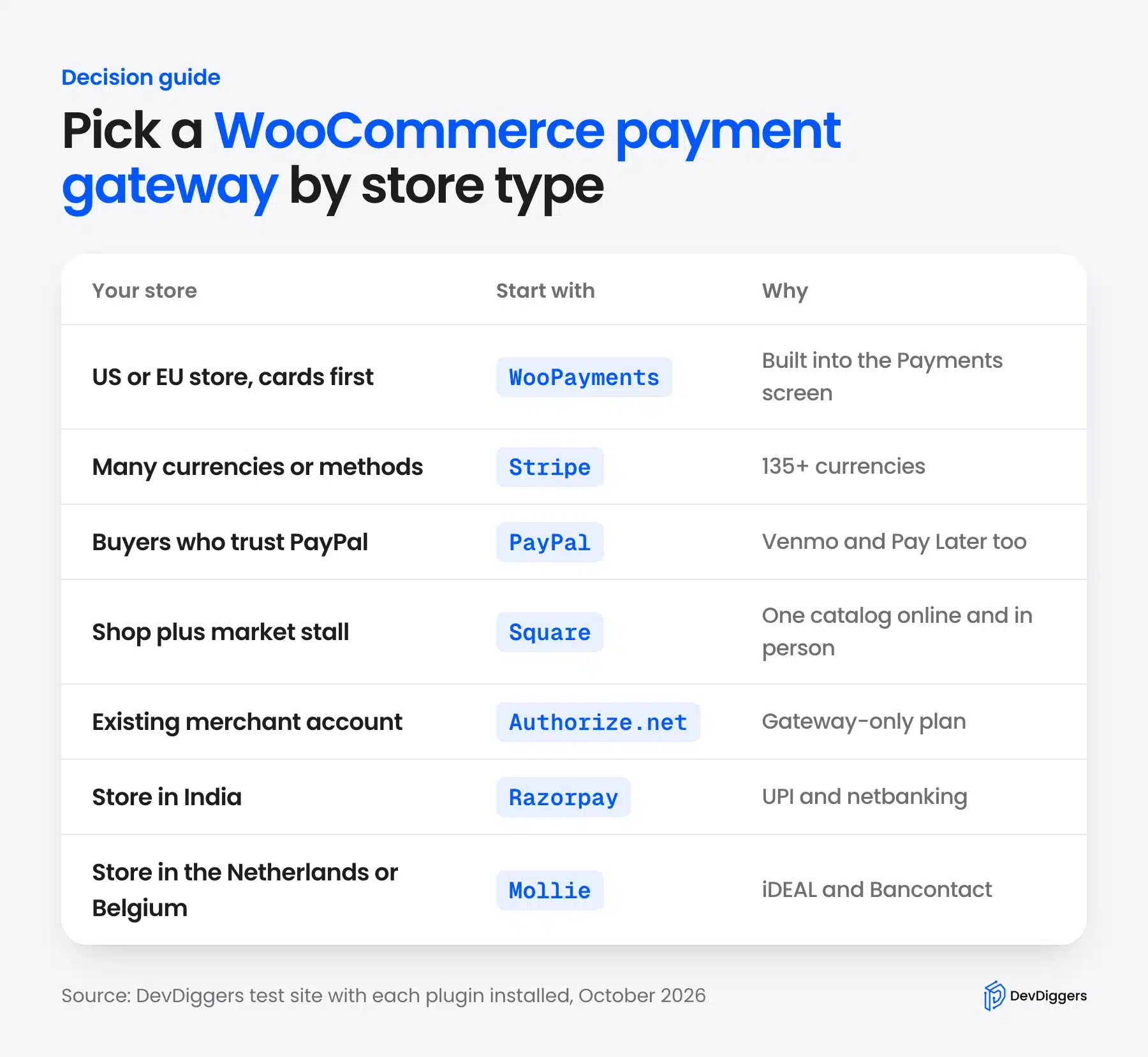
Run through these checks before you commit:
- Country support: Confirm the gateway accepts businesses registered in your country, since WooPayments covers 38 and Square far fewer.
- Payment methods: List what your buyers use, such as Venmo, UPI, iDEAL or buy now pay later.
- International share: Compare the surcharge on foreign cards if many orders come from abroad.
- Subscriptions: Check that the gateway supports saved cards and renewals, as Authorize.net’s free plugin does not.
- Payout speed: Note the first payout hold if cash flow is tight in your first month.
Buy now pay later is also a gateway question. WooPayments, Stripe and PayPal offer Klarna, Affirm or Pay Later, and our list of WooCommerce buy now pay later plugins covers store-run installment options too.
Adding too many gateways has a cost of its own. Each one adds scripts to the checkout and another setup to keep current, so remove any method nobody uses after a few months.
Conclusion
WooCommerce payment gateways cost close to the same on a US card, so fees alone rarely decide it. Pick by country, buyer habits and how you sell, then compare the international surcharge and the first payout hold.
For most US stores, WooPayments or Stripe plus PayPal Payments covers cards, wallets and PayPal buyers. Square suits stores with a counter, Authorize.net suits stores with a bank merchant account, and Mollie or Razorpay cover Europe and India.
Whatever you choose, test in sandbox mode, place one real order, and turn off any gateway that switched itself on before setup.
Frequently Asked Questions (FAQs)
Q1. Does WooCommerce have its own payment gateway?
Yes. WooPayments is WooCommerce’s own gateway, built on Stripe and managed from the WooCommerce dashboard. It is a free plugin, and it charges 2.9% plus 30 cents per US card payment as of October 2026.
Q2. Which payment gateway is best for WooCommerce?
For most US stores, WooPayments or Stripe is the best first gateway, since both charge 2.9% plus 30 cents and support cards and wallets. Add PayPal Payments if your buyers use PayPal or Venmo, and pick a regional gateway in India or Europe.
Q3. Can I use more than one payment gateway in WooCommerce?
Yes. WooCommerce shows every enabled gateway as an option at checkout, and you can drag them into order on the Payments screen. Most stores do well with one card gateway plus PayPal, and adding more payment gateways for WooCommerce rarely lifts sales.
Q4. Is WooPayments better than Stripe?
They charge the same US card rate, and WooPayments runs on Stripe. WooPayments keeps everything inside your WooCommerce dashboard, while the Stripe plugin suits stores that already use a Stripe account for other products.
Q5. Which WooCommerce payment gateway has the lowest fees?
On a US card, PayPal’s advanced card fields and PayPal Enterprise Payments (Braintree) are lowest at 2.89% plus 29 cents, as of October 2026. That saves 2 cents on a $100 order compared with 2.9% plus 30 cents, so other costs matter more.
Q6. Do I need an SSL certificate to accept payments in WooCommerce?
Yes. Card gateways need HTTPS on the checkout, and Amazon Pay warned on our test store that it needs a valid SSL certificate to work. Most hosts include a free certificate.
Q7. Can I accept payments in WooCommerce without a gateway?
Yes, but only offline. WooCommerce includes direct bank transfer, check payments and cash on delivery, which take no fees and need no account. You confirm each payment by hand before shipping.